BLENDER
Blender, one step at a time.
Only the Blender guides are collected here. Read the beginner course from chapter 1, and pick the rest by group.
STEP BY STEP · 14 CHAPTERS
Blender for complete beginners 14 chapters
For people who have never opened a 3D program. Follow it in order from chapter 1, from installing Blender to finishing a first piece. Every picture is a real screen.
All 14 chapters · about 270 min to read
Start with chapter 1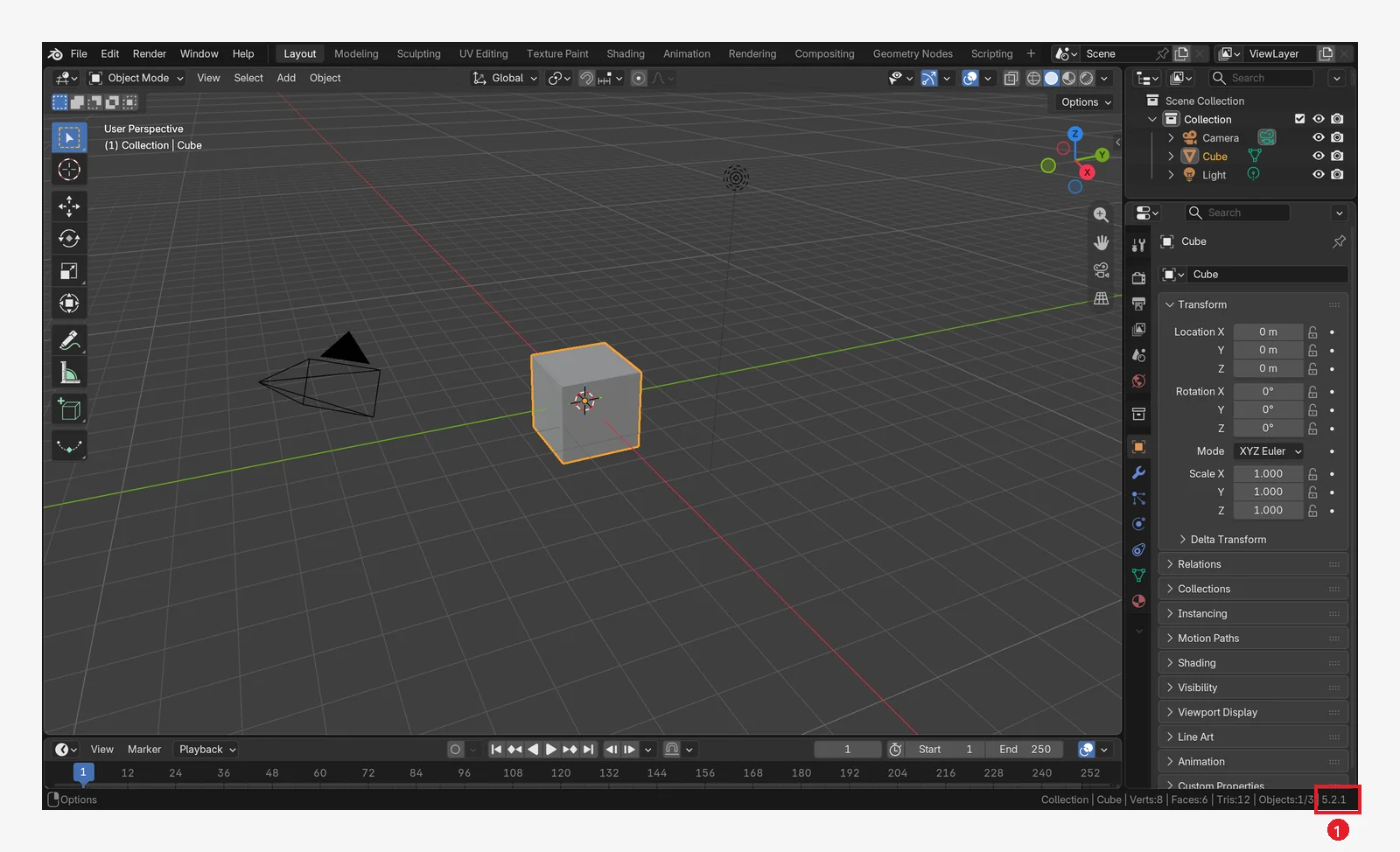 from checking your PC to downloading and installingA Blender install guide for complete beginners. Check the requirements on the official site, pick the right file, install it, and open Blender for the first time to check the version.
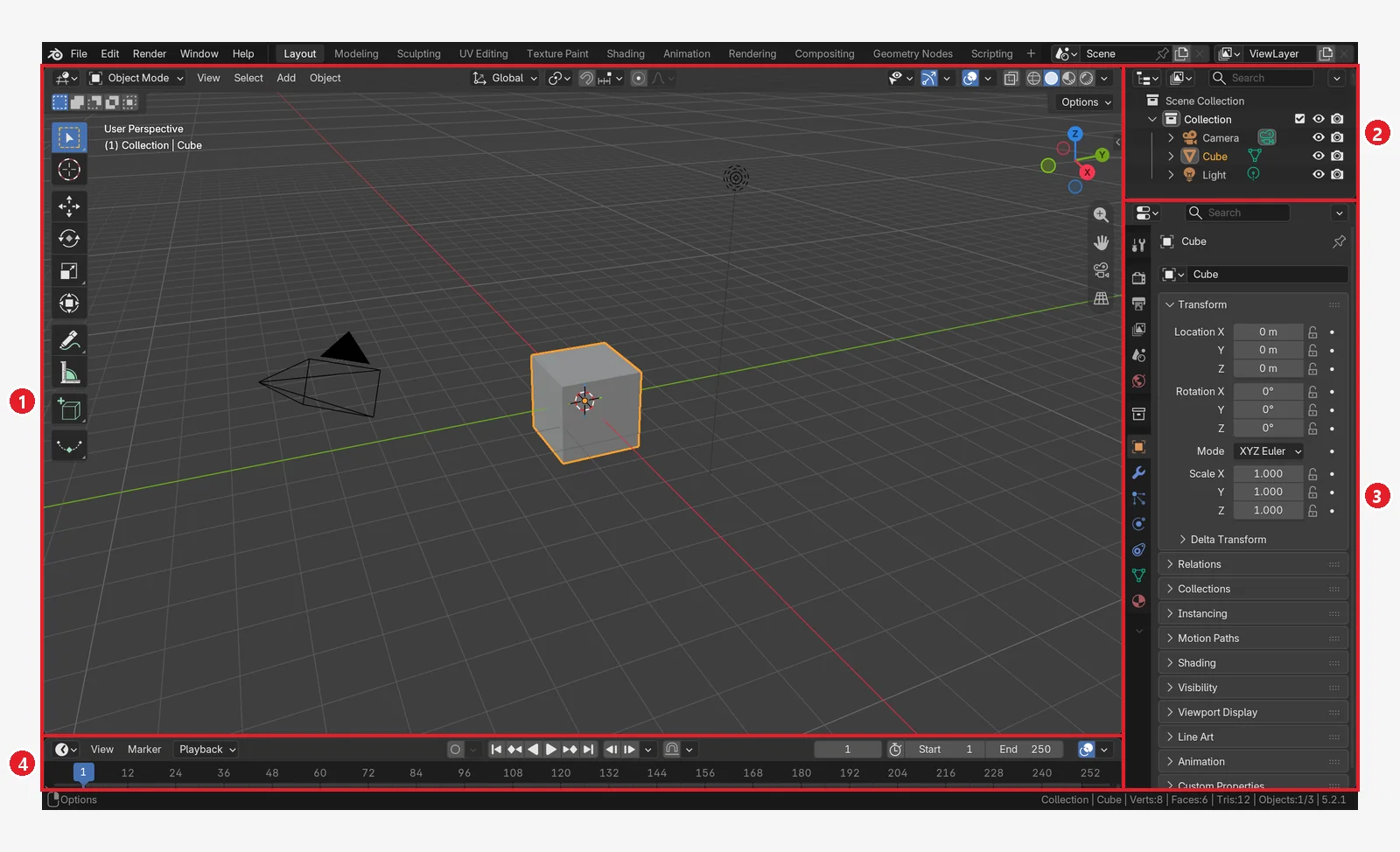 reading the first screen and turning the viewA tour of the Blender screen for complete beginners: the splash screen, the three layers of the screen, the four editors, workspaces, turning the view with a mouse or touchpad, and how to get back when you are lost.
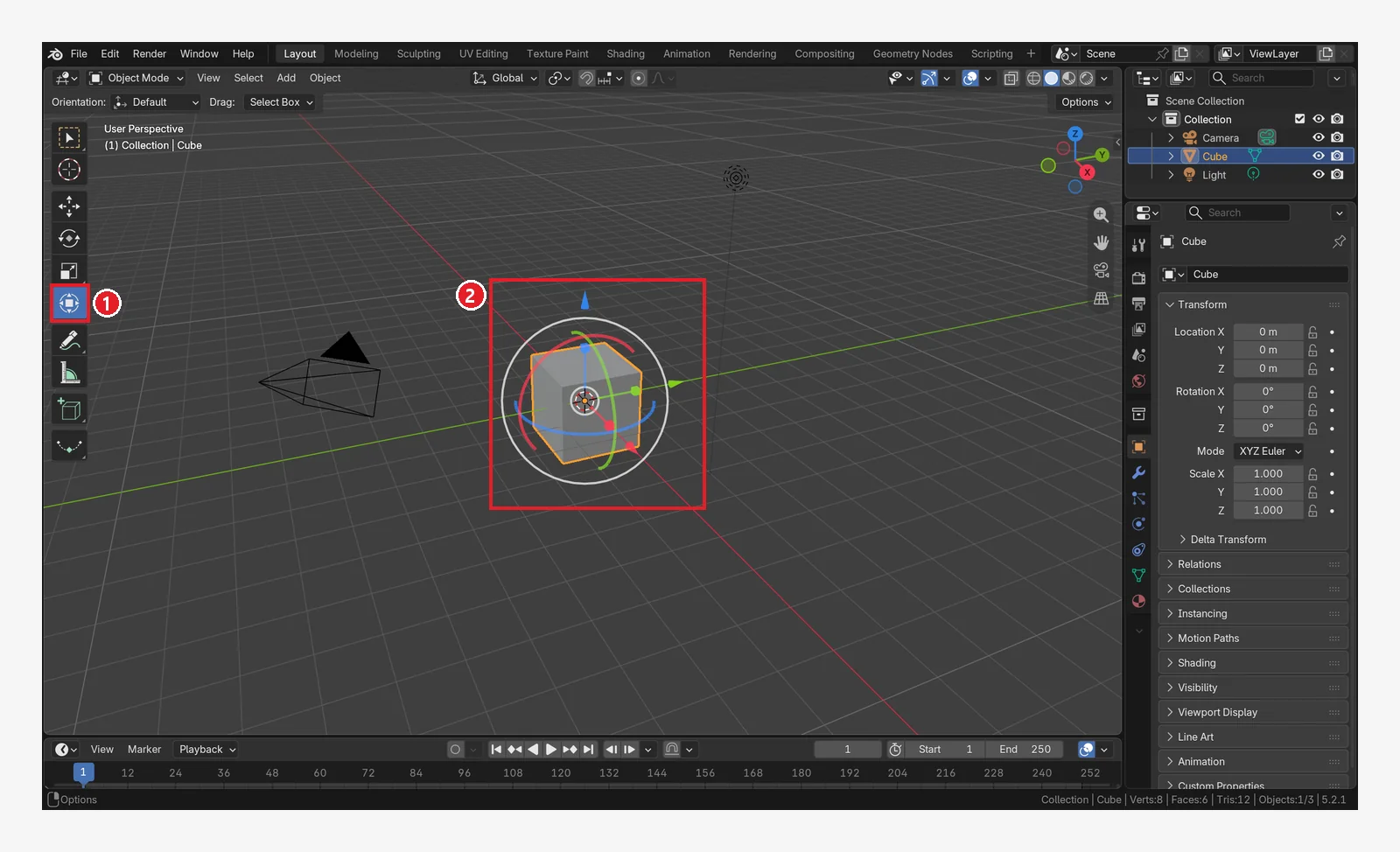 select, move, rotate, and scaleBasic Blender controls for complete beginners: click, Shift, and box selection, the Move, Rotate, and Scale tools and G, R, S, axis locking and typed numbers, and checking and resetting the values.
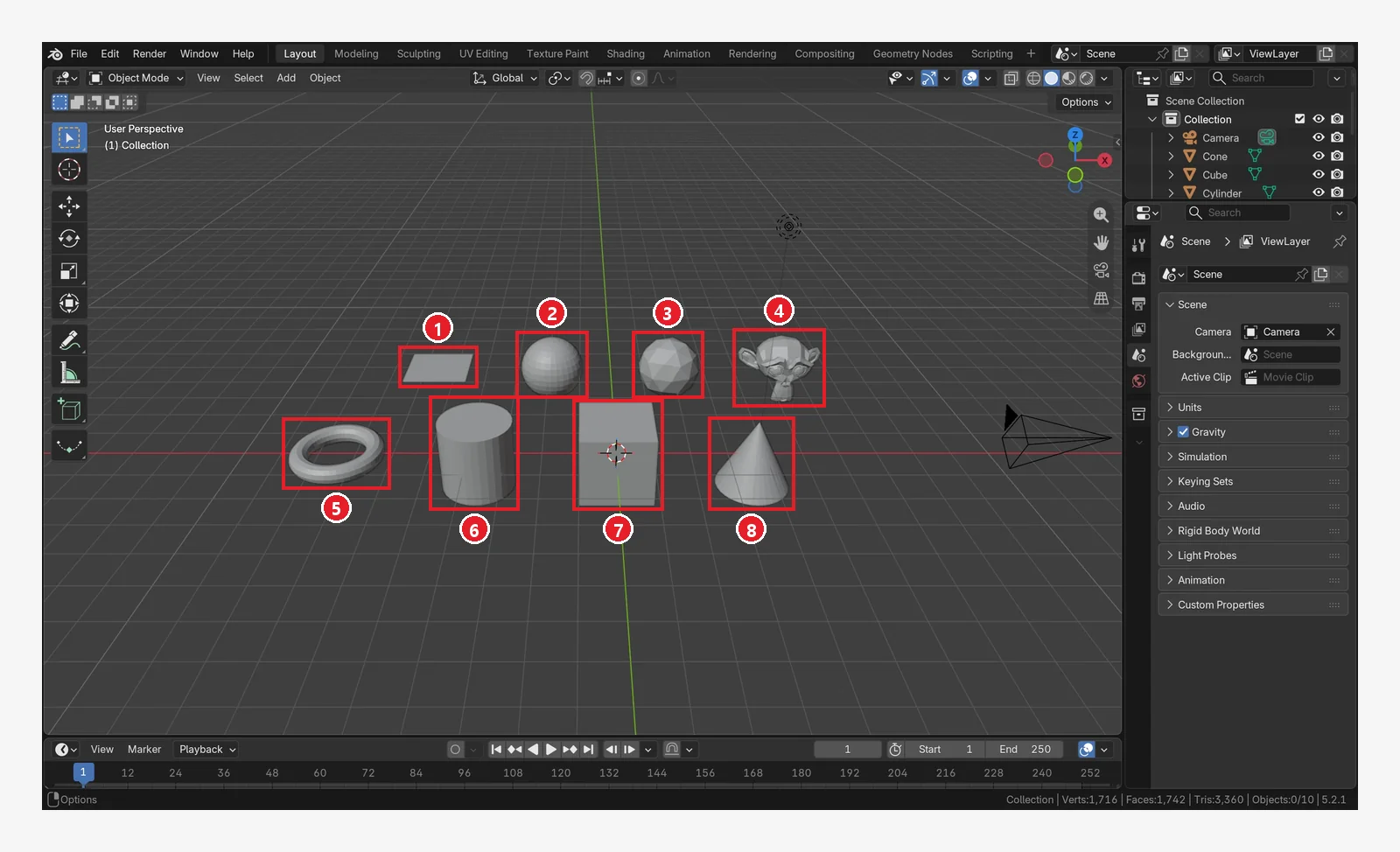 adding, deleting, and duplicating objects, and undoHandling objects in Blender for complete beginners: the 3D cursor, the Add menu and Shift+A, the 10 basic shapes, duplicating, deleting, and hiding, Ctrl+Z undo, and the Edit Mode trap.
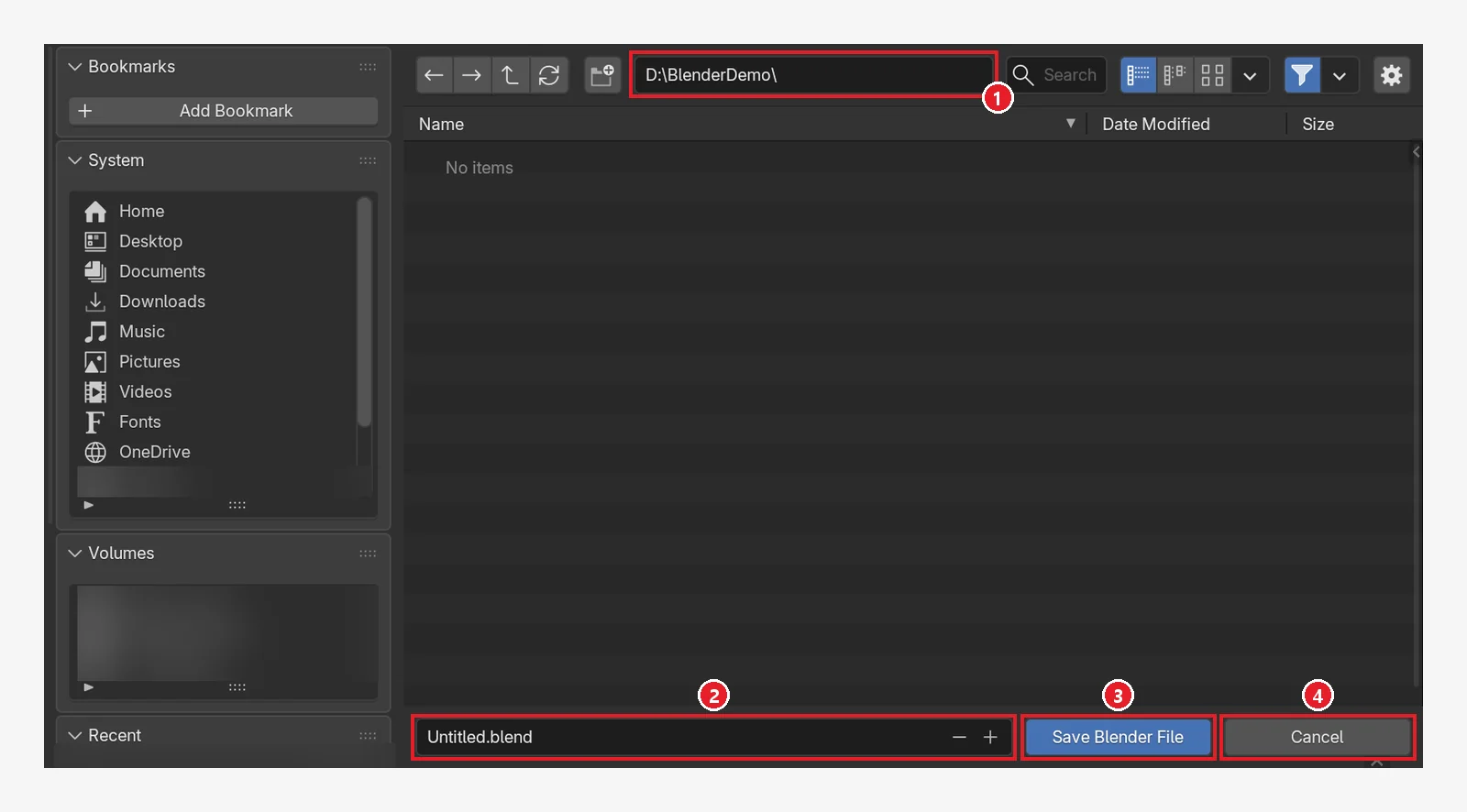 Saving and undoing mistakes — .blend files, auto save, and recoveryHow to save in Blender, for complete beginners. Learn to save a .blend file with Ctrl+S, open it again and pick from recent files, use the .blend1 backup, auto save and Recover Last Session, and fix broken texture paths.
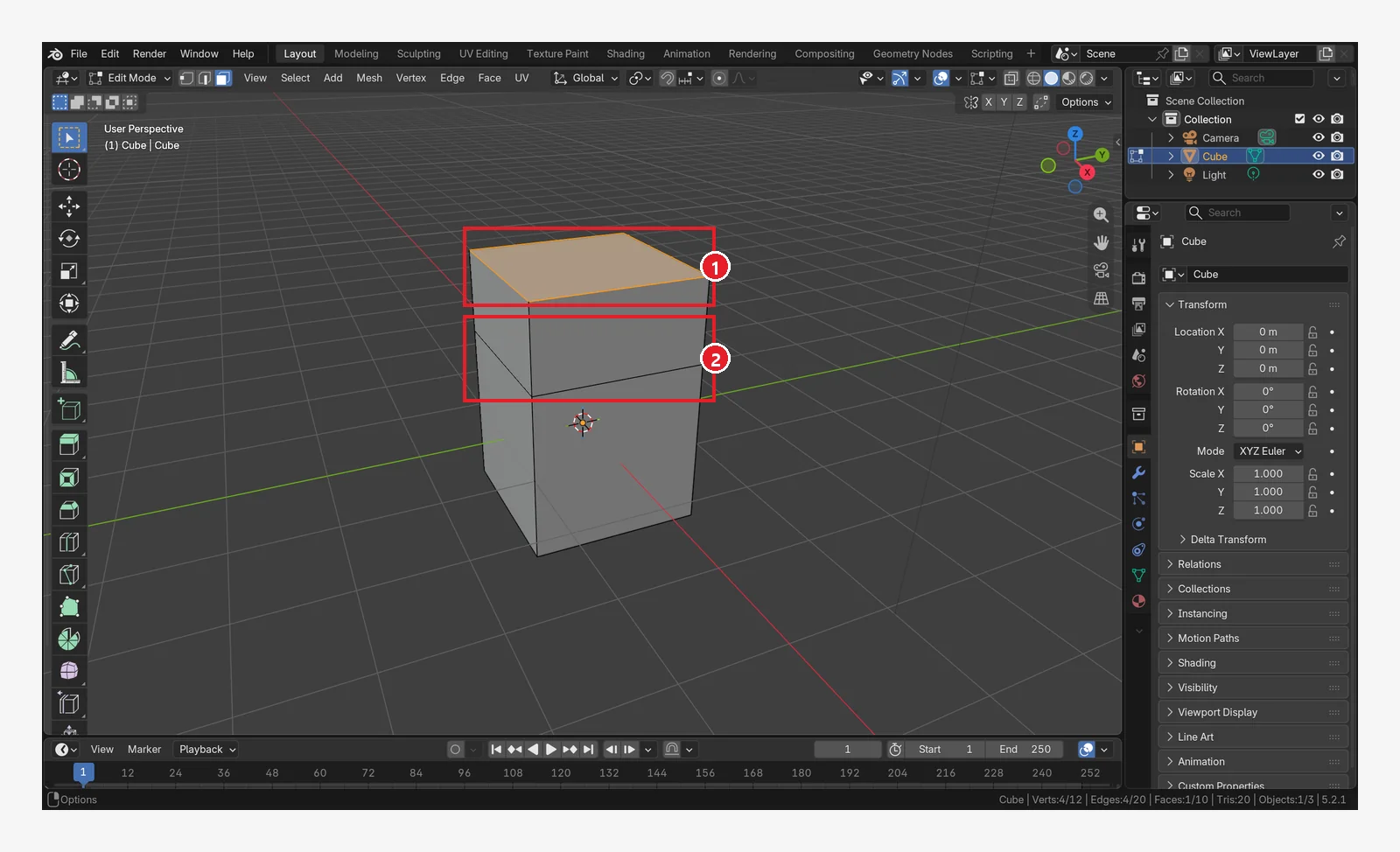 Edit Mode basics (vertices, edges, faces, extrude, loop cut, bevel)Blender Edit Mode for complete beginners. Learn to enter and leave with Tab, select vertices, edges, and faces, then Extrude (E), Inset (I), Loop Cut (Ctrl+R), Bevel (Ctrl+B), deleting faces, and X-ray.
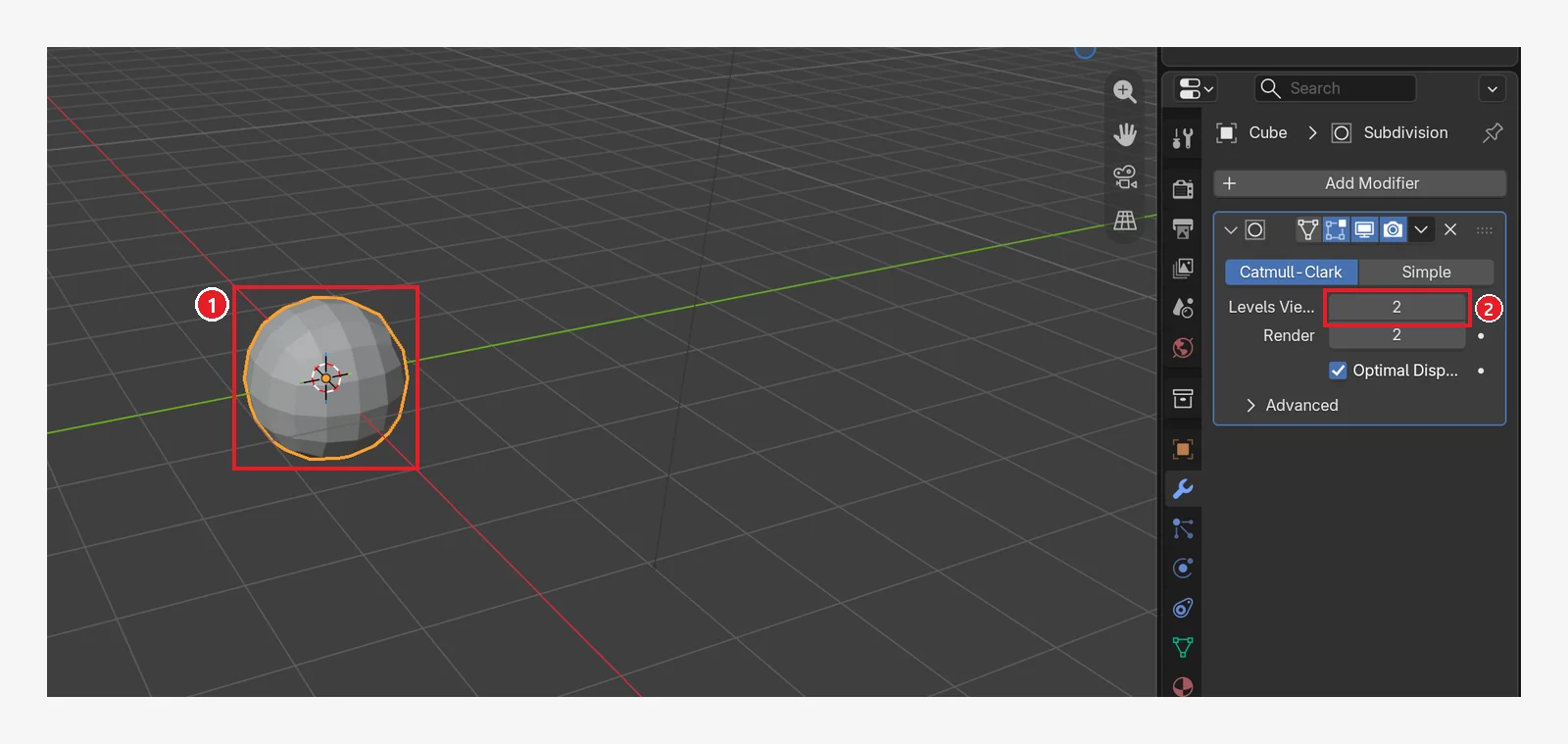 Modifiers that change shape without ruining the originalBlender modifiers for complete beginners. Add Subdivision Surface, Bevel, Mirror, Array, and Solidify, then learn to turn them on and off, change their order, and Apply them.
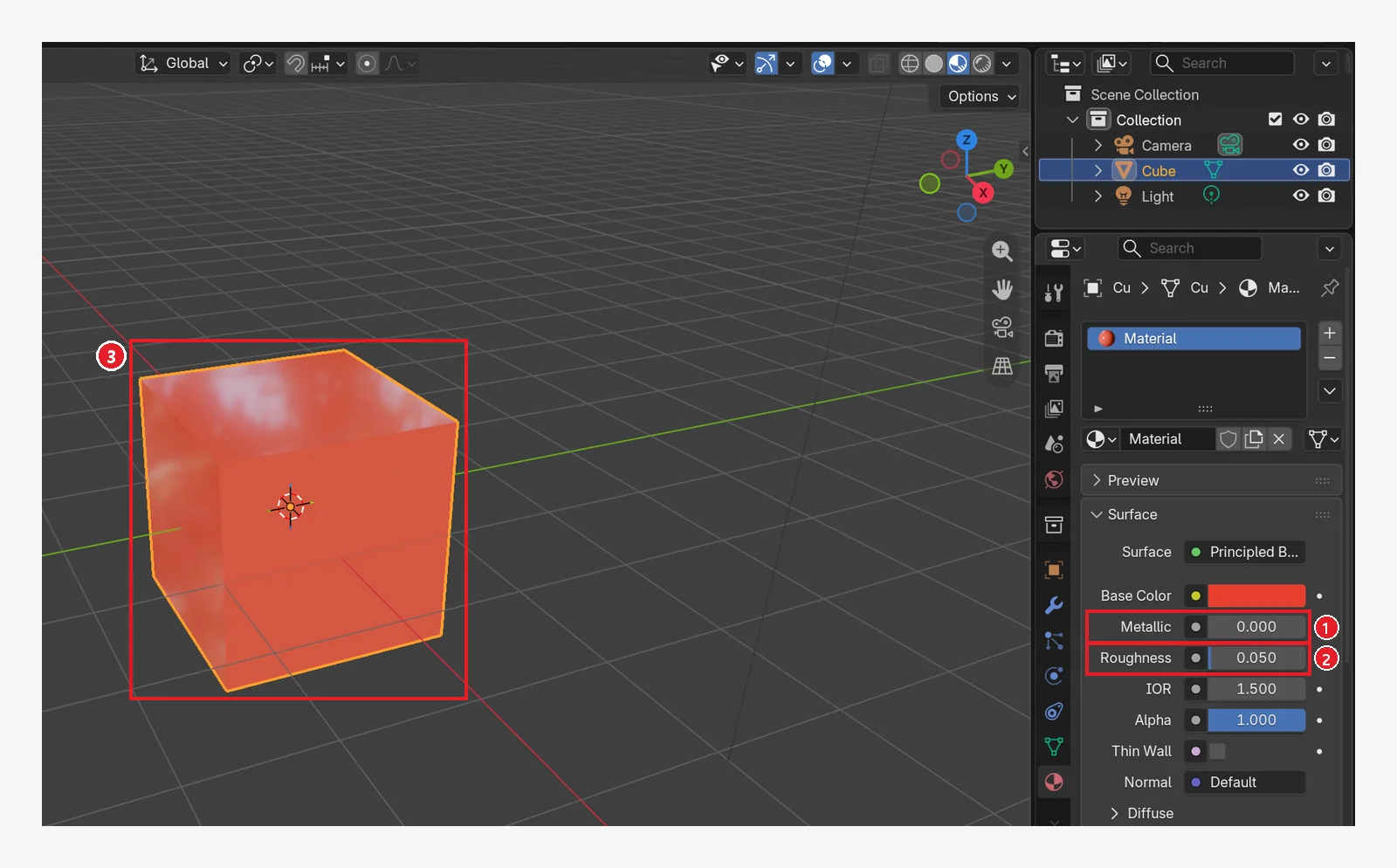 Materials and color: adding color, metal, and roughnessBlender materials for complete beginners. Learn the Material tab and Principled BSDF, compare Base Color, Metallic, and Roughness, see why Solid view shows its own color, try Emission, and make new materials and a different material per face.
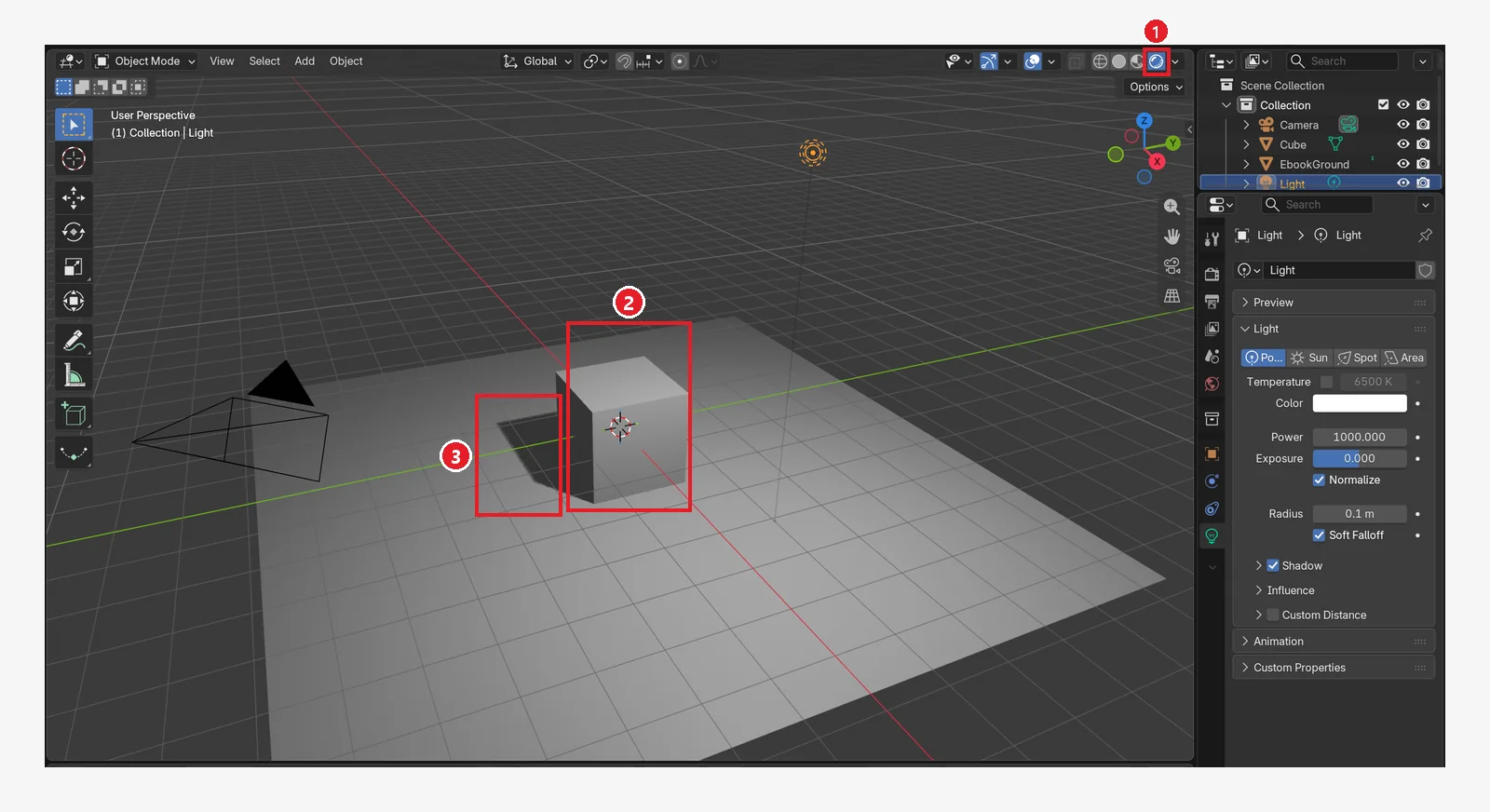 lights — light types, strength, and shadowsBlender lighting for complete beginners. Learn the four light types (Point, Sun, Spot, Area), how to control brightness and shadows with Power, Color, and Radius, the World background light, and how to add one fill light.
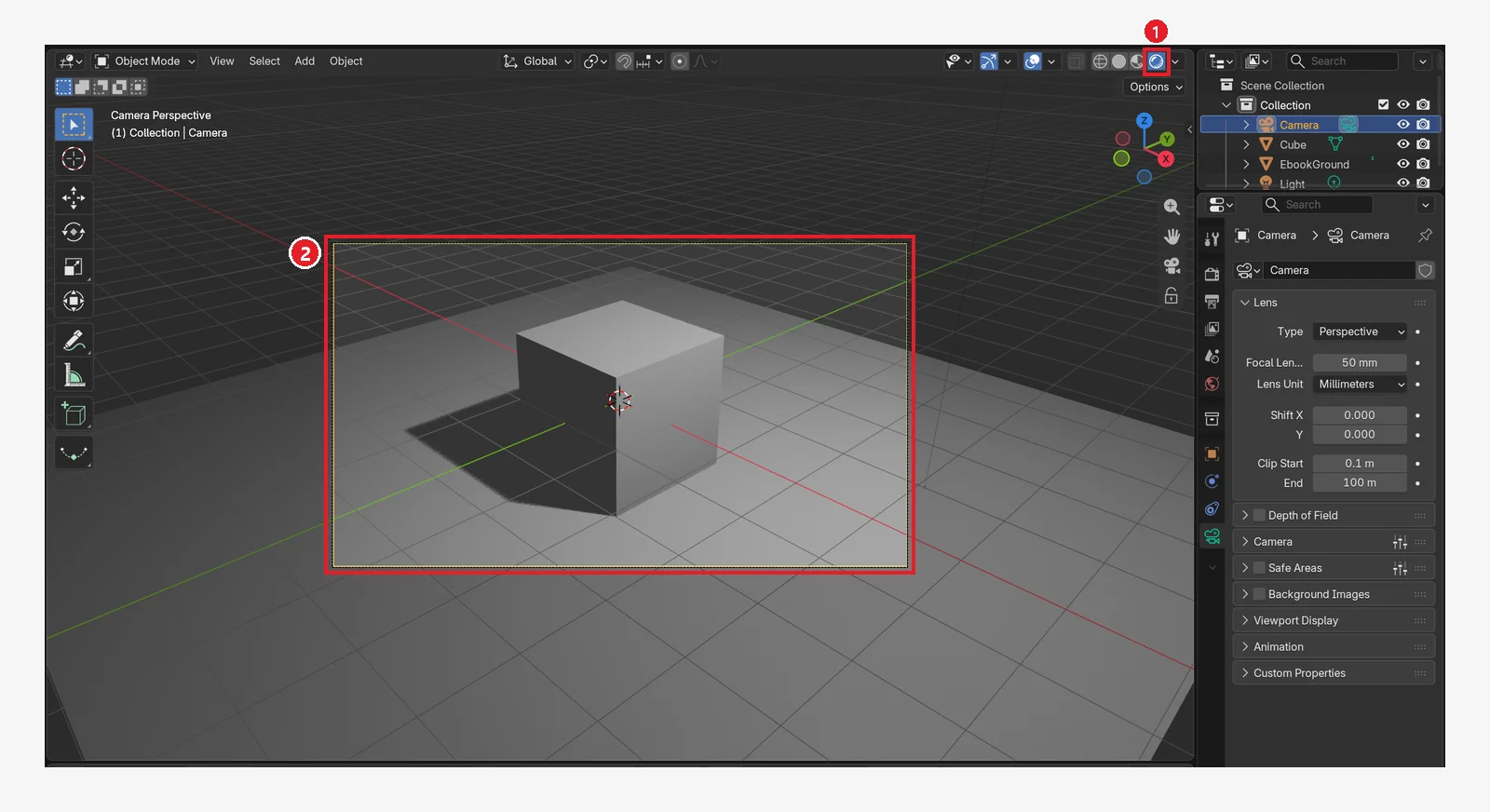 The camera, framing a shot and camera viewThe Blender camera for complete beginners. Learn camera view (numpad 0), how focal lengths compare, moving the camera and aligning it to your current view, resolution and aspect ratio, and the orthographic camera.
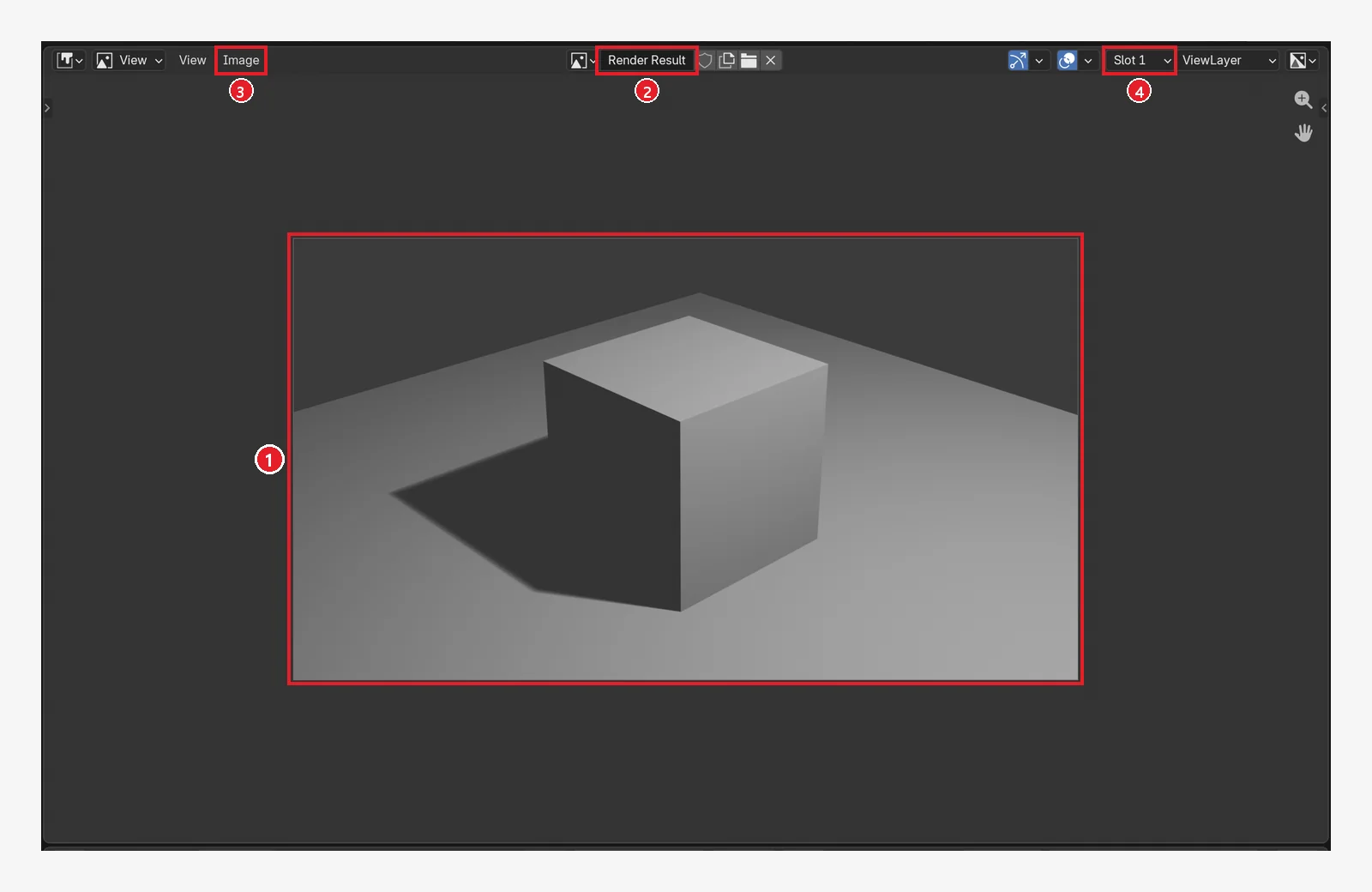 Rendering and saving — one still image and one videoRendering in Blender for complete beginners. Learn the EEVEE and Cycles render engines, set the resolution to 1280×720, render one still with F12 and save it as PNG, and make an image sequence and a video file with Ctrl+F12.
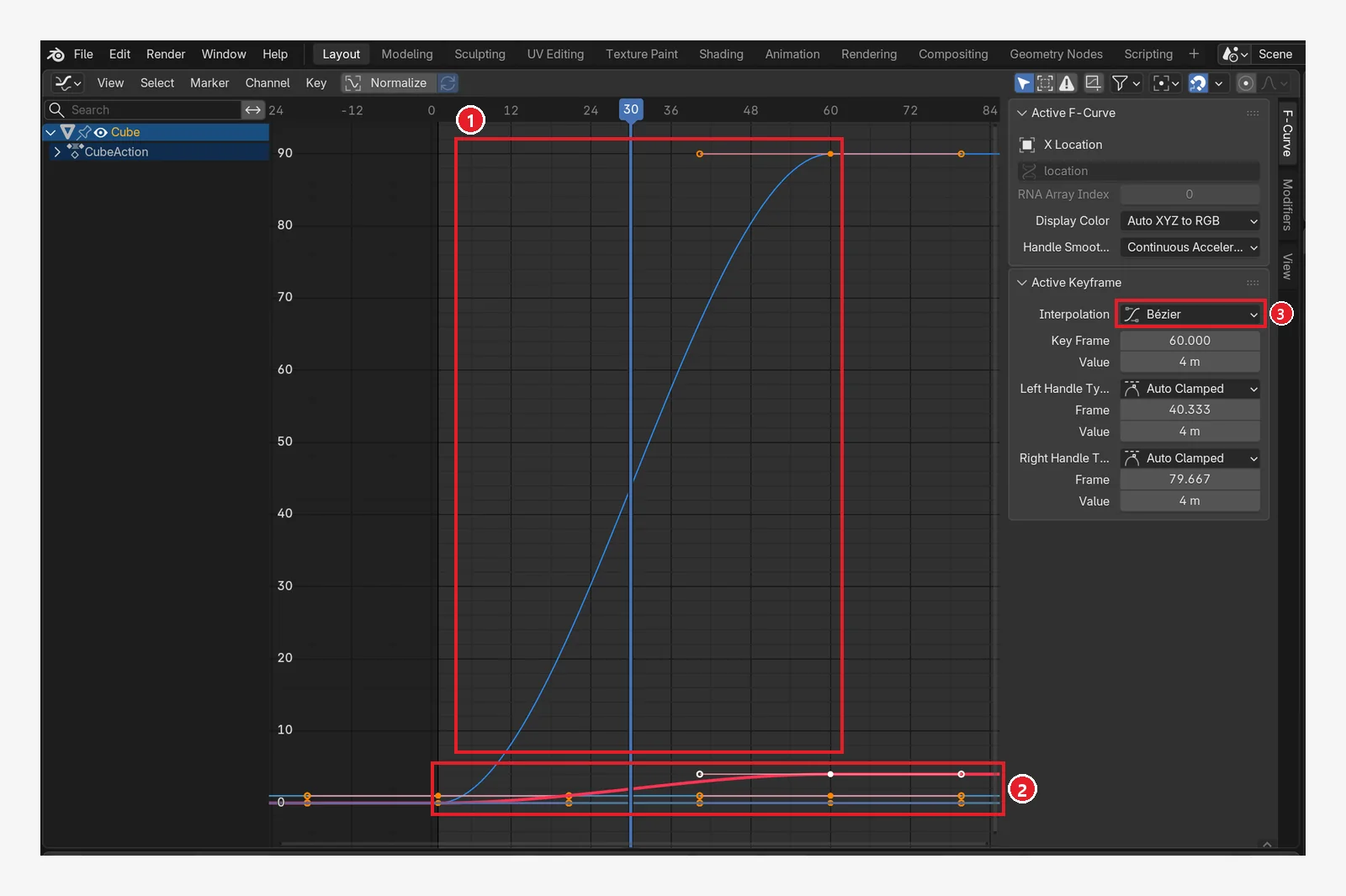 your first animation, moving a cube with keyframesBlender animation for complete beginners. Learn to insert keyframes (I), read the colors of property fields, move between frames on the Timeline, set the end frame, and get a first look at the Dope Sheet and the Graph Editor.
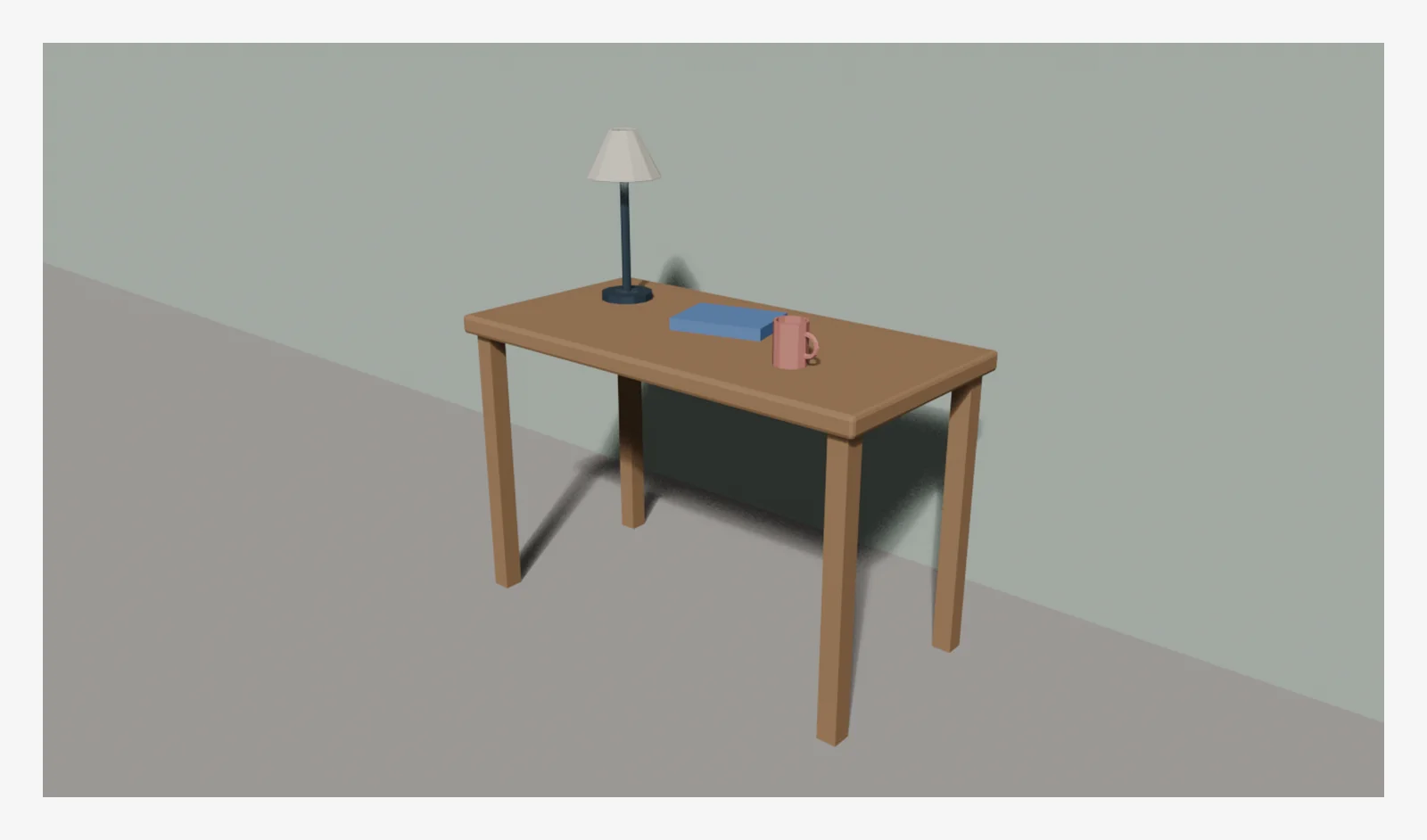 finishing a small piece — a low-poly desk sceneA first finished piece for complete beginners. Combine what you learned in chapters 1 to 12 (adding objects, size, Edit Mode, modifiers, materials, lights, the camera, and rendering) to build a low-poly scene with a desk, a mug, a desk lamp, and a book using exact numbers, then render it at 1280×720.
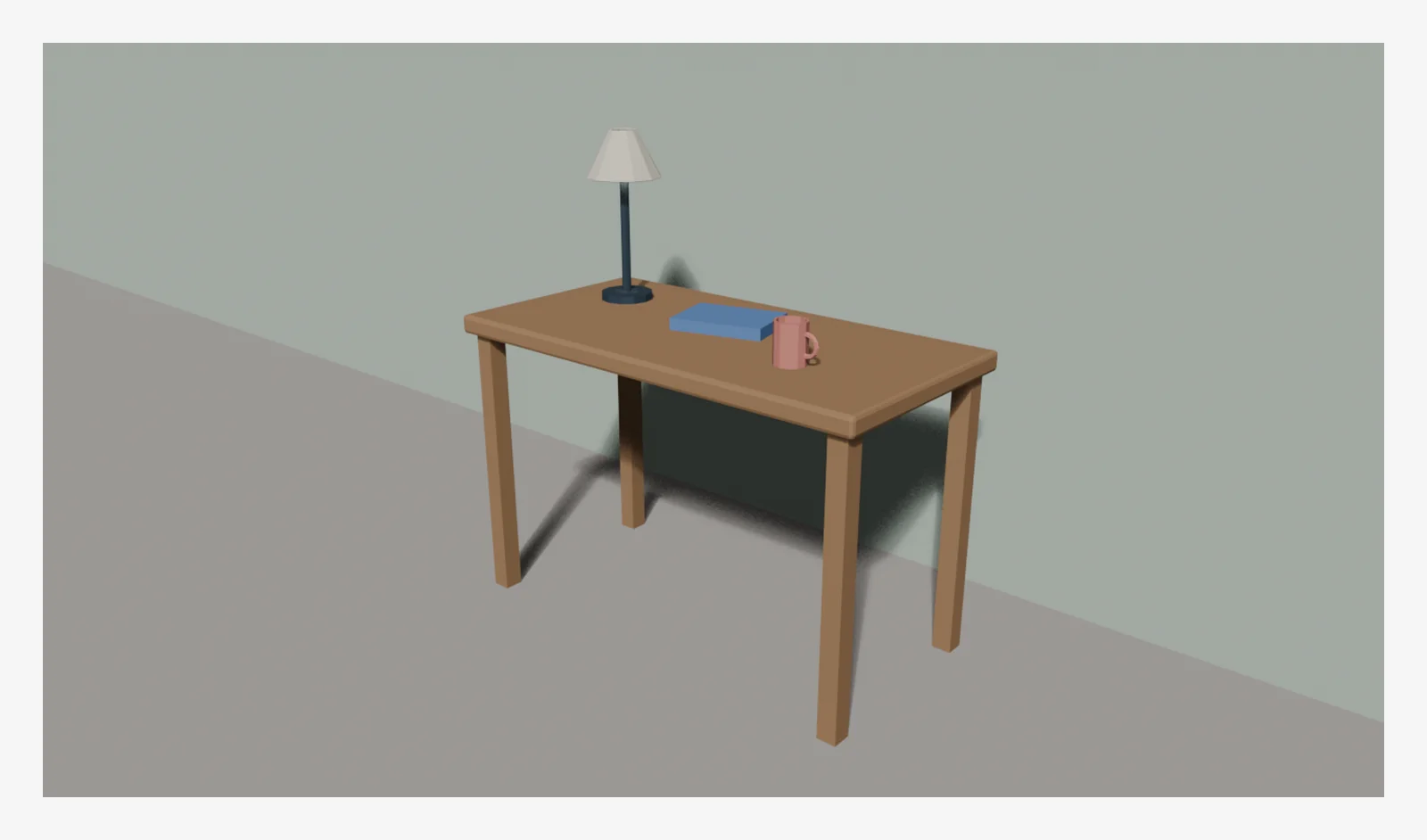 Where to go next, plus a shortcut appendixAn appendix chapter for after you finish the complete beginner series: paths for what to study next, plus the shortcuts and terms checked in chapters 1–13 and a checklist for when you get stuck, all in one place.
ADD-ONS
Blender add-ons 2 guides
What the add-ons I use are for, and how they fit into the work.
 Blender
Retargeting Mixamo Animations with Auto-Rig Pro Remap
How to move Mixamo animations such as running and pitching onto your own character with Auto-Rig Pro's Remap, based on screens and results from tests in Blender 5.2.1 and Auto-Rig Pro 3.78.60.
 Blender
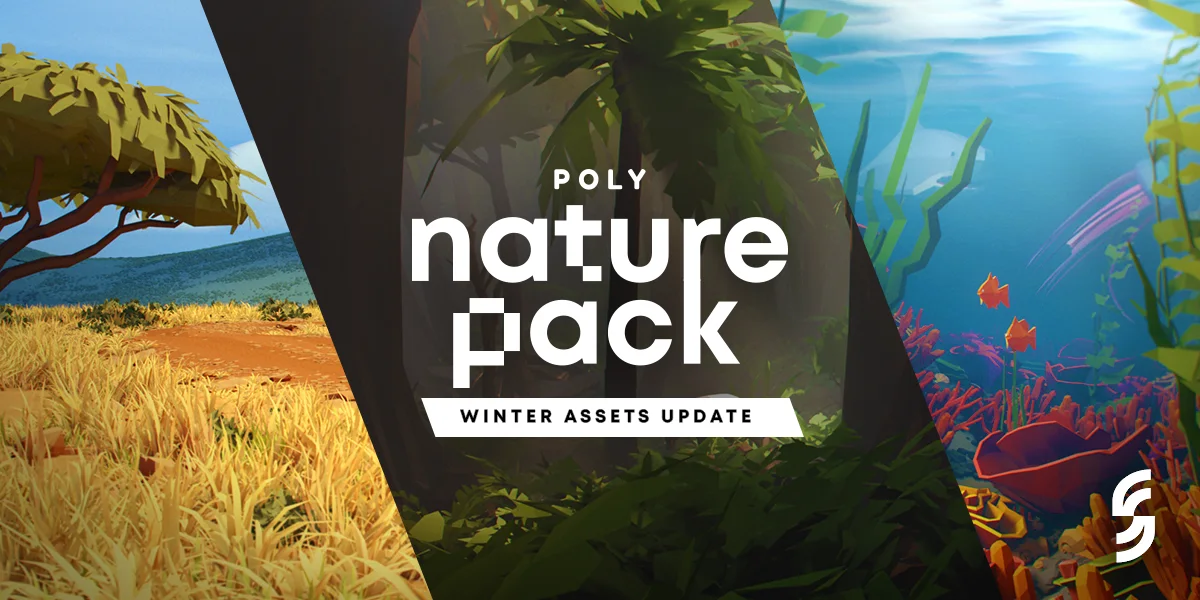
Building Low-Poly Nature Scenes in Blender with Poly Nature
I tested the Poly Nature pack, with about 800 trees, bushes, grasses, and rocks, in Blender 5.2.1. This guide covers registering it in Asset Libraries, placing assets, changing seasonal colors, and wind animation, with real screens and results.
BY FEATURE
Blender features 11 guides
Guides that explain one feature at a time: the interface, modifiers, materials, rendering.
 Blender
Installing and managing Blender add-ons and extensions
Since Blender 4.2, add-ons come through a new system called Extensions. This guide covers the difference between online and .zip installs, how to turn them on and off, and how to use them safely.
 Blender
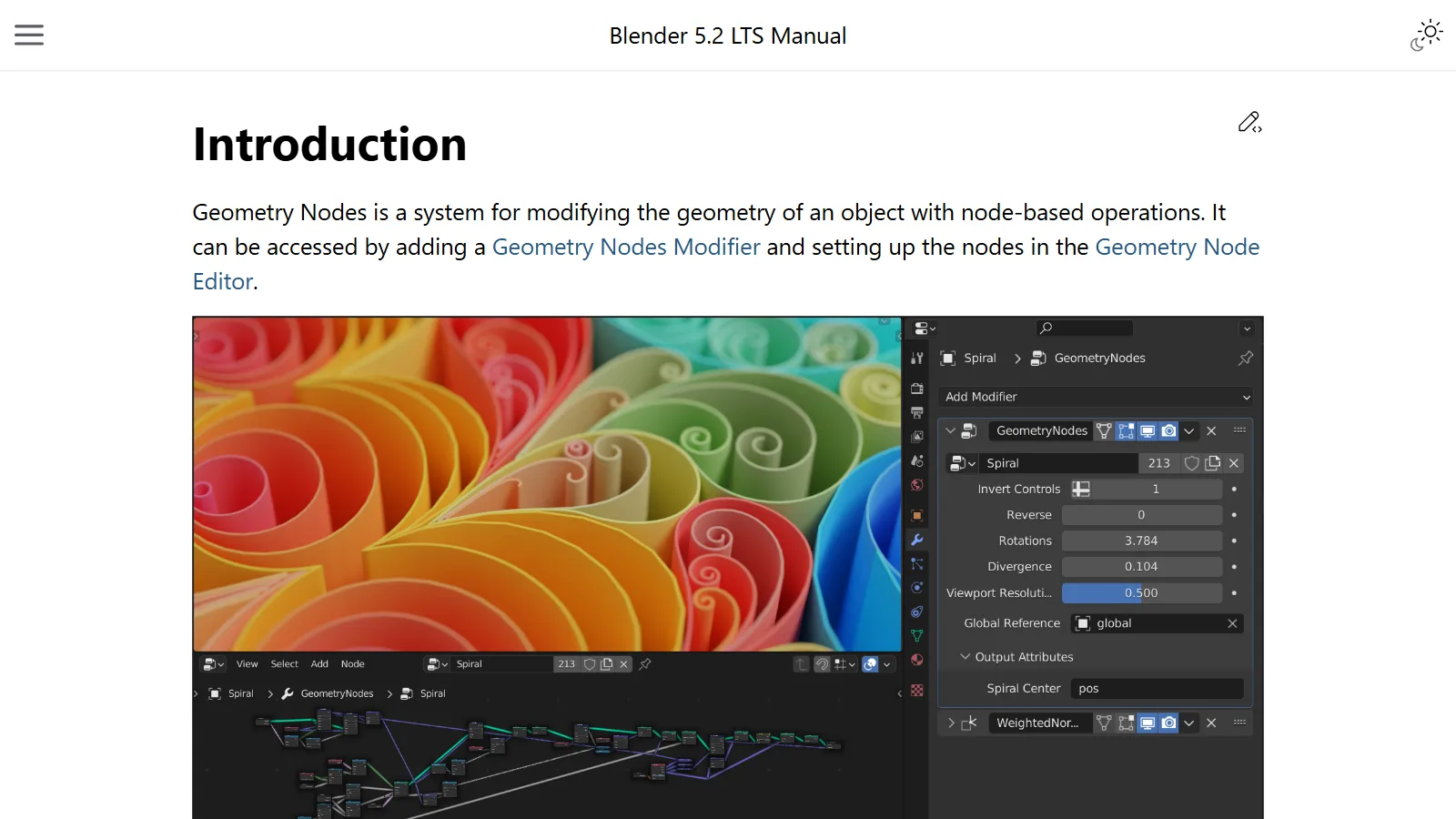
Getting started with Blender Geometry Nodes: making shapes with rules
Blender Geometry Nodes make shapes with rules instead of by hand. This guide explains nodes, flow, fields, and instances in plain words, using an assembly line as the example.
 Blender
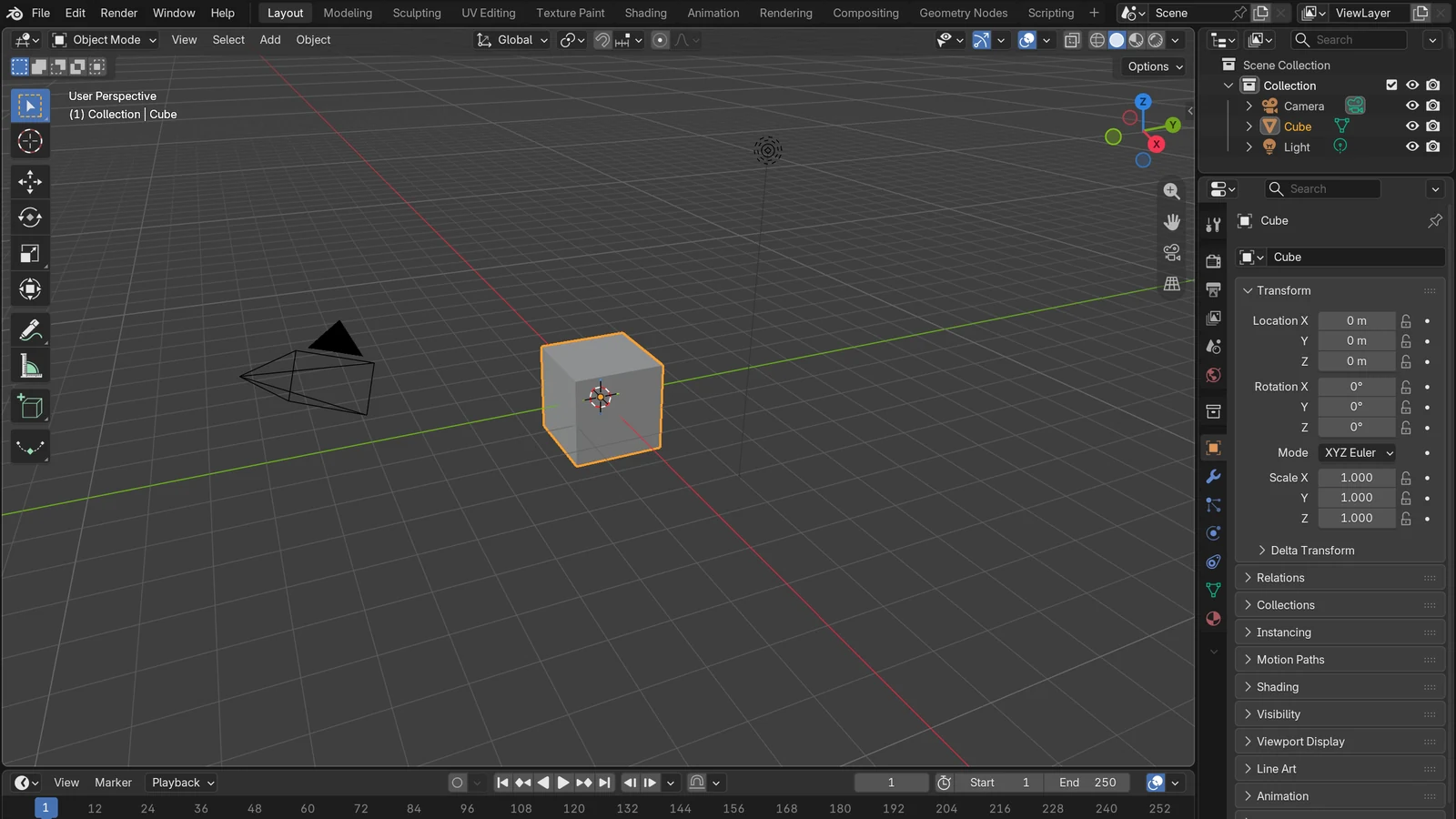
The Blender screen: 5 things to know when you first open it
We split the Blender screen you see on first launch into five parts: the three layers of the screen, workspaces, the four default editors, modes, and moving the view.
 Blender
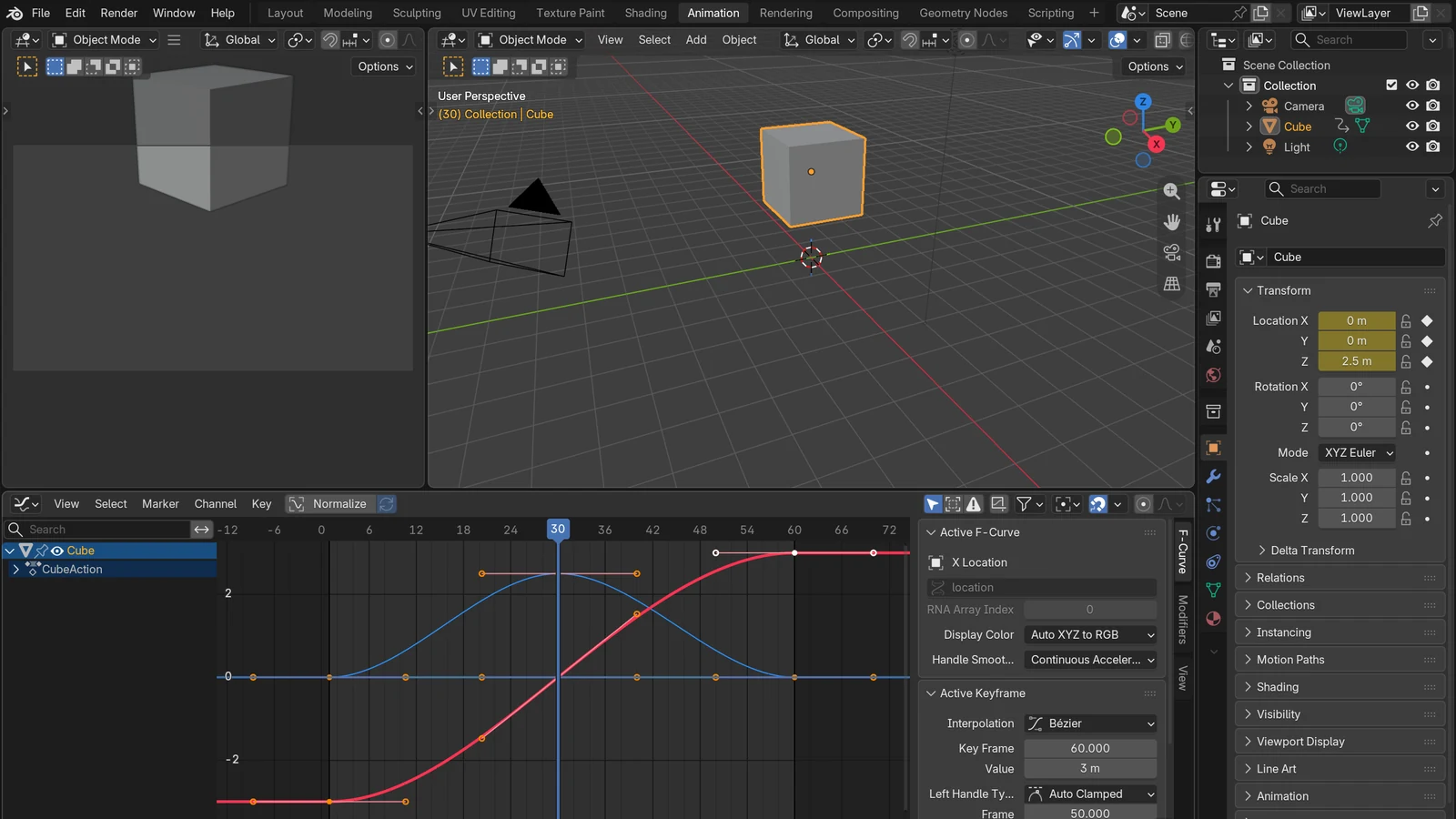
An introduction to keyframe animation in Blender: inserting keys and the Graph Editor
Set only the important moments and Blender fills in the rest. This guide explains how to insert keyframes and how to refine motion in the Graph Editor, using stepping stones as the example.
 Blender
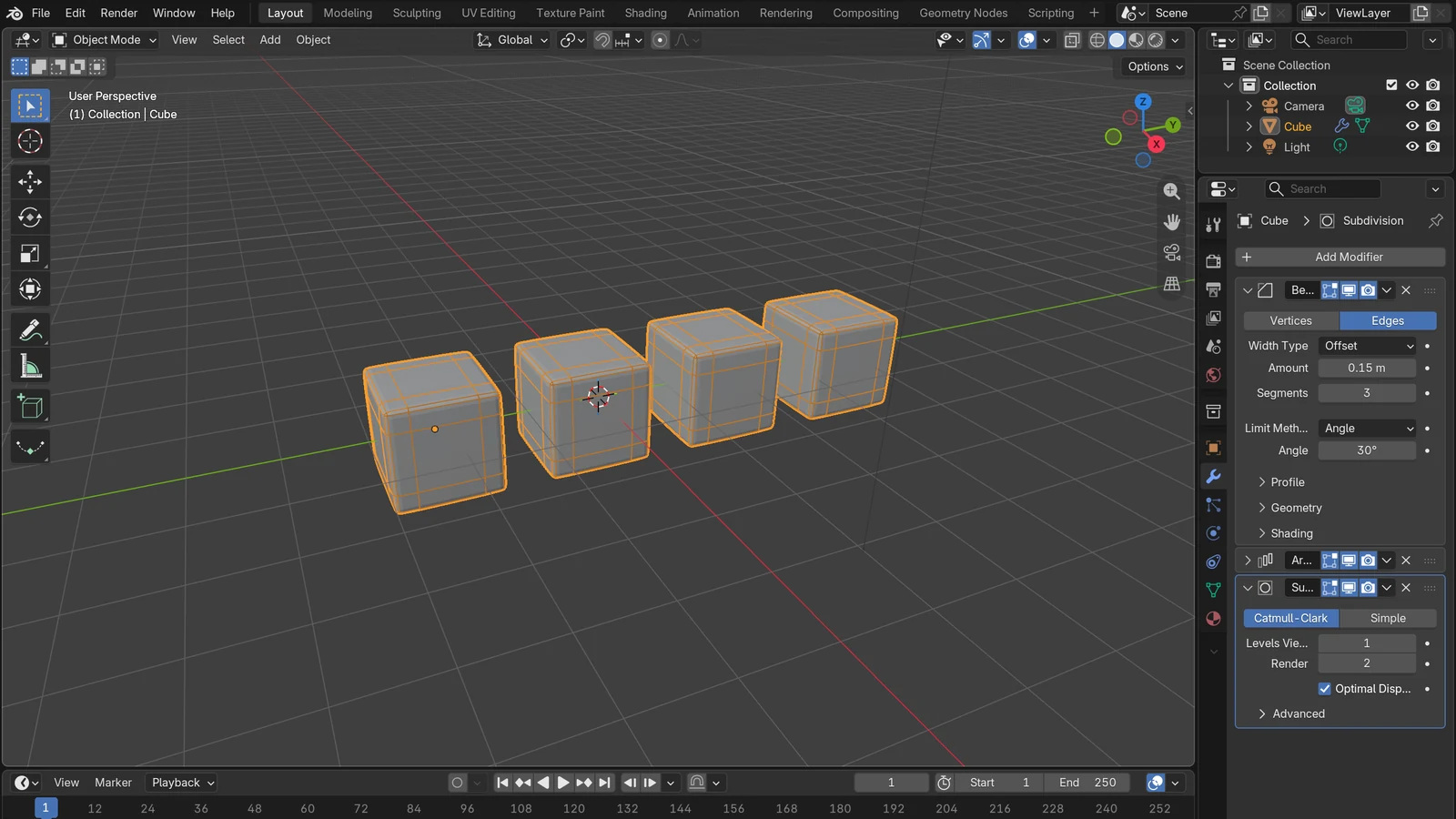
What is a modifier? Changing shape without ruining the original
A modifier is an effect filter laid over the original. This guide covers stack order, Apply, and six modifiers you will use often.
 Blender
Blender Python Automation: Turning Repeated Work into Scripts
Learn how to hand button-clicking work to a few lines of Python, using the three pillars of bpy and short examples.
 Blender
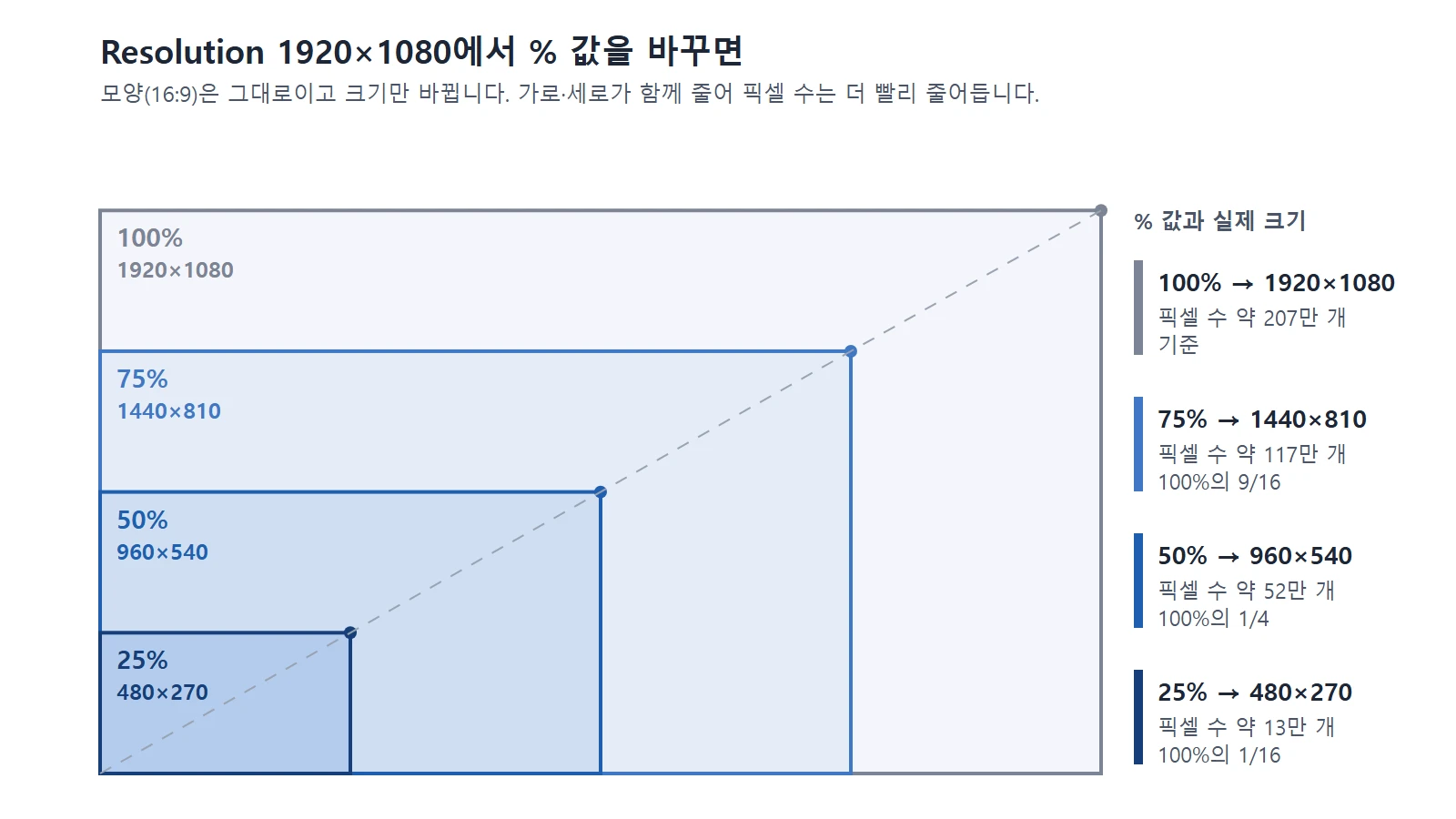
Blender render settings for beginners: resolution, frames, samples, and quick previews
How resolution, frame rate, and sample count in Blender add up to render time, and an order of work where you check small and finish big.
 Blender
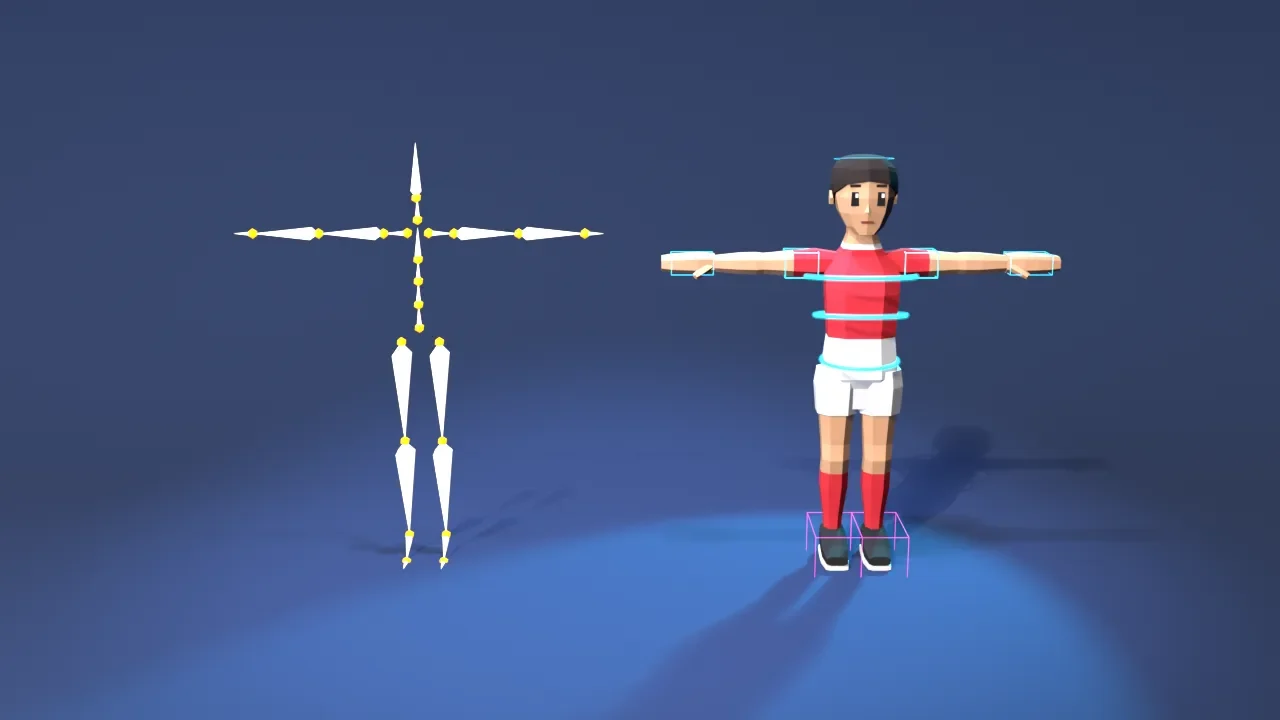
Rigging basics: moving a character with a skeleton (armature)
Rigging is the work of putting a skeleton inside a character and attaching the skin so it can move. This guide explains armatures, skinning, weights, and IK in plain terms.
 Blender
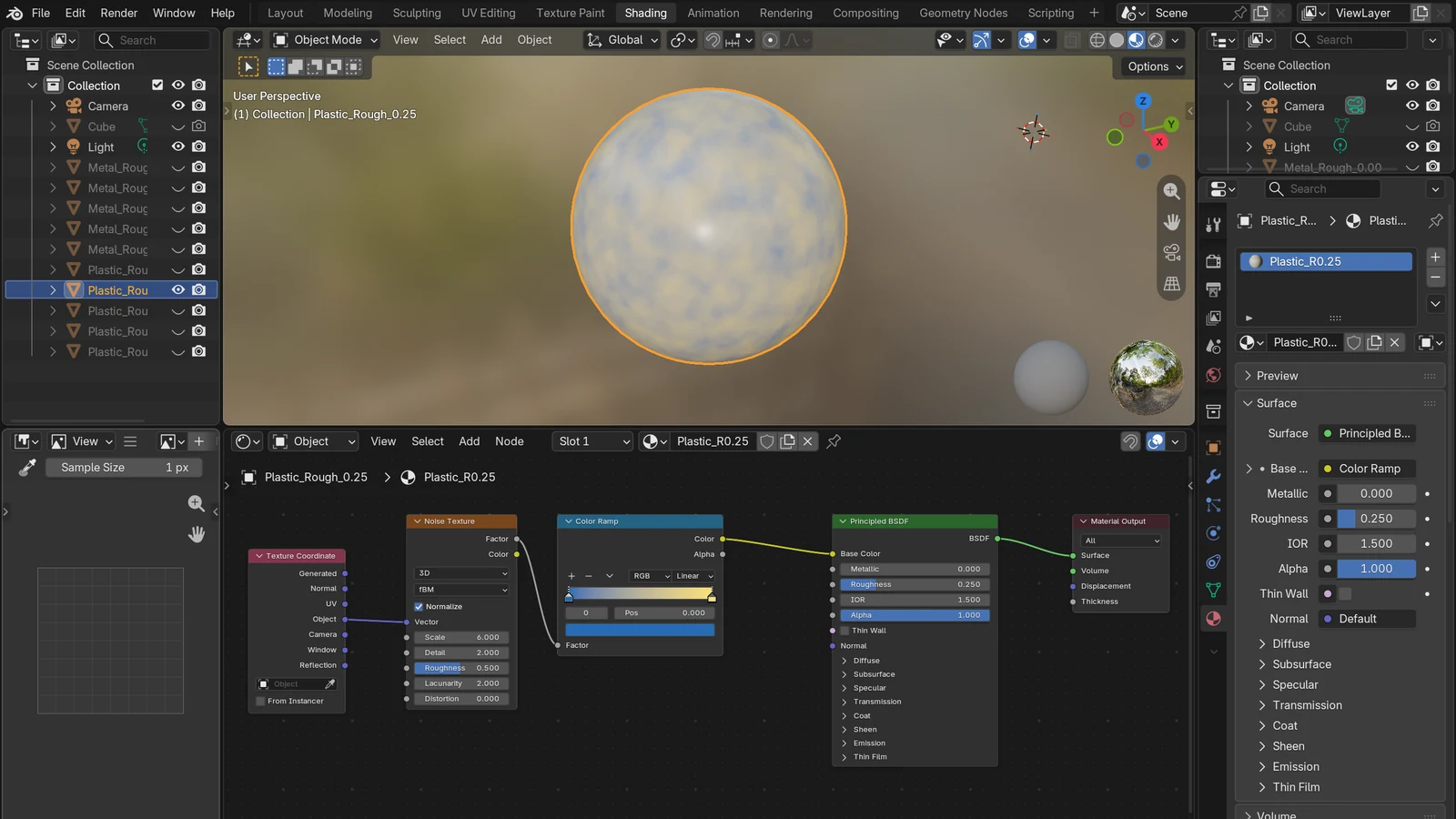
Shader nodes and materials: how color and surface feel are decided
A material is an object's "clothes," and shader nodes are the recipe for making them. A simple explanation of how color and surface feel are decided in Blender.
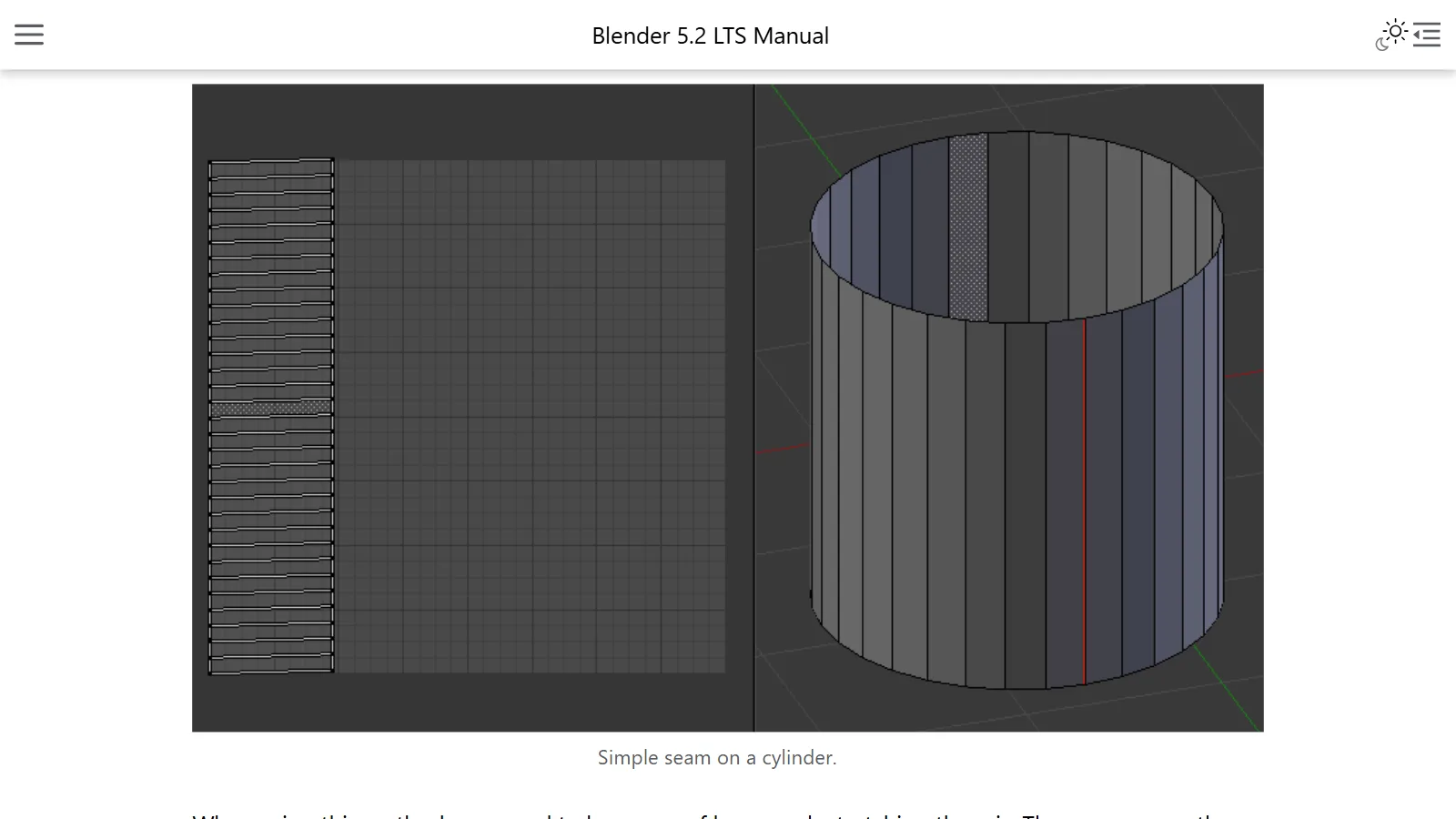 Blender
UV unwrapping: how images are put on 3D objects
UV unwrapping is the process of laying out the surface of a 3D object flat, like a paper net, so you can put an image on it. This guide explains the idea, seams, and unwrapping methods in simple terms.
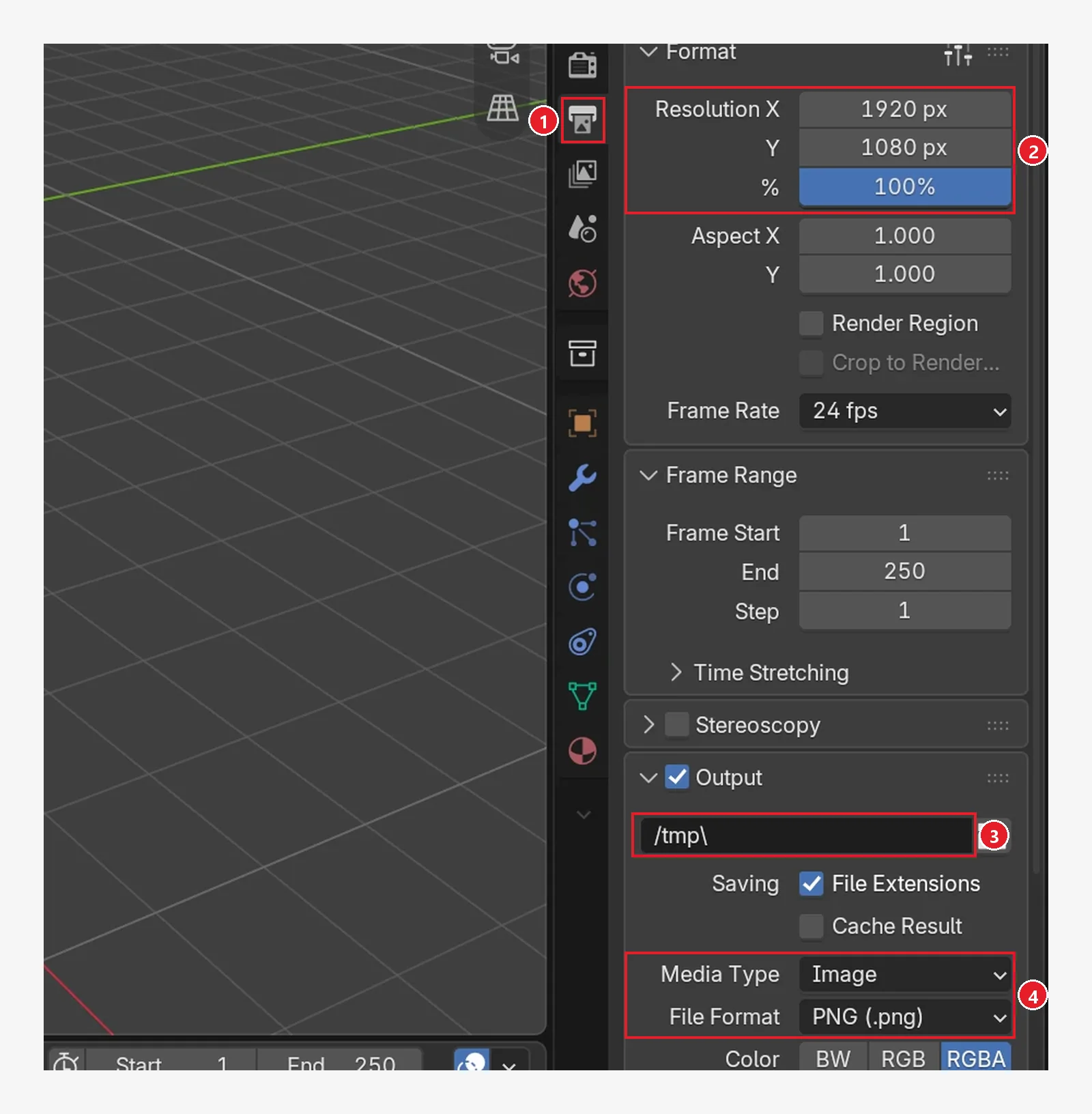 Blender
Your first 3D project: 5 things to settle before you start
A checklist of five things to decide before you make your first piece in Blender: the scope of the result, the folder, file names and versions, units and size, and recording outside assets and backups.
BLENDER × AI
Blender and AI 13 guides
How to hand Blender work to an AI, and the workflow around it.
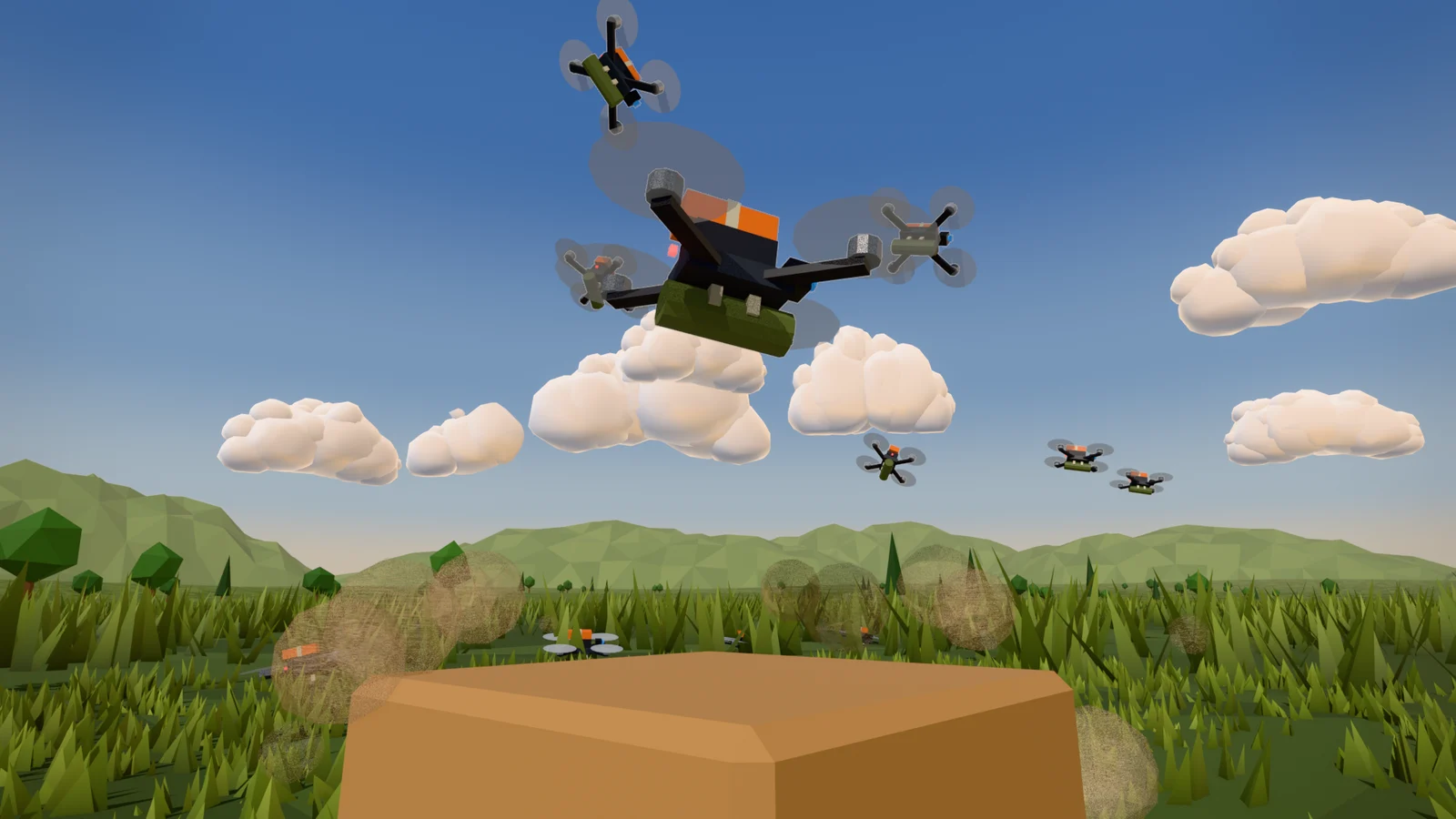 Blender
AI and Blender: Start Small and Work Together
When you hand Blender work to an AI, split the job, read before running, check with a picture and numbers, and save with version numbers. This guide walks through that order with a real production example.
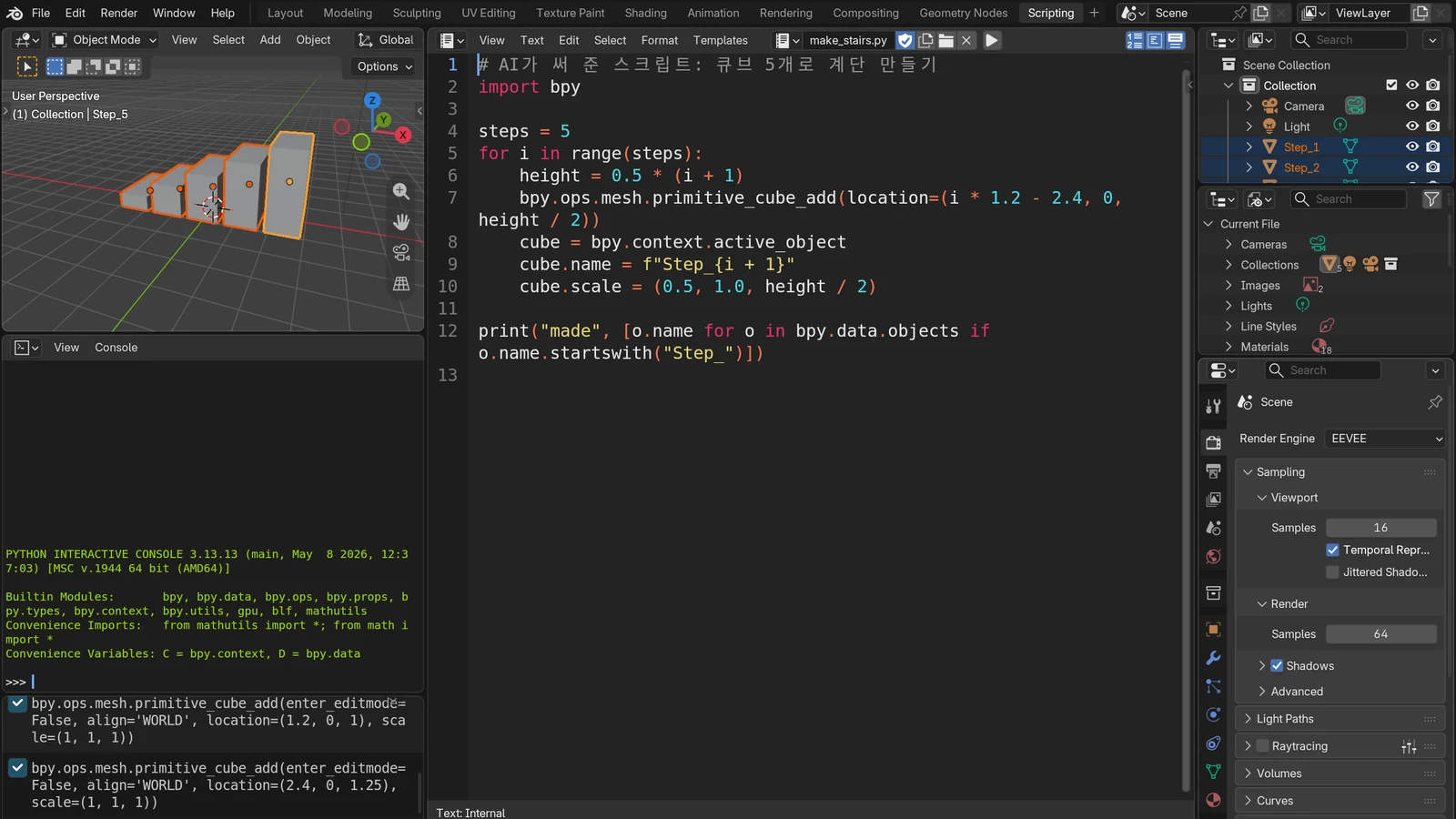 Blender
Connecting Blender and AI: 3D work through MCP and scripts
A plain comparison of the two ways AI can drive Blender: Python scripts and an MCP connection. It also covers how they work, a first exercise, and safe working habits.
 Blender
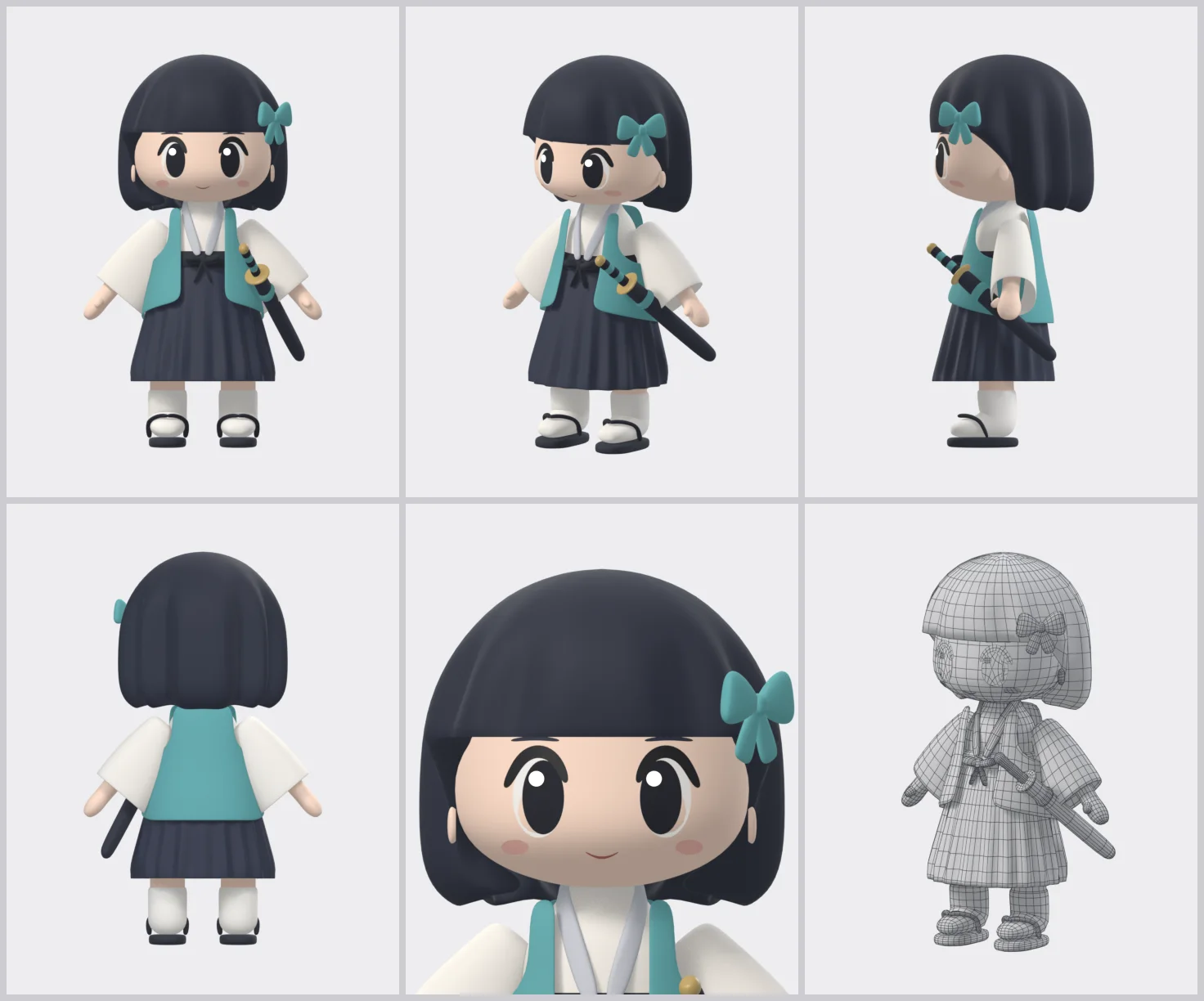
Making a 3D character with Claude Code, part 1: from one drawing to an easy-to-edit model
Start from one drawing and build an easy-to-edit character model with Blender Python scripts written by Claude Code: the overall flow, what you need, and the kit, drawing, and model stages.
 Blender
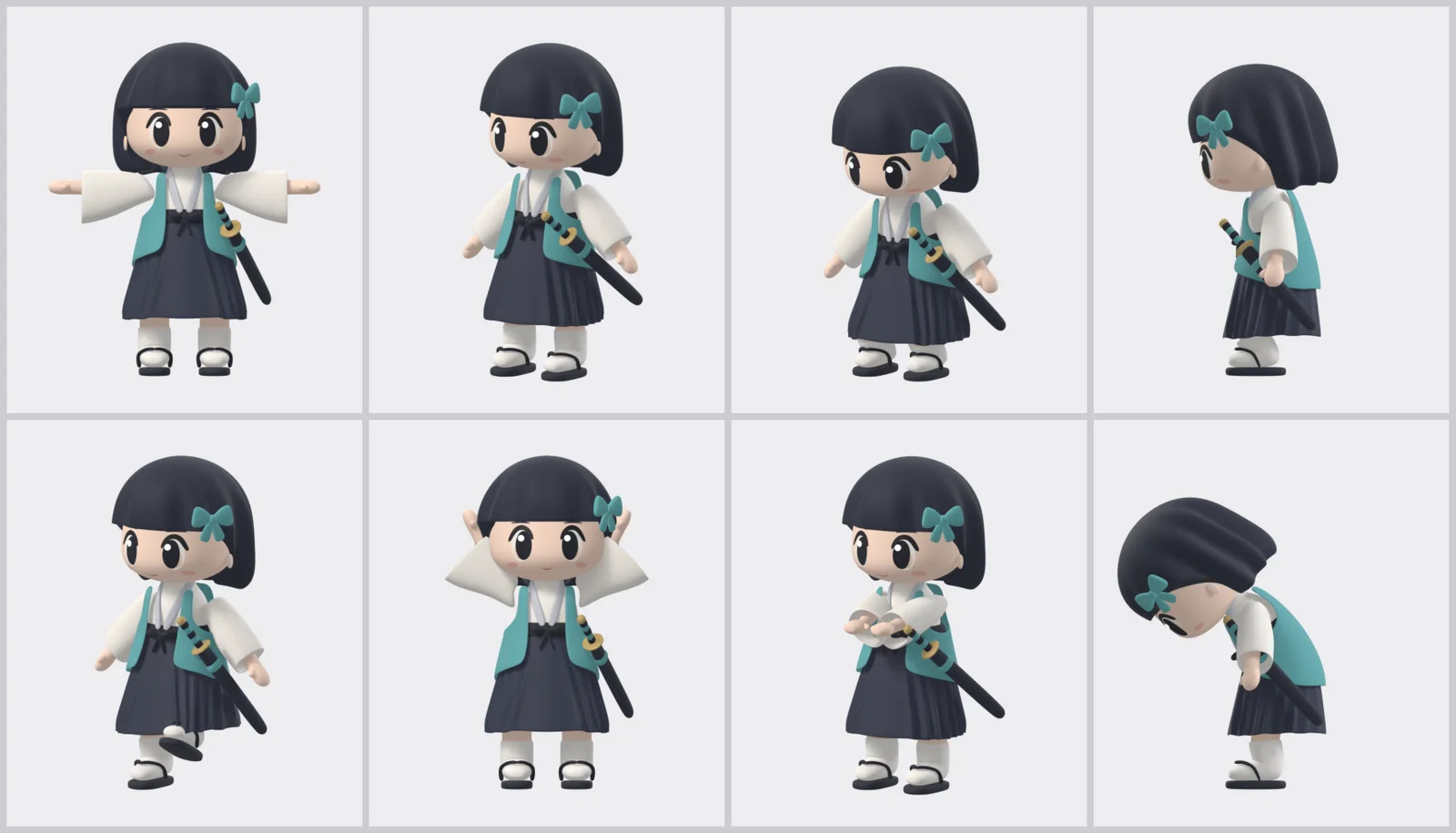
Making a 3D character with Claude Code, part 2: IK rig, motions, and separate scoring
Add an IK rig and motions to the part 1 model with Claude Code scripts, have a separate reviewer score the show video while you fix it, and finish with two files you edit and dress up by hand.
 Blender
Making a 3D character with Claude Code, part 3: building a scene with NLA tracks
In the Blender UI, turn on, move, and blend the muted NLA motion tracks in the finished character file, mixing body and face, to build a scene that goes from a wave into a bow without setting a single key.
 Blender
Making a 3D character with Claude Code, part 4: chaining Asset Shelf poses and rendering
Set Asset Shelf body poses and faces frame by frame to make your own wave and bow, chain them to NLA tracks with Push Down, render the result as a video, and move the camera.
 Blender
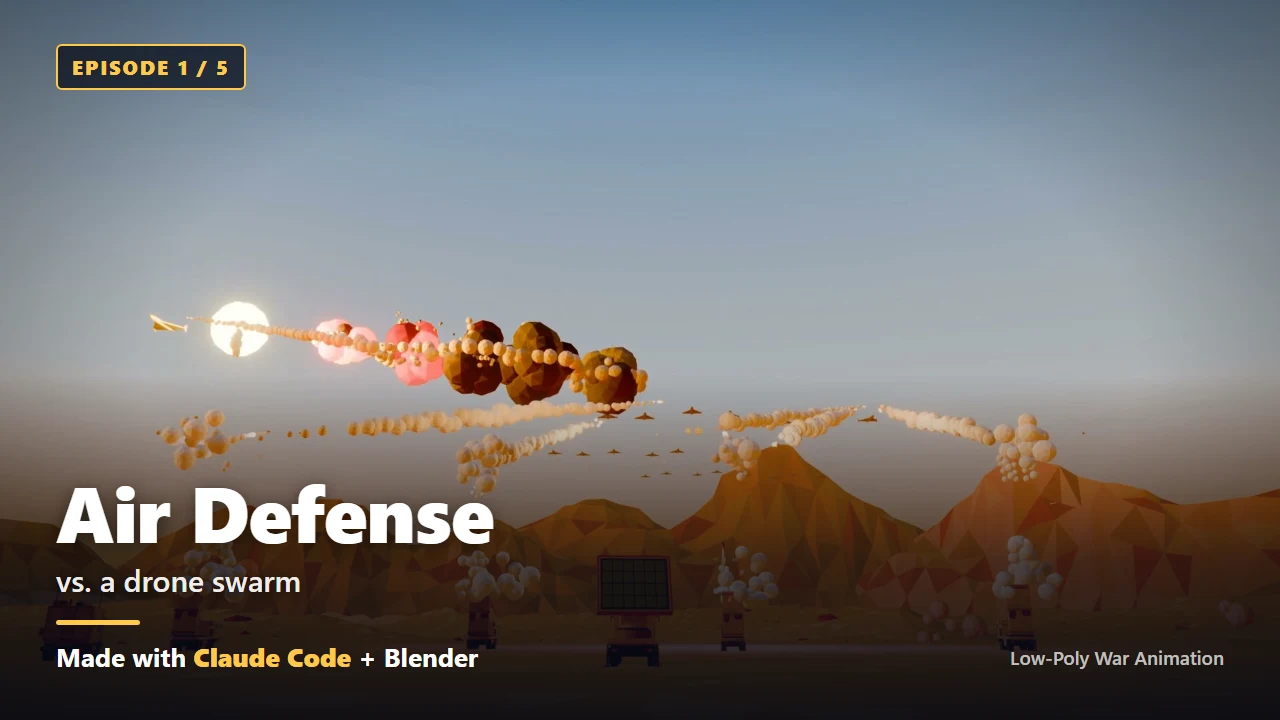
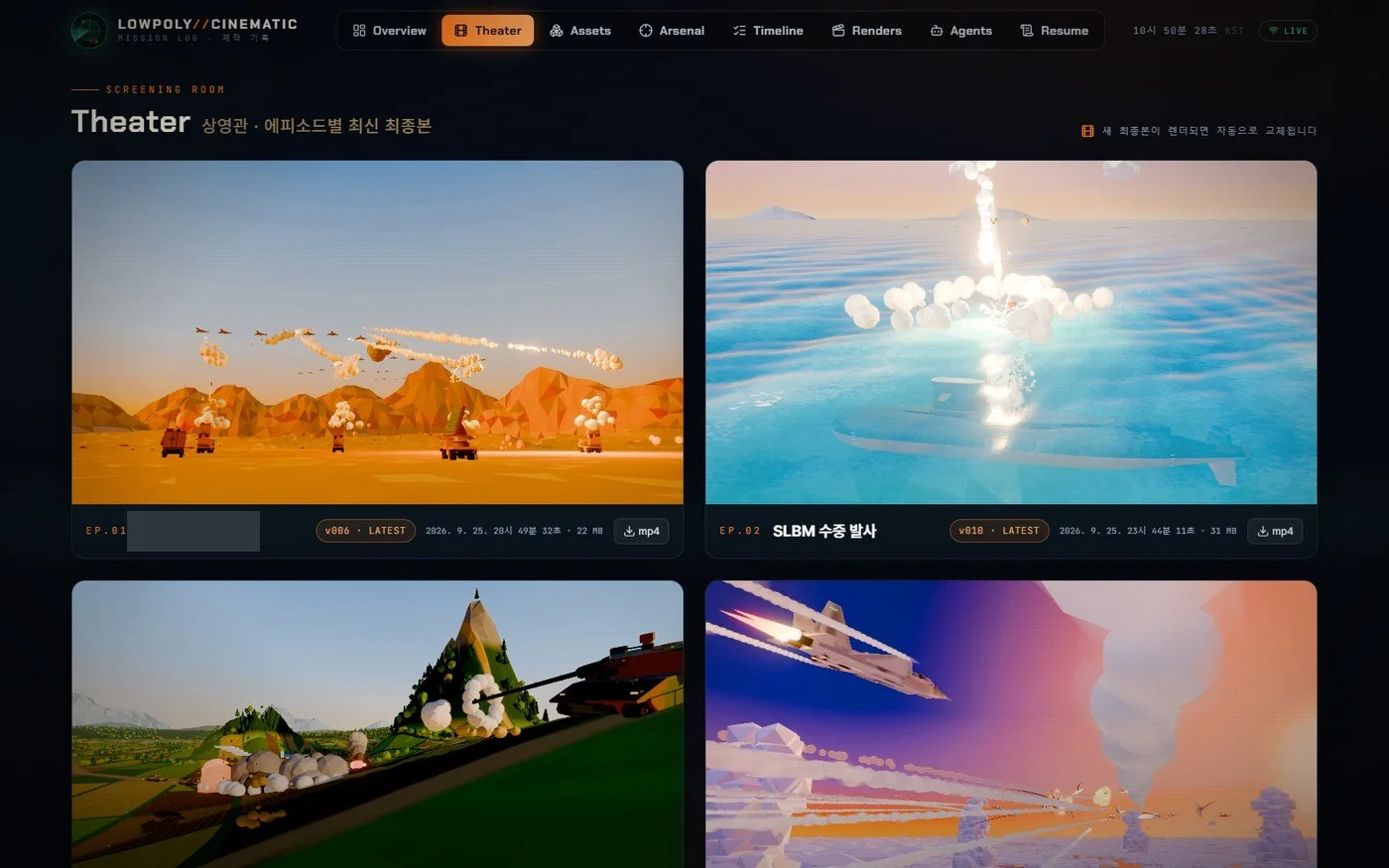
Low-poly war animation with Claude Code, part 1: one day, and who did what
With almost no Blender experience, I made five 40-second 3D animations in one day by giving Claude Code instructions in plain words. This part covers that day and splits out what the AI did and what I did.
 Blender
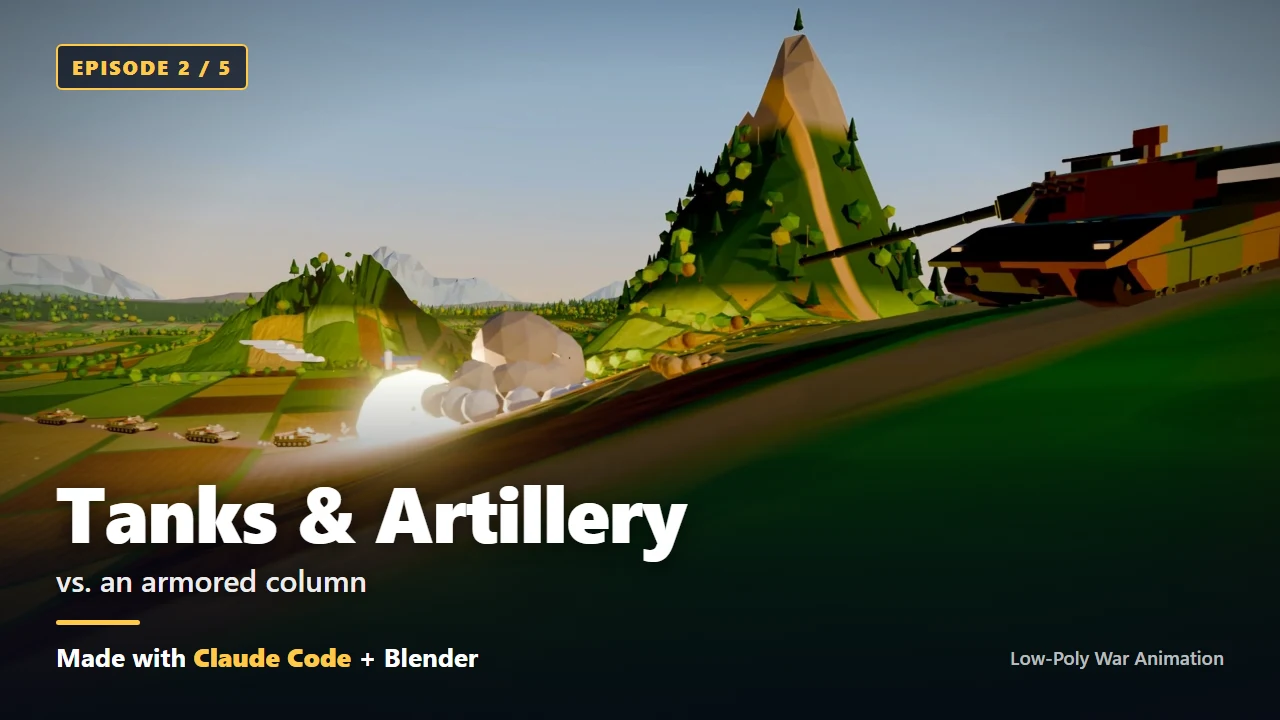
Low-poly war animation with Claude Code, part 2: the five films, results first
The five low-poly war videos I made in one day by giving Claude Code instructions in plain words, shown first: one key frame, three lines of description and one key number for each.
 Blender
Low-poly war animation with Claude Code, part 3: install Claude Code and let the AI set up the rest
Install Claude Code on Windows and log in, hand the checking and installing of Blender, ffmpeg and the Python libraries to the AI, and confirm you're ready with one picture of a cube.
 Blender
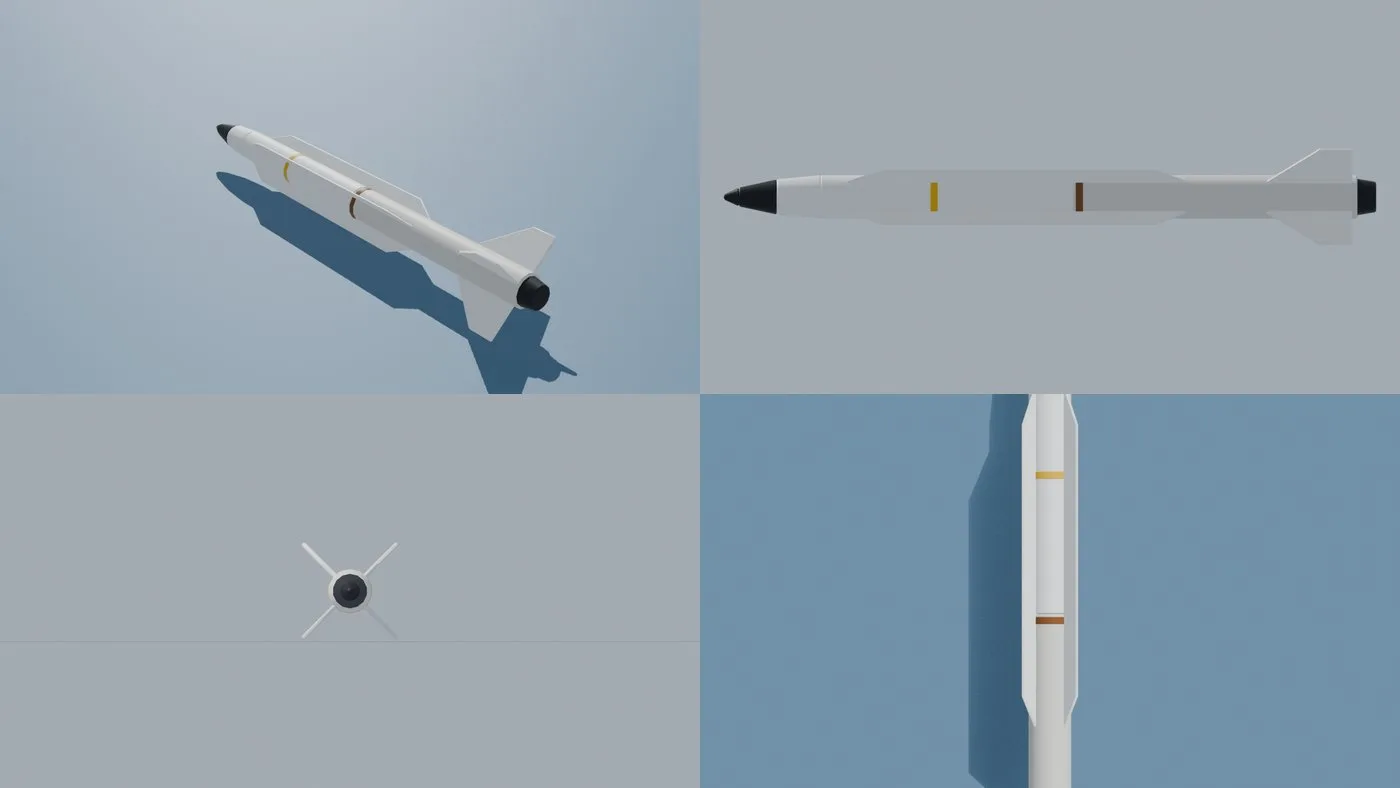
Low-poly war animation with Claude Code, part 4: the first prompt, with your plan on one page
Take the real thirteen-line first prompt apart into five groups, learn to give specs and quantities in numbers, get a plan first in plan mode, and fill in a first-prompt template of your own.
 Blender
Low-poly war animation with Claude Code, part 5: quick start, your first scene in six prompts
Send six prompts in order to build a 10-second scene with one launcher and one missile, check it on a single eight-panel contact sheet, then send one round of feedback.
 Blender
Low-poly war animation with Claude Code, part 6: ten key tips and the three prompts that worked best
Ten habits that paid off again and again while making five low-poly war animations in one day, plus the three prompts that worked best, quoted from what I actually sent.
BlenderFive Low-Poly War Animations Made with Claude Code: A One-Day Build, Summarized
With almost no Blender experience, I made five 40-second low-poly war animations in one day by describing them to Claude Code. This is what I set up, what my first prompt said, what went wrong and how I fixed it, and how to think about the cost.
3D BASICS
3D basics and animation 10 guides
3D and video ideas that help while you use Blender.
 Blender
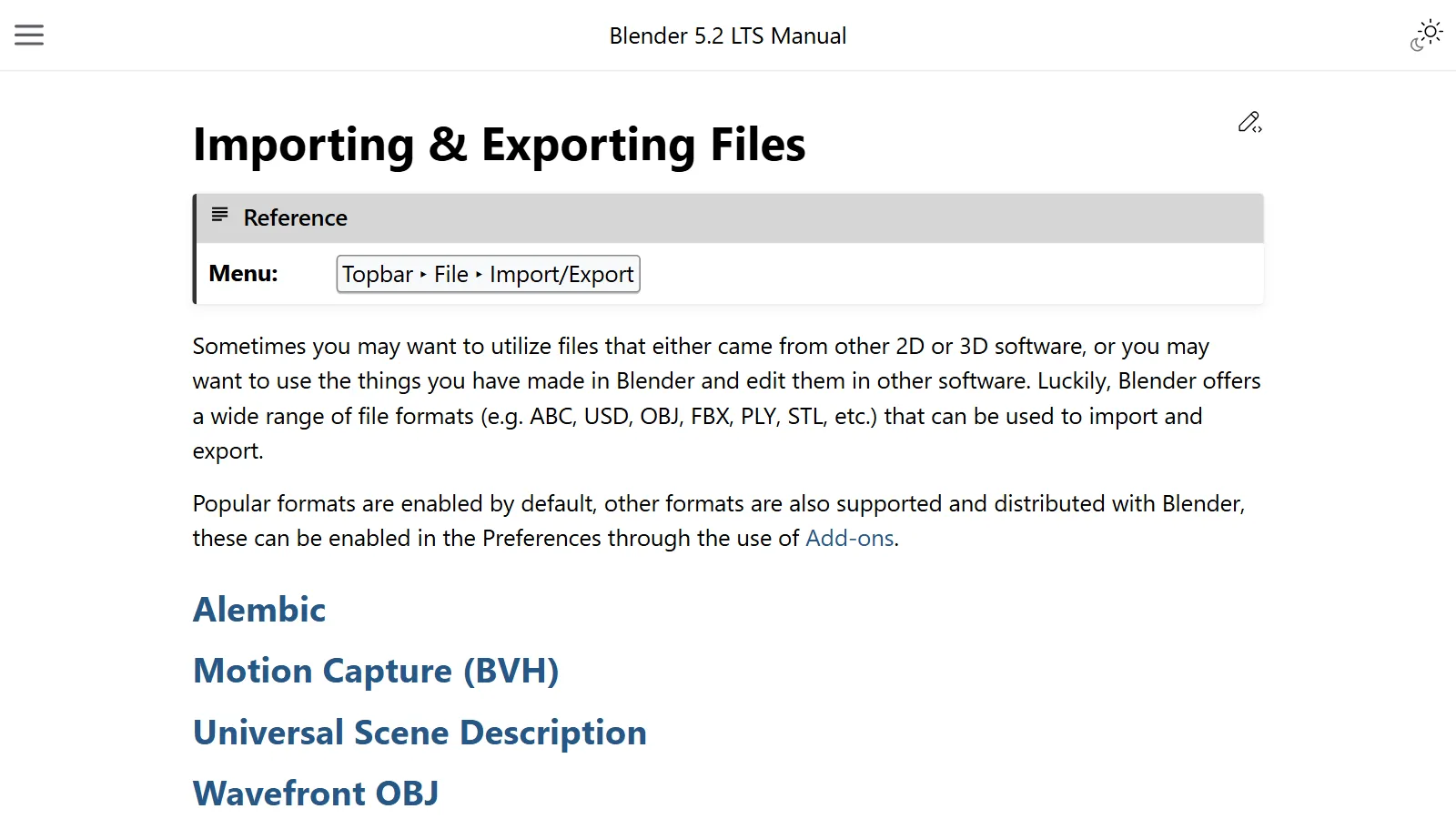
3D file formats compared: FBX, glTF, OBJ, and USD
OBJ is an envelope, glTF is a shipping box, FBX is a suitcase, and USD is a chest of drawers. A look at how four 3D file formats differ and how to choose between them.
 Blender
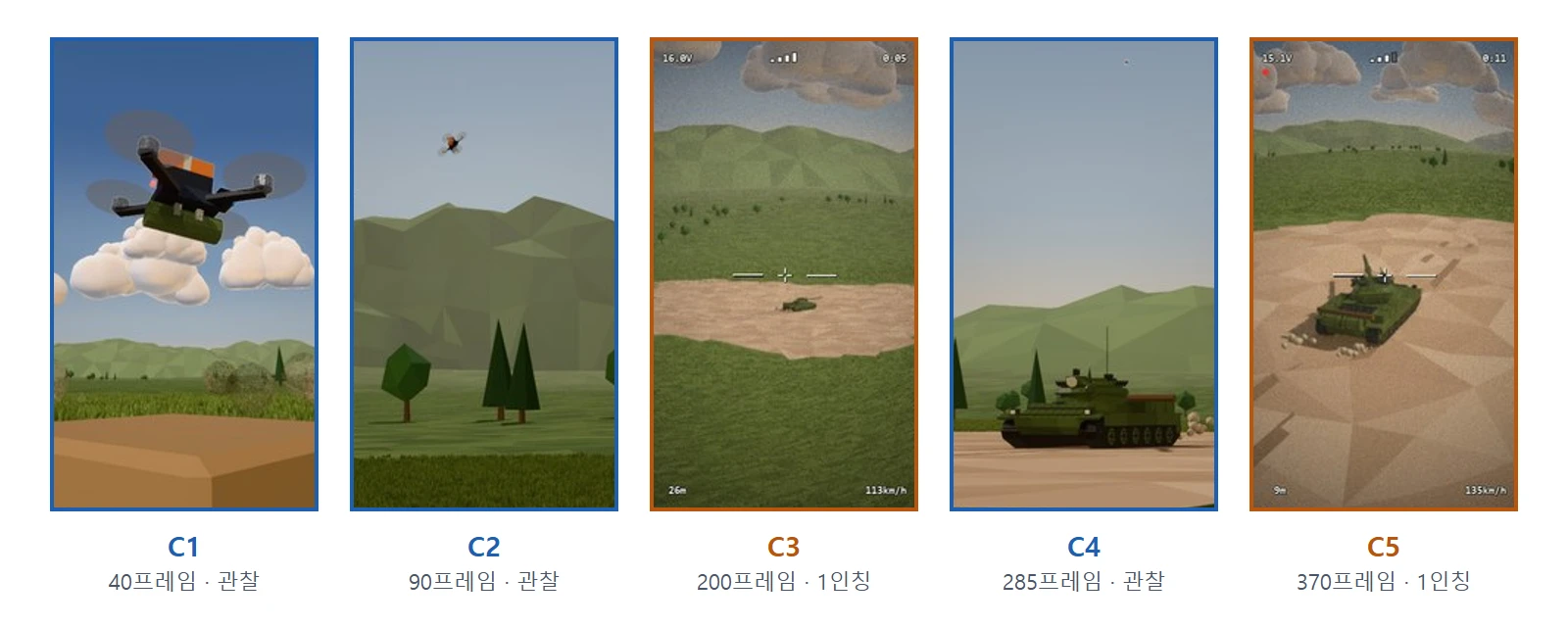
Planning a short animation: a 15-second video from 4 beats and a cut table
How to plan a short video on one sheet of paper before you render. Work down from a one-line summary to 4 beats, a cut table, and frame ranges, then check it cheaply in Blender.
 Blender
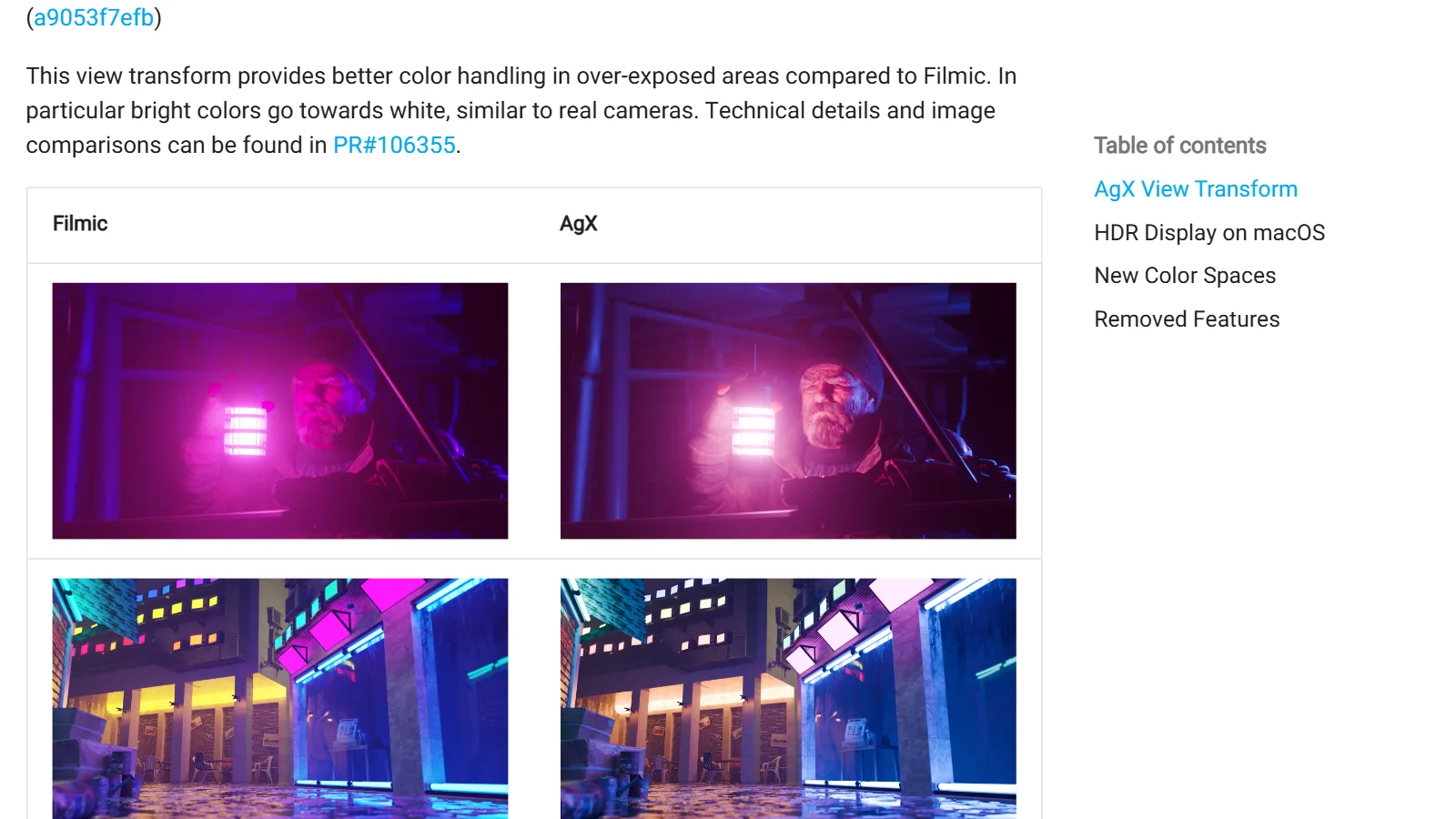
Color management basics: the difference between sRGB, Filmic, and AgX
Color management is how the wide brightness range of a 3D scene gets fitted onto a narrow monitor. A comparison of sRGB, Filmic, and AgX, and how to choose.
 Blender
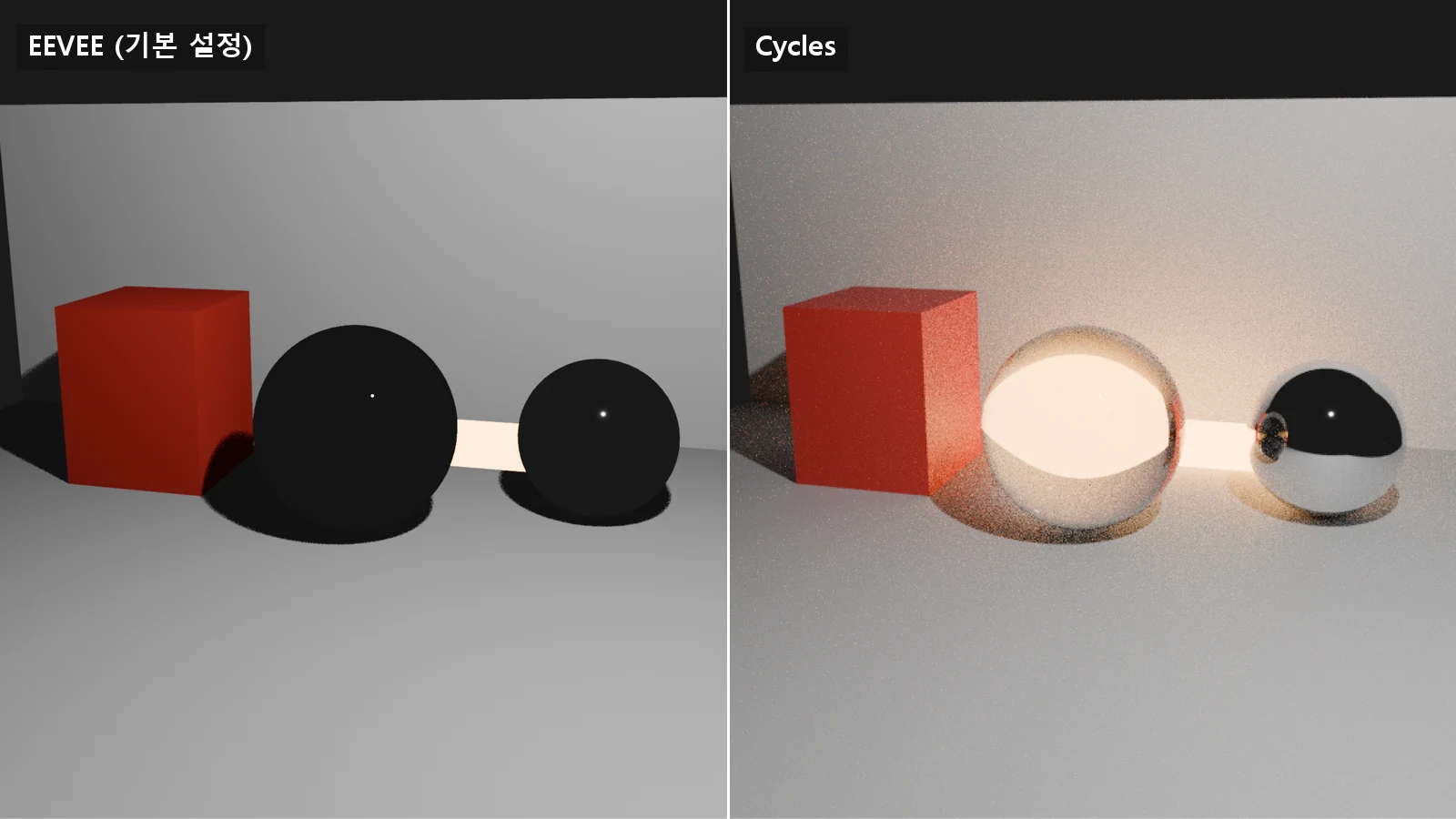
Fast EEVEE, accurate Cycles: how to choose a Blender render engine
EEVEE estimates light quickly, and Cycles follows the path of light. This guide covers the differences and how to choose.
 Blender
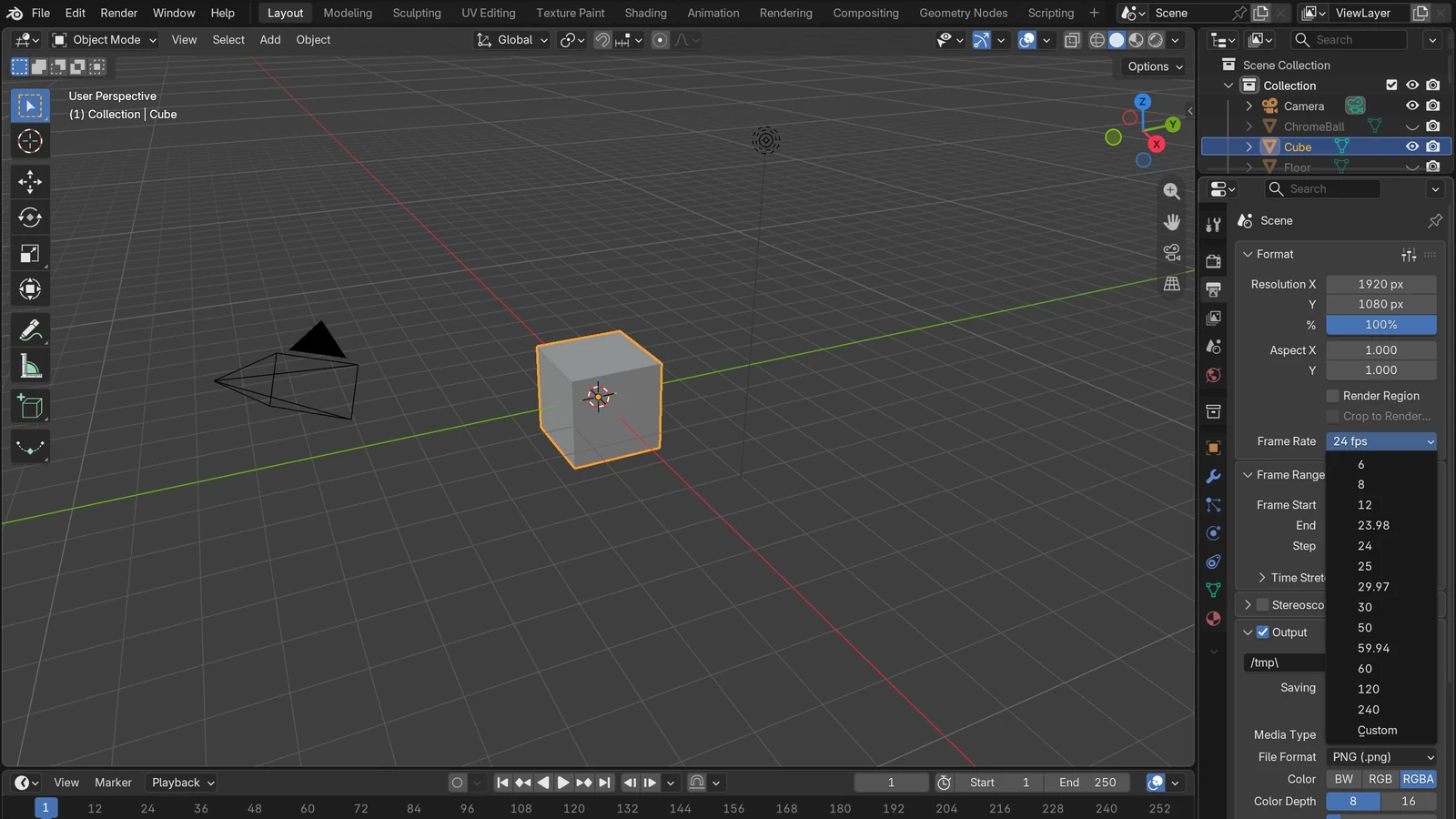
Understanding frame rate (fps): the difference between 24, 30, and 60
Fps is how many pictures are drawn for one second of video. Learn the difference between 24, 30, and 60, and how to choose.
 Blender
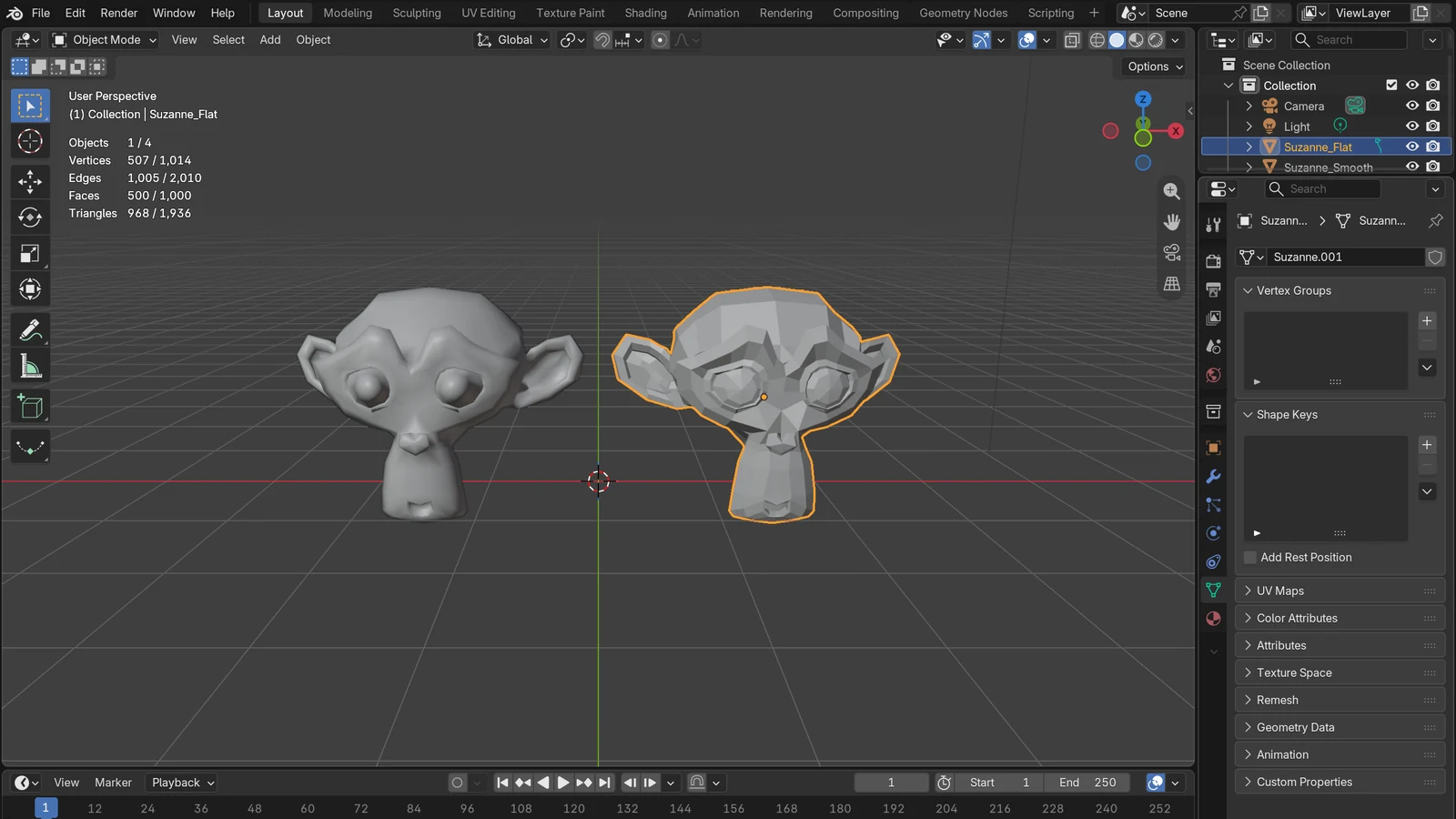
What Is the Low-Poly Style? Cute Shapes from Few Faces
The low-poly style uses few faces on purpose to show off clean angles. This guide covers how it works, and how to use Flat shading and the Decimate modifier in Blender.
 Blender
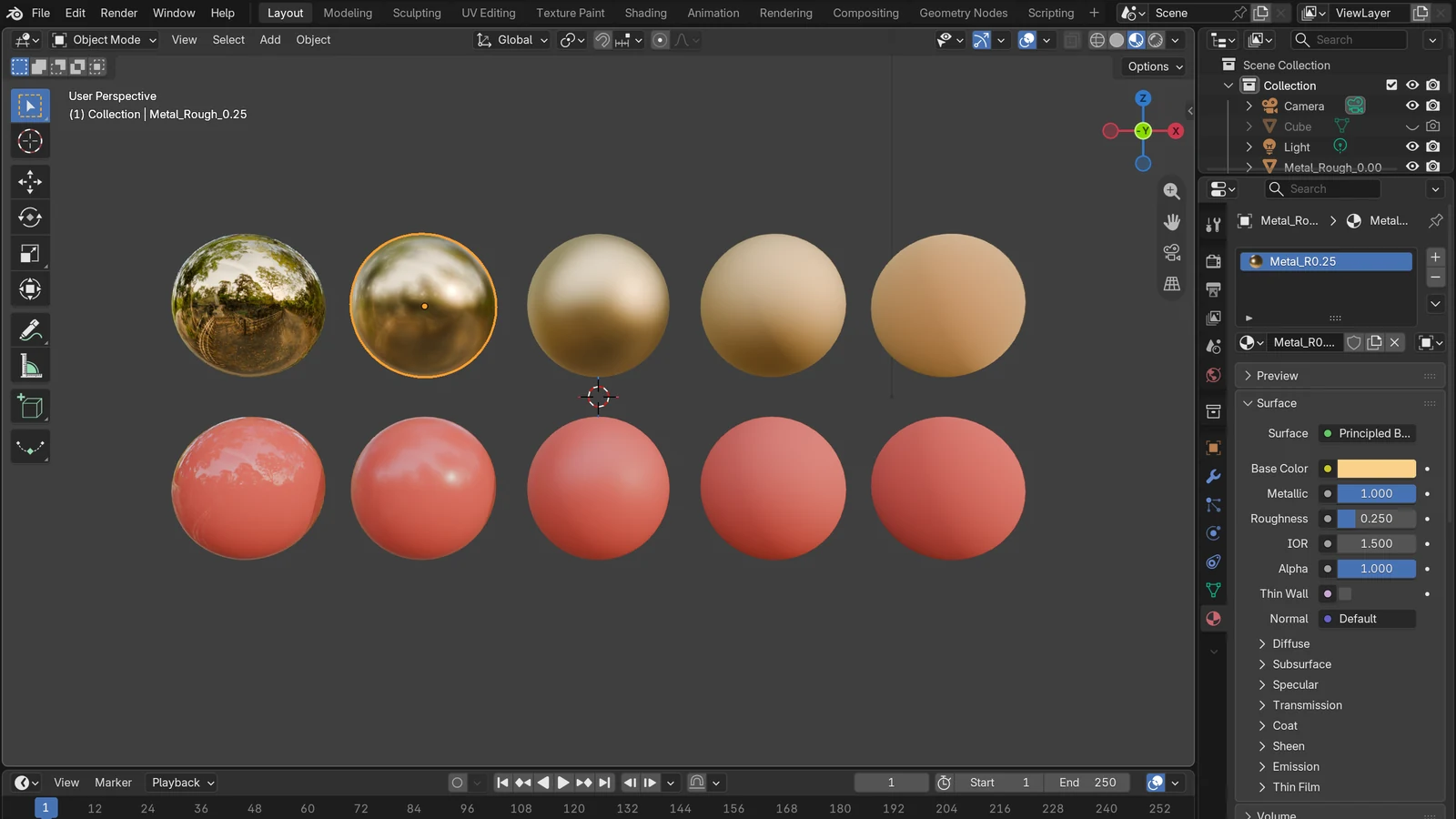
PBR materials: realism from metallic and roughness
Is it metal, and how rough is the surface? Learn why these two questions make 3D materials look real, and how to connect texture maps.
 Blender
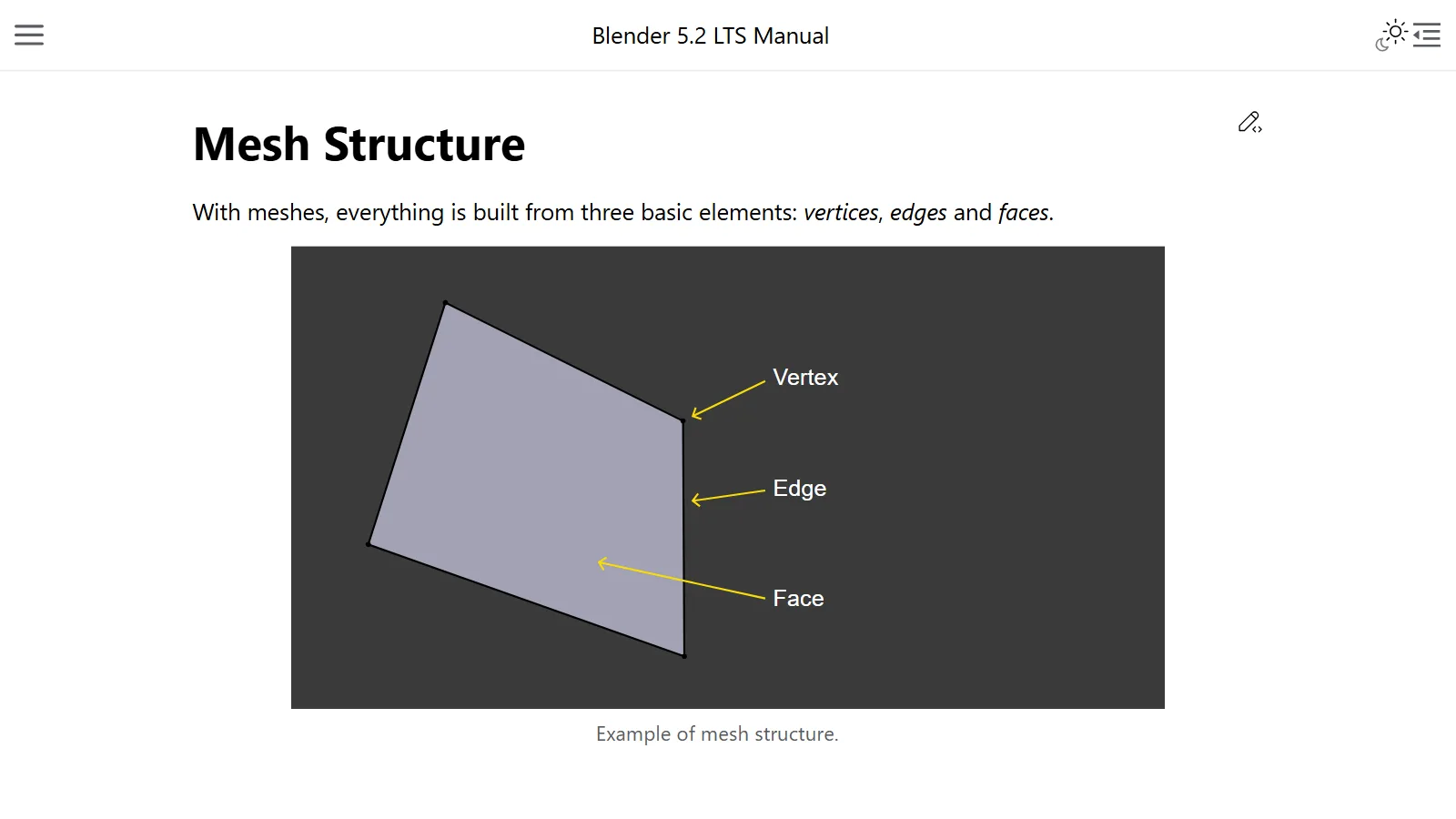
Polygons and topology: the points, lines, and faces that make a 3D model
A 3D model is a net woven from points, lines, and faces. This guide explains the kinds of polygons, and why topology, meaning how the faces are laid out, matters.
 Blender
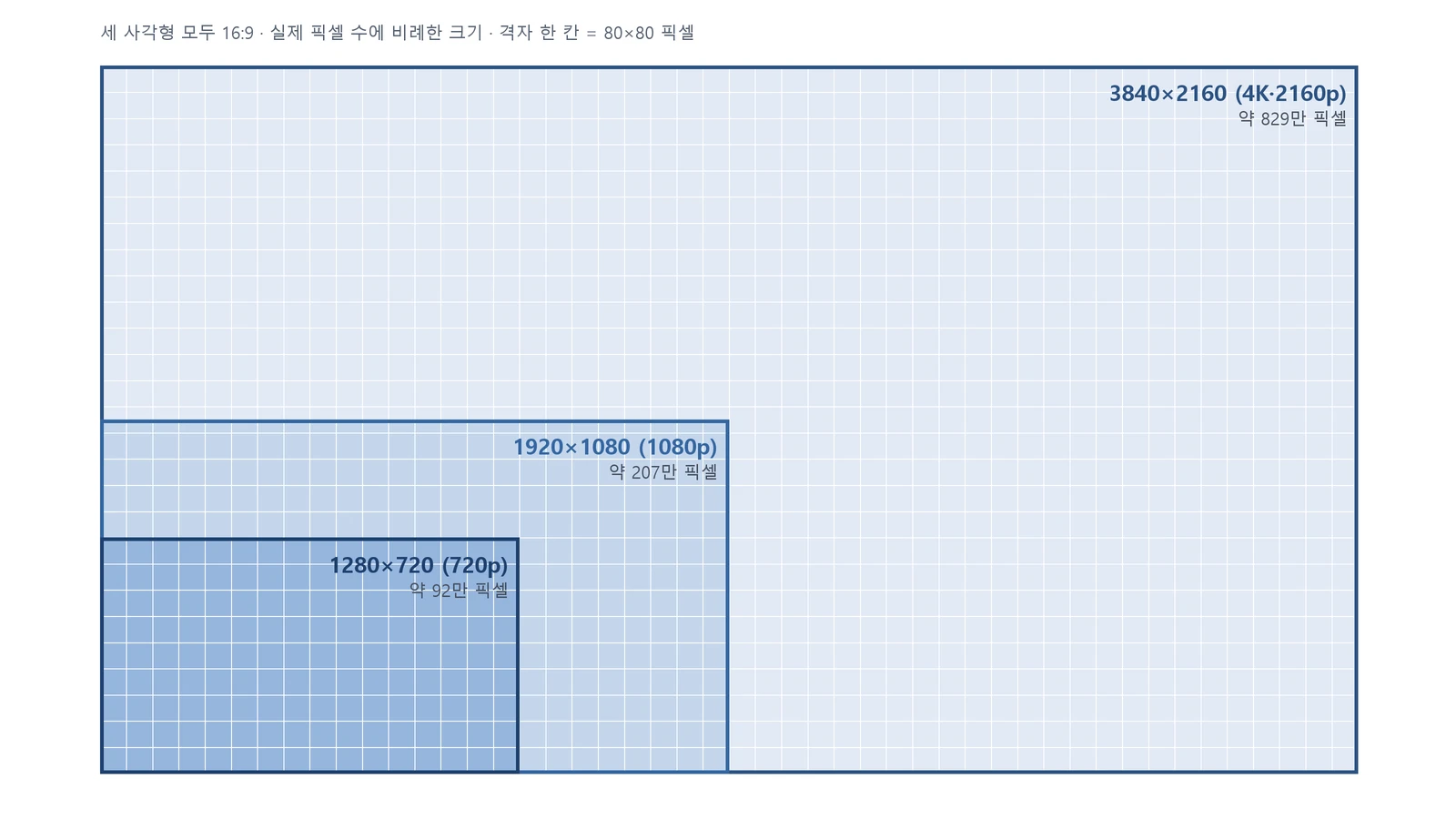
Resolution and aspect ratio: 720p, 1080p, and 4K, 16:9 and 9:16
Resolution is the number of dots, and aspect ratio is the shape of width against height. A plain explanation of 720p and 4K, and 16:9 and 9:16.
 Blender
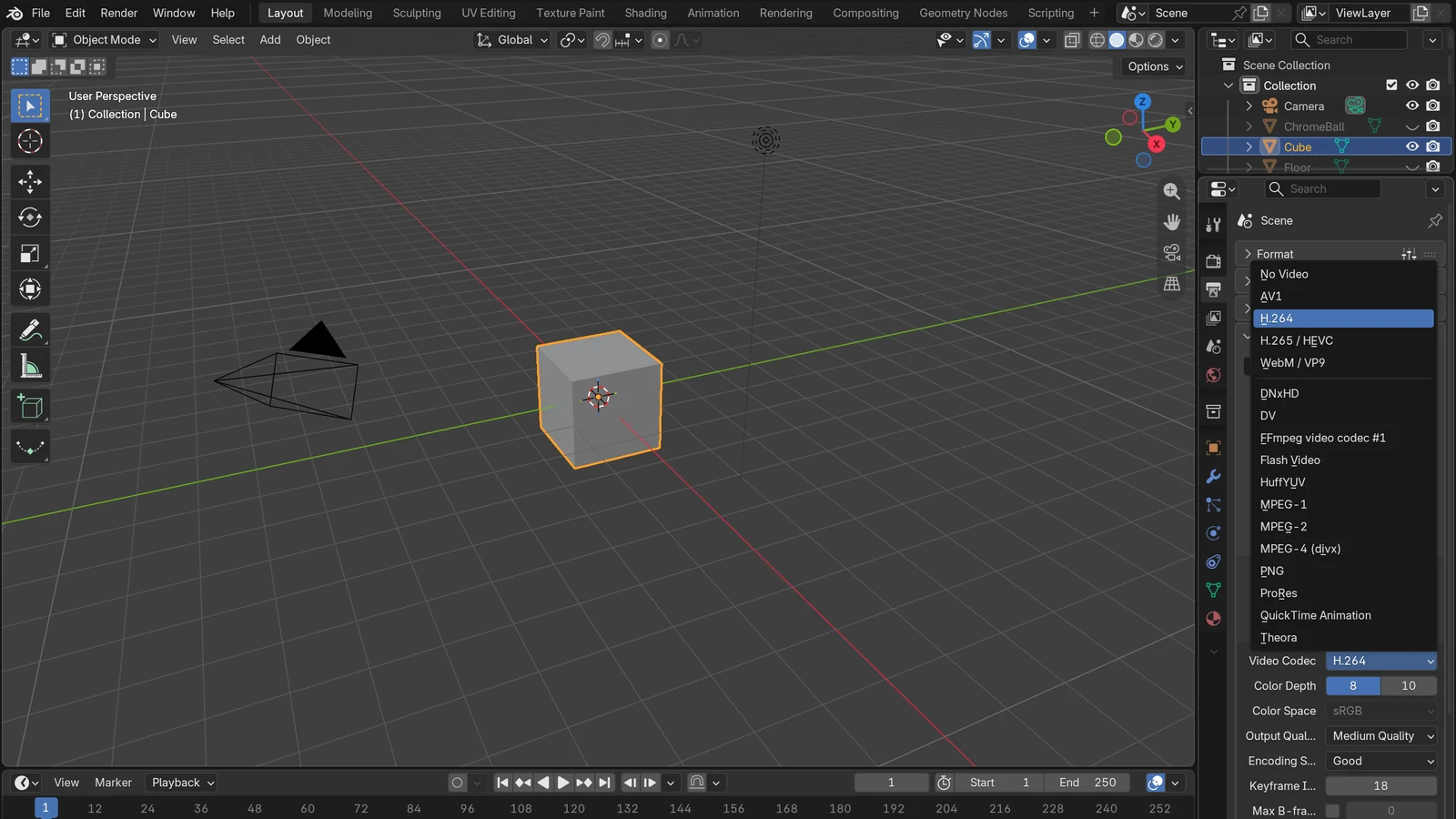
Video codecs and containers: H.264, H.265, and MP4 made simple
MP4 is the box, and H.264 is the way you pack it. Using official sources, this guide explains the difference between codecs and containers, why a video won't open, and settings for uploading.