Getting started with Blender Geometry Nodes: making shapes with rules
Blender Geometry Nodes make shapes with rules instead of by hand. This guide explains nodes, flow, fields, and instances in plain words, using an assembly line as the example.
한국어English
ON THIS PAGE
Based on: the official Blender 5.2 LTS manual (English interface, default keymap)
Geometry Nodes is a Blender feature that makes shapes from rules instead of building them piece by piece by hand. A rule might be "scatter points over this surface, stand one tree on each point, and make each one a slightly different size." You build rules by connecting small function boxes (nodes) with lines, and when you change even one number, the whole result is recalculated. This guide explains what Geometry Nodes is, how it connects to modifiers, how to read nodes and lines, the easily confused ideas of attributes, fields, and instances, and an example flow that builds a forest on flat ground. From start to finish, it uses one example: a factory assembly line.
What Geometry Nodes means
Geometry Nodes is a system for modifying an object's geometry with node-based operations. Here, geometry is the data that forms an object's shape, such as points, edges, and faces, and a node is a small function box that does only one job.
In assembly line terms, it looks like this.
| Modeling by hand | Geometry Nodes |
|---|---|
| A craftsman making each product by hand at a workbench | An assembly line with machines standing in a row |
| To change the size, start over | Just turn a dial (number) on a machine |
| 100 of the same product means repeating 100 times | The same line keeps working even when you feed it different material |
The Geometry Nodes workspace tab at the top of Blender is a layout for procedural modeling. Procedural means you store the procedure for making something (the rules) instead of the finished product. It is like keeping the whole assembly line, so later you only change a dial and the finished product is rebuilt automatically.
A type of modifier
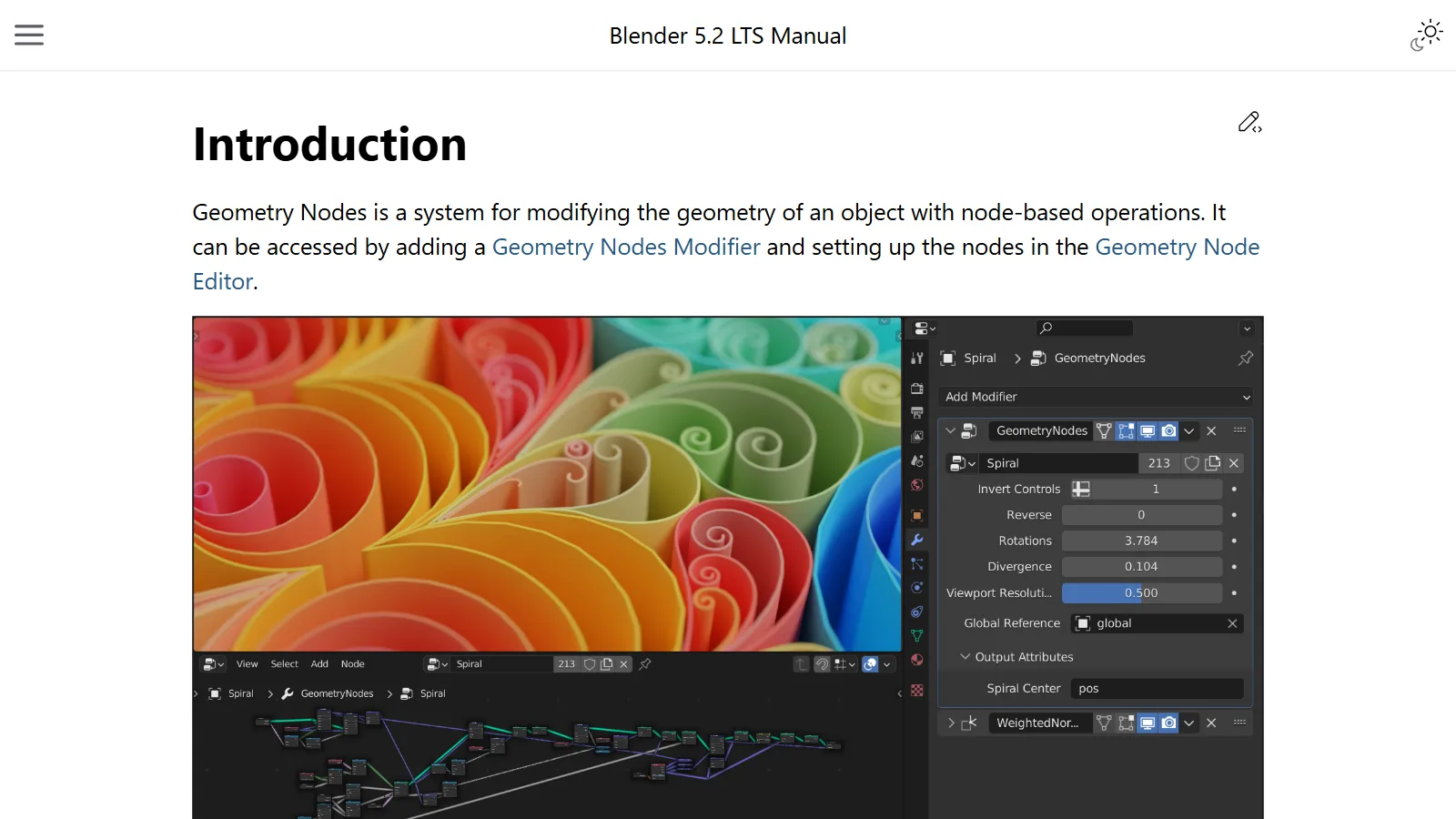
Geometry Nodes is not a separate program. You use it by adding a Geometry Nodes modifier to an object and building nodes in the Geometry Node Editor. It keeps the property of modifiers that changes only the result without touching the original. If modifiers themselves are new to you, read the modifiers guide first.
The flow works like this.
- The bundle of nodes connected to the modifier is called a node group (Node Group). It is one whole assembly line.
- The shape before the modifier receives it (the original, or the result of the modifier before it) comes in through the Group Input node. This is the entrance to the line.
- The machines inside the node group process that shape.
- When the result goes out through the Group Output node, it passes on to the next modifier. This is the exit of the line.
Material comes in through the entrance, gets refined as it passes each machine (node), and leaves through the exit as a finished product. Just as material passes through unchanged when there are no machines between entrance and exit, the shape does not change when only Group Input and Group Output are connected.
The material this line can take is not only meshes (objects made of faces). It also handles curves (Curves), point clouds (Point Clouds), volumes (volume data such as smoke and clouds), and instances. The modifier can be added to mesh, curve, text (Text), and volume objects.
Opening it for the first time
- Click the Geometry Nodes workspace tab in the top bar. A working layout opens with the node editor, the 3D Viewport, and more. The idea of workspaces is covered in the Blender interface guide.
- Select an object in the 3D Viewport.
- Click the New button at the top center of the node editor, or add a Geometry Nodes modifier with Add Modifier in the Modifiers tab of the Properties editor.
- When you see Group Input and Group Output in the node editor, you are ready. Add nodes with
Shift+A(the Add menu) over the node editor, and connect the nodes with lines.
How to read nodes and lines
Every node in Blender looks similar. At the top is the title (the node name), on both sides are small colored circles called sockets, and in the middle are the settings.
| Part | Meaning | On the assembly line |
|---|---|---|
| Node | A box that does one job | One machine |
| Socket (left) | Values coming in | The machine's intake |
| Socket (right) | Values going out | The machine's outlet |
| Line (link) | Passes one node's result to the next node | A conveyor belt |
- The socket color shows the data type. Geometry is a teal shade (Sea Green), Color is yellow, true/false (Boolean) is light pink, and so on. It helps to think of connecting matching colors as the basic rule.
- A dashed line carries a "field" (explained below), and a solid line carries regular values. If you connect something wrongly, the line turns into a red solid line to warn you of the error.
- If a node has a problem, a warning appears in its title, and the same warning shows in the modifier panel.
Three confusing ideas: attributes, fields, and instances
Attribute: a tag on every part
An attribute is data stored for each element of the geometry (each point, face, and so on). It is like every part moving along the assembly line having a tag with a number or a measurement written on it. Position (Position) is a typical attribute attached to every point. Open the Spreadsheet editor to see these tag values in a table, like an Excel sheet.
Field: a work order posted on the wall
The most confusing idea in Geometry Nodes is the field. A field is a calculation (function) that takes several inputs and gives one output, and you use it to calculate a different result for each point or face.
Imagine a single work order posted on the assembly line wall: "Add 10 mm to the length on each part's tag and cut it to that length." There is only one work order, but each part's tag length is different, so every cut result is different. A field is exactly this work order. In the node editor, when you see diamond-shaped sockets and dashed lines, read them as "this value is calculated separately for each point."
Nodes fall into two broad groups.
- Data flow nodes: take geometry in and send geometry out, actually changing the shape. They are the machines on the line.
- Field nodes: create the calculation to apply to each point (the work order). A field node must be connected to a data flow node before actual values are calculated.
Instance: a sample and a placement list instead of finished products
Say you want to stand 1,000 trees in a forest. If you copy the whole tree shape 1,000 times, the file gets heavy and uses a lot of memory. An instance is a way to place the same shape in many spots without duplicating the actual data. An instance holds only reference information: "show the original tree at this position, at this angle and size." This way, render engines such as Cycles also handle scenes with the same shape in many places better.
In assembly line terms, instead of making 1,000 finished products and loading them onto a truck, you carry one sample and a placement list that says "where, facing which way, and how big." If you fix the sample, every tree placed from the list shows the fixed sample's shape, because they all point to the same sample. If you need to edit each tree separately, you can turn them into real geometry with the Realize Instances node, but that uses more memory. It is like making 1,000 real finished products instead of using a sample.
Example flow: a forest on flat ground
Below is a concept example that chains six nodes. Knowing these node names helps when you follow tutorials.
| Step | Node | What it does |
|---|---|---|
| 1 | Group Input | The flat ground (a mesh with faces) enters the line |
| 2 | Distribute Points on Faces | Scatters points over the surface. Density is the number of points per square meter, and changing Seed changes the scatter pattern |
| 3 | Instance on Points | Attaches one instance of the tree sample to each point. Connect the tree sample to the Instance input. Set angle and size with the Rotation and Scale inputs |
| 4 | Random Value | Makes random values as a field; connect it to Scale and each tree gets a slightly different size |
| 5 | Join Geometry | Joins the original ground from step 1 and the tree instances from step 3 into one. Without this node, only the trees come out and the ground disappears |
| 6 | Group Output | Sends out the joined ground and tree instances |
- If you change the Distribution Method in step 2 to Poisson Disk, you can keep a minimum distance between points. However, the minimum distance only takes effect if you set the Distance Min value that appears to more than 0. With the default of 0, points are scattered exactly as in the Random method.
- The Random Value in step 4 is the field you just read about. One work order, "random size between 0.8 and 1.2," is calculated as a different value for each tree. 0.8 to 1.2 are example values for explanation.
- If you later want a denser forest, just raise the Density value. Not having to plant more trees by hand is the advantage of building with rules.
How to check when you get stuck
When the node tree does not behave the way you want, use these tools to check.
- See socket values: hover the mouse over a socket to see the last calculated value. For geometry, you see a summary such as the number of points and faces. However, values are recorded only for nodes connected all the way to Group Output.
- Viewer node: shows the shape at an intermediate step in the 3D Viewport and the Spreadsheet. It is like taking one product off the middle of the line to check it.
- Spreadsheet: shows the attribute (tag) values attached to each point in a table.
- Warnings: if an input is wrong, a warning appears in the node title.
If the calculation becomes heavy, there is also a Bake feature that stores intermediate results. To bake, you must first save the blend file to disk. Also, there is no guarantee that data baked in one version can be read in another, so it is safer to bake again after updating Blender.
When it works well
- When you need to place the same shape many times, each a little different: forests, grassy fields, rock piles, crowds, building windows
- When the size or count is likely to change later: the number of stair steps, the length of a fence
- When you want to reuse the same rule on several objects: even when several modifiers share the same node group, each modifier can be given its own input values. It is like installing one line in several factories and setting only the dials differently in each factory.
On the other hand, a shape you make carefully only once, such as a character's face, may be faster to model by hand. To judge whether it is worth setting up a line, ask "how many times will I do this, and how much will I change it?"
Summary and next steps
- Geometry Nodes is a procedural modeling tool that makes shapes with rules (node groups), and it is attached to objects through a modifier.
- Shapes flow in the order Group Input (entrance) → nodes (machines) → Group Output (exit).
- An attribute is a tag on every part, a field is a work order calculated separately for each part, and an instance is a sample and a placement list instead of finished products.
- To keep spacing with Poisson Disk, set Distance Min to more than 0.
- When you get stuck, check intermediate results with the Viewer node and the Spreadsheet.
Colors and materials are made with nodes in the same way. You can continue with the shader nodes guide, and for choosing a render engine for scenes with many instances, see the EEVEE and Cycles guide. How to have code instead of nodes do repetitive work is covered in Blender Python automation.
References
- Blender Manual (5.2 LTS), Geometry Nodes Introduction
- Blender Manual (5.2 LTS), Geometry Nodes Modifier
- Blender Manual (5.2 LTS), Geometry Node Editor
- Blender Manual (5.2 LTS), Node Parts
- Blender Manual (5.2 LTS), Fields
- Blender Manual (5.2 LTS), Attributes
- Blender Manual (5.2 LTS), Instances
- Blender Manual (5.2 LTS), Distribute Points on Faces Node
- Blender Manual (5.2 LTS), Instance on Points Node
- Blender Manual (5.2 LTS), Random Value Node
- Blender Manual (5.2 LTS), Inspection
- Blender Manual (5.2 LTS), Spreadsheet
- Blender Manual (5.2 LTS), Baking
- Blender Manual (5.2 LTS), Workspaces