Blender for complete beginners, chapter 1: from checking your PC to downloading and installing
A Blender install guide for complete beginners. Check the requirements on the official site, pick the right file, install it, and open Blender for the first time to check the version.
한국어English
ON THIS PAGE
- 01What you will learn in this chapter
- 021. The program called Blender
- 032. A tour of the Download page
- 043. Checking the requirements: will Blender run on your computer?
- 054. Picking the right file for your computer
- 065. Picking a version: LTS
- 076. Installing
- 087. Opening Blender for the first time
- 098. Practice
- 109. Common mistakes and fixes
- 11Summary in one line
- 12References
Blender for complete beginners, chapter 1 · Based on: Blender 5.2 LTS This series is for people who have never opened a 3D program. Every image is a real screen. On images from the official site and manual, only red numbers were added.
What you will learn in this chapter
By the end of this chapter, Blender will be installed on your computer, and you will have checked its version number on the first screen.
- Learn what Blender is and where the official site is. (Section 1)
- Learn how the Download page looks and what its submenu holds. (Section 2)
- Check that your computer meets the official requirements. (Section 3)
- Pick the right file for your computer. (Section 4)
- Decide which version (LTS) to get. (Section 5)
- Install it, open it for the first time, and check the version. (Sections 6 and 7)
Allow about 20 to 40 minutes, depending on your internet speed.
1. The program called Blender
Blender is a free, open-source 3D creation program. Open source means the program's blueprint (its source code) is public, so anyone can use, change, and share it for free. The license page on the official site says that what you make with Blender belongs to you, so you can use it for commercial work.
Here is how much you can do with Blender alone.
| Task | In plain words |
|---|---|
| Modeling | Building the shape of a 3D object from points, lines, and faces |
| Sculpting | Shaping a form the way you knead clay |
| Materials and lighting | Adding color and texture, and shining light on things |
| Animation | Moving objects and characters over time |
| Rendering | Turning a 3D scene into a picture or a video |
| Video editing and compositing | Cutting and joining rendered video and matching colors |
There is only one official site: blender.org. The internet has many sites with similar names, so always check that the address bar says blender.org.
 Figure 1-1. The top menu of blender.org. ① Click Download to go to the download page (blender.org screenshot, Blender Foundation – www.blender.org, CC BY-SA, numbers added)
2. A tour of the Download page
2-1. The first screen
Click ① Download in Figure 1-1 and the screen below appears. For now, just read it. You will pick the file in Section 4.
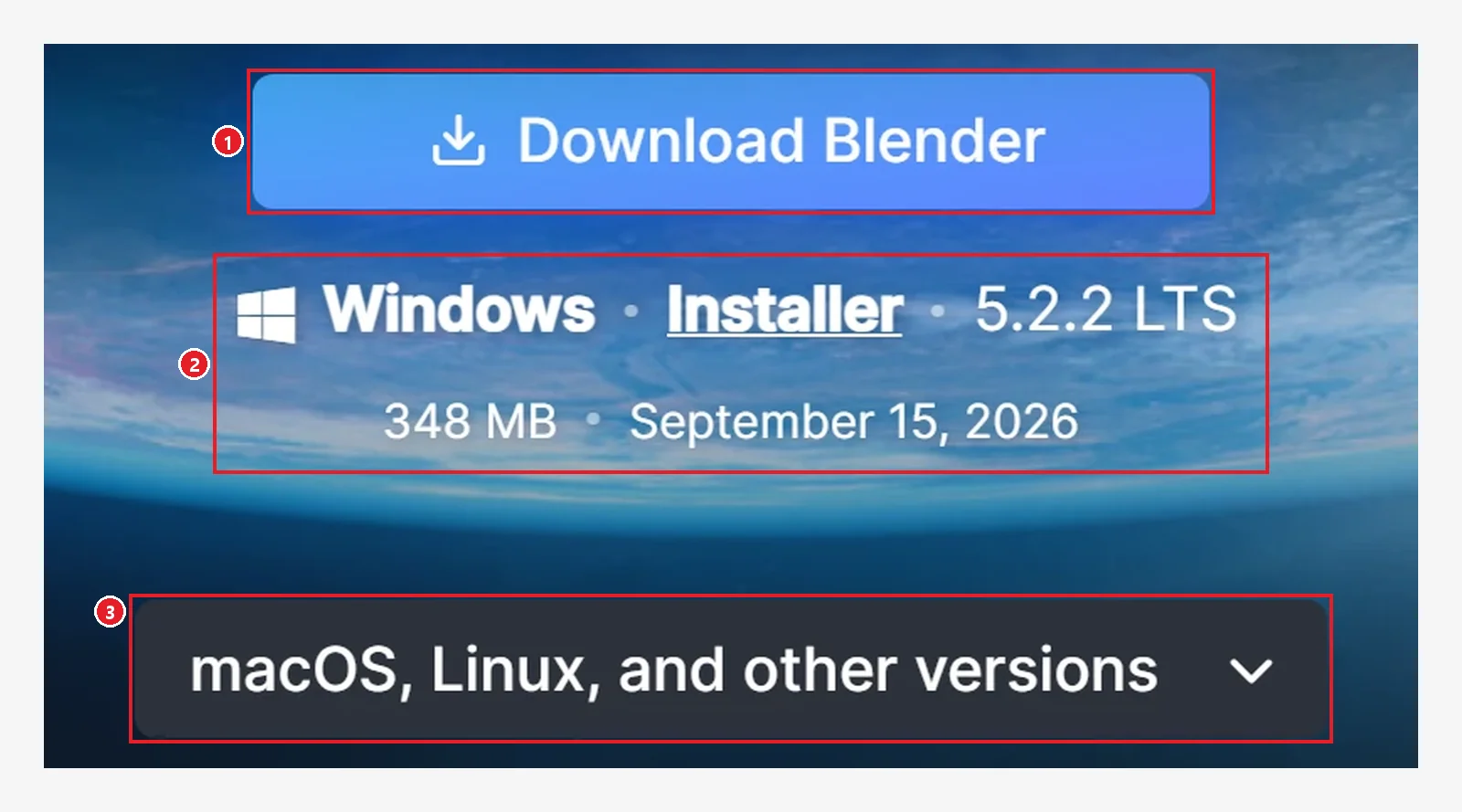 Figure 1-2. The middle of the Download page (the background art is cropped, leaving only the area around the buttons). ① Button to download right away ② File information the site picked after looking at your PC ③ Show other operating systems and formats (blender.org screenshot, Blender Foundation – www.blender.org, CC BY-SA, numbers added)
2-2. The submenu
The dark gray bar at the top of the Download page holds a small menu. In this chapter you mainly use the four numbered items. You will use Release Notes once in Section 5.
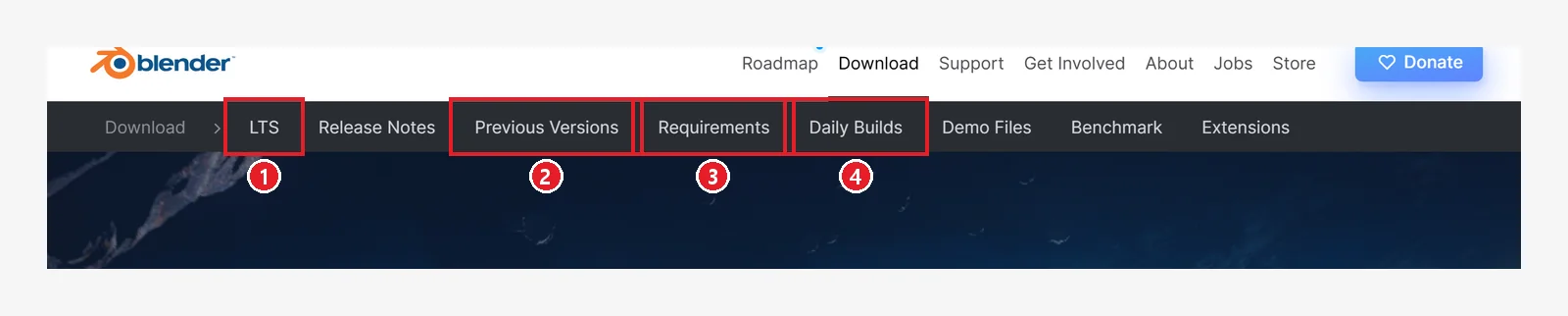 Figure 1-3. The Download submenu (blender.org screenshot, Blender Foundation – www.blender.org, CC BY-SA, numbers added)
| No. | Menu | Meaning | In this chapter |
|---|---|---|---|
| ① | LTS | Information on versions with long support | Section 5 |
| ② | Previous Versions | A collection of older versions | Only for old PCs |
| ③ | Requirements | System requirements | Look at this first, in Section 3 |
| ④ | Daily Builds | Test builds released every day | Do not use at first |
3. Checking the requirements: will Blender run on your computer?
3-1. Open the Requirements page
Click ③ Requirements in Figure 1-3 to see the official requirements table.
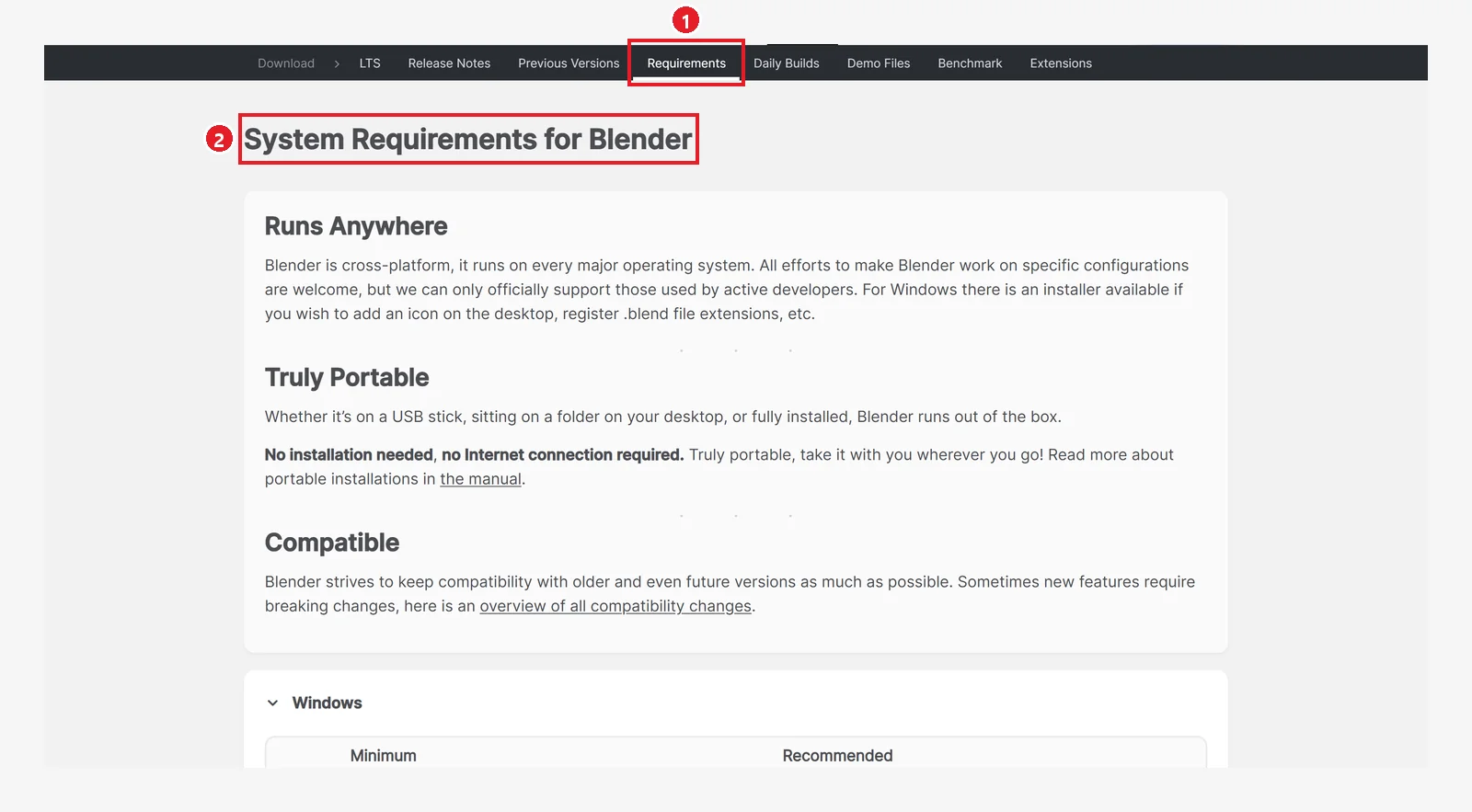 Figure 1-4. Click ① the Requirements tab to open ② the "System Requirements for Blender" page (blender.org screenshot, Blender Foundation – www.blender.org, CC BY-SA, numbers added)
3-2. Read the Windows table
Scroll down a little to find the Windows table. The left column, Minimum, means "you need at least this for Blender to start." The right column, Recommended, means "with this, Blender is comfortable to use."
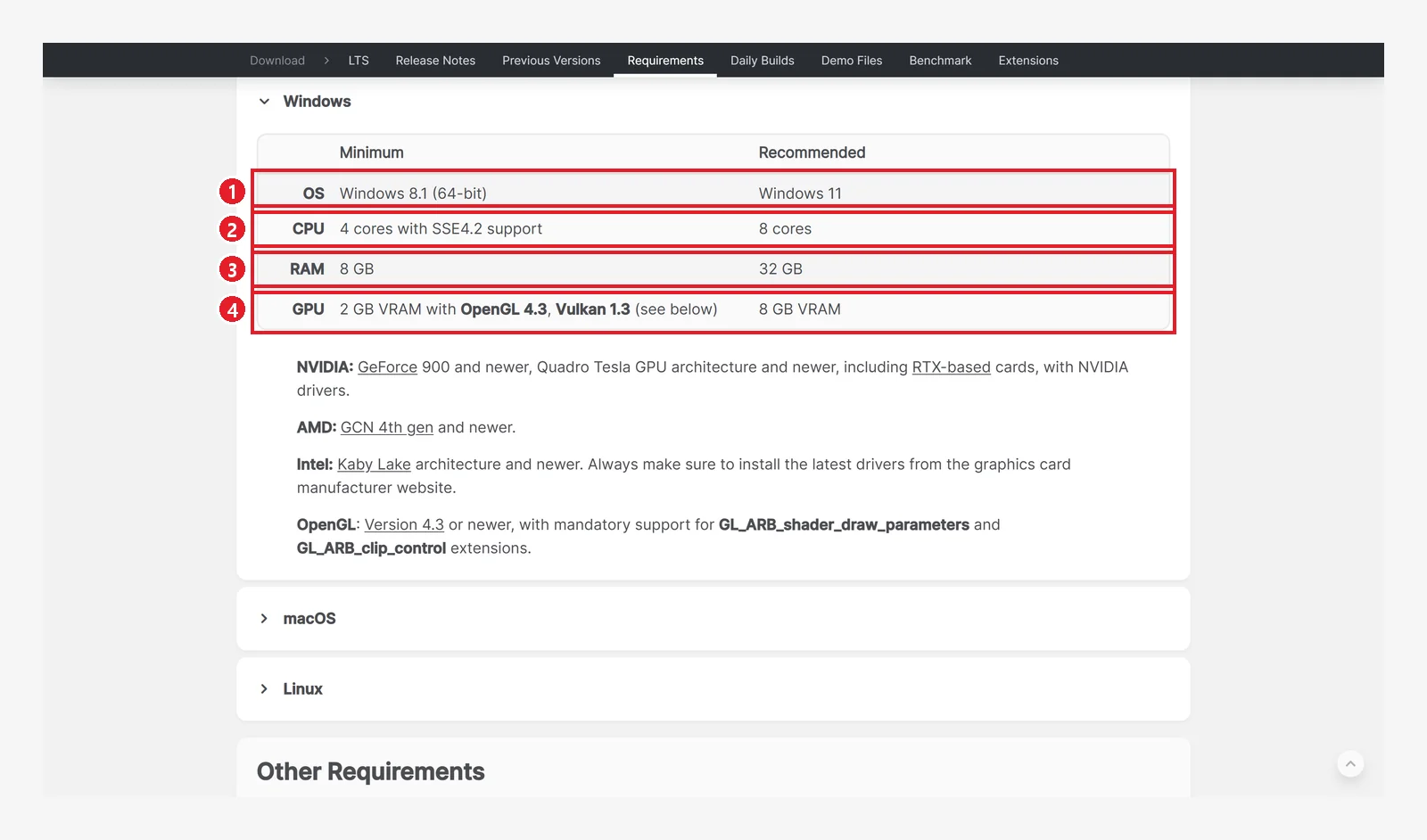 Figure 1-5. The Windows table. ① Operating system ② CPU ③ Memory (RAM) ④ Graphics card (GPU) (blender.org screenshot, Blender Foundation – www.blender.org, CC BY-SA, numbers added)
The table says the following.
| Item | Minimum | Recommended |
|---|---|---|
| ① Operating system | Windows 8.1 (64-bit) | Windows 11 |
| ② CPU | 4 cores with SSE4.2 support | 8 cores |
| ③ Memory (RAM) | 8 GB | 32 GB |
| ④ Graphics card (GPU) | 2 GB of graphics memory, OpenGL 4.3 and Vulkan 1.3 support | 8 GB of graphics memory |
For graphics cards, the page lists these by maker.
- NVIDIA: GeForce 900 series and newer
- AMD: GCN 4th generation and newer
- Intel: Kaby Lake and newer
The official page stresses again and again that you should install the latest driver from your graphics card maker's site. If the screen glitches or Blender closes right away, suspect the driver first.
Terms
- CPU: The computer's brain. "Cores" are the number of workers inside the brain working at the same time.
- RAM (memory): The size of your workbench. The bigger it is, the bigger the scene you can lay out.
- GPU (graphics card) and VRAM: A specialist worker that draws the screen, and that worker's own workbench.
3-3. Find your computer's specs (Windows 11)
In Windows 11 you can see everything at once in Settings → System → About. Right-click the Start button → open Settings, click System on the left, then About near the bottom.
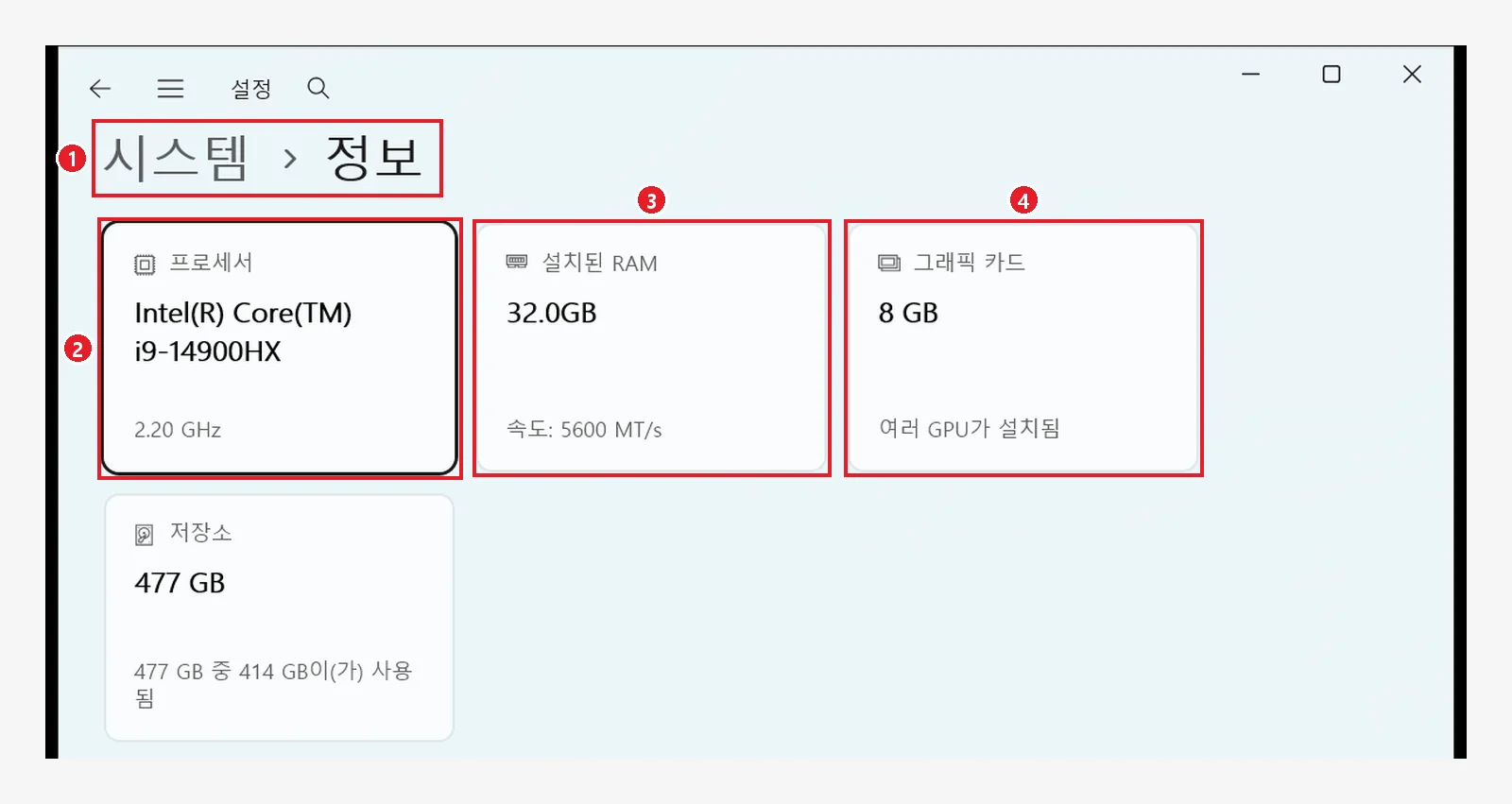 Figure 1-6. ① Settings → System → About ② Processor (CPU) ③ Installed RAM ④ Graphics card (graphics memory). The PC in the image has an i9-14900HX CPU, 32 GB of RAM, and 8 GB of graphics memory, which is above the recommended specs (Windows Settings screenshot, personal information hidden; labels in Korean)
Scroll down the same screen to find Device specifications. Be sure to check two things here.
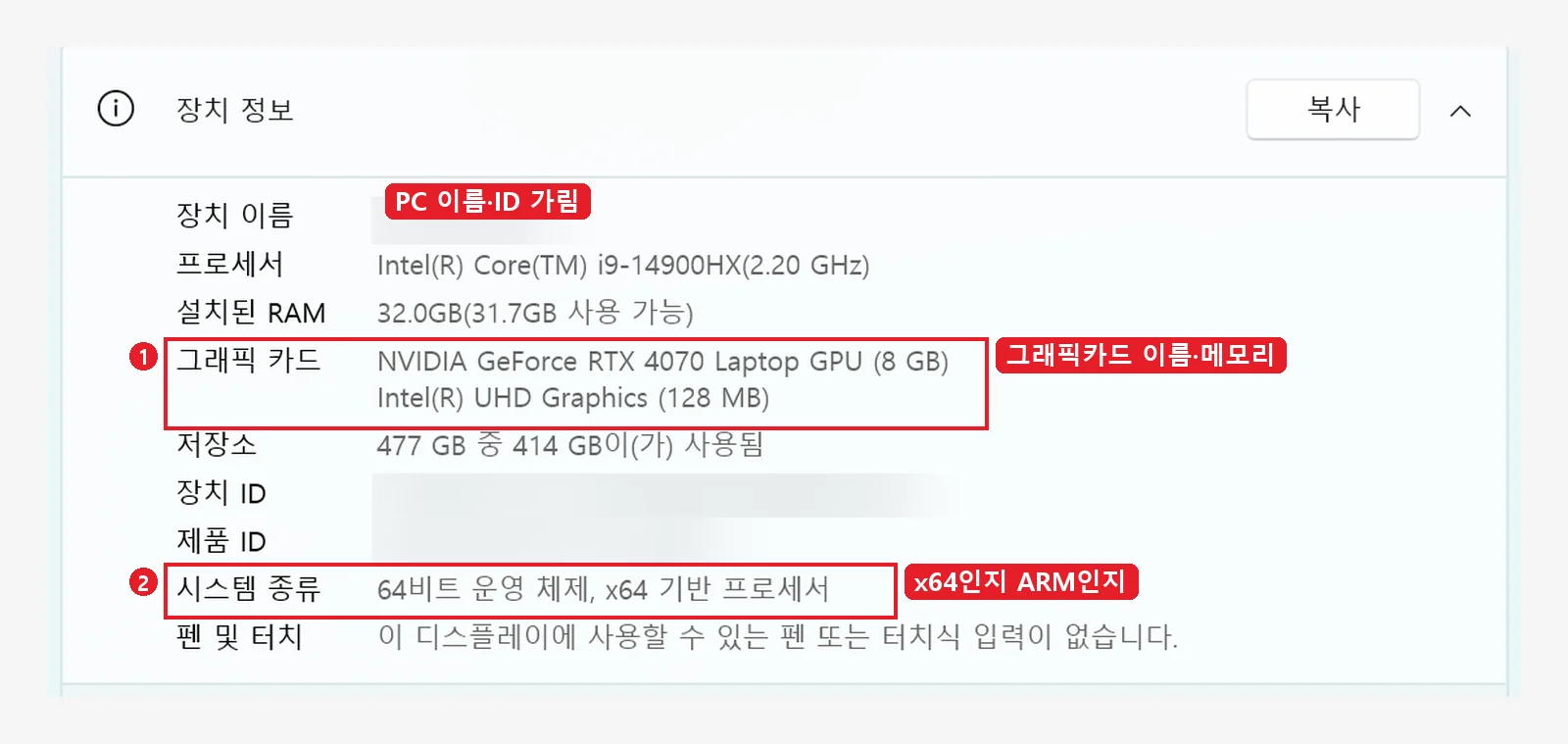 Figure 1-7. Device specifications. ① The graphics card name and memory (the PC in the image has an NVIDIA GeForce RTX 4070 Laptop GPU with 8 GB) ② System type: whether it says "x64-based processor" or "ARM-based." The device name, device ID, and product ID are hidden (Windows Settings screenshot, personal information hidden; labels in Korean)
- ② System type matters. Most PCs say "x64-based processor." A PC that says "ARM-based" needs the ARM file from the list in Section 4.
- You can also see graphics memory in Task Manager (
Ctrl+Shift+Esc) → thePerformancetab →GPUin the list on the left. The second number on the "Dedicated GPU memory" line near the bottom (for example, 8.0 GB) is the memory on the graphics card. Laptops with two graphics cards show GPU 0 and GPU 1 separately, so look at the one named NVIDIA or AMD. - In Windows 10 you can see the same information in Settings → System → About. The layout and menu names may be a little different.
3-4. Mac users
The macOS table is on the same page. The most important point is that starting with Blender 5.0, only Macs with Apple chips (M1 and newer) are supported.
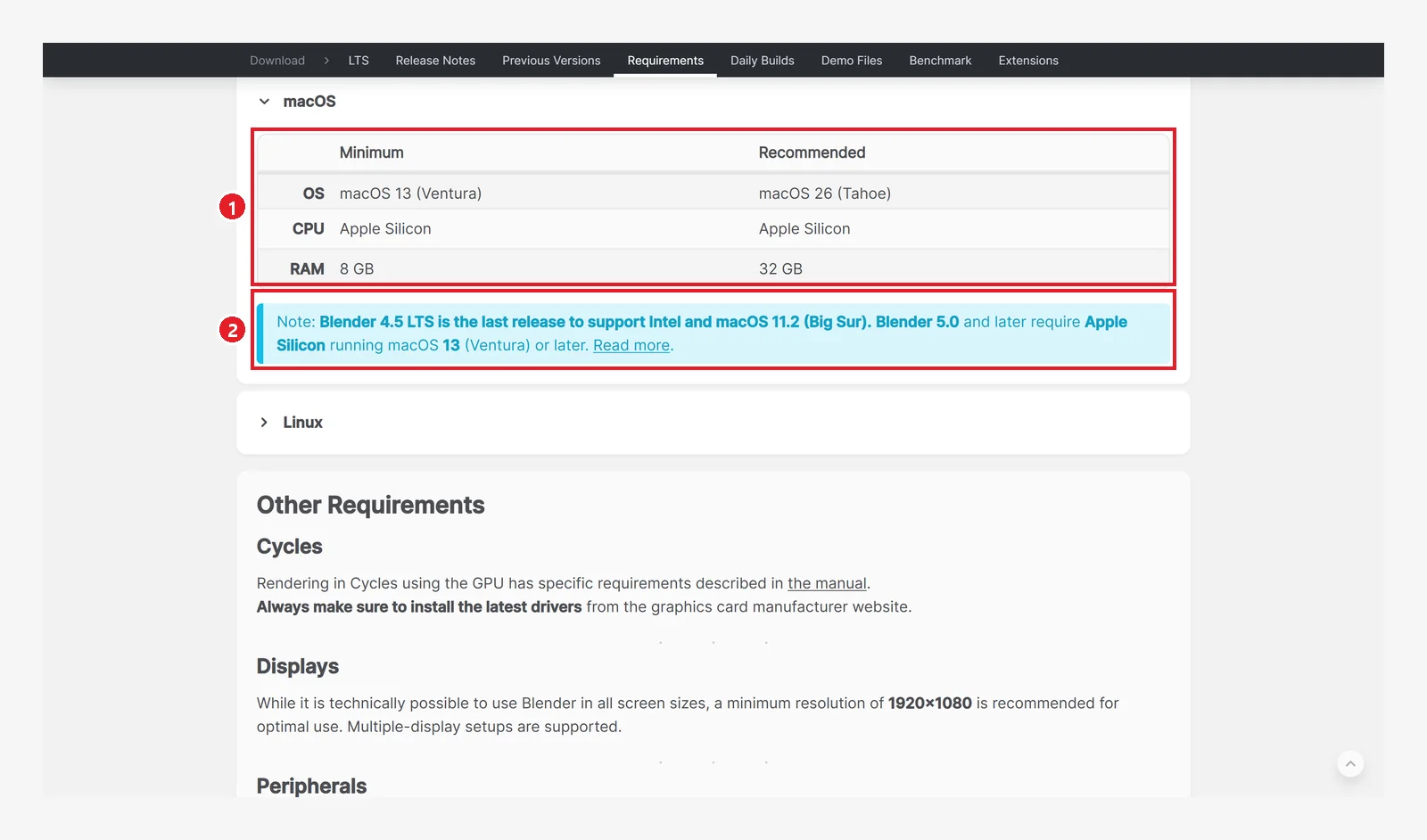 Figure 1-8. ① The macOS table: minimum macOS 13 (Ventura), Apple Silicon, and 8 GB of RAM; recommended macOS 26 (Tahoe) and 32 GB of RAM ② The notice box: "Intel Macs are supported up to Blender 4.5 LTS" (blender.org screenshot, Blender Foundation – www.blender.org, CC BY-SA, numbers added)
3-5. Check your display and mouse
Further down the same page there is information on displays and peripherals.
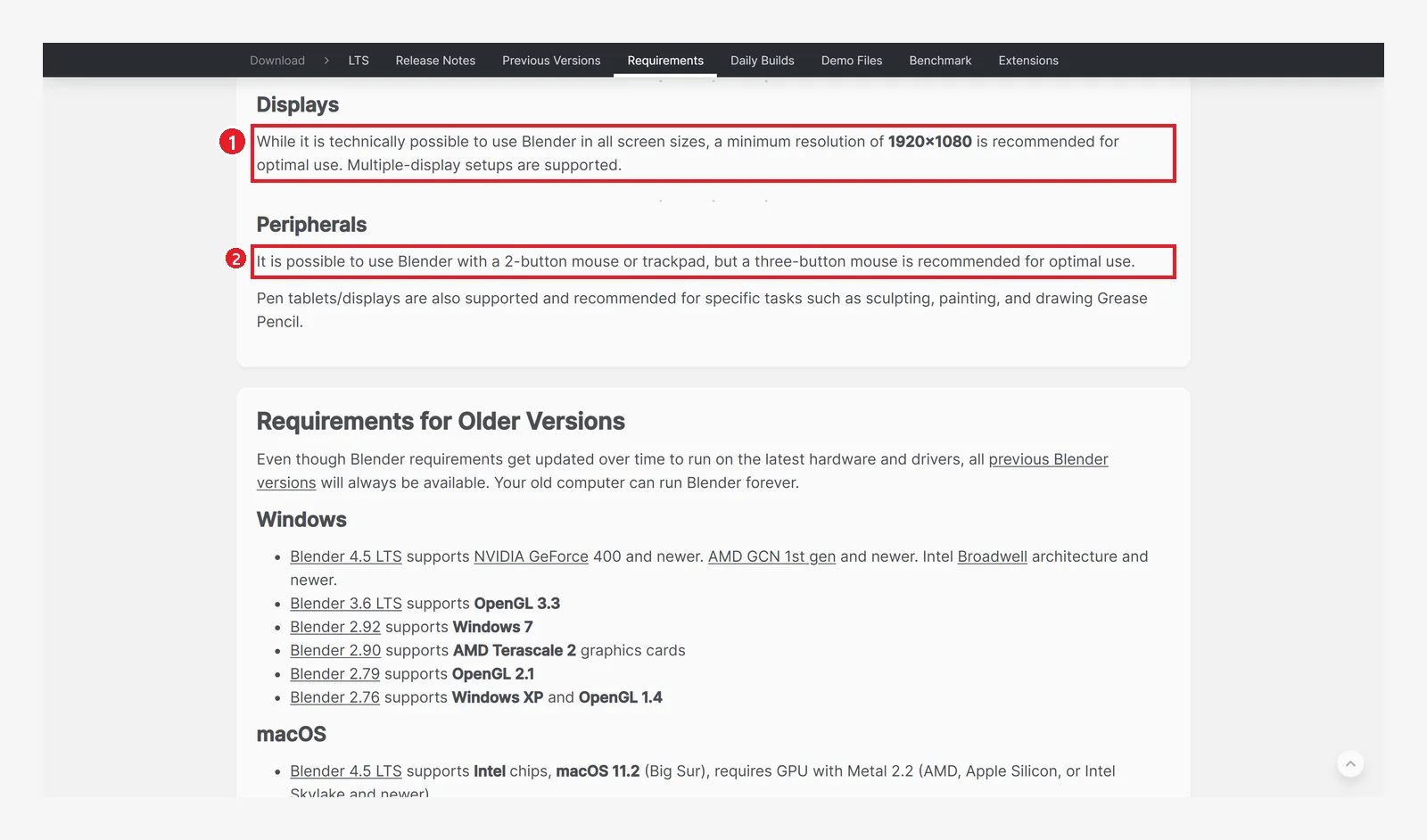 Figure 1-9. ① A display of 1920×1080 (FHD) or higher is recommended ② A two-button mouse or a touchpad works, but a three-button mouse (one whose middle wheel can be pressed) is recommended (blender.org screenshot, Blender Foundation – www.blender.org, CC BY-SA, numbers added)
Get a mouse with a wheel. Blender uses the middle button (pressing down on the wheel) to orbit the view. You can do it with a laptop touchpad, but it is much harder when you are learning. The input device section of the official manual says the same thing.
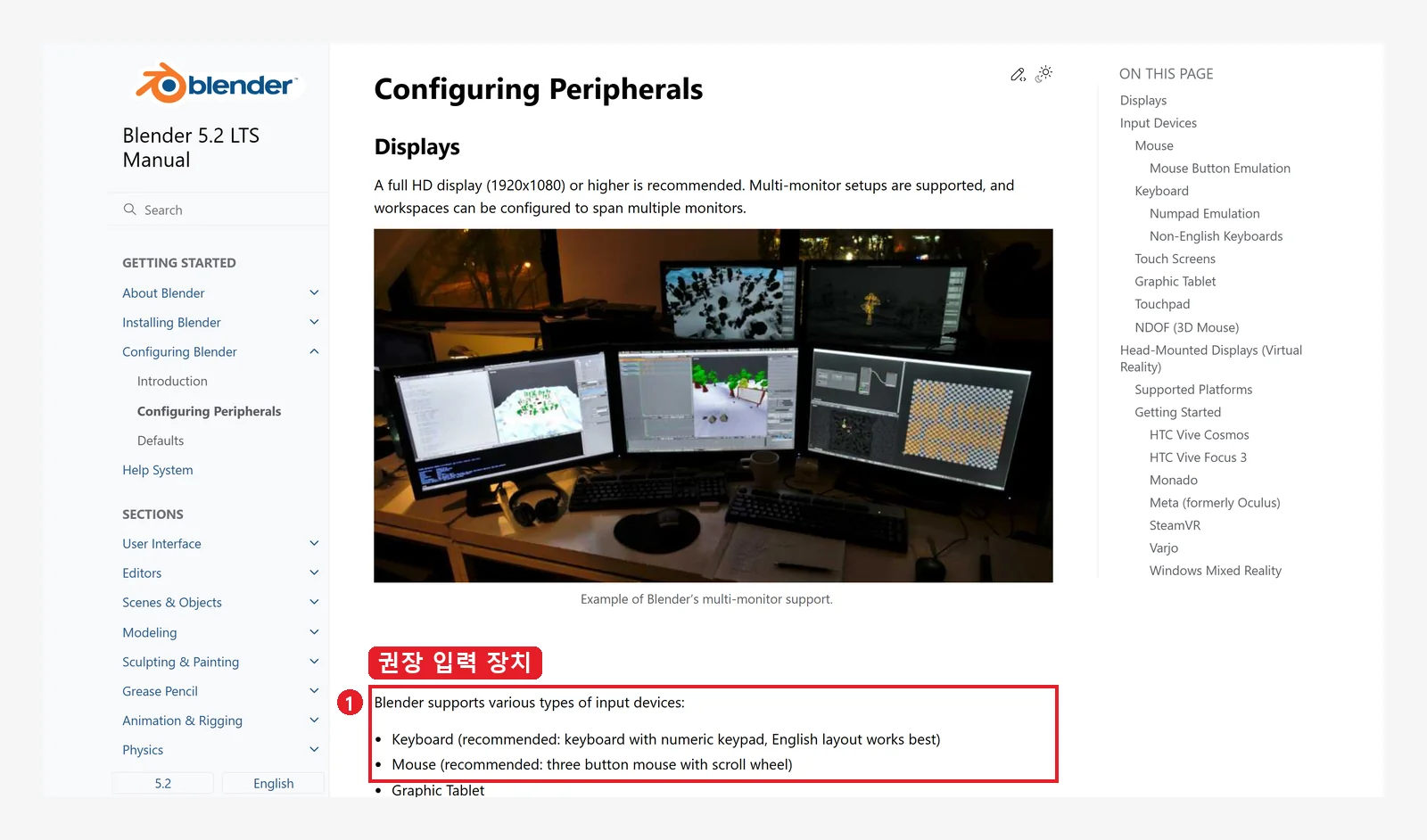 Figure 1-10. The official manual: ① It recommends a keyboard with a numeric keypad and a three-button mouse with a wheel. Ways to work without a numeric keypad or a wheel are in Chapter 2, Section 10 (Blender 5.2 manual screenshot, CC BY-SA 4.0, numbers added)
4. Picking the right file for your computer
4-1. Read the file information
The file information at ② in Figure 1-2 is the two lines of small text under the blue button. Read them like this. The first line, "Windows · Installer · 5.2.2 LTS," is operating system · install format · version. The second line, "348 MB · September 15, 2026," is file size · release date.
- Windows: The site recognized the computer you are using as a Windows PC.
- Installer: The install file format (① in the table in Section 4-2).
- 5.2.2 LTS: The version. LTS is explained in Section 5.
The version in the images (5.2.1) and the latest on the site (5.2.2): The Blender images in this series show version 5.2.1. The latest on the site is 5.2.2. Both are 5.2 LTS, so the menus and screens are the same. The last number (.1, .2) means a release with bug fixes.
4-2. Open the list of other formats (before and after clicking)
You can click the blue button right away, but it is better to know which file you are getting before you click.
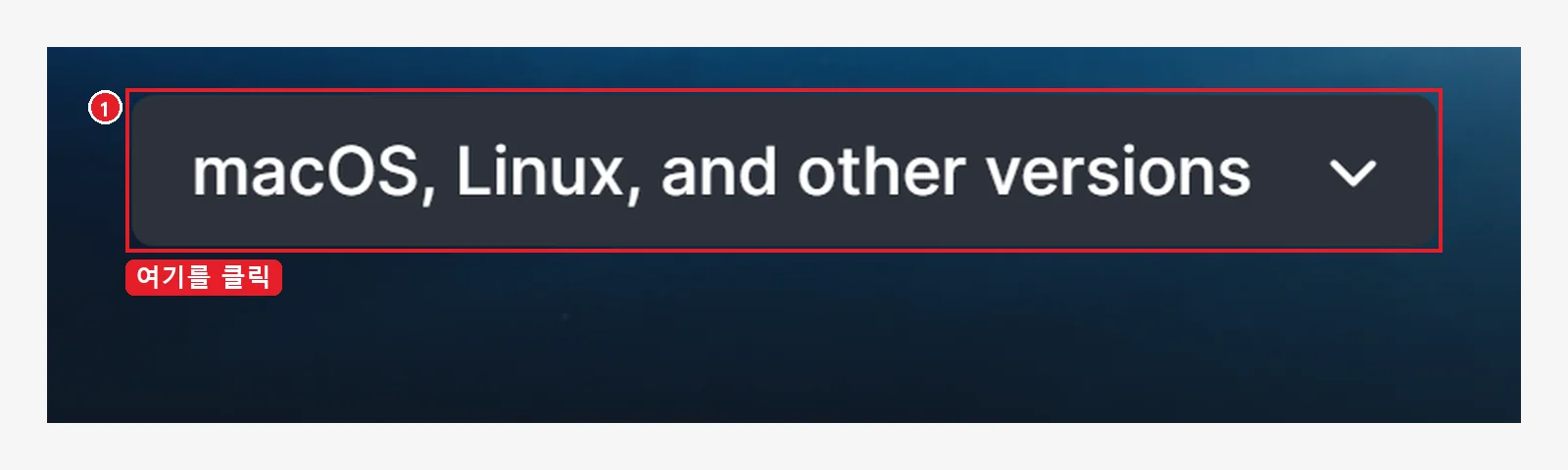 Figure 1-11. Before clicking: ① Click "macOS, Linux, and other versions" (blender.org screenshot, Blender Foundation – www.blender.org, CC BY-SA, numbers added)
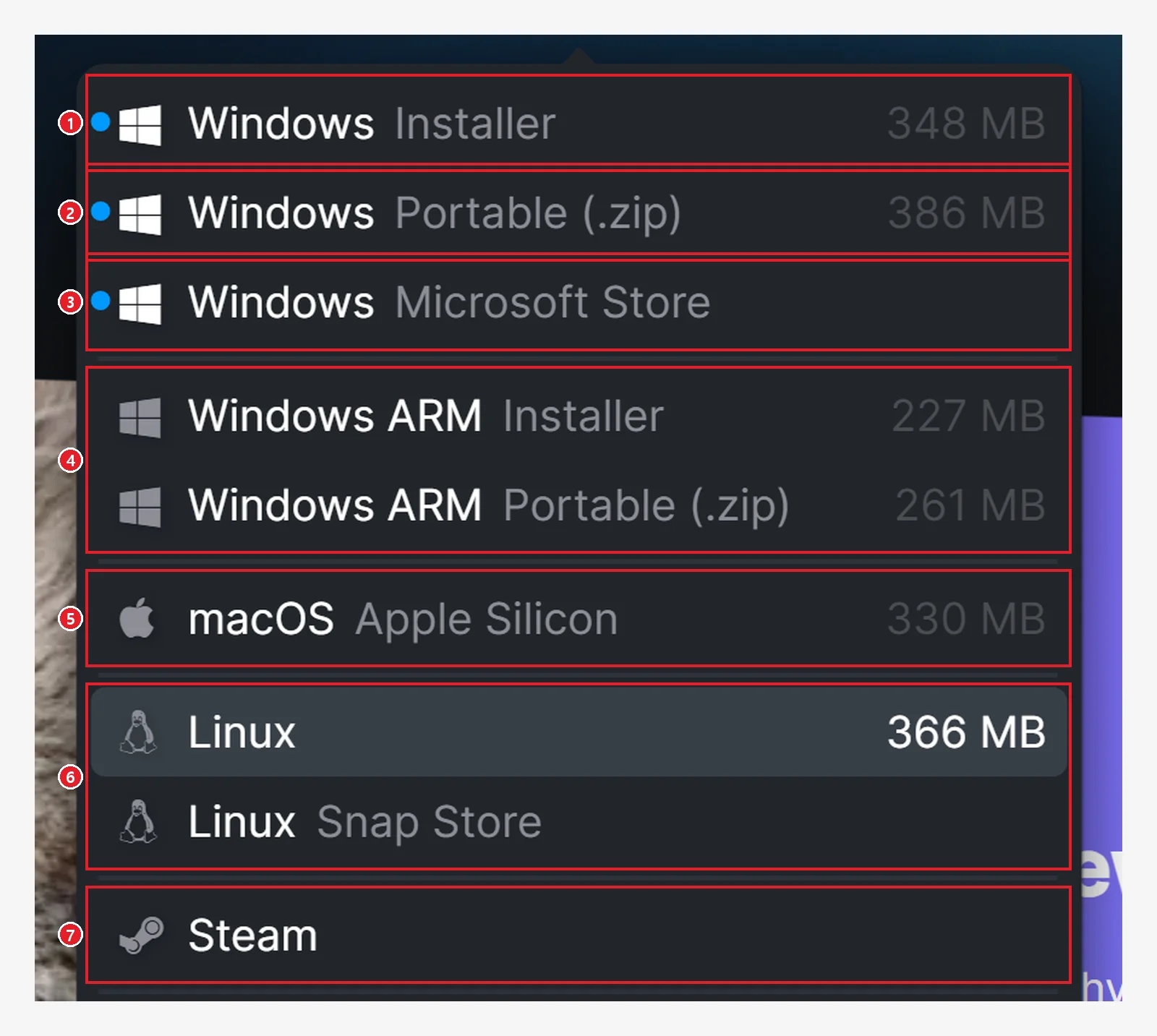 Figure 1-12. After clicking: the opened list. The numbers match the table below (blender.org screenshot, Blender Foundation – www.blender.org, CC BY-SA, numbers added)
| No. | List item | Meaning | For whom |
|---|---|---|---|
| ① | Windows Installer (348 MB) | Install file (.msi). Adds Blender to the Start menu, and double-clicking a .blend file opens it in Blender | Pick this if you are new |
| ② | Windows Portable (.zip) (386 MB) | Compressed file. Just extract it and run. No administrator rights needed | Work or school PCs, keeping several versions side by side |
| ③ | Windows Microsoft Store | Install from the Store, with automatic updates | People who like using the Store |
| ④ | Windows ARM Installer / Portable | Only for Windows PCs with ARM chips | Only PCs that say "ARM-based" in Figure 1-7 |
| ⑤ | macOS Apple Silicon | Disk image (.dmg) for Macs with Apple chips | Mac |
| ⑥ | Linux / Linux Snap Store | For Linux | Linux |
| ⑦ | Steam | Install from the game platform Steam | People who use Steam |
(Source Code at the bottom of the list is for developers who build the program themselves, so you do not need it.)
5. Picking a version: LTS
Click ① LTS in Figure 1-3 to see the LTS versions that are supported now.
 Figure 1-13. ① Latest LTS: Blender 5.2 LTS (5.2.2) ② Previous LTS: Blender 4.5 LTS (4.5.14). The artwork in the card backgrounds is cropped, leaving only the text rows (blender.org screenshot, Blender Foundation – www.blender.org, CC BY-SA, numbers added)
The official description says an LTS (Long-Term Support) version gets important bug fixes for two years and no new features. For someone learning for the first time, this has two benefits.
- You use the same screen for a long time, so books and courses match your screen well.
- Menus rarely change suddenly.
This series is based on 5.2 LTS. To see what is new in 5.2, click Release Notes to the right of LTS in the Download submenu (the unnumbered item in Figure 1-3).
 Figure 1-14. Release Notes: ① Click 5.2 LTS to see the page introducing new features. You do not need to read it at first (blender.org screenshot, Blender Foundation – www.blender.org, CC BY-SA, numbers added)
6. Installing
6-1. Windows: install with the install file (.msi), recommended
The "Installing on Windows" page of the official manual splits installation into three methods: the install file, the compressed file, and the Microsoft Store. The first two are in Figure 1-15 and the third is in Figure 1-16.
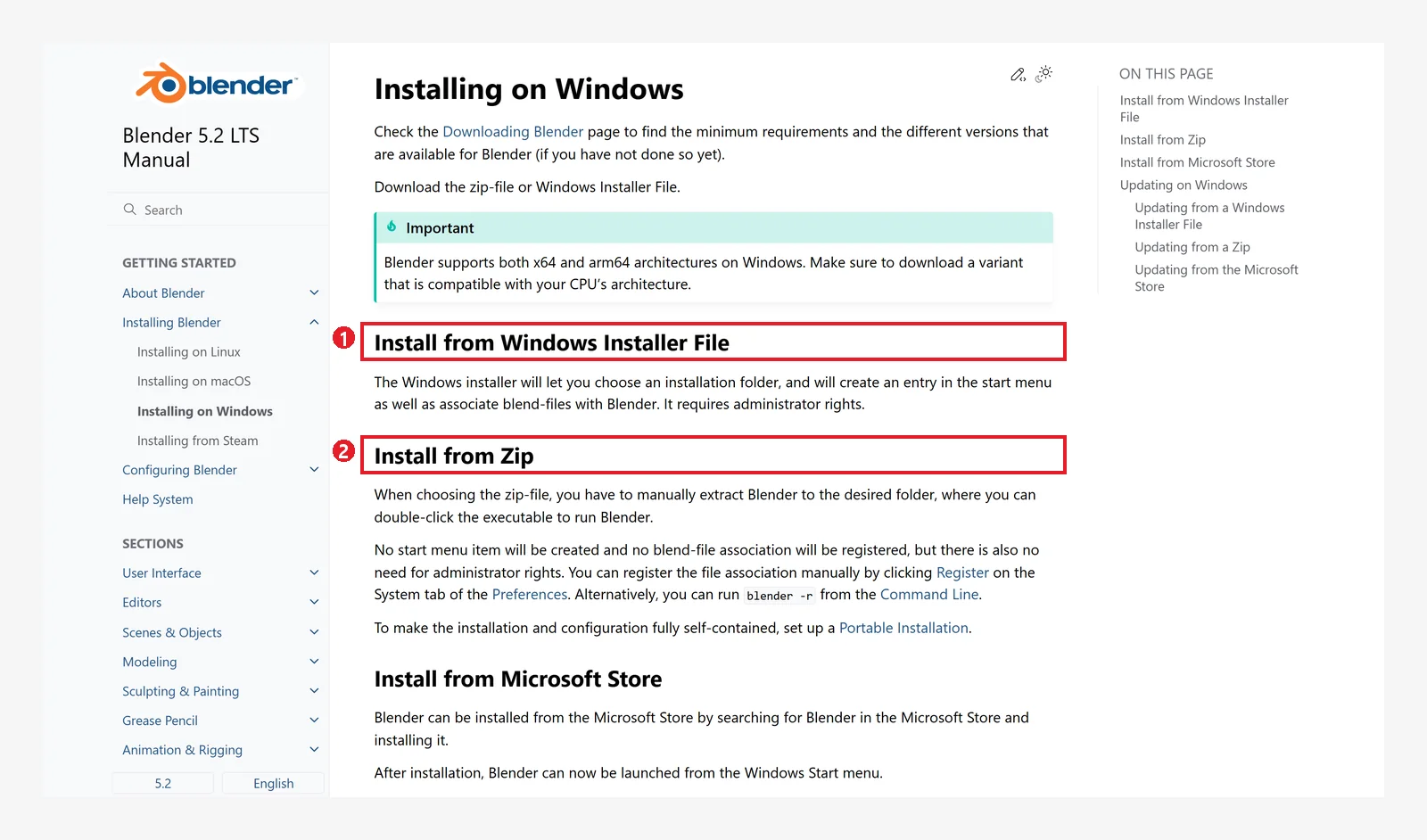 Figure 1-15. ① Install with the install file ② Install with the compressed file. The manual stresses that you should "download the file that matches your CPU, x64 or arm64" (Blender 5.2 manual screenshot, CC BY-SA 4.0, numbers added)
Follow along:
- Click Download in the top menu to go back to the Download page. Click ① Windows Installer in the list from Section 4-2 to download the file (if the text under the blue button says "Windows · Installer," you can click the blue button instead). The file name looks like
blender-5.2.2-windows-x64.msi, and it is usually saved in yourDownloadsfolder. - Double-click the downloaded file.
- When the setup window opens, follow the steps: accept the license, check the install location, install, and finish. If Windows shows a prompt such as "Do you want to allow this app to make changes to your device?" during setup, click
Yes. This is because administrator rights are needed. - When it is done, find Blender in the Start menu and open it.
The setup window: This chapter has no image of the setup window. The official manual's "Installing on Windows" page (Figure 1-15) has no image of it either, only a description. Here is a summary of the manual's description.
- The install file lets you choose the install folder, creates a Start menu entry, and associates .blend files with Blender. This is why it needs administrator rights.
- How to update is in Section 6-3.
- The button names in the setup window may differ by install file version, so just move on with whatever the window shows.
6-2. Windows: install with the compressed file (.zip)
If you have no administrator rights, as on a work or school PC, or you want to keep several versions side by side, the compressed file is easier.
- Download ② Windows Portable (.zip) from the table in Section 4-2.
- Right-click the file → extract it to the folder you want (for example, a
Blenderfolder insideDocuments). - Double-click
blender.exeinside the extracted folder to run it.
According to the manual (Installing on Windows → Install from Zip, ② in Figure 1-15), this method creates no Start menu entry and does not associate .blend files. On the other hand, it needs no administrator rights. The same page says that if you need file association later, you can click Register in the System tab of Preferences.
Before running the compressed file: Be sure to extract it before you run it. The manual also says to "extract it directly to the folder you want and double-click the executable."
6-3. Windows: Microsoft Store and updates
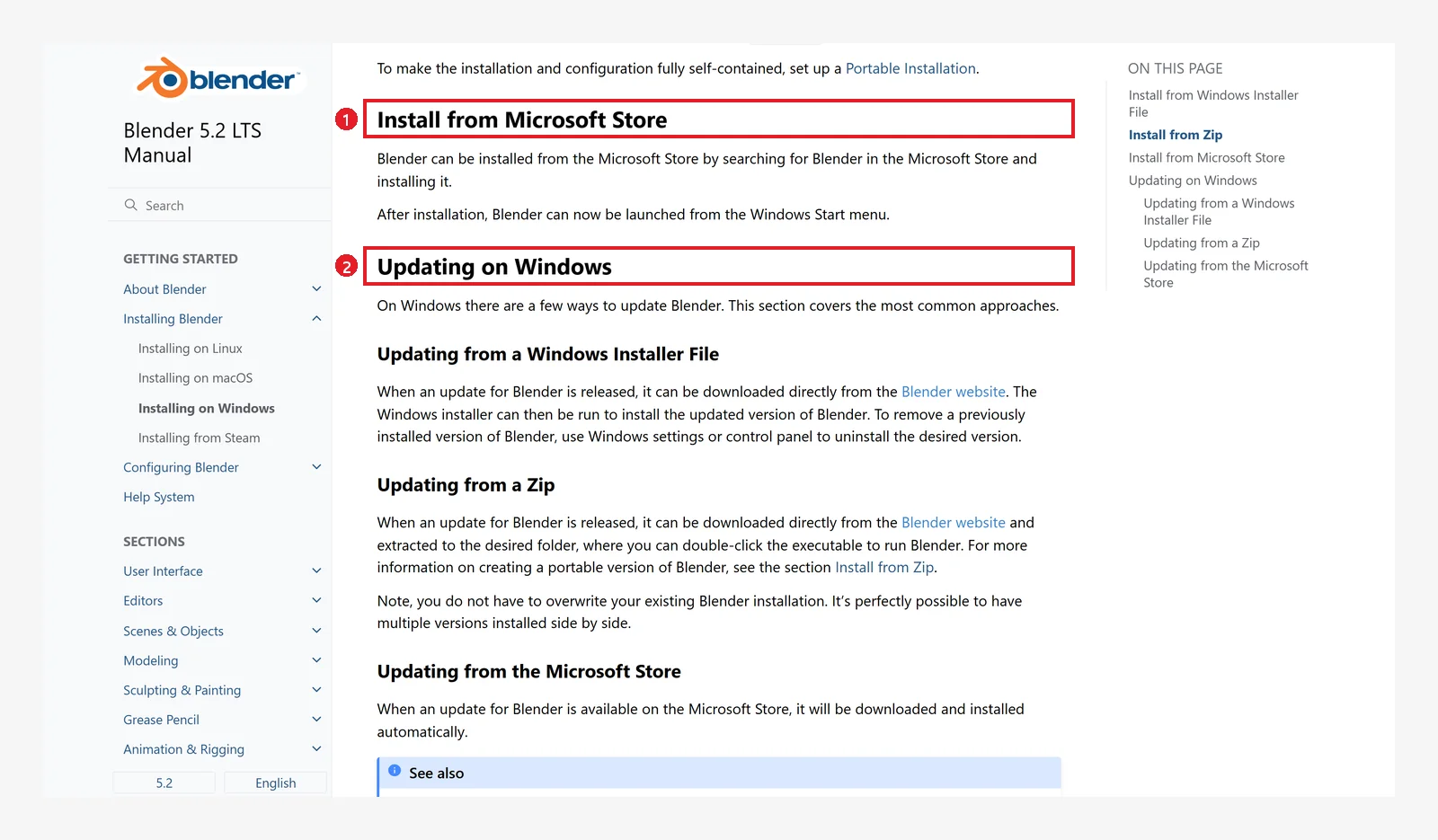 Figure 1-16. ① Search for "Blender" in the Microsoft Store and install it ② How to update (Blender 5.2 manual screenshot, CC BY-SA 4.0, numbers added)
- If you install from the Store, Blender updates automatically when a new version comes out.
- If you installed with the install file, download the new version's install file and run it again. Remove the old version from the app list in Windows Settings.
- If you use the compressed file, extract the new one into a different folder. The manual says you can keep several versions side by side.
6-4. Mac and Linux
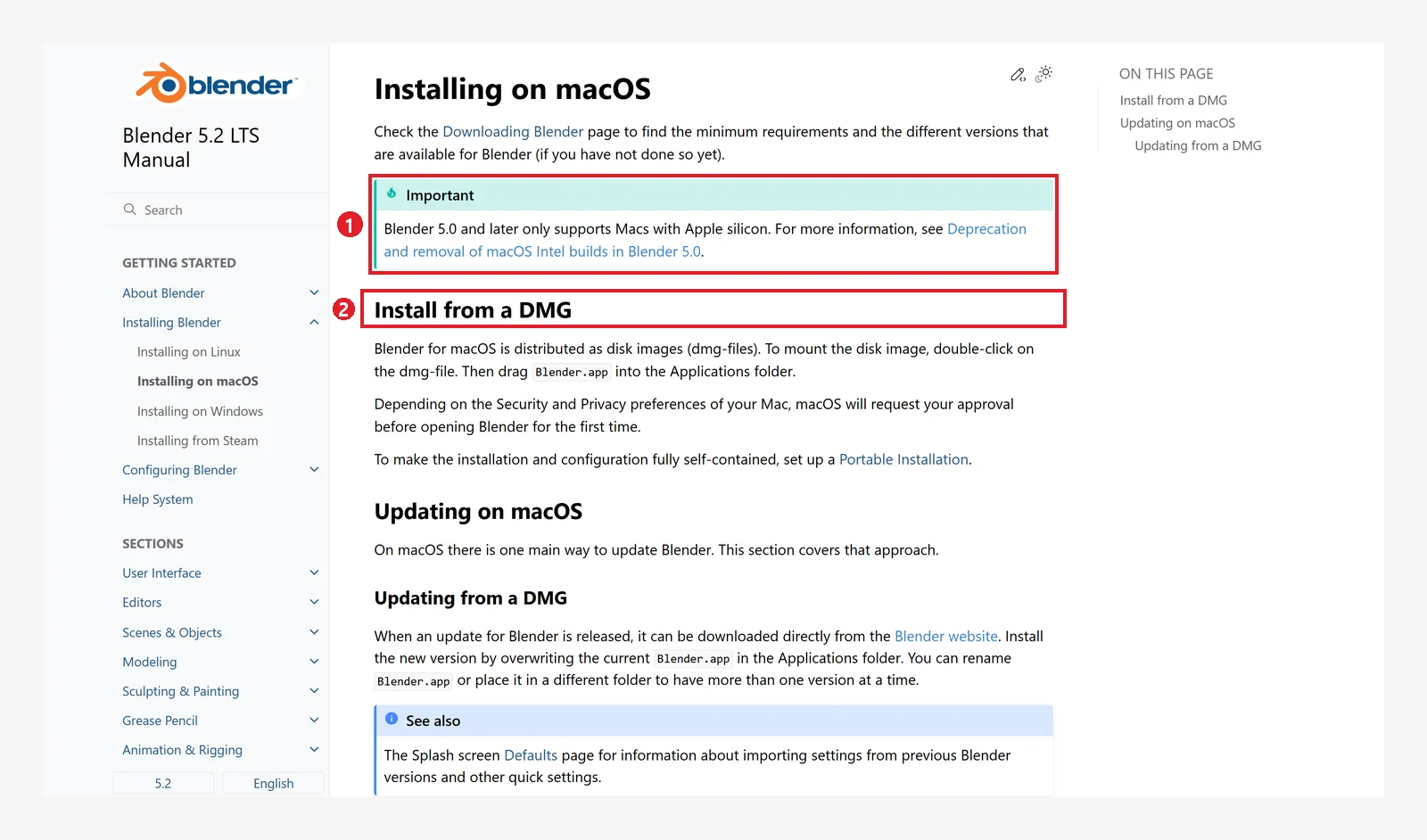 Figure 1-17. ① The notice "Blender 5.0 and newer supports only Macs with Apple chips" ② Installing from a DMG (Blender 5.2 manual screenshot, CC BY-SA 4.0, numbers added)
On a Mac, double-click the downloaded .dmg file to open it, then drag Blender.app into the Applications folder. That is all. According to the manual, macOS may ask whether it is OK to open the app the first time.
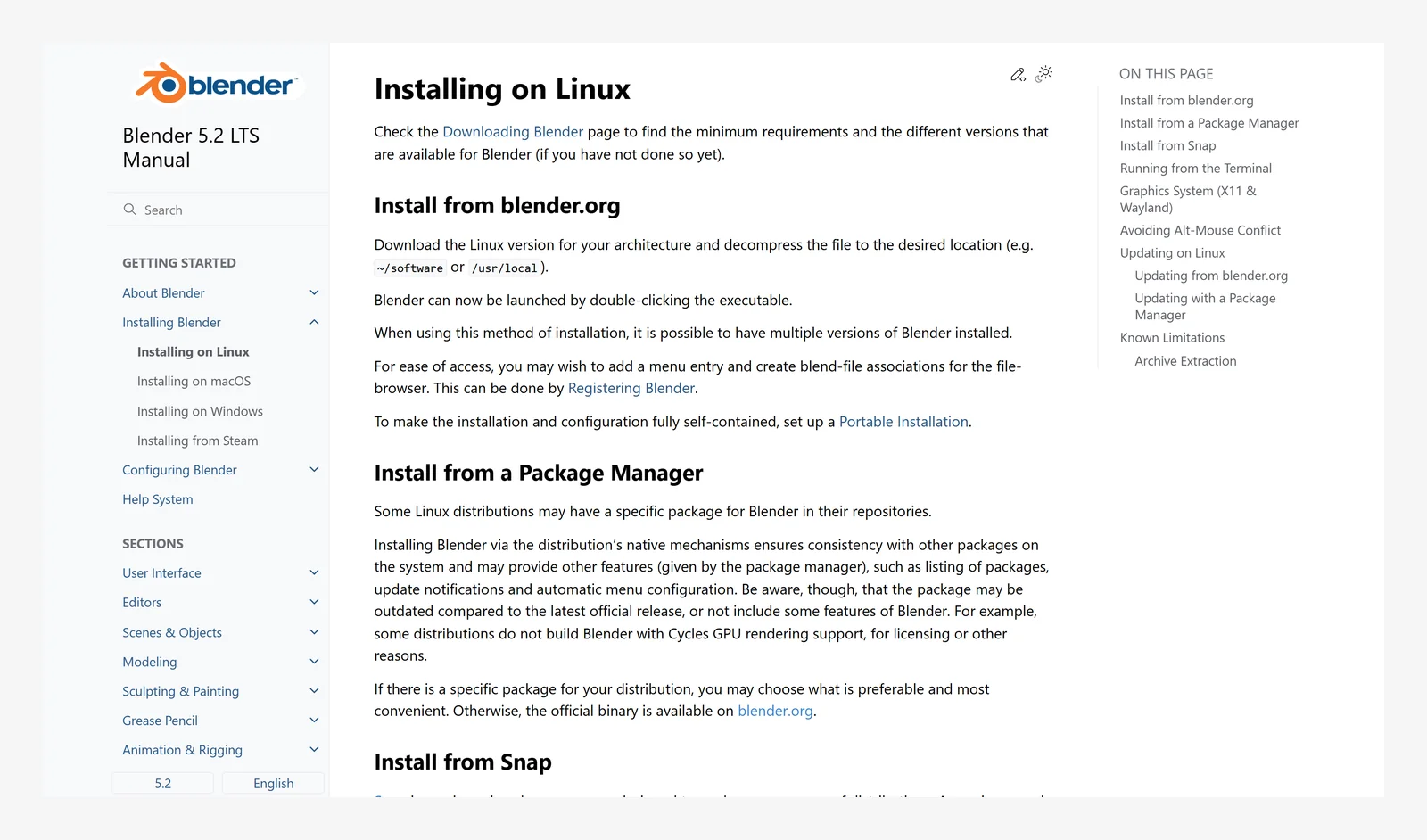 Figure 1-18. On Linux, extract the archive downloaded from blender.org and run it, or install with your distribution's package manager or Snap (Blender 5.2 manual screenshot, CC BY-SA 4.0)
7. Opening Blender for the first time
7-1. Quick setup, shown only the first time
When you first open Blender, a small window (the splash screen) appears in the middle. Only on the very first launch, or after you switch to a new version, does the bottom of this window change to "quick setup."
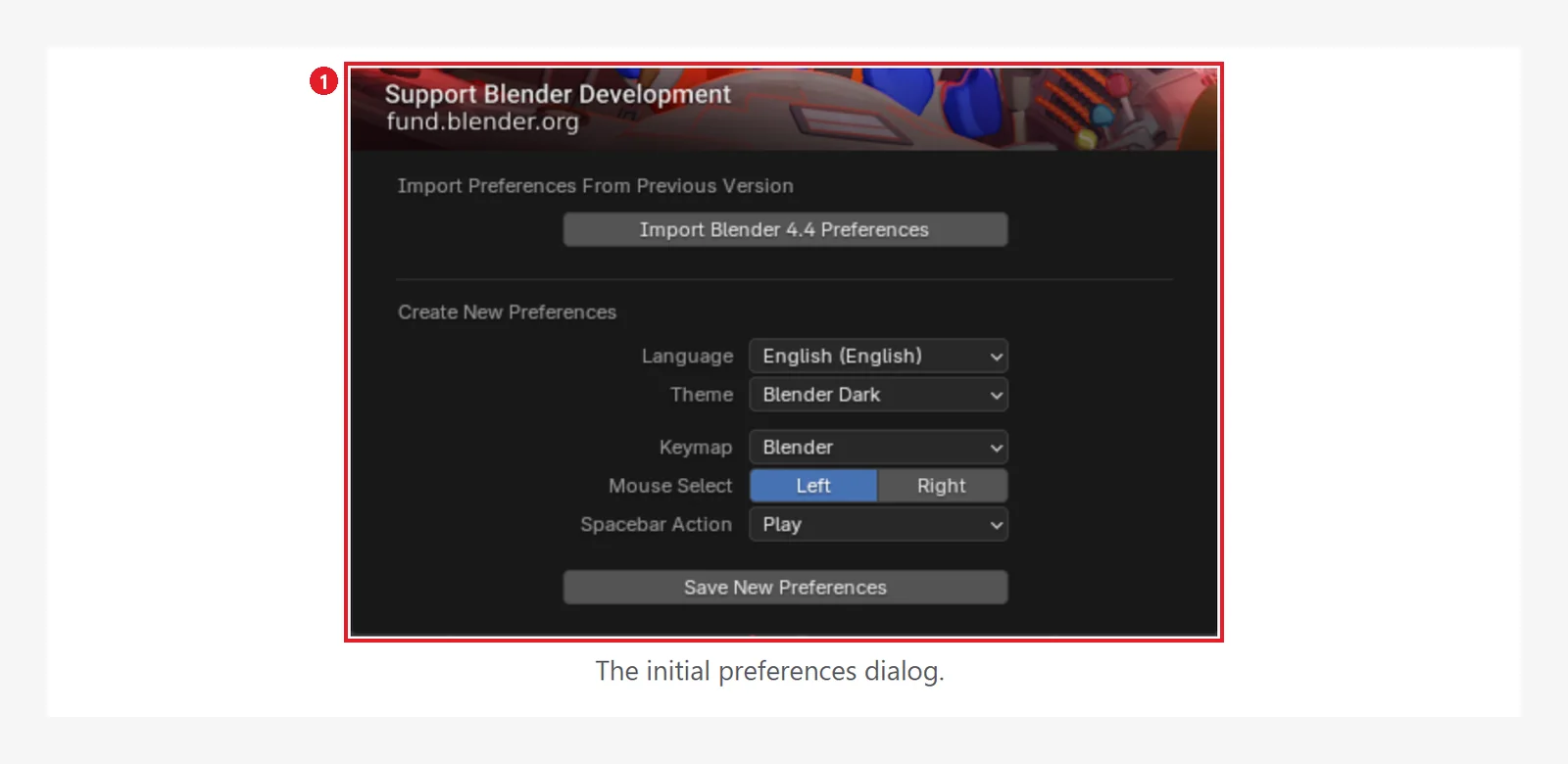 Figure 1-19. ① The quick setup window shown only on first launch (image from the official manual). The version shown on your screen may be different (Blender 5.2 manual screenshot, CC BY-SA 4.0, numbers added)
Based on the manual's description, these are the recommended choices at first.
| Item | Meaning | Recommended for this series |
|---|---|---|
| Import Preferences From Previous Version | Bring in settings from an older version | Does not apply to a first install. If old add-ons cause errors, start fresh |
| Language | Interface language | English recommended (this series and most courses use the English menus). If you switch to another language, the menu names change |
| Theme | Light or dark interface | Either. The captures in this series use the dark theme |
| Keymap | Set of shortcuts | Blender (default). The manual is also written for this default |
| Mouse Select | Mouse button used to select | Left (default; select with a left click) |
| Spacebar Action | What the spacebar does | Play (default; plays the animation). Chapter 12 of this series assumes this setting |
Finally, click Save New Preferences. The settings are saved, and the window usually changes to the splash screen. You can change every setting later in Preferences.
7-2. Close the splash screen
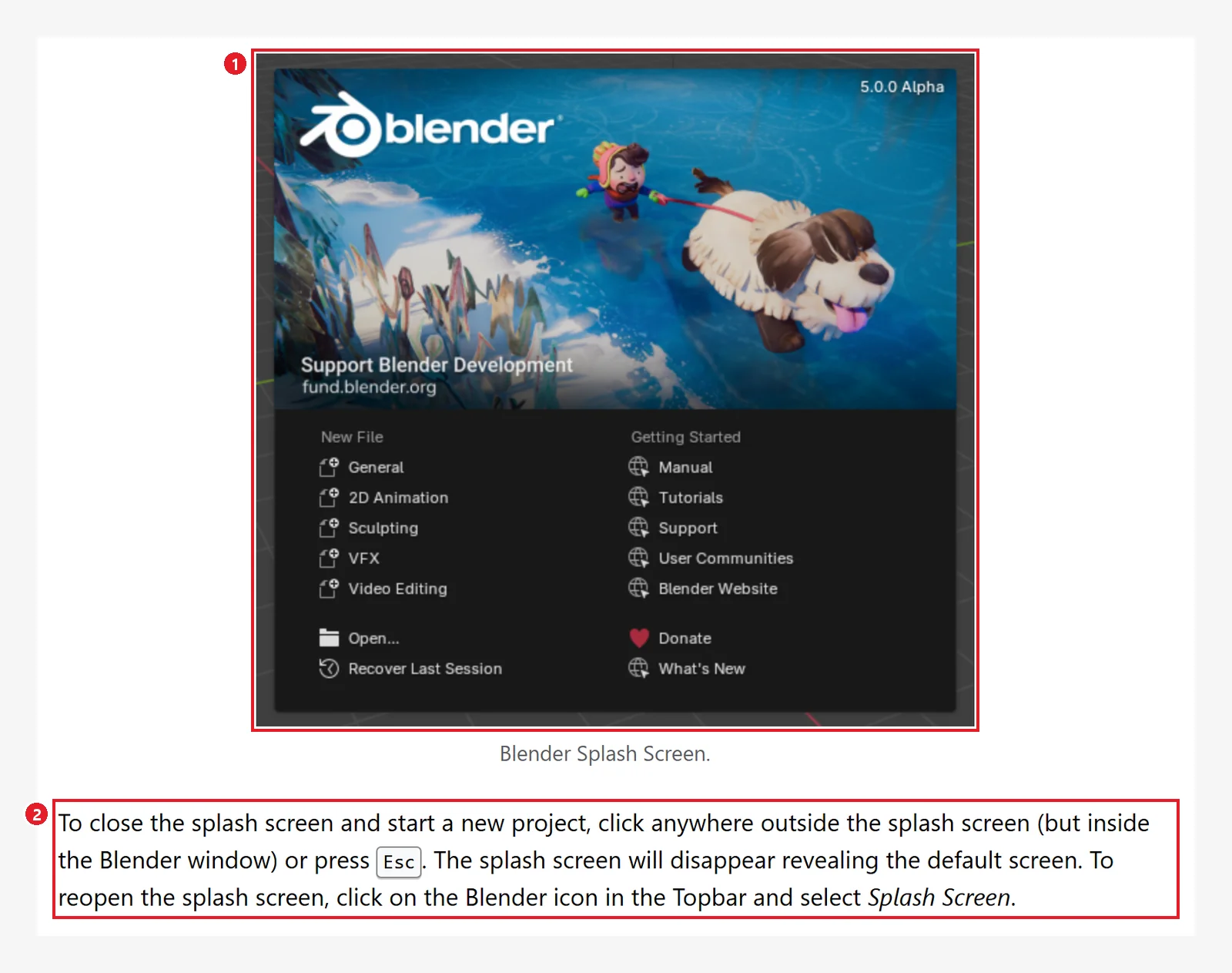 Figure 1-20. ① The splash screen (image from the official manual) ② How to close it: click once outside the splash (inside the Blender window), or press
 Esc (Blender 5.2 manual screenshot, CC BY-SA 4.0, numbers added)
From the splash screen you can create a new file or open a recent one. For now, click once outside it to close it. Chapter 2, Section 1 looks at the splash screen in more detail.
7-3. Check the version
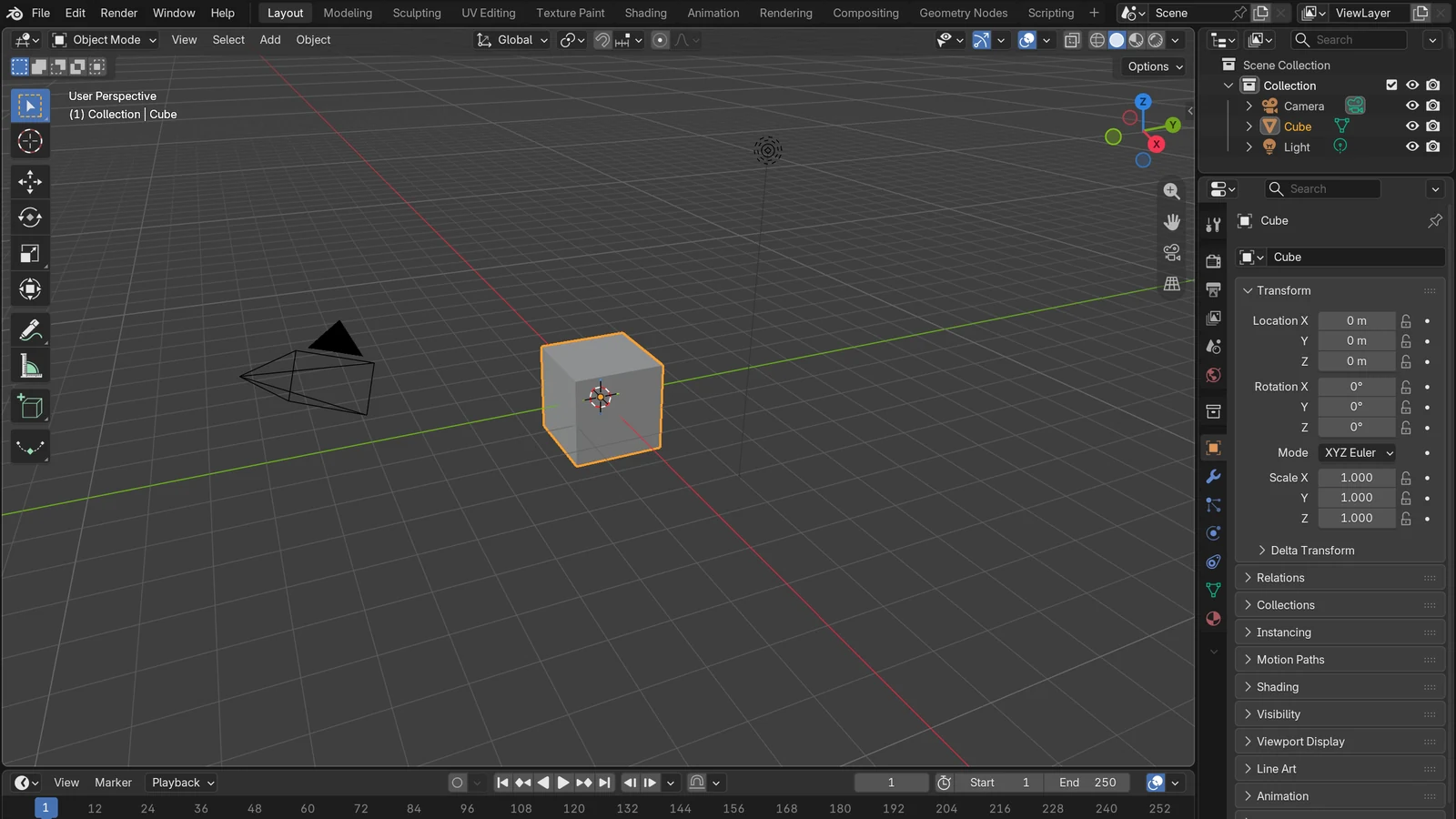
After you close the splash, the default screen with a gray cube appears. If you see this screen, the install worked.
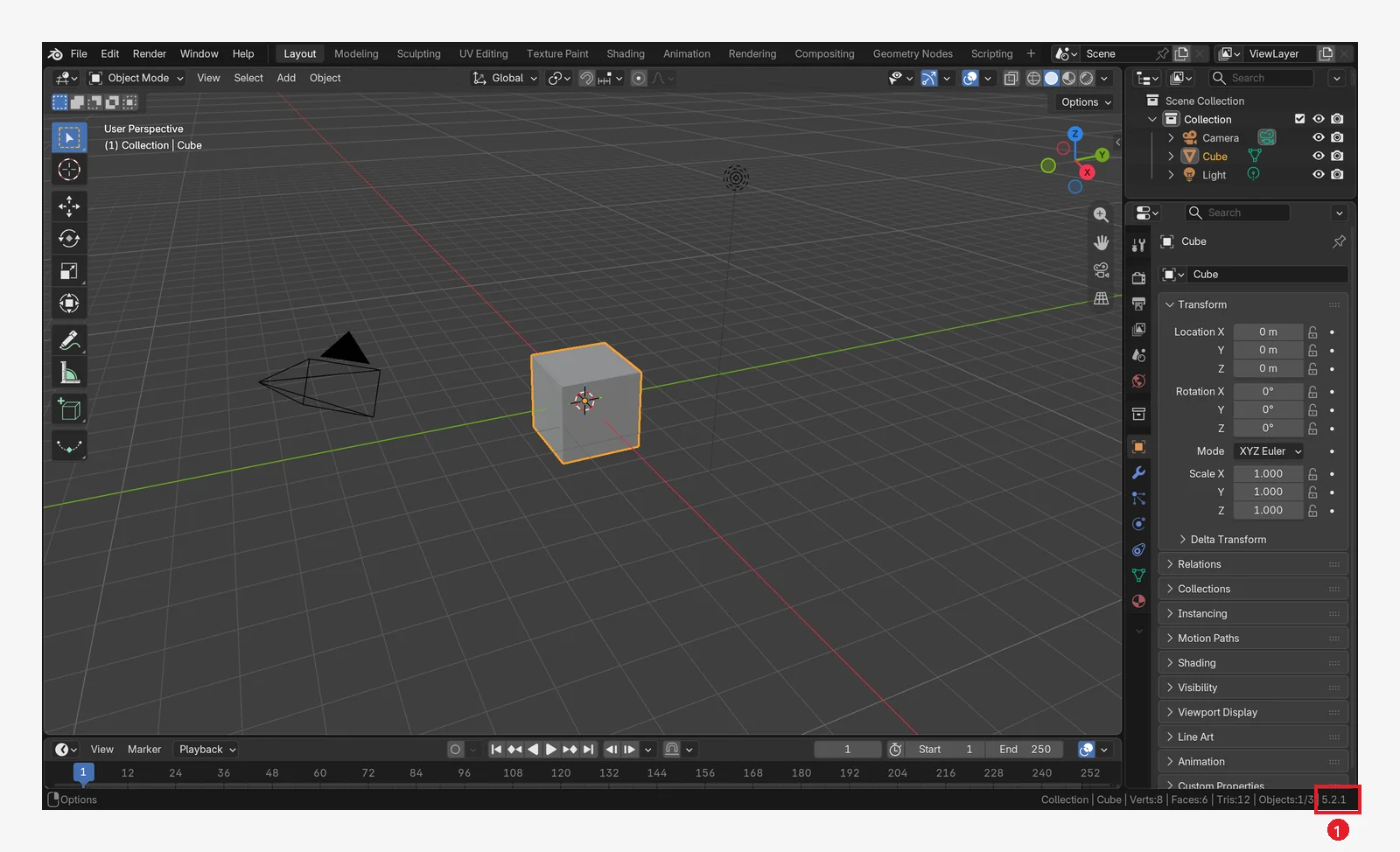 Figure 1-21. The default Blender screen on first launch. ① The installed version shows at the end of the status bar in the very bottom right (Blender screenshot)
 Figure 1-22. A close-up of the status bar. ① The version number "5.2.1" (5.2.2 if you downloaded 5.2.2) ② Scene information (Scene Statistics). The image shows the screen with scene information turned on (Blender screenshot)
② Scene information in the status bar: Your screen may not show ②. In the Blender 5.2 default settings, Scene Statistics in the status bar is off and the version display is on. So right after a fresh install, only the version number shows at the right end.
8. Practice
- As in Figure 1-6, write down your PC's CPU, RAM, and graphics memory, and compare them with the minimum and recommended specs in Section 3-2.
- Look at "System type" in Figure 1-7, and write down the number of the row you should download in the table in Section 4-2.
- Write the difference between the install file (Installer) and the compressed file (Portable) in one line.
- Find the version number of your installed Blender in the status bar and write it down.
(A sample answer to question 3: "The install file sets up the Start menu and file association but needs administrator rights. The compressed file only needs to be extracted, but you set up the association yourself.")
9. Common mistakes and fixes
| Symptom | Cause | Fix |
|---|---|---|
| The downloaded file will not run | You downloaded the ARM file for a regular PC (or the other way around) | Check "System type" in Figure 1-7 and download the right file again |
| The screen changes a little every day, and errors are frequent | You downloaded a Daily Build (test build) | Reinstall with the LTS version from the Download page |
| Blender closes right after opening, or the screen glitches | The graphics driver is old | Install the latest driver from the official NVIDIA, AMD, or Intel site |
| Permission error during install | The install file needs administrator rights | Install with the compressed file (Portable) |
| The compressed file will not run | You ran it without extracting | Run blender.exe in the extracted folder |
| You downloaded it from a strange ad-filled site | Unofficial download source | Remove it and download again from blender.org |
| The menus differ from this chapter | You set the language to something other than English, or you have a different version | Check that you are on 5.2 LTS with the English interface |
Summary in one line
blender.org → Download → check specs in Requirements → the LTS file that fits your PC → install → close the splash → check the version in the status bar. In Chapter 2, you will learn the names of the parts of the new screen and how to orbit the view with the mouse.
References
- blender.org Download
- blender.org Requirements
- blender.org LTS
- Blender 5.2 Release Notes
- Blender 5.2 Manual: Installing on Windows
- Blender 5.2 Manual: Installing on macOS
- Blender 5.2 Manual: Installing on Linux
- Blender 5.2 Manual: Splash Screen
- Blender 5.2 Manual: Defaults (quick setup)
- Blender 5.2 Manual: Configuring Peripherals
- Image licenses: blender.org screens are CC BY-SA under the blender.org website notice, credited to "Blender Foundation – www.blender.org." Manual screens are CC BY-SA 4.0. In both cases, red numbers and outlines were added. Artwork may need separate artist credit, so most of it was cropped out. Blender program license: blender.org/about/license