An introduction to keyframe animation in Blender: inserting keys and the Graph Editor
Set only the important moments and Blender fills in the rest. This guide explains how to insert keyframes and how to refine motion in the Graph Editor, using stepping stones as the example.
한국어English
ON THIS PAGE
- 01Animation: values that change over time
- 02What a keyframe is: a stepping stone
- 03Inserting and deleting keyframes
- 04Checking key status by the color of property fields
- 05Three windows that show keyframes: the Timeline, the Dope Sheet, and the Graph Editor
- 06The Graph Editor: seeing motion as curves
- 07Interpolation modes: the same stones, a different walk
- 08Handle types and what happens outside the curve
- 09A suggested order for your first time
- 10Summary
- 11Read next
- 12References
Based on: the official Blender 5.2 LTS manual (English interface, default keymap)
In keyframe animation, a person sets only "the values at important moments," and Blender calculates and fills in every frame in between. If you say a ball is on the left at frame 1 and on the right at frame 100, Blender works out the positions for frames 2 to 99 on its own. The place where you see and fix "how the in-between is filled" is the Graph Editor. From start to finish, this guide uses one example: stepping stones and the way you walk across them.
By the end of this guide, you will be able to do the following.
- Insert and delete keyframes.
- Understand why motion becomes stiff or smooth.
- Open the Graph Editor, read the curves, and adjust them.
Animation: values that change over time
Animation makes an object move or change shape over time. What changes is a value. Almost any numeric property can change over time: an object's location (X, Y, Z), rotation, scale, the transparency of a material, and so on.
A video is many pictures (frames) per second joined together. If you had to enter a value by hand for every frame, even a 10-second video would take hundreds of entries. That is why keyframes exist.
What a keyframe is: a stepping stone
A keyframe (key for short) is a time marker that stores a property's value. For example:
- Frame 1: the cube's horizontal position is 3 m
- Frame 10: the cube's horizontal position is 20 m
- Frames 2 to 9: Blender calculates them automatically with an interpolation method
Interpolation is "the calculation that fills in between two known values." Picture stepping stones across a stream. A person places only a few stones (keyframes). The interpolation method decides how you walk from one stone to the next. The person decides where the stones go, and Blender handles how the feet move.
In hand-drawn animation, other artists used to fill in between the important poses (key drawings) with in-between drawings. In Blender, the computer does that job.
Inserting and deleting keyframes
Here are the basic methods in a table.
| What you want to do | How | Shortcut |
|---|---|---|
| Insert a key on the selected object | Press it in the 3D Viewport | I |
| Insert a key on one specific property | Hover the mouse over the property field and press it, or right-click and choose Insert Keyframe | I |
| Insert with a preset group of properties (Keying Set) | Choose from the list | K |
| Delete the keys on the current frame | Press it in the 3D Viewport | Alt+I |
| Delete all keys on the selected object | Object ‣ Animation ‣ Clear Keyframes… in the menu at the top of the 3D Viewport | None |
| Delete all keys on one property | Hover the mouse over the property field and press it | Shift+Alt+I |
Following along with a single cube makes the flow clear right away.
- In the Timeline, set the current frame to 1.
- Select the cube and press
Iin the 3D Viewport. Location, rotation, and scale are recorded. You have placed the first stone. - Drag the blue playhead in the Timeline, or type
100in the current frame field, to move to frame 100. How to read the Timeline is shown with images in Blender for complete beginners, chapter 12: your first animation. - Change the cube with
G(move),R(rotate), andS(scale). - Press
Iagain. This is the second stone. - Press
Spaceto play.
There is also Auto Keyframe. If you turn on the record button (the circle) at the top of the Timeline, a key goes on the current frame automatically every time you move an object. It is convenient, but it is easy to end up with stones you did not want scattered everywhere. At first, getting used to inserting keys yourself with I will help you understand the flow better.
Checking key status by the color of property fields
Blender shows status through the color of property fields.
| Color | Meaning |
|---|---|
| Gray | No animation |
| Yellow | There is a key on the current frame |
| Green | There are keys on other frames |
| Orange | Changed from the key value, but no key inserted yet |
| Purple | Moved by a driver (automatic control linked to another value) |
Pay special attention to orange. If you change a value and move to another frame without inserting a key, the changed value is lost. If "I definitely moved it, but it went back," you usually did not press I while the field was orange. You picked up the stone but never set it down. Also, when the current frame is a keyframe of the active object, the object name in the top left of the 3D Viewport turns yellow.
Three windows that show keyframes: the Timeline, the Dope Sheet, and the Graph Editor
| Window | What you see | Main use |
|---|---|---|
| Timeline | Diamonds (keys) on a time bar | Playback, moving between frames, moving keys |
| Dope Sheet | Keys lined up by property | Adjusting when you step on each stone (timing) |
| Graph Editor | Curves of changing values | Refining how you walk between stones (the walk) |
By default, the Timeline sets the scene length to frames 1 through 250. The blue vertical line (Playhead) is the current frame. The Dope Sheet is a window that gives you an overview of the keyframes in the scene, and its name comes from the timing sheets of hand-drawn animation. Moving keys left or right changes the spacing between stones, which is the timing.
The Graph Editor: seeing motion as curves
How to open it
- Click the Animation workspace tab at the top. A layout opens with animation editing windows such as the Dope Sheet.
- In the header of the window you want to turn into the Graph Editor, click the very first button on the left, the Editor Type menu.
- Choose Graph Editor in the Animation group of the list. That window turns into the Graph Editor.
Every window has the Editor Type menu, so you can also switch the Timeline window at the bottom to the Graph Editor without changing workspaces.
If workspaces and the Editor Type menu are new to you, the Blender interface guide is a good place to start.
Reading the curves
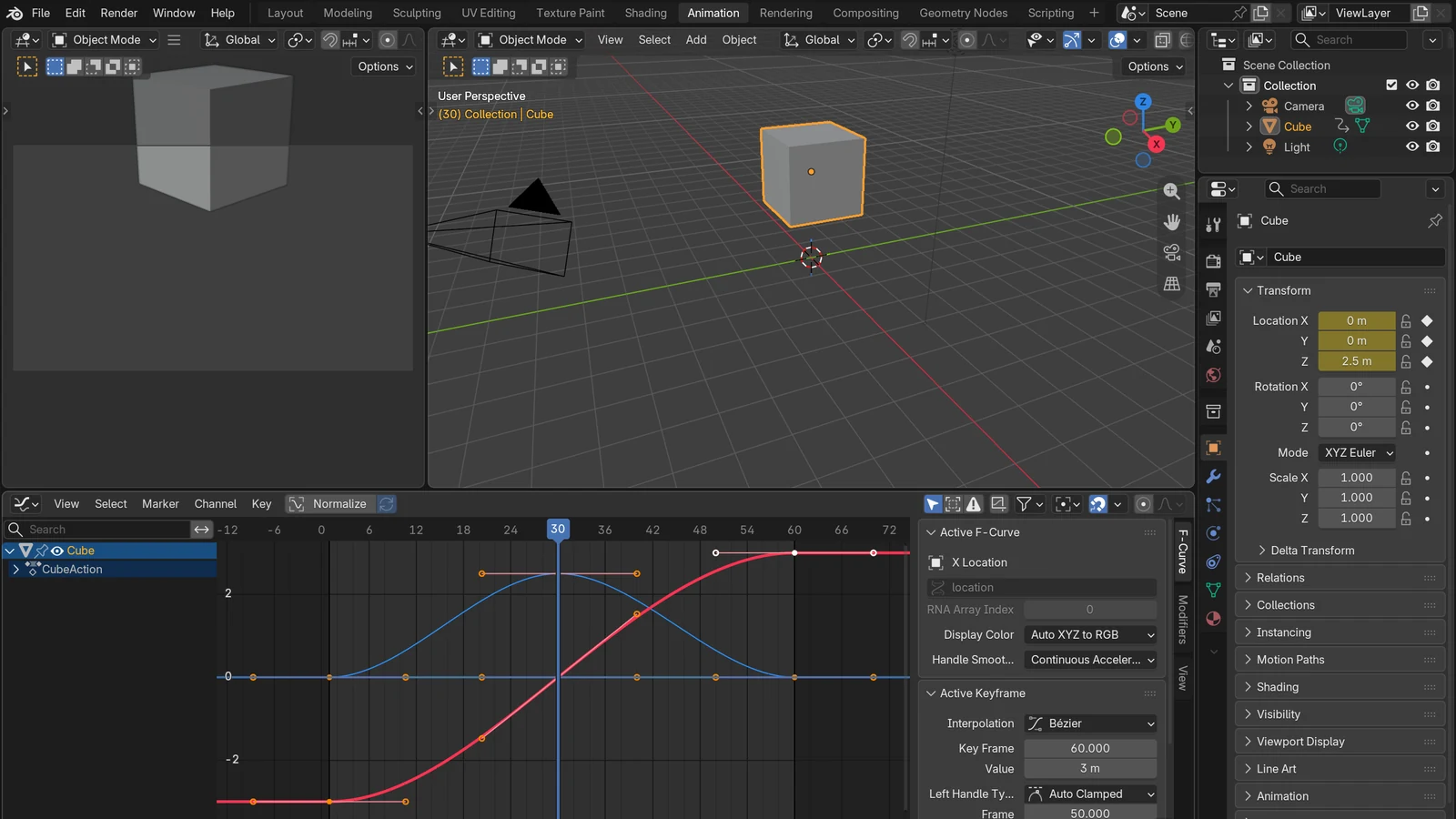
The Graph Editor shows how the space between keys is filled, as curves. These curves are called F-Curves (animation curves).
- Horizontal axis (X): time (frames)
- Vertical axis (Y): property value (for example, location X)
- Points: keyframes. They are black dots by default and turn orange when selected.
- Handles: the two grips extending from each key. Drag them to change the shape of the curve around the key.
Reading the curves is simple. A steep slope is a fast walk, a gentle slope is a slow walk, and a flat line means standing still. A place that flattens out like the top of a hill is a moment when the object pauses, the moment you plant your foot on a stone. An F-Curve cannot go back in time. The curve always moves only to the right (the future), and if you drag a key past another key, their order changes.
These operations are all you need most of the time.
Home: fit the view so all keys are visible- Numpad
.: fit the view to the selected keys Ctrl+H: show/hide handles- Drag with the middle button: move the view; roll the wheel: zoom in and out
Interpolation modes: the same stones, a different walk
Select keys in the Graph Editor and press T to choose the interpolation mode. These are the three basic ones.
| Interpolation | Curve shape | The walk | Use |
|---|---|---|---|
| Constant | Stairs | Stand on one stone, then teleport to the next | The "blocking" stage, where you set only the main poses |
| Linear | Straight lines that bend at keys | Long strides of the same length, changing direction sharply as soon as you reach a stone | Mechanical devices, wheels that spin forever |
| Bézier (default) | A smooth curve that flattens near keys | Start slowly on a stone, speed up, then slow to a stop before the next stone | Most natural motion |
A Bézier curve lies flat at the keys on both ends. Flat places are slow places, so this means "start slowly and come to a gradual stop." The default handle (Auto Clamped) creates this shape. To the human eye, this walk looks the most natural.
The Dynamic Effects group in the T menu has Bounce and Elastic. Bounce bounces a few times and gets smaller, like a tennis ball dropped on the floor. Elastic overshoots the target and comes back several times before stopping. You choose which end these effects apply to in the Ctrl+E (Easing Type) menu. Ease In starts slowly and speeds up, Ease Out starts fast and slows down, and Ease In Out is slow at both ends.
Handle types and what happens outside the curve
Handles decide the shape of a Bézier curve. Select keys and press V to change their type.
- Auto Clamped (default): smooth automatically, and keeps the value from overshooting between keys
- Automatic: smooth automatically, but it can overshoot, going slightly past the stone and coming back
- Vector: sections that are close to straight lines
- Aligned: adjusted by hand, with both handles kept in a straight line
- Free: move each side separately, which allows sharp corners
You can drag even automatic handles to change their position, so you do not need to change the type first.
What happens before the first key and after the last key is decided by Extrapolation. With Constant, you stay standing on the last stone. With Linear, you keep walking at the same slope. You can also make the curve repeat (loop), which is used for motion such as windmill blades that keep turning.
A suggested order for your first time
- Leave it on Constant and key only the main poses (blocking). This is the stage where you place the stones first.
- Move key positions in the Dope Sheet to adjust the timing.
- Change the interpolation to Bézier.
- In the Graph Editor, use the handles to refine the slope of sections that are too fast or too slow. This is the stage where you fix the walk.
If you need to repeat the same keying work on many objects, you can also insert keys with a script. This is covered in Blender Python automation.
Summary
| Item | Details |
|---|---|
| Keyframe | A marker storing a property's value at a specific time (a stepping stone) |
| In-between frames | Calculated by Blender according to the interpolation mode (the walk) |
| Insert / delete keys | I / Alt+I |
| How to open the Graph Editor | The Animation workspace tab, or Graph Editor in the Editor Type menu |
| How to read curves | Steep means fast, flat means stopped |
| Change interpolation / handles | T / V |
Read next
- Blender interface: five things to know when you first open it
- An introduction to rigging: moving a character with a skeleton (armature)
- Fast EEVEE, accurate Cycles: how to choose a Blender render engine
References
- Blender Manual (5.2 LTS), Animation Introduction: https://docs.blender.org/manual/en/5.2/animation/introduction.html
- Blender Manual (5.2 LTS), Keyframes Introduction: https://docs.blender.org/manual/en/5.2/animation/keyframes/introduction.html
- Blender Manual (5.2 LTS), Editing Keyframes: https://docs.blender.org/manual/en/5.2/animation/keyframes/editing.html
- Blender Manual (5.2 LTS), Timeline: https://docs.blender.org/manual/en/5.2/editors/timeline.html
- Blender Manual (5.2 LTS), Dope Sheet Introduction: https://docs.blender.org/manual/en/5.2/editors/dope_sheet/introduction.html
- Blender Manual (5.2 LTS), Graph Editor Introduction: https://docs.blender.org/manual/en/5.2/editors/graph_editor/introduction.html
- Blender Manual (5.2 LTS), F-Curves Introduction: https://docs.blender.org/manual/en/5.2/editors/graph_editor/fcurves/introduction.html
- Blender Manual (5.2 LTS), F-Curve Editing: https://docs.blender.org/manual/en/5.2/editors/graph_editor/fcurves/editing.html
- Blender Manual (5.2 LTS), F-Curve Properties: https://docs.blender.org/manual/en/5.2/editors/graph_editor/fcurves/properties.html
- Blender Manual (5.2 LTS), Workspaces: https://docs.blender.org/manual/en/5.2/interface/window_system/workspaces.html
- Blender Manual (5.2 LTS), Editor Types (Changing Editor Type): https://docs.blender.org/manual/en/5.2/editors/index.html