Blender for complete beginners, chapter 12: your first animation, moving a cube with keyframes
Blender animation for complete beginners. Learn to insert keyframes (I), read the colors of property fields, move between frames on the Timeline, set the end frame, and get a first look at the Dope Sheet and the Graph Editor.
한국어English
ON THIS PAGE
- 01What you will learn in this chapter
- 021. What a keyframe is
- 032. A look at the Timeline
- 043. Insert your first keyframe: `I` (before → after)
- 054. Move the cube with a second key
- 065. The end frame and Auto Keying
- 076. Two editors that show your keys together
- 087. Delete keys and go back to the start
- 098. What to check, in order, when the animation looks wrong
- 109. Practice
- 1110. Common mistakes and fixes
- 12Summary in one line
- 13References
Blender for complete beginners, chapter 12 · Based on: Blender 5.2 LTS (captures from 5.2.1, English interface, default keymap) Every image is a real screen. The red numbers and outlines were added for explanation. Add-on tabs in the sidebar are blurred.
What you will learn in this chapter
By the end of this chapter, you will be able to do the following.
- Learn what a keyframe and a frame are. (Section 1)
- Find the buttons and fields of the Timeline. (Section 2)
- Insert a keyframe with
I, and read what the colors mean in property fields. (Section 3) - Insert a second key to move the cube, then move between frames to check it. (Section 4)
- Learn about the end frame and Auto Keying. (Section 5)
- Look at keys in the Dope Sheet and the Graph Editor. (Section 6)
- Delete keys and go back to the start. (Section 7)
Before you start: animation is a "flip book" This chapter starts from the default cube in a new file (File ‣ New ‣ General). Do not use the file where you inserted keys in Chapter 11, Section 5-1.
A video shows many pictures per second one after another, and each picture is called a frame. The default scene uses 24 pictures per second (24 fps) and runs from frame 1 to frame 250. You do not need to draw every frame yourself. Set values on just a few frames (keyframes, or keys for short), and Blender fills in the frames between them.
1. What a keyframe is
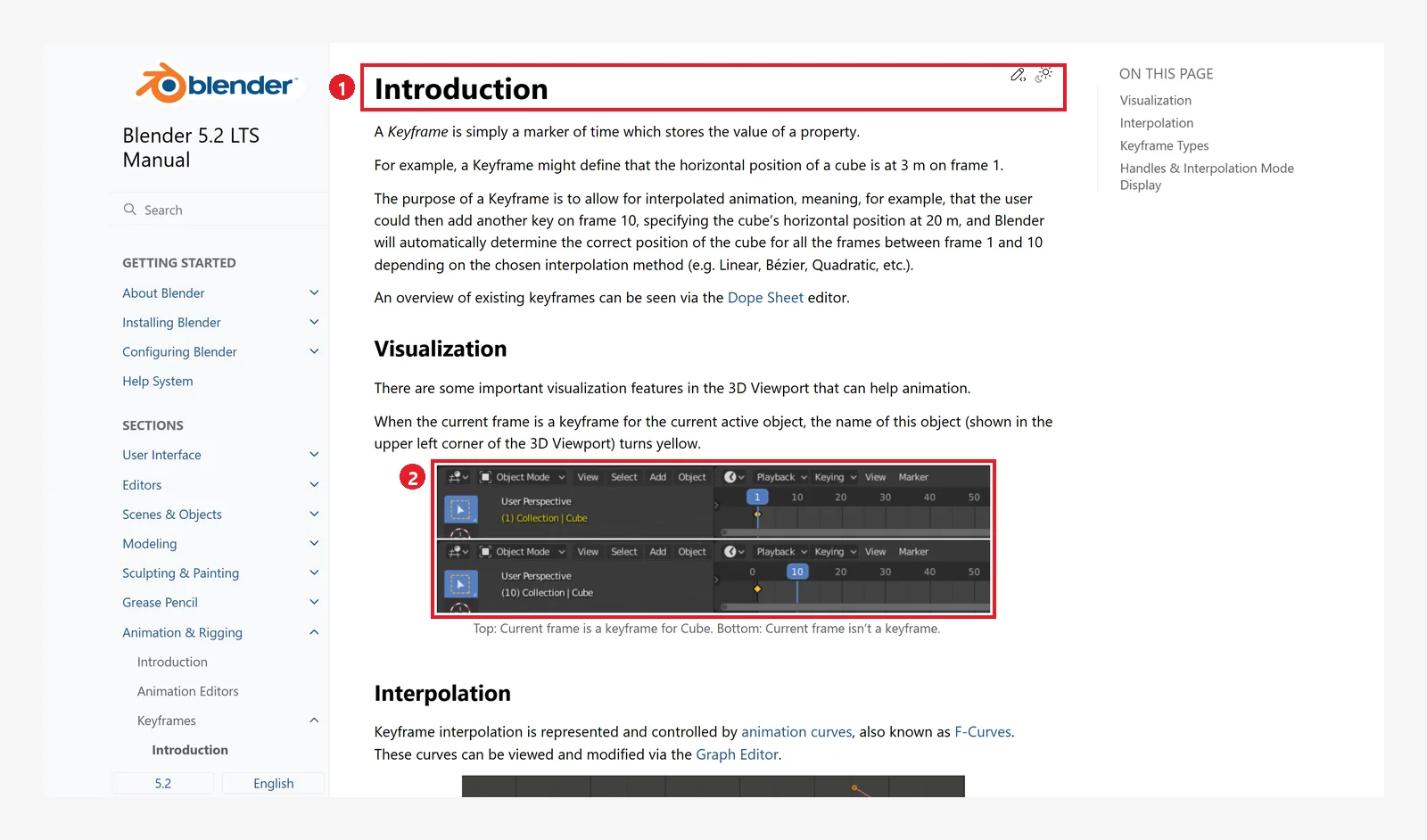 Figure 12-1. The official manual: ① Keyframes Introduction ② Visualization, an image showing that the object name in the top left of the 3D Viewport turns yellow when the current frame is a keyframe (Blender 5.2 manual screenshot, CC BY-SA 4.0, numbers added)
The manual describes a keyframe as "a marker that records what value a property has at a given time." For example, if you record a cube position of 3 m at frame 1 and 20 m at frame 10, Blender calculates the position for the frames in between on its own (interpolation).
2. A look at the Timeline
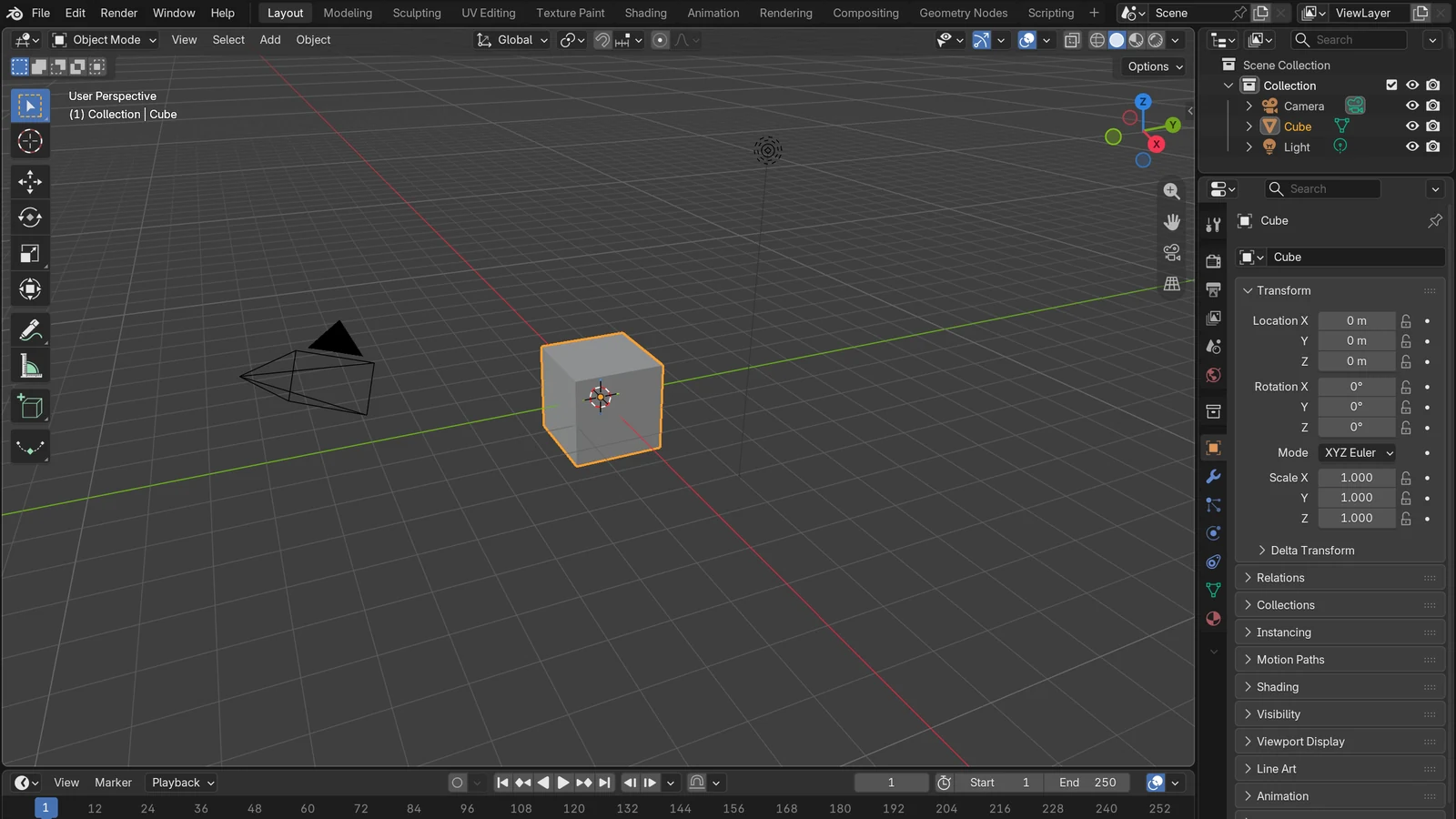
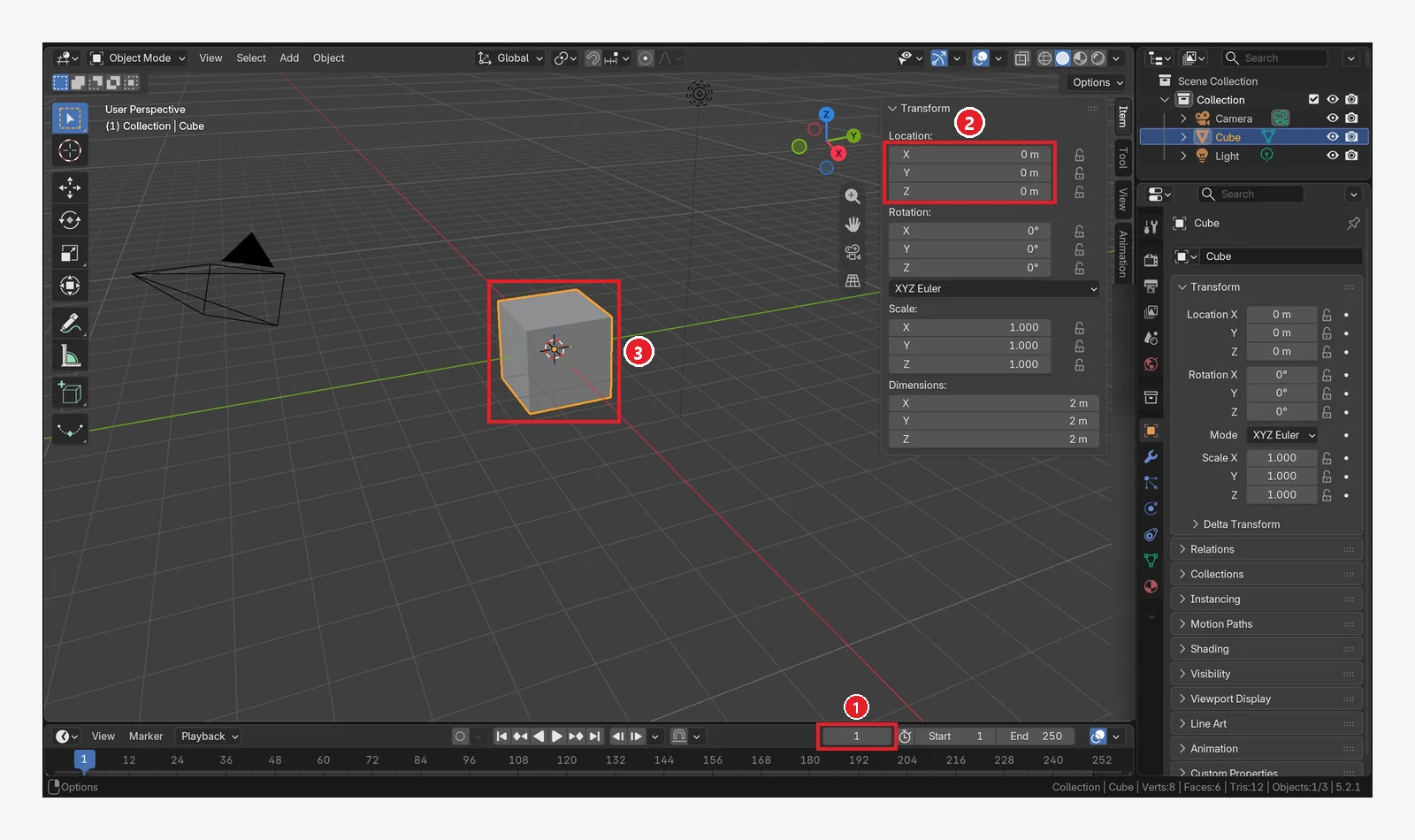 Figure 12-2. The starting state: ① Current frame 1 ② Location in the sidebar (
N), still gray (no animation) ③ The cube at the origin (Blender screenshot)
 Figure 12-3. The Timeline at the bottom of the screen: ① Playback buttons (jump to start, previous key, play backward, play, next key, jump to end) ② Auto Keying (the round record button) ③ Current frame number ④ Start and End (the first and last frames of the animation) ⑤ The blue playhead (where the current frame is) (Blender screenshot)
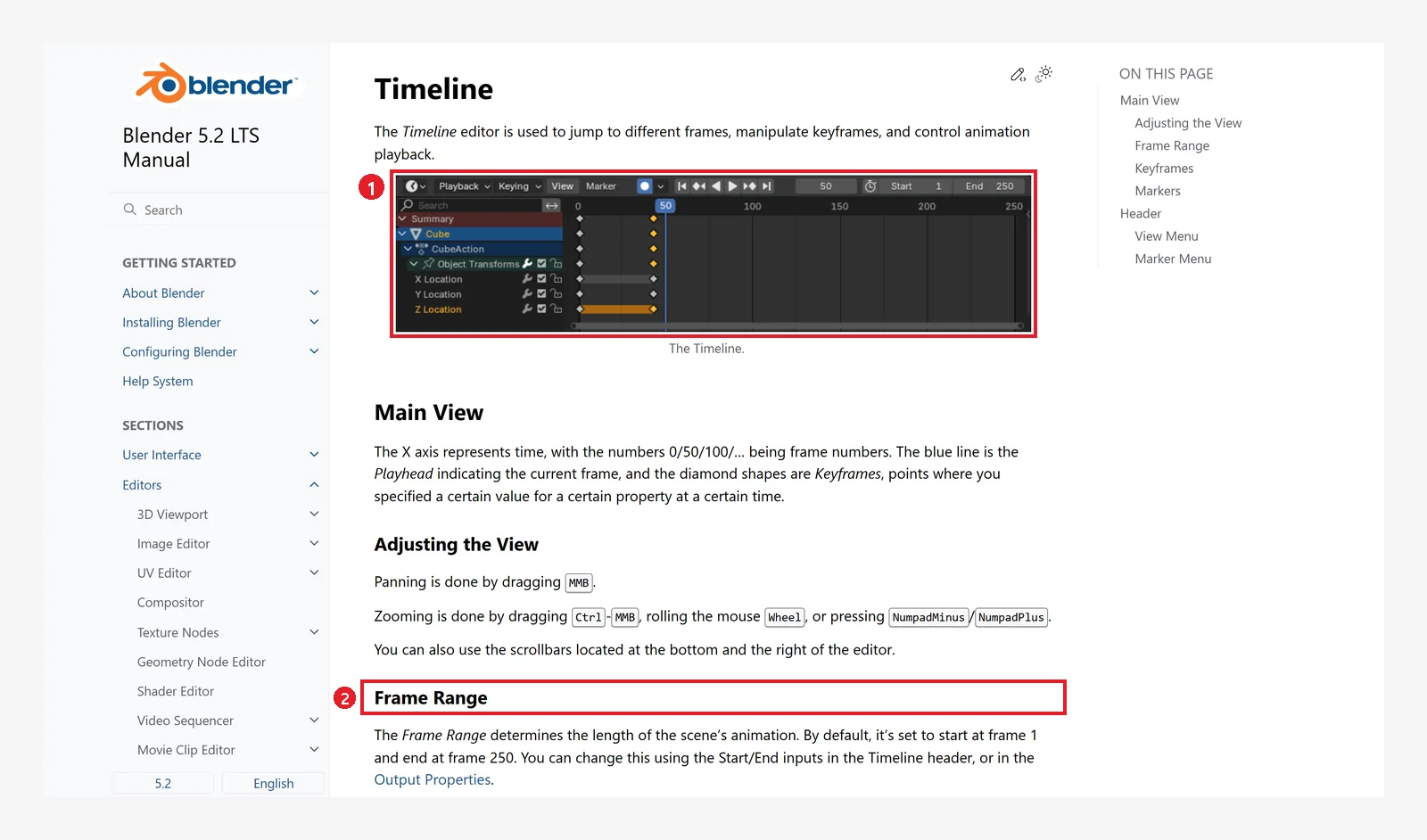 Figure 12-4. The official manual, Timeline: ① Image of the Timeline ② Frame Range: the default is 1 to 250, and you change it with Start/End in the Timeline header or in the Output properties (Blender 5.2 manual screenshot, CC BY-SA 4.0, numbers added)
The manual explains that the horizontal axis is time (frame numbers), the blue line is the playhead, and the diamonds are keyframes. In the Timeline, click or drag on the number row with the left button to move to another frame.
Keys for moving between frames (with the mouse over the 3D Viewport or the Timeline):
| Key | What it does |
|---|---|
← / → | One frame back / forward |
Shift+← / Shift+→ | To the first (Start) / last (End) frame |
↑ / ↓ | To the previous / next keyframe |
Space | Play / stop (if you set Spacebar Action to Play in Chapter 1) |
Esc | During playback, stops and returns to the frame where playback started |
3. Insert your first keyframe: I (before → after)
Starting state: Start from the default cube in a new file (no keys, current frame 1, Figure 12-2). Open the sidebar with N.
Follow along: On frame 1, select the cube, keep the mouse over the 3D Viewport, and press I.
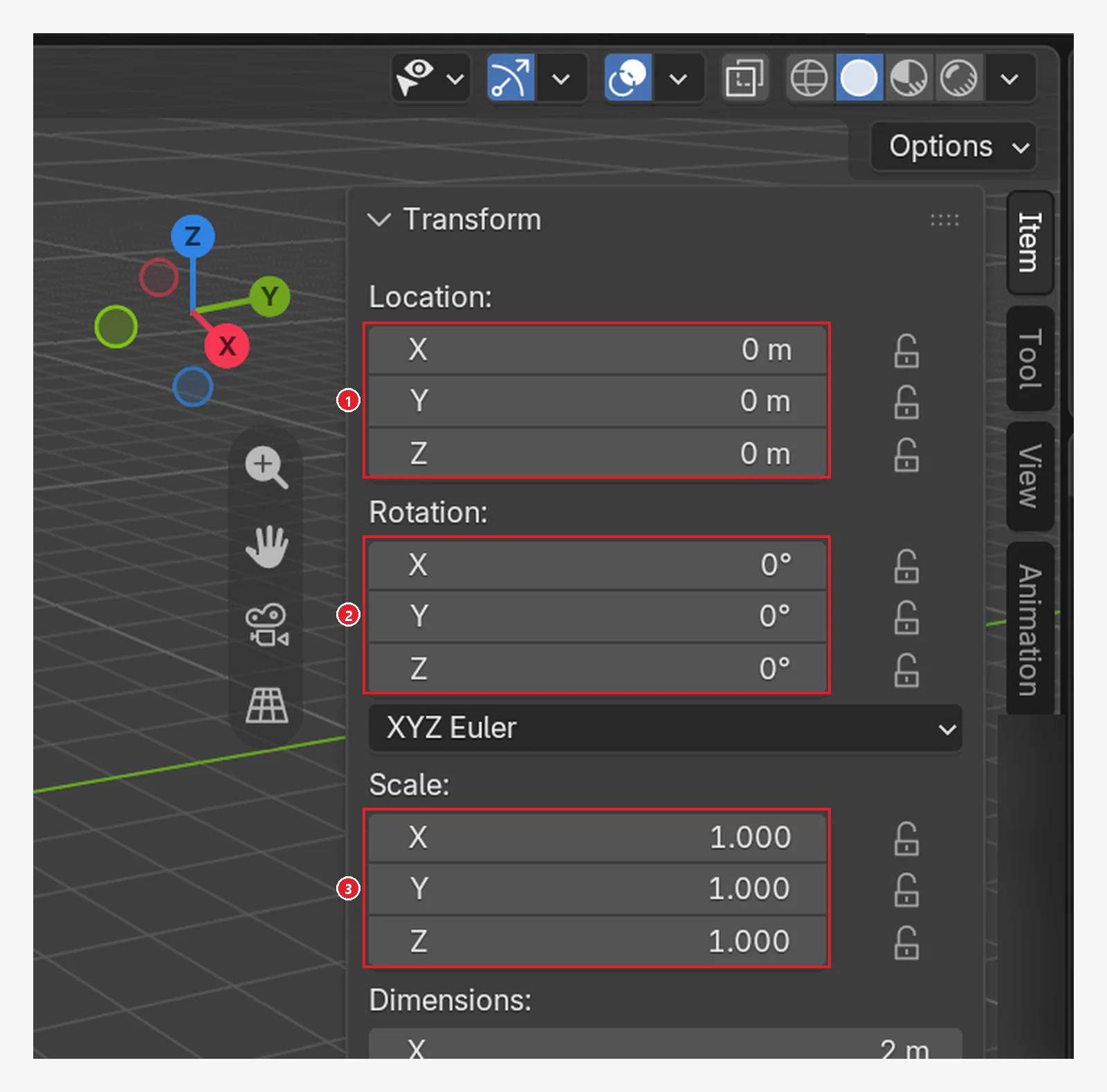 Figure 12-5. Before pressing: ① Location ② Rotation ③ Scale fields are all gray (Blender screenshot)
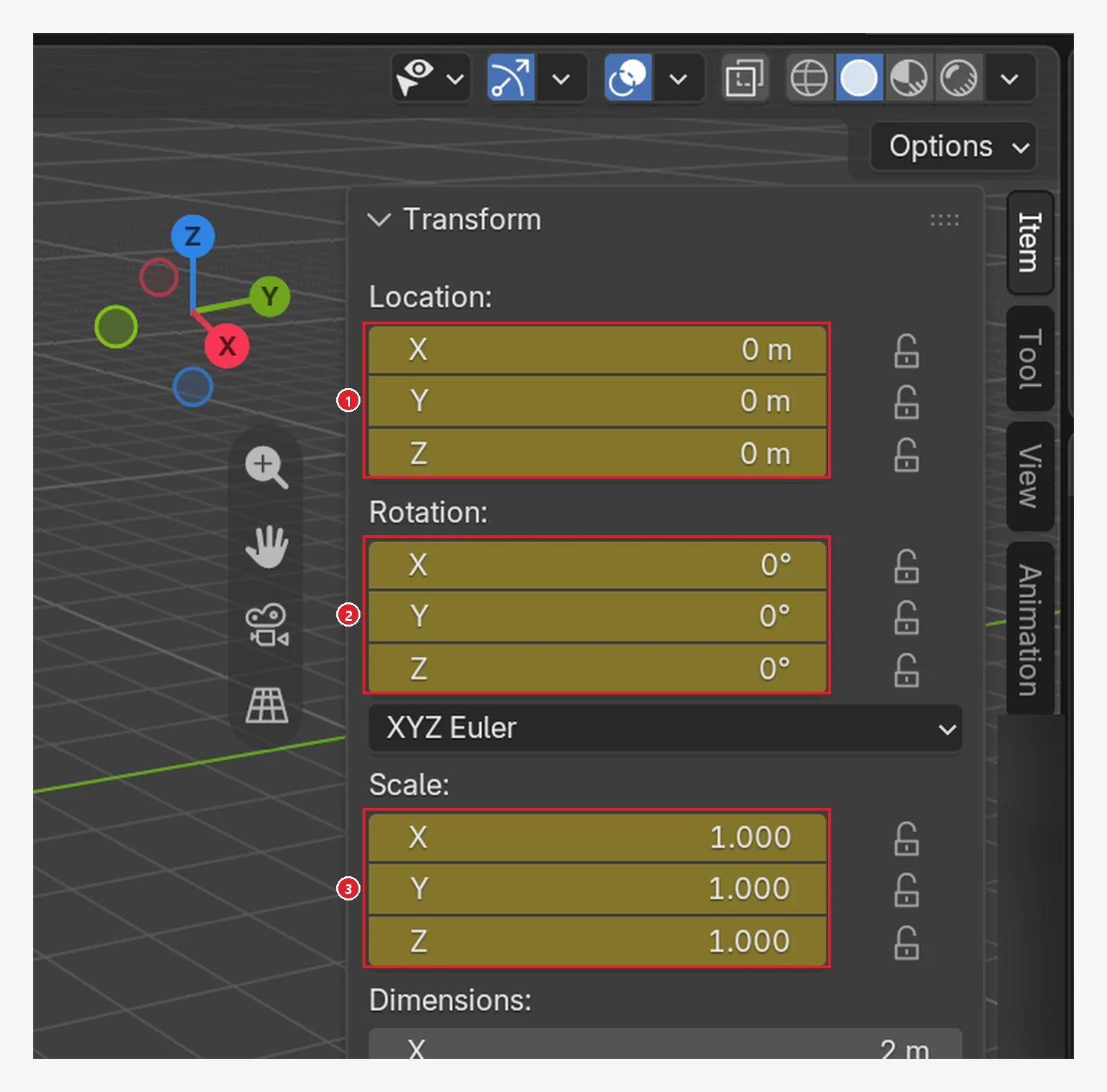 Figure 12-6. After pressing
 I: ① Location ② Rotation ③ Scale fields all turn yellow. This means a key was inserted on this frame (Blender screenshot)
With the default settings, I inserts keys on three groups at once: location, rotation, and scale (Default Key Channels in Preferences).
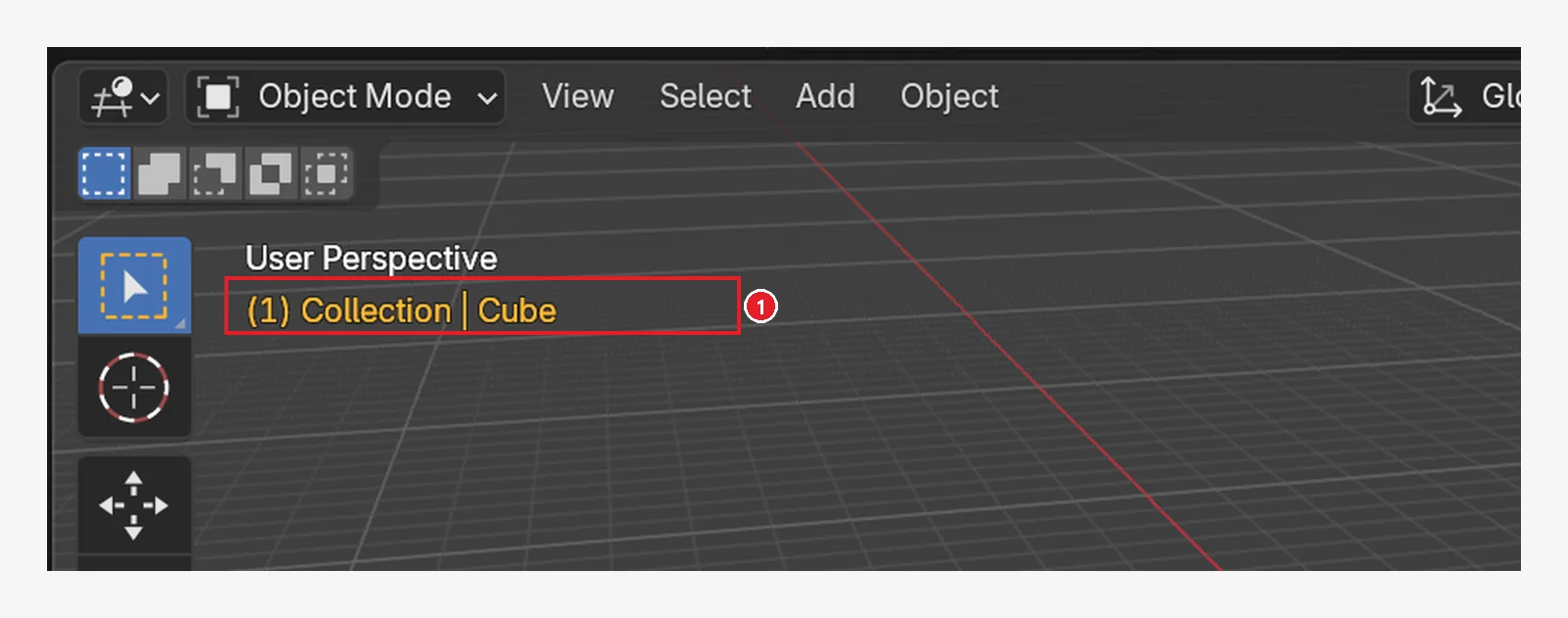 Figure 12-7. ① "(1) Collection | Cube" in the top left of the 3D Viewport also turns yellow. As the manual explains, this shows that the current frame is a keyframe. The number in parentheses is the current frame (Blender screenshot)
What the property field colors mean
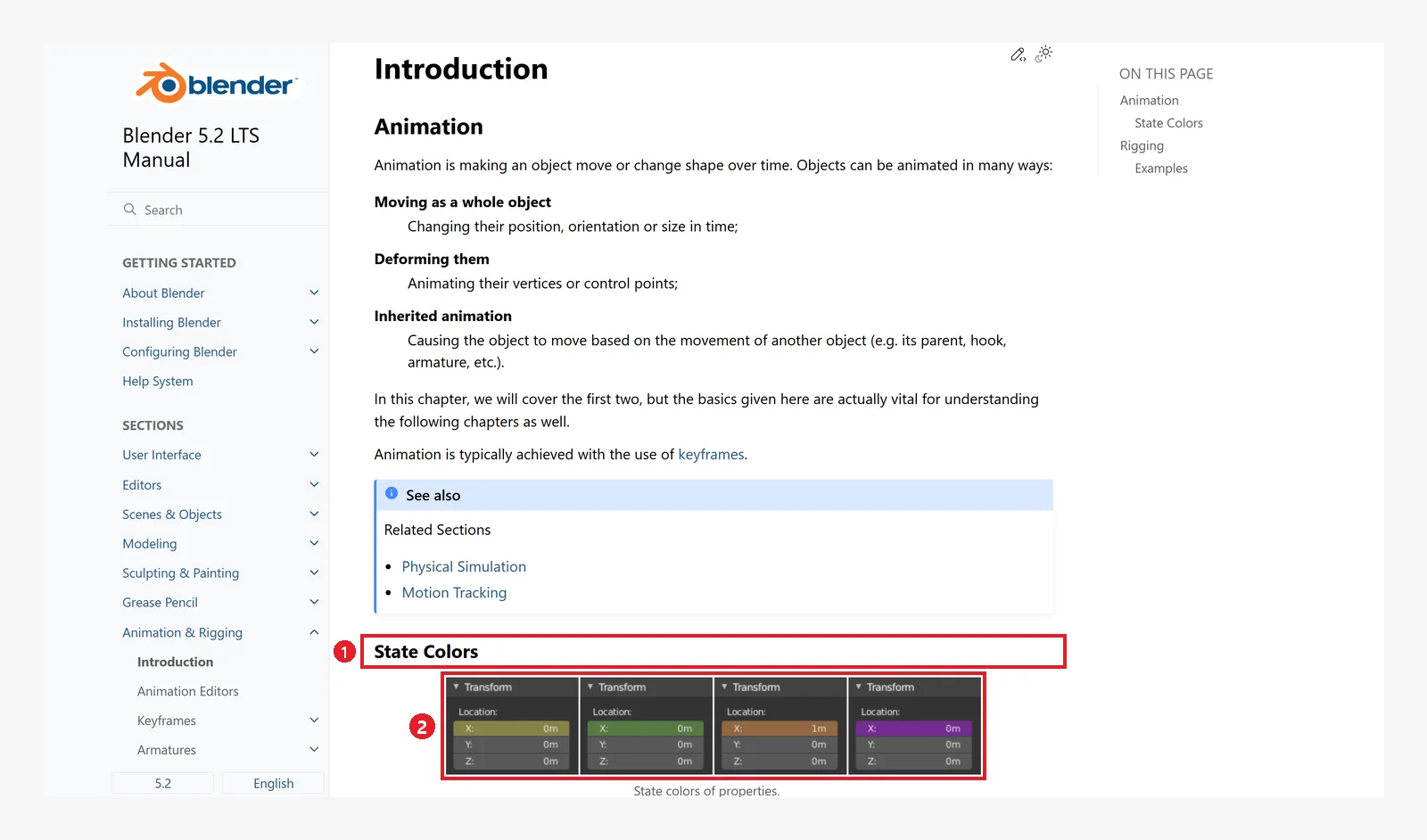 Figure 12-8. The official manual, State Colors: ① Heading ② Image showing each state by color (Blender 5.2 manual screenshot, CC BY-SA 4.0, numbers added)
| Color | Meaning |
|---|---|
| Gray | No animation |
| Yellow | There is a key on the current frame |
| Green | There are keys on other frames (the current frame holds an in-between value) |
| Orange | Changed from the key value, but no key inserted yet |
| Purple | Controlled by a driver |
4. Move the cube with a second key
4-1. Go to frame 60 and move the cube (before → after)
Starting state: Continue with the cube from the previous section (one key on frame 1).
Follow along: Double-click the current frame field in the Timeline and type 60. Then move the cube with G → X → 4 → Enter, and rotate it with R → Z → 90 → Enter.
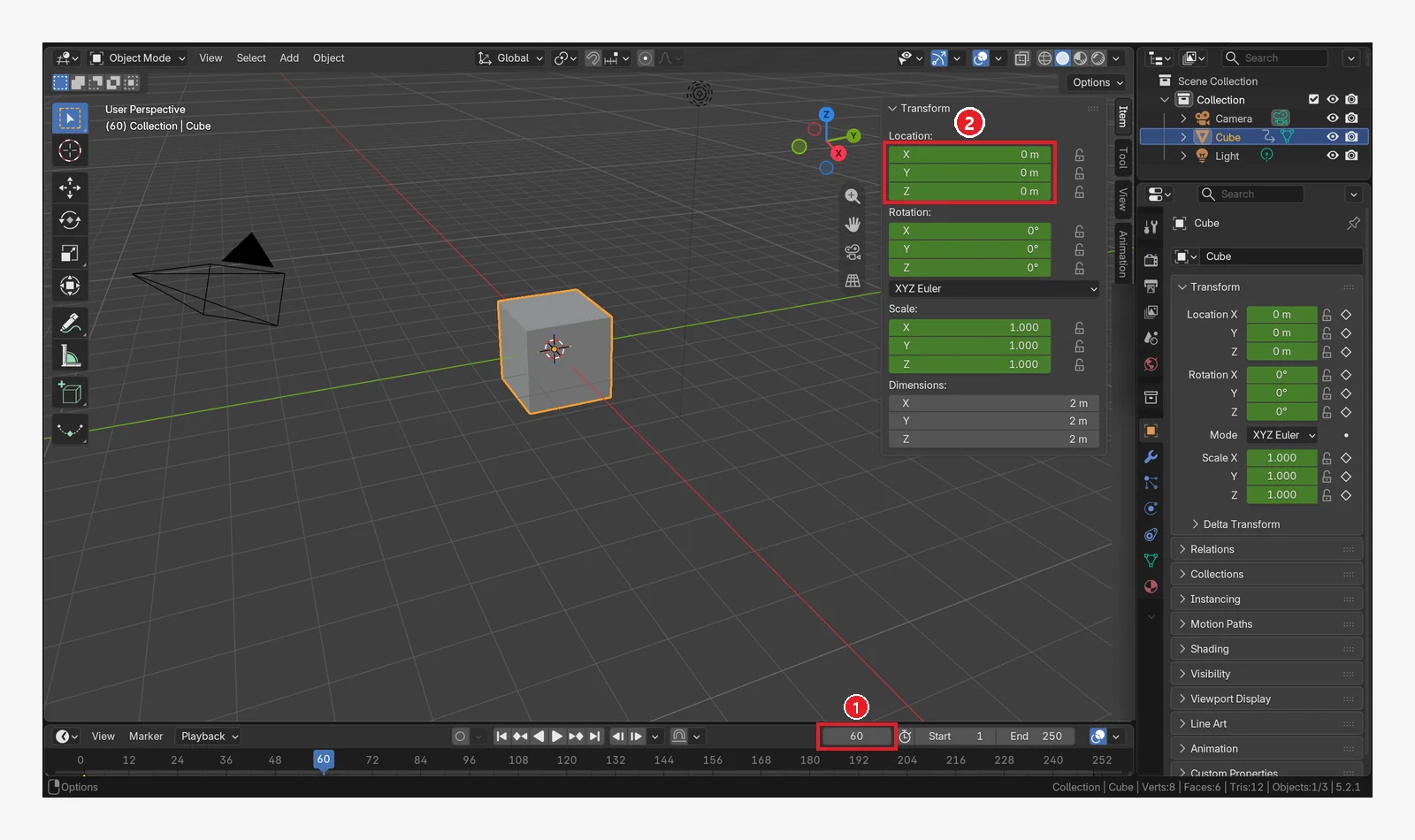 Figure 12-9. Right after going to frame 60: ① Current frame 60 ② The fields are green: the only key is on frame 1, and the current frame carries over that value (Blender screenshot)
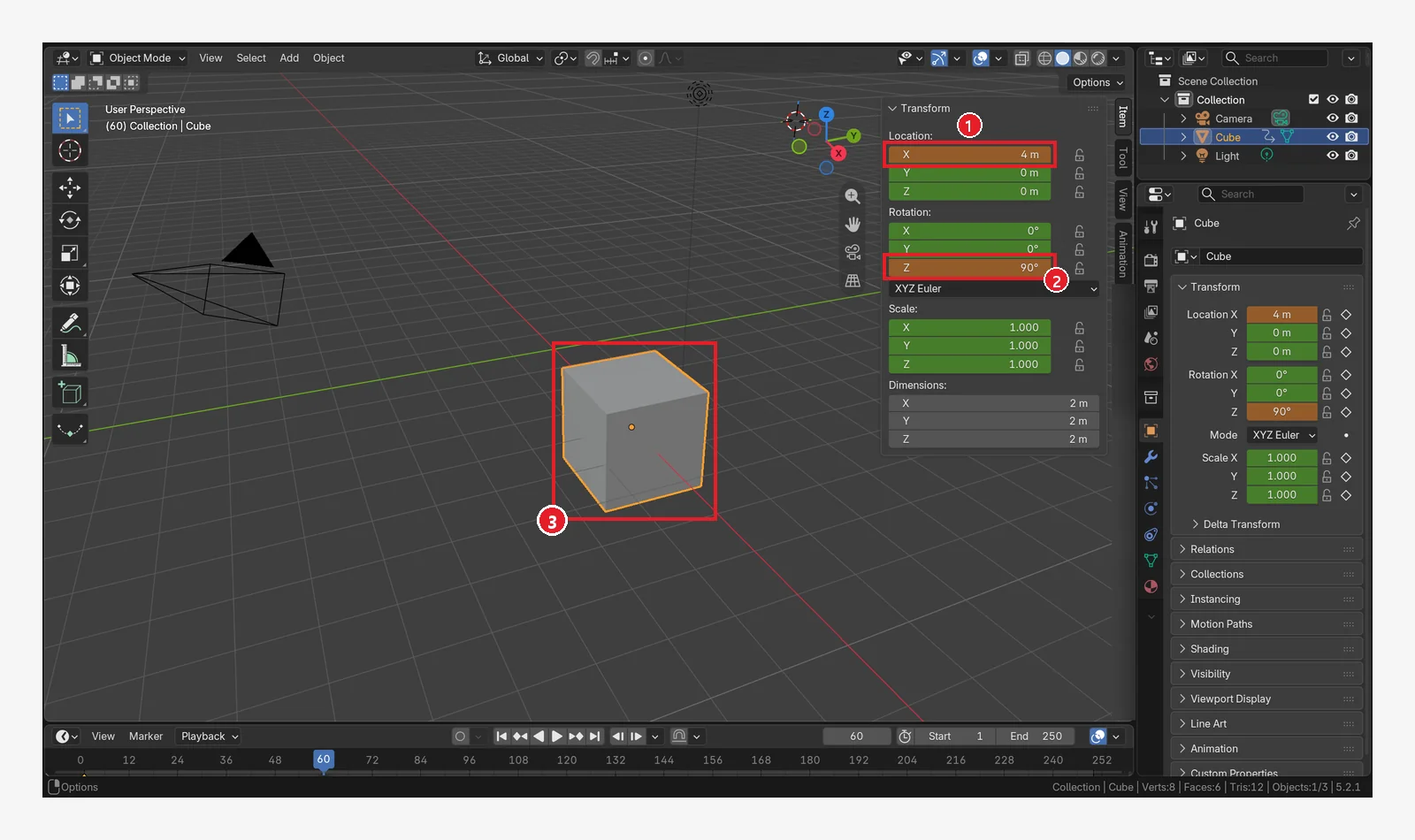 Figure 12-10. After moving and rotating: ① Location X 4 m ② Rotation Z 90° fields are orange ("changed but no key") ③ The cube has moved and turned. The red-and-white circle in the top right is the 3D cursor (moved there for this image only) (Blender screenshot)
If you move to another frame now, the values you changed are lost. Be sure to insert a key in the next step.
4-2. Insert a key (before → after)
Follow along: On frame 60, keep the mouse over the 3D Viewport and press I. The Location, Rotation, and Scale fields in the sidebar turn yellow again (the same color as in Figure 12-6). The key appears as a diamond in the Timeline. The Timeline at the bottom is short, so the diamonds look small. Drag the border between the Timeline and the 3D Viewport upward with the mouse to see the keys larger.
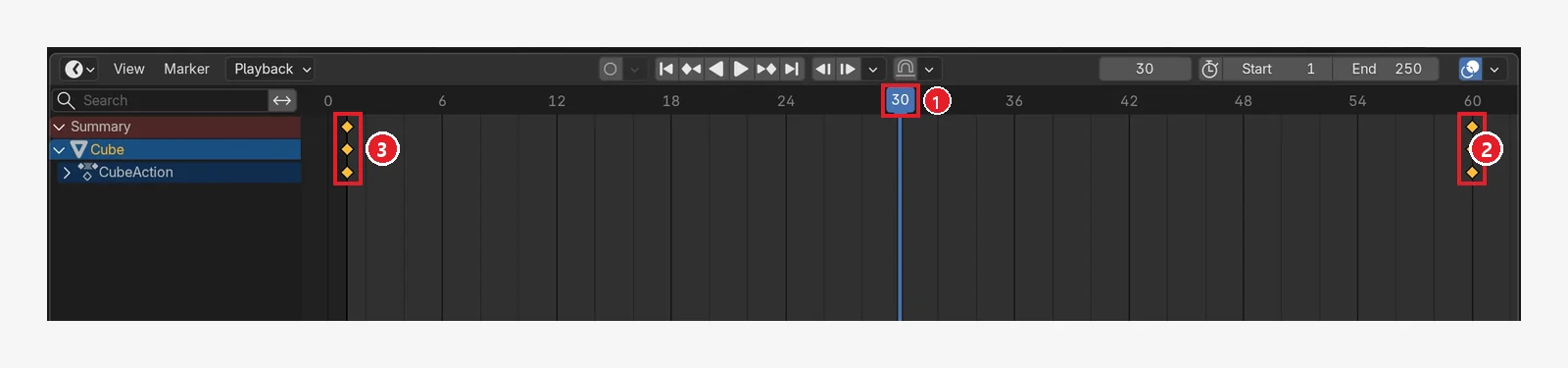 Figure 12-11. A large view of the Timeline after pressing
 I on frame 60 and moving the playhead to frame 30: ① Playhead (30) ② Key on frame 60 (diamond) ③ Key on frame 1. The same keys appear on each row on the left: Summary, Cube, and CubeAction. This screen has the large area (where the 3D Viewport was) switched to the Timeline editor type (Blender screenshot)
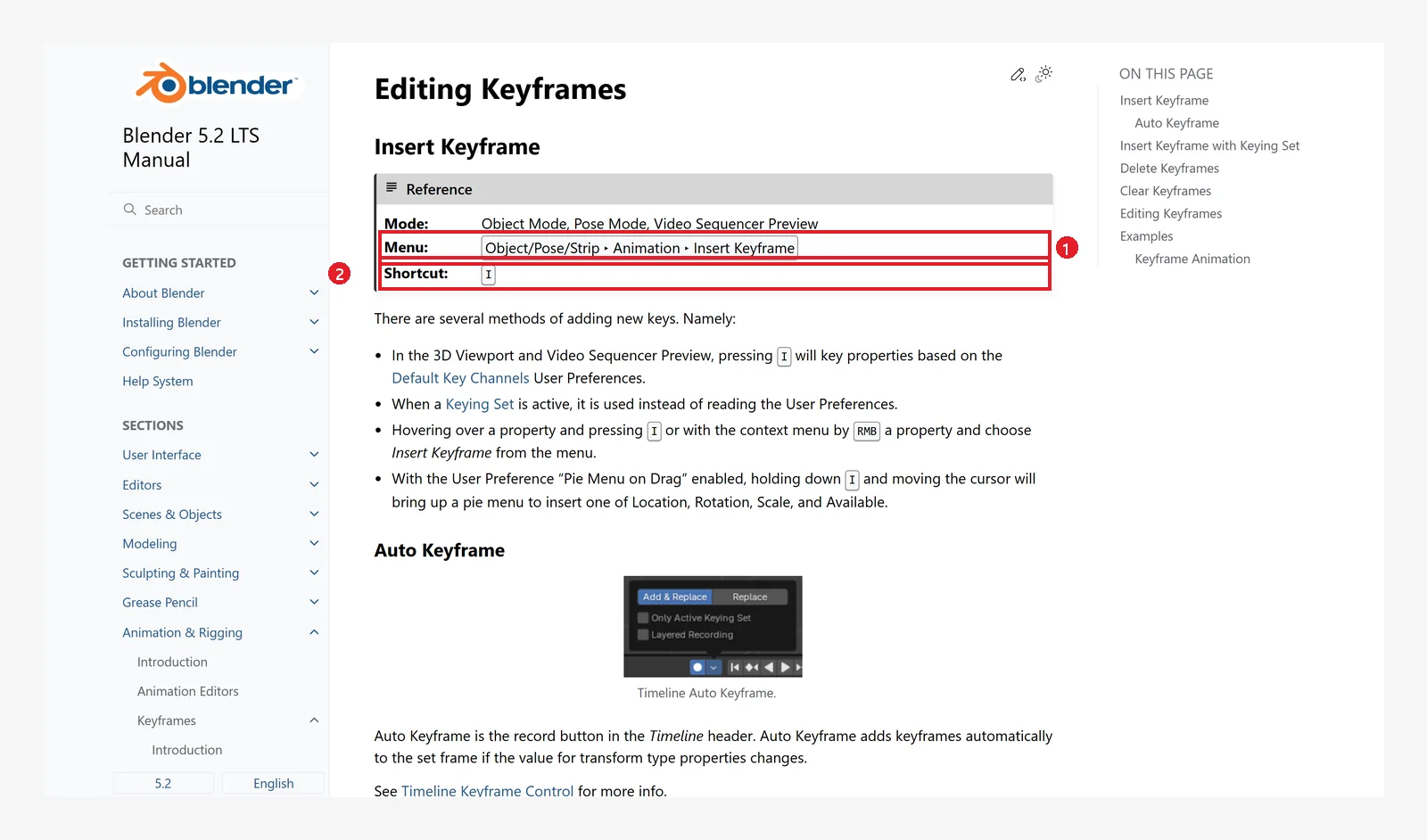 Figure 12-12. The official manual, Insert Keyframe: ① Menu Object ‣ Animation ‣ Insert Keyframe ② Shortcut I (Blender 5.2 manual screenshot, CC BY-SA 4.0, numbers added)
The manual says that if you press
Iwith the mouse over a property field, a key goes into that one property only. Clicking the small dot to the right of the field (the decorator) also inserts a key. When it becomes a filled diamond, there is a key on this frame.
4-3. Check the frames in between
When you play it, the cube moves from frame 1 to frame 60. Below are "in-between pictures" taken while stepping through the frames.
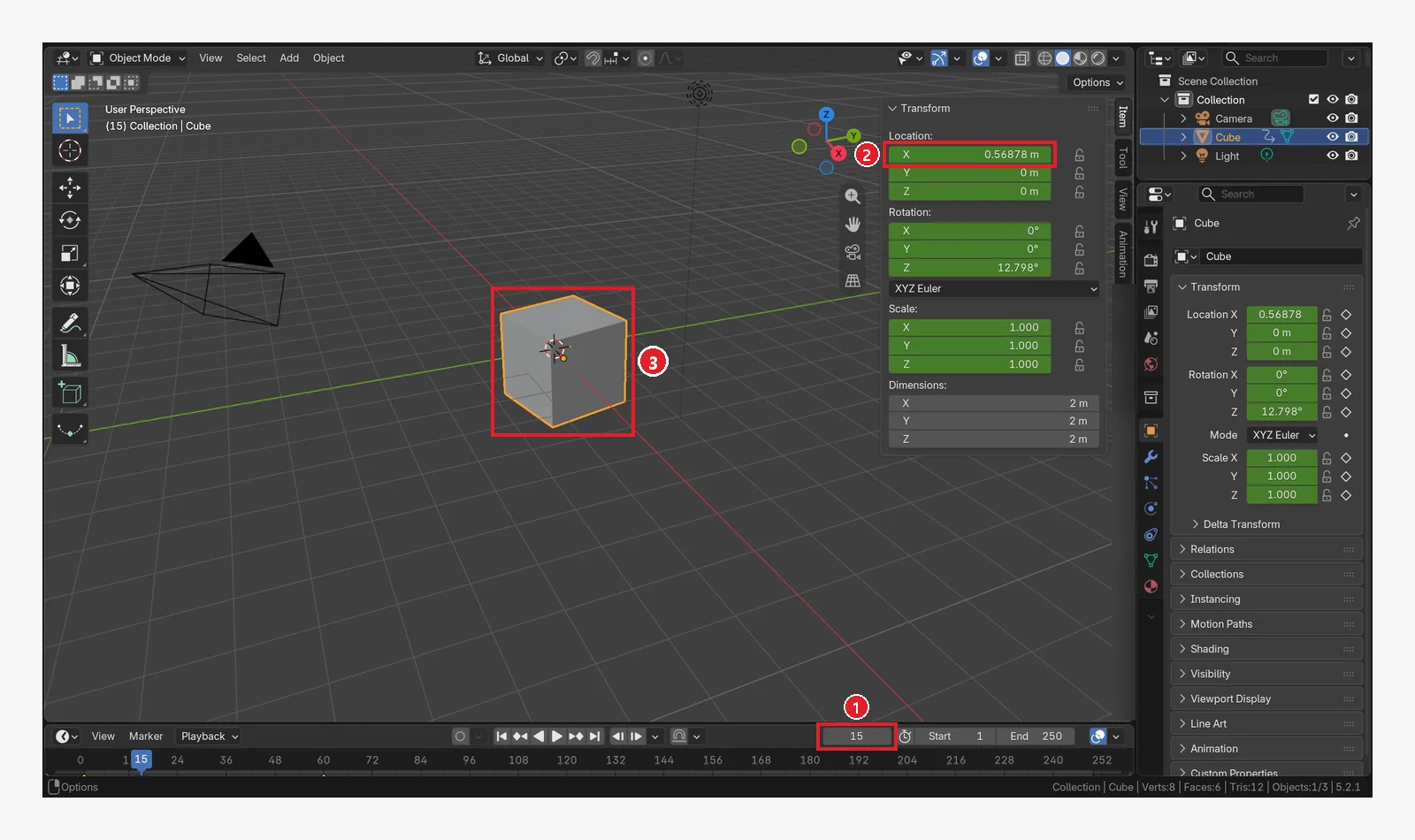 Figure 12-13. ① Frame 15: ② Location X about 0.57 m (green) ③ The cube has moved a little and turned a little (Blender screenshot)
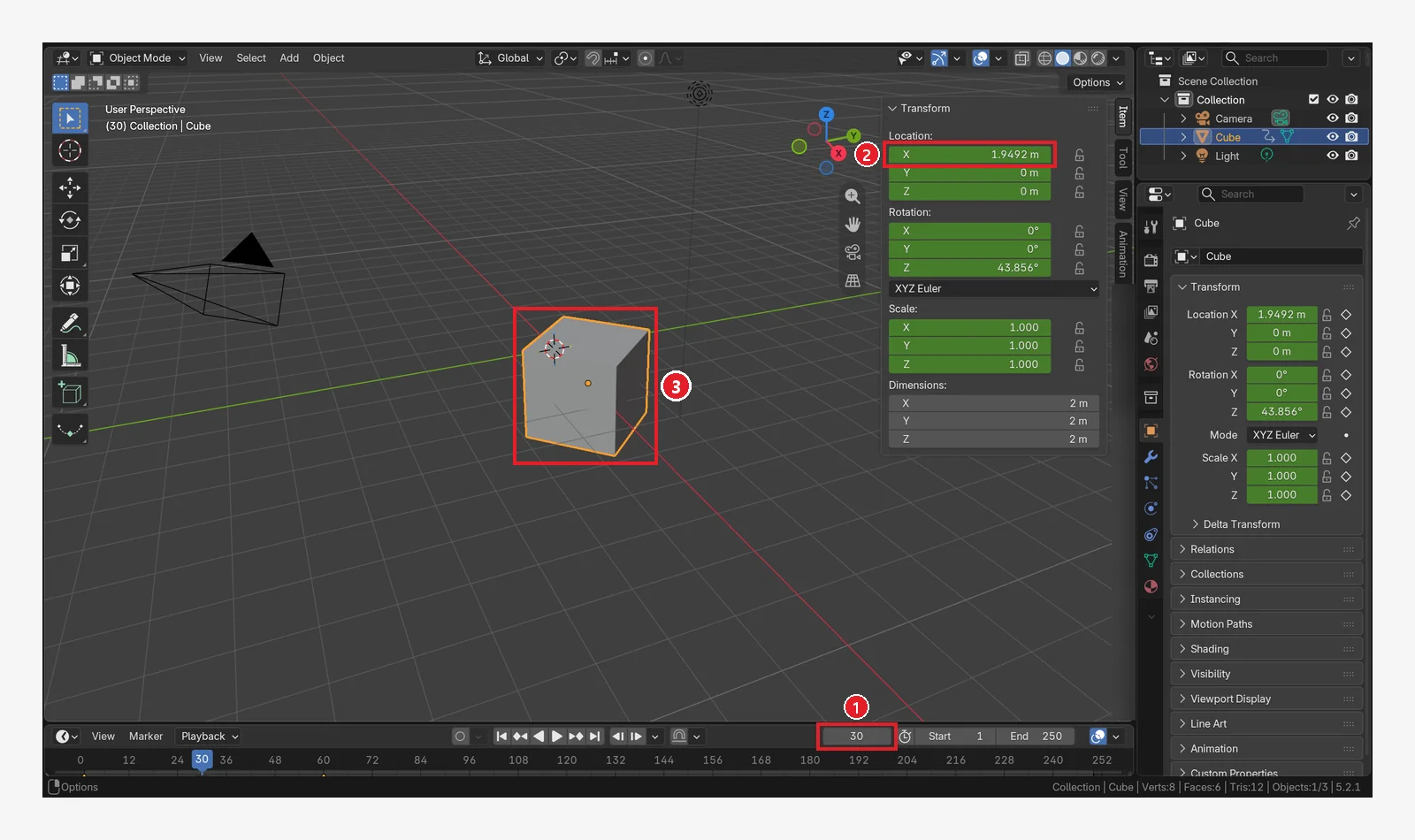 Figure 12-14. ① Frame 30 (the middle): ② Location X about 1.95 m ③ About halfway there (Blender screenshot)
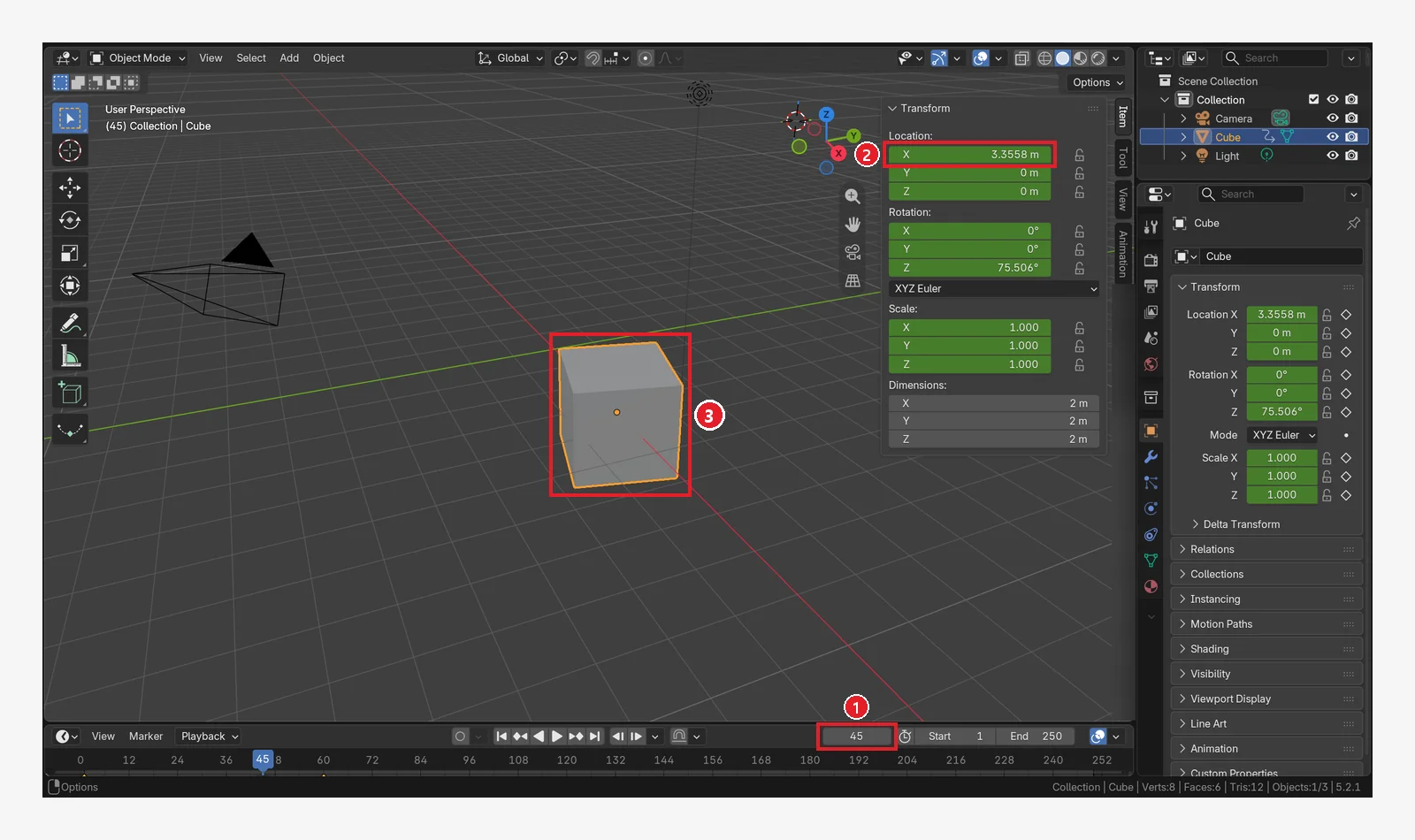 Figure 12-15. ① Frame 45: ② Location X about 3.36 m ③ Almost there. The red-and-white circle in the top right is the 3D cursor (moved there for this image only) (Blender screenshot)
Over frames 1→15, 15→30, and 30→45, the cube moves 0.57, 1.38, and 1.41 m, so it is slow at first and fast in the middle. This is because the default interpolation is a curve that starts and stops smoothly (Bézier). You will see its shape in the Graph Editor in Section 6.
5. The end frame and Auto Keying
5-1. Shorten the end frame to 60 (before → after)
The default end frame is 250, so when you play the animation, the cube sits still for 190 frames after frame 60. Change the end to 60 and the animation loops exactly.
Starting state: Continue with the cube from the previous section (keys on frames 1 and 60).
Follow along: Double-click the End field on the right of the Timeline, type 60, and press Enter. Press Space to play, then press Space again to stop.
 Figure 12-16. ① After double-clicking the End field and typing 60: ② The playhead is at 60, and playback loops over frames 1 to 60 only (compare with 250 in Figure 12-3) (Blender screenshot)
5-2. Auto Keying
Follow along: Click the round record button in the Timeline (② in Figure 12-3) to turn it on. Once you see it turn blue, click it again to turn it off.
 Figure 12-17. ① The round record button turned on (filled in blue). As the manual explains, when it is on, a key is inserted on that frame automatically every time you change a value. The image shows a screen with End at its default of 250 (60 if you followed Section 5-1) (Blender screenshot)
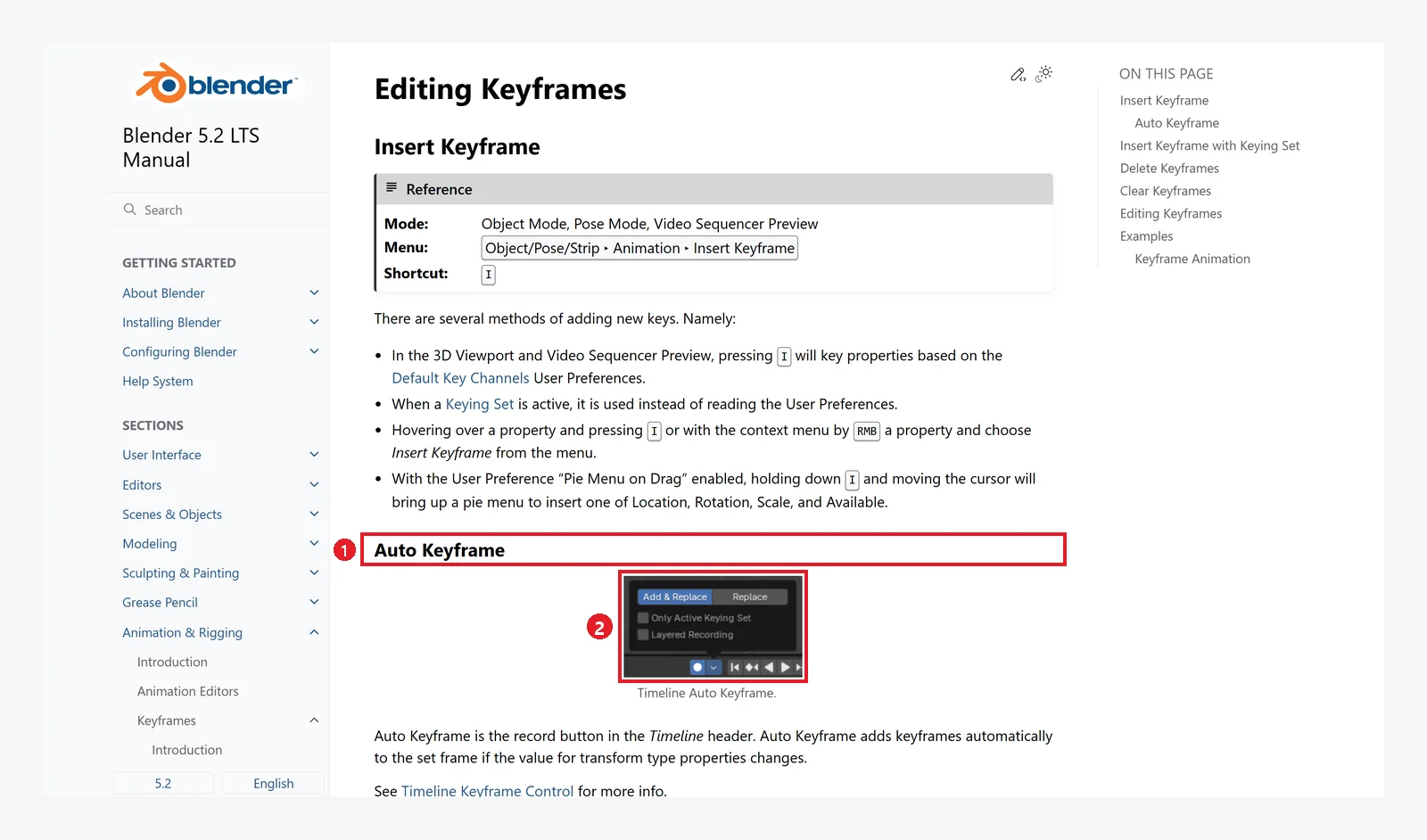 Figure 12-18. The official manual: ① Auto Keyframe ② Image of the record button in the Timeline header (Blender 5.2 manual screenshot, CC BY-SA 4.0, numbers added)
Keep it off at first. If you forget it is on, even the moves you only meant to try out become keys, and the animation turns into a mess. When it is on, the record button is blue.
6. Two editors that show your keys together
The images below show the 3D Viewport area switched to another editor for a while. When you try it yourself, click the Editor Type button in the top left of the area (① in Figure 2-7 of Chapter 2) and choose Dope Sheet or Graph Editor. When you are done, use the same button to go back to 3D Viewport.
6-1. Dope Sheet
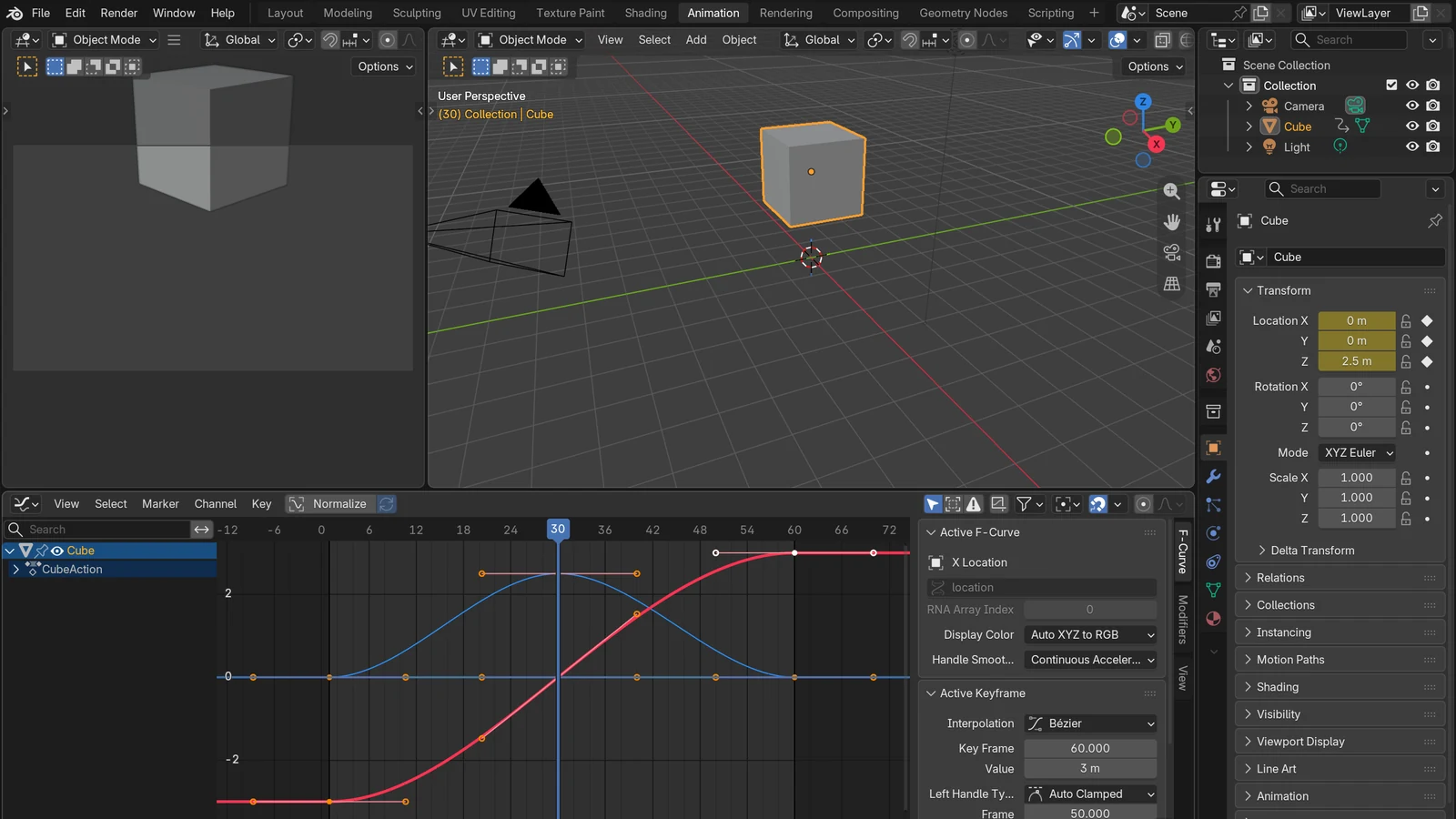
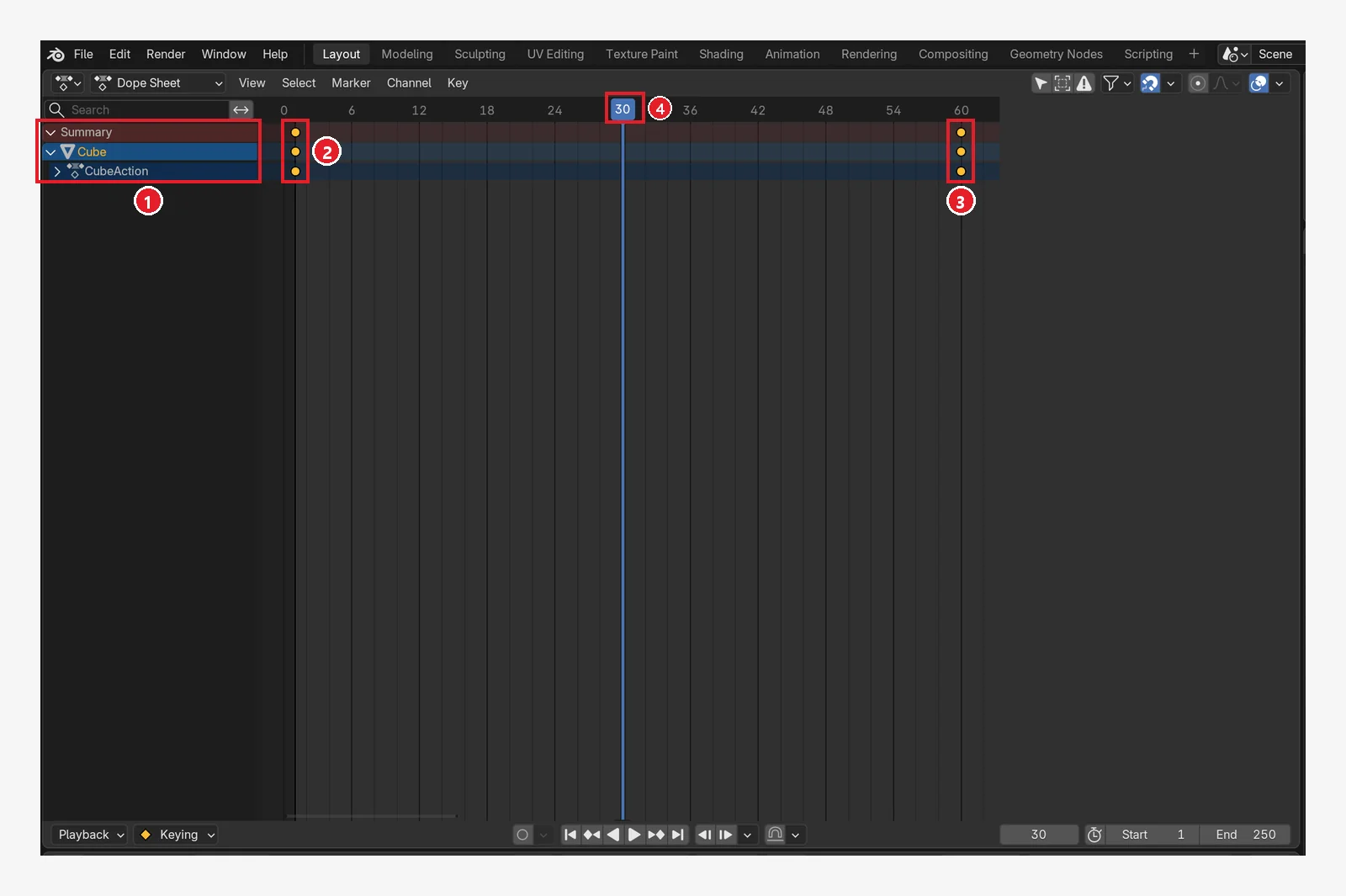 Figure 12-19. The Dope Sheet: ① Channel list on the left (Summary, Cube, CubeAction) ② Key on frame 1 ③ Key on frame 60 ④ The blue playhead (frame 30). Click a key to select it and move it with
 G to change the timing (Blender screenshot)
6-2. A first look at the Graph Editor (before → after)
Follow along: Switch the editor type to Graph Editor. If you cannot see the curves, press Home (Figure 12-20). With the mouse over the graph, select all keys with A, press T, and choose Linear (Figure 12-21). After checking the result, press T again and choose Bézier to put it back.
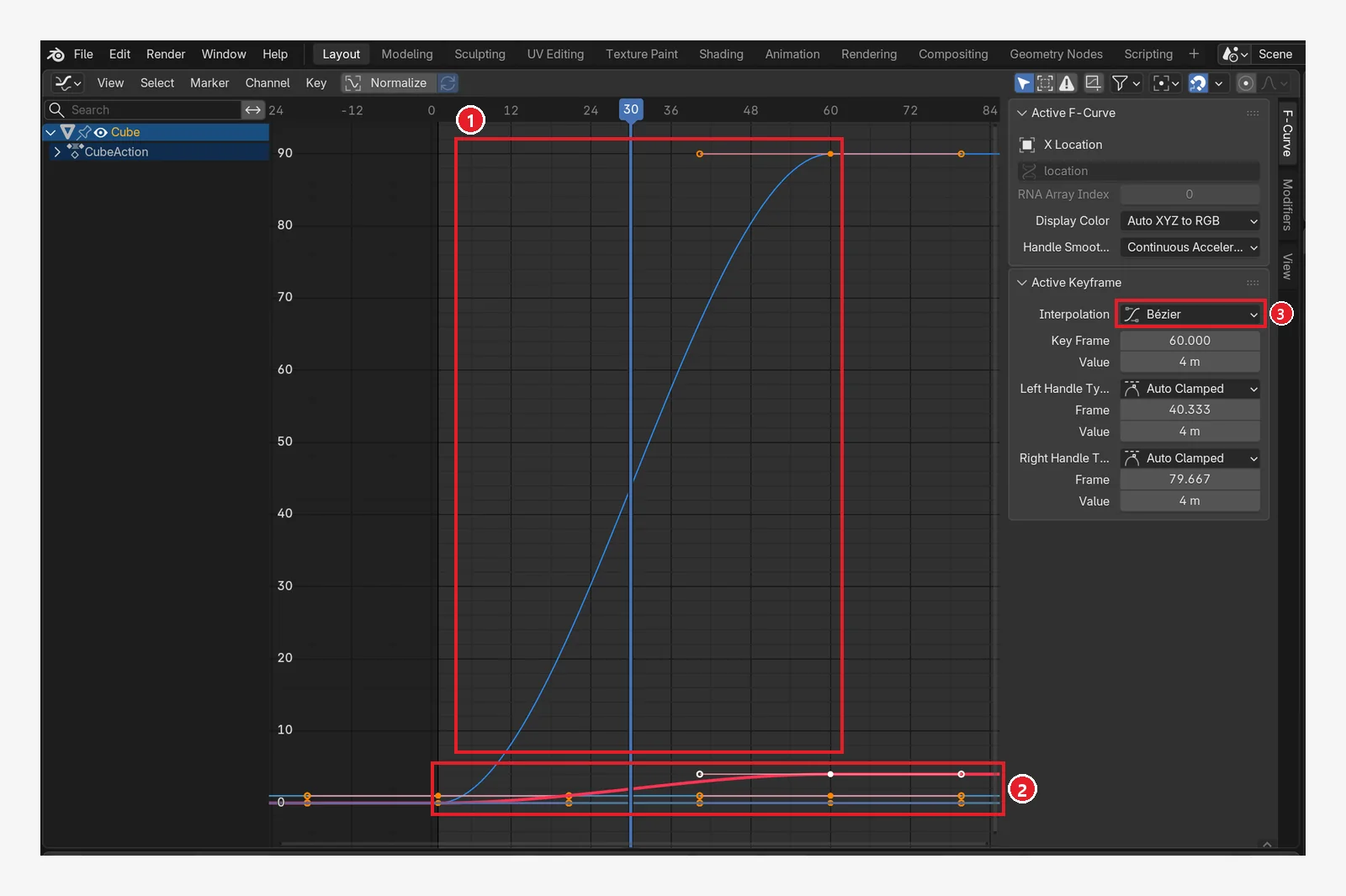 Figure 12-20. The Graph Editor: the horizontal axis is time and the vertical axis is value. ① Blue curve = Rotation Z (0°→90°), an S shape ② Red line = Location X (0→4 m); its values are small, so it looks stuck to the bottom ③ Interpolation: Bézier in the sidebar (F-Curve tab) (Blender screenshot)
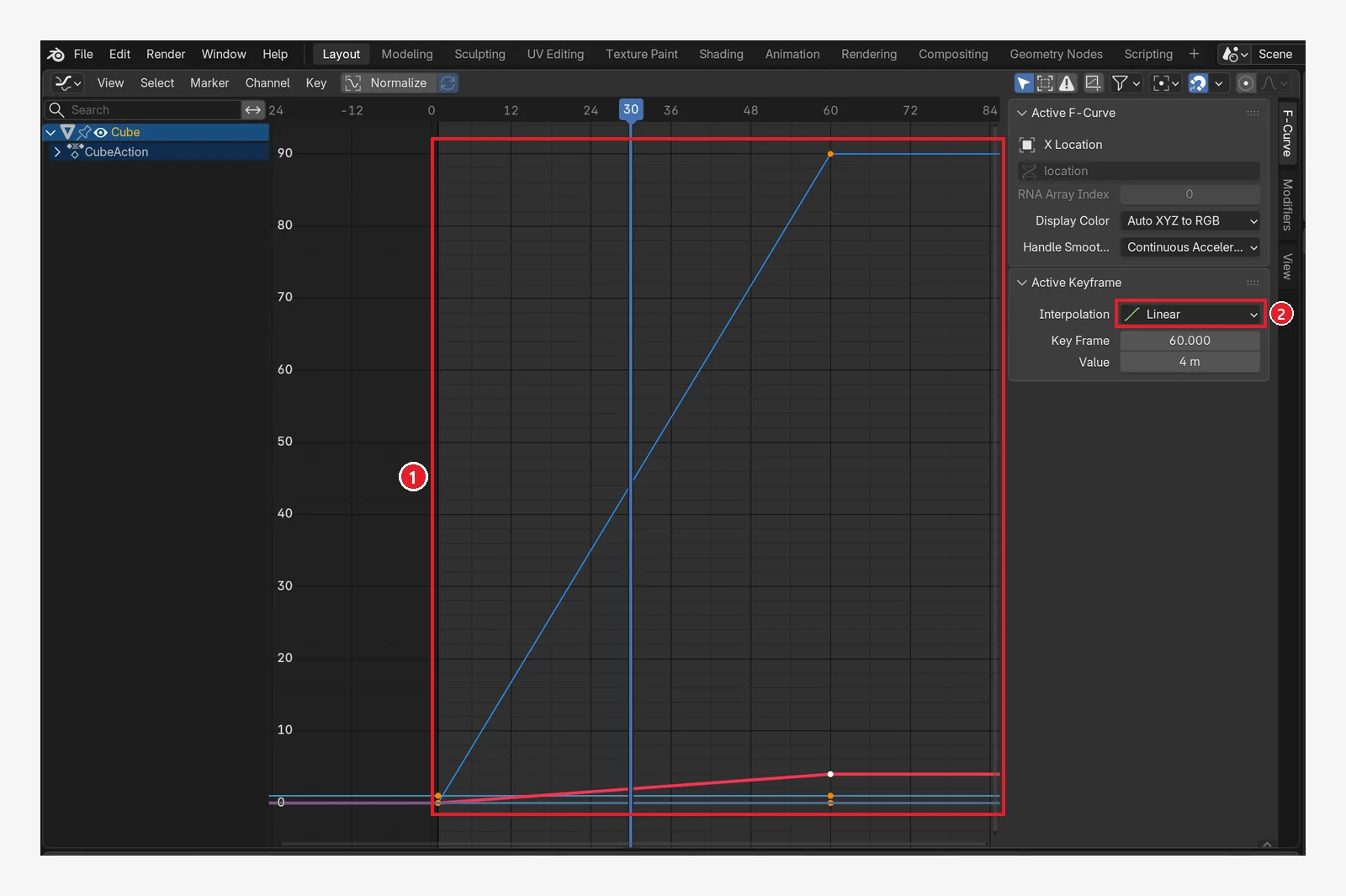 Figure 12-21. After changing the interpolation to Linear (compare with Figure 12-20): ① The curve becomes a straight line, so the cube moves at the same speed from start to finish ② Interpolation: Linear (Blender screenshot)
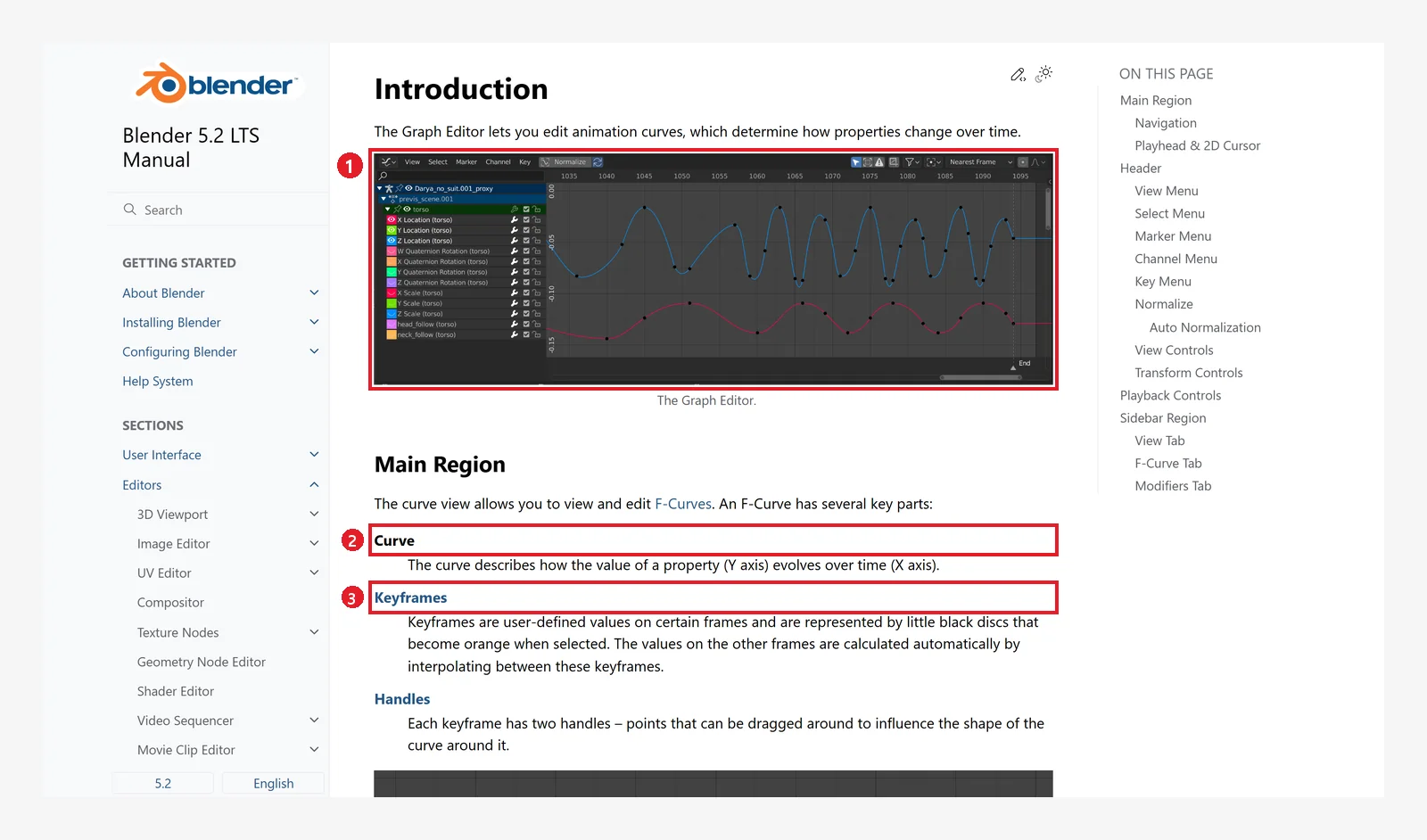 Figure 12-22. The official manual, Graph Editor: ① Image of the Graph Editor ② Curve ③ Keyframes (key points) (Blender 5.2 manual screenshot, CC BY-SA 4.0, numbers added)
- In the Graph Editor, select keys and press
Tto open the menu for choosing the interpolation mode. The manual introduces Constant (jumps), Linear (straight), Bézier (smooth), and others. Home: makes the whole curve visible. If you cannot see the curves, press it first.- How to shape curves by hand is covered in this site's guide An introduction to keyframe animation: inserting keys and the Graph Editor.
7. Delete keys and go back to the start
Starting state: Continue with the cube from the previous section (keys on frames 1 and 60, End 60). Go back to the 3D Viewport and move the current frame to 60 (Shift+→).
Follow along:
- On frame 60, keep the mouse over the 3D Viewport and press
Alt+I. Only the key on that frame is deleted, and the cube goes back to its frame 1 value (the origin) (Figure 12-23). - After checking, press
Ctrl+Zto bring back the key on frame 60. Do not pressIhere. That would insert a key with the cube still at the origin, and the movement would be gone. - Press
Shift+←to go back to frame 1 (Figure 12-24).
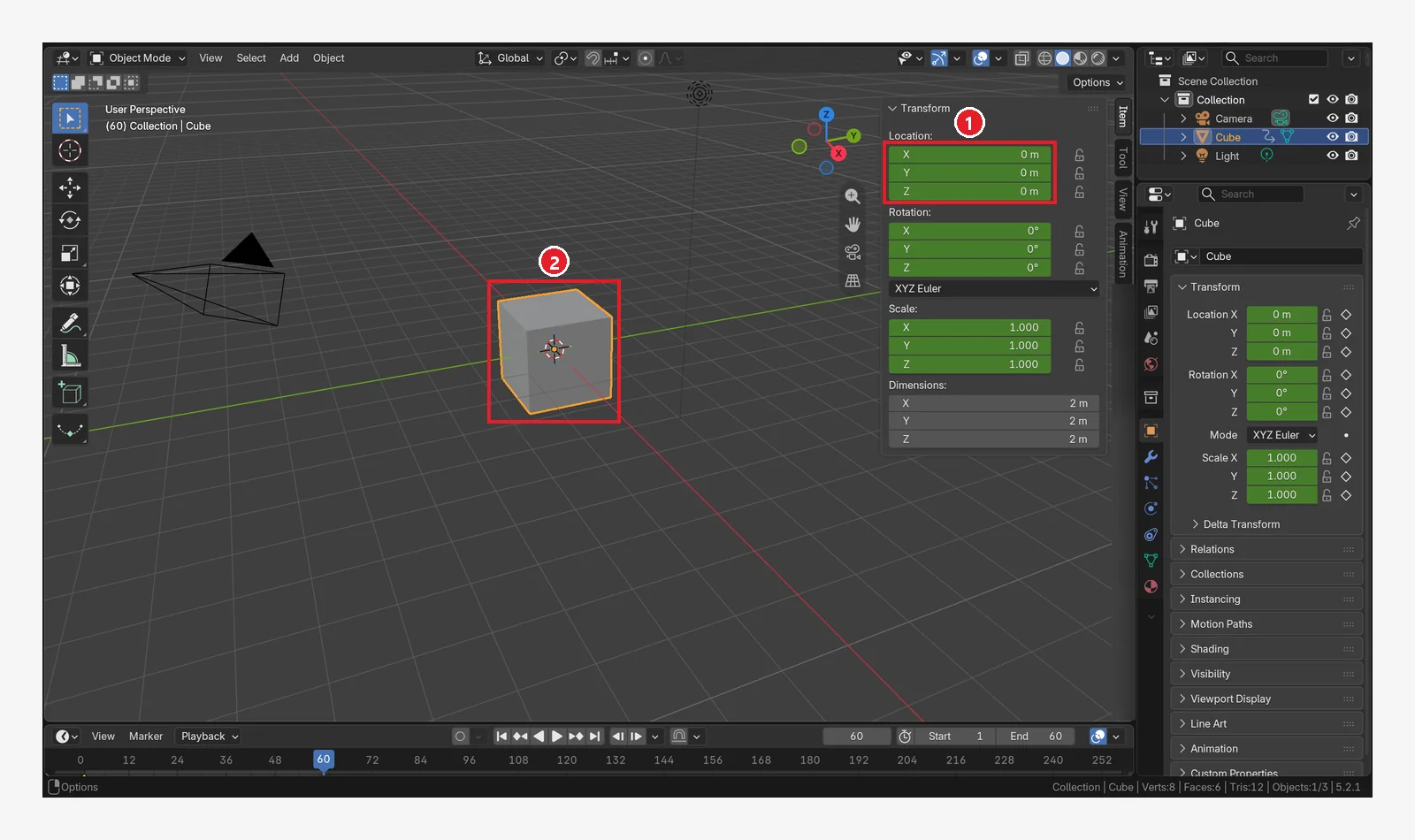 Figure 12-23. After pressing
 Alt+I (delete key) on frame 60 with the mouse over the 3D Viewport: ① The fields are green (only the key on frame 1 is left) ② The cube is back at its frame 1 value (the origin) (Blender screenshot)
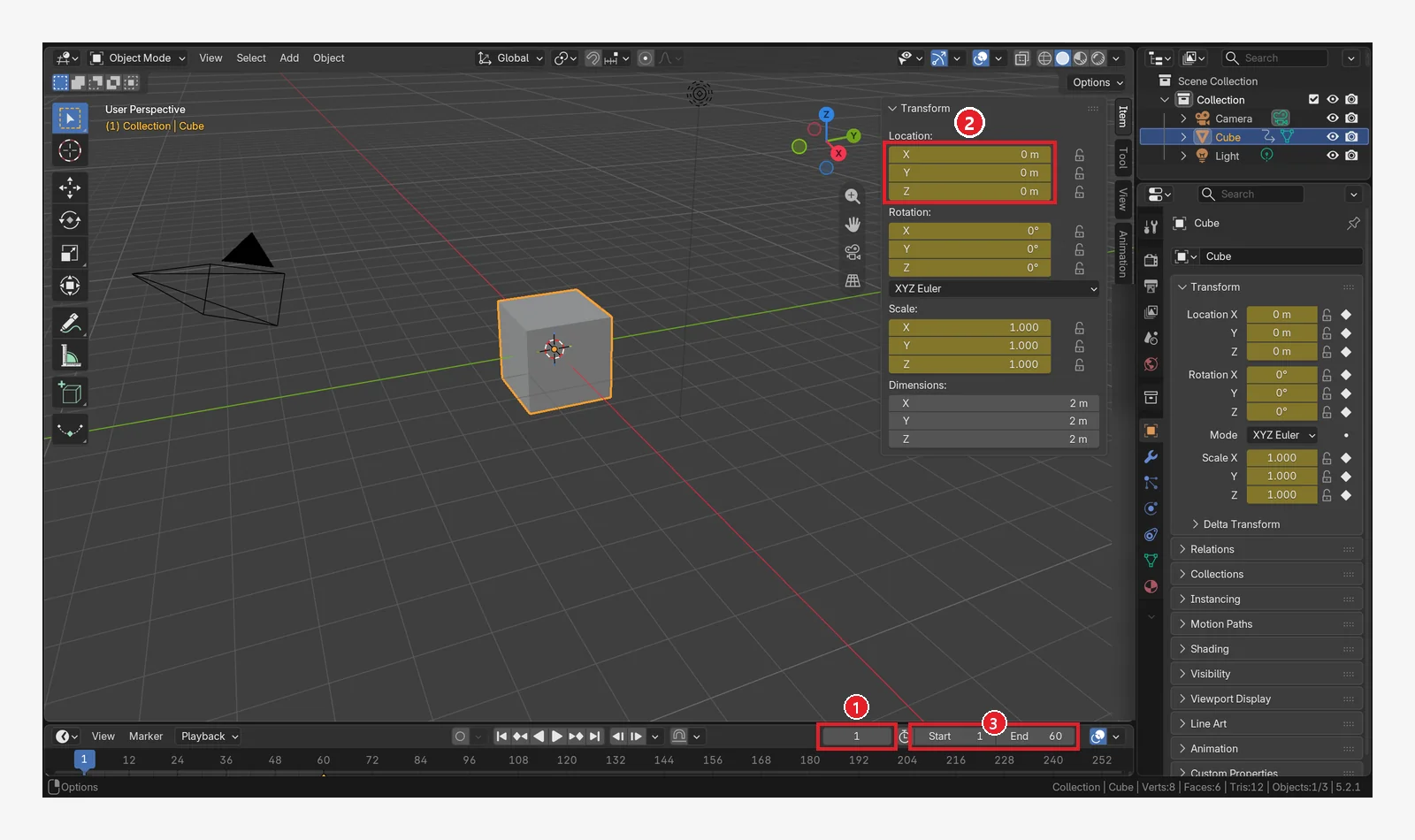 Figure 12-24. After bringing back the key on frame 60 and returning to the start with
 Shift+←: ① Current frame 1 ② The fields are yellow (the key on frame 1) ③ End 60. Now press Space to play, and frames 1 to 60 loop (Blender screenshot)
To remove the whole animation, select the object and use Object ‣ Animation ‣ Clear Keyframes… in the header. The manual lists a shortcut (Shift+Alt+I), but it does not work in the 3D Viewport with the 5.2.1 default keymap, so use the menu. In the 3D Viewport, Alt+I deletes only the keys on the current frame.
8. What to check, in order, when the animation looks wrong
- Check that keys were inserted. See whether the fields are yellow or green, and whether there are diamonds in the Timeline. Diamonds show only for the selected object.
- Check for orange fields. These are values you changed without inserting a key. Press
Ibefore moving to another frame. - Check where the current frame is. Look at the number in parentheses in the top left and the field in the Timeline. Choose the frame for the key first, then change the value.
- Check that the end frame is not too long. If the cube sits still for a long time at the end, shorten End to the frame of the last key (Section 5-1).
- Check that Auto Keying is not on. If the record button is blue and even your trial moves became keys, turn the button off and undo with
Ctrl+Z(Section 5-2). - Check that the motion is not too smooth or too stiff. Look at the interpolation mode in the Graph Editor (Section 6-2).
9. Practice
- With the cube in a new file (File ‣ New ‣ General), press
Ion frame 1. On frame 30, raise it withG→Z→2→Enterand pressI. On frame 60, lower it withG→Z→-2→Enterand pressI. You now have a bouncing cube. - Change End to 60, press
Spaceto play, and pressSpaceagain to stop. - In the Dope Sheet, move the key on frame 30 toward frame 20 with
G, and see how the rising speed changes. - In the Graph Editor, select all keys (
A) and change them withT→ Linear, then compare the motion. - When you finish practicing, remove the animation with Clear Keyframes.
10. Common mistakes and fixes
If keys do not show or the cube sits still at the end, check things in the order in Section 8. For other symptoms, look in the table below.
| Symptom | Cause | Fix |
|---|---|---|
| The values I changed disappeared when I moved to another frame | No key was inserted (orange) | Press I after changing the value and before moving to another frame |
Pressing Space opens a menu instead of playing | Spacebar Action is not Play (Chapter 1) | Check it in the Keymap section of Preferences |
I pressed I but only wanted to key the location | By default, location, rotation, and scale are all keyed | Hover over the Location fields and press I |
| Playback will not stop | You do not know the key to stop it | Space or Esc |
Summary in one line
Choose the frame → change the value → I. Yellow means a key here, green means a key elsewhere, orange means a change with no key. Use ← → for frames, Space to play, End for length, and the Graph Editor for speed. In Chapter 13, you will put together what you learned in Chapters 1 to 12 and make one small piece from start to finish (a low-poly desk props scene).
References
- Blender 5.2 Manual: Keyframes Introduction
- Blender 5.2 Manual: Editing Keyframes
- Blender 5.2 Manual: Animation Introduction (State Colors)
- Blender 5.2 Manual: Timeline
- Blender 5.2 Manual: Graph Editor Introduction
- Blender 5.2 Manual: Decorators
- Shortcuts and defaults (24 fps, 1 to 250, Default Key Channels, Bézier interpolation): based on the default (Blender) keymap and default settings of Blender 5.2.1
- Image licenses: manual screens are CC BY-SA 4.0, with red numbers and outlines added. Blender program license: blender.org/about/license