The Blender screen: 5 things to know when you first open it
We split the Blender screen you see on first launch into five parts: the three layers of the screen, workspaces, the four default editors, modes, and moving the view.
한국어English
ON THIS PAGE
- 01Before you start: close the first window (the splash screen)
- 021. The three layers of the screen: top, middle, bottom
- 032. The tabs at the top: workspaces
- 043. The four editors on the default screen
- 054. Modes: a switch for changing the same object in different ways
- 065. Turning the view, and getting back when you are lost
- 07Where beginners often get stuck, and emergency shortcuts
- 08Summary and next steps
- 09References
Based on: the official Blender 5.2 LTS manual (English UI, default keymap)
When you first open Blender, there are so many buttons and windows that it is hard to know where to look. But the screen is laid out by a few rules, and once you know them, the way forward becomes clear quickly.
By the end of this post, you will be able to do the following.
- Tell apart the three layers of the screen (top, middle, bottom). (Section 1)
- Switch between workspaces, the tabs at the very top. (Section 2)
- Find the four editors on the default screen. (Section 3)
- Change objects in different ways depending on the mode. (Section 4)
- Turn the view, and get back when you are lost. (Section 5)
Before you start: close the first window (the splash screen)
When you start Blender, a small welcome window appears in the middle first. This is called the splash screen, and it is where you make a new file or open a recent one. Click once outside the window or press Esc to close it, and the default screen behind it appears. To see it again, choose Splash Screen from the Blender icon menu at the upper left.
Blender is a free, open-source program led by the Blender Foundation. Anyone can download it from the official site (blender.org).
1. The three layers of the screen: top, middle, bottom
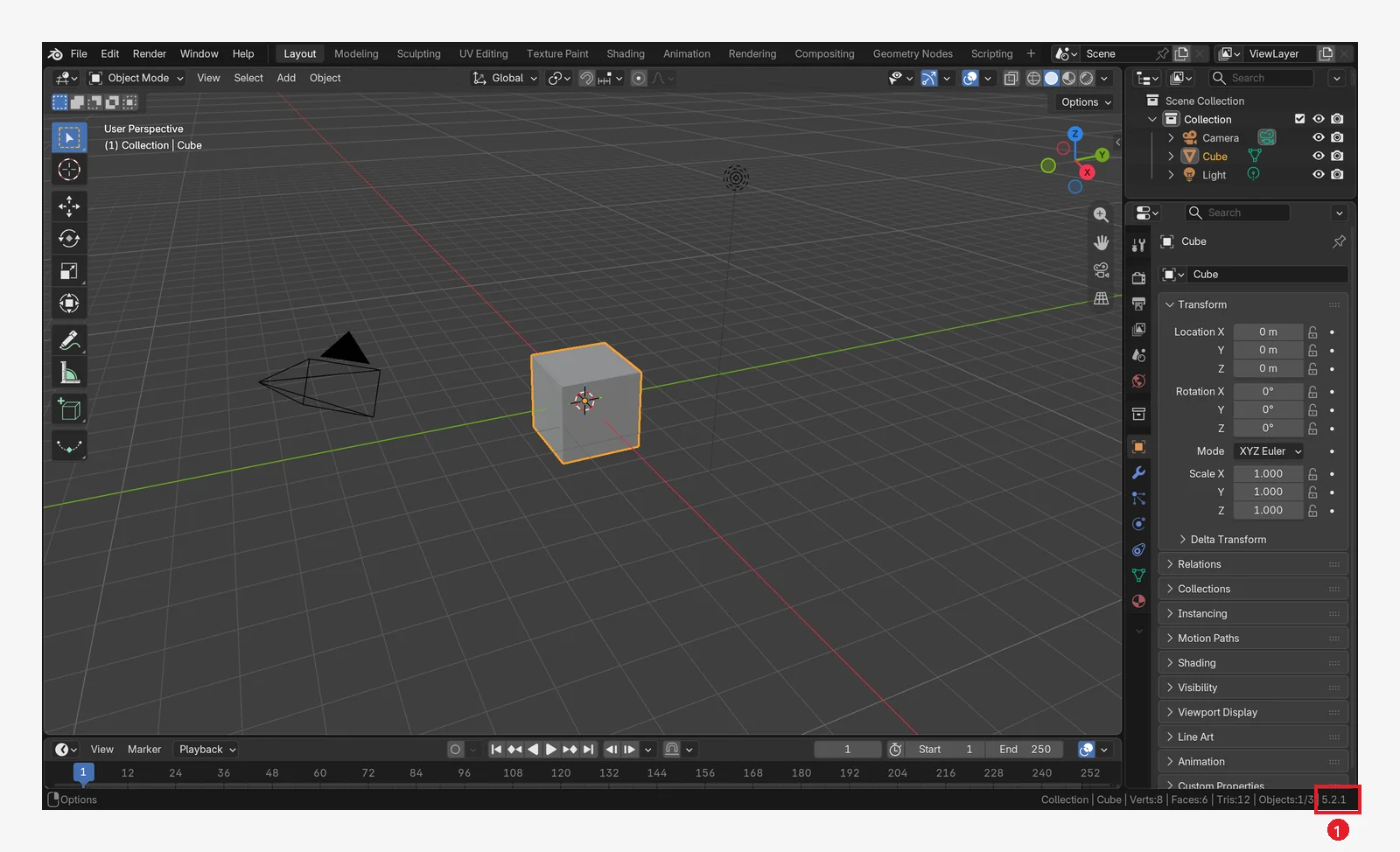
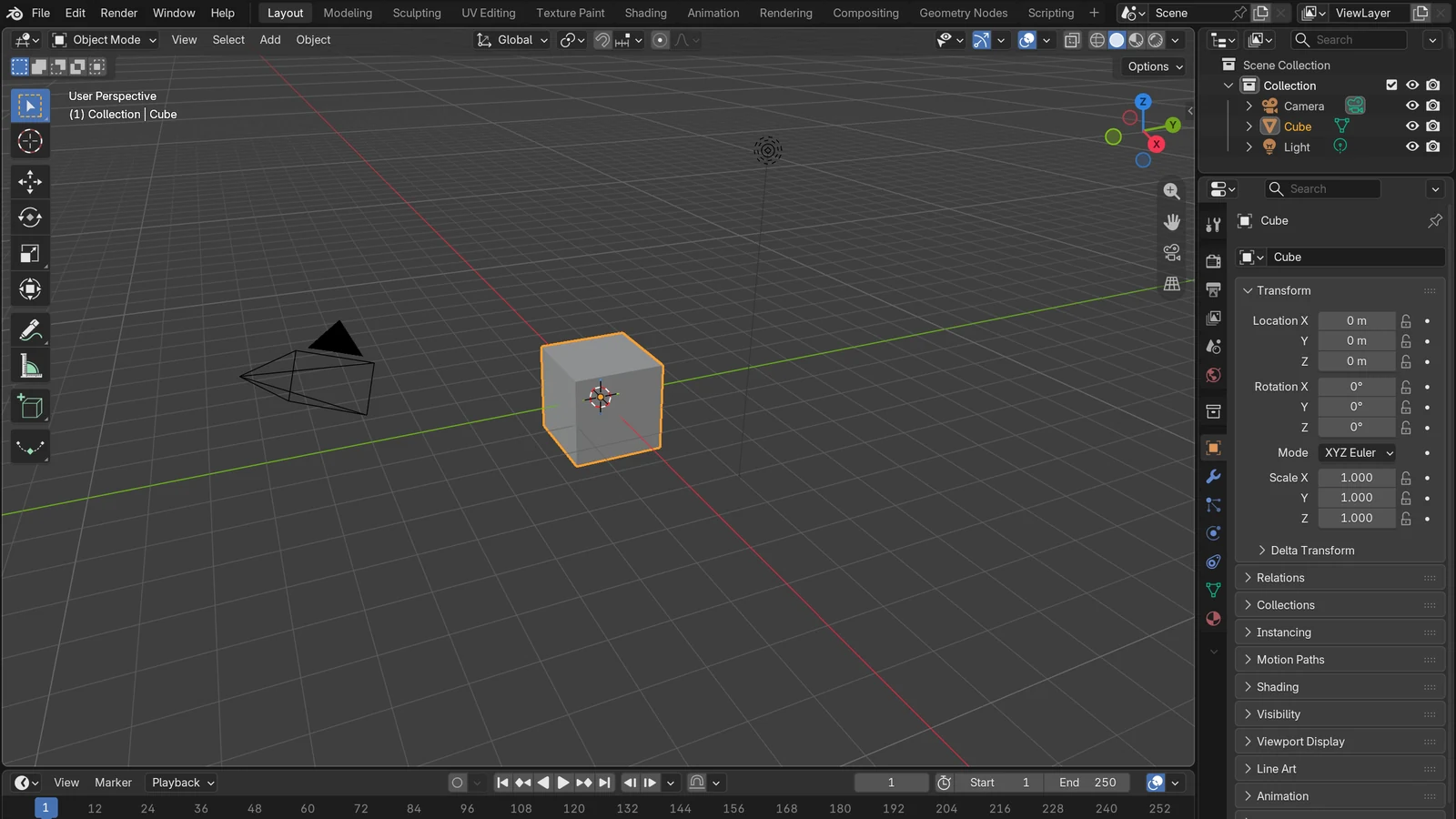
The Blender screen is divided into three main parts.
| Position | Name | What it does |
|---|---|---|
| One row at the very top | Topbar | The main menus, such as saving and opening files, import and export, settings, and rendering |
| The wide middle | Areas | Where you actually work. It is divided into several sections, and each holds one editor |
| One row at the very bottom | Status Bar | Hints for the mouse and shortcuts you can use now, render progress, and scene information |
The areas that make up the middle are like the partitions on an office desk. Just as you put a file box, a monitor, or a calendar in each partition, each area holds one editor. You can move and widen the partitions.
- Hover over the border between two areas and the cursor turns into a two-way arrow. Drag then to change the size.
- Drag from the corner of an area to split one area into two or join two areas into one.
- To see one editor large, hold the mouse over it and press
Ctrl+Space. Press it again to go back to the original size.
The status bar is especially useful at first. On the left it shows what you can do now with the mouse buttons and shortcuts. In the middle it shows progress bars and notices for long tasks such as rendering. On the right it shows information such as the number of objects in the scene. You can choose which items appear on the right by right-clicking the status bar. When you do not know what to press, it helps to make a habit of looking at the status bar first.
2. The tabs at the top: workspaces
Around the middle of the top bar is a row of tabs such as Layout, Modeling, Sculpting, and Shading. These are workspaces. A workspace is a window layout set up in advance. It calls up, with one tab, a layout of editors arranged to suit a task such as modeling, animation, or writing scripts.
Think of a kitchen. In the same kitchen, you take out a rolling pin and the oven when you bake bread, and a pot and a cutting board when you make soup. The kitchen (the file) stays the same, and only the layout of the tools you took out changes. Switching tabs leaves the objects in the scene as they are.
The default workspaces are as follows.
| Tab | When to use it |
|---|---|
| Layout | The basic screen for viewing and arranging the whole scene (the tab you see on first launch) |
| Modeling | Making shapes with modeling tools |
| Sculpting | Shaping things by kneading them like clay |
| UV Editing / Texture Paint | Putting images on surfaces, and painting directly in the 3D Viewport |
| Shading | Setting materials (color and shine) |
| Animation | Making movement over time |
| Rendering / Compositing | Viewing render results, and post-processing |
| Geometry Nodes | Making shapes by building rules with nodes |
| Scripting | Giving Blender commands with Python |
Workspace layouts are saved inside the blend file. Double-click a tab to rename it, and use the + button at the end of the tab row to add a new workspace. At first, Layout alone is enough. Move on when you need to: open the Shading tab when you make materials, and the Geometry Nodes tab when you build shapes with nodes.
3. The four editors on the default screen
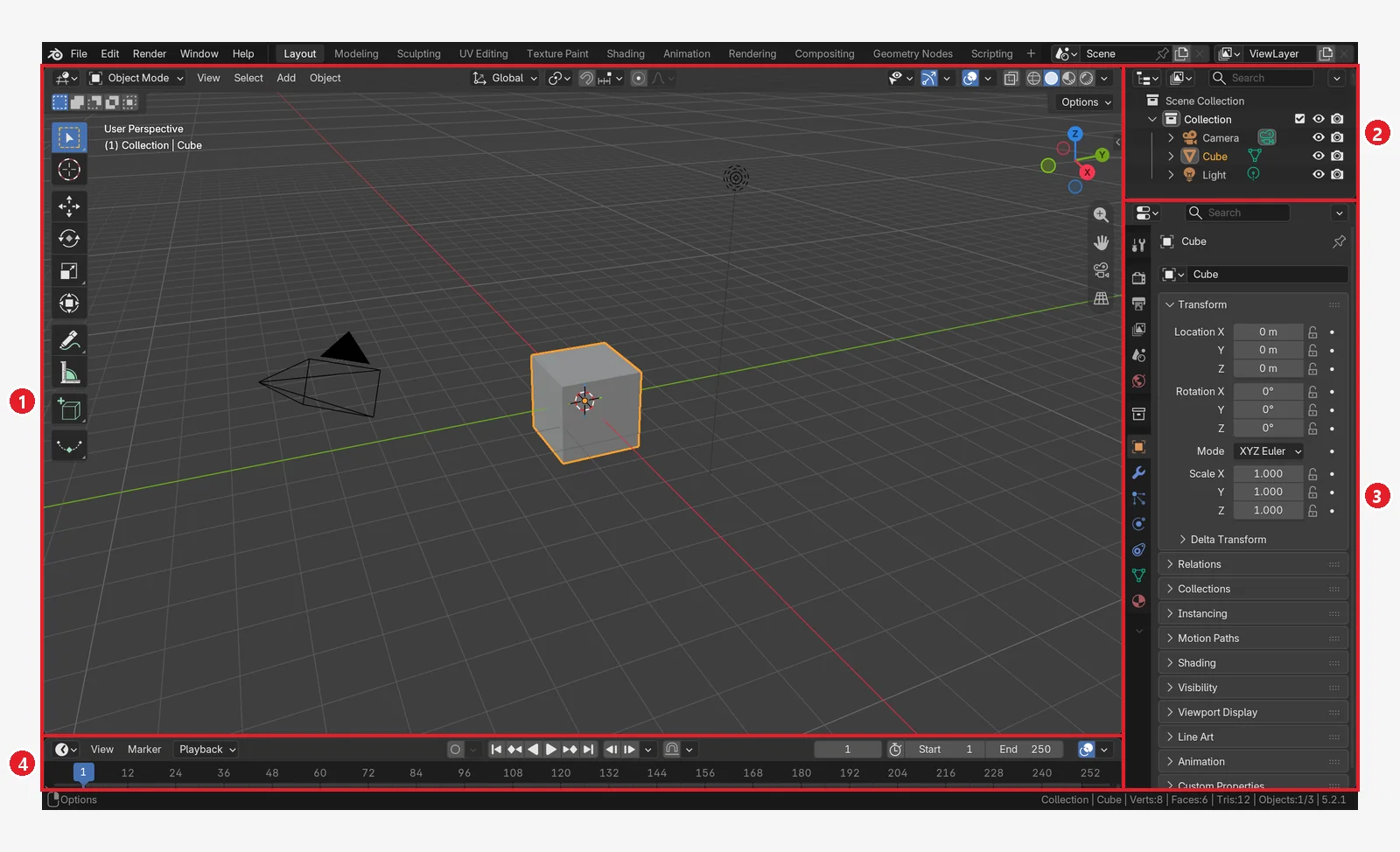
The Layout workspace holds four editors. Here is where they are and what they do.
| Position | Editor | Think of it as |
|---|---|---|
| Upper left (the largest) | 3D Viewport | The "stage," where you see and touch the scene |
| Upper right | Outliner | The "table of contents," showing what is in the scene |
| Lower right | Properties | The "settings drawer," where you change the settings of what you selected |
| Lower left | Timeline | The "time bar," where you handle the time of an animation |
- 3D Viewport: where you do most of the work, such as modeling, animation, and painting. The Toolbar runs down the left side, and the Sidebar on the right, opened and closed with the
Nkey, shows values such as the location of the selected object. - Outliner: shows the contents of the file like the branches of a tree. Here you can select objects, hide them from the screen with the eye icon, leave them out of renders, or organize collections, which group objects like folders. When the scene gets complicated, picking objects by name here is more accurate than clicking in the 3D Viewport.
- Properties editor: each icon tab in its vertical row holds different settings. There are tabs such as render engine and quality (Render), output size and save location (Output), object information (Object), Modifiers, Physics, and Material, and the tabs you see depend on the type of the selected object. If you do not know where a setting is, you can search for a property name with
Ctrl+F. - Timeline: the horizontal axis is time (frame numbers), and the blue vertical line is the frame you are looking at now. The diamond shapes are keyframes, points that mark "this value at this moment." The default length is frame 1 to frame 250.
How to choose a render engine is covered separately in the EEVEE and Cycles guide, and the Modifiers tab of the Properties editor in the modifier guide.
4. Modes: a switch for changing the same object in different ways
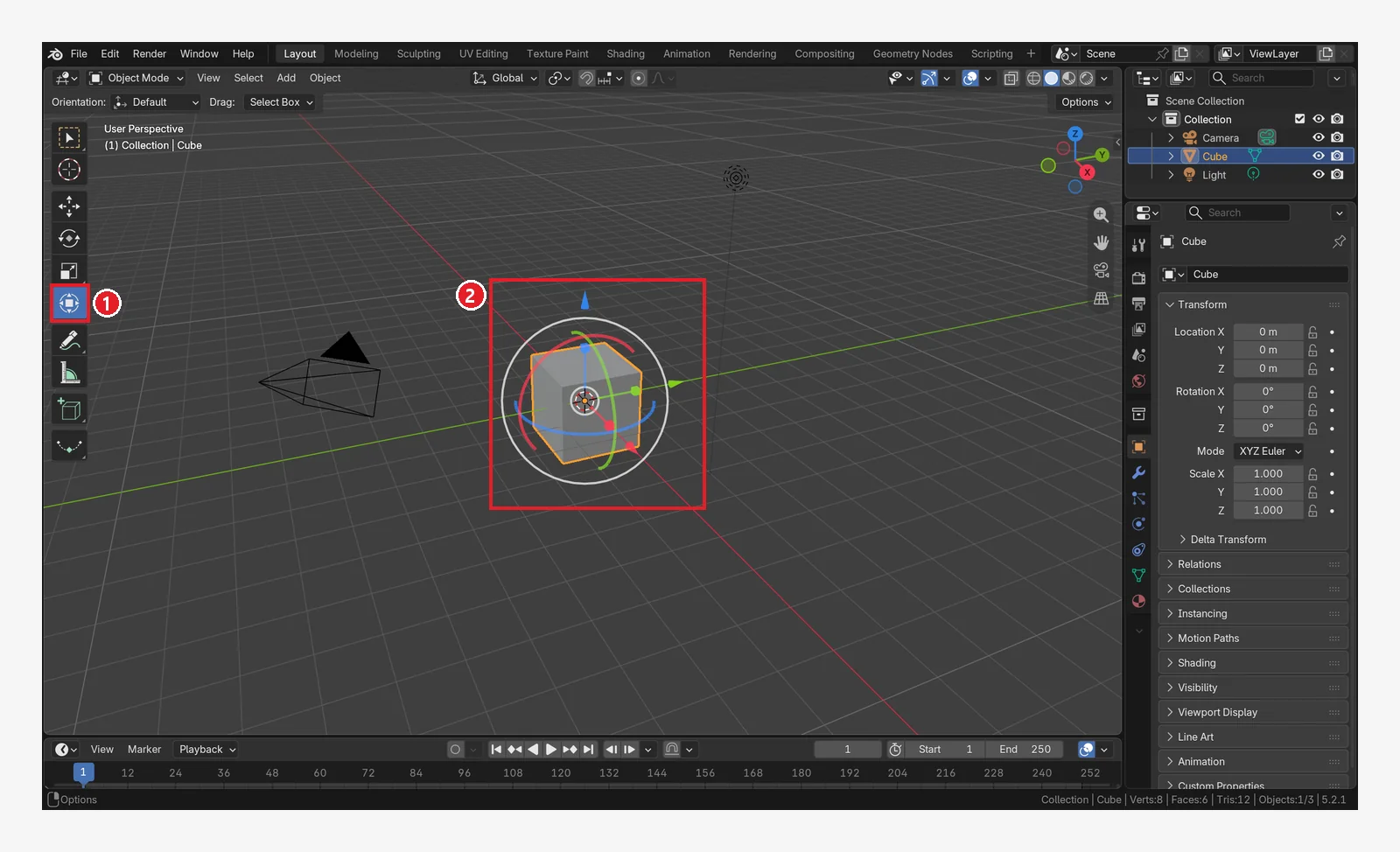
At the upper left of the 3D Viewport is a menu that says Object Mode. A mode is a switch that decides which side of an object you change. There are two modes to know at first.
- Object Mode: the default mode. You move, rotate, scale, and duplicate whole objects.
- Edit Mode: you change the shape of the object itself. For a mesh (an object made of faces), you can select and move points (Vertex), lines (Edge), and faces (Face) one by one.
If you think of moving house, Object Mode is moving a piece of furniture as a whole, and Edit Mode is taking the furniture apart to make one drawer longer. Press the Tab key to switch between the two modes, and press Ctrl+Tab to open a round menu for choosing a mode.
When the mode changes, the header menus, the Toolbar, and even the shortcuts you can use change with it. If "a feature that worked a moment ago is gone," first check what mode you are in. There are other modes too, such as Sculpt, Weight Paint, and Pose (posing a skeleton), but which modes appear depends on the type of object you selected.
5. Turning the view, and getting back when you are lost
In the 3D Viewport, moving an object and moving your eye (the view) are different things. As when you walk around a statue in a museum, moving the view leaves the object itself as it is.
| What you want to do | Mouse | Think of it as |
|---|---|---|
| Orbit | Drag while holding the middle button (wheel) | Walking once around the object as you look |
| Pan | Shift+drag with the middle button | Keeping your head still and taking one step sideways |
| Zoom | Roll the wheel (or Ctrl+drag with the middle button) | Stepping forward, stepping back |
- You can also use the small navigation gizmo (the ball of colored axes) at the upper right of the screen. Drag it to orbit, and click the end of an axis to snap exactly to the front, side, or top view. The buttons below it let you zoom, pan, and look through the camera.
- When you are lost: getting lost in 3D space is not unusual. The
Homekey fits the view so every object in the scene is visible, and the numpad.key (Frame Selected) moves the view to the selected object. - If your mouse has no middle button or you use a laptop touchpad, turn on Emulate 3 Button Mouse in Edit ‣ Preferences ‣ Input. Then
Alt+left button drag acts as the middle button.
Where beginners often get stuck, and emergency shortcuts
When a shortcut does not work: check where the mouse is. Some shortcuts, like saving (Ctrl+S), work anywhere, but many shortcuts work only in the editor the mouse is over. For example, if you select two objects in the Outliner and press join (Ctrl+J) with the mouse still over the Outliner, nothing happens. You have to move the mouse to the 3D Viewport and then press it. It is like how the same words are understood by different people depending on which room you say them in.
These basic shortcuts are worth memorizing.
| Shortcut | What it does |
|---|---|
Ctrl+Z / Shift+Ctrl+Z | Undo / redo |
F3 | Menu search (find a feature by name) |
F9 | Adjust the values of the action you just did |
Ctrl+S | Save |
Tab | Object Mode ↔ Edit Mode |
Ctrl+Space | Maximize the editor under the mouse / restore it |
F9 is especially useful. If you rotated an object 60 degrees but 45 degrees was right, you do not need to undo and do it again. Just change the number in the F9 window. This window also appears as a small panel at the lower left of the 3D Viewport.
Finally, if the screen colors differ from the manual's images or the text is too small, you can change the theme and the Resolution Scale in the Preferences. You can also change keyboard shortcuts in the Keymap settings, but at first, keeping the defaults makes tutorials easier to follow.
Summary and next steps
- The screen has three layers: Topbar · areas (editors) · Status Bar.
- The tabs at the top are workspaces, and switching tabs leaves the scene as it is.
- There are four default editors: the 3D Viewport (stage), the Outliner (table of contents), the Properties editor (settings drawer), and the Timeline (time bar).
- Switch between Object Mode and Edit Mode with
Tab. Each mode has different tools and shortcuts. - Move the view with middle button drag (orbit),
Shift+middle button drag (pan), and wheel roll (zoom). If you get lost, pressHome.
Once you are used to the screen, move on to modifiers, which change shape without ruining the original, Geometry Nodes, which build shapes with rules, and shader nodes, which set color and material. How to repeat the same work with commands instead of buttons is covered in Blender Python automation and GUI vs. CLI.
References
- Blender Manual (5.2 LTS), Splash Screen
- Blender Manual (5.2 LTS), Window System Introduction
- Blender Manual (5.2 LTS), Workspaces
- Blender Manual (5.2 LTS), Areas
- Blender Manual (5.2 LTS), Status Bar
- Blender Manual (5.2 LTS), 3D Viewport Introduction
- Blender Manual (5.2 LTS), Regions (Sidebar toggle N)
- Blender Manual (5.2 LTS), Object Modes
- Blender Manual (5.2 LTS), Navigation
- Blender Manual (5.2 LTS), Outliner Introduction
- Blender Manual (5.2 LTS), Properties Editor
- Blender Manual (5.2 LTS), Timeline
- Blender Manual (5.2 LTS), Input Preferences
- Blender Manual (5.2 LTS), Undo & Redo
- Blender Manual (5.2 LTS), Default Keymap
- Blender, About