Blender for complete beginners, chapter 5: Saving and undoing mistakes — .blend files, auto save, and recovery
How to save in Blender, for complete beginners. Learn to save a .blend file with Ctrl+S, open it again and pick from recent files, use the .blend1 backup, auto save and Recover Last Session, and fix broken texture paths.
한국어English
ON THIS PAGE
- 01What you will learn in this chapter
- 021. A Blender file is one .blend
- 032. Saving for the first time: `Ctrl`+`S`
- 043. Opening again
- 054. Recovering from mistakes 1: going back to a saved copy
- 065. Recovering from mistakes 2: when Blender closed without saving
- 076. Save and recovery settings: Save & Load in the Preferences
- 087. A common accident: when objects turn pink
- 098. Exercises
- 109. Common mistakes and fixes
- 11In one line
- 12References
Blender for complete beginners, chapter 5 · Based on: Blender 5.2 LTS (screenshots from 5.2.1, English UI, default keymap) All images are real screens. The red numbers and outlines were added for explanation. Personal folders and recent file names are blurred.
What you will learn in this chapter
By the end of this chapter, you will be able to do the following.
- Know that Blender work is saved in one .blend file. (Section 1)
- Save for the first time with
Ctrl+S, and save under a different name. (Section 2) - Open a saved file again, and pick it from recent files. (Section 3)
- Recover from mistakes with the backup file (.blend1), auto save, and Recover Last Session. (Sections 4–5)
- Read the Save & Load page of the Preferences, where the save and recovery settings live. (Section 6)
- Understand and prevent the accident where objects turn pink after you move image files. (Section 7)
Before you start: undo is not saving Undo and saving are different things.
Ctrl+Z, which you learned in chapter 4, only works while Blender is open. When you close Blender, the undo history is gone. The only way to keep your work is to save. This chapter has one rule: "If you made something, pressCtrl+S."
1. A Blender file is one .blend
A scene you make in Blender (objects, materials, lights, cameras, animation, even the screen layout) goes into one file with the .blend extension. It is similar to a Word document being saved as one .docx. One difference: outside image files (textures) are not put inside the file by default. Only "where they are" (their address) is saved. This difference causes the accident in section 7.
All the menus for saving are in the File menu on the top bar at the very top of the screen.
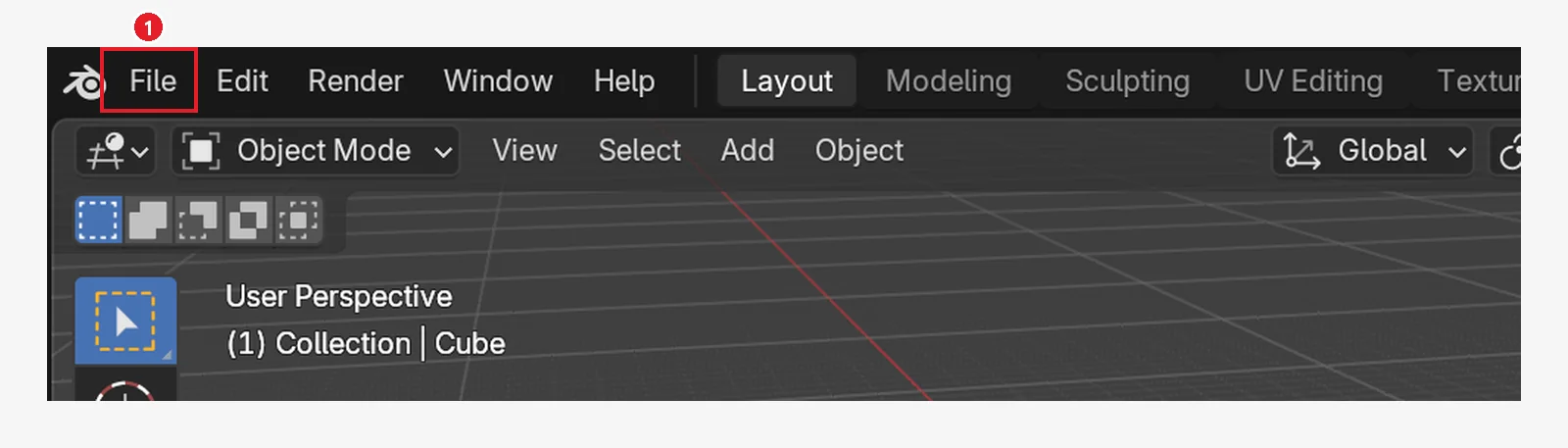 Figure 5-1. ① The File menu on the top bar at the very top of the screen. Saving, opening, and recovery are all here (Blender screenshot)
For the list that opens when you click the menu, we use the summary in the official manual.
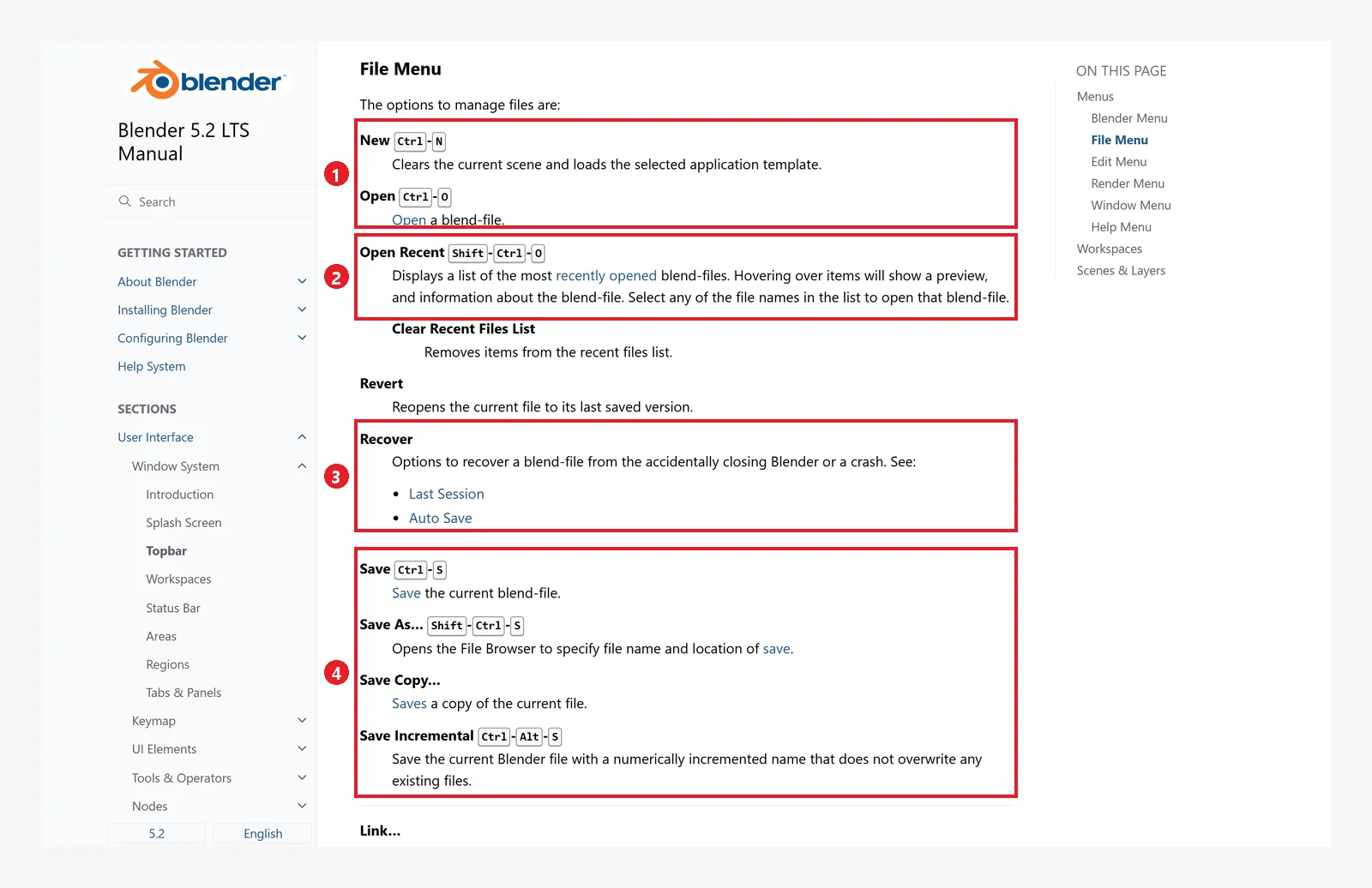 Figure 5-2. File Menu in the official manual: ① New
 Ctrl+N, Open Ctrl+O ② Open Recent Shift+Ctrl+O ③ Recover (Last Session, Auto Save) ④ Save Ctrl+S, Save As… Shift+Ctrl+S, Save Copy…, Save Incremental Ctrl+Alt+S (screenshot of the Blender 5.2 manual, CC BY-SA 4.0, numbers added)
| Menu | Shortcut | What it does |
|---|---|---|
| New | Ctrl+N | Opens a menu of new file types (General, 2D Animation…). Pick one to start a new file |
| Open… | Ctrl+O | Opens a .blend file |
| Open Recent | Shift+Ctrl+O | Menu listing recently opened files |
| Revert | None | Goes back to the last saved state |
| Save | Ctrl+S | Saves over the current file |
| Save As… | Shift+Ctrl+S | Saves under a different name or in a different folder |
| Save Copy… | None | Saves only a copy, and you keep working in the original file |
| Save Incremental | Ctrl+Alt+S | Saves as a new file with the number at the end of the name raised by one (for example v01 → v02) |
| Quit | Ctrl+Q | Closes Blender |
Revert and Save Copy have no default shortcut. Ctrl+N does not open an empty file right away. It opens a small menu where you pick the type of new file. If this is your first time, pick General.
2. Saving for the first time: Ctrl+S
2-1. Follow along
- Hold the mouse over the 3D Viewport and press
Ctrl+S(or File ‣ Save). - If the file has never been saved, Blender opens a file browser for saving on its own.
- In the upper field, choose the folder to save in. In the lower field, type a file name. Example:
my-first.blend - Click the blue Save Blender File button at the lower right (Figure 5-4 ③). To stop, click Cancel next to it or press
Esc. - From then on, one press of
Ctrl+Ssaves over the same file right away.
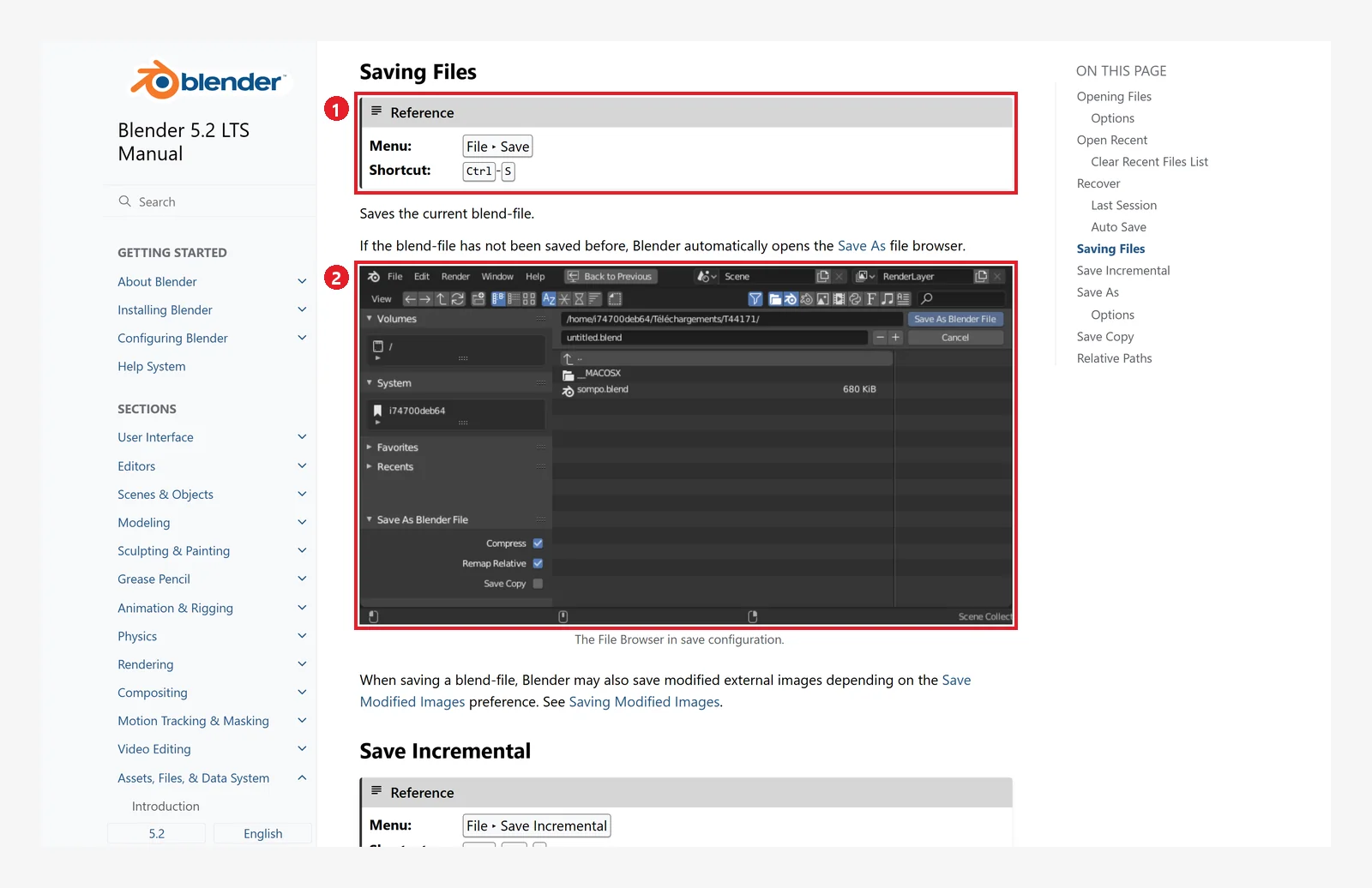 Figure 5-3. Saving Files in the official manual: ① menu File ‣ Save, shortcut
 Ctrl+S ② the file browser for saving. The upper field is the folder path, the lower field is the file name, and the save button is at the upper right. The options at the lower left show Compress and Remap Relative. The manual image differs a little from the real 5.2.1 screen (Figure 5-4) in button position and wording ("Save As Blender File"), but it does the same thing (screenshot of the Blender 5.2 manual, CC BY-SA 4.0, numbers added)
In real Blender 5.2.1, pressing Ctrl+S on a new file opens the window below.
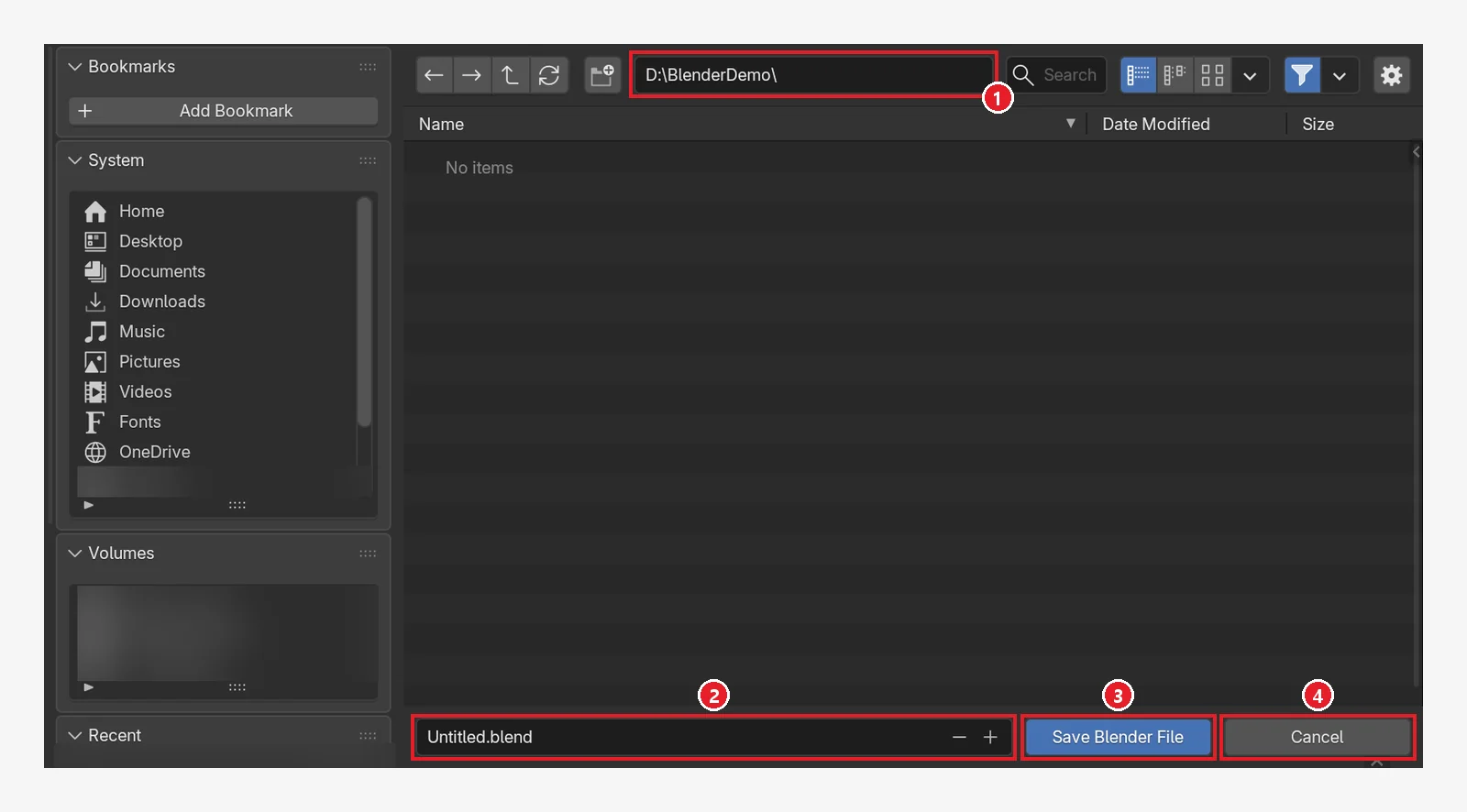 Figure 5-4. The save window that opens the first time you press
 Ctrl+S on a new file: ① the folder to save in (the image shows an empty folder; usually the last folder you used appears) ② the file name field (default Untitled.blend) ③ the Save Blender File button ④ Cancel. The personal folders and drive list on the left are blurred (Blender screenshot)
You can tell the file was saved from the title bar at the very top of the Blender window. After saving, it shows a file name such as my-first.blend, and the asterisk (*) that appears when there are changes goes away. What it shows before saving can differ by version and operating system, so check it yourself in exercise 1.
2-2. What a saved file looks like (before → after)
You can also see a file browser that looks like the save window by changing the editor type. The image below shows the 3D Viewport area switched to the File Browser editor.
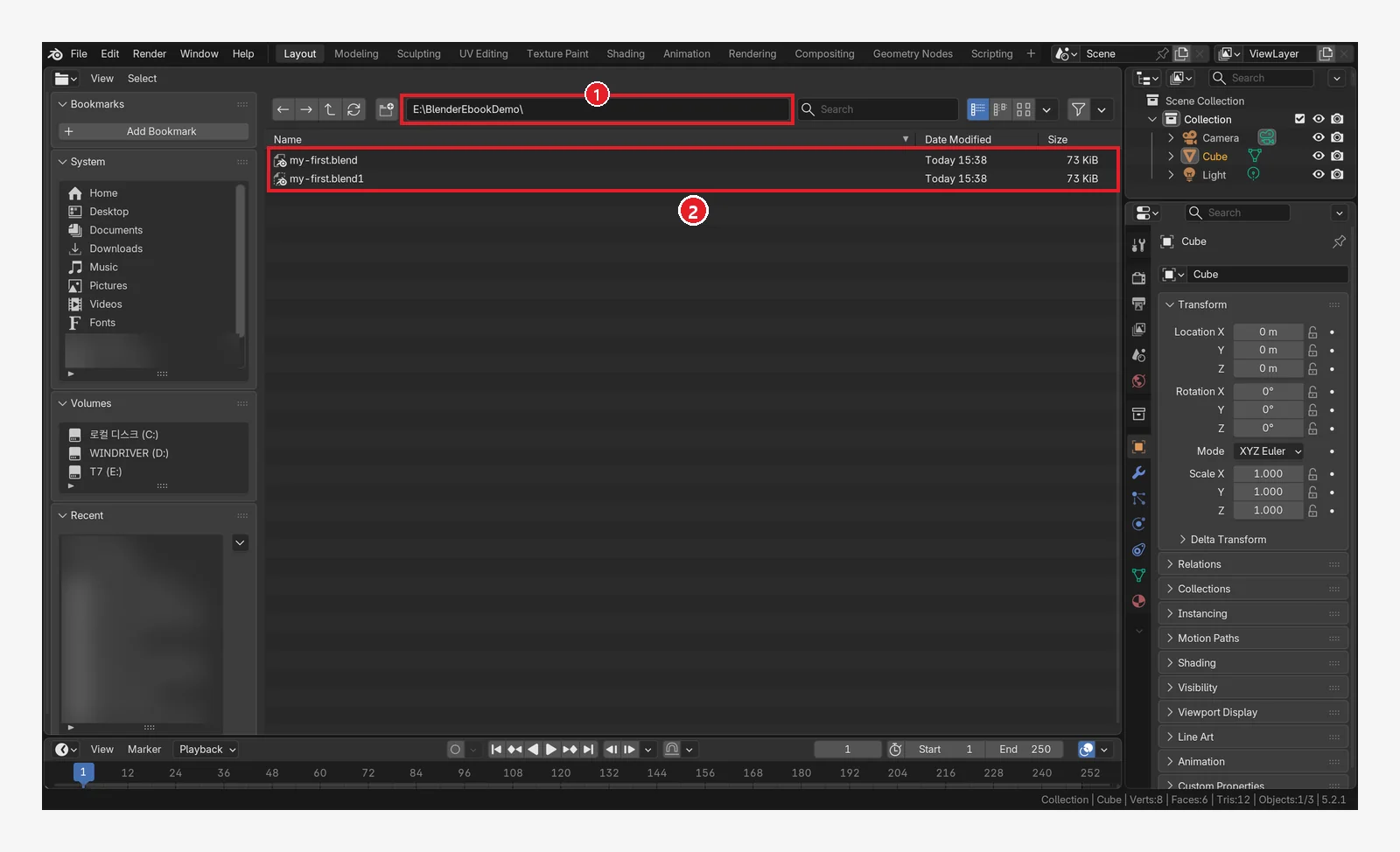 Figure 5-5. The file browser (list view): ① the path of the folder you are looking at ②
 my-first.blend (the current file) and my-first.blend1 (the save just before it, section 4-1). The two files are examples for explanation. Personal folders in the System and Recent lists on the left are blurred (Blender screenshot)
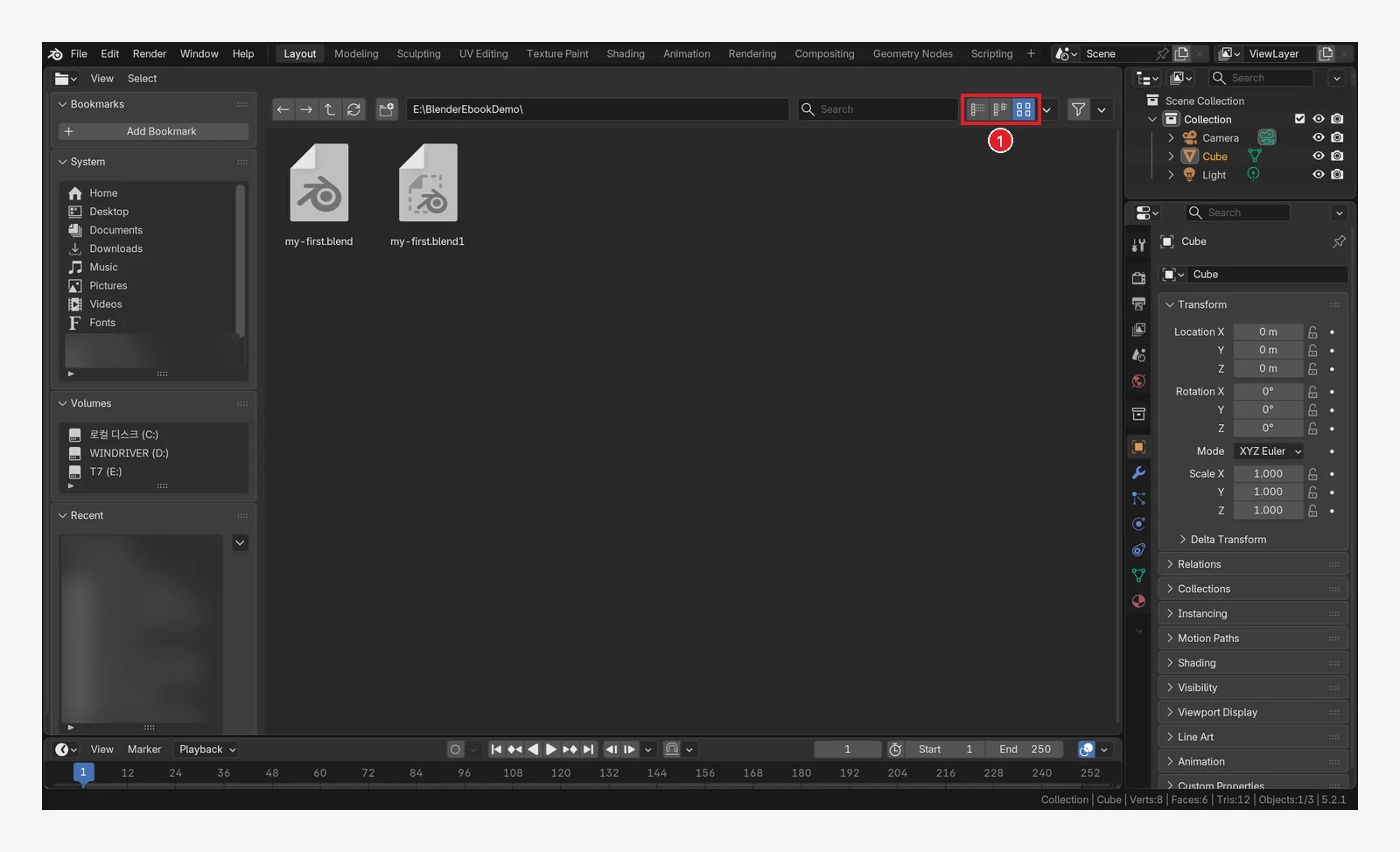 Figure 5-6. After changing only ① the display mode buttons (vertical list, horizontal list, large icons) from Figure 5-5 (list view) to large icons (Thumbnails). The same two files appear as Blender icons (Blender screenshot)
2-3. Tips for naming files
- Use English letters, numbers, hyphens (-), and underscores (_). Example:
desk-scene_v01.blend. If you think about sharing files with other programs and other PCs, English names are safest. - If you want to keep versions, use Save Incremental (
Ctrl+Alt+S). It saves a new file with the number at the end of the name raised by one, and the earlier file stays as it is. - To keep a separate snapshot of the current state while you keep working in the original file, use Save Copy.
3. Opening again
3-1. Ctrl+O: open a file
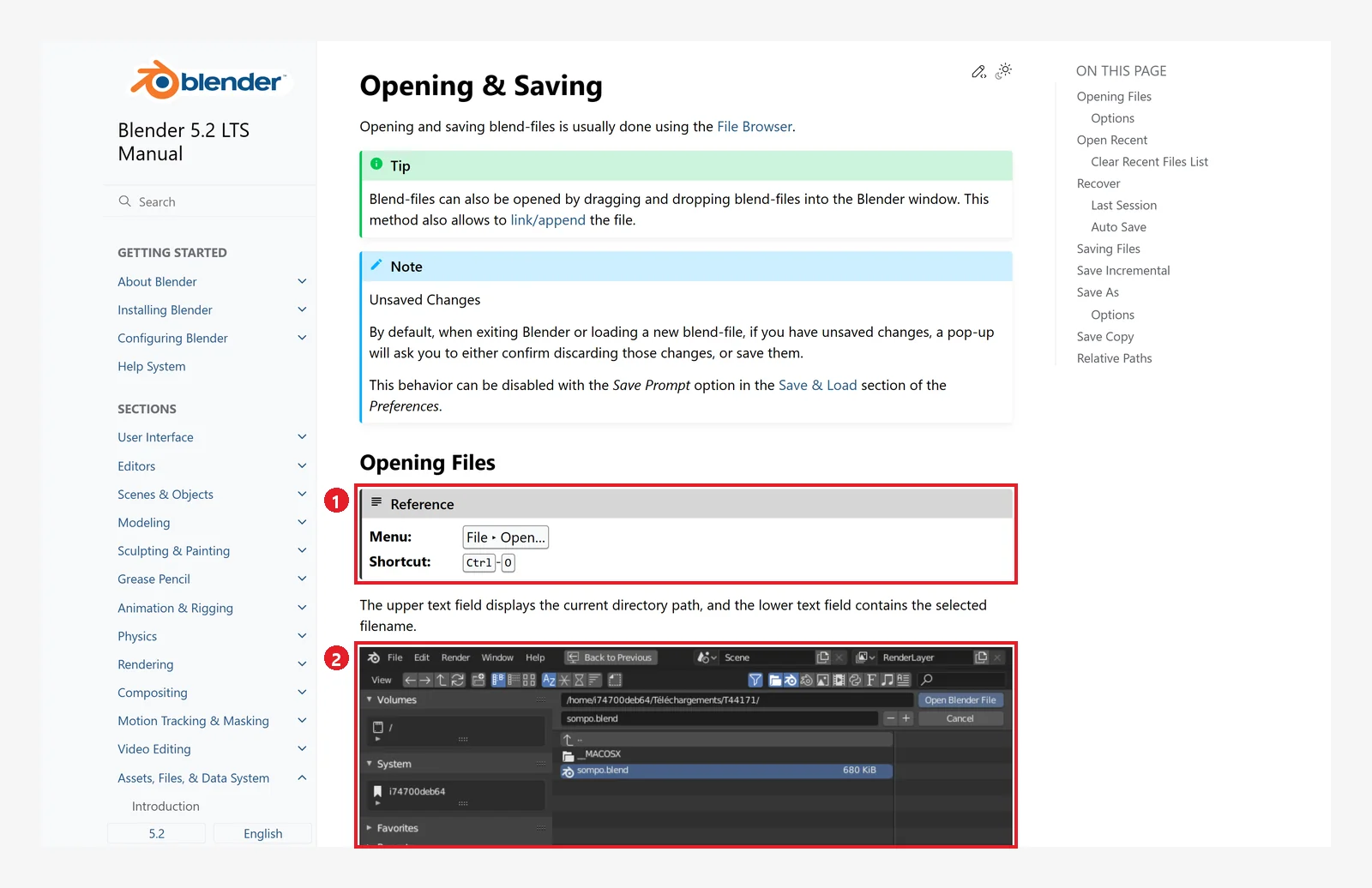 Figure 5-7. Opening Files in the official manual: ① menu File ‣ Open…, shortcut
 Ctrl+O ② the file browser for opening. The upper field is the folder, the lower field is the name of the chosen file. The blue Note box at the top: if there are unsaved changes, a window asks whether to save when you close Blender or open another file (screenshot of the Blender 5.2 manual, CC BY-SA 4.0, numbers added)
- You can also open a .blend file by dragging it from the file explorer onto the Blender window.
- If the open option Load UI is on, the screen changes to the layout saved in that file. If you opened a file someone gave you and the screen looks different, this is why.
- Trusted Source: decides whether Python scripts inside the file run automatically. Turn it on only for files you made yourself or files from someone you trust.
3-2. Recent files: Shift+Ctrl+O
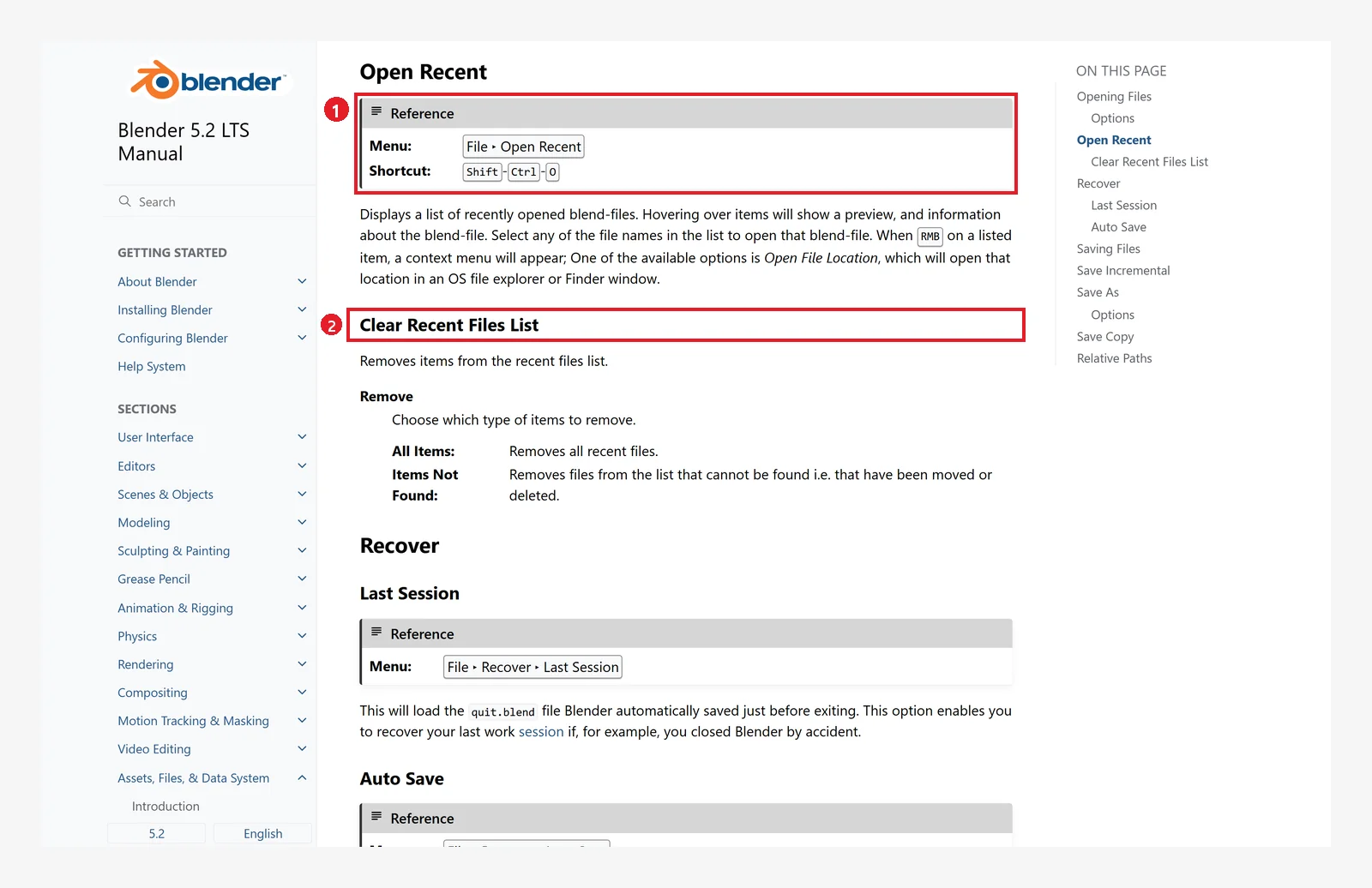 Figure 5-8. Official manual: ① Open Recent — menu File ‣ Open Recent, shortcut
 Shift+Ctrl+O. Hover over the list to see a preview ② Clear Recent Files List — clears the recent list (all of it, or only files that cannot be found) (screenshot of the Blender 5.2 manual, CC BY-SA 4.0, numbers added)
The splash screen that appears when you start Blender has the same entrances.
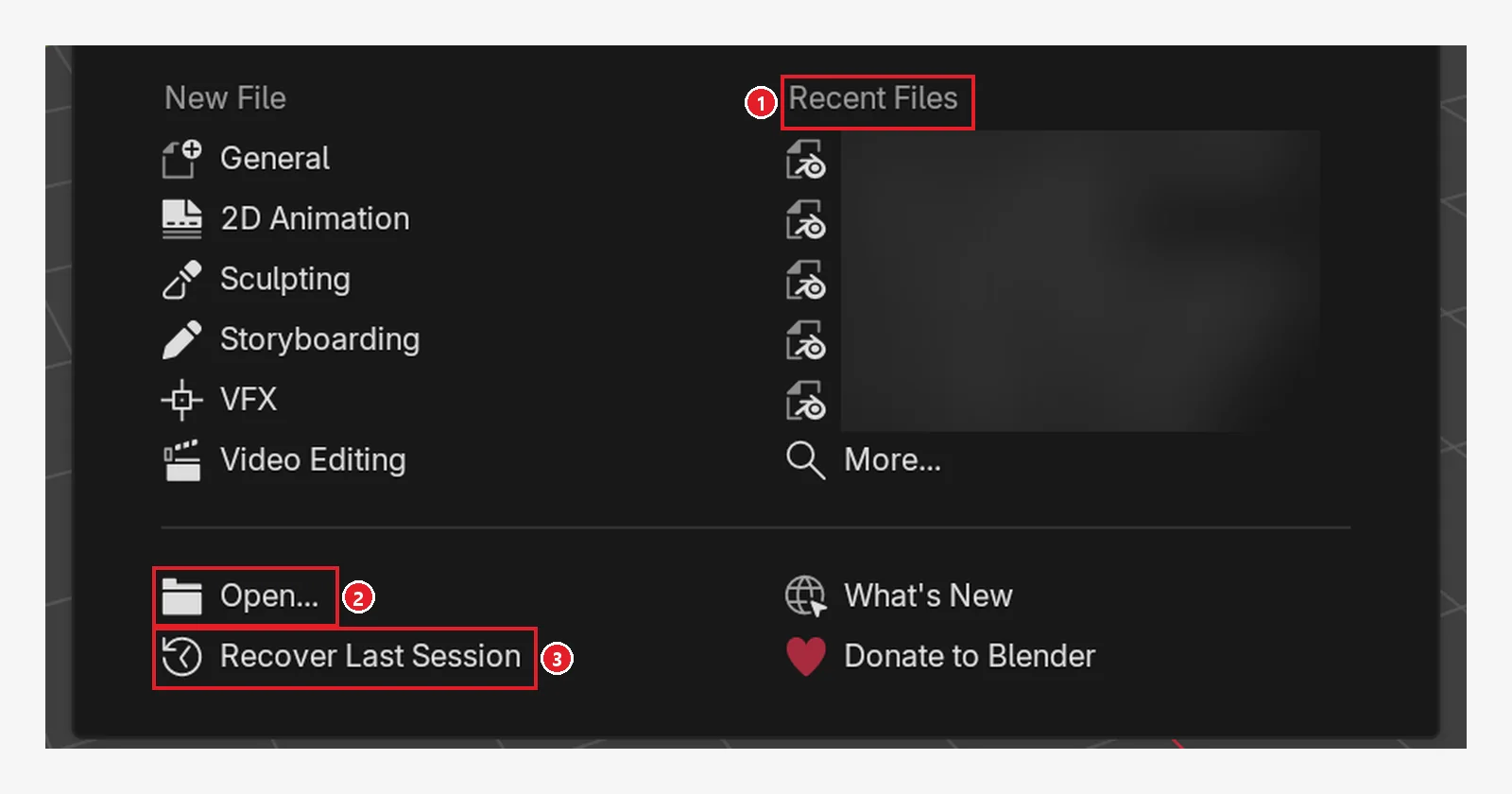 Figure 5-9. The lower part of the splash screen (the artwork at the top is cropped out): ① Recent Files — the five most recent files (file names blurred) ② Open… — open a file ③ Recover Last Session — bring back the state from when you last closed Blender (section 5) (Blender screenshot)
4. Recovering from mistakes 1: going back to a saved copy
4-1. The backup file .blend1
According to the manual, when Blender saves, it does not delete the previous save. It keeps it and changes the end of its name to .blend1. The my-first.blend1 in Figure 5-5 is such a file. In practice it first appears when you save the same file a second time, and after that it becomes "the save just before this one" each time you save. Check this on your own PC in exercise 2.
- How to go back: in the file explorer, copy
my-first.blend1, rename it to end in .blend, such asmy-first-old.blend, and open it. Use a new name so you do not overwrite the original .blend file. - How many to keep is set by Save Versions in the Preferences (section 6). The default is 1. If you set it to 2, two files, .blend1 and .blend2, are kept. The bigger the number, the older the save.
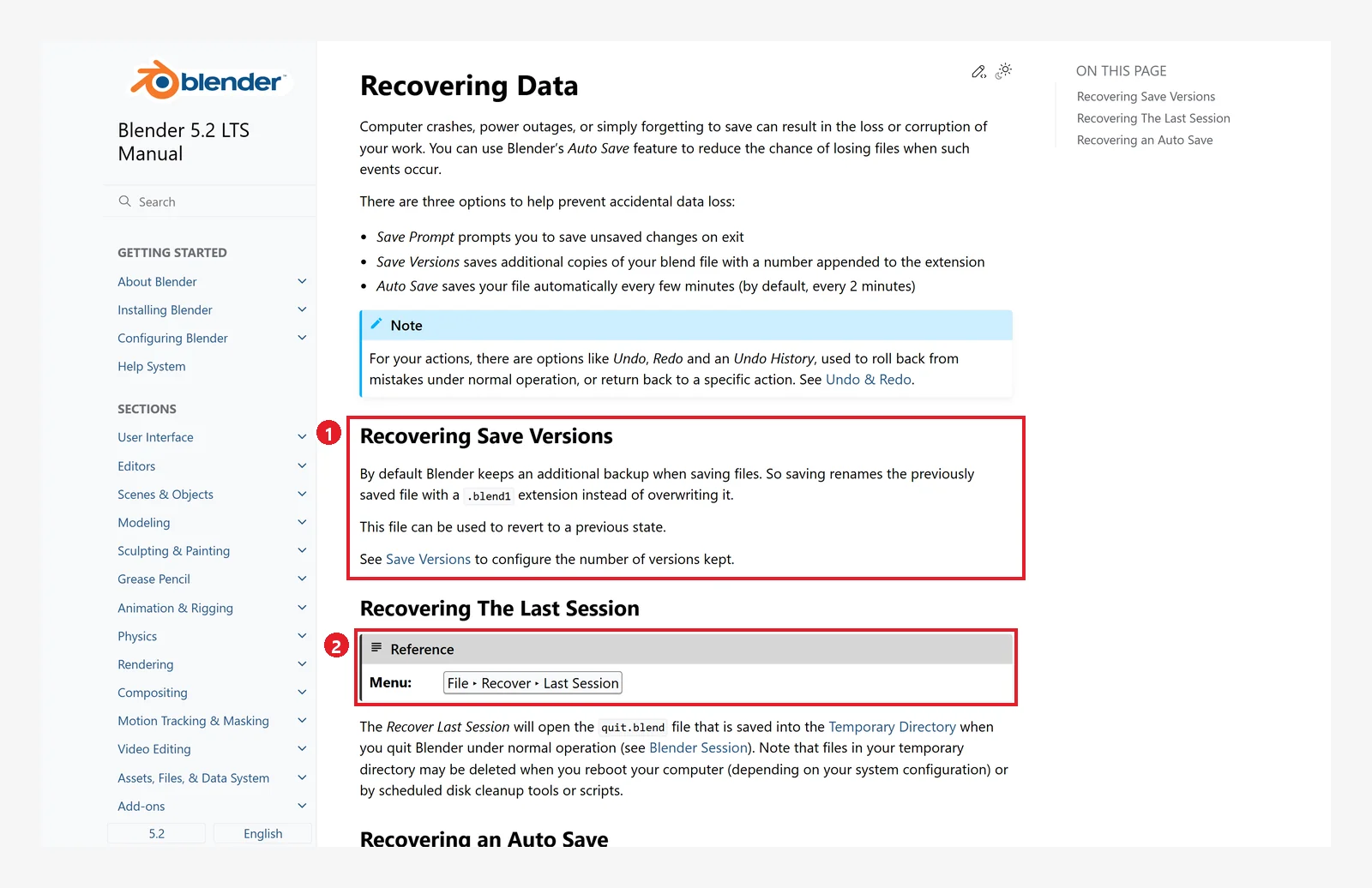 Figure 5-10. Recovering Data in the official manual: ① Recovering Save Versions — when saving, the previous file is renamed to .blend1 and kept ② Recovering The Last Session — menu File ‣ Recover ‣ Last Session (screenshot of the Blender 5.2 manual, CC BY-SA 4.0, numbers added)
4-2. Revert: back to the last save
File ‣ Revert reopens the current file in its last saved state. If you ruined something after saving, this is the fastest way back. It has no default shortcut (the table in section 1). In a file that has never been saved, there is no saved copy to go back to, so Revert appears grayed out (the File menu in Figure 5-11).
5. Recovering from mistakes 2: when Blender closed without saving
5-1. Recover Last Session
When you close Blender normally, Blender saves the scene at that moment as quit.blend in a temporary folder. Clicking File ‣ Recover ‣ Last Session, or Recover Last Session on the splash screen (Figure 5-9 ③), opens this file.
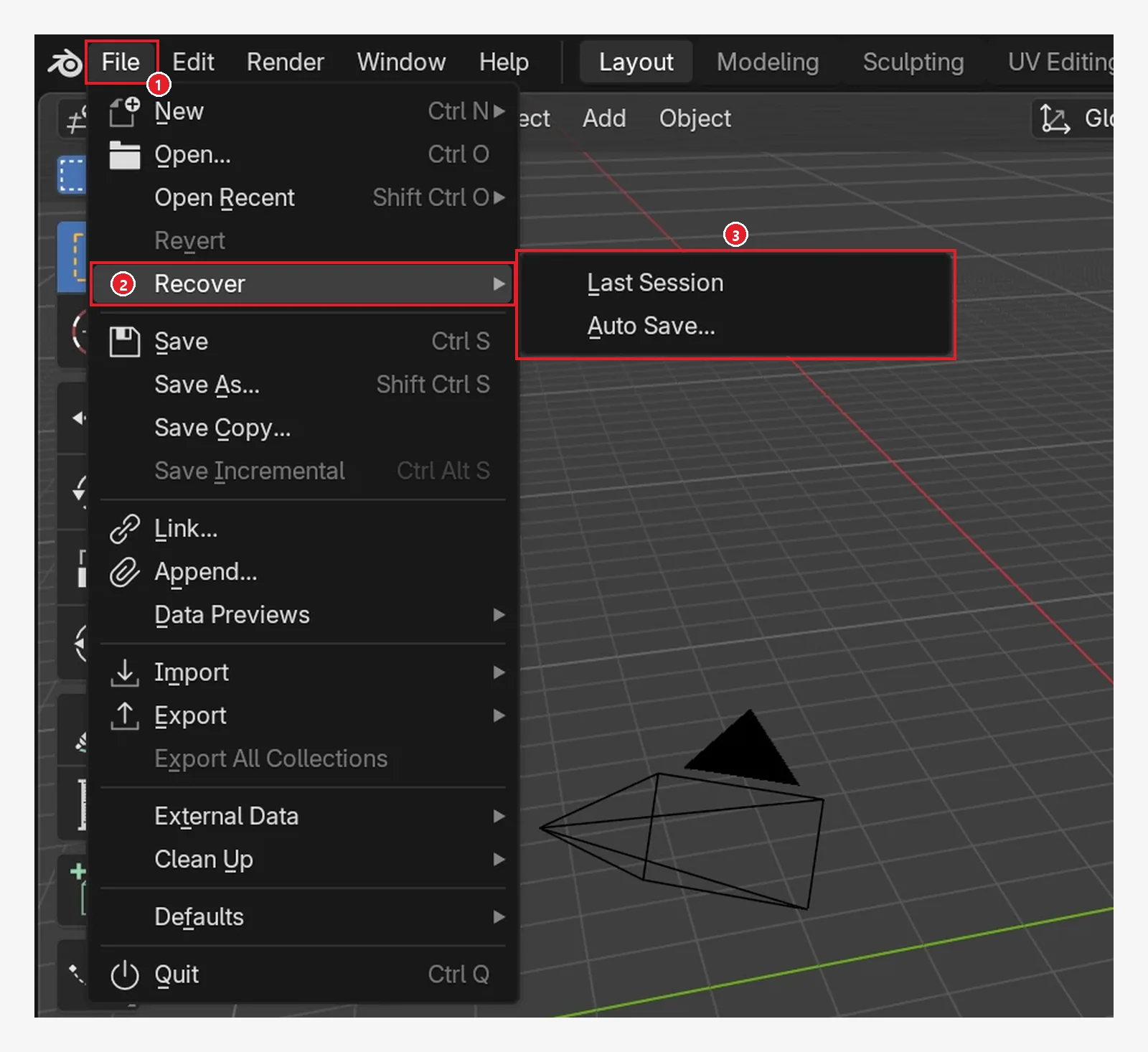 Figure 5-11. ① In the File menu, hover over ② Recover to see ③ two items, Last Session and Auto Save... (Blender screenshot)
- Use it when you clicked Don't Save in the confirmation window that appears on closing (Figure 5-12) and then regretted it.
- The temporary folder can be cleared when you restart the computer or when a cleanup program runs. Recover the file as soon as you notice, and right away save it under a new name with
Shift+Ctrl+S.
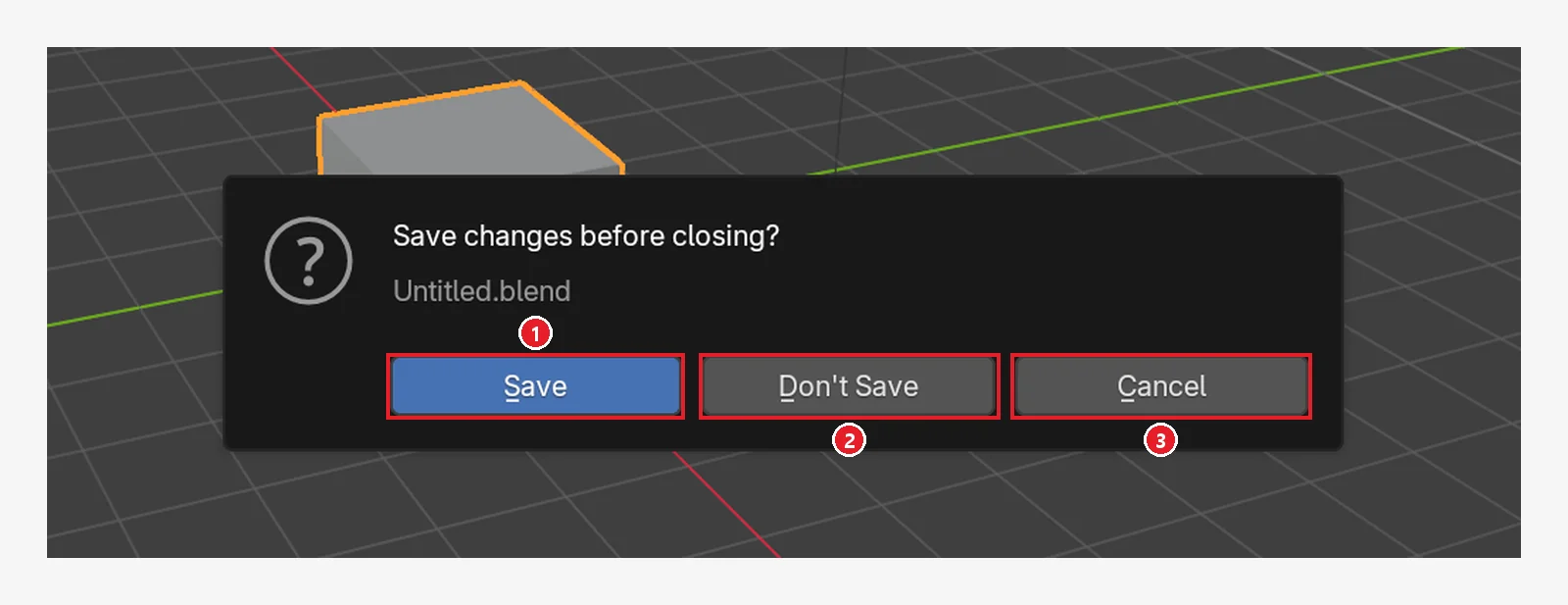 Figure 5-12. The confirmation window that appears when you try to close without saving (Save changes before closing?): ① Save saves and closes ② Don't Save closes without saving ③ Cancel goes back without closing. This window appears when Save Prompt in the Preferences (section 6) is on (Blender screenshot)
5-2. Auto Save
When Blender shuts down suddenly (a crash or a power cut), look for the auto save file.
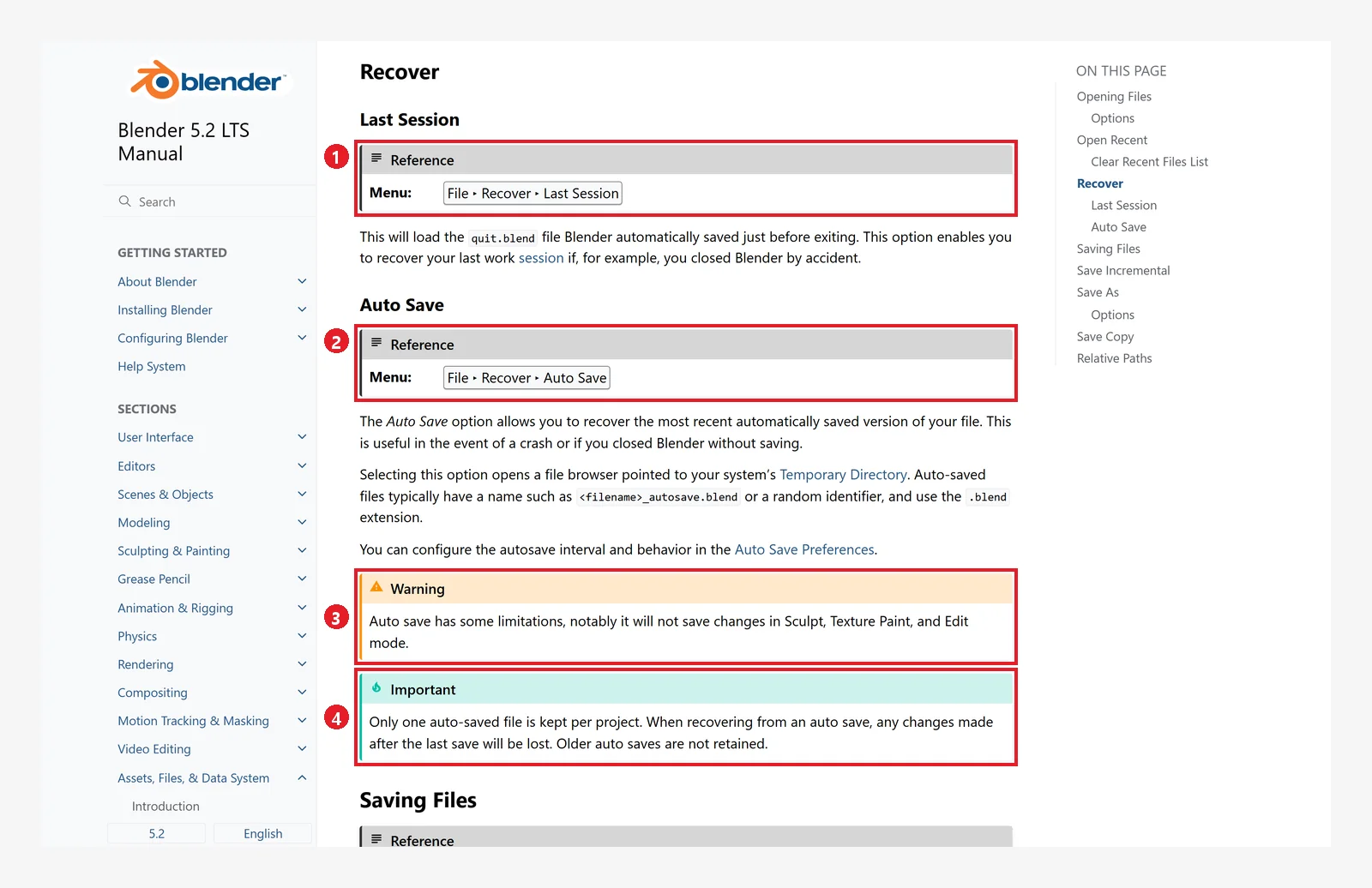 Figure 5-13. Recover in the official manual: ① Last Session — opens quit.blend, saved just before closing ② Auto Save — menu File ‣ Recover ‣ Auto Save ③ Warning: auto save does not save changes made in Sculpt, Texture Paint, or Edit Mode ④ Important: only one auto save file is kept per work file, and older ones are not kept (screenshot of the Blender 5.2 manual, CC BY-SA 4.0, numbers added)
Follow along (the steps from the manual):
- Start Blender.
- Choose File ‣ Recover ‣ Auto Save... (Figure 5-11 ③). A file browser opens, pointing to the temporary folder.
- Among the
filename_autosave.blendfiles (or files with number names), choose the one with the latest modified time. Switch to list view (as in Figure 5-5) to see the dates. - As soon as it opens, save it under a new name with
Shift+Ctrl+S. If you leave the auto save file as it is, the next auto save may overwrite it.
6. Save and recovery settings: Save & Load in the Preferences
Open the Preferences with Edit ‣ Preferences and choose Save & Load on the left to find the settings for saving in one place. The images below show the editor type switched to Preferences instead of the Preferences window (the contents are the same).
Figure 5-14 shows Save Versions changed to 0 (the default is 1). When Save Versions is 0, no .blend1 is made.
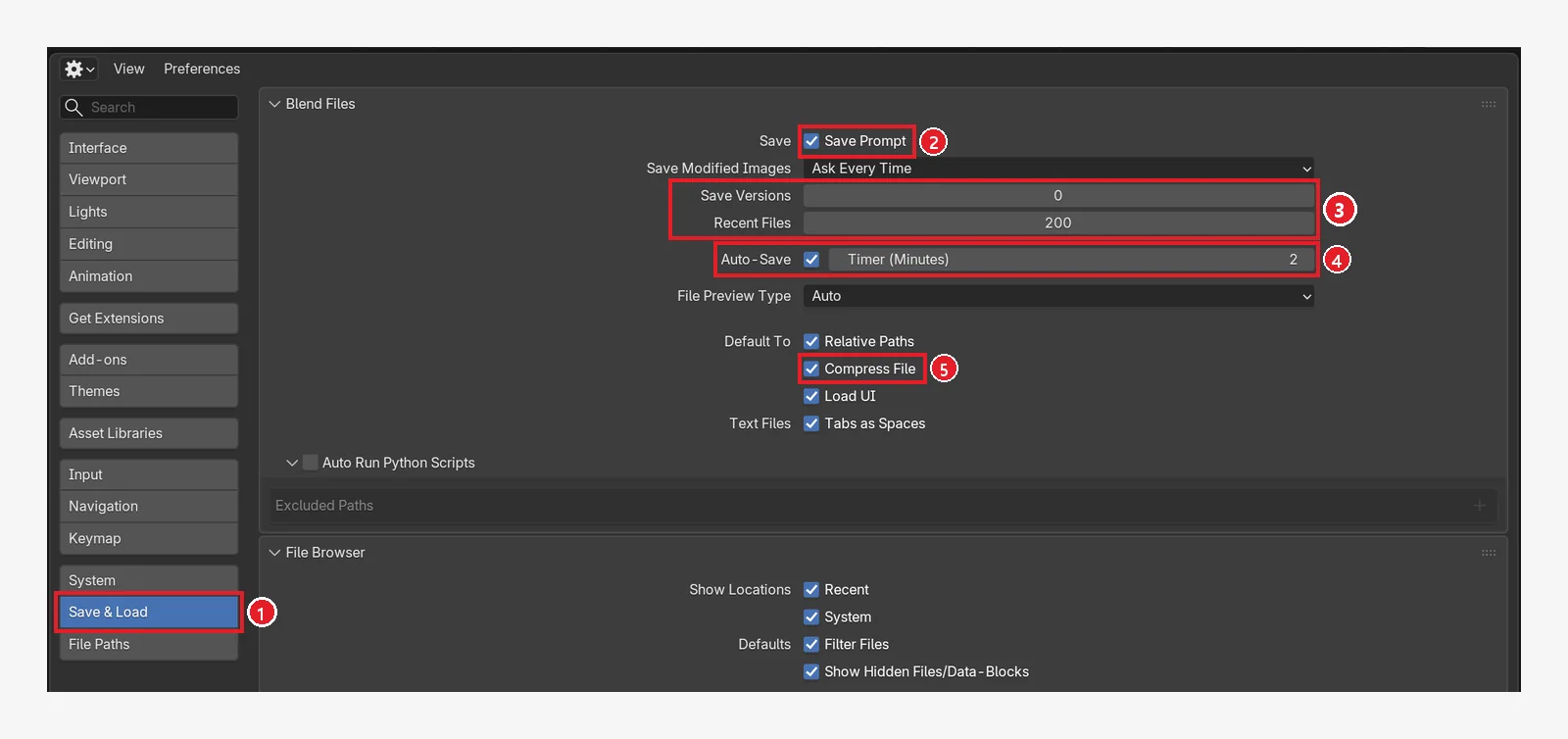 Figure 5-14. Save & Load in the Preferences: ① the Save & Load tab ② Save Prompt — asks on closing if there are unsaved changes ③ Save Versions (number of backups) and Recent Files (number of recent list items) ④ turning on Auto-Save and Timer (Minutes) — how many minutes between saves ⑤ Compress File — compresses when saving (Blender screenshot)
| Setting | Meaning | Recommended at first |
|---|---|---|
| Save Prompt | Confirmation window when you close or open another file without saving (Figure 5-12) | Keep on |
| Save Versions | Number of backups (.blend1, .blend2…) kept when saving | 1 or more (0 means no backup) |
| Recent Files | Number shown in File ‣ Open Recent | Your choice |
| Auto-Save / Timer | Auto saves to the temporary folder every few minutes. Manual default: 2 minutes | Keep on |
| Compress File | Compresses the file to make it smaller. Saving and opening may get a little slower | Turn on for large files |
Changed settings are saved automatically by default and stay for the next launch (Auto-Save Preferences in the menu at the lower left of the Preferences).
You can see where the temporary folder is on the File Paths tab.
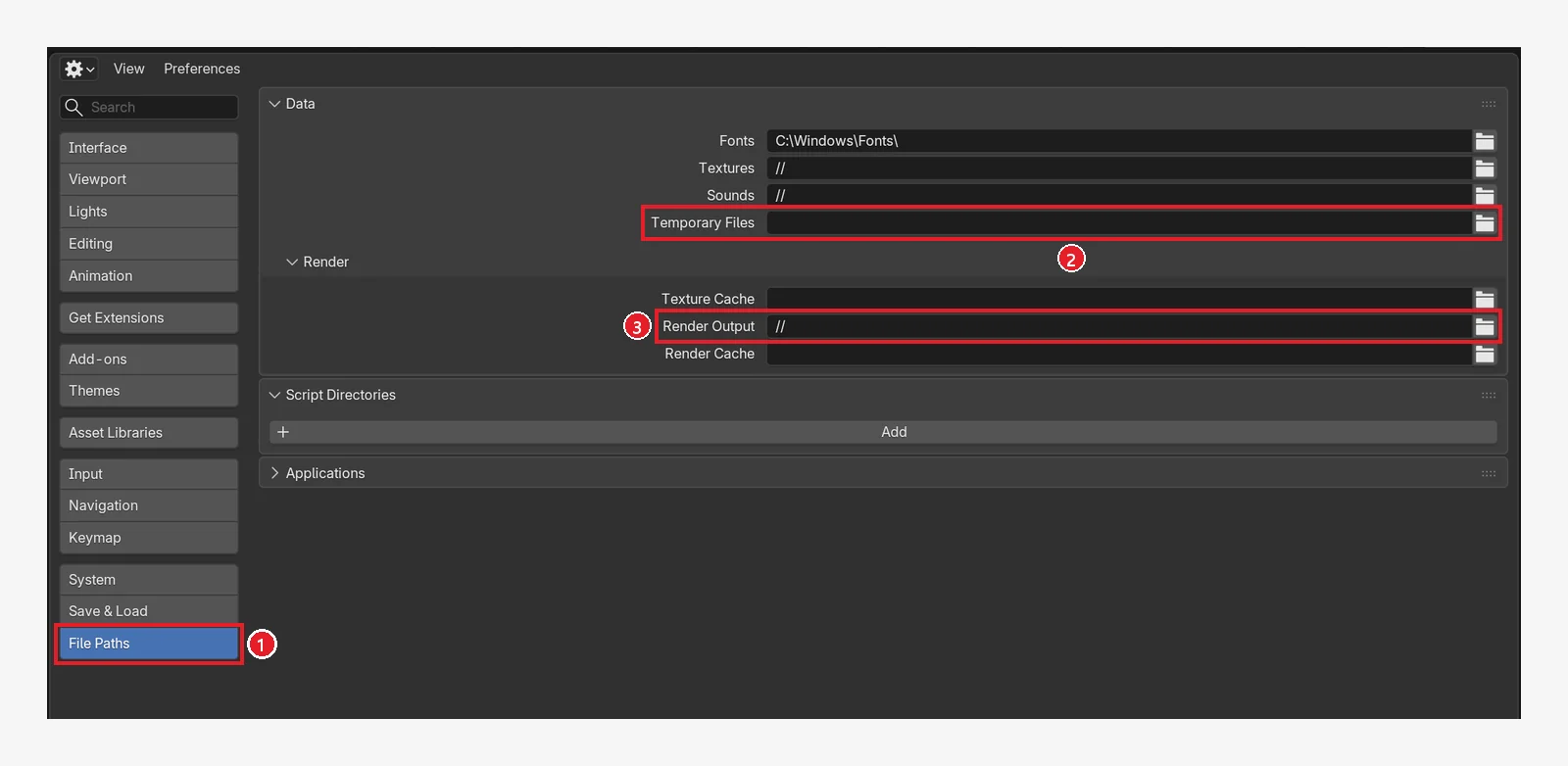 Figure 5-15. File Paths in the Preferences: ① the File Paths tab ② Temporary Files — if empty, the operating system's temporary folder is used. quit.blend and the auto save files are made here ③ Render Output —
 // means "the folder this .blend file is in" (section 7, chapter 11) (Blender screenshot)
7. A common accident: when objects turn pink
7-1. What happens
You will learn about materials and nodes in chapter 8. For now, just know that "objects that use image files can have this accident." You can come back and read this section later when you start using image files.
Sometimes you move a file whose material uses a wood pattern image (wood.png) to another PC, and the object shows up pink (magenta). As section 1 said, this is because the .blend file stores only the "address" of the image file. If you do not move the image file along with it, Blender cannot find the image.
The image below shows what a material looks like when it cannot find its image file.
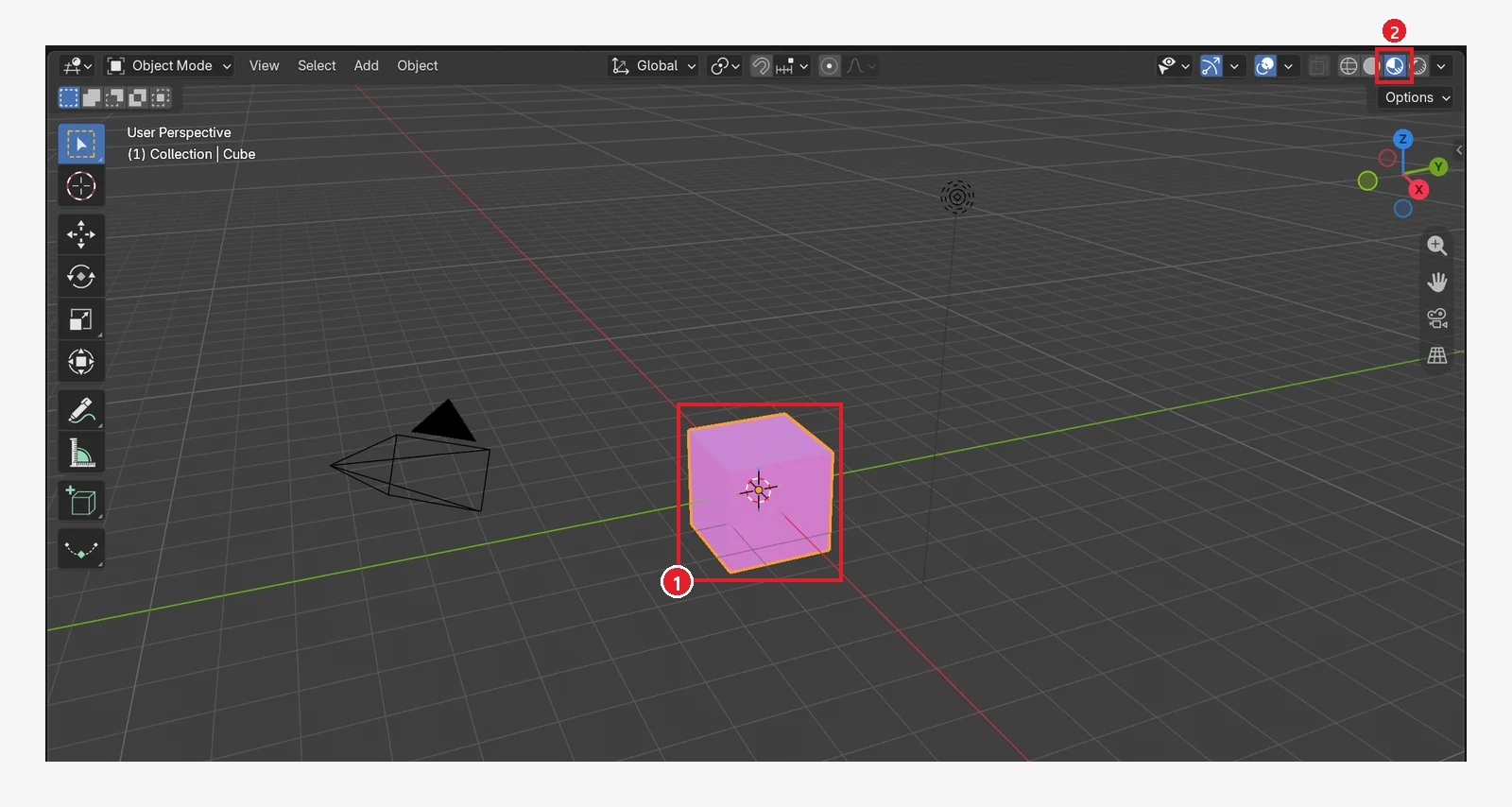 Figure 5-16. ① A cube whose image file cannot be found shows up pink ② Material Preview (the material preview view). In Solid view, which does not show colors, this problem is hard to notice (Blender screenshot)
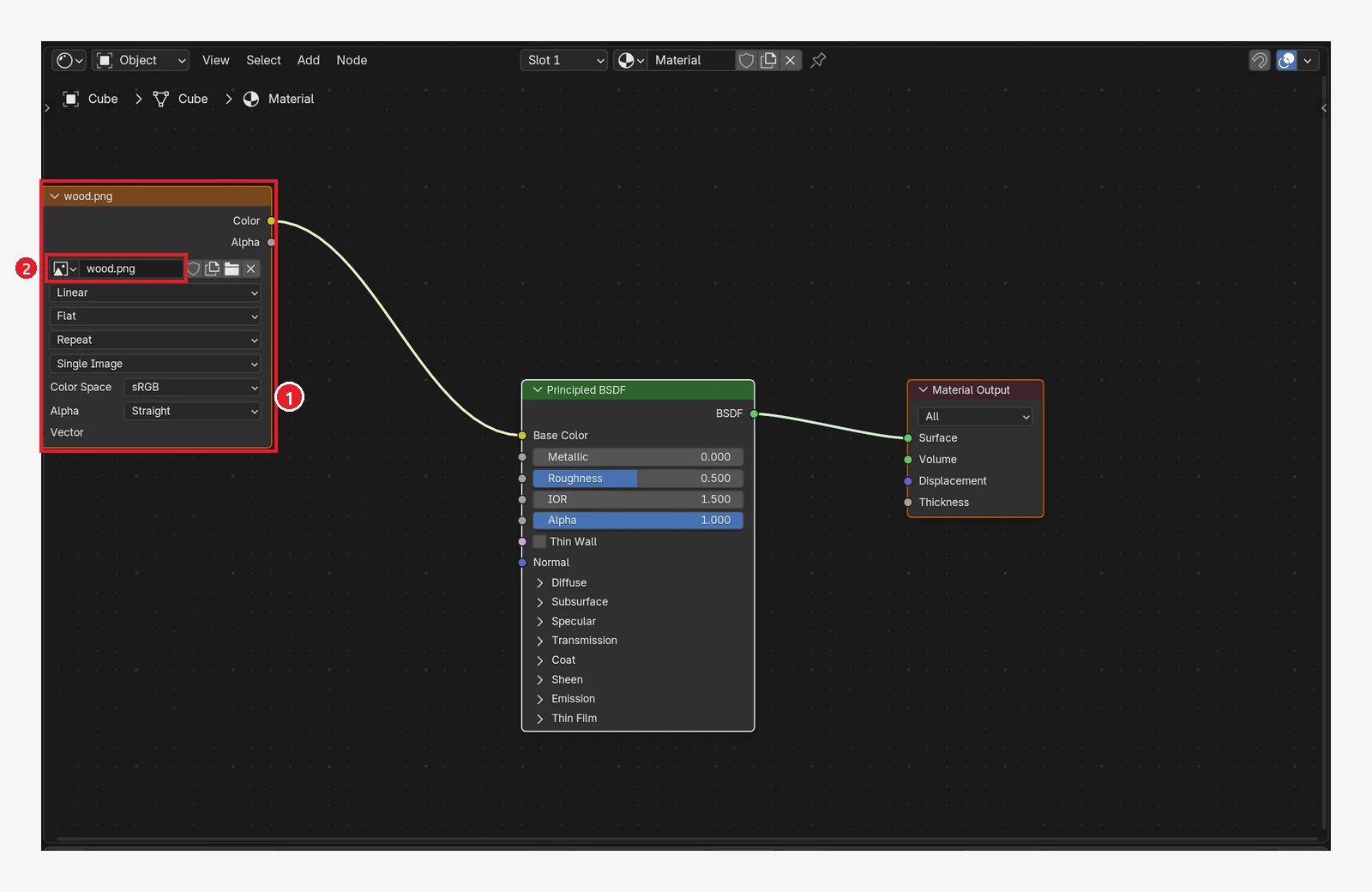 Figure 5-17. The nodes of the same material: ① the box that reads the image file (the Image Texture node) is connected to the material's color slot (Base Color) ② the image name looks normal as
 wood.png, but the actual file is not at that address. It is hard to tell just by looking at the nodes (Blender screenshot)
7-2. How to prevent it
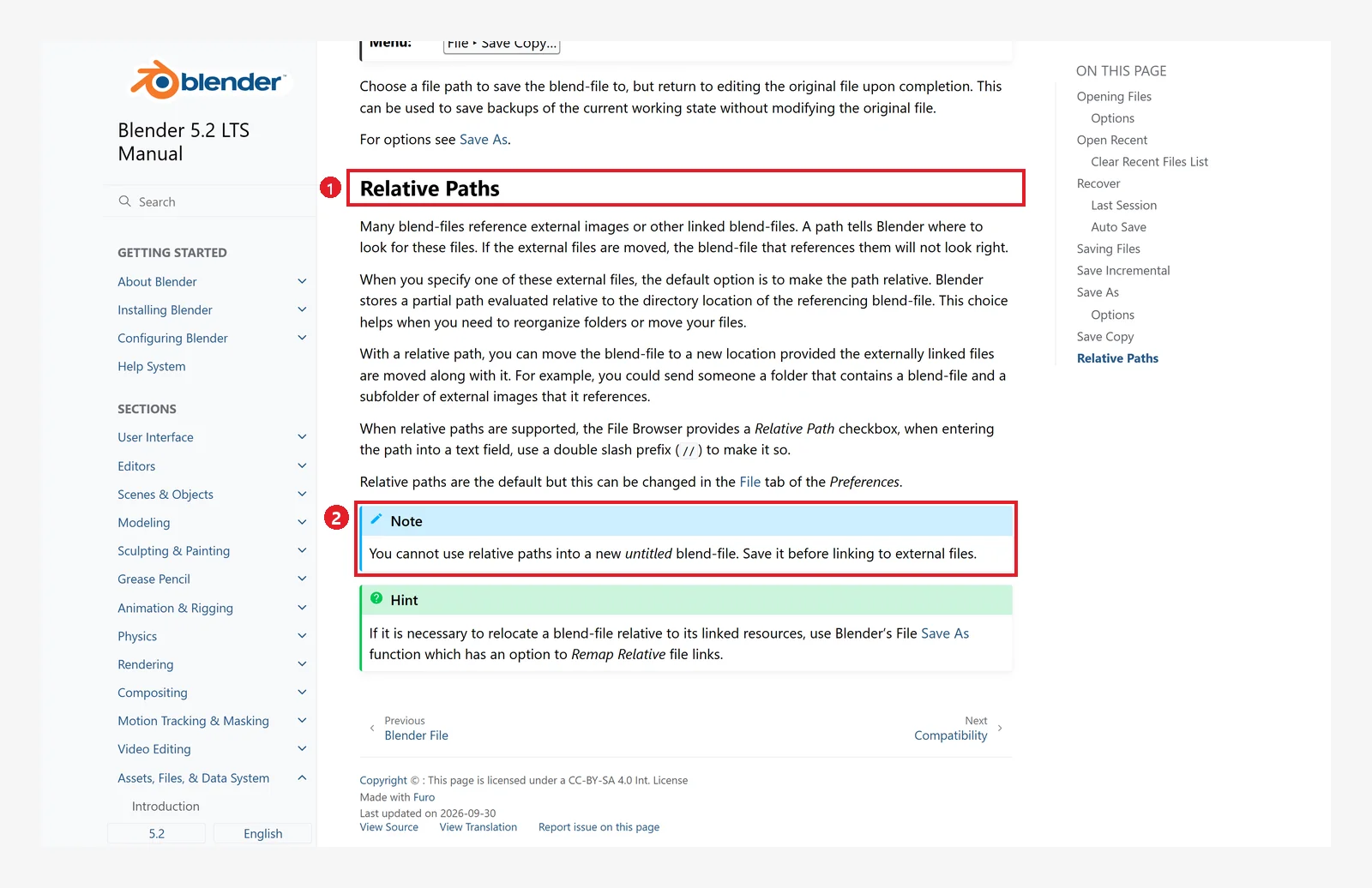 Figure 5-18. Official manual: ① Relative Paths — saves image addresses "relative to the folder the .blend file is in." It is on by default ② Note: a new file that has never been saved cannot use relative paths. Save first, then add images (screenshot of the Blender 5.2 manual, CC BY-SA 4.0, numbers added)
- Save first, then add images. That way they are saved as relative paths (starting with
//, like//textures/wood.png). - Keep the .blend file and a
texturesfolder together in one project folder. When you move it, move the whole folder. - If you are still worried, put the images inside the .blend (Pack).
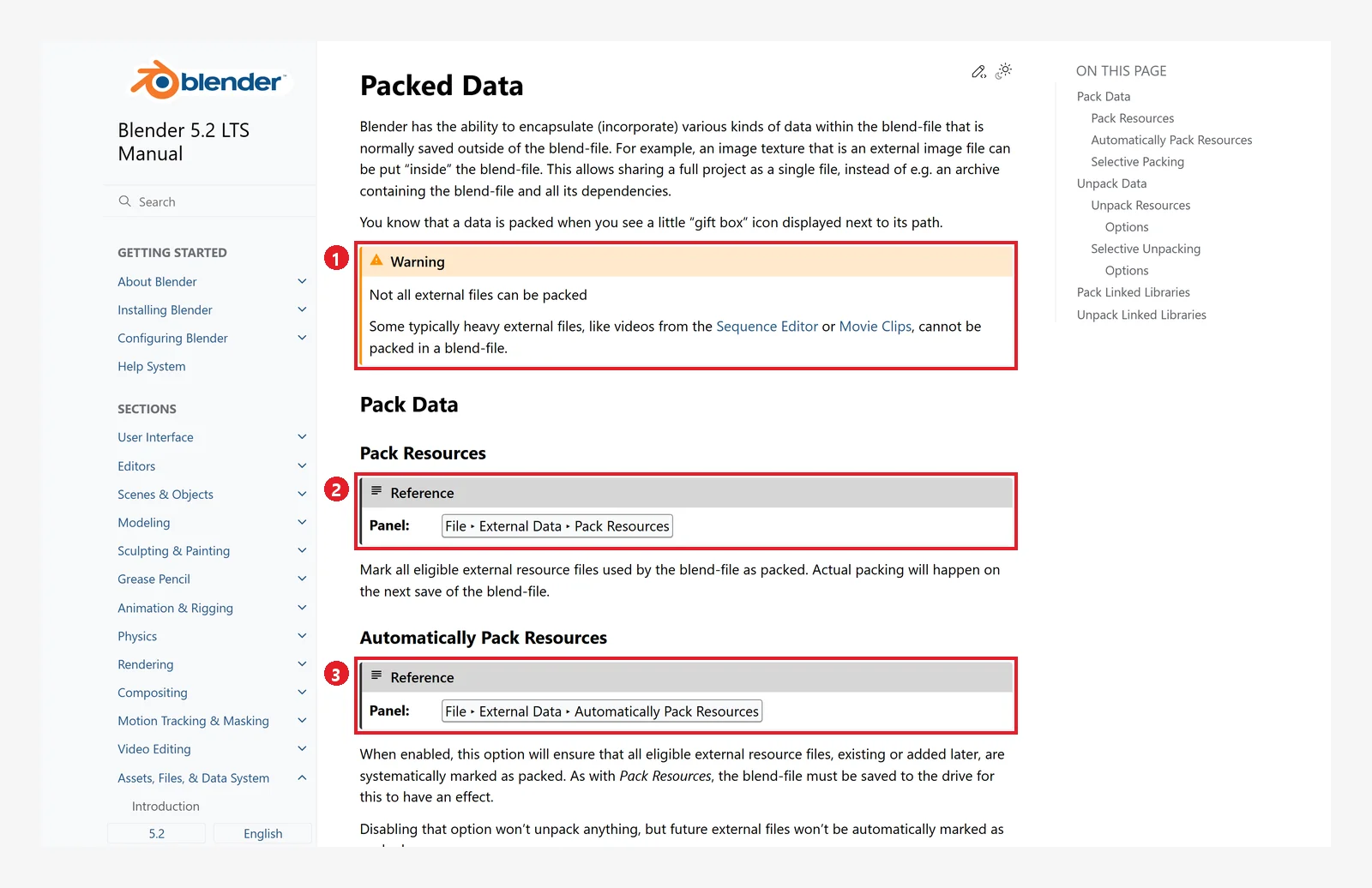 Figure 5-19. Packed Data in the official manual: ① Warning: heavy files such as videos cannot be packed ② File ‣ External Data ‣ Pack Resources — marks the outside files in use to be put inside the .blend. They actually go in at the next save ③ Automatically Pack Resources — files you add later are also packed automatically (screenshot of the Blender 5.2 manual, CC BY-SA 4.0, numbers added)
7-3. When it is already broken
- File ‣ External Data ‣ Report Missing Files: tells you if any files are missing.
- File ‣ External Data ‣ Find Missing Files: when you choose a folder, it searches inside it, finds the missing files, and links them again.
7-4. Seeing what is inside the file (before → after)
Click the Outliner's display mode (Display Mode) button and change it from View Layer (the default view) to Blender File to see the data in the current file by type.
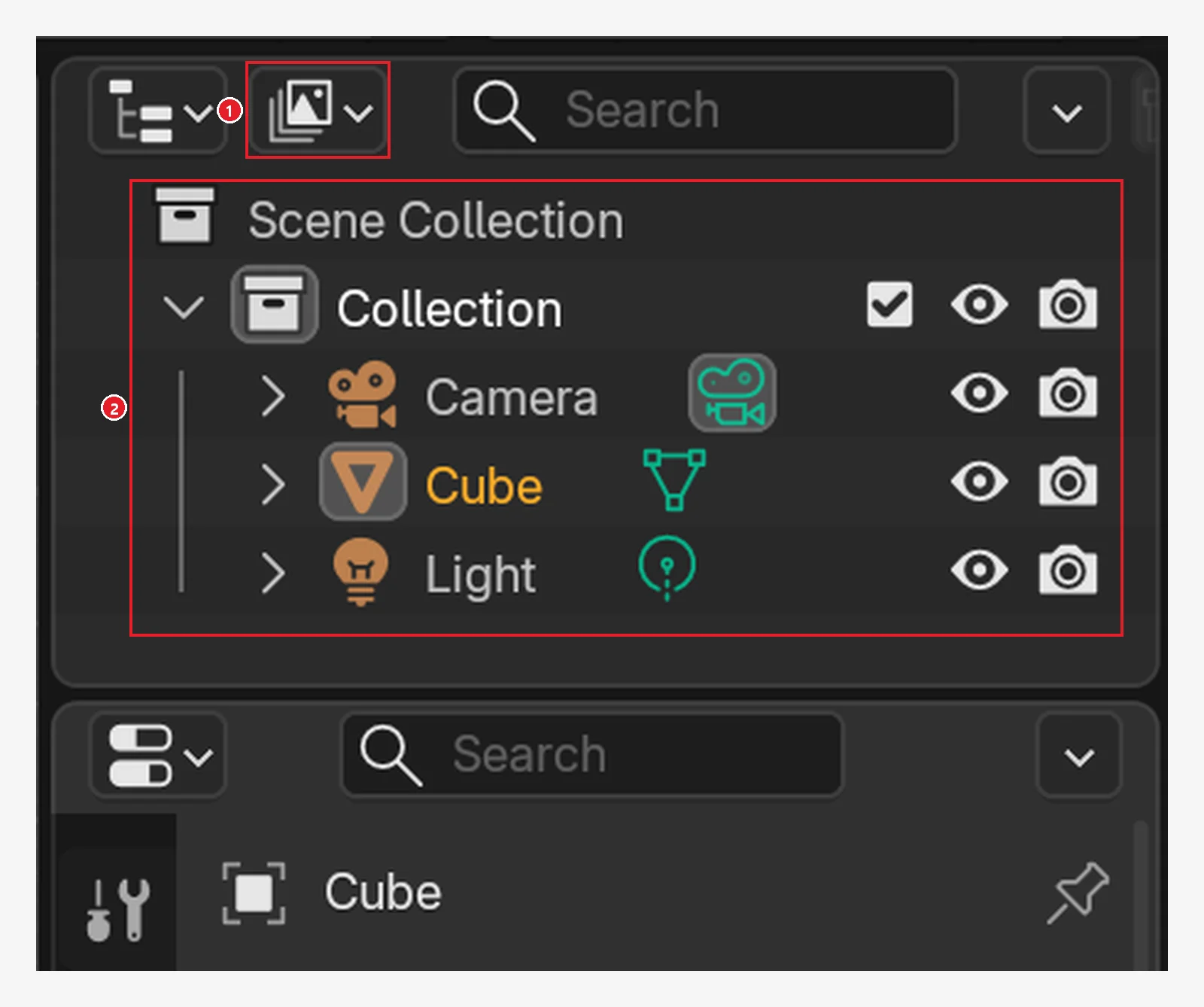 Figure 5-20. Before: ① the display mode button (default View Layer) ② the objects placed in the scene appear in collection order (Camera, Cube, Light under Collection) (Blender screenshot)
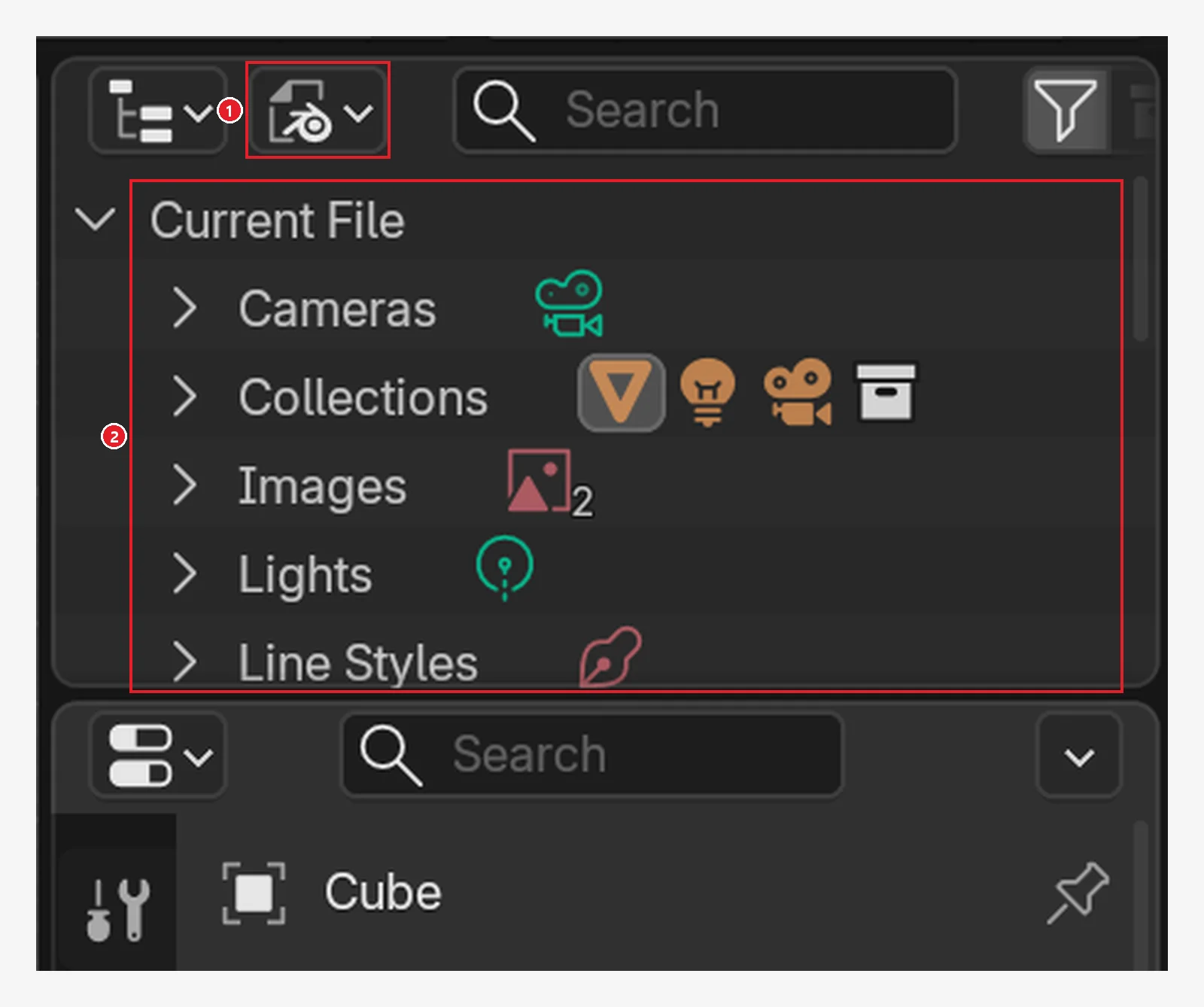 Figure 5-21. After: ① display mode changed to Blender File ② under Current File, the data in the file appears by type, such as Cameras, Collections, Images, Lights, Line Styles… If you are using image files, they appear under Images (Blender screenshot)
8. Exercises
- Save the default cube scene as
my-first.blend. Look at how the title bar at the very top of the window changes before and after saving, and check in the file explorer that the file was made. - Move the cube, then save once more with
Ctrl+S. If Save Versions is 1 or more,my-first.blend1appears. Check what your PC is set to on the Save & Load page of the Preferences. - Close Blender, start it again, and open the file again from Recent Files on the splash screen or with
Shift+Ctrl+O. - Delete the cube, then without saving, click File ‣ Revert. When the confirmation window appears, click the button that reverts. Check that the cube comes back.
- Press
Ctrl+Alt+S(Save Incremental) twice and see how the file name changes. In a file that has never been saved, Save Incremental is grayed out and cannot be clicked (Figure 5-11). Save withCtrl+Sfirst.
9. Common mistakes and fixes
| Symptom | Cause | Fix |
|---|---|---|
| Hours of work are gone | Closed without saving | File ‣ Recover ‣ Last Session or Auto Save (section 5). From now on, make Ctrl+S a habit |
| Saved, but I need the earlier state | Saved over it | Rename .blend1 to .blend and open it (section 4-1), or keep versions with Save Incremental |
| No .blend1 is made | Save Versions is 0 | Set it to 1 or more on the Save & Load page of the Preferences |
| Edit Mode work is missing from the auto save | Auto save does not save changes made in Edit or Sculpt Mode | Often leave with Tab and press Ctrl+S |
| Opened on another PC and it is pink | The image files were not moved along | Move the whole folder, Pack, Find Missing Files (section 7) |
| Opened a file someone gave me and the screen changed | Load UI is on | Turn off Load UI in the open window options before opening |
| Blender does not ask whether to save when closing | Save Prompt is off | Turn on Save Prompt on the Save & Load page of the Preferences |
In one line
When you make something, Ctrl+S. For versions, Ctrl+Alt+S. If you ruined it, Revert or .blend1. If Blender closed, File ‣ Recover. Keep image files in the same folder as the .blend and move the whole folder. In chapter 6, you go inside an object and learn Edit Mode, where you change points, lines, and faces.
References
- Blender 5.2 Manual: Opening & Saving
- Blender 5.2 Manual: Recovering Data
- Blender 5.2 Manual: Preferences ‣ Save & Load
- Blender 5.2 Manual: Preferences ‣ File Paths
- Blender 5.2 Manual: Packed Data
- Blender 5.2 Manual: Topbar (File Menu)
- Shortcuts: based on the default (Blender) keymap of Blender 5.2.1
- Image licenses: manual screens are CC BY-SA 4.0, with red numbers and outlines added. Blender program license: blender.org/about/license