What is a modifier? Changing shape without ruining the original
A modifier is an effect filter laid over the original. This guide covers stack order, Apply, and six modifiers you will use often.
한국어English
Based on: the official Blender 5.2 LTS manual (English UI, default keymap)
A modifier is a Blender feature that changes how an object looks by laying an effect on top of it, while the object's original shape stays as it is. Like a filter in a photo app, you can turn it on and off, change the order, and delete it, so you can always go back if you do not like the result. This guide explains what non-destructive editing means, why order matters in a stack of several modifiers, when to use Apply to set an effect into the real shape, and six modifiers that are good to know from the start.
Modifiers: filters laid over the original
A modifier is an automatic operation that affects an object's geometry in a non-destructive way. Geometry here means the points (vertices), lines (edges), and faces that make up the object's shape.
A modifier changes how an object is shown on screen and how it renders, but it does not change the original shape you edit directly. So jobs that would be tedious and slow by hand (for example, cutting faces into smaller ones to make a surface smooth) can be done automatically without touching the original.
Here is a comparison with a photo app.
| Comparison | Photo app | Blender |
|---|---|---|
| Original | The photo you took | The base shape you made in Edit Mode |
| Effect | Brightness, black-and-white, and blur filters | Modifiers such as smoothing, mirror symmetry, and repeated copies |
| Going back | Turn off the filter and the original is unchanged | Turn off or delete the modifier and the original is unchanged |
| Making it final | "Save" to set the filter into the photo | "Apply" to set the effect into the real shape |
Destructive editing, on the other hand, changes the original itself directly. If you bevel an edge directly in Edit Mode, the result becomes the new original, and if you later think "I should have cut a little less", you have to go back through the undo history or make it again. For example, the Bevel modifier is a non-destructive alternative to the Bevel operation in Edit Mode. Even when the result is the same, the big advantage of a modifier is that you can change it later with a single number.
Where to add them
- Select an object in the 3D Viewport.
- In the Properties editor at the bottom right, open the Modifiers tab (the wrench icon).
- Click the Add Modifier button at the top, or put the mouse over that tab and press
Shift+A. - Choose a modifier from the list and a panel appears in the tab. Change the numbers and options in the panel and the result shows on screen right away.
If the interface still feels unfamiliar, check where the Properties editor is in A guide to the Blender interface first.
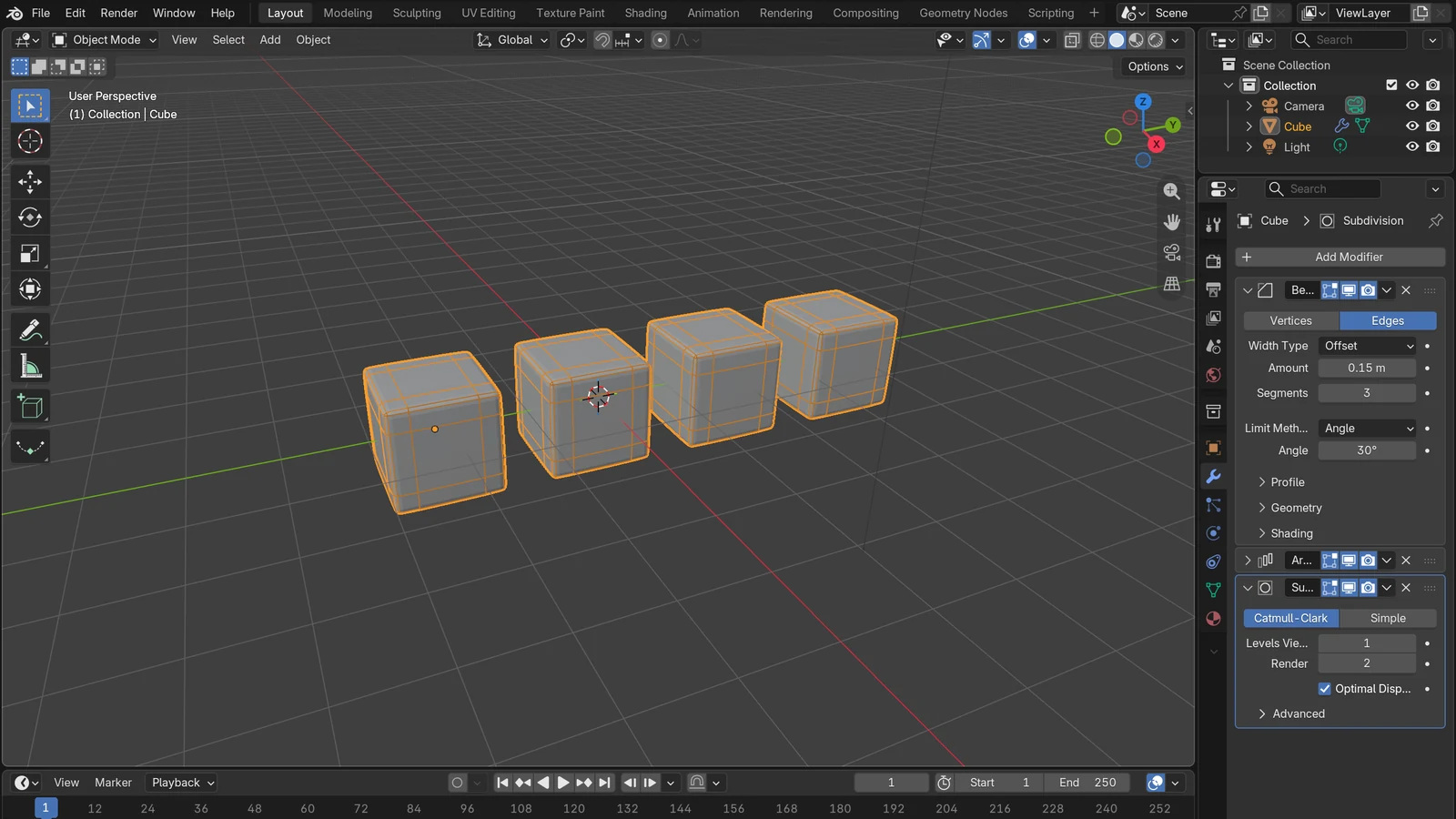
The header of a modifier panel has a few small icons. The monitor icon turns on and off whether the effect shows in the working view (the viewport), and the camera icon turns on and off whether the effect goes into the final render. If the screen feels heavy while you work, you can turn off only the viewport display for a while and still keep it in the render. When you no longer need a modifier, delete it with the X button at the right end of the panel and the shape returns to the original.
Modifiers can be grouped into four broad branches by what they do. The branch names are the group names you see in the Add Modifier menu, and the menu has one more group.
| Branch | What it does | Examples |
|---|---|---|
| Edit | Changes other data, such as vertex groups, rather than the shape | Modifiers related to vertex weights (Vertex Weight) |
| Generate | Changes the face structure (topology) as a whole or adds new geometry | Subdivision Surface, Mirror, Array, Bevel, Solidify, Boolean |
| Deform | Keeps the face structure and only bends or stretches the shape | Lattice, Curve, and others |
| Physics | Physics effects. Usually added automatically when you turn on physics or particles | Cloth, particles |
Topology means how points and faces are connected, in other words how the net is woven. The Generate branch adds to or changes the net's mesh itself, and the Deform branch keeps the net as it is and only pulls on it. The one remaining group in the menu is Normals, which tidies up how face directions (normals) are shown. Topology is covered in more detail in A guide to polygons and topology.
The stack: calculated from top to bottom
When you add several modifiers to one object, the panels pile up from top to bottom. This is called the modifier stack. There are two rules.
- The stack is calculated in order from top to bottom.
- A newly added modifier always goes at the bottom, which means it runs last.
A cooking comparison shows right away why order matters. If you fold dough in half and then roll it out with a rolling pin, you get one wide sheet, but if you roll it first and then fold it, you get two layers. Same ingredients, different order, different result.
Modifiers are the same. When you add Mirror (mirror symmetry) and Subdivision Surface (smoothing) to a shape where you made only one half, the result depends on the order.
| Stack order (top → bottom) | Result |
|---|---|
| Mirror → Subdivision Surface | It makes the whole shape first and then smooths it, so you get one piece joined naturally in the middle |
| Subdivision Surface → Mirror | It smooths the half on its own and then joins it, so it looks like two pieces with a visible seam in the middle |
To change the order, grab the handle (the icon made of several dots) at the top right of the panel and drag it up or down. You can also send a modifier straight to the top or bottom with Move to First / Move to Last in the down-arrow menu in the panel header. When a result looks odd, suspect the order first.
Apply: setting the effect into the real shape
Apply makes a modifier "real". Choose Apply from the down-arrow menu in the panel header. You can also put the mouse over that panel and press Ctrl+A. If the mouse is over the 3D Viewport, a different menu for applying location, rotation, and scale appears instead. When you apply, the object's shape changes to the modifier's result, and the modifier itself disappears from the stack. It is like saving a filter into a photo in a photo app: after that, you cannot go back with a single number.
Typical cases where you need Apply:
- When you want to edit the points and faces of the modifier's result by hand in Edit Mode
- When you export the model to another program that does not understand modifiers and want to pass on the resulting shape as it is
- When the work is finished and you will not change the settings again
Some things to watch out for:
- If you apply a modifier that is not at the top of the stack first, it ignores the order and is applied as if it had been at the top, which can give unwanted results. When you set them in, it is safer to go in order from the top.
- If you want to leave room to go back, it helps to make a habit of saving the file under another name before you apply, or duplicating the object (
Shift+D) and hiding the copy. - If there is no hurry, you do not need to apply at all. Modifiers are included in the render just as they are while turned on.
Six modifiers worth knowing first
| Modifier | One-line description | Use it when |
|---|---|---|
| Subdivision Surface | Splits faces into smaller faces so the surface looks smooth | Making round characters or product shapes from few points |
| Mirror | Mirrors along the X, Y, or Z axis around the object's origin | Shapes that are the same on both sides, such as faces, cars, and furniture |
| Array | Copies the same geometry several times and lines the copies up in a line, circle, or curve | Stairs, fences, chains, pillars set in a circle |
| Bevel | Cuts corners to soften them | Making razor-sharp edges look realistic |
| Solidify | Adds thickness to faces | Making paper-thin faces thick like a wall, a cup, or cloth |
| Boolean | Joins two objects (Union), subtracts one from the other (Difference), or keeps only the overlap (Intersect) | Cutting a window hole in a wall, cutting out shapes |
A little more detail:
- Subdivision Surface: you can set the level for the screen (Levels Viewport) and the level for rendering (Render) separately. It is handy to keep it low while you work and high only for rendering. The higher the level, the more points it makes and the more memory (RAM and graphics card memory) it uses, and if memory runs short, Blender can freeze or close. Do not raise the number a lot at once. Graphics card memory is covered in A guide to VRAM.
- Mirror: turn on Clipping and points cannot cross the mirror plane while you edit. Turn on Merge and points touching the mirror plane join with the other side, so the middle does not split open.
- Array: you can set the number of copies (Count) or set the number by spacing (distance). The advantage is that if you change one, all the copies change together.
- Bevel: set the width of the cut (Amount) and how many steps the cut face is split into (Segments). More steps make it rounder.
- Boolean: correct results are guaranteed only on closed meshes (with no holes). Meshes with holes can get odd flaws.
- Two others are also used often: Decimate, which reduces the number of points and faces without changing the shape much, and Lattice, which bends an object to follow the shape of a grid box.
Common combinations
Below are examples of combinations that chain each modifier's job together. Stack them from top to bottom in the order of the arrows.
- A round shape that is the same on both sides: Mirror → Subdivision Surface. As you saw above, the symmetry has to come first for the middle to join smoothly.
- Making a thin sheet thick and soft: Solidify → Bevel. Make the thickness first, then cut the newly made edges too.
- Repeating structures: make one pillar, then use Array to make many. Change the one pillar and they all change.
In the low-poly style, which keeps things simple with few faces, modifiers that do not add many faces, such as Mirror and Array, are also useful.
How modifiers relate to Geometry Nodes
Besides the built-in modifiers, you can make your own modifiers with Geometry Nodes. You connect small function boxes (nodes) with lines, like LEGO bricks, to build your own rules such as "scatter 100 trees on this surface", and then use that in the stack like a single modifier. If the built-in modifiers are "finished filters", Geometry Nodes is "a workshop for making filters". More details continue in An introduction to Geometry Nodes.
Summary
- A modifier is a non-destructive effect that leaves the original as it is and changes only the resulting shape.
- Add one with
Add Modifierin the Modifiers tab of the Properties editor. - The stack is calculated from top to bottom, and new modifiers go at the bottom. If a result looks odd, check the order first.
- Apply sets the effect into the real shape and removes the modifier. It cannot be undone, so do it only when needed, starting from the top.
- At first, knowing just six modifiers, Subdivision Surface, Mirror, Array, Bevel, Solidify, and Boolean, lets you make many shapes.
References
- Blender Manual (5.2 LTS), Modifiers Introduction
- Blender Manual (5.2 LTS), Modifiers (contents and categories)
- Blender Manual (5.2 LTS), Subdivision Surface Modifier
- Blender Manual (5.2 LTS), Mirror Modifier
- Blender Manual (5.2 LTS), Array Modifier
- Blender Manual (5.2 LTS), Bevel Modifier
- Blender Manual (5.2 LTS), Solidify Modifier
- Blender Manual (5.2 LTS), Boolean Modifier
- Blender Manual (5.2 LTS), Decimate Modifier
- Blender Manual (5.2 LTS), Lattice Modifier