Blender for complete beginners, chapter 2: reading the first screen and turning the view
A tour of the Blender screen for complete beginners: the splash screen, the three layers of the screen, the four editors, workspaces, turning the view with a mouse or touchpad, and how to get back when you are lost.
한국어English
ON THIS PAGE
- 01What you will learn in this chapter
- 021. Closing the splash screen
- 032. The screen has three layers: top, middle, and bottom
- 043. The four default editors
- 054. The Topbar and workspace tabs
- 065. The 3D Viewport header, toolbar, and sidebar
- 076. Orbit, zoom, and pan (the heart of this chapter)
- 087. Looking from set directions
- 098. Getting back when you are lost
- 109. Changing the shading mode
- 1110. If you have no wheel mouse or no numeric keypad
- 1211. Practice
- 1312. Common mistakes and fixes
- 14One-line summary
- 15References
Blender for complete beginners, chapter 2 · Based on: Blender 5.2 LTS (screenshots from 5.2.1, English UI, default keymap) All images are real screens. The red numbers and outlines were added for explanation.
What you will learn in this chapter
By the end of this chapter you will be able to:
- Close the splash screen. (Section 1)
- Name the three layers of the screen and the four default editors. (Sections 2 and 3)
- Know that the tabs at the top are "workspaces". (Section 4)
- Find the header, toolbar, and sidebar of the 3D Viewport. (Section 5)
- Orbit, zoom, and pan the view. This is the heart of the chapter. (Section 6)
- Look from the front, side, top, and camera. (Section 7)
- Get back when you are lost. (Section 8)
- Change the viewport shading mode. (Section 9)
- Know what to use instead when you have no wheel mouse or no numeric keypad. (Section 10)
In this chapter you do not change any objects. You only learn how to look. Nothing you press in this chapter will break the scene, so follow along without worry.
Before you start: three things about the mouse and keyboard
1. Three mouse buttons. Blender uses all three buttons.
- Left click: select, press buttons
- Right click: open menus, cancel the current action
- Middle button: do not roll the wheel. Press it down until it clicks. Moving the mouse while holding it down is called "middle-button drag" in this series. You use it to orbit the view.
- Rolling the wheel: zoom in and out
The middle button is where most people get stuck at first. Rolling the wheel and pressing the wheel are different actions.
2. The numeric keypad. Shortcuts such as "view from the front" use the numeric keypad on the right side of the keyboard. The number row above the letter keys (1, 2, 3...) does other things. In this series, "Numpad 1" means the 1 on the keypad on the right. If you have no numeric keypad (as on many laptops) or no wheel mouse, you can read Section 10 first.
3. Cursor position. Blender shortcuts work in the area the mouse cursor is over. Before you press a shortcut, put the cursor over the 3D view in the middle.
1. Closing the splash screen
When you start Blender, a small window appears in the middle first. This is the splash screen.
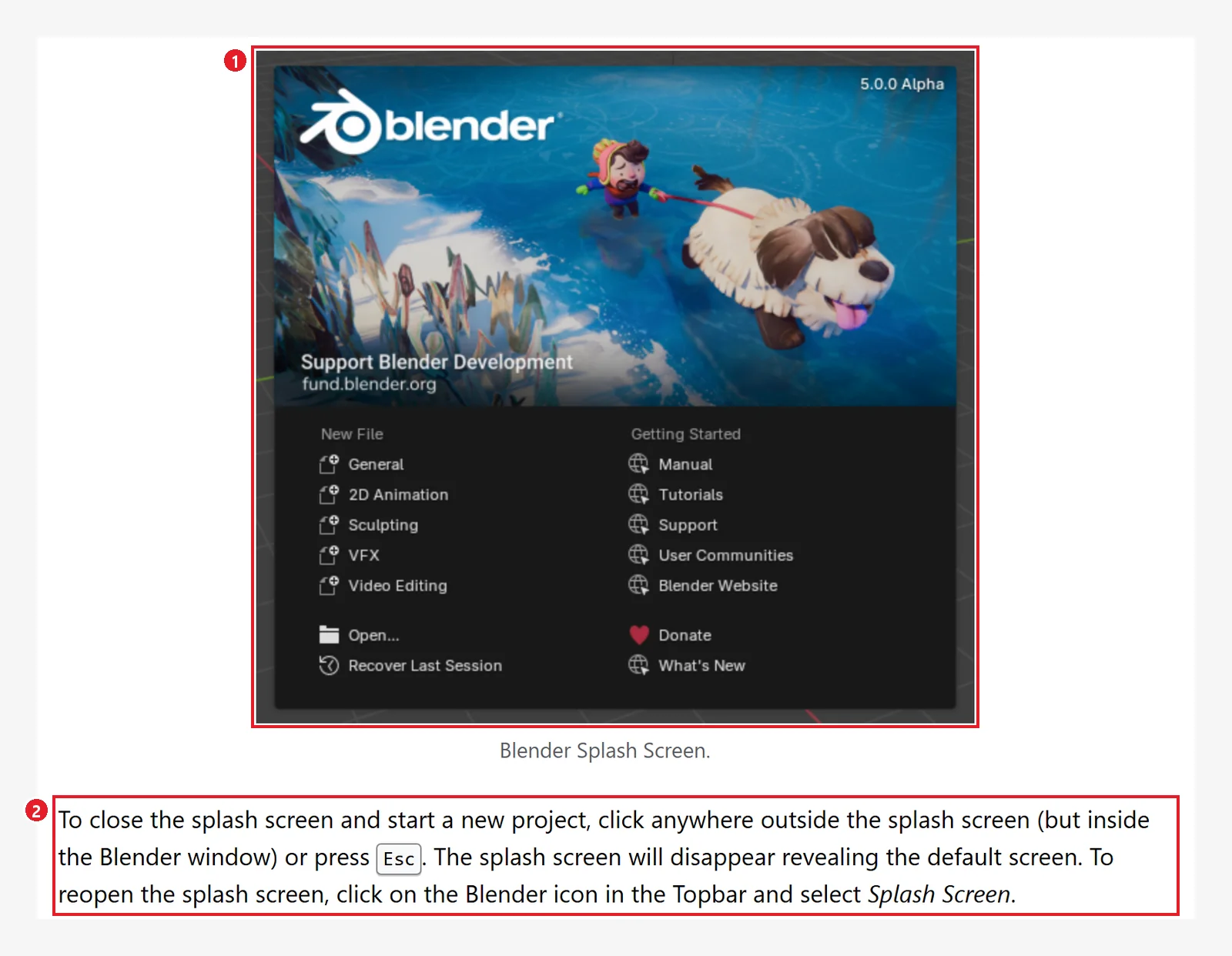 Figure 2-1. 1: the splash screen (image from the official manual; the version shown in it is from when the manual image was made) 2: how to close it: click outside the window or press
 Esc (screenshot of the Blender 5.2 manual, CC BY-SA 4.0, numbers added)
The official manual lists these items on the splash screen.
- New File: make a new file (choose from the General, 2D Animation, Sculpting, Storyboarding, VFX, and Video Editing templates).
- Recent Files: a list of files you opened recently.
- Open: open a saved file.
- Recover Last Session: bring back your last work if Blender closed suddenly.
For now, click once outside the splash (inside the Blender window) or press Esc to close it. The default screen behind it (the General template) appears. The manual says that to see the splash again, you click the Blender logo at the far left of the Topbar and choose Splash Screen.
Privacy note: Recent Files on the splash shows the names and folders of files you opened. Hide this part when you capture and share your screen.
2. The screen has three layers: top, middle, and bottom
After you close the splash, you see this screen. The official manual divides the Blender window into three main layers.
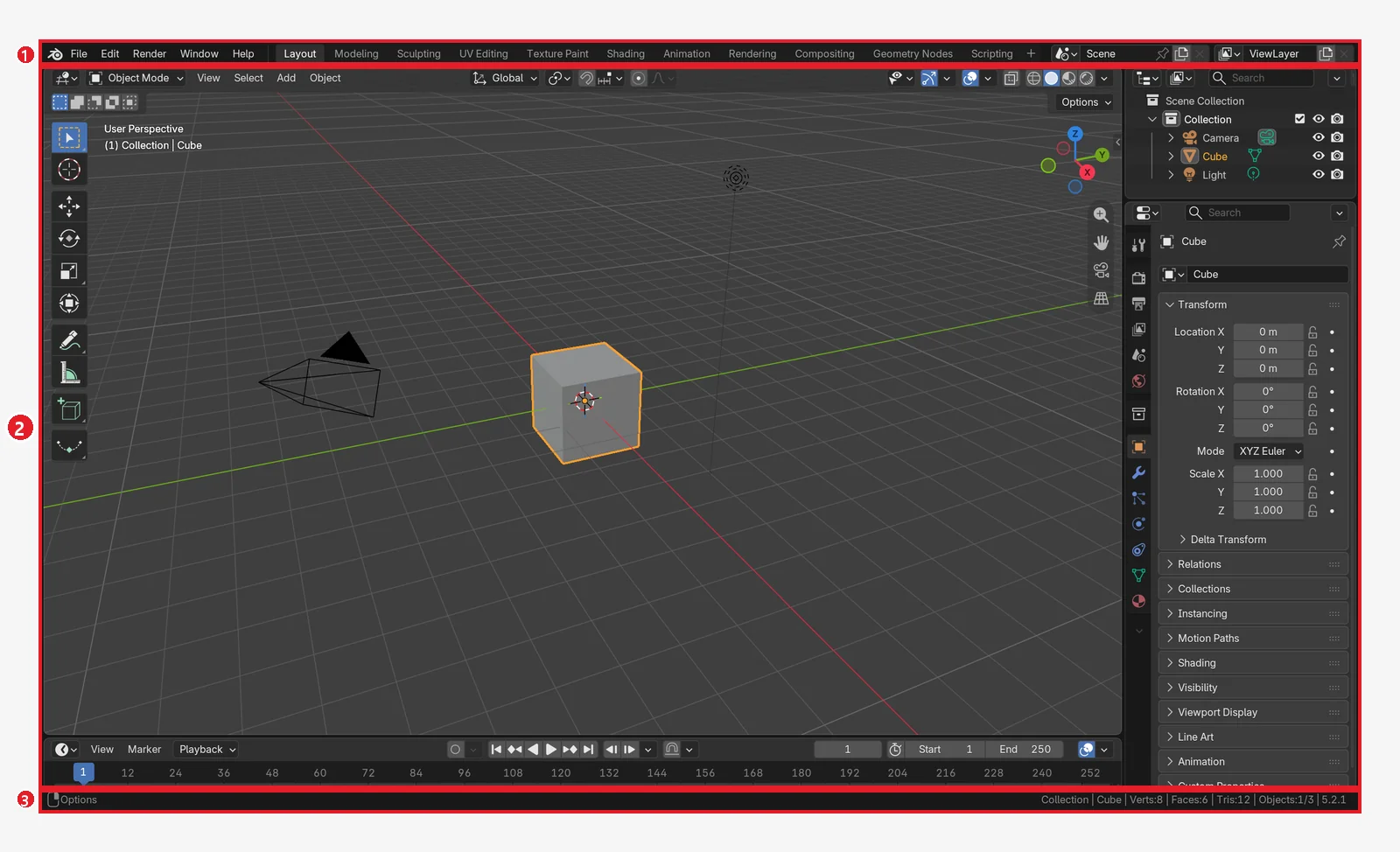 Figure 2-2. 1: Topbar 2: Areas 3: Status Bar (Blender screenshot)
| Number | Name | What it does |
|---|---|---|
| 1. The top row | Topbar | The File, Edit, Render, Window, and Help menus, and the workspace tabs |
| 2. The middle | Areas | Split into several areas, each holding one editor |
| 3. The bottom row | Status Bar | Hints about which mouse buttons and keys you can press now, the version, and more |
The Status Bar is a beginner's friend. While you are in the middle of an action, it shows hints like "press this to do that". When you get stuck, look at the bottom row first.
The images in this series show scene information (Scene Statistics) such as "Collection | Cube | Verts:8 ..." on the right side of the Status Bar. That display was turned on for these images. It is off by default, so a fresh install shows only the version number (see Figure 1-22 in chapter 1).
3. The four default editors
The middle area has four parts by default. Each part is called an editor.
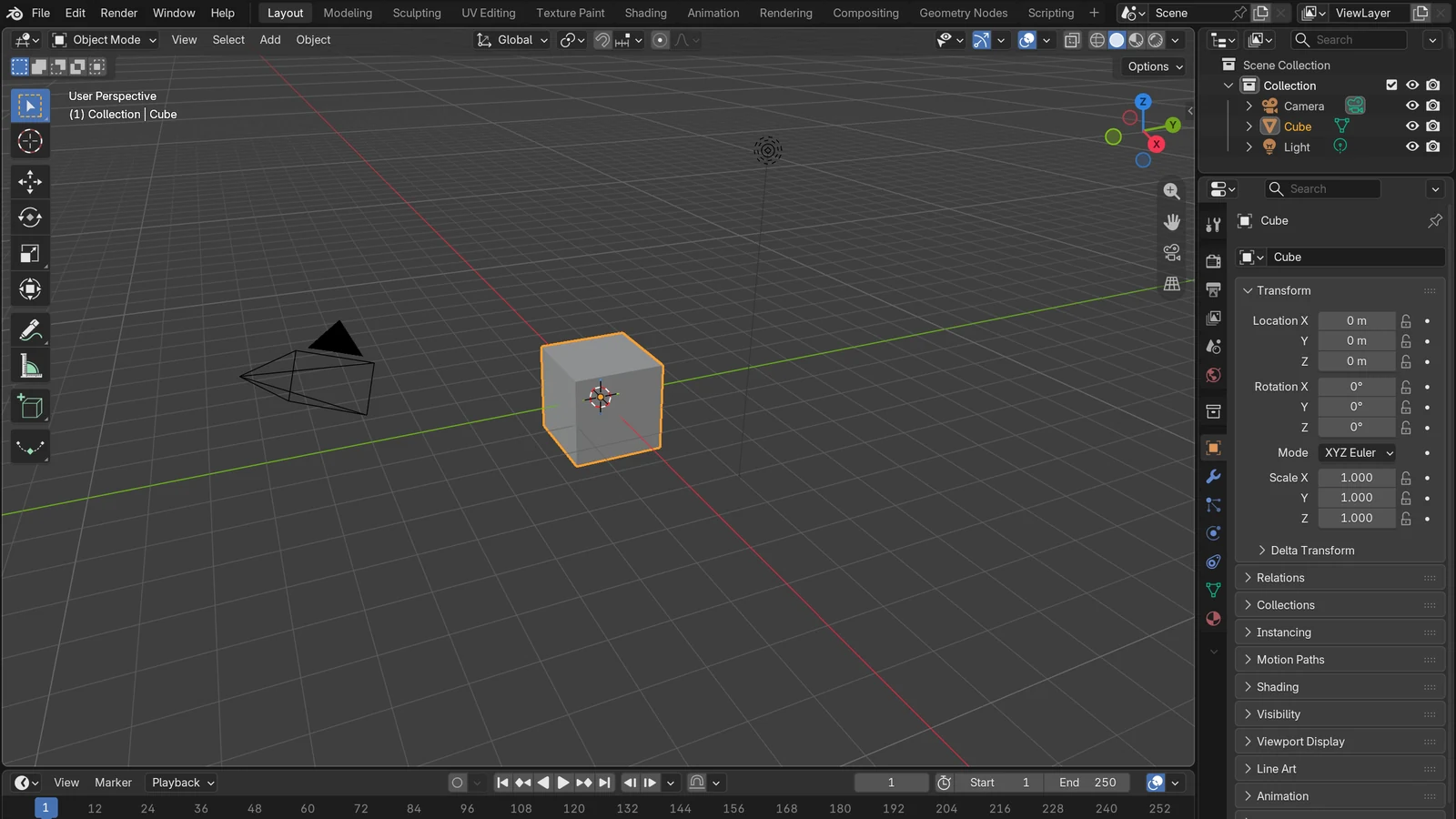
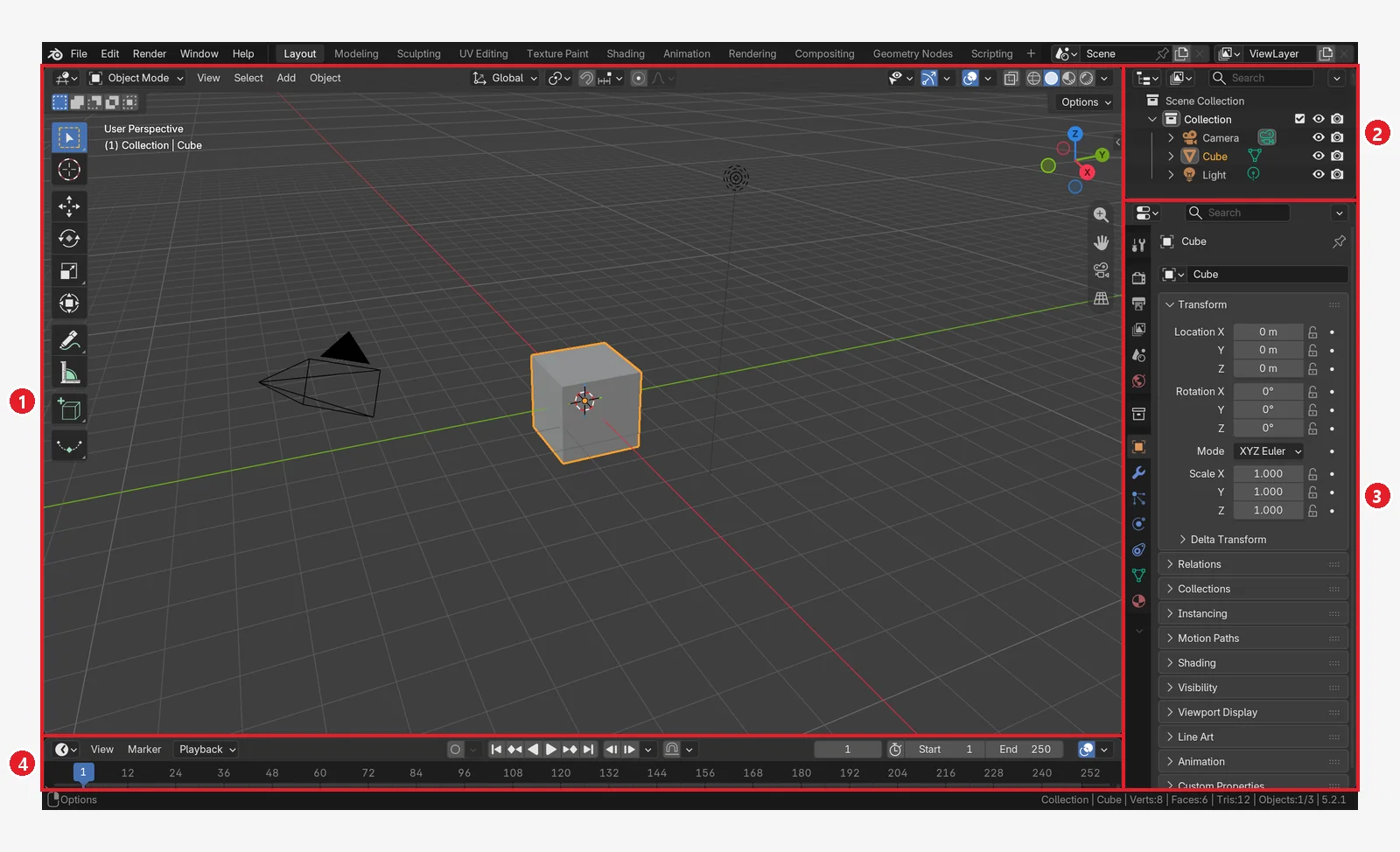 Figure 2-3. 1: 3D Viewport 2: Outliner 3: Properties 4: Timeline (Blender screenshot)
| Number | Name | In plain words |
|---|---|---|
| 1 | 3D Viewport | A window onto the 3D scene. The widest area |
| 2 | Outliner | A list of the objects in the scene. Right now there are three: Camera, Cube, and Light |
| 3 | Properties | The settings of the selected object and the scene. Switch tabs with the vertical icons on its left |
| 4 | Timeline | The time bar for animation. The numbers from 1 to 250 are frame numbers |
The default scene has three objects.
- The gray box (Cube) in the middle
- The pyramid-shaped lines (Camera) on the left: the camera that takes pictures
- The dotted circle (Light) at the top: the light
The orange outline around the cube means it is selected. In the Outliner on the right, the word Cube is orange too. You will learn about selection in chapter 3.
4. The Topbar and workspace tabs
4-1. A look at the Topbar
 Figure 2-4. 1: main menus (File, Edit, Render, Window, Help) 2: the current workspace, Layout 3: the other workspace tabs. The right end is cut off after the Scripting tab. To its right is a
 + button for adding a workspace (Blender screenshot)
- 1. Main menus: saving and opening files (File), undo and preferences (Edit), rendering (Render), window management (Window), and help (Help).
- 2 and 3. Workspace tabs: Layout, Modeling, Sculpting, UV Editing, Texture Paint, Shading, Animation, Rendering, Compositing, Geometry Nodes, Scripting.
A workspace is "a desk laid out in advance for a certain job". When you switch tabs, the scene (the objects) stays the same. Only the layout of the areas and the kinds of editors change.
4-2. Follow along: click the Shading tab (before → after)
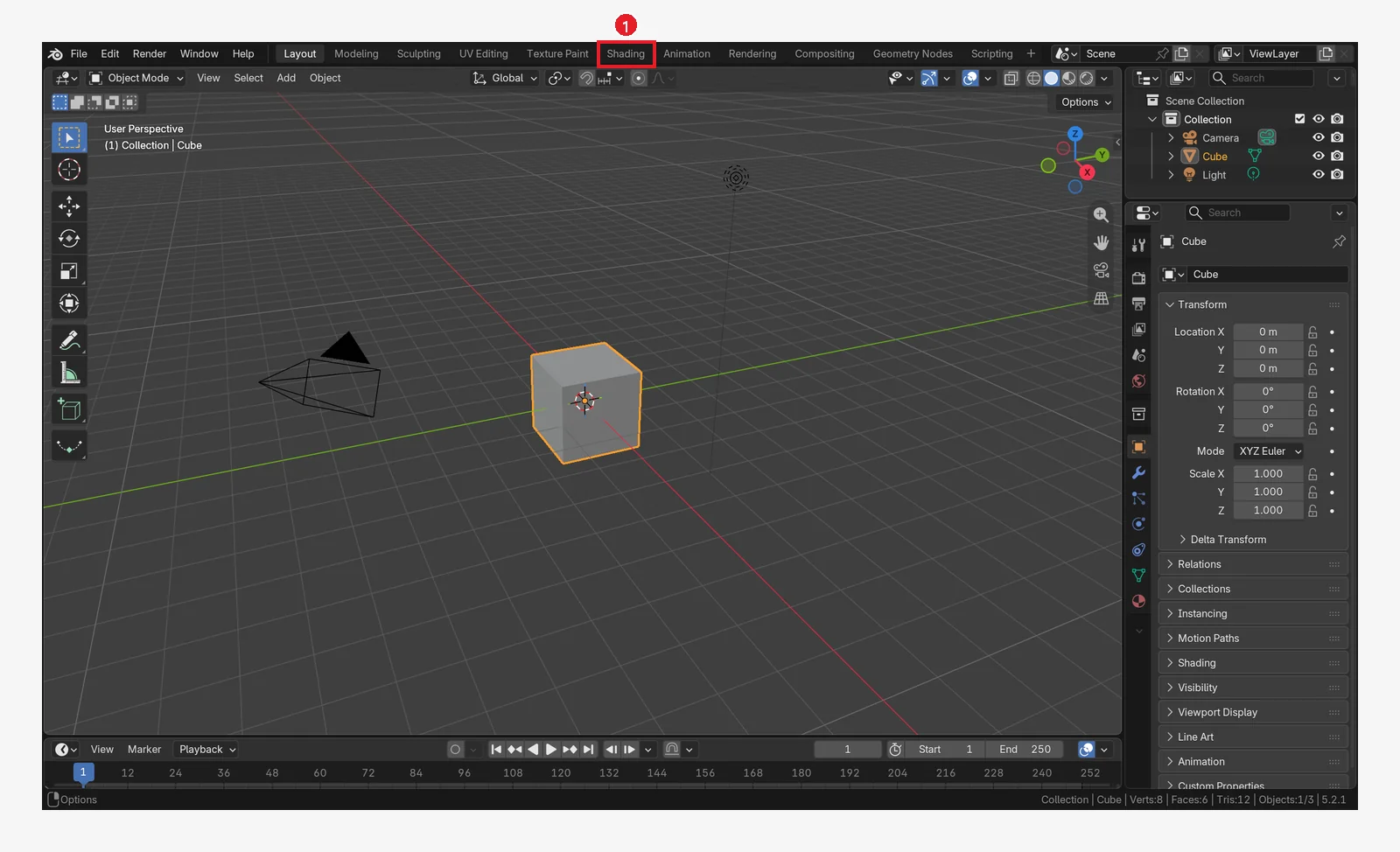 Figure 2-5. Before: click 1, the Shading tab on the Topbar (Blender screenshot)
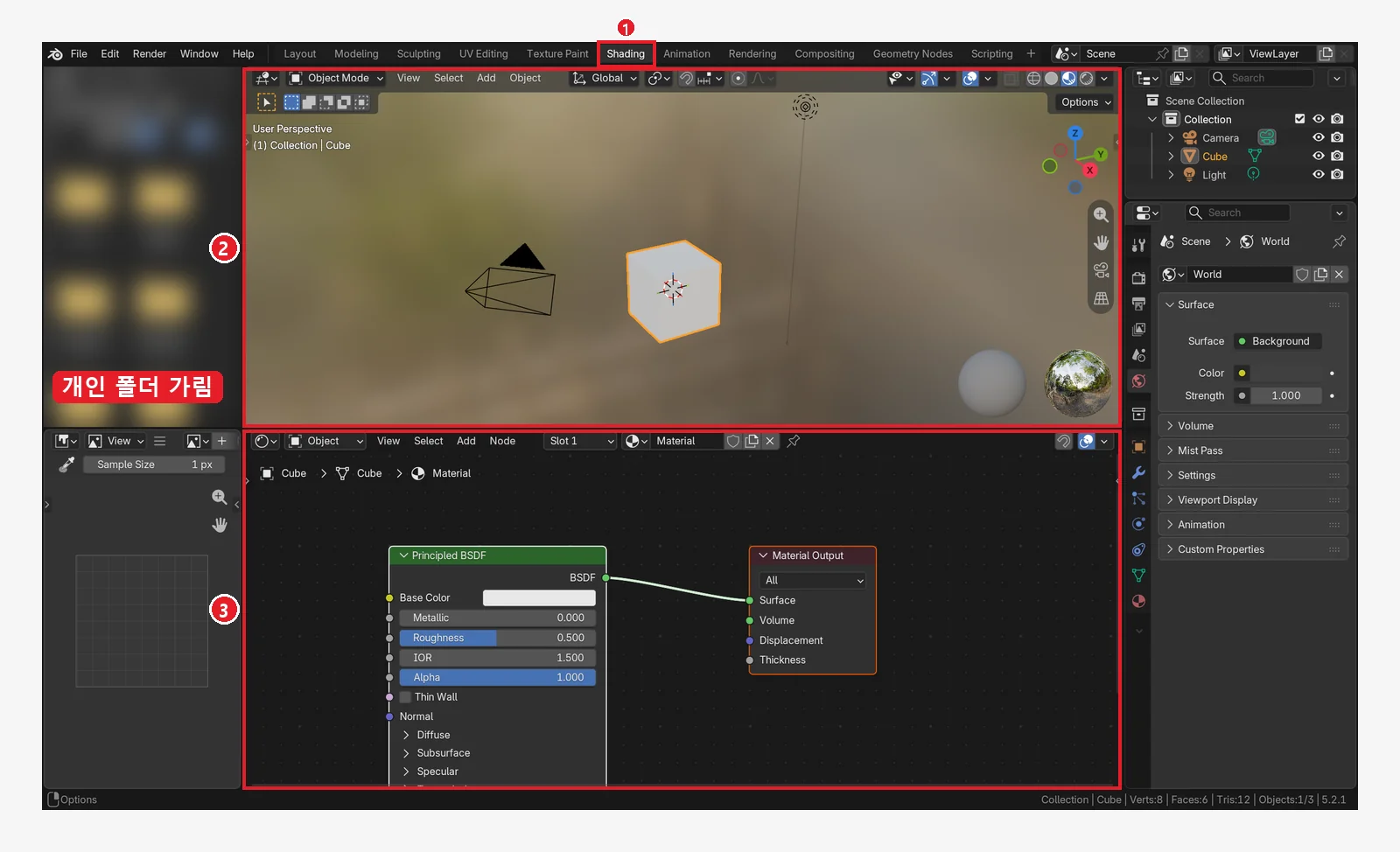 Figure 2-6. After: 1: it switches to the Shading workspace 2: a 3D Viewport that shows materials 3: the node editor. The file list at the top left showed a personal folder, so it is blurred (Blender screenshot)
It is the same cube, but now a landscape is reflected in the background and boxes (nodes) appear at the bottom. This layout suits making materials (you use it in chapter 8). Once you have seen it, click the Layout tab to go back.
You can also switch with the keyboard: Ctrl+Page Down (next tab) and Ctrl+Page Up (previous tab).
Caution (Modeling and Sculpting tabs): Do not click these two tabs yet. If you do, the cube switches to Edit Mode or Sculpt Mode. If you clicked one by mistake, go back to the Layout tab and check that the box at the top left of the 3D Viewport says Object Mode (2 in Figure 2-7 in Section 5-1). If it says something else, put the mouse over the 3D Viewport and press
Tab. The mistake that happens when you add a new object in Edit Mode is covered in chapter 4, section 8.
5. The 3D Viewport header, toolbar, and sidebar
5-1. The left side of the header
The top row of the 3D Viewport is called the header.
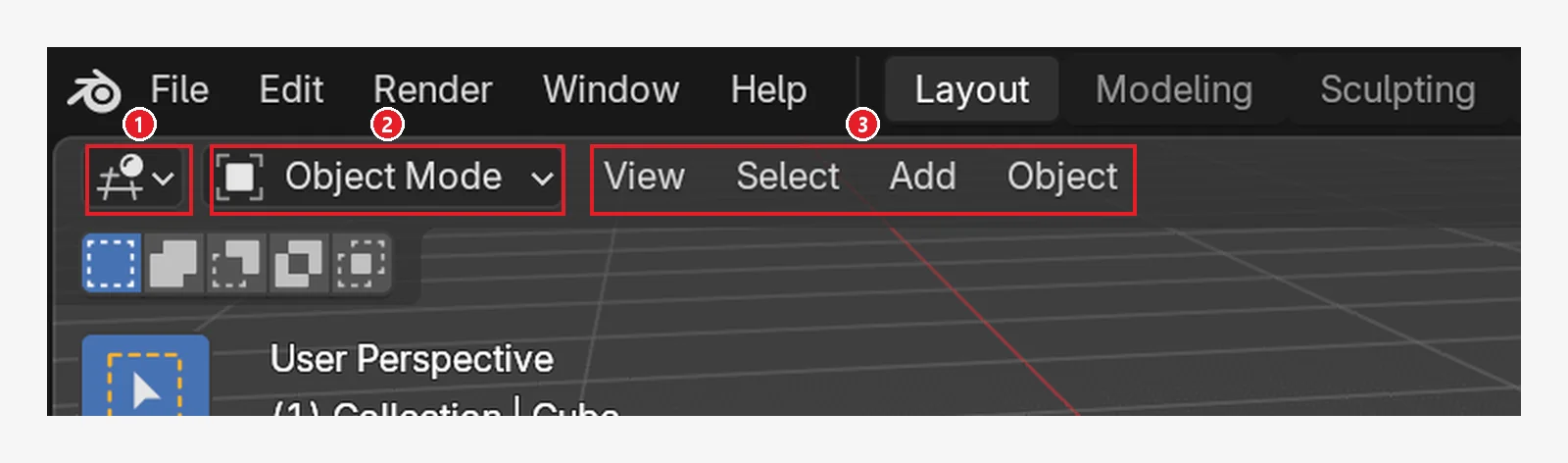 Figure 2-7. 1: editor type 2: mode (now Object Mode) 3: four menus: View, Select, Add, Object (Blender screenshot)
- 1. Editor type: a button that changes this area into another editor. You do not need to touch it at first.
- 2. Mode: right now it is Object Mode. In this mode you move and rotate whole objects. This series always works in Object Mode until chapter 6.
- 3. Menus:
View,Select,Add, andObject. The view functions you learn in this chapter are also in theViewmenu (Figure 2-32).
5-2. The right side of the header
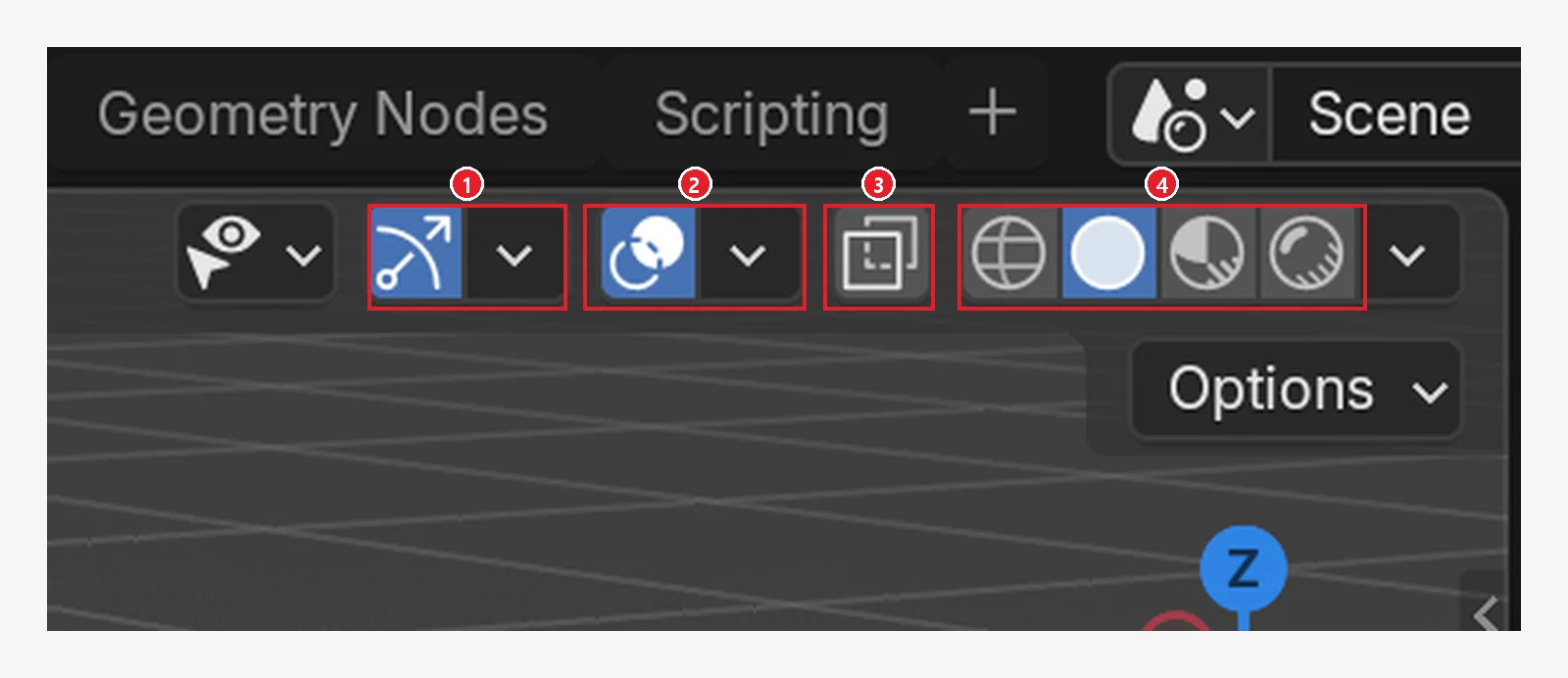 Figure 2-8. 1: turn gizmos on and off 2: turn overlays on and off 3: X-ray (see-through) 4: the four shading modes, from the left: Wireframe, Solid, Material Preview, Rendered (Blender screenshot)
- 1. Gizmos: turns on and off the control graphics shown on screen (such as the axis gizmo in Section 6).
- 2. Overlays: turns on and off helper displays such as the grid floor and axis lines.
- 3. X-ray: makes objects see-through so you can see what is behind.
- 4. Shading modes (Viewport Shading): right now it is the second one, Solid (looks like gray clay). You change it in Section 9.
5-3. Toolbar: hide and show with T (before → after)
The vertical row of icons on the left of the 3D Viewport is the Toolbar. It holds tools such as select, move, rotate, and scale (chapter 3).
Follow along: Put the mouse over the 3D Viewport and press T. When the toolbar disappears, press T once more to bring it back.
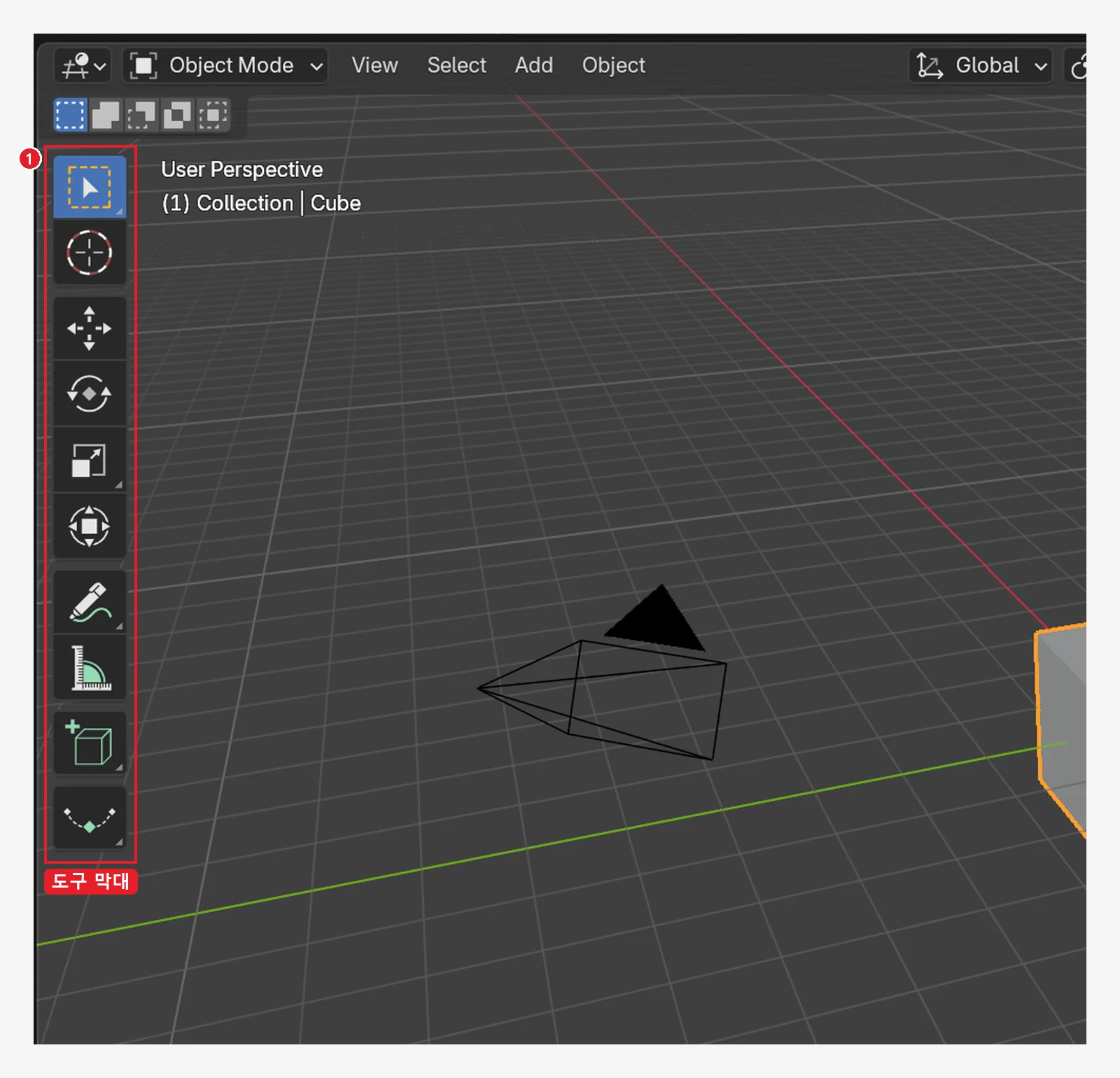 Figure 2-9. Before: 1: the toolbar is showing (Blender screenshot)
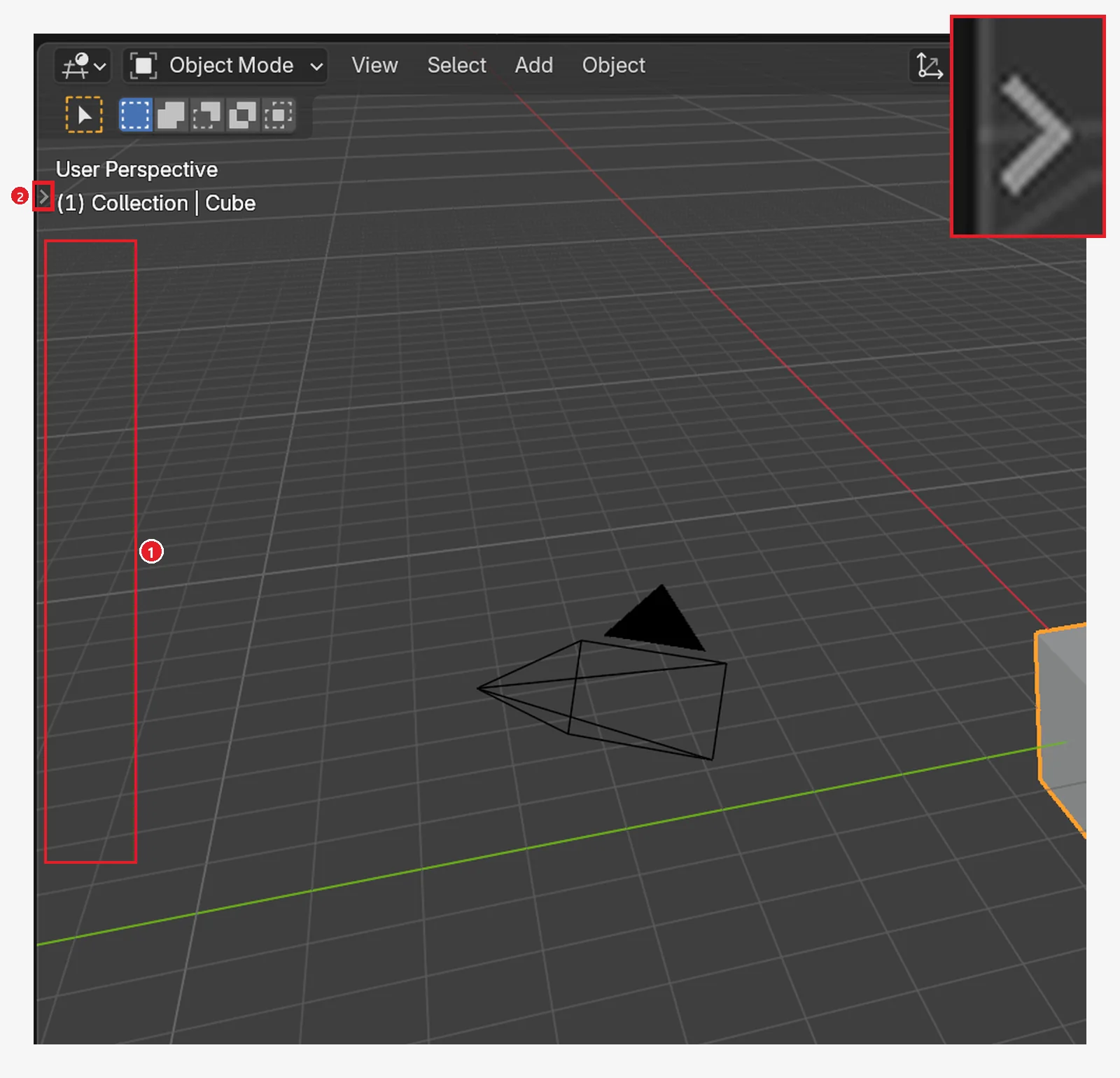 Figure 2-10. After pressing
 T over the 3D Viewport: 1: the space where the toolbar was is now empty 2: a small arrow (>) stays at the left edge. The top right shows this arrow enlarged 8 times. Click the arrow or press T again to bring the toolbar back (Blender screenshot)
5-4. Sidebar: hide and show with N (before → after)
On the right of the 3D Viewport there is a Sidebar that is usually hidden.
Follow along: Put the mouse over the 3D Viewport and press N.
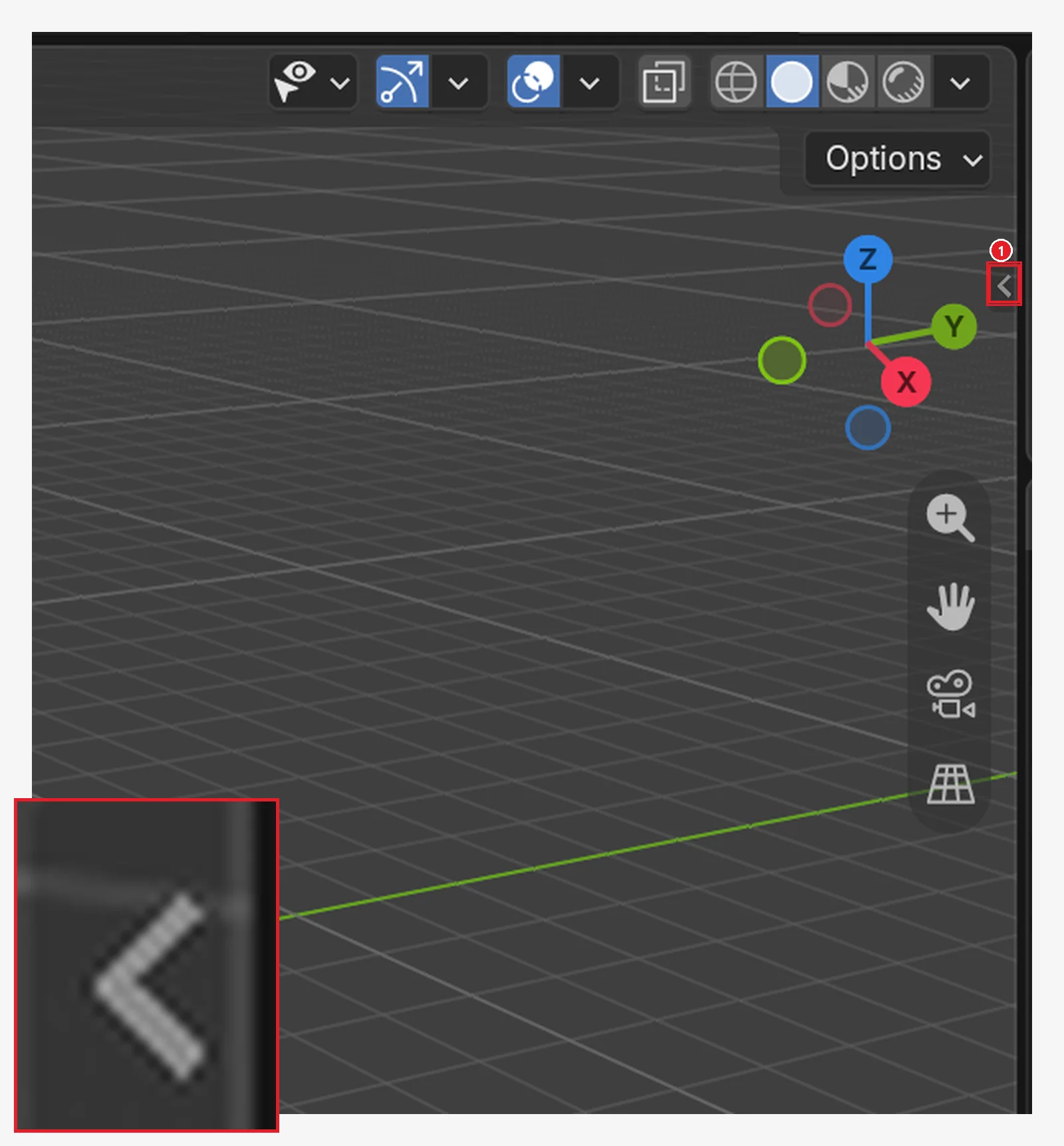 Figure 2-11. Before: at the top right edge of the 3D Viewport there is 1, a small arrow (<). The bottom left shows it enlarged. Click here or press
 N (Blender screenshot)
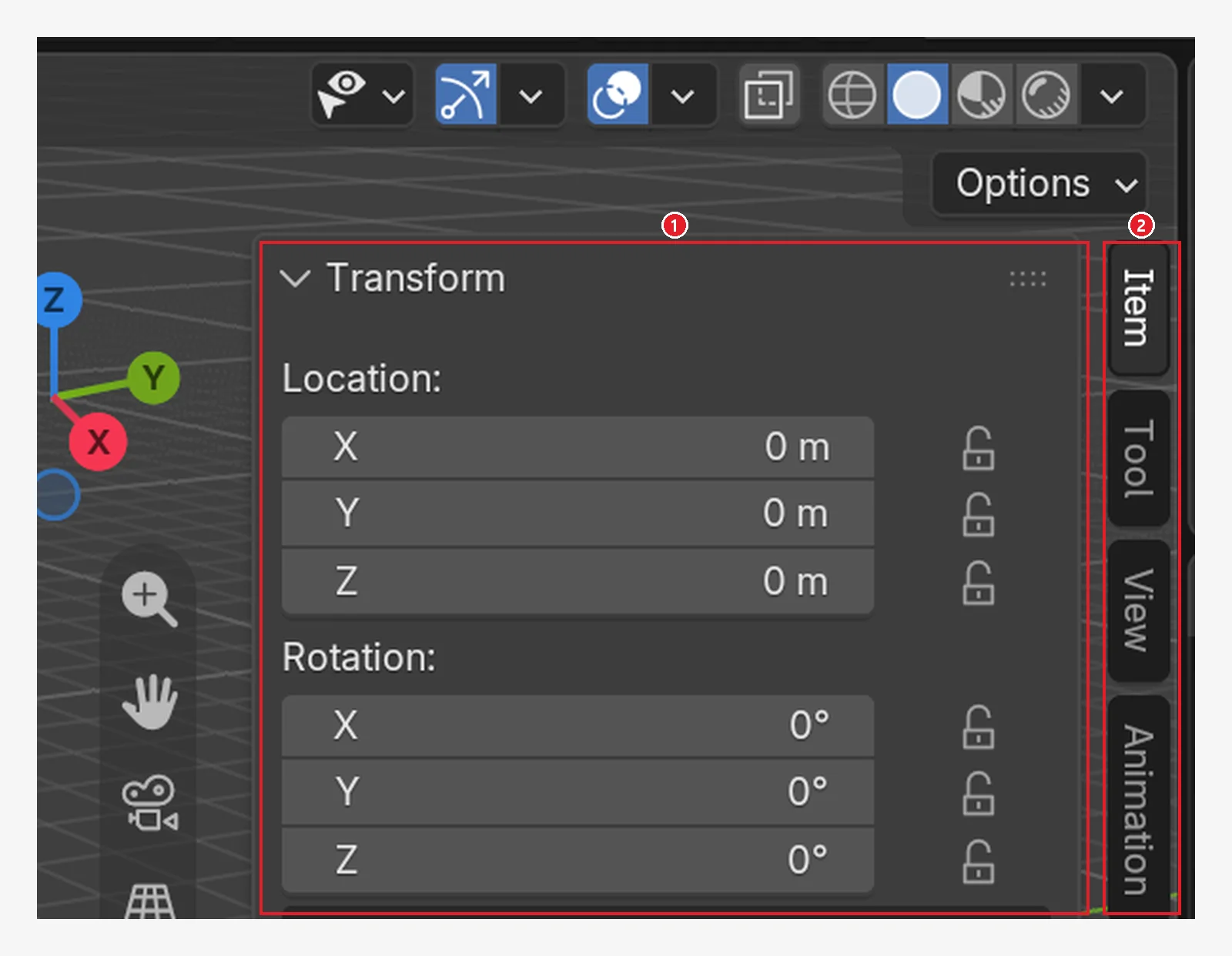 Figure 2-12. After: 1: the sidebar opens and shows the Location and Rotation of the selected object 2: vertical tabs (Item, Tool, View, Animation). The tabs below them come from separately installed extras (add-ons), so they were cropped out (Blender screenshot)
You use the sidebar in chapter 3 to check an object's position as numbers. For now, press N once more to close it.
If the sidebar or toolbar disappears, you almost always pressed
TorNby mistake. Put the cursor over the 3D Viewport and press it again to bring it back.
6. Orbit, zoom, and pan (the heart of this chapter)
Looking at the 3D view is like walking around the scene with a camera in your hand. The objects stay still and only your eye moves. So however much you turn the view, the scene does not change.
6-1. The navigation gizmo
The colored balls and four icons at the top right are called the navigation gizmo. You can change the view with the mouse alone, which makes it especially useful when you are starting out.
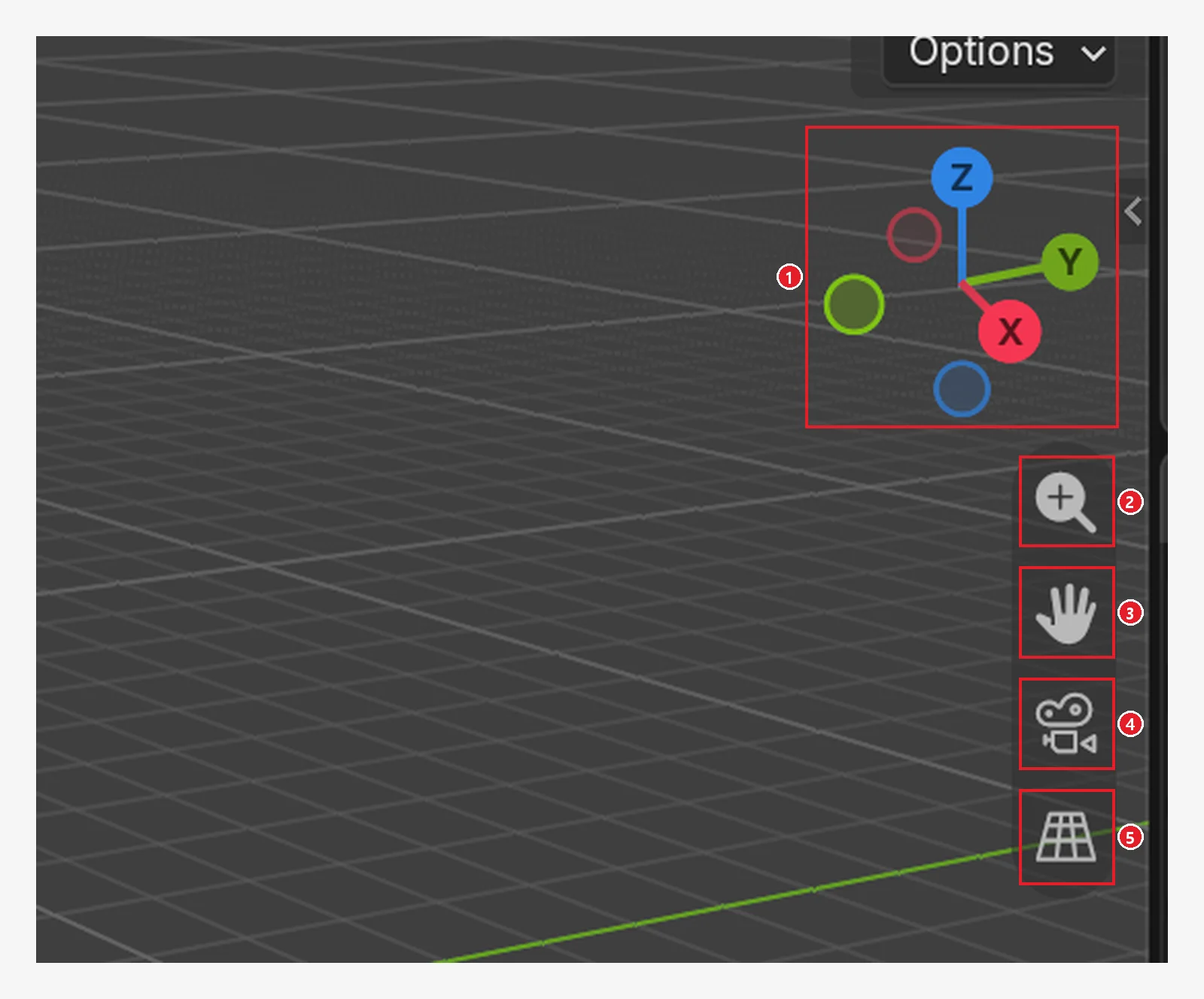 Figure 2-13. 1: axis gizmo 2: zoom (magnifying glass) 3: pan (hand) 4: camera view 5: perspective/orthographic toggle (grid) (Blender screenshot)
| Number | Action | Result |
|---|---|---|
| 1. Axis gizmo | Drag with the left button | Orbit the view |
| 1. Axis gizmo | Click the X, Y, or Z ball | View from that axis |
| 2. Magnifying glass | Drag up and down with the left button | Zoom in and out |
| 3. Hand | Drag with the left button | Slide the view sideways |
| 4. Camera | Click | Switch to what the camera sees (click again to go back) |
| 5. Grid | Click | Switch between perspective and orthographic |
Learn the axis colors too: red = X, green = Y, blue = Z (up). The red line on the floor is the X axis, and the green line is the Y axis.
6-2. Orbit: middle-button drag (before → after)
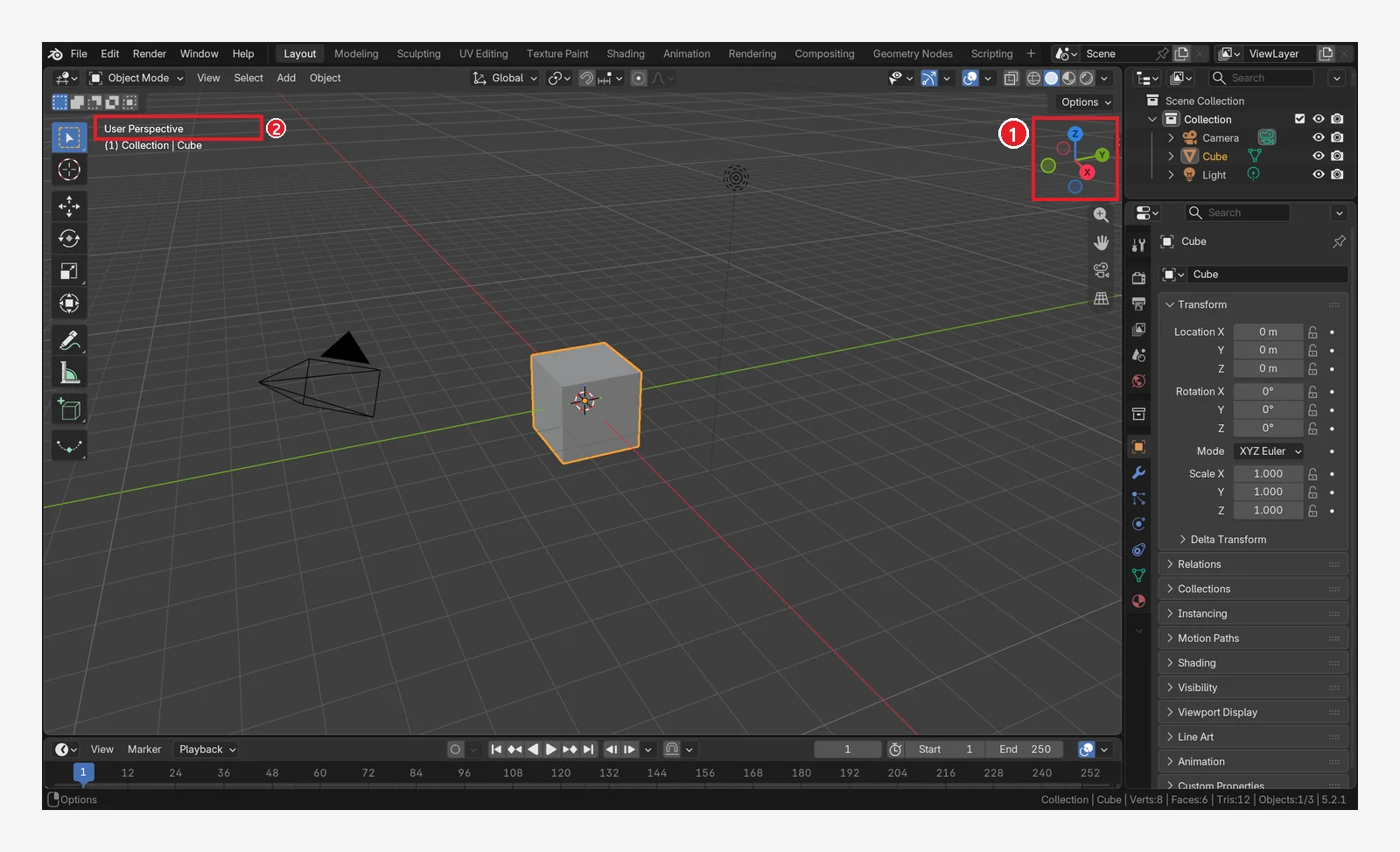 Figure 2-14. Before orbiting: 1: the direction of the axis gizmo 2: the view name at the top left, "User Perspective" (a perspective view set by the user) (Blender screenshot)
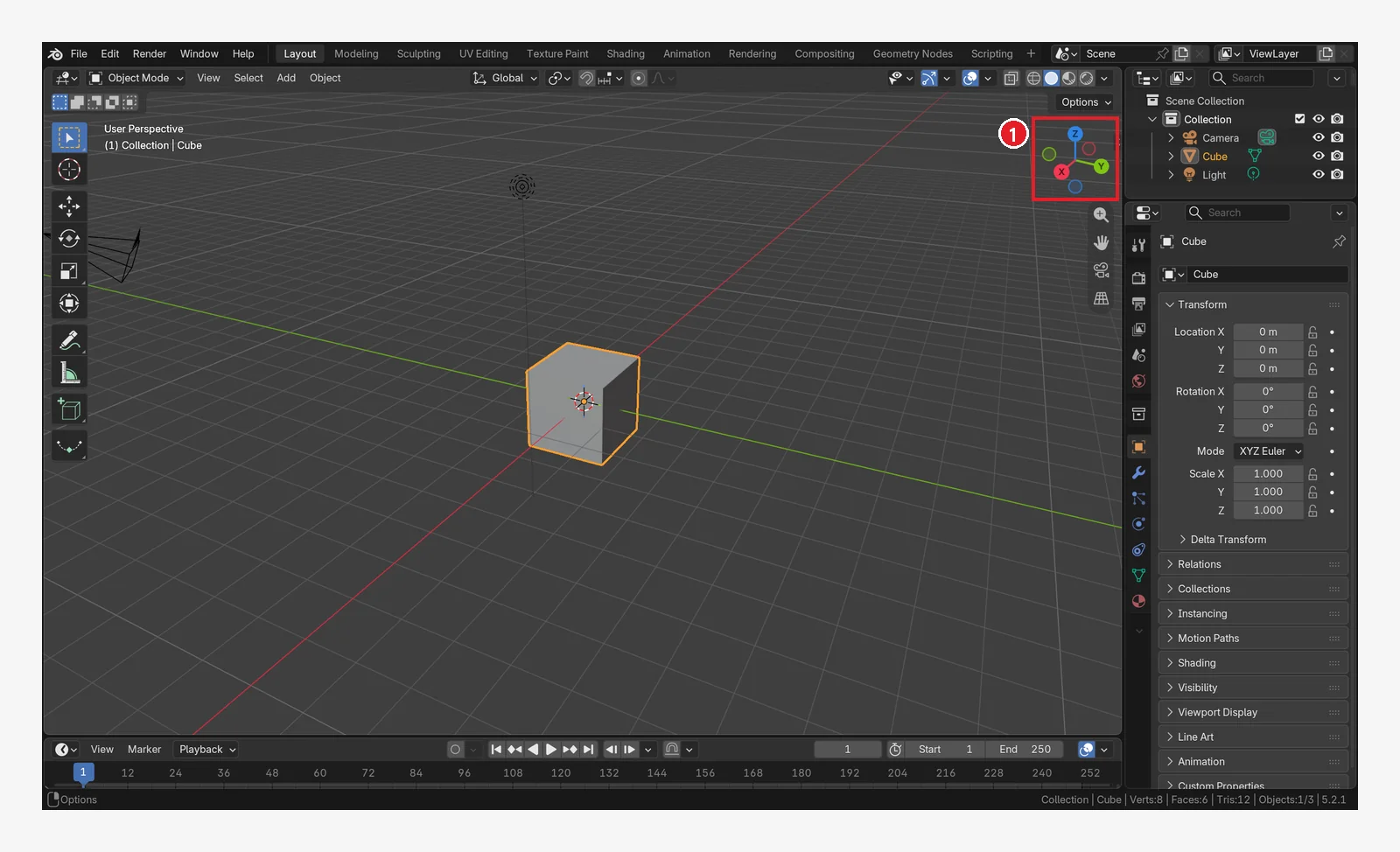 Figure 2-15. After holding the middle button and dragging the mouse sideways: you see the scene from another angle. 1: the axis gizmo turns with it (Blender screenshot)
- How: put the cursor over the 3D Viewport, hold the wheel down, and move the mouse.
- A right click cancels the orbit.
- Numpad
4and6(left and right) and8and2(up and down) turn the view by a set angle. Numpad9turns you to the opposite side.
6-3. Zoom: rolling the wheel
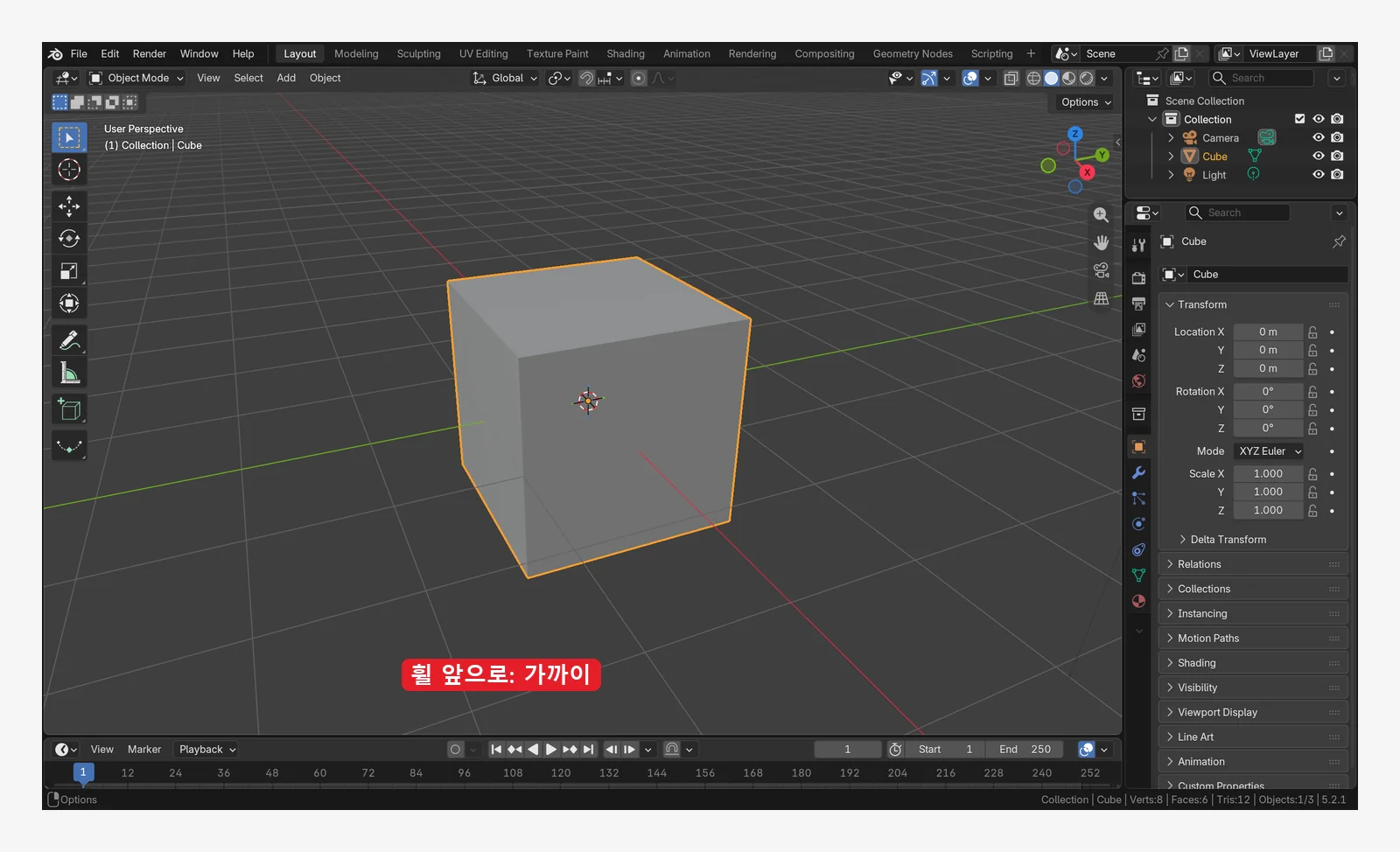 Figure 2-16. After rolling the wheel forward: you move closer and the cube looks larger. Compare it with Figure 2-14 (Blender screenshot)
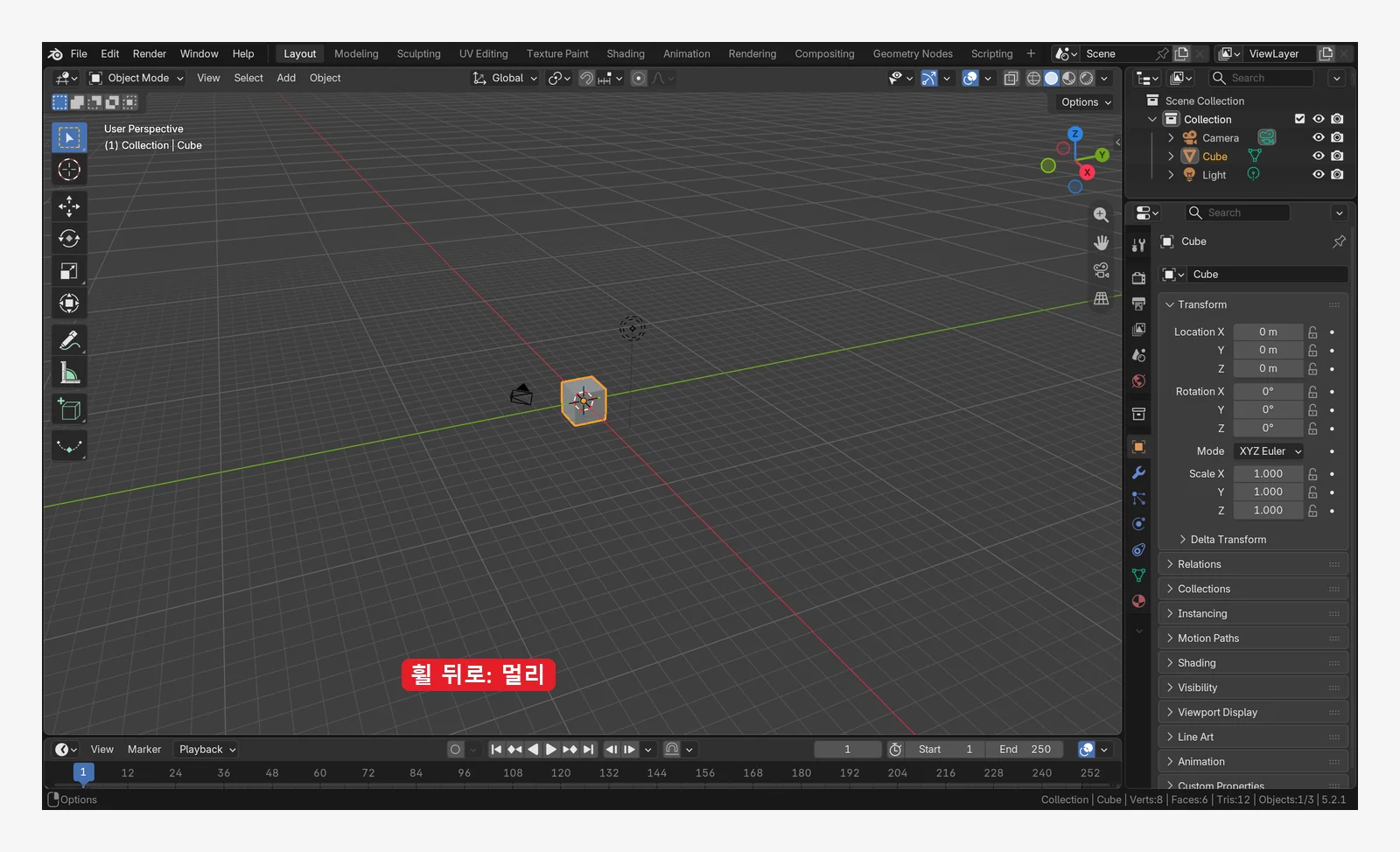 Figure 2-17. After rolling the wheel backward: you move away and the cube and camera look smaller (Blender screenshot)
There are several ways to zoom.
- Roll the wheel
Ctrl+middle-button drag (up and down)- Numpad
+/- Ctrl+=/Ctrl+-: handy on laptops without a numeric keypad.
6-4. Pan: Shift+middle-button drag
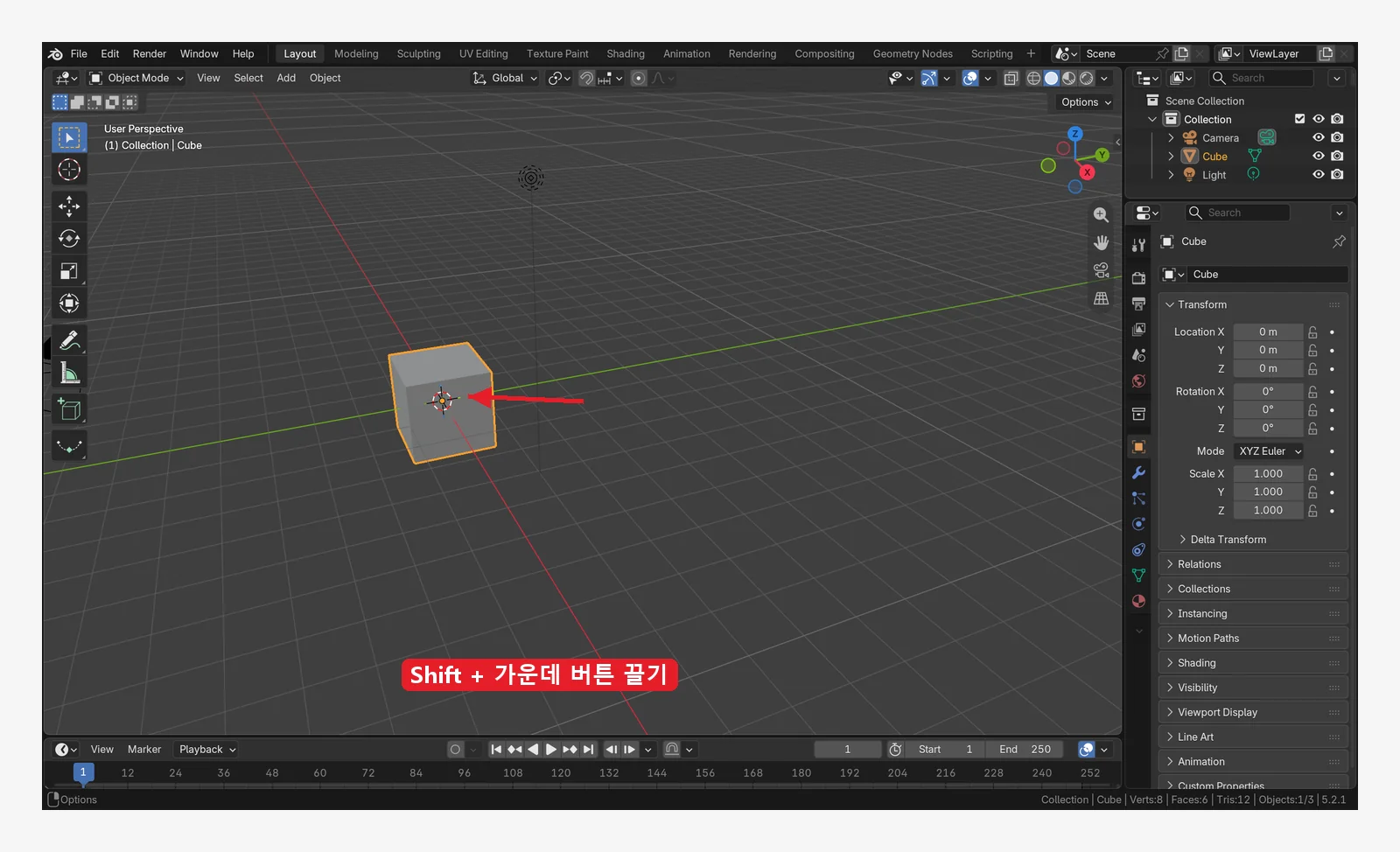 Figure 2-18. After holding
 Shift and dragging with the middle button: the view slides sideways and the cube moves away from the center of the screen. The arrow shows the direction in which the cube's place on screen moved (Blender screenshot)
Shift+rolling the wheel moves up and down.Ctrl+Numpad2,4,6,8moves by a set amount.
6-5. Summary on one page
| What you want | Mouse | Keyboard | Gizmo |
|---|---|---|---|
| Orbit | Middle-button drag | Numpad 2 4 6 8, opposite side 9 | Drag the axis gizmo |
| Zoom | Roll the wheel, Ctrl+middle-button drag | Numpad + -, Ctrl+= Ctrl+- | Drag the magnifying glass |
| Pan | Shift+middle-button drag | Ctrl+Numpad 2 4 6 8 | Drag the hand |
7. Looking from set directions
When you model, you often look "from the front" or "from the top". One numpad key takes you there. The view name at the top left of the 3D Viewport tells you which direction you are looking from.
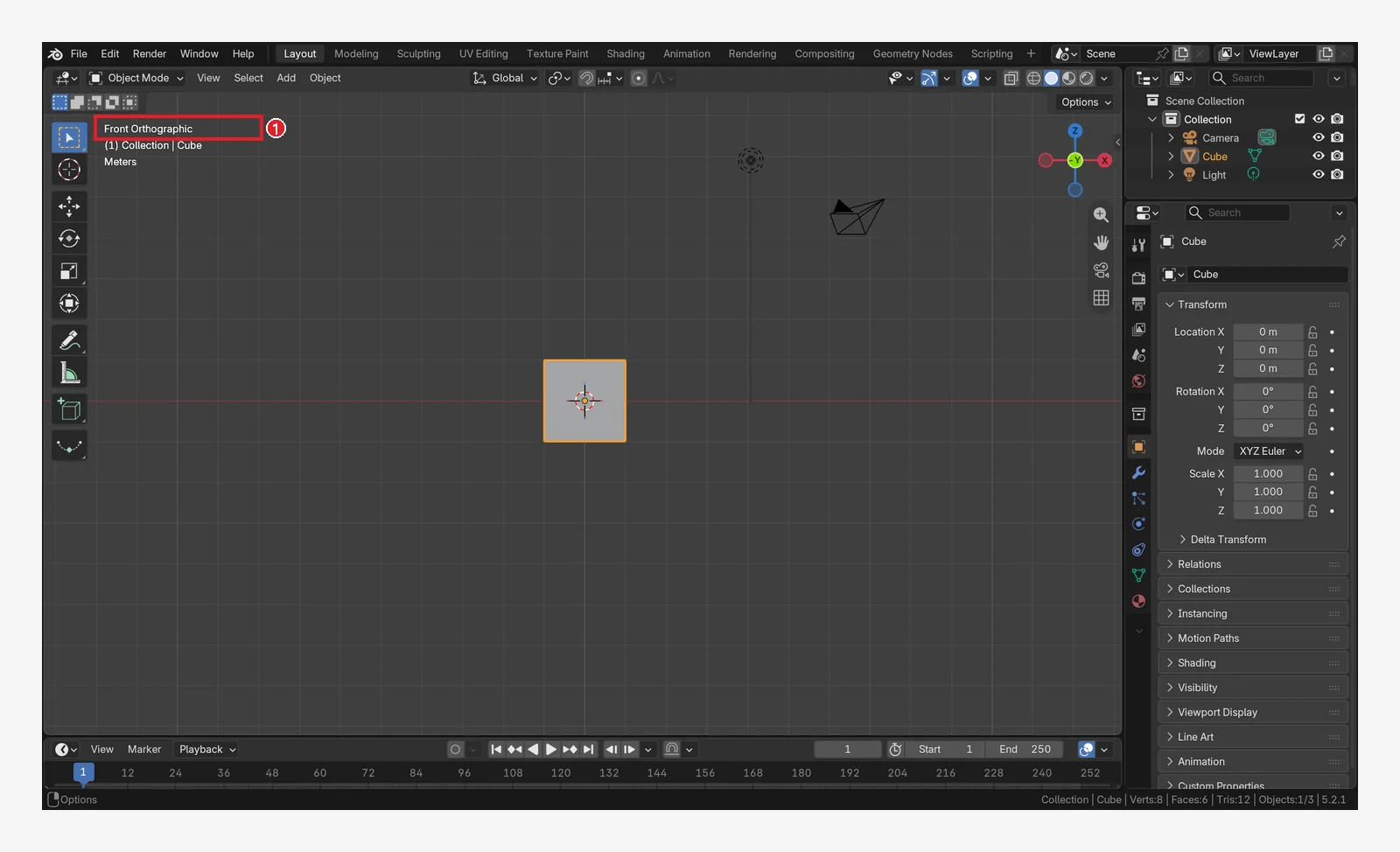 Figure 2-19. Numpad
 1: view from the front. 1: the view name "Front Orthographic" (Blender screenshot)
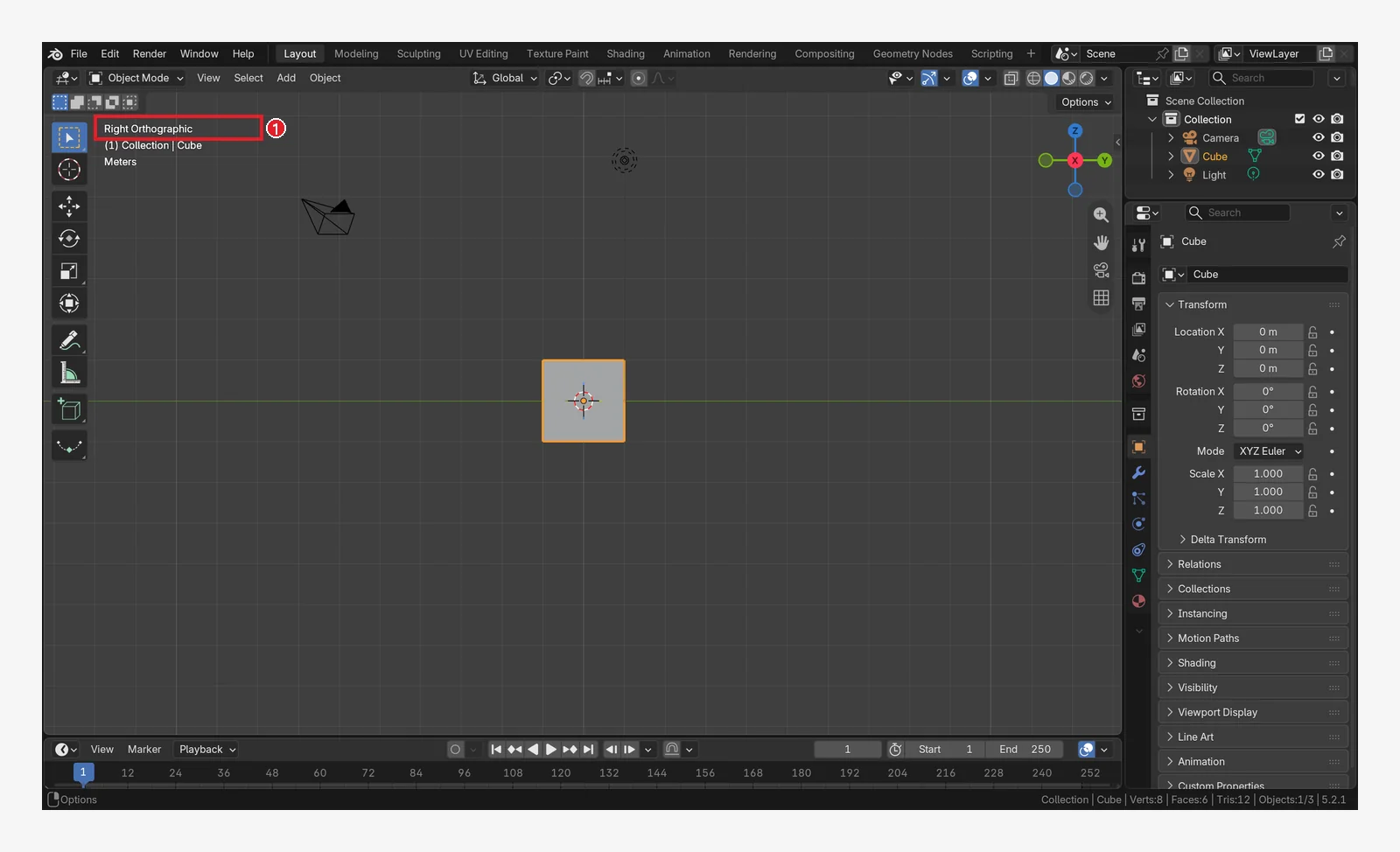 Figure 2-20. Numpad
 3: view from the right. 1: "Right Orthographic" (Blender screenshot)
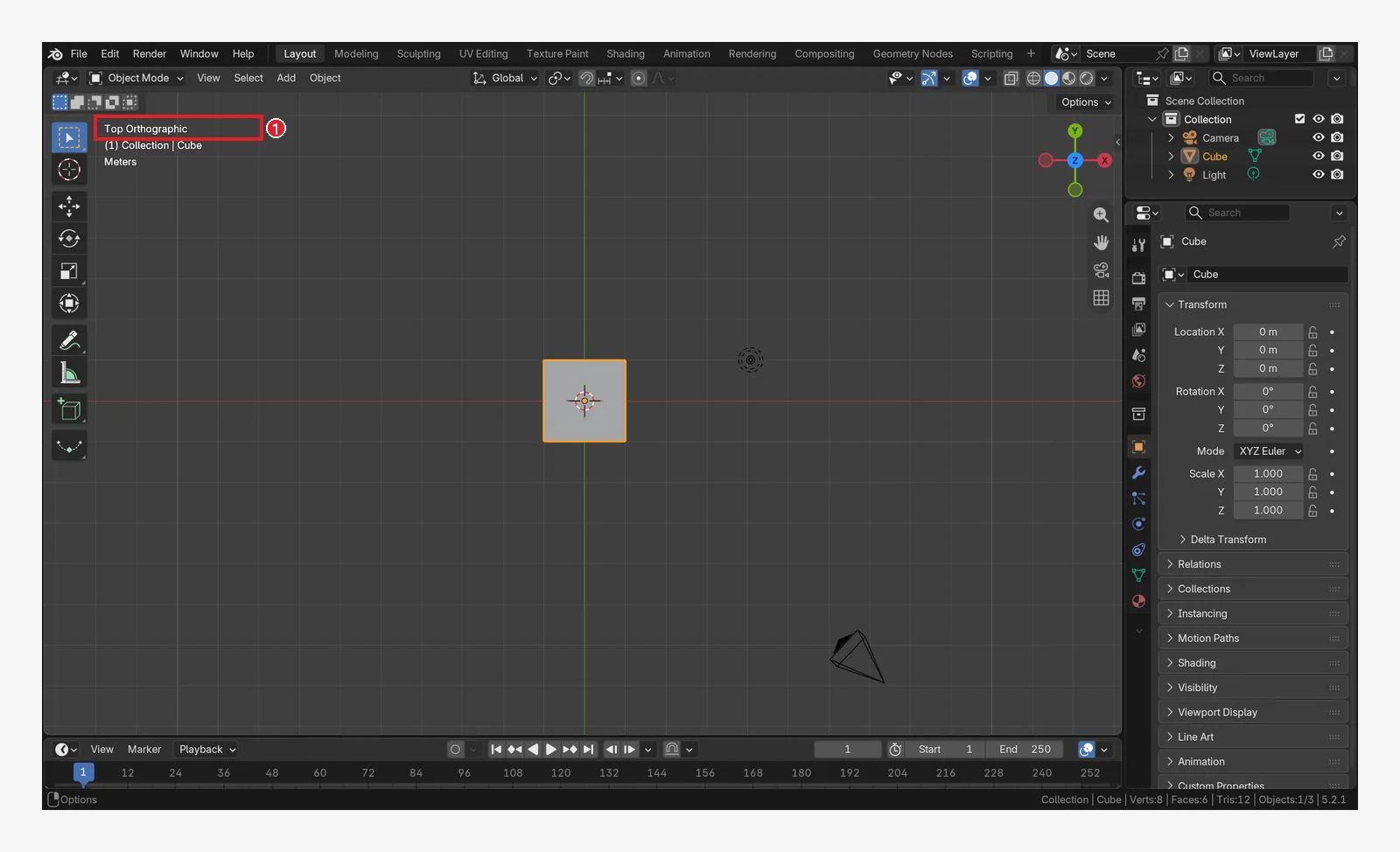 Figure 2-21. Numpad
 7: view from the top. 1: "Top Orthographic". The camera appears small at the bottom and the light at the top right (Blender screenshot)
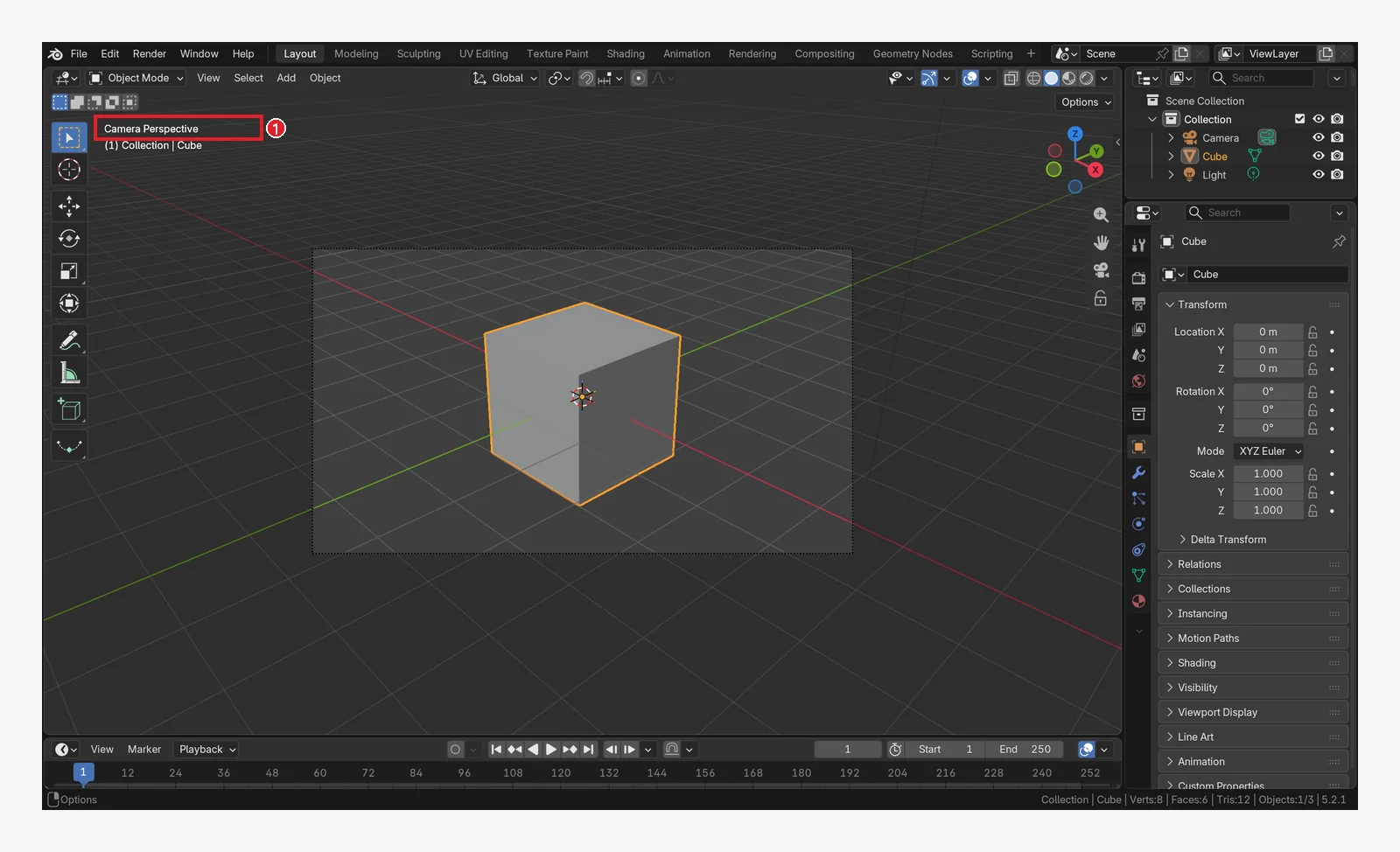 Figure 2-22. Numpad
 0: camera view. 1: "Camera Perspective". The bright rectangle in the middle is the area that appears in the render (the picture) (Blender screenshot)
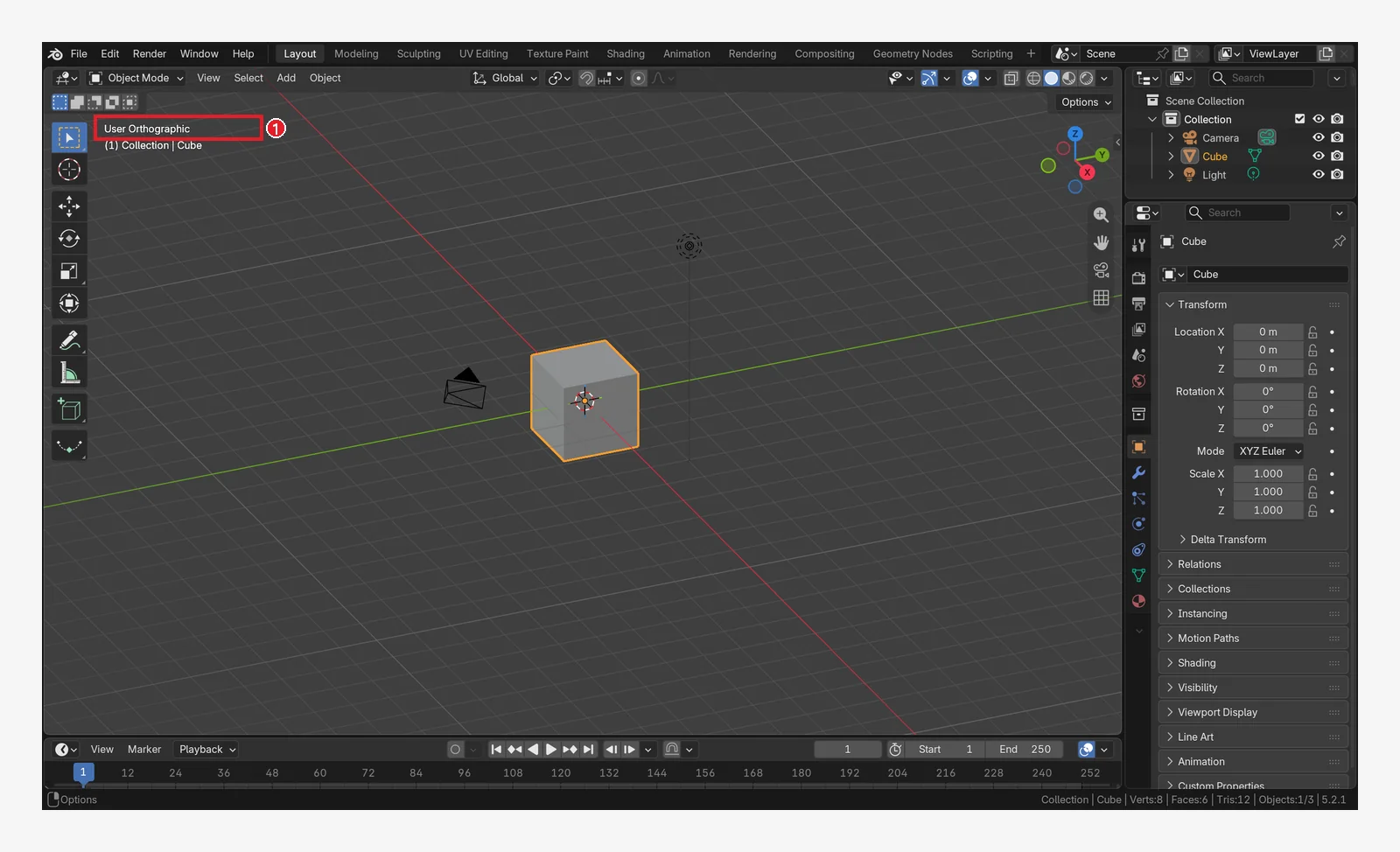 Figure 2-23. Numpad
 5: switch between perspective and orthographic. 1: "User Orthographic", a blueprint-like view where far things do not get smaller (Blender screenshot)
| Key (numpad) | Direction | Opposite (Ctrl+same key) |
|---|---|---|
1 | Front | Back |
3 | Right | Left |
7 | Top | Bottom |
0 | Camera | — |
5 | Perspective ↔ orthographic | — |
Perspective and orthographic: In perspective, far things look smaller, as they do to our eyes. In orthographic, things keep the same size however far away they are, which makes it good for matching measurements like a blueprint. When you go to a front, side, or top view, it turns orthographic automatically, and when you orbit with the middle button, it goes back to perspective. This comes from the Auto Perspective option in Preferences, which is on by default.
If you hold Alt and drag with the middle button, the view snaps to the axis closest to the direction you drag.
8. Getting back when you are lost
Beginners, and experienced users too, often get lost in 3D space (the official manual also says this is "not uncommon"). As long as you know how to get back, it is fine.
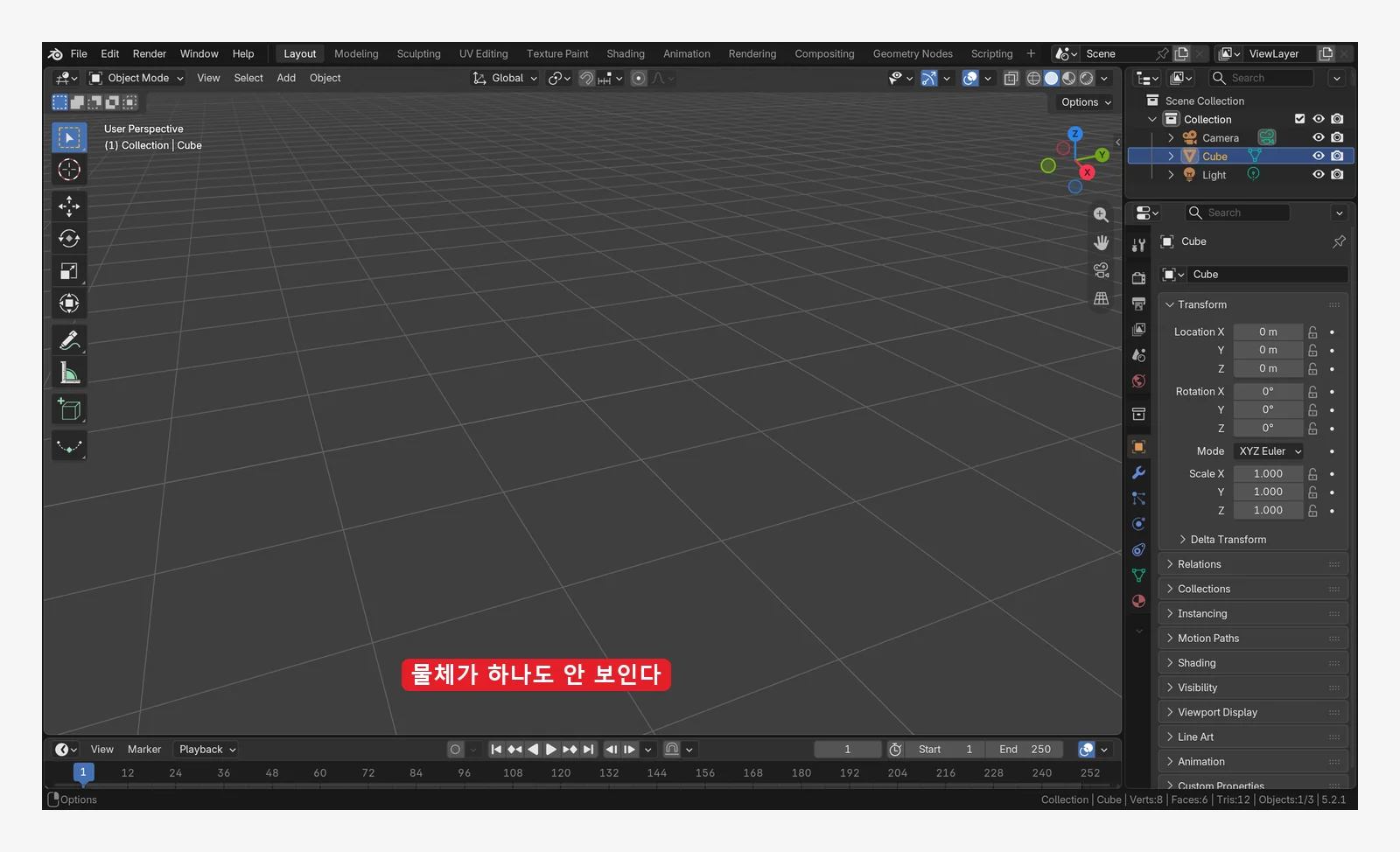 Figure 2-24. Lost: the view has moved far from the scene (about 90 m from the origin), so only the grid floor shows. The cube, camera, and light are all gone from view (Blender screenshot)
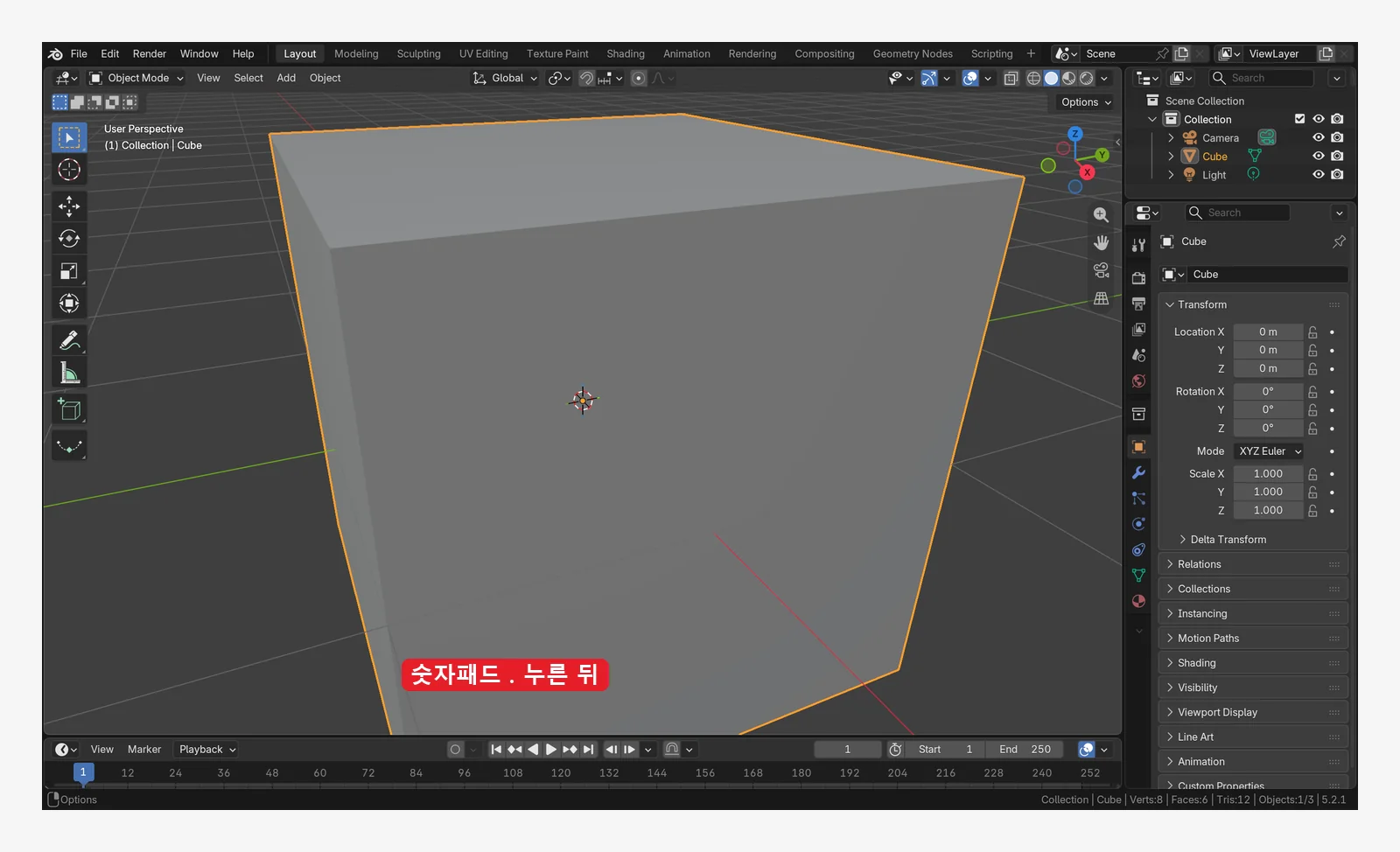 Figure 2-25. After pressing Numpad
 . (period, Frame Selected): the selected object (the cube) appears large in the middle of the screen (Blender screenshot)
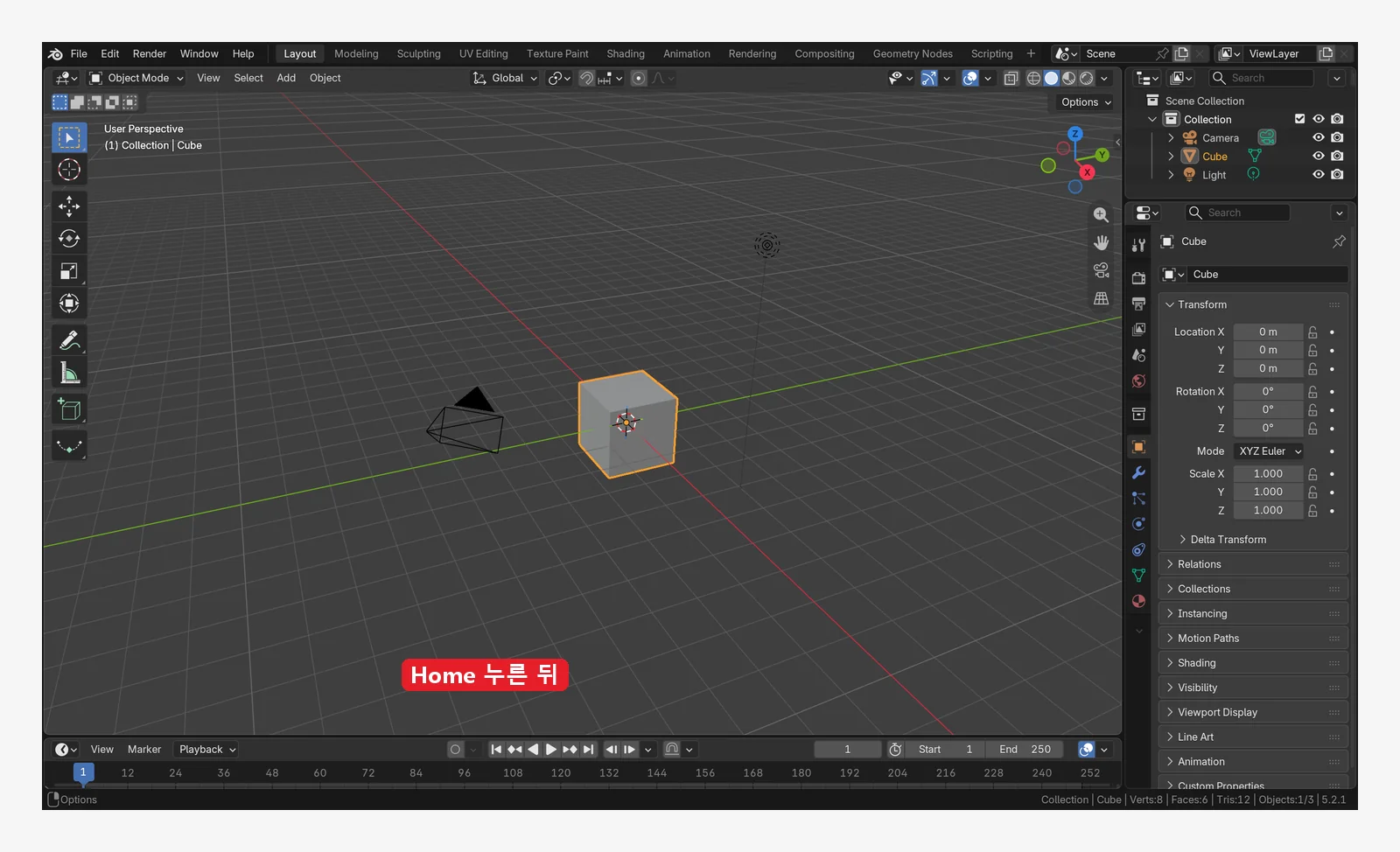 Figure 2-26. After pressing
 Home (Frame All): all objects in the scene fit on one screen (Blender screenshot)
| Situation | Key | Menu |
|---|---|---|
| Go to the selected object | Numpad . | View ‣ Frame Selected |
| See everything | Home | View ‣ Frame All |
Shift+C also shows everything. On top of that, it moves the 3D cursor (chapter 4) back to the origin.
9. Changing the shading mode
Click the four shading buttons on the right of the header (4 in Figure 2-8). The scene does not change. Only the way it is drawn changes.
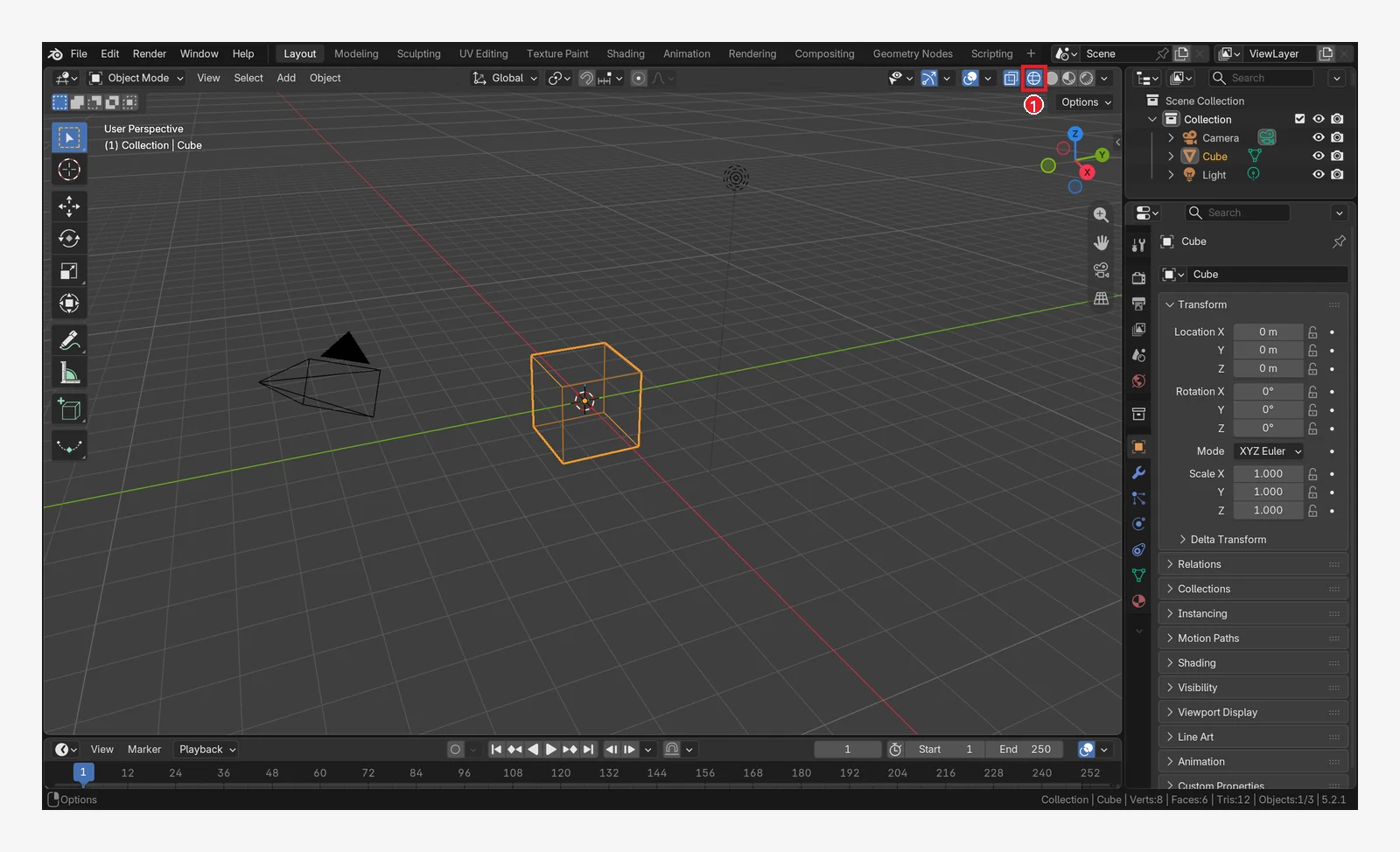 Figure 2-27. 1: the first button (Wireframe): draws only lines, so you can see through to the back. You can also toggle it with
 Shift+Z (Blender screenshot)
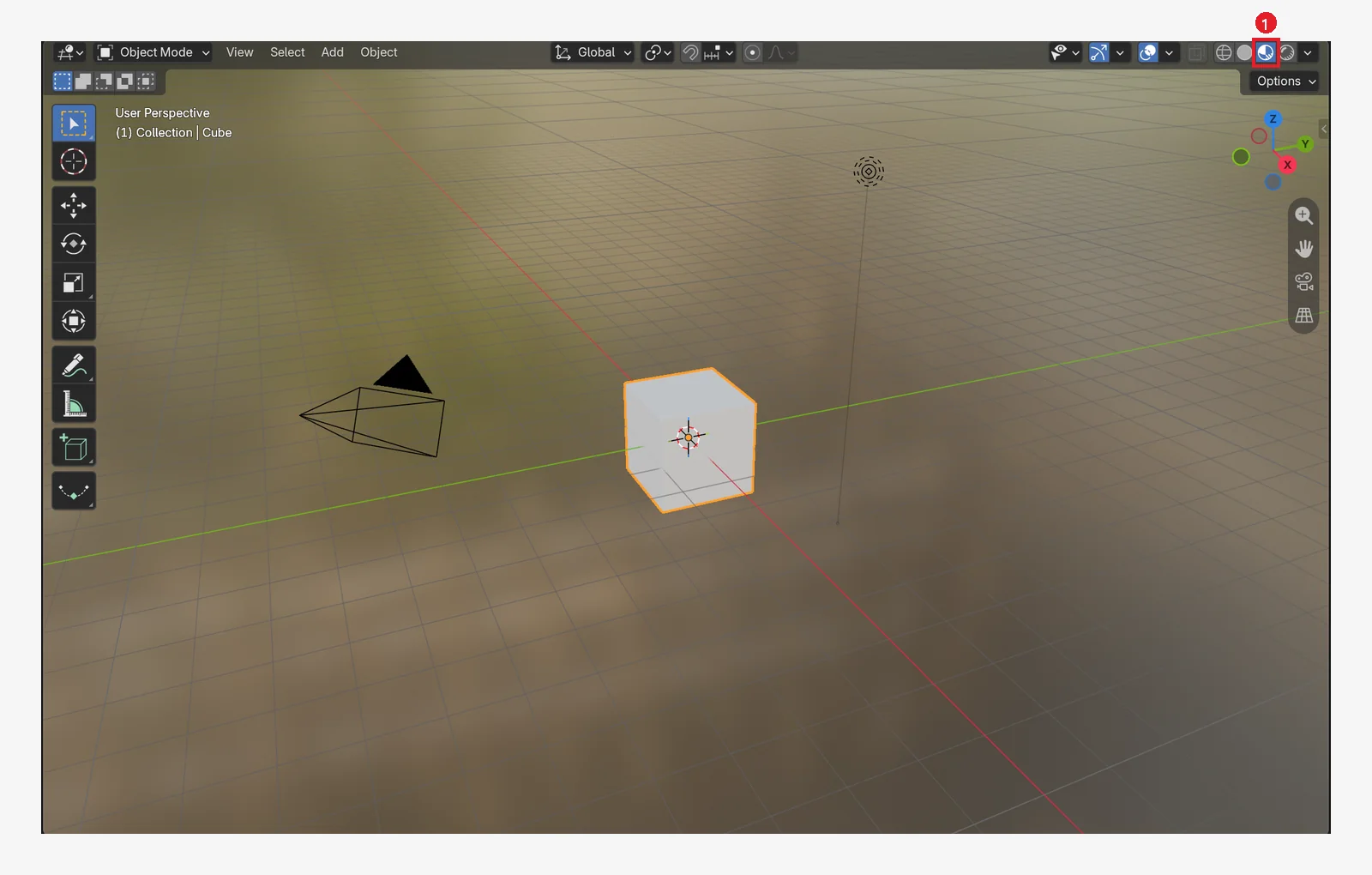 Figure 2-28. 1: the third button (Material Preview): previews colors and textures (Blender screenshot)
This image has the background landscape turned on. A gray background on your screen is normal. In the Shading workspace (Figure 2-6), the landscape shows from the start.
| Button | Name | When |
|---|---|---|
| 1 | Wireframe | When you want to see lines hidden at the back |
| 2 | Solid | Everyday work. Light and fast |
| 3 | Material Preview | Checking colors and materials (chapter 8) |
| 4 | Rendered | Nearly the final look, including lighting. It can slow the computer down |
When you are done, switch back to the second one, Solid. On the keyboard, pressing Z opens a round menu (a pie menu) for choosing the shading mode.
10. If you have no wheel mouse or no numeric keypad
10-1. How to open Preferences
The emulation settings are in Preferences. According to the manual, you open it from Edit ‣ Preferences... on the Topbar, or with Ctrl+, (comma).
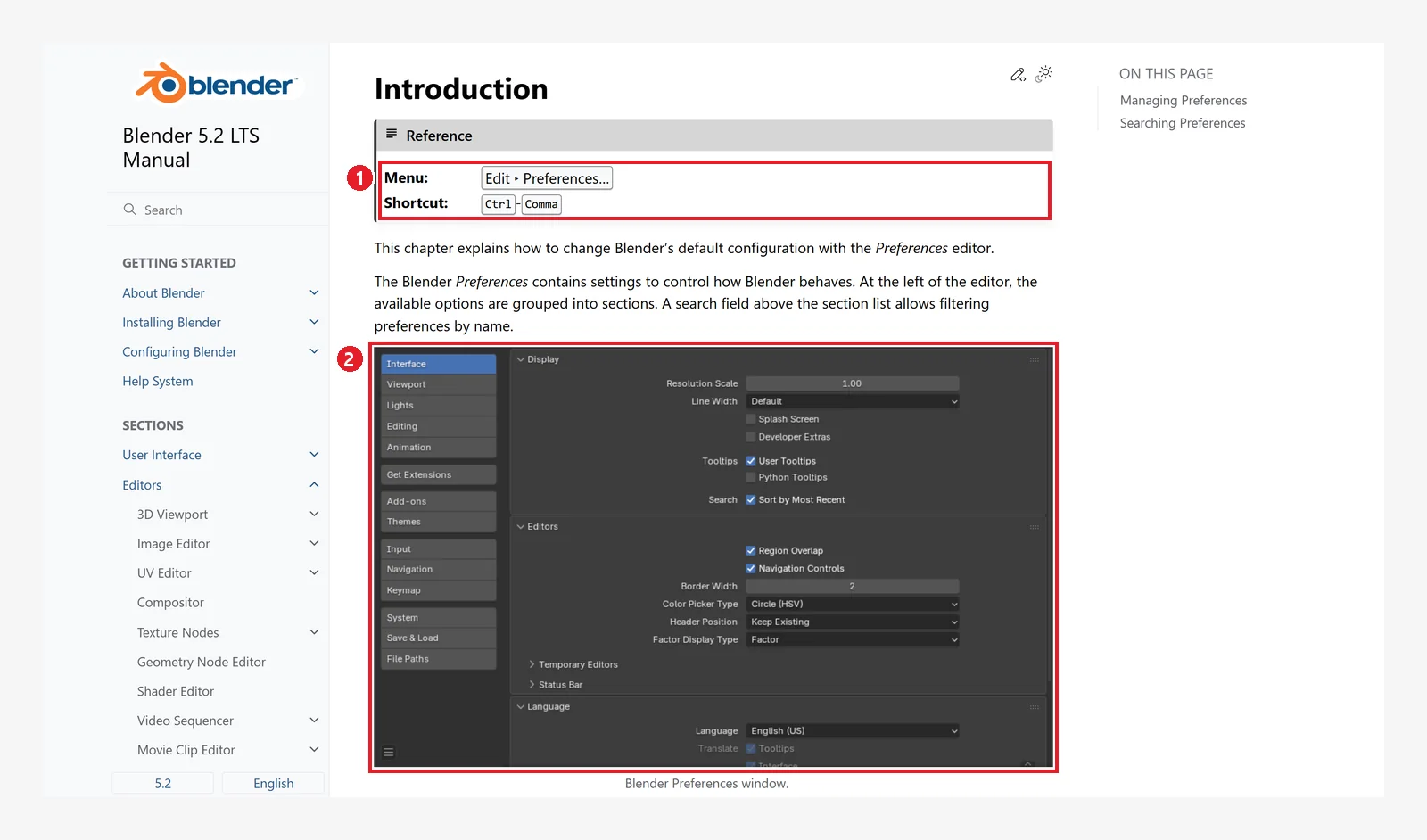 Figure 2-29. 1: the menu Edit ‣ Preferences... and the shortcut
 Ctrl+, 2: the Preferences window (the list of sections is on the left) (screenshot of the Blender 5.2 manual, CC BY-SA 4.0, numbers added)
10-2. Option A: turn on emulation settings
The Input section in the list on the left of Preferences has two settings.
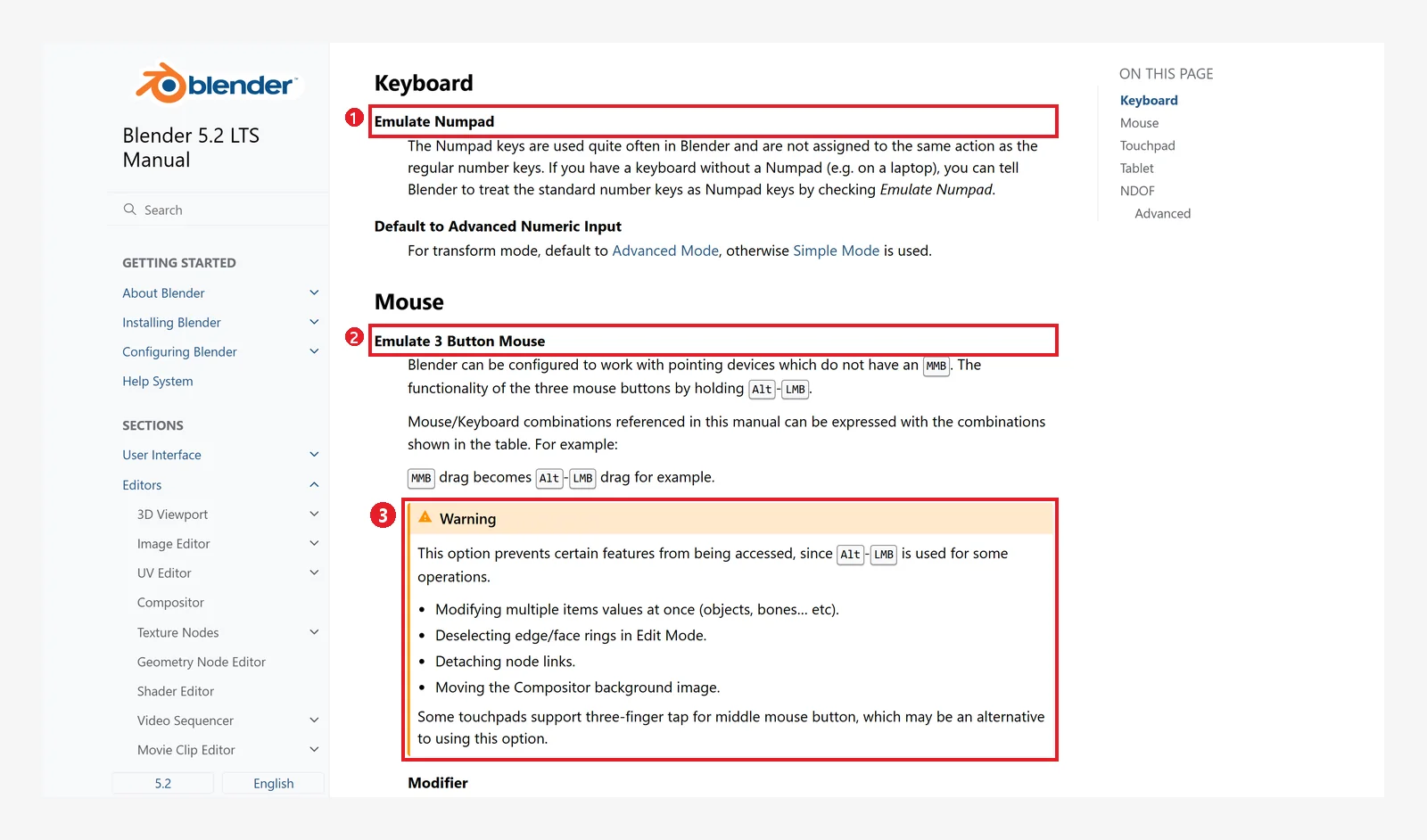 Figure 2-30. 1: Emulate Numpad 2: Emulate 3 Button Mouse 3: warning: turning on middle-button emulation loses some functions that use
 Alt+left click (screenshot of the Blender 5.2 manual, CC BY-SA 4.0, numbers added)
| Setting | When on | What you lose |
|---|---|---|
| Emulate Numpad | The number row at the top (1 to 0) works like the numpad | The number row's normal functions. For example, switching between vertex, edge, and face select in Edit Mode (1, 2, 3) |
| Emulate 3 Button Mouse | Alt+left-button drag works as a middle-button drag | A few functions that use Alt+left click (such as changing a value on several objects at once) |
Both settings are off by default.
When you turn on middle-button emulation, the combinations change as below, following the manual's rule ("a middle-button drag becomes Alt+left drag").
| Before | After turning on emulation |
|---|---|
| Middle-button drag (orbit) | Alt+left drag |
Shift+middle-button drag (pan) | Shift+Alt+left drag |
Ctrl+middle-button drag (zoom) | Ctrl+Alt+left drag |
10-3. Option B: keys that work without emulation (recommended)
You can do most things without changing any settings.
| What you want | Without a numpad or wheel |
|---|---|
| Orbit, view from an axis | Drag or click the axis gizmo at the top right (1 in Figure 2-13) |
| Zoom | Ctrl+= / Ctrl+-, or drag the magnifying glass icon |
| Pan | Drag the hand icon |
| Front, side, top views | ` (top left of the keyboard, the tilde key to the left of the 1 key) → a round menu for picking a direction (the View pie menu) |
| Camera view | Click the camera icon |
| Perspective/orthographic | Click the grid icon |
| See everything | Home or Shift+C |
When you press the ` key, direction names appear in a circle around the cursor.
10-4. Laptop touchpads
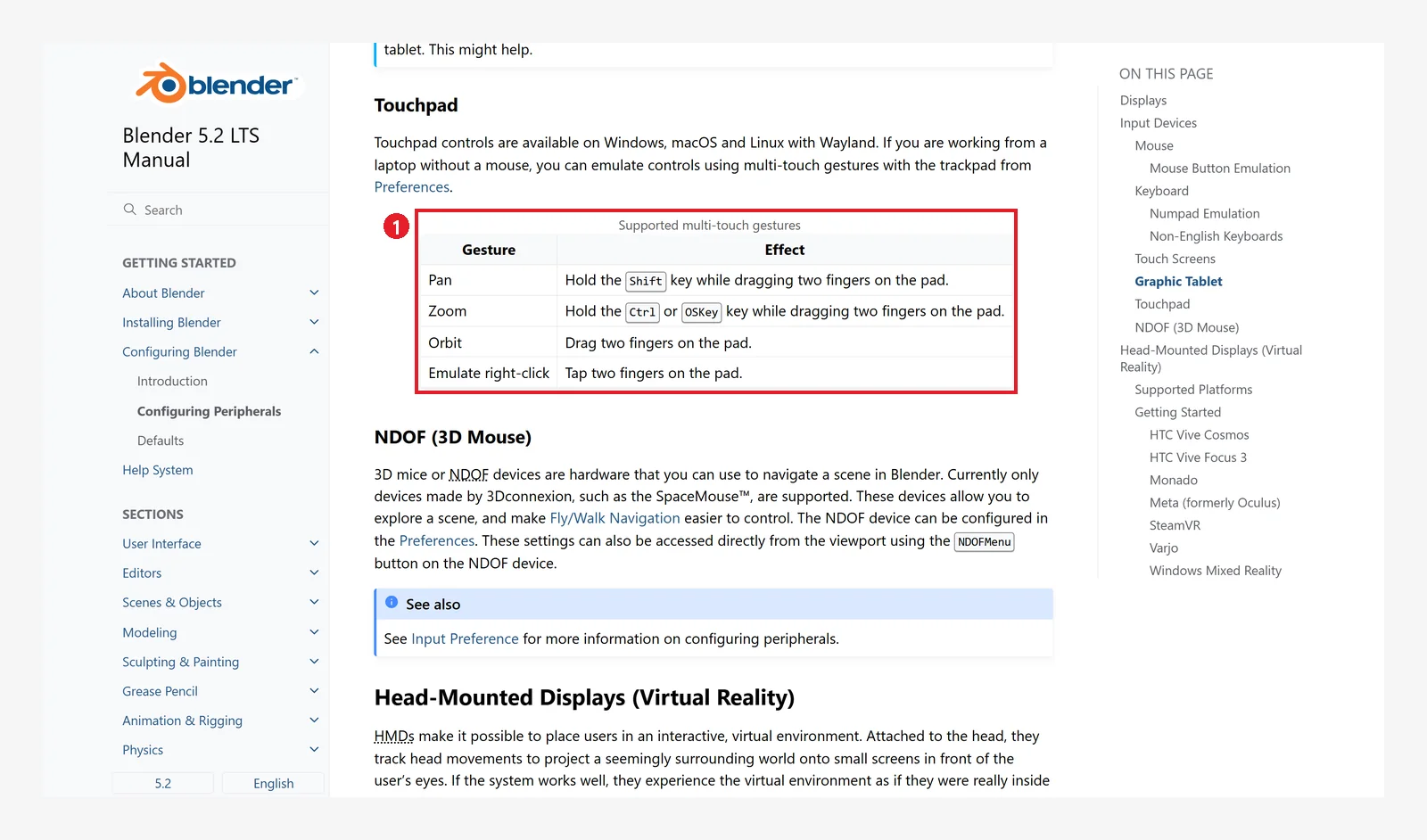 Figure 2-31. 1: the touchpad gesture table in the official manual (screenshot of the Blender 5.2 manual, CC BY-SA 4.0, numbers added)
Here is the manual's table. These gestures work on Windows, macOS, and Linux (using Wayland).
| Gesture | Result |
|---|---|
| Two-finger drag | Orbit |
Shift+two-finger drag | Pan |
Ctrl+two-finger drag | Zoom |
| Two-finger tap | Right click |
If these gestures do not work on your laptop model, check the Multi-touch Gestures setting in the Input section of Preferences. The manual adds that some touchpads use a three-finger tap as the middle button.
Even so, when you are starting out, we strongly recommend getting a wheel mouse.
10-5. Finding more in the official manual
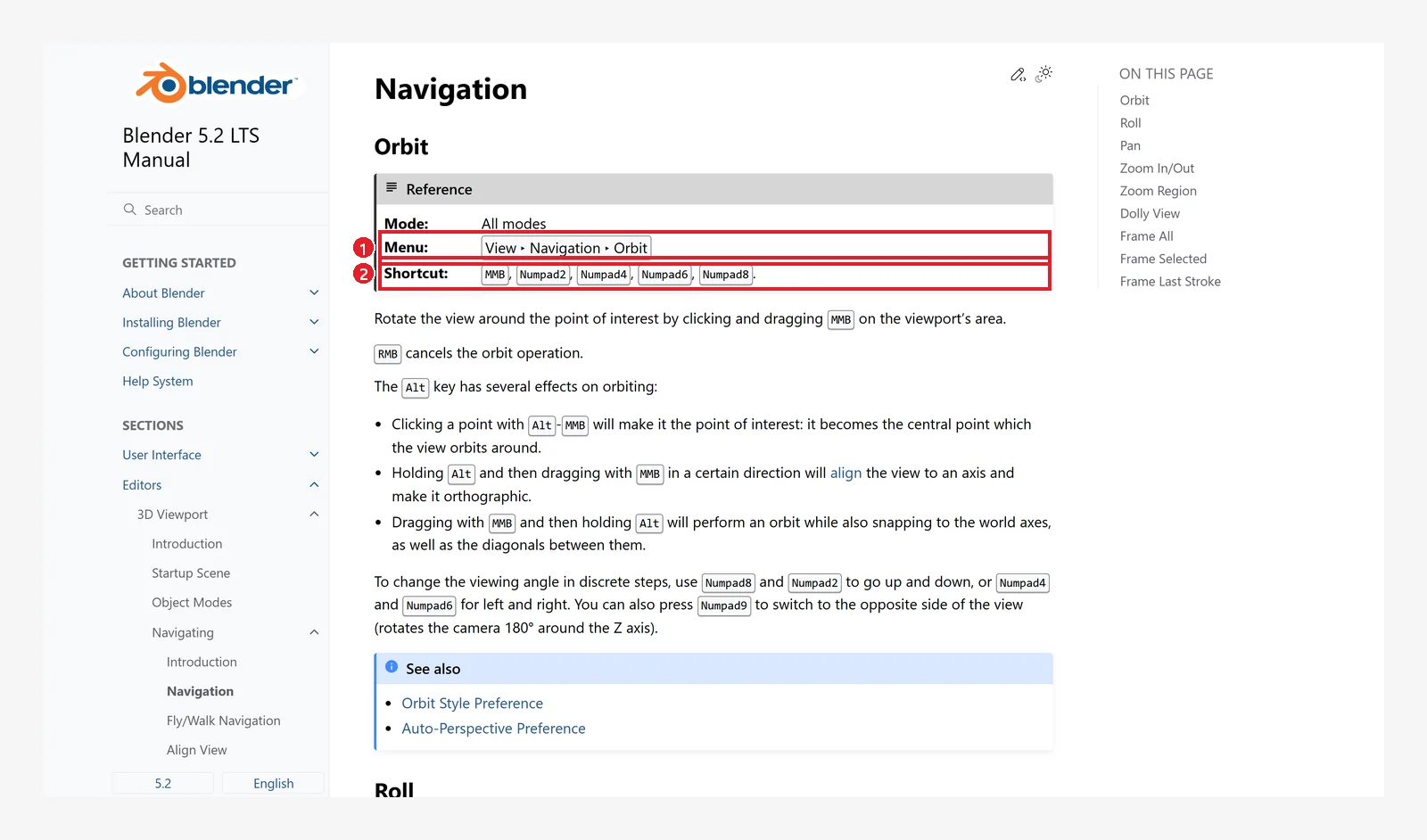 Figure 2-32. The Navigation page of the official manual: for each function it lists 1: the menu location (View ‣ Navigation ‣ Orbit) and 2: the shortcut (screenshot of the Blender 5.2 manual, CC BY-SA 4.0, numbers added)
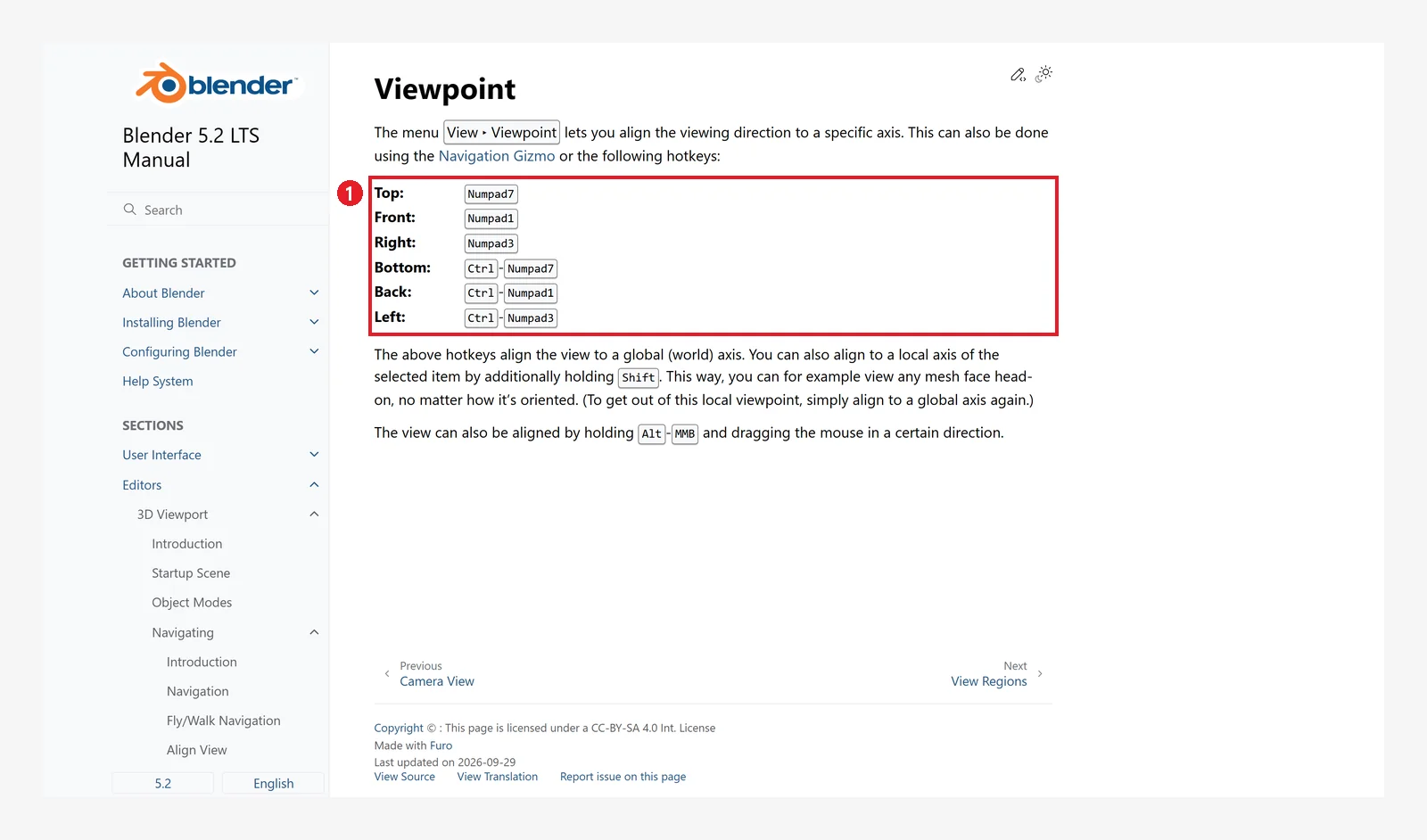 Figure 2-33. The Viewpoint page of the official manual: 1: the numpad key for each direction. In the menus, they are under View ‣ Viewpoint (screenshot of the Blender 5.2 manual, CC BY-SA 4.0, numbers added)
11. Practice
- View the cube from the front (Numpad 1), right (3), and top (7) in turn, and write down how the view name at the top left changes.
- Orbit wildly with the middle button, zoom very far away with the wheel, and then get back to the cube within 5 seconds. (Hint: Numpad
.) - Without the numpad or the wheel, use only the axis gizmo and icons to view from the top, zoom in, and switch to the camera view.
- Click the Shading tab and see how the screen changes, then go back to Layout and check that the header says Object Mode.
12. Common mistakes and fixes
| Symptom | Cause | Fix |
|---|---|---|
| Pressing 1 does not give the front view | You pressed the number row at the top | Use the numpad on the right, or the ` pie menu or the axis gizmo |
| A shortcut does nothing | The cursor is over another editor | Move the cursor over the 3D Viewport and try again |
| Pressing the wheel does not orbit | You only rolled the wheel / the mouse wheel cannot be pressed | Press the wheel until it clicks and drag; if that fails, drag the axis gizmo |
| The cube disappeared | The view moved far away | Numpad . or Home |
| The toolbar or sidebar disappeared | You pressed T or N by mistake | Press T or N again over the 3D Viewport |
| The cube oddly shows as dots and lines | You clicked the Modeling tab and entered Edit Mode | Layout tab → check that the header says Object Mode. If not, press Tab over the 3D Viewport |
| The whole screen is lines | Wireframe view | The second shading button (Solid) |
| The screen got slow | Rendered view | Switch back to Solid view |
One-line summary
The screen has three layers, and the middle has four editors. Orbit with the middle button, zoom with the wheel, and pan with Shift+middle button. If you get lost, press Numpad . or Home. In chapter 3 you finally select, move, and rotate the cube.
References
- Blender 5.2 Manual: Splash Screen
- Blender 5.2 Manual: Navigation
- Blender 5.2 Manual: Viewpoint
- Blender 5.2 Manual: 3D Cursor (Center Cursor and Frame All)
- Blender 5.2 Manual: Preferences Introduction
- Blender 5.2 Manual: Input Preferences
- Blender 5.2 Manual: Configuring Peripherals
- Shortcuts and defaults (Auto Perspective, the emulation settings, Status Bar scene statistics): based on the default (Blender) keymap and default settings of Blender 5.2.1
- Image licenses: the manual screens are CC BY-SA 4.0, with red numbers and outlines added. Blender program license: blender.org/about/license