Blender for complete beginners, chapter 3: select, move, rotate, and scale
Basic Blender controls for complete beginners: click, Shift, and box selection, the Move, Rotate, and Scale tools and G, R, S, axis locking and typed numbers, and checking and resetting the values.
한국어English
ON THIS PAGE
- 01What you will learn in this chapter
- 021. Selecting
- 032. Many at once: box select
- 043. The Move, Rotate, and Scale tools in the toolbar
- 054. Fast work with the shortcuts `G`, `R`, and `S` (the heart of this chapter)
- 065. Checking and changing values directly
- 076. Resetting to default values: `Alt`+`G`, `R`, `S`
- 087. Practice
- 098. Common mistakes and fixes
- 10One-line summary
- 11References
Blender for complete beginners, chapter 3 · Based on: Blender 5.2 LTS (screenshots from 5.2.1, English UI, default keymap) All images are real screens. The red numbers and outlines were added for explanation.
What you will learn in this chapter
By the end of this chapter you will be able to:
- Select an object, pick several, and select or deselect all. (Sections 1 and 2)
- Use the Move, Rotate, and Scale tools in the toolbar. (Section 3)
- Move things with the shortcuts
G,R, andS, and move them precisely with axis locking and typed numbers. (Section 4) - Read and change the values directly in the sidebar (
N) and the Properties editor. (Section 5) - Reset what you moved to the default values. (Section 6)
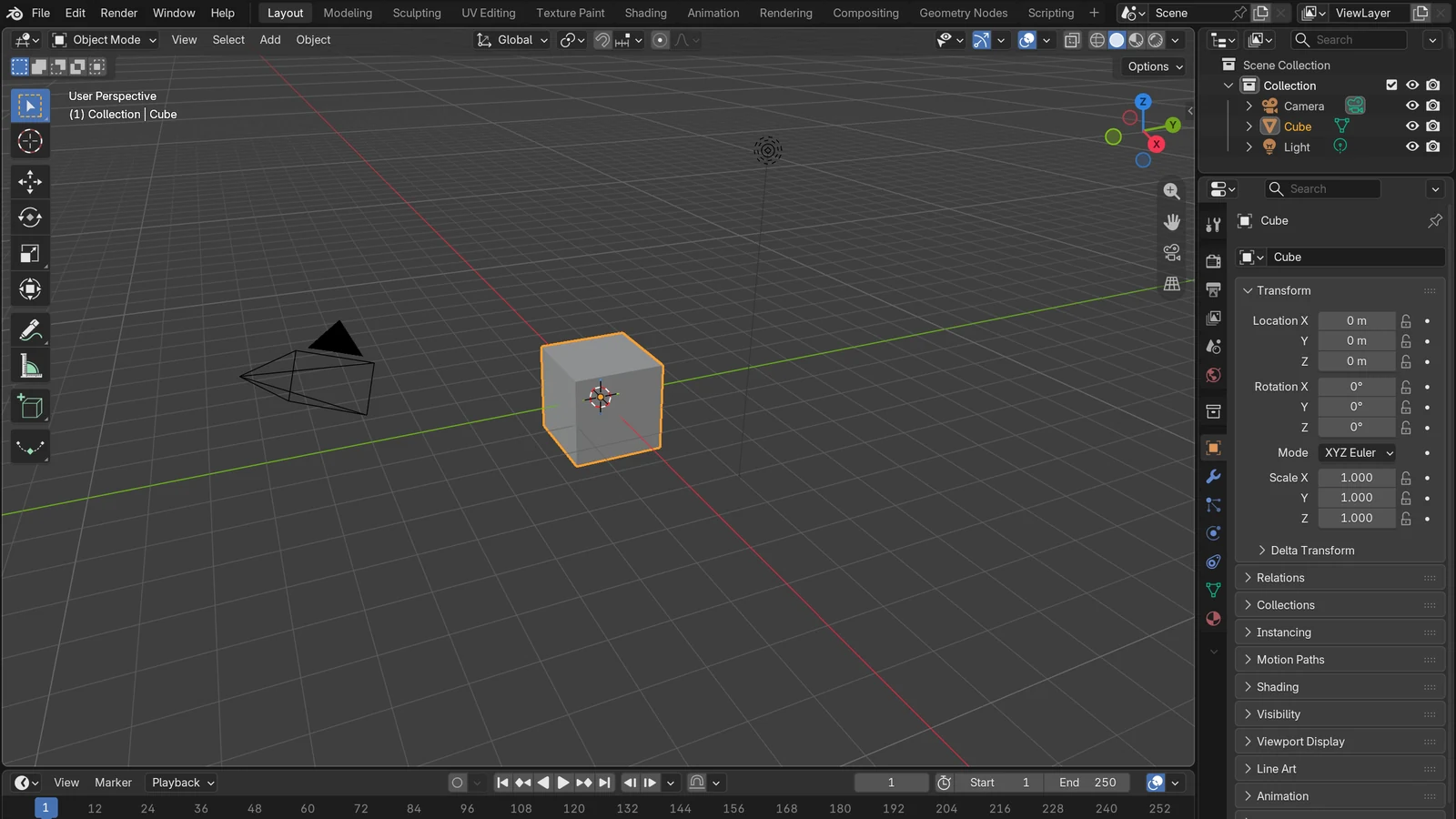
Like chapter 2, this chapter uses the default scene (cube, camera, light). First check that the top left of the 3D Viewport says Object Mode (chapter 2, section 5).
Before you start: how to read the images The images in this chapter come in pairs: the screen before you press anything and the screen after the action is finished. There are no images of an object in the middle of being dragged.
1. Selecting
1-1. Selecting with a click (before → after)
Starting state: In the default scene, the cube is already selected. First click an empty spot in the 3D Viewport to deselect it (Figure 3-1).
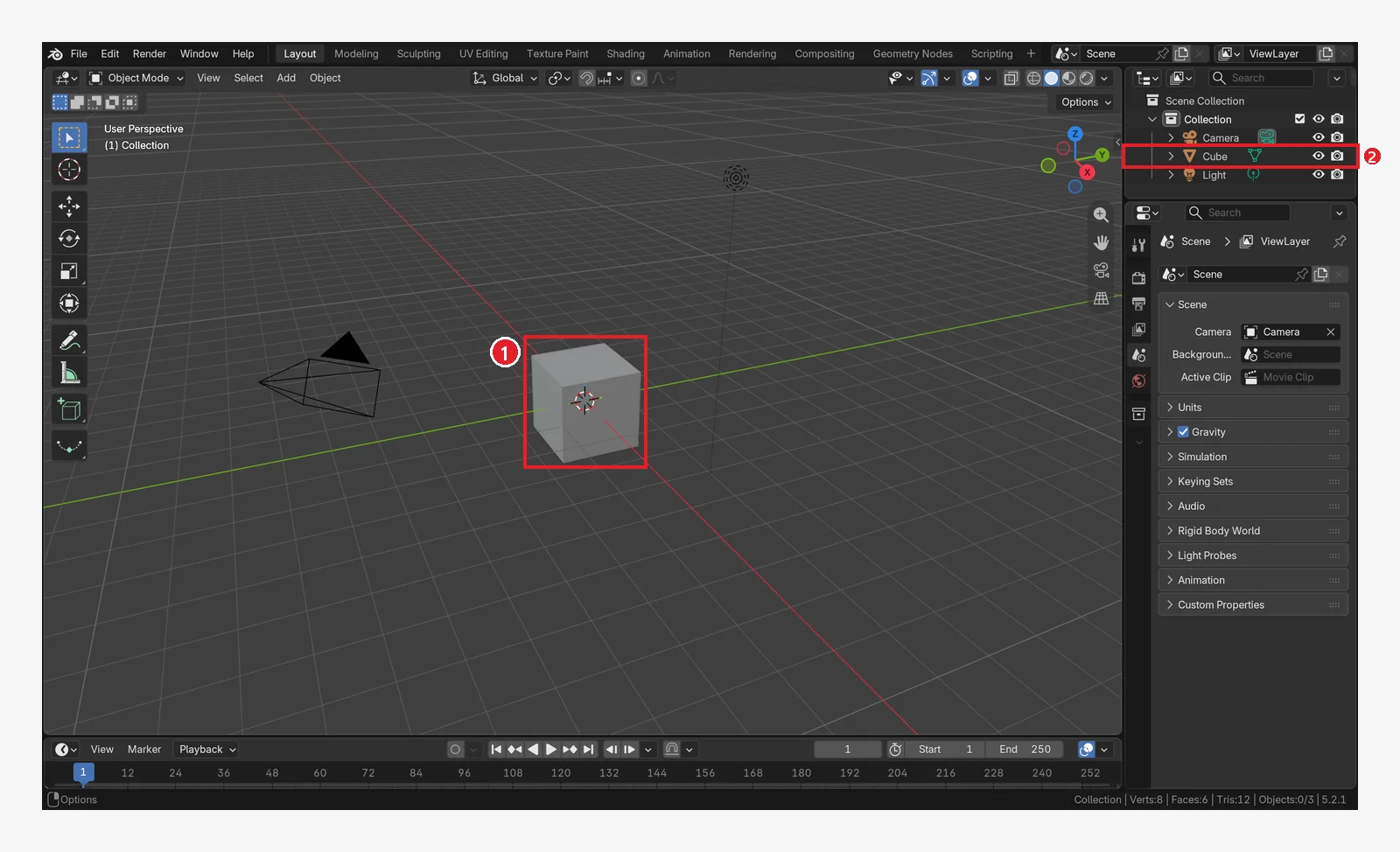 Figure 3-1. Before: nothing is selected. 1: the cube has no outline 2: the word Cube in the Outliner is white too (Blender screenshot)
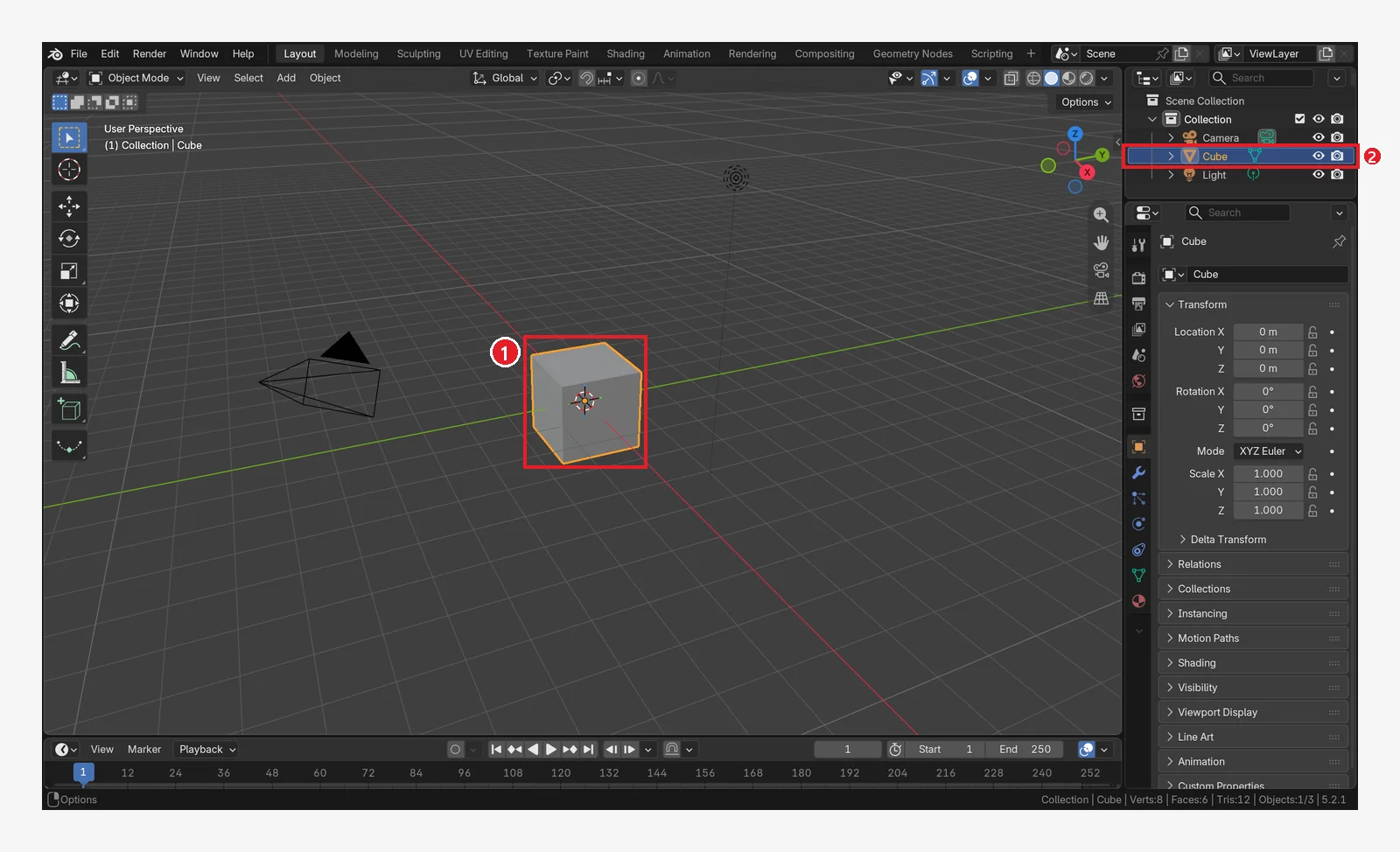 Figure 3-2. After left-clicking the cube: 1: the cube gets a light orange (yellowish) outline 2: the Cube row in the Outliner is highlighted too (Blender screenshot)
- How: left-click the object in the 3D Viewport. Clicking its name in the Outliner does the same.
- Clicking an empty spot deselects.
1-2. Selecting several: Shift+click
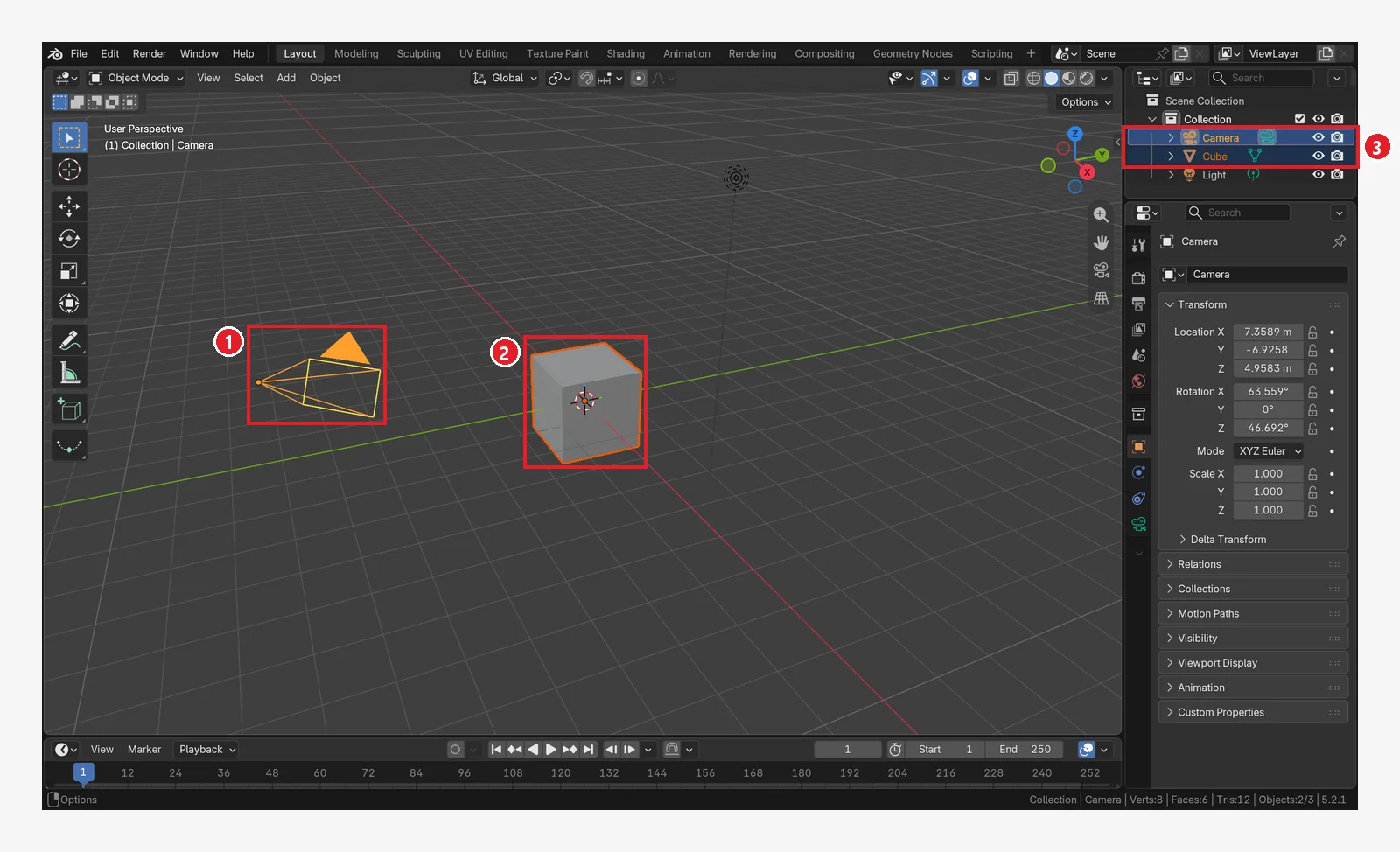 Figure 3-3. Select the cube, then hold
 Shift and click the camera: 1: the camera is light yellow (the active object) 2: the cube is dark orange (also selected) 3: both rows are highlighted in the Outliner too (Blender screenshot)
The key term here is active object.
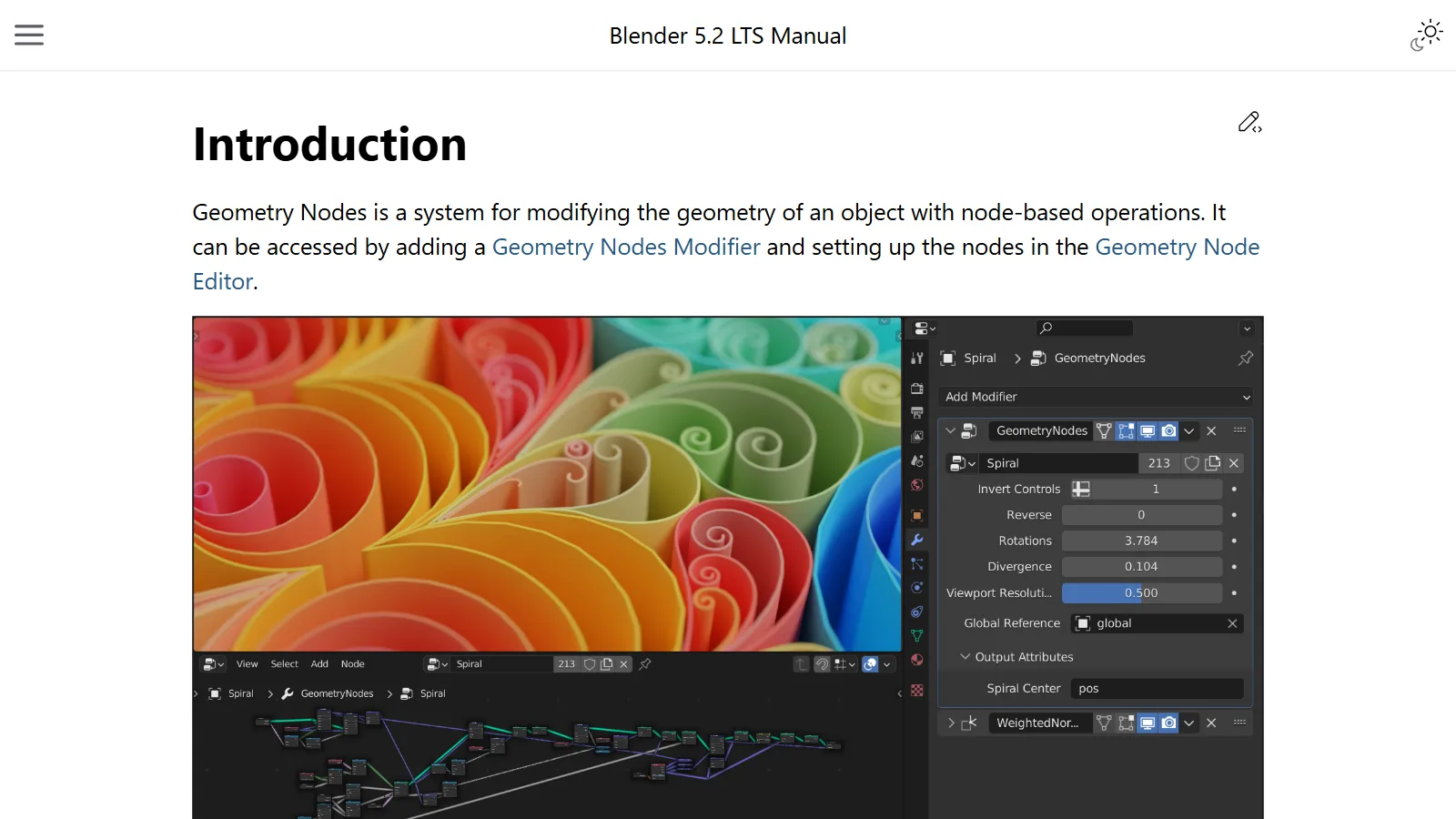
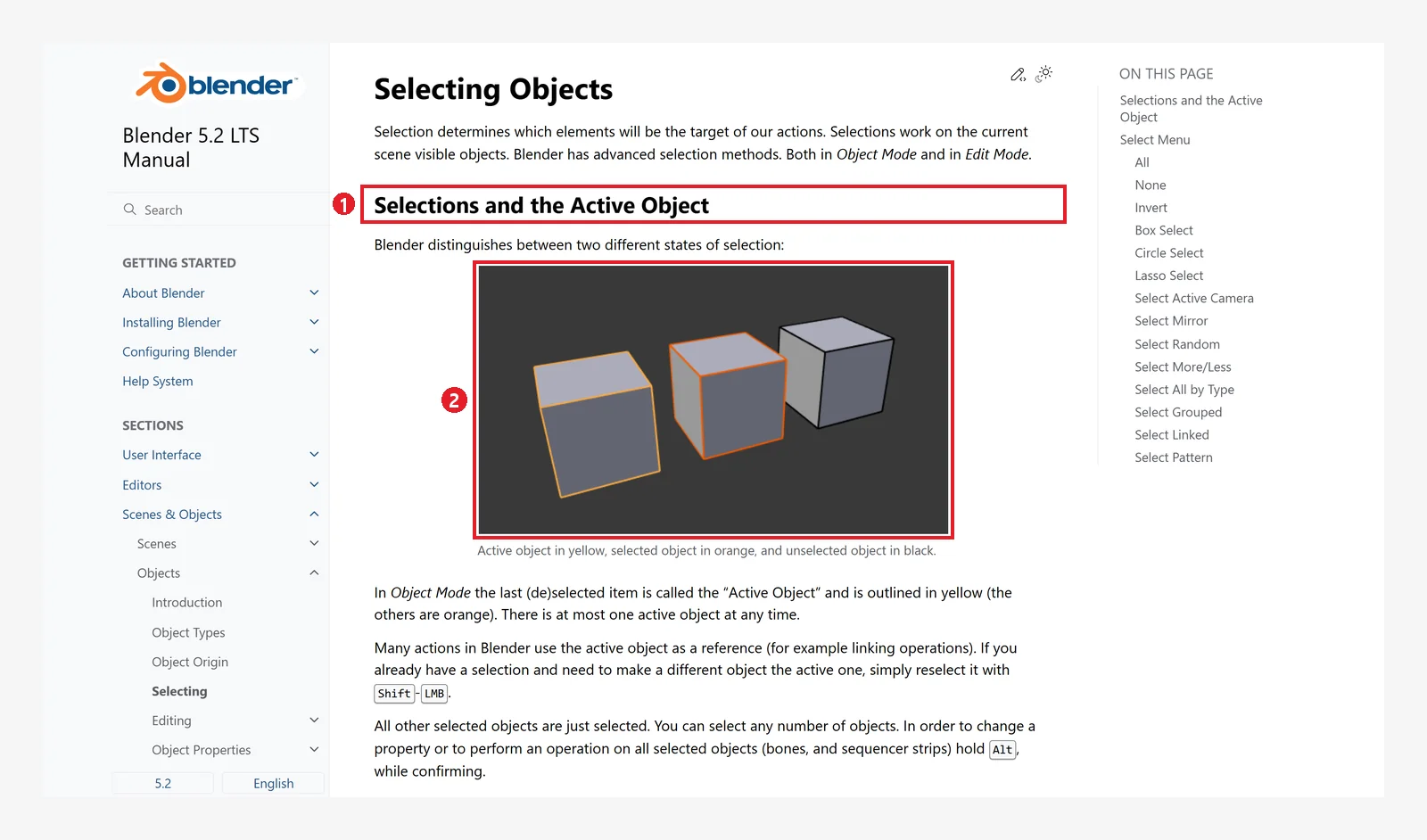 Figure 3-4. The official manual: 1: "Selections and the Active Object" 2: yellow = active object, orange = selected object, black = unselected object (screenshot of the Blender 5.2 manual, CC BY-SA 4.0, numbers added)
- Active object: the object you clicked last. There is only one at a time, and the Properties editor shows this object's values.
- Selected objects: the others you picked along with it. When you move, they move together.
- From the manual: when several objects are already selected and you want to make another one active,
Shift+click that object again.
1-3. Select all with A, deselect all with Alt+A
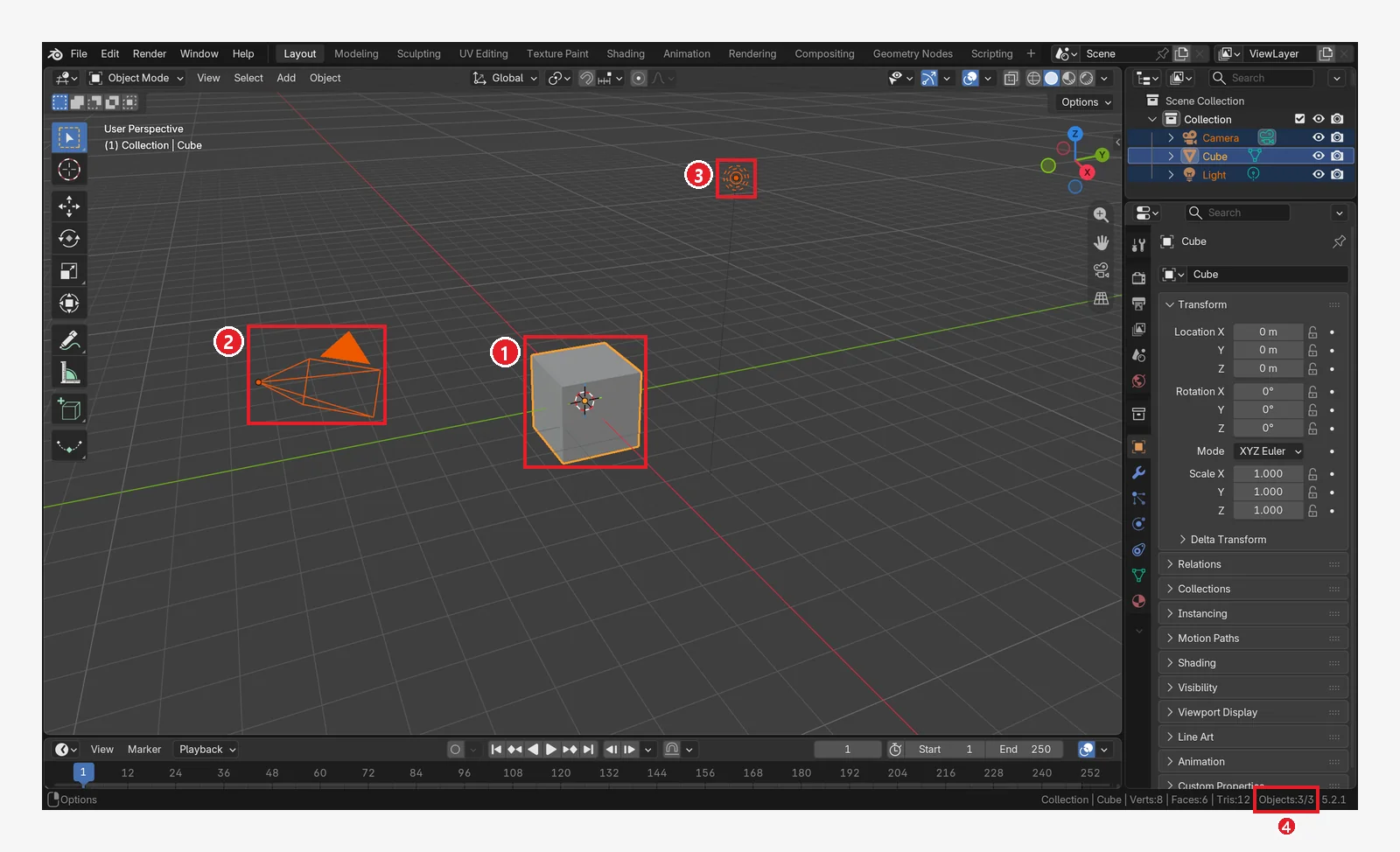 Figure 3-5. After putting the mouse over the 3D Viewport and pressing
 A: 1: the cube 2: the camera 3: the light are all selected 4: "Objects: 3/3" in the Status Bar means "3 of 3 selected" (Blender screenshot)
 Figure 3-6. 1: Objects:3/3. With only the cube selected, it shows 1/3. This display appears only when scene information (Scene Statistics) is turned on (chapter 2, section 2) (Blender screenshot)
| Key | What it does |
|---|---|
A | Select all |
Alt+A | Deselect all |
Ctrl+I | Invert selection |
2. Many at once: box select
When the default tool (Select Box) is on, just dragging with the left button from an empty spot selects the objects inside the rectangle. You can also press B and then drag.
Starting state: Undo what you changed in the previous section: press Alt+A to deselect everything (Figure 3-7).
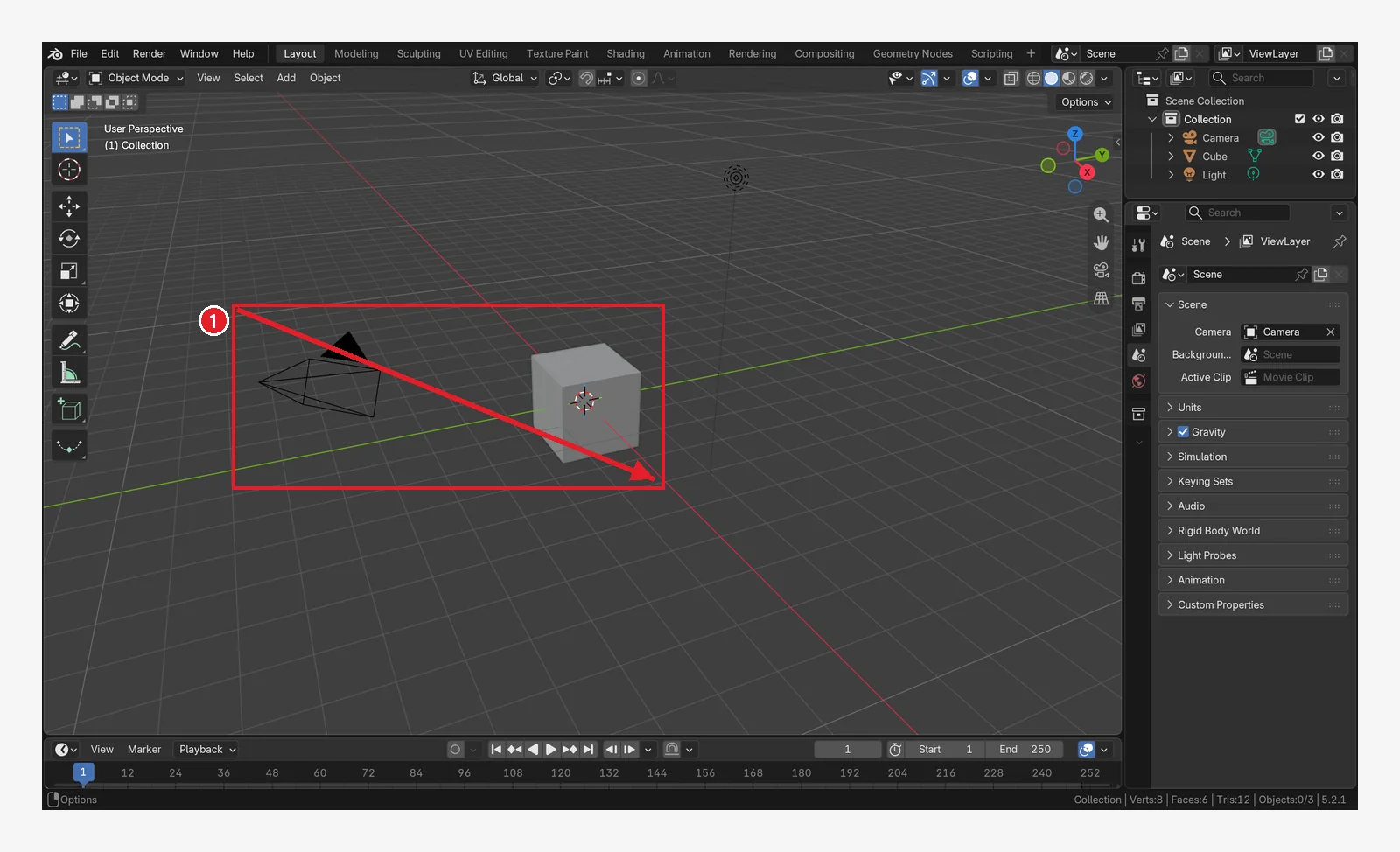 Figure 3-7. Before: 1: like the red rectangle, drag from an empty spot at the top left to the bottom right. The arrow shows the drag direction (Blender screenshot)
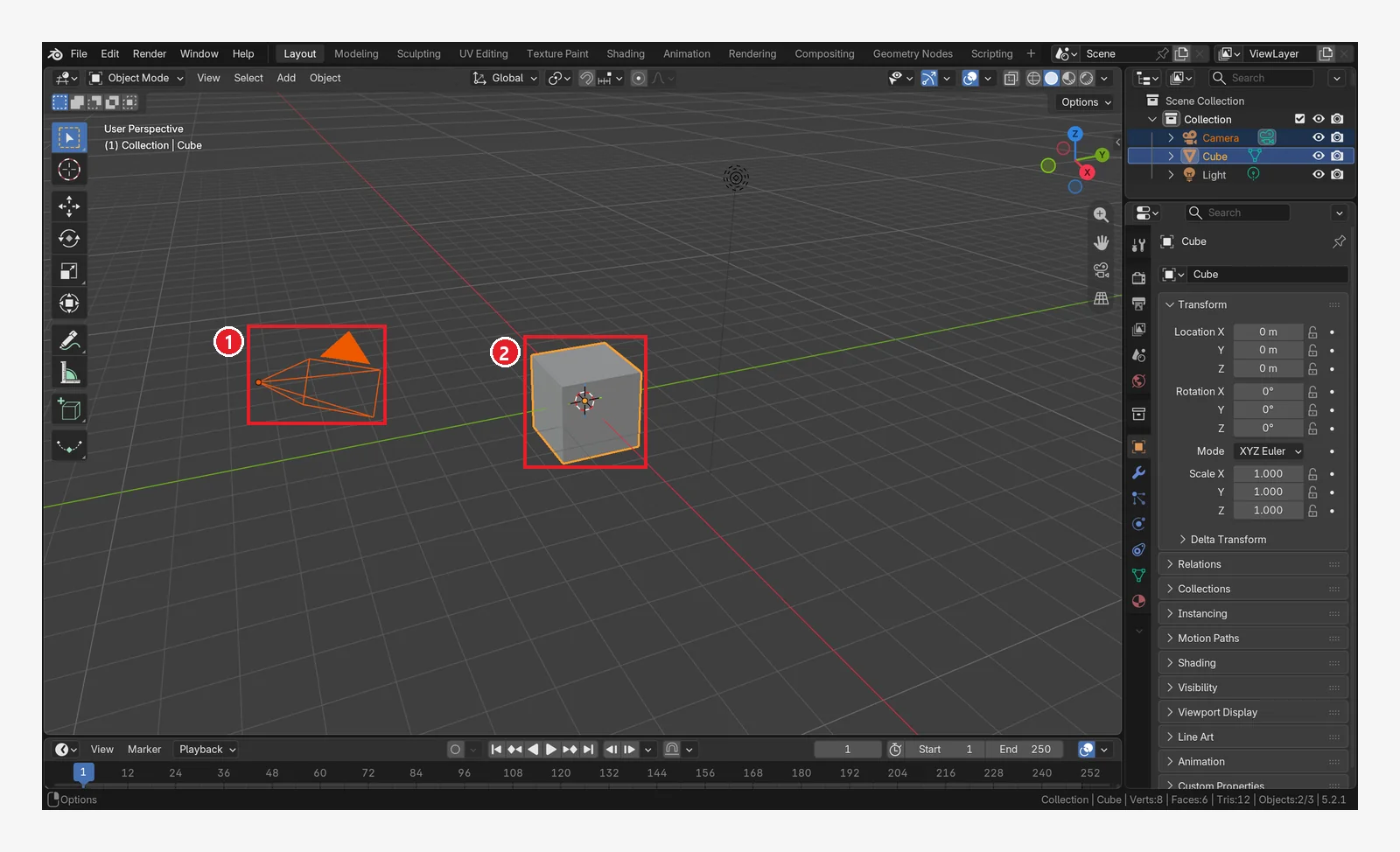 Figure 3-8. After dragging: the objects that were inside the rectangle, 1: the camera and 2: the cube, are selected. The light was outside the rectangle, so it is not selected (Blender screenshot)
B: box select.C: select by painting with a round brush (circle select).
3. The Move, Rotate, and Scale tools in the toolbar
3-1. A look at the toolbar
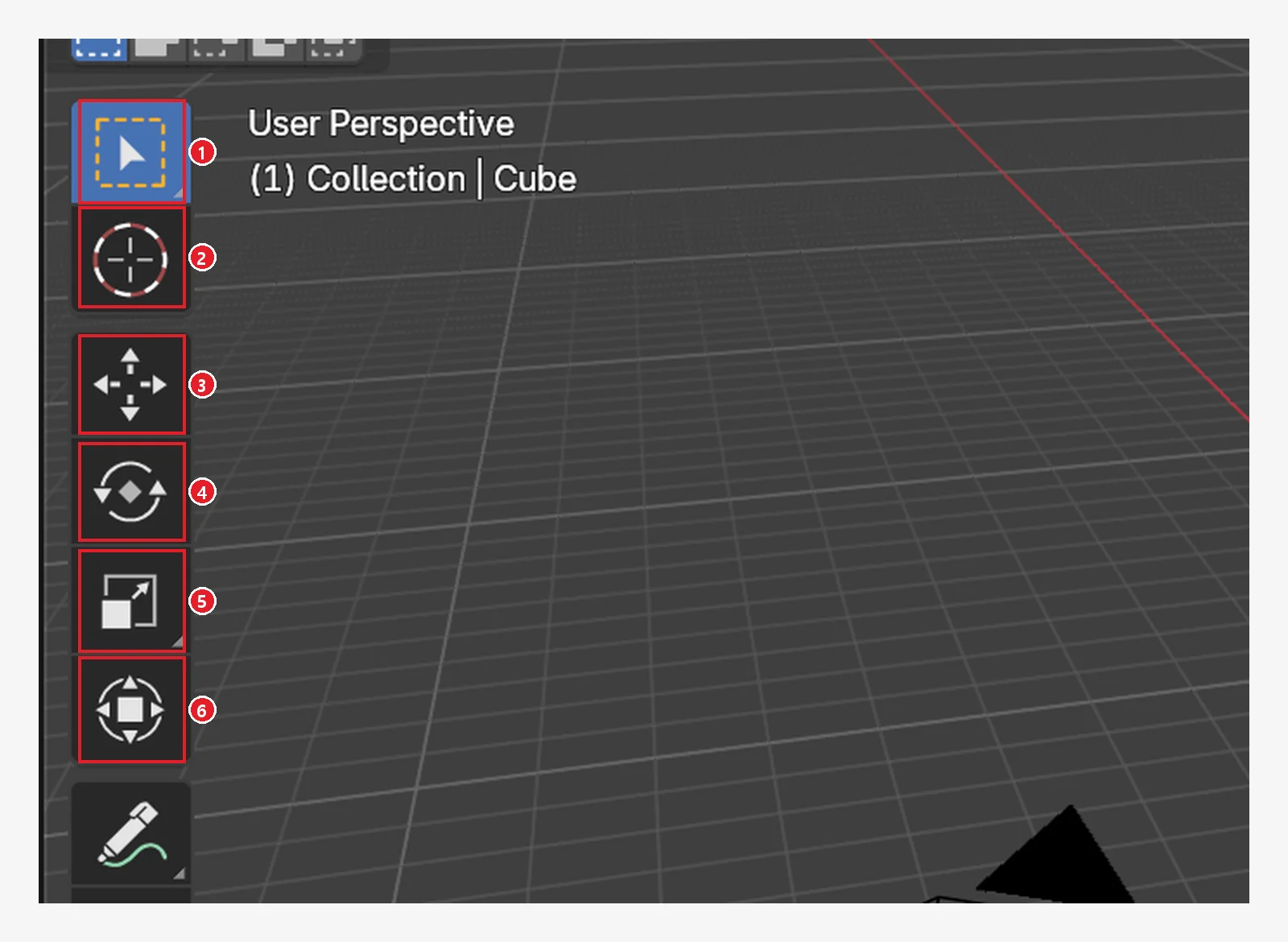 Figure 3-9. The top of the toolbar. 1: select (Select Box) 2: 3D cursor (chapter 4) 3: Move 4: Rotate 5: Scale 6: Transform (move, rotate, and scale all at once) (Blender screenshot)
When you pick a tool, a gizmo (a set of control handles) appears on the selected object. If you drag a handle with the left button, the object moves only in that direction.
3-2. The Move tool
Starting state: Undo what you changed in the previous section: click only the cube so that the cube alone is selected.
Follow along: Click the Move tool in the toolbar (3 in Figure 3-9).
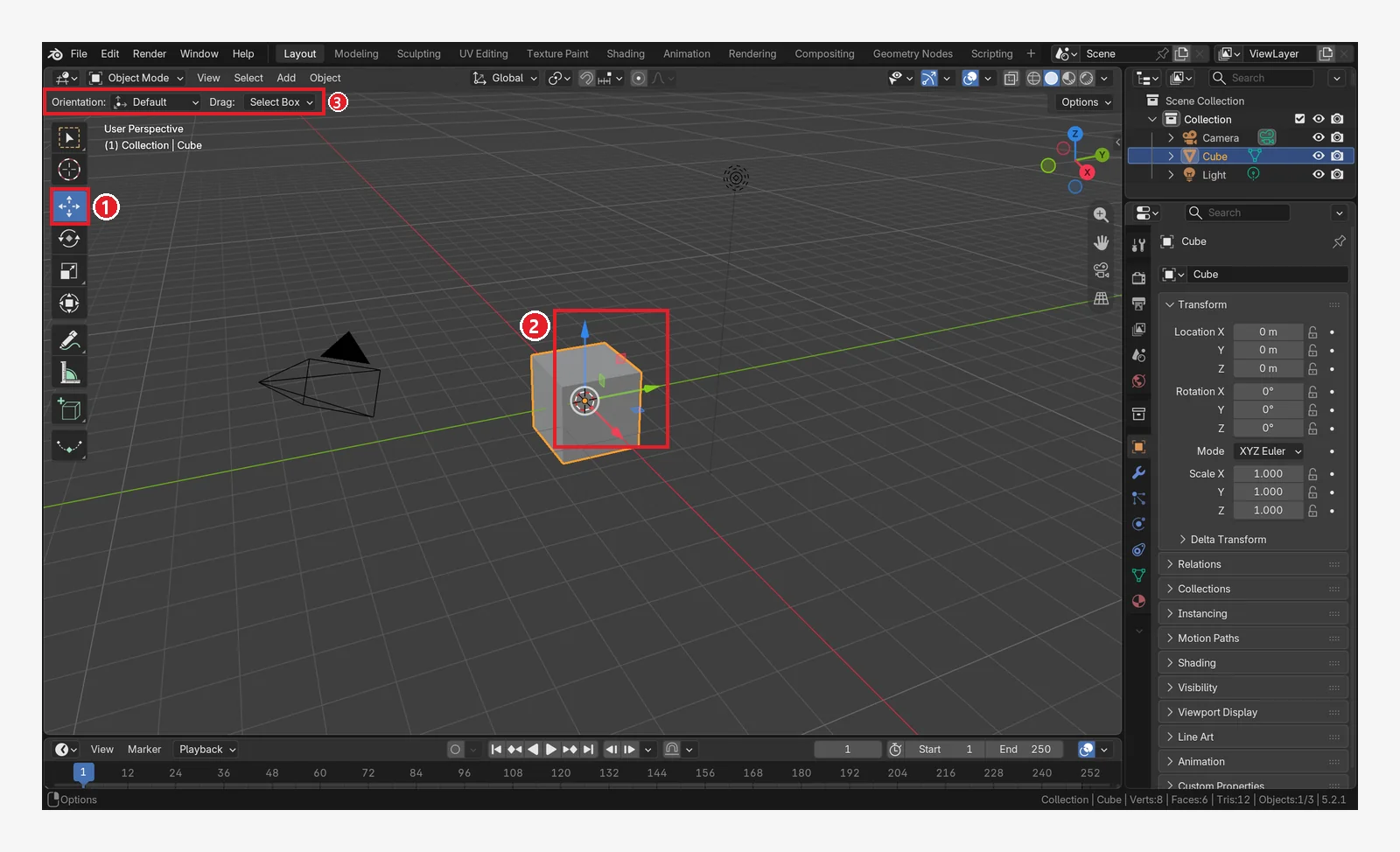 Figure 3-10. The Move tool: 1: the Move tool lit up in blue in the toolbar 2: red (X), green (Y), and blue (Z) arrows on the cube 3: a tool settings row (Orientation, Drag) appears at the top (Blender screenshot)
- Drag the red arrow to move only along the X axis, green only along Y, and blue only along Z (up and down).
- Drag the white circle in the middle to move freely along the screen.
3-3. The Rotate, Scale, and Transform tools
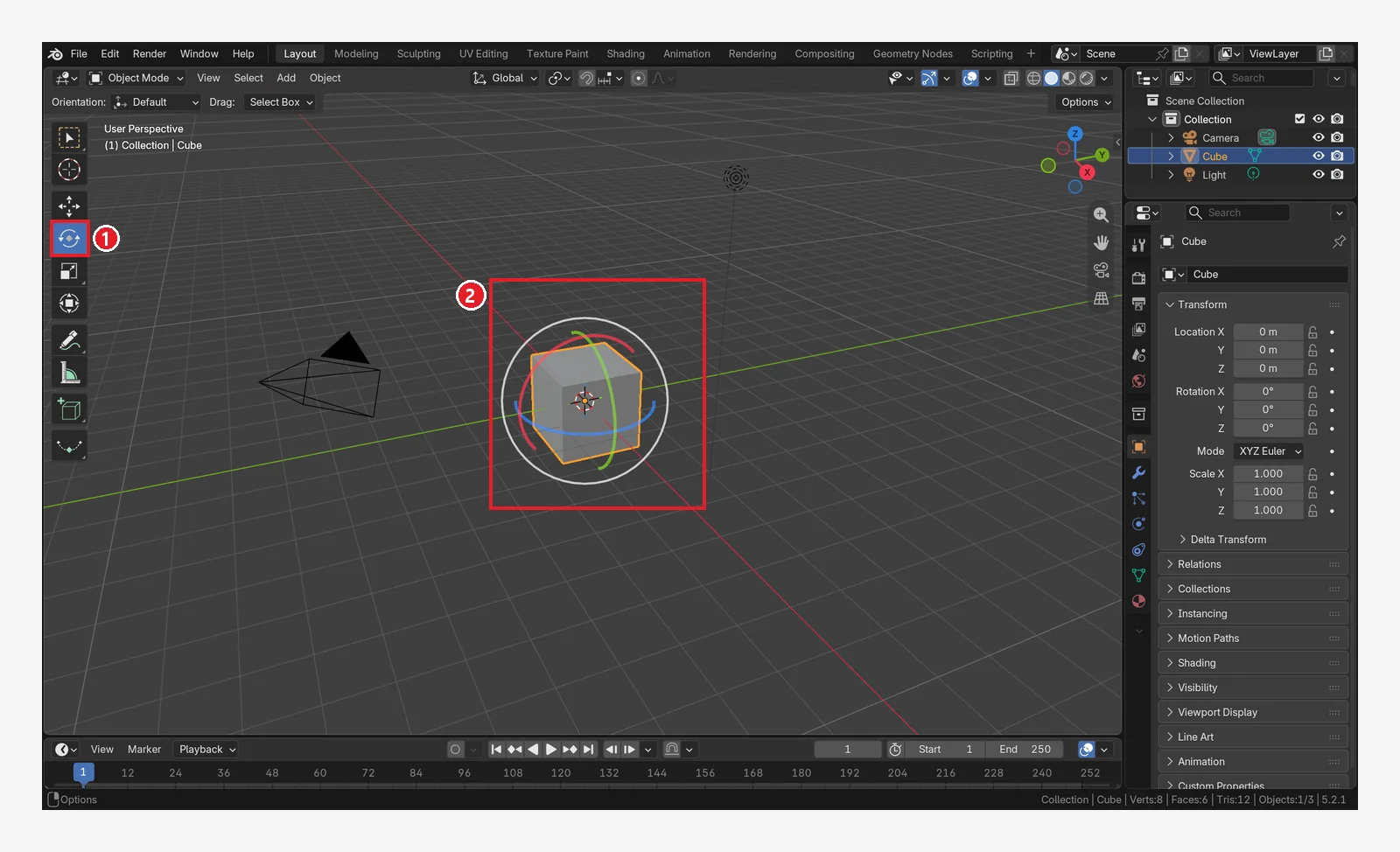 Figure 3-11. The Rotate tool: 1: the Rotate tool 2: colored rings around the cube. Drag the red ring to rotate around the X axis (Blender screenshot)
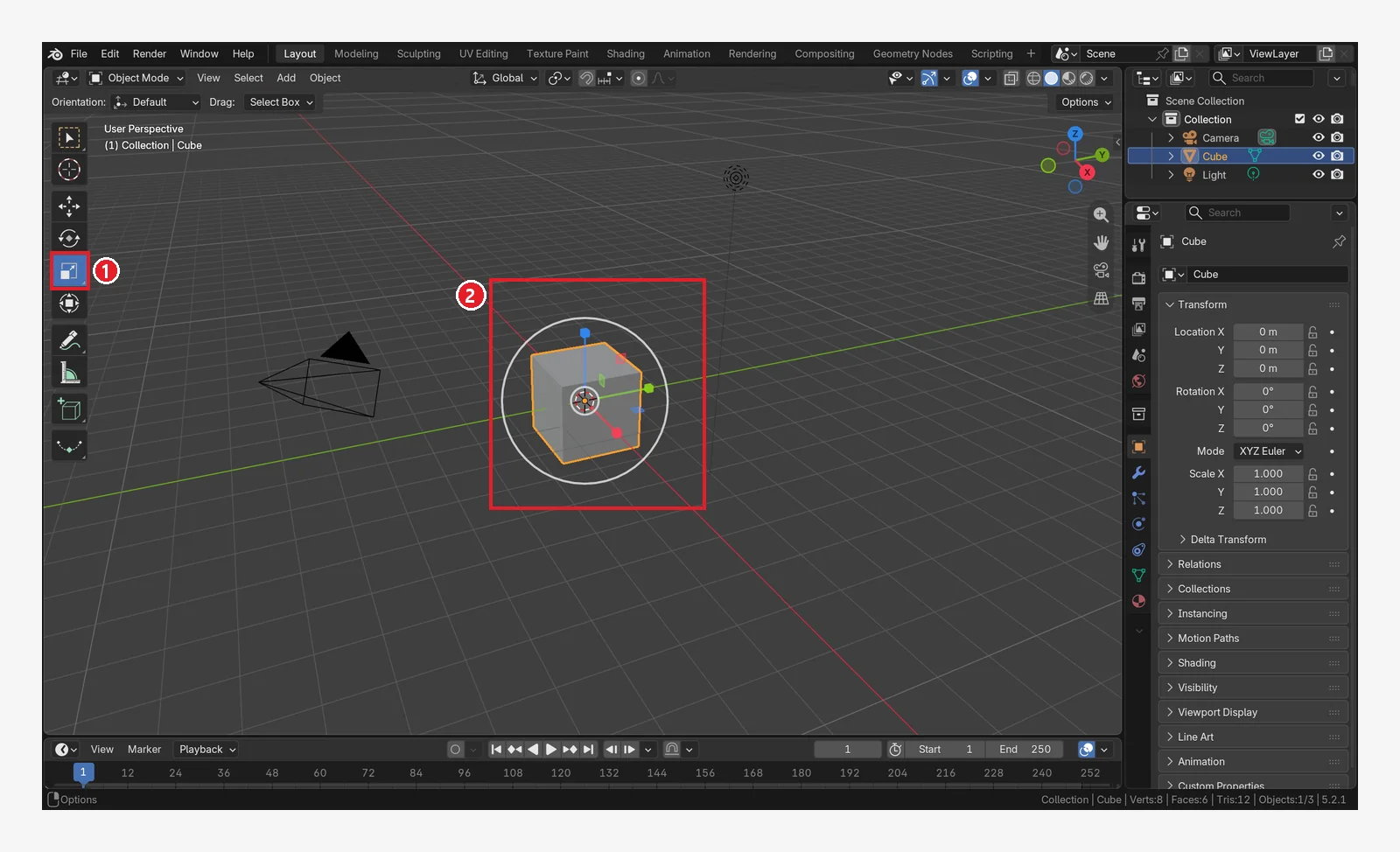 Figure 3-12. The Scale tool: 1: the Scale tool 2: handles with small squares at the ends and an outer white ring. Drag the white ring to scale equally in all three directions (Blender screenshot)
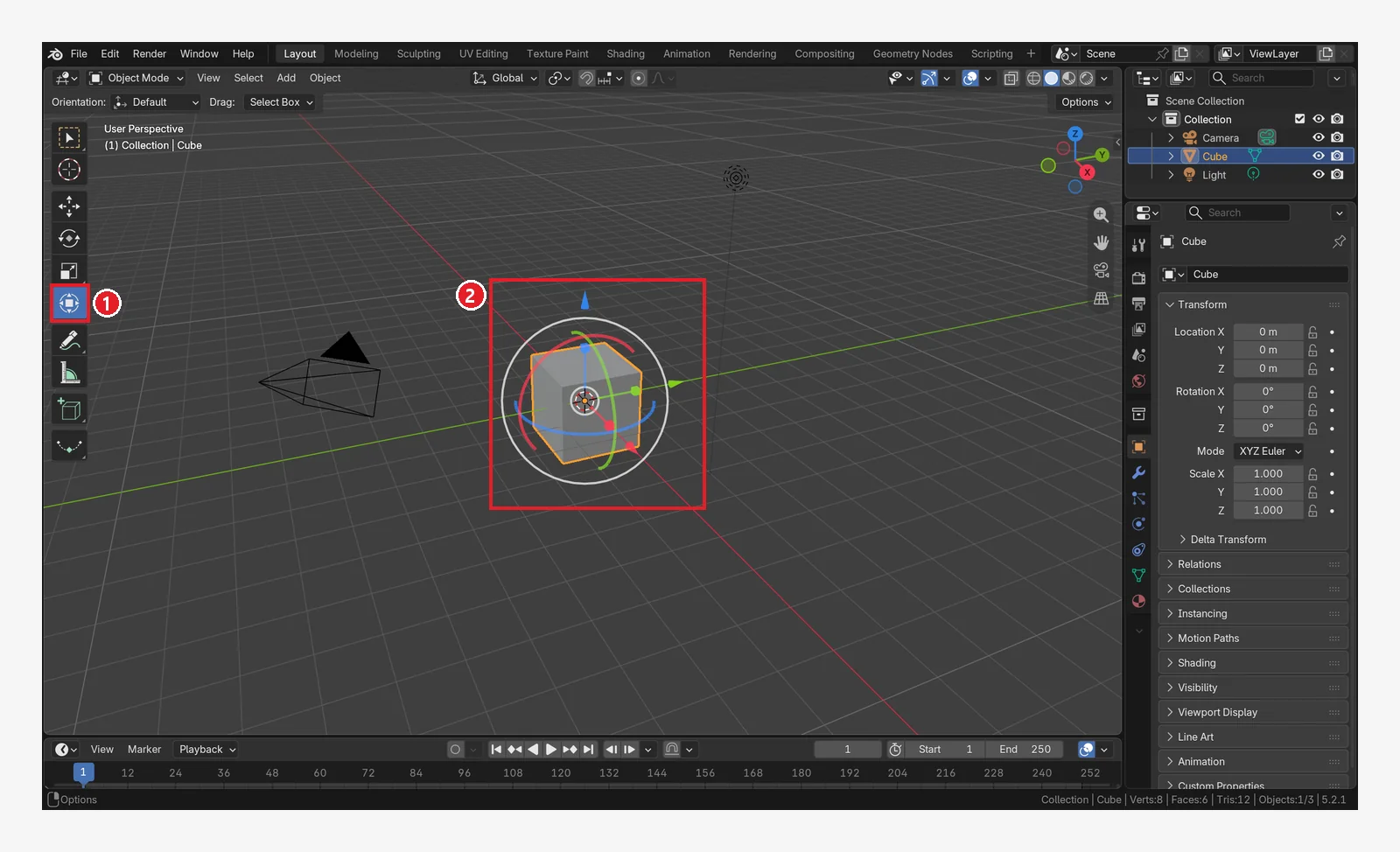 Figure 3-13. The Transform tool: 1: the Transform tool 2: the move arrows, rotate rings, and scale handles appear all at once. This is confusing at first, so we recommend using one tool at a time (Blender screenshot)
When you have tried them all, go back to the select tool at the top of the toolbar (1 in Figure 3-9). If dragging a handle moved the cube, press Ctrl+Z several times to put it back where it started.
4. Fast work with the shortcuts G, R, and S (the heart of this chapter)
You do not need the toolbar. After selecting an object, you can move it right away with a single key. Experienced users almost always work this way.
| Key | What it does | English name |
|---|---|---|
G | Move | Grab / Move |
R | Rotate | Rotate |
S | Scale | Scale |
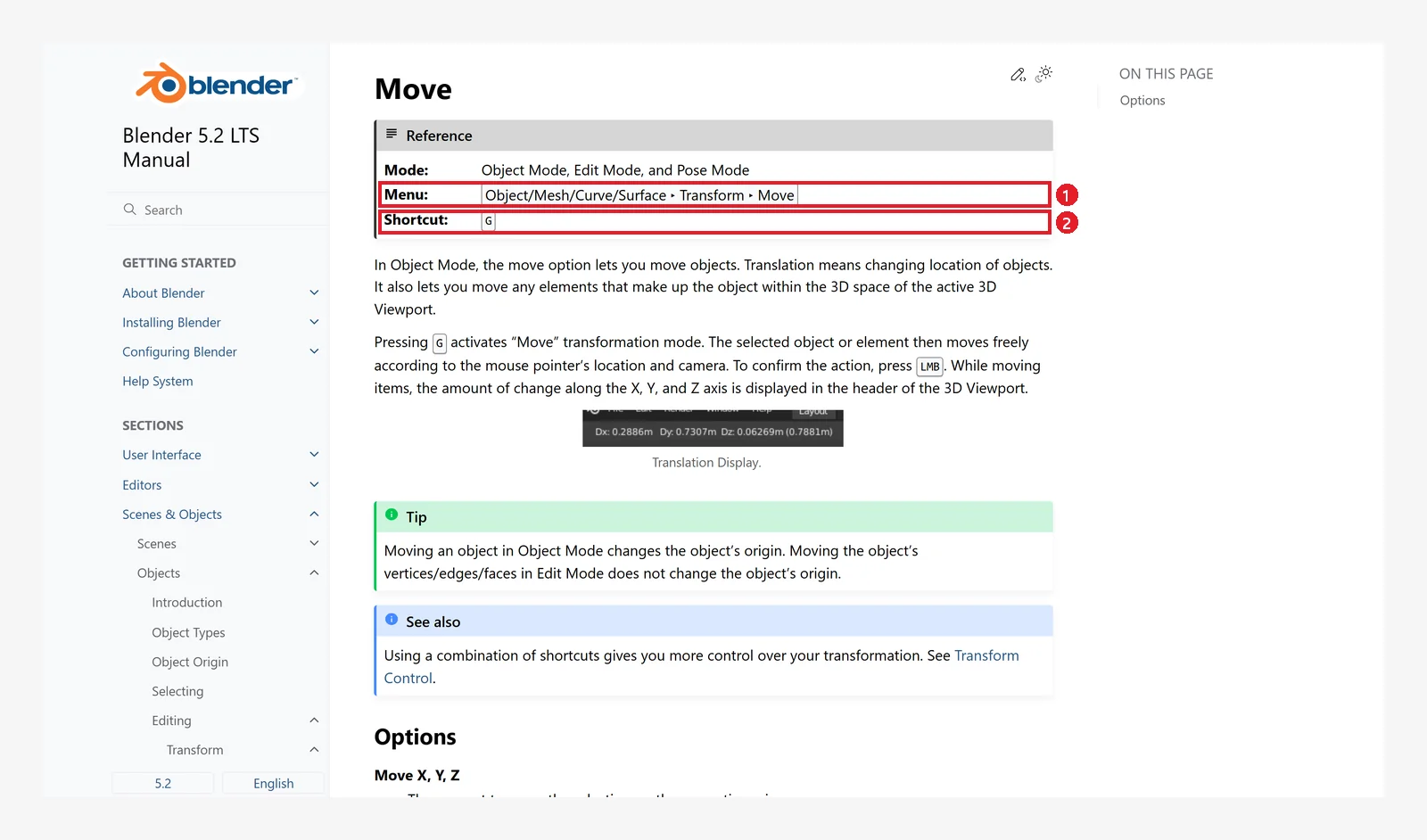 Figure 3-14. Move in the official manual: 1: the menu location Object ‣ Transform ‣ Move 2: the shortcut G (screenshot of the Blender 5.2 manual, CC BY-SA 4.0, numbers added)
4-1. The order: press → move → confirm
- Put the mouse over the 3D Viewport and select an object.
- Press
Gonce and let go. You do not need to hold it. - Move the mouse and the object follows. The Status Bar shows hints for the action while you do this.
- Left-click (or
Enter) to confirm. To stop, right-click (orEsc) to cancel. When you cancel, the object goes back to where it was.
If you moved the cube for practice, press Ctrl+Z to put it back where it started.
What surprises people most at first: after you press
G, the object follows as soon as you move the mouse. It is not a drag. To stop, left-click to confirm or right-click to cancel.
4-2. Axis locking: G → X
If you press X, Y, or Z while moving, the object moves only along that axis. The manual calls this Axis Locking.
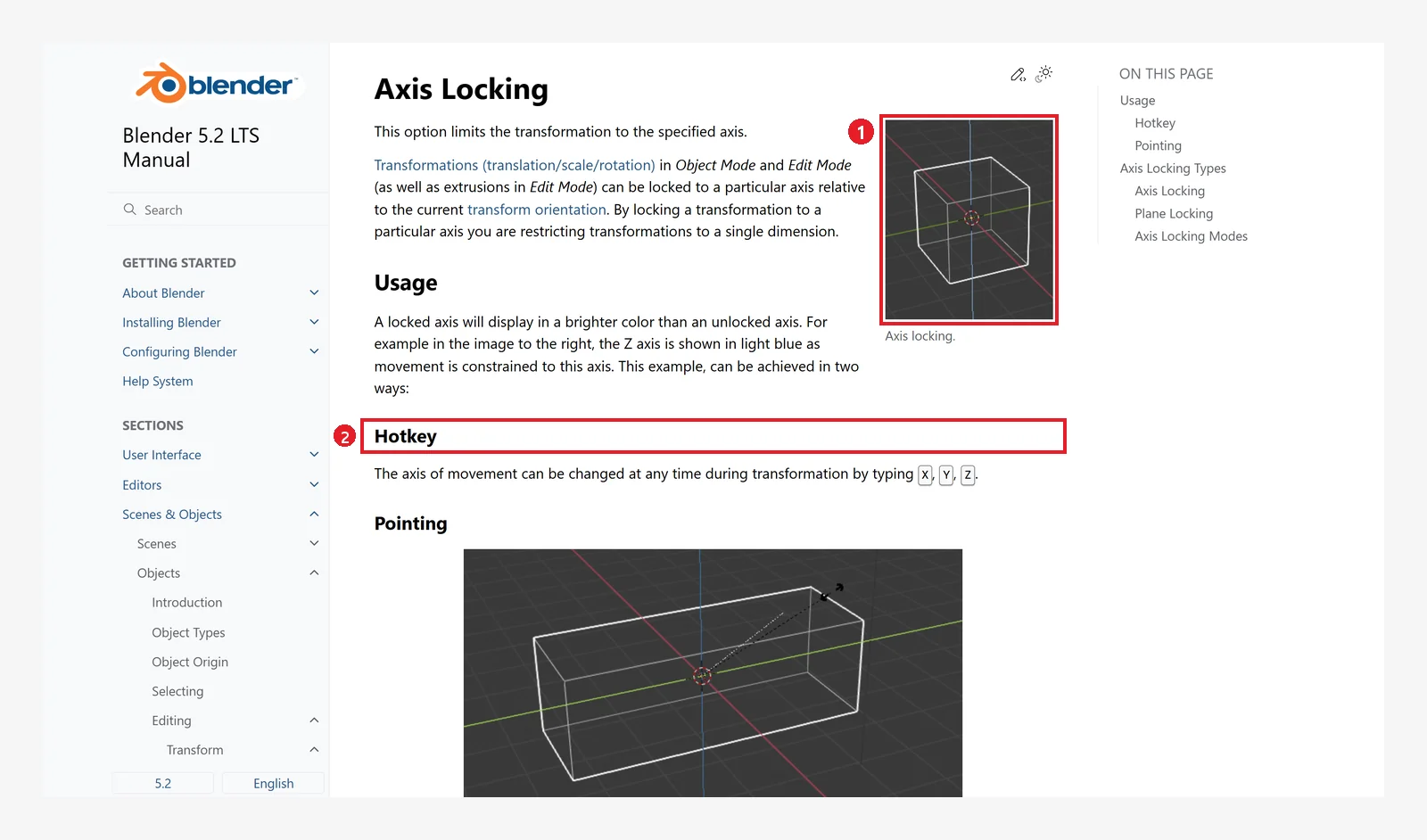 Figure 3-15. Axis Locking in the official manual: 1: when locked to the Z axis, that axis line is shown brightly 2: Hotkey: press X, Y, or Z during a transform to change the axis (screenshot of the Blender 5.2 manual, CC BY-SA 4.0, numbers added)
| Key pressed while moving | Result |
|---|---|
X / Y / Z | Only along that axis |
Shift+X / Shift+Y / Shift+Z | Along the other two axes (a plane), leaving out that axis |
Hold Shift | Slowly and precisely |
Hold Ctrl | Flips snapping (sticking to fixed points): turns it on for a moment if it is off |
4-3. Typing numbers: G → X → 2 → Enter
If you type numbers instead of using the mouse, the object moves exactly. The manual's Numeric Input page says:
- If you type a number after
Gwithout an axis, the object moves along the X axis. - A number after
Ris an angle (in degrees). - A number after
Sis a scale factor, applied equally to all three axes. - Pressing
-reverses the direction. - The number you type is shown on screen so you can check it.
For example, G → X → 2 → Enter means "move exactly 2 m along the X axis". You try this yourself in Section 5-2 while watching the values.
5. Checking and changing values directly
5-1. Two places to see the values
Starting state: The cube must be where it was before you moved it. If you moved the cube in Sections 3 or 4, select it and press Alt+G, Alt+R, and Alt+S in turn to reset it (Section 6).
Follow along: Select the cube and press N to open the sidebar.
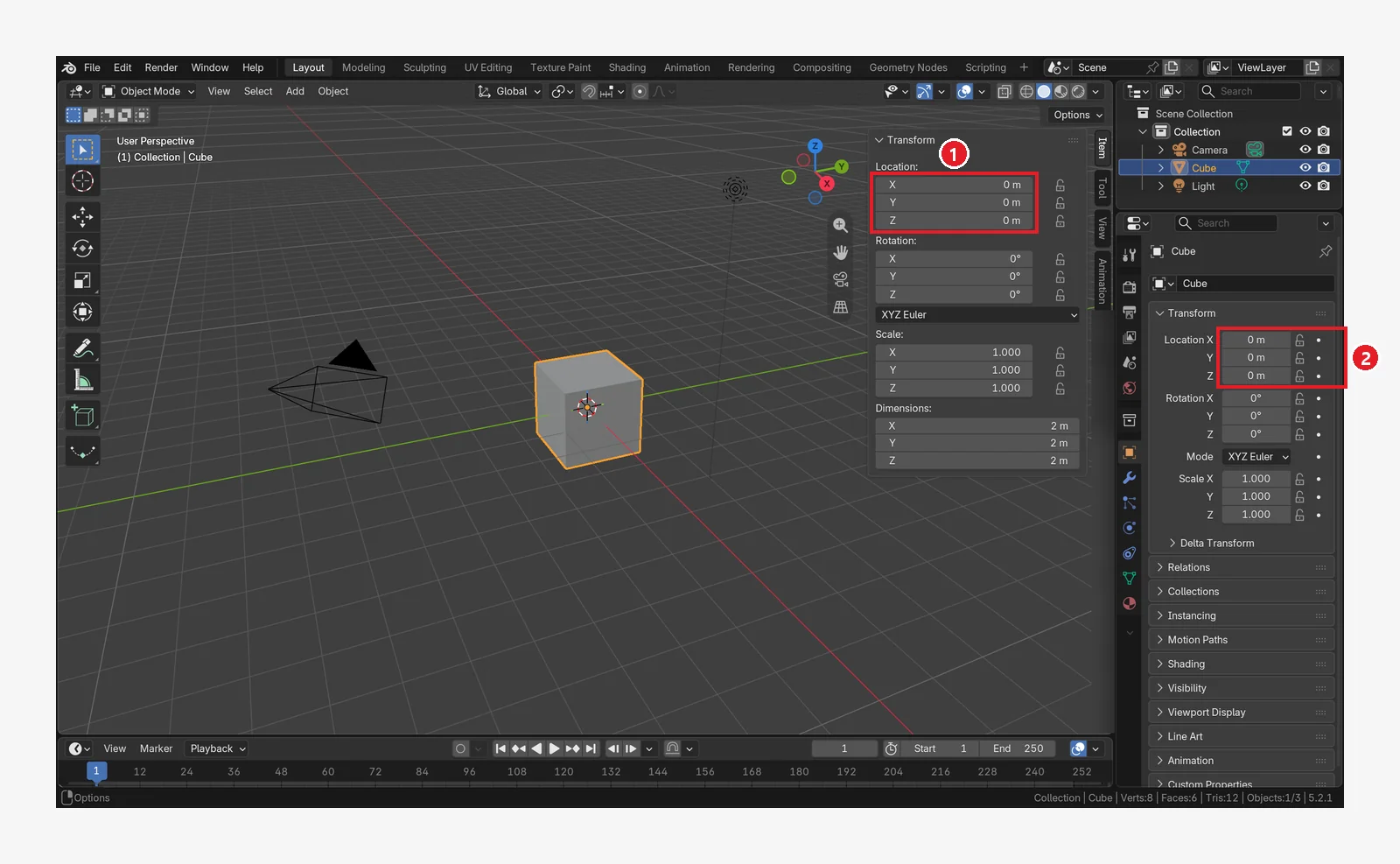 Figure 3-16. Before moving: 1: Location in the Item tab of the sidebar (
N) 2: Location in the Properties editor on the right. Both show X, Y, and Z at 0 m. The add-on tabs in the sidebar are blurred (Blender screenshot)
The two places show the same values. If you change one, the other changes too.
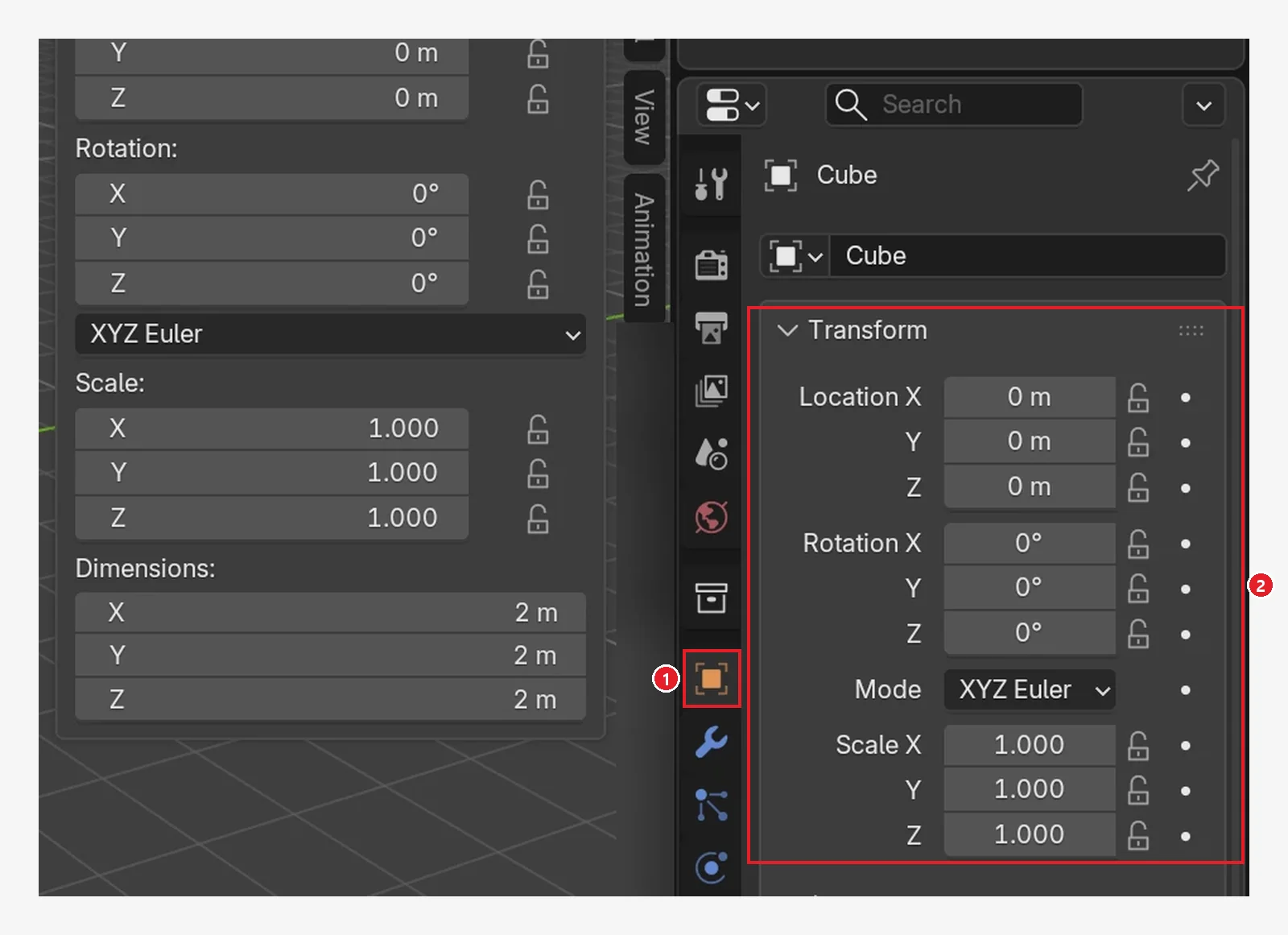 Figure 3-17. A close-up of the Properties editor before moving: 1: the orange square icon is the Object tab 2: Location, Rotation, and Scale in the Transform panel. Location is 0 m for X, Y, and Z. On the left is the sidebar (
N) (Blender screenshot)
5-2. Result of a move: X = 2 m (before → after)
Starting state: Continue from the cube in the previous section (Location 0, 0, 0).
Follow along: With the cube selected, press G → X → 2 → Enter.
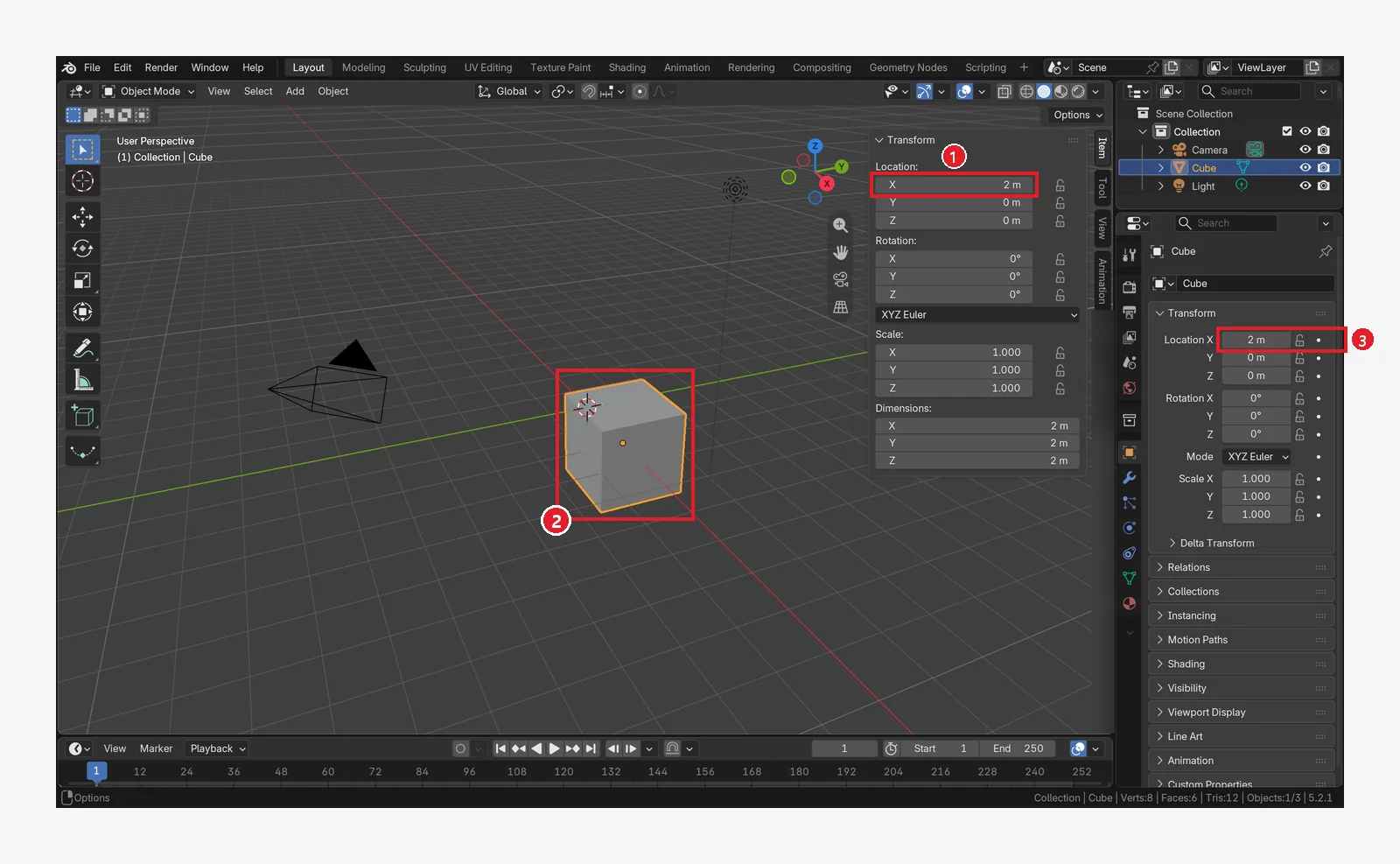 Figure 3-18. After
 G → X → 2 → Enter (compare with Figure 3-16): 1: sidebar Location X = 2 m 2: the cube moved forward along the red X axis 3: the Properties editor shows 2 m too (Blender screenshot)
Typing a number directly into a value field gives the same result. Double-click the field to type a number, and press Enter to confirm. Dragging left and right on a field with the left button changes the value bit by bit.
5-3. Lifting it up: Z = 2 m
Starting state: Undo what you changed in the previous section: press Alt+G to move the cube back to the origin.
Follow along: Press G → Z → 2 → Enter.
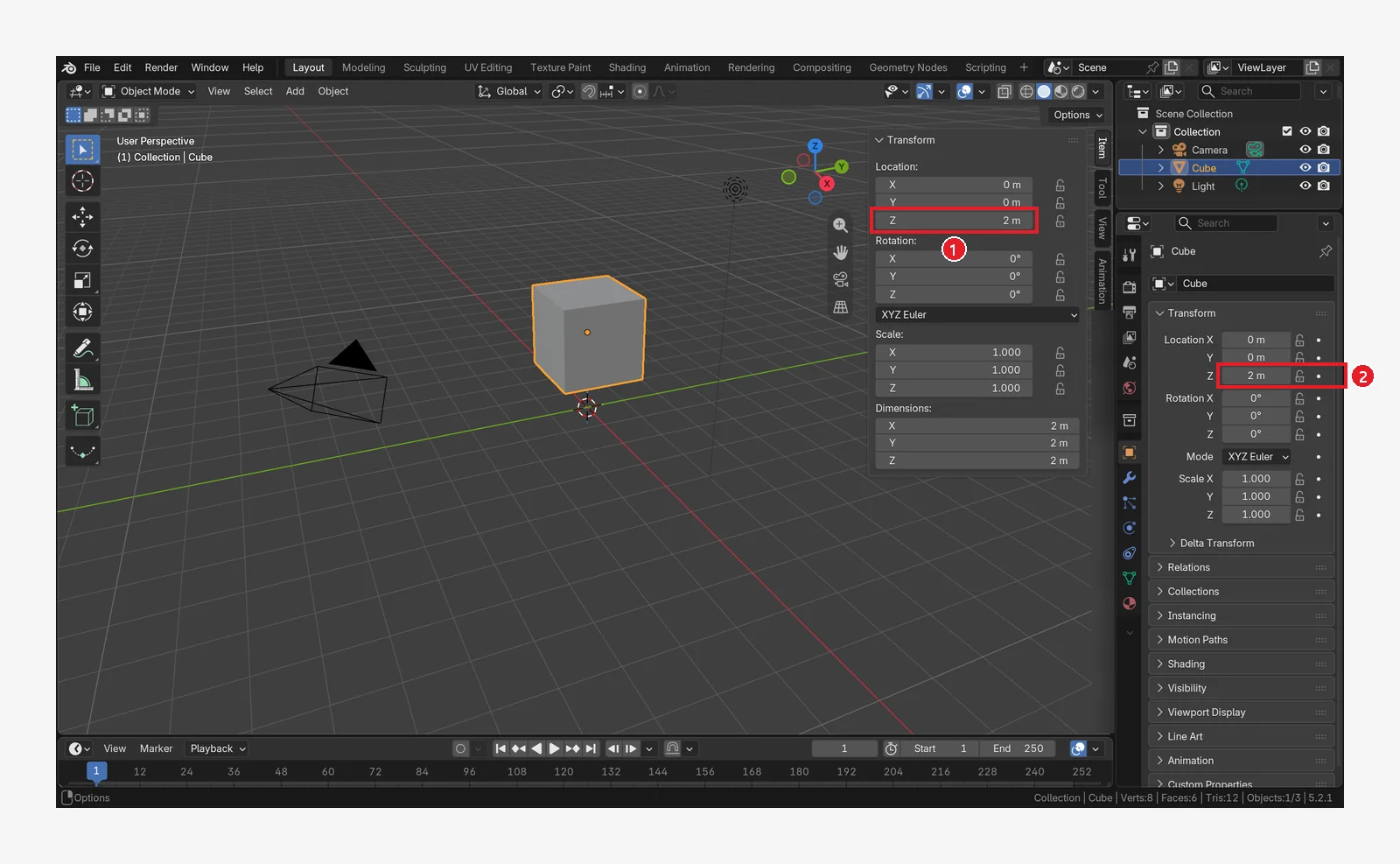 Figure 3-19. After
 G → Z → 2 → Enter: 1: sidebar Location Z = 2 m 2: Properties editor Location Z. The cube now floats above the floor (Blender screenshot)
5-4. Rotation: 45 degrees around the Z axis
Starting state: Undo what you changed in the previous section: press Alt+G to move the cube back to the origin.
Follow along: Press R → Z → 45 → Enter.
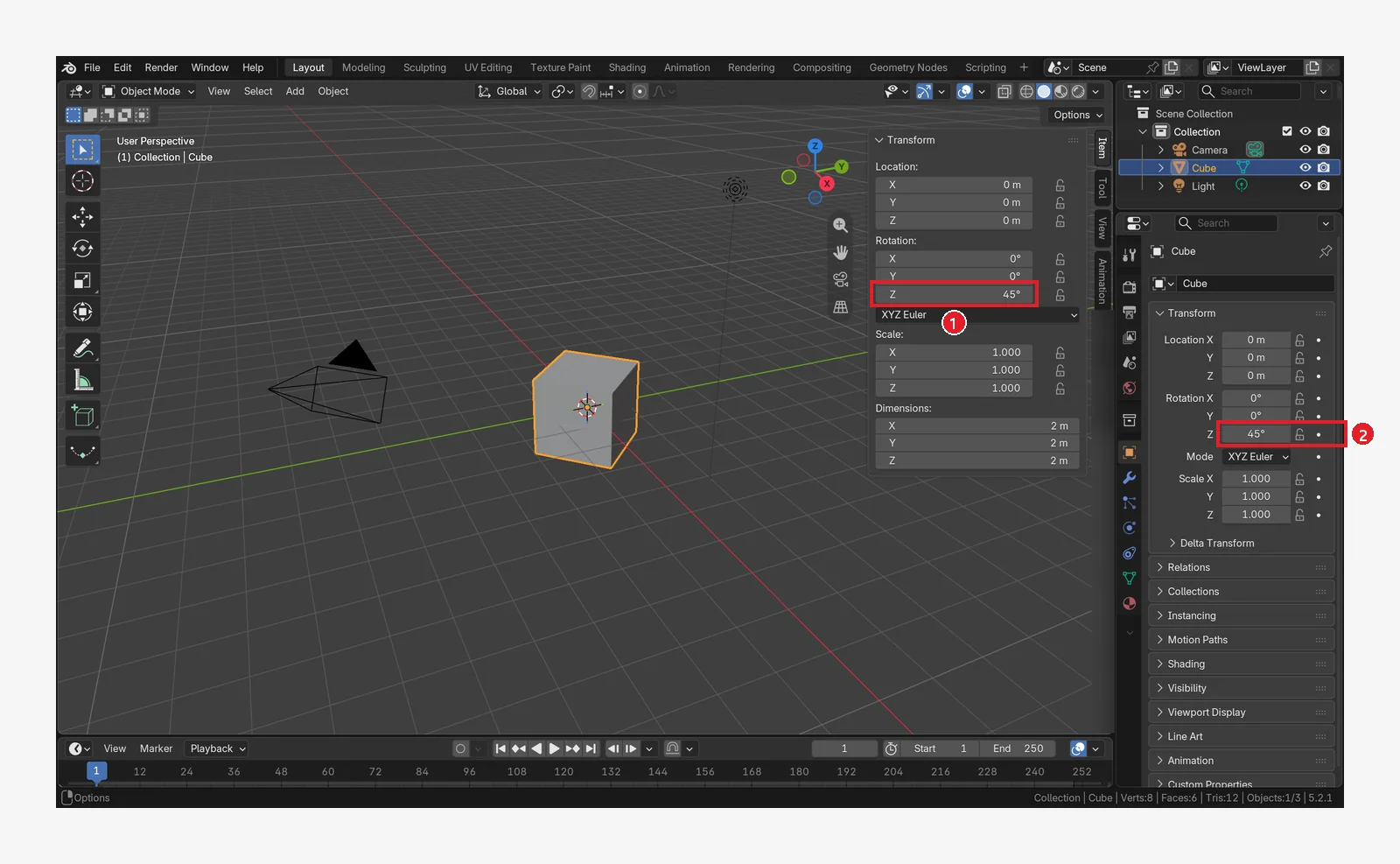 Figure 3-20. After
 R → Z → 45 → Enter: 1: sidebar Rotation Z = 45° 2: Properties editor Rotation Z. Seen from above, the cube is now turned at an angle (Blender screenshot)
5-5. Scale: twice as big
Starting state: Undo what you changed in the previous section: press Alt+R to set the rotation back to 0°.
Follow along: Press S → 2 → Enter.
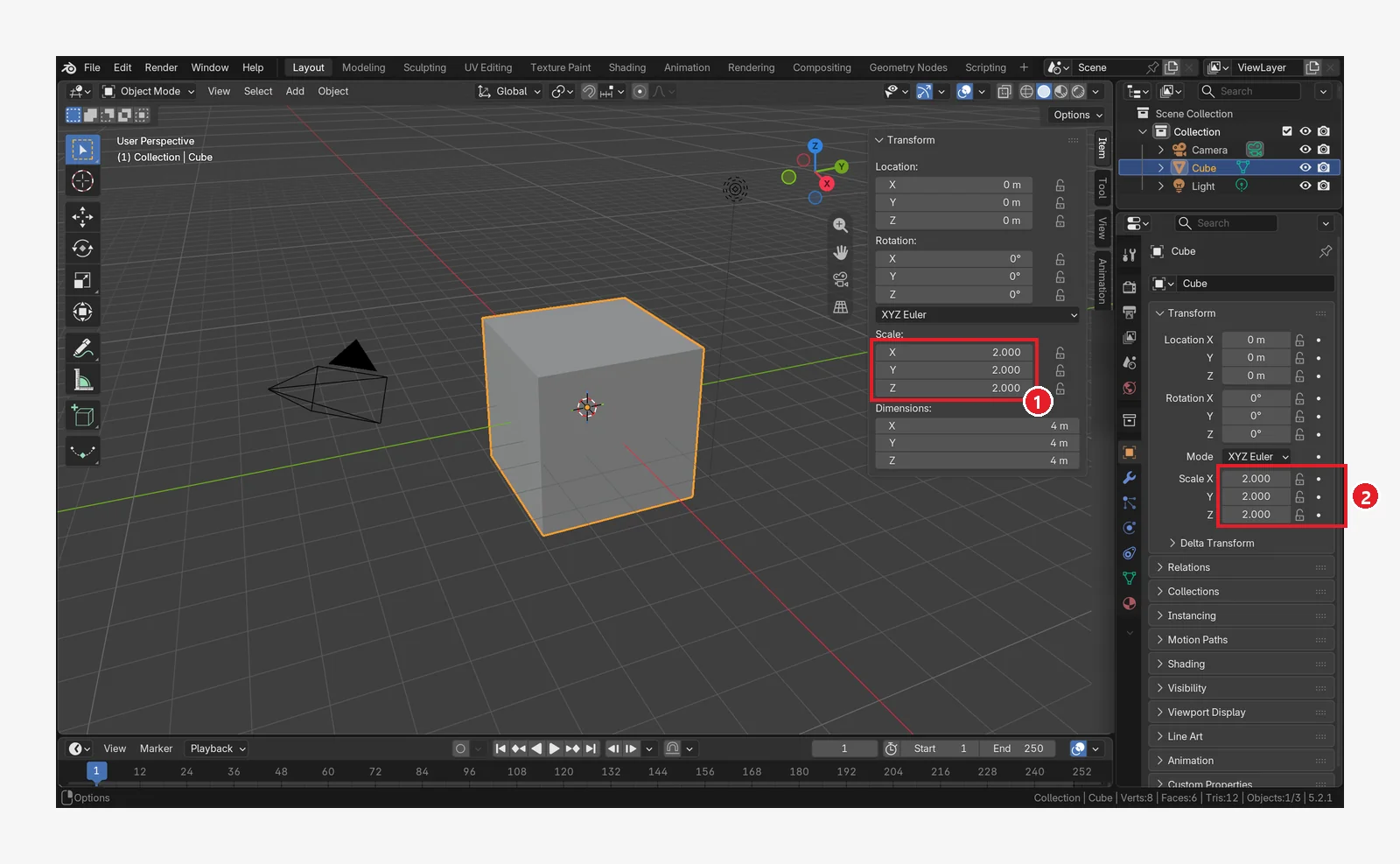 Figure 3-21. After
 S → 2 → Enter: 1: sidebar Scale X, Y, Z = 2.000 2: Properties editor Scale. Dimensions (the actual size) below in the sidebar also changes from 2 m to 4 m (Blender screenshot)
Scale versus Dimensions: Scale is "how many times the original size", and Dimensions is "the actual size right now (in m)". Each side of the default cube is 2 m, so with Scale 2.000, Dimensions becomes 4 m.
5-6. Transform options in the header
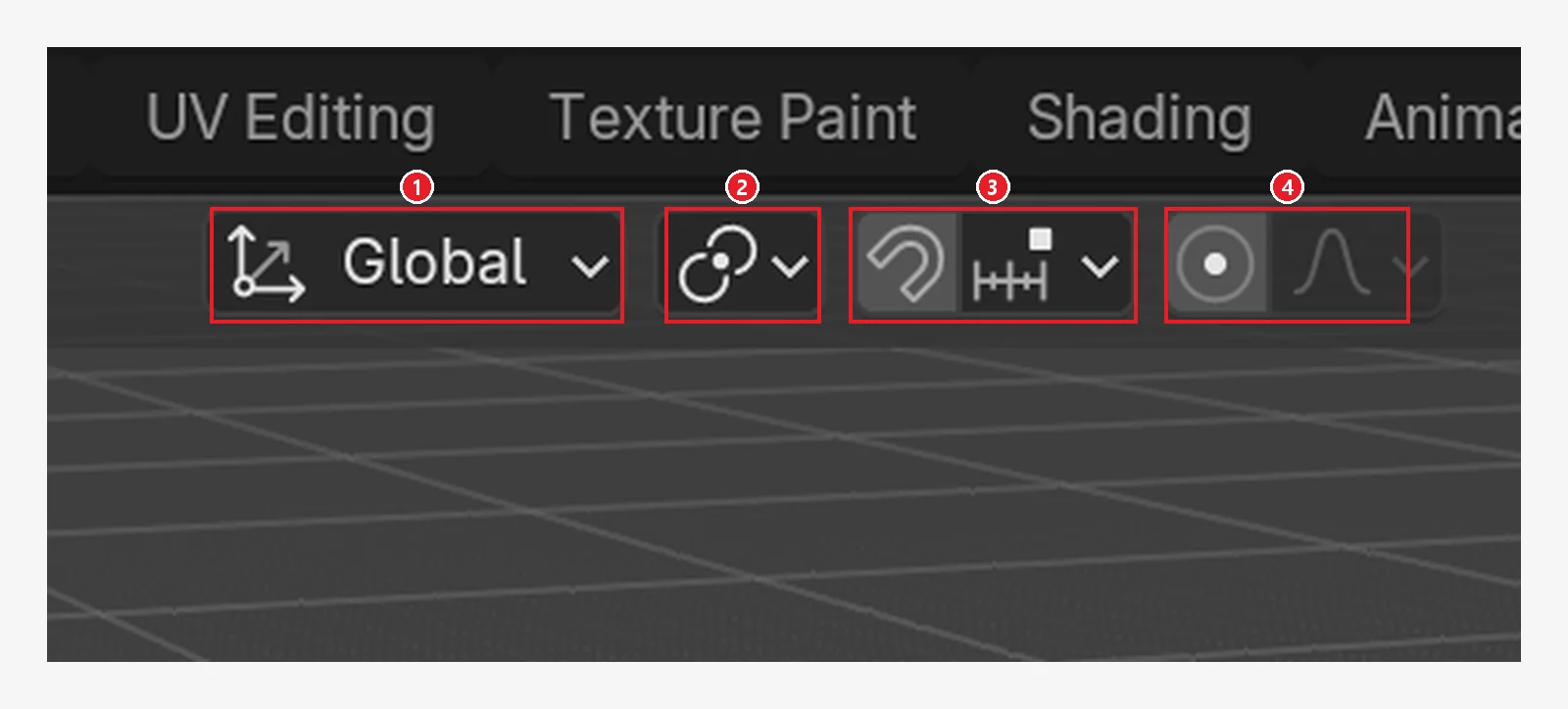 Figure 3-22. The middle of the header: 1: Transform Orientation (now Global) 2: Pivot Point 3: snapping (magnet icon) 4: Proportional Editing (Blender screenshot)
- 1. Transform Orientation: the reference for axis directions. The current value, Global, means "the X, Y, and Z of the world". Do not change it for now.
- 2. Pivot Point: sets the center point when you rotate several objects.
- 3. Snapping: when on, things stick to the grid and other points. Holding
Ctrlwhile moving also turns it on for a moment. - 4. Proportional Editing: mainly in Edit Mode, it makes nearby parts follow along smoothly (chapter 6).
6. Resetting to default values: Alt+G, R, S
Starting state: Continue from the cube in the previous section (Scale 2).
Follow along: Select the cube and press Alt+S. If any location or rotation is left, also press Alt+G and Alt+R.
| Key | What it resets | Result |
|---|---|---|
Alt+G | Location | (0, 0, 0) |
Alt+R | Rotation | 0° |
Alt+S | Scale | (1, 1, 1) |
In the menus, these are under Object ‣ Clear. The result matches the starting values in Figure 3-16.
You can also go back one step at a time with Ctrl+Z (undo). Undo is covered in detail in chapter 4.
7. Practice
Starting state: If you followed along through Section 6, the cube has its default values (Location 0, Rotation 0°, Scale 1). If not, first reset it with Alt+G, Alt+R, and Alt+S.
- Put the cube at location (2, 0, 1) and rotate it 30 degrees around the Z axis. When you are done, check that the sidebar values match Figure 3-23 (the answer to exercise 1 is the image below).
- Select everything with
A, then doGZ1Enter. Watch what moves together. When you are done, undo withCtrl+Z. - Select the camera and the cube with
Shift+click, then check which object's values the Properties editor shows. (Hint: the active object) - Reset the cube to its starting state with
Alt+G,Alt+R, andAlt+S.
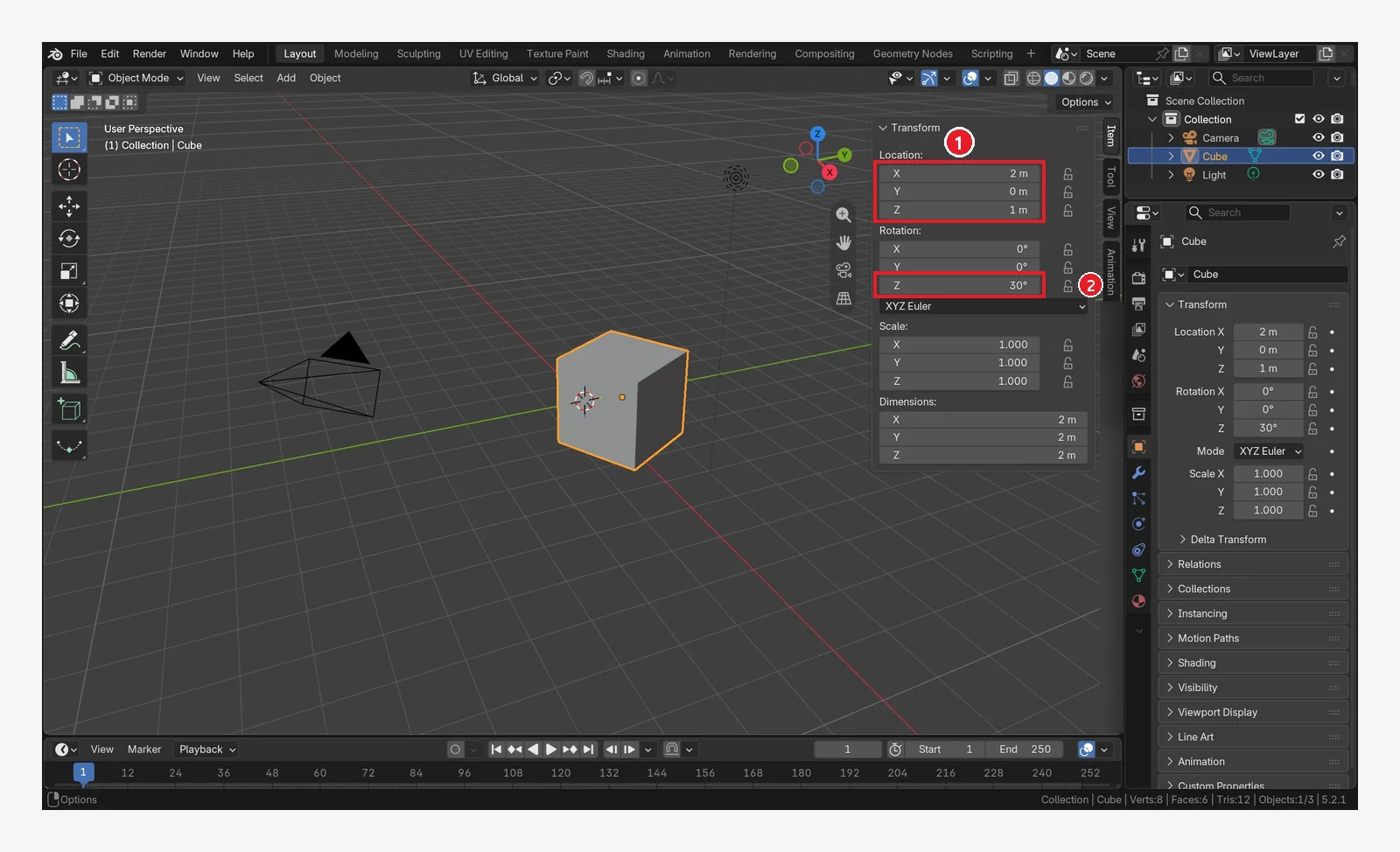 Figure 3-23. The answer to exercise 1: 1: Location X 2 m, Y 0 m, Z 1 m 2: Rotation Z 30°. One way to do it:
 G X 2 Enter → G Z 1 Enter → R Z 30 Enter (Blender screenshot)
8. Common mistakes and fixes
| Symptom | Cause | Fix |
|---|---|---|
After pressing G, the object keeps following the mouse | Normal behavior. You did not confirm | Left-click (confirm) or right-click (cancel) |
| Only dots and lines move, not the object | Edit Mode | Set the header to Object Mode. Switch with Tab |
| Objects you did not want also move | Several objects are selected | Click an empty spot or press Alt+A to deselect, then select again |
| The Properties editor shows another object's values | A different object is active | Click the object you want to make it active |
| You typed a number and it went the wrong way | You did not press an axis key, so it went along X | Press an axis key (X/Y/Z) right after G first |
| Keys do nothing | The mouse is outside the 3D Viewport | Move the mouse over the 3D Viewport |
| After scaling, bevels and similar effects look odd later | Scale is not 1 | You learn "Apply Scale" in chapter 7 |
One-line summary
Click to select (Shift to add), move with G, R, S, lock the axis with X, Y, Z, and type numbers for precision. Left-click confirms and right-click cancels. Reset with Alt+G, R, S. In chapter 4 you learn how to add, delete, and duplicate objects, and how to undo.
References
- Blender 5.2 Manual: Selecting Objects
- Blender 5.2 Manual: Move
- Blender 5.2 Manual: Axis Locking
- Blender 5.2 Manual: Numeric Input
- Blender 5.2 Manual: Clear
- Shortcuts: based on the default (Blender) keymap of Blender 5.2.1
- Image licenses: the manual screens are CC BY-SA 4.0, with red numbers and outlines added. Blender program license: blender.org/about/license