Blender for complete beginners, chapter 4: adding, deleting, and duplicating objects, and undo
Handling objects in Blender for complete beginners: the 3D cursor, the Add menu and Shift+A, the 10 basic shapes, duplicating, deleting, and hiding, Ctrl+Z undo, and the Edit Mode trap.
한국어English
ON THIS PAGE
- 01What you will learn in this chapter
- 021. The 3D cursor: where new objects appear
- 032. Adding objects
- 043. Fixing it right after adding: the Adjust Last Operation panel
- 054. Duplicating: `Shift`+`D` (before → after)
- 065. Deleting: `X` or `Delete` (before → after)
- 076. Hiding and showing again: `H` / `Alt`+`H` (before → after)
- 087. Undo: `Ctrl`+`Z` (before → after)
- 098. The Edit Mode trap: when an added object gets merged
- 109. Checking the number of objects
- 1110. Practice
- 1211. Common mistakes and fixes
- 13Summary in one line
- 14References
Blender for complete beginners series, chapter 4 · Based on: Blender 5.2 LTS (screenshots from 5.2.1, English UI, default shortcuts) All pictures are real screens. The red numbers and outlines were added for explanation.
What you will learn in this chapter
By the end of this chapter you will be able to:
- Know the 3D cursor, the place where new objects appear. (Section 1)
- Add objects with the Add menu and
Shift+A, and know the kinds of basic shapes. (Section 2) - Find the panel that changes size and number of segments right after adding. (Section 3)
- Duplicate, delete, and hide objects. (Sections 4 to 6)
- Go back with undo (
Ctrl+Z). (Section 7) - Avoid the Edit Mode trap that beginners run into most. (Section 8)
Before you start: one rule to follow Before adding an object, check that the top left of the 3D Viewport says Object Mode and that the workspace tab at the top is Layout. If you add in Edit Mode, the new object is merged into one piece with the selected object (section 8). Every picture in this chapter shows the Layout workspace in Object Mode (only figure 4-22 in section 8 is in Edit Mode). In this chapter, "cursor" means the 3D cursor (section 1). The arrow you move with the mouse is called the "mouse pointer."
1. The 3D cursor: where new objects appear
1-1. Three ways in for adding objects
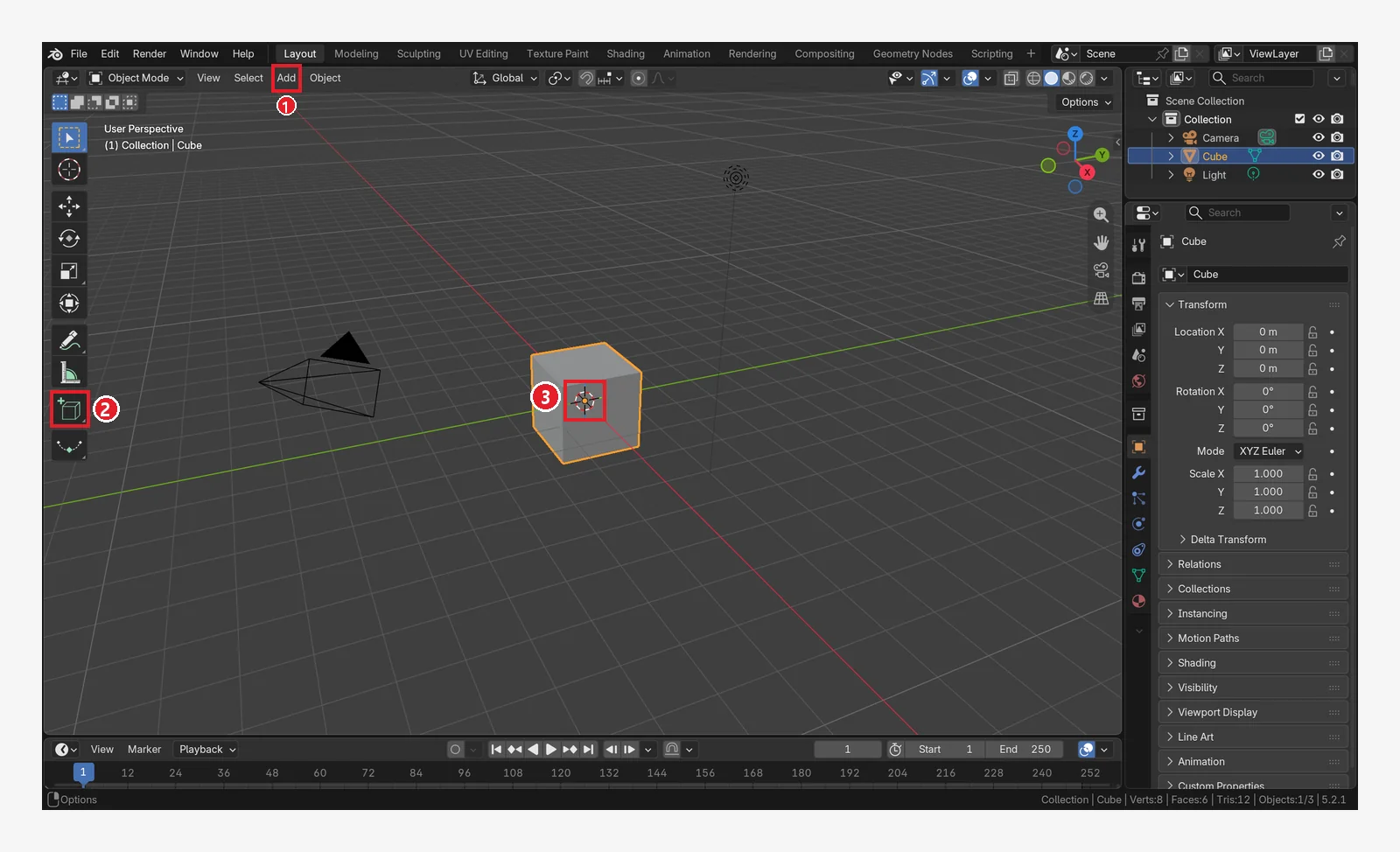 Figure 4-1. ① The Add menu in the header ② The Add Cube tool in the toolbar ③ The 3D cursor (the red-and-white striped circle): the place where new objects appear (Blender screenshot)
- ① Add menu: click
Addin the header to see the kinds of objects. PressingShift+Aover the 3D Viewport opens the same menu next to the mouse pointer. - ② Add Cube tool: a tool that adds a box by dragging in the viewport, as if drawing it. This chapter does not use it.
- ③ 3D cursor: at first it sits at the center of the scene (the origin), so it overlaps the center of the cube.
The basic shapes in the menu are shown in a picture from the official manual.
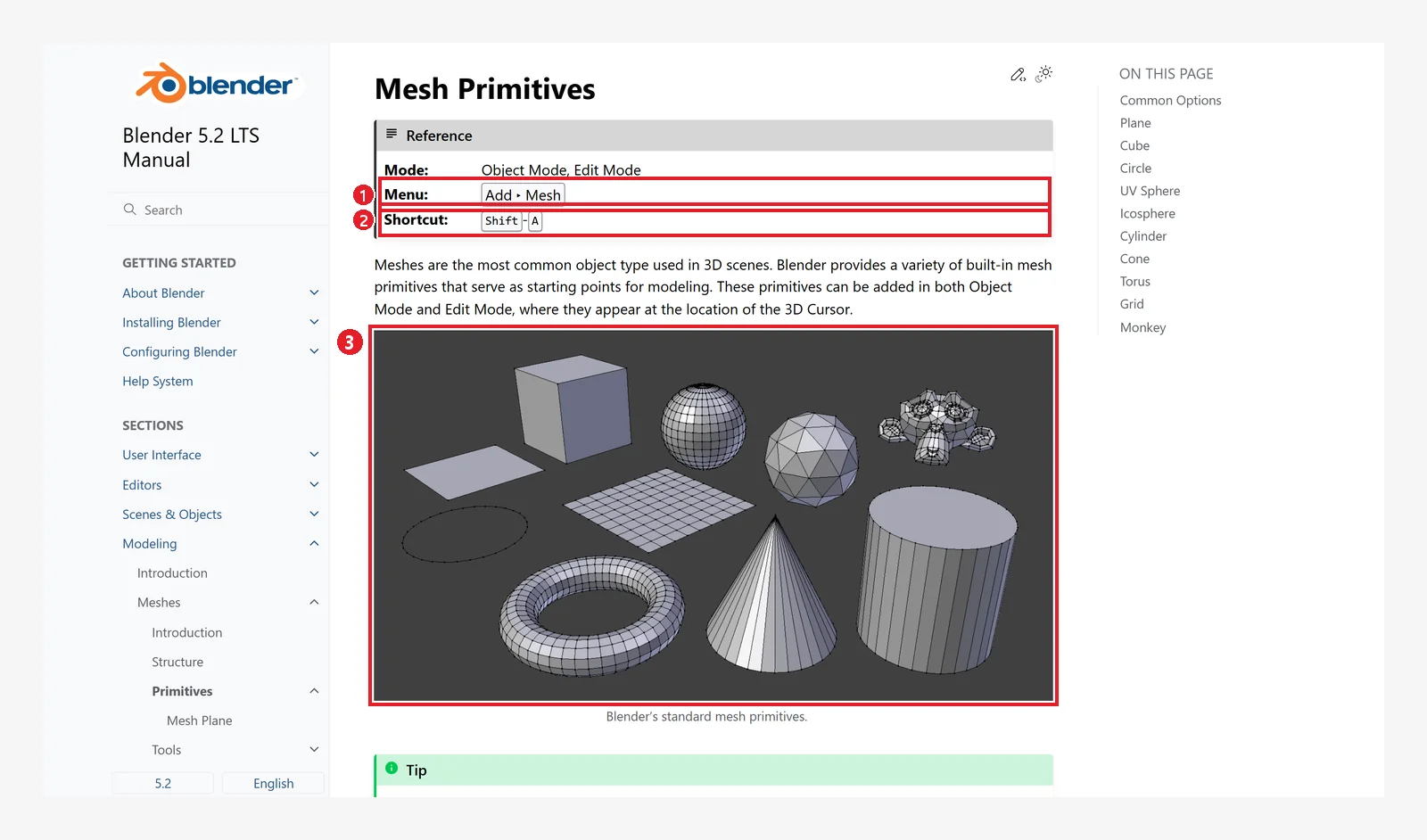 Figure 4-2. The official manual, Mesh Primitives: ① Menu Add ‣ Mesh ② Shortcut Shift-A ③ The set of basic shapes (primitives) (Blender 5.2 manual screenshot, CC BY-SA 4.0, numbers added)
1-2. Moving the 3D cursor (before → after)
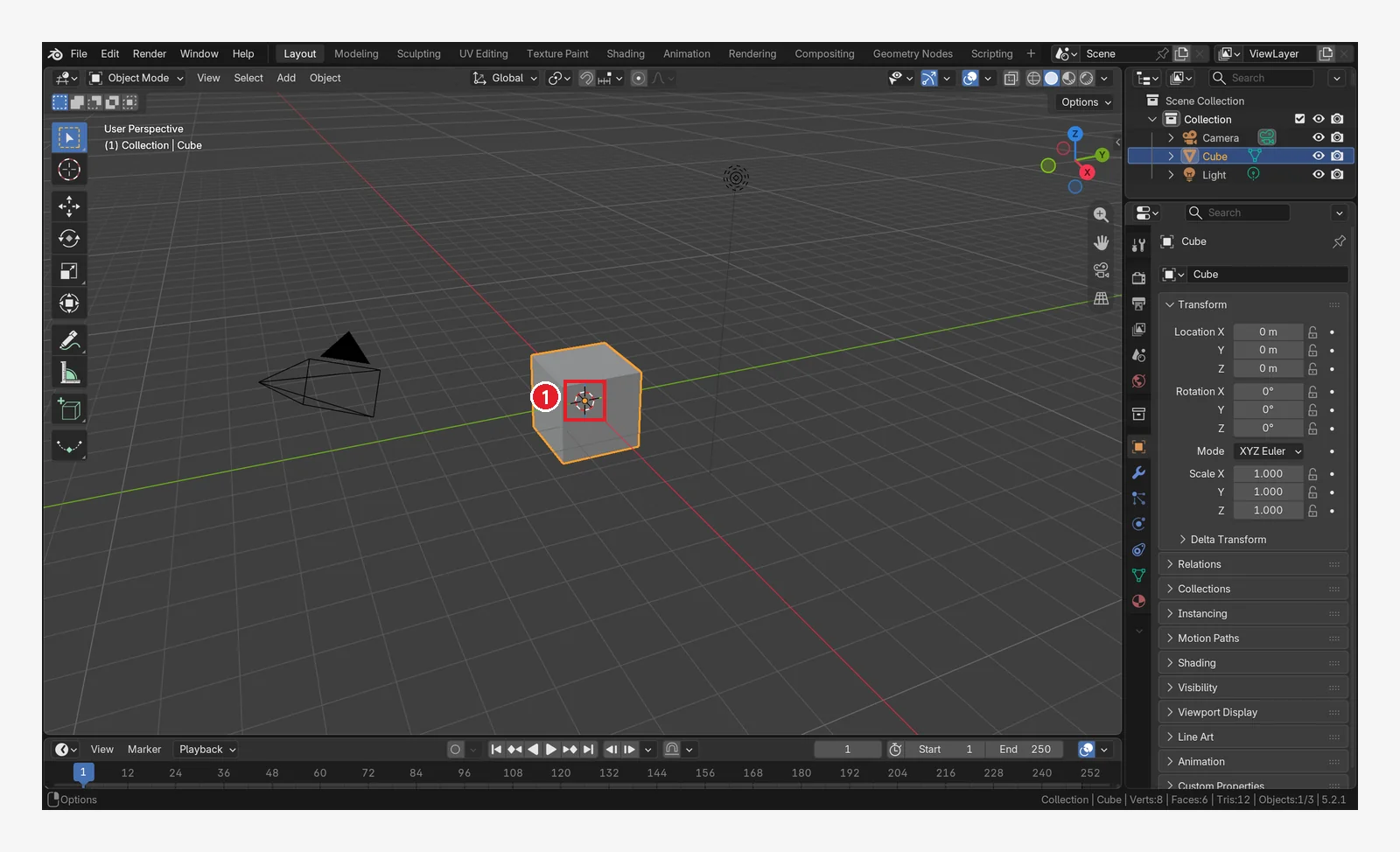 Figure 4-3. Before moving: ① the 3D cursor is at the origin (0, 0, 0), in the center of the cube (Blender screenshot)
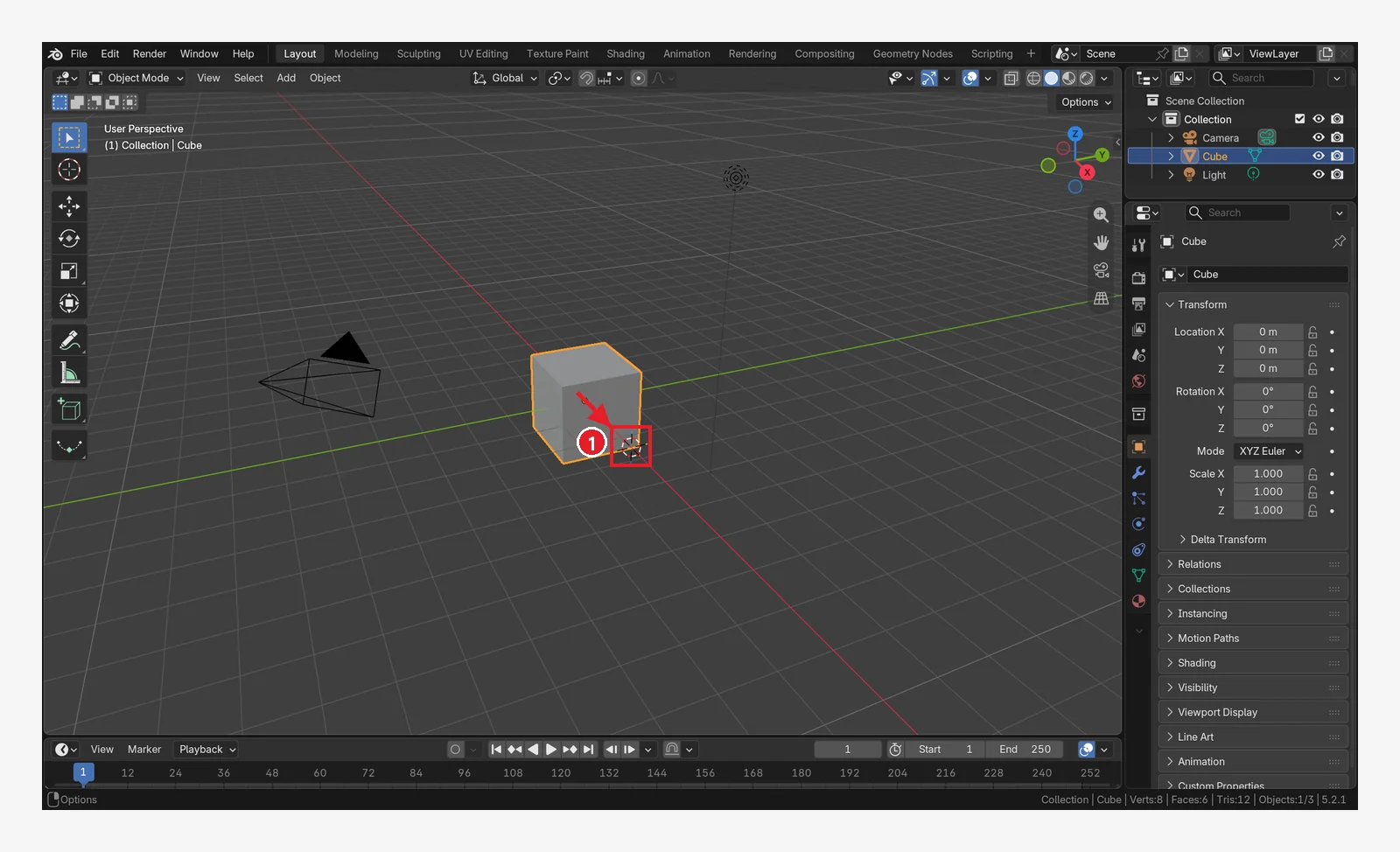 Figure 4-4. After moving: ① the 3D cursor has moved 2.5 m along the X axis. The arrow shows the direction it moved (Blender screenshot)
| What you want | How |
|---|---|
| Put the 3D cursor where you want | Shift+right-click |
| Send the 3D cursor back to the origin and view everything | Shift+C (chapter 2, section 8) |
| Move the cursor to the selected object, and more | Shift+S → Snap menu (a round pie menu) |
In figure 4-4 the cursor is at (2.5, 0, 0). When you do it yourself, just
Shift+right-click the spot you want on the floor.
2. Adding objects
2-1. Follow along: add a sphere (UV Sphere) (before → after)
Starting point: continue from the scene in the previous section, where the 3D cursor was moved next to the cube (figure 4-4).
- Check that the top left of the 3D Viewport says Object Mode.
- Put the mouse pointer over the 3D Viewport and press
Shift+A(or clickAddin the header). - Choose
Mesh→UV Sphere.
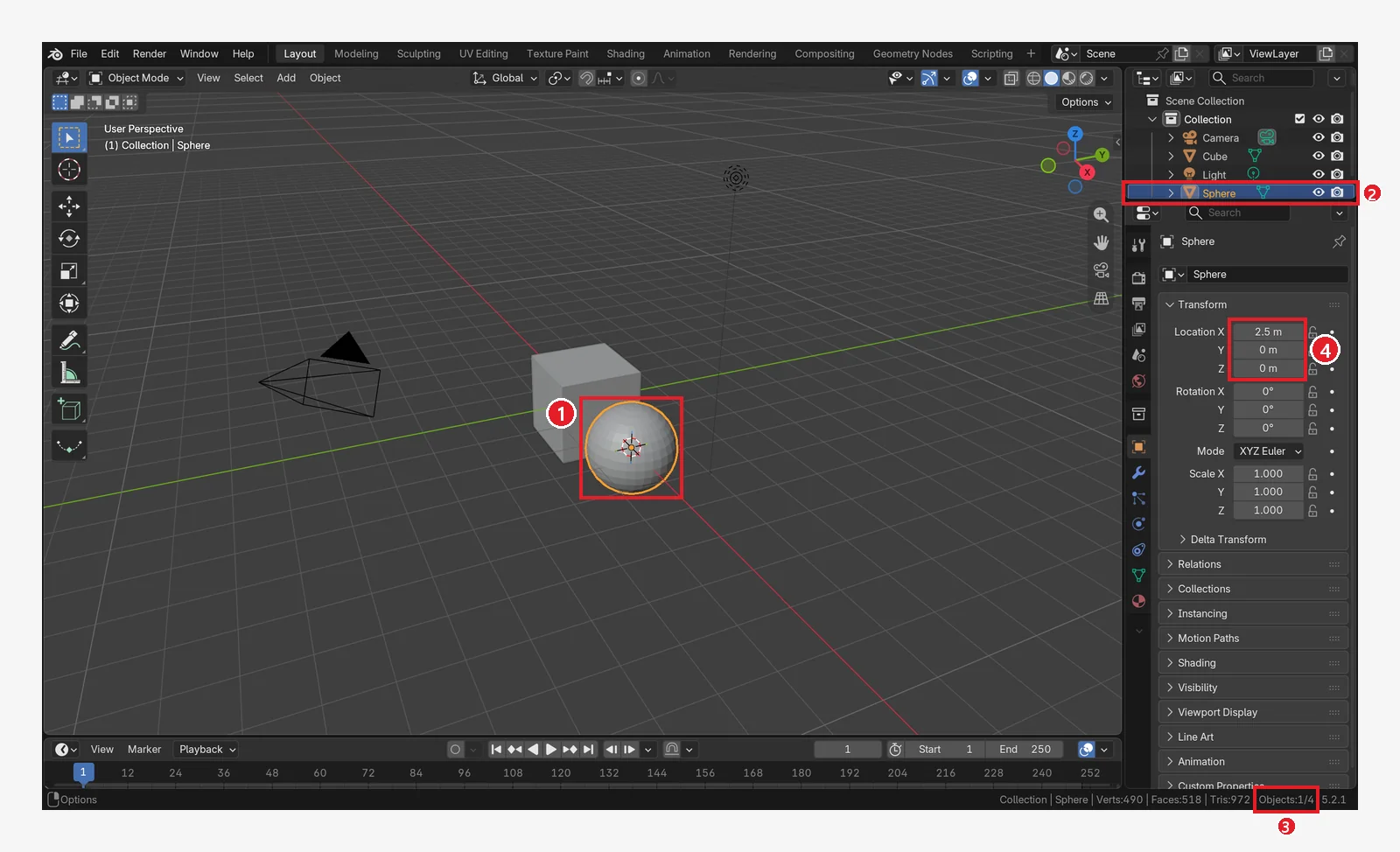 Figure 4-5. After adding (compare with figure 4-4): ① a new sphere appears at the 3D cursor and is selected ② Sphere is added to the Outliner ③ The status bar shows Objects: 1/4 (1 of 4 selected) ④ In the Properties Editor, Location X = 2.5 m, the same as the cursor position (Blender screenshot)
As the manual says, a new object appears at the 3D cursor, and the new object becomes selected and active. The cube is no longer selected.
2-2. The set of basic shapes
Here are the basic shapes (Mesh Primitives) under Add ‣ Mesh, gathered in one scene.
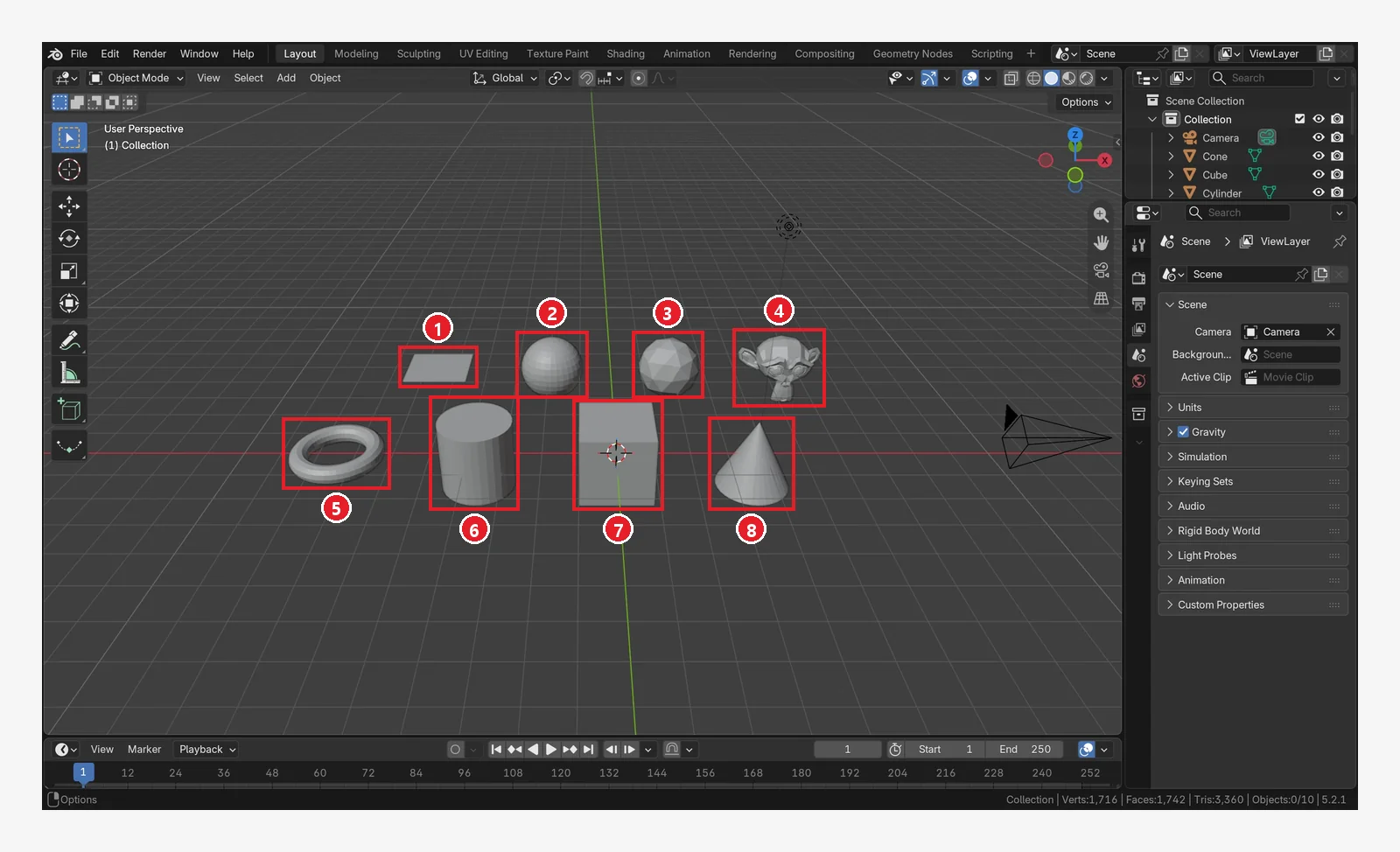 Figure 4-6. Back row: ① Plane ② UV Sphere ③ Icosphere (a sphere made of triangles) ④ Monkey (Suzanne). Front row: ⑤ Torus (donut) ⑥ Cylinder ⑦ Cube (the default cube) ⑧ Cone (Blender screenshot)
The manual's list also has Circle and Grid (a plane divided into squares), for 10 shapes in total.
| Shape | Use it for |
|---|---|
| Cube | A starting point for boxes, buildings, and furniture |
| UV Sphere | Smooth spheres such as balls and eyeballs |
| Icosphere | Even triangle faces, for rocks and low-poly spheres |
| Cylinder | Cups, pillars, wheels |
| Cone | Roofs, (low-poly) trees, party hats |
| Torus | Donuts, rings |
| Plane | Floors, walls, paper |
| Monkey | A face for practice and testing (the object is named Suzanne) |
3. Fixing it right after adding: the Adjust Last Operation panel
When you add an object from the menu, a small panel appears at the bottom left of the 3D Viewport. The manual calls it Adjust Last Operation. Here you can change size (Radius, Size), number of segments (Segments, Vertices), and more right away.
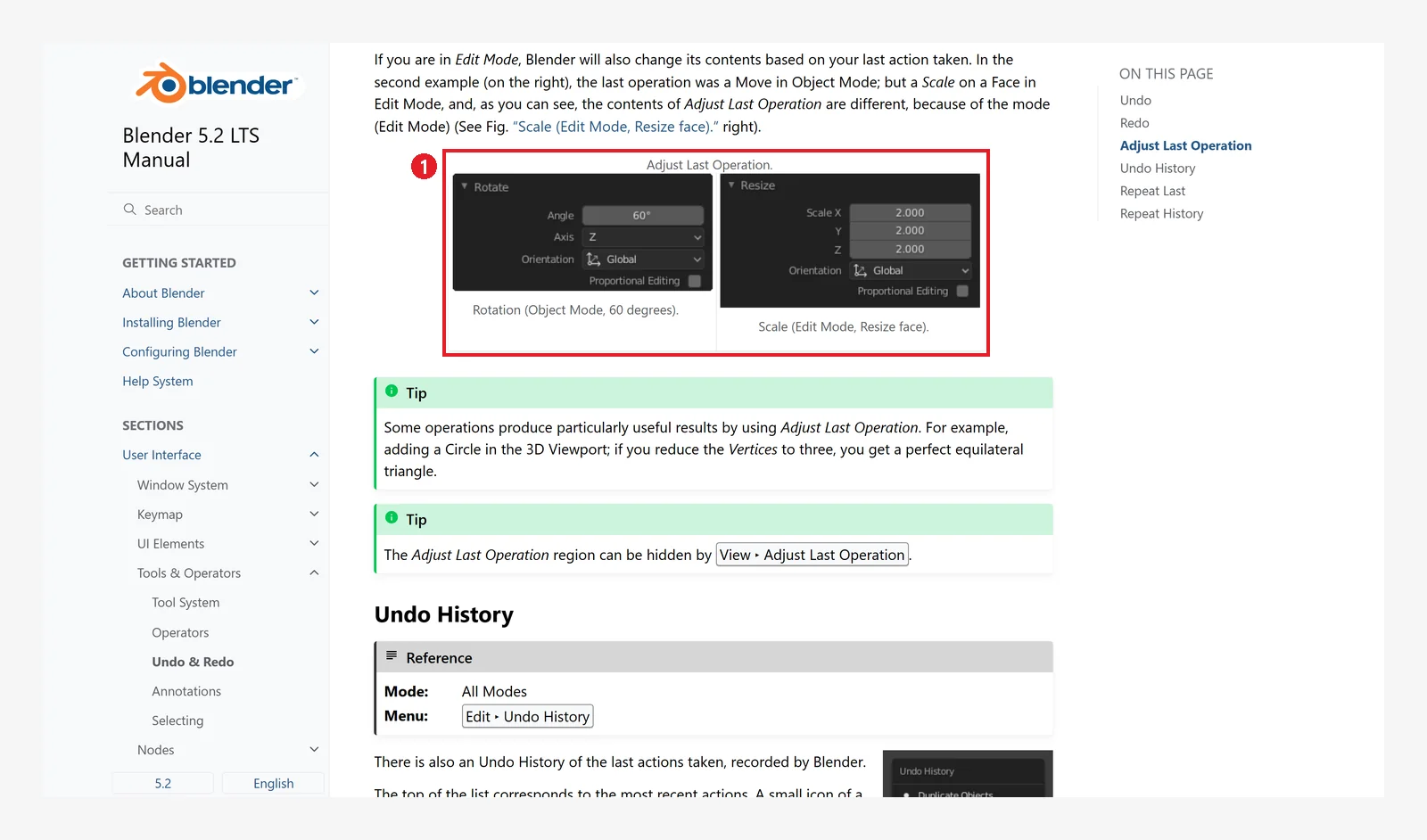 Figure 4-7. An example of the ① Adjust Last Operation panel in the official manual (left: the panel after rotating, right: after scaling) (Blender 5.2 manual screenshot, CC BY-SA 4.0, numbers added)
- If the panel is collapsed, click its title to expand it.
- If the panel has disappeared, reopen it with
F9. From the menu, it is Edit ‣ Adjust Last Operation…. - If you do something else, the panel switches to that operation. Make changes right after adding.
- A tip from the manual: add a Circle and lower Vertices to 3 to get an equilateral triangle.
On a real screen it looks like the picture below. The picture shows the moment right after placing the 3D cursor at (2.5, 0, 0) as in section 1-2, adding a sphere with Shift+A ‣ Mesh ‣ UV Sphere, and clicking the panel title at the bottom left to expand it.
Follow along: if you did anything else after adding the sphere in section 2-1, the panel has already changed. Delete the sphere from section 2-1 with Delete, add a sphere again the same way, and right away click the panel title at the bottom left to expand it.
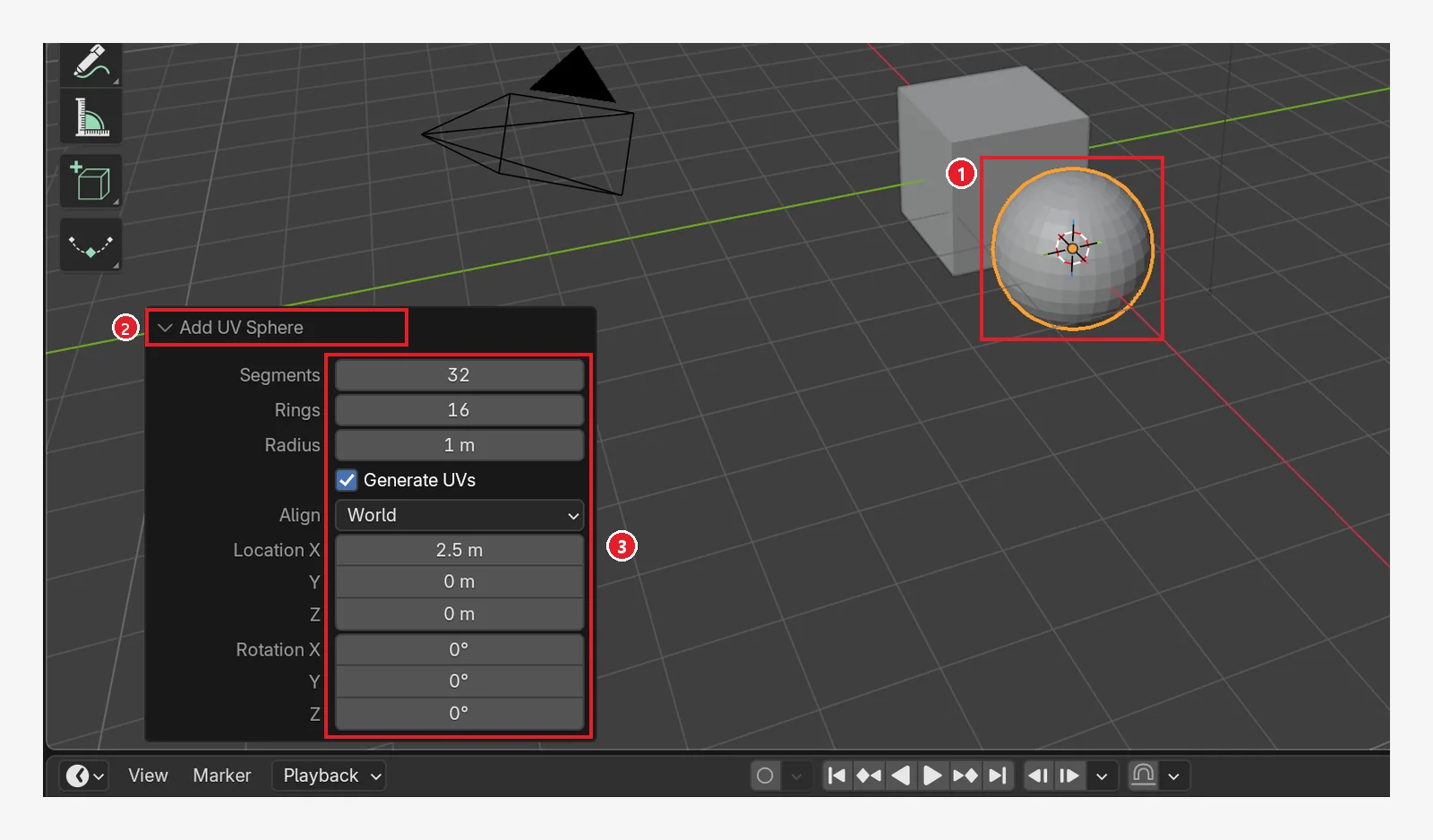 Figure 4-8. Right after adding a sphere (①) with
 Shift+A ‣ Mesh ‣ UV Sphere, the ② Add UV Sphere title at the bottom left was clicked to expand it: ③ values such as Segments, Rings, Radius, and Location can be changed right here. Location X is 2.5 m because the sphere was added at the 3D cursor (Blender screenshot)
The panel title changes to the name of the operation you just did (here, Add UV Sphere). For example, lowering Segments from 32 to 12 turns the sphere angular right away.
4. Duplicating: Shift+D (before → after)
Starting point: continue from the sphere added in the previous section.
Follow along: click the sphere to select it and press Shift+D. Move the mouse to shift the copy to the side, then left-click to drop it.
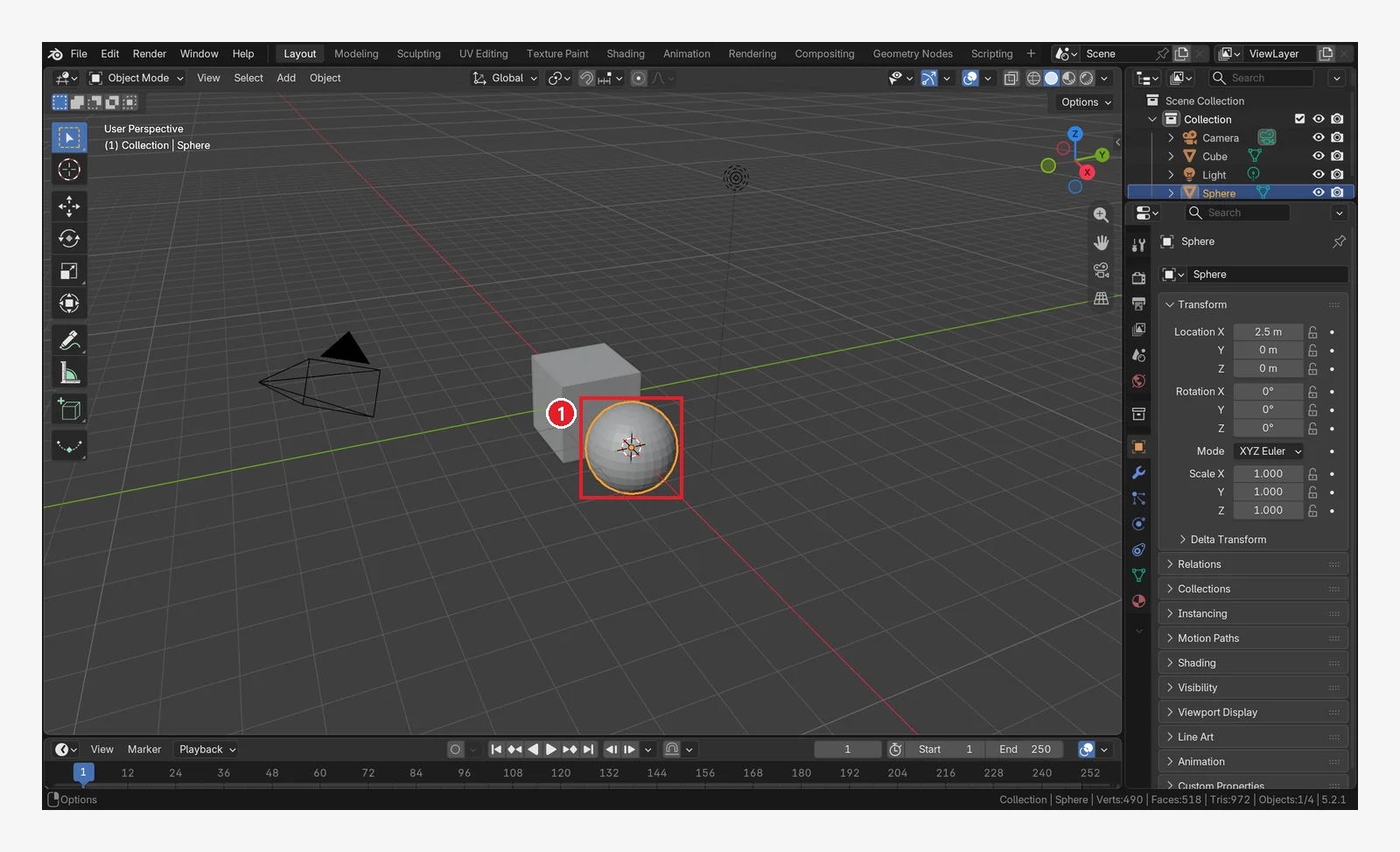 Figure 4-9. Before pressing: ① select the sphere to duplicate (Blender screenshot)
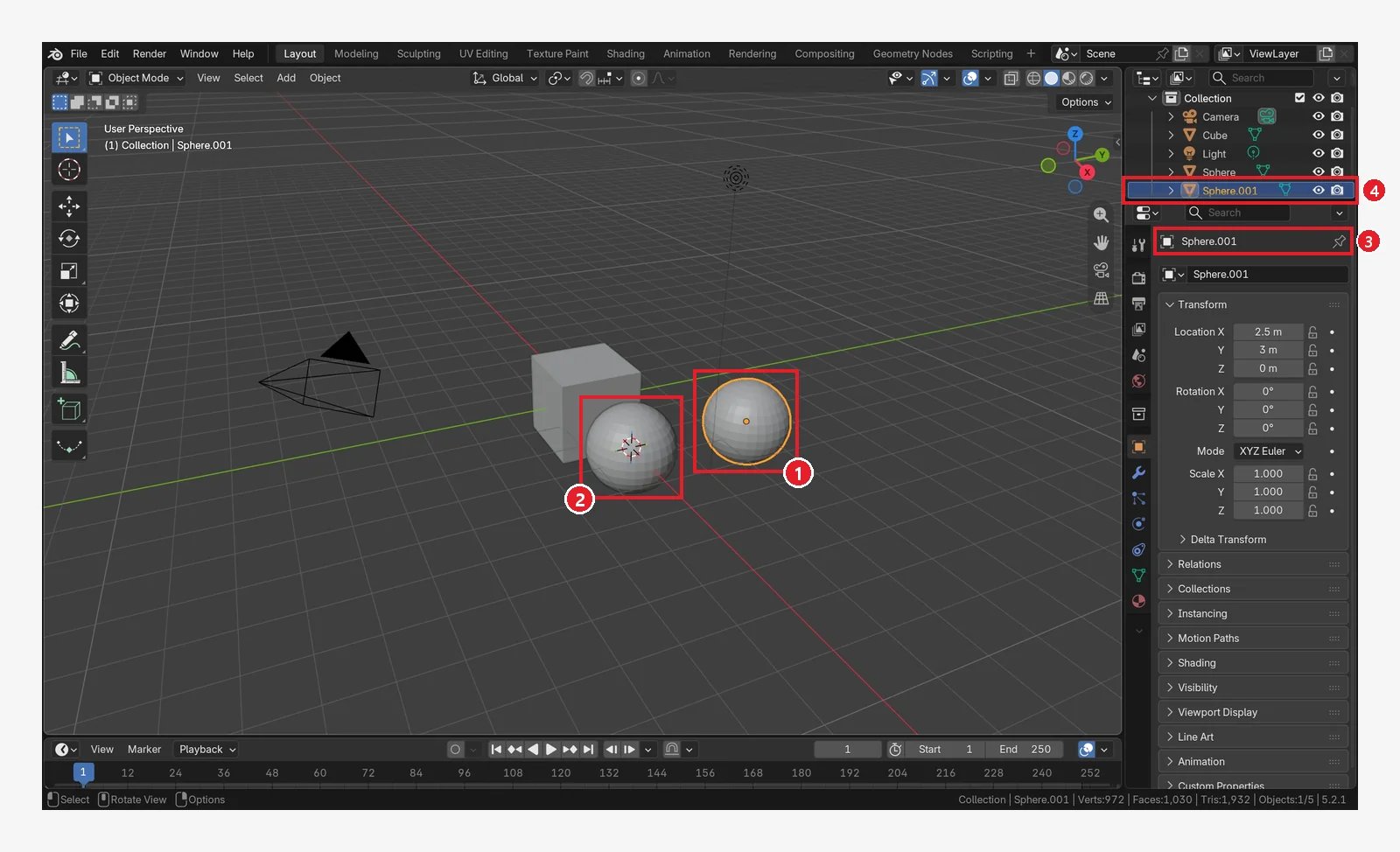 Figure 4-10. After
 Shift+D → moving with the mouse → left-click: ① the new sphere (the copy) is selected ② the original sphere is deselected ③ it is named Sphere.001 ④ a new Sphere.001 row also appears in the Outliner, highlighted in blue. In the picture the copy has been moved 3 m along Y (Location 2.5, 3, 0) (Blender screenshot)
What the manual says:
- Pressing
Shift+Dcreates a copy in the same place and puts it straight into move mode. Move the mouse to shift it, then left-click to drop it. - Even if you cancel the move with a right-click, the copy stays behind, overlapping the original. So pressing it several times stacks objects in the same spot. You can spot them in the Outliner by the .001, .002 at the end of their names.
- The shape (mesh) is copied separately, but the material is shared with the original. So changing the material color of the copy also changes the original (covered in chapter 8).
- Menu: Object ‣ Duplicate Objects.
5. Deleting: X or Delete (before → after)
Starting point: continue from the two spheres (Sphere, Sphere.001) in the previous section.
Follow along: click the copy (Sphere.001) to select it and press Delete.
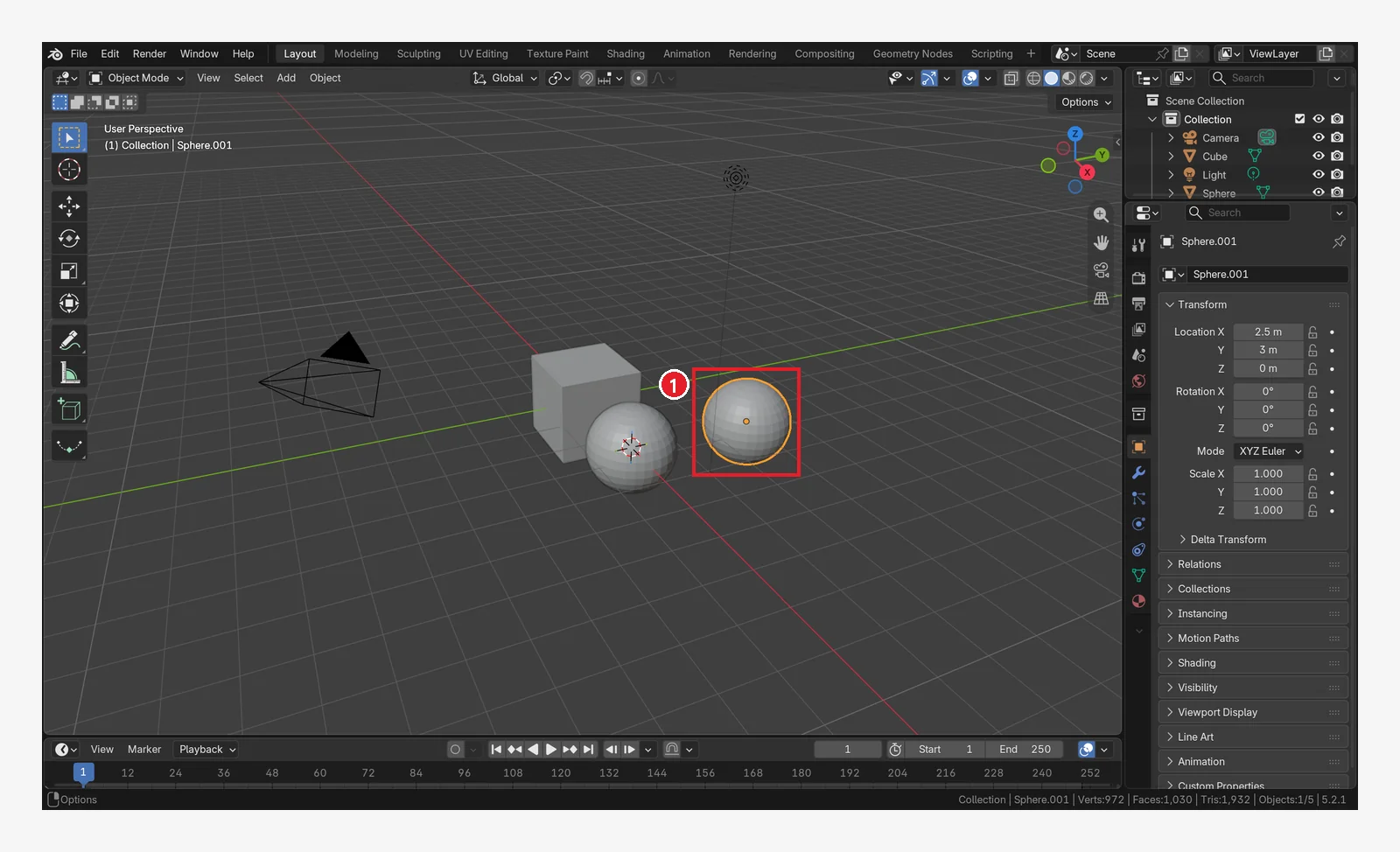 Figure 4-11. Before pressing: ① select the object to delete (Sphere.001) (Blender screenshot)
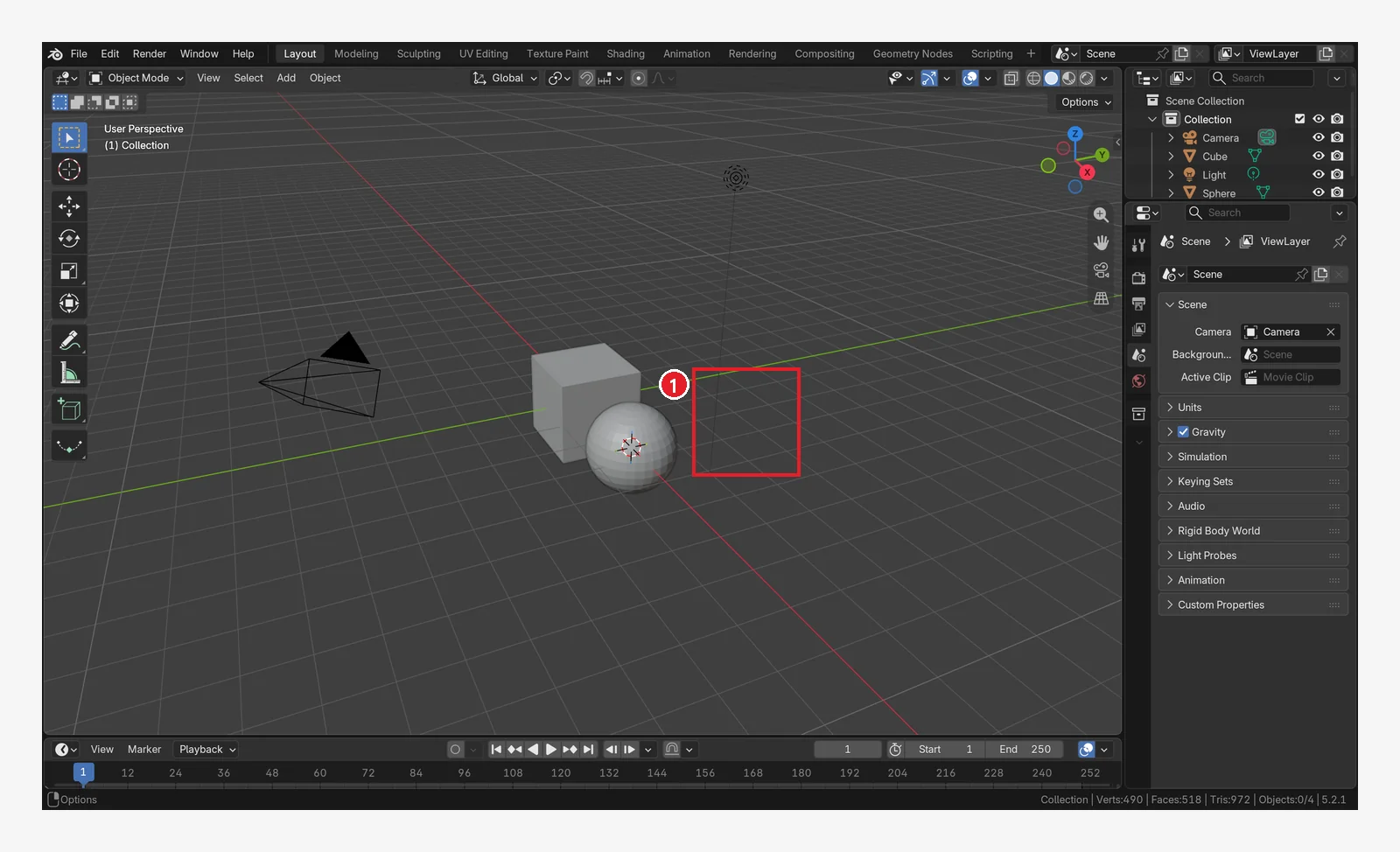 Figure 4-12. After pressing
 Delete: ① the duplicated sphere is gone (Blender screenshot)
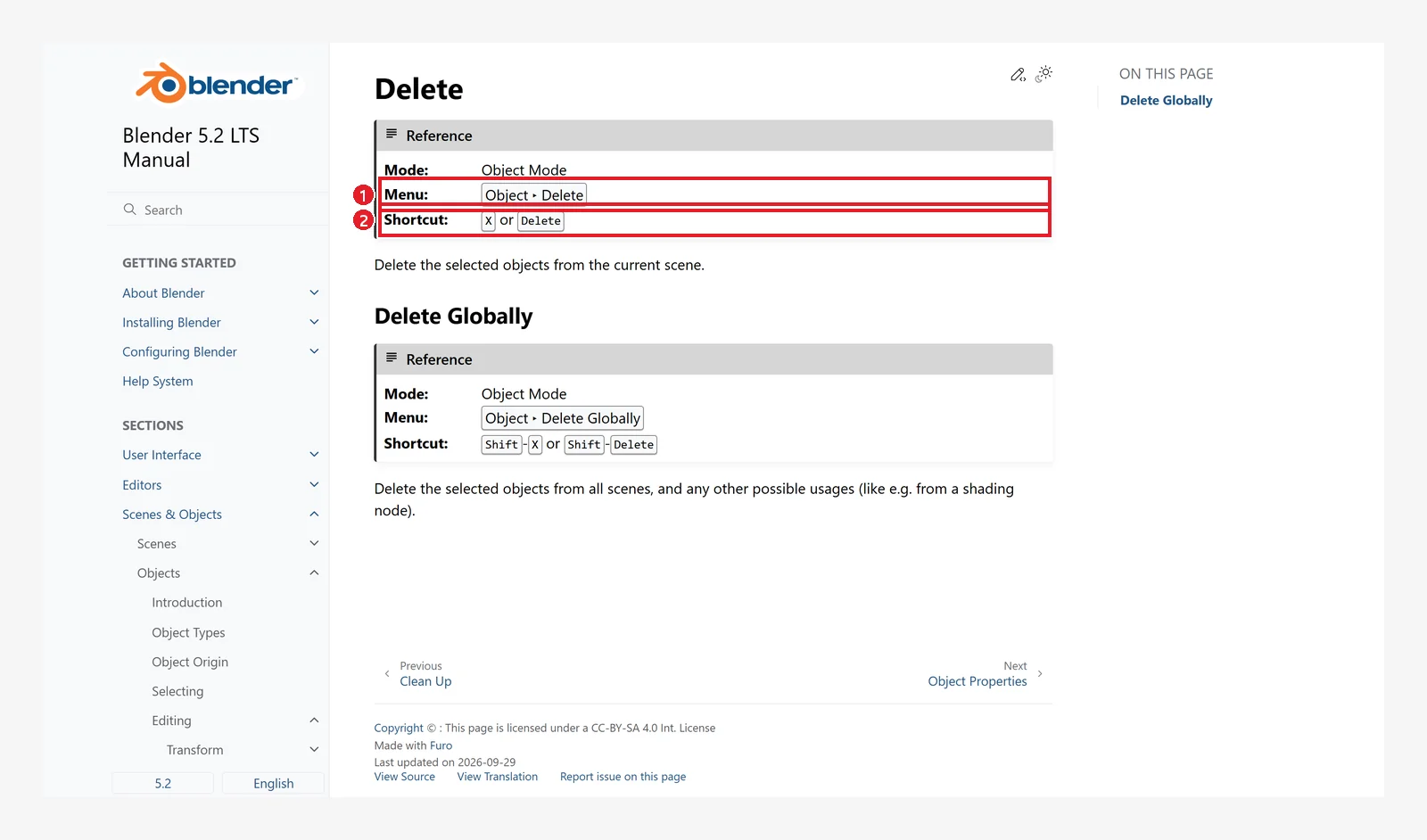 Figure 4-13. The official manual, Delete: ① Menu Object ‣ Delete ② Shortcut X or Delete (Blender 5.2 manual screenshot, CC BY-SA 4.0, numbers added)
| Key | What happens |
|---|---|
Delete | Deletes right away |
X | A small window asks once more, and the object is deleted only when you click Delete in it (figure 4-14) |
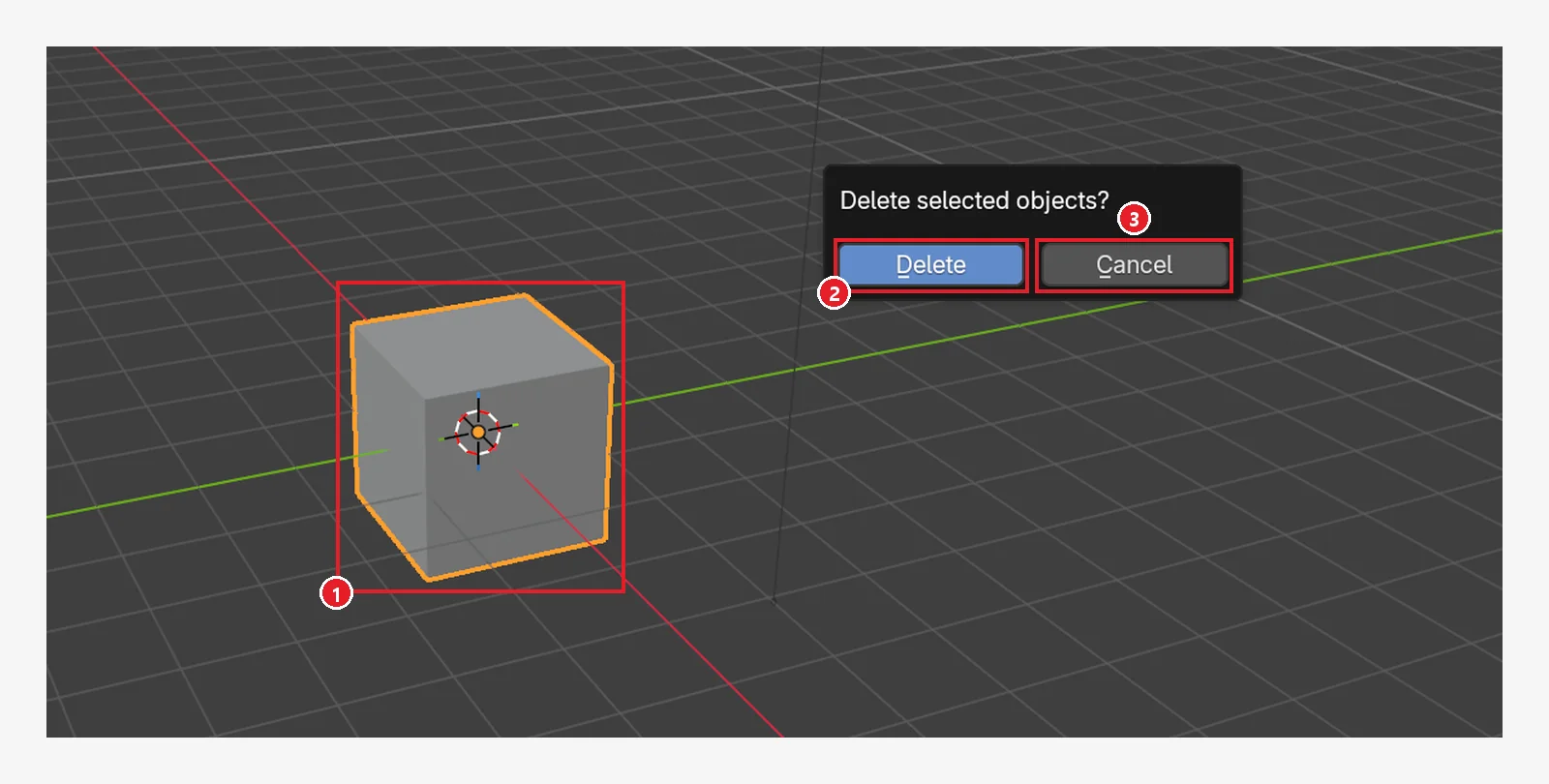 Figure 4-14. Select the cube (①) in Object Mode and press
 X, and a "Delete selected objects?" confirmation window appears at the mouse pointer: click ② Delete to delete it, or ③ Cancel (or Esc) to leave it as is (Blender screenshot)
6. Hiding and showing again: H / Alt+H (before → after)
You can also make an object disappear for a while without deleting it.
Starting point: continue from the sphere (Sphere) left over from the previous section.
Follow along: click the sphere to select it and press H. Check that the sphere has disappeared, then press Alt+H.
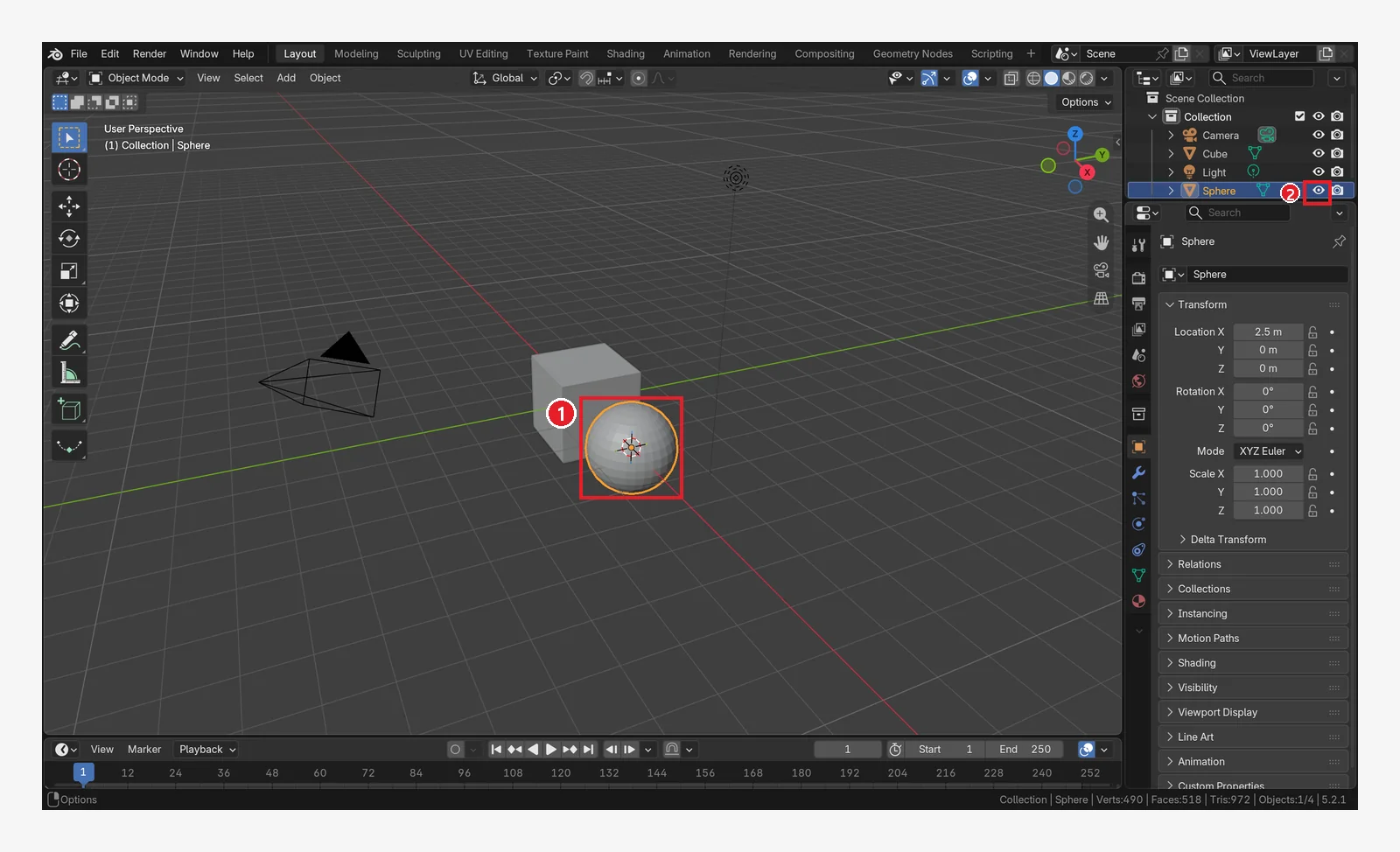 Figure 4-15. Before pressing: ① the sphere is selected ② the eye icon in the Outliner is open (Blender screenshot)
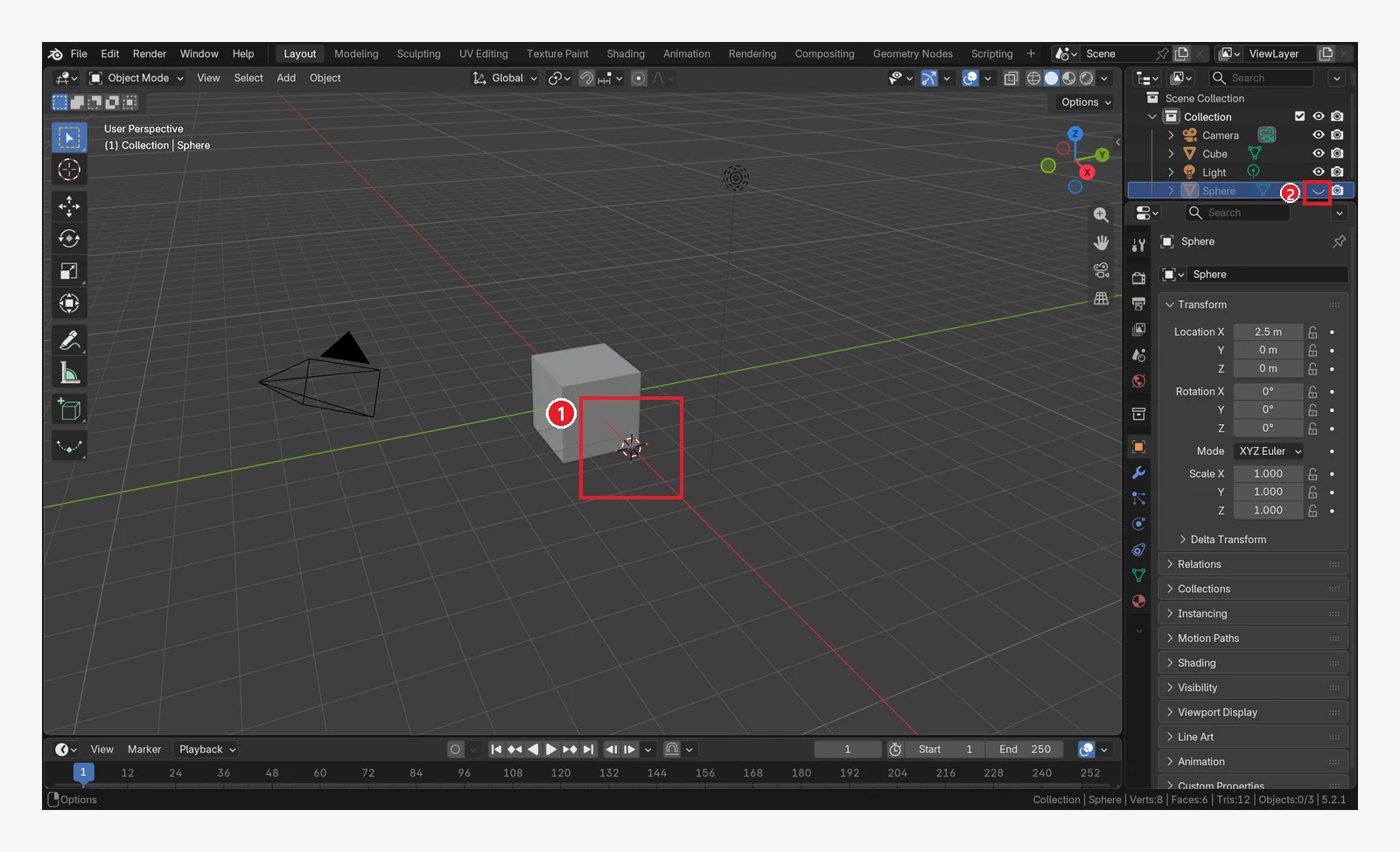 Figure 4-16. After pressing
 H: ① the sphere disappears from the screen (it is not deleted) ② the eye icon in the Outliner changes to a closed eye (Blender screenshot)
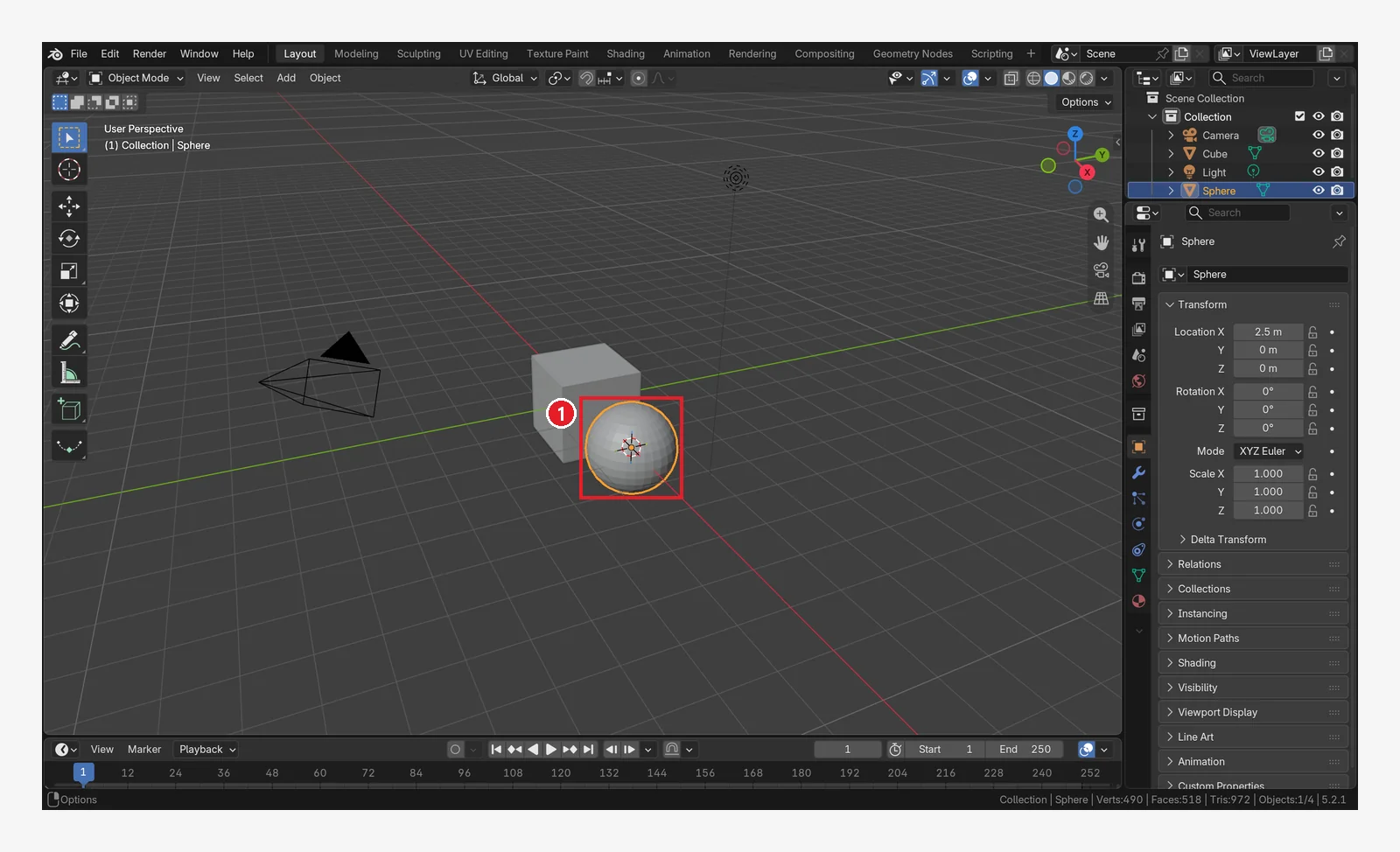 Figure 4-17. After pressing
 Alt+H: ① all hidden objects are visible again (Blender screenshot)
| Key | What it does |
|---|---|
H | Hide the selected objects |
Shift+H | Hide the objects that are not selected (keep only the ones you picked) |
Alt+H | Show all hidden objects |
You can also hide an object or show it again by clicking the eye icon in the Outliner.
7. Undo: Ctrl+Z (before → after)
This is the first key to press when you make a mistake.
Starting point: continue from the scene in the previous section. The picture shows a scene that had only the cube, with one sphere added. If the sphere from the previous section is still there, your Outliner shows one more Sphere row.
Follow along: add a sphere with Shift+A → Mesh → UV Sphere, then press Ctrl+Z right away.
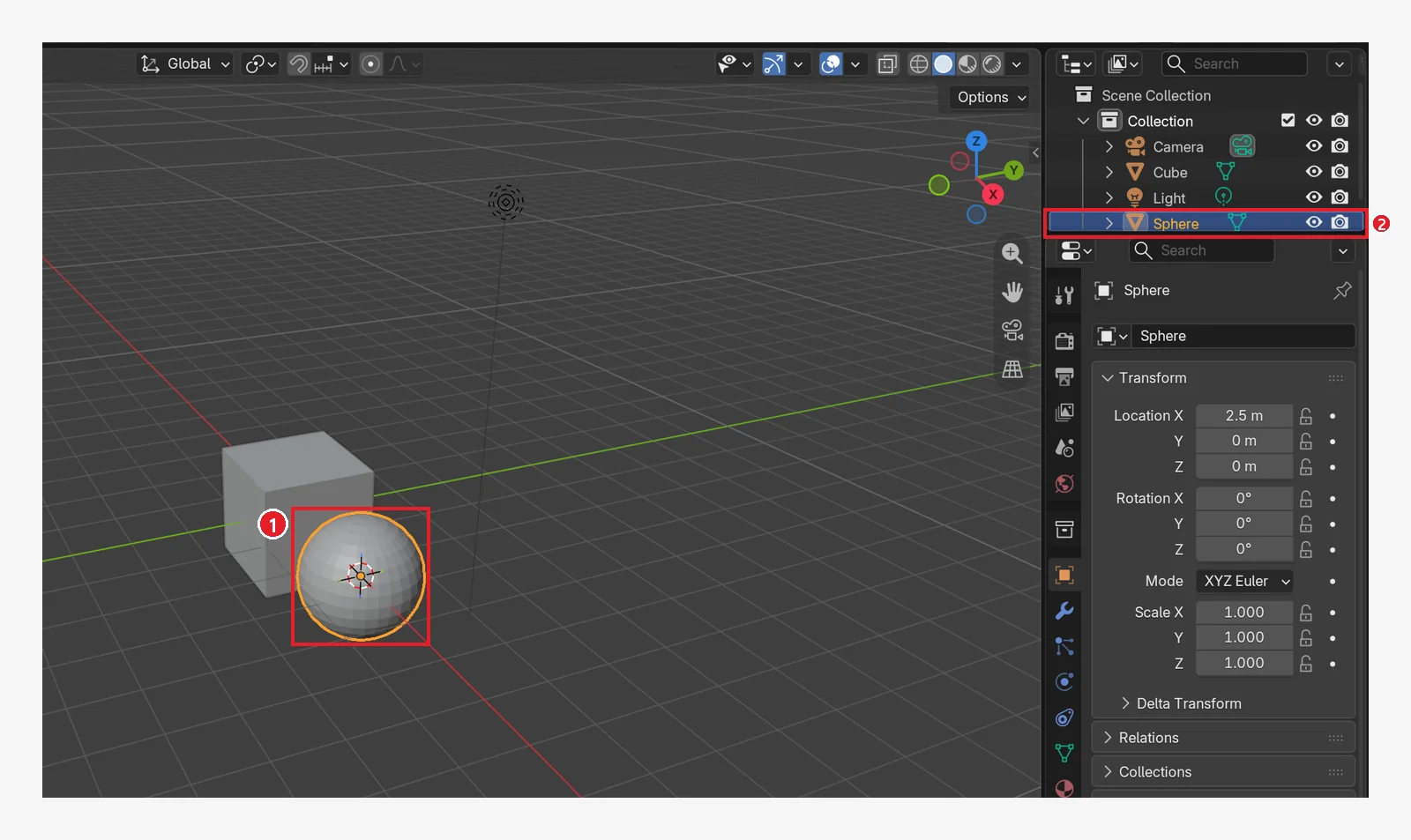 Figure 4-18. Before pressing: a sphere has just been added (right half zoomed in). ① The new sphere at the 3D cursor ② The Sphere row at the bottom of the Outliner (Blender screenshot)
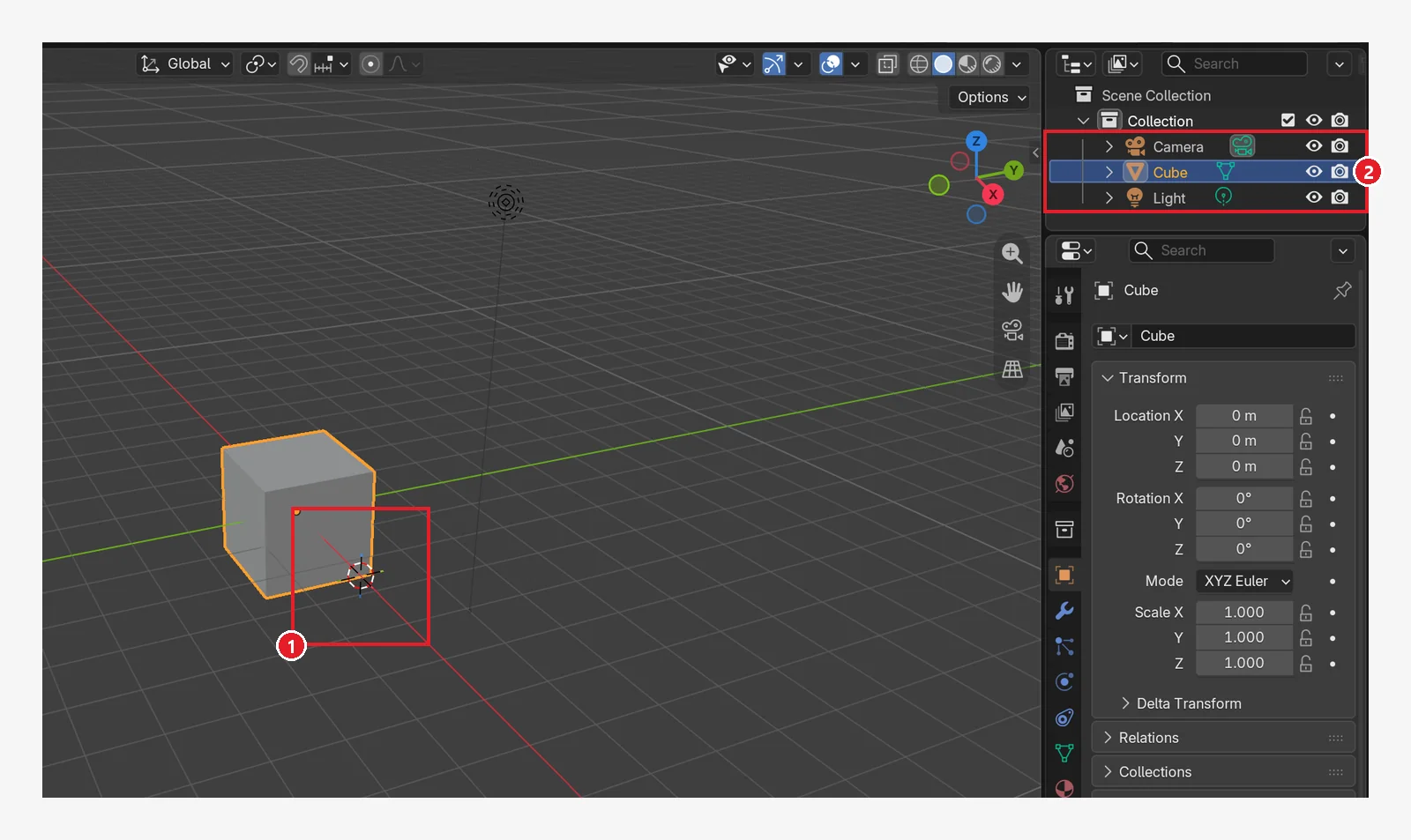 Figure 4-19. After pressing
 Ctrl+Z (same framing as figure 4-18): ① only the 3D cursor is left where the sphere was ② the Outliner is back to three rows: Camera, Cube, and Light. Unlike figure 4-3 (the starting screen with the cursor at the origin), the cursor stays where it was moved (Blender screenshot)
| Key | What it does | Menu |
|---|---|---|
Ctrl+Z | Undo (one step back) | Edit ‣ Undo |
Shift+Ctrl+Z | Redo (bring back what you undid) | Edit ‣ Redo |
Shift+R | Repeat the last operation | Edit ‣ Repeat Last |
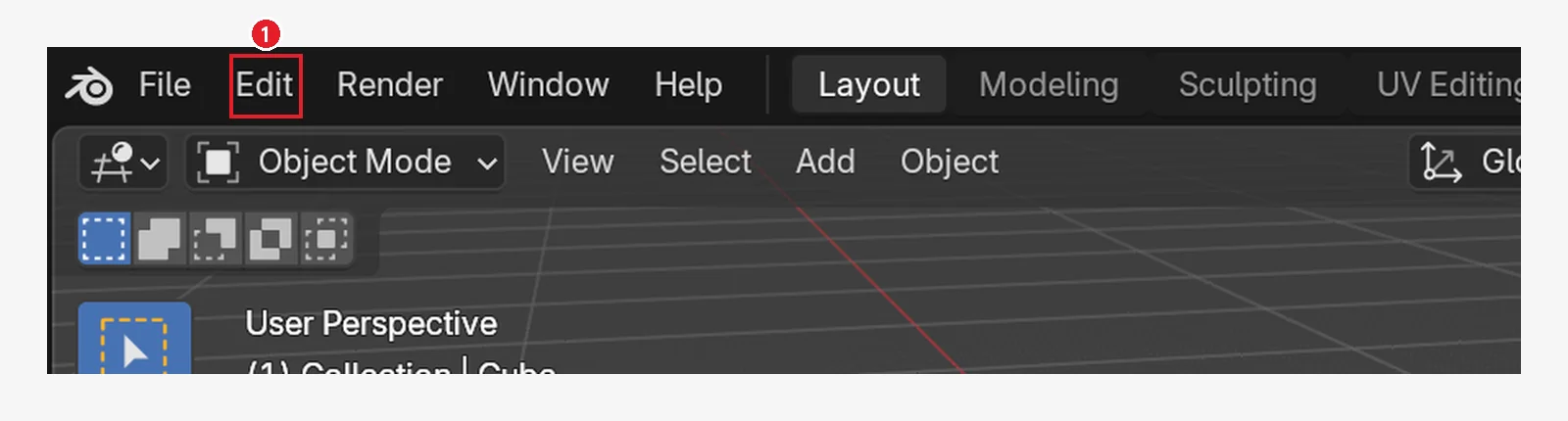 Figure 4-20. The undo-related menus are in the ① Edit menu of the top bar (Blender screenshot)
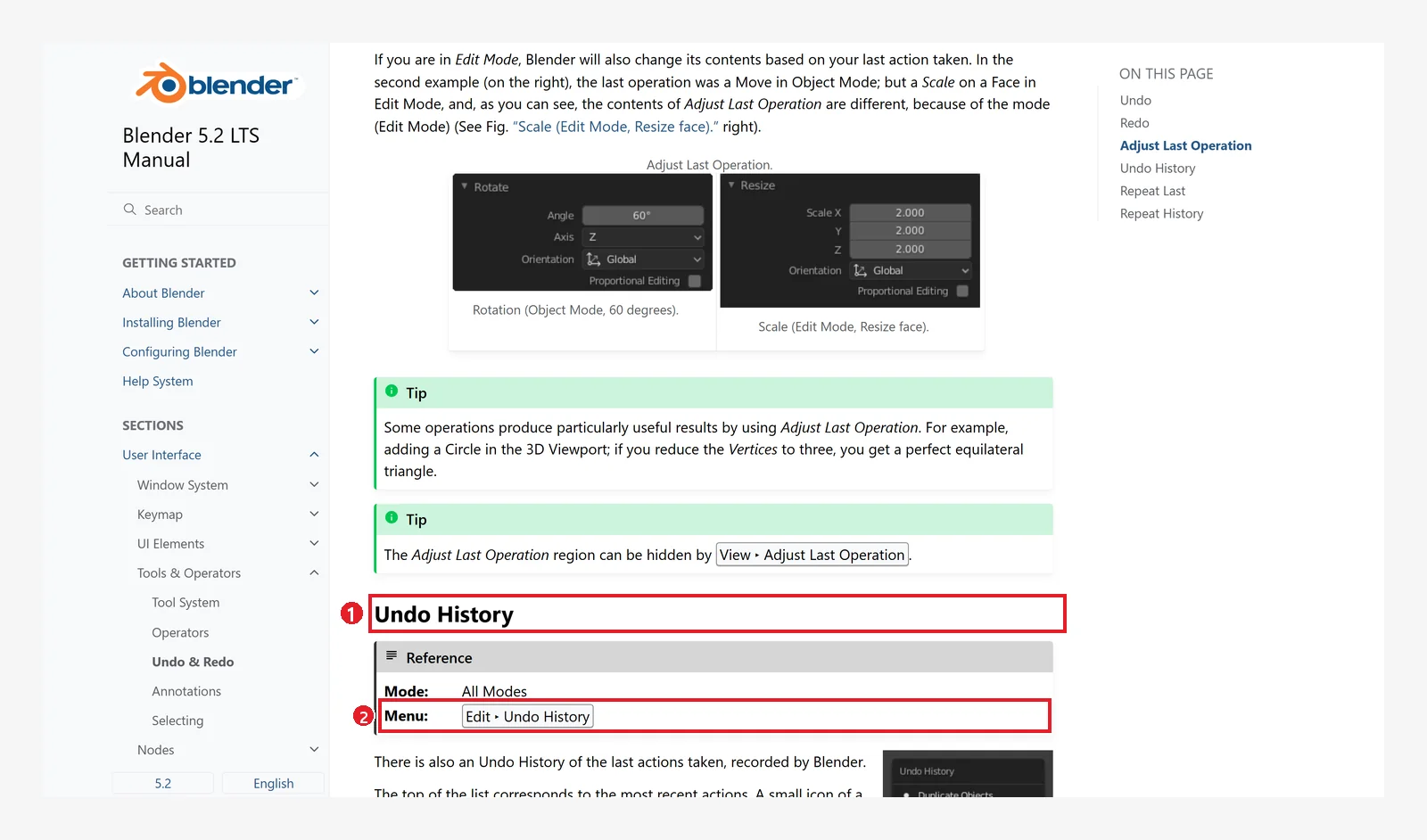 Figure 4-21. The official manual: ① Undo History ② Menu Edit ‣ Undo History. You can pick a point from the list of everything you have done so far and jump back to it in one go (Blender 5.2 manual screenshot, CC BY-SA 4.0, numbers added)
Caution: when you close Blender, the whole undo history is lost. This is true even if you save the file before closing. Saving is covered in chapter 5.
8. The Edit Mode trap: when an added object gets merged
This is the accident beginners run into most.
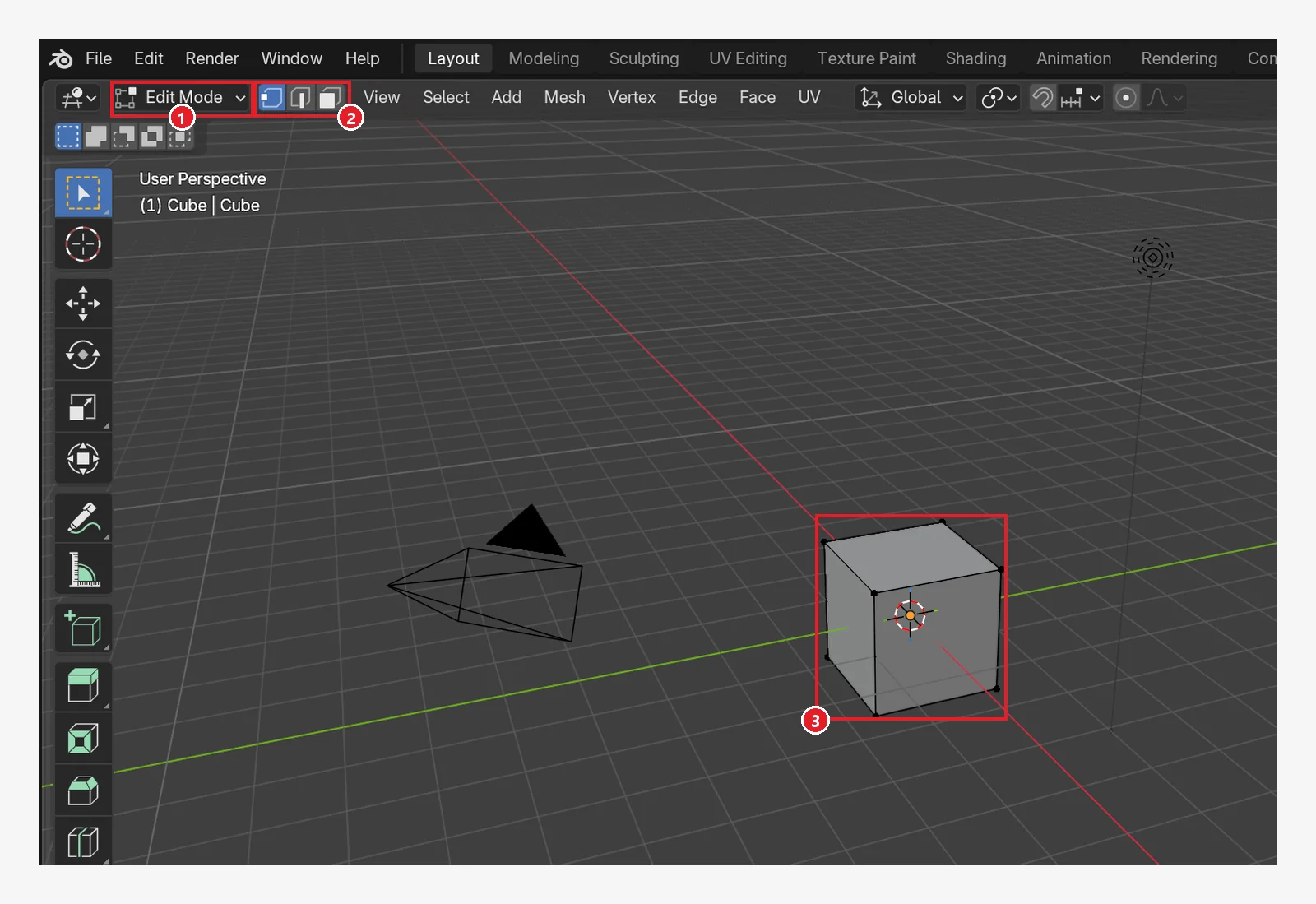 Figure 4-22. The cube in Edit Mode: ① the header says Edit Mode ② vertex, edge, and face select buttons appear ③ a dot shows at every corner of the cube. If you add an object with
 Shift+A in this state, the new object is merged with the cube into one object (Blender screenshot)
- Why it merges: Edit Mode is the mode for changing "the inside of the object you have selected." A shape added here goes in as part of the cube, not as a new object. No new name appears in the Outliner either.
- How you got there: usually by pressing
Tab, or by clicking the Modeling or UV Editing workspace tab (chapter 2, section 4). - Prevention: before adding, check that the header says Object Mode. If not, press
Tabover the 3D Viewport to go back to Object Mode (Tabturns Edit Mode on and off). - If it is already merged: the easiest fix is to undo right away with
Ctrl+Z.
9. Checking the number of objects
 Figure 4-23. ① Objects: 1/4 in the status bar = "1 of 4 objects selected." The second number changes every time you add or delete an object. It shows only when Scene Statistics is turned on (chapter 2, section 2) (Blender screenshot)
You can also count objects in the Outliner list. When you have many objects, the Outliner is easier.
10. Practice
Starting point: start from the default cube in a new file (File ‣ New ‣ General). If a window asks whether to save, click the button that does not save (saving is covered in chapter 5).
- Snowman: delete the default cube (
Delete), add three UV Spheres, and stack them large, medium, and small from the bottom up. (Hint: Radius in the Adjust Last Operation panel right after adding, orSfrom chapter 3) - Add one Cone and duplicate it three more times with
Shift+D, placing them side by side. Write down how the names are given in the Outliner. - Hide one of the copies with
H, then show it again withAlt+H. - Enter Edit Mode on purpose with
Tab, watch how the header changes, then without adding anything, leave withTabagain. - Press
Ctrl+Zseveral times to go back to the starting state of exercise 1.
11. Common mistakes and fixes
| Symptom | Cause | Fix |
|---|---|---|
| New objects appear in the wrong place | The 3D cursor is somewhere else | Shift+C to send the cursor to the origin, or Shift+right-click where you want it |
| The new object merged with the cube | Added in Edit Mode | Ctrl+Z, then add again in Object Mode |
| Several objects are stacked in the same spot | Shift+D was pressed several times | Select the stacked ones (.001 and so on) in the Outliner and delete them |
Pressing X does not delete | X asks once more | Click Delete in the window that appears, or use Delete |
| An object disappeared | It was hidden with H | Alt+H or the eye icon in the Outliner |
| The panel is not there right after adding | It changed because you did something else | F9 right after adding, or add again |
| Undo does not work | Blender was closed and reopened | The history is lost when Blender closes. Save often (chapter 5) |
Summary in one line
Check Object Mode → add at the 3D cursor with Shift+A → fix it in the panel right after adding. Duplicate with Shift+D, delete with Delete, hide with H/Alt+H, go back with Ctrl+Z. In chapter 5 you will learn to save files and recover them when Blender closes by accident.
References
- Blender 5.2 Manual: Mesh Primitives
- Blender 5.2 Manual: 3D Cursor
- Blender 5.2 Manual: Duplicate
- Blender 5.2 Manual: Delete
- Blender 5.2 Manual: Undo & Redo
- Shortcuts: based on the default (Blender) keymap in Blender 5.2.1
- Picture licenses: the manual screens are CC BY-SA 4.0, with red numbers and outlines added. Blender program license: blender.org/about/license