Blender for complete beginners, chapter 6: Edit Mode basics (vertices, edges, faces, extrude, loop cut, bevel)
Blender Edit Mode for complete beginners. Learn to enter and leave with Tab, select vertices, edges, and faces, then Extrude (E), Inset (I), Loop Cut (Ctrl+R), Bevel (Ctrl+B), deleting faces, and X-ray.
한국어English
ON THIS PAGE
- 01What you will learn in this chapter
- 021. Object Mode and Edit Mode
- 032. Selecting vertices, edges, and faces
- 043. Moving a vertex to change the shape
- 054. Adding faces: Extrude and Inset
- 065. Adding edges and rounding corners
- 076. Deleting faces and X-ray
- 087. Finishing and returning to Object Mode
- 098. Shortcut list
- 109. Practice exercises
- 1110. Common mistakes and fixes
- 12In one line
- 13References
Blender for complete beginners, chapter 6 · Based on: Blender 5.2 LTS (screenshots from 5.2.1, English UI, default keymap) All pictures are real screens. The red numbers and outlines were added for explanation.
What you will learn in this chapter
By the end of this chapter, you will be able to:
- Tell Object Mode and Edit Mode apart, and switch between them with
Tab. (Section 1) - Switch between vertex, edge, and face selection modes and pick them one at a time. (Section 2)
- Move a vertex to change a shape. (Section 3)
- Add faces with Extrude (
E) and Inset (I). (Section 4) - Add edges and round off corners with Loop Cut (
Ctrl+R) and Bevel (Ctrl+B). (Section 5) - Delete faces, and see the back side with X-ray. (Section 6)
- Finish editing and return to Object Mode. (Section 7)
Before you start: two rules
- Select only one object before entering Edit Mode. Select just the cube, then press
Tab. If you press it with several objects selected, they all enter Edit Mode together, which is confusing.- When you finish editing, always leave with
Tab. If you add an object while still in Edit Mode, the new object is merged into the cube (chapter 4, section 8).This chapter starts from the default cube in a new file (File ‣ New ‣ General). Instead of screens caught in the middle of a drag, the pictures in this chapter show pairs: the screen before you press a key and the screen after you finish.
1. Object Mode and Edit Mode
Up to now, you moved and rotated the whole cube in Object Mode. Edit Mode is the mode for changing the vertices, edges, and faces that make up the cube, one at a time. In this chapter, a vertex is a corner point and an edge is a line along a corner.
Analogy: Object Mode is picking up a box and moving it whole. Edit Mode is pressing on the box's corners and panels one by one to change its shape.
1-1. Entering with Tab (before → after)
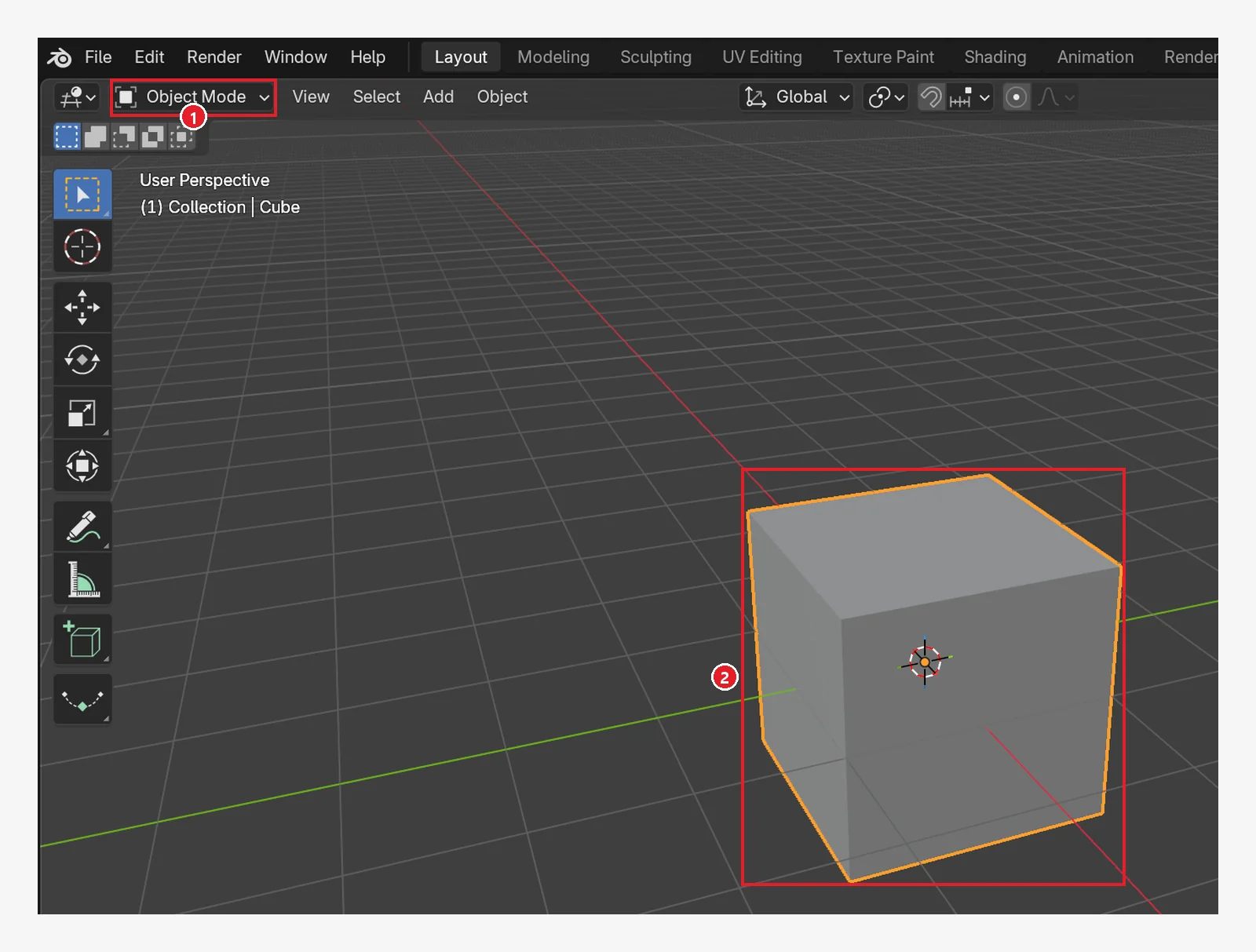 Figure 6-1. Before: ① the header says Object Mode ② only the cube is selected (Blender screenshot)
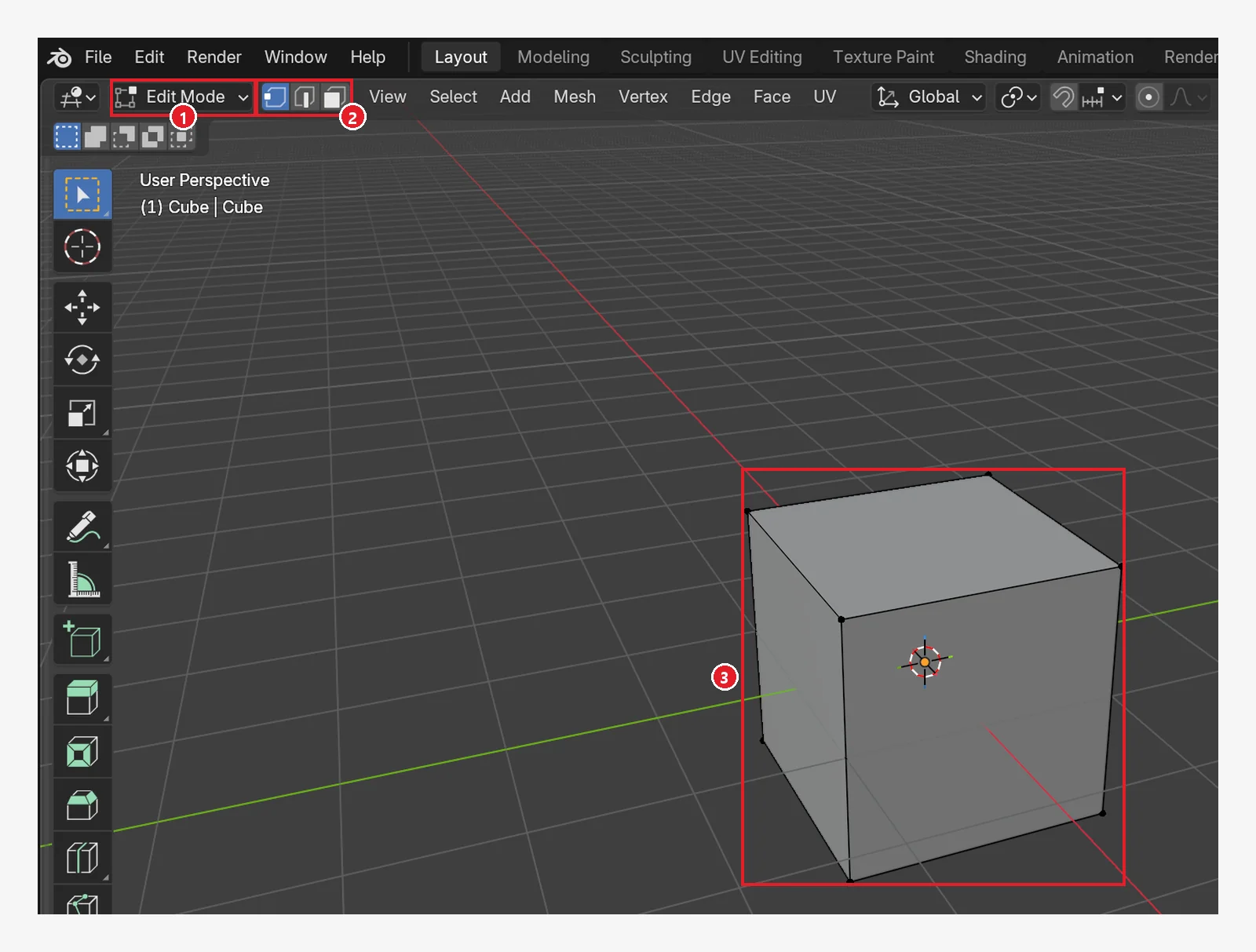 Figure 6-2. After placing the mouse over the 3D Viewport and pressing
 Tab: ① the header changes to Edit Mode ② vertex, edge, and face selection buttons appear ③ 8 points show at the corners. More editing tools also appear in the toolbar on the left. The picture shows the screen with everything deselected (Blender screenshot)
When you press Tab on the default cube, the cube on your screen looks entirely orange (all vertices, edges, and faces are selected). To make it look like Figure 6-2, press Alt+A to deselect everything.
Tab: Object Mode ↔ Edit Mode- You can also pick the mode from the mode menu on the left of the header (Figure 6-1 ①).
2. Selecting vertices, edges, and faces
2-1. Selection mode buttons
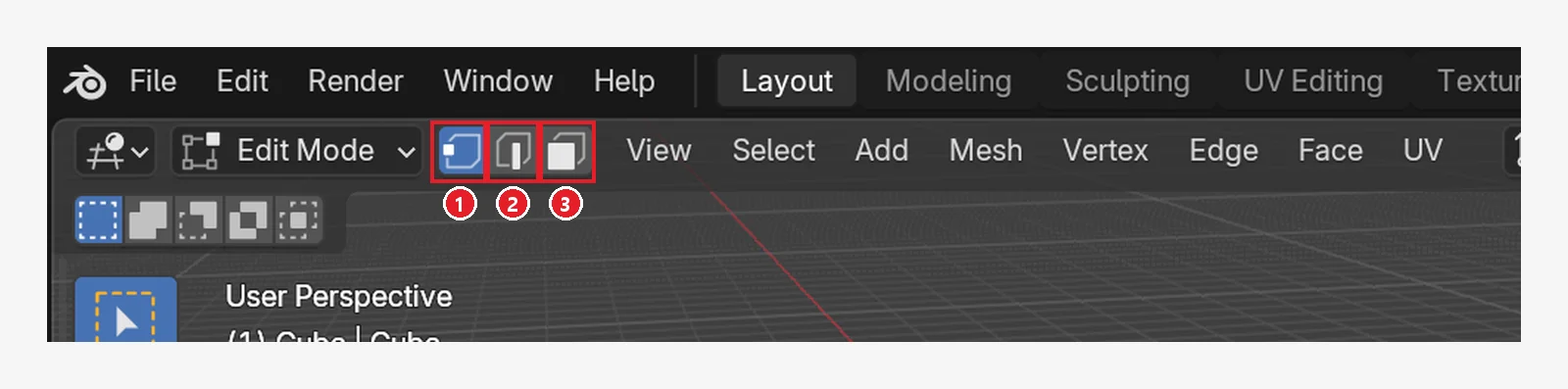 Figure 6-3. Selection mode buttons: ① Vertex ② Edge ③ Face. You can also switch with the number keys
 1, 2, and 3 along the top of the keyboard (Blender screenshot)
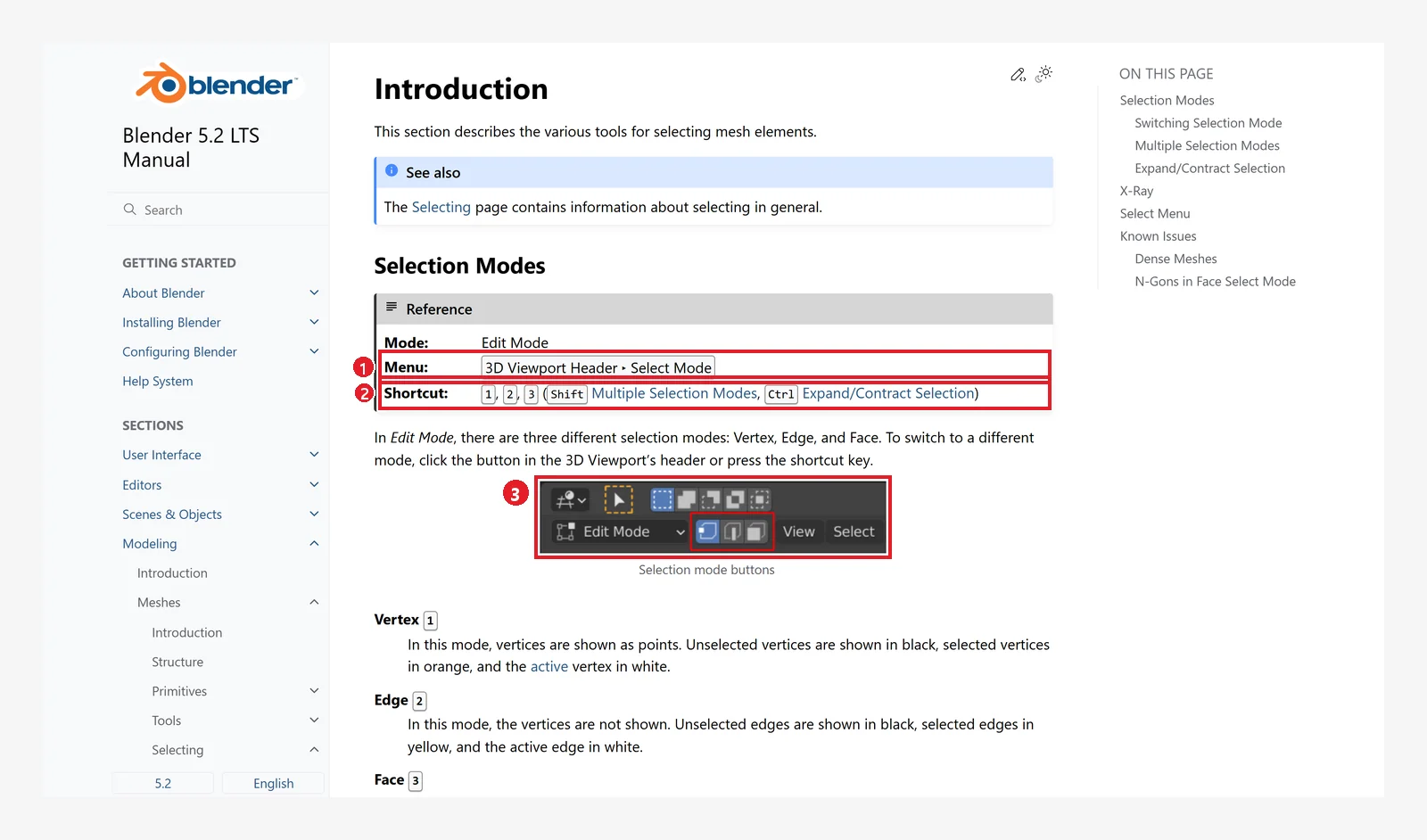 Figure 6-4. The official manual: ① menu 3D Viewport Header ‣ Select Mode ② shortcuts 1, 2, 3 ③ picture of the selection mode buttons (screenshot of the Blender 5.2 manual, CC BY-SA 4.0, numbers added)
If you turned on Emulate Numpad in chapter 2, section 10, the top number row acts as a numpad, so
1,2, and3do not switch selection modes. In that case, click the buttons in Figure 6-3.
2-2. Picking one at a time
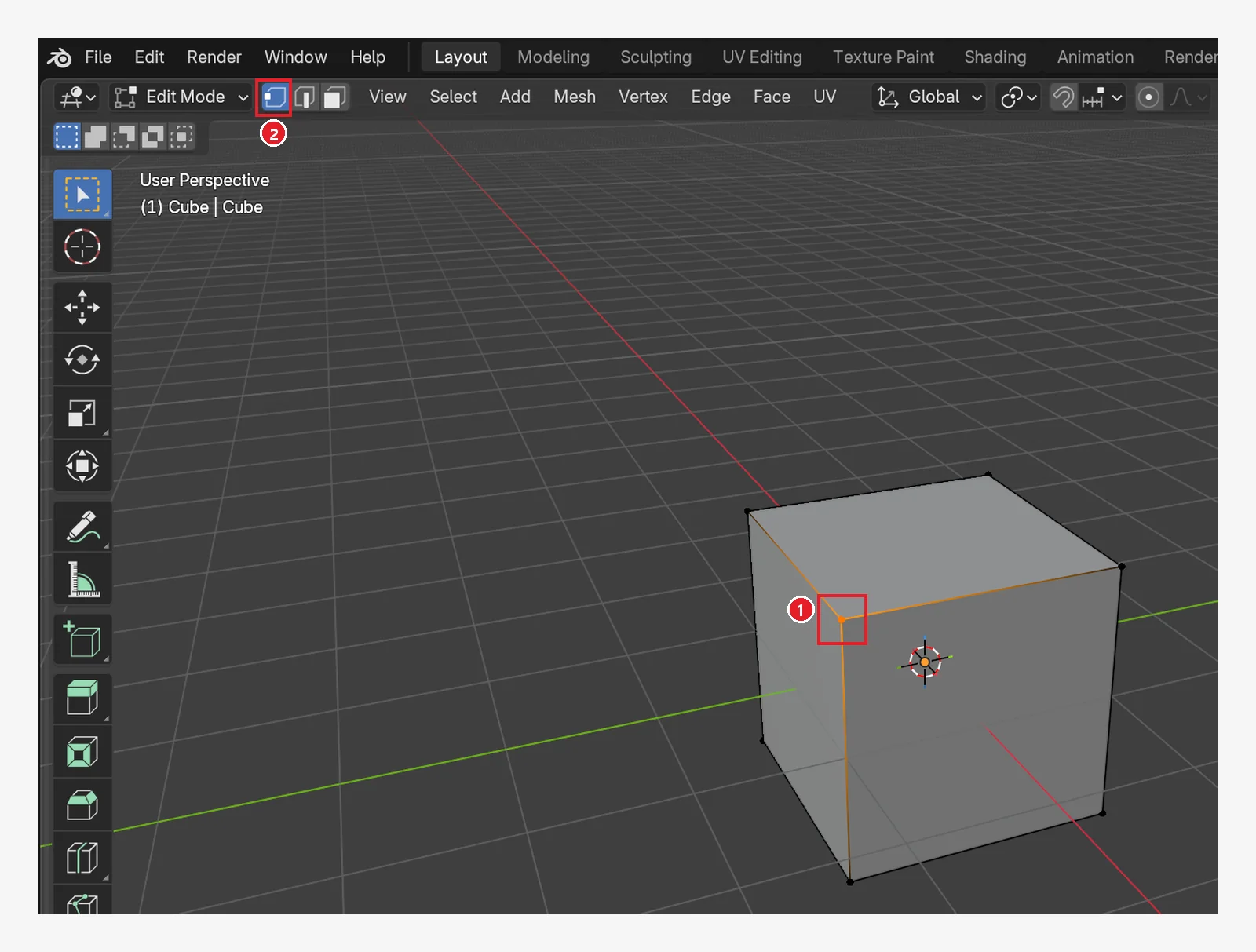 Figure 6-5. Left-click a corner in vertex mode (
1): ① the selected vertex lights up, and the edges joined to it look orange ② the vertex mode button (Blender screenshot)
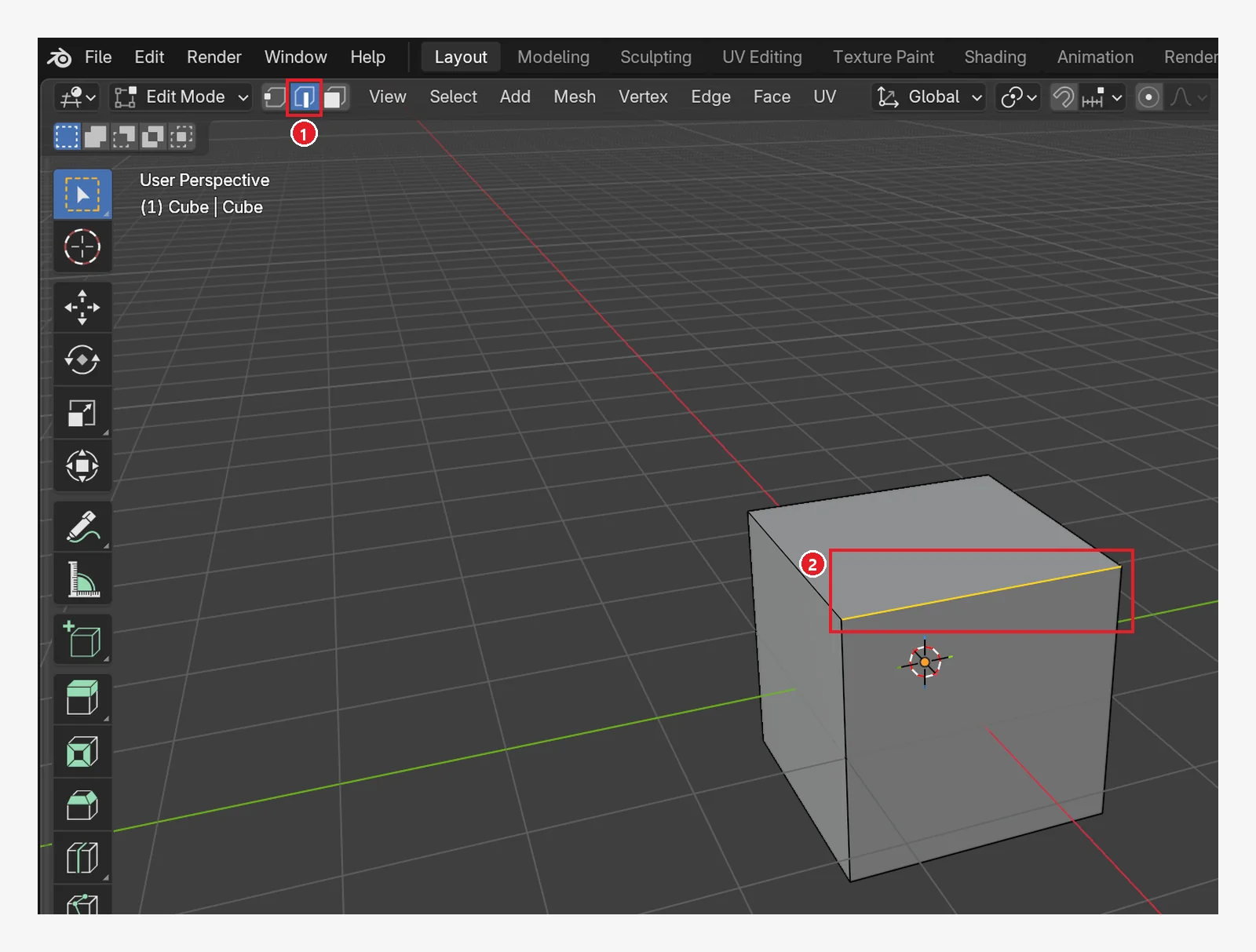 Figure 6-6. ① After clicking the edge mode button (
2) and selecting an edge: ② the selected edge. In the picture it is light yellow. The edge you just clicked may look white on your screen (Blender screenshot)
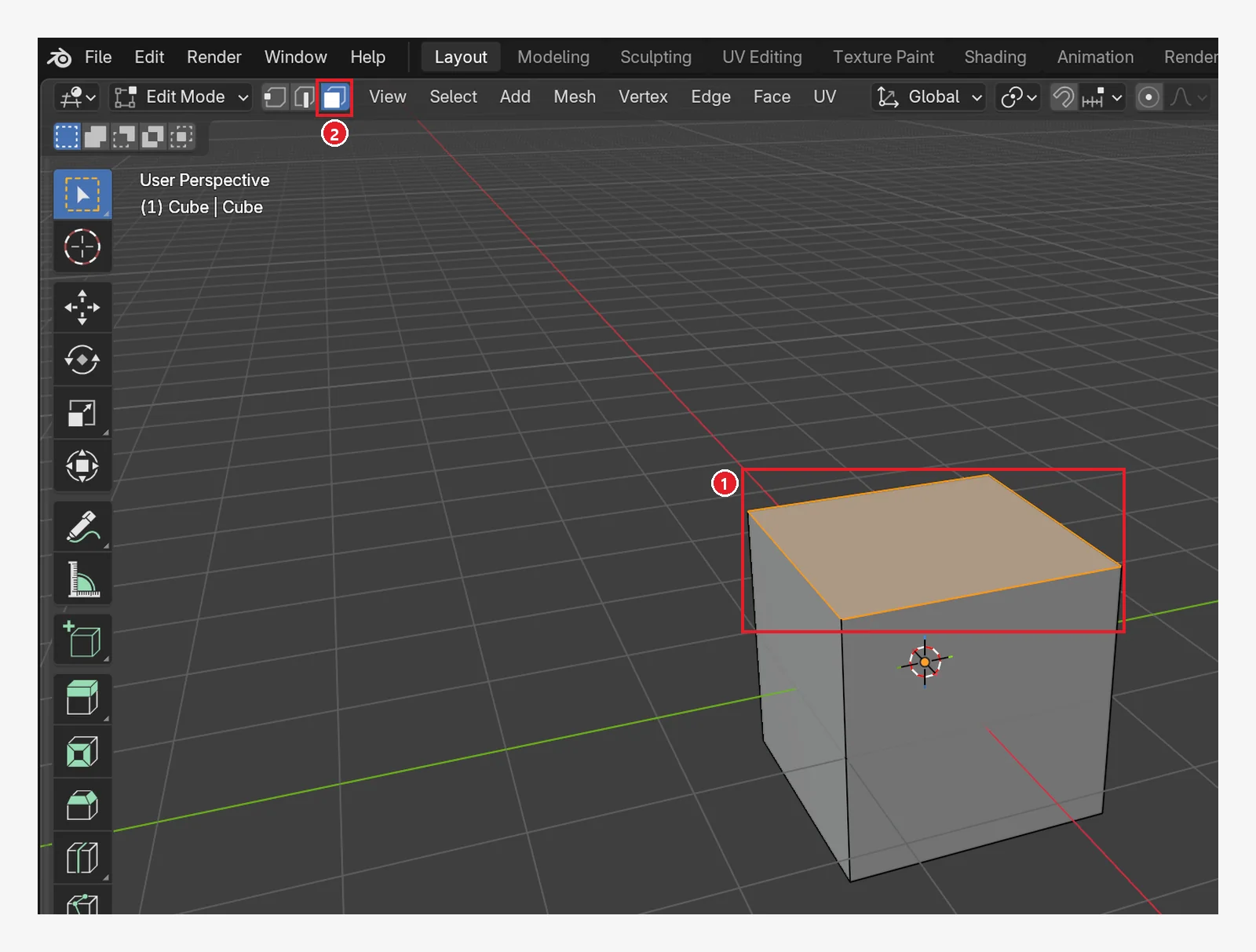 Figure 6-7. Click the top face in face mode (
3): ① the selected face is filled orange ② the face mode button (Blender screenshot)
- Selecting several, selecting all, and deselecting work as in chapter 3:
Shift+click,A,Alt+A. - In Edit Mode, the status bar shows how many of the total are selected (if you turned on Scene Statistics in chapter 2, section 2).
 Figure 6-8. ① Verts:1/8 = 1 of 8 vertices, Edges:0/12 = 0 of 12 edges, Faces:0/6 = 0 of 6 faces selected (Blender screenshot)
3. Moving a vertex to change the shape
The G, R, and S keys from chapter 3 work the same way in Edit Mode. The difference is that only the selected vertices, edges, or faces move.
Starting point: Continue from the cube in Edit Mode from the previous section.
Follow along: Press 1 to switch to vertex mode, click one corner as in Figure 6-5, then press G → Z → 1 → Enter.
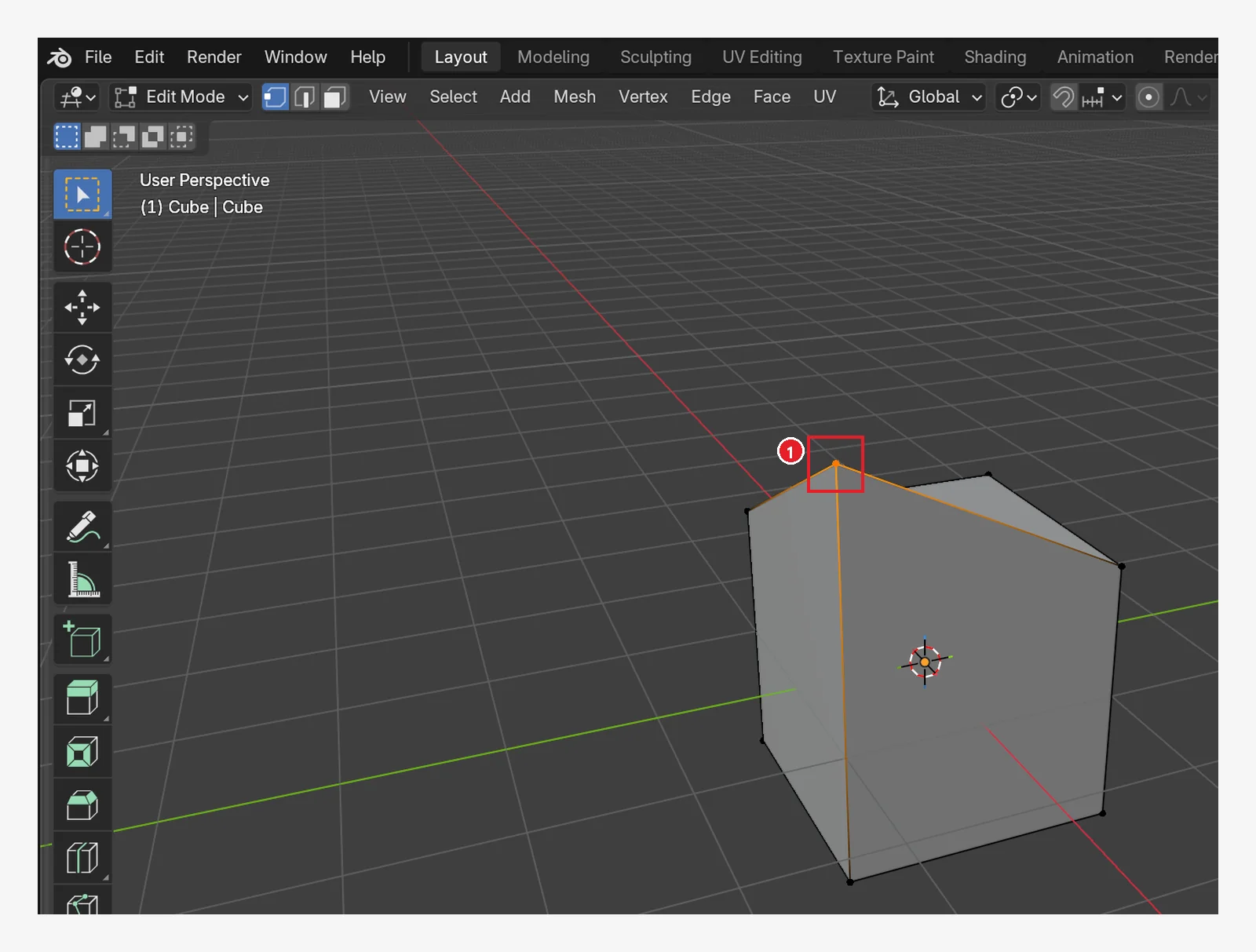 Figure 6-9. After (same view as Figure 6-5): ① only the selected corner rose 1 m, so the faces joined to it tilted (Blender screenshot)
Using
Gin Object Mode moves the whole box. Using it in Edit Mode changes the shape of the box. The same key works differently depending on the mode.
4. Adding faces: Extrude and Inset
4-1. Extrude: E (before → after)
Extrude pushes out the selected face to make new faces. It is the tool used most often in modeling.
Starting point: Undo what you changed in the previous section: press Ctrl+Z to put the raised corner back. The cube should be a straight box.
Follow along: Press 3 to switch to face mode and click the top face (Figure 6-7). Press E, then move the mouse up or type 1, and press Enter.
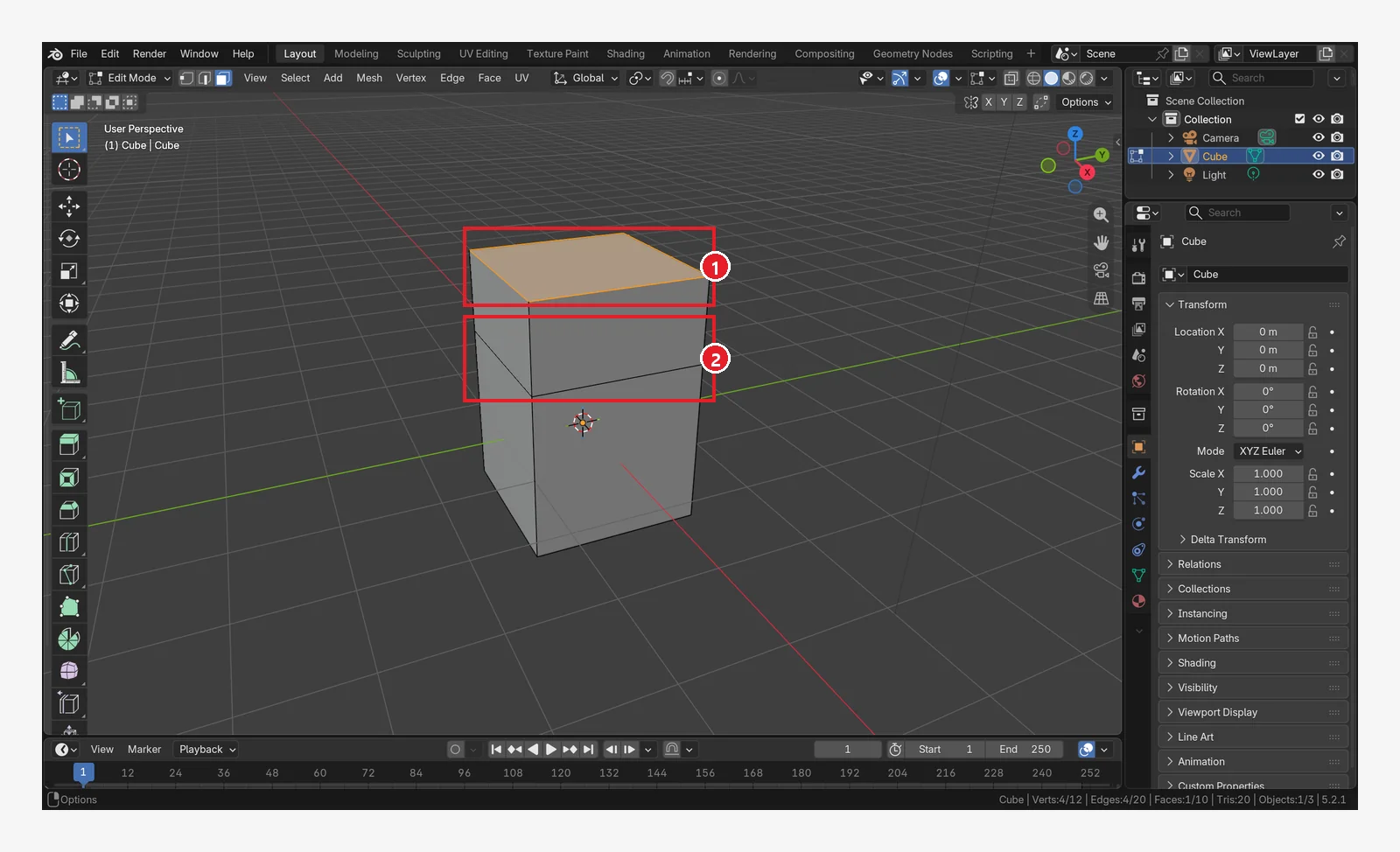 Figure 6-10. After (compare with Figure 6-7): ① the top face rose 1 m and ② four new side faces were created in between. The horizontal line in the middle is where the original top face was. The face count goes from 6 to 10 (one top face moves up and four side faces are added) (Blender screenshot)
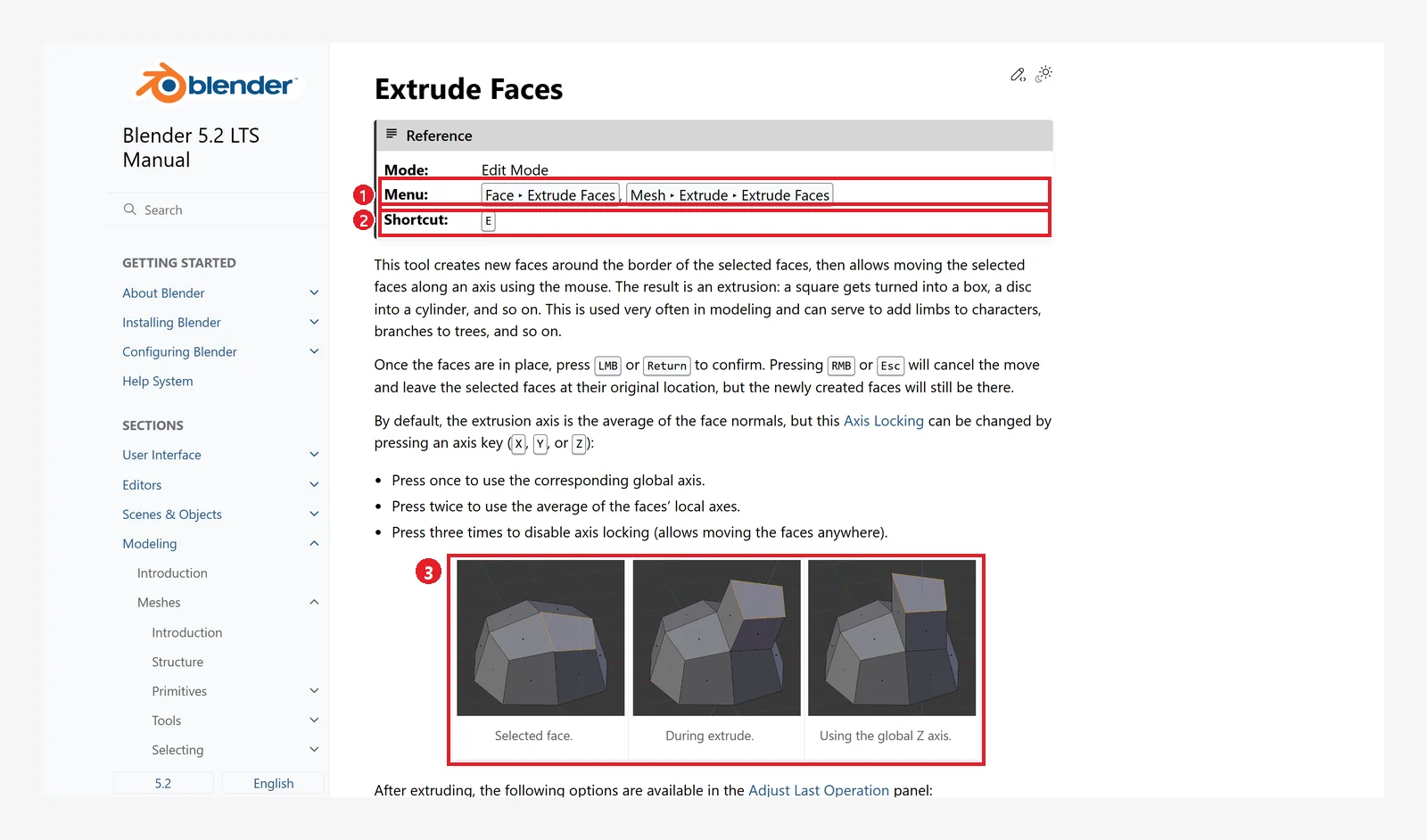 Figure 6-11. The official manual, Extrude Faces: ① menu Face ‣ Extrude Faces ② shortcut E ③ pictures of before, during, and after extruding (screenshot of the Blender 5.2 manual, CC BY-SA 4.0, numbers added)
If you cancel an extrude: the faces stay even when you cancel. As the manual explains, if you cancel with a right-click or
Escduring an extrude, only the movement is canceled and the new faces remain. The shape looks the same, but faces now overlap in the same place. If you pressed it by mistake, undo withCtrl+Z.
4-2. Inset: I (before → after)
Inset makes a smaller face one ring inside the selected face. It is the starting point for shapes like window frames, cup rims, and buttons.
Starting point: Continue from the extruded cube in the previous section.
Follow along: With the extruded top face (Figure 6-10 ①) selected, press I. Move the mouse inward to set the thickness, and left-click to confirm.
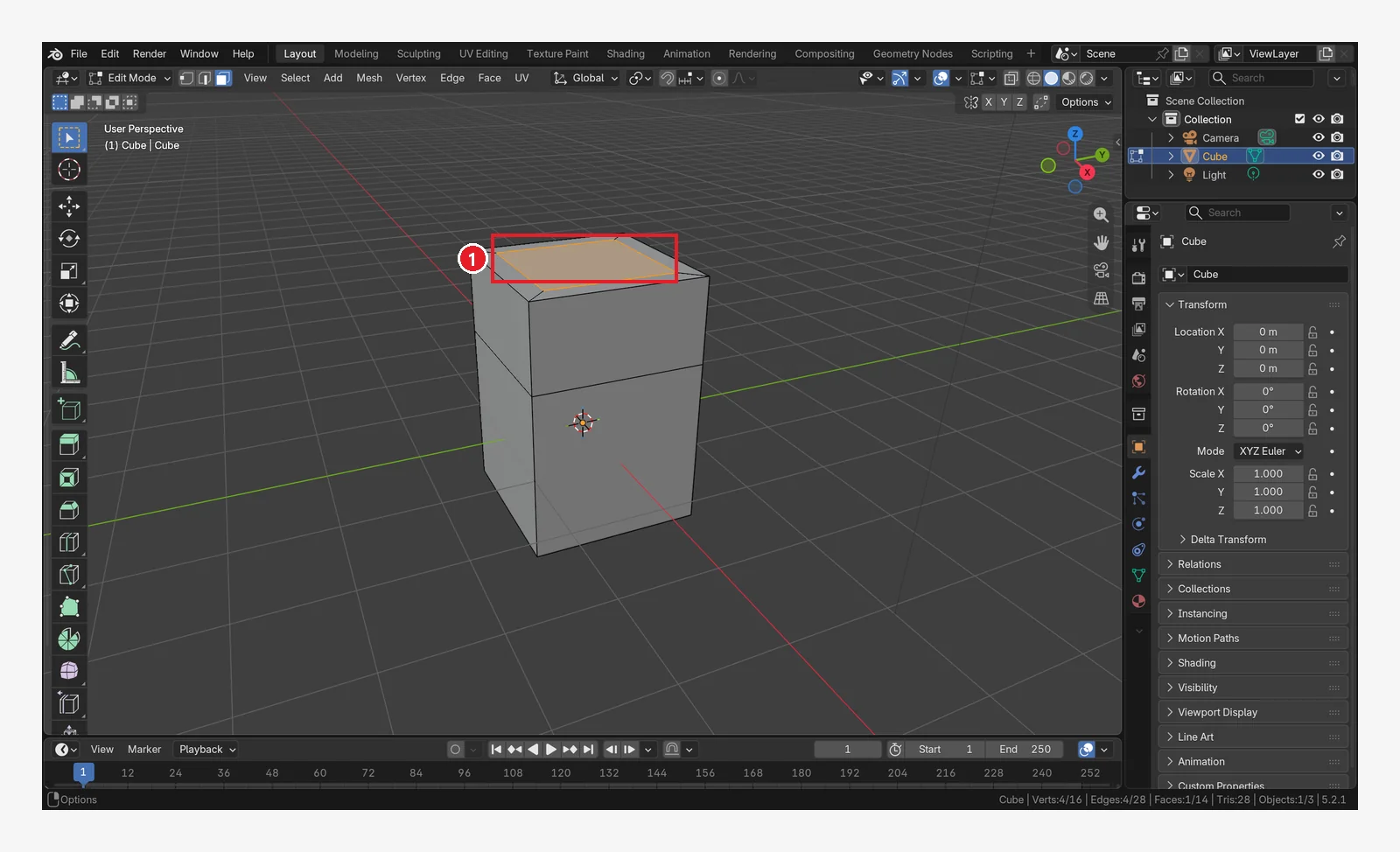 Figure 6-12. After (compare with Figure 6-10): ① a small inner face is created and selected (orange). The gray band around it is the new border faces (Blender screenshot)
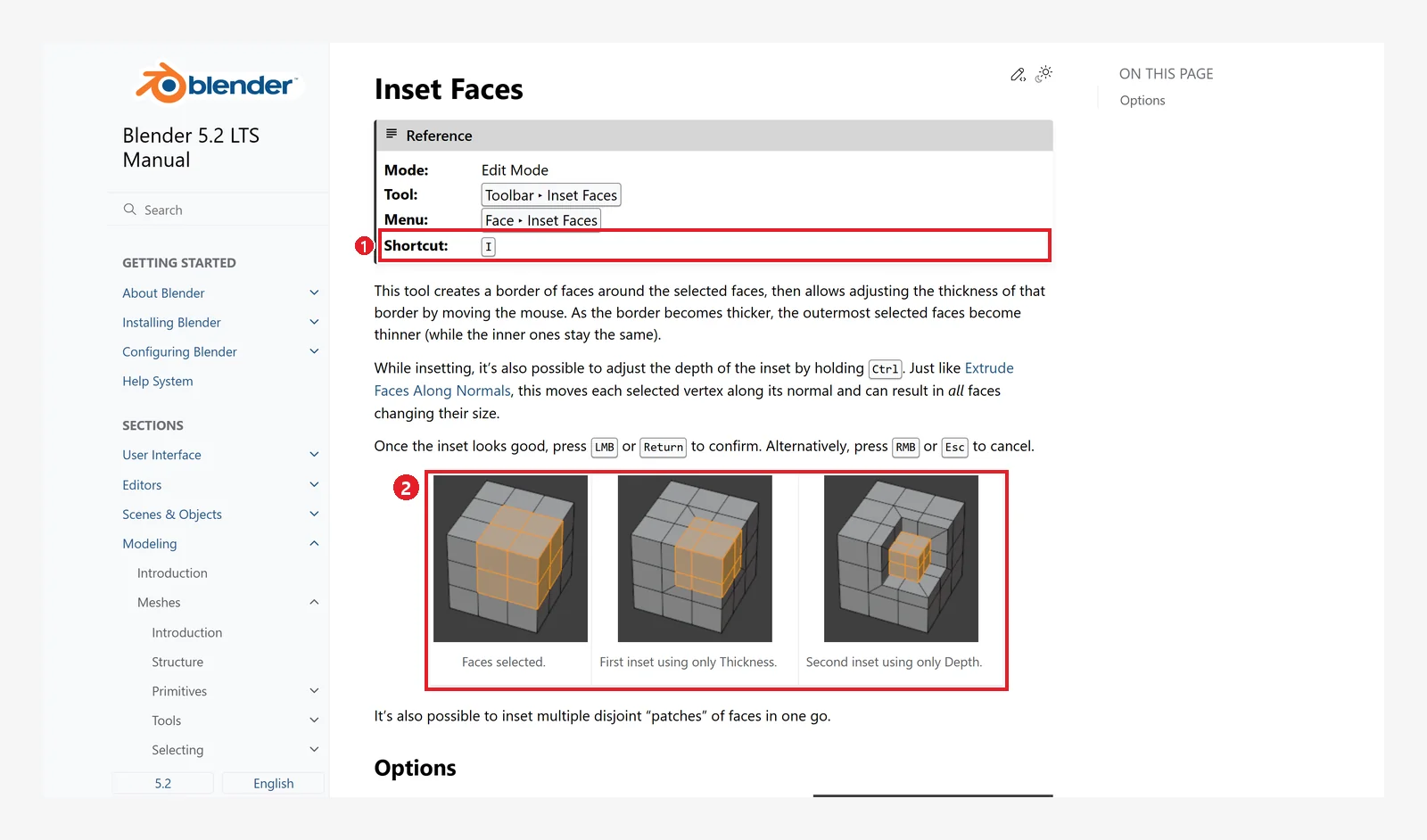 Figure 6-13. The official manual, Inset Faces: ① shortcut I ② inset example. According to the manual, holding
 Ctrl while insetting also lets you change the depth (screenshot of the Blender 5.2 manual, CC BY-SA 4.0, numbers added)
Tip: Inset followed by Extrude lets you raise a handle or post on the top face. Inset followed by Extrude downward (
E, then a-value) makes a sunken groove.
4-3. The Edit Mode toolbar
You can also use the toolbar instead of keys. When you enter Edit Mode, more tools appear in the lower part of the toolbar.
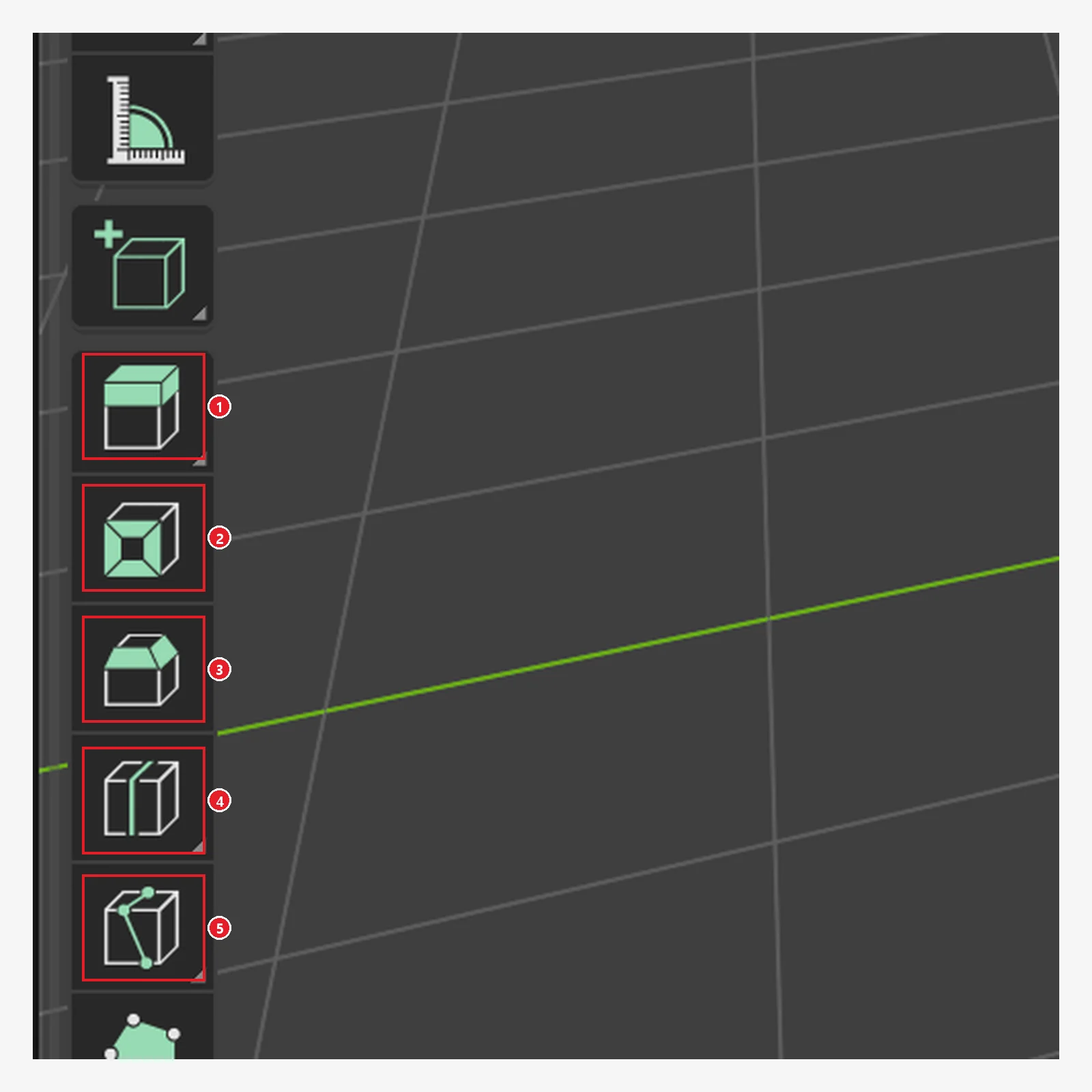 Figure 6-14. ① Extrude Region ② Inset Faces ③ Bevel ④ Loop Cut ⑤ Knife (
K) (Blender screenshot)
5. Adding edges and rounding corners
5-1. Loop Cut: Ctrl+R (before → after)
Loop Cut adds an edge that runs all the way around an object. You need it later when you want to stretch or bend just that part.
Starting point: Undo what you changed in the previous section: press Ctrl+Z several times to undo the inset and the extrude. The cube should be the original straight box (8 vertices).
Follow along (the two steps described in the manual):
- Press
Ctrl+Rand hover the mouse over a vertical edge. A magenta (deep pink) preview line shows where the cut will go. Rolling the mouse wheel changes the number of lines. - Left-click to set it, and you can then slide the line up and down. Left-click again where you want it to confirm.
Ctrl+R has two steps: "add the line" and "slide the line". If you right-click in step 2, only the slide is canceled, and the line stays where you set it in step 1 (where the preview line was).
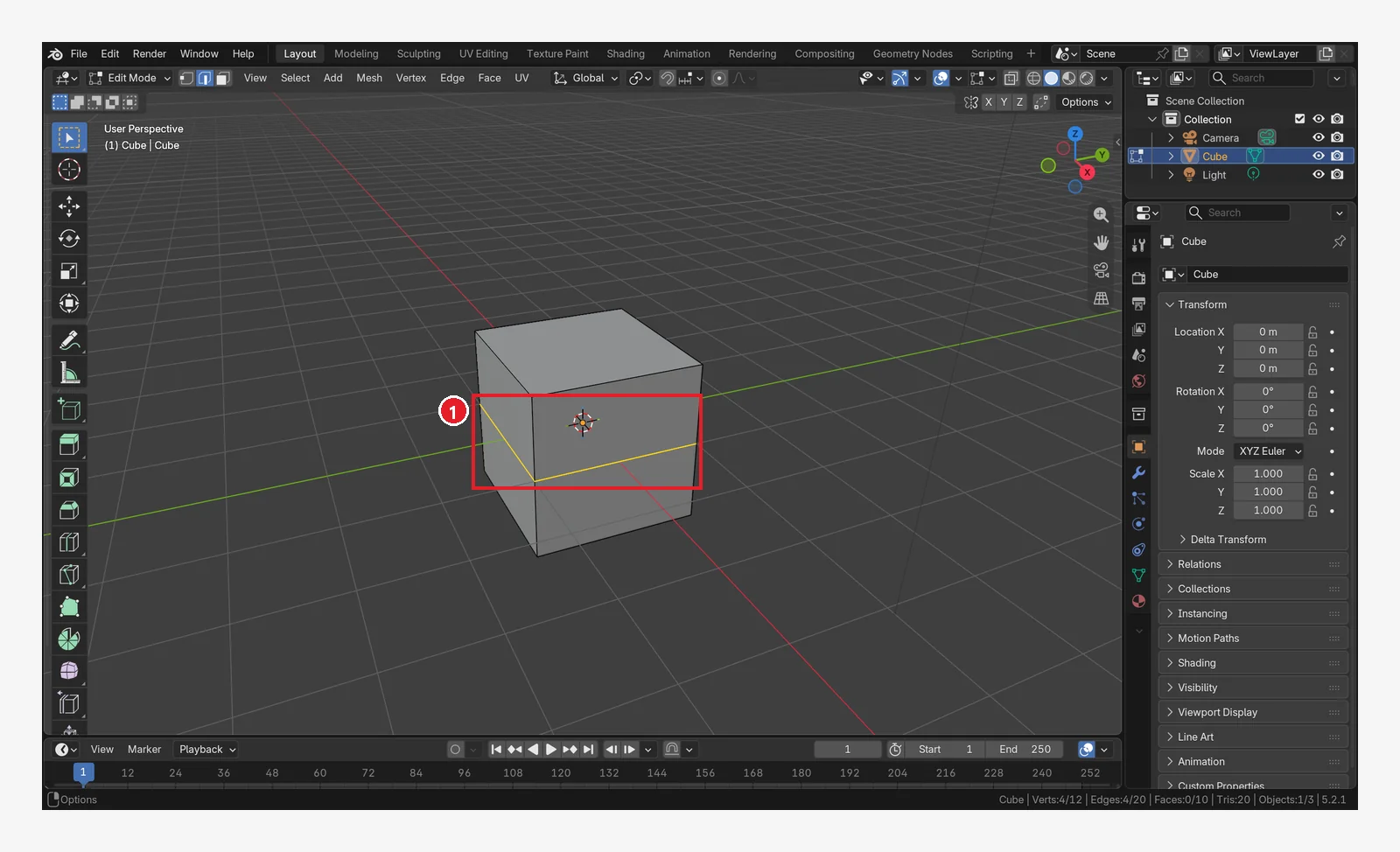 Figure 6-15. After the loop cut (compare with Figure 6-2): ① a yellow line now runs around the side faces of the cube. The vertex count went from 8 to 12 (Blender screenshot)
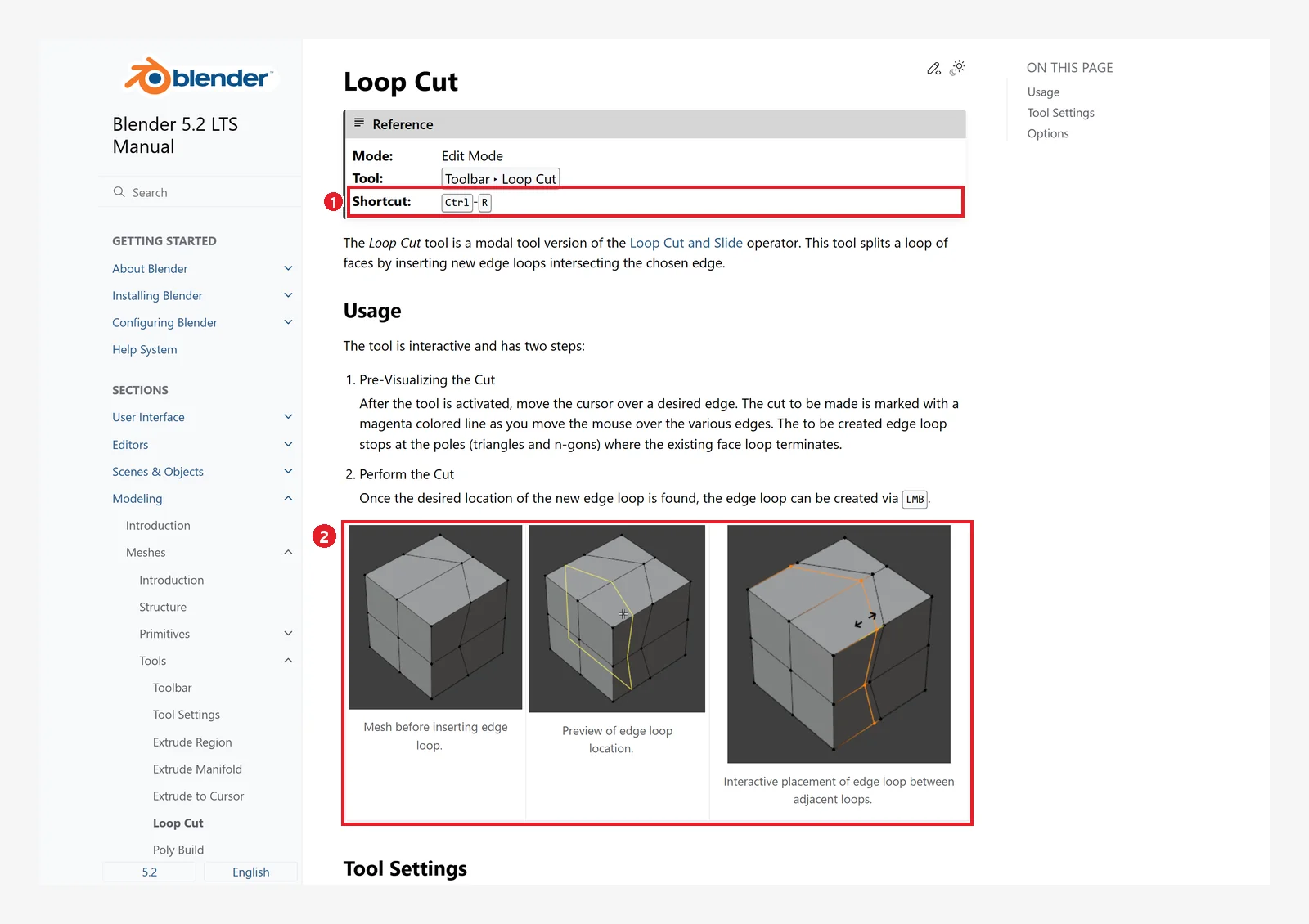 Figure 6-16. The official manual, Loop Cut: ① shortcut Ctrl-R ② pictures of before the loop cut, the preview, and the result after sliding the line. The manual's picture is from an older screen, so the preview line is yellow, but in Blender 5.2 it looks magenta, as the manual's text says (screenshot of the Blender 5.2 manual, CC BY-SA 4.0, numbers added)
5-2. Bevel: Ctrl+B (before → after)
Bevel rounds off sharp corners. As the manual says, "in the real world, nothing is infinitely sharp", so even a small bevel makes things look much more real.
Starting point: Undo what you changed in the previous section: press Ctrl+Z to undo the loop cut (the original cube with 8 vertices).
Follow along: Press 2 to switch to edge mode and click one top-front edge (Figure 6-17). Press Ctrl+B and move the mouse to set the width. Roll the wheel to raise the number of segments (Segments) to 4, then left-click to confirm (Figure 6-18).
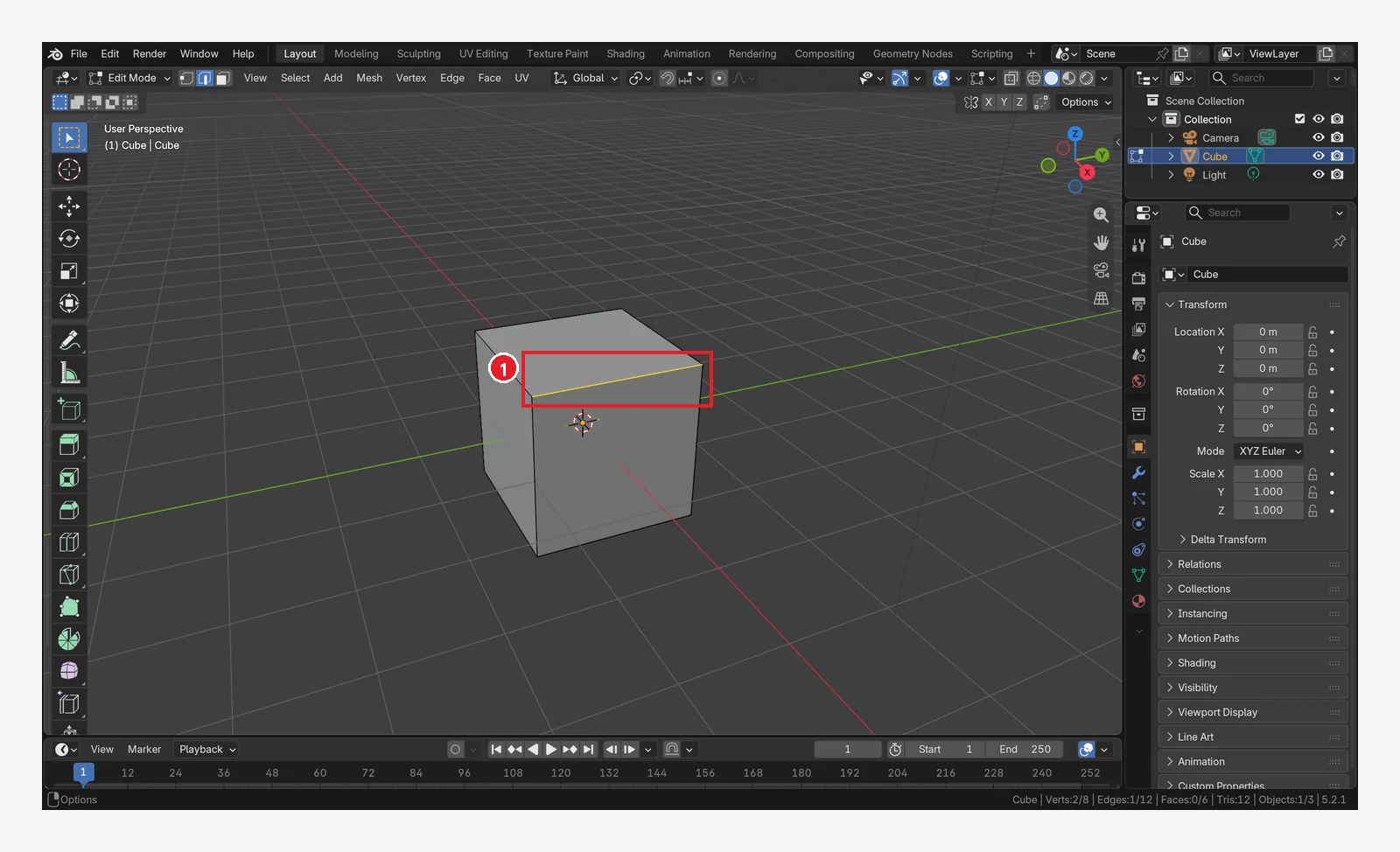 Figure 6-17. Before: in edge mode, ① select the edge to round off (Blender screenshot)
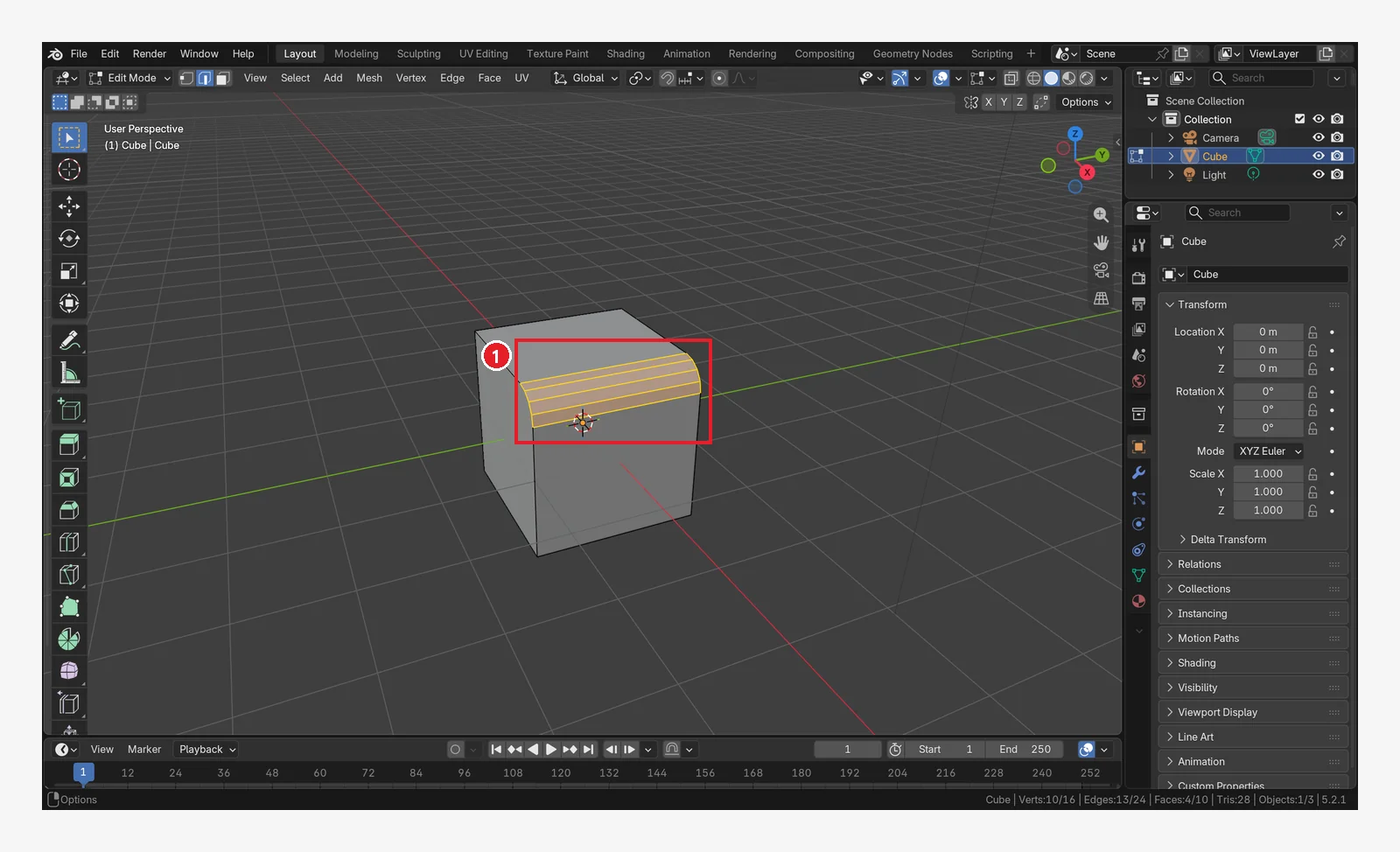 Figure 6-18.
 Ctrl+B → set the width with the mouse → raise the number of segments (Segments) with the wheel, then left-click: ① the edge is rounded off in four segments (Segments 4) (Blender screenshot)
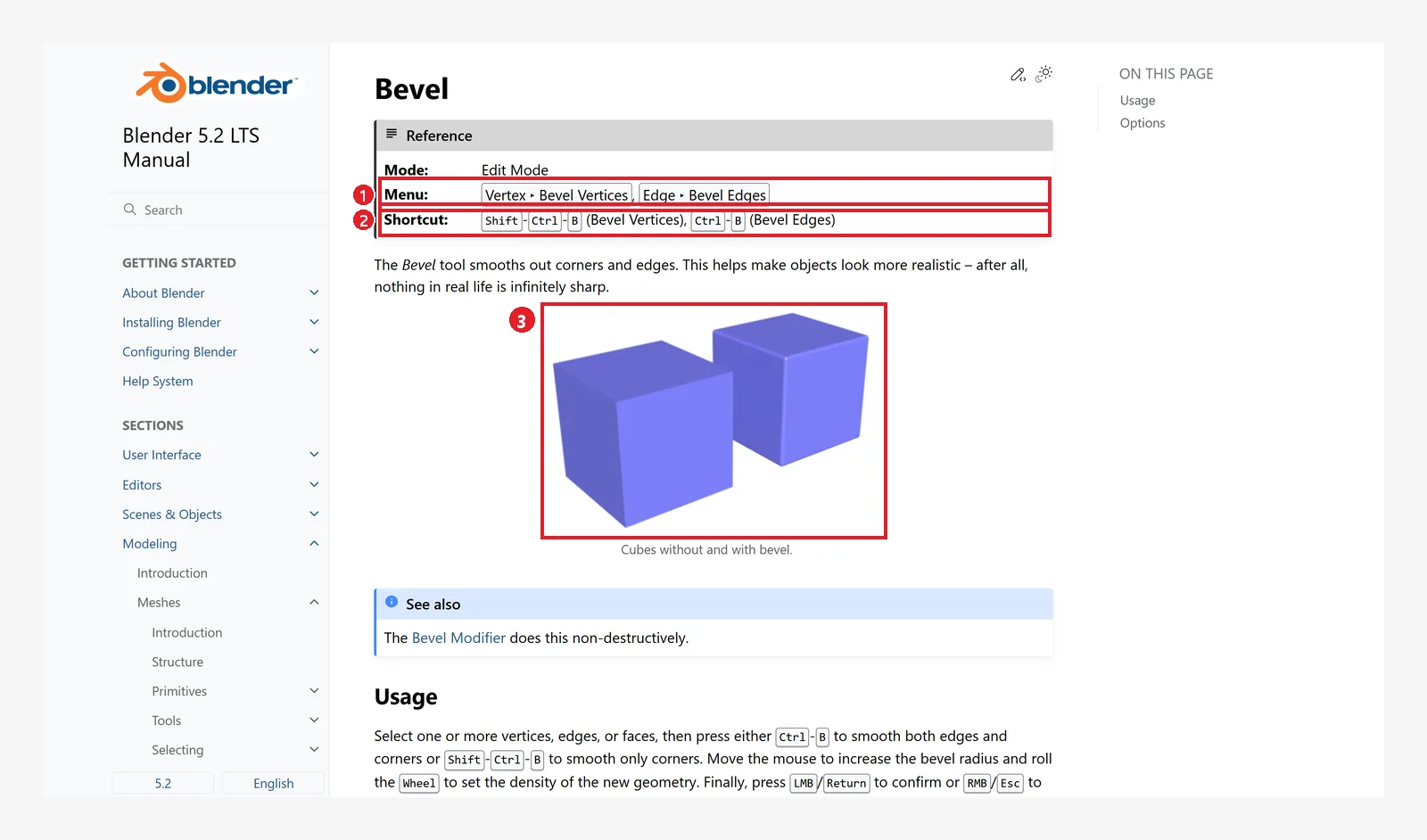 Figure 6-19. The official manual, Bevel: ① menus Vertex ‣ Bevel Vertices and Edge ‣ Bevel Edges ② shortcuts Ctrl-B (edges) and Shift-Ctrl-B (vertices) ③ a cube without a bevel and a cube with one (screenshot of the Blender 5.2 manual, CC BY-SA 4.0, numbers added)
To round off many edges at once, the Bevel modifier in chapter 7 is easier, because it does not damage the original shape.
6. Deleting faces and X-ray
6-1. Deleting a face: X → Faces (before → after)
Starting point: Undo what you changed in the previous section: press Ctrl+Z to undo the bevel (the original cube).
Follow along: Press 3 to switch to face mode and click the top face (Figure 6-7). Press X and choose Faces from the Delete menu that appears. In Edit Mode, both X and Delete open the Delete menu.
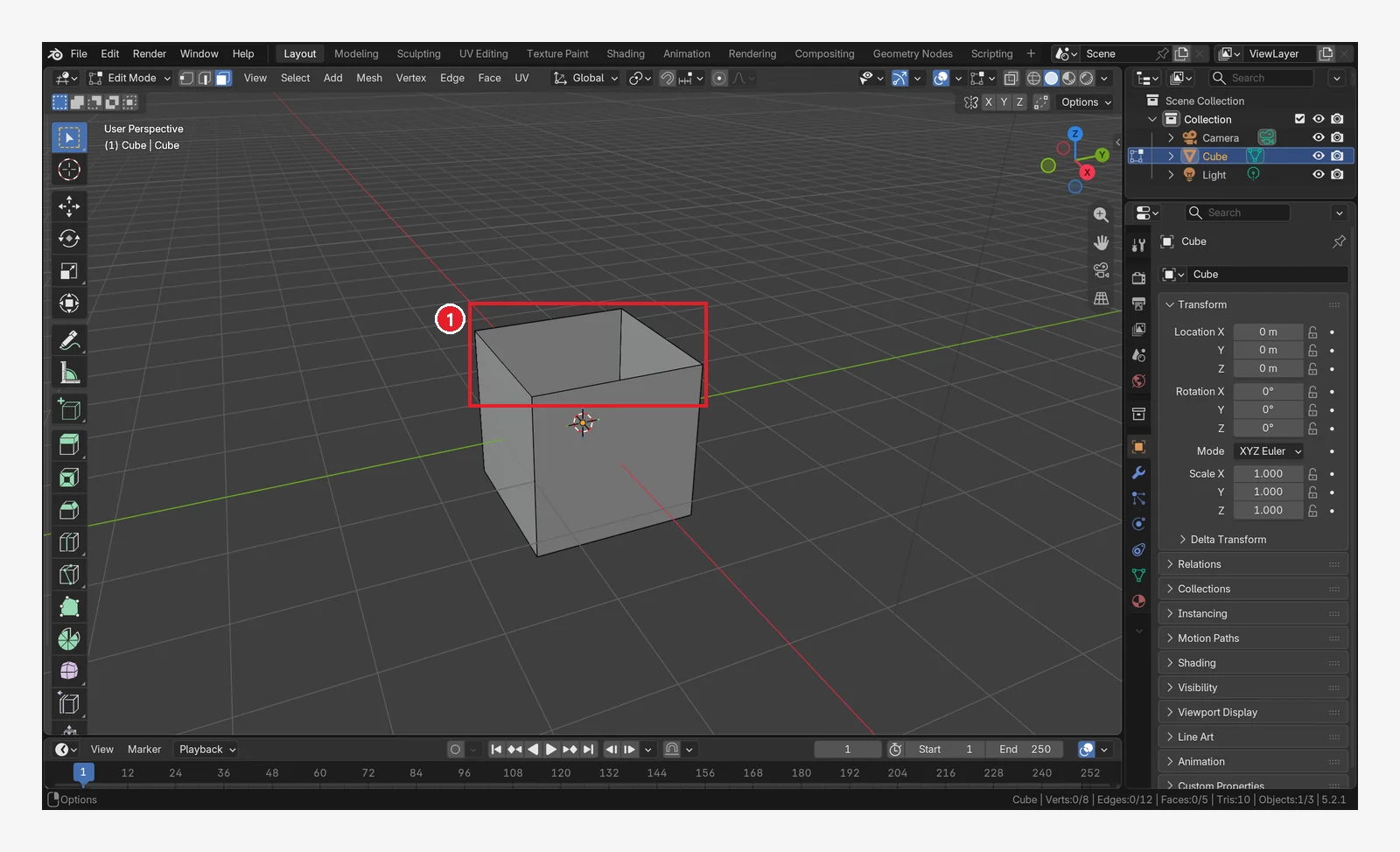 Figure 6-20. After (compare with Figure 6-7): ① the top face is gone, so you can see inside the box. The edges and vertices around the top face stay because the side faces use them (Blender screenshot)
The items in the Delete menu are as follows.
| Menu item | What it deletes | What remains |
|---|---|---|
| Vertices | The selected vertices, and the edges and faces attached to them | — |
| Edges | The selected edges, and the faces attached to them. Also deletes vertices left on their own | — |
| Faces | The selected faces. Also deletes edges and vertices left on their own | Edges and vertices used by other faces |
| Only Edges & Faces | The selected edges and faces, and faces that contain a selected edge | Vertices left on their own |
| Only Faces | Only the selected faces | All edges and vertices, even ones left on their own |
The difference between Faces and Only Faces: both delete faces, but for edges and vertices that no longer belong to any face after the delete, Faces removes them too, and Only Faces keeps them. When you delete just the top face of a cube, the side faces use the edges and vertices around it, so the two give the same result. The difference shows when you delete several faces at once.
6-2. X-ray: Alt+Z (before → after)
In Solid view, the front faces block your view, so you cannot select vertices at the back. Turning on X-ray makes the object see-through, so you can see and select the vertices at the back too.
Starting point: Undo what you changed in the previous section: press Ctrl+Z to bring back the deleted top face.
Follow along: With the mouse over the 3D Viewport, press Alt+Z. Once you have checked it, press Alt+Z again to turn it off.
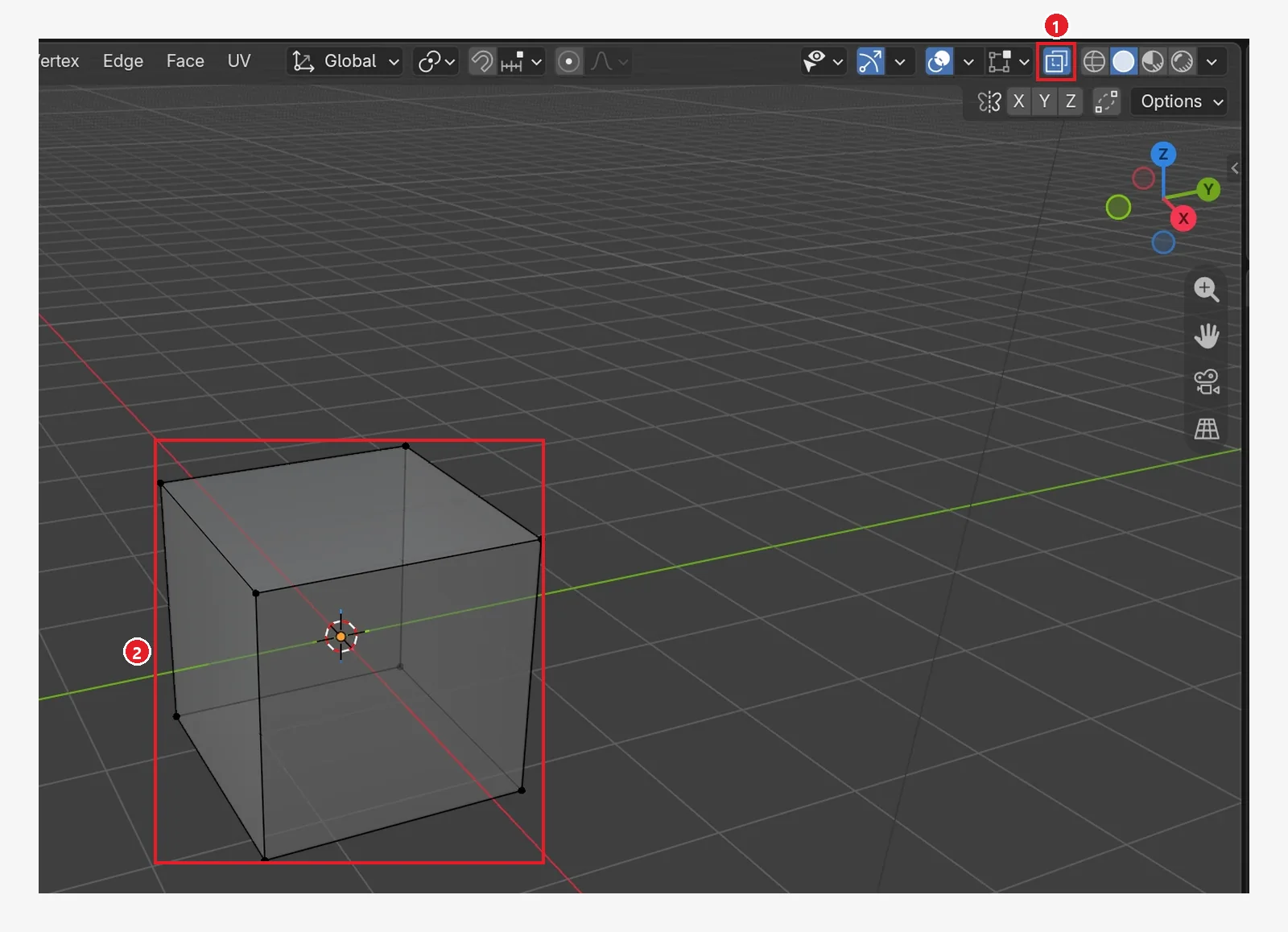 Figure 6-21. After pressing
 Alt+Z (compare with Figure 6-2): ① the X-ray button in the header (the icon of two overlapping squares) turns blue ② the cube becomes see-through, showing even the edges and vertices at the back. Press Alt+Z again to turn it off (Blender screenshot)
7. Finishing and returning to Object Mode
Starting point: Continue from the cube in Edit Mode from the previous section.
Follow along: With the mouse over the 3D Viewport, press Tab. The picture comes from a cube that only had the extrude from section 4-1. On your screen, the cube keeps whatever shape it has now.
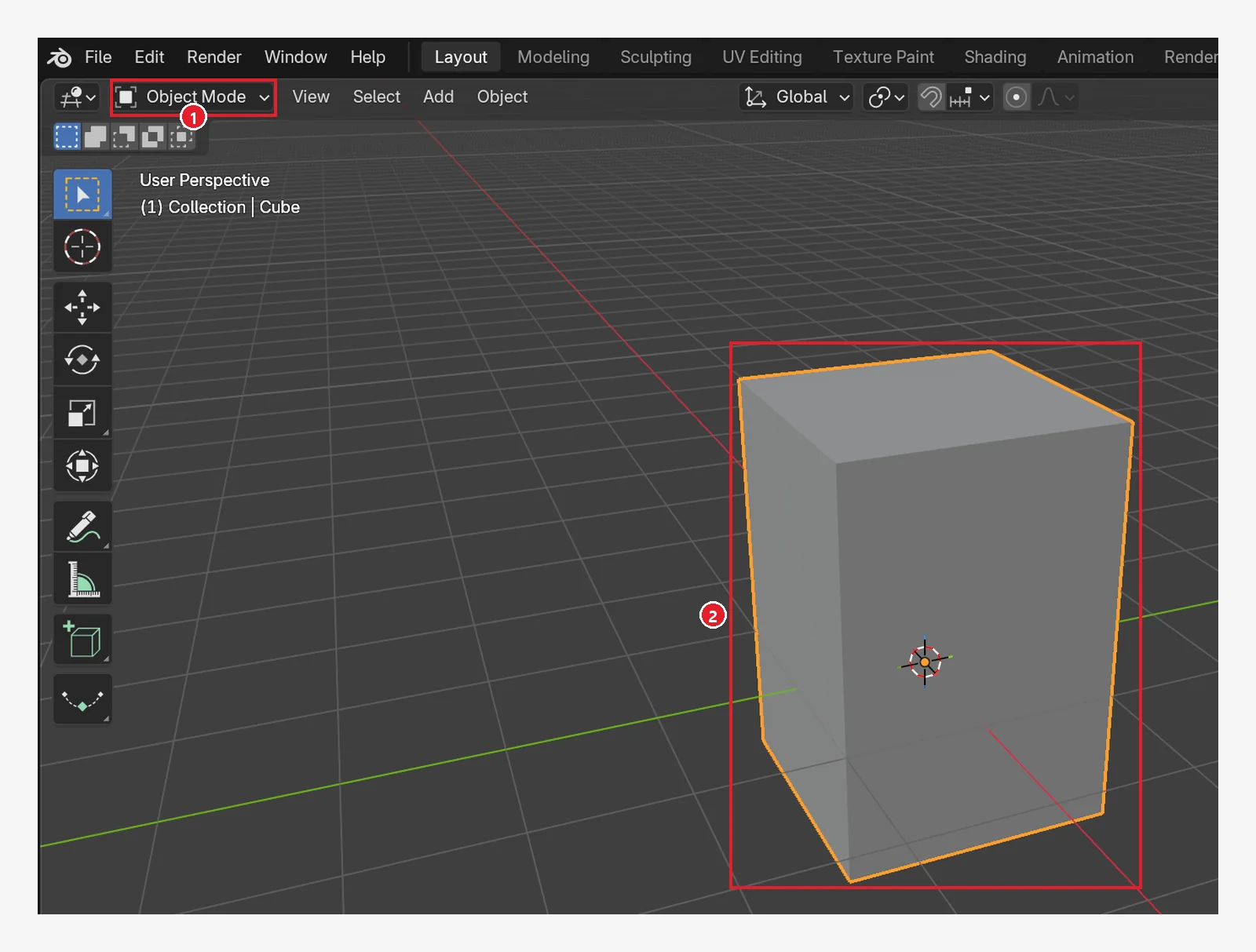 Figure 6-22. After pressing
 Tab following the extrude (Figure 6-10): ① the header returns to Object Mode ② the changed shape stays. Now you can move it whole, as in chapter 3 (Blender screenshot)
8. Shortcut list
| Key | What it does | Mode |
|---|---|---|
Tab | Object Mode ↔ Edit Mode | 3D Viewport |
1 / 2 / 3 | Vertex / Edge / Face selection mode | Edit |
A / Alt+A | Select all / Deselect | Edit |
G R S | Move / Rotate / Scale | Edit (selected part only) |
E | Extrude | Edit |
I | Inset | Edit |
Ctrl+R | Loop Cut | Edit |
Ctrl+B / Shift+Ctrl+B | Bevel edges / Bevel vertices | Edit |
K | Knife (cutting, not used in this chapter) | Edit |
X or Delete | Delete menu | Edit |
M | Merge menu (not used in this chapter) | Edit |
Alt+Z | Toggle X-ray | 3D Viewport |
9. Practice exercises
Starting point: Start from the default cube in a new file (File ‣ New ‣ General). If a window asks whether to save, click the button that does not save (Don't Save in chapter 5, Figure 5-12). Select the cube and press Tab to enter Edit Mode. For exercises 1 to 3, go back to the original cube with Ctrl+Z before each one.
- A square bowl: In face mode, select the top face and make an inner face with
I. Then pressE→Z→-1.5→Enterto push it down and make a hollow bowl. Check the inside with X-ray (Alt+Z). - Use
I→E(upward) on the top face to raise a chimney. - Round off one edge with
Ctrl+B, and change the number of segments with the wheel. - When you finish practicing, leave to Object Mode with
Taband check that the header says Object Mode.
10. Common mistakes and fixes
| Symptom | Cause | Fix |
|---|---|---|
Pressing G moves the whole box | You are in Object Mode | Tab into Edit Mode |
| A whole face moves instead of a vertex | You are in face mode, or the whole face is selected | 1 for vertex mode, then Alt+A and select again |
| Vertices at the back cannot be selected | They are hidden in Solid view | Alt+Z (X-ray) |
| You extruded but the shape is the same | You canceled after extruding, so only overlapping faces remain | Ctrl+Z |
| A newly added sphere merged into the cube | You added it in Edit Mode | Ctrl+Z, leave with Tab, and add it again |
1, 2, 3 do not switch selection modes | Emulate Numpad is on | Use the header buttons (Figure 6-3) |
| Deleting a vertex also removed faces | You chose Vertices in the Delete menu | Ctrl+Z, then use Faces or Only Faces |
In one line
Select one cube and press Tab → 1, 2, 3 for vertices, edges, faces → shape it with G, E, I, Ctrl+R, Ctrl+B → always leave with Tab when you finish. In chapter 7, you will learn modifiers, which change a shape without damaging the original.
References
- Blender 5.2 Manual: Mesh Selection Modes
- Blender 5.2 Manual: Extrude Faces
- Blender 5.2 Manual: Inset Faces
- Blender 5.2 Manual: Loop Cut
- Blender 5.2 Manual: Deleting & Dissolving
- Blender 5.2 Manual: Bevel
- Shortcuts: based on the default (Blender) keymap of Blender 5.2.1
- Picture licenses: manual screens are CC BY-SA 4.0, with red numbers and outlines added. Blender program license: blender.org/about/license