Blender for complete beginners, chapter 7: Modifiers that change shape without ruining the original
Blender modifiers for complete beginners. Add Subdivision Surface, Bevel, Mirror, Array, and Solidify, then learn to turn them on and off, change their order, and Apply them.
한국어English
ON THIS PAGE
- 01What you will learn in this chapter
- 021. What a modifier is and where it lives
- 032. Subdivision Surface: making a boxy cube smooth (before → after)
- 043. The buttons on a modifier panel
- 054. Four modifiers you will use often
- 065. Order changes the result (before → after)
- 076. Apply: turning the result into real geometry (before → after)
- 087. Applying scale: when Bevel looks squashed (before → after)
- 098. Practice
- 109. Common mistakes and fixes
- 11Summary in one line
- 12References
Blender for complete beginners, chapter 7 · Based on: Blender 5.2 LTS (screenshots from 5.2.1, English UI, default keymap) All images are real screens. The red numbers and outlines were added for explanation.
What you will learn in this chapter
By the end of this chapter you will be able to do the following.
- Know what a modifier is and where to find it. (Section 1)
- Make a boxy cube smooth with Subdivision Surface. (Section 2)
- Find the on/off and delete buttons on a modifier panel. (Section 3)
- Try Bevel, Mirror, Array, and Solidify. (Section 4)
- Understand that the order of modifiers changes the result. (Section 5)
- Use Apply to turn the result into real geometry. (Section 6)
Before you start: This chapter starts from the default cube in a new file (File ‣ New ‣ General), in Object Mode (you only go into Edit Mode briefly in sections 4-2 and 4-4). Keep the cube selected. In three places you start over with a fresh cube. You do not need to save. If a window asks whether to save when you open a new file, press the button that does not save (Don't Save in Figure 5-12 of chapter 5).
1. What a modifier is and where it lives
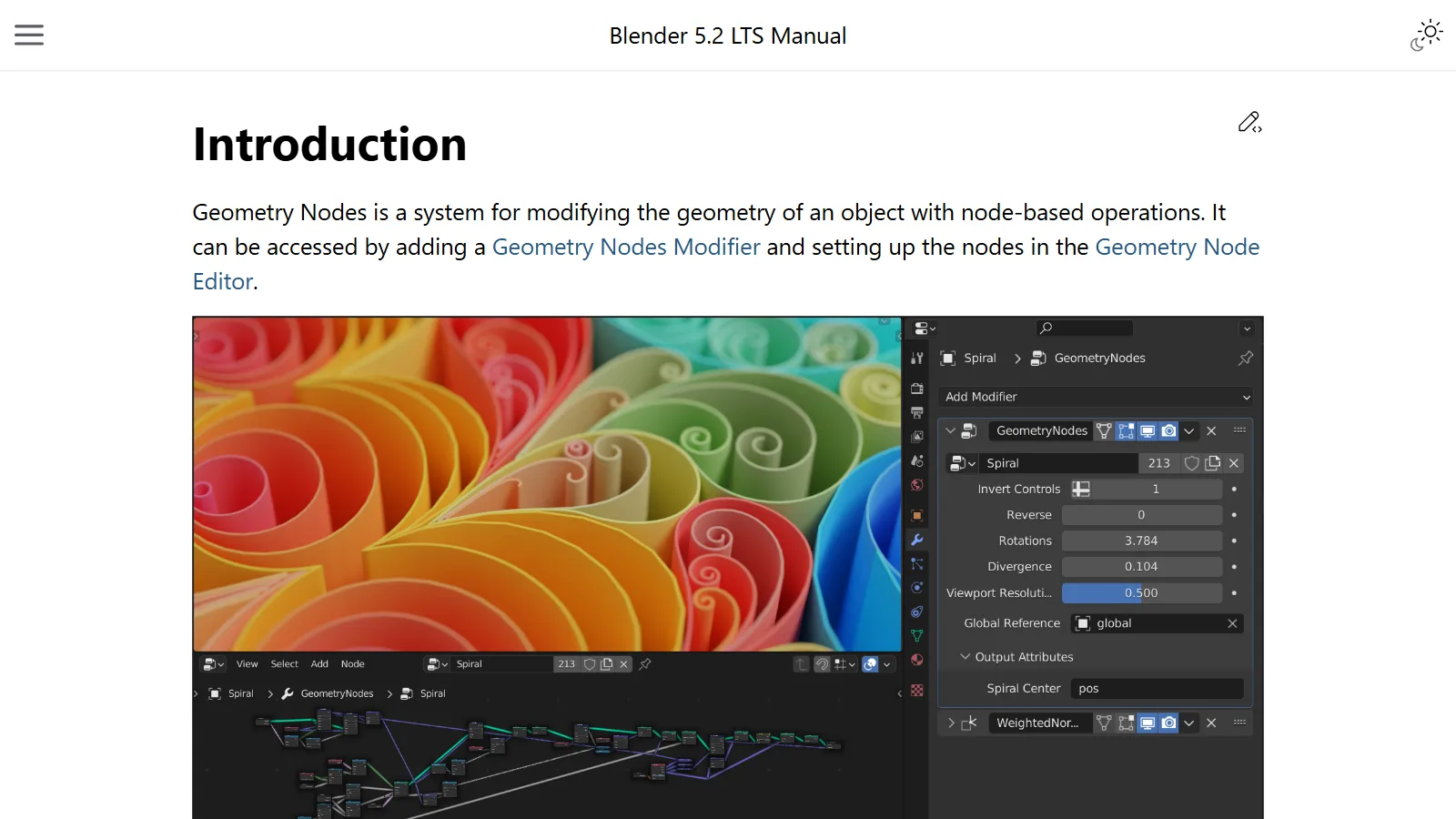
The official manual describes a modifier as an "automatic operation that affects an object in a non-destructive way." Non-destructive means that the original mesh (the shape made of points, lines, and faces) stays as it is, and only the shape you see and the render result change.
Think of it like this: It is like putting a filter on a photo. Turn the filter off and the original photo comes back. A modifier is the same: turn it off or delete it and you get the original cube back.
1-1. Finding the Modifiers tab
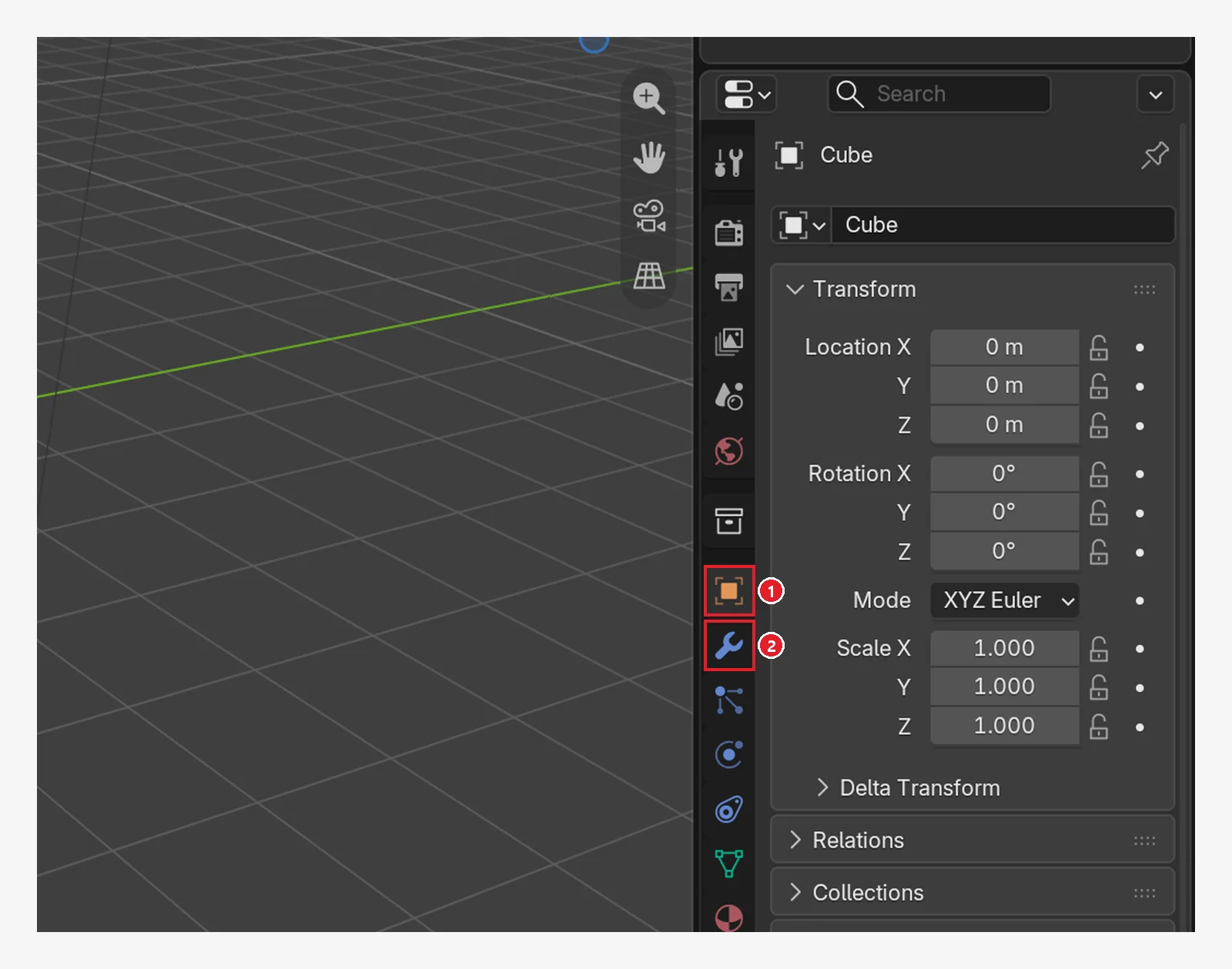 Figure 7-1. The vertical icons on the left of the Properties Editor: ① the Object tab (the one used in chapter 3) ② the blue wrench icon just below it is the Modifiers tab (Blender screenshot)
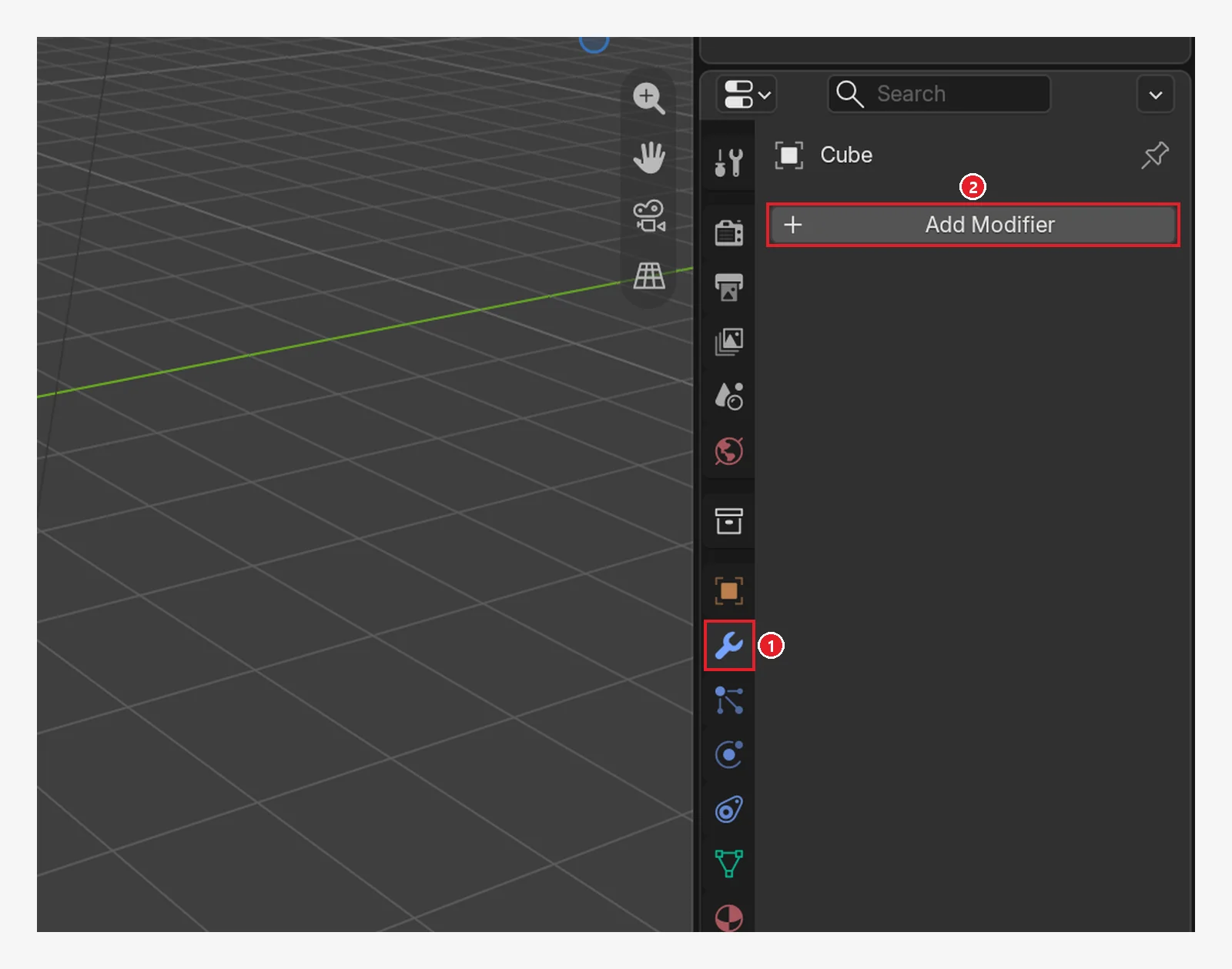 Figure 7-2. After clicking the Modifiers tab (wrench icon): ① the Modifiers tab ② the Add Modifier button. There are no modifiers yet (Blender screenshot)
The manual says you add modifiers with this Add Modifier button. You can also hover the mouse over this tab and press Shift+A. A new modifier is always added at the bottom of the list.
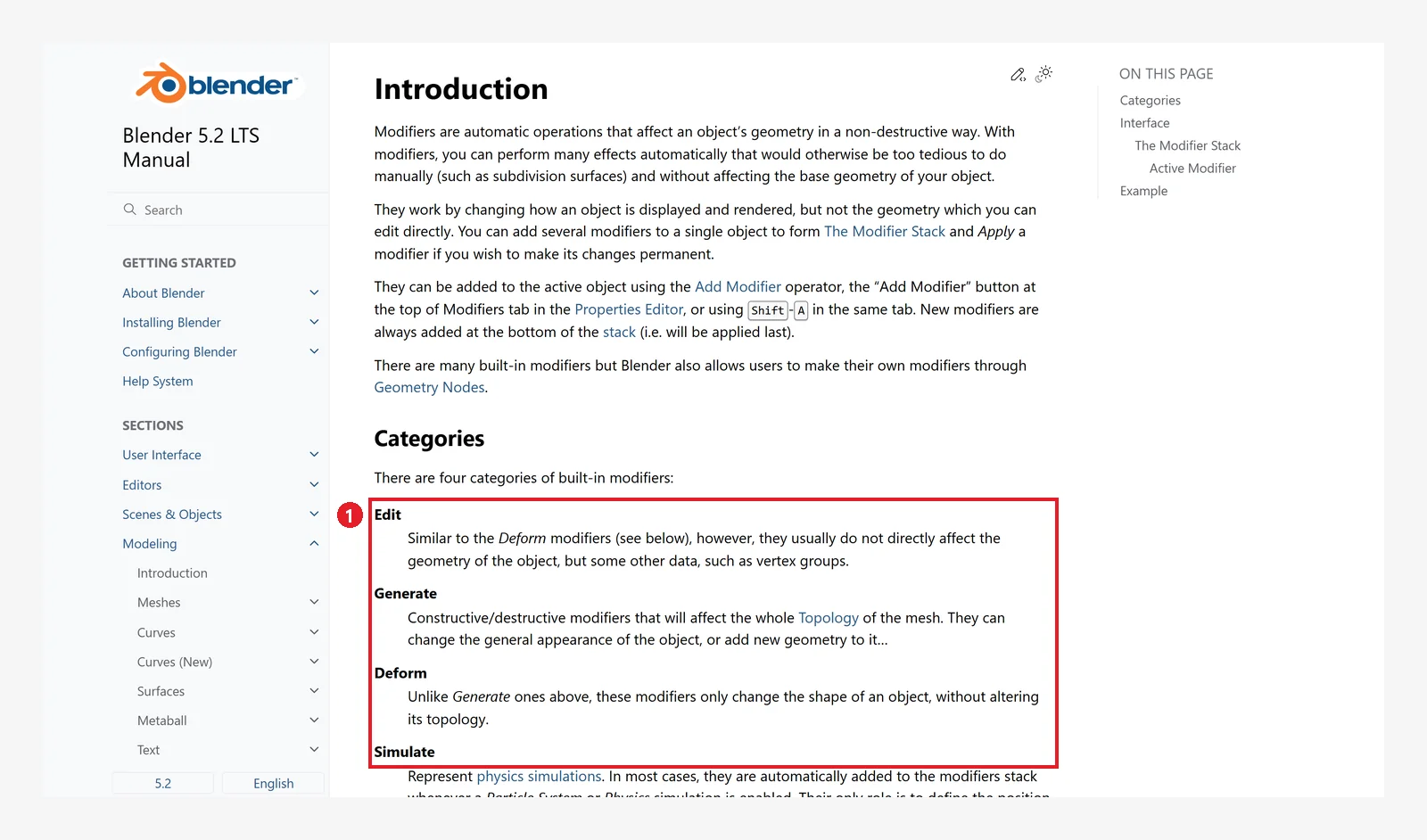 Figure 7-3. The official manual: ① the four modifier categories: Edit, Generate (makes new shapes and faces), Deform (changes the shape but keeps the face count), and Simulate (physics simulation) (Blender 5.2 manual screenshot, CC BY-SA 4.0, numbers added)
The four categories in the manual are groups for explanation. The real menu has a few more groups (Figure 7-4). All five modifiers in this chapter are in Generate.
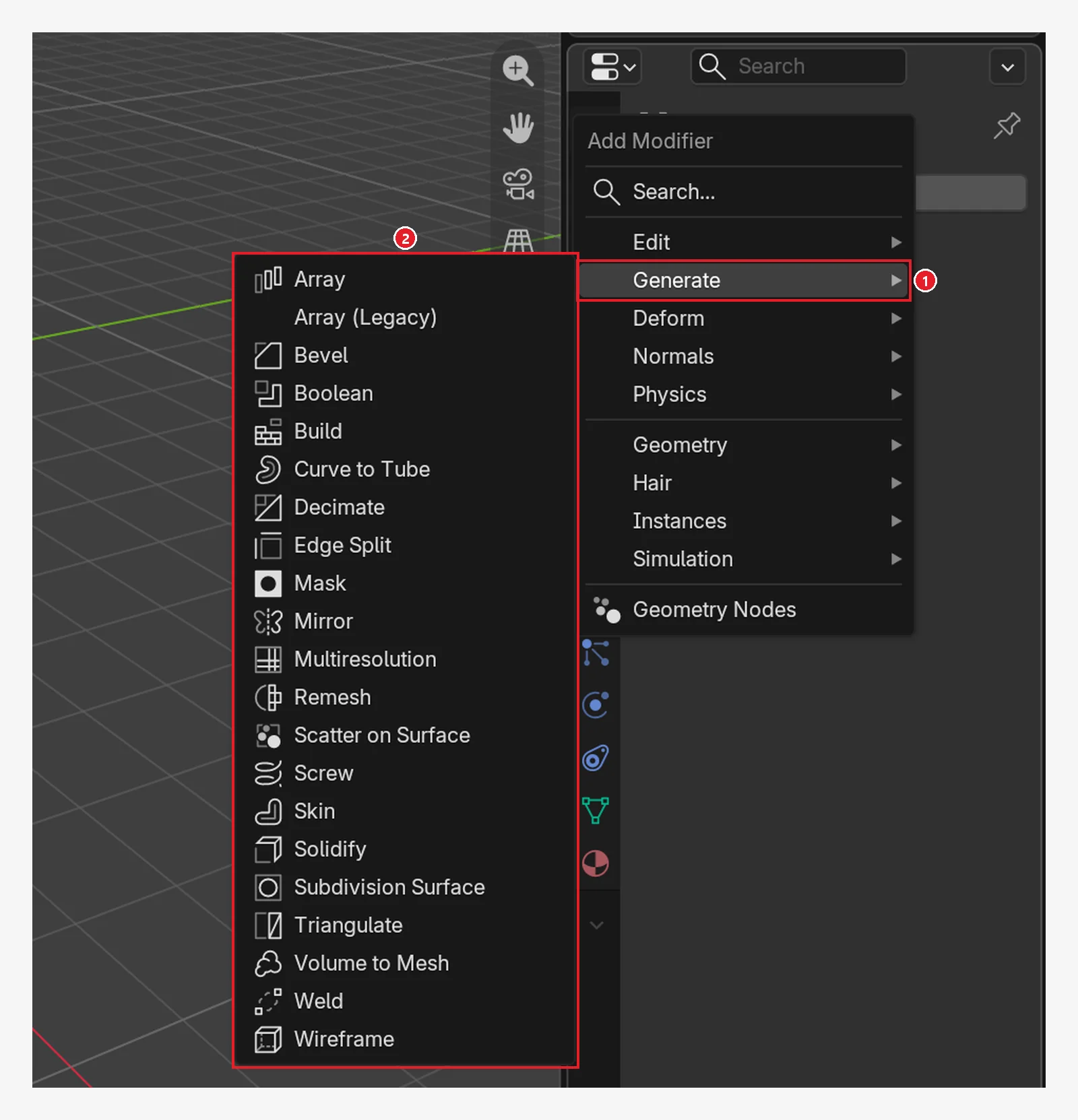 Figure 7-4. Click Add Modifier on the Modifiers tab and ① hover over Generate to ② open the list of modifiers that "make" things. Array, Bevel, Mirror, Solidify, and Subdivision Surface, all used in this chapter, are here. Array (Legacy) just below Array at the top is the old version, so it is listed separately (section 4-3) (Blender screenshot)
2. Subdivision Surface: making a boxy cube smooth (before → after)
Subdivision Surface splits faces into smaller ones and rounds them off. The panel shows it as Subdivision, and people also call it Subsurf for short. It is the modifier used most often to make characters and props look soft.
Follow along: Add Modifier → Generate → Subdivision Surface.
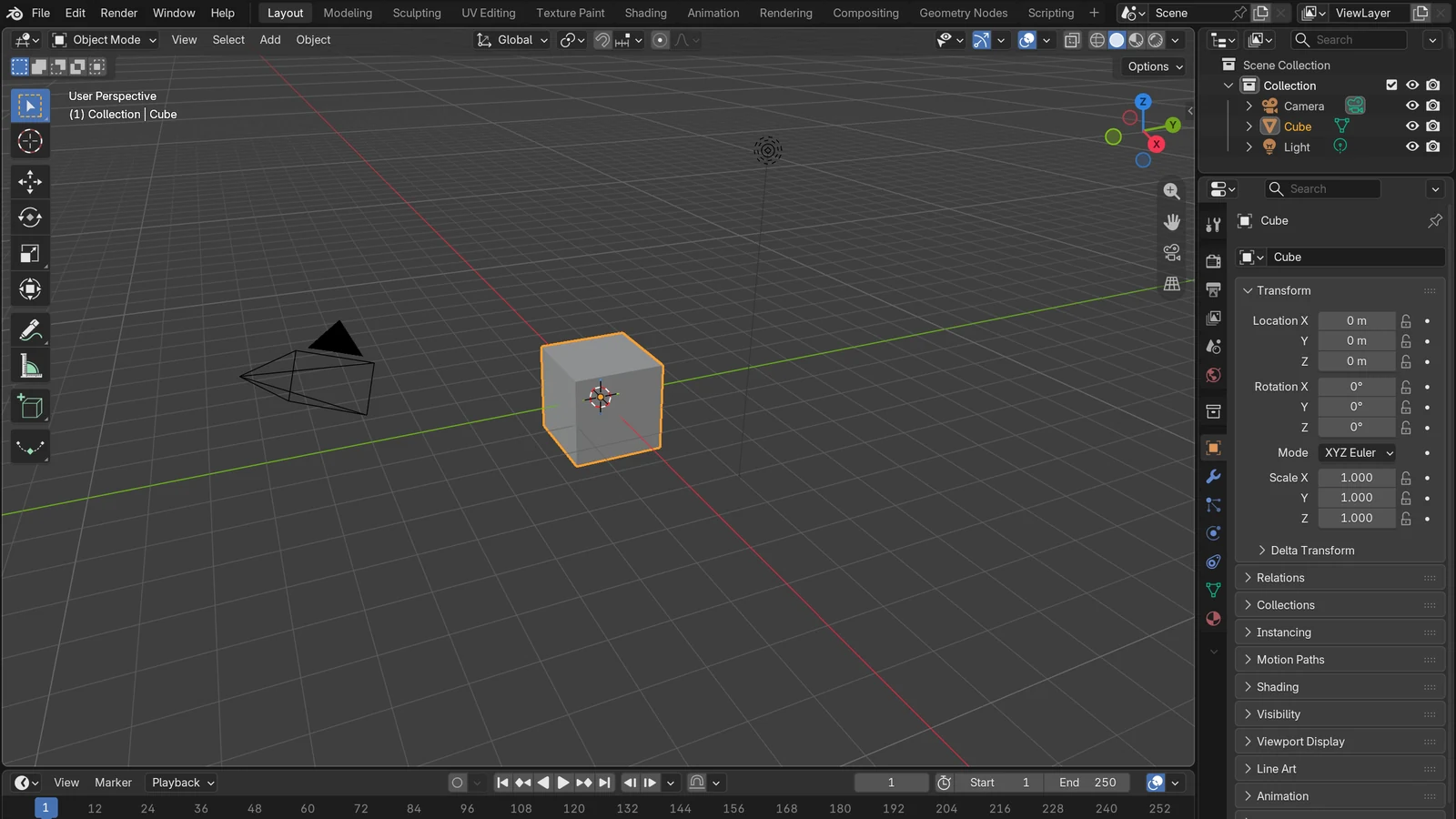
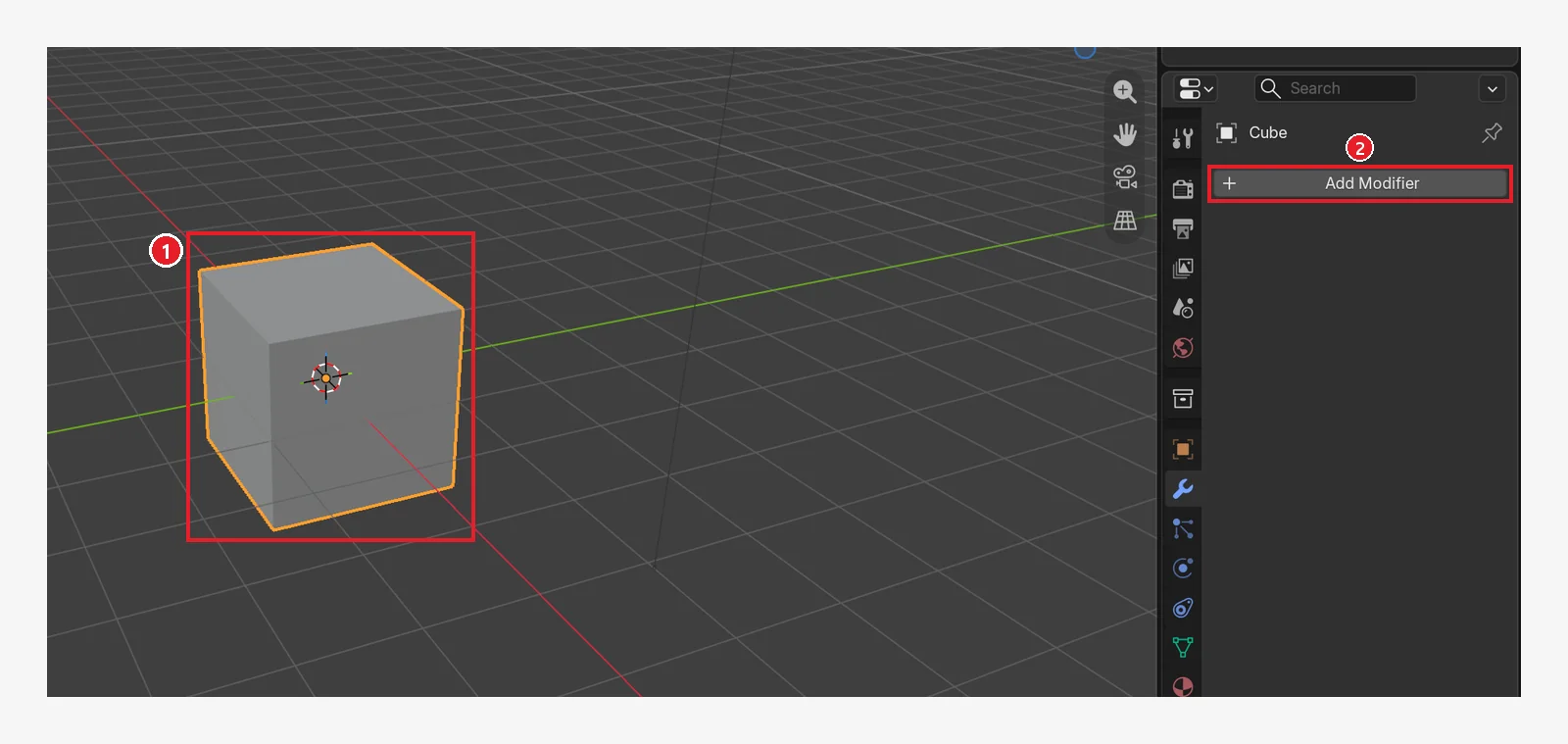 Figure 7-5. Before adding it: ① the boxy default cube ② the Add Modifier button (Blender screenshot)
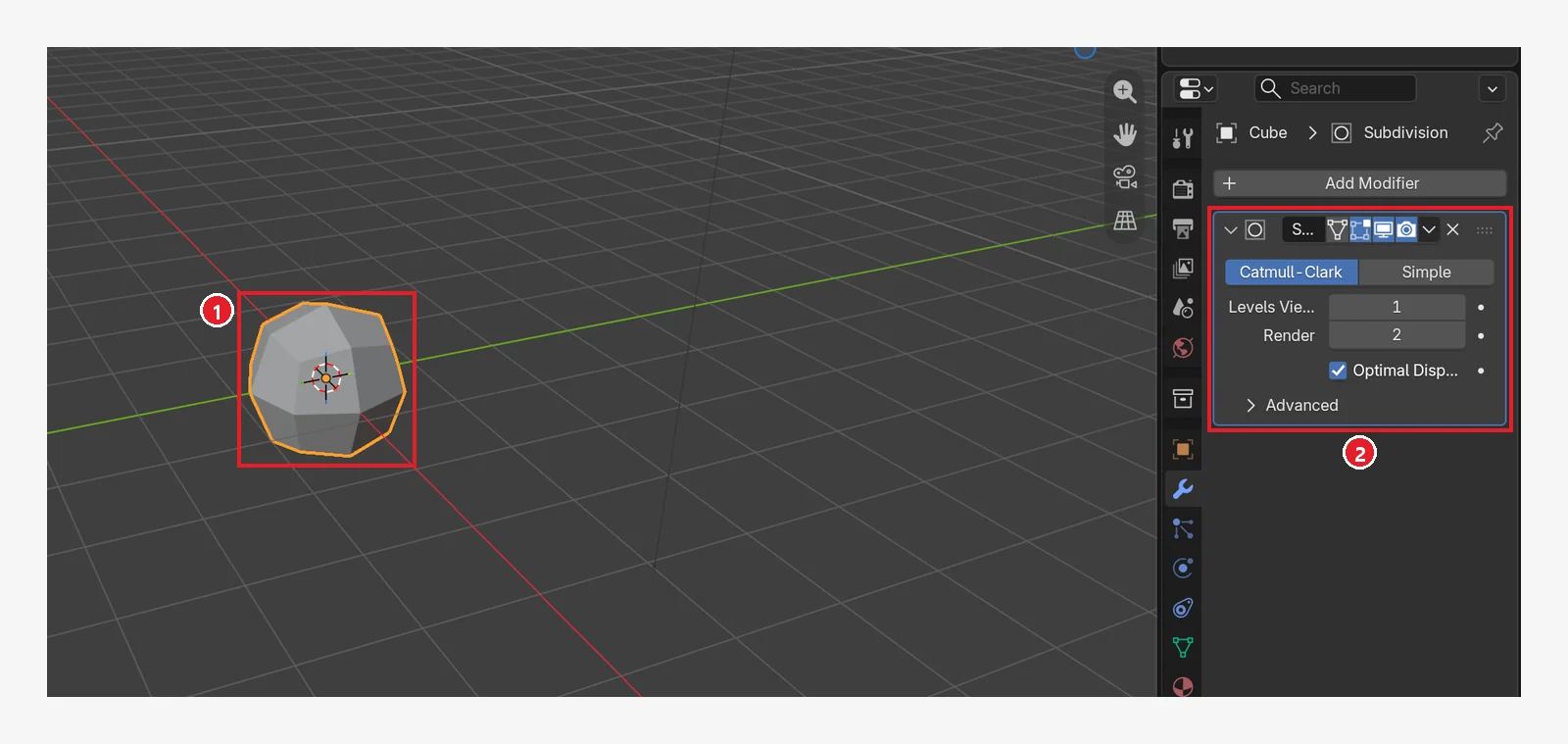 Figure 7-6. After adding it (Levels Viewport 1): ① the corners are cut and rounded ② a Subdivision panel appears in the list (Blender screenshot)
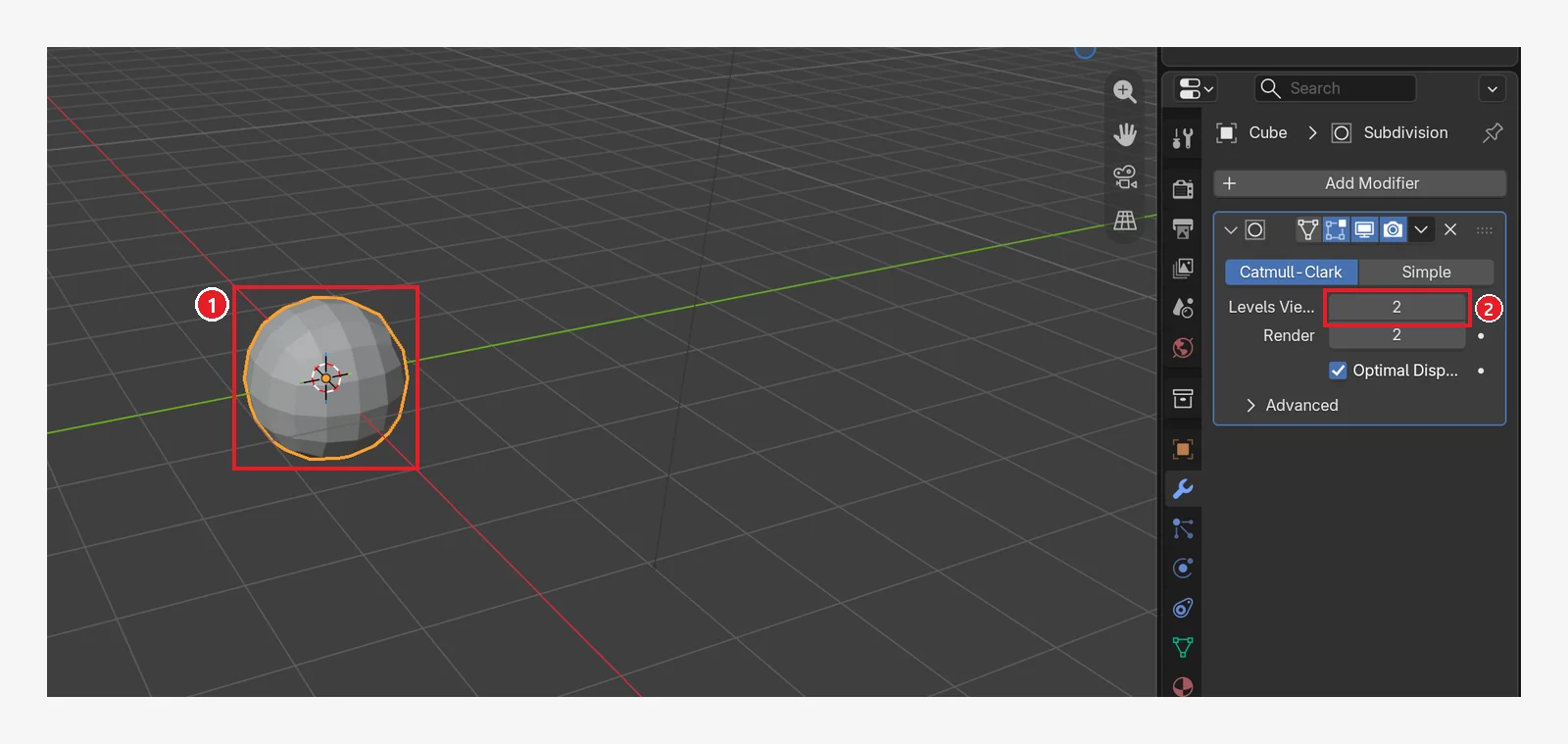 Figure 7-7. After raising ② Levels Viewport to 2: ① it is now almost as smooth as a ball (Blender screenshot)
| Field | Meaning |
|---|---|
| Levels Viewport | How many times to subdivide in the 3D Viewport. Higher is smoother but heavier |
| Render | The level used when rendering (making the final picture) |
| Catmull-Clark / Simple | Subdivide and round off / only subdivide, keeping the shape |
Shortcut: In Object Mode, press Ctrl+1 to 5 to add a Subdivision Surface at that level right away. Ctrl+0 gives level 0.
2-1. Making faces look soft: Shade Smooth (before → after)
Look closely at Figure 7-7 and you can see small square faces on the ball. Click Object ‣ Shade Smooth in the header and the borders between faces look soft.
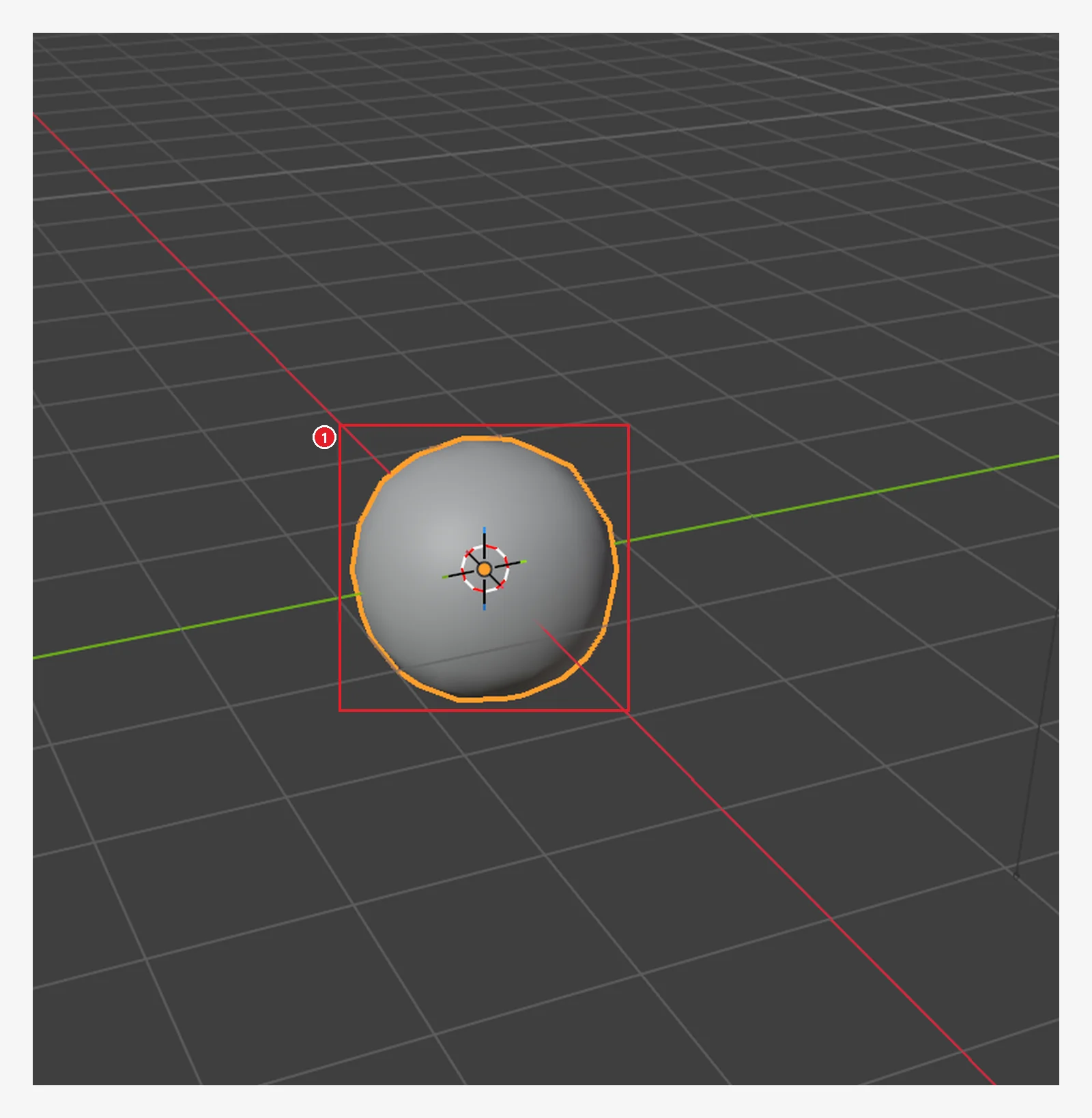 Figure 7-8. After Shade Smooth (compare with Figure 7-7): ① the borders between the square faces are gone and it looks smooth. The point count is the same; only the way it is shown has changed. To undo it, use Object ‣ Shade Flat (Blender screenshot)
3. The buttons on a modifier panel
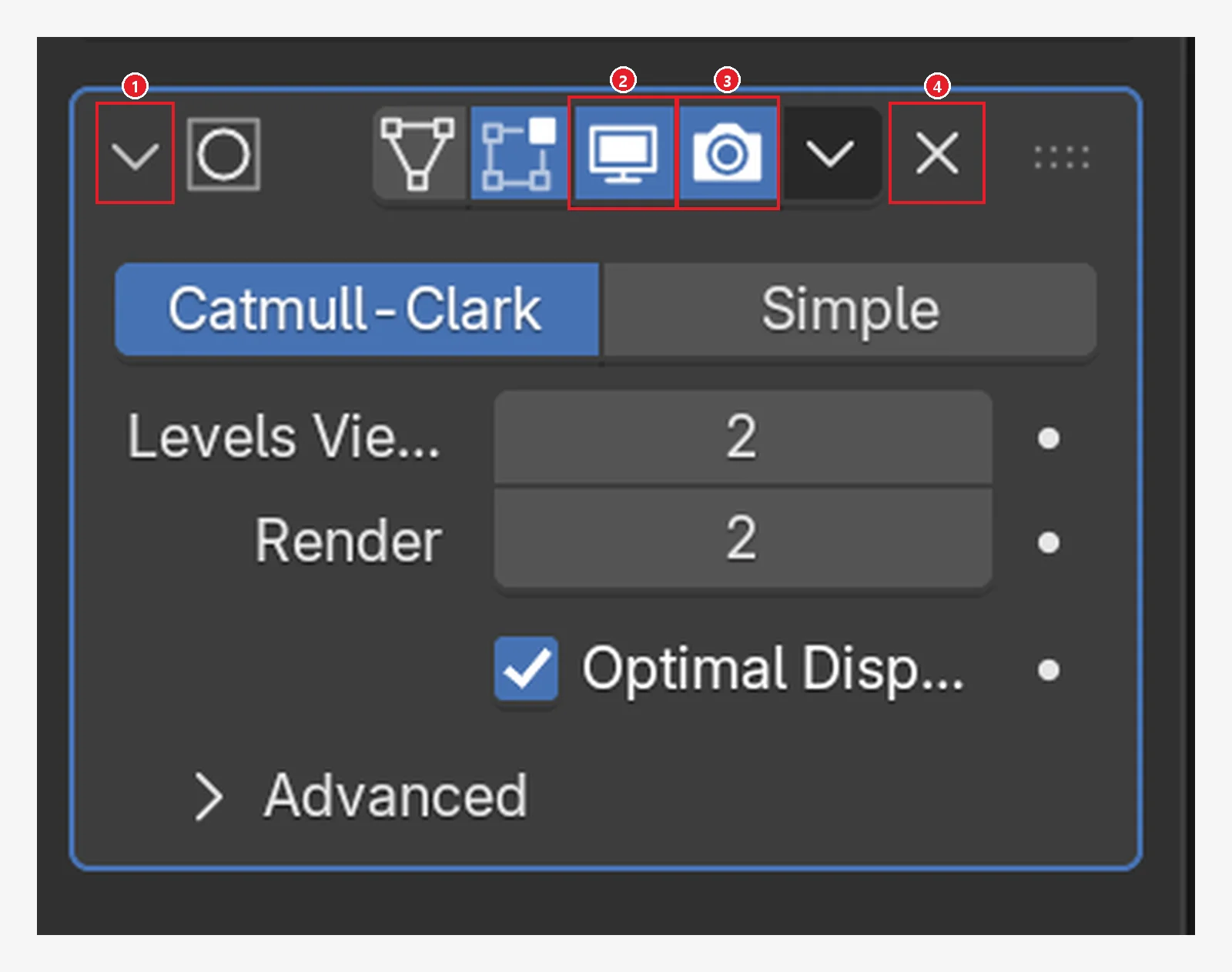 Figure 7-9. The panel header: ① collapse/expand ② show in the 3D Viewport (monitor icon) ③ use in render (camera icon) ④ delete the modifier (X) (Blender screenshot)
As the manual explains, ② turns the effect on and off in the 3D Viewport, and ③ turns it on and off for rendering. The triangle and square icons set how it looks in Edit Mode. You do not need to touch them at first.
3-1. Turning it off for a moment (before → after)
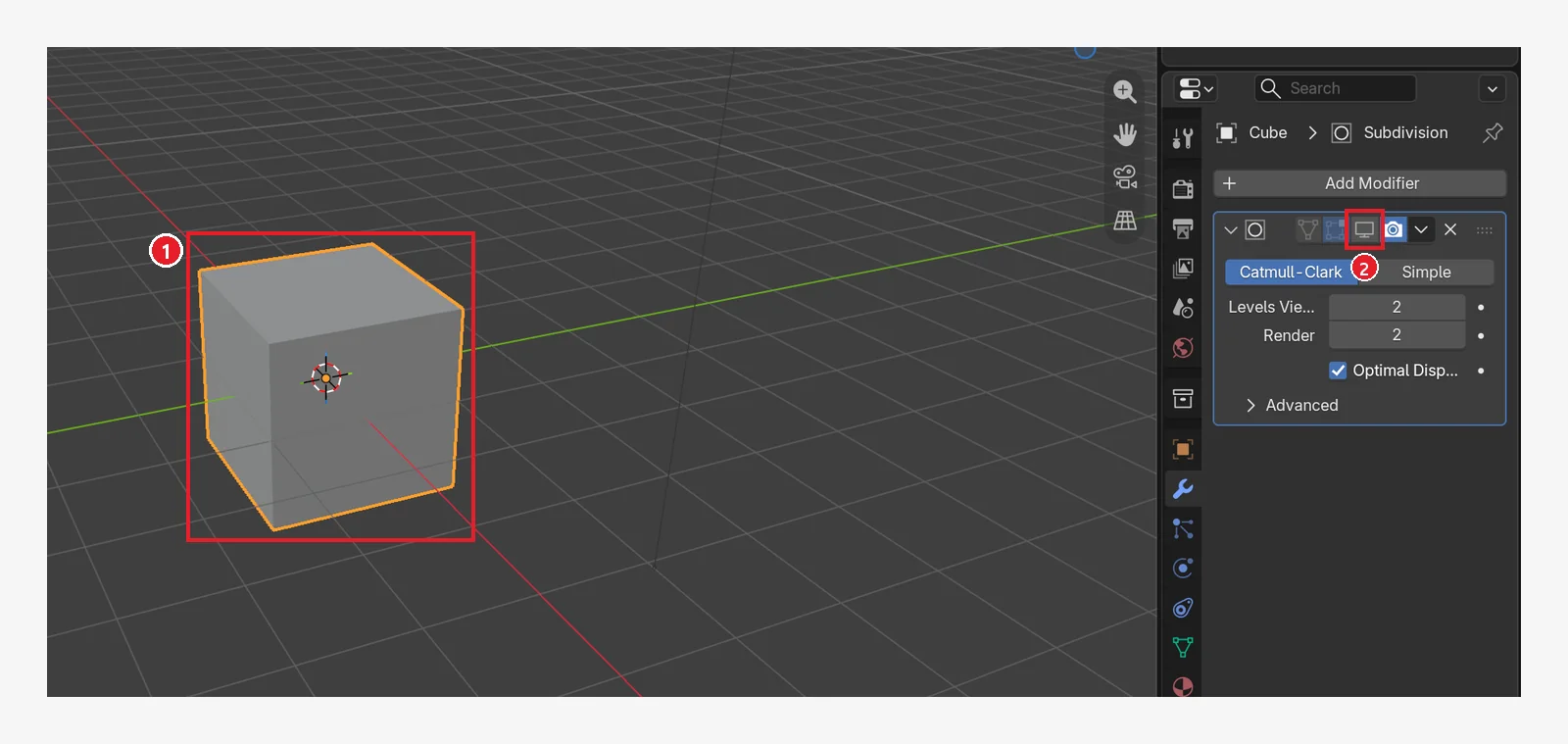 Figure 7-10. After turning off the ② monitor icon (compare with Figure 7-7): ① the original boxy cube shows again. The modifier has not been deleted. This is proof that the original is still there (Blender screenshot)
Here is one more look at the difference between levels, using a figure from the manual.
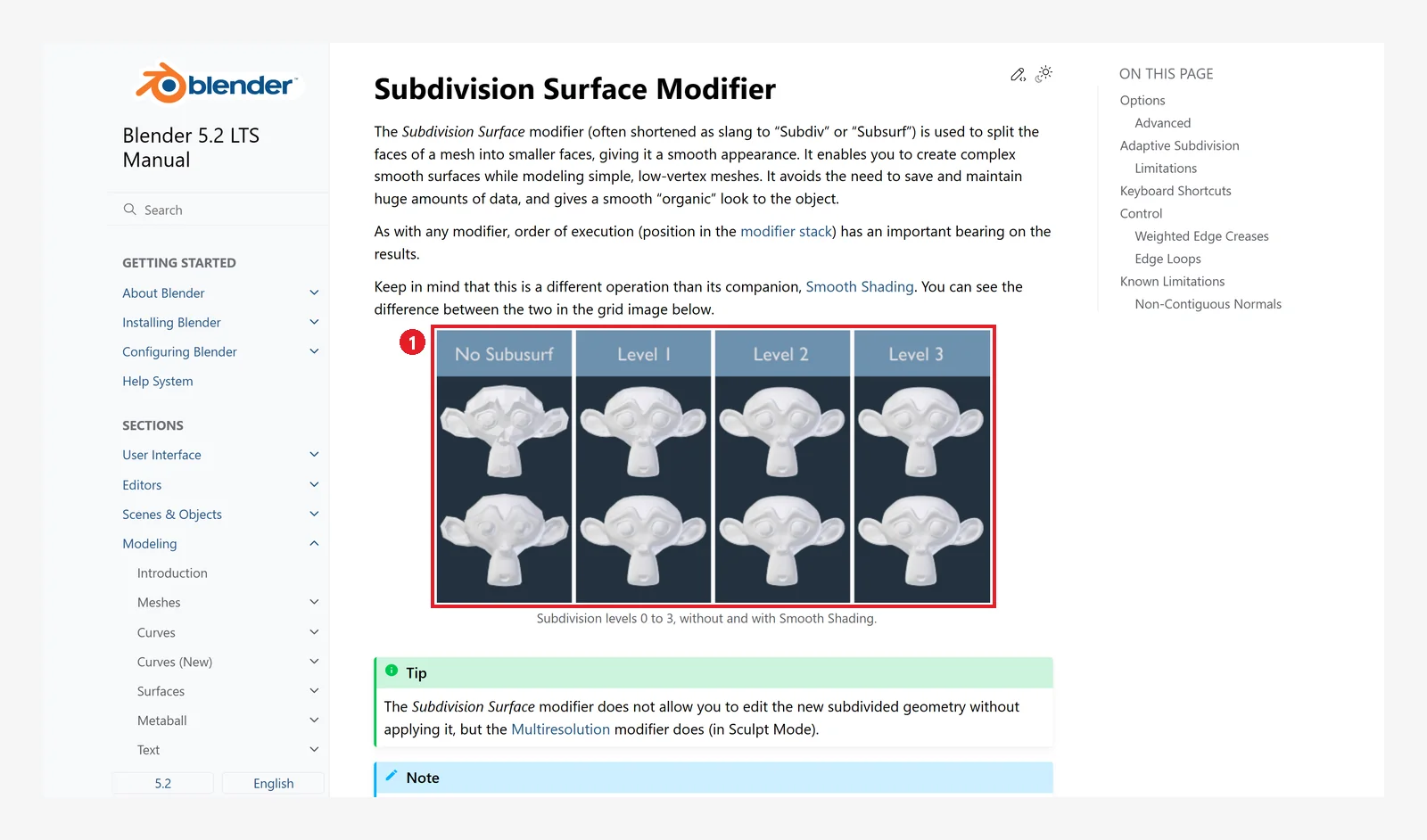 Figure 7-11. The official manual: ① a comparison of levels 0 to 3 (top: faceted view, bottom: Smooth Shading) (Blender 5.2 manual screenshot, CC BY-SA 4.0, numbers added)
4. Four modifiers you will use often
4-1. Bevel: cutting off the edges
The bevel in chapter 6 (Ctrl+B) really cut only the edges you picked. The Bevel modifier cuts all edges at once and keeps the original.
Follow along: Delete the Subdivision panel you added in section 2 with the X (Figure 7-9 ④). Then add Add Modifier → Generate → Bevel and change Amount to 0.25 and Segments to 3.
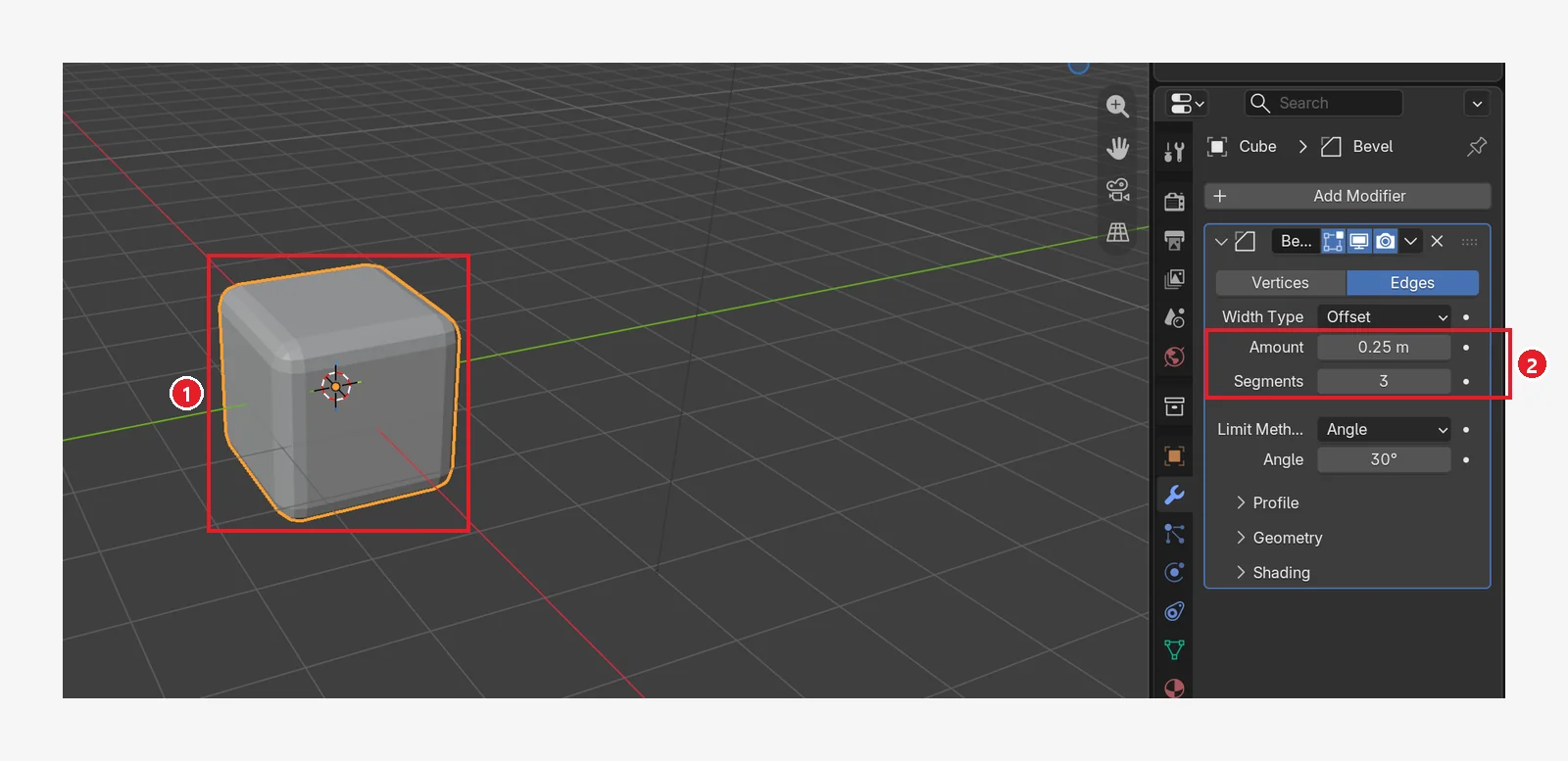 Figure 7-12. The Bevel modifier (Amount 0.25 m, Segments 3): ① all twelve edges are cut ② Amount (width) and Segments (number of steps) on the Bevel panel (Blender screenshot)
4-2. Mirror: build one half and the other half appears (before → after)
If you just add Mirror to the default cube, the copy sits in exactly the same place as the original, so nothing seems to change. So first move the shape to the side.
Follow along:
- Delete the Bevel panel from before with the X, and use Object ‣ Shade Flat in the header to make the faces boxy again (this undoes the Shade Smooth you clicked in section 2-1).
- Press
Tab→A→GX1.6Enter→Tabin order. You moved only the shape 1.6 m along X in Edit Mode, so the object's origin stays where it was (Figure 7-13). - Add Add Modifier → Generate → Mirror (Figure 7-14).
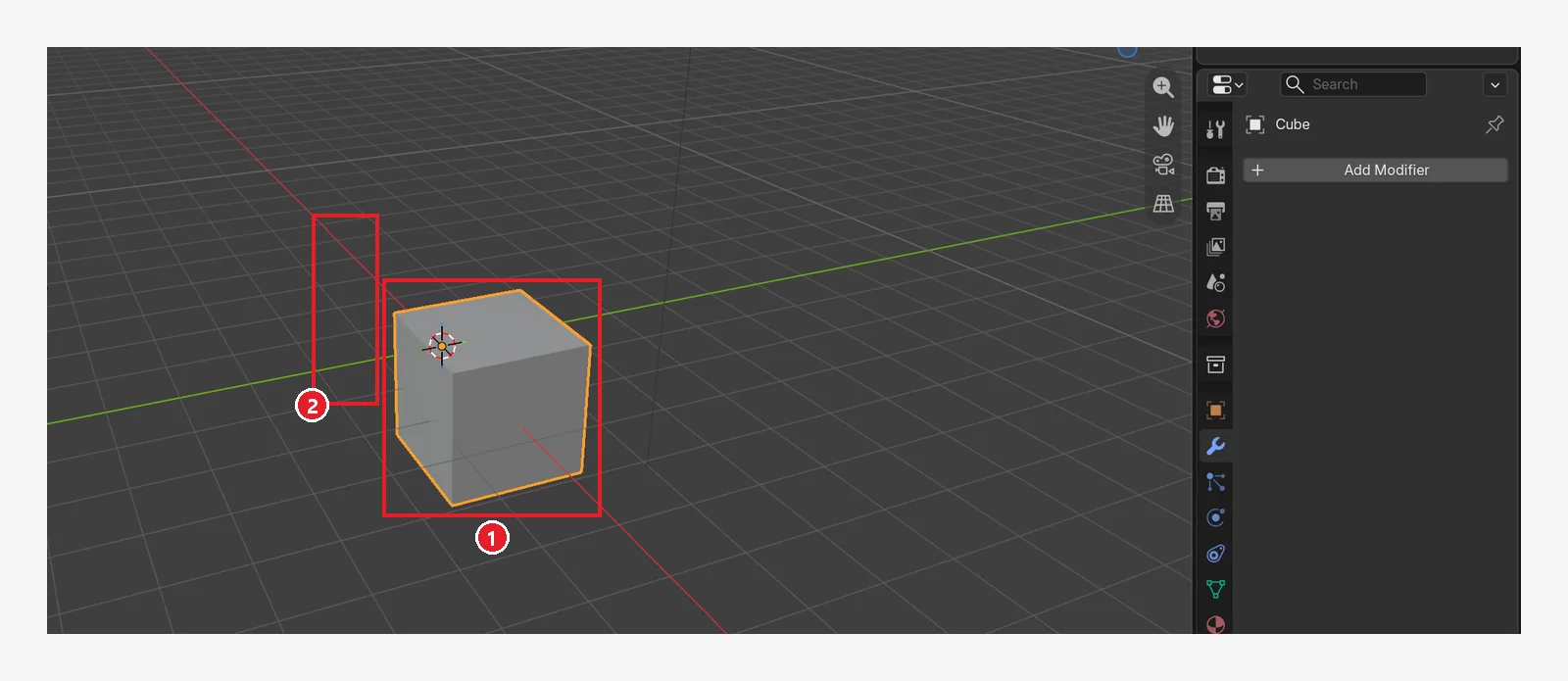 Figure 7-13. Before adding it: ① the cube with its shape moved 1.6 m along X ② where the copy will appear (still empty). The object's origin has not moved (Blender screenshot)
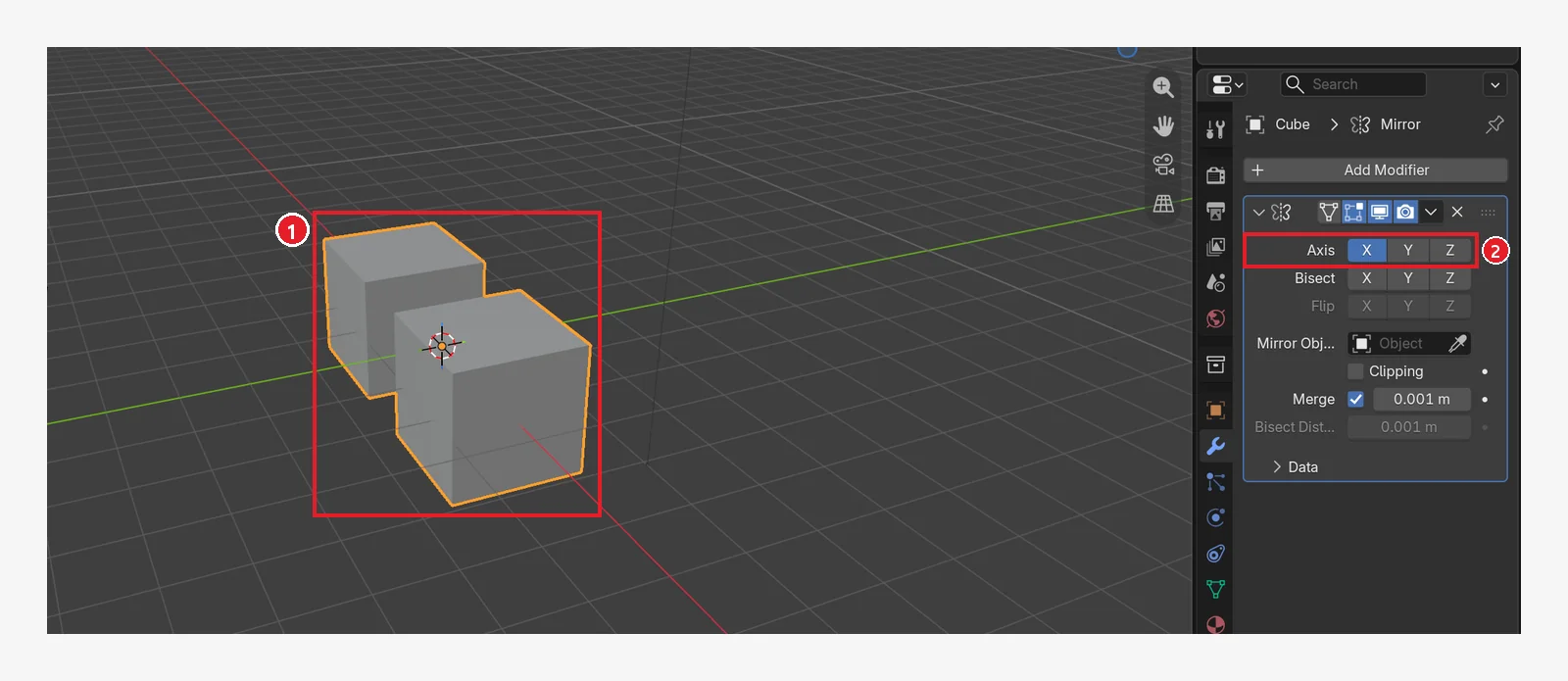 Figure 7-14. After adding Mirror: ① a mirror copy appears on the other side of the origin ② Axis X is on (the default) (Blender screenshot)
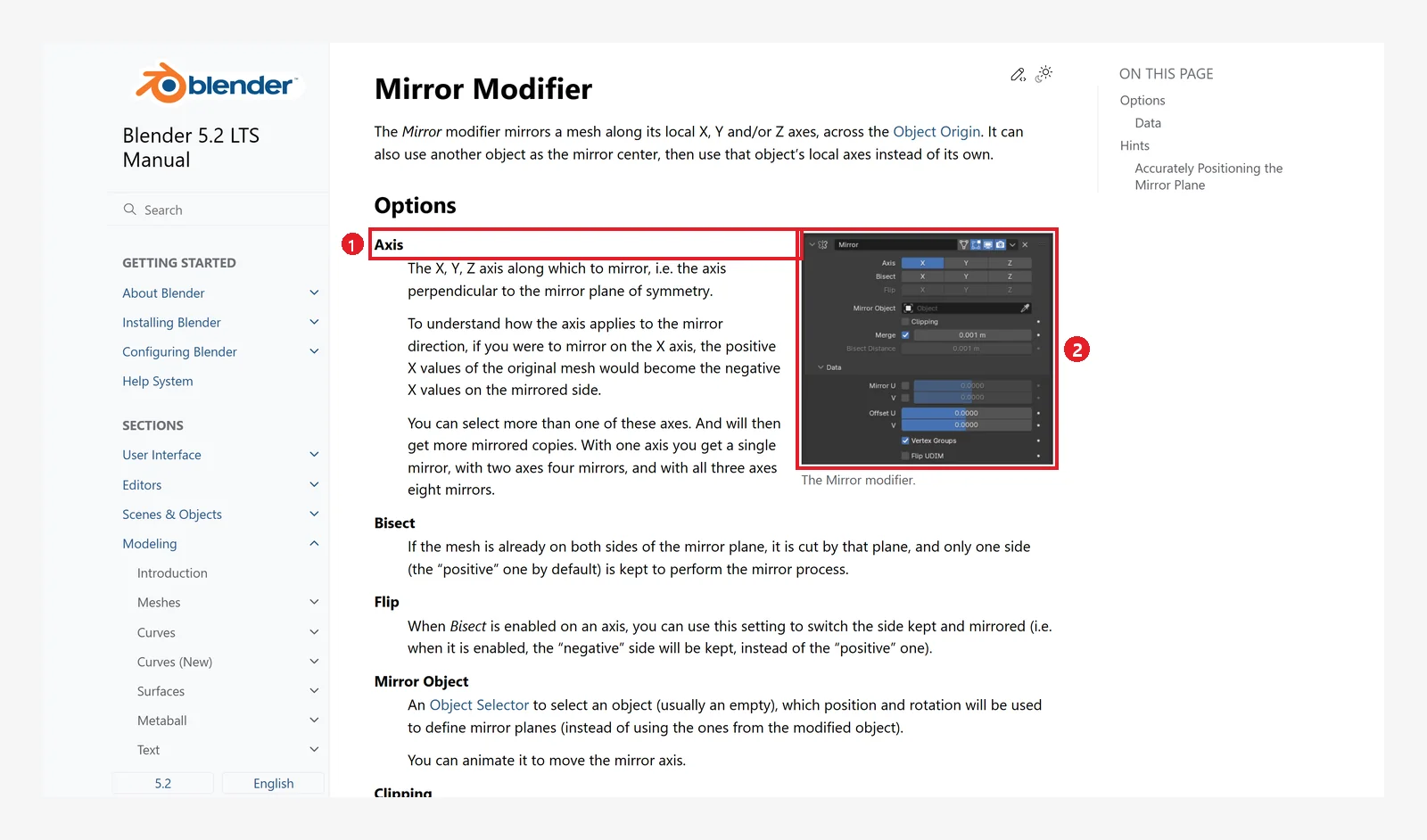 Figure 7-15. The official manual: ① Axis: mirrors along X, Y, or Z across a plane through the object's origin ② an image of the Mirror panel (Blender 5.2 manual screenshot, CC BY-SA 4.0, numbers added)
For objects that are the same on the left and right, such as faces, cars, and chairs, build only one half and use Mirror. It cuts the work in half. The mirror works around the object's origin.
4-3. Array: lining up several copies (the new Array in 5.2)
Starting state: Start from the default cube in a new file (File ‣ New ‣ General). In a new file the Properties Editor goes back to the Object tab, so click the Modifiers tab (wrench icon) again.
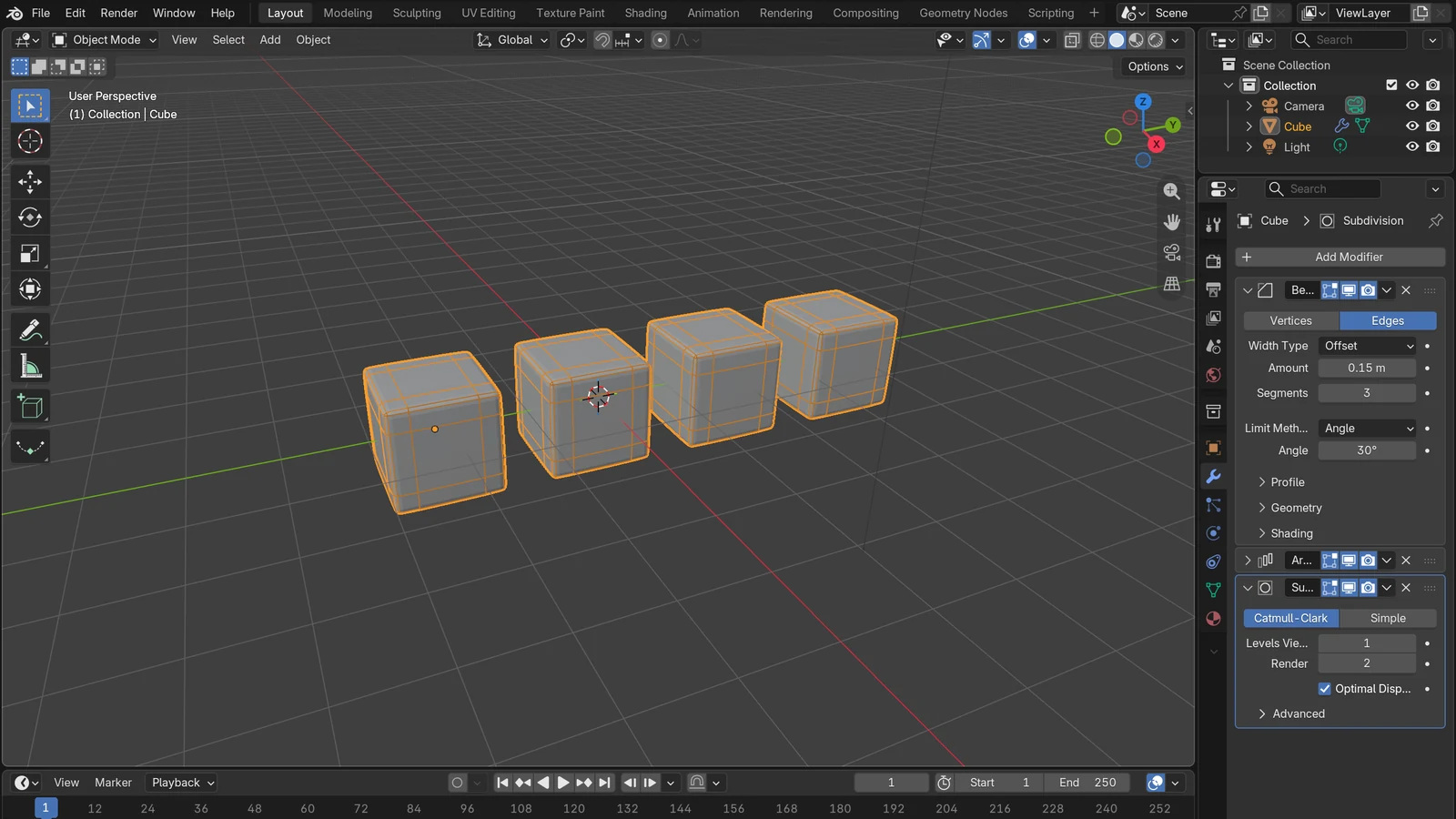
Follow along: Add Add Modifier → Generate → Array and change Count to 4 and Offset X to 1.5.
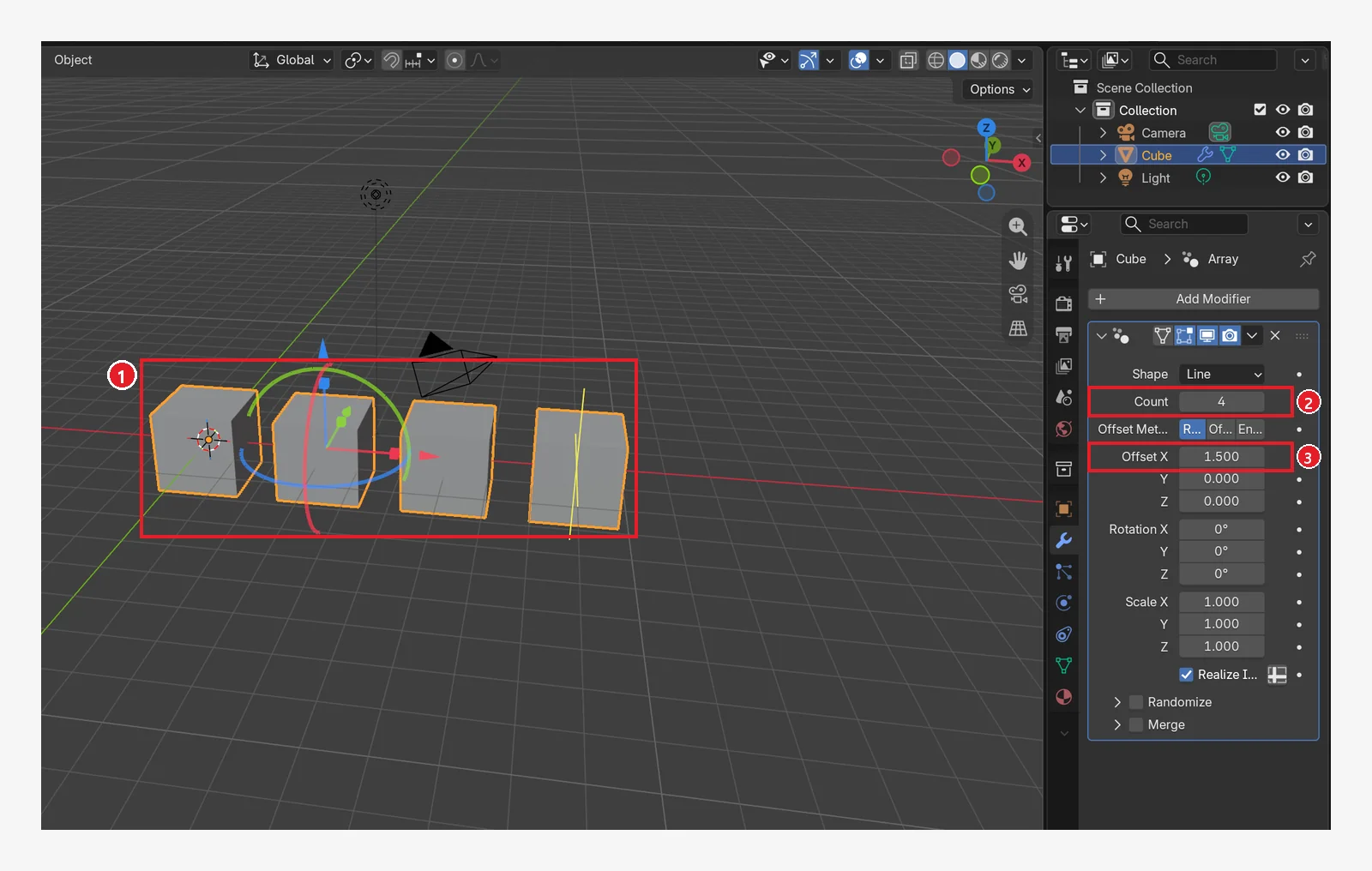 Figure 7-16. Added with Generate ‣ Array: ① the cube becomes four in a row ② Count (how many) ③ Offset X (spacing). The colored arrows and rings on the cube are handles that this Array shows for adjusting it (Blender screenshot)
Offset X 1.5 means one cube every 1.5 times the cube's size (2 m), which is every 3 m, so there is a 1 m gap between cubes. With 1, they touch.
Use it for shapes that repeat the same thing, such as stairs, fences, and bookshelf compartments. It is one object, not separate copies, so when you change the original, all four change together.
There are two Arrays. In the 5.2 Generate menu, Array at the top is the new version built with Geometry Nodes (its panel has Shape, Count, Offset Method…), and Array (Legacy) just below it is the old version. At first, use the Array at the top. The panels in older tutorials online (with Fit Type and Relative Offset fields) are the Legacy one.
4-4. Solidify: giving a thin surface some thickness (before → after)
Starting state: Undo the change from the last section: delete the Array panel with the X to get back to the default cube.
Follow along: As in section 6-1 of chapter 6, delete the top face (Tab → select the top face in face mode → X → Faces → Tab). Then add Add Modifier → Generate → Solidify and change Thickness to 0.2.
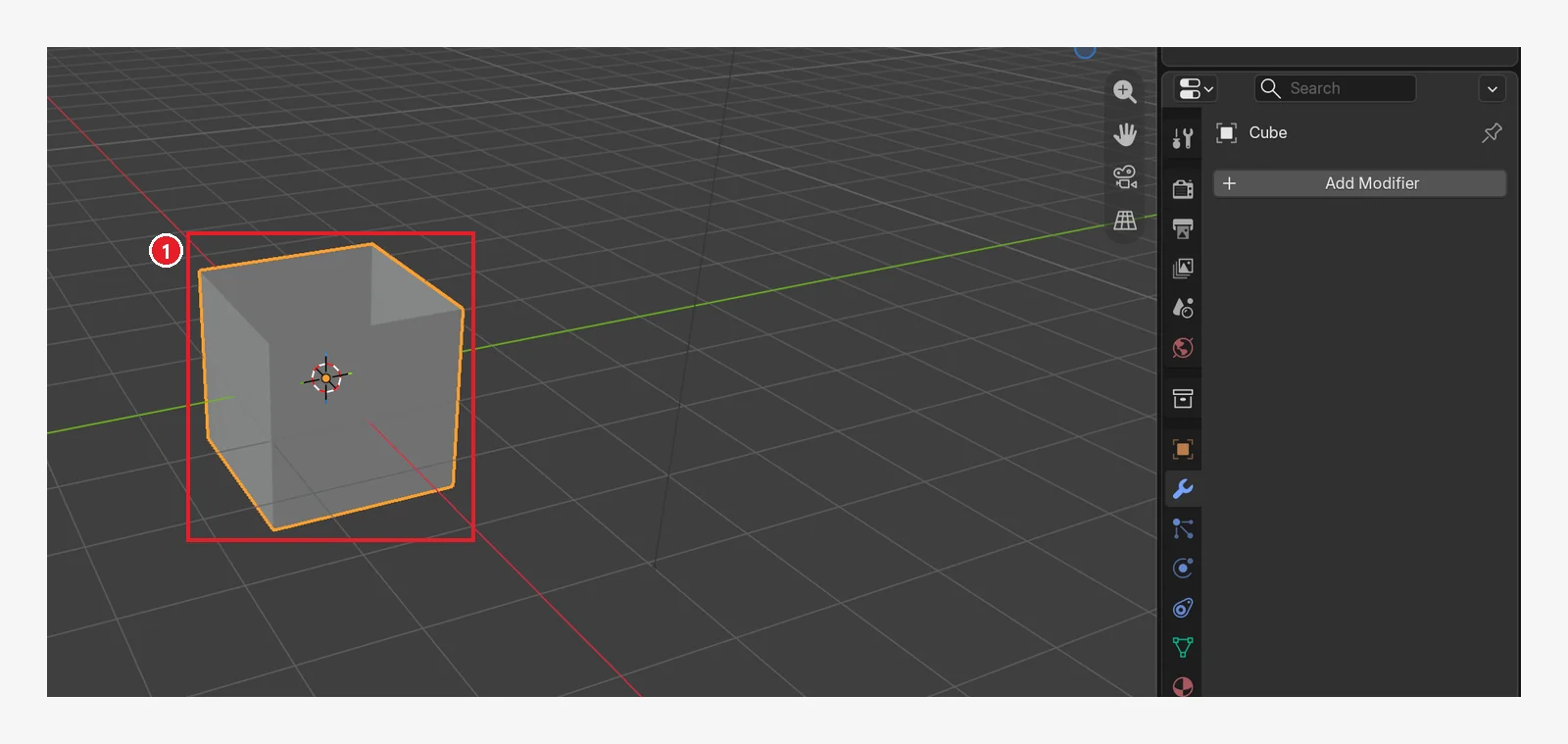 Figure 7-17. Before adding it: ① a box with its top face deleted, as in chapter 6. The walls have zero thickness (Blender screenshot)
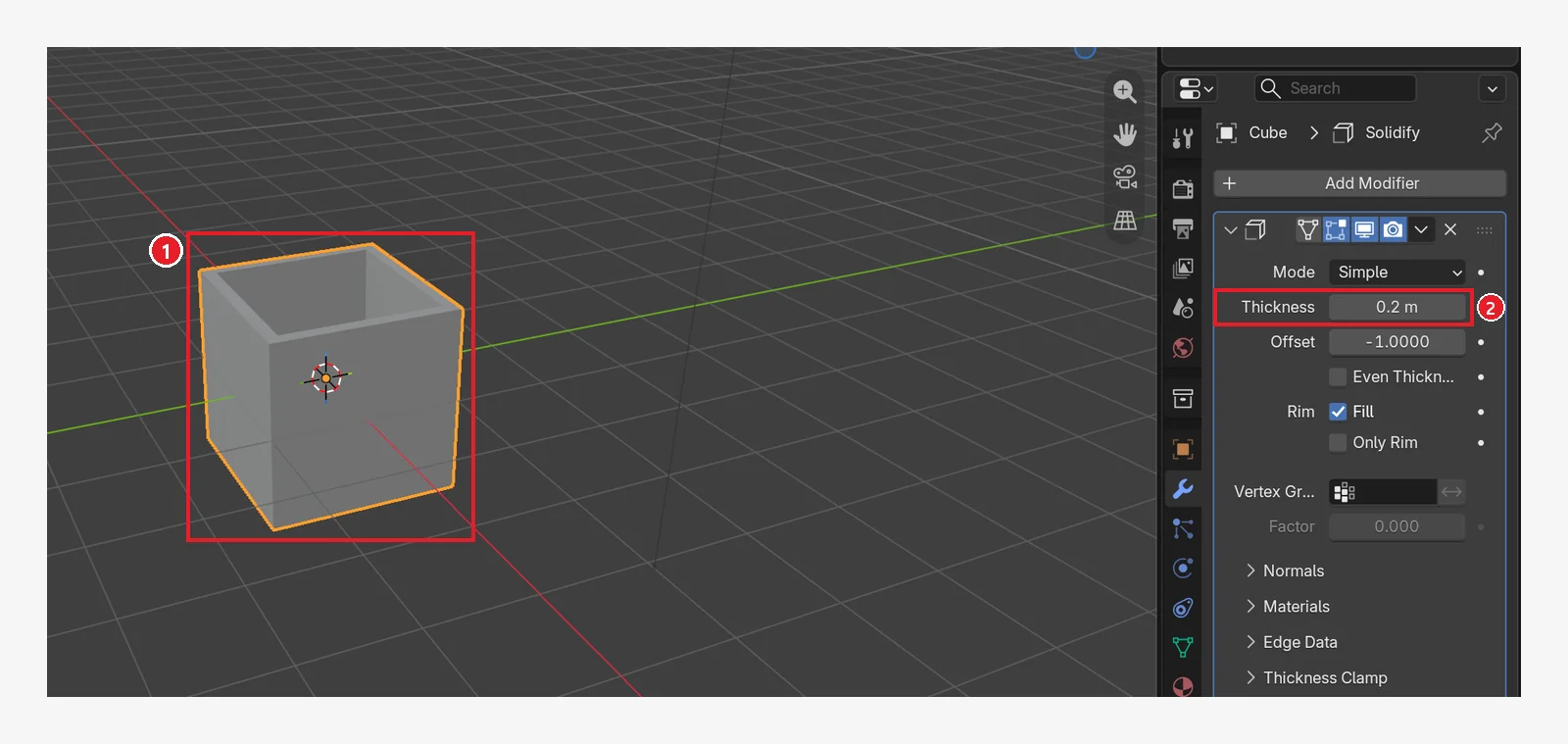 Figure 7-18. After Solidify (Thickness 0.2 m): ① you can see thickness at the top of the walls ② the Thickness field (Blender screenshot)
Use it for objects made of thin sheets that need thickness, such as cups, bowls, boxes, and clothes.
5. Order changes the result (before → after)
Modifiers are calculated one after another, from the top of the list to the bottom. The manual calls this list the Modifier Stack.
Follow along:
- Start from the default cube in a new file (File ‣ New ‣ General). Click the Modifiers tab (wrench icon) again.
- Add Add Modifier → Generate → Bevel and change Amount to
0.3and Segments to2. - Next, add Add Modifier → Generate → Subdivision Surface and raise Levels Viewport to
2. New modifiers go to the bottom, so Bevel is on top and Subdivision is below it (Figure 7-19). - In the down-arrow (v) menu on the Subdivision panel header, click Move to First to move it to the top (Figure 7-20).
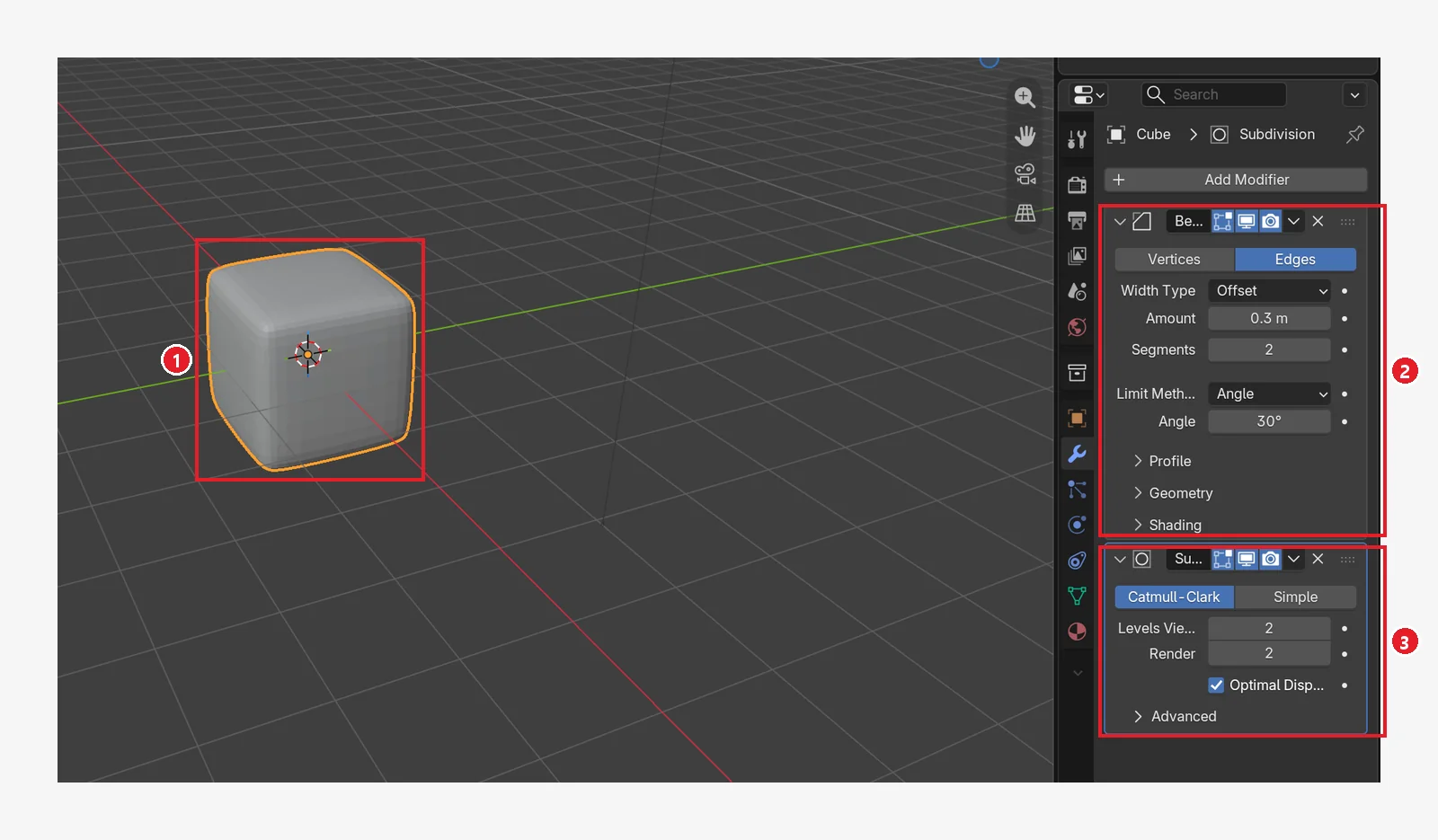 Figure 7-19. The order ② Bevel → ③ Subdivision: ① the edges are cut first and then smoothed, so you get a rounded box that still looks like a box (Blender screenshot)
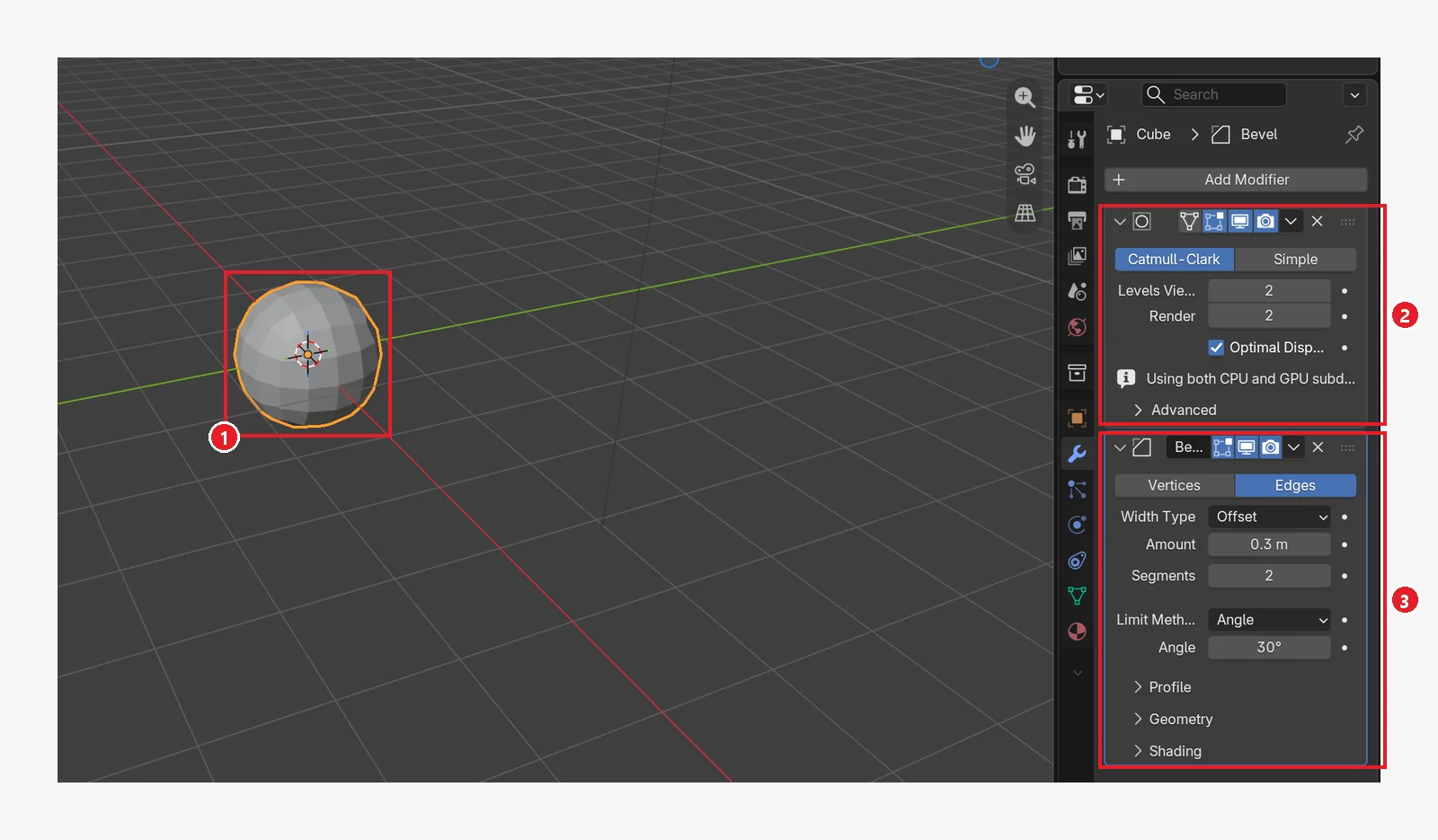 Figure 7-20. The order ② Subdivision → ③ Bevel (the same two modifiers, only the order changed): ① it is made into a ball first, so there are almost no edges left to cut, and you get a shape close to a ball (Blender screenshot)
To go back, click Move to Last (to the bottom) in the same menu.
6. Apply: turning the result into real geometry (before → after)
A modifier only changes the shape you see. If you want to export to a game engine, or edit the resulting shape directly in Edit Mode, you Apply it.
Starting state: Carry on with the cube from the last section. Delete the Bevel panel with the X so that only Subdivision (Levels Viewport 2) is left (Figure 7-21). If you start from a new default cube, press Ctrl+2 to add a Subdivision Surface.
Follow along: Apply it as described in "How to" below.
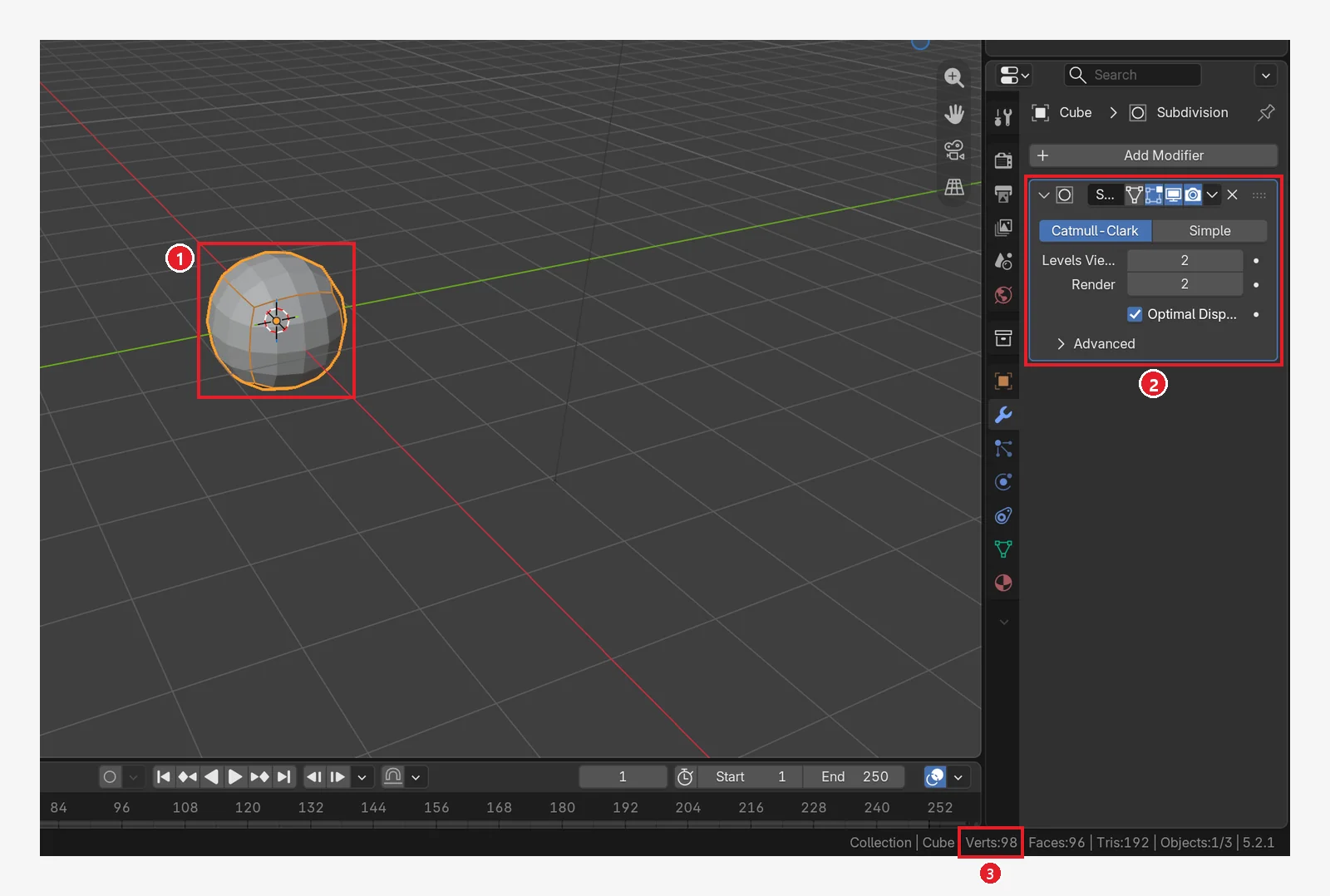 Figure 7-21. Before Apply: ① the ball-shaped cube ② the Subdivision panel is there ③ the "Verts:98" field in the status bar is the point count including the modifier (the original cube has 8 points) (Blender screenshot)
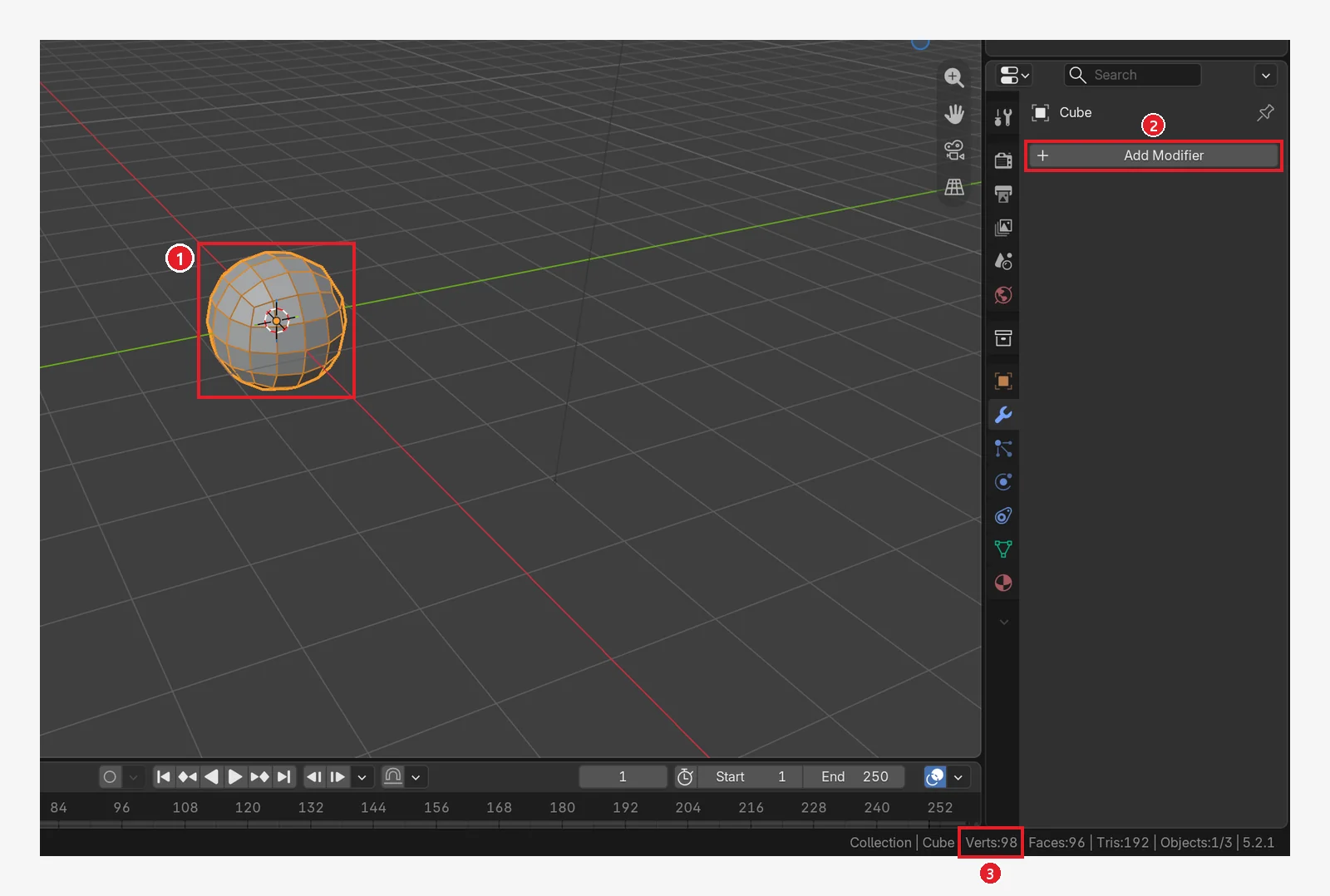 Figure 7-22. After Apply: ① the shape is the same ② the modifier list is empty ③ the status bar still says "Verts:98". These 98 are now real points, and you can select each one in Edit Mode (Blender screenshot)
- How to: The down arrow (v) on the panel header (the Extras menu in the manual) → Apply. Or hover the mouse over that panel and press
Ctrl+A. - Careful: After you apply, the only way back is
Ctrl+Z. To be safe, save before applying, or duplicate the object (Shift+D) to keep the original.
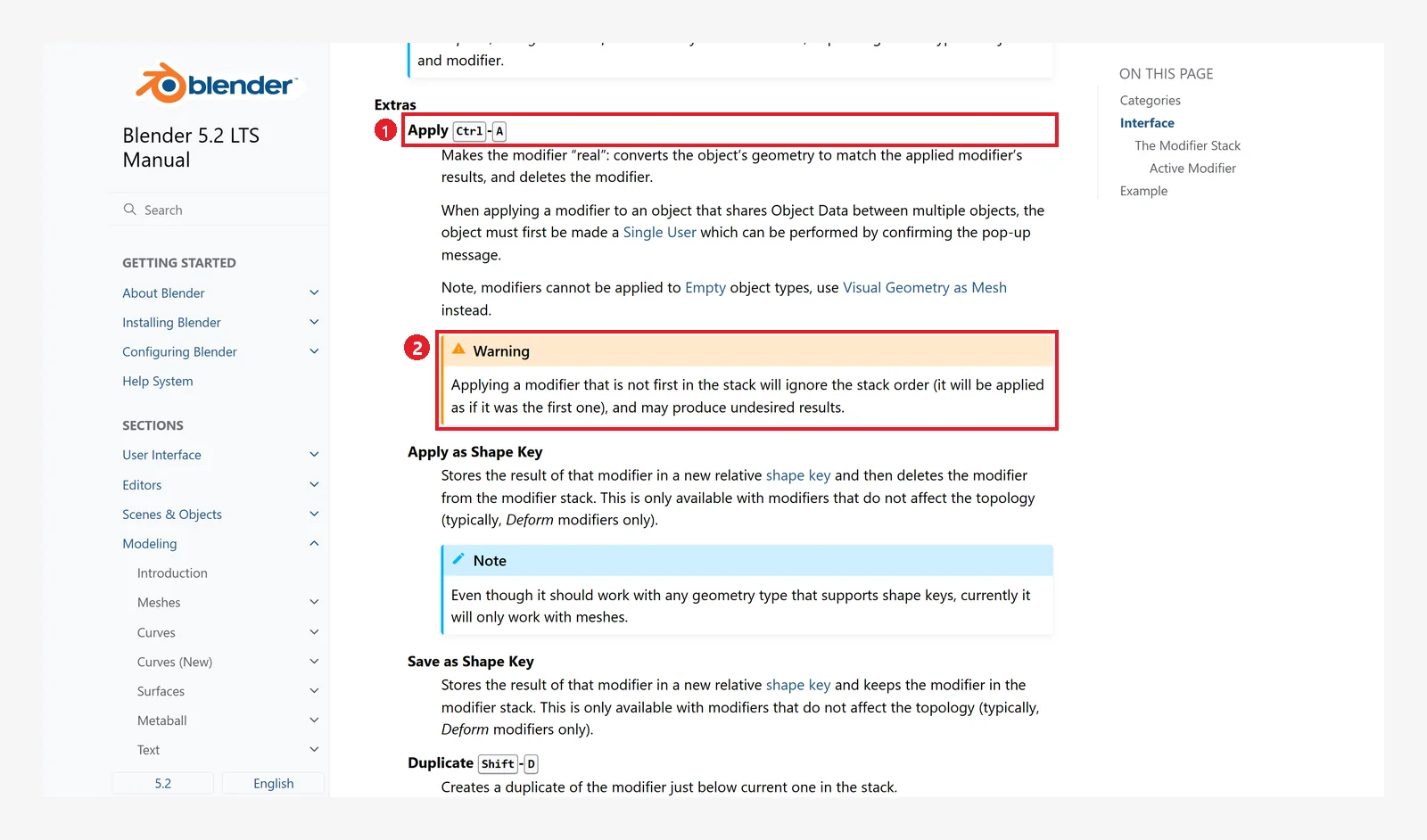 Figure 7-23. The official manual: ① Apply
 Ctrl+A: turns the modifier result into real geometry and removes the modifier ② a warning: applying a modifier that is not at the top of the list ignores the order and can give unexpected results (Blender 5.2 manual screenshot, CC BY-SA 4.0, numbers added)
7. Applying scale: when Bevel looks squashed (before → after)
An object whose size you changed with S in chapter 3 does not have a Scale of 1. If you use a modifier like Bevel in this state, the cut width also stretches in the direction you stretched, so the shape becomes uneven.
Starting state: Start from the default cube in a new file (File ‣ New ‣ General). Click the Modifiers tab (wrench icon) again.
Follow along: Stretch the cube to twice its size along X with S X 2 Enter. Add Add Modifier → Generate → Bevel, change Amount to 0.5 and Segments to 3, and press numpad 7 to look from above (Figure 7-24).
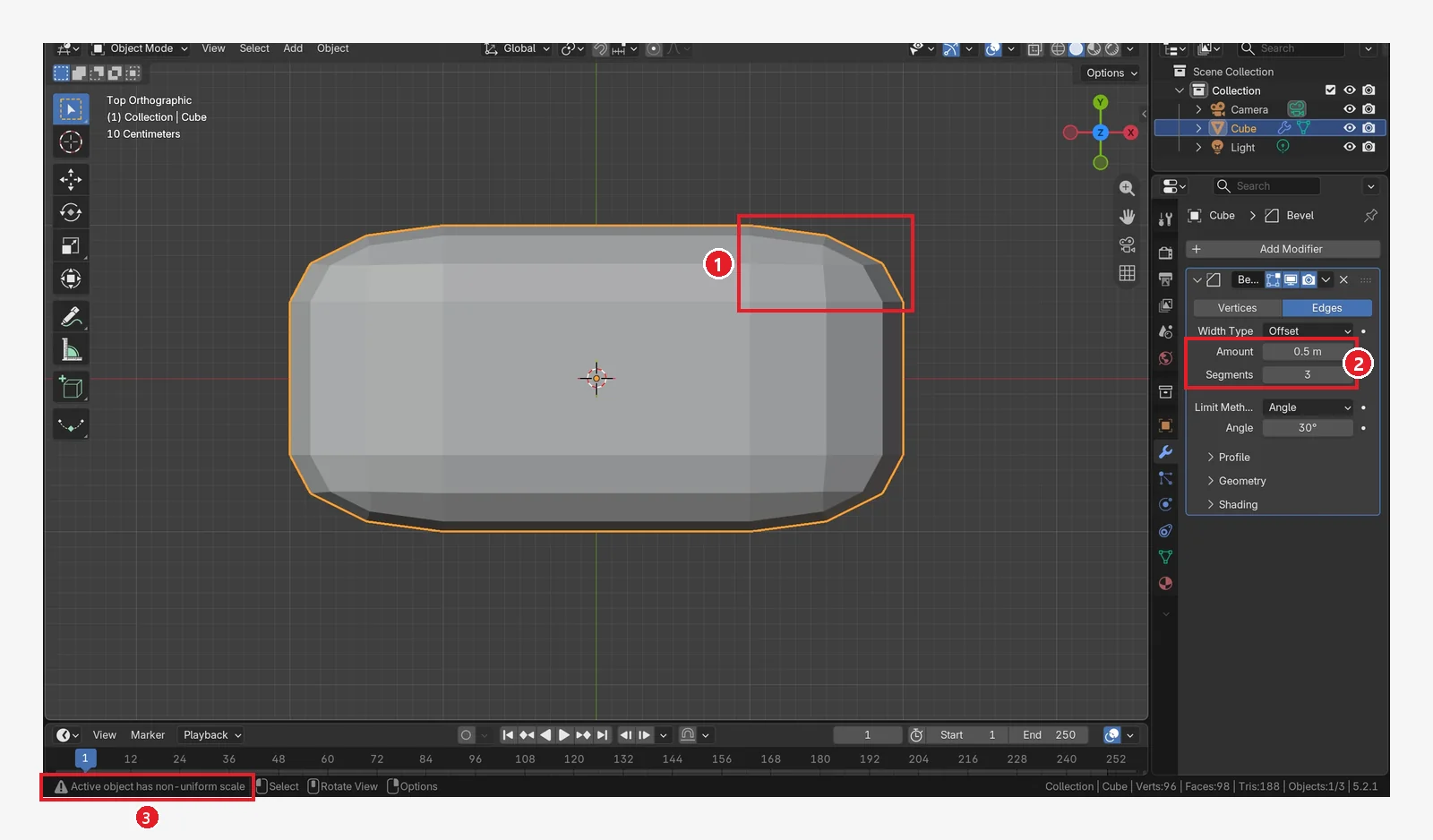 Figure 7-24. Before applying scale: the box stretched 2 times along X with a Bevel (Amount 0.5 m, Segments 3), seen with numpad
 7 (top view). ① at the end corner along the long side (X), the cut part is stretched to about 1 m across and about 0.5 m up and down ② Amount is a single 0.5 m ③ the warning at the bottom left of the status bar, "Active object has non-uniform scale" (the active object's size is different in each direction) (Blender screenshot)
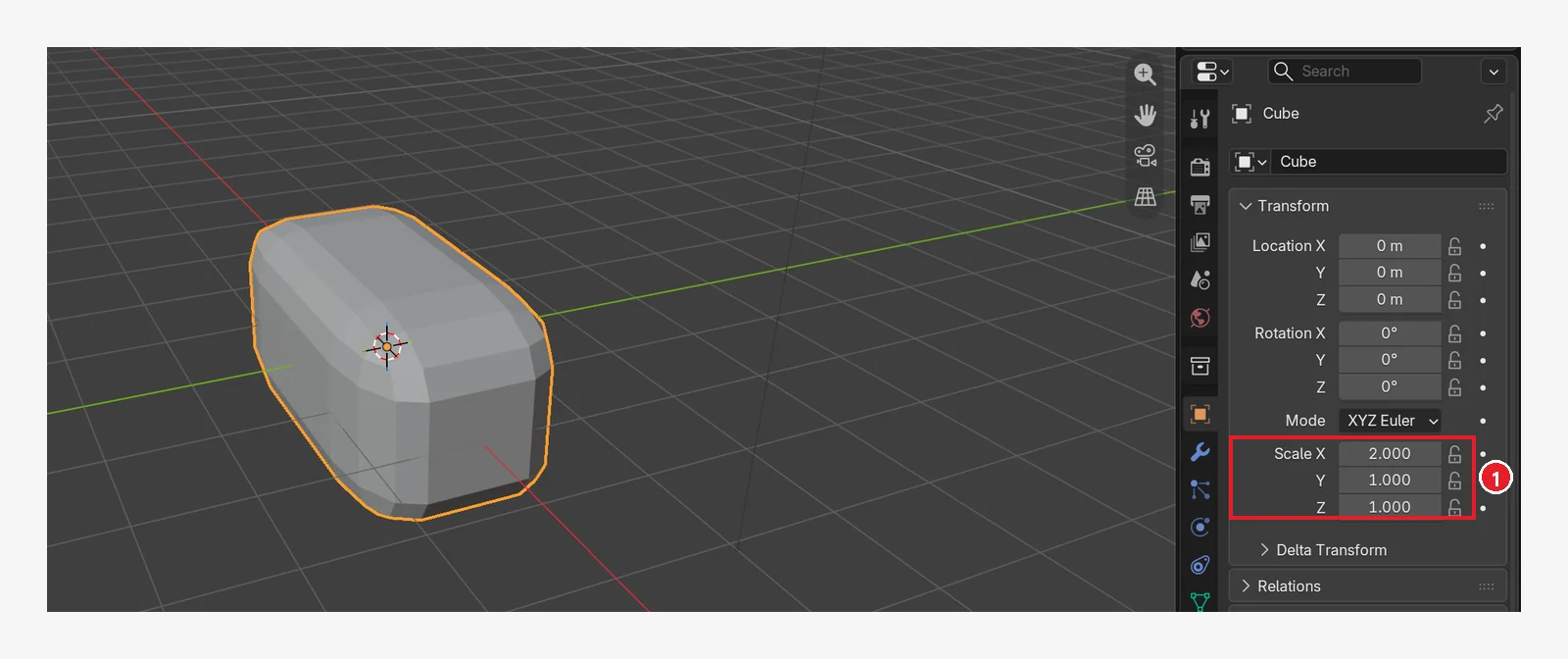 Figure 7-25. The cause: ① the Scale on the Object tab is X 2.000 and Y and Z 1.000, so they differ (Blender screenshot)
How to fix it: Put the mouse over the 3D Viewport and press Ctrl+A → Scale. As the manual (Apply Object Transformations) explains, this locks in the current size as the "original size," so Scale becomes 1 and the shape stays the same.
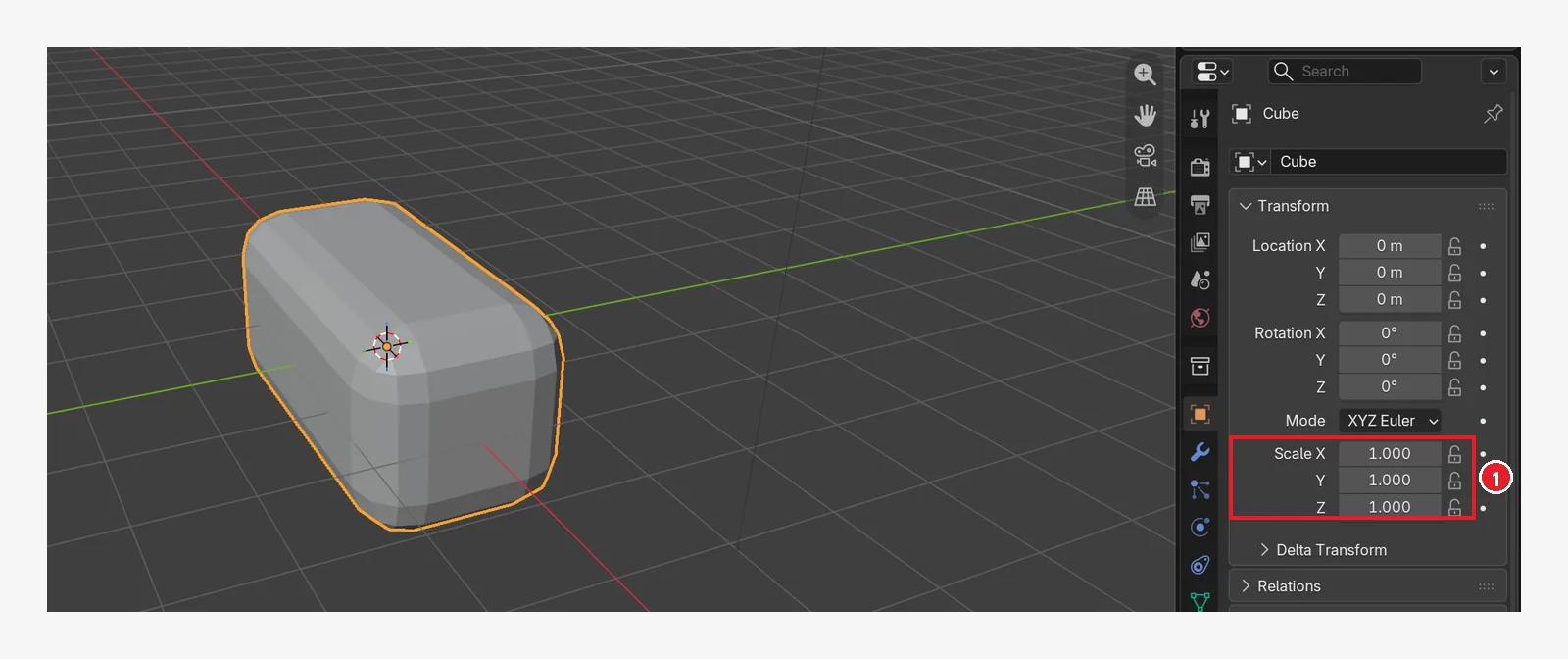 Figure 7-26. After applying scale: ① Scale is 1.000 for X, Y, and Z. The box shape is the same. The real size (Dimensions, 4 m × 2 m × 2 m) is not in this image; you can see it in the Item tab of the Sidebar (
N) (Blender screenshot)
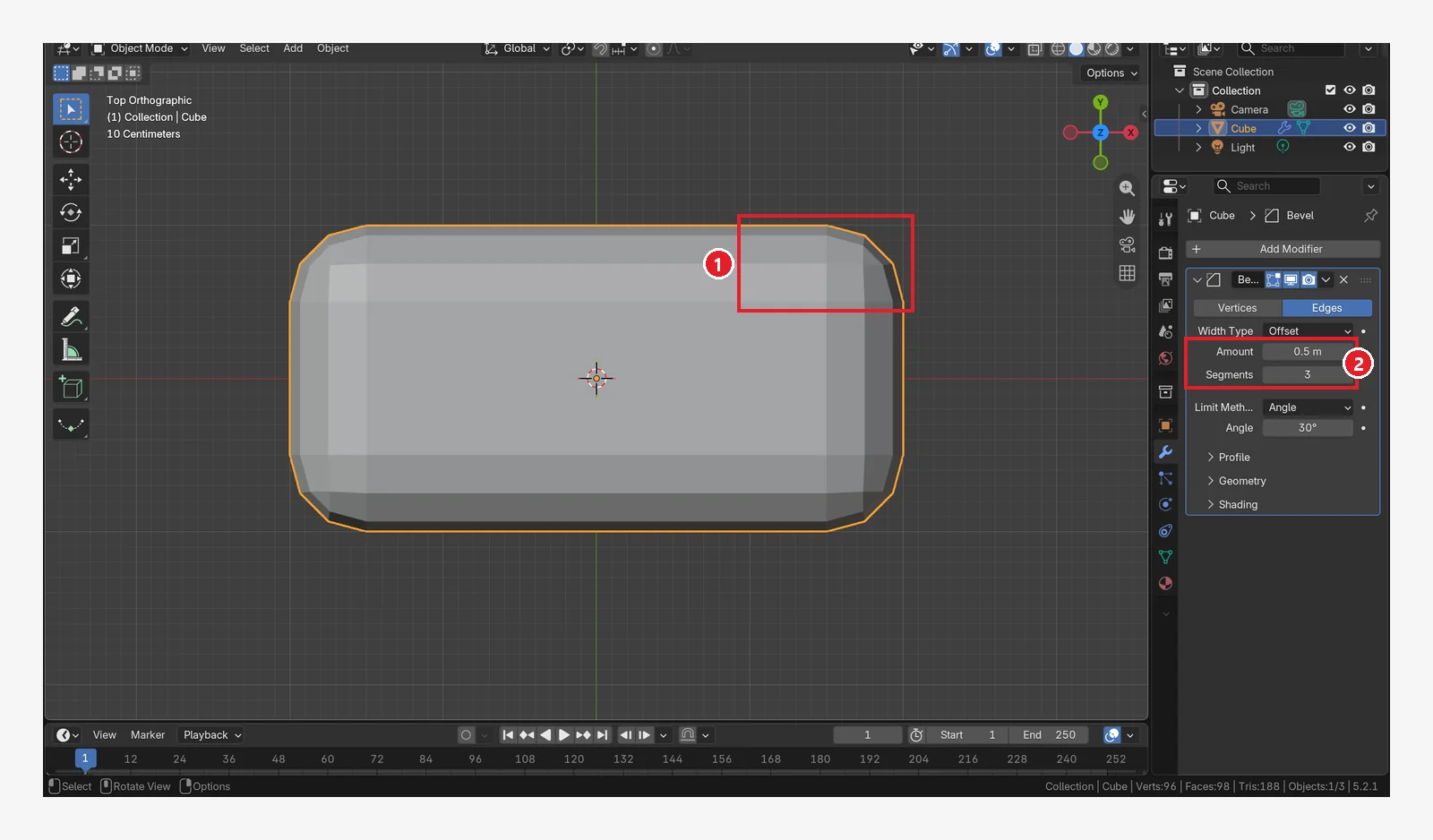 Figure 7-27. After applying scale, in the same orthographic top view at the same distance as Figure 7-24: ① the same corner is now cut evenly, 0.5 m both across and up and down ② Amount 0.5 m and Segments 3 are unchanged. The warning in the status bar is gone too (Blender screenshot)
Ctrl+Adoes different things in two places.
- Mouse over the 3D Viewport: the Apply menu (apply Location, Rotation, Scale) opens. It locks in the object's position, rotation, and size values.
- Mouse over a modifier panel: it applies that modifier (section 6).
The result is completely different depending on where the mouse is, so always check where the mouse is before you press it.
8. Practice
- Add a Subdivision Surface to a cube and press
Ctrl+1andCtrl+3to see how the level changes. - Add Bevel → Subdivision to a cube, then swap the order and compare the shapes.
- Add a Cylinder, delete its top face (chapter 6), and make a cup with Solidify.
- Raise the Array Count to 10 to make a fence.
9. Common mistakes and fixes
| Symptom | Cause | Fix |
|---|---|---|
| I added a modifier but the shape did not change | Viewport display (monitor icon) is off | Turn on Figure 7-9 ② |
| The screen suddenly got slow | The Subdivision level is too high | Set Levels Viewport to 1 or 2 |
| The Bevel width differs by direction | The object's Scale is not 1 | Over the 3D Viewport, Ctrl+A → Scale (section 7) |
I pressed Ctrl+A and the modifier disappeared | The mouse was over the modifier panel | Ctrl+Z. To apply scale, keep the mouse over the 3D Viewport |
| The Array panel looks different from an old tutorial | The new Array and Array (Legacy) are separate | See the note in section 4-3 |
| I added Mirror but nothing changed | The copy overlaps the original in the same place | Move the shape to the side in Edit Mode (section 4-2) |
| The Mirror copy appears in the wrong place | The mirror works around the object's origin | Move the shape in Edit Mode so the origin sits at the center of symmetry |
| I cannot see 98 points in Edit Mode | It has not been applied yet | Apply if you need to |
| The result is not what I expected | Modifier order | Check the stack order (section 5) |
Summary in one line
Modifiers tab (wrench icon) → Add Modifier → Generate. Subdivision for smoothness, Bevel for edges, Mirror for symmetry, Array for repeats, Solidify for thickness. The order runs from top to bottom, and Apply locks the result in. In chapter 8 you add colors and materials.
References
- Blender 5.2 Manual: Modifiers Introduction
- Blender 5.2 Manual: Subdivision Surface Modifier
- Blender 5.2 Manual: Mirror Modifier
- Blender 5.2 Manual: Bevel Modifier
- Blender 5.2 Manual: Solidify Modifier
- Blender 5.2 Manual: Apply (Object Transformations)
- Blender 5.2 Manual: Array Modifier (new version)
- Blender 5.2 Manual: Array (Legacy) Modifier
- Shortcuts and menu names: based on the default (Blender) keymap and menus of Blender 5.2.1
- Image licenses: the manual screens are CC BY-SA 4.0, with red numbers and outlines added. Blender program license: blender.org/about/license