Blender for complete beginners, chapter 8: Materials and color: adding color, metal, and roughness
Blender materials for complete beginners. Learn the Material tab and Principled BSDF, compare Base Color, Metallic, and Roughness, see why Solid view shows its own color, try Emission, and make new materials and a different material per face.
한국어English
ON THIS PAGE
- 01What you will learn in this chapter
- 021. A look at the Material tab
- 032. Checking color in Material Preview view (before → after)
- 043. Changing three values
- 054. A material that gives off light: Emission (before → after)
- 065. New materials and different materials per face
- 076. Seeing it as nodes in the Shading workspace
- 087. Practice exercises
- 098. Common mistakes and fixes
- 10Summary in one line
- 11References
Blender for complete beginners, chapter 8 · Based on: Blender 5.2 LTS (screenshots from 5.2.1, English UI, default keymap) All images are real screens. The red numbers and outlines were added for explanation.
What you will learn in this chapter
By the end of this chapter you will be able to do the following.
- Know what a material is and where to find it. (Section 1)
- Check colors in Material Preview view, and understand why the color in Solid view changes separately. (Sections 2 and 3-2)
- Change Base Color, Metallic, and Roughness. (Section 3)
- Use Emission, which gives off light. (Section 4)
- Make a new material and give different materials to different faces of one object. (Section 5)
- See the same values as nodes in the Shading workspace. (Section 6)
Before you start: This chapter starts from the default cube in a new file (File ‣ New ‣ General). The default cube already has a material named "Material." Select the cube in Object Mode.
1. A look at the Material tab
A material is a set of settings that decides how an object looks on the outside: its color, shine, and transparency.
Think of it like this: Cups of the same shape look different when they are made of ceramic, glass, or stainless steel. A material decides "what it is made of" while the shape (the mesh) stays the same.
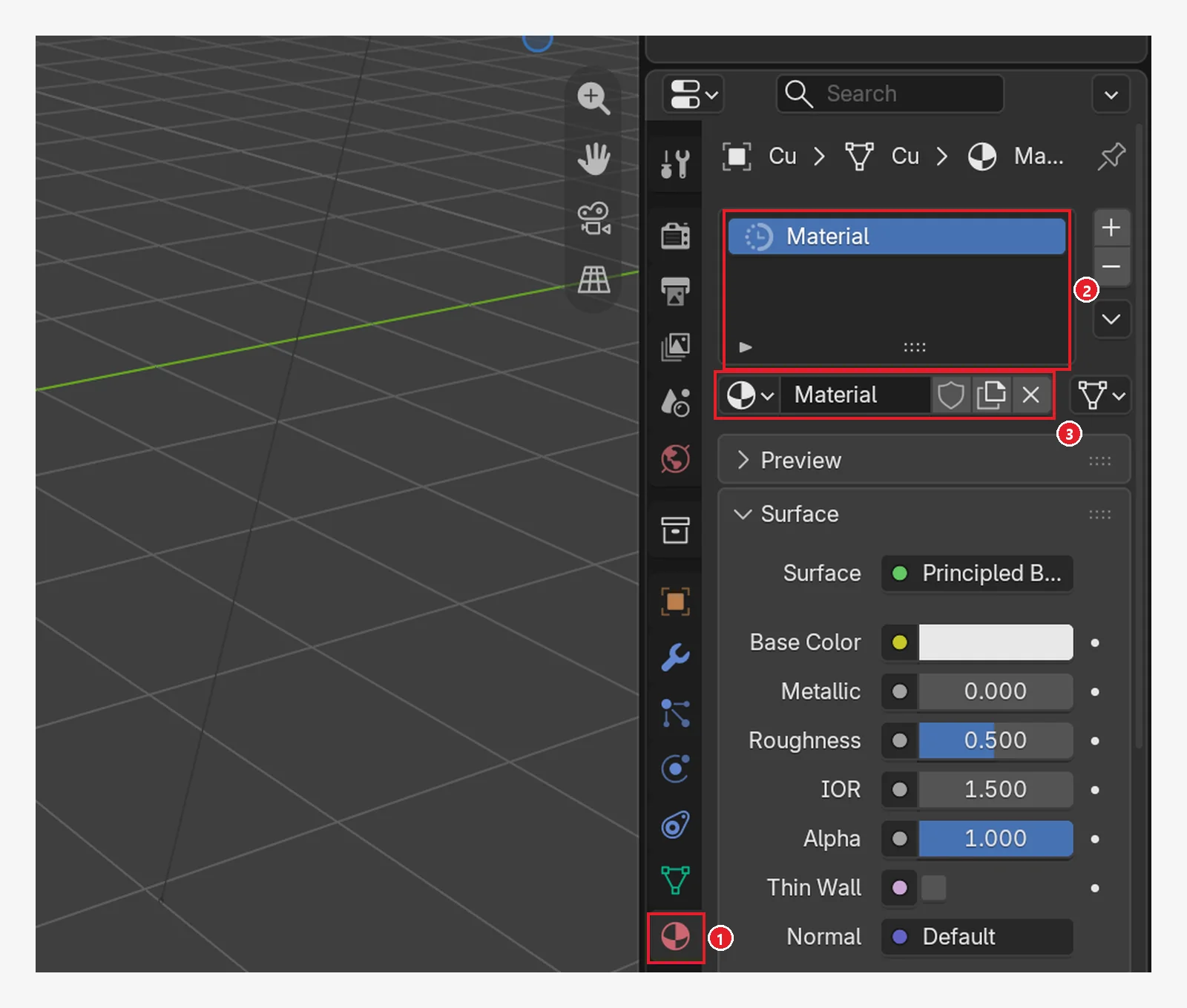 Figure 8-1. ① The red ball icon at the bottom of the Properties Editor is the Material tab ② The material slot list (only Material for now) ③ The material name field (Blender screenshot)
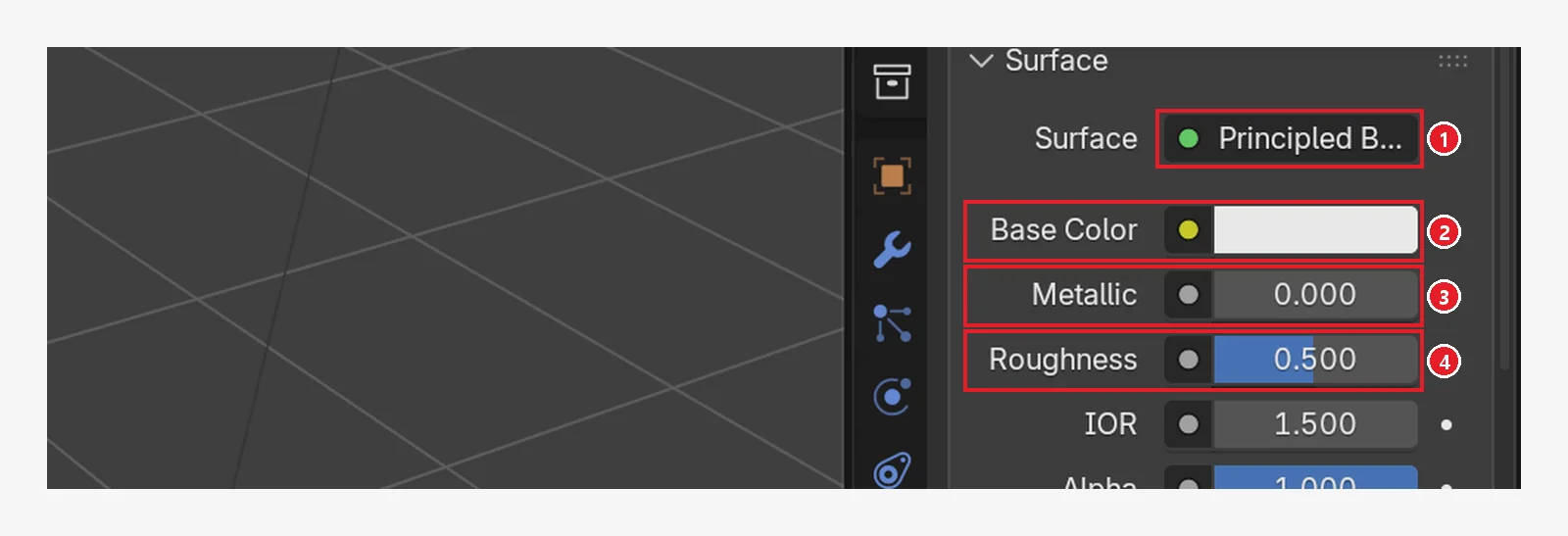 Figure 8-2. Under Surface: ① Surface = Principled BSDF (the default material type) ② Base Color (color) ③ Metallic (metal) ④ Roughness (Blender screenshot)
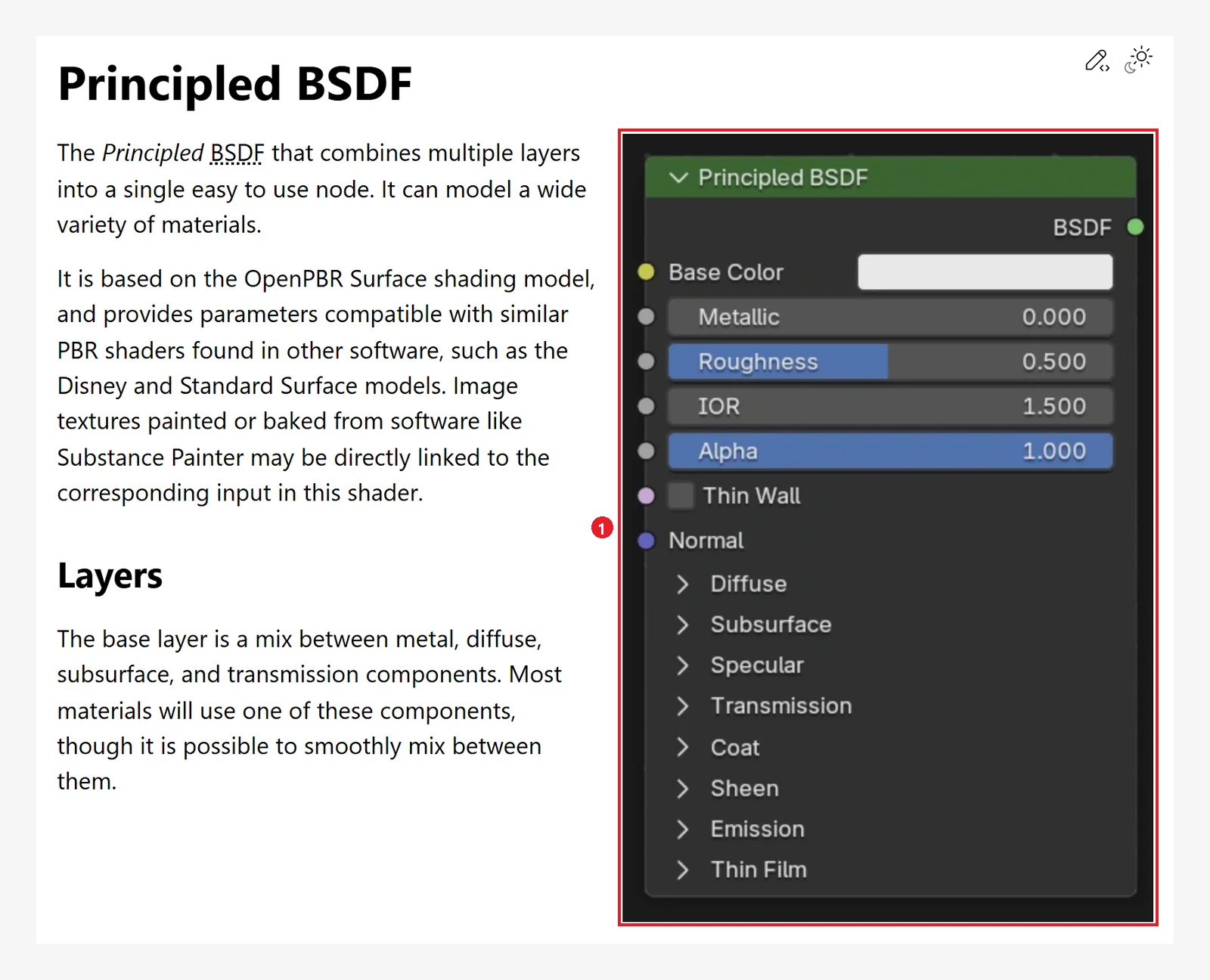 Figure 8-3. ① The Principled BSDF node image from the official manual. You can see the same names as the fields in Figure 8-2. The manual describes it as a material that combines several layers (base material, gloss, coating, and so on) into one (Blender 5.2 manual screenshot, CC BY-SA 4.0, numbers added)
2. Checking color in Material Preview view (before → after)
Follow along: Of the four view mode buttons on the right of the 3D Viewport header, press the third one (Material Preview) (chapter 2, section 9).
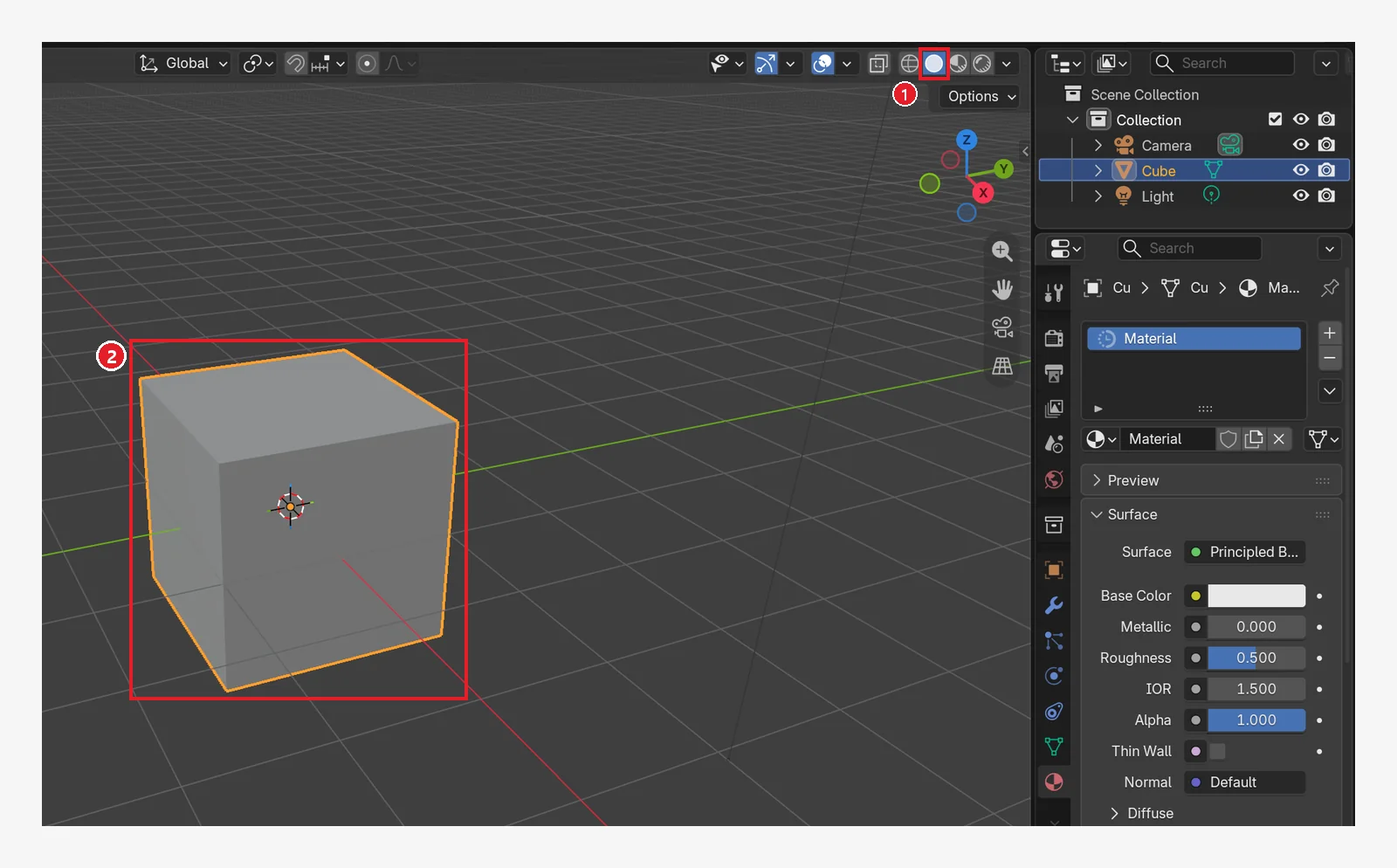 Figure 8-4. Before the change: ① view mode Solid ② the cube looks like gray clay (Blender screenshot)
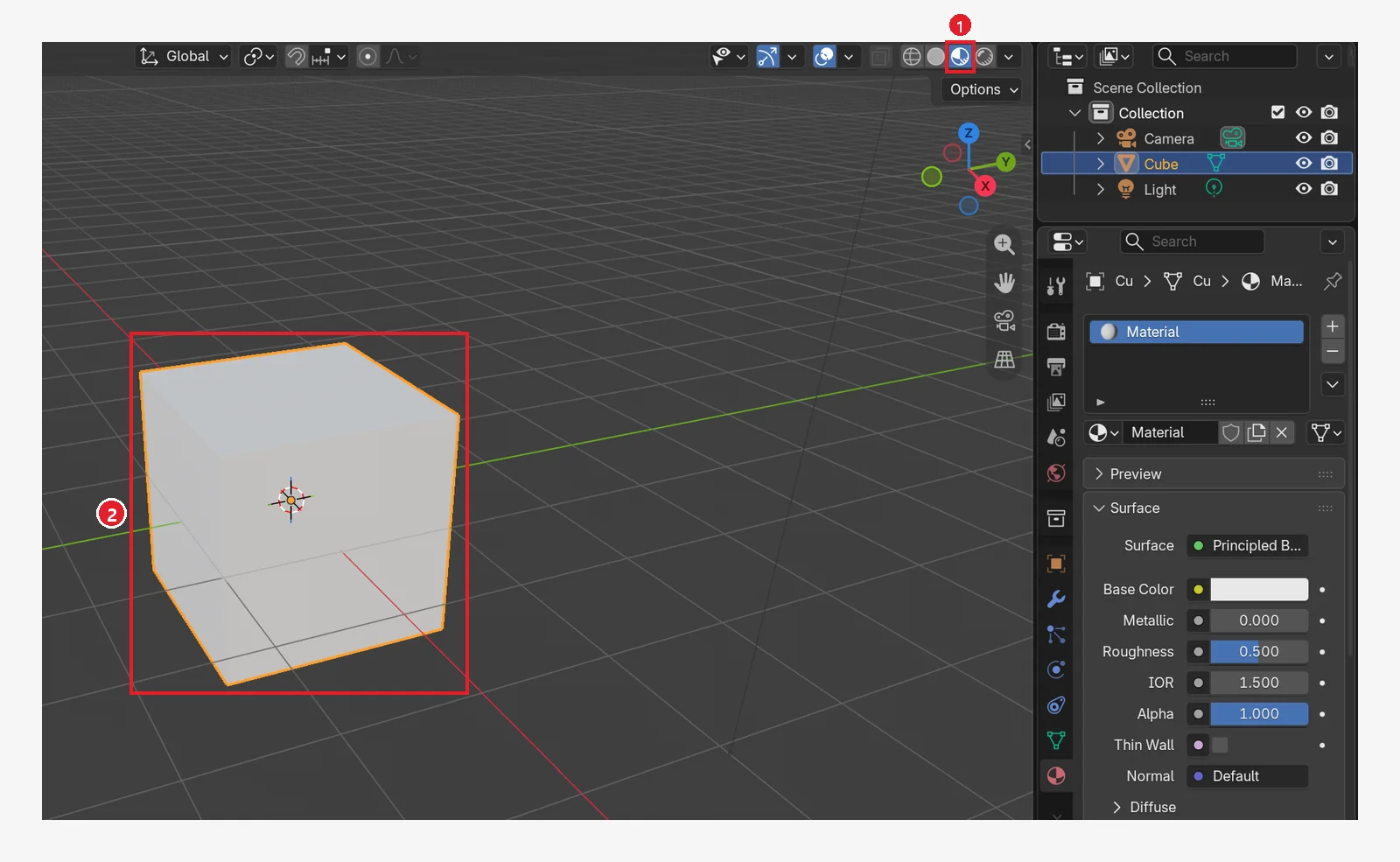 Figure 8-5. ① After pressing the third button (Material Preview): ② you can see the material's color (light gray by default) and reflections. A gray background is normal (chapter 2, section 9) (Blender screenshot)
3. Changing three values
3-1. Base Color: color (before → after)
Click the Base Color field and a round color wheel window opens. Pick red here.
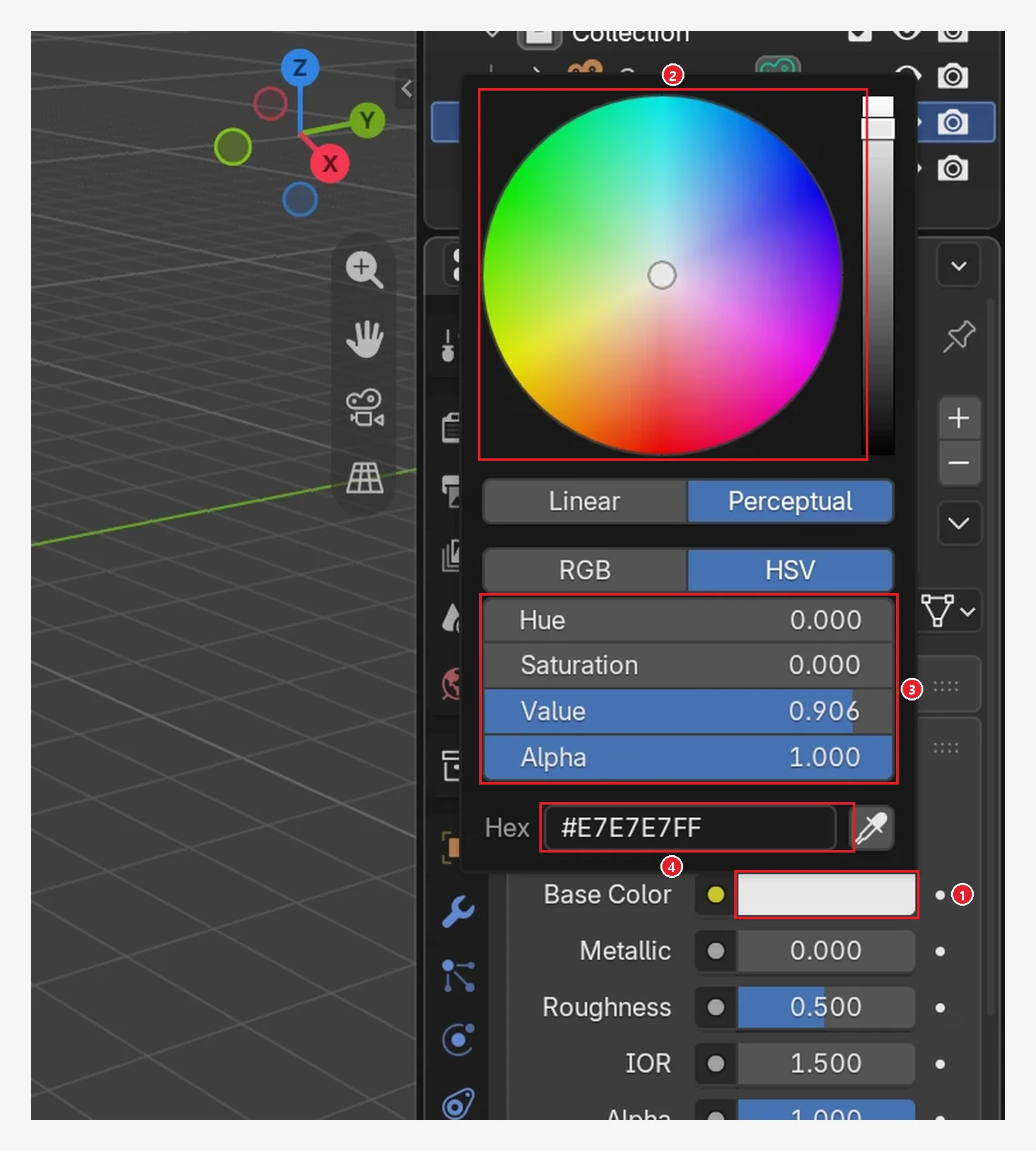 Figure 8-6. The window that opens when you click ① the Base Color field on the Material tab: ② the color wheel (pick a color on the round disc and the brightness with the vertical bar on the right) ③ the Hue, Saturation, Value (brightness), and Alpha values ④ the Hex field, where you can type a color code such as
 #E7E7E7FF directly (Blender screenshot)
The image shows the color of the default material (light gray, Value 0.906). The Linear / Perceptual and RGB / HSV buttons in the middle change how the values are shown. Move the mouse outside the window, and the window closes and keeps the color you picked.
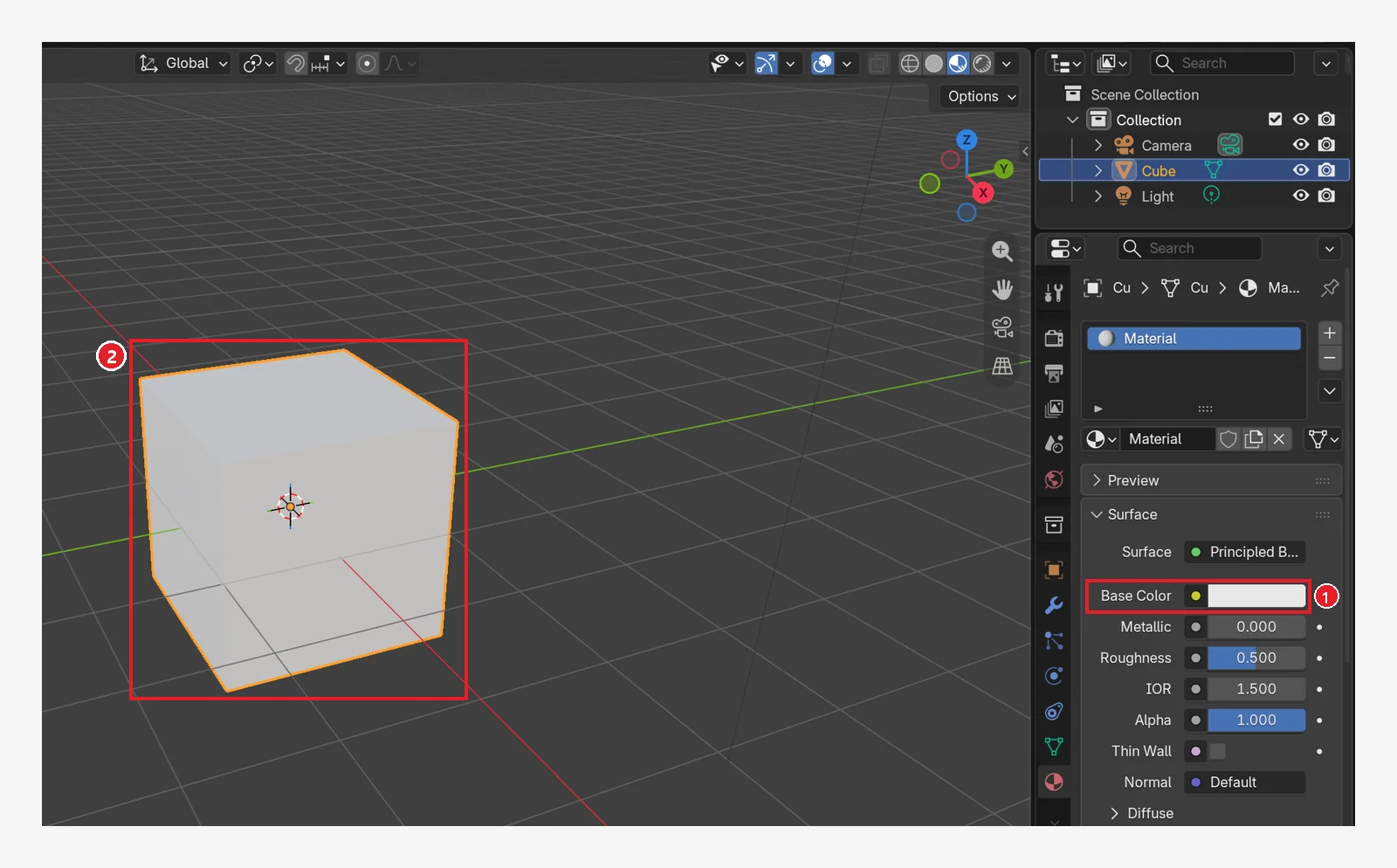 Figure 8-7. Before the change: ① Base Color = light gray ② the cube (Blender screenshot)
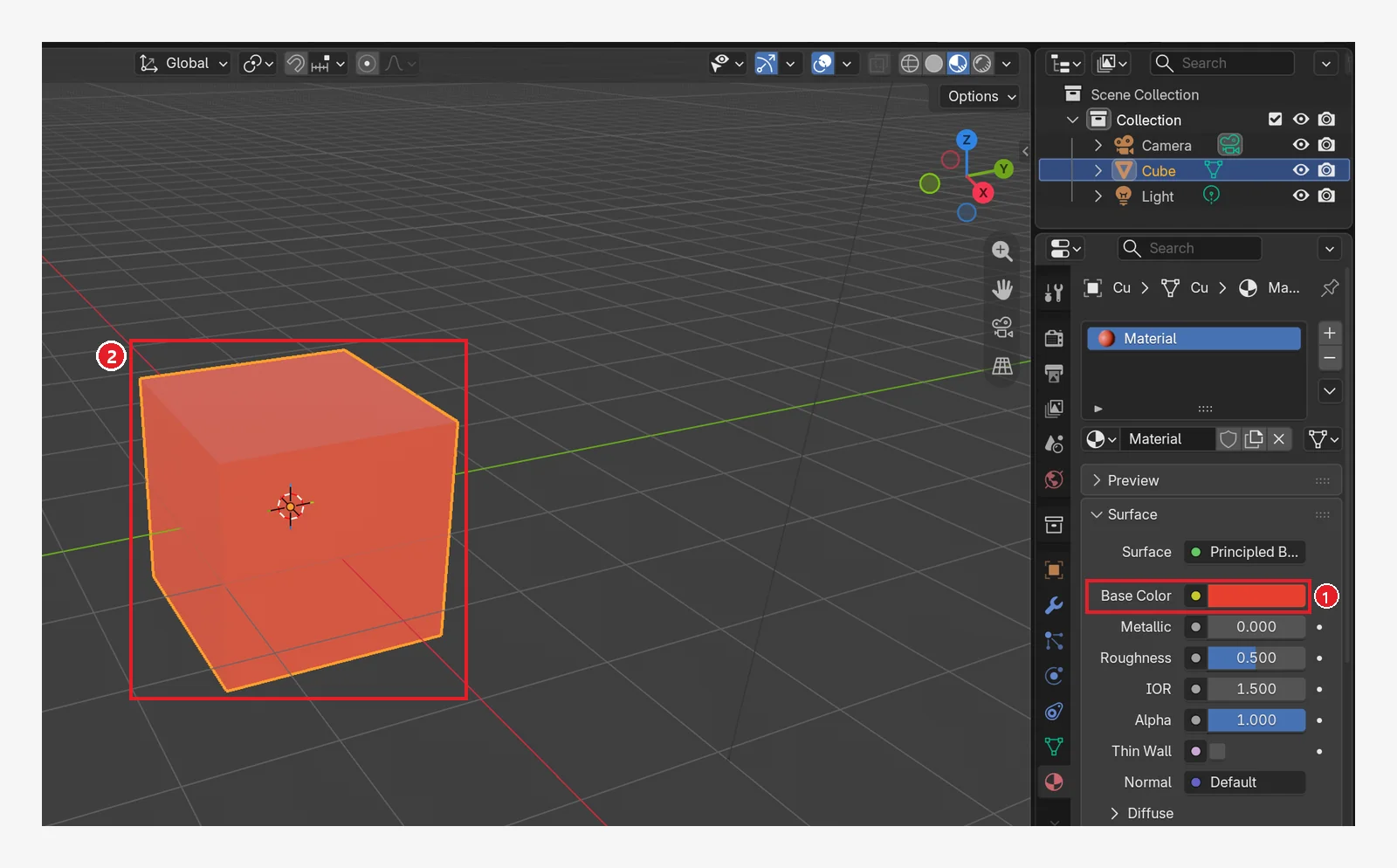 Figure 8-8. After the change: ① the Base Color field is red ② the cube looks red (Blender screenshot)
3-2. Why it looks gray in Solid view
Starting point: Continue from the red cube in the previous section.
Follow along: Press the second view mode button (Solid) (Figure 8-9).
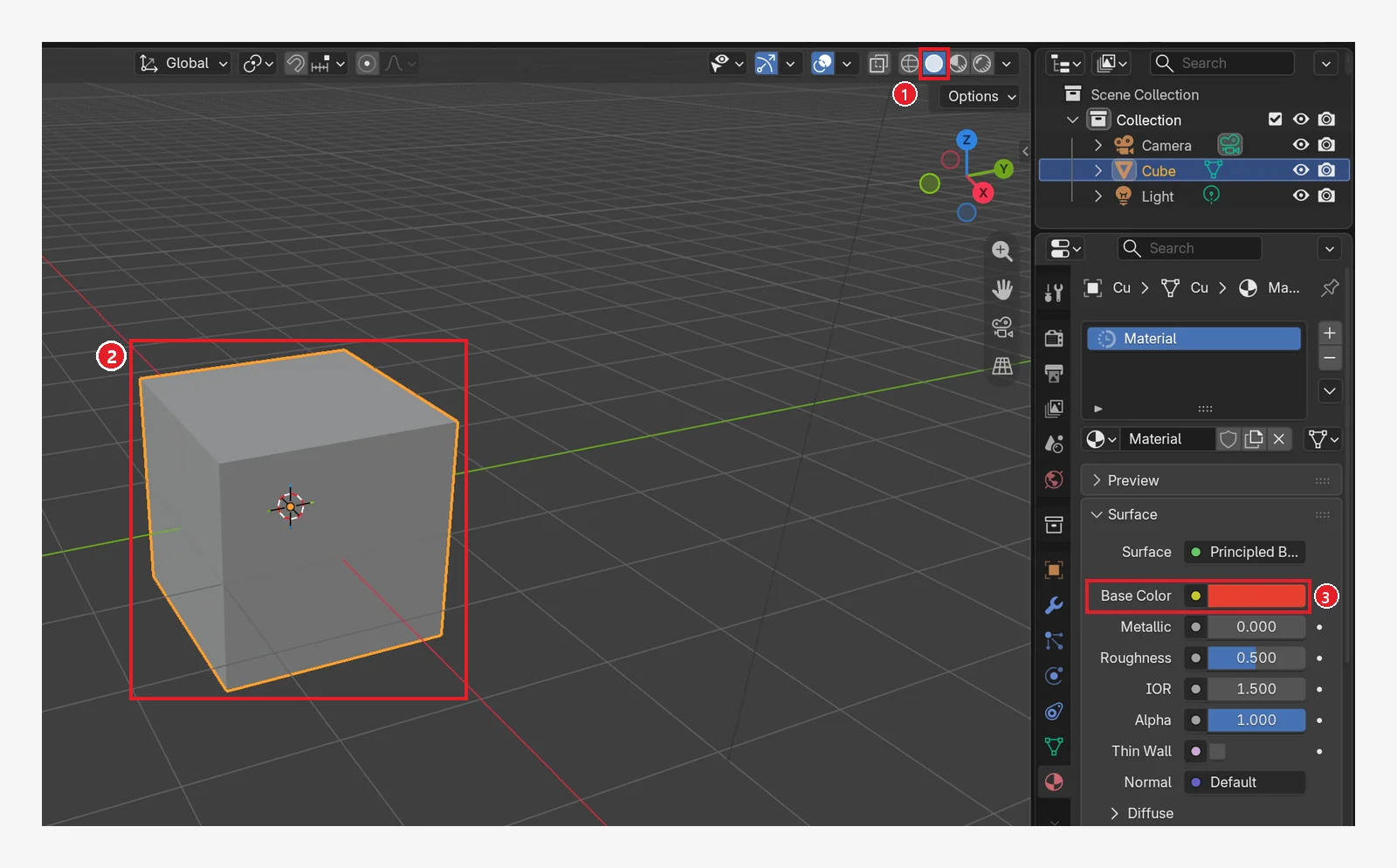 Figure 8-9. The same state seen in ① Solid view: ② the cube is still gray ③ Base Color is still red (Blender screenshot)
Why: In 5.2, Solid view paints with the material's Viewport Display ‣ Color value (gray by default). This value is stored separately from Base Color. The manual also describes Viewport Display as "light display settings used in Solid view."
Viewport Display sits collapsed near the bottom of the Material tab. Scroll down the Material tab, click the Viewport Display heading to expand it, then click the Color field and change it to red. The three images below show the state after Base Color was changed to red.
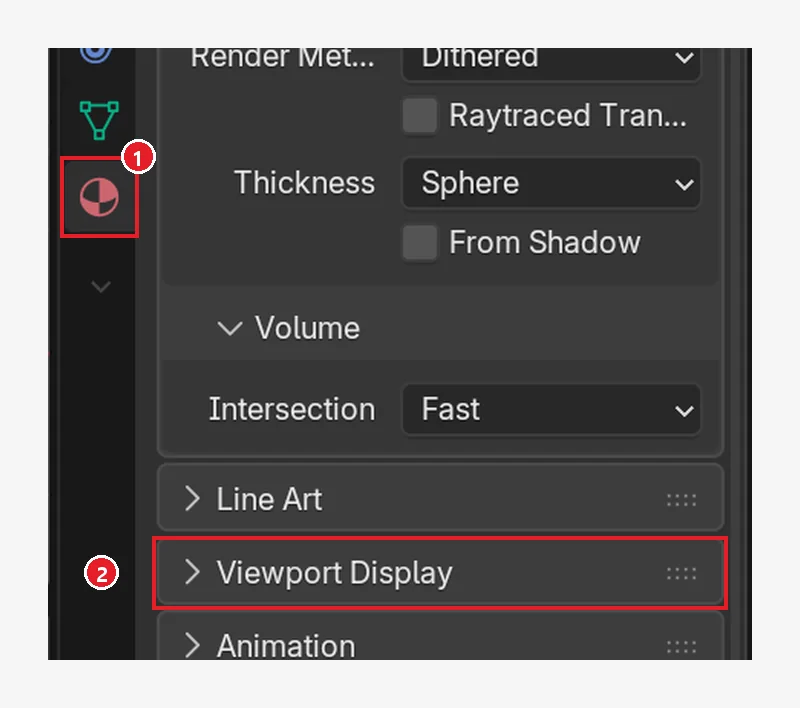 Figure 8-10. Before expanding: ① scroll down the Material tab and ② the Viewport Display section is collapsed (Blender screenshot)
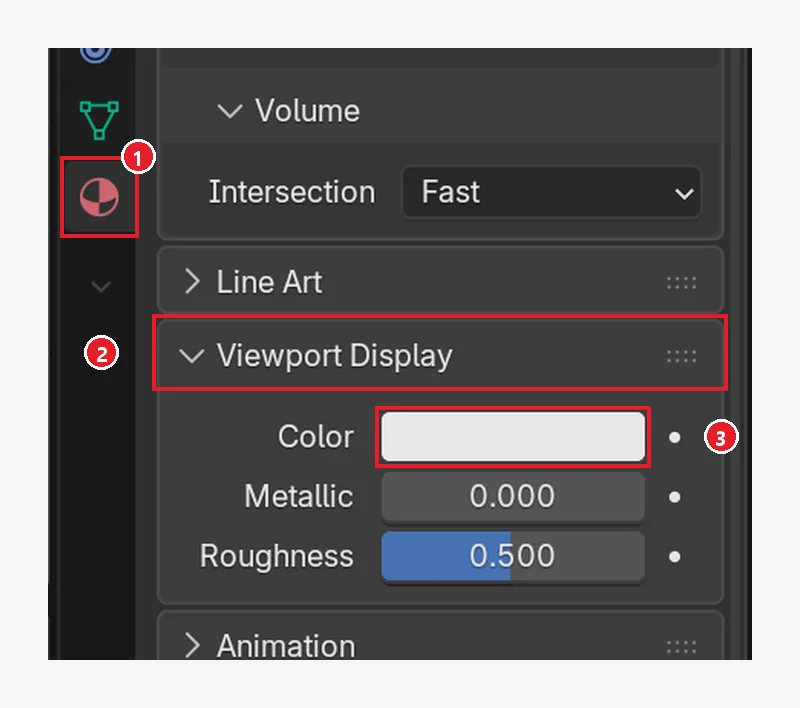 Figure 8-11. After clicking ② the heading to expand it: ③ the Color field is still light gray even after Base Color was changed to red. That is why the cube was gray in Solid view (Blender screenshot)
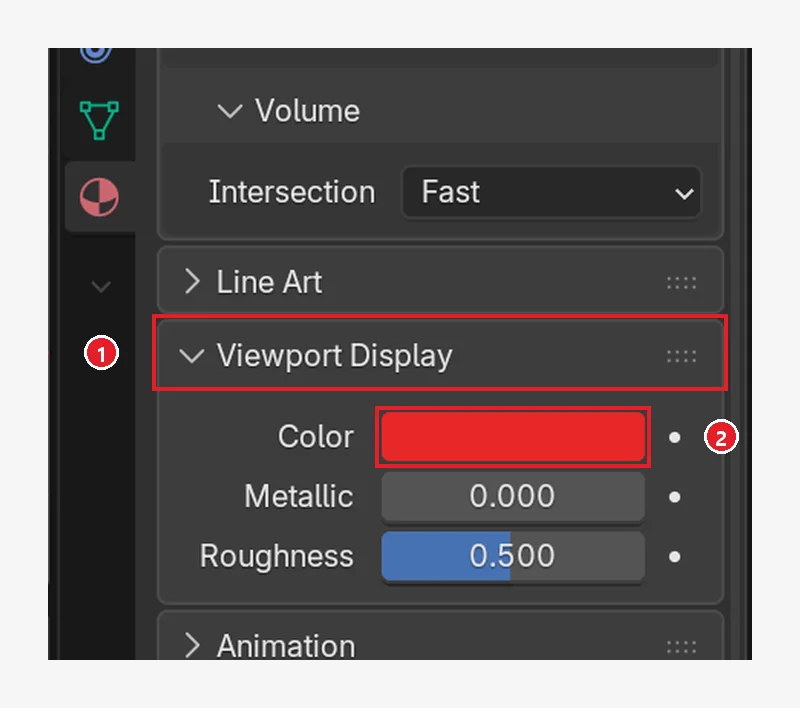 Figure 8-12. In ① the Viewport Display section (expanded), after clicking ② the Color field and changing it to red (Blender screenshot)
The next image shows that the two values change separately. Viewport Display Color is left red, and only Base Color has been set back to gray.
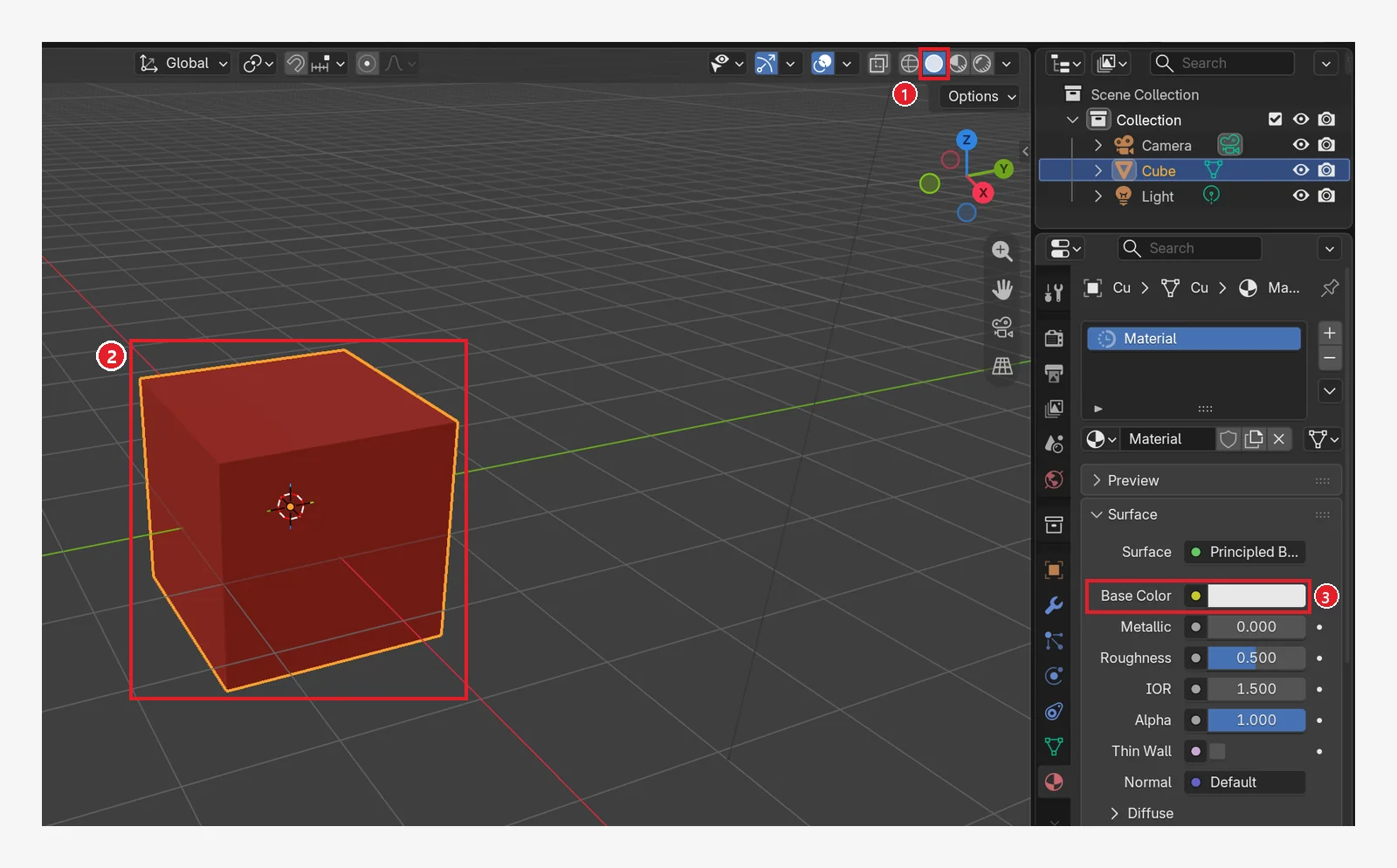 Figure 8-13. ① In Solid view too, ② the cube looks red ③ Base Color has been set back to gray (Blender screenshot)
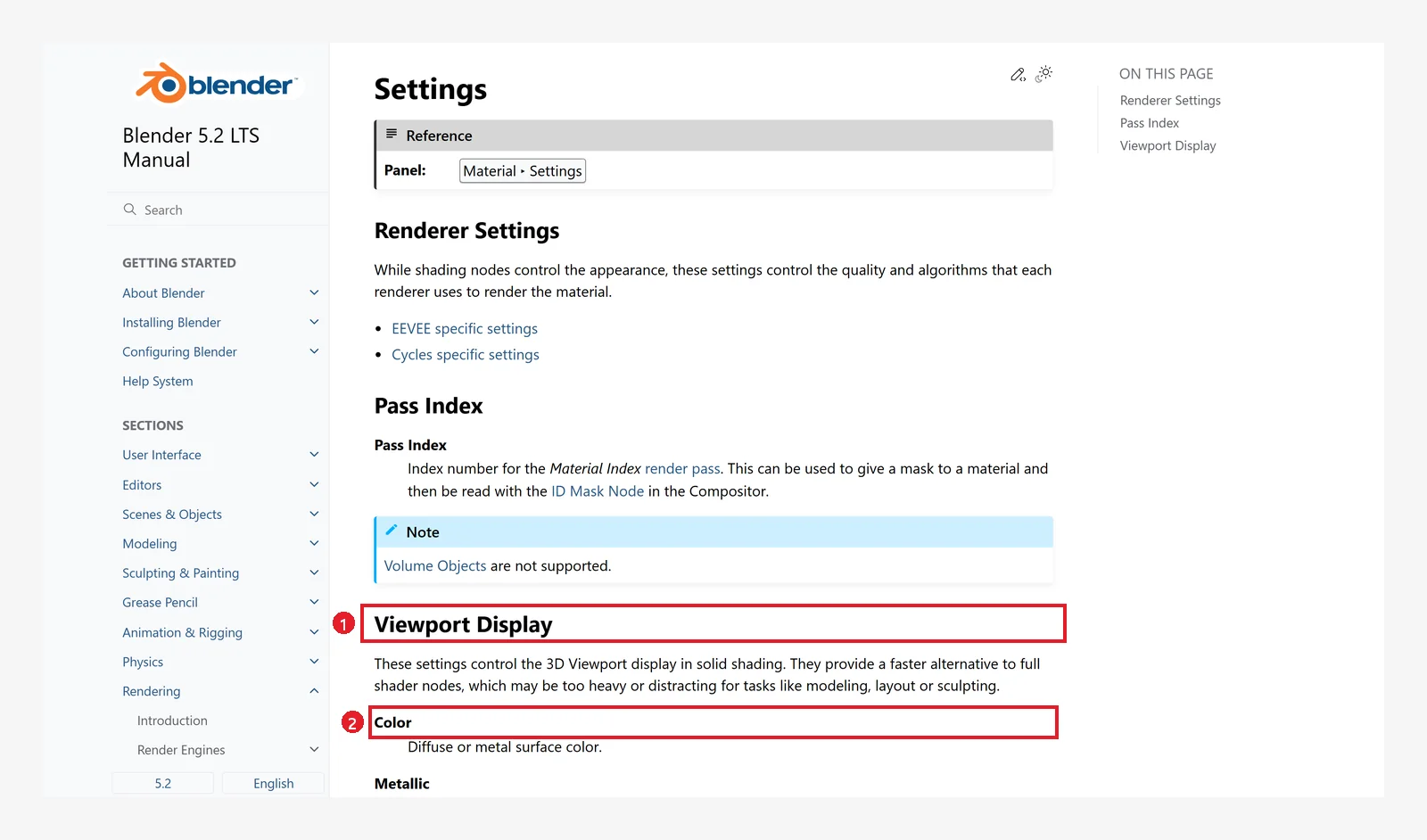 Figure 8-14. The official manual: ① Viewport Display, settings for Solid view ② Color (Blender 5.2 manual screenshot, CC BY-SA 4.0, numbers added)
Tip: If you want to model lightly in Solid view but still tell colors apart, set each material's Viewport Display ‣ Color close to its Base Color.
3-3. Metallic and Roughness
What the manual says:
- Metallic: 0 is a non-metal such as plastic or wood, and 1 is metal. Metal shows reflections tinted by the Base Color.
- Roughness: 0 gives sharp, mirror-like reflections, and 1 gives blurry, spread-out reflections (matte).
Starting point: Undo what you changed in the previous section. Go back to the third button (Material Preview) and change Base Color back to red.
Follow along: Enter 1 for Metallic and 0.15 for Roughness (Figure 8-15). Then raise only Roughness to 0.9 (Figure 8-16), and then change to Metallic 0 and Roughness 0.05 (Figure 8-17).
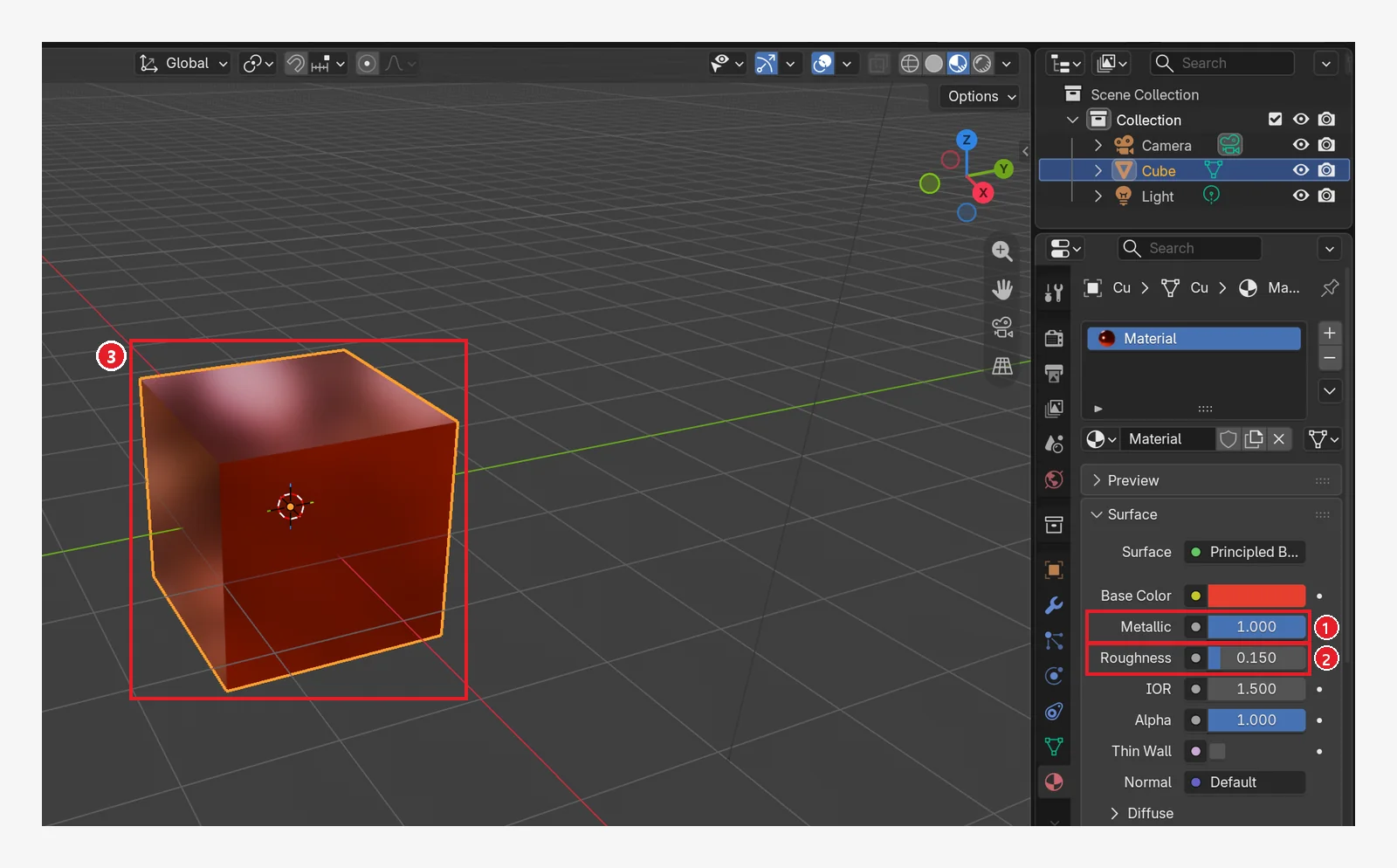 Figure 8-15. ① Metallic 1.000 ② Roughness 0.150: ③ smooth red metal. The surroundings reflect sharply on the surface (Blender screenshot)
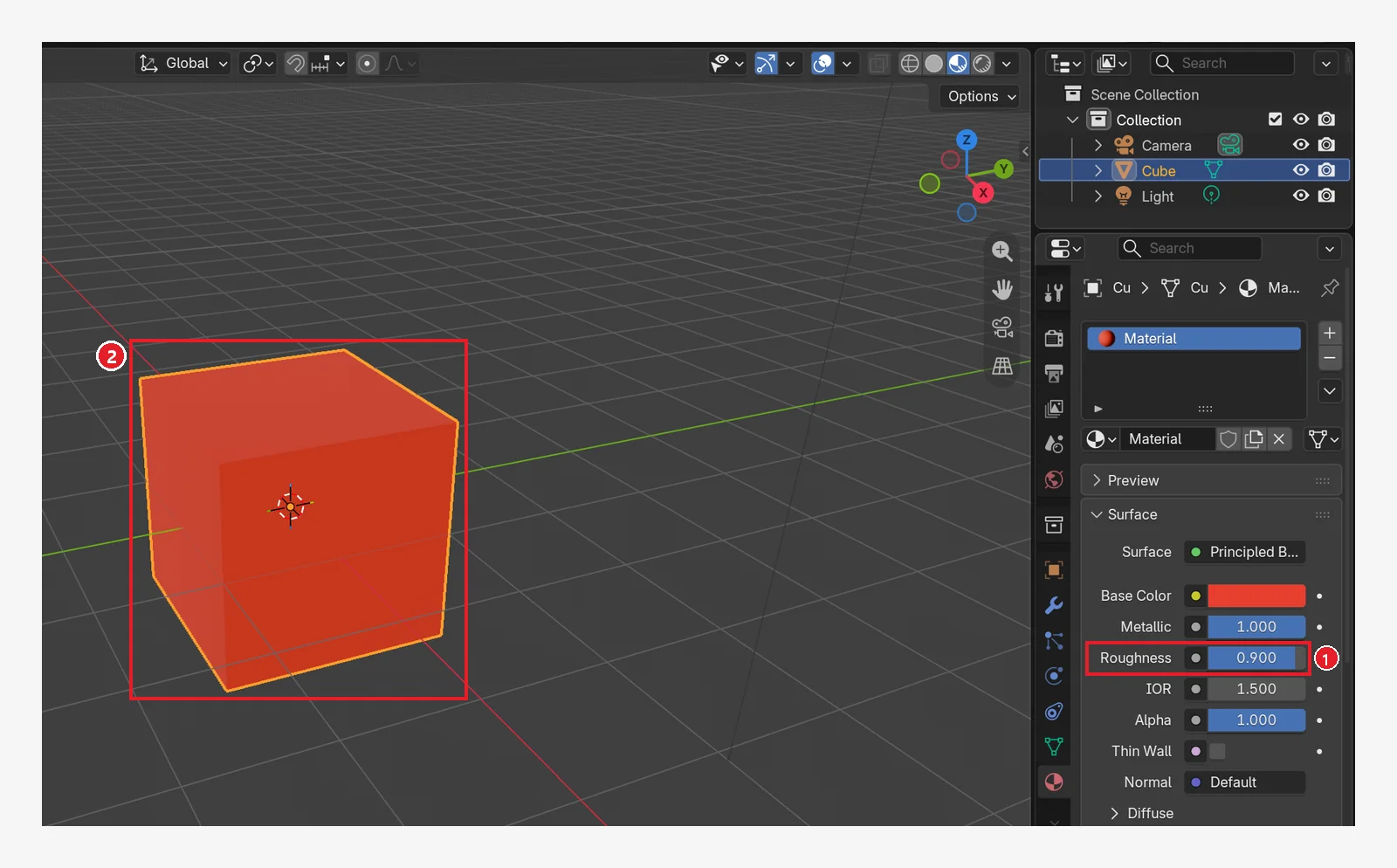 Figure 8-16. The same metal after raising only ① Roughness to 0.900 (compare with Figure 8-15): ② the reflections blur and it looks like matte metal (Blender screenshot)
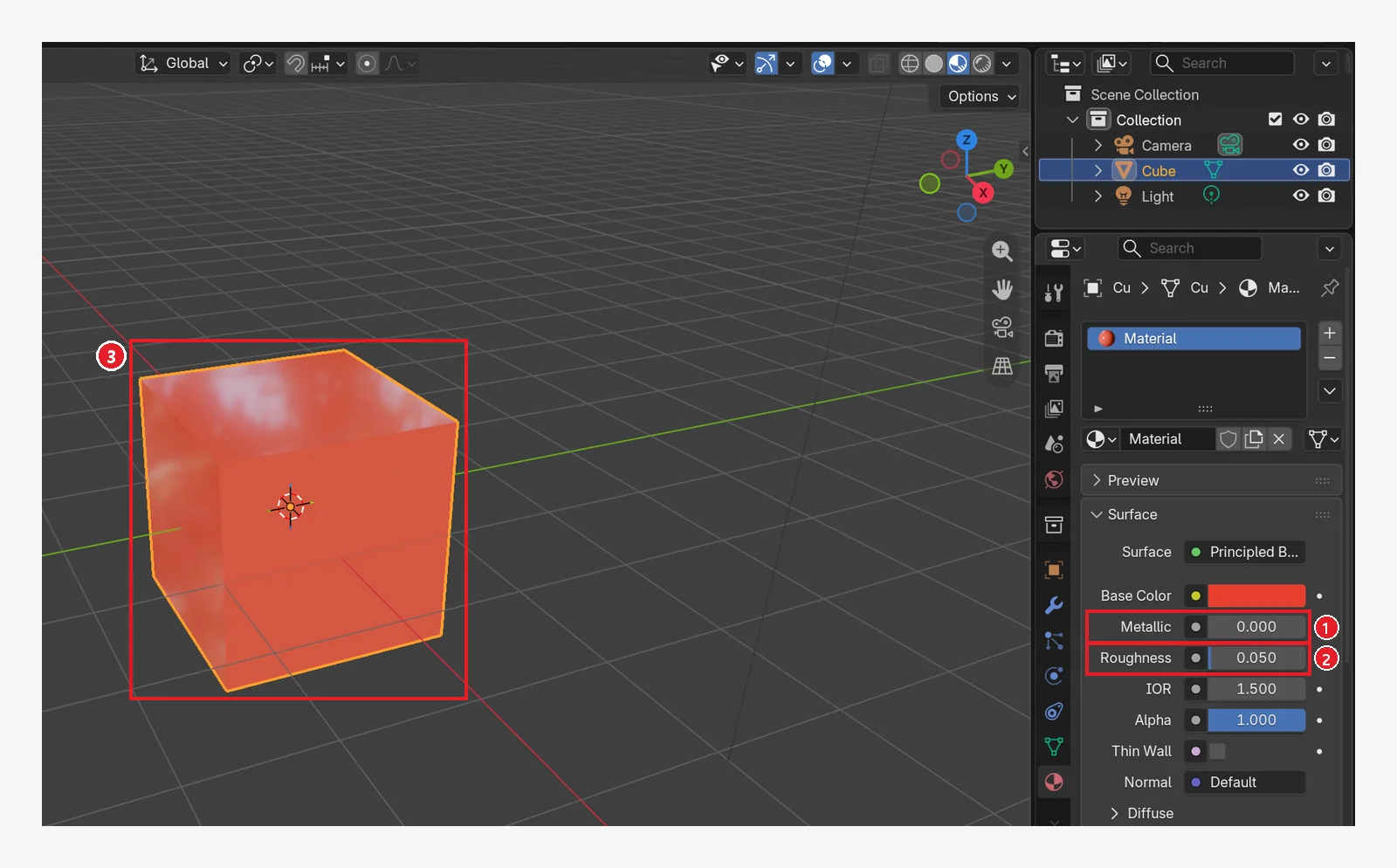 Figure 8-17. ① Metallic 0.000 ② Roughness 0.050: ③ shiny red plastic. Unlike metal, the base color stays red and the reflections sit on top in white (Blender screenshot)
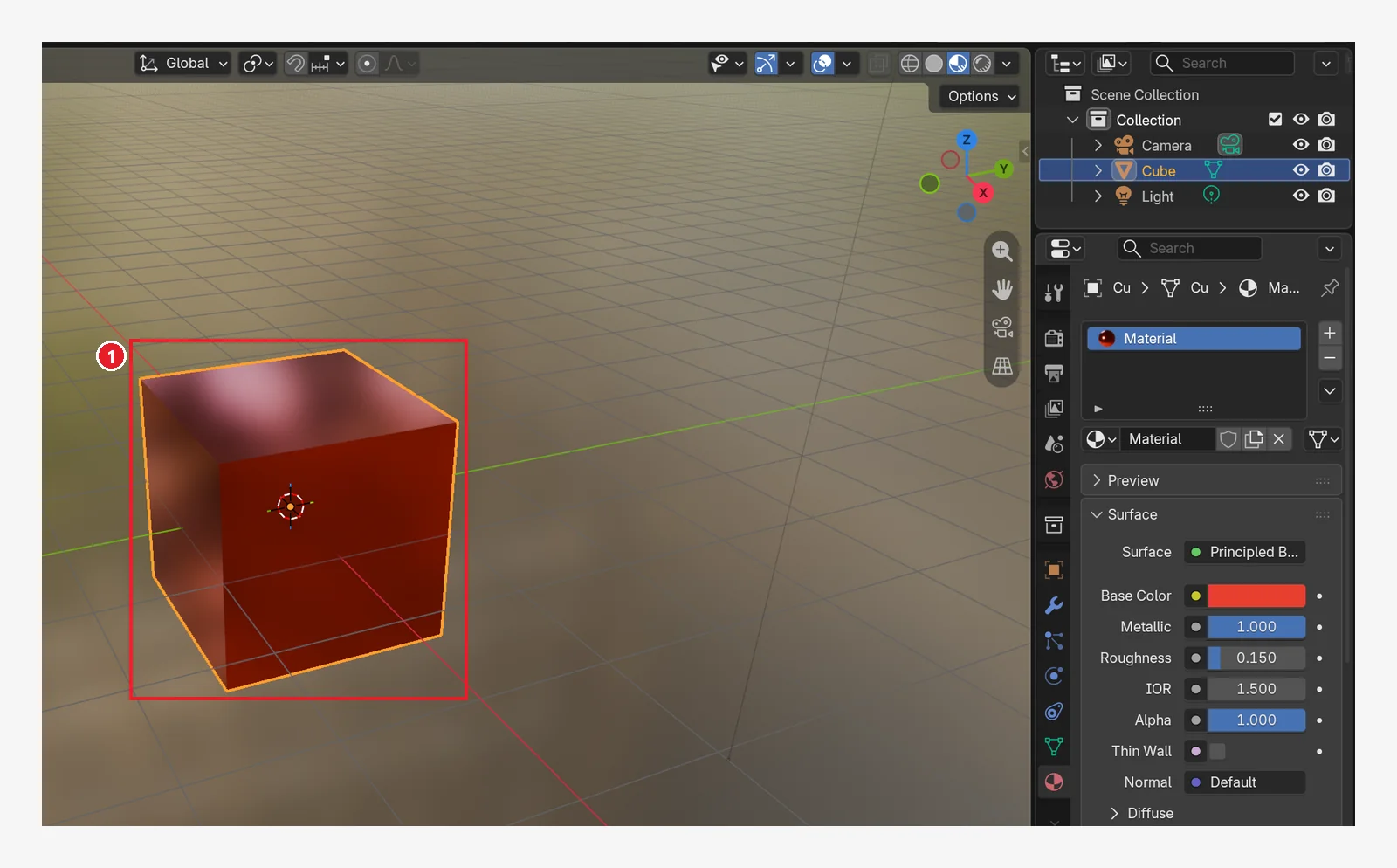 Figure 8-18. The same metal cube as in Figure 8-15, seen with the background: ① what reflects in the metal is this scenery (a lighting image for previews, called an HDRI). The image shows the screen with the background scenery turned on. On your screen, a gray background is normal (Blender screenshot)
| What you want to make | Metallic | Roughness |
|---|---|---|
| Mirror-like chrome | 1 | 0 to 0.1 |
| Matte iron | 1 | 0.6 to 0.9 |
| Shiny plastic | 0 | 0 to 0.2 |
| Rubber, soil, cloth | 0 | 0.8 to 1 |
(The values in the table are examples to use as a starting point.)
4. A material that gives off light: Emission (before → after)
Expand the Emission section near the bottom of the material and you find Color and Strength. Set Strength above 0 and the object looks as if it glows by itself. The images below show the Emission section expanded on the node in the Shading workspace (section 6). They show a cube whose material is at its defaults (light gray, Metallic 0, Roughness 0.5), with only Emission changed.
Starting point: Undo what you changed in the previous section. Set Base Color back to light gray, Metallic to 0, and Roughness to 0.5. You can also do this on the red cube from section 3 as it is (the light color will look mixed with the red).
Follow along: On the Material tab, expand the Emission section and change Color to orange and Strength to 3.
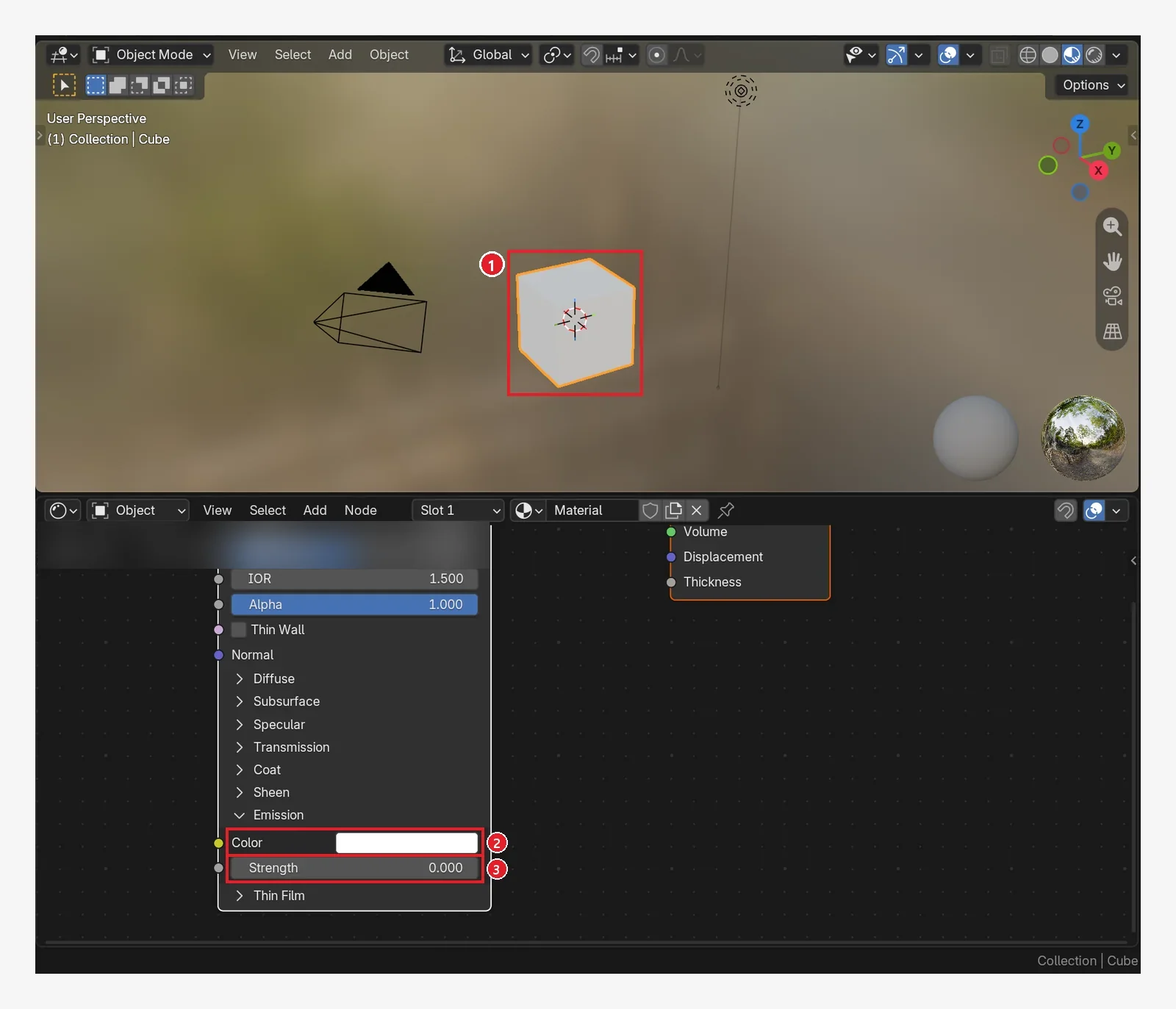 Figure 8-19. Before the change: ① the cube ② Emission Color (white) ③ Strength 0.000, so it does not glow. The blurred area at the top of the node editor has been hidden on purpose (Blender screenshot)
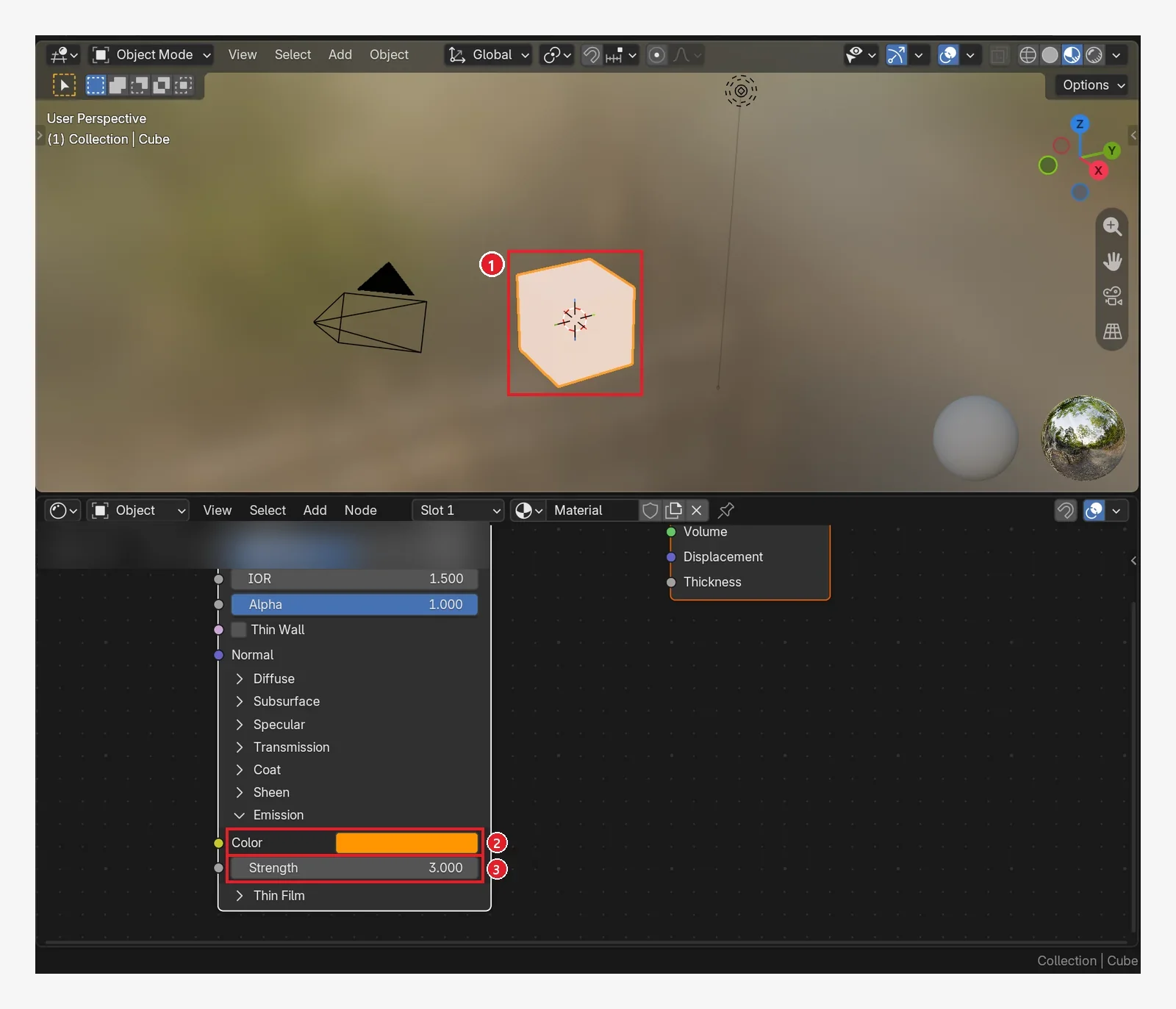 Figure 8-20. After the change: ② Color orange ③ Strength 3.000 → ① the cube becomes an even, bright apricot color with no shading (Blender screenshot)
The orange light is added on top of the base color (light gray), so it looks pale. To make it glow a deeper orange, change Base Color to orange or close to black as well.
Material Preview view only lets you check that it "looks bright." To see it actually light up its surroundings, look at a render.
5. New materials and different materials per face
5-1. Making a material for a new object (before → after)
A newly added object has zero material slots. The Material tab shows only an empty list and a New button.
Starting point: Undo what you changed in the previous section. Set the Emission Strength back to 0. If you leave it on, the cube keeps looking apricot.
Follow along: Add a sphere with Shift+A → Mesh → UV Sphere (chapter 4), and move it next to the cube with G → X → 3 → Enter. With the sphere selected, look at the Material tab (Figure 8-21), and press New (Figure 8-22).
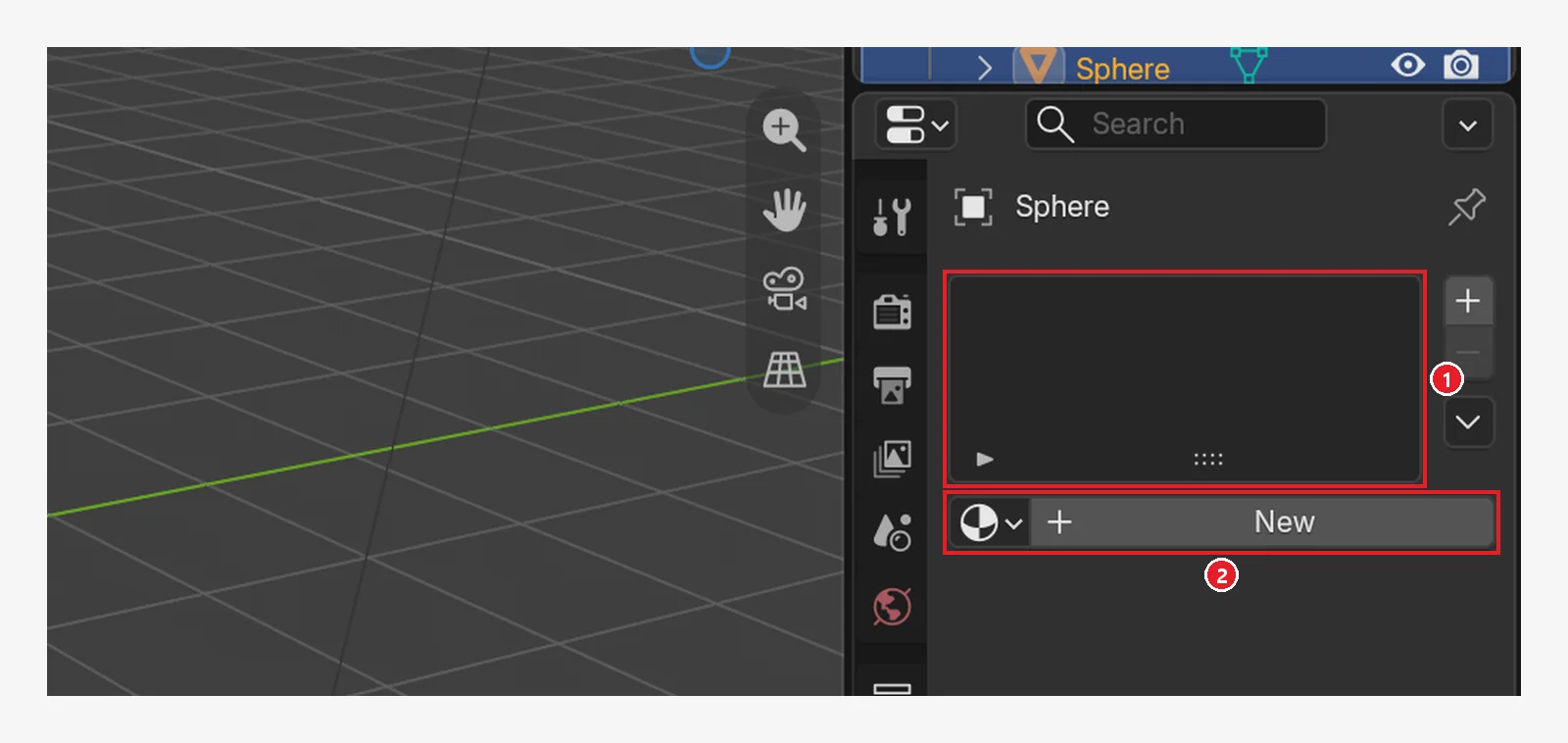 Figure 8-21. The new UV Sphere: ① the slot list is empty ② the New button (Blender screenshot)
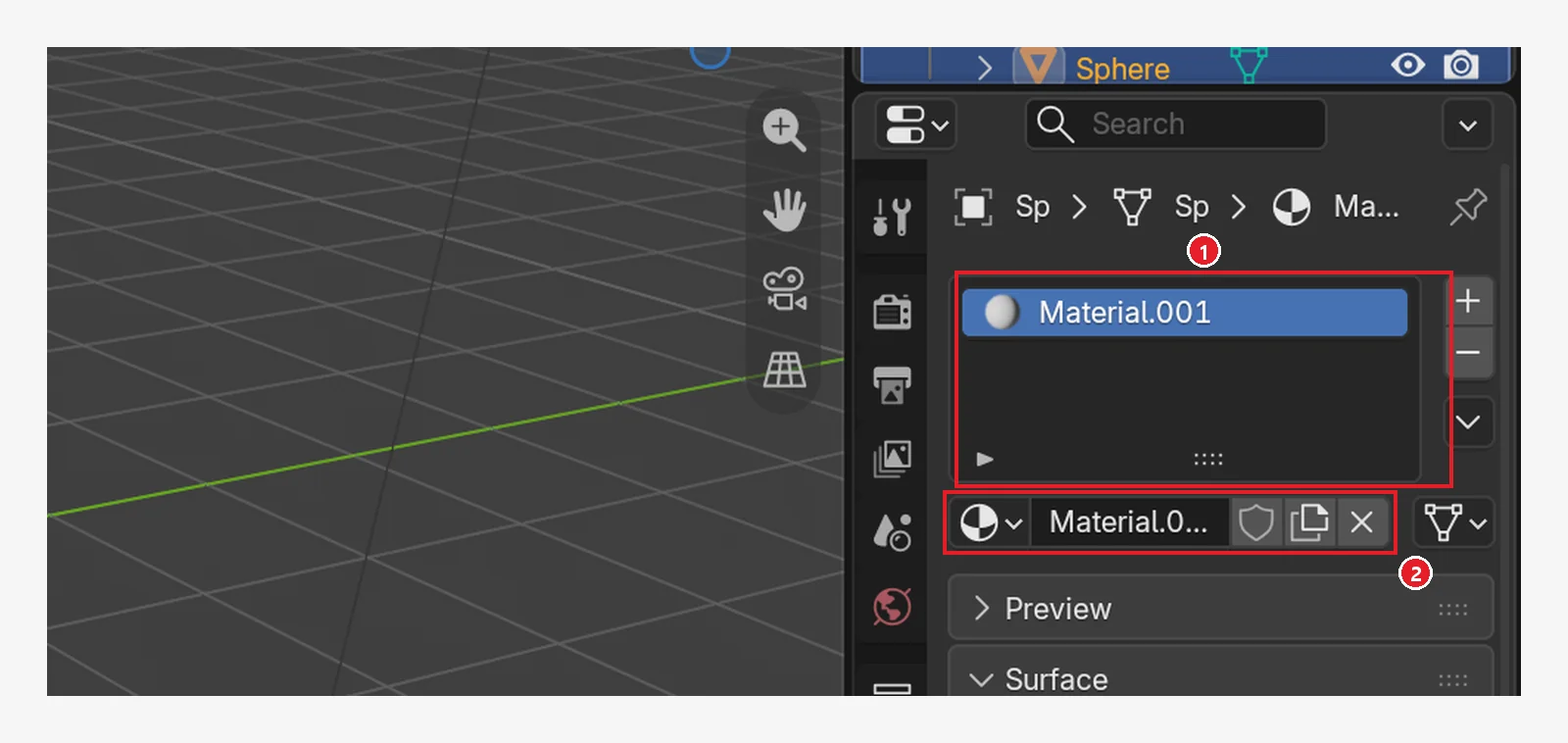 Figure 8-22. After pressing New: ① a slot appears with the new material in it ② the name is Material.001 (double-click to change it). It contains a Principled BSDF with default values (Blender screenshot)
5-2. Giving an object its own material: the user count number
An object duplicated with Shift+D in chapter 4 shares its material. When two or more objects use the same material, a number (the user count) appears next to the name field. The number only shows when there are two or more users. In this chapter's images, only one cube uses that material, so there is no number.
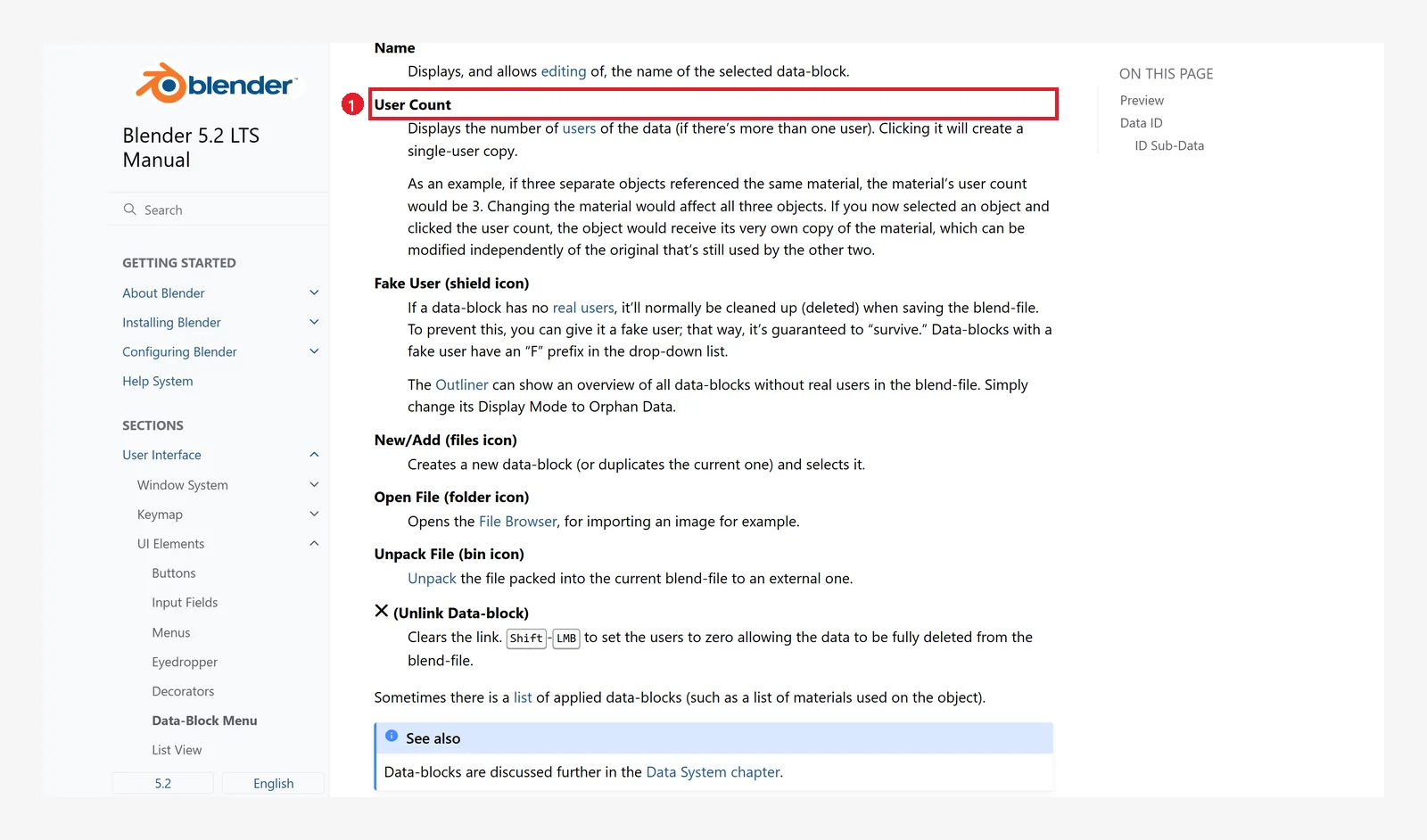 Figure 8-23. The official manual: ① User Count shows how many places use this data, and clicking it makes a copy for separate use (a single-user copy) (Blender 5.2 manual screenshot, CC BY-SA 4.0, numbers added)
The manual's example: if three objects use the same material, the number is 3. Click the number on one object, and only that object gets a new copy. After that, changing its color leaves the other objects as they are.
5-3. Several materials on one object
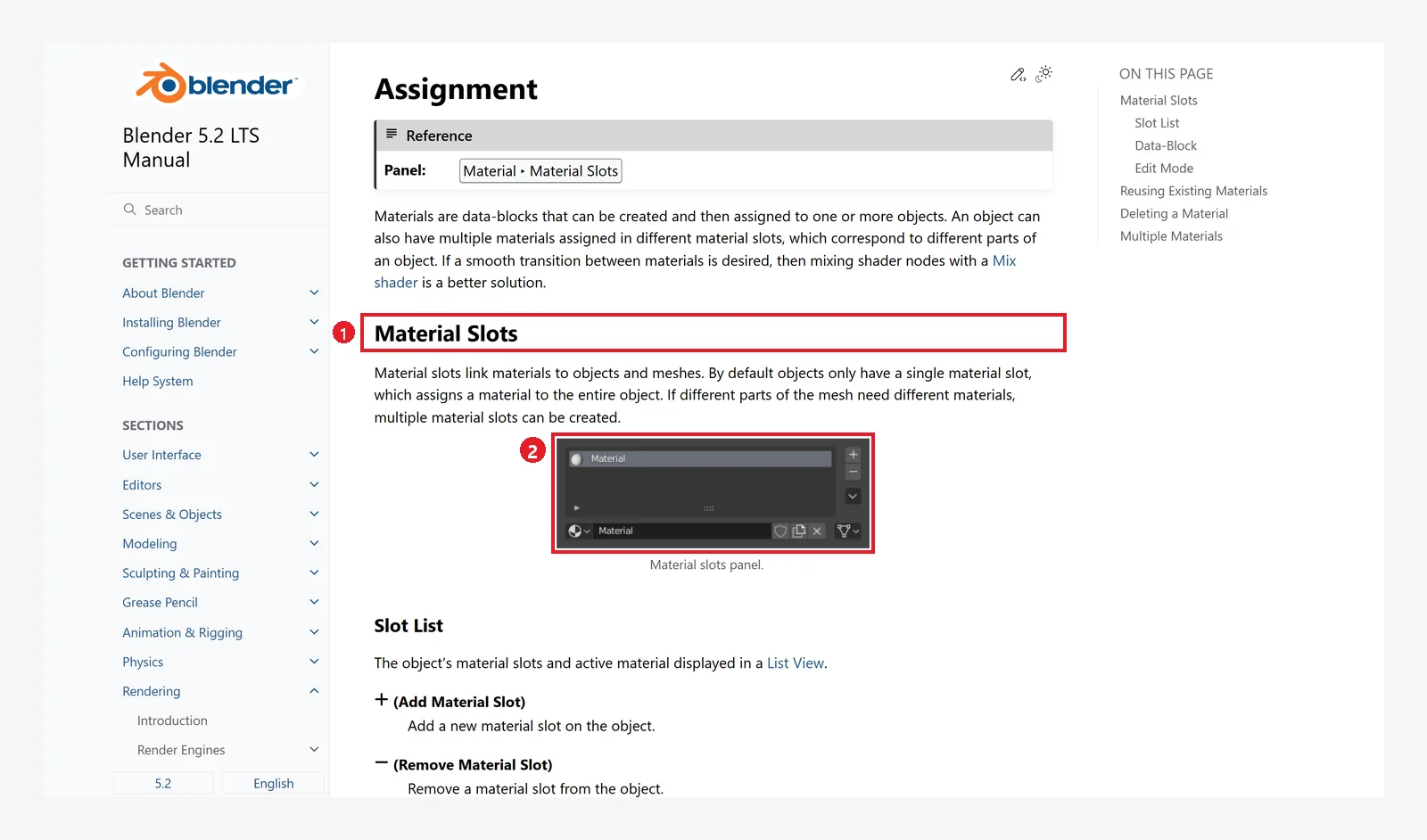 Figure 8-24. The official manual: ① Material Slots ② the slot panel image. By default one slot paints the whole object, and if parts need different materials, you make more slots (Blender 5.2 manual screenshot, CC BY-SA 4.0, numbers added)
Starting point: Continue from the scene in the previous section. Click the cube again to select it. The cube in the images has a red Base Color (the steps are the same if it is gray).
Follow along:
- Make one more slot with the + on the right of the slot list. Make a new material with New, rename it
Blue, and set its Base Color to blue. - Press
Tabfor Edit Mode and3for face select mode, then select the top face. - With the Blue material selected in the slot list, press Assign.
- Press
Tabto go back to Object Mode.
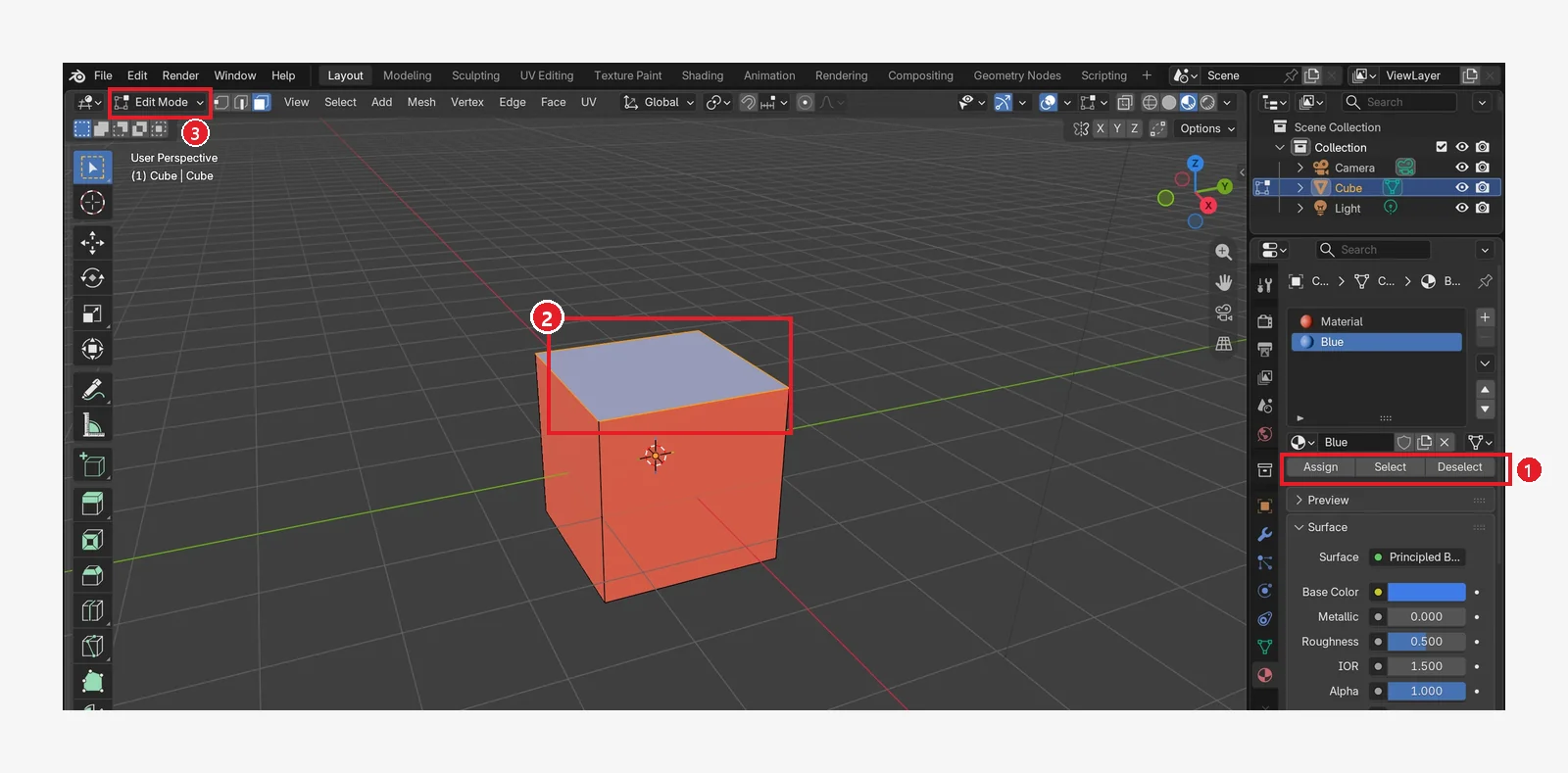 Figure 8-25. When you enter ③ Edit Mode, ① Assign · Select · Deselect buttons appear under the slot list ② the selected top face (Blender screenshot)
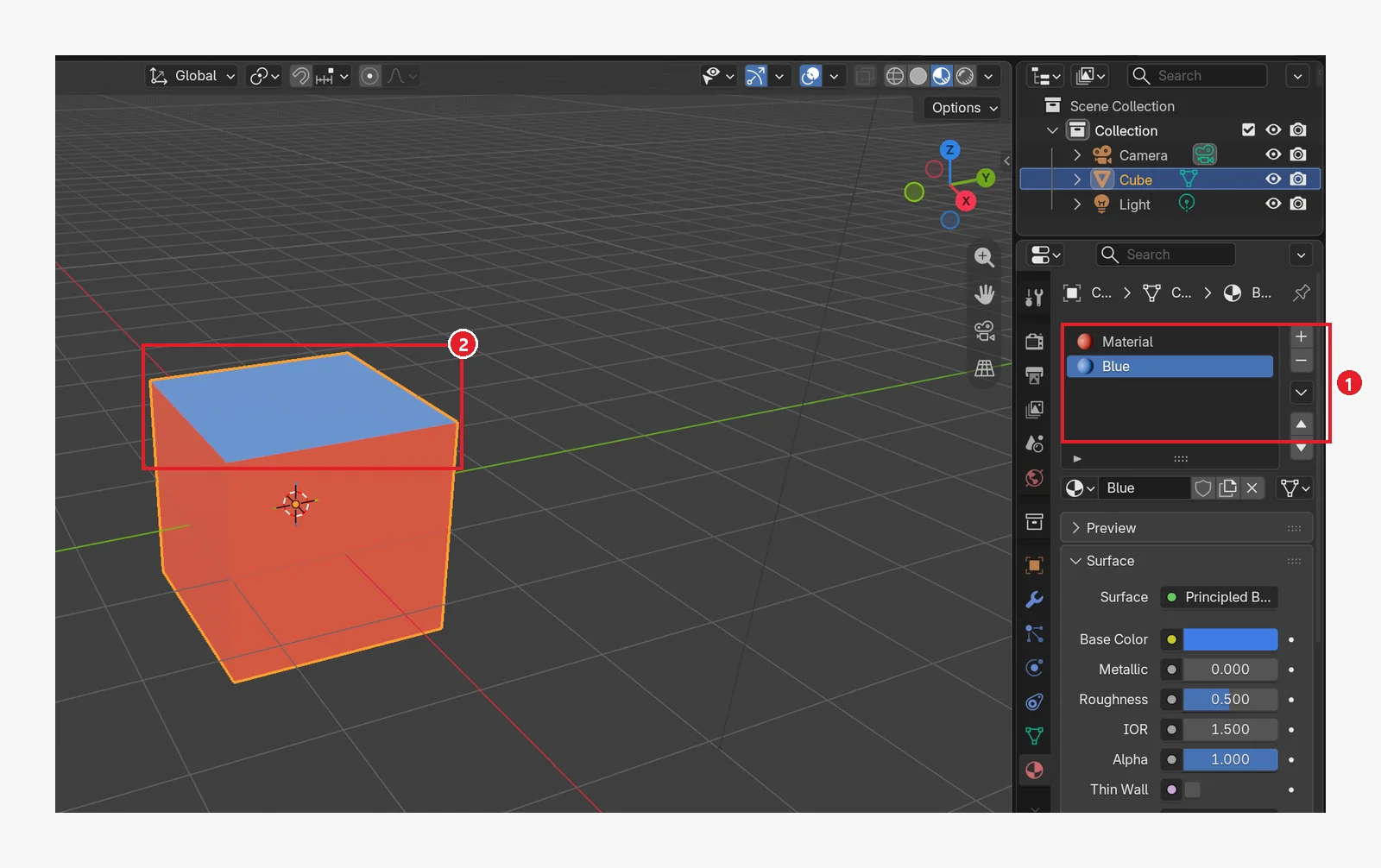 Figure 8-26. Object Mode after Assign: ① two slots, Material (red) and Blue ② only the top face is painted blue (Blender screenshot)
6. Seeing it as nodes in the Shading workspace
Starting point: Continue from the cube in the previous section. The image shows the red metal cube from section 3-3 (Metallic 1, Roughness 0.15), so its values differ from your screen.
Follow along: Click the Shading tab in the top bar (chapter 2, section 4). When you have checked it, go back to the Layout tab.
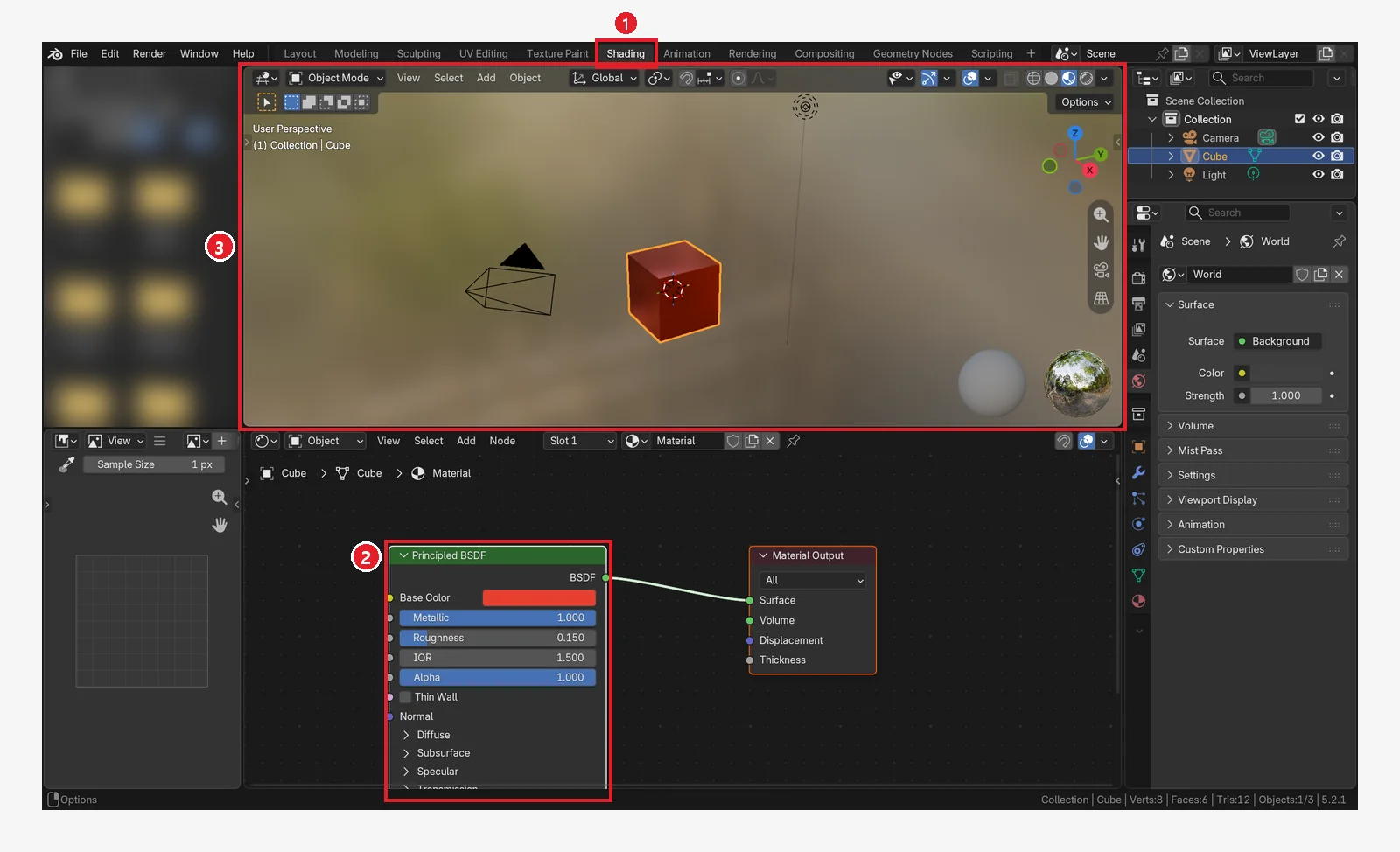 Figure 8-27. ① The Shading tab ② the Principled BSDF node in the node editor. Metallic 1.000 and Roughness 0.150 match the Material tab (Figure 8-15) ③ the 3D Viewport at the top shows the scenery reflected from the start (Blender screenshot)
The Material tab and the nodes show the same values in two ways, so you can change them in either place. How to connect nodes is covered in this site's Shader nodes and materials guide.
7. Practice exercises
Starting point: Start from the default cube in a new file (File ‣ New ‣ General).
- Make the cube blue matte rubber (Metallic 0, Roughness 0.9), and set Viewport Display Color to match so it also looks blue in Solid view.
- Change the same cube to gold metal (Base Color yellow, Metallic 1, Roughness 0.2).
- Add a new Cylinder, make a material with New, and paint only the top face a different color (section 5-3).
- Duplicate the cube with
Shift+D, click the user count number, and change the color of the copy only (section 5-2).
8. Common mistakes and fixes
| Symptom | Cause | Fix |
|---|---|---|
| The color changes on a different object | A different object was selected | Check the highlighted name in the Outliner and the object name at the top of the Material tab |
| You changed the color but the screen is still gray | Solid view uses Viewport Display Color | View it in Material Preview, or change Viewport Display Color (section 3-2) |
| A new object has no Base Color field | It has zero material slots | Press New (Figure 8-21) |
| The color of a duplicated object changes too | The material is shared (the number next to the name field is 2 or more) | Click the user count number to make a separate copy (section 5-2) |
| There is no Assign button | You are in Object Mode | Press Tab for Edit Mode |
| You tried to paint one face but the whole object changed | You changed the color of the same material without adding a slot | Make another slot and use Assign |
| You cannot tell which face has which material | There are several slots | In Edit Mode, pick a slot and press Select (Figure 8-25) |
| Material Preview view is slow | It needs time to get ready the first time you turn it on | Wait a few seconds |
Summary in one line
Material tab (red ball) → Base Color for color, Metallic for metal, Roughness for shine. Check it in Material Preview, and use Viewport Display Color to see it in Solid. For different colors per face, use slots + Assign in Edit Mode. Chapter 9 covers lighting.
References
- Blender 5.2 Manual: Principled BSDF
- Blender 5.2 Manual: Material Assignment
- Blender 5.2 Manual: Material Settings (Viewport Display)
- Blender 5.2 Manual: Data-Block Menu (User Count)
- Blender 5.2 Manual: Workspaces
- Blender 5.2 Manual: Viewport Shading
- Image licenses: the manual screens are CC BY-SA 4.0, with red numbers and outlines added. Blender program license: blender.org/about/license