Shader nodes and materials: how color and surface feel are decided
A material is an object's "clothes," and shader nodes are the recipe for making them. A simple explanation of how color and surface feel are decided in Blender.
한국어English
ON THIS PAGE
- 01Materials: an object's clothes
- 02Shader nodes: the recipe for a material
- 03The most-used node: Principled BSDF
- 04Adding patterns: texture nodes
- 05Giving a different material to part of an object: material slots
- 06Where you work
- 07Nodes shared by EEVEE and Cycles
- 08Common mistakes and misunderstandings
- 09References
Based on: the official Blender 5.2 LTS manual (English UI, default keymap)
When you first make a 3D model, every object is plain gray. A material is what gives it the look of red plastic, shiny metal, or clear glass, and shader nodes are the tool for designing that material by joining blocks together. This post explains what materials and shader nodes are, how to read nodes, the four most-used values of the Principled BSDF, and how to give a different material to only part of an object.
Materials: an object's clothes
A material decides the appearance of an object such as a mesh (a 3D shape made of faces) or a curve. What the object is made of, what color and pattern (texture) it has, and how it meets light are all held in the material.
Think of a 3D model as a mannequin and the material as the clothes you put on it. The same mannequin looks completely different in a leather jacket or a silk shirt. In the same way, an identical ball shape becomes a billiard ball, a steel ball, or a glass marble just by changing the material.
A material has three parts.
| Part | What it does | Simple example |
|---|---|---|
| Surface | The color, pattern, and light reflection of the outside | The shine of a plastic toy |
| Volume | What fills the inside of the object | Smoke, fire, the inside of frosted glass |
| Displacement | Makes the surface shape bumpy | The grooves between bricks |
At first, you will mostly work with Surface. Some materials use only Volume, such as smoke or fire, and some use Surface and Volume together, such as frosted glass.
Shader nodes: the recipe for a material
Materials, lights, and backgrounds are all decided by a network of shader nodes. A node is a small box that does only one job. There is a box that sets color, a box that makes patterns, and a box that mixes two materials, and you join these boxes with lines to finish a material.
Think of cooking. One node is one cooking step, such as "prepare the flour," "knead the dough," or "bake." Join the steps in order and you have a recipe, and the dish on the final plate is the material you see on screen. Just as changing one step in the middle (for example, adding more sugar) changes the result, changing the value of one node changes the material.
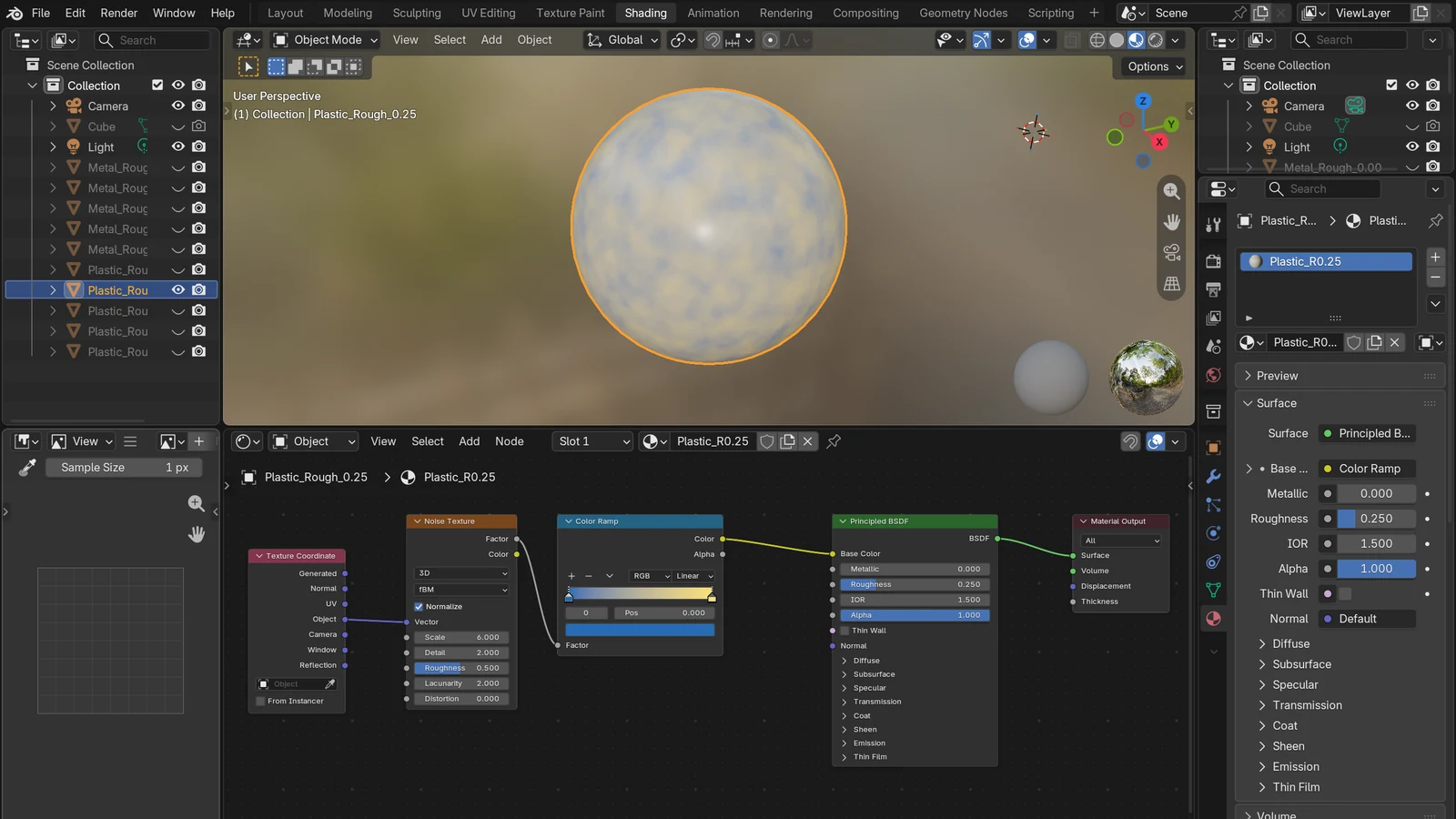
Nodes are read from left to right. For example, the color (yellow socket) and number (gray socket) coming out of a texture node that makes a pattern go into a Principled BSDF node, and the Principled BSDF turns them into "the way it meets light" (green socket) and sends that out. Only when this green flow reaches the Material Output node at the very end is the material put on the object. The socket colors and the two nodes are covered one by one below.
Reading nodes: sockets and lines
A node is made of a title, sockets, and properties.
- Socket: the small circles on both sides of a node. The left side is incoming values (inputs), and the right side is outgoing values (outputs).
- Link: drag from an output socket of one node to an input socket of another to join them. Values flow along this line.
- Socket color: tells you what kind of value flows. Like matching the shape of an outlet and a plug, the basic rule is to join the same colors. If you join different colors, Blender sometimes converts the value for you (see "Common mistakes and misunderstandings" below), and the result can be unexpected.
| Socket color | Value that flows | Example |
|---|---|---|
| Yellow | Color | Red, the colors of a pattern image |
| Light gray | Number (Float) | Roughness 0.5 |
| Dark blue | Vector | Coordinates, surface direction |
| Bright green | Shader | A finished "way of meeting light" |
When there are many nodes and the screen gets crowded, you can collapse nodes with H and hide unused sockets with Ctrl+H.
The green socket: not a color, but a way of meeting light
This is the most confusing part at first. What comes out of a shader socket is not the color of the surface. It is how light meets the surface or volume. A red ball does not just have the value "red." It has a rule of behavior: "when light arrives, send back only the red part and shine a little on the outside."
Shader node types are also divided by these rules.
- BSDF: how light is reflected, refracted, and absorbed at the surface (most materials)
- Emission: gives off light by itself (signboards, neon signs)
- Volume: light scatters inside a volume (smoke, fog)
- Background: light given off by the surroundings (the sky)
Green shaders can be combined with only two nodes: Mix Shader and Add Shader. Calculations such as multiplying or subtracting brightness, as you would with colors, cannot be done on a green line.
Where all the lines meet: Material Output
At the very end of a node tree is the Material Output node. This node sends the surface material information out to the object. Its input sockets are the three parts seen earlier: Surface, Volume, and Displacement. In cooking terms, it is "the finished plate." No matter how good your nodes are, they do not appear on screen unless they are connected to this plate. There is also a Thickness input used only in EEVEE, but you do not need to know it at first.
The most-used node: Principled BSDF
When you make a new material, a Principled BSDF node comes connected to the Material Output by default. It is an easy-to-use node that combines several layers into one. It is based on a model called OpenPBR Surface and uses values compatible with similar shaders in other programs, so texture images made in programs such as Substance Painter can be connected straight to the matching inputs.
It looks like it has many input fields, but at first, four are enough.
| Input | Meaning | What the value means |
|---|---|---|
| Base Color | Basic color | The base color of the whole material |
| Roughness | Roughness | 0 is a sharp, mirror-like reflection; 1 is a blurry, spread-out reflection |
| Metallic | Metalness | 0 is non-metal (plastic, wood); 1 is a metal reflection tinted by the base color |
| Alpha | Opacity | 1 is fully opaque; the closer to 0, the more transparent |
Roughness is the difference between a new bowling ball and a well-used ping-pong ball. On a smooth bowling ball, lights show up small and sharp. On a ball with a rough surface, the light spreads wide and the shine gets blurry. Metalness is the difference between a plastic toy ring and a real metal ring. Metallic 1 is the state where there is no diffuse reflection (color spread evenly over the outside of an object) and all reflected light is tinted by the base color. So the color of a metal is set by the base color. If the base color is orange, raising Metallic to 1 gives an orange-tinted metal like copper. A yellowish base color looks like gold, and a light gray looks like silver or iron.
There are also items such as Subsurface, where light seeps slightly under the surface as in skin or milk; Transmission, where light passes through as in glass; IOR, which sets how much light bends (the default 1.5 is close to glass); Coat, an outer coating like car paint; and Emission, which gives off light by itself. They are all inside one node, so you can make many kinds of materials without joining several nodes. How to combine metalness and roughness for realistic materials is covered in more detail in the PBR materials guide.
Adding patterns: texture nodes
If you want wood grain or a brick pattern instead of a single color, connect a texture node to an input such as Base Color. There are two main ways.
- Procedural textures: nodes such as Noise and Voronoi that make patterns with formulas. They take coordinates and settings and output colors or numbers. They need no image file, and they do not break up when you zoom in.
- Image Texture: a node that puts a photo or picture file on the object. If you leave the Vector input empty, it uses the coordinates of the object's active UV map.
Here, coordinates are the address that decides "which point of the picture goes on which place of the object." The default coordinates for procedural textures are Generated (coordinates made automatically to fit the object's size), and the default for image textures is UV. When you want to choose the coordinates yourself, connect a Texture Coordinate node to the texture's Vector input. How UVs work, unfolding a 3D object like paper to put a picture on it, is explained next in the UV unwrapping guide.
Giving a different material to part of an object: material slots
Say you made a house as one model, with a red roof, beige walls, and a blue door. To give different materials to different parts of one object like this, use material slots. A slot is a "hanger" attached to the object. A material is a data-block (a unit of data that Blender stores separately and reuses) that can be given to many objects, so you can also hang a material you already made on a slot.
- On the Material tab of the Properties editor, add a slot with the
+button of the Material Slots list. - For each slot, make a new material or choose an existing one.
- Press
Tabto enter Edit Mode and select the faces to paint. - Choose the slot you want and click the Assign button.
There is one slot by default, so at first one material covers the whole object. If two materials need to blend smoothly with no border (for example, rust spreading over metal), mixing them with a Mix Shader node works better than splitting slots.
Where you work
You can make materials both on the Material tab of the Properties editor and in the Shader Editor. The two only show the same nodes and settings in different forms.
- Shading workspace: click Shading in the tabs at the top of the screen to open the Shader Editor together with a 3D Viewport. Set the viewport to Material Preview or Rendered view, and you see the result as soon as you change a node.
- Material tab: convenient for changing values in a list, without the node view.
To find what each area of the screen is, it helps to read the Blender screen guide alongside this one.
Nodes shared by EEVEE and Cycles
By default, shaders are used by both Cycles and EEVEE (the Target setting of the Material Output node). This means a material you made once can be used as is in both render engines. If needed, you can also keep separate output nodes for each engine and set them differently. The two engines calculate light differently, so results can differ a little. Refer to the EEVEE and Cycles guide, and always check the result after switching engines.
Common mistakes and misunderstandings
- "I made nodes, but the color does not change." Check that the line reaches the Material Output. If it breaks partway, the change does not show.
- "I connected a color (yellow) straight to the green socket of the Material Output, and it stays the same even when I change the lights." The connection itself works. When you connect a color, number, or vector to a shader socket (green), Blender converts it automatically and gives the same result as using an Emission node. In other words, the object becomes a single color that glows by itself and does not react to lights or shadows. If you want a material that receives light, send the color to the Base Color of a Principled BSDF and connect the green output of the Principled BSDF to the Material Output.
- "Mixing with Add Shader is brighter, so it is better." A material should not send back more light than comes in. This is called "energy conservation." If you keep colors in the 0–1 range and mix with Mix Shader, it is kept automatically, but Add Shader or color values above 1 can break it.
- "Roughness 0 looks best." Most real objects are a little rough. 0 is close to a perfect mirror, so to make something look like a real object, try raising the value a little.
Nodes that build shapes with rules are connected the same way. Once you are used to shader nodes, Geometry Nodes for beginners becomes much easier to read.
References
The manual links are version-fixed Blender 5.2 LTS addresses.
- Blender 5.2 LTS Manual, Materials Introduction — https://docs.blender.org/manual/en/5.2/render/materials/introduction.html
- Blender 5.2 LTS Manual, Material Assignment — https://docs.blender.org/manual/en/5.2/render/materials/assignment.html
- Blender 5.2 LTS Manual, Shader Nodes Introduction — https://docs.blender.org/manual/en/5.2/render/shader_nodes/introduction.html
- Blender 5.2 LTS Manual, Principled BSDF — https://docs.blender.org/manual/en/5.2/render/shader_nodes/shader/principled.html
- Blender 5.2 LTS Manual, Material Output Node — https://docs.blender.org/manual/en/5.2/render/shader_nodes/output/material.html
- Blender 5.2 LTS Manual, Image Texture Node — https://docs.blender.org/manual/en/5.2/render/shader_nodes/textures/image.html
- Blender 5.2 LTS Manual, Texture Coordinate Node — https://docs.blender.org/manual/en/5.2/render/shader_nodes/input/texture_coordinate.html
- Blender 5.2 LTS Manual, Node Parts — https://docs.blender.org/manual/en/5.2/interface/controls/nodes/parts.html
- Blender 5.2 LTS Manual, Shader Editor — https://docs.blender.org/manual/en/5.2/editors/shader_editor.html