Blender for complete beginners, chapter 9: lights — light types, strength, and shadows
Blender lighting for complete beginners. Learn the four light types (Point, Sun, Spot, Area), how to control brightness and shadows with Power, Color, and Radius, the World background light, and how to add one fill light.
한국어English
ON THIS PAGE
- 01What you will learn in this chapter
- 021. Select the light and open its properties
- 032. Check the light in Rendered view (before → after)
- 043. Try changing three values
- 054. Four types of light
- 065. When there is no light: the World background light (before → after)
- 076. Add one fill light (before → after)
- 087. Tips for moving and rotating lights
- 098. What to check when the lighting looks wrong
- 109. Exercises
- 1110. Common mistakes and fixes
- 12In one line
- 13References
Blender for complete beginners, chapter 9 · Based on: Blender 5.2 LTS (screenshots from 5.2.1, English interface, default keymap, EEVEE render engine) All images are real screens. The red numbers and outlines were added for explanation. Views with light are the 3D Viewport's Rendered view, and a floor plane was laid under the cube in the images so the shadows are easy to see (EbookGround in the Outliner in the images; on your screen it will be Plane).
What you will learn in this chapter
By the end of this chapter you will be able to:
- Select a light object and open its light properties. (Section 1)
- Check light and shadows in Rendered view. (Section 2)
- Change Power (strength), Color, and Radius (size). (Section 3)
- Tell apart the four lights: Point, Sun, Spot, and Area. (Section 4)
- Know what the World (background) light is. (Section 5)
- Add one fill light to soften the shadows. (Section 6)
Before you start: a light is an "object" This chapter starts from the default scene of a new file (File ‣ New ‣ General). The dashed circle (Light) in the default scene can be selected, moved with
G, and rotated withR, just like the cube (chapter 3). Moving it changes the direction the light comes from.Laying a floor plane: To see shadows as in the images, you need a floor. Make one in Object Mode with these three steps.
- Add a plane with
Shift+A→ Mesh → Plane.- Enlarge it with
S7Enter(14 m on each side).- Lower it to the bottom of the cube with
GZ-1Enter. If you don't lower it, the plane cuts through the middle of the cube.
1. Select the light and open its properties
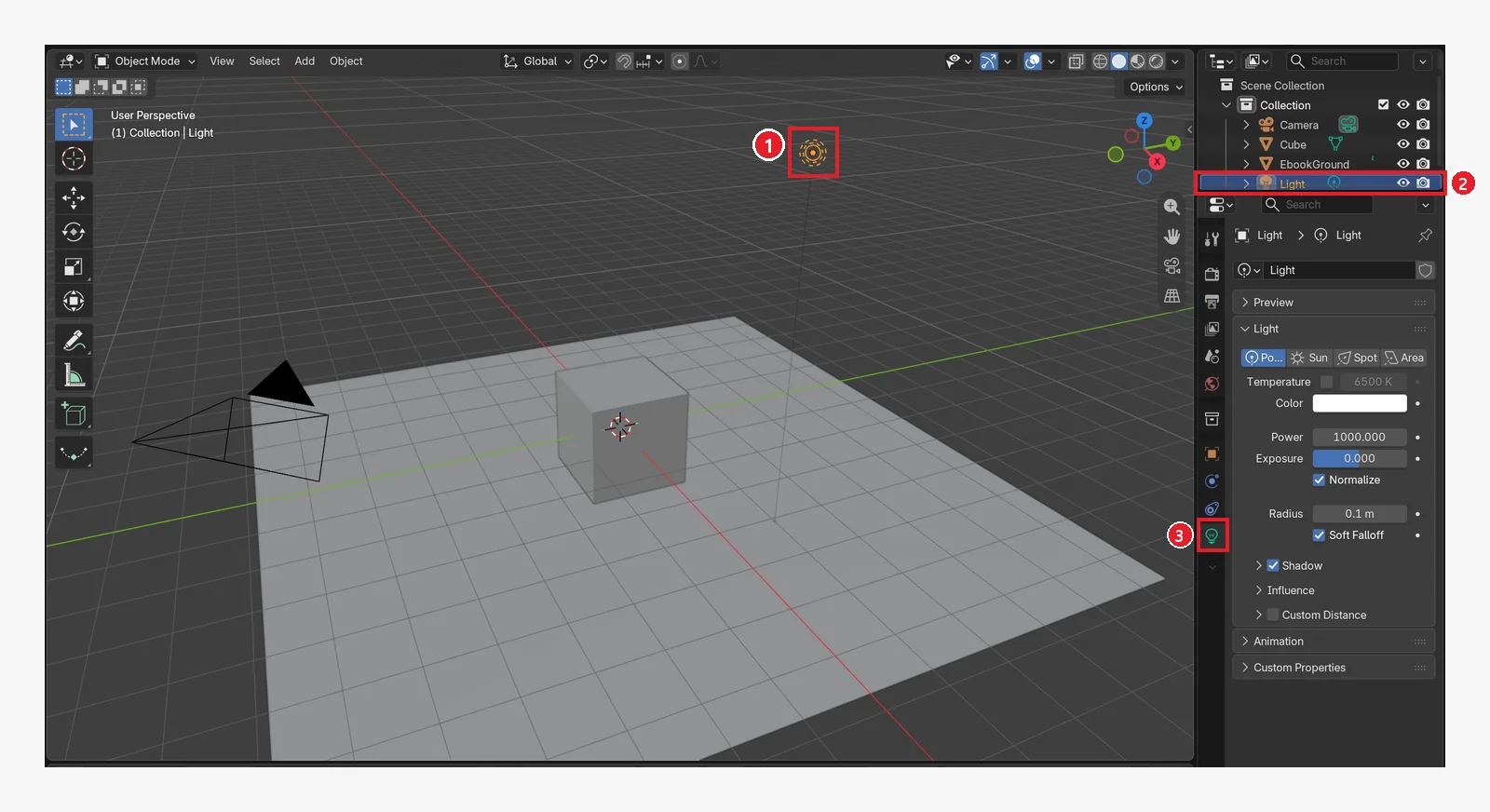 Figure 9-1. Select the light by ① clicking the light (dashed circle) in the 3D Viewport or ② clicking Light in the Outliner ③ the green bulb icon near the bottom of the Properties editor is the light (Object Data) tab (Blender screenshot)
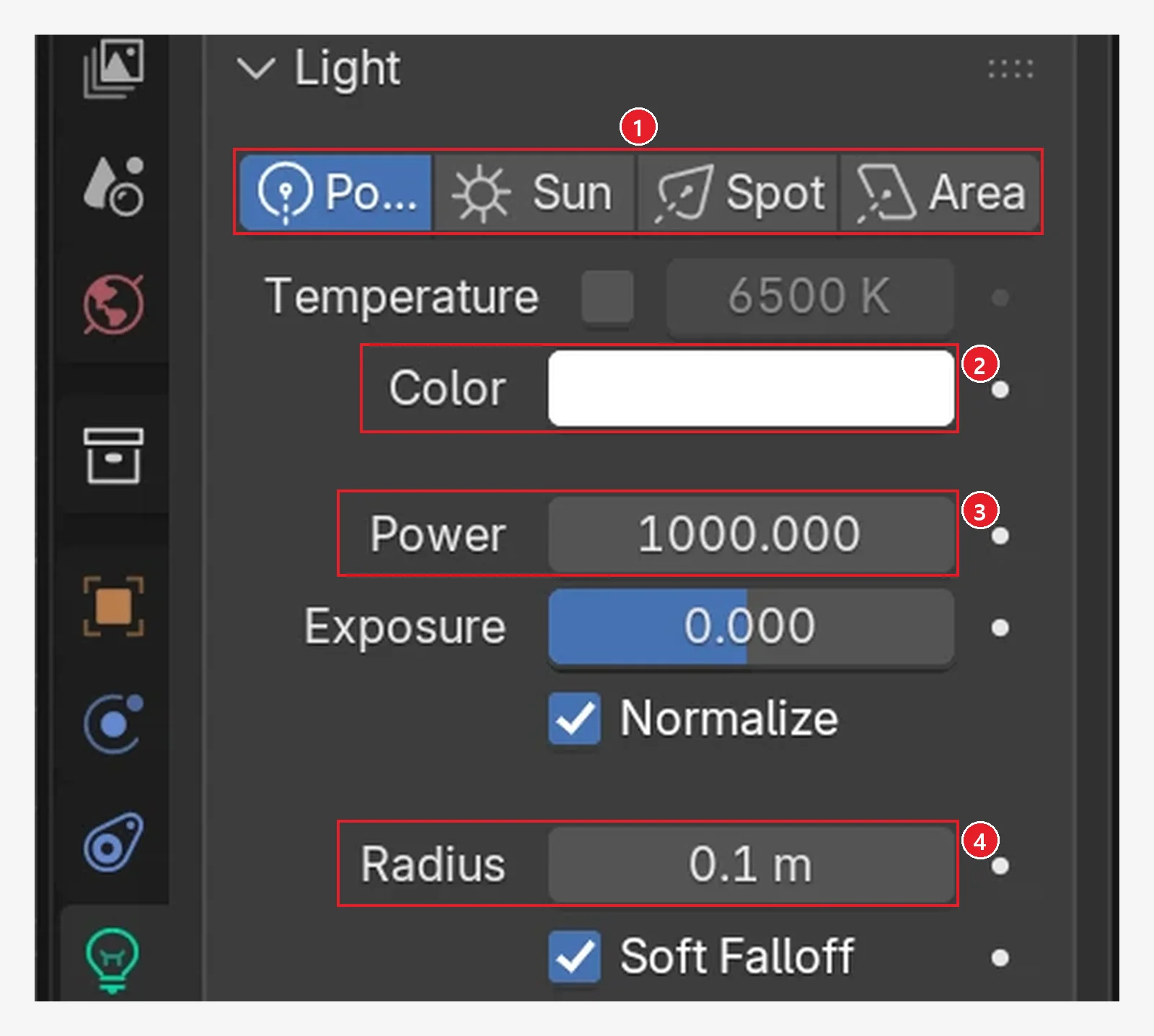 Figure 9-2. The light tab: ① light type (Point · Sun · Spot · Area) ② Color (the color of the light) ③ Power (strength, in watts) ④ Radius (the size of the circle the light comes from) (Blender screenshot)
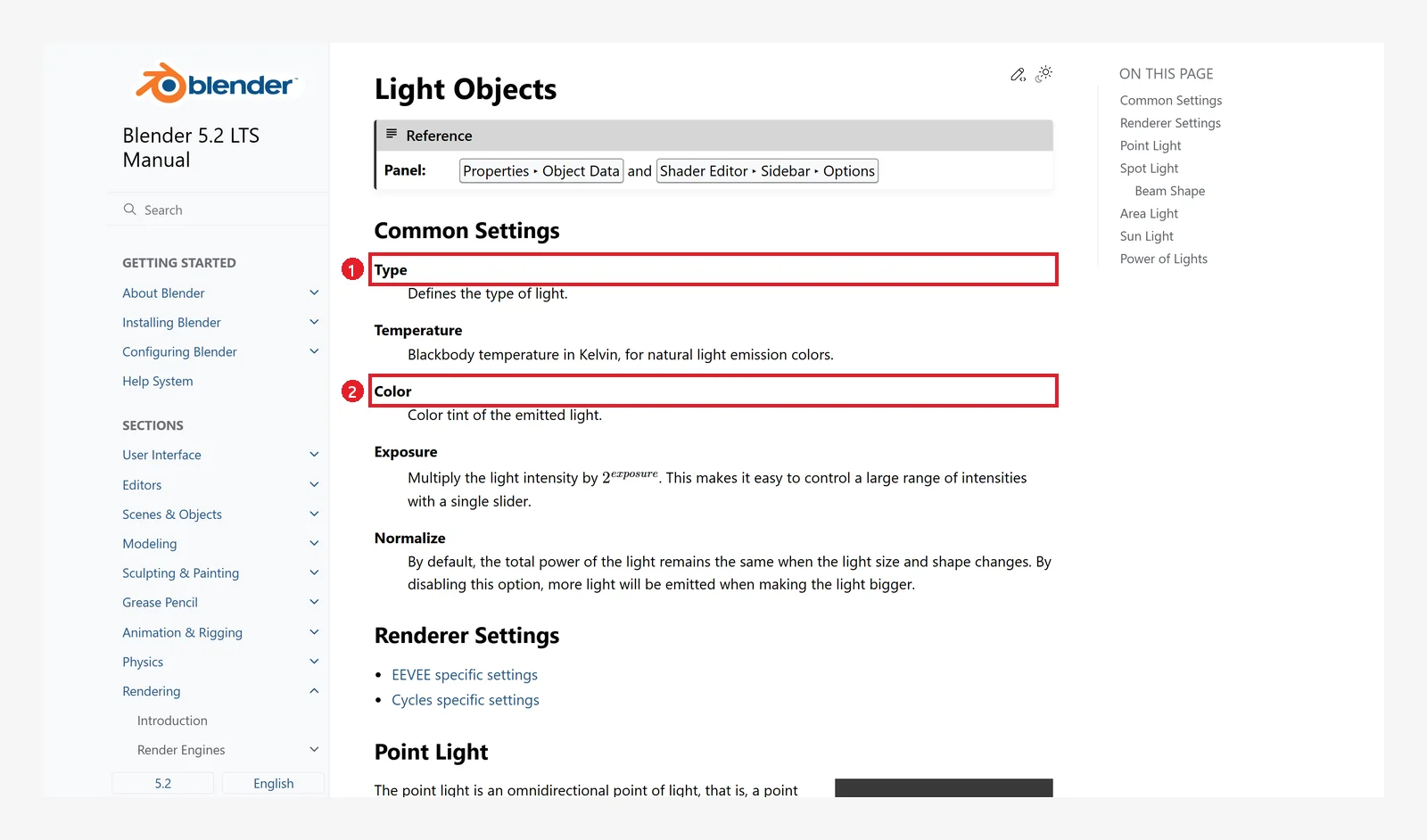 Figure 9-3. The official manual, Light Objects: ① Type — the light type ② Color — the color of the light (Blender 5.2 manual screenshot, CC BY-SA 4.0, numbers added)
The default light is a Point light, Power 1000 W, Color white, Radius 0.1 m.
Terms
- Power: the strength of the light. The bigger the number, the brighter. As the manual explains, this watt (W) is not the "power consumption" printed on a light bulb box but the energy that comes out as light, so entering a real bulb's wattage as it is will not match.
- Exposure: a field that scales Power up or down all at once. Each step of 1 makes it twice as bright. At first, leave it at 0 and change only Power.
- Normalize: when on, the total amount of light stays the same even if you change the light's size (on by default). Turn it off if you want the light to get brighter when you make it bigger.
2. Check the light in Rendered view (before → after)
Follow along: Of the four view mode buttons on the right of the 3D Viewport header, press the fourth one (Rendered) (chapter 2, section 9). Keep Rendered view on until the end of this chapter.
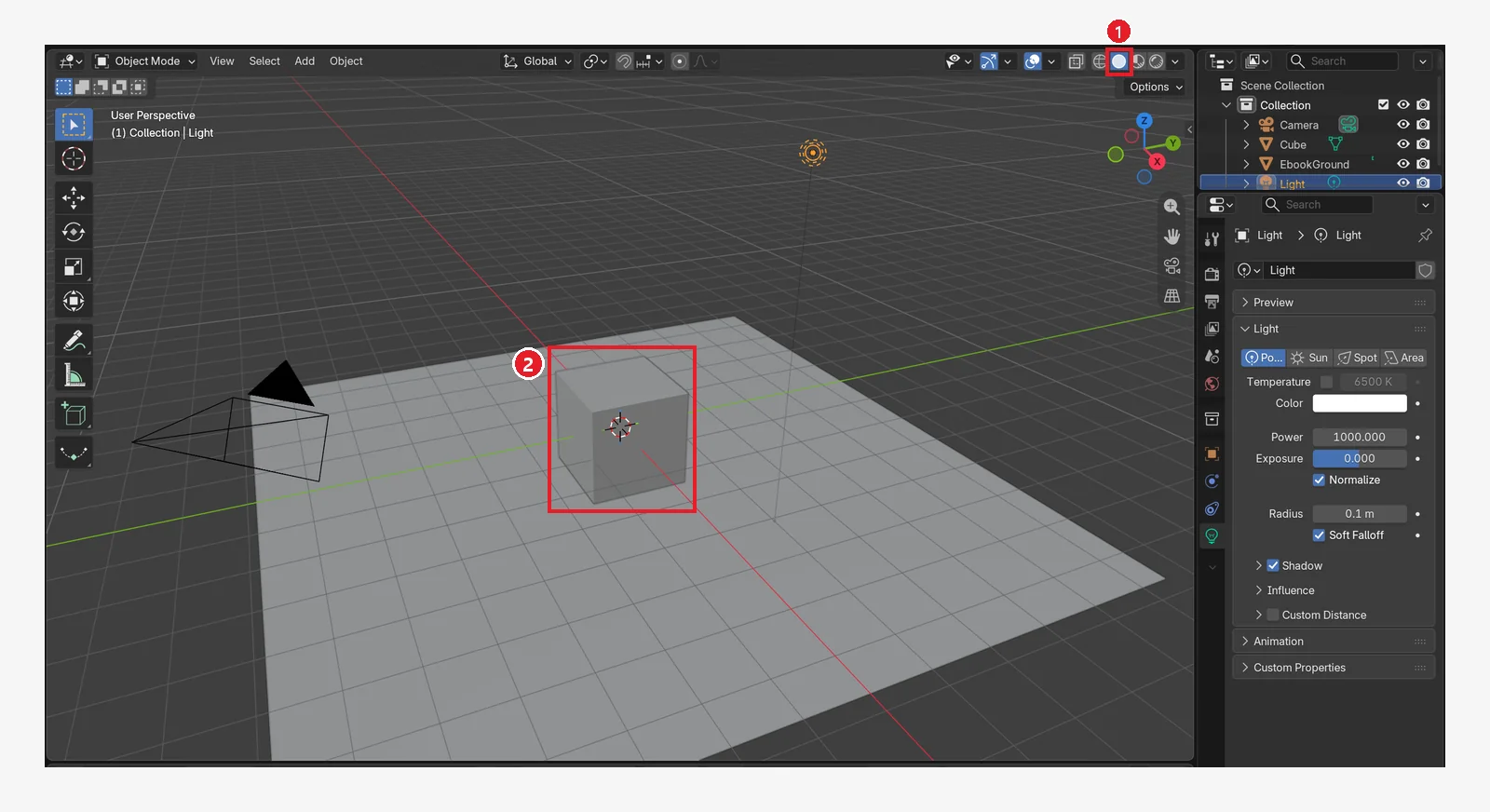 Figure 9-4. Solid view: ① the second button ② the cube looks bright but has no shadow. Solid view draws with a working light, regardless of light objects (Blender screenshot)
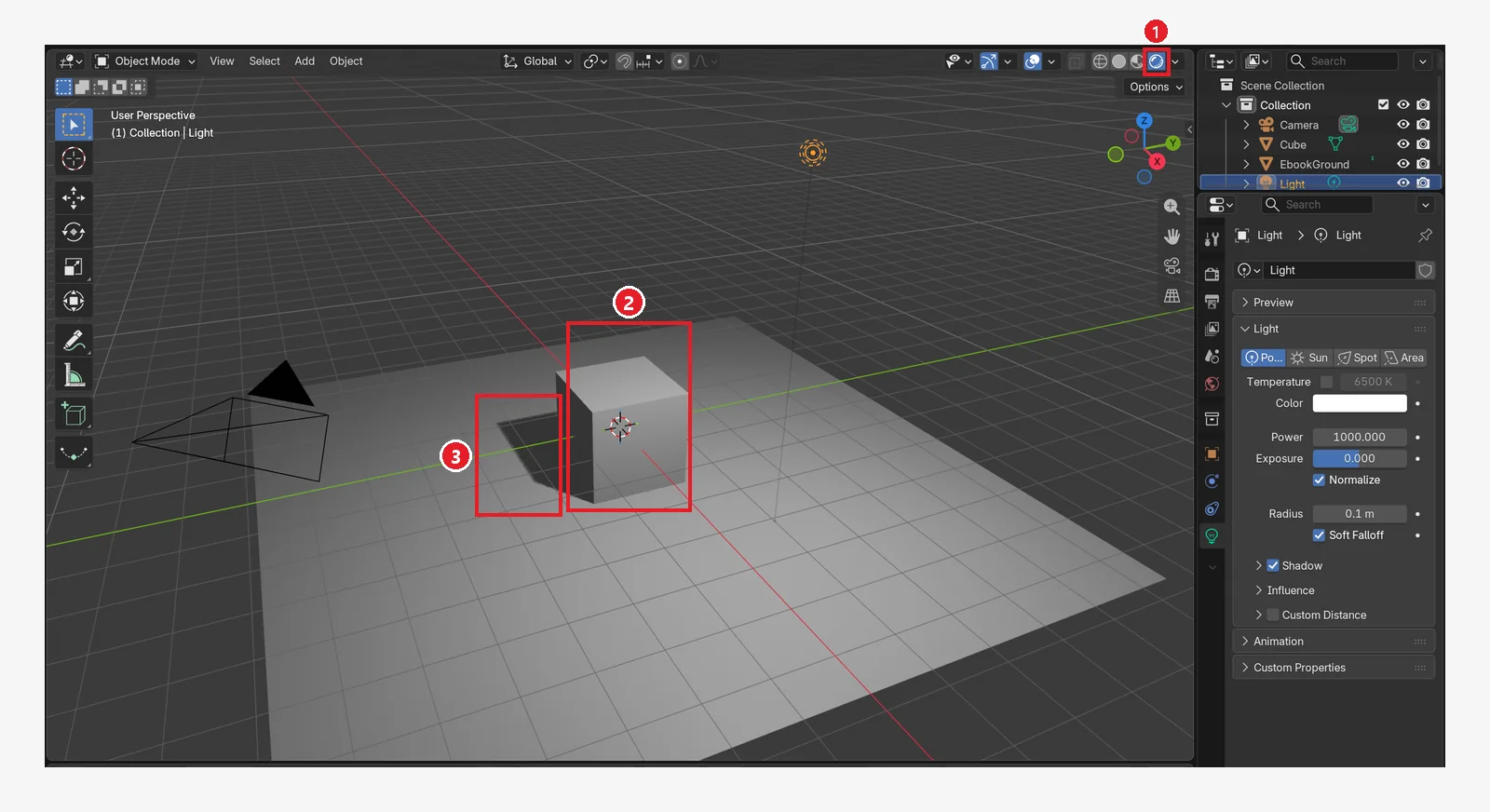 Figure 9-5. ① After pressing the fourth button (Rendered): ② the bright and dark faces of the cube depend on where the light is ③ a shadow appears on the floor (Blender screenshot)
Rendered view can be heavy. Turn it on only while you adjust lights, and go back to Solid view when you model.
A grainy screen at first is normal. Rendered view calculates the light in many passes and builds the image up bit by bit. Right after you change a value, shadows and reflections show grain (noise), and after a few seconds most of it smooths out.
Large, soft shadows (Figures 9-11 and 9-15) keep a little grain at their edges even if you wait. They become smooth in the final render (chapter 11).
3. Try changing three values
3-1. Power: strength (before → after)
Starting point: Continue from the Rendered view in the previous section. Select the light (Light) and open the light tab (section 1).
Follow along: Enter 200 in the Power field (Figure 9-6), then enter 3000 (Figure 9-7).
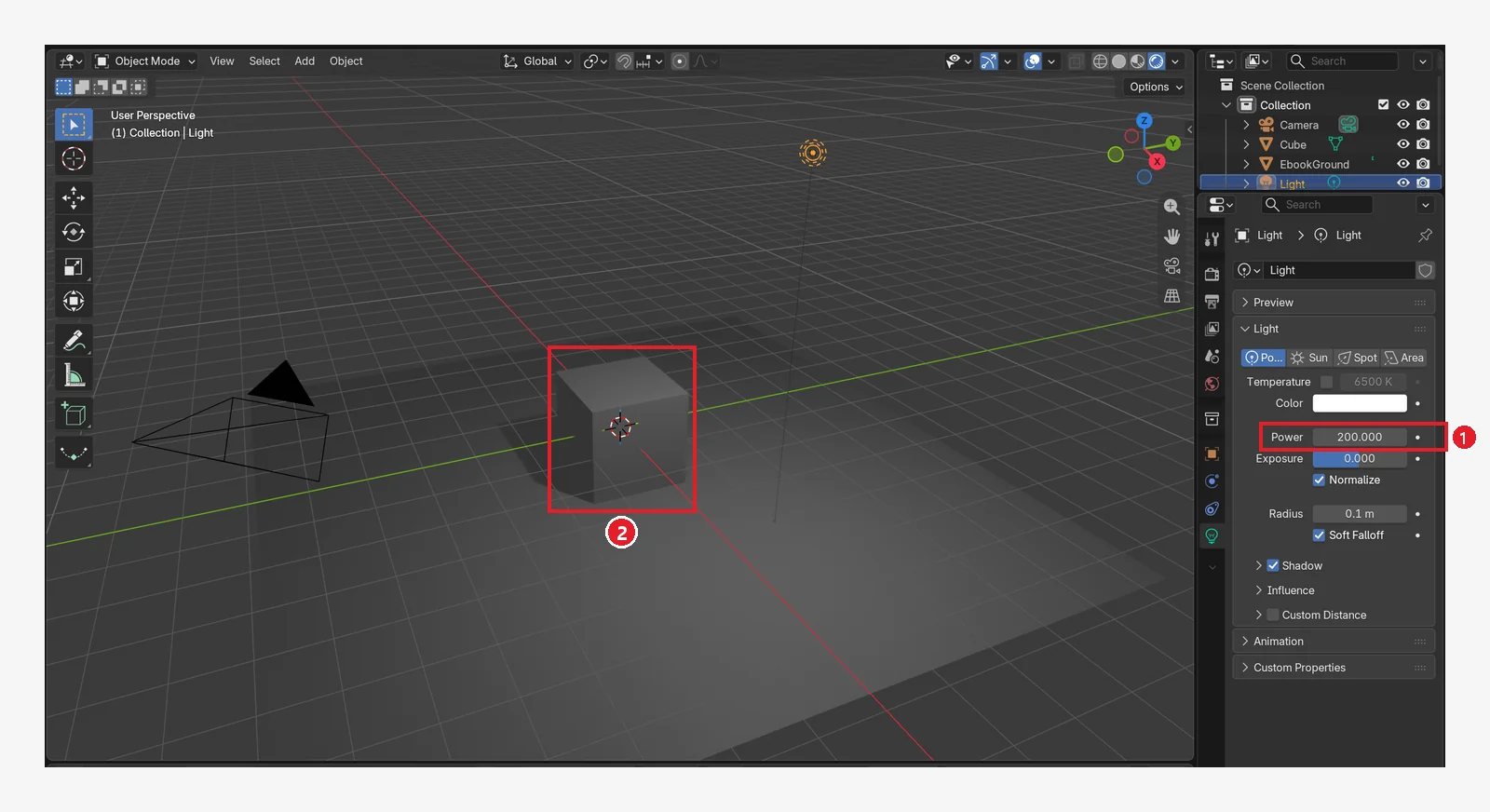 Figure 9-6. ① After lowering Power to 200 W (default 1000 W, compare with Figure 9-5): ② the cube and floor got darker (Blender screenshot)
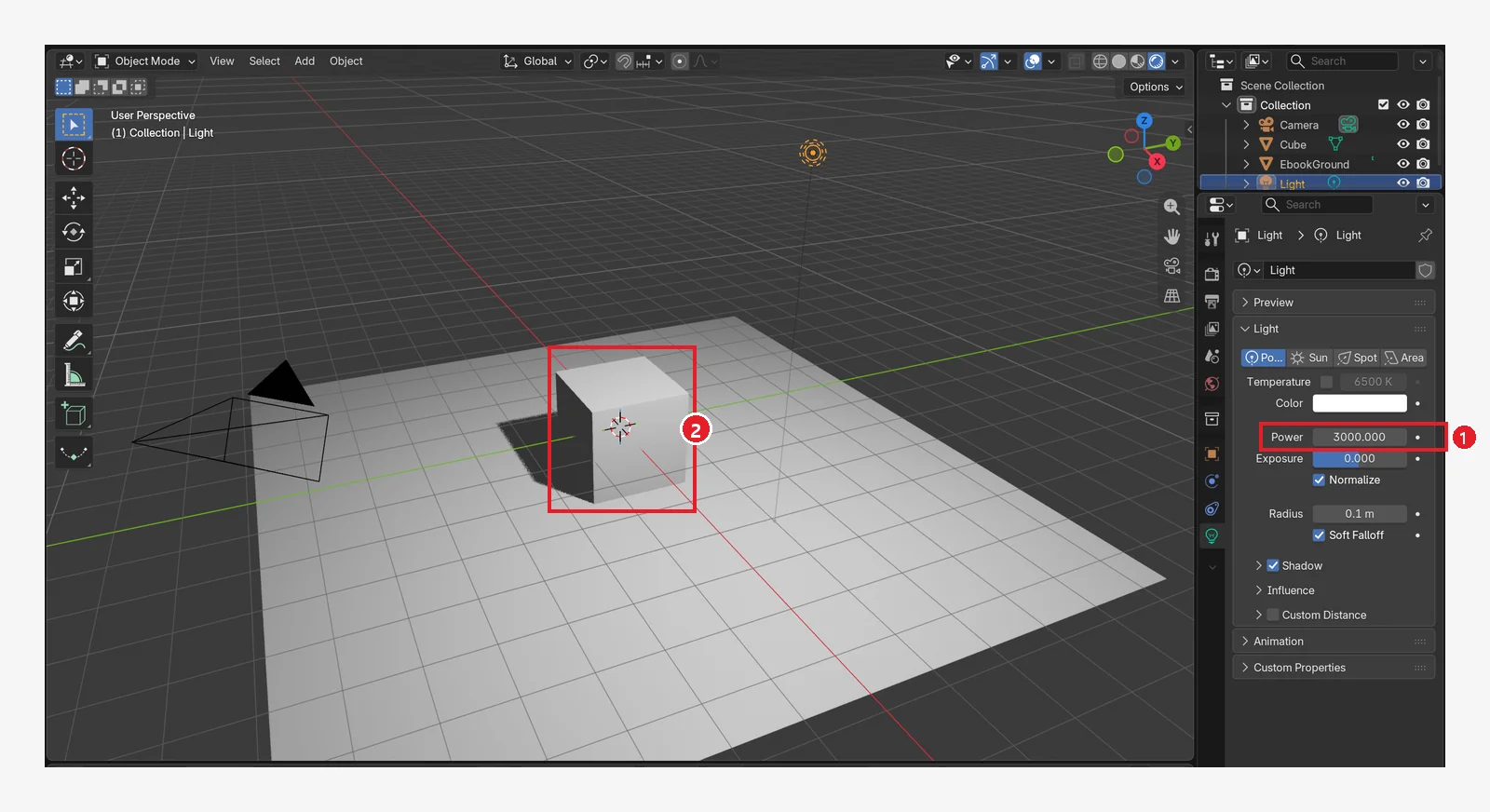 Figure 9-7. ① After raising Power to 3000 W: ② the top of the cube and the floor are so bright they wash out to white (Blender screenshot)
As the manual explains, the light of a point light gets weaker with distance. If you move the light farther away, the same Power looks darker. When the scene is too dark or too bright, change Power first, then check where the light is.
3-2. Color: the color of the light
Starting point: Undo what you changed in the previous section: set Power back to 1000.
Follow along: Click the Color field and choose orange (Figure 9-8).
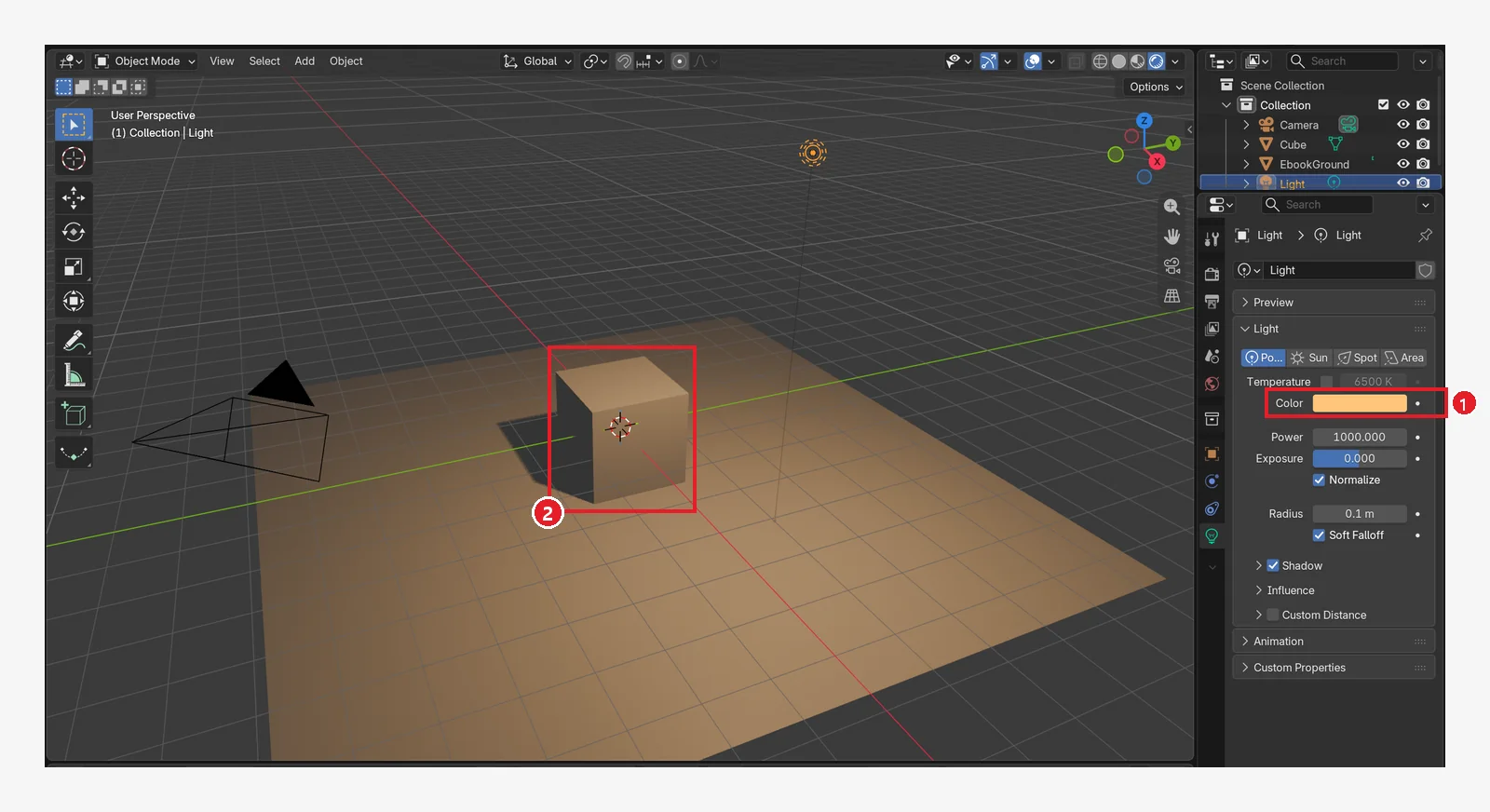 Figure 9-8. ① After changing Color to orange: ② both the cube and the floor turn orange like evening sunlight. The material color (chapter 8) is unchanged; only the light shining on them changed (Blender screenshot)
Above Color there is also a Temperature field (color temperature, in kelvin). As the manual explains, turning it on lets you pick a natural light color by number. The lower the number, the more orange (candles, light bulbs); the higher, the bluer (an overcast sky).
Follow along: Set Color back to white, then turn on the Temperature checkbox and enter 3000 (Figure 9-9).
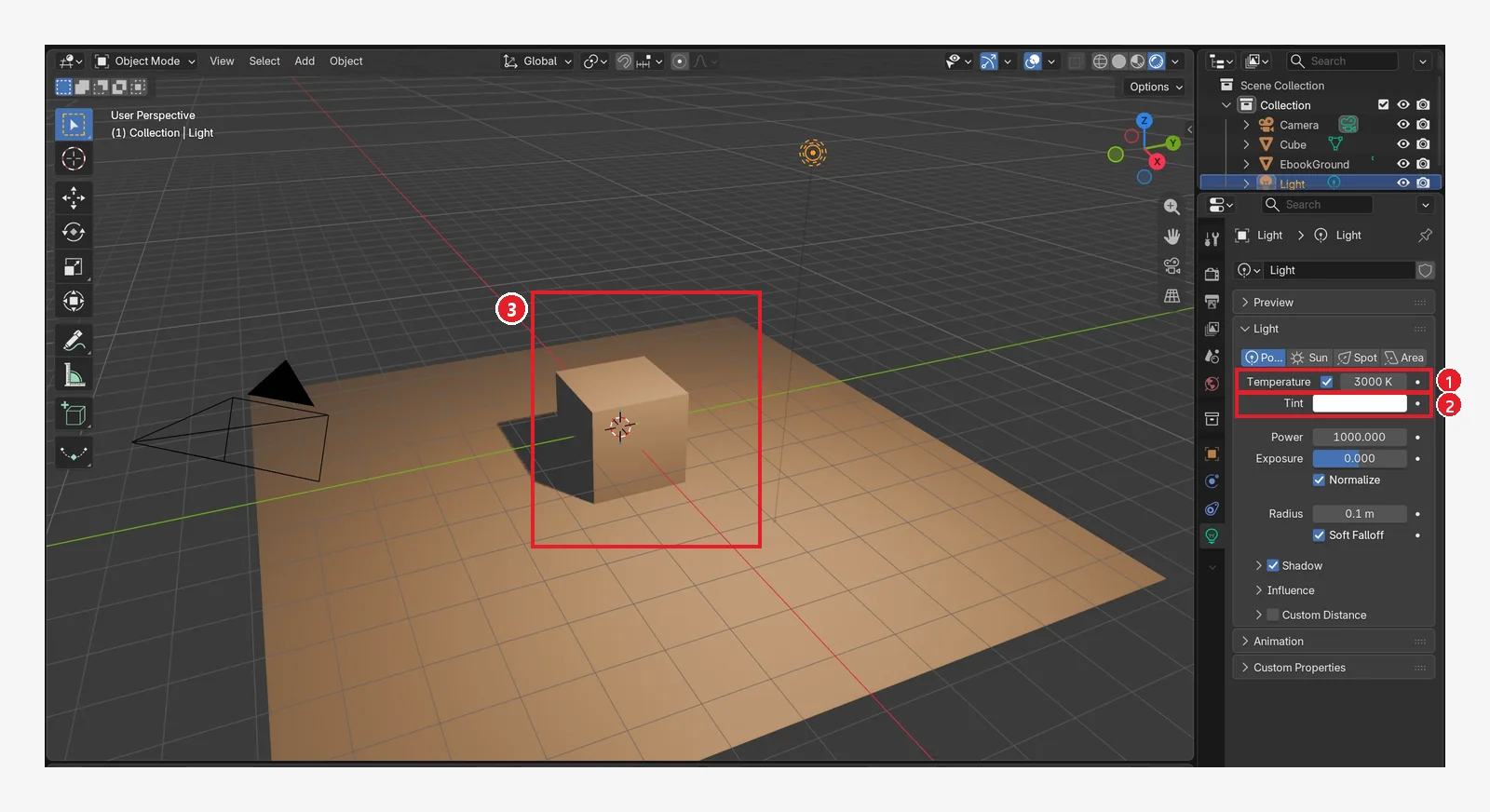 Figure 9-9. ① After turning on the Temperature checkbox and setting 3000 K: ② the name of the field below changes from Color to Tint. Tint is a color laid over the temperature light ③ the cube and floor take on a warm light-bulb color (Blender screenshot)
3-3. Radius: how soft the shadow is (before → after)
Starting point: Undo what you changed in the previous section: turn off the Temperature checkbox. Check that Color (Tint) is white.
Follow along: Enter 2 in the Radius field (Figure 9-11).
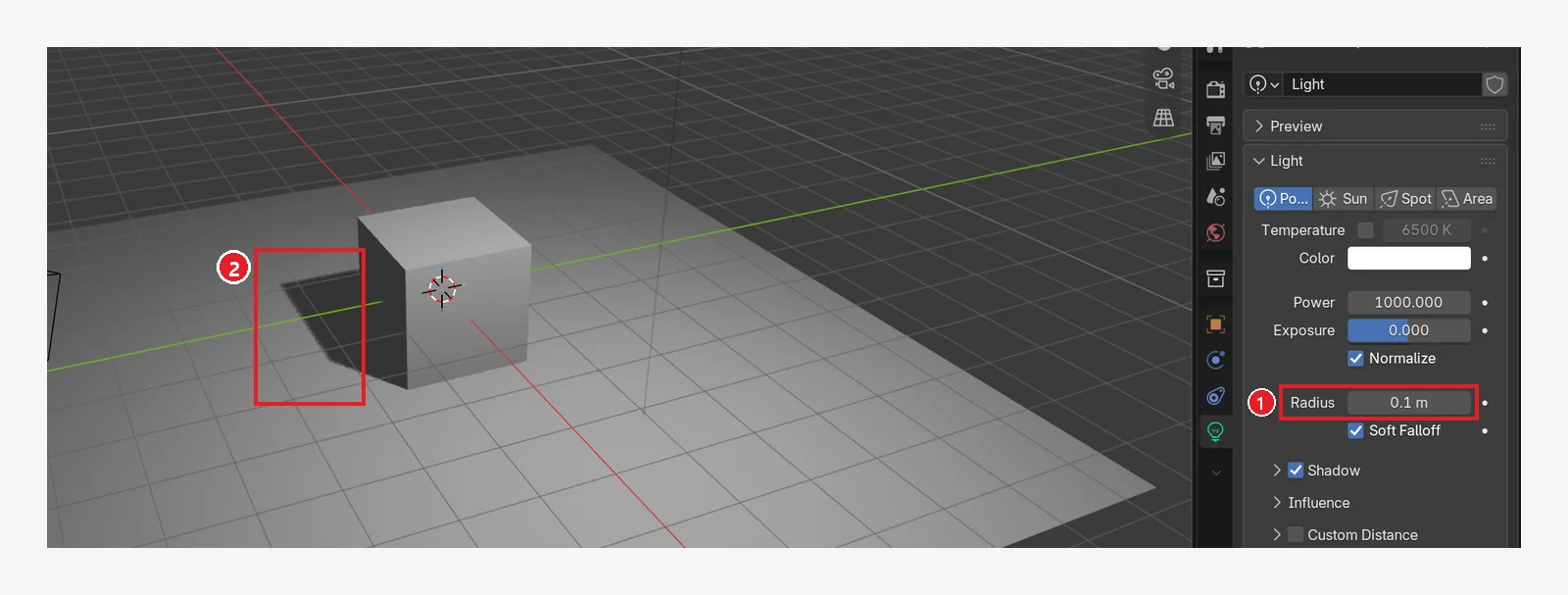 Figure 9-10. ① Radius 0.1 m (default): ② the shadow edge is sharp (Blender screenshot)
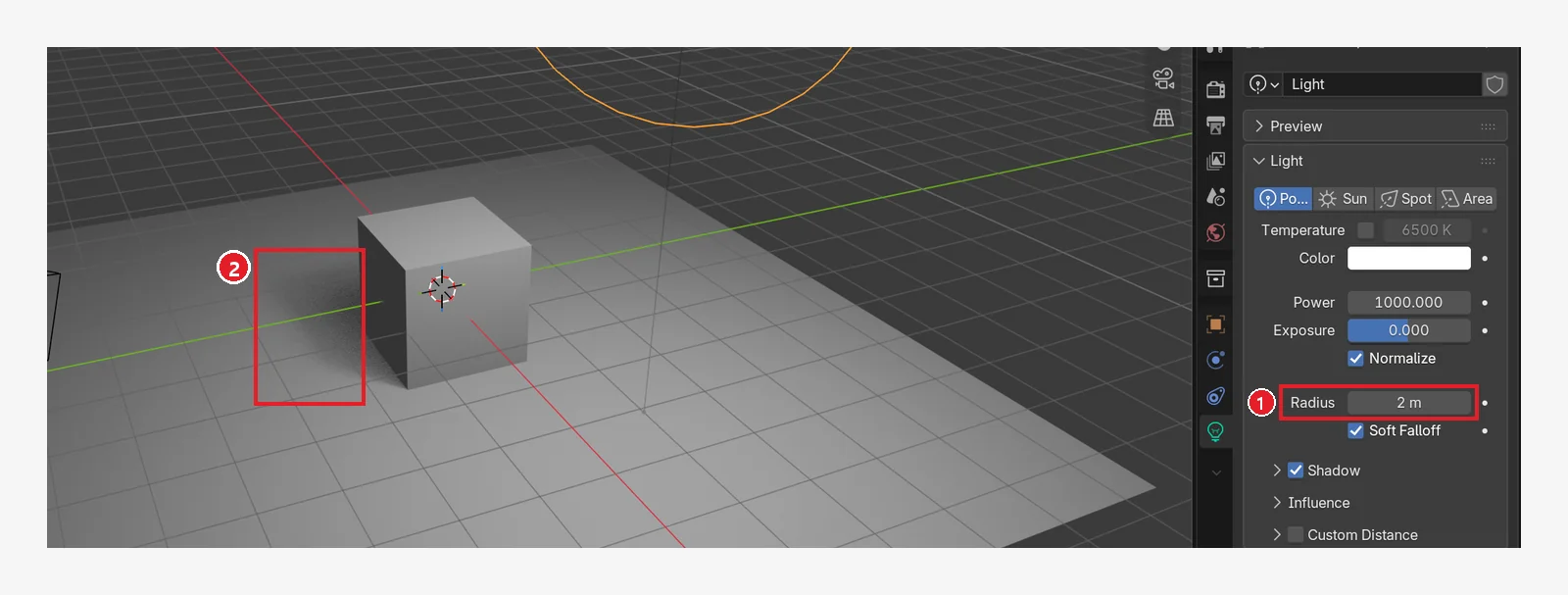 Figure 9-11. ① After enlarging Radius to 2 m (compare with Figure 9-10): ② the shadow edge spreads softly. Some grain remains on the soft edge, which is normal in the viewport preview, as section 2 explained (Blender screenshot)
From the manual: the bigger the circle the light comes from, the softer the shadows and highlights. Keep it small for sharp shadows like midday sunlight, and make it big for soft shadows like a cloudy day or light from a window.
4. Four types of light
Change the type with the buttons at ① in Figure 9-2. Compare them by changing only the type while the light stays in the same place.
Starting point: Undo what you changed in the previous section: set Radius back to 0.1.
4-1. Point: a light bulb
This is the default light you have seen so far. Light goes out in all directions from one point. Use it for a bulb in a room, a candle, or a campfire.
4-2. Sun: sunlight
Follow along: Press Sun. The strength field keeps the Point value of 1000, so the screen turns white. Enter 3 for Strength (Figure 9-12).
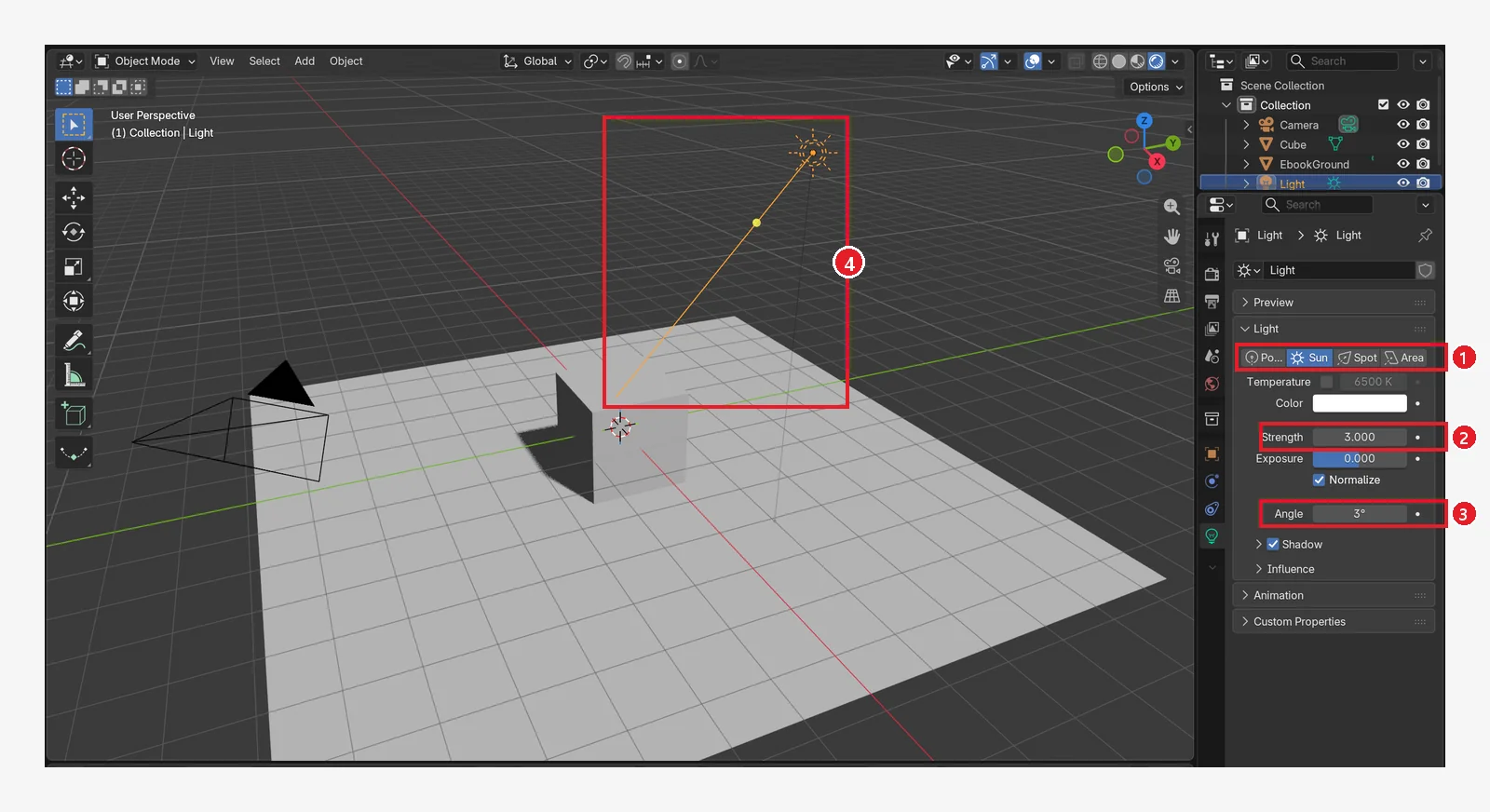 Figure 9-12. ① After choosing Sun: ② the strength field is renamed Strength (3 here) ③ Angle (the apparent size of the sun, 3° here) ④ the line extending from the light object is the direction of the sunlight. The whole floor is evenly lit and the shadow falls straight in one direction (Blender screenshot)
For Sun, direction matters, not position. Rotate it with
Rto change the direction. The strength unit is different (W/m² for Sun, W for the others), so entering the Point value of 1000 as it is turns the screen white. Start with Strength 1 to 5.
4-3. Spot: a stage light
Follow along: Press Spot and enter 2000 for Power. The 3 you entered for Sun is still there, so if you don't change it, the scene looks very dark. The image shows the light rotated toward the cube with R (how to rotate it is in section 7).
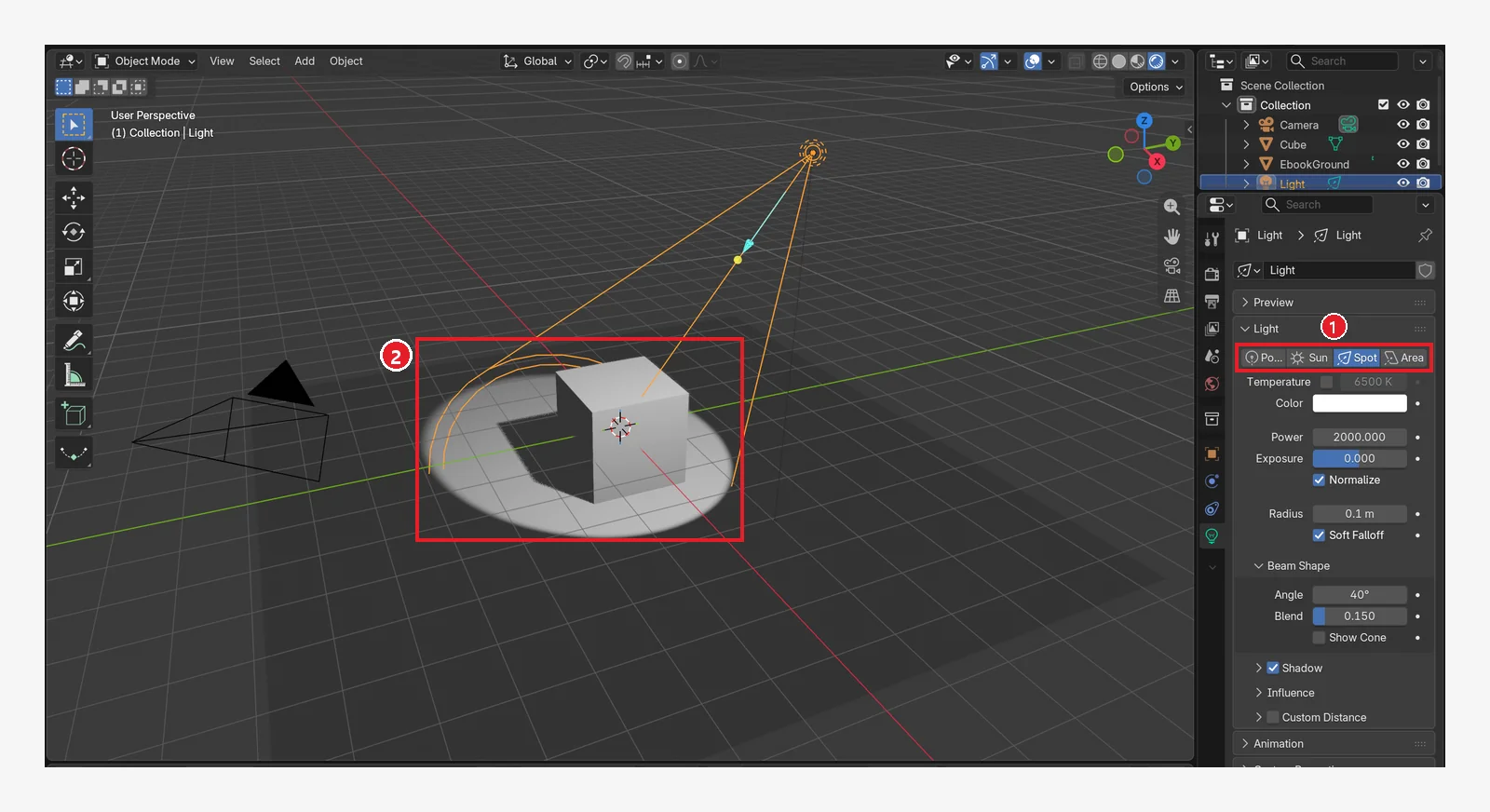 Figure 9-13. ① After choosing Spot: ② light goes out in a cone shape and makes a round lit spot on the floor. The image shows the light rotated toward the cube (Power 2000 W) (Blender screenshot)
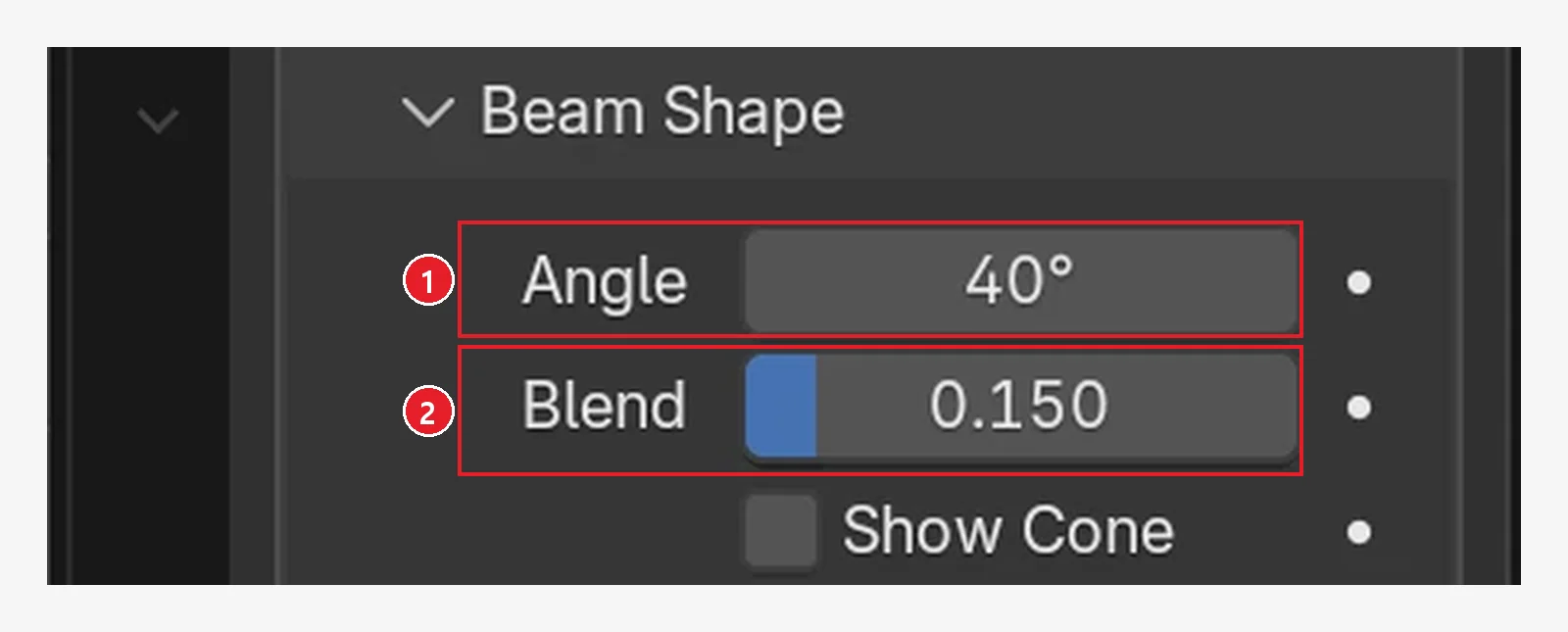 Figure 9-14. Beam Shape, only for Spot: ① Angle (how wide the cone spreads, 40°) ② Blend (how softly the edge fades, 0.150) (Blender screenshot)
From the manual: Angle goes from 1° (a very narrow beam) to 180° (a very wide beam), and Blend goes from 0 (a razor-sharp edge) to 1 (a very blurry edge). Blend softens only the edge of the lit spot; Radius decides how soft the objects' shadows are.
4-4. Area: a window or a light panel
Follow along: Press Area and enter 800 for Power. Change Shape to Rectangle and enter 3 for Size X and 0.1 for Y (Figure 9-15).
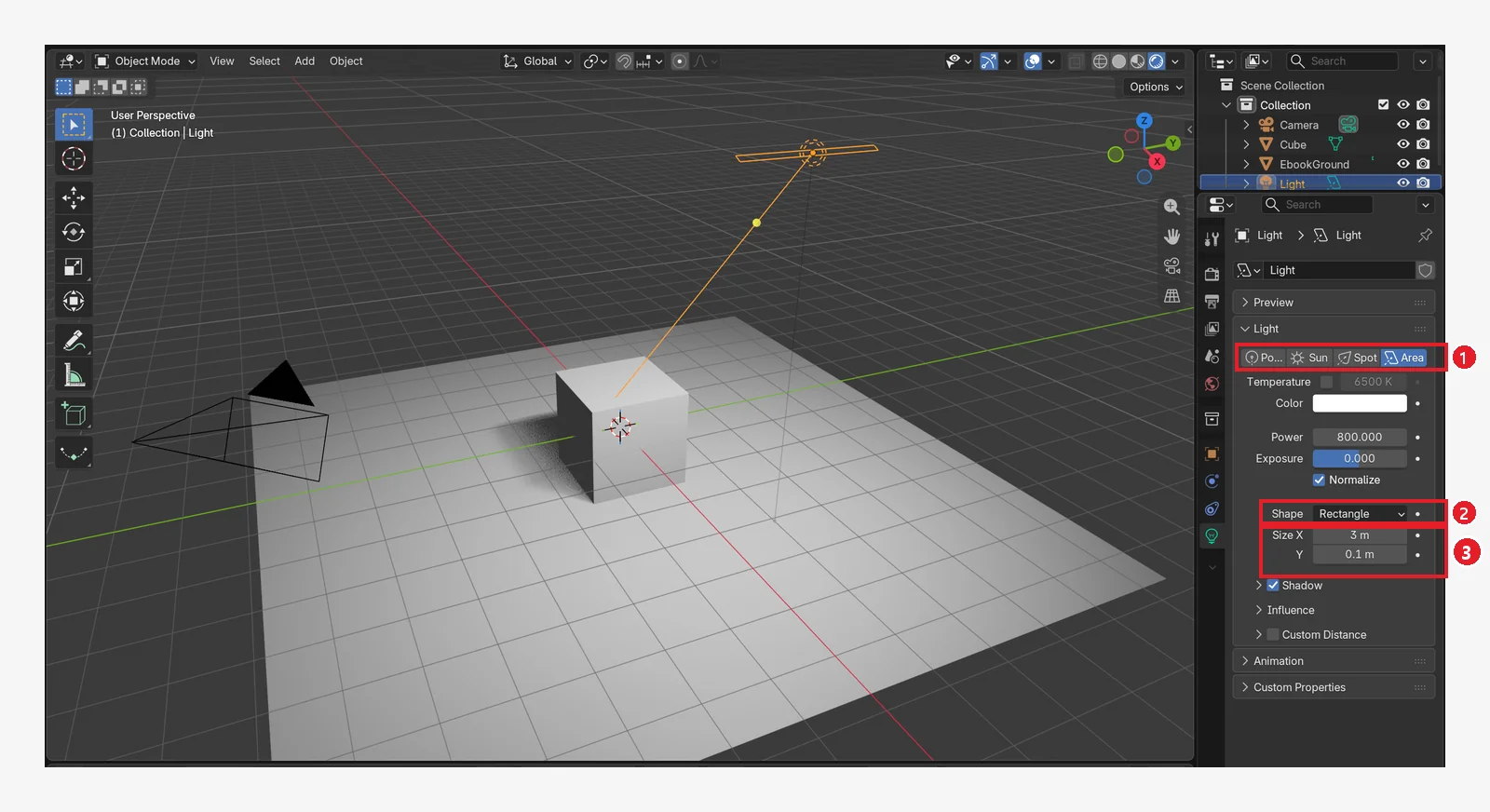 Figure 9-15. ① After choosing Area: ② Shape (Square, Rectangle, Disk, Ellipse) ③ size. The image uses Rectangle with Size X 3 m · Y 0.1 m, set up like a long fluorescent tube (Power 800 W) (Blender screenshot)
The manual describes Area as "light that comes from a surface," such as a TV screen, office fluorescent lights, a window, or an overcast sky. For light coming in through a window, a Rectangle matched to the window size looks natural.
| Type | In plain words | Strength field | Use it for |
|---|---|---|---|
| Point | A light bulb | Power (W) | A bulb in a room, a candle |
| Sun | Sunlight | Strength | Outdoors at midday; only direction matters |
| Spot | A stage light | Power (W) | Lighting one spot, a flashlight |
| Area | A light panel or a window | Power (W) | Soft indoor light, a photo studio |
5. When there is no light: the World background light (before → after)
Starting point: Undo what you changed in the previous section: change the light type to Point and set Power back to 1000. Point sends light in all directions, so it doesn't matter that the light is rotated.
Follow along: Enter 0 for Power to turn the light off (Figure 9-16). Once you have checked it, set Power back to 1000. Then click the cube, open the World tab in the Properties editor (Figure 9-17), and enter 6 for Strength (Figure 9-18).
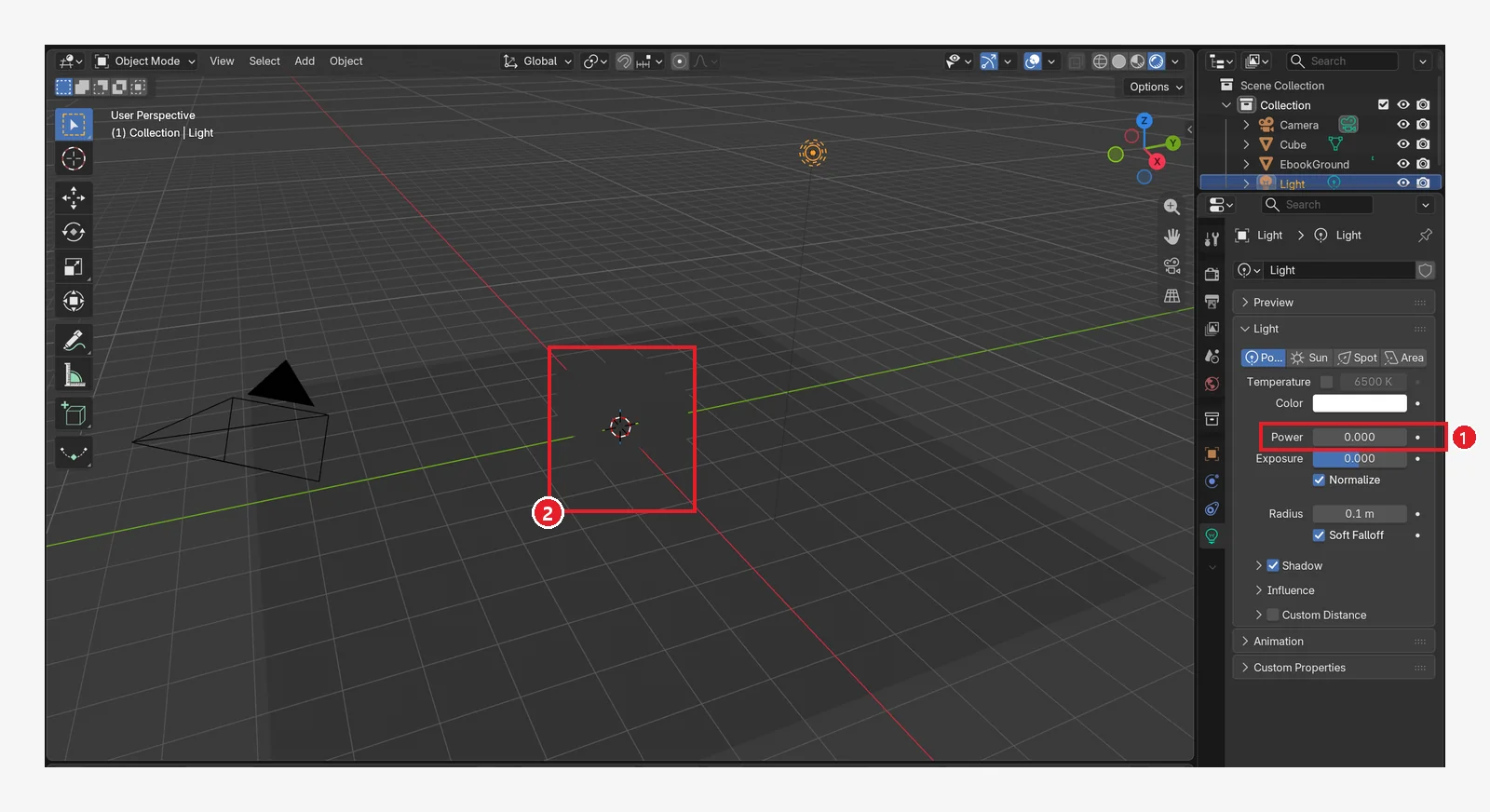 Figure 9-16. ① After turning off the light with Power 0: ② the scene is almost black. What you can still faintly see comes from the World (background) light (Blender screenshot)
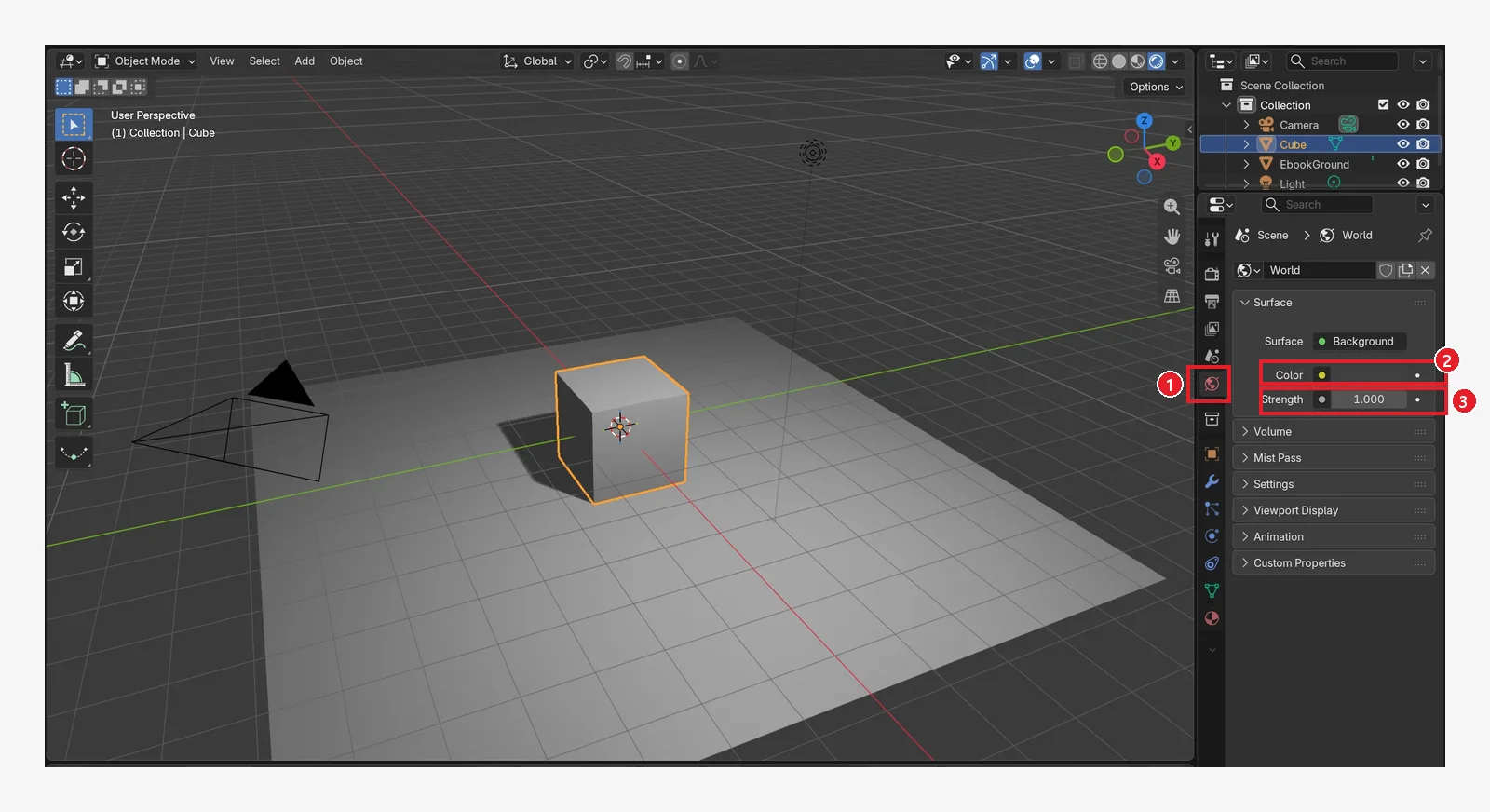 Figure 9-17. After restoring the light and selecting the cube: ① the red globe icon in the Properties editor is the World tab ② Color (the background color; the default is a very dark grey) ③ Strength 1.000 (Blender screenshot)
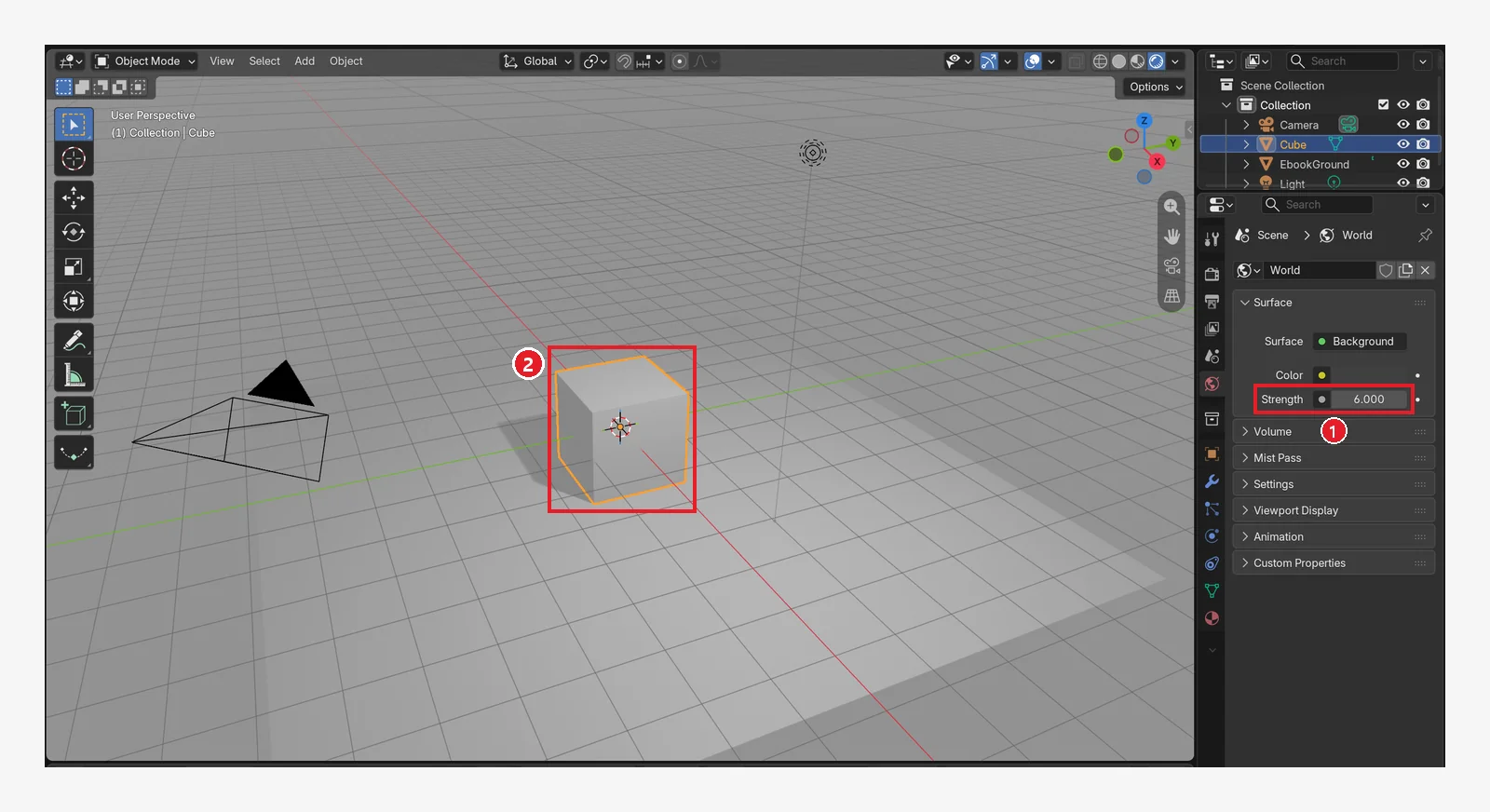 Figure 9-18. ① After raising World Strength to 6 (compare with Figure 9-17): ② the background got brighter and so did the shadowed part of the cube. This is the effect of sky light shining from every direction (Blender screenshot)
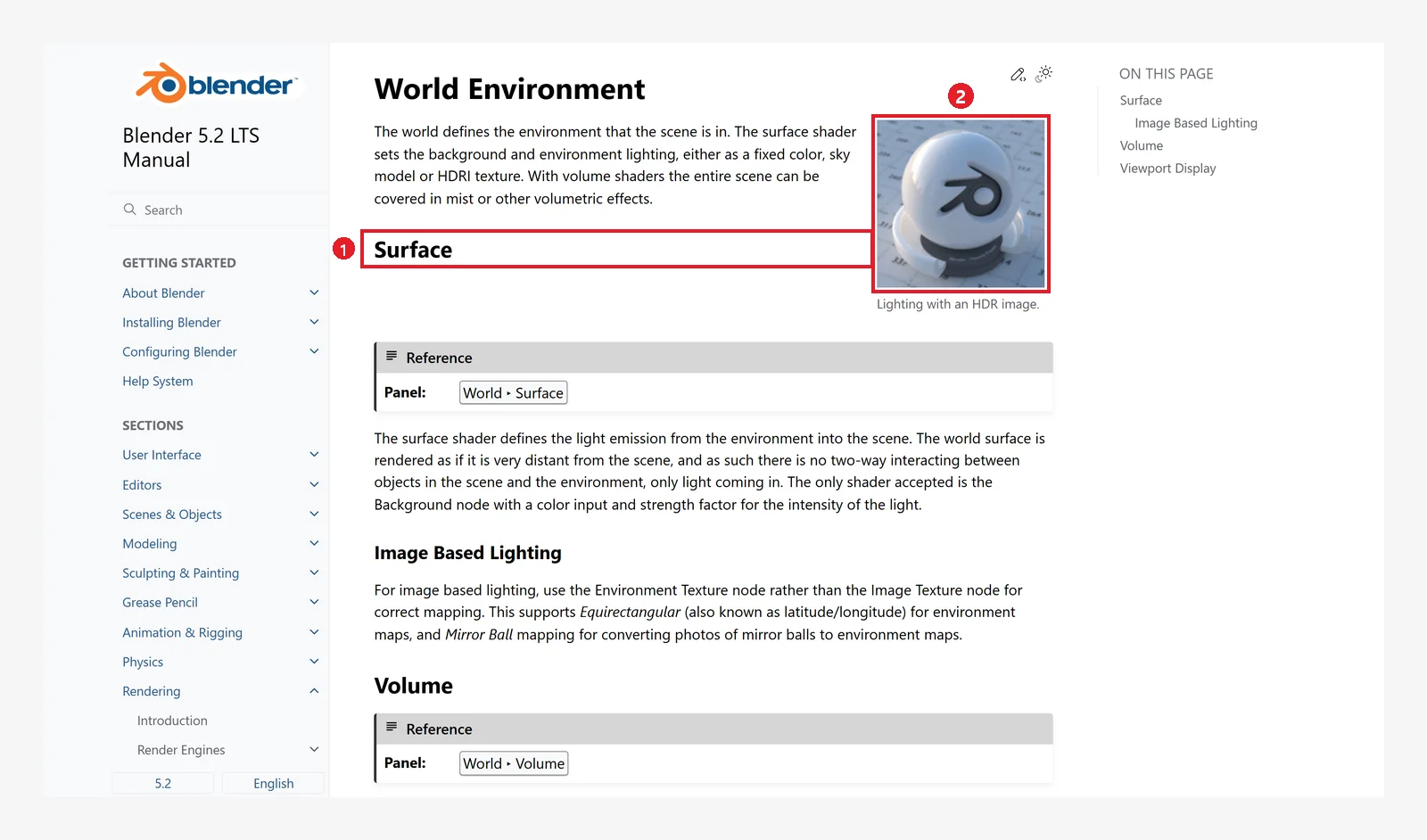 Figure 9-19. The official manual, World Environment: ① Surface — sets the background and the surrounding light ② an example lit by an HDR photo (Blender 5.2 manual screenshot, CC BY-SA 4.0, numbers added)
6. Add one fill light (before → after)
With only one light, the shadow side easily looks too black. If you add one weak Area light opposite the light that was there from the start (the key light), the shadow side gets a little brighter. In photography this is called a "fill light."
Starting point: Undo what you changed in the previous section: set World Strength back to 1.
Follow along:
- In Object Mode, add a light with
Shift+A→ Light → Area (chapter 4). The new light appears at the 3D cursor, which is the center of the cube. - With the new light selected, use the sidebar (
N) Item tab to move it above and opposite the key light, and rotate it toward the cube. For example, enter-4,-1,3for Location and X54, Y0, Z-76for Rotation. It doesn't have to be exactly where the light in Figure 9-20 is. It is fine as long as the line extending from the light points at the cube. - In the light tab, enter
300for Power and4for Size. This keeps it weaker than the key light (1000 W).
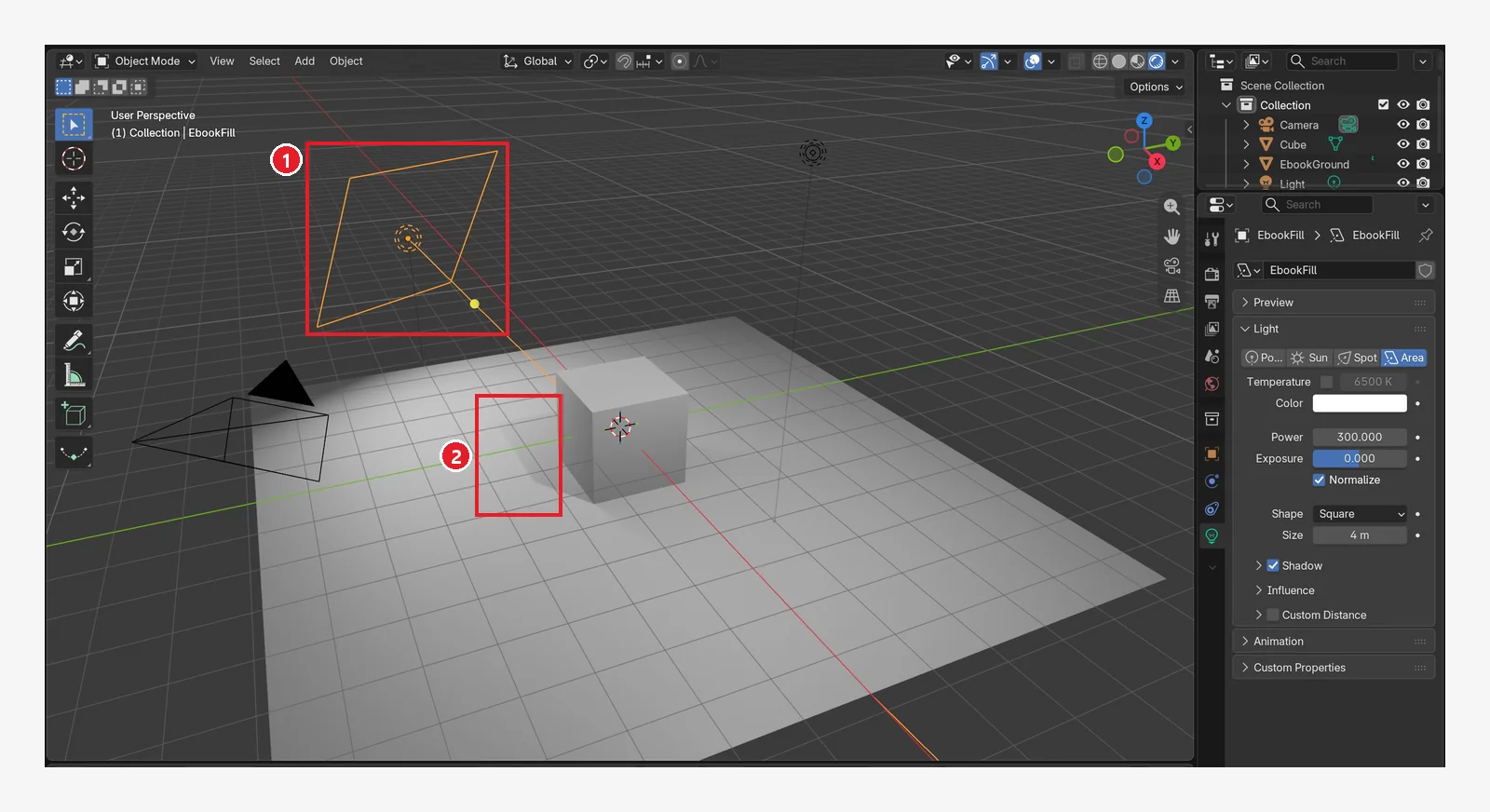 Figure 9-20. ① The fill Area light added at the top left, opposite the key light (300 W, Size 4 m; named EbookFill in the image) ② the shadow side looks less black (compare with Figure 9-5) (Blender screenshot)
The manual page below describes each light type.
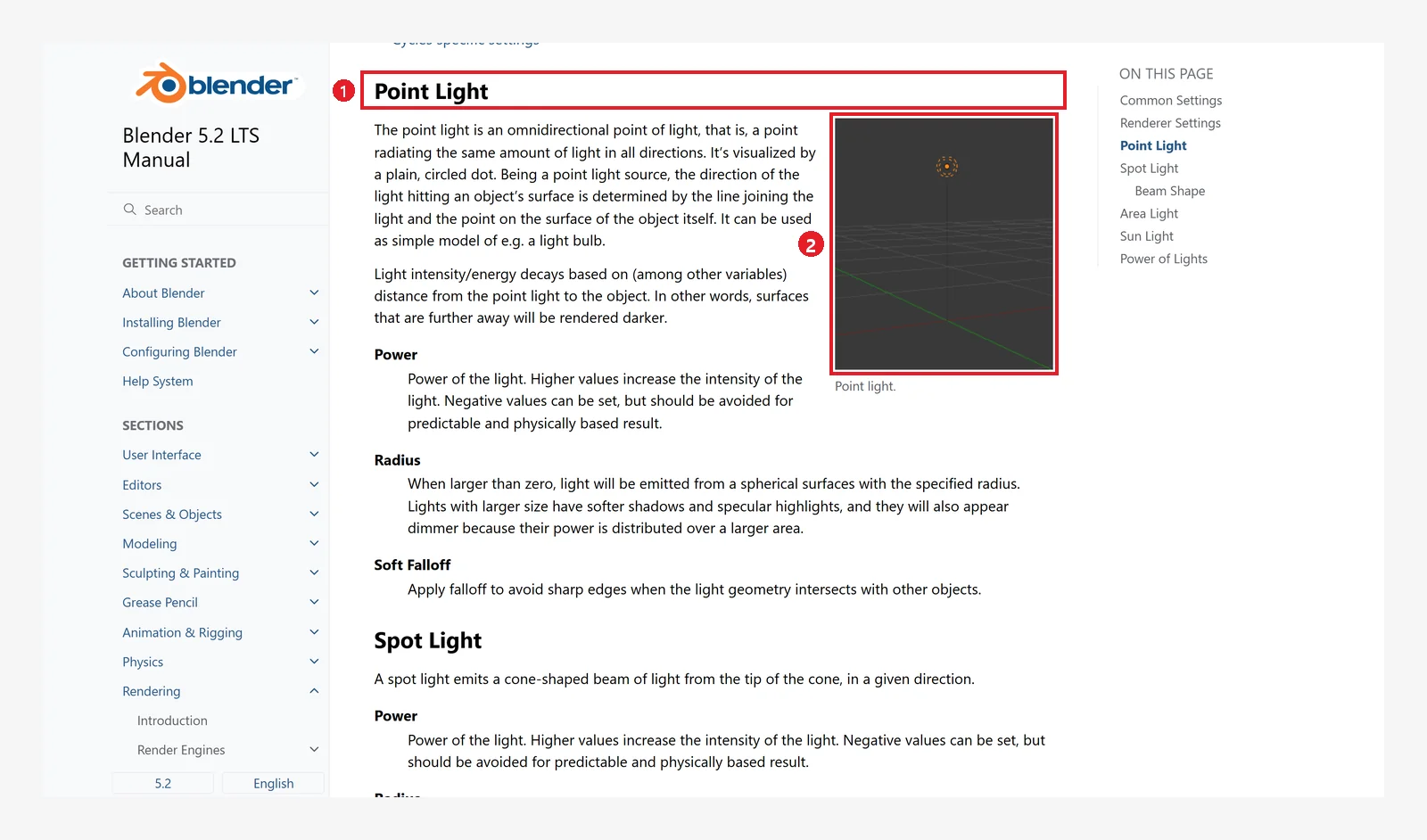 Figure 9-21. The official manual: ① the Point Light description ② an image of how a point light looks in the viewport. Each light type has a description and an image like this (Blender 5.2 manual screenshot, CC BY-SA 4.0, numbers added)
7. Tips for moving and rotating lights
A light is an object, so the methods from chapter 3 work as they are. Still, a few things are confusing at first.
- If a light is hard to select, select it in the Outliner. The small circle in the viewport is hard to click. Clicking the Light row in the Outliner always works (Figure 9-1 ②).
- Moving: Select the light and press
G. To move it only up and down, pressG→Z. Point, Spot, and Area get brighter as they get closer to an object. - Rotating: For Sun, Spot, and Area, select the light and press
Rto change its direction. The line shown in the viewport (Figure 9-12 ④, Figure 9-13 ②) is the direction the light points. Point sends light in all directions, so rotating it changes nothing. - Exact values: You can also type Location and Rotation as numbers in the sidebar (
N) or the Object tab (chapter 3, section 5). - Suggested order of work: ① roughly move and rotate the light in Solid view → ② switch to Rendered view and adjust Power and color → ③ go back to Solid view and do other work.
Three-point lighting: a layout that looks like a photo
This layout is common in photography. You don't need to do all of it from the start; when the shadows are too black, try adding one light at a time.
| Name | Position | Strength | Role |
|---|---|---|---|
| Key light (Key) | Above, to one side in front of the object | Strongest | Creates the shape and the shadows |
| Fill light (Fill) | Opposite the key light | About 1/3 of the key light | Brightens the shadow side a little (section 6) |
| Rim light (Rim) | Above and behind the object | Medium | Separates the outline from the background |
(The strength ratios are examples to use as a starting point. Adjust them while watching the screen.)
8. What to check when the lighting looks wrong
- Check that you are in Rendered view. Light effects don't show in Solid view (Figure 9-4).
- Check that the light is on. In the Outliner, check that the light's eye icon is open and that Power (Strength) is not 0.
- Check that the strength suits the light type. Start Sun at Strength 1 to 5, and Point, Spot, and Area at hundreds to thousands of W.
- Check that the light points at the object. Sun, Spot, and Area have a direction. Select the light and try rotating it with
R. - Check that it is not too far away. Point, Spot, and Area get darker with distance. Try moving it closer with
G. - Check that the background is not too bright or too dark. Check Strength in the World tab.
9. Exercises
Starting point: Continue from the scene in the previous section (floor plane, key light, and the fill light from section 6).
- Change the default light to Sun, and at Strength 3, rotate it with
Rto change the shadow direction. - Change it to Spot, set Angle to 20° and then 80°, and compare the size of the lit spot on the floor.
- Set the Point light's Radius to 0.1 m and then 2 m, and compare the shadow edges.
- Make the key light orange (evening sunlight) and the fill light blue (sky light) to create an evening mood.
- When you finish practicing, set the key light back to Point, 1000 W, white (Temperature checkbox off), and Radius 0.1 m. Select the fill light and delete it with
Delete. Leave World Strength at 1. Then go back to Solid view. You will use the floor plane in chapters 10 and 11 too, so save withCtrl+S(chapter 5).
10. Common mistakes and fixes
When light effects don't show or the brightness looks wrong, check in the order of section 8. For other symptoms, look in the table below.
| Symptom | Cause | Fix |
|---|---|---|
| I entered a real bulb's wattage but the brightness is different | Blender's W is not electrical consumption | Adjust the value while watching the screen |
| The screen turned white after switching to Sun | The strength unit is different (W/m² for Sun) | Lower Strength to 1–5 (section 8, item 3) |
| Moving the Sun doesn't change the brightness | For Sun, only direction matters | Rotate it with R |
| The shadow side is too black | There is only one light | Add a weak fill light, or raise World Strength a little |
| The shadows are too hard | Radius is small | Increase Radius (Size for Area) |
| The screen got slow | Rendered view is heavy | Switch to Solid view when you finish adjusting |
| The light tab doesn't show | An object other than the light is selected | Click the light to select it, then the green bulb tab |
In one line
Select the light and open the green bulb tab → Power for brightness, Color for color, Radius for shadow softness. The types are Point (bulb), Sun (sunlight), Spot (stage), and Area (window). Check in Rendered view. In the next chapter, chapter 10, you will frame the shot with a camera.
References
- Blender 5.2 Manual: Light Objects
- Blender 5.2 Manual: World Environment
- Blender 5.2 Manual: Viewport Shading
- Property names (Power, Strength, Beam Shape's Angle, Shape, and so on) and default values: based on Blender 5.2.1
- Image license: manual screenshots are CC BY-SA 4.0, with red numbers and outlines added. Blender program license: blender.org/about/license