Blender for complete beginners, chapter 10: The camera, framing a shot and camera view
The Blender camera for complete beginners. Learn camera view (numpad 0), how focal lengths compare, moving the camera and aligning it to your current view, resolution and aspect ratio, and the orthographic camera.
한국어English
ON THIS PAGE
- 01What you will learn in this chapter
- 021. Selecting the camera and opening its properties
- 032. Camera view: numpad `0` (before → after)
- 043. Changing the focal length (lens) (before → after)
- 054. Moving the camera
- 065. Resolution and aspect ratio
- 076. Other camera settings
- 087. Four tips for your first framing
- 098. What to check, in order, when the framing looks wrong
- 109. Practice
- 1110. Common mistakes and fixes
- 12Summary in one line
- 13References
Blender for complete beginners, chapter 10 · Based on: Blender 5.2 LTS (screenshots from 5.2.1, English UI, default keymap) All images are real screens. The red numbers and outlines were added for explanation. Some images have a floor plane under the cube.
What you will learn in this chapter
By the end of this chapter you will be able to do the following.
- Select the camera object and open the camera properties. (Section 1)
- Use camera view (numpad
0) to see what the picture will include. (Section 2) - Change the focal length (lens) to shoot wide or narrow. (Section 3)
- Move the camera, and align the camera to the view you are looking at now. (Section 4)
- Set the resolution and aspect ratio (landscape, portrait, square). (Section 5)
- Know settings like the orthographic camera, lens shift (Shift), and darkening the area outside the frame. (Section 6)
Before you start: the camera is a "photo camera." The view you look through in the 3D Viewport (chapter 2) is your working eye. The final picture (the render) is taken the way the camera object sees it. No matter how much you turn your working eye, the render does not change. It changes only when you move the camera.
Starting file and floor plane: Open the file you saved at the end of chapter 9 and keep using its floor plane. If you do not have that file, you can start from the default cube scene in a new file (File ‣ New ‣ General). The steps are the same with or without the floor plane.
1. Selecting the camera and opening its properties
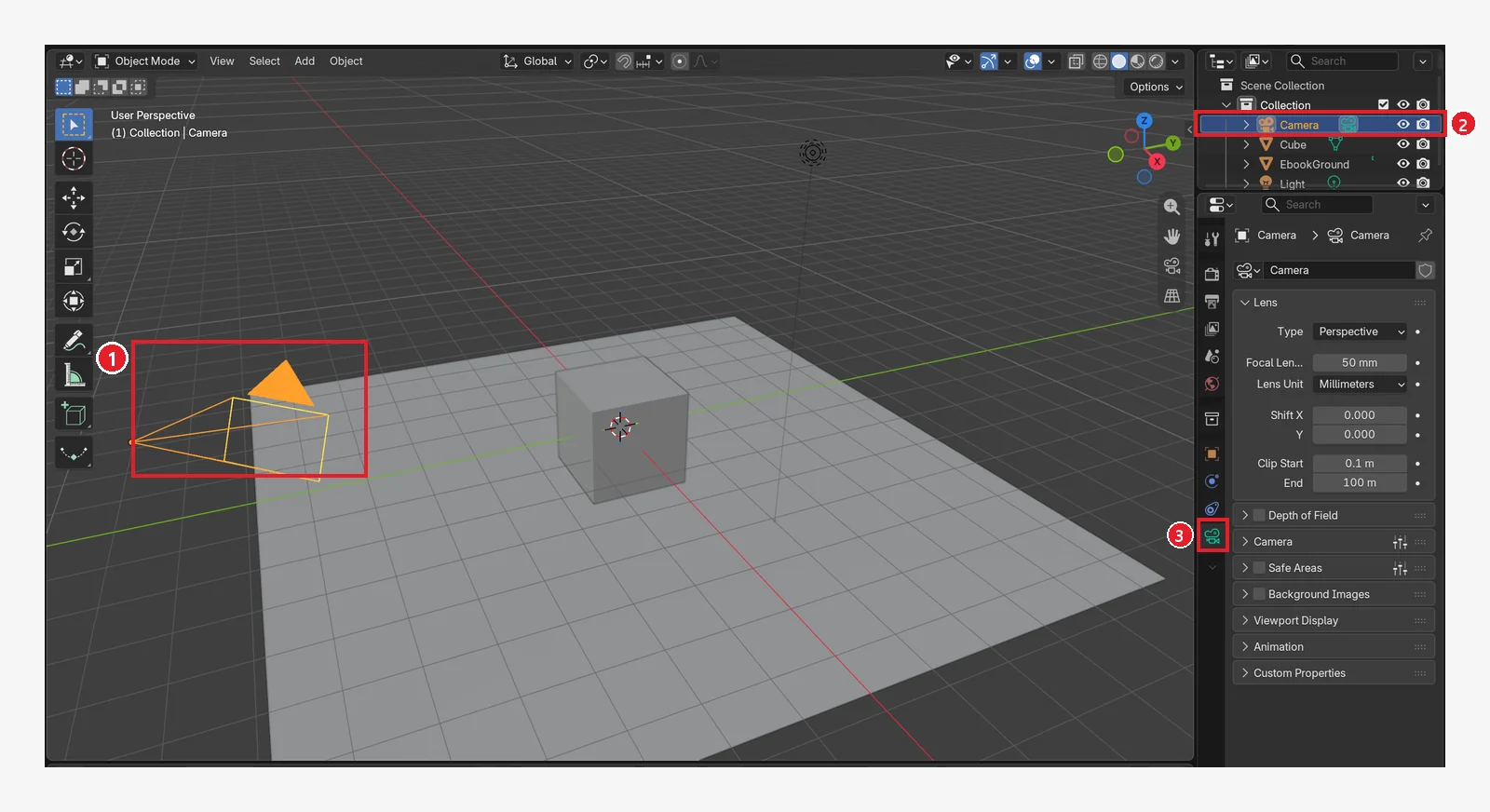 Figure 10-1. Select the camera by ① clicking the camera (the pyramid shape) in the viewport or ② clicking Camera in the Outliner. When it is selected, it gets an orange outline ③ the green camera icon near the bottom of the Properties Editor is the camera (Object Data) tab (Blender screenshot)
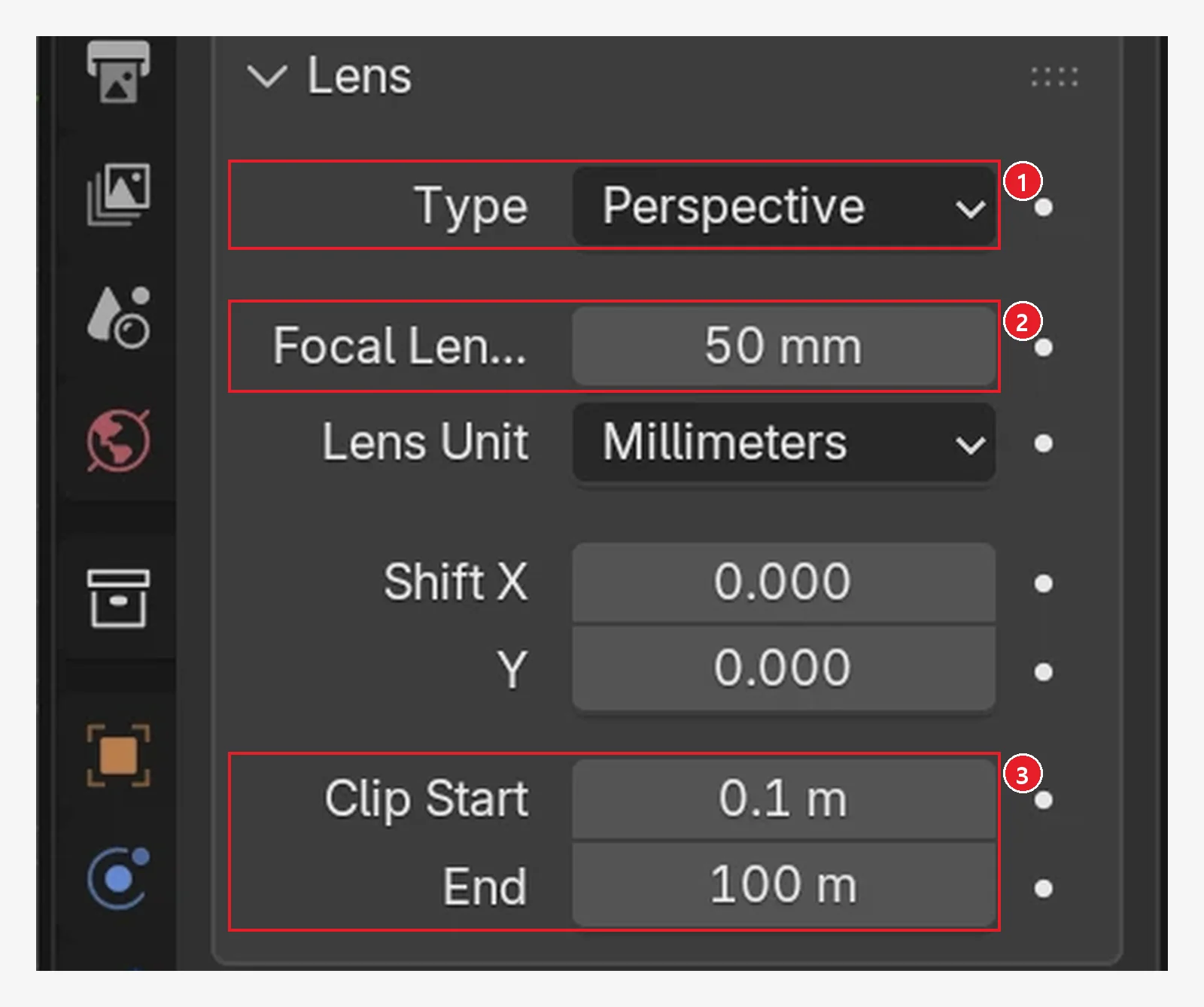 Figure 10-2. The Lens section of the camera tab: ① Type (Perspective / Orthographic / Panoramic) ② Focal Length (default 50 mm) ③ Clip Start and End (only things within this distance are visible, default 0.1 m to 100 m) (Blender screenshot)
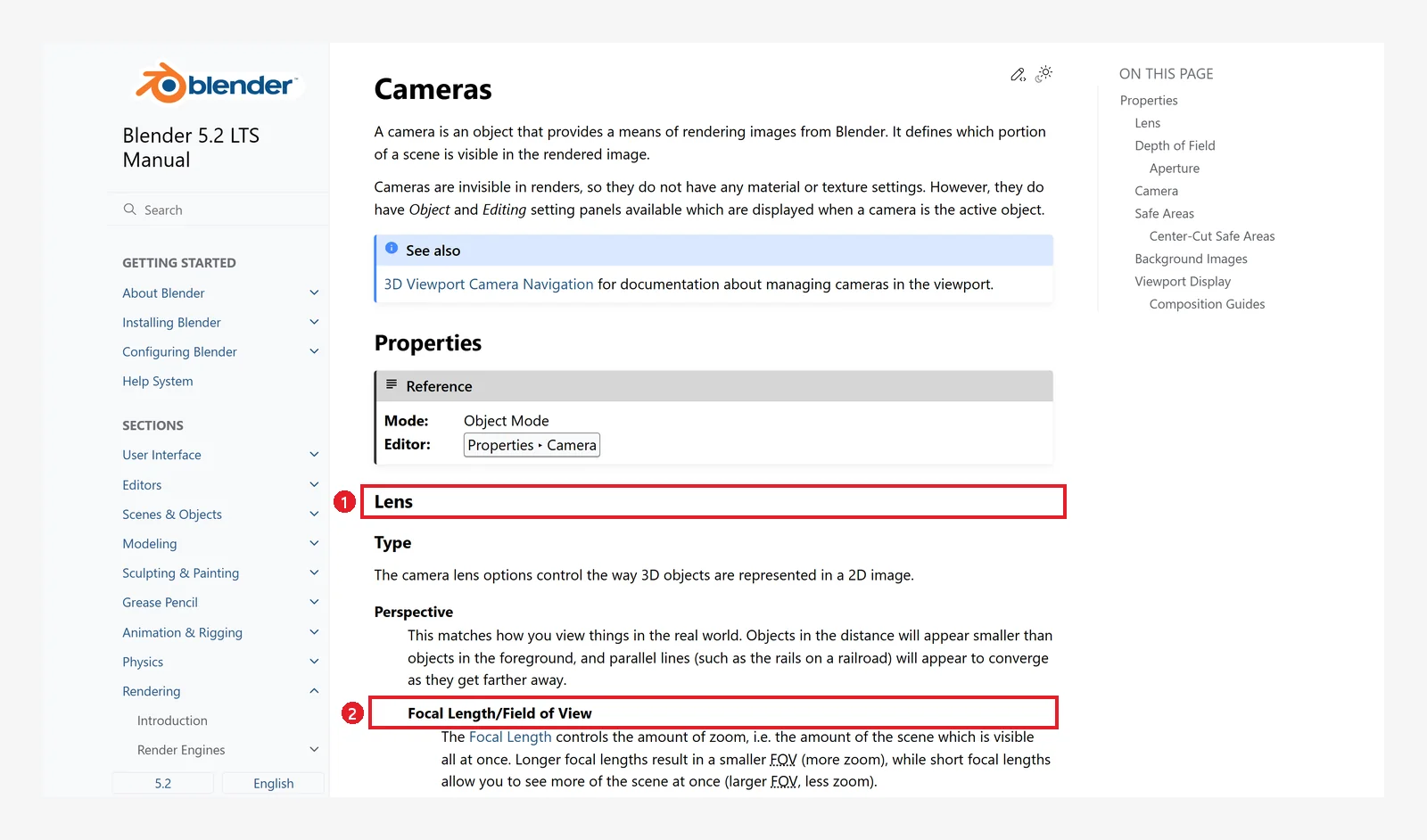 Figure 10-3. The official manual, Cameras: ① Lens ② Focal Length/Field of View: the explanation that a shorter focal length shoots wider (wide-angle) and a longer one shoots narrower and bigger (telephoto) (Blender 5.2 manual screenshot, CC BY-SA 4.0, numbers added)
2. Camera view: numpad 0 (before → after)
Follow along: Put the mouse over the 3D Viewport and press numpad 0.
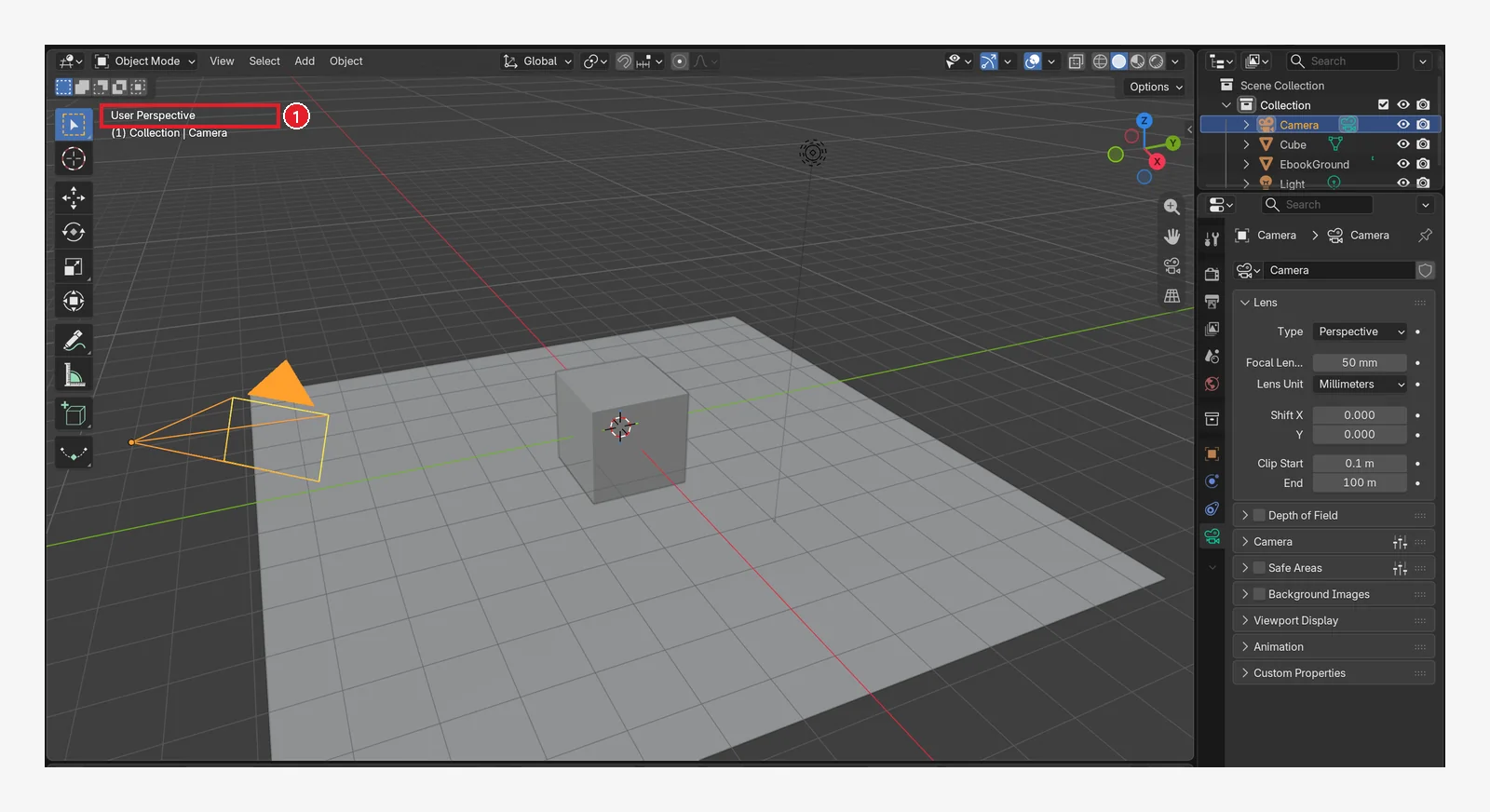 Figure 10-4. Before pressing it: ① the view name "User Perspective": you are looking through your working eye (Blender screenshot)
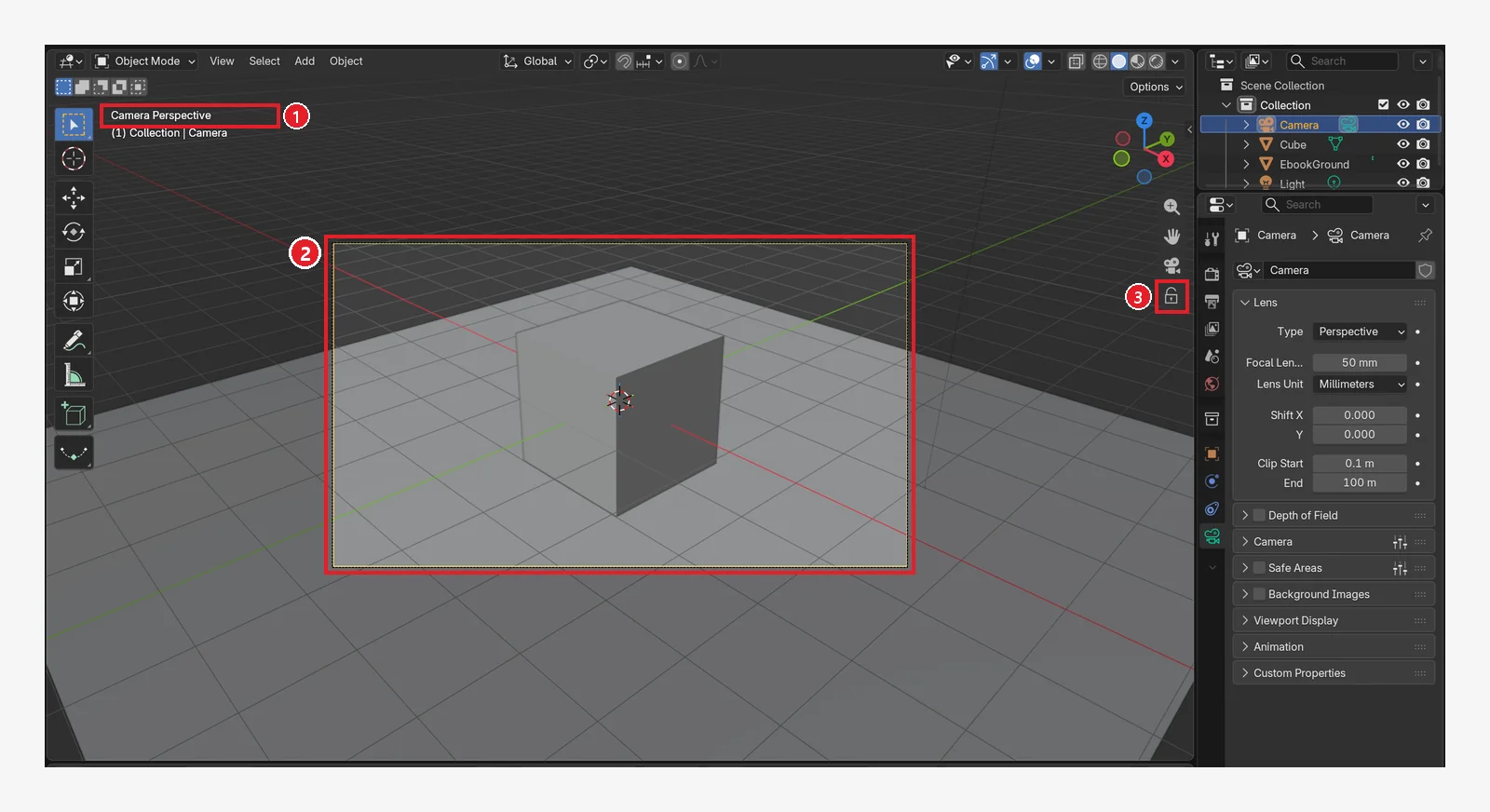 Figure 10-5. After pressing numpad
 0: ① the view name changes to "Camera Perspective" ② the area inside the yellow dashed rectangle (the camera frame) is what the render will show. The area outside the frame looks darkened and semi-transparent (Passepartout, section 6-3) ③ the lock icon at the bottom of the navigation gizmo: clicking it turns on Lock Camera to View (section 4-3) (Blender screenshot)
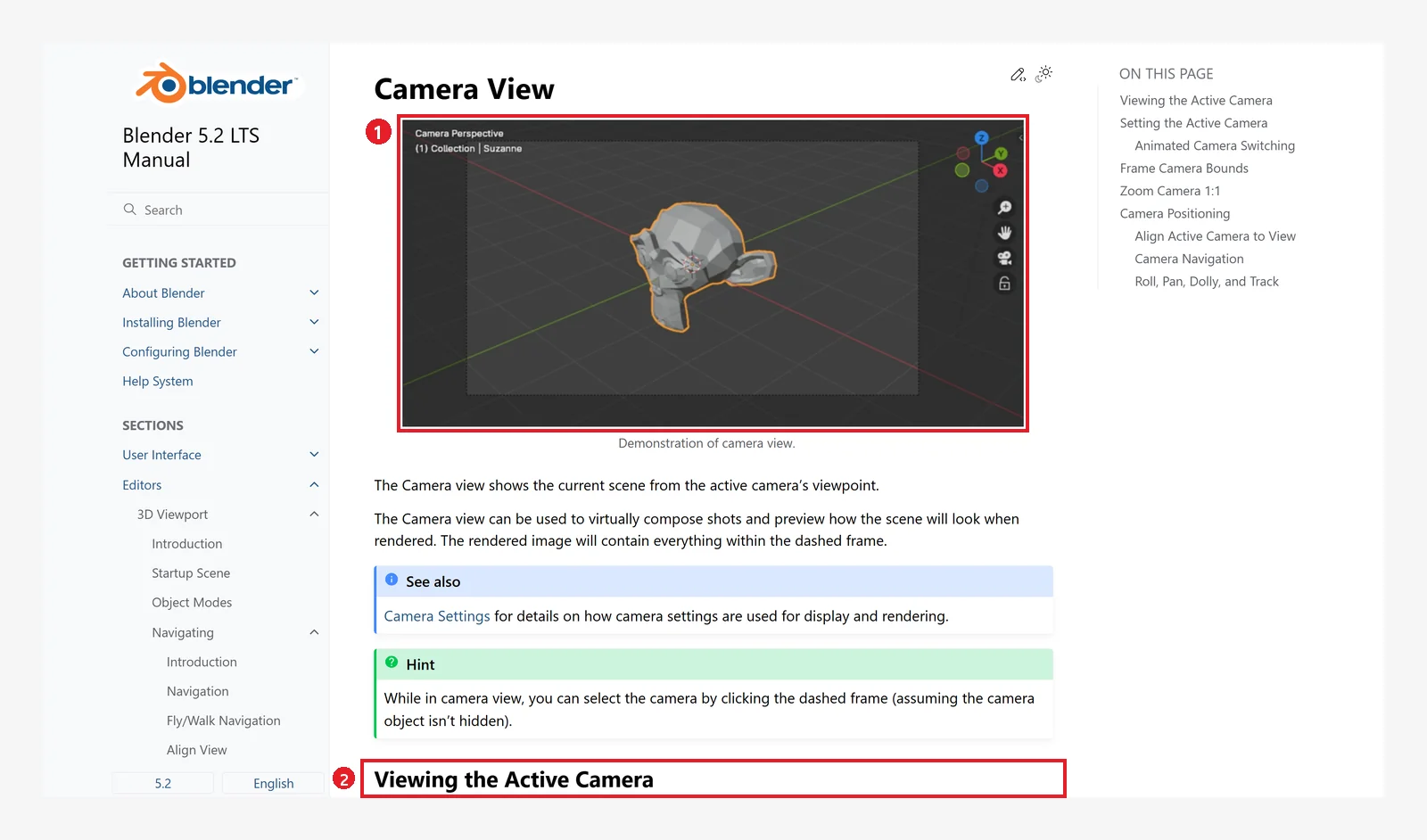 Figure 10-6. The official manual, Camera View: ① an example of camera view ② the Viewing the Active Camera heading (Blender 5.2 manual screenshot, CC BY-SA 4.0, numbers added)
- What the manual says: the rendered picture includes everything inside the camera frame (the dashed rectangle).
- From the menu, it is View ‣ Cameras ‣ Active Camera or View ‣ Viewpoint ‣ Camera.
- If you have no numpad, click the camera icon on the navigation gizmo, or choose Camera in the
`pie menu (chapter 2, section 10). - To leave camera view, just turn the view with the middle mouse button. Press numpad
0again to come back. - A tip from the manual: in camera view, clicking the border of the frame selects the camera.
3. Changing the focal length (lens) (before → after)
Starting state: Carry on from camera view in the last section.
Follow along: With the camera selected, enter 24 in Focal Length on the camera tab (Figure 10-8), and then enter 85 (Figure 10-9). The camera position stays the same.
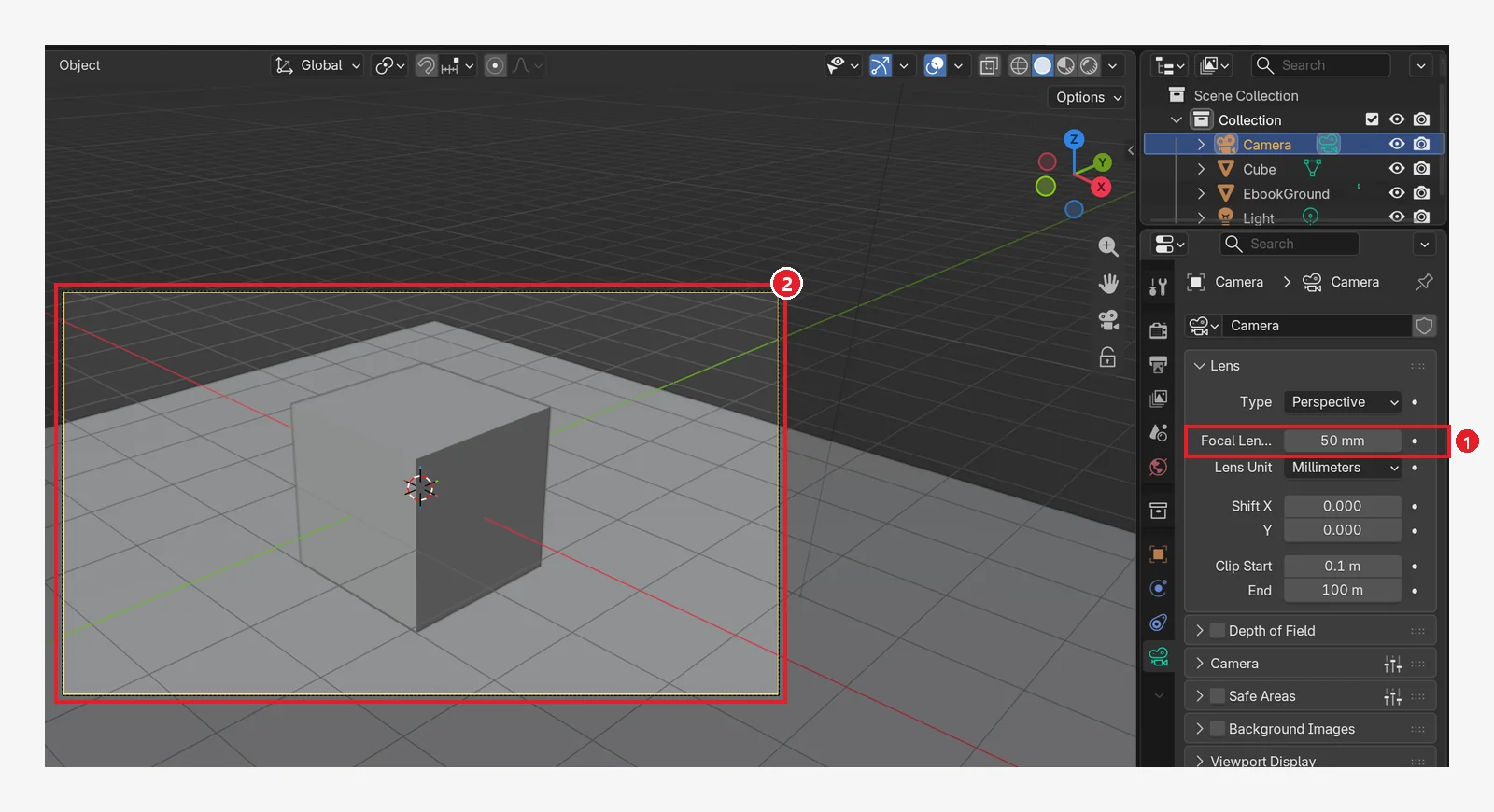 Figure 10-7. ① Focal Length 50 mm (the default) ② the default framing (Blender screenshot)
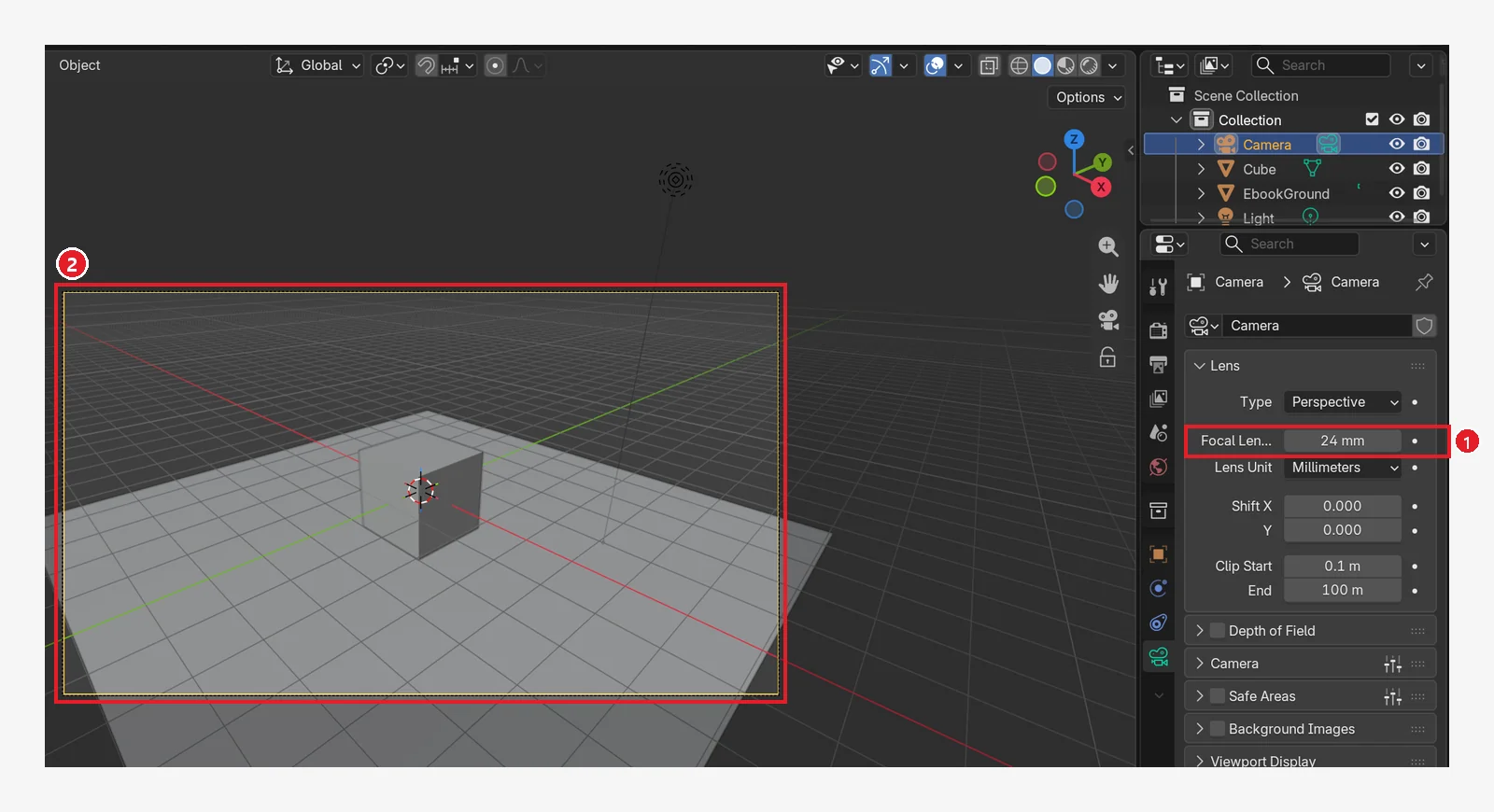 Figure 10-8. ① After changing to 24 mm (wide-angle) (compare with Figure 10-7): ② it shows a much wider area and the cube is smaller. You can see all the way to the edge of the floor plane (Blender screenshot)
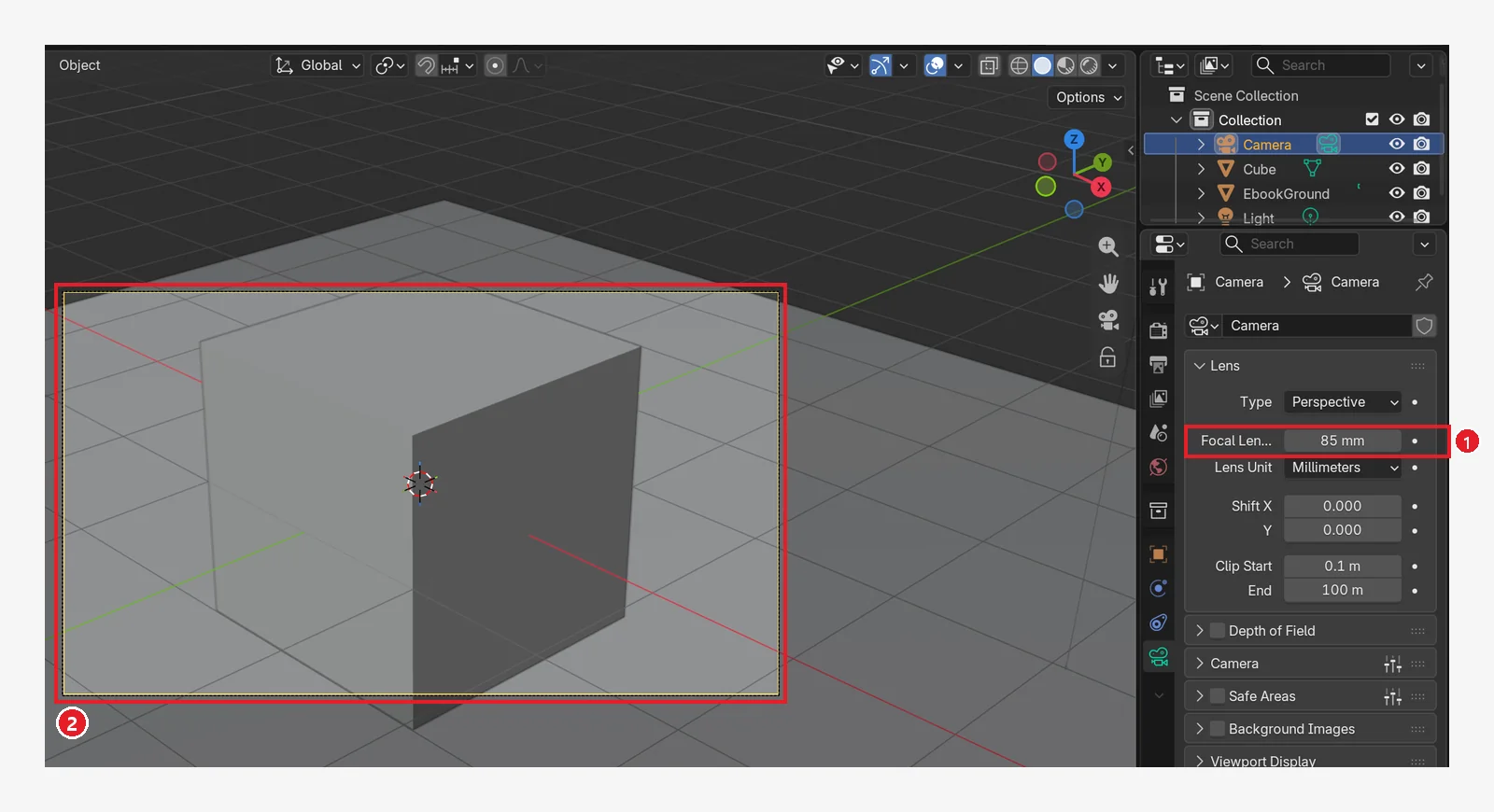 Figure 10-9. ① After changing to 85 mm (telephoto): ② it shows a narrow area and the cube nearly fills the frame. The camera position has not changed, so the perspective is the same as in Figure 10-7. It looks like the center was cropped and enlarged (see section 4-1) (Blender screenshot)
| Focal length | Feel | Use it for |
|---|---|---|
| 18–24 mm | Shows a wide area | A whole room, landscapes |
| 35–50 mm | Close to the human eye | Ordinary scenes (default 50 mm) |
| 85–135 mm | Shows a narrow area | Close-ups of people and props |
(These ranges are common rules of thumb in photography. Perspective is covered in section 4-1.)
4. Moving the camera
4-1. Moving the camera directly (before → after)
The camera is an object too, so you move and rotate it with G and R from chapter 3. It is handy to move it with camera view on, because you see the result right away.
Starting state: Undo the change from the last section: set Focal Length back to 50.
Follow along: With the camera selected, enter 4.4, -4.1, and 3 in Location on the Item tab of the Sidebar (N) (Figure 10-10). Leave Rotation as it is.
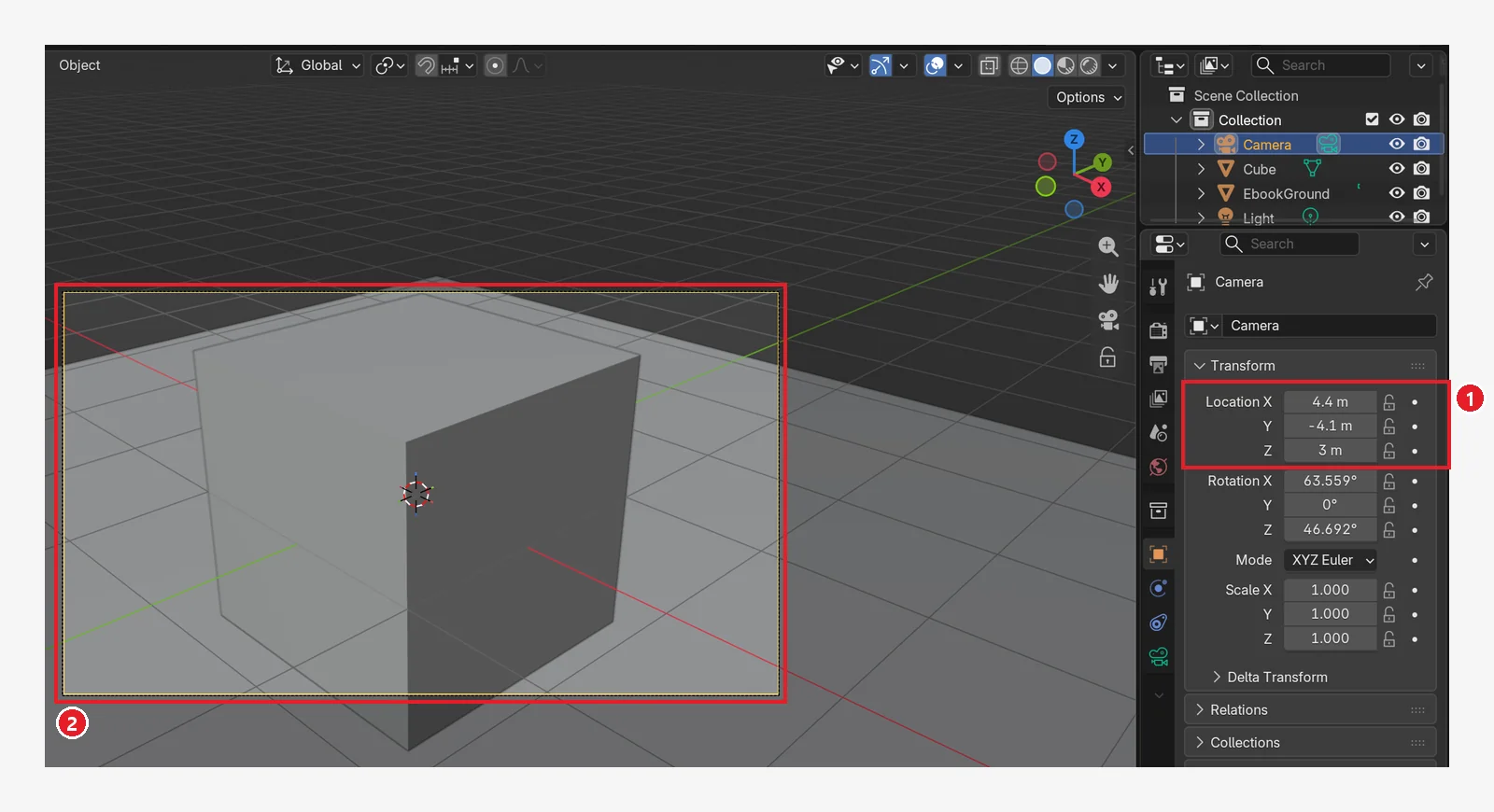 Figure 10-10. ① After moving the camera Location from (7.36, -6.93, 4.96) to (4.4, -4.1, 3.0) (compare with Figure 10-7): ② the cube looks bigger. The focal length is still 50 mm (Blender screenshot)
Changing the lens is not the same as moving closer. Perspective (how much farther things shrink) depends on how close the camera is to the object. The closer you get, the stronger the perspective; the farther away, the weaker. The lens only changes how much of the scene is shown. So even when the object ends up the same size, shooting from close with a wide-angle lens gives strong perspective, and shooting from far with a telephoto lens makes things look flat.
The two images below are for comparison. You only need to look at them.
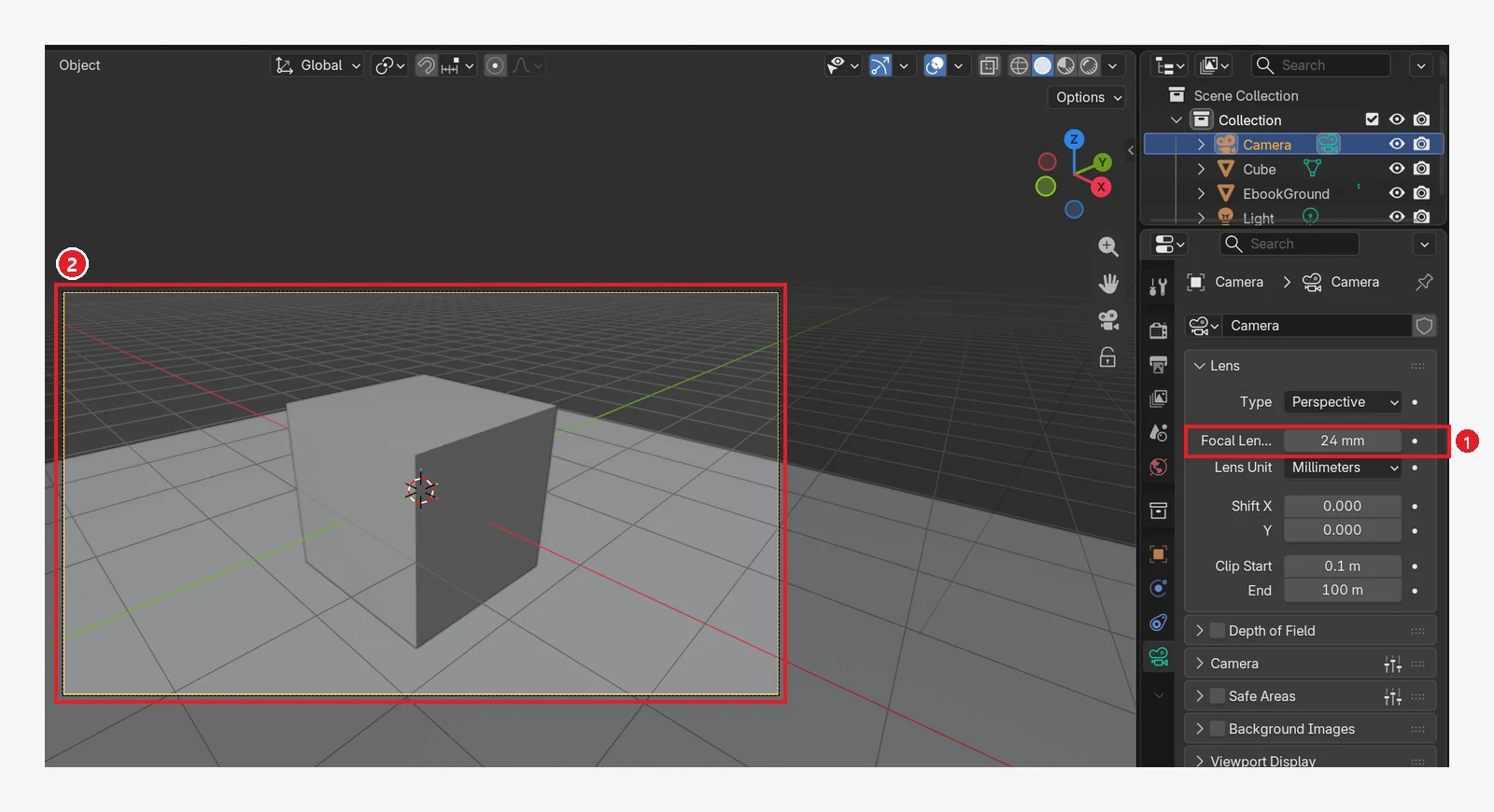 Figure 10-11. ① After changing to 24 mm and moving the camera closer to the cube (0.48 times the starting distance) so the cube is about the same size as in Figure 10-7: ② the front corner of the cube is large and the back shrinks quickly, so the perspective is strong (Blender screenshot)
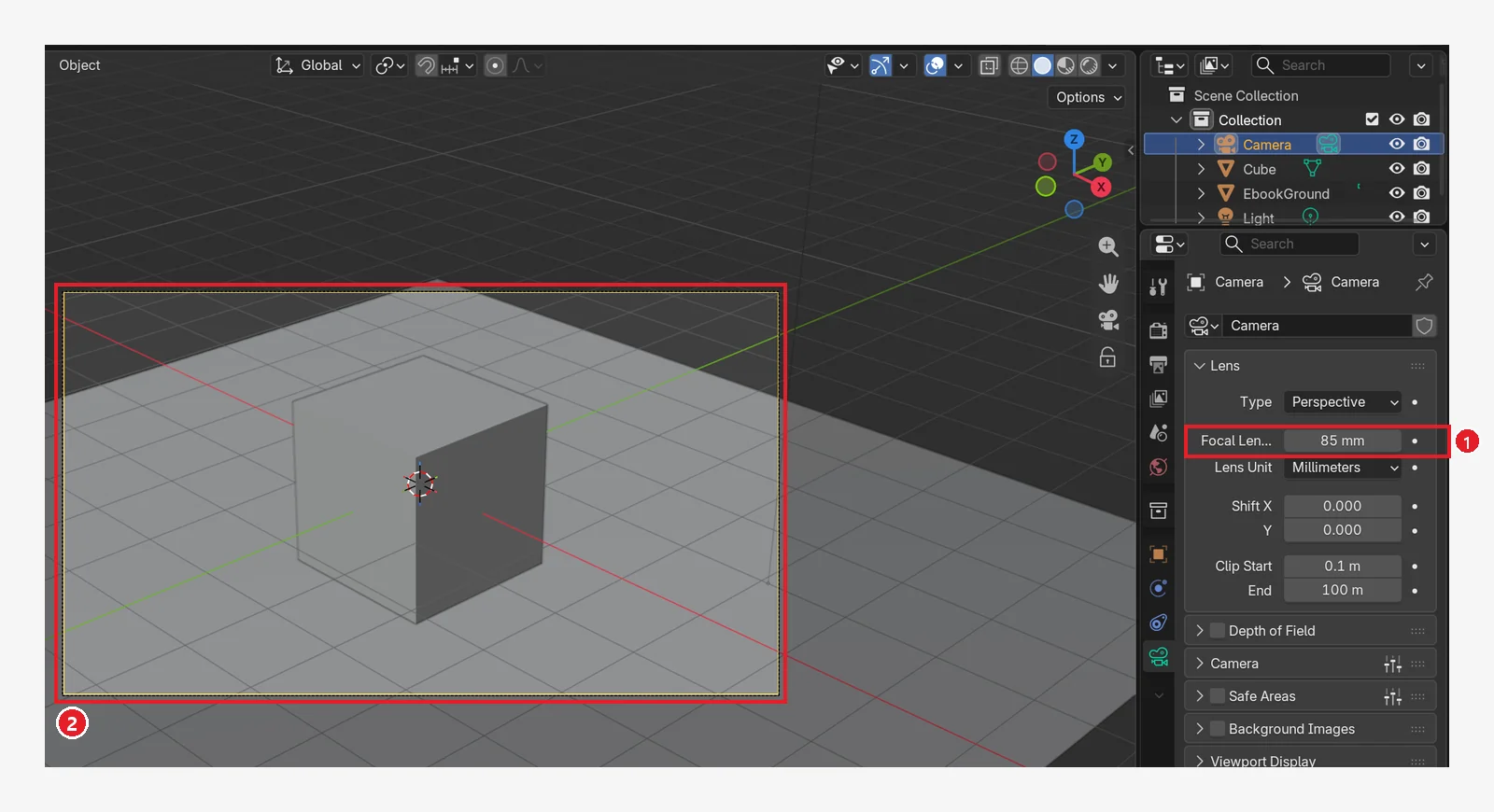 Figure 10-12. ① After changing to 85 mm and moving the camera farther away (1.7 times) so the cube is the same size: ② the size difference between front and back is small, so the perspective is weak and it looks flat. Compare how quickly the floor grid narrows with Figure 10-11 (Blender screenshot)
4-2. Aligning the camera to your current view (before → after)
If you find a framing you like with your working eye, you can bring the camera to that spot.
Starting state: Carry on with the scene from the last section. It does not matter where the camera is.
Follow along: Drag with the middle mouse button to turn the view until you find a framing you like (Figure 10-13). Then press Ctrl+Alt+numpad 0 (Figure 10-14).
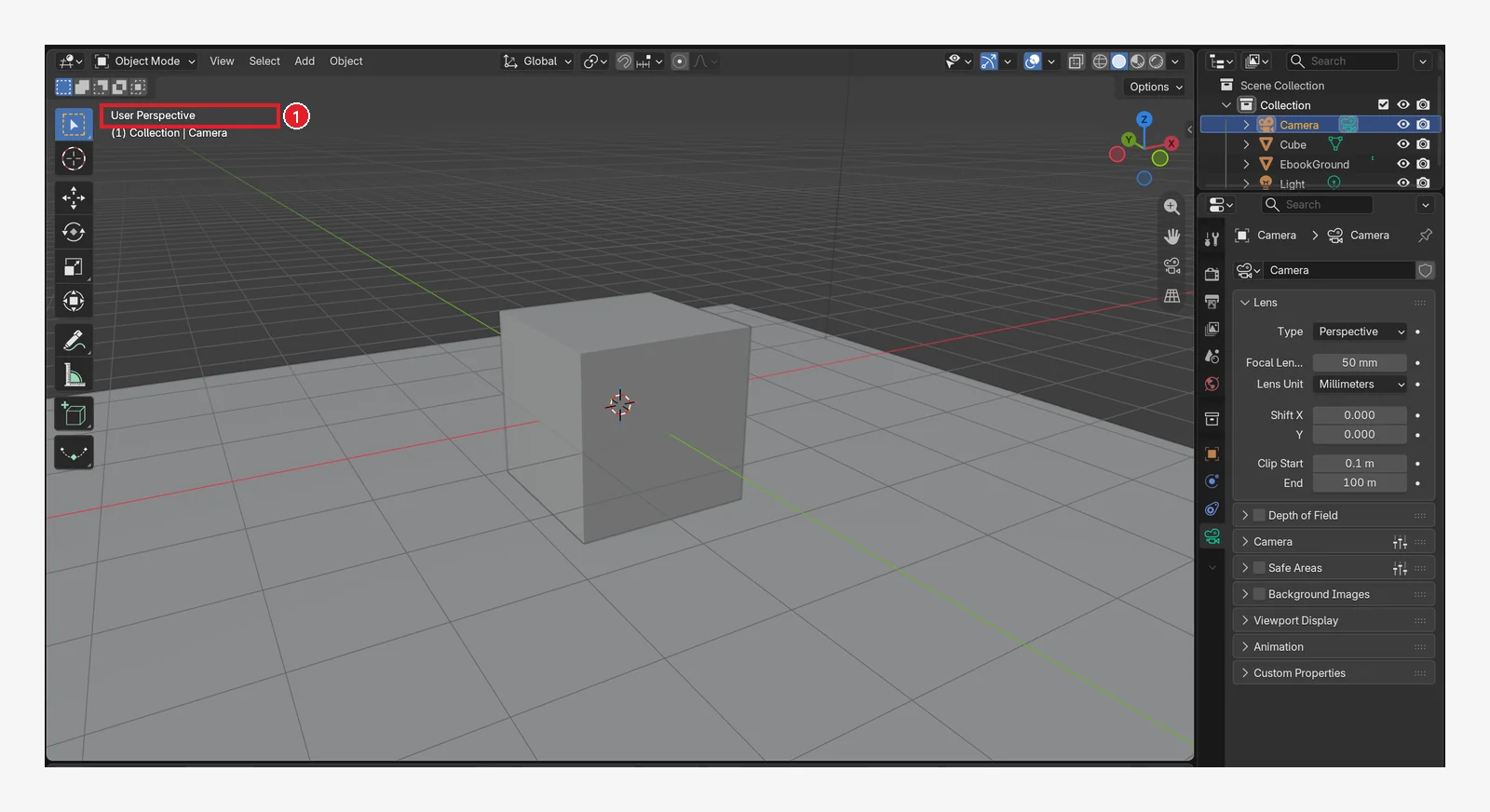 Figure 10-13. Before pressing it: a framing found by turning the view with the middle mouse button. ① still "User Perspective" (Blender screenshot)
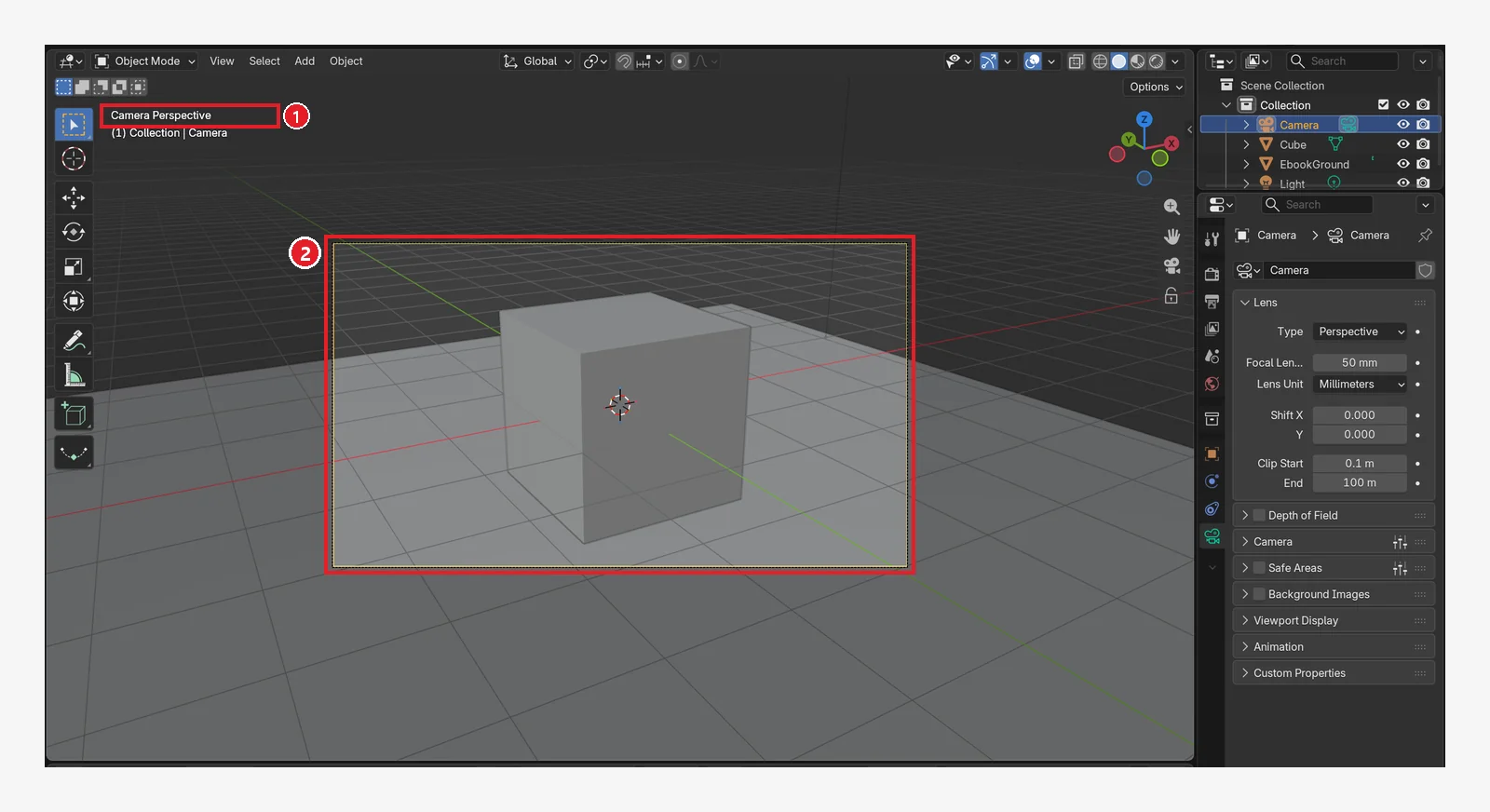 Figure 10-14. After pressing
 Ctrl+Alt+numpad 0: ① "Camera Perspective" ② the camera has moved to the view in Figure 10-13, so the same framing is now inside the camera frame (Blender screenshot)
| Key | What it does |
|---|---|
Numpad 0 | Camera view |
Ctrl+Alt+numpad 0 | Align the camera to the current view (Align Active Camera to View) |
Ctrl+numpad 0 | Make the selected object the active camera (the camera used for rendering). Used when there are several cameras |
4-3. Lock Camera to View: making the camera follow when you turn the view
Open the View Lock section on the View tab of the Sidebar (N). Turn on Camera to View under Lock. Then go into camera view (numpad 0), and the view controls from chapter 2 (orbit, zoom, pan) now move the camera. In camera view you can also turn it on and off with the lock icon on the navigation gizmo (Figure 10-5 ③).
- It is handy to keep it on, but if you forget it is on and turn the view, you ruin the camera framing you worked hard on. Turn it off once the framing is done.
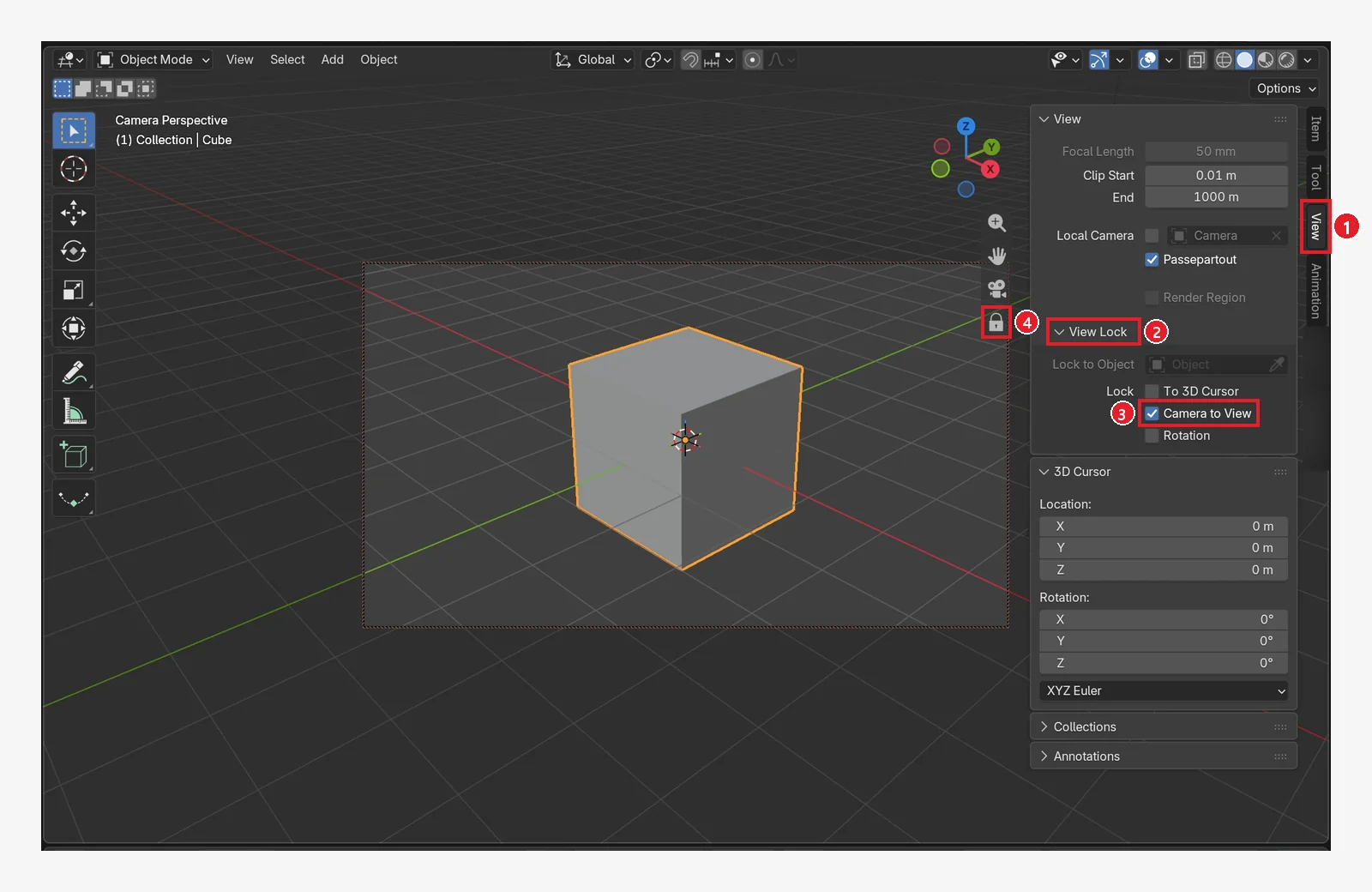 Figure 10-15. The Sidebar (
N) opened in camera view (numpad 0): ① the View tab ② the View Lock section ③ Camera to View turned on ④ when it is on, the lock on the navigation gizmo at the right changes to a locked shape, and the camera frame border becomes a red dashed line. The extra (add-on) tabs in the Sidebar have been blurred (Blender screenshot)
4-4. Checking the camera values
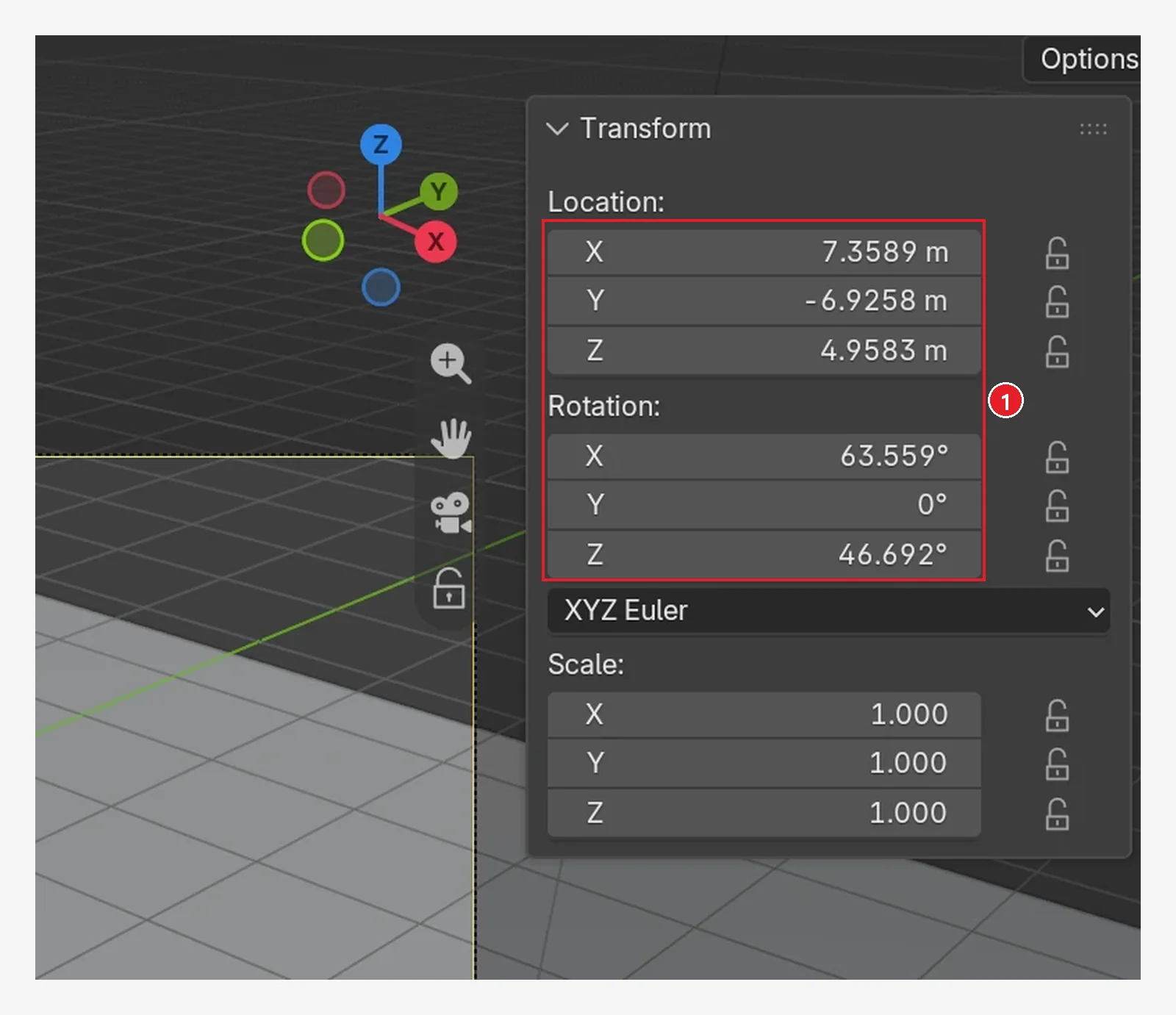 Figure 10-16. With the camera selected, open the Sidebar with
 N and ① you see the camera's Location and Rotation values. If you write down the framing as numbers, you can bring it back exactly later (Blender screenshot)
5. Resolution and aspect ratio
The width-to-height ratio of the camera frame is set not by the camera but by the resolution on the Output tab.
Starting state: Undo the changes from the last section: turn off Camera to View and put the camera back in its default spot. Select the camera and enter 7.36, -6.93, 4.96 in Location and 63.6, 0, 46.7 in Rotation in the Sidebar. The images in sections 5 and 6 show the screen with the camera in this default spot.
Follow along: Turn on camera view with numpad 0, then enter 1080 and 1080 in Resolution X and Y on the Output tab (Figure 10-18). Next, enter 1080 and 1920 (Figure 10-19).
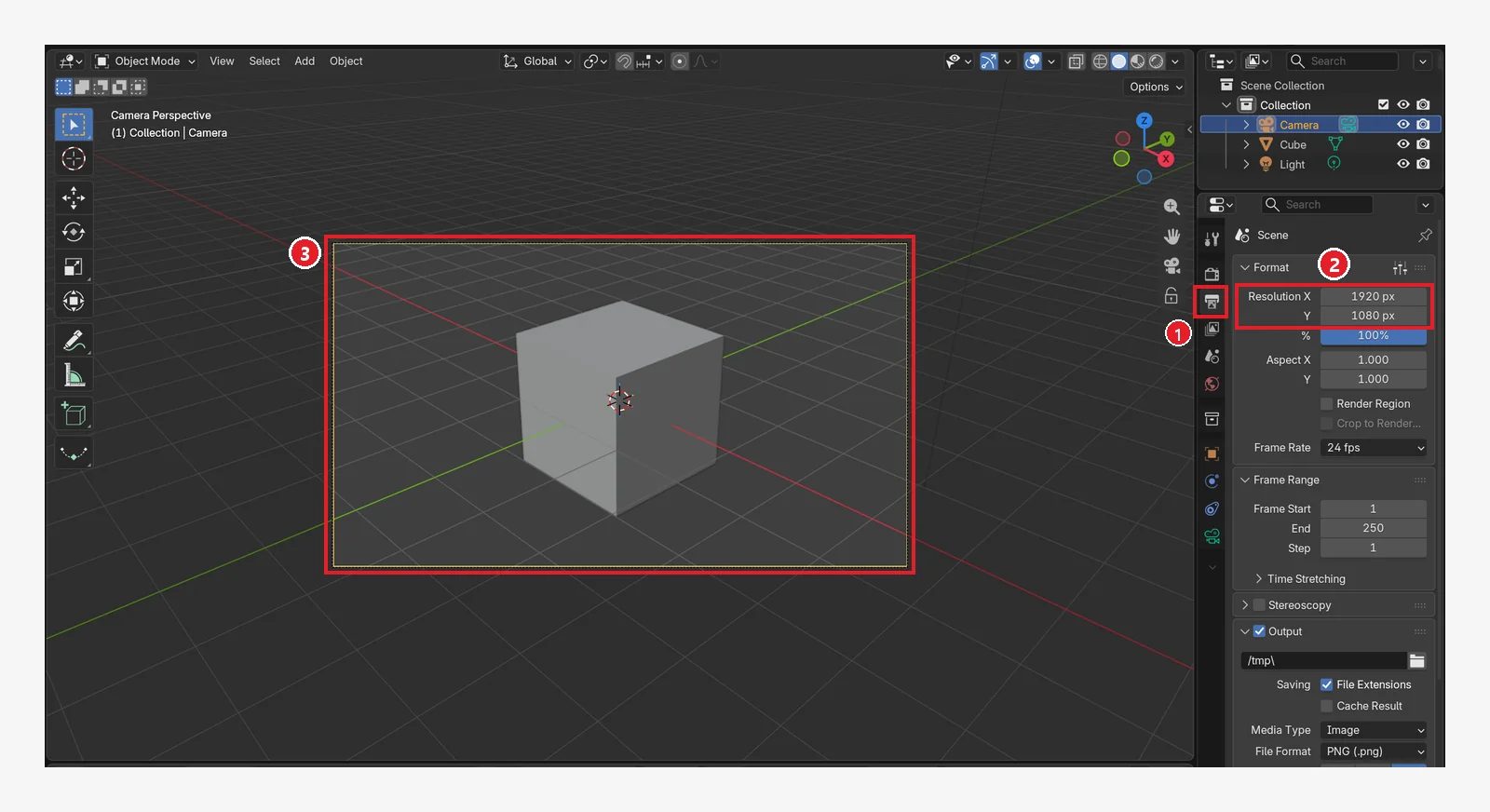 Figure 10-17. ① the printer-shaped icon is the Output tab ② Resolution X 1920 px, Y 1080 px (the default, 16:9) ③ that is why the camera frame is wide (Blender screenshot)
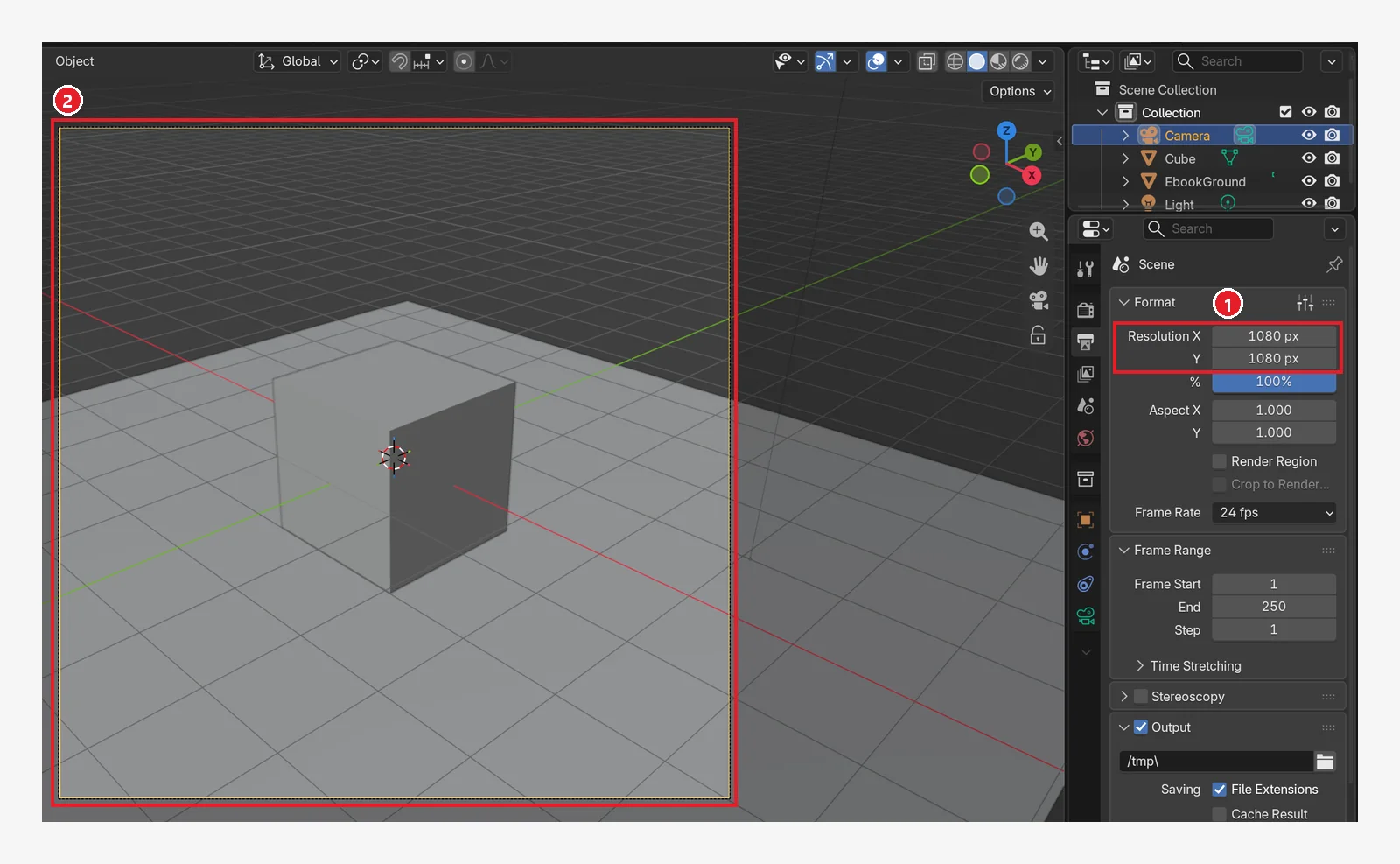 Figure 10-18. ① After changing Resolution to 1080 × 1080: ② the camera frame becomes square (for social media photos) (Blender screenshot)
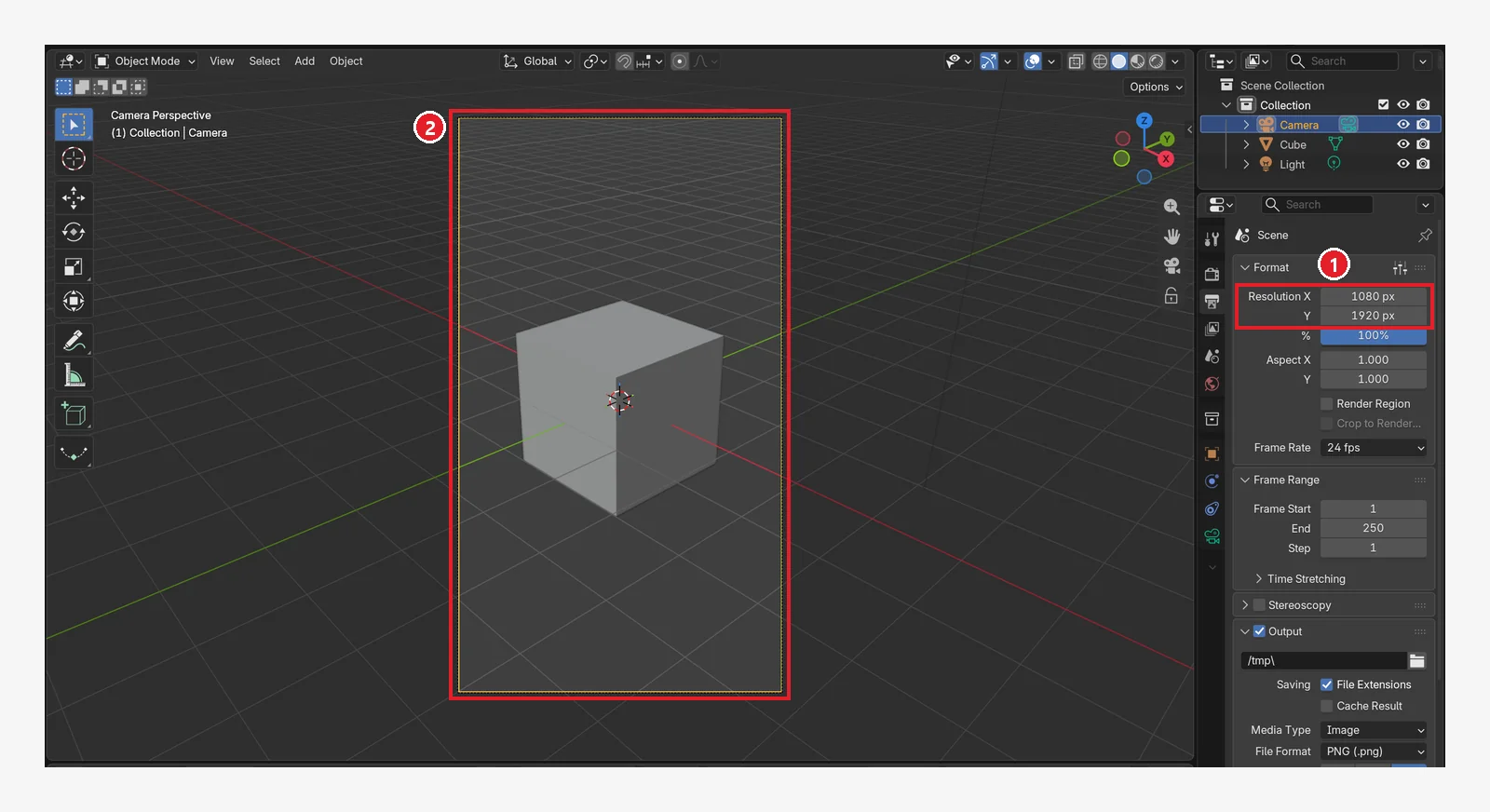 Figure 10-19. ① After changing to 1080 × 1920 (compare with Figure 10-17): ② the camera frame becomes tall (for Shorts and Reels) (Blender screenshot)
| Use | Resolution X × Y | Ratio |
|---|---|---|
| YouTube and ordinary video | 1920 × 1080 | 16:9 (default) |
| Square social media photos | 1080 × 1080 | 1:1 |
| Shorts and Reels | 1080 × 1920 | 9:16 |
The % field below the resolution fields scales the size down by a percentage (default 100%). When you want a quick preview render, lowering it to 50% helps. Rendering is covered in chapter 11.
6. Other camera settings
6-1. The orthographic camera
Starting state: Undo the change from the last section: set Resolution back to 1920 × 1080.
Follow along: Select the camera and change Type on the camera tab to Orthographic. Enter 7 in Orthographic Scale (Figure 10-20).
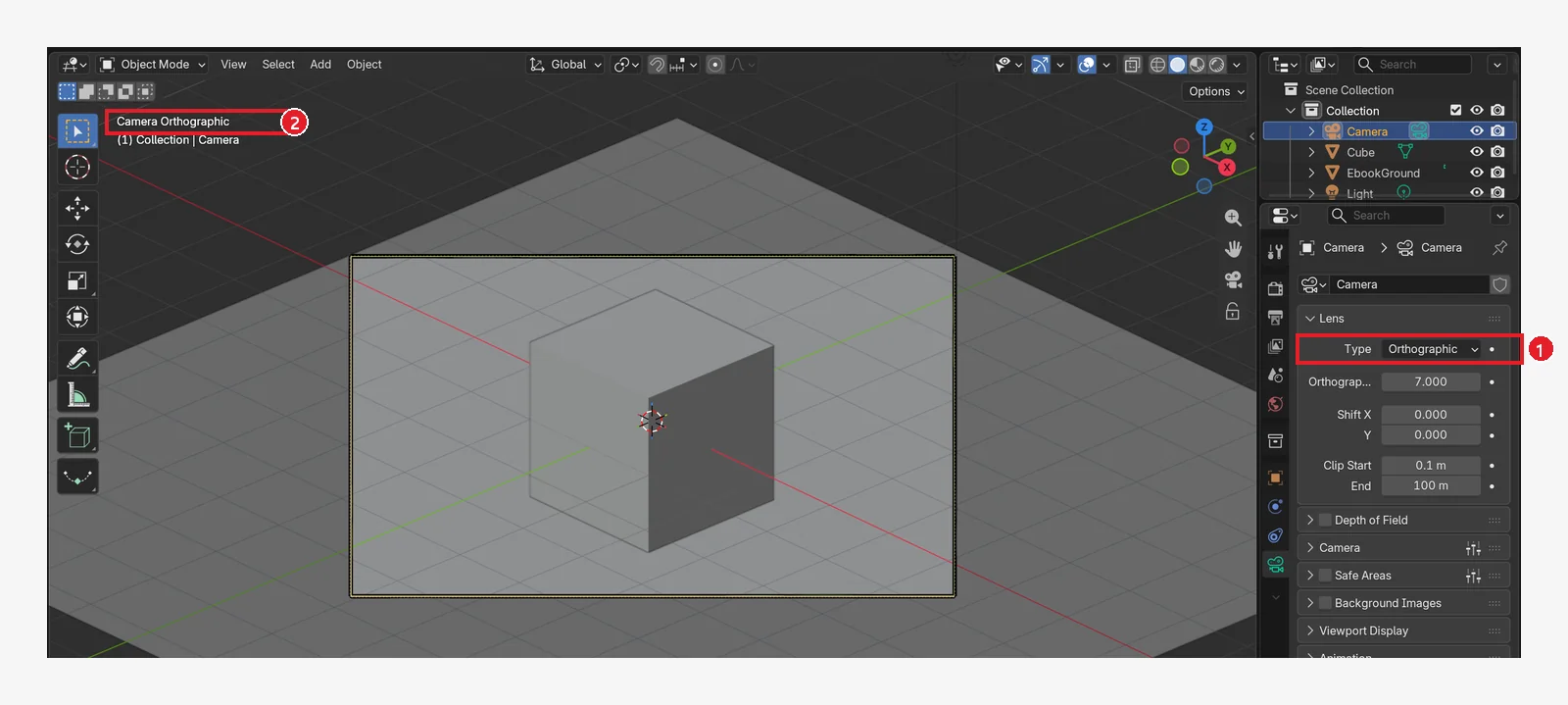 Figure 10-20. ① After changing Type to Orthographic: ② "Camera Orthographic." The picture looks like a blueprint, where far things do not get smaller. The size is set with Orthographic Scale (7 here) instead of Focal Length (Blender screenshot)
Use it for isometric game art or explanatory drawings. It is the same idea as the orthographic view in chapter 2 (numpad 5), applied to the camera.
6-2. Lens shift: Shift X / Y (before → after)
Starting state: Undo the change from the last section: set Type back to Perspective.
Follow along: Enter 0.2 in Shift X on the camera tab (Figure 10-21).
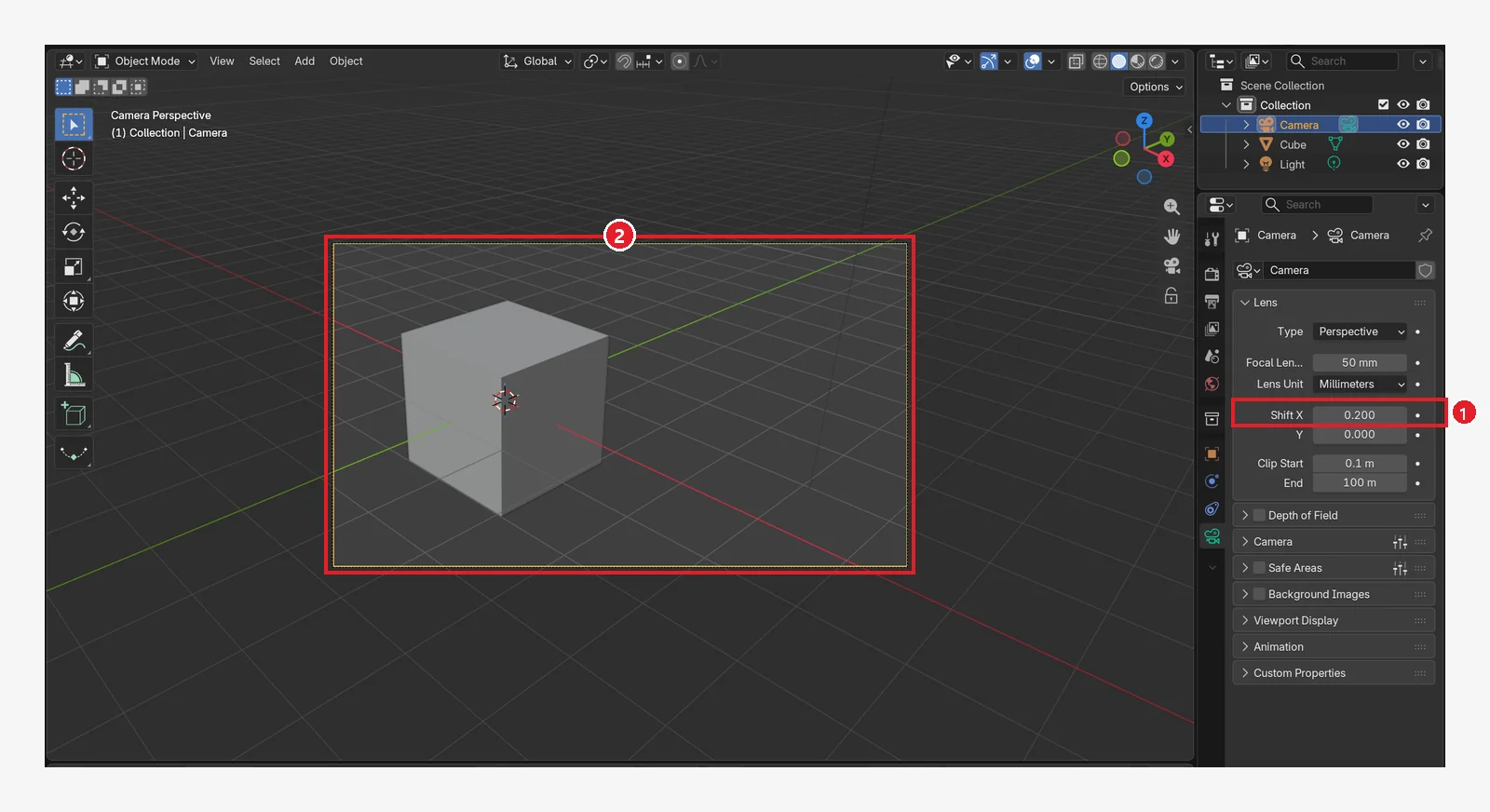 Figure 10-21. ① Shift X 0.200: ② without turning the camera, only the area being shot slides sideways, so the cube has moved toward the left of the frame (compare with Figure 10-17). This is used in building photos to move the framing while keeping vertical lines straight (Blender screenshot)
6-3. Darkening the area outside the frame: Passepartout
Passepartout is a cover that hides the area outside the camera frame.
Starting state: Undo the change from the last section: set Shift X back to 0.
Follow along: Open the Viewport Display section near the bottom of the camera tab and enter 1 in the Passepartout value (Alpha) (Figure 10-22).
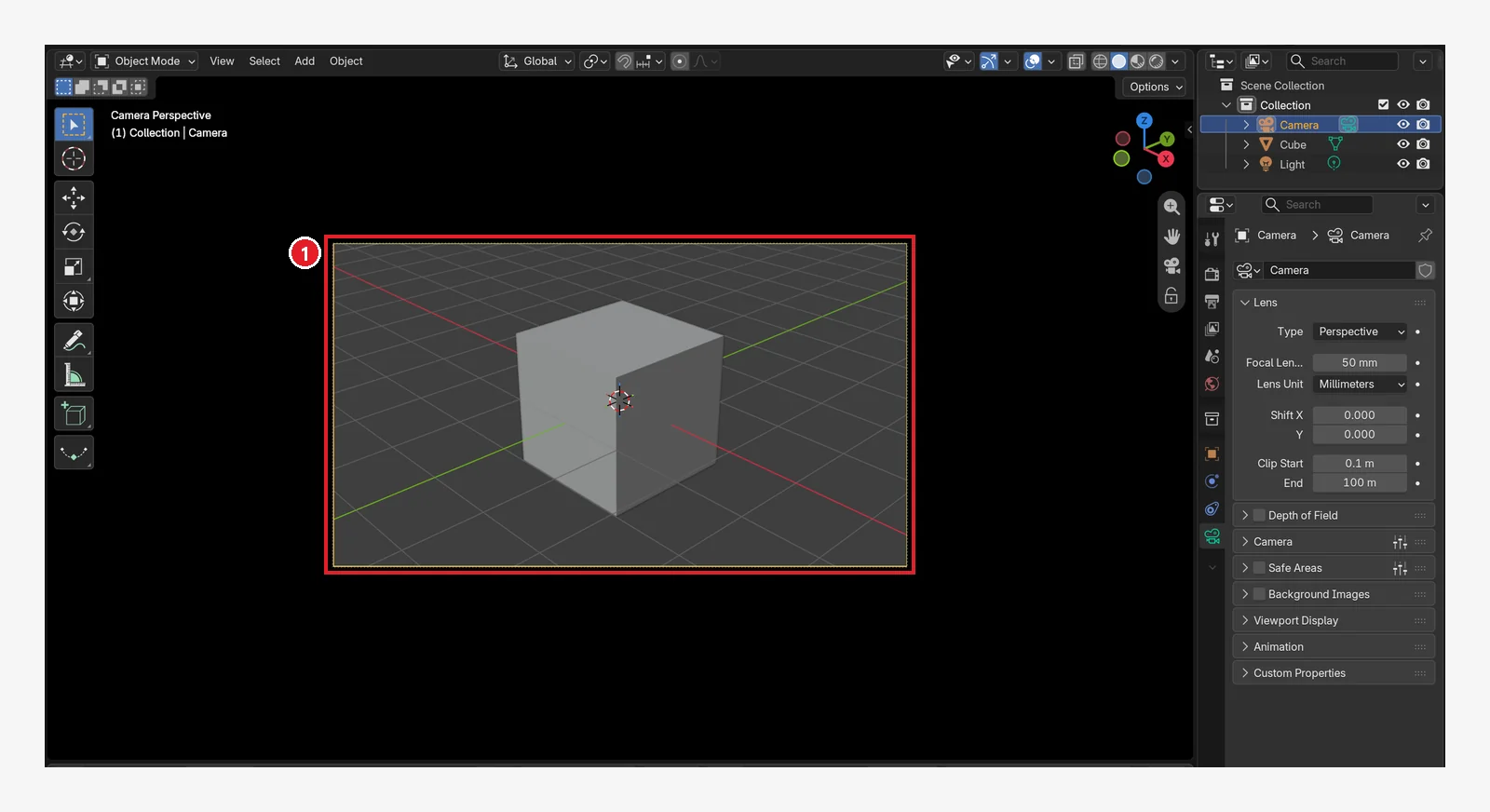 Figure 10-22. After raising Passepartout Alpha in the Viewport Display section at the bottom of the camera tab from 0.5 (the default) to 1.0: ① the area outside the frame is completely black, so only the part that will be in the picture shows (compare with Figure 10-17). This helps when you judge the framing (Blender screenshot)
6-4. Checking the camera framing in Rendered view
Starting state: Undo the change from the last section: set the Passepartout value back to 0.5.
Follow along: In camera view, click the fourth viewport shading button (Rendered). When you have checked it, go back to Solid view.
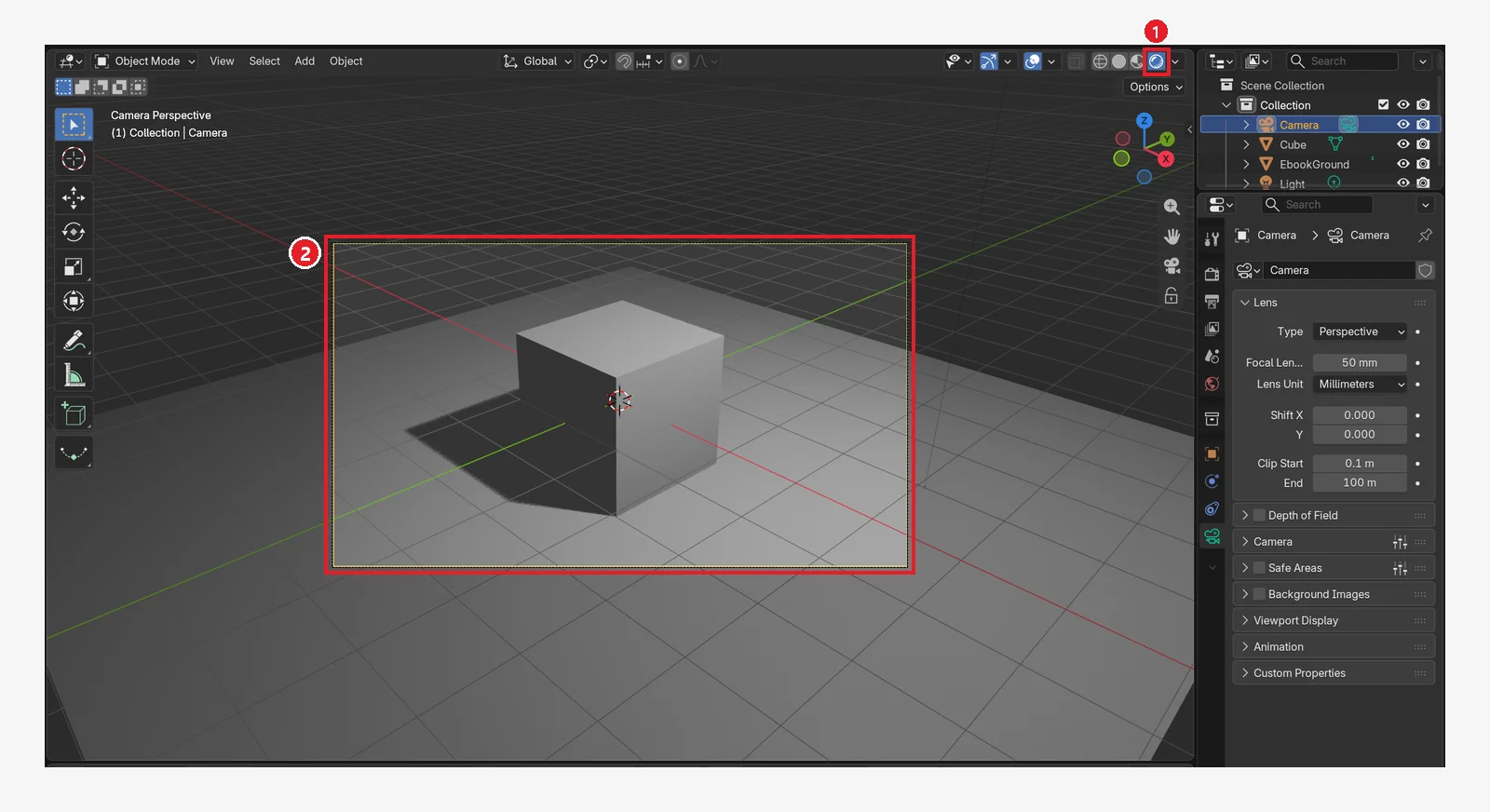 Figure 10-23. ① In Rendered view, camera view ② gives you a preview close to the render, with lights and shadows. This is the viewport's Rendered view, not a render (
F12) result (Blender screenshot)
6-5. Checking where the camera is from the top view
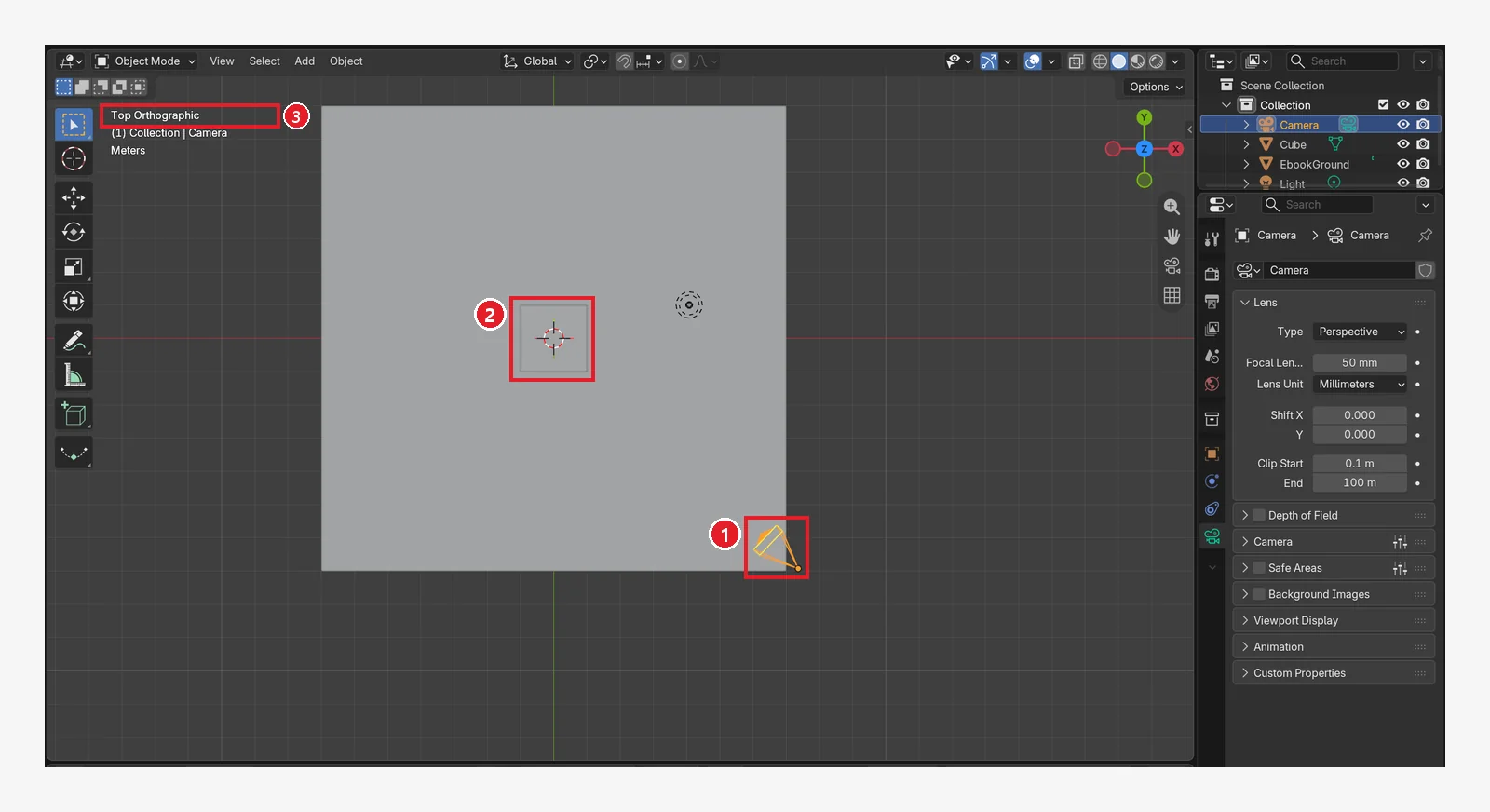 Figure 10-24. Looking down from above with numpad
 7 (③ view name Top Orthographic): ① the camera at the bottom right, ② the cube in the middle. You can see that the camera is in a spot where it looks down at the cube at an angle. When the framing looks odd, check the camera position from above like this (Blender screenshot)
7. Four tips for your first framing
Even when you know the camera settings, you often do not know "where to shoot from." At first, just following these four tips makes a big difference.
- Shoot at an angle from a little above eye level. Shooting from the front (numpad
1) looks flat. Looking down at an angle, like the default camera, shows the top and the sides together, which gives a sense of depth. - Put the main subject a little to the side of the center. Placing it where the lines that split the screen into thirds across and down (the rule-of-thirds lines) meet makes the picture feel balanced. The manual's camera settings include Composition Guides (camera tab ‣ Viewport Display, with Thirds for the rule of thirds), which draw such guide lines in the camera frame.
- Leave room at the edges of the frame. When an object fills the frame or gets cut off, the picture feels cramped. Raise Passepartout Alpha to 1 (Figure 10-22) and check the margins while looking only inside the frame.
- Lens first, distance second. First pick the focal length that fits the feel you want (wide or narrow, section 3), then set the size by moving the camera (section 4-1).
8. What to check, in order, when the framing looks wrong
- Check that you are in camera view. The top left must say "Camera Perspective" (Figure 10-5 ①).
- Check which camera it is. If there are several cameras, the picture is taken by the active camera (the camera used for rendering). Select the camera you want and press
Ctrl+numpad0. - Check the resolution ratio. If the frame shape looks wrong, check Resolution on the Output tab (section 5).
- Check whether objects are cut off. Objects outside the Clip Start and End range (Figure 10-2 ③, default 0.1 m to 100 m) are not visible. For a very large scene, increase End.
- Check where the camera is. Look from the top view (numpad
7) (Figure 10-24).
9. Practice
- Go into camera view with numpad
0, then change Focal Length to 24 mm and 85 mm and compare the size of the cube. - Find a framing you like with the middle mouse button, and use
Ctrl+Alt+numpad0to move the camera there. - Change the resolution to 1080 × 1920 and frame a tall picture. When you are done, set it back to 1920 × 1080.
- Raise Passepartout Alpha to 1 to make the outside of the frame black, then check the framing again.
- Turn on Lock Camera to View, turn the view to check that the camera follows, and then be sure to turn it off.
- When you finish practicing, close this file without saving. That way the camera position and settings you changed in this chapter are not kept, and in chapter 11 you can use the scene you saved at the end of chapter 9 as it is. If you want to keep it, save it under another name with
Shift+Ctrl+S(chapter 5).
10. Common mistakes and fixes
For problems with the frame shape, objects being cut off, or the wrong camera taking the picture, check things in the order in section 8. For other symptoms, look in the table below.
| Symptom | Cause | Fix |
|---|---|---|
| I turned the view but the render framing stayed the same | You only turned your working eye | Move the camera, or press Ctrl+Alt+numpad 0 |
| The camera framing got ruined, or it keeps moving | You turned the view with Lock Camera to View on | Ctrl+Z, then turn off the lock (section 4-3) |
Numpad 0 does not work | No numpad / the mouse is somewhere else | Use the camera icon on the gizmo, put the mouse over the 3D Viewport |
| I cannot find the camera | It is too far away | Select Camera in the Outliner → numpad . |
Summary in one line
Numpad 0 for camera view → what is inside the frame is the picture. Focal Length for wide or narrow, move the camera to get closer, Ctrl+Alt+numpad 0 to align it to your current view. The ratio is Resolution on the Output tab. In chapter 11 you render and save pictures and videos.
References
- Blender 5.2 Manual: Cameras
- Blender 5.2 Manual: Camera View
- Shortcuts and property names (Focal Length, Shift X, Orthographic Scale, Passepartout Alpha, Lock Camera to View): based on the default (Blender) keymap and screens of Blender 5.2.1
- Image licenses: the manual screens are CC BY-SA 4.0, with red numbers and outlines added. Blender program license: blender.org/about/license