Blender for complete beginners, chapter 11: Rendering and saving — one still image and one video
Rendering in Blender for complete beginners. Learn the EEVEE and Cycles render engines, set the resolution to 1280×720, render one still with F12 and save it as PNG, and make an image sequence and a video file with Ctrl+F12.
한국어English
ON THIS PAGE
- 01What you will learn in this chapter
- 021. The render menu and shortcuts
- 032. Choosing a render engine: EEVEE and Cycles
- 043. Output settings: the Output tab
- 054. Rendering and saving one still image
- 065. Outputting an animation as an image sequence: `Ctrl`+`F12`
- 076. Outputting a video file directly
- 087. Exercises
- 098. Common mistakes and fixes
- 10In one line
- 11References
Blender for complete beginners, chapter 11 · Based on: Blender 5.2 LTS (screenshots from 5.2.1, English UI, default keymap) All images are real screens. The red numbers and outlines were added for explanation. The save folders in the images are folders made for this guide, so the text differs from your screen.
What you will learn in this chapter
By the end of this chapter, you will be able to do the following.
- Know what rendering is, and the render menu and shortcuts (
F12,Ctrl+F12). (Section 1) - Tell the difference between the render engines EEVEE and Cycles. (Section 2)
- Set the resolution, frame range, and save folder on the Output tab. (Section 3)
- Render one still image and save it as PNG. (Section 4)
- Output a short animation as an image sequence and as a video file. (Sections 5–6)
Before you start: rendering = "taking a picture with the camera." The 3D Viewport you have seen so far is a working preview. Rendering is taking a real picture with the camera in the scene (chapter 10). So the render shows what the camera sees, not the viewport. This chapter starts by opening the file you saved at the end of chapter 9 (the default cube scene with a floor plane added). If you do not have the file, make the floor plane in a new file (File ‣ New ‣ General) with the three steps in "Before you start" in chapter 9.
1. The render menu and shortcuts
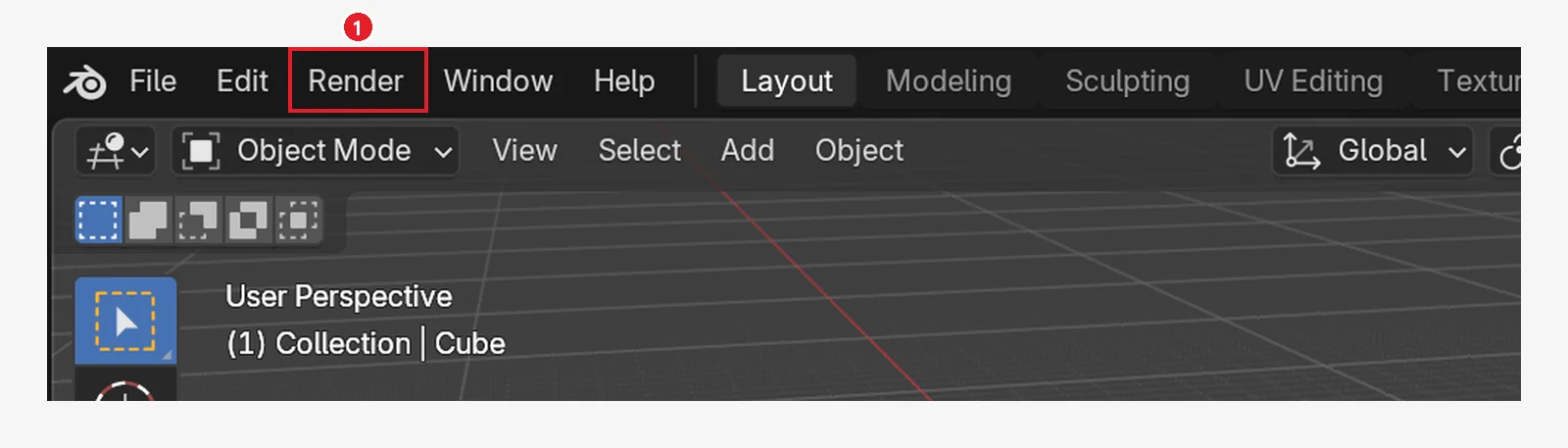 Figure 11-1. ① The Render menu on the top bar. Still and video rendering, and viewing the render window, are here (Blender screenshot)
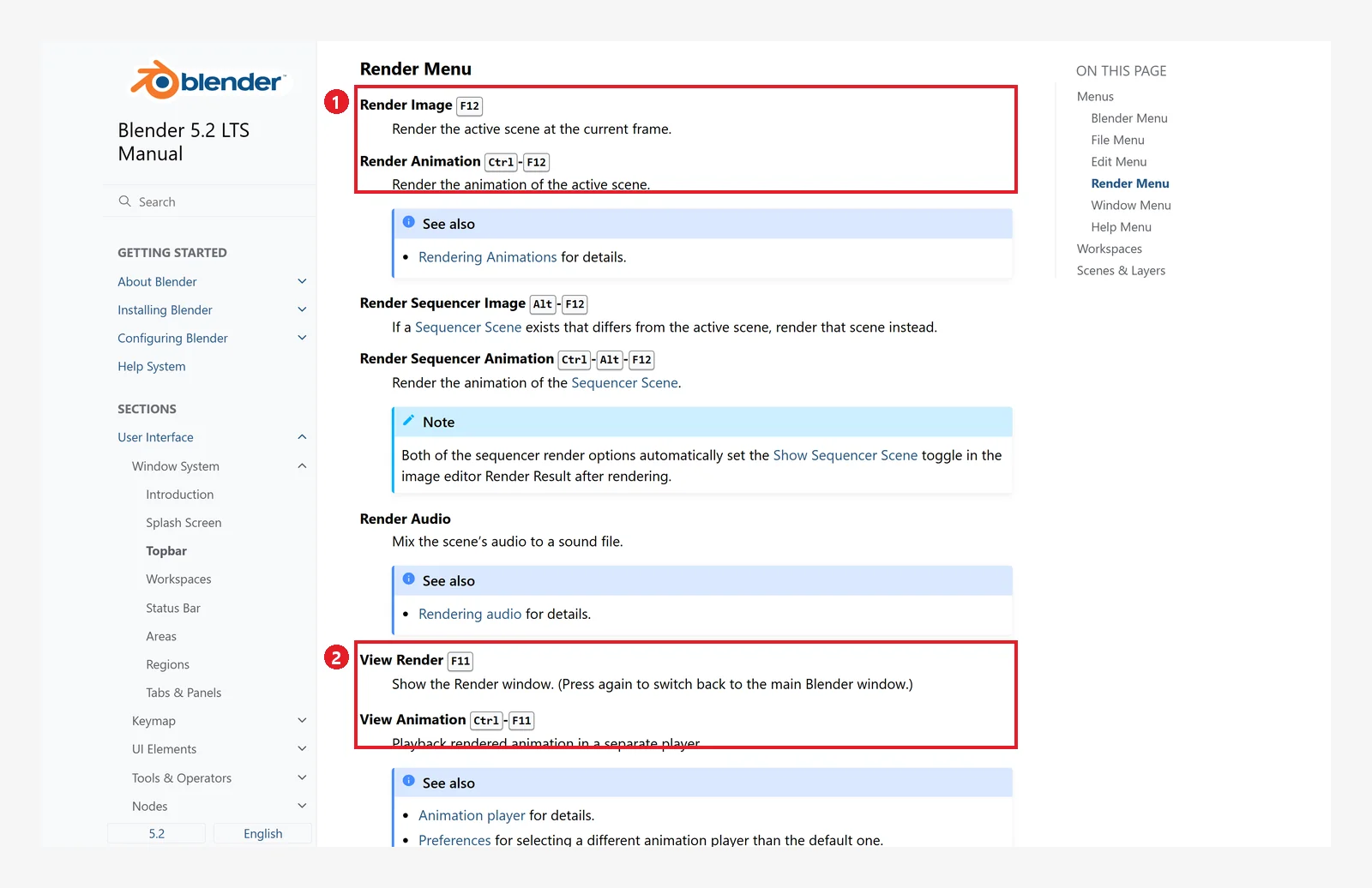 Figure 11-2. Render Menu in the official manual: ① Render Image
 F12 (one image of the current frame), Render Animation Ctrl+F12 (the whole animation) ② View Render F11 (show the render window again), View Animation Ctrl+F11 (play the rendered animation) (screenshot of the Blender 5.2 manual, CC BY-SA 4.0, numbers added)
| Shortcut | Menu | What it does |
|---|---|---|
F12 | Render ‣ Render Image | Renders the current frame as one still image |
Ctrl+F12 | Render ‣ Render Animation | Renders all frames from Start to End and writes them to the save folder |
F11 | Render ‣ View Render | Opens the render window again / press again to go back to the original window |
Ctrl+F11 | Render ‣ View Animation | Plays the rendered animation separately |
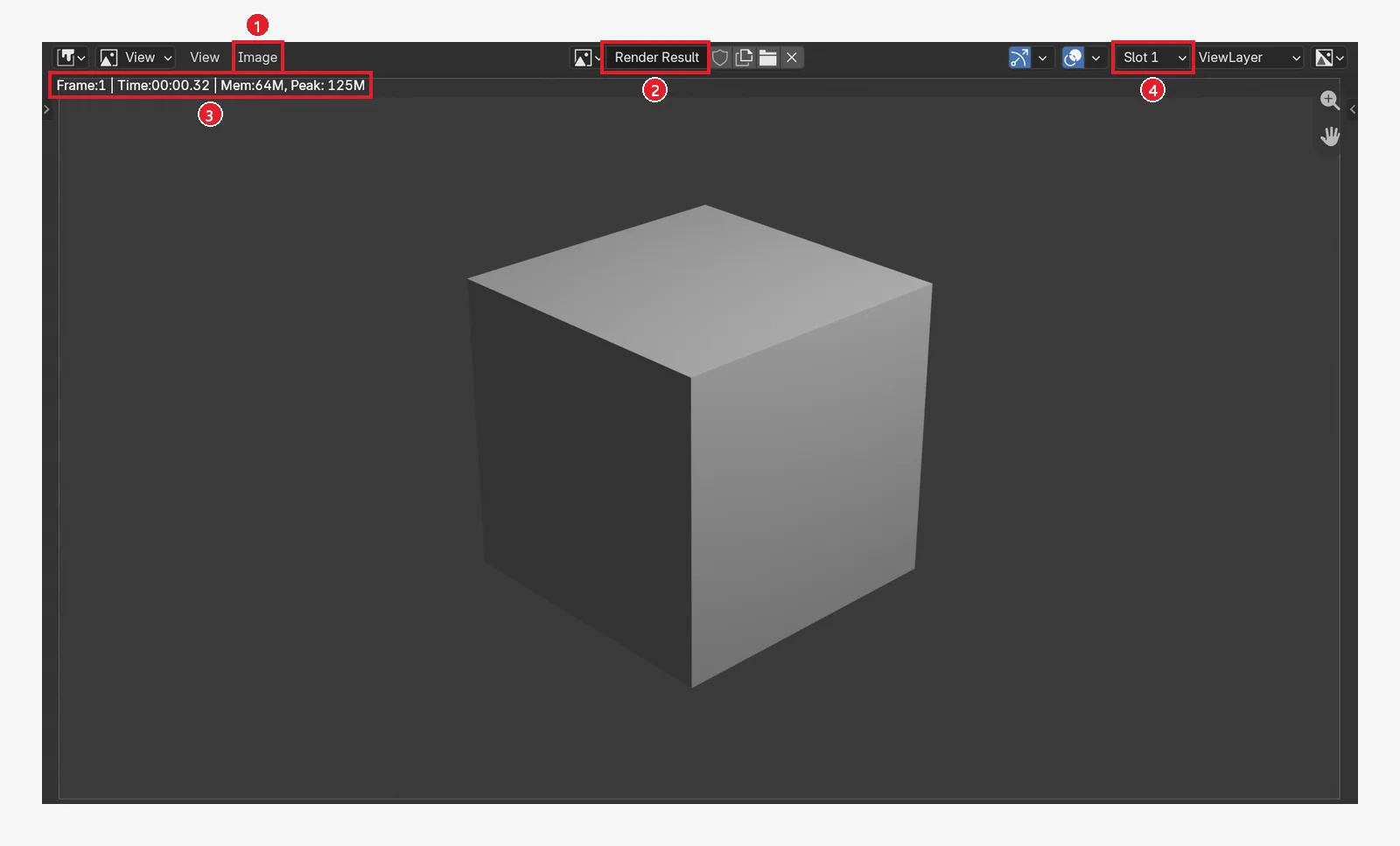 Figure 11-3. The render window that opens when you press
 F12 in the default scene: ① the Image menu (you save from here) ② the image name Render Result ③ Frame, Time (time taken), and Mem (memory) info ④ Slot — a slot that holds a render result (section 4-2). The image shows a scene without the floor plane (Blender screenshot)
2. Choosing a render engine: EEVEE and Cycles
You choose the engine on the Render tab of the Properties editor (the icon shaped like the back of a camera).
Follow along: click the Render Engine field on the Render tab and change it to Cycles (Figure 11-5). Once you see the panels change, set it back to EEVEE.
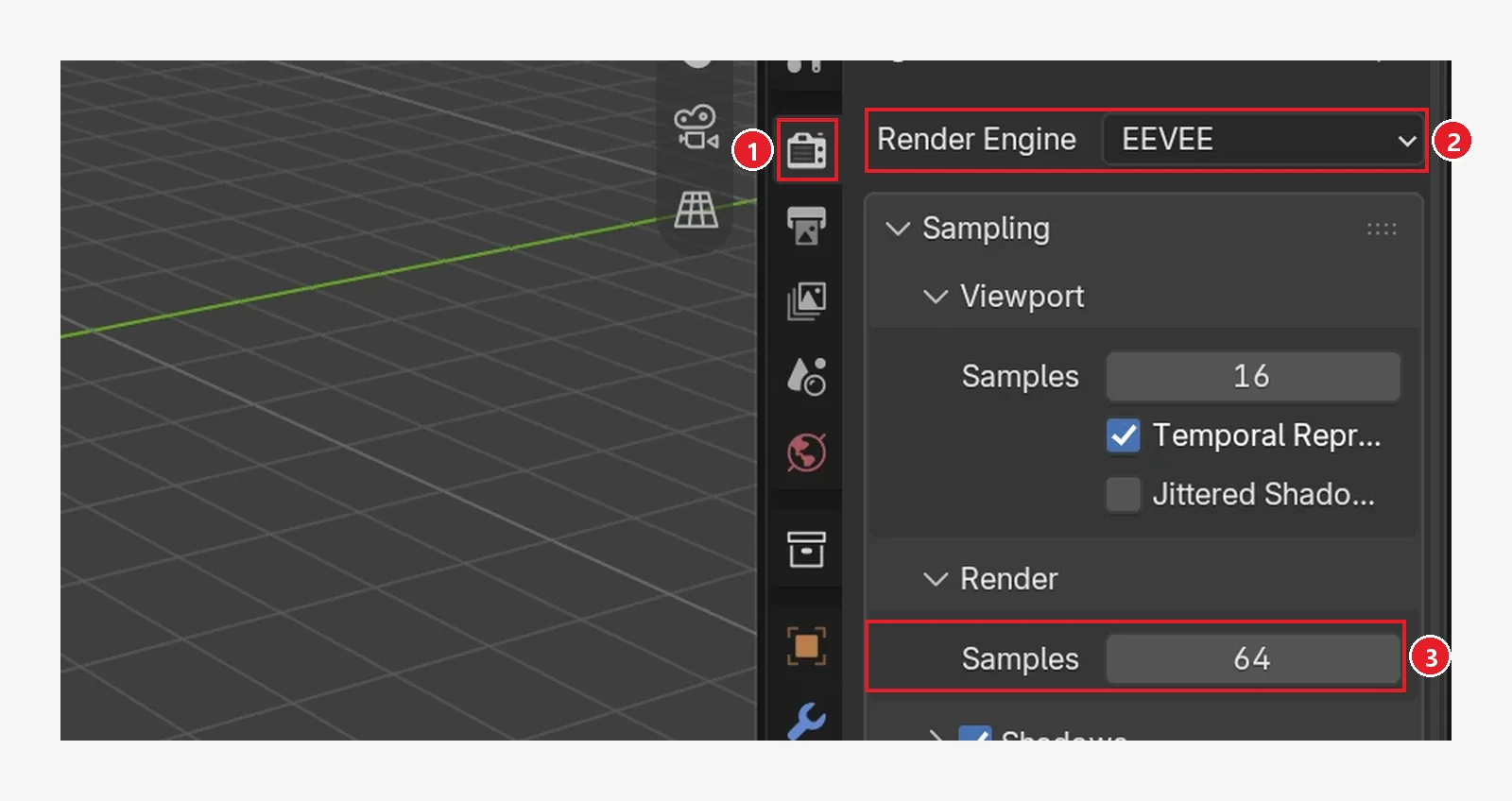 Figure 11-4. ① The Render tab ② Render Engine: EEVEE (default) ③ Render ‣ Samples 64 — how many times each pixel is calculated and refined when rendering. Viewport Samples 16 above it is for the viewport preview (Blender screenshot)
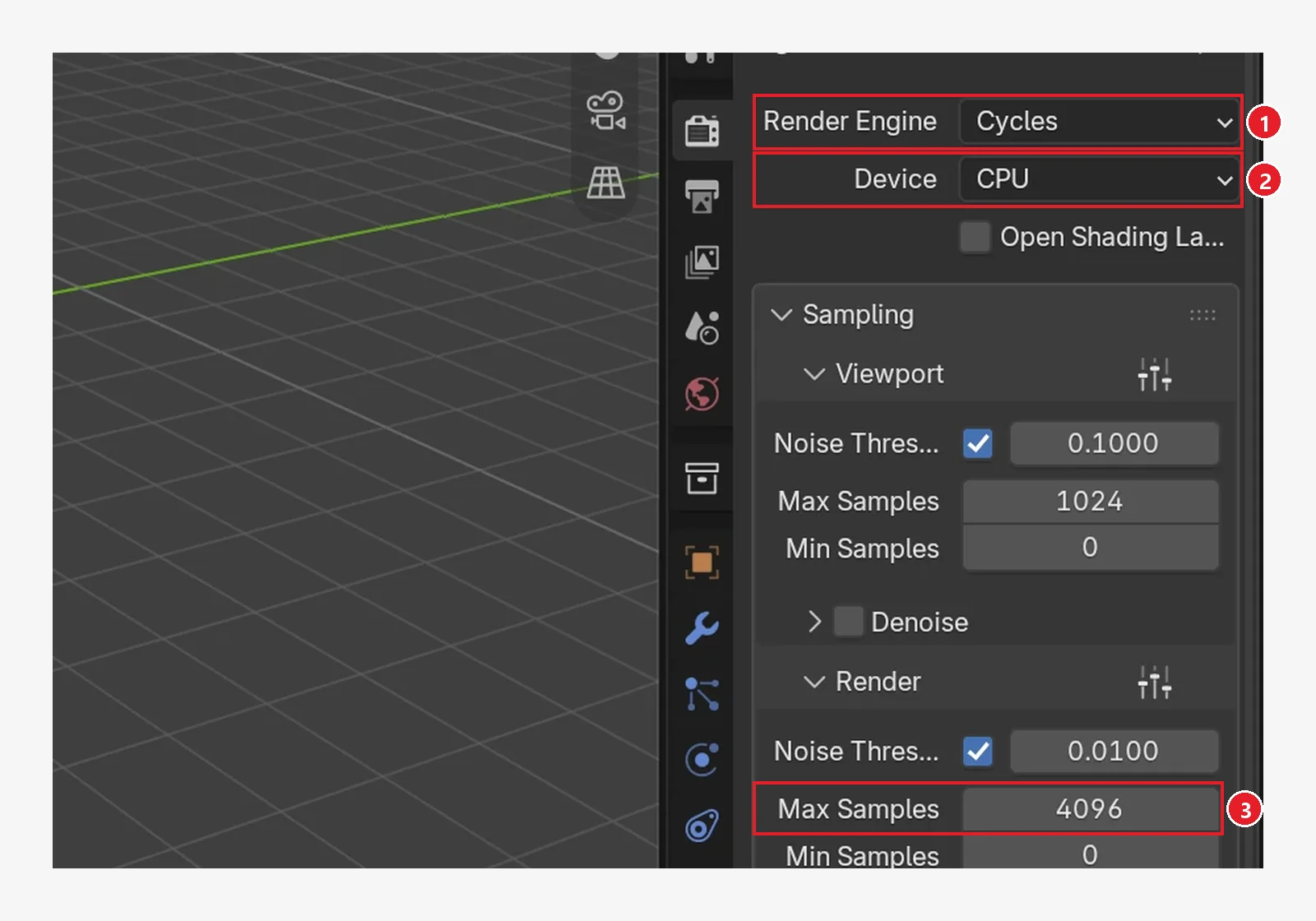 Figure 11-5. After changing the engine: ① Render Engine: Cycles ② Device: CPU — to calculate on the graphics card, you first need to turn on a Cycles render device under System in the Preferences ③ Render ‣ Max Samples 4096 (default). The panels below change completely for each engine (Blender screenshot)
| EEVEE | Cycles | |
|---|---|---|
| How it works | Draws fast, like a game | Calculates the paths of bouncing light one by one |
| Speed | Fast (one 1280×720 image in this chapter: about 0.5 seconds) | Slow (same scene, CPU, samples lowered to 64: about 7.4 seconds) |
| Good at | Previews, low-poly, animation tests | Realistic light, reflections, soft shadows |
| Recommended at first | Start with this | For making the final image look its best |
(The times were measured on the author's PC. They vary a lot by PC and scene.)
3. Output settings: the Output tab
The render size and save location are on the Output tab (the printer-shaped icon).
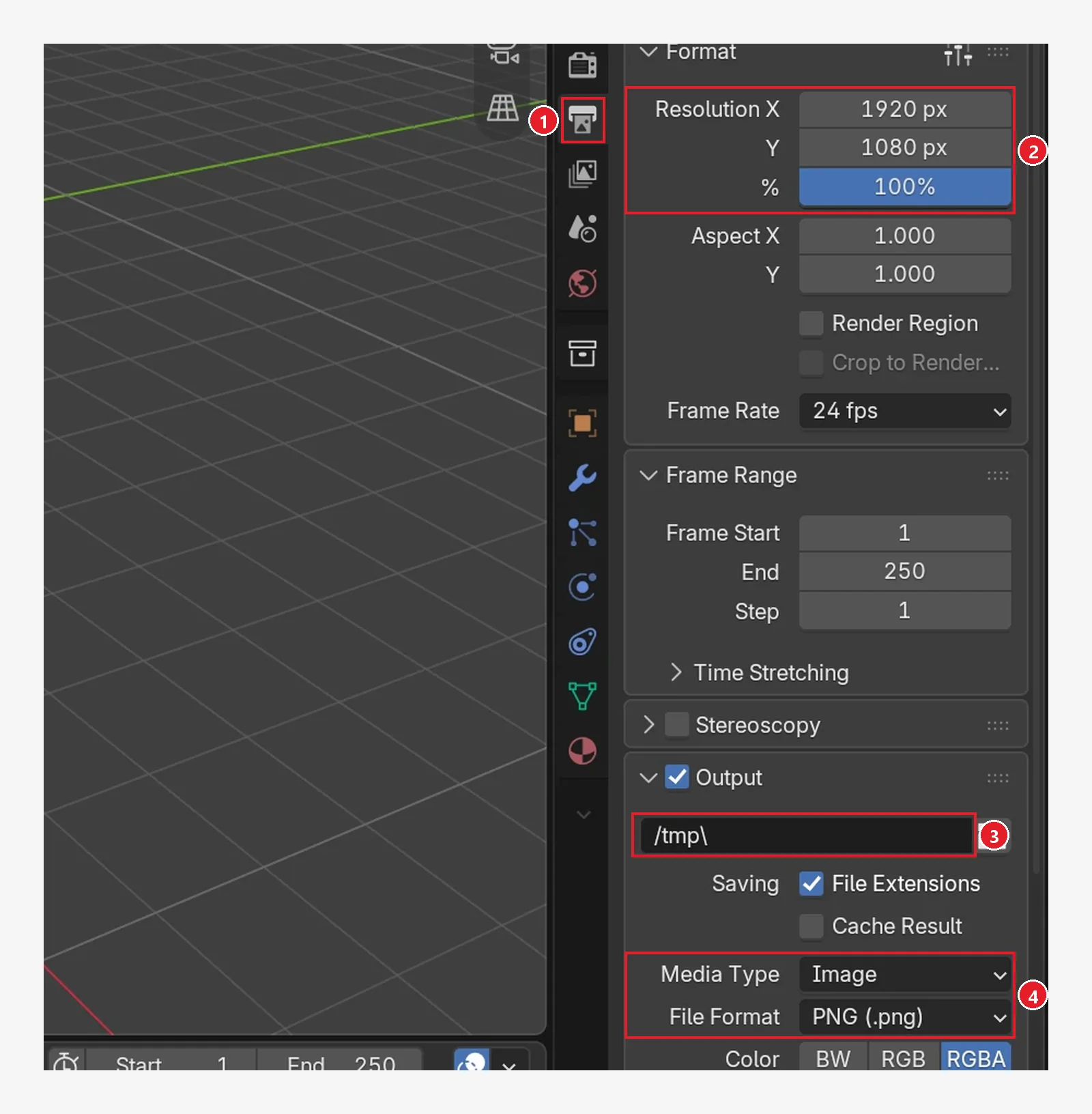 Figure 11-6. The default state of the Output tab: ① the Output tab ② Resolution X 1920 px, Y 1080 px, % 100% ③ the save path in the Output panel,
 /tmp\ ④ Media Type: Image, File Format: PNG (Blender screenshot)
3-1. Follow along: reduce it to 1280×720
- Double-click the Resolution X field, type
1280, and pressEnter. - Type
720in the Resolution Y field and pressEnter. - Leave % at 100%. If you lower it to 50% for test renders, the width and height are both halved at the same ratio.
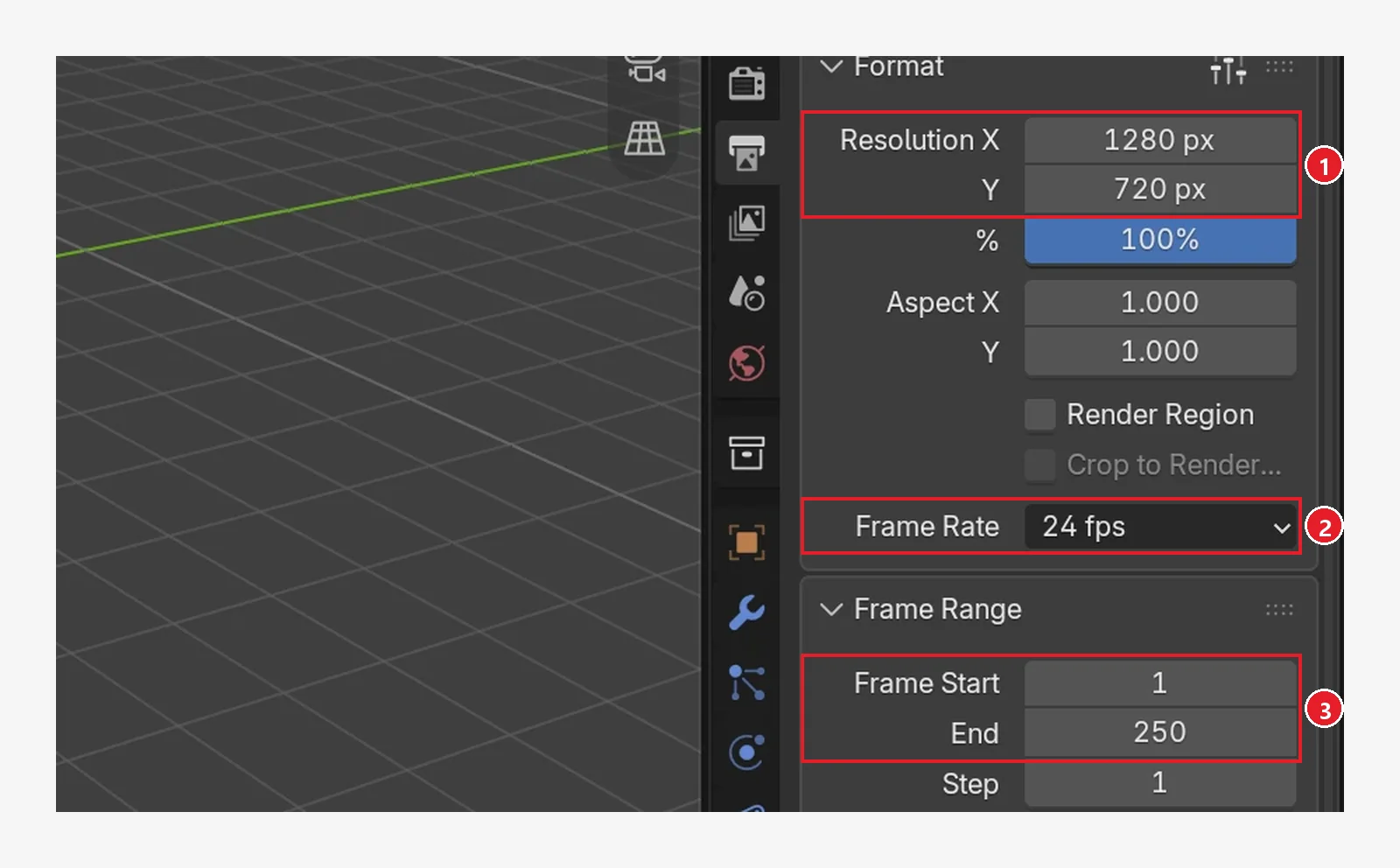 Figure 11-7. After the change: ① Resolution 1280 × 720 px ② Frame Rate 24 fps (24 images per second) ③ Frame Start 1, End 250 — the range for animation renders. At 24 fps, 250 frames is about 10.4 seconds (Blender screenshot)
| Field | Meaning |
|---|---|
| Resolution X / Y | The width and height of the result in pixels |
| % | What percent of the size above to render at. Lower it for tests |
| Frame Rate | How many images per second (video speed) |
| Frame Start / End | The first and last frames rendered with Ctrl+F12 (the same values as Start/End on the timeline at the bottom of the screen) |
| Output path | The folder and the first part of the file name for Ctrl+F12 results |
| Media Type / File Format | Whether to output images (PNG and so on) or video |
3-2. What the render captures: the camera frame
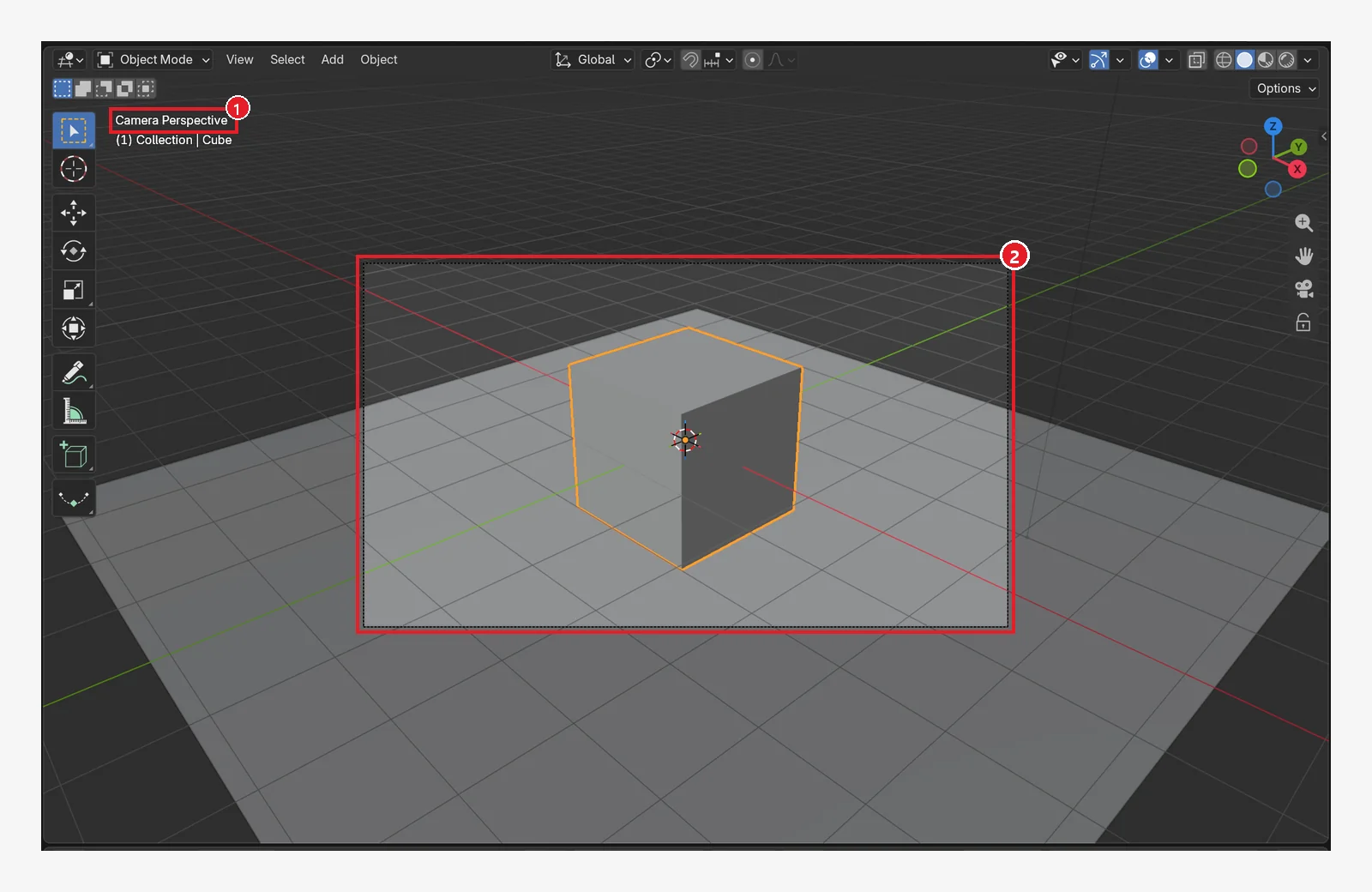 Figure 11-8. Camera view seen with numpad
 0 (chapter 10): ① Camera Perspective ② the area inside the dashed frame is what the render captures. The resolution was changed to 1280×720 (16:9), so the frame has that ratio too (Blender screenshot)
4. Rendering and saving one still image
4-1. Follow along
- Press
F12over the 3D Viewport (or Render ‣ Render Image). - The render window opens and the image fills in. Wait until it is done.
- Open the save window with the menu at the top of the window, Image ‣ Save As… (
Shift+Alt+S). - Choose a folder and a name (for example
my-render.png) and click the blue Save As Image button at the lower right (Figure 11-12 ④). - You can just close the render window. To see it again, press
F11.
Important: a picture taken with
F12is not saved automatically. You have to save it yourself with Image ‣ Save As. If you render again or close Blender without saving, it is gone.
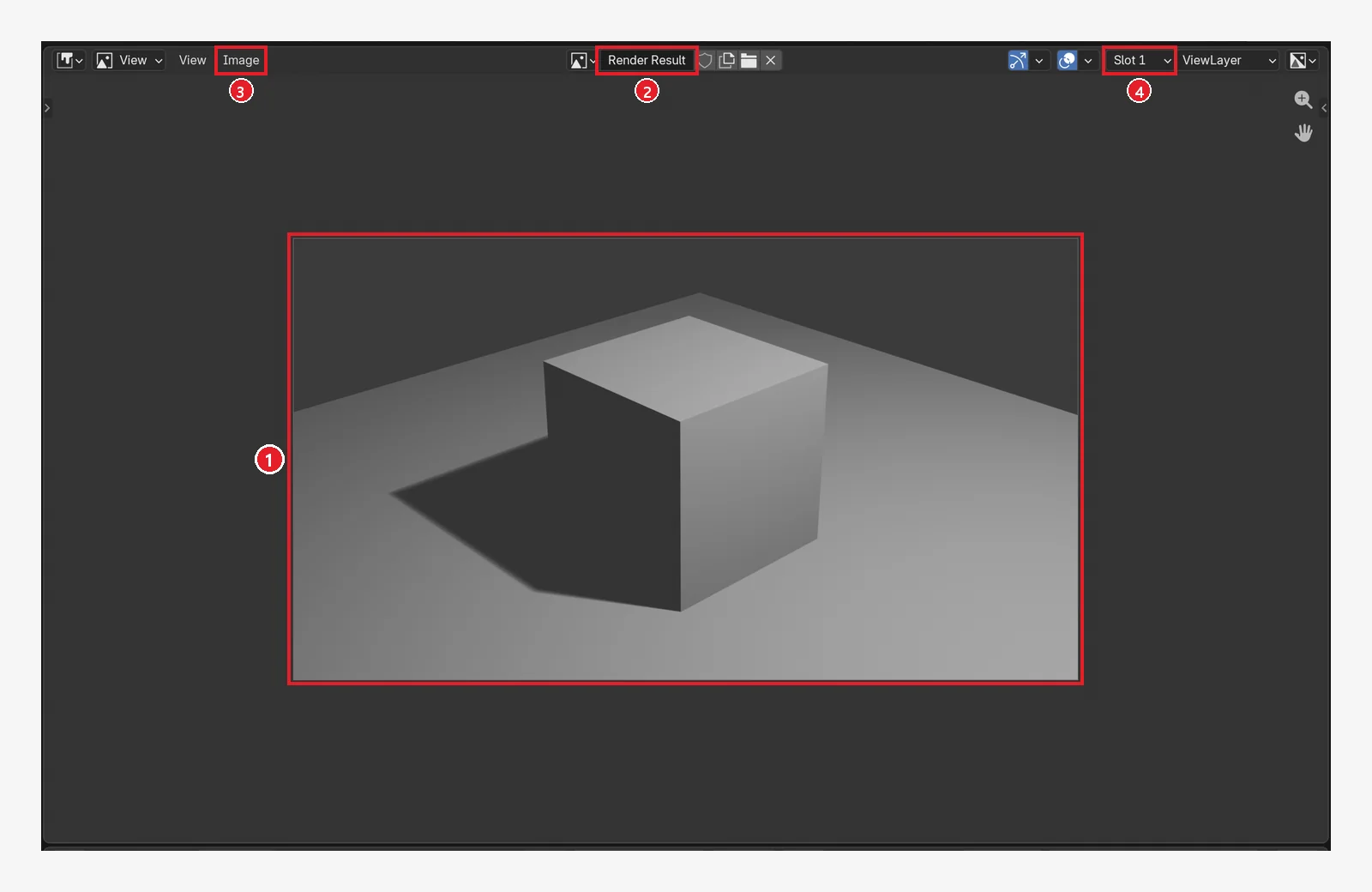 Figure 11-9. A 1280×720 result rendered with EEVEE, with the same view as the render window shown in an Image Editor area: ① the rendered image — exactly what is inside the camera frame ② the image name Render Result ③ the Image menu — Save As is here ④ Slot 1 — a slot that holds a render result (Blender screenshot)
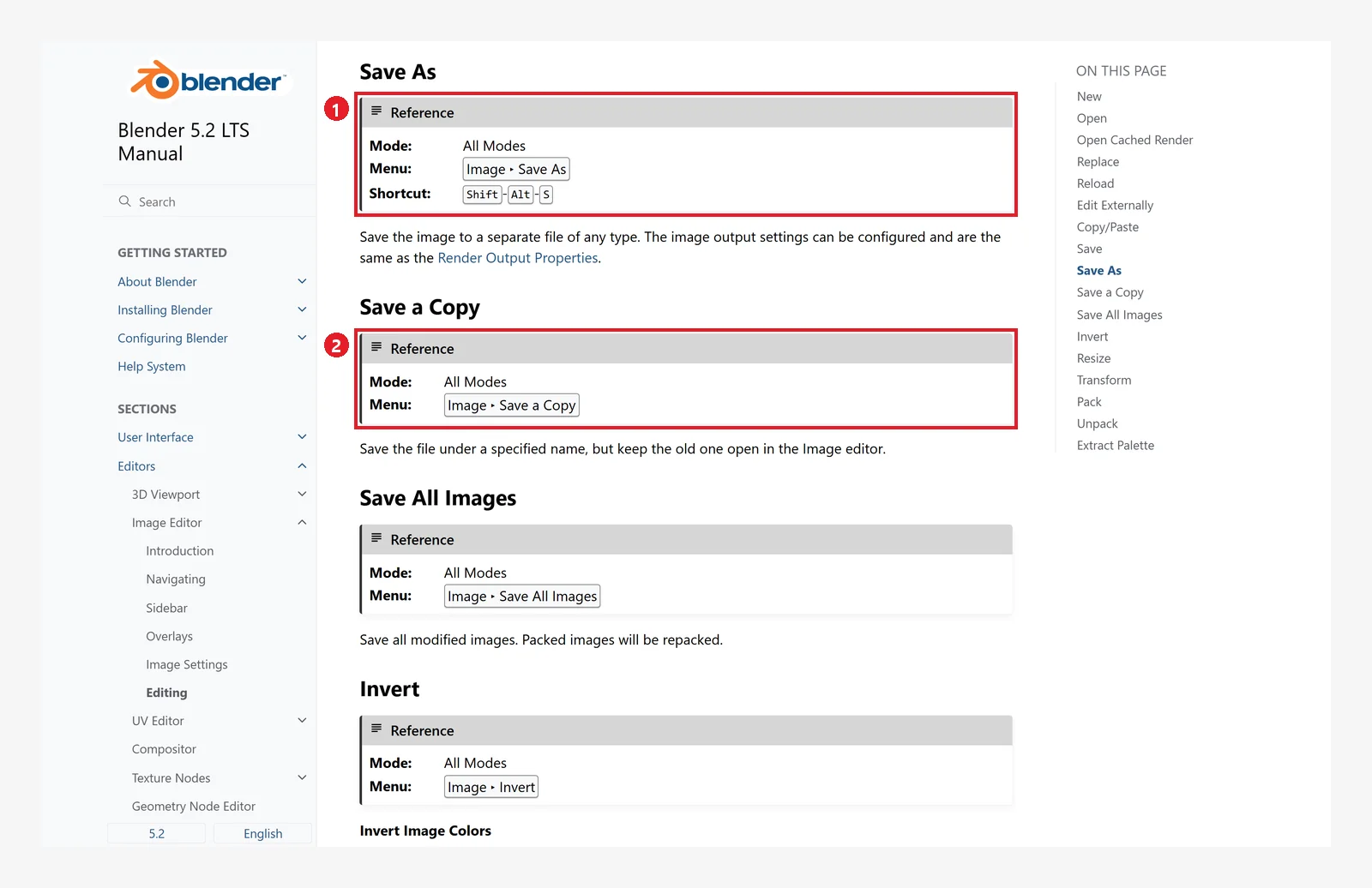 Figure 11-10. Official manual: ① Save As — menu Image ‣ Save As, shortcut
 Shift+Alt+S. You can save in the same image formats as in the output settings ② Save a Copy — saves a copy under a different name (screenshot of the Blender 5.2 manual, CC BY-SA 4.0, numbers added)
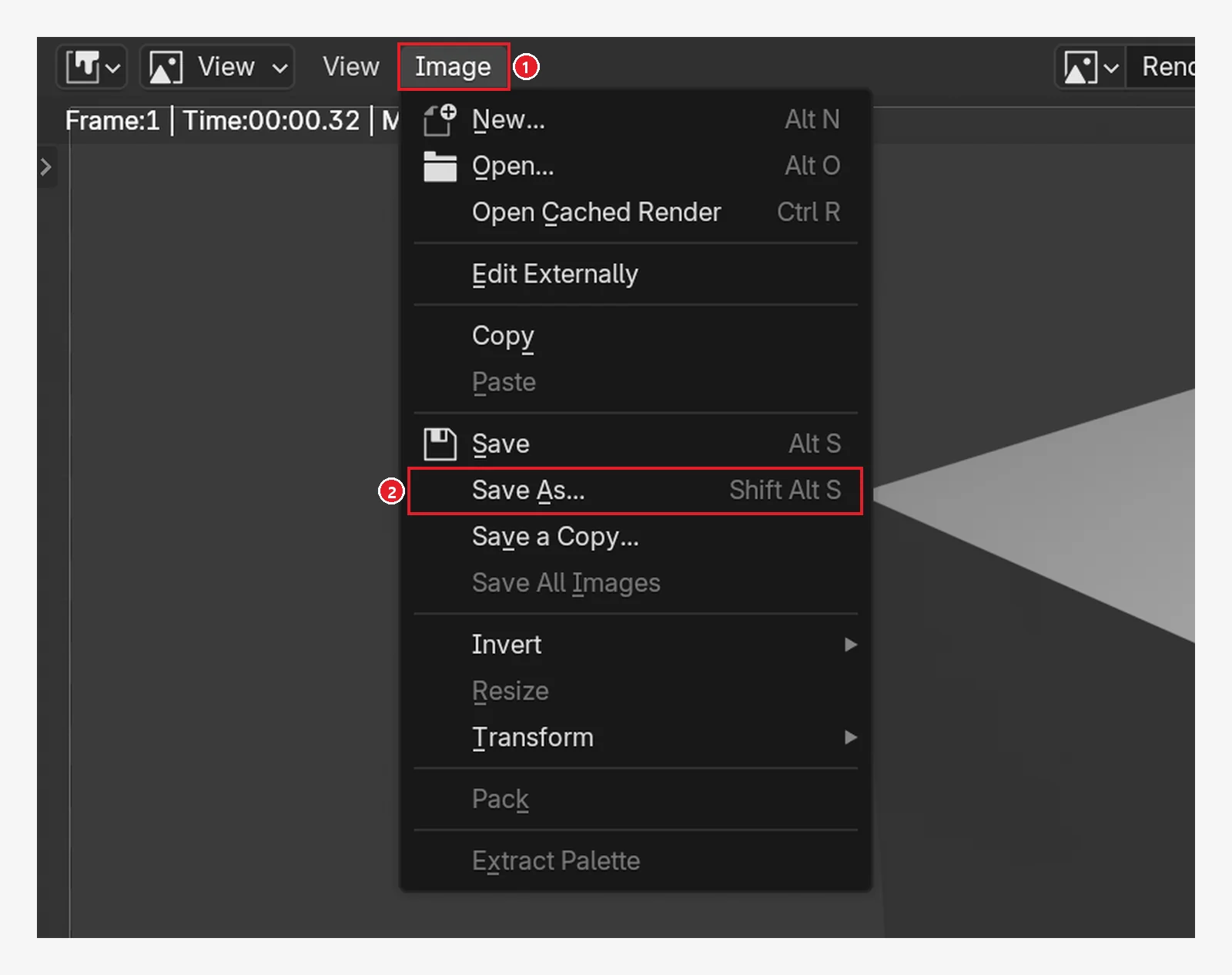 Figure 11-11. The render window's ① Image menu opened: save the image with ② Save As... (
Shift+Alt+S). Save (Alt+S) right above it is for saving over the same file once an image has been saved (Blender screenshot)
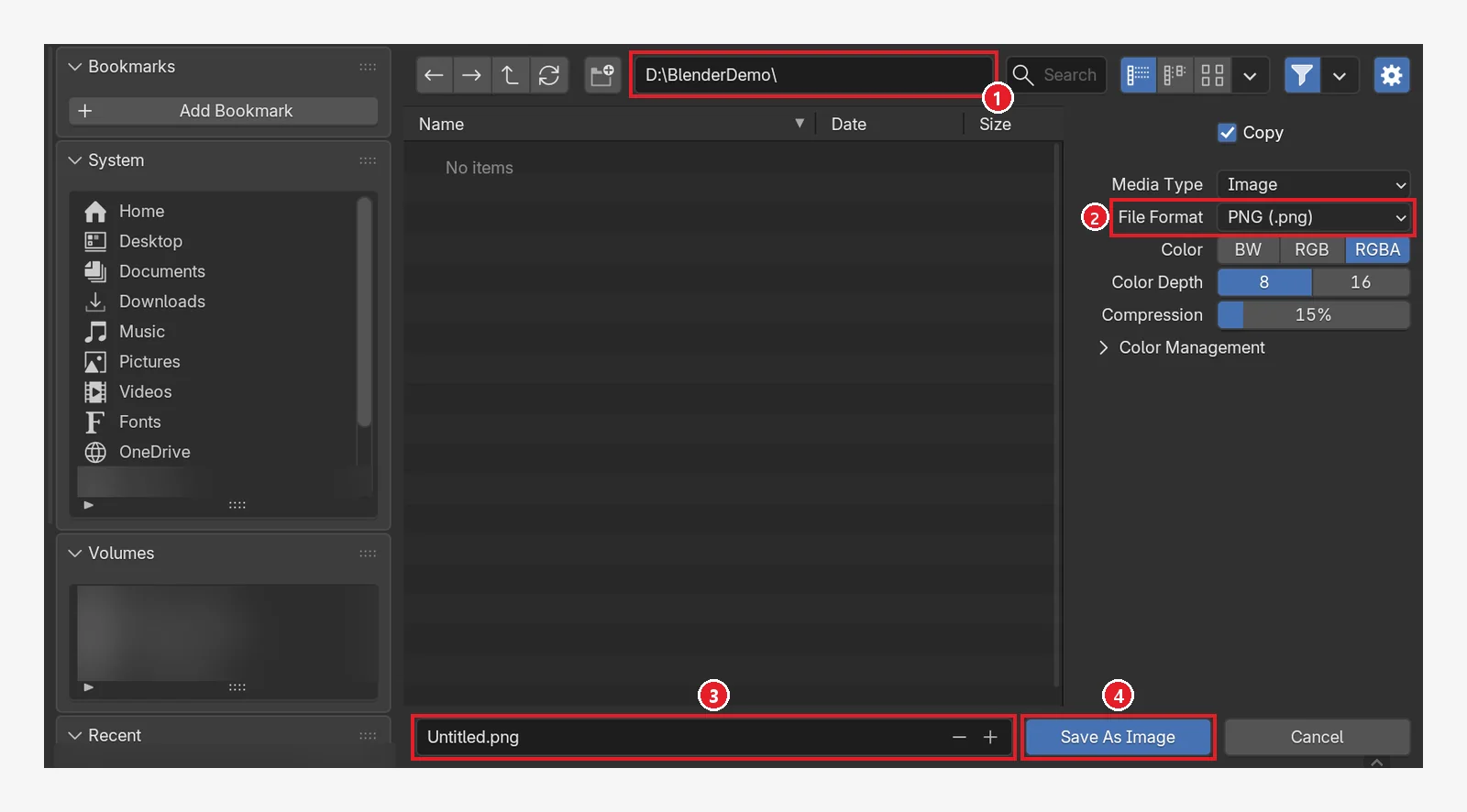 Figure 11-12. The image save window that opens when you click Save As: ① folder ② File Format (default PNG) ③ file name ④ the Save As Image button. Personal folders and drive names in the list on the left are blurred (Blender screenshot)
If Copy at the upper right of the save window is on, only a copy is saved as a file, and the image inside Blender stays as it is.
4-2. Comparing two results with slots
If you change the render window's Slot and render again, the new result goes into a different slot without erasing the earlier one. This is handy for comparing engines or lighting. Over the render result, press J for the next slot and Alt+J for the previous slot.
Starting state: continue with the EEVEE render from the previous section in Slot 1.
Follow along: click the Slot field of the render window and choose Slot 2. On the Render tab, change the engine to Cycles, lower Render ‣ Max Samples to 64, and press F12 (Figure 11-13). If you leave the default 4096, it takes much longer.
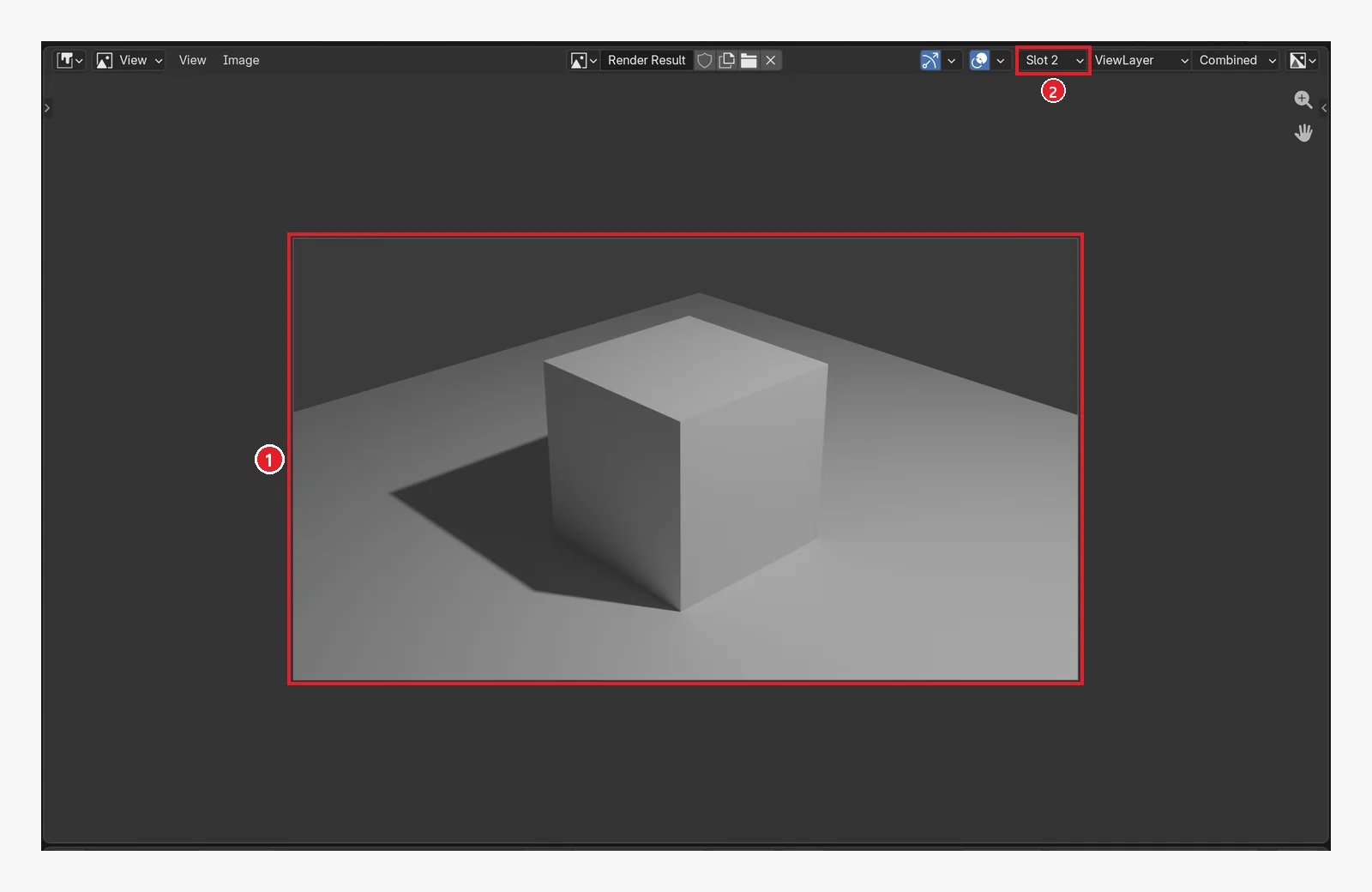 Figure 11-13. The result rendered into Slot 2 with the engine changed to Cycles: ① compared with Figure 11-9 (EEVEE), light bounced from the floor softly fills the shaded faces of the cube, so it looks softer ② Slot 2. The image is the result with Max Samples lowered to 64 (Blender screenshot)
5. Outputting an animation as an image sequence: Ctrl+F12
Ctrl+F12 renders each frame from Frame Start to End and saves them to the Output path automatically. A four-digit frame number is added to the end of each file name (for example frame_0001.png).
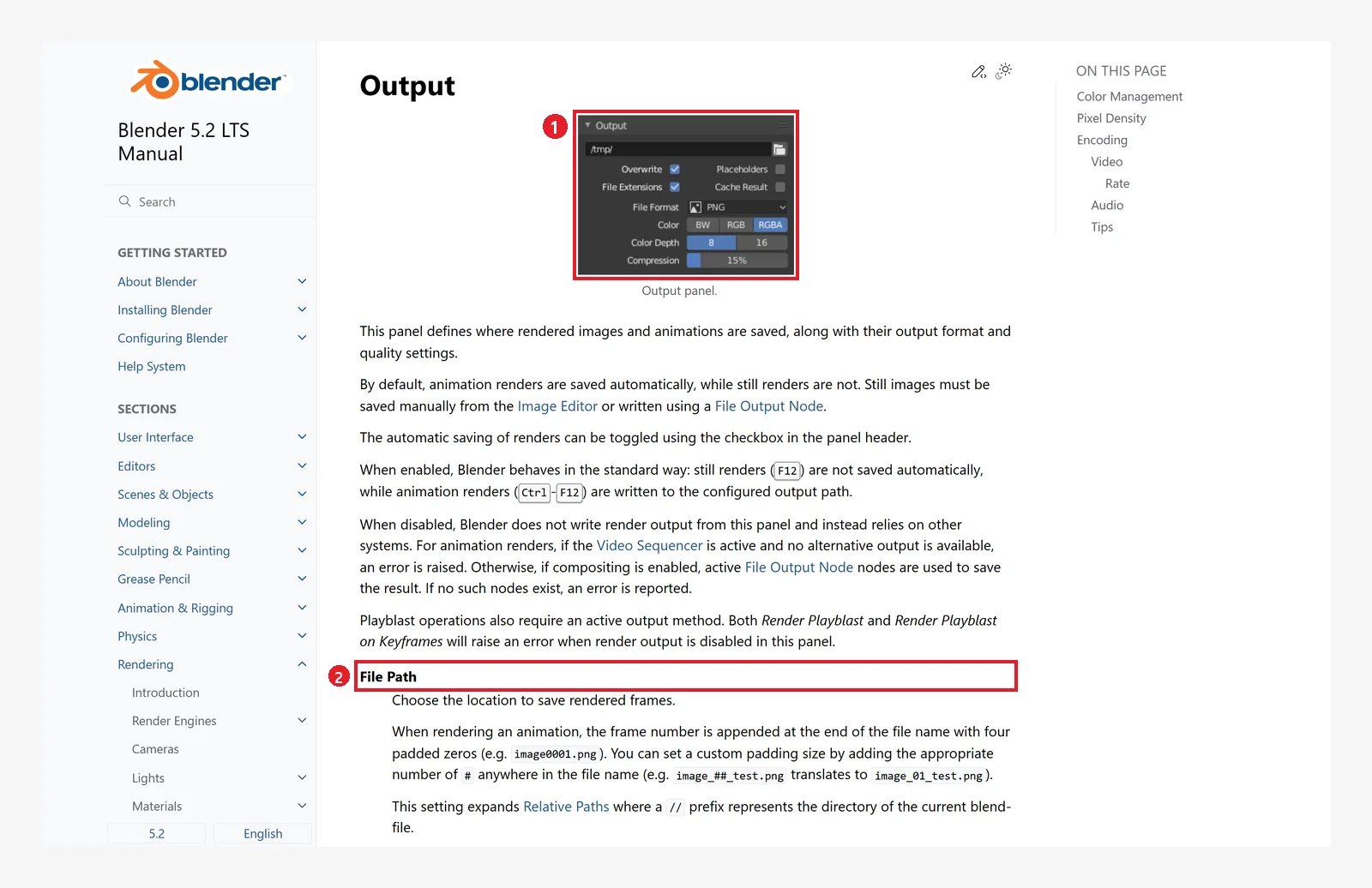 Figure 11-14. Output in the official manual: ① the Output panel ② File Path — where rendered frames are saved. For animations, a four-digit frame number is added to the end of the file name, and a path starting with
 // means "the folder the .blend file is in" (screenshot of the Blender 5.2 manual, CC BY-SA 4.0, numbers added)
5-1. Follow along: a one-second test animation
To test an animation render, you need a scene that moves. You will learn keyframes properly in chapter 12. For now, just follow the two lines below. If you already finished chapter 12, you can use that scene as is.
Starting state: undo what you changed in the previous section. If you changed the engine to Cycles in section 4-2, set it back to EEVEE on the Render tab. Close the render window.
- Frame 1: select the cube and check that the current frame field on the timeline at the bottom of the screen is
1. Type-2in Location X on the Item tab of the sidebar (N), then pressIwith the mouse over the 3D Viewport. - Frame 24: type
24in the current frame field, type2in Location X, and pressIagain.
Now the cube moves 4 m from left to right between frame 1 and frame 24. Figures 11-17 to 11-21 in this chapter also show a scene made with these two keys. Next, set up the output.
- Save the .blend first with
Ctrl+S(chapter 5). The//used in step 4 only works in a saved file. - On the Output tab, lower % to 50% (renders at half of 1280×720, 640×360).
- Change Frame End to 24 (one second at 24 fps).
- Change the Output path to your own folder. Example:
//render/frame_(saves frame_0001.png… in a render folder next to this .blend) - Check that Media Type is Image and File Format is PNG.
- Press
Ctrl+F12.
The path field in step 4 is at the very top of the Output panel. Click the field, delete the text, type the new path, and press Enter.
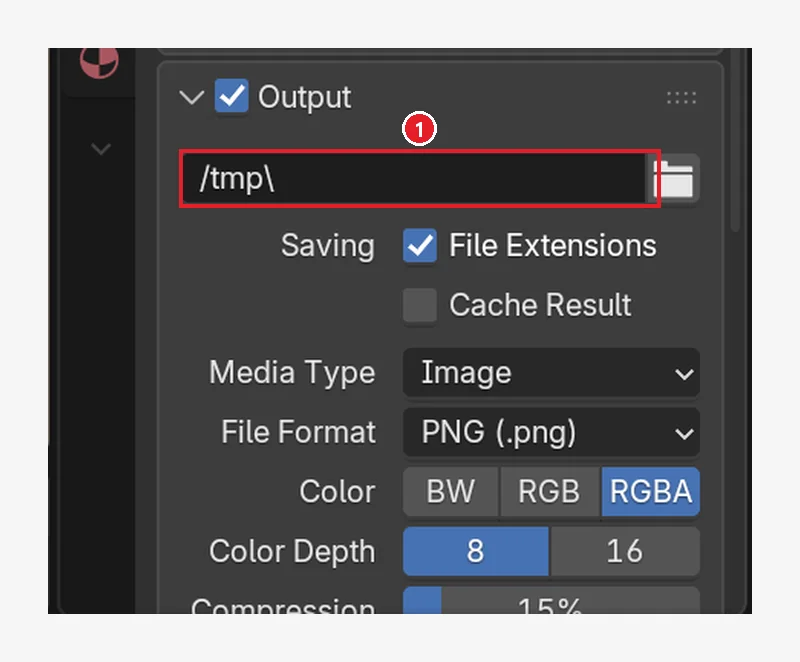 Figure 11-15. Before: ① the default value of the path field,
 /tmp\. If you leave it, the saved images are hard to find, so change it to your own folder (Blender screenshot)
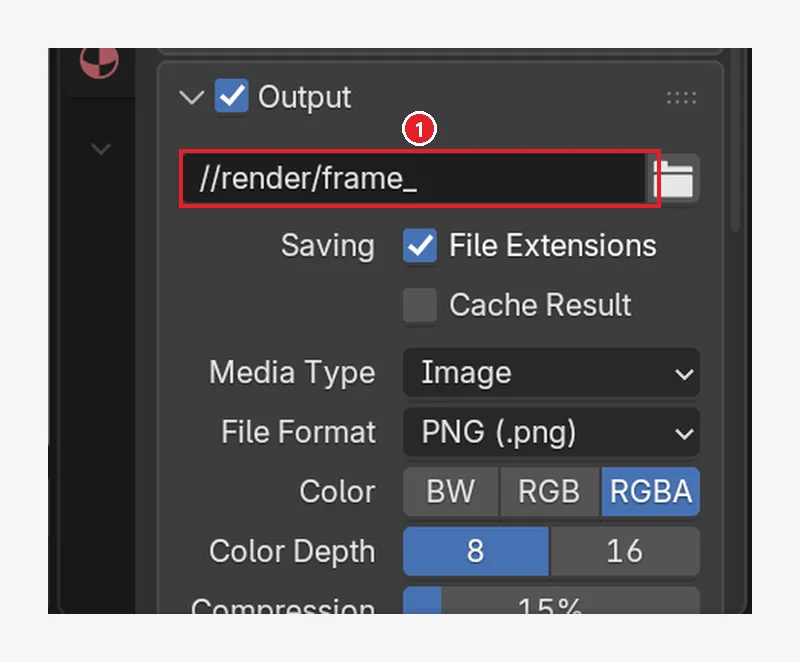 Figure 11-16. After: ①
 //render/frame_. // is "the folder the .blend file is in," render/ is the render folder inside it (made during rendering if it does not exist), and frame_ is the first part of the file name. So the files are saved as frame_0001.png, frame_0002.png… (Blender screenshot)
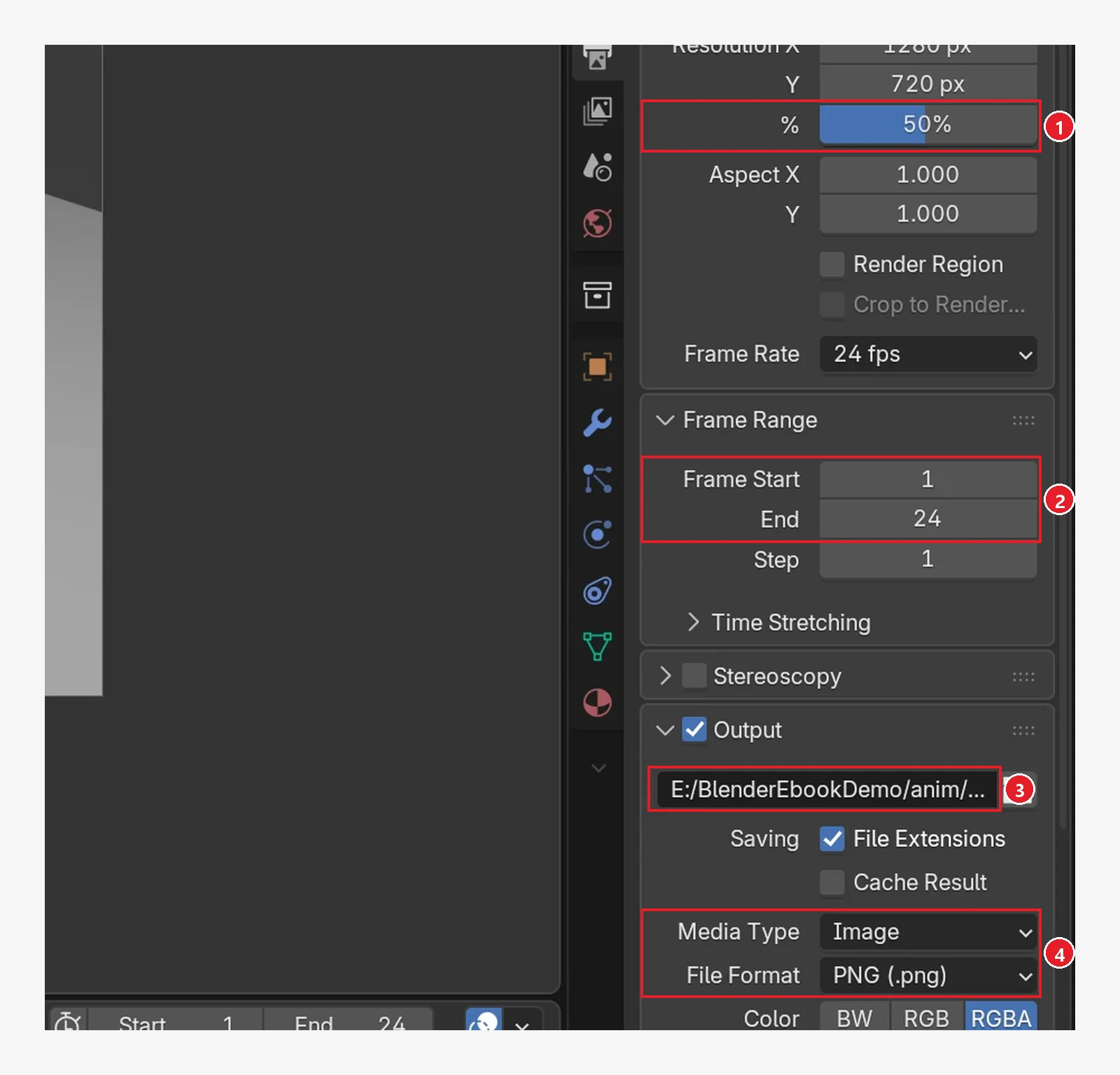 Figure 11-17. Settings before the animation render: ① % 50% (renders at 640×360) ② Frame Start 1, End 24 ③ the save path (the image shows a folder made for this guide, so the text differs; on your screen it is
 //render/frame_) ④ Media Type Image, File Format PNG (Blender screenshot)
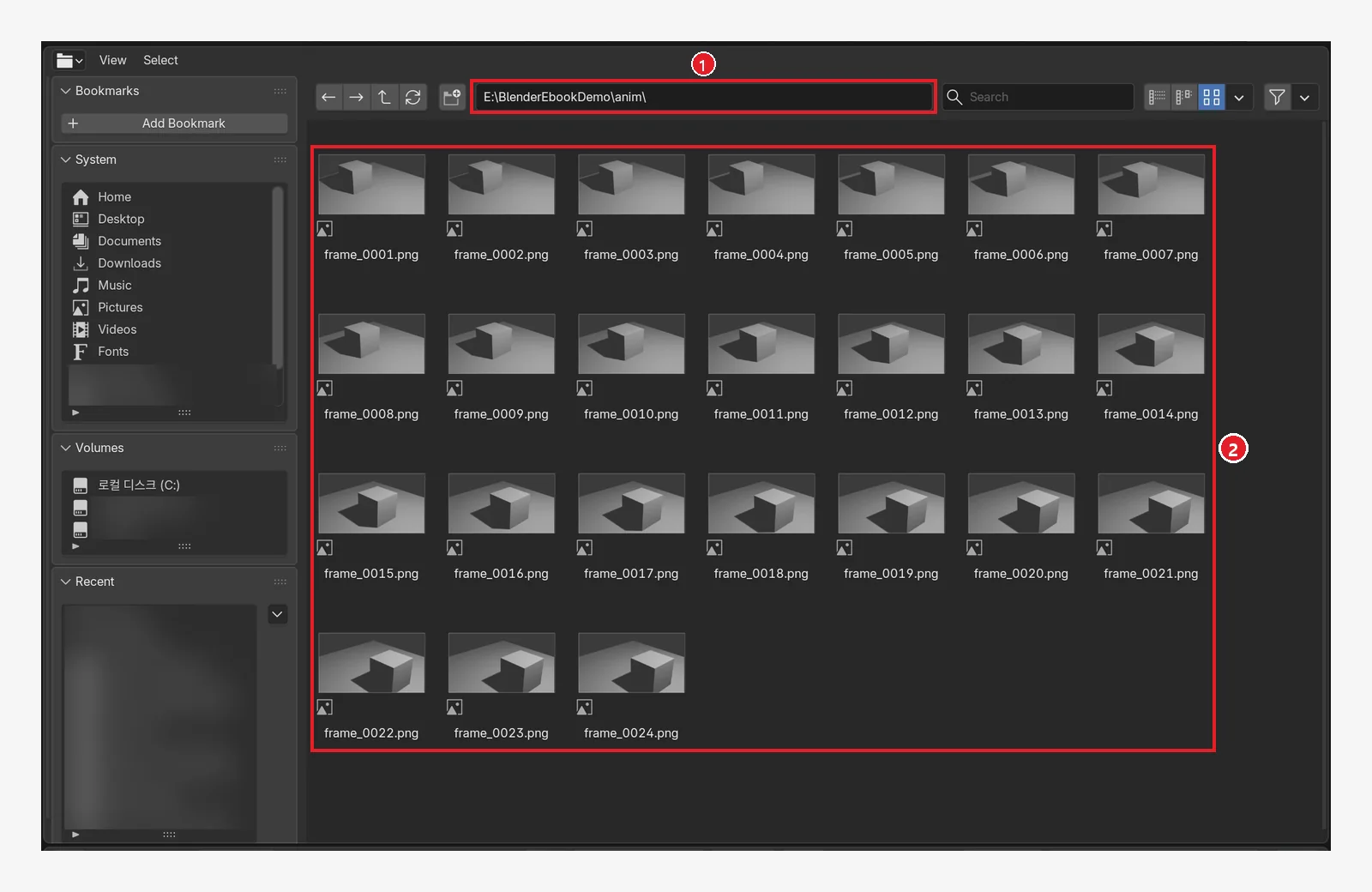 Figure 11-18. The save folder after
 Ctrl+F12, seen in the file browser (with the editor type changed): ① the save folder ② 24 images from frame_0001.png to frame_0024.png. You can see in the thumbnails that the cube moves from left to right. Personal folders and drive names in the list on the left are blurred (Blender screenshot)
The scene in the image took about 5.6 seconds to render 24 images (measured on the author's PC).
Why an image sequence is good: if rendering stops or Blender shuts down partway, the frames already saved remain. Video editing programs can load a numbered image sequence as if it were a video.
6. Outputting a video file directly
If you change Media Type to Video in the Output panel, the frames are saved together as one video file.
Starting state: continue with the settings from the previous section (section 5-1): % 50, End 24, two keys.
Follow along:
- On the Output tab, change Media Type to Video (Figure 11-19).
- Change the path field to
//video/cube_. This means saving to a video folder next to this .blend, as a file whose name starts withcube_. - Press
Ctrl+F12. One file,cube_0001-0024.mkv, appears in the video folder (Figure 11-21).
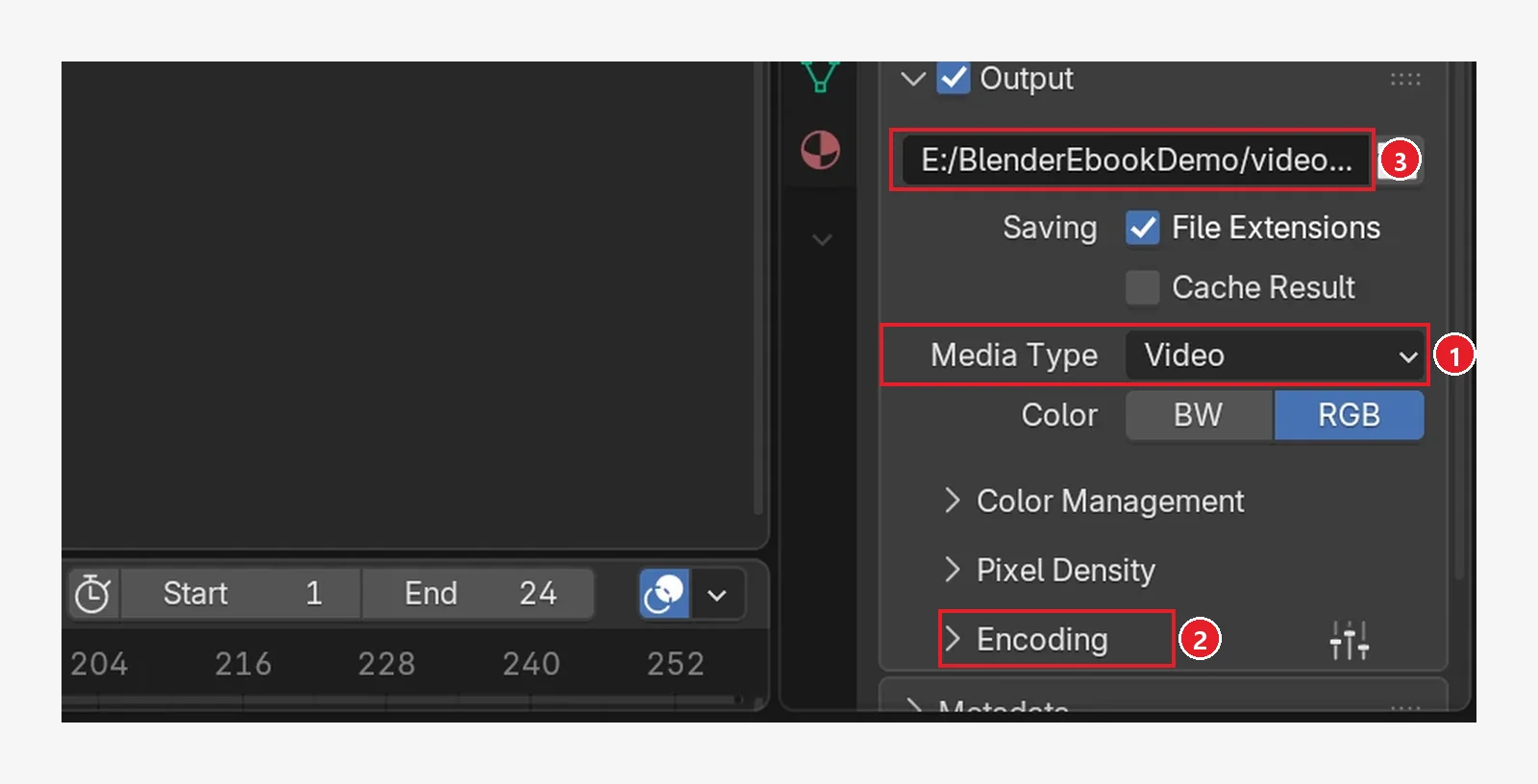 Figure 11-19. ① Media Type: Video ② the Encoding panel — where you set the video package format (container) and compression method (codec). The defaults are container Matroska and codec H.264 (opened in Figure 11-22) ③ the save path (the image shows a folder made for this guide; the first part of the file name is
 cube_) (Blender screenshot)
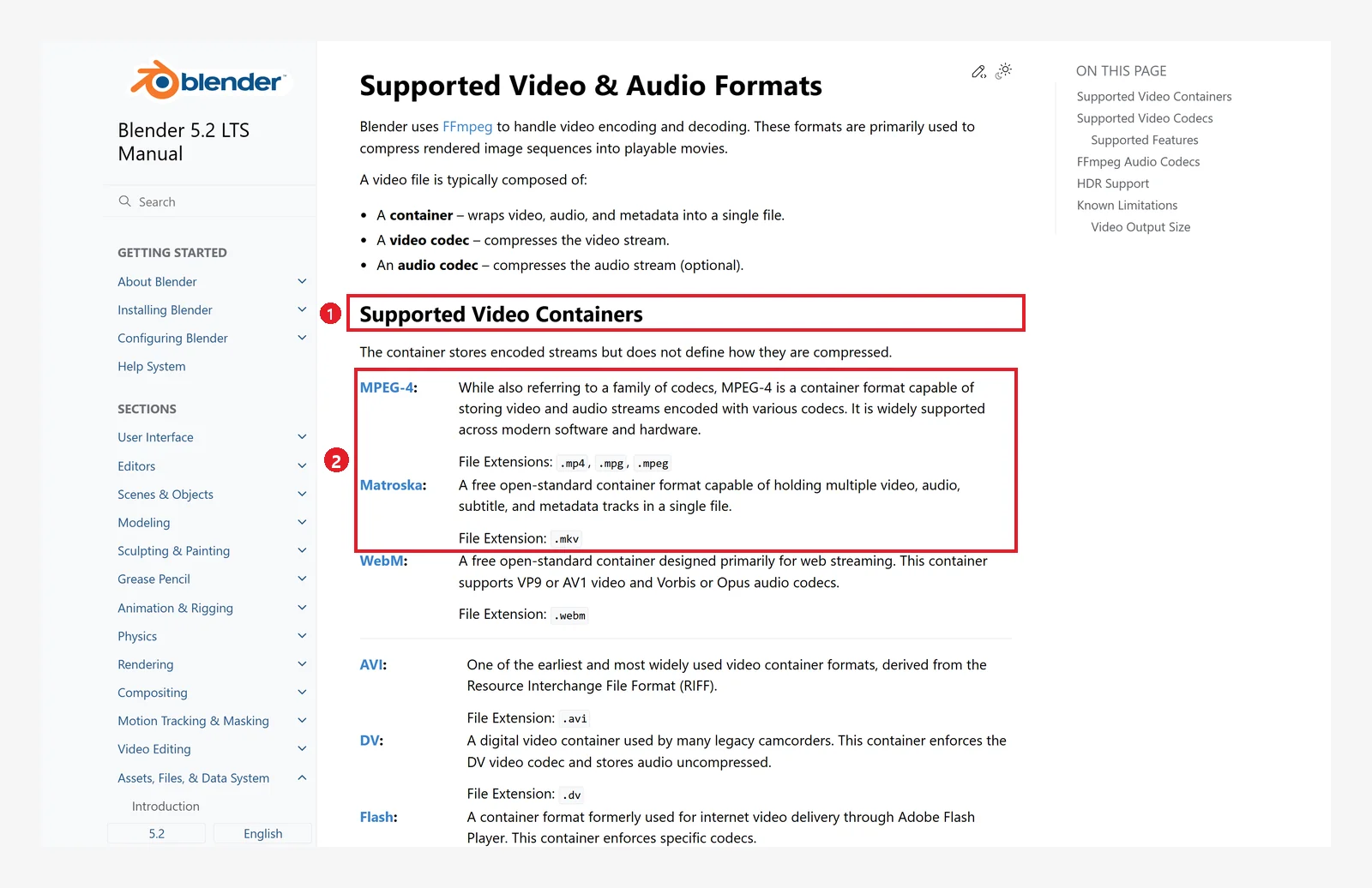 Figure 11-20. Official manual: ① Supported Video Containers ② MPEG-4 (.mp4 — supported by most devices and programs) and Matroska (.mkv — an open format that holds several video, audio, and subtitle tracks) (screenshot of the Blender 5.2 manual, CC BY-SA 4.0, numbers added)
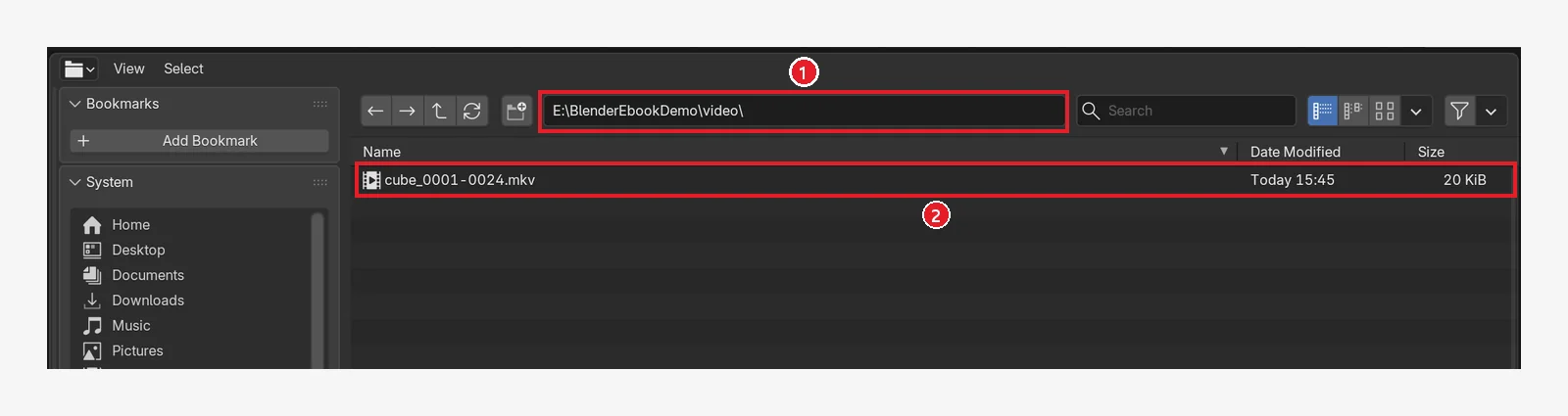 Figure 11-21. After
 Ctrl+F12: ① the video save folder ② one file, cube_0001-0024.mkv (20 KiB) — the rendered frame range is added to the end of the name (Blender screenshot)
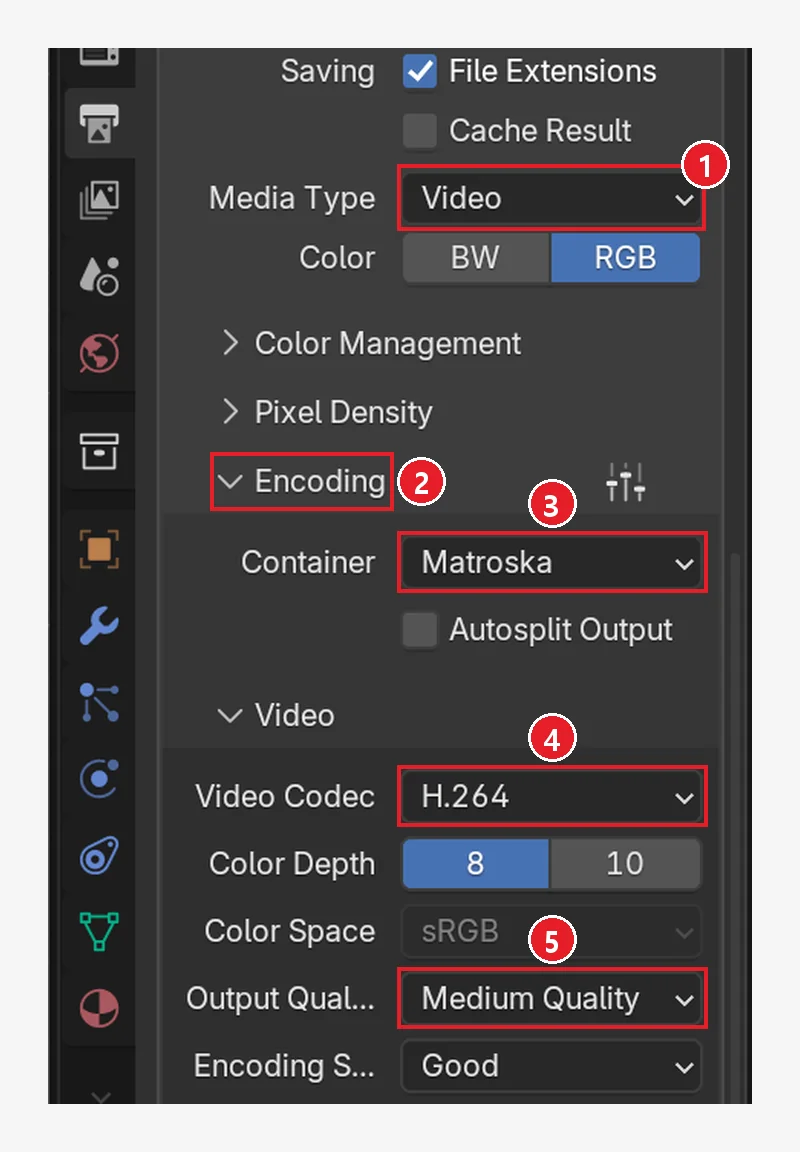 Figure 11-22. The lower part of the Output tab: ① Media Type = Video ② the Encoding heading clicked open ③ Container (default Matroska) ④ Video Codec (default H.264) ⑤ Output Quality (default Medium Quality) (Blender screenshot)
Changing to MP4 (before → after): click the Container field and choose MPEG-4 from the list.
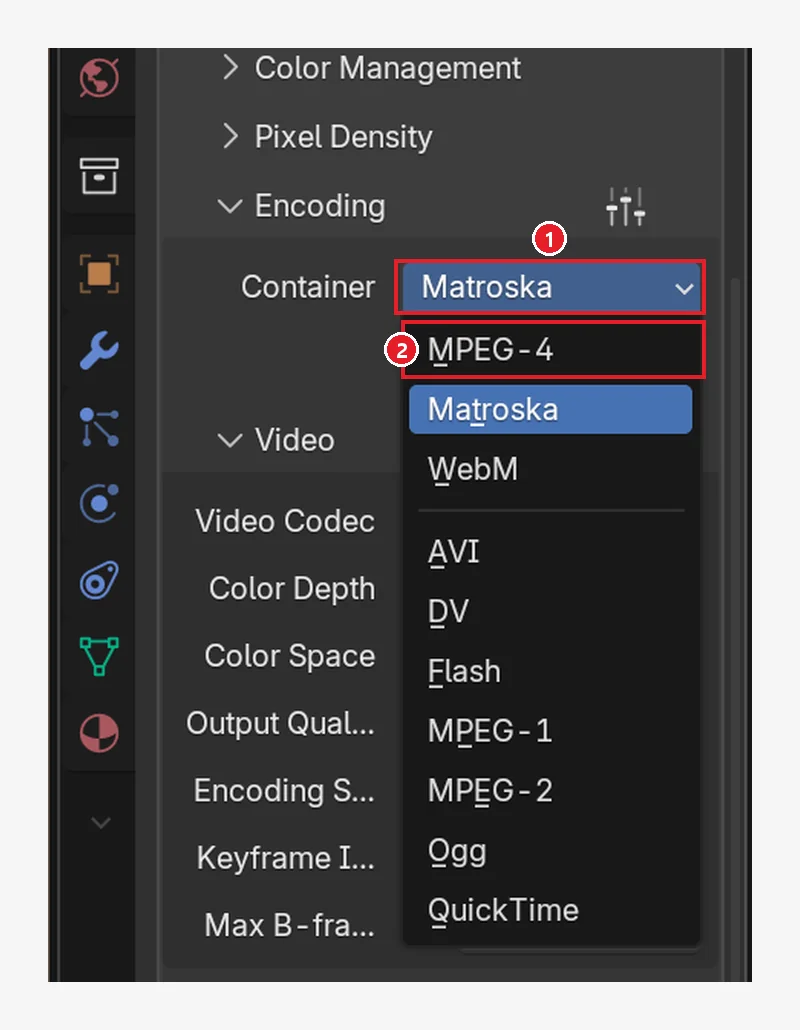 Figure 11-23. ① Click the Container field (now Matroska) to open the list: ② MPEG-4 at the top. There are other formats such as WebM, AVI, and QuickTime (Blender screenshot)
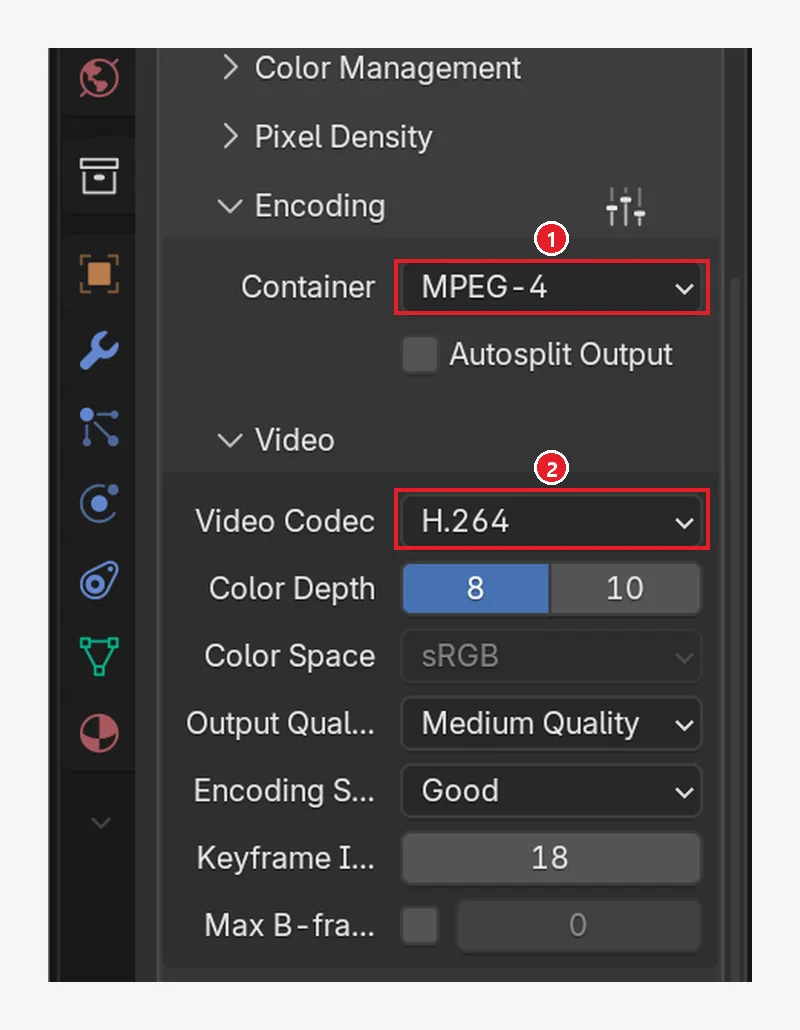 Figure 11-24. After choosing: ① Container changes to MPEG-4 ② Video Codec stays H.264. Press
 Ctrl+F12 in this state to save as one .mp4 file (Blender screenshot)
- MPEG-4 suits videos you post to phones and social media. The manual describes MPEG-4 as "a widely supported format."
- For long videos, it is safer to output an image sequence first, as in section 5, and join it into a video later. If something goes wrong during rendering, it is easier to start again.
7. Exercises
- Render the default scene at 1280×720 with EEVEE using
F12, and save it asmy-first-render.png. - Switch the same scene to Cycles, render it into Slot 2, and flip between the two results with the slots. Write down how long each took.
- Lower % to 50 and render the one-second animation you made with two keys in section 5-1 as an image sequence (PNG). Count how many images appear in the save folder.
- Change Media Type to Video, render once more, and play the video file.
8. Common mistakes and fixes
| Symptom | Cause | Fix |
|---|---|---|
The F12 result is nowhere to be found | Still renders are not saved automatically | Image ‣ Save As in the render window (Shift+Alt+S) |
| The render is pitch black / nothing is in it | The camera points somewhere else, or there is no light | Check camera view with numpad 0 (chapter 10), check the lights (chapter 9) |
| The render takes too long | Cycles + high sample count + high resolution | Use EEVEE, % 50, and fewer samples for tests |
| I do not know where the animation files went | The save path is the default /tmp\ | After saving the .blend, change the Output path to your own folder such as //render/ |
| The video is long, 250 frames (over 10 seconds) | Frame End defaults to 250 | Set End to the length you want (the table in section 3-1, like 24 in section 5-1) |
| The video will not open on a phone | Each device opens different containers and codecs | Use the widely supported MPEG-4 in Encoding |
In one line
Check the camera (numpad 0) → set size, range, and path on the Output tab → for a still, F12 then Image ‣ Save As; for an animation, Ctrl+F12 (saved automatically). Test with EEVEE and 50%, and use Cycles for the final image. The keyframes you tried in section 5-1 are covered properly from the start in chapter 12.
References
- Blender 5.2 Manual: Topbar (Render Menu)
- Blender 5.2 Manual: Output Properties ‣ Format
- Blender 5.2 Manual: Output Properties ‣ Frame Range
- Blender 5.2 Manual: Output Properties ‣ Output
- Blender 5.2 Manual: Image Editor ‣ Editing Images
- Blender 5.2 Manual: GPU Rendering
- Blender 5.2 Manual: Supported Video & Audio Formats
- Read next: Render settings for beginners and How to choose between EEVEE and Cycles on this site
- Shortcuts: based on the default (Blender) keymap of Blender 5.2.1
- Image licenses: manual screens are CC BY-SA 4.0, with red numbers and outlines added. Blender program license: blender.org/about/license