Blender render settings for beginners: resolution, frames, samples, and quick previews
How resolution, frame rate, and sample count in Blender add up to render time, and an order of work where you check small and finish big.
한국어English
ON THIS PAGE
- 01Where the render settings are
- 02Resolution: Resolution X and Y, and Resolution %
- 03Frame rate and frame range: how many pictures to paint
- 04Sample count: how carefully it paints
- 05The basic order: check small, render only the final version large
- 06Rendering and saving
- 07Common mistakes
- 08Summary
- 09Read next
- 10References
Based on: the official Blender 5.2 LTS manual (English interface, default keymap)
Render time is roughly "time to draw one picture × number of pictures." The time for one picture depends on resolution (picture size) and sample count (how many times one pixel is calculated), and the number of pictures depends on frame rate and video length. So if you render at final quality from the start, you may wait hours for every single check. This guide explains what the render setting names (Resolution, Resolution %, Frame Rate, Frame Range, Samples, Denoise, and others) mean, and an order of work where you check small and fast at first and render only the final version large. It uses one comparison throughout: commissioning a painting from a painter.
Where the render settings are
The Properties editor on the right side of Blender has a column of tabs. Two tabs relate to rendering.
| Tab | What it contains | When commissioning a painter |
|---|---|---|
| Render | Render engine, Sampling, Denoise, Light Paths, Simplify | How carefully to paint |
| Output | Format (resolution and frame rate), Frame Range, Output (save location and format) | What size of canvas and how many paintings |
The difference between the render engines themselves (EEVEE and Cycles) is covered separately in Fast EEVEE, accurate Cycles: how to choose a Blender render engine. This guide looks at the output settings common to both engines, and at the sample settings for each engine.
Resolution: Resolution X and Y, and Resolution %
Resolution X and Y are the number of pixels across and down in the result, that is, the size of the canvas. At the top of the Format panel in the Output tab are presets for resolutions and frame rates often used for TV and screens, which you can pick from. Right-click the resolution field and choose Swap Dimensions to switch between a landscape and a portrait video at once. This is handy when making portrait videos such as Shorts.
Below it, Percentage (shown as % on screen and often called Resolution %) is the setting used most in this guide. This slider shrinks or enlarges the result size relative to the Resolution values. It is useful for small test renders with the same proportions as the final image. You keep the shape (proportions) of the canvas and only reduce its size, asking the painter for a sketch.
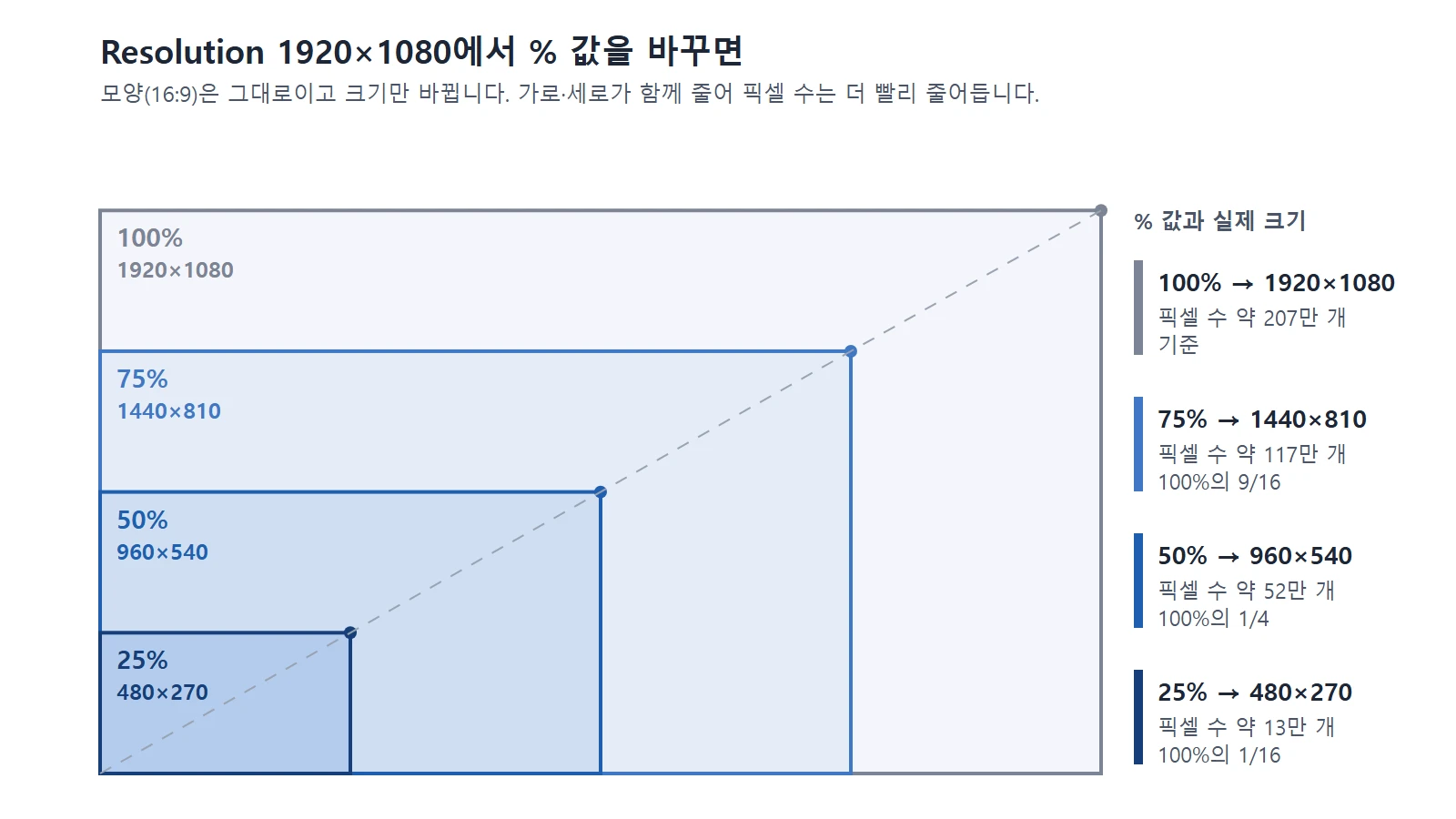 The actual size and pixel count when Resolution is 1920×1080 and the % value is set to 100, 75, 50, and 25. All four rectangles are 16:9, so their top-right corners sit on one straight line. Halving the % makes the pixel count a quarter (diagram, labels in Korean)
As the diagram shows, the sizes differ but the shape (16:9) stays the same. For example, if you keep Resolution at 1920×1080 and lower % to 50, it renders at 960×540. The framing and proportions stay the same, so it is enough for checking the camera position and lighting. The pixel count is width times height, so halving both the width and the height makes the pixel count a quarter. The painter has that many fewer squares to paint.
Frame rate and frame range: how many pictures to paint
Frame Rate is the number of pictures shown per second (fps). You can choose a common value from the menu or enter one yourself with Custom.
Frame Start and End in Frame Range set which picture to start rendering from and which one to stop at. Working out the length is simple: divide the number of frames by the frame rate to get seconds. 250 frames played at 30 fps is about 8.3 seconds.
Keyframes are attached to "frame numbers," not to "seconds." So if you change the fps after making an animation, the same motion becomes faster or slower. A 60-frame motion lasts 2 seconds at 30 fps but 1 second at 60 fps. So set the fps when you start the work, and to speed up tests, it is safer to reduce resolution and samples rather than fps. The idea of keyframes is explained in Blender keyframe animation for beginners, and what fps numbers mean in Understanding frame rate (fps).
There is one more setting useful for tests. If you set Step in Frame Range higher than 1, frames are skipped during rendering. With Step at 2, only every other picture is drawn, which you use to skim through the overall flow.
Sample count: how carefully it paints
Samples are how many times the calculation is repeated to decide the color of one pixel. The meaning differs a little by engine.
- Cycles: Render (Max) Samples is the number of light paths traced for each pixel in the final render. The higher the number, the cleaner the image, but the longer the render takes.
- EEVEE: Samples are mainly used to reduce aliasing (jagged edges). More samples are smoother but cost performance.
When Cycles doesn't have enough samples, the picture is covered in grainy dots (noise). Cycles searches randomly for where light comes from, and when one pixel finds a bright light and its neighbor misses it, blotches appear. The more samples, the more likely it finds all the important light. For a painter, this is the number of brush strokes. With only a few dabs, parts of the canvas stay empty; with hundreds of layers of paint, it fills evenly, but takes that much longer.
Cycles also comes with settings that save time.
| Setting name | What it does |
|---|---|
| Viewport Samples / Render Samples | Sets samples separately for the working view and the final render |
| Noise Threshold (Adaptive Sampling) | Stops sampling where the image is clean enough. Common values are 0.1 to 0.001; lower is higher quality and slower |
| Time Limit | Stops after a set time, even if sampling isn't finished |
| Denoise (Viewport / Render) | An algorithm that reduces noise without adding samples |
| Light Paths bounces | The maximum number of times light bounces. Many scenes are fine with fewer, and finish faster |
| Simplify | Makes the scene lighter with Max Subdivision, Texture Size Limit, and so on |
Denoise is especially useful. It is like gently rubbing a painting whose brush strokes didn't fully cover the canvas, to even it out at the end. For the Denoiser you can choose OpenImageDenoise (AI-based, usually the highest quality) or OptiX for NVIDIA graphics cards, and it is better to use at least Albedo for the input Passes. If you leave it at None, details can get smeared at low sample counts. OptiX can be chosen only when an NVIDIA graphics card is set up under Cycles Render Devices in Preferences. Graphics card setup is covered in Choosing a graphics card for Blender rendering.
The basic order: check small, render only the final version large
You can save time by first rendering at a small size to check, and raising the size and samples only for the final version once you are happy. The official manual also suggests using Percentage for test renders and estimating total render time as "time per picture × number of pictures." It is like getting several small sketches from a painter, and commissioning the large canvas only once you like one. The table below is an example of checking a 1920×1080, 30 fps video at half size (960×540).
| Step | Purpose | Example settings |
|---|---|---|
| 1. Check the motion | Timing, camera path | View ‣ Render Playblast in the 3D Viewport |
| 2. Test render | Framing, lighting, materials | Resolution X and Y at 1920×1080, Resolution % 50 (actual size 960×540), Frame Rate 30, low Samples + Denoise on |
| 3. Check a part | Tricky areas such as hair or glass | Only that part with Render Region (Ctrl+B in camera view) |
| 4. Final render | For publishing | Keep Resolution at 1920×1080 and set Resolution % back to 100. Raise Samples, save as an image sequence |
1920×1080 times 50% is 960×540, and the pixel count drops to a quarter. If you want to see it faster, you can go down to 25% (480×270). Whatever the value, Resolution X and Y are untouched, so the proportions (16:9) stay the same, and the key point is to keep the fps the same as the final from the start. The relationship between resolution numbers and proportions is covered in more detail in Resolution and aspect ratio.
Render Playblast in step 1 makes a quick preview video from the view you are looking at. This feature draws only with the Workbench and EEVEE engines. That doesn't mean Cycles users can't use it.
- With the viewport in Solid view, it draws with Workbench settings; in Material Preview, it draws with EEVEE settings.
- So even when the scene engine is Cycles, you can export a video for checking motion with Render Playblast in these two views.
- The only thing you can't do is export the Cycles view as it looks with the viewport in Rendered view. Check Cycles quality in step 2, the test render.
To export from the camera's point of view, first enter camera view with numpad 0. Turning off Overlays gives a clean result without bones or helper marks.
Rendering and saving
F12: renders one picture of the current frame. This picture is not saved automatically, so save it yourself from the render window.Ctrl+F12: renders the whole animation. The results are saved automatically to the path written in the Output panel of the Output tab. A four-digit frame number is added after the file name, as inimage0001.png, and//at the start of the path means "the folder this blend file is in."
The official manual does not recommend rendering straight to a video file. Rendering as many images such as PNG (Frame Sequence) is much more reliable, because the frames already drawn remain even if rendering stops partway. Here is a time calculation. One minute at 24 fps is 1,440 frames, and at 30 seconds per picture that is 720 minutes, or 12 hours. So first render one representative frame at the resolution you want, time it, and multiply by the number of frames to estimate the total time.
Common mistakes
- Rendering the final with Resolution % still at the test value: The result comes out smaller than expected. Check that % is 100 before the final render.
- Changing the fps in the middle of an animation: The speed of the motion changes. Set the fps at the start.
- Not saving a picture rendered with
F12:F12results are not saved automatically. - Only ever raising samples: First see whether Denoise, Noise Threshold, or Light Paths can reduce the noise.
- Different proportions for test and final: Framing set up in tests gets cropped in the final. Keep the proportions the same from the start.
Summary
| Setting | One-line summary |
|---|---|
| Resolution X and Y | The canvas width and height in pixels |
| Resolution % | Keeps the proportions and changes only the size (50% of 1920×1080 = 960×540) |
| Frame Rate | Pictures per second; set it at the start |
| Frame Range and Step | How many pictures to draw; skim by skipping |
| Samples | Calculations (brush strokes) per pixel; more is cleaner and slower |
| Denoise | Reduces noise without adding samples |
| Render Playblast | Quickly checks only motion in Solid or Material Preview view |
Read next
- Fast EEVEE, accurate Cycles: how to choose a Blender render engine
- Choosing a graphics card for Blender rendering
- Understanding frame rate (fps): the difference between 24, 30, and 60
- Resolution and aspect ratio: 720p, 1080p, 4K, 16:9, and 9:16
References
- Blender Manual (5.2 LTS), Format: https://docs.blender.org/manual/en/5.2/render/output/properties/format.html
- Blender Manual (5.2 LTS), Frame Range: https://docs.blender.org/manual/en/5.2/render/output/properties/frame_range.html
- Blender Manual (5.2 LTS), Output: https://docs.blender.org/manual/en/5.2/render/output/properties/output.html
- Blender Manual (5.2 LTS), Rendering Animations: https://docs.blender.org/manual/en/5.2/render/output/animation.html
- Blender Manual (5.2 LTS), Cycles Sampling: https://docs.blender.org/manual/en/5.2/render/cycles/render_settings/sampling.html
- Blender Manual (5.2 LTS), Reducing Noise: https://docs.blender.org/manual/en/5.2/render/cycles/optimizations/reducing_noise.html
- Blender Manual (5.2 LTS), Light Paths: https://docs.blender.org/manual/en/5.2/render/cycles/render_settings/light_paths.html
- Blender Manual (5.2 LTS), Simplify: https://docs.blender.org/manual/en/5.2/render/cycles/render_settings/simplify.html
- Blender Manual (5.2 LTS), EEVEE Sampling: https://docs.blender.org/manual/en/5.2/render/eevee/render_settings/sampling.html
- Blender Manual (5.2 LTS), Viewport Render: https://docs.blender.org/manual/en/5.2/editors/3dview/viewport_render.html
- Blender Manual (5.2 LTS), View Regions (Render Region): https://docs.blender.org/manual/en/5.2/editors/3dview/navigate/regions.html