Understanding frame rate (fps): the difference between 24, 30, and 60
Fps is how many pictures are drawn for one second of video. Learn the difference between 24, 30, and 60, and how to choose.
한국어English
ON THIS PAGE
- 01Frames and fps
- 02Where the numbers 24, 30, and 60 come from
- 03How 24, 30, and 60 feel different
- 04Something to know for 3D rendering: motion blur
- 05The difference between fps and a monitor's Hz
- 06Setting fps in Blender and what to watch out for
- 07How to choose an fps
- 08Common misunderstandings
- 09References
Based on: the Blender 5.2 LTS official manual, international broadcast standards (ITU-R), and YouTube official help. Checked in September 2026. Menu names follow the English interface.
Video is not a moving picture. It is still pictures shown one after another very fast. The number that tells you how many pictures go into one second of video is the frame rate, and its unit is fps (frames per second). It is best to set the fps once when you start a project and not change it until the end. This guide explains what frames and fps are, how 24, 30, and 60 differ, why motion blur is needed, how fps differs from a monitor's Hz, what to watch out for when you set fps in Blender, and how to choose an fps.
Frames and fps
A frame is each single picture that makes up a video. It is like a flipbook: you draw slightly different pictures in the corner of a notebook and flip through them fast. One page is a frame, and the number of pages drawn for one second is the fps.
In Blender, Frame Rate is the number of frames shown per second. In other words, it is how many pictures you make for one second. So even for the same one second, the number of pictures depends on the fps.
| fps | Pictures in one second | Total frames in a 10-second video |
|---|---|---|
| 24 | 24 | 240 |
| 30 | 30 | 300 |
| 60 | 60 | 600 |
As the table shows, when the fps doubles, the number of pictures to render also doubles. In 3D work, the computer calculates every single picture, so the higher the fps, the more rendering time and storage space you need.
Where the numbers 24, 30, and 60 come from
These numbers were not picked at random. They are values written into broadcast and video standards.
- ITU-R BT.709, the standard for high-definition TV broadcasting, specifies 60, 50, 30, 25, and 24 Hz as the number of pictures sent per second on a 1920×1080 screen.
- ITU-R BT.2020, the standard for 4K and 8K broadcasting, adds 100 and 120 to these, setting values from 24 up to 120.
- The YouTube Help Center lists 24, 25, 30, 48, 50, and 60 fps as common frame rates and says it accepts other values too.
Standards documents write "how many times per second" in Hz. Here it means the same as fps. A monitor's Hz, covered later, refers to something different, so do not mix them up.
The standards include both the 25 and 50 family and the 24, 30, and 60 family. BT.2020 notes that the choice of frame frequency can be affected by the power line frequency and the lighting, and it specifies several values together. If you only make 3D rendered videos to post online, you do not need to worry much about this. Decide based on "How to choose an fps" below.
The strange number 29.97
In video editing programs, you may see numbers such as 29.97, 23.976, or 59.94. For 60, 30, and 24 Hz, BT.709 also specifies those values divided by 1.001. Divide 30 by 1.001 and you get about 29.97. You mostly meet these values with decimals in broadcasting and cameras.
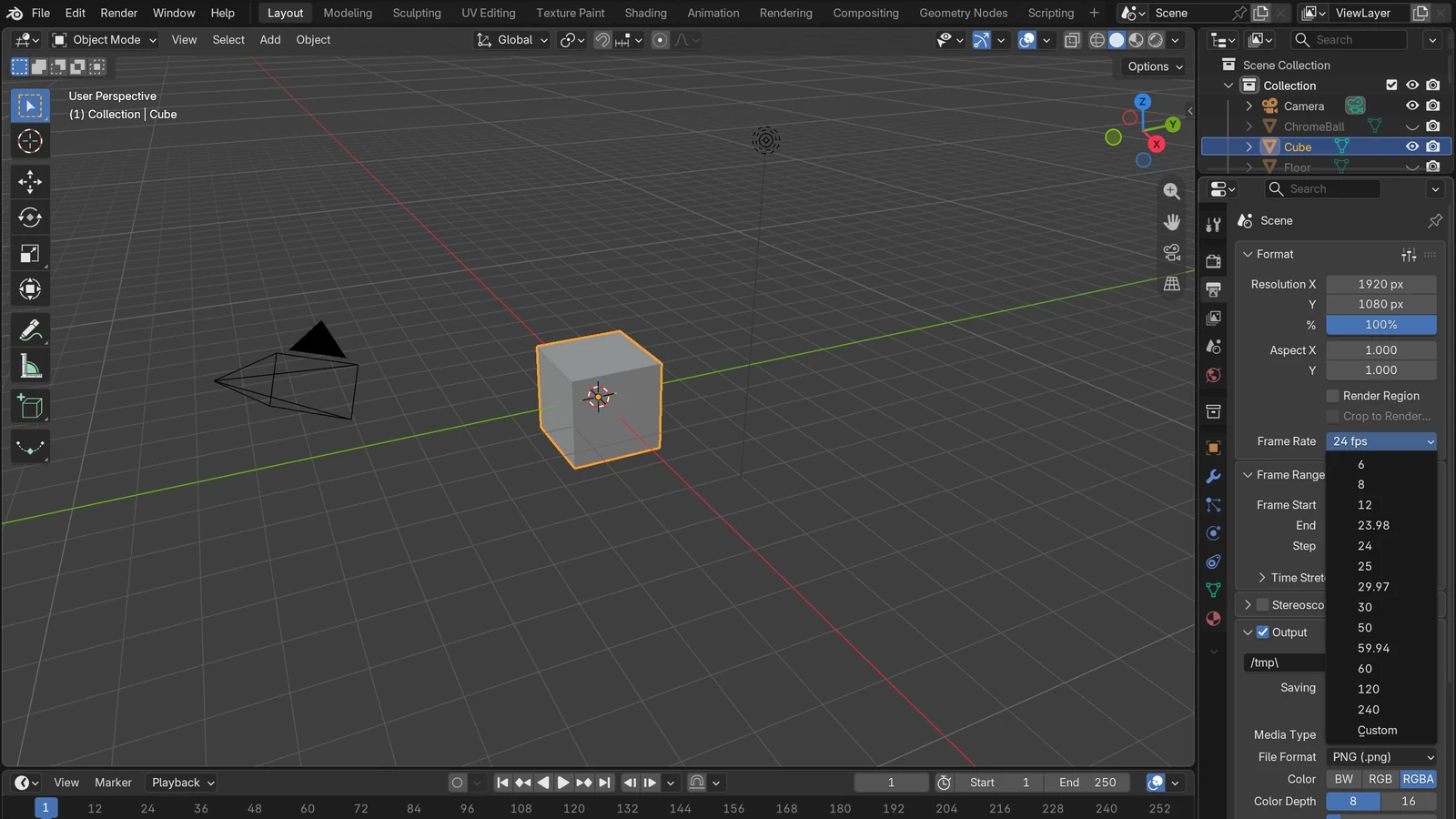
In Blender, choose Custom in the Frame Rate menu to enter values like these yourself. Standards that need a more precise value, such as NTSC (an old TV broadcast system), are written as the fraction FPS ÷ Base. For example, enter 30000 for FPS and 1001 for Base, and you get about 29.97 fps. When you mix camera footage with 3D rendered video, it is safest to match the fps of the camera footage exactly.
How 24, 30, and 60 feel different
A higher fps splits one second into finer slices, so the motion moves in smaller steps and looks smoother. A lower fps means an object moves farther between one frame and the next.
It is like a staircase. To climb the same height, more and lower steps make your stride smoother, and fewer and higher steps make each step feel distinct. It is not that one is "better." They just feel different.
| Value | Common uses | Feel |
|---|---|---|
| 24 fps | Films, videos that want a film look, animation | Motion looks slightly choppy, giving a film-like feel |
| 30 fps | Broadcasting, general online videos, explainer videos | Safe and familiar |
| 60 fps | Game screen recordings, sports, fast motion | Very smooth and lifelike |
The "feel" above is only how people commonly describe it, not an official standard. Choose based on the mood of the video and the motion you want to show.
Something to know for 3D rendering: motion blur
In video shot with a camera, a fast-moving object looks slightly smeared. This is because the object moves during the short time the shutter is open. But a Blender animation is, by default, rendered as a series of completely frozen images. So fast objects come out razor-sharp, and the motion can look jerky, especially at a low fps.
The feature for this is Motion Blur. In the EEVEE render engine, turn on the Motion Blur panel on the Render tab of the Properties editor, and you get smearing in the direction of movement, like a real camera. The Shutter value sets how long the shutter stays open, in frames. The larger the value, the longer the smear. It helps most when you show fast motion at a low fps such as 24 fps.
The difference between fps and a monitor's Hz
Numbers you see in monitor ads, such as 60 Hz or 144 Hz, look like fps but are a different idea. The refresh rate is how many times per second the screen draws a new image. A 60 Hz monitor redraws the screen 60 times a second.
Here is the flipbook comparison again.
- fps: The number of pictures drawn for one second. It is set when you make the flipbook, so it belongs to the video.
- Hz: How many new pages the screen can show per second. It is like how many times per second the hand flipping the book can flip, so it belongs to the monitor.
When the two match, each drawn page shows one at a time as it is. That is the case of watching a 60 fps video on a 60 Hz monitor. But when there are more drawn pages than the hand can flip, things change. A 60 Hz monitor changes the screen at most 60 times a second. So even if you play a 120 fps video, you only see the smoothness of 60 fps.
The other way round, even if the monitor is 144 Hz, a video with only 30 pictures drawn just shows the same page several times. No new pictures appear. In Windows 11, you can check your monitor's value under Settings ‣ System ‣ Display ‣ Advanced display, in "Choose a refresh rate."
Setting fps in Blender and what to watch out for
Where to set it
Choose it in Frame Rate on the Format panel of the Output tab in the Properties editor. The menu includes common values, and you enter other values with Custom. You set the start and end frames in Frame Range on the same tab, and video length = number of frames ÷ fps. Play 250 frames at 30 fps and you get about 8.3 seconds. Other render settings, such as resolution and sample count, are covered separately in An introduction to render settings.
What happens if you change fps partway through
Animation keyframes (markers that record what a value is at a certain frame) are placed on "which frame," not on "how many seconds." For example, if you work at 30 fps and make a ball hit the ground on frame 30, it hits after one second. If you then change only the fps to 60, frame 30 becomes the 0.5-second point, and the ball looks like it falls twice as fast. This is simple arithmetic from the formula above.
If you have to adjust the length later, you can use Time Stretching (Old/New) under Frame Range. Set Old to 2 and New to 1, and the animation becomes twice as fast. Use it the other way to undo a mistake. If you changed an animation made at 30 fps to 60 fps, set Old to 1 and New to 2 to stretch the motion to twice the length, and it returns to the original speed. In flipbook terms, it is like slipping new pages in between the existing ones.
However, Time Stretching does not change the start and end frames (Start and End). For example, if you stretched a 250-frame animation with Old 1 and New 2, you must also change End from 250 to 500 yourself. If you leave it, the second half gets cut off. The other way round, if you shortened it and do not reduce End, frozen frames remain at the end. This is a hassle, so it is best to set fps at the start.
When playback looks slow
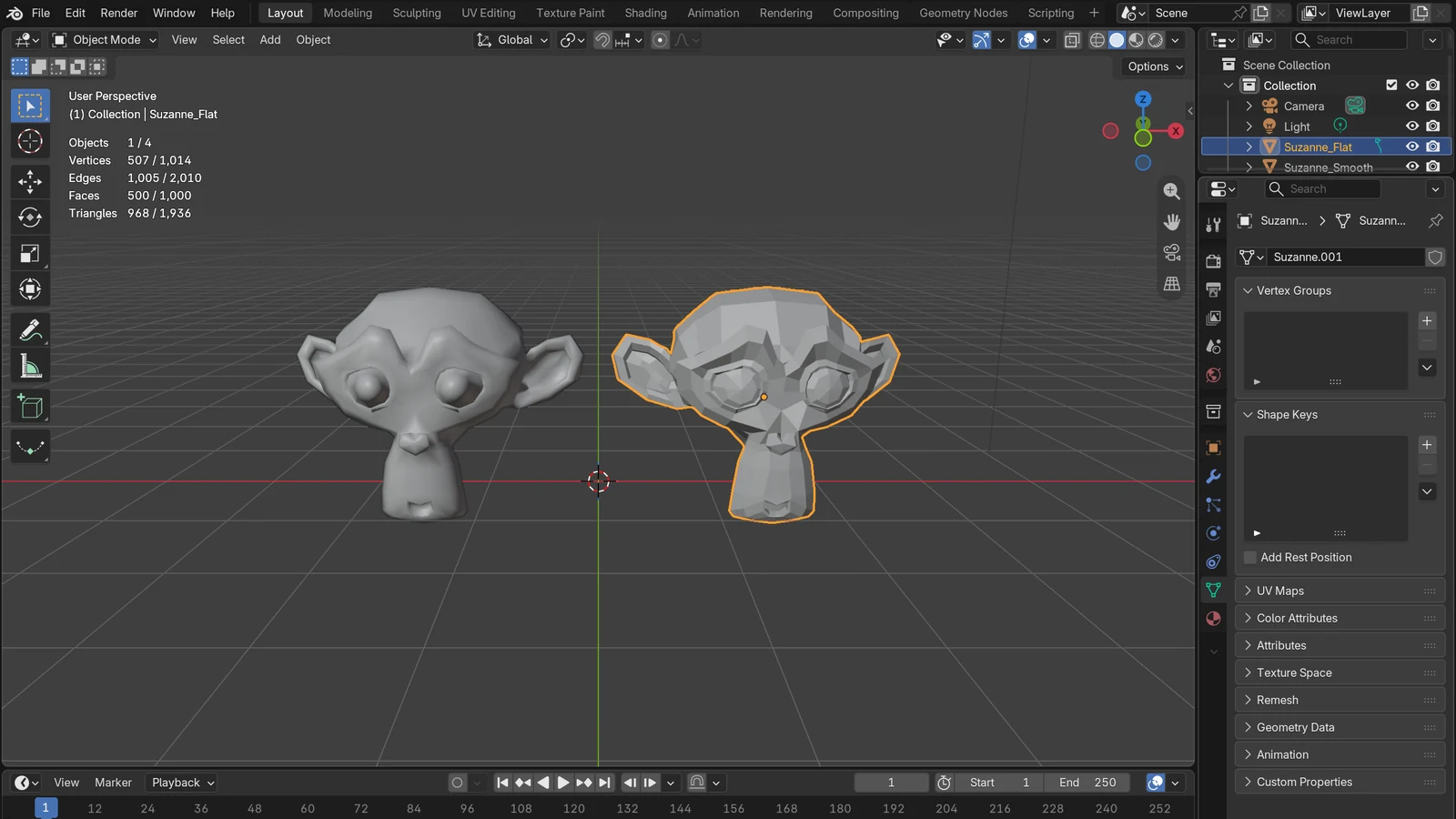
When you play an animation in the viewport and it cannot keep up with the fps you set, the fps number at the top left of the 3D Viewport turns red. This means the computer cannot draw the preview on time. It does not mean the final render will be slower. You can choose how this is handled with the Sync option in the Playback menu of the Timeline.
- Play Every Frame: Shows every frame but plays slower than real time
- Frame Dropping: Skips some frames to keep up the speed
- Sync to Audio: Skips frames to stay in sync with the sound
In the Timeline, press Ctrl+T to turn on the timecode display, and you see time instead of frame numbers. For example, 01:03+02 means "1 minute, 3 seconds, 2 frames."
How to choose an fps
- Keep the original fps. The YouTube Help Center advises that you "encode and upload at the same frame rate it was recorded at." For a 3D rendered video, export it at the fps you set at the start, and do not change the fps when you upload.
- If you mix it with live-action footage, match the camera's fps. If it is a value with decimals such as 29.97, match it exactly in Blender with Custom too.
- Choose by mood. Put 24 on your list for a film look, 30 for a safe explainer video, and 60 if you want to show fast motion smoothly.
- Work out the rendering time. Raising the fps raises the number of pictures to render by the same amount. If your hardware is not generous, it is more realistic to use 60 fps only for scenes that really need it.
- Keep the fps the same even when you change the size. When checking your work, you render small at a lower resolution and go bigger for the final version. Even then, use the fps you set at the start.
The order from test renders to the final is in An introduction to render settings, and resolution is covered in Resolution and aspect ratio.
Common misunderstandings
- "The higher the fps, the better, always." It is only smoother. Many videos suit 24 fps, like films. A high fps also increases rendering time and file size.
- "Changing the fps only makes the video smoother, and the length stays the same." In Blender, keyframes are attached to frame numbers, so changing only the fps changes the speed of the motion and the length of the video.
- "On a 144 Hz monitor, a video looks like 144 fps." Hz is the speed of the hand flipping the book. A faster hand does not add more drawn pictures (fps).
- "If the viewport fps is red, the render has gone wrong." It only means the preview playback cannot keep up on time. It has nothing to do with the final render.
References
- Blender 5.2 LTS Manual, Format (Frame Rate) — https://docs.blender.org/manual/en/5.2/render/output/properties/format.html
- Blender 5.2 LTS Manual, Frame Range (Time Stretching) — https://docs.blender.org/manual/en/5.2/render/output/properties/frame_range.html
- Blender 5.2 LTS Manual, Animation Editors (Playback, Sync) — https://docs.blender.org/manual/en/5.2/animation/animation_editors.html
- Blender 5.2 LTS Manual, Timeline (Timecode) — https://docs.blender.org/manual/en/5.2/editors/timeline.html
- Blender 5.2 LTS Manual, EEVEE Motion Blur — https://docs.blender.org/manual/en/5.2/render/eevee/render_settings/motion_blur.html
- ITU-R BT.709-6, Parameter values for the HDTV standards — https://www.itu.int/rec/R-REC-BT.709
- ITU-R BT.2020-2, Parameter values for UHDTV systems — https://www.itu.int/rec/R-REC-BT.2020
- YouTube Help, Recommended upload encoding settings — https://support.google.com/youtube/answer/1722171
- Microsoft Support, Change the refresh rate on your monitor in Windows — https://support.microsoft.com/en-us/windows/change-the-refresh-rate-on-your-monitor-in-windows-c8ea729e-0678-015c-c415-f806f04aae5a