3D file formats compared: FBX, glTF, OBJ, and USD
OBJ is an envelope, glTF is a shipping box, FBX is a suitcase, and USD is a chest of drawers. A look at how four 3D file formats differ and how to choose between them.
한국어English
ON THIS PAGE
- 01What goes into a 3D file
- 02OBJ: an envelope that mainly holds shape
- 03FBX: a suitcase for moving characters and animation
- 04glTF: a shipping box for the web and apps
- 05USD: a chest of drawers for many people assembling a large scene
- 06Comparison table at a glance
- 07How to choose by situation
- 08Problems that often come up when moving files
- 09References
Based on: the official Blender 5.2 LTS manual and official material from Khronos, OpenUSD, and Autodesk, checked in September 2026. Menu names follow the English interface.
When you download a 3D model or try to move one to another program, you run into unfamiliar extensions like .obj, .fbx, .glb, and .usd. They are all files that hold 3D data, but what they can hold and where they are used differ. In short: OBJ is a simple format that mainly holds shape, FBX is widely used to move characters and animation, glTF is for sending models light to the web and apps, and USD is for many people assembling a large scene together. This guide explains the features of the four formats, gives a comparison table, shows how to choose by situation, and covers problems that often come up when moving files.
What goes into a 3D file
A 3D file has much more to hold than a plain image file. The main items are:
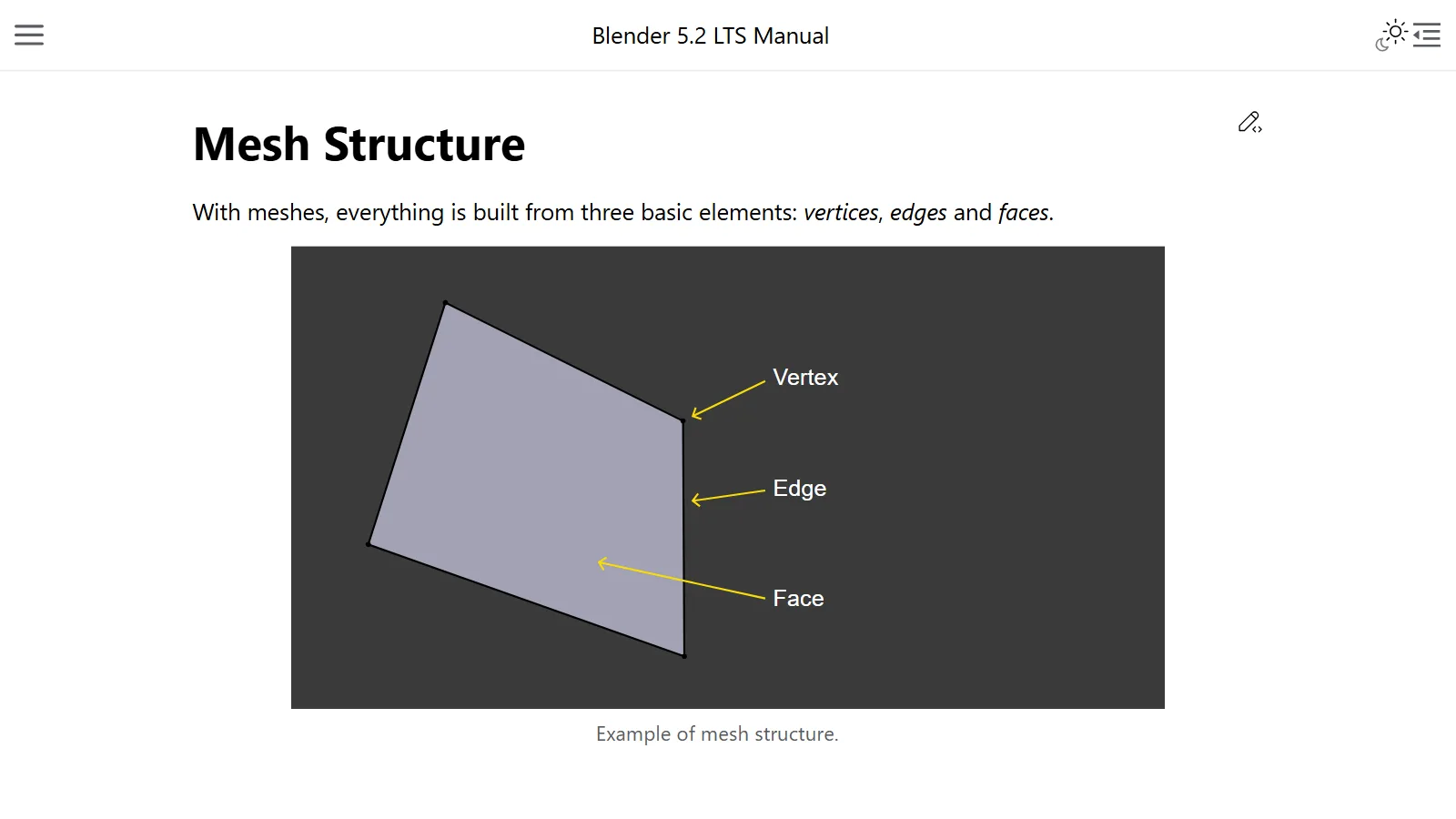
- Geometry (mesh): the shape of an object, made of points, lines, and faces
- UVs and textures: the coordinates for putting a picture on an object's surface, and the picture file itself
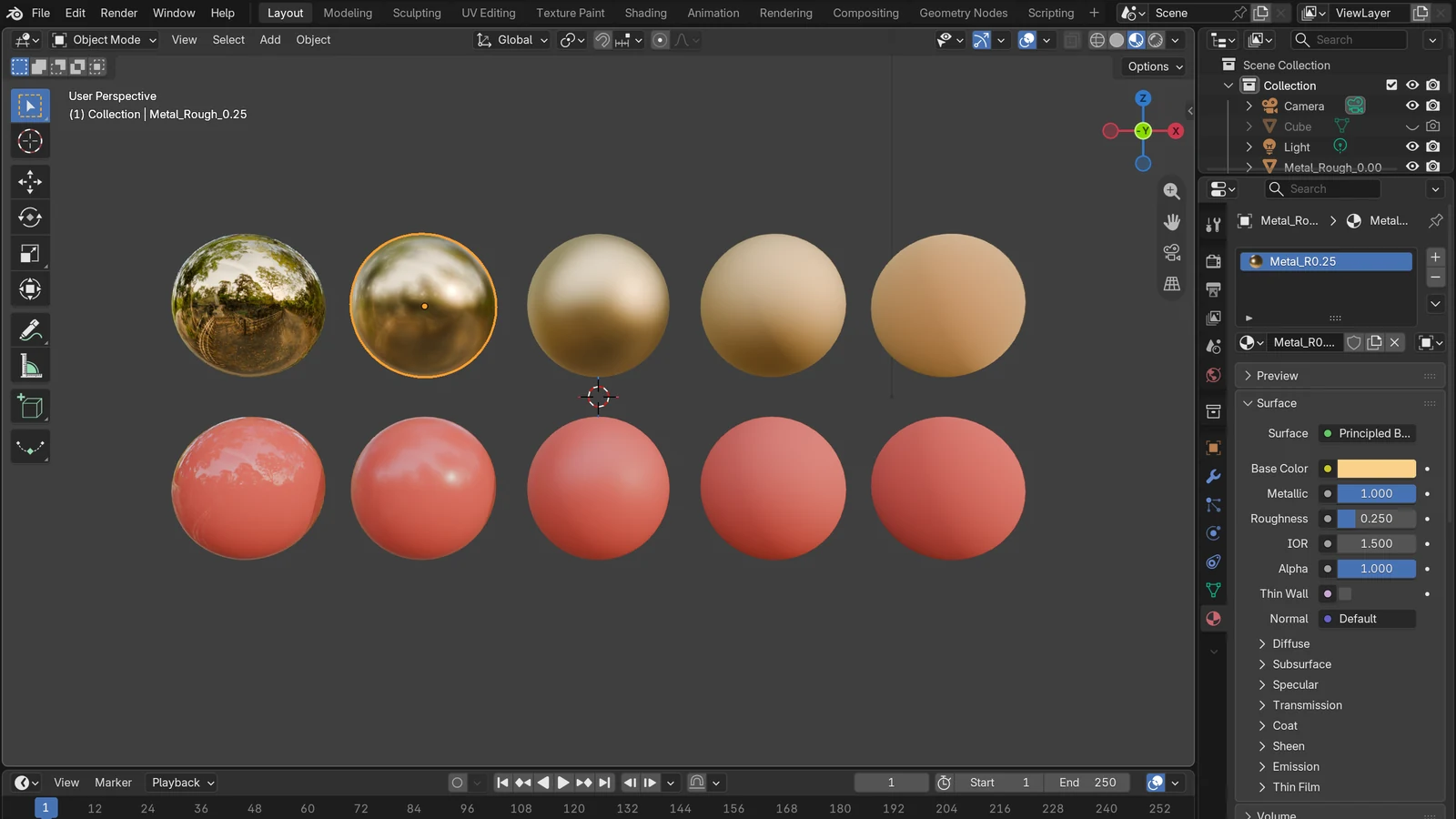
- Materials: surface qualities such as color, shine, and a metallic look
- Skeleton (armature) and skinning: the bones that move a character, and the information that attaches the skin to the bones
- Animation: position, rotation, and shape that change over time
- Cameras and lights: how the scene is lit and filmed
- Scene structure: the parent-child relationships and placement of objects
A file format is the bag you pack these items in. An envelope holds only a few sheets of paper, while a suitcase holds clothes and even shoes. Which bag to choose depends on what you send and where.
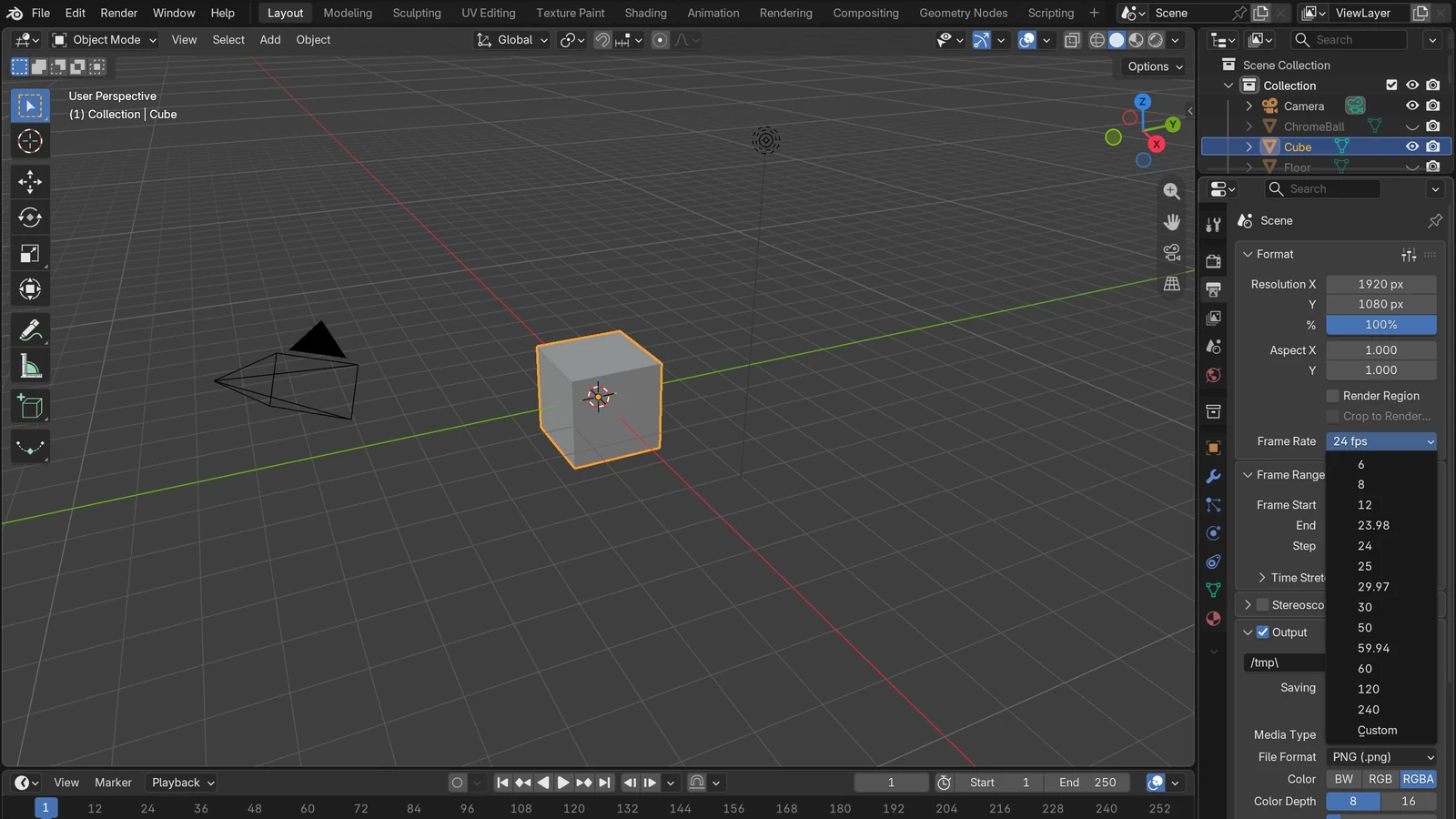
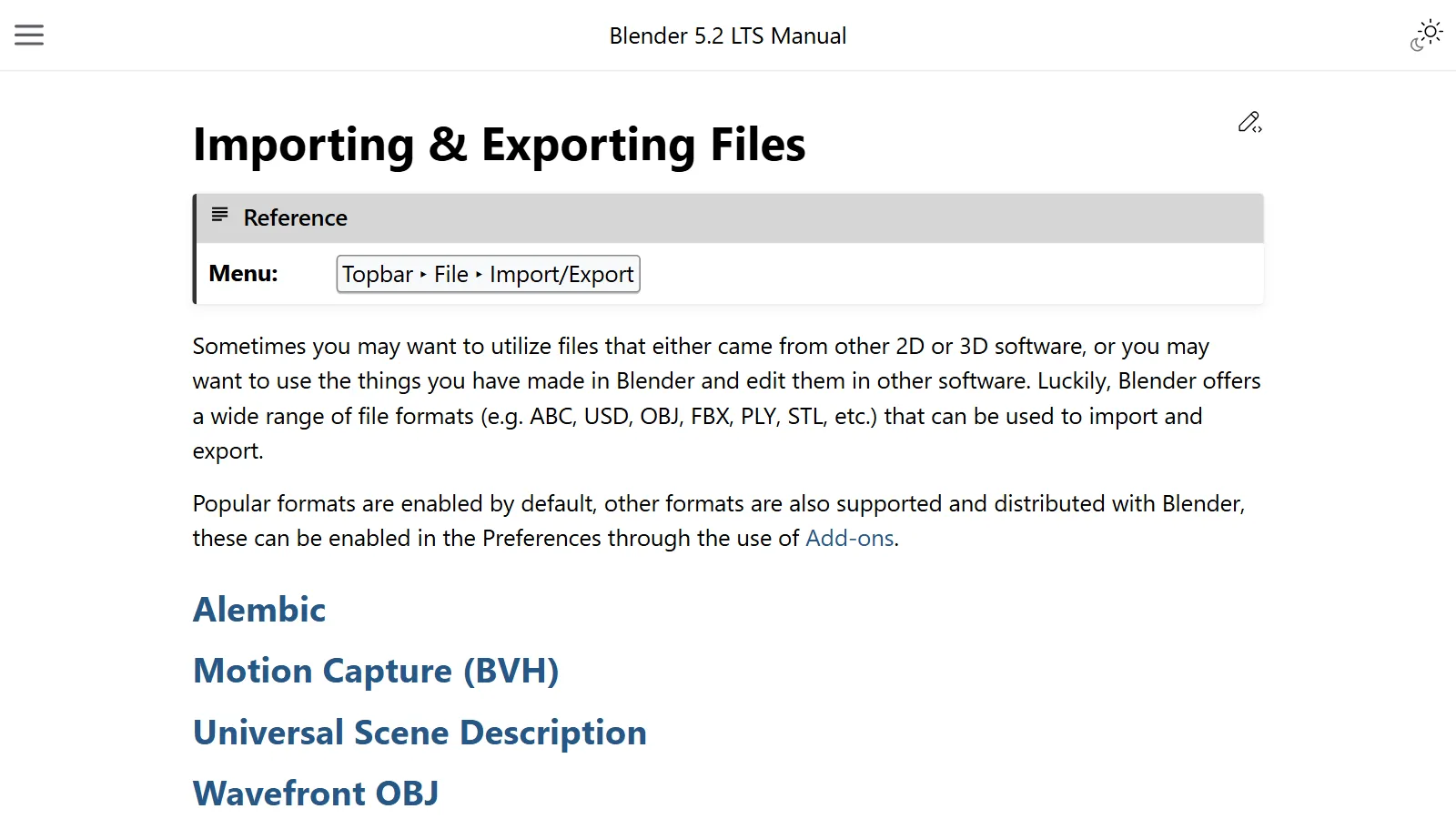
In Blender, you pick these formats from the File ‣ Import / Export menu at the very top of the screen. Common formats are on by default, and others can be turned on as add-ons.
OBJ: an envelope that mainly holds shape
OBJ (Wavefront OBJ) is the simplest of the four formats. OBJ is a widely used plain-text format, but it holds only basic geometry and materials. Plain text means that even if you open it in Notepad, you can read lines and lines of numbers.
- What it can hold: geometry, UVs, normals (the direction a face points), basic materials
- What it cannot hold: skeletons (armatures), lights, cameras, empty objects (empties), parent relationships, and transform information such as position and rotation
- Material file: materials are written separately in a .mtl file with the same name. If a matching .mtl is present, the materials come in too.
- Animation: it cannot hold movement itself, so one OBJ file is written for each frame. This takes a long time.
Like an envelope, it is light and opens anywhere, but it holds little. It is handy for passing just the shape of one prop that does not move to another program.
FBX: a suitcase for moving characters and animation
FBX (Filmbox) is a format managed by Autodesk. Autodesk provides the FBX SDK (a development kit) free of charge so other programs can read and write FBX (subject to the license agreement).
FBX is widely used especially to exchange animated characters and complex scene data between programs. Maya, 3ds Max, Cinema 4D, and game engines such as Unity and Unreal Engine support it.
- What it can hold: geometry, materials, skeletons and skinning, animation, cameras and lights. Blender's FBX export lets you choose which object types to include (meshes, armatures, cameras, lights, and so on), and all are on by default. You can also lock modifiers and animation into the file as they are (baking), so the result matches what you saw in Blender.
- Textures: if you move only the FBX file, the texture images may not go with it. When exporting, set Path Mode to Copy and turn on Embed Textures to put the images inside the FBX file.
- FBX support in Blender 5.2: importing is handled by a newly made FBX importer. It is designed to be fast, use less memory, and work well with both old and recent FBX files. Exporting is handled by the FBX add-on (File ‣ Export ‣ FBX).
- Watch out, part 1, materials: Blender builds materials with nodes, but FBX materials work more like filling in fixed slots with values, so Blender converts between the two. Complex shader nodes may not carry over as they are.
- Watch out, part 2, bone direction: FBX bones are aligned to -X, and Blender bones to Y. This does not affect movement, but the bones may look odd in other programs.
Like a suitcase, it is good for packing a character, its clothes, and its movement together and taking them to another studio. It is the first format people think of when moving a rigged character to a game engine or another 3D program. What a skeleton is gets explained in Rigging basics.
glTF: a shipping box for the web and apps
glTF (GL Transmission Format) is a format made by the Khronos Group, an organization that creates graphics standards. Khronos calls glTF "the JPEG of 3D" and introduces it as a royalty-free specification for transmitting and loading 3D scenes and models efficiently. Royalty-free means anyone can use it without paying a fee. In 2022, glTF 2.0 was also published as the international standard ISO/IEC 12113:2022.
Just as you use JPEG to put a photo on the web, glTF is built to suit showing a 3D model on a web page or in an app. glTF reduces file size and the processing needed when loading. It is common on the web, and engines such as Unity, Unreal Engine, and Godot support it.
- What it can hold: meshes, materials (PBR), textures, cameras, lights (point, spot, directional), animation (keyframes, shape keys that change shape like facial expressions, skinning)
- Materials: glTF materials use the metallic-roughness approach. Blender exports them by reading values from Principled BSDF, Blender's default material node. What metallic and roughness mean is covered in detail in the PBR materials guide.
- Changes to know about: glTF stores data in a form that graphics chips can draw easily in real time, so quads and polygon faces are turned into triangles on export. Non-mesh data like curves must be converted to meshes first. Texture images must be PNG or JPEG, and other formats are converted automatically.
The difference between .glb and .gltf
glTF can save the same content as one file or as several files. Blender has you choose one when exporting.
| Form | Files | Features |
|---|---|---|
| glTF Binary | One .glb | Holds everything, including geometry and textures, in one file. Easy to share and move |
| glTF Separate | .gltf + .bin + images | A text file describing the structure, a geometry data file, and texture images are kept separately |
At first, exporting as a single .glb is the least confusing. It avoids the mistake of leaving out a texture file and having the model show up white.
USD: a chest of drawers for many people assembling a large scene
USD (Universal Scene Description) is an open-source format and set of tools that Pixar created and released. In making films or games, the programs that handle modeling, animation, lighting, and rendering often each record scenes in their own way and cannot read each other's files. The official OpenUSD documentation introduces USD as a tool for reliably exchanging 3D scenes made of many assets (production material such as models and materials), even at large scale, and as the core of Pixar's production pipeline (workflow).
What sets USD apart from the other formats most is layers. Several artists work at the same time, each in their own file (layer), and these layers are stacked in a set order of priority and merged into one scene. You can also do non-destructive editing (overrides), laying changes on top without changing the original.
It is like cel animation, where transparent sheets are stacked to finish one picture. The background artist, the color artist, and the lighting artist each draw on their own sheet, and stacked together, they make the finished scene. Even if the lighting artist changes only their own sheet, everyone else's work stays the same.
- File types: USD has three basic formats: .usda (human-readable text), .usdc (binary, a file people cannot read), and .usdz (a bundled, compressed file).
- USD in Blender: you can exchange geometry, materials, cameras, lights, and more. However, advanced USD features such as layers are not exported yet. If you set the extension to .usdz, Blender makes a compressed file that bundles the USD and textures together.
In short, USD is a chest of drawers with many compartments. It shows its strength when many people and programs handle a large scene together, rather than when one person moves a single prop.
Comparison table at a glance
The table below is based on importing and exporting in Blender 5.2. Support differs from program to program, so also check the documentation of the program receiving the file.
| Item | OBJ | FBX | glTF | USD |
|---|---|---|---|---|
| Managed or published by | A widely used text format | Autodesk | Khronos Group | Pixar (open source) |
| File layout | Text + .mtl | One file (textures separate) | One .glb file or a .gltf bundle | .usda / .usdc / .usdz |
| Geometry and UVs | Supported | Supported | Supported | Supported |
| Materials | Basic (.mtl) | Needs conversion | PBR standard | Converted to an approximate simple material |
| Skeleton and animation | None | A strength | Supported | Supported |
| Cameras and lights | None | Can be included (choose types on export) | Supported | Supported |
| Common use | Exchanging props, shape only | Characters, game engines | Web, apps, real time | Large scenes, collaborative pipelines |
| Analogy | Envelope | Suitcase | Shipping box | Chest of drawers |
How to choose by situation
- Passing along one prop that does not move: OBJ or glTF (.glb). If you want to keep as much of the material as possible, glTF has the edge.
- Sending a rigged character and its animation to a game engine or another 3D program: FBX is the most common choice. glTF also supports skinning and animation, so it is a candidate if the receiving program reads glTF well.
- Showing a 3D model on a website or in an app: glTF (.glb). It was designed for this from the start.
- Many people and programs splitting the work on a large scene: USD. But Blender does not yet export advanced features such as USD layers, so check that first.
- A file you will keep working on in Blender: save it not in these four formats but in Blender's own format, .blend. The formats above are "packaging for sending to other programs", not for keeping your working original.
Problems that often come up when moving files
When a character comes in lying down: different up directions
Programs differ on which axis they treat as "up". In Blender, the Z axis is up (Z Up) and the Y axis is forward (Y Forward), while many programs use the Y axis as up. So if you move a model without adjusting settings, it may lie down at 90 degrees or face the wrong way. It is like one country drawing maps with north at the top and another with east at the top: the same map looks rotated.
In Blender 5.2, the Forward/Up Axis settings are found in OBJ import and export, FBX export, the older FBX (Legacy) import, and USD export. The new FBX import window does not have this setting. When sending to a program where Y is up, a common choice is "-Z Forward, Y Up". When importing a USD file where Y is up, Blender automatically adds a rotation to match its own Z-up direction.
When textures vanish and the model shows up white
With formats that keep textures as separate files, the textures go missing if the image files do not travel with the model. This is true of OBJ and .gltf (Separate), and FBX, the most common case, also leaves textures as outside files by default.
- OBJ and FBX: set Path Mode in the export window to Copy, and the images are copied along and linked with relative paths. Absolute paths may only work on your own computer.
- FBX: turn on Embed Textures together with Path Mode Copy to put the images inside the FBX file. This is a common method when sending to game engines.
- glTF and USD: use .glb or .usdz, which hold the textures in one file too.
When materials look different
This happens because each format has its own rules for describing materials. FBX goes through a conversion, as shown above, and glTF reads only nodes that follow the PBR rules. USD also converts Principled BSDF on export into an approximate simple material called USD Preview Surface, so complex nodes are dropped. Assume by default that a material made with complex shader nodes will need touching up in the receiving program. The structure of shader nodes is in the Shader nodes and materials guide.
When faces are split into triangles
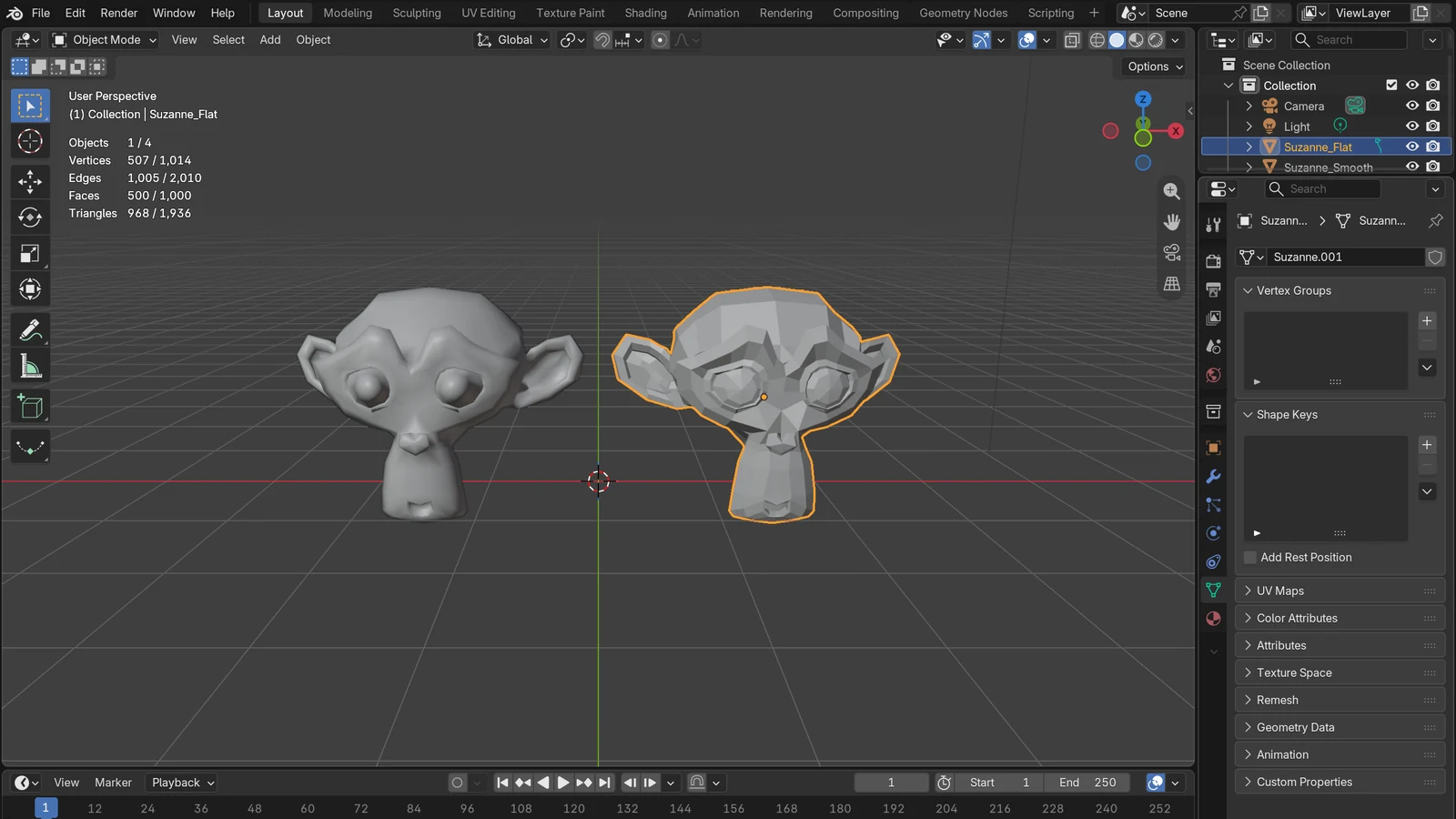
glTF turns every face into triangles on export. This is a rule of the format, not an error. Keep an original that needs its quad face structure separately as a .blend. The basics of faces and topology are covered in the Polygons and topology guide.
References
- Blender 5.2 LTS Manual, Importing & Exporting Files — https://docs.blender.org/manual/en/5.2/files/import_export/index.html
- Blender 5.2 LTS Manual, Wavefront OBJ — https://docs.blender.org/manual/en/5.2/files/import_export/obj.html
- Blender 5.2 LTS Manual, FBX — https://docs.blender.org/manual/en/5.2/files/import_export/fbx.html
- Blender 5.2 LTS Manual, FBX (Legacy, including export) — https://docs.blender.org/manual/en/5.2/files/import_export/fbx_legacy.html
- Blender 5.2 Python API, Export Scene Operators (FBX export object types, Embed Textures) — https://docs.blender.org/api/5.2/bpy.ops.export_scene.html
- Blender 5.2 LTS Manual, glTF 2.0 — https://docs.blender.org/manual/en/5.2/addons/import_export/scene_gltf2.html
- Blender 5.2 LTS Manual, Universal Scene Description — https://docs.blender.org/manual/en/5.2/files/import_export/usd.html
- Khronos Group, glTF Overview — https://www.khronos.org/gltf/
- Khronos Group, glTF 2.0 Specification — https://registry.khronos.org/glTF/specs/2.0/glTF-2.0.html
- OpenUSD, Introduction to USD — https://openusd.org/release/intro.html
- Autodesk Platform Services, FBX SDK — https://aps.autodesk.com/developer/overview/fbx-sdk