What Is the Low-Poly Style? Cute Shapes from Few Faces
The low-poly style uses few faces on purpose to show off clean angles. This guide covers how it works, and how to use Flat shading and the Decimate modifier in Blender.
한국어English
Based on: the official Blender 5.2 LTS manual. Menu names follow the English interface.
Some 3D pictures look like toys: a tree made of a few cones, a rock that is one angular lump. This style is called low-poly. Low-poly is a way of drawing that uses few faces (polygons) in a 3D model on purpose, so the angular faces stay visible and the result looks simple and cute. This guide explains what low-poly is, why it looks angular, and the Blender tools that create the look: Flat and Smooth shading (two ways of painting light on a surface) and the Decimate modifier, which reduces the number of faces.
Low-poly: 3D with few faces
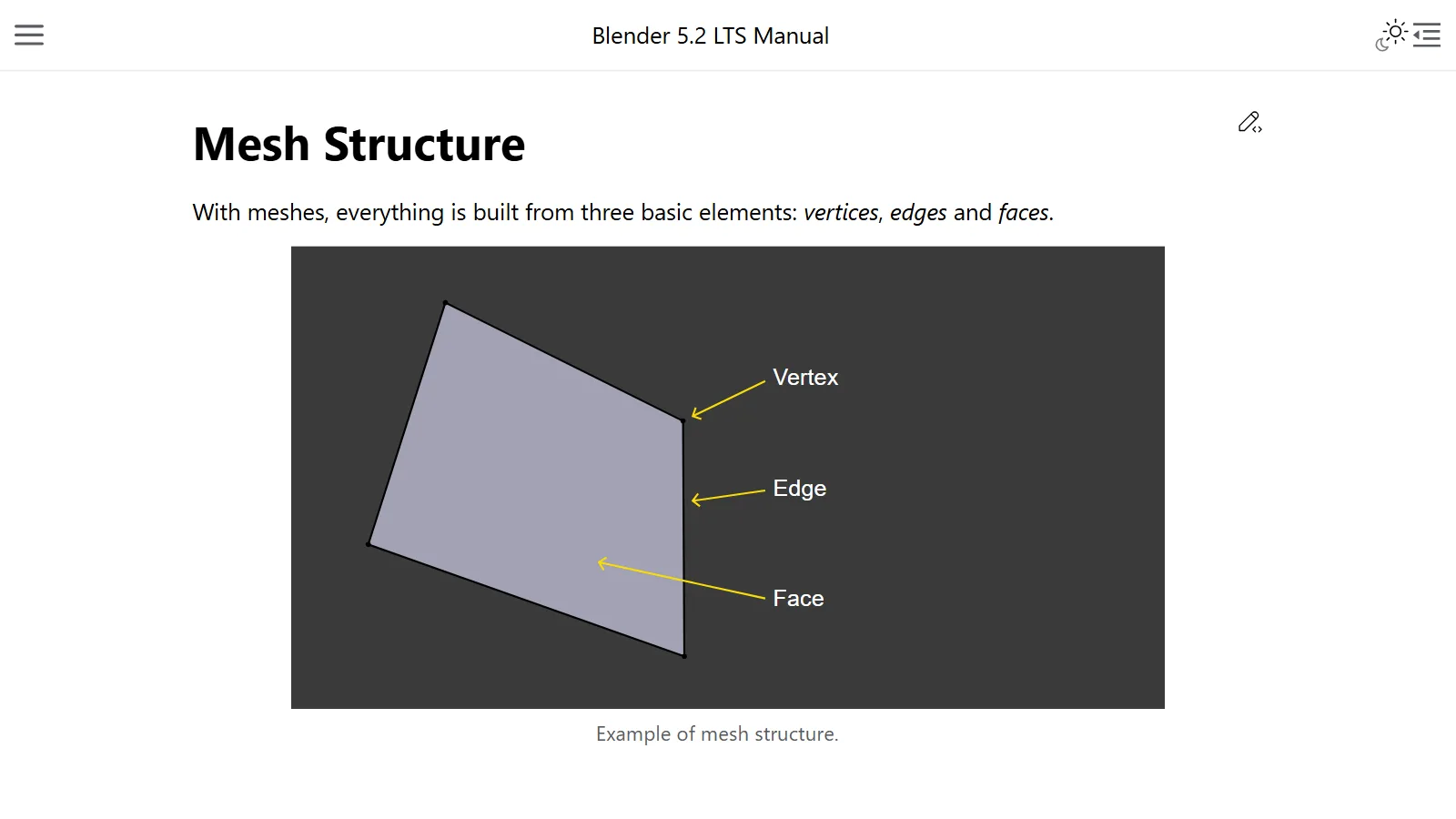
Most 3D models are made of a net called a mesh. A mesh consists of points (vertices), lines joining the points (edges), and the areas enclosed by lines (faces). Each of these faces is called a polygon. Mesh structure is covered in more detail in Polygons and topology.
- High-poly: uses a great many faces to show curved surfaces smoothly. Used when you aim for photo-like realism.
- Low-poly: uses few faces. Round things are replaced by a handful of flat faces, so the angles show.
It is a lot like origami. A paper crane has no individual feathers like a real bird, yet a few folded faces are enough to tell you it is a bird. Low-poly also boldly leaves out detail and lets you recognize things by their large shapes and colors.
The word "low-poly" is used with two meanings mixed together.
| Meaning | Description |
|---|---|
| Technical | A model kept light for places that must draw fast, such as games. It can still look smooth |
| Style | An art style made angular on purpose so the faces show. This guide is mostly about this one |
When the Blender manual talks about low-poly trees, bushes, and grass for games, it uses the first meaning: models kept light. This guide focuses on the second meaning: an angular style that looks good.
Why use low-poly
The low-poly style is widely used for these reasons.
- Easy to read: With little detail, shapes and colors come through clearly. You can tell what something is even on a small screen.
- Cute, toy-like feel: Angular faces and flat colors give the impression of building blocks or scale models.
- Easy to make and change: With few points and faces to handle, reshaping takes less work.
- Less load on the computer: Fewer faces mean less data to keep in memory. In contrast, the feature that splits faces into smaller ones (subdivision) adds points at higher levels and uses more memory (RAM and graphics card memory).
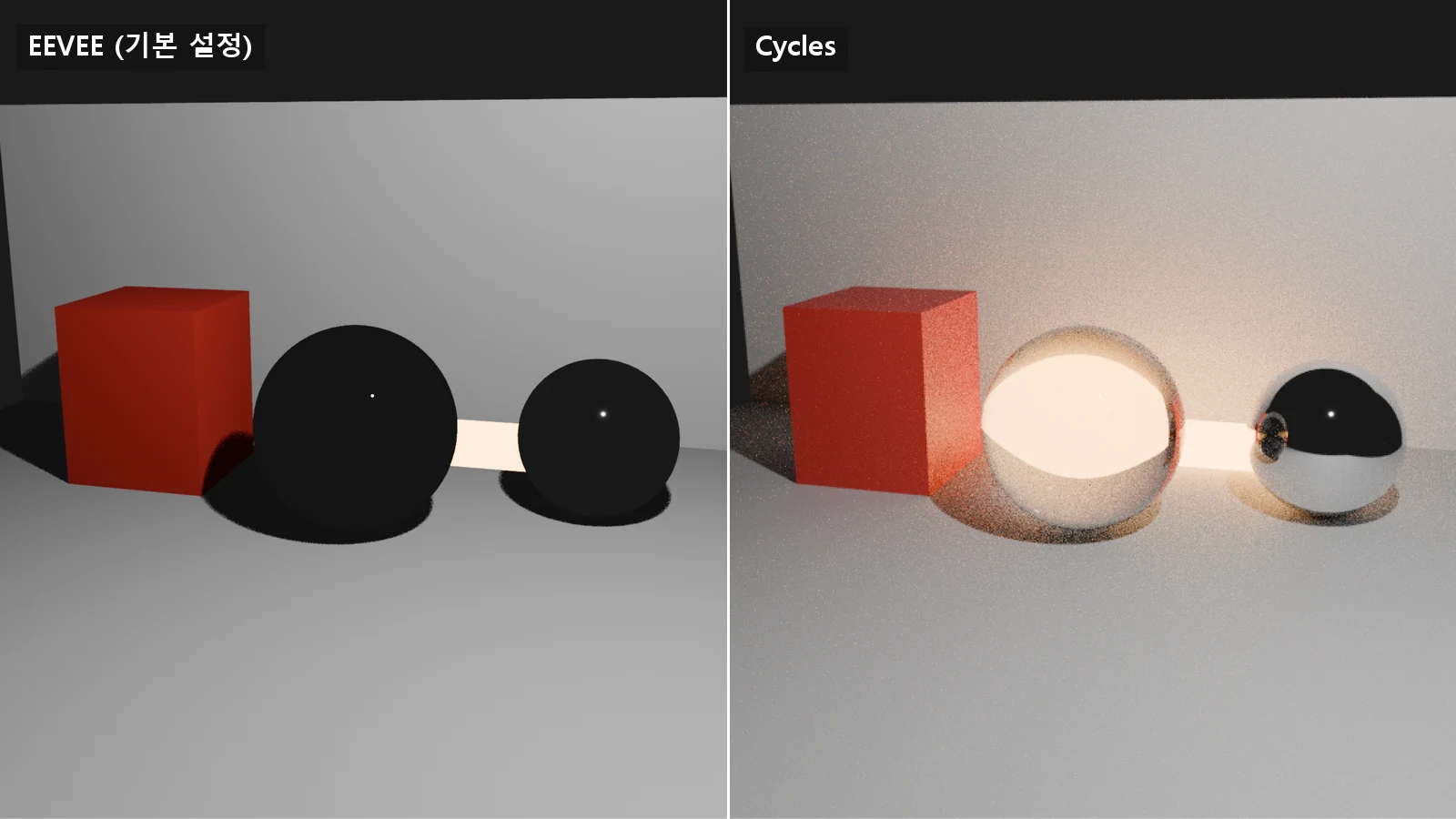
Low-poly scenes built mostly from flat-color materials need less photo-like realism, so EEVEE, the render engine that shows results quickly, is often enough. How to choose an engine is summarized in EEVEE vs Cycles.
Why it looks angular: Flat shading and Smooth shading
Few faces alone don't make the low-poly look. How light is painted (shading) has to be set as well. The term to know here is normal. A normal is an arrow that shows which way a face is pointing. Normals decide how light meets an object, so they have a big effect on shading.
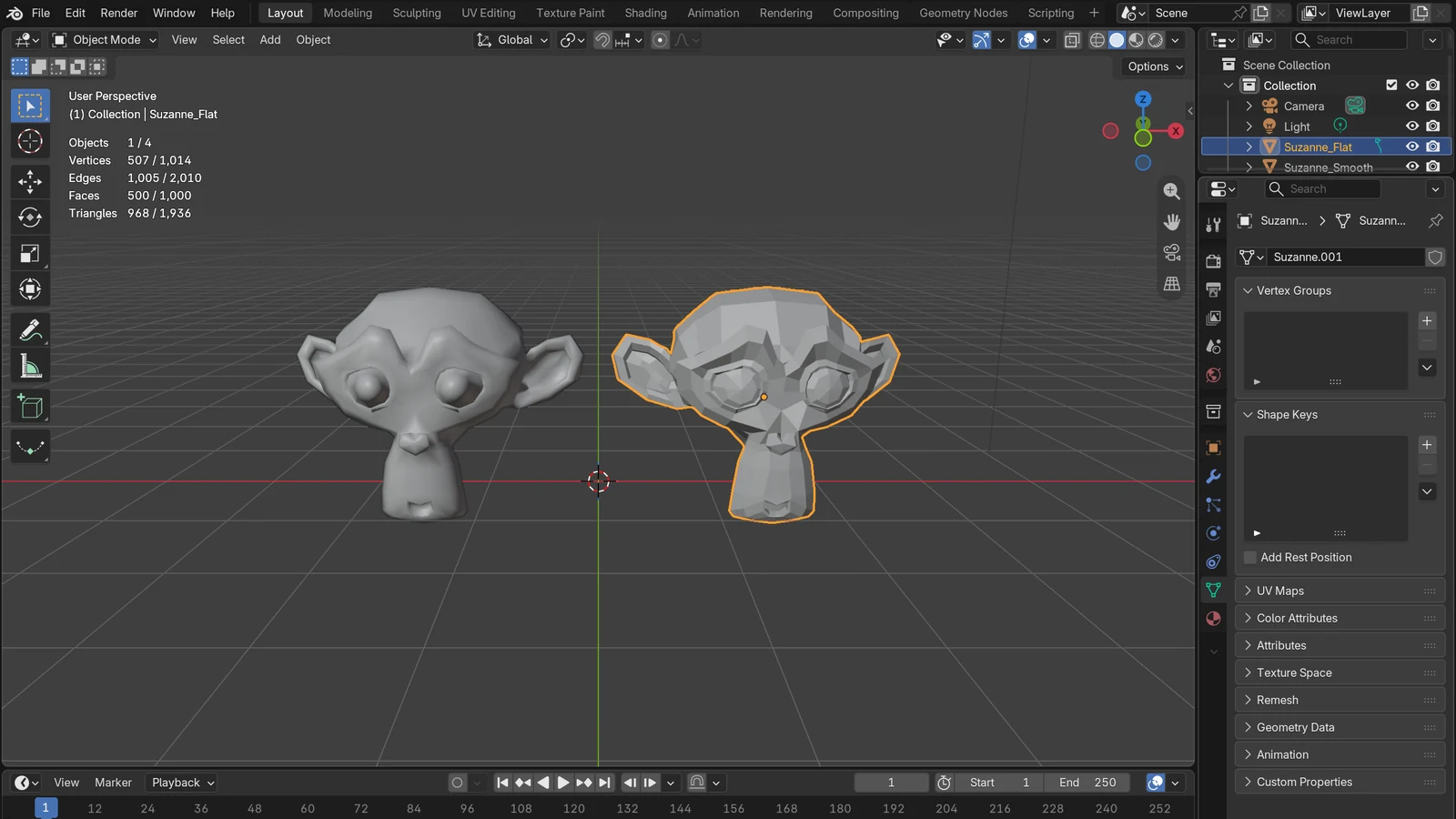
- Flat shading: uses one direction per face as it is. Each face is painted evenly in one brightness, and the borders between faces are sharp. Useful for objects such as machines or crystals. This is where the angular feel of the low-poly style comes from.
- Smooth shading: blends the direction smoothly between points (interpolation). The borders between neighboring faces blur, so the surface looks round. Suited to round, organic surfaces.
Smooth shading does not change the shape itself. Only the lighting calculation changes, giving the "illusion" of smoothness, so the outline of the object still looks angular. That is why a low-poly ball with Smooth shading still shows bent lines around its edge. To actually make the shape smooth, you need the Subdivision Surface modifier, which splits faces into smaller ones. These are two different operations.
As a comparison, Flat is like the cut facets of a gemstone, and Smooth is like the same gemstone under soft, blurry light. The shape is the same, but the impression is very different.
Where to change it in Blender
The Object menu and Face menu in the table below are in the header at the top of the 3D Viewport. The Object menu appears in Object Mode, and the Face menu in Edit Mode.
| What you want | Menu | Description |
|---|---|---|
| Make the whole object angular | Object ‣ Shade Flat in Object Mode | Paints evenly by face direction |
| Make the whole object smooth | Object ‣ Shade Smooth in Object Mode | Blurs borders, outline unchanged |
| Decide by angle automatically | Object ‣ Shade Auto Smooth in Object Mode | Smooth where gentle, sharp where bent |
| Change only some faces | Face ‣ Shade Flat / Shade Smooth in Edit Mode | Applies to selected faces only |
The default shading of a mesh is Flat. So shapes you newly create in Blender show their faces from the start. For low-poly work, you can often just leave this default as it is.
Shade Auto Smooth adds a Smooth By Angle modifier. It looks at the angle between two neighboring faces: if it is gentler than the set Angle, it smooths it; if it is sharper, it keeps it crisp. It is useful when you want "mostly smooth, but keep the edges", such as a character with a round body and some angular corners. Using Shade Smooth or Shade Flat removes this modifier.
A tool to reduce faces: the Decimate modifier
When you want to turn a model that already has many faces into the low-poly look, you can use the Decimate modifier. A modifier is a feature that adds an effect on top without editing the original directly, like a photo filter. Select the object, then in the Properties editor's Modifier tab (the wrench icon) choose Add Modifier ‣ Generate ‣ Decimate. Modifiers in general are covered in Blender modifier basics.
Decimate is a modifier that reduces the number of vertices and faces while changing the shape as little as possible. The modifier panel also shows how many faces remain. It has three modes.
| Mode | What it does | Where it helps in low-poly |
|---|---|---|
| Collapse | Merges vertices one by one while considering the shape | Making a complex model rough overall |
| Un-Subdivide | Removes edges that were created by subdivision | Making an evenly divided, grid-like model rough |
| Planar | Dissolves unneeded edges on nearly flat areas | Cleaning up models made mostly of flat faces |
Reading Collapse's Ratio
Collapse, the most used mode, has a Ratio value. It means:
- 1.0: the mesh is unchanged.
- 0.5: edges are collapsed so that half the faces remain.
- 0.0: all faces disappear.
There are things to watch for too. The ratio is calculated on triangles, so a model with many quad faces may keep more faces than you expect (when the Triangulate option is off). The Symmetry option keeps the model symmetrical along one axis, which is useful for symmetrical models such as characters.
Things to know when using Decimate
- When to use it: To lighten a model that has many faces because of sculpting (shaping it like clay) or subdivision. It is rarely used on models built carefully with few faces from the start, where every face is needed for the shape.
- No preview in Edit Mode: Unlike most modifiers, Decimate does not show its effect in Edit Mode.
- Uneven face shapes: Automatic reduction can produce them. If you want angles that look good as a style, it is better to tidy up by hand after reducing.
If you want to clean up directly in Edit Mode, there is also Mesh ‣ Delete ‣ Limited Dissolve. It dissolves vertices and edges in flat areas to simplify the shape, treating faces joined more gently than Max Angle as flat. It does a similar job to Decimate's Planar mode, in Edit Mode.
A first practice order
Below is a practice order for getting the low-poly feel with only Blender's built-in features. It is not the one right answer, just one way to get a sense of it.
- Start with few faces. In the 3D Viewport, press
Shift+Aand add Mesh ‣ Cylinder. In the panel that appears at the bottom left of the viewport right after, lower the Vertices value and you get an angular column. The higher this value, the smoother the circle; the lower, the sharper the angles. You can try a cone for a tree and an Icosphere (a sphere made of triangles) for a rock. - Check Flat shading. New shapes default to Flat, but if one looks smooth, use Object ‣ Shade Flat.
- Check the face count. Open the Overlays menu at the top right of the 3D Viewport and turn on Statistics. The viewport then shows information such as the number of vertices, faces, and triangles, depending on the selection.
- Reduce complex models with Decimate. Lower Collapse's Ratio little by little and look for the point where the shape is still recognizable.
- Keep colors simple. One or two flat colors per face are enough to bring out the low-poly feel. For how to apply materials, see Shader nodes and materials.
Summary
- Low-poly is a style that uses few faces to show angular shapes. Like origami, it leaves out detail and shows large shapes and colors.
- The angular feel comes from Flat shading. Smooth shading only paints the light smoothly; the shape stays the same.
- To mix round areas and sharp edges, use Shade Auto Smooth (the Smooth By Angle modifier).
- A heavy model can be reduced with the Decimate modifier (Collapse, Un-Subdivide, Planar), but it is better to tidy up the result by hand.
- While working, check the face count with Statistics in Overlays.
If the screen layout is still unfamiliar, start with Blender interface basics, which makes the menus easier to find.
References
The manual links point to the latest version, so their content may differ after 5.2.
- Blender Manual, Mesh Structure (Normals, Shading) — https://docs.blender.org/manual/en/latest/modeling/meshes/structure.html
- Blender Manual, Object › Shading (Shade Smooth, Auto Smooth, Flat) — https://docs.blender.org/manual/en/latest/scene_layout/object/editing/shading.html
- Blender Manual, Mesh › Shade Smooth & Flat — https://docs.blender.org/manual/en/latest/modeling/meshes/editing/face/shading.html
- Blender Manual, Smooth By Angle Modifier — https://docs.blender.org/manual/en/latest/modeling/modifiers/normals/smooth_by_angle.html
- Blender Manual, Decimate Modifier — https://docs.blender.org/manual/en/latest/modeling/modifiers/generate/decimate.html
- Blender Manual, Subdivision Surface Modifier — https://docs.blender.org/manual/en/latest/modeling/modifiers/generate/subdivision_surface.html
- Blender Manual, Deleting & Dissolving (Limited Dissolve) — https://docs.blender.org/manual/en/latest/modeling/meshes/editing/mesh/delete.html
- Blender Manual, Mesh Primitives — https://docs.blender.org/manual/en/latest/modeling/meshes/primitives.html
- Blender Manual, Viewport Overlays (Statistics) — https://docs.blender.org/manual/en/latest/editors/3dview/display/overlays.html