Fast EEVEE, accurate Cycles: how to choose a Blender render engine
EEVEE estimates light quickly, and Cycles follows the path of light. This guide covers the differences and how to choose.
한국어English
Based on: the official Blender 5.2 LTS manual. Menu names follow the English interface.
Blender has two render engines for making final images. EEVEE is a real-time engine that quickly "estimates" light, and Cycles is an accurate engine that "follows" each path that light travels. So EEVEE is fast, and Cycles is more physically accurate but takes longer. This guide explains how the two engines calculate light, the weak points of each, how to check whether your computer can run them, how to pick the right engine for your work, and where the settings are so you can use them right away.
What rendering means
Inside a 3D program there is a "scene" with objects, lights, and a camera. Rendering is the process of turning that scene into a single picture from the camera's point of view. For a video, the program makes dozens of these pictures per second and joins them together.
A render engine is the "painter" that actually draws the picture. Even for the same scene, the engine you pick changes how long it takes and how the result feels.
Blender also has a third engine called Workbench. Workbench is for showing the screen quickly while you model and animate. It is not meant for final output, so this guide compares only EEVEE and Cycles.
The two engines
- EEVEE: a real-time render engine made to be fast and respond right away to what you do. You can use it while watching the result directly in the working view (the 3D Viewport), and you can also use it for high-quality final renders.
- Cycles: a physically based path tracer for making final output. Path tracing is a method that calculates light by following the paths it travels. It is designed to give physically correct results without extra tweaking.
Both engines follow PBR (physically based rendering). PBR is a set of rules for showing materials by imitating how light is reflected and absorbed when it hits real objects. The guide PBR materials covers it in detail. The two engines follow these rules in different ways, though.
How they calculate light differently
Here is an everyday comparison. EEVEE is like a skilled sketch artist. It first quickly draws the surfaces you can see, and then paints light and shadow on top with good judgment: "this part should be about this bright." Cycles is like a detective following footprints backward. For each ray of light that reached the camera, it traces step by step where it bounced from, and where it came from before that, until it finds the source of the light (a lamp).
To put it a little more precisely:
- EEVEE uses rasterization. Rasterization is a way of "stamping" 3D objects flat onto the pixels of the screen. EEVEE is not a path tracer. It first decides which surfaces the camera can see, and then uses several algorithms to estimate how light and materials meet. It belongs to the same family as the methods games use to draw the screen quickly.
- Cycles uses path tracing. In real life, light leaves a lamp and enters your eye. Cycles does the reverse: it shoots rays from the camera into the scene and follows them to where the light is. This way it does not waste time calculating light that would never reach the camera.
Drawn with text, the path of one Cycles ray looks like this.
Camera ──▶ pixel ──▶ table surface ──(bounce)──▶ wall ──(bounce)──▶ lamp
About this text diagram: Cycles starts a ray from one pixel of the camera and follows it to a lamp, changing direction each time it hits an object and bounces. It sends many such paths per pixel and averages them. EEVEE does not follow this path; it estimates brightness directly from the visible surface.
People often say "EEVEE is game graphics, Cycles is movie CG." That is just an easy picture to keep in mind. You can do final renders with EEVEE too.
Comparison at a glance
| Item | EEVEE | Cycles |
|---|---|---|
| How it calculates | Rasterization + estimating light | Path tracing (follows the path of light) |
| Speed | Fast, real-time preview | Slower; time grows with the number of samples |
| Physical accuracy | Approximate | More physically accurate than EEVEE |
| Noise (grainy dots) | Low | Clearly visible when samples are low |
| Device used | GPU only | Both CPU and GPU |
| Using CPU and GPU together | Not possible (GPU only) | Possible, depending on the backend |
| Reflection and refraction | Approximated from what is on screen | Calculated with path tracing |
| Smoke and fog (volumes) | Simple effects only | Calculated with path tracing |
| Making materials | Shares the same shader nodes | Shares the same shader nodes |
A "sample" in the table is the number of times the calculation is repeated to decide the color of one pixel, and a "backend" is the channel Blender uses to hand work to the graphics card (CUDA, OptiX, and so on). The details of the EEVEE column are covered in the section right below.
Three weak points of EEVEE
EEVEE is fast, but its design comes with limits it cannot avoid. Here are just the three you are most likely to run into at first.
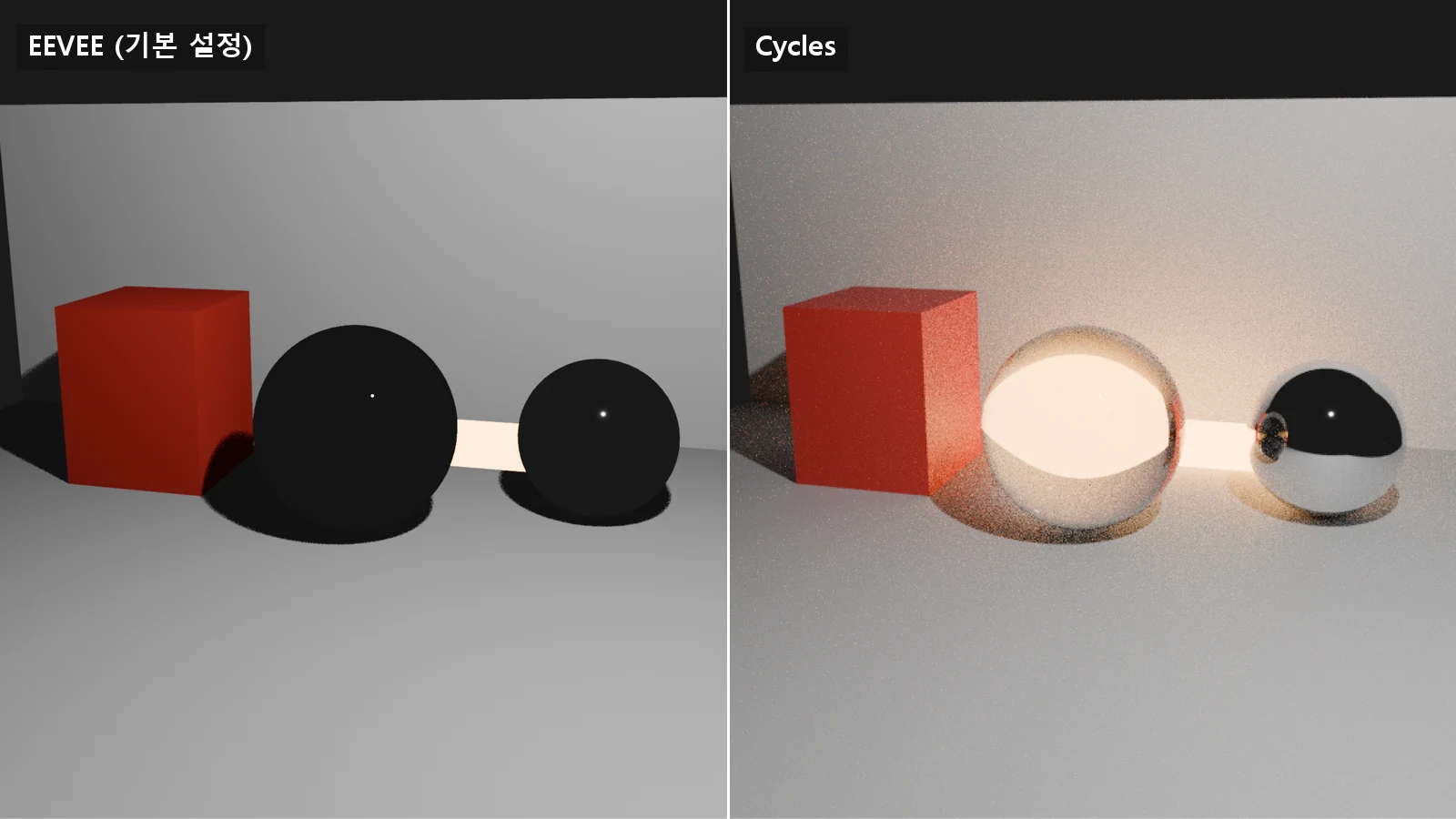
1. Reflections of objects off screen: Things outside the screen do not show up properly in reflections. EEVEE does not directly calculate where a ray hits an object; it guesses the scene from the distance information seen from the camera (the depth buffer). So objects the camera does not see, or objects hidden behind other objects, are not shown correctly in effects like reflections, and reflections can blur or vanish near the edges of the screen. Put simply, EEVEE's mirror mostly reflects what the camera sees. The parts off screen are filled in with light probes, which are like photos of the light around the scene taken in advance. They are not calculated in real time, so they are less accurate. "Why does the floor reflection look strange at the edge of the screen?" The answer is usually here.
2. Simple smoke and fog: EEVEE volumes only calculate the case where light scatters once (single scattering), and they do not appear in reflections, refraction, or light probes.
3. Light leaking through walls with no thickness: A wall made of a single thin plane can let light leak into the shadow side.
EEVEE is not completely free of noise either. Noise from calculating shadows with random sampling is reduced by raising the number of shadow rays (Rays), and ray tracing (a method that calculates light by following rays) has its own denoising settings to reduce noise. Still, it is rare for the whole image to get as grainy as it can in Cycles.
Noise in Cycles and how to reduce it
When you first render with Cycles, the picture often comes out covered in grainy dots. This is called noise. It is not a bug; it comes from how path tracing works.
To continue the detective comparison: path tracing sends rays in random directions to find where the light comes from. If the detective for one pixel happens to find footprints leading to a bright lamp and the detective for the next pixel misses them, the brightness of the two pixels is uneven. That difference is noise. In photography terms, it is like an underexposed photo coming out grainy. Just as a detective is more certain after collecting more clues, raising the number of paths followed per pixel (samples) reduces noise.
Here is how to reduce noise.
- Raise the sample count: On the Render tab of the Properties editor, raising Max Samples under Sampling ‣ Render makes the image cleaner but takes longer. You can also set a Time Limit.
- Adaptive sampling: Turn on Noise Threshold in the same place, and sampling stops early for parts that are already clean enough. For example, a character's hair needs many samples but the background needs few, so time is spent only where it is needed.
- Turn on a denoiser: A denoiser is an algorithm that removes noise without adding samples. The setting is at Sampling ‣ Render ‣ Denoise on the Render tab, and you can choose between Intel OpenImageDenoise and NVIDIA OptiX.
Cycles has weak points too. Because it shoots rays from the camera, effects like the light patterns a glass of water makes on the floor (caustics) are hard to show, since those light paths are hard to find. It is like a detective struggling to find footprints that lead down a very narrow alley.
Checking whether your computer can run them
Checking your hardware before choosing an engine saves you trouble. Here, the CPU is the central processing unit that acts as the brain of the computer, and the GPU is the graphics processing unit that draws the screen (a graphics card, or the integrated graphics inside the CPU).
EEVEE needs a GPU. The official manual says CPU rendering would be very inefficient, so there are no plans to support it. There is also no way to use several GPUs at once, and it cannot render on a Windows computer running like a server with no monitor. Fortunately, Blender's official system requirements already include a GPU as a condition for running the program itself, and the supported list includes Intel integrated graphics. So on a PC that runs Blender, EEVEE usually works too; the difference is in speed.
Cycles can use both the CPU and the GPU. The CPU is compatible with every Cycles feature, and GPU computing (GPU Compute) is often faster. If you have a GPU, it is better to turn it on and use it. There are two things to know.
- Running out of graphics card memory: This is the most common reason rendering works on the CPU but not on the GPU. For example, one image texture takes about 256MB at 8K and about 16MB at 2K, so lowering texture resolution helps.
- The screen seems frozen while rendering: Older generations of graphics cards cannot render and draw the screen at the same time, so doing both on the same card makes controls stutter. On recent graphics cards this tends to happen only now and then in heavy scenes that use a lot of memory. To avoid it completely, you need separate graphics cards for rendering and for the display.
GPU backends depend on the graphics card maker: CUDA and OptiX (NVIDIA), HIP (AMD), oneAPI (Intel), and Metal (Apple). Of these, OptiX uses the dedicated ray tracing hardware on RTX graphics cards. Each backend supports specific graphics card generations; the details are in the guide Choosing a graphics card for Blender rendering.
How to choose
The right answer depends on "what you want to make." Look at these five points.
| What to look at | EEVEE side | Cycles side |
|---|---|---|
| Target style | Low-poly, cartoon style, simple materials | Photo-like realism |
| How much reflection and refraction matter | Reflections of what is on screen are enough | Glass, mirrors, and water are central |
| Deadline | You need to revise quickly and often | You can spend plenty of time rendering |
| Hardware | GPU required; an ordinary PC usually works | Turn on the GPU for speed if you have one; use the CPU if graphics performance is very low or it is a server with no monitor |
| How much smoke and fog matter | Light atmosphere only | Light beams, thick fog |
By this table, a low-poly animation with flat-color materials needs less realism and gets revised often, so it belongs on the EEVEE side.
Both engines make materials with the same shader nodes. Shader nodes are a tool for setting material properties such as color, gloss, and transparency by joining blocks together. You can render an existing scene with the other engine as it is, and Cycles users can preview materials in real time with EEVEE. So you can work quickly in EEVEE and switch only the scenes that need it to Cycles. The calculation methods differ, though, so the results differ a little, and some helper nodes are not supported in EEVEE. Always check the result after switching.
Three settings to use right away
- Switching engines: In Render Engine on the Render tab of the Properties editor, choose EEVEE, Cycles, or Workbench.
- Turning on the GPU in Cycles: First, turn on the backend and graphics card in Edit ‣ Preferences ‣ System ‣ Cycles Render Devices. Then change Device on the Render tab to GPU Compute. You must do both steps to render on the GPU.
- Turning on the denoiser: Turn on Sampling ‣ Render ‣ Denoise on the Render tab, and choose the algorithm in its Denoiser field.
Correcting common misunderstandings
- "EEVEE is for previews, so you cannot use it for final output." EEVEE is used for high-quality final renders too. The engine closer to preview-only is Workbench.
- "Cycles is always better." It is true that it is more physically accurate. But for styles that do not aim for realism, EEVEE's speed is a bigger advantage, and Cycles has weak points such as caustics.
- "You have to make materials separately for each engine." They use the same shader nodes. The results just differ a little.
- "EEVEE can run on the CPU too." EEVEE is GPU only. If you must render on the CPU alone, use Cycles.
- "Noise in Cycles is a bug." It comes from how path tracing works, and you reduce it with samples and a denoiser.
- "EEVEE can only use a few lights." You often see this in older material. EEVEE was rebuilt in Blender 4.2, and the limit on the number of lights was removed, so it can now use up to 4,096 lights visible on screen at once. When you watch an old tutorial, check the Blender version first.
References
- Blender 5.2 LTS Manual, EEVEE — https://docs.blender.org/manual/en/5.2/render/eevee/index.html
- Blender 5.2 LTS Manual, EEVEE Limitations — https://docs.blender.org/manual/en/5.2/render/eevee/limitations/limitations.html
- Blender 5.2 LTS Manual, EEVEE Sampling — https://docs.blender.org/manual/en/5.2/render/eevee/render_settings/sampling.html
- Blender 5.2 LTS Manual, EEVEE Raytracing — https://docs.blender.org/manual/en/5.2/render/eevee/render_settings/raytracing.html
- Blender 4.2 Release Notes, EEVEE — https://developer.blender.org/docs/release_notes/4.2/eevee/
- Blender 5.2 LTS Manual, Cycles — https://docs.blender.org/manual/en/5.2/render/cycles/index.html
- Blender 5.2 LTS Manual, Cycles Render Settings — https://docs.blender.org/manual/en/5.2/render/cycles/render_settings/index.html
- Blender 5.2 LTS Manual, Cycles Sampling — https://docs.blender.org/manual/en/5.2/render/cycles/render_settings/sampling.html
- Blender 5.2 LTS Manual, Reducing Noise — https://docs.blender.org/manual/en/5.2/render/cycles/optimizations/reducing_noise.html
- Blender 5.2 LTS Manual, GPU Rendering — https://docs.blender.org/manual/en/5.2/render/cycles/gpu_rendering.html
- Blender 5.2 LTS Manual, Workbench — https://docs.blender.org/manual/en/5.2/render/workbench/index.html
- Blender, System Requirements — https://www.blender.org/download/requirements/