Color management basics: the difference between sRGB, Filmic, and AgX
Color management is how the wide brightness range of a 3D scene gets fitted onto a narrow monitor. A comparison of sRGB, Filmic, and AgX, and how to choose.
한국어English
ON THIS PAGE
- 01Why color management is needed
- 02The three fields of color management
- 03sRGB: the "standard container" of almost every monitor
- 04View transforms: the knack for packing a wide range of light
- 05How to choose
- 06Loading textures: telling color from data
- 07What to know when saving
- 08When your screen and someone else's look different
- 09Correcting common misunderstandings
- 10References
Based on: the official Blender 5.2 LTS manual and release notes. Menu names follow the English interface.
Open the Color Management panel in Blender's render settings, and you see a row of unfamiliar names: sRGB, AgX, Filmic, Standard. Depending on what you pick, the same scene can look punchy, soft, or washed out. Light in a 3D scene has no upper limit on brightness, but a monitor can only show a narrow range. Color management is the set of rules that decides how to fit that wide range of light onto a narrow screen. This guide explains why color management is needed, what sRGB, Filmic, and AgX each are, how to choose by situation, and what to watch for when loading textures and saving render results.
Why color management is needed
In real life, midday sunlight, a room lamp, and a shadowy corner differ hugely in brightness. Blender calculates these differences as they are. Blender handles materials, lighting, and compositing mainly in the scene linear color space. That means adding and multiplying amounts of light as plain numbers, like real physical quantities, which keeps the calculations closer to nature.
The problem is the monitor. A screen cannot show every color and has a limit on brightness, so the calculated colors have to be fitted into the range the device can show.
As an analogy, it is like moving soup cooked in a big pot into a small lunch box. Pour it straight in, and some spills over and is wasted. You need a knack for scooping the right amount of solids and broth, and the lunch box comes out differently depending on that knack. In color management, this "knack for packing" is called the View Transform.
The three fields of color management
In Blender, color management is gathered in the Color Management panel on the Render tab of the Properties editor. At first, it is enough to tell these three apart.
| Field | What it does | Lunch box analogy | Default |
|---|---|---|---|
| Working Space | The color space used for calculation | The pot the soup is cooked in | Linear Rec.709 |
| Display | The color space of the screen you view results on | The size and shape of the lunch box | sRGB |
| View (view transform) | How the wide range of light is fitted to the screen | The knack for scooping it in | AgX (for new files) |
It is best to set the working space when you start a project and use the same value in every file. At first, just leave the default as it is.
sRGB: the "standard container" of almost every monitor
Of the three names in the title, sRGB is a different kind of thing. Filmic and AgX are "knacks for packing" (view transforms), and sRGB is "the container" (the display color space).
sRGB is a standard screen color space supported everywhere. Most computer monitors support sRGB, and most images and videos are saved in this color space. So for pictures you will post on the web or YouTube, the basic choice is to leave Display at sRGB.
There are also options for monitors that show a wider range of colors, and for HDR monitors. But these settings only look right when such a monitor and the matching operating system settings are both in place.
View transforms: the knack for packing a wide range of light
Even for the same scene, the result changes a lot depending on the view transform. The main views are:
| View | What it does | Suited to |
|---|---|---|
| Standard | Only converts to the screen color space, with no extra transform | Non-photorealistic pictures like cartoon styles, editing video whose colors are already set |
| Filmic | Squeezes a wide brightness range into the screen range (to be deprecated) | Compatibility with older files |
| AgX | Improves on Filmic for more realistic results | Realistic rendering in general |
| ACES | A standard widely used in film and TV production | Film and broadcast production workflows |
| Khronos PBR Neutral | Keeps a material's base color as close as possible to the same color in the result | When color must be accurate, as in product photos |
| False Color | Shows brightness as a color map | Checking exposure |
What Filmic and AgX do is called tone mapping. It is the process of gently squeezing a wide brightness range into the screen range. It is similar to what a camera does when it fits a very bright sky and deep shadows into one shot.
Standard: pouring it all in without scooping
Standard does no processing other than converting to the screen color space. As the Blender manual explains, on a normal (SDR) screen, a view transform has to bring bright colors down a lot to fit them into the screen range, and colors beyond the range are clipped. Filmic and AgX are designed to bring values inside the screen range. Standard has no such "bringing down" step, so very bright areas are not gently reduced. They are cut off at the edge of the range. It is like pouring soup straight into a lunch box and losing what spills over.
In return, colors come out exactly as calculated, so it actually suits cartoon-style pictures without large brightness differences, and graphics where colors must match exactly.
Filmic: the old default
Filmic is a tone mapping made to handle a wide brightness range. In older tutorials, you often see the advice "switch to Filmic". But in Blender 5.2, Filmic is deprecated (to be removed), and AgX, which handles highly saturated colors better, takes its place.
AgX: the current default
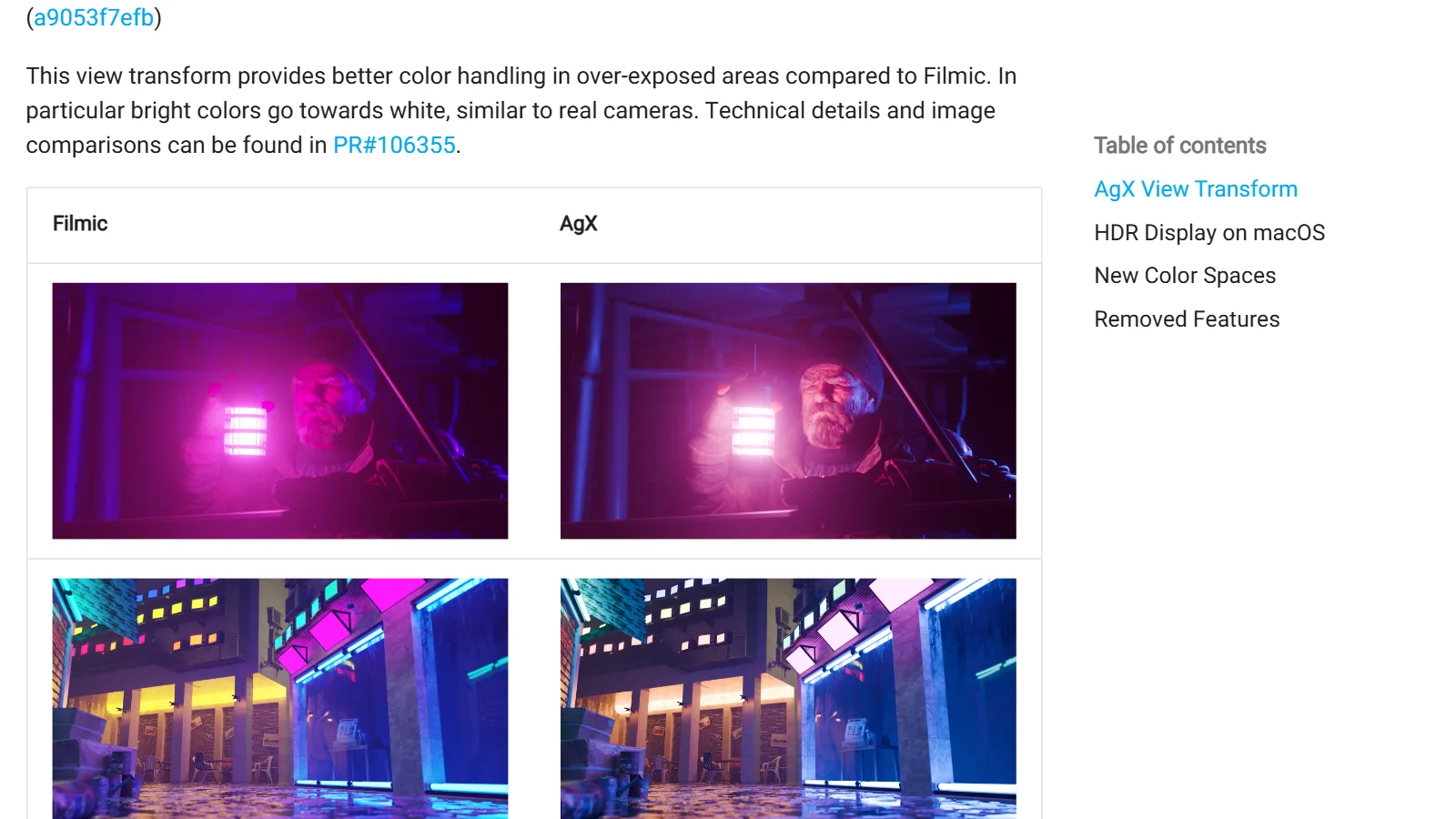
AgX was added in Blender 4.0 and replaced Filmic as the default for new files. AgX handles the colors of very bright areas better than Filmic, and in particular, bright colors shift toward white, much like a real camera.
AgX handles a brightness span of 16.5 stops. A stop is one step in which brightness doubles. So it fits a span from very dark to very bright, rising by doubling more than 16 times, onto one screen.
Think of taking a phone photo of a very bright blue neon sign: the middle looks almost white. A photo cannot keep a very bright color as "deep blue" all the way, so it records it closer to white. Our eyes read this as "that is very bright". AgX imitates this response, so scenes with strong colored lights look more like photos. So when bright areas look pale in AgX, it is not a fault. It is a deliberate feature.
How to choose
| Situation | Recommended combination |
|---|---|
| Realistic scenes, strong lights, neon, sunlight | Display sRGB + View AgX |
| Low-poly or cartoon style, mostly flat colors | Start with AgX, and if colors look too pale, compare with Standard |
| Material colors must be accurate, as with products | Consider Khronos PBR Neutral |
| Keeping an old file's old look | You can keep the Filmic saved in the file |
| Not sure whether the exposure is right | Switch to False Color briefly to check how brightness is spread |
Rather than one view being "the right answer", you are choosing the packing knack that fits your goal. If your goal is toy-like color, as in low-poly work, the fastest way is to render the same scene with several views and compare them side by side.
Of the adjustment fields under View, the one to learn first is Exposure. Use it to raise or lower the brightness of the whole scene without changing each light. Raising it by 1 makes the image twice as bright. The other fields, such as Look, Gamma, Curves, and White Balance, can wait until you are comfortable and need them.
Loading textures: telling color from data
Color management applies not only to render results but also when loading images. Blender guesses the color space of an image file automatically, and if it guesses wrong, you can change it in the Color Space field of the Image Texture node or in the sidebar of the Image Editor.
What needs care is data that is not color, such as normal maps and roughness maps. Set these images to Non-Color in the Color Space field. With Non-Color, the values are used in the material as they are, without color conversion on loading.
In lunch box terms, you arrange the side dishes so they look nice, but you must not rewrite the numbers on the nutrition label. This is about preparing the ingredients. The finished lunch box (the render result) is all packed with the same knack (the view transform). How to actually connect roughness, metallic, and normal maps is covered step by step in the PBR materials guide.
What to know when saving
- PNG and JPEG: render results saved in these formats have the view transform applied. This means they are saved exactly as they looked on screen.
- OpenEXR: suited to compositing and color correction later. OpenEXR saves the values from before the view transform at high precision, reducing data loss. To view this file like a render result when you reopen it, turn on View as Render on the Image tab of the Image Editor sidebar (
N). - How to choose a format: OpenEXR for compositing and color correction, PNG for screen output or video encoding, and JPEG when file size matters. The differences between video formats continue in the Video codecs and containers guide.
When your screen and someone else's look different
By default, Blender works with the operating system's automatic color management, and it writes color space information into the images and videos it saves. So they usually look similar in a video player or browser on the same computer.
Differences can still happen. Windows and Linux monitors may not be accurately calibrated out of the box, so all colors can look more vivid than they really are. On Windows, you can correct this by turning on the "Automatically manage color for apps" option in display settings or by using a good display profile. Why the range of colors each monitor can show (its color gamut) differs is covered in detail in Monitor color gamut made easy.
Correcting common misunderstandings
- "sRGB, Filmic, and AgX are the same kind of option." sRGB is the color space of the screen (display), and Filmic and AgX are view transforms. They are usually used together, as in Display sRGB + View AgX.
- "I switched to AgX and the colors faded, so my settings are wrong." Shifting bright colors toward white is how AgX is designed. Adjust light strength or Exposure, or compare with Standard depending on your goal.
- "Filmic is the latest recommended setting." That is advice from older tutorials. From Blender 4.0, the default for new files is AgX.
- "Normal maps should also be set to the sRGB color space." Data images are Non-Color.
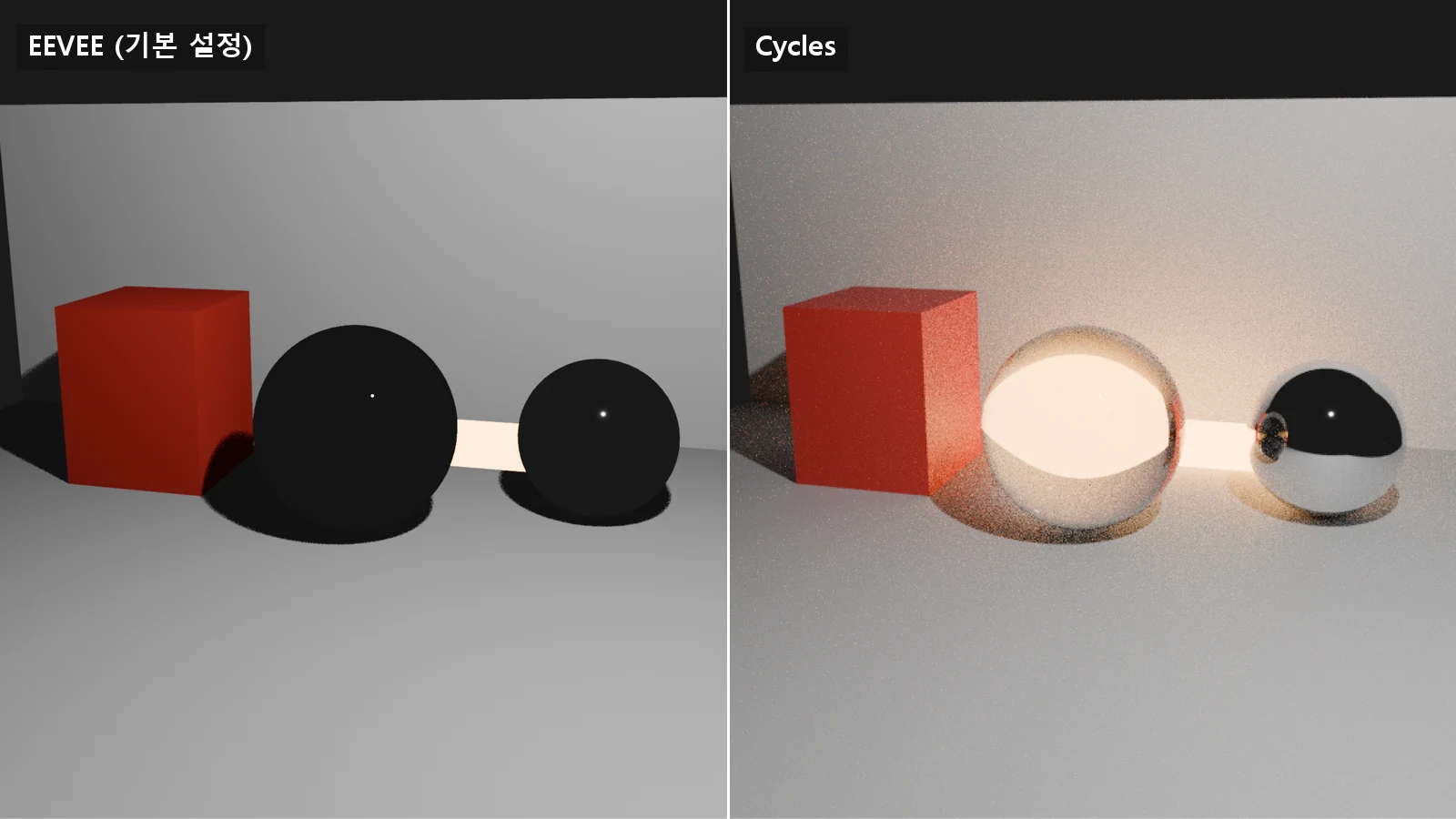
Color management is a setting separate from the choice of render engine (the Color Management panel on the Render tab). If you changed engines, check this panel too. The differences between engines are in EEVEE vs Cycles.
References
- Blender 5.2 LTS Manual, Color Management — https://docs.blender.org/manual/en/5.2/render/color_management/index.html
- Blender 5.2 LTS Manual, Color Spaces — https://docs.blender.org/manual/en/5.2/render/color_management/color_spaces.html
- Blender 5.2 LTS Manual, Displays and Views — https://docs.blender.org/manual/en/5.2/render/color_management/displays_views.html
- Blender 5.2 LTS Manual, System Configuration — https://docs.blender.org/manual/en/5.2/render/color_management/system_configuration.html
- Blender 5.2 LTS Manual, Image Formats — https://docs.blender.org/manual/en/5.2/files/media/image_formats.html
- Blender 4.0 Release Notes, Color Management — https://developer.blender.org/docs/release_notes/4.0/color_management/