Monitor color gamut made simple: sRGB vs P3 and color calibration basics
Each monitor can show a different range of colors. Learn the difference between sRGB and P3, the trap of a wide color gamut, and the basics of color calibration on Windows and Mac.
한국어English
ON THIS PAGE
- 01What a color gamut is
- 02Four color gamuts you will see often
- 03Why a wide color gamut can make colors wrong
- 04Getting colors right on Windows and Mac
- 05What to look at in Blender
- 06Monitor resolution and refresh rate
- 07What to check when looking at a work monitor
- 08Correcting common misunderstandings
- 09References
Based on: the standards documents (IEC, ITU-R, SMPTE, W3C), official Microsoft and Apple documentation, and the Blender 5.2 LTS manual. Checked in September 2026.
Sometimes the same image file looks vivid on your monitor and dull on someone else's phone. This happens because each monitor can show a different range of colors (its color gamut), and each one has different settings for interpreting colors. For work you will post online, the most important thing is that it looks correct by the sRGB standard. This guide explains what a color gamut is, the differences between sRGB, DCI-P3, Display P3, and Rec.2020, why colors go wrong on wide-gamut monitors, how to get colors right on Windows and Mac, and what to check when looking at a monitor for work.
What a color gamut is
A monitor makes every color by mixing three kinds of light: red (R), green (G), and blue (B). But the deepest red, deepest green, and deepest blue a monitor can produce differ from device to device. The full range of colors you can make by mixing these three primary colors is called the color gamut.
You can think of it as a set of colored pencils. With a small set you can still draw an apple, but you cannot draw a very vivid teal or a neon green. A big set has those deep colors. A monitor with a wide color gamut is a monitor with a bigger set of colored pencils. This guide uses this colored-pencil comparison all the way through.
Four color gamuts you will see often
Standards documents define a color gamut by the coordinates of its three primary colors. Spread all the colors a person can see on a horseshoe-shaped map (the CIE 1931 xy chromaticity diagram), mark the positions of the three primaries as points, and join them, and you get a triangle. The colors inside that triangle are the colors that gamut can show. The bigger the triangle, the deeper the colors it can hold.
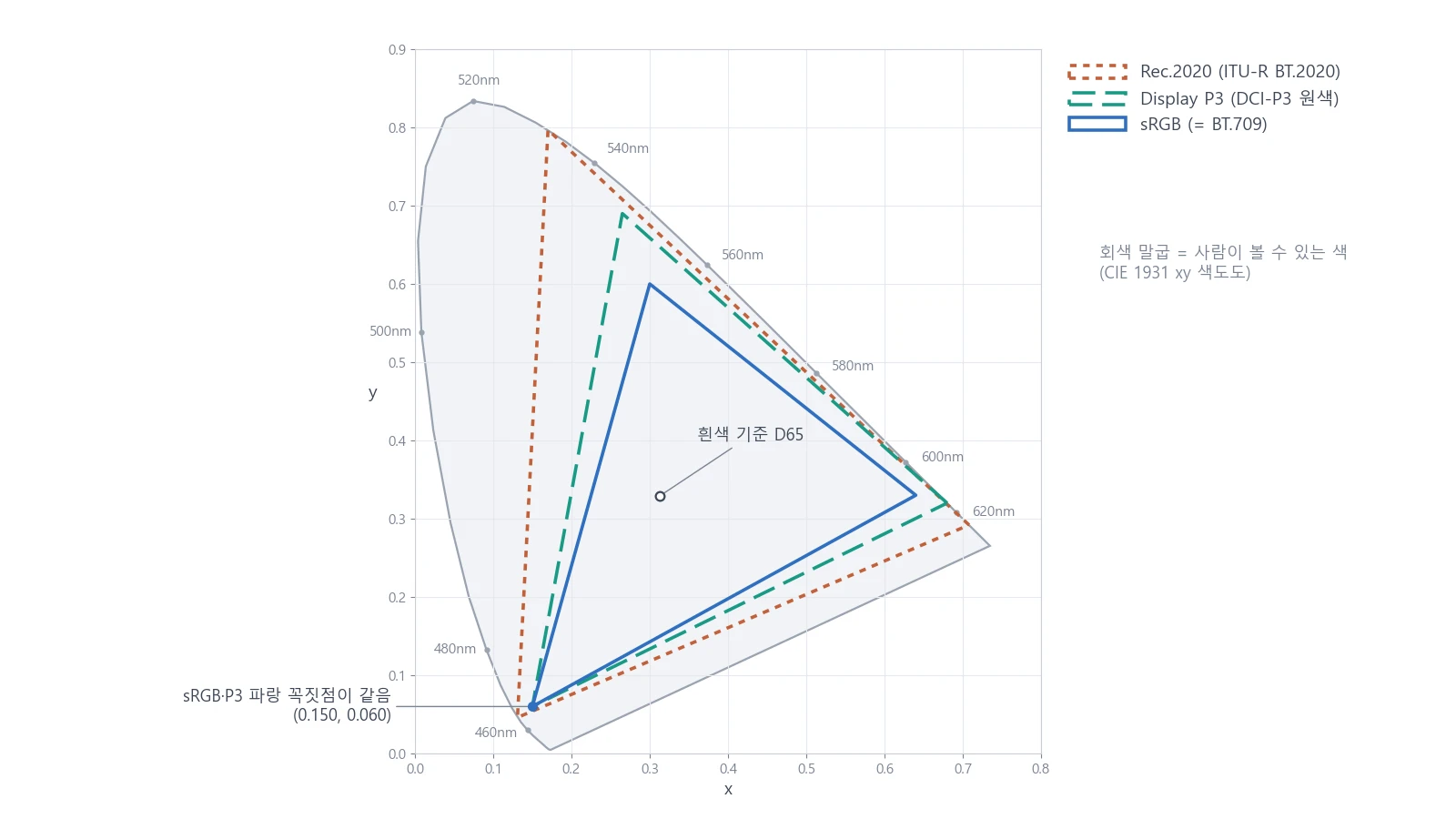 Three color gamuts drawn from the actual coordinates in the standards. Solid blue line: sRGB, long green dashes: Display P3, orange dots: Rec.2020. sRGB and P3 share the same blue corner (0.150, 0.060), and P3 extends only toward red and green (chart, labels in Korean)
| Name | Defined by | Used for | Size |
|---|---|---|---|
| sRGB | IEC 61966-2-1 | The default color space for computers and the web | The baseline |
| DCI-P3 | SMPTE RP 431-2 | The reference projector for digital cinema | Wider than sRGB |
| Display P3 | Made by Apple, included in the W3C CSS standard | Apple devices and recent displays | Same as DCI-P3 |
| Rec.2020 | ITU-R BT.2020 | 4K and 8K ultra-high-definition broadcasting | Even wider than P3 |
Here is a closer look.
- sRGB: The international standard IEC 61966-2-1 is titled "Default RGB colour space – sRGB." The web standard W3C CSS Color 4 also uses sRGB as the default color space for CSS. The three primary coordinates of sRGB are the same as those of the HD broadcasting standard BT.709. So you can think of most internet images and ordinary HD video as using the same color gamut.
- DCI-P3: The primaries from SMPTE RP 431-2, which defines the reference projector for digital cinema. As the chart shows, red and green sit farther out than in sRGB, and blue is in the same place as sRGB.
- Display P3: A color space made by Apple. The International Color Consortium (ICC) color space registry also lists Apple as the responsible organization. It uses the same primaries as DCI-P3, with the white point (D65) and brightness curve matched to sRGB. The W3C CSS standard says that recent displays, TVs, laptops, and phone screens can show all or nearly all of this gamut. That does not mean every screen can, so check the spec sheet for your own screen.
- Rec.2020: The primaries of the ultra-high-definition broadcasting standard BT.2020, the widest of the four. Its primaries are so deep that all three corners sit on the edge of the horseshoe in the chart.
In colored-pencil terms, the P3 set has the same blue pencil as the sRGB set, with only the red and green pencils swapped for deeper ones. So saying "P3 is wider than sRGB in every direction" is not accurate.
Why a wide color gamut can make colors wrong
A wider color gamut sounds better in every case, but when the settings do not match, problems appear. On Windows and Linux, the monitor may not be accurately calibrated by default. For example, sRGB colors can be mapped as they are onto the monitor's P3 gamut, so every color looks more vivid but less accurate.
In colored-pencil terms, when an order says "red 100%," an sRGB monitor colors with the red pencil from the sRGB set, while a P3 monitor with mismatched settings pulls out the deepest red pencil in its own set. It looks bright and pretty on your screen, but if you finish your work based on that color, it can look duller than you expected on other people's ordinary screens.
The fix is to turn on the operating system's color management. Color management checks which color space the colors in a file were meant for, and picks the right pencil so they look the same on your monitor. On Windows, you can correct this by turning on "Automatically manage color for apps" or by using a good display profile. On macOS, the default settings are already set to an accurate color gamut.
Getting colors right on Windows and Mac
Windows 11
In Settings ‣ System ‣ Display ‣ Color profile, you can do the following.
- Automatically manage color for apps: a feature that shows colors consistently and accurately across apps on supported displays.
- Add, remove, or set the default color profile: a color profile is a file holding information like "this monitor produces these colors." It is the color list for your pencil set.
- Calibrate display: follow the on-screen steps to adjust brightness, contrast, and color balance.
If you have an HDR monitor (HDR is a way of showing light much brighter than an ordinary screen), you can calibrate the HDR screen separately with the Windows HDR Calibration app from Microsoft.
Mac
Apple says that in a typical home or office, you usually do not need to calibrate a Mac display. As noted above, macOS has color management set up by default, so if you use a Mac, there is no reason to rush into calibration.
If you want to adjust it yourself, go to Apple menu ‣ System Settings ‣ Displays, open the menu next to "Color profile," choose "Customize," and click the add button to open "Display Calibrator Assistant." When you finish the steps, a calibrated color profile is created and set automatically. According to Apple, the surrounding lighting, the position and angle of the screen, and how long the display has been in use all affect how colors look. Some models, such as Pro Display XDR, Studio Display, and the 14-inch and 16-inch MacBook Pro (2021 and later), use a separate tool (Pro Display Calibrator) instead of this method. If you have one of these models, follow Apple's documentation.
Your work environment affects color
Colors look different depending on the surrounding light and the angle you view the screen from. So keep both steady while you work. If sunlight from a window falls on the screen, colors look different at different times of day, so keep the lighting steady and look at the monitor straight on. When you compare colors, compare them on the same monitor at the same brightness.
What to look at in Blender
In Blender, choose Display in the Color Management panel on the Render tab of the Properties editor. This decides "what size of pencil set the screen you are showing it on has." The default, sRGB, works on every computer screen, so for work meant for the internet, just leave it as it is. To actually see wider options such as Display P3 or HDR, you need both a monitor that supports them and the operating system settings described above.
The Display options, and how View (AgX, Filmic) fits a wide range of brightness onto the screen, are covered in Color management basics. That guide compares Display to a "lunch box." In this guide's terms, the size of the lunch box is the color gamut.
One more thing: the YouTube Help Center recommends BT.709 as the standard color space for uploading ordinary (SDR) video. As noted above, BT.709 has the same primaries as sRGB. So for video you will post online, start by setting up an environment where things look correct by the sRGB standard.
Monitor resolution and refresh rate
Besides color, two numbers come up often for work monitors.
- Resolution is the number of pixels across and down the screen. At the same size, more pixels make text and lines smoother and let you fit more panels on one screen. Monitor resolution and render resolution are set separately. You can render in 4K even on a 1080p monitor. What video resolution means is explained in Resolution and aspect ratio.
- Refresh rate (Hz) is how many times per second the screen redraws the image. On Windows 11 you can change it in Settings ‣ System ‣ Display ‣ Advanced display. How it differs from video fps is covered in Understanding frame rate.
What to check when looking at a work monitor
Before choosing a specific product, check these items on the spec sheet in this order, and you will not get confused.
- First decide where your work will be seen. For the web and YouTube, sRGB and BT.709 are the standard. Consider P3 or HDR when you have a special purpose, such as cinema screening or HDR video.
- Check the color gamut figures. Maker spec sheets often say which gamuts (sRGB, DCI-P3, and so on) a monitor covers, and how much. For a wide-gamut monitor, also check whether you can see colors accurately with an sRGB mode or the operating system's color management.
- Check whether it can be calibrated. The operating system's calibration feature alone can handle basic adjustments. If you need more precise calibration, you can also use a measuring device.
- Look at resolution and size together. In programs with many panels, like Blender, a larger, denser screen gives you more room to work.
- Match the refresh rate to your kind of work. For video and 3D work, color accuracy comes first. A higher refresh rate makes moving around the screen feel smoother.
Correcting common misunderstandings
- "A monitor with a wider color gamut has more accurate color." Wide and accurate are not the same. Even a big pencil set gives the wrong color if it pulls out a different pencil than the order asked for. If color management does not match, sRGB images look too vivid.
- "Every color in P3 is deeper than in sRGB." As the chart shows, the blue corner is the same. The parts that get wider are red and green.
- "If it looks good on my screen, it looks good to everyone." If the viewer's screen and settings differ, the colors differ too. It is safer to match the sRGB standard, which most screens follow.
- "Every monitor must be calibrated." Apple says a Mac in a typical home or office usually does not need calibration. Still, colors can look different when the lighting changes or after long use, so it is good to check now and then before color-critical work.
- "You need a 4K monitor to render in 4K." Render resolution is a value set in Blender, so it has nothing to do with monitor resolution. The monitor only shows the result.
References
- IEC 61966-2-1, Default RGB colour space – sRGB — https://webstore.iec.ch/en/publication/6169
- W3C, CSS Color Module Level 4 (sRGB, display-p3) — https://www.w3.org/TR/css-color-4/
- ITU-R BT.709-6, Parameter values for the HDTV standards — https://www.itu.int/rec/R-REC-BT.709
- ITU-R BT.2020-2, Parameter values for UHDTV systems — https://www.itu.int/rec/R-REC-BT.2020
- SMPTE RP 431-2:2011, D-Cinema Quality — Reference Projector and Environment — https://pub.smpte.org/pub/rp431-2/rp0431-2-2011.pdf
- Apple Developer, CGColorSpace displayP3 ("The Display P3 color space, created by Apple.") — https://developer.apple.com/documentation/coregraphics/cgcolorspace/displayp3
- ICC, Display P3 color space registry entry — https://www.color.org/chardata/rgb/DisplayP3.xalter
- Blender 5.2 LTS Manual, Displays and Views — https://docs.blender.org/manual/en/5.2/render/color_management/displays_views.html
- Blender 5.2 LTS Manual, System Configuration — https://docs.blender.org/manual/en/5.2/render/color_management/system_configuration.html
- Microsoft Support, Change display brightness and color in Windows — https://support.microsoft.com/en-us/windows/hardware/display-graphics/change-display-brightness-and-color-in-windows
- Microsoft Support, Calibrate your HDR display using the Windows HDR Calibration app — https://support.microsoft.com/en-us/windows/hardware/display-graphics/calibrate-your-hdr-display-using-the-windows-hdr-calibration-app
- Microsoft Support, Change the refresh rate on your monitor in Windows — https://support.microsoft.com/en-us/windows/change-the-refresh-rate-on-your-monitor-in-windows-c8ea729e-0678-015c-c415-f806f04aae5a
- Apple Support, Calibrate your Mac display — https://support.apple.com/guide/mac-help/calibrate-your-display-mchlp1109/mac
- YouTube Help Center, YouTube recommended upload encoding settings — https://support.google.com/youtube/answer/1722171