Running AI on your own computer: graphics card and VRAM requirements
How to estimate in advance whether a local AI model will fit on your graphics card, using model size, quantization, and VRAM.
한국어English
ON THIS PAGE
- 01Why the graphics card matters
- 02Reading model size labels: "B" means billion
- 03Quantization: packing the same clothes in a compression bag
- 04"Memory needed" from an official table
- 05What uses memory besides the model: conversation length
- 06When it does not all fit: the CPU and GPU share the load
- 07Checking whether your graphics card is supported
- 08The order for choosing a model for your computer
- 09Correcting common misunderstandings
- 10Summary
- 11References
Based on: official documentation from Google, Ollama, llama.cpp, and NVIDIA, checked in September 2026. Model sizes and supported GPU lists change often.
With a program like Ollama, you can run an AI language model on your own computer without the internet. But when you go to pick a model, you see unfamiliar labels like "4B", "12B", "Q4", and "fp16", and some models run well while others crawl like a turtle. Whether local AI runs fast mostly comes down to whether the whole model file fits in graphics card memory (VRAM).
This guide explains how to read model size labels, what quantization is, what else takes up memory besides the model, what happens when a model does not fully fit, how to check whether your graphics card is supported, and the order for choosing a model that suits your computer.
A comparison of the pros and cons of local AI and cloud AI is in Local AI vs cloud AI: what is the difference?, and an explanation of VRAM itself is in What VRAM means.
Why the graphics card matters
When a language model produces an answer, it repeats the same multiplications and additions over a huge number of numbers. This kind of work suits the GPU, which handles thousands of calculations at once. The difference between the two chips is covered in detail in CPU vs GPU.
That guide used a restaurant analogy: the CPU is the head chef who takes orders and decides the order of work, and the GPU is a large prep team that chops hundreds of vegetables at once. This guide continues the analogy. For the GPU to calculate, the model's numbers must be loaded into VRAM, the memory right next to the GPU. VRAM is the counter right in front of the prep team. When all the ingredients (the model) fit on the counter, the prep team works on them all at once without stopping. What happens when they do not all fit is covered in the "When it does not all fit" section below. That is why, for local AI, VRAM capacity is often the first thing to check, before the speed of the GPU chip.
Reading model size labels: "B" means billion
The 4B, 12B, 31B after a model name is the number of parameters inside the model. B stands for billion. 12B means the model holds 12 billion numbers.
Parameters are the adjustment knobs the model tuned during training. More knobs generally let a model handle more complex things, but the file gets bigger and uses more memory.
The arithmetic for a rough size is simple. How precisely each number is stored decides how much room it takes.
- 16-bit (BF16, fp16): 2 bytes per number → about 2GB per billion (1B)
- 8-bit: 1 byte → about 1GB per 1B
- 4-bit: 0.5 bytes → about 0.5GB per 1B
For example, a 12B model at 16-bit is 12 billion × 2 bytes = about 24GB, and cut down to 4-bit it is about 6GB. This is simple arithmetic, so in practice a little more is needed. The official table below shows the real values.
Quantization: packing the same clothes in a compression bag
Quantization is a way of storing the numbers in a model less precisely, in smaller slots. Labels in a name like Q4, Q8, q4_K_M show the quantization level. The number after Q is the rough number of bits used to store one number, and a smaller number means it was reduced more. Letters after it, like K_M, name the type of reduction method.
Think of a suitcase. Packed as they are, the same clothes need a big suitcase, but in a compression bag they fit in a small one. Squeeze too hard, though, and the clothes get a few wrinkles. Quantization also shrinks the size a lot, but the more you shrink it, the more the answer quality can drop a little.
llama.cpp, an open-source engine that runs language models on your own computer, supports integer quantization at many levels, from 1.5-bit to 8-bit. It does this to speed up inference and reduce memory use. Here, inference means the process of the model taking a question and calculating an answer.
Actual file sizes make the difference clear. Comparing the same Gemma 3 4B model in Ollama's official model list gives q4_K_M (the default) 3.3GB, q8_0 5.0GB, fp16 8.6GB. It is the same model, yet the largest version is more than twice the size of the smallest. In Ollama's list for gemma3, the default version you get without a tag (latest) is shown as q4_K_M, which is in the 4-bit family. Check the default for other models on each model's page.
"Memory needed" from an official table
First, one point to note. The Ollama numbers above are for Gemma 3, and the table below is for the newer generation, Gemma 4. Even though both names include "4B", they are models of different generations and structures, so do not compare the numbers above directly with the numbers in the table below.
In its Gemma 4 model documentation, Google publishes a table of the approximate GPU memory needed to load each model by size and quantization level. Here are some of those values.
| Model | 16-bit (BF16) | 8-bit (SFP8) | 4-bit (Q4_0) |
|---|---|---|---|
| Gemma 4 E4B | 17.9GB | 8.9GB | 4.5GB |
| Gemma 4 12B | 26.7GB | 13.4GB | 6.7GB |
| Gemma 4 31B | 69.9GB | 34.9GB | 17.5GB |
Keep two things in mind when reading this table.
- Google states that these values are approximate, based on parameter count and quantization level plus a 20% allowance for things loaded in addition, and that they can vary with the inference tool and environment.
- The table counts only the model weights (the trained numbers). It does not include the program itself or the space that holds the conversation.
Models whose name and real memory differ
Comparing the table with the simple arithmetic above splits the results in two.
- 12B and 31B are close to the arithmetic. 12B at 16-bit comes to about 24GB by arithmetic, and the 26.7GB in the table is about that plus the allowance.
- E4B is very different. By arithmetic it is 4B × 2 bytes = about 8GB, but the table says 17.9GB, more than double.
There are two cases where guessing memory from the name alone is likely to be wrong, and Google's documentation explains the reason for both.
- Models with "E" in the name (E2B, E4B): E stands for "effective parameters". Because of large lookup tables attached to each layer, the part used for calculation is 4B in scale, but the memory you actually need to load is much larger than the name suggests. It is like reading a thin book while having to keep several thick dictionaries open beside it.
- Models named like "A4B" (26B A4B): these use mixture of experts, or MoE. The model is split into several groups of "experts", and only some are picked for each moment. When producing an answer, it calculates with only 4 billion parameters per token, but to pick them quickly, all 26 billion must be loaded into memory. This model's basic memory requirement is much closer to a 26B model than a 4B one.
In short, models with an ordinary structure match the arithmetic well, and models with an unusual structure, like E models or MoE models, can differ a lot. So when actually choosing, it is safer to go by the size shown in the model maker's documentation or by the tool rather than the number in the name.
A worked example with official numbers
Take a graphics card with 8GB of dedicated VRAM and check it against the table above. The table values are rough figures for model weights only, so the conversation memory and the program's share have to fit in the space that is left.
| Model chosen (4-bit Q4_0) | Memory in table | Space left on 8GB | Verdict |
|---|---|---|---|
| Gemma 4 E4B | 4.5GB | About 3.5GB | Room to spare, even for conversation space |
| Gemma 4 12B | 6.7GB | About 1.3GB | The weights fit, but conversation space is tight |
| Gemma 4 12B (8-bit) | 13.4GB | Not enough | Part of it spills over and runs split with the CPU |
So even on the same 8GB card, E4B at 4-bit is comfortable, while 12B at 4-bit is on the edge and can spill over if you feed it a long conversation or a long document. When the table value is larger than your VRAM, as with 12B at 8-bit, the "split loading" explained below happens.
Plug in your own VRAM number the same way. For it to run comfortably, the table value plus room for conversation must be smaller than your VRAM.
What uses memory besides the model: conversation length
The model is not the only thing in VRAM. As a conversation gets longer, the space where the AI remembers the conversation so far grows with it. This space is called the KV cache, and the amount of conversation the AI can read at once is called the context window. The meanings of context and tokens are summarized in Tokens and context.
Memory use grows while the model runs, with the number of tokens in the prompt and the answer, and a larger context window needs much more VRAM on top of the model weights. Ollama is an example.
- Ollama's default context window is 4096 tokens. Raising it raises the memory requirement too.
- If you set one model to handle several requests at once (the Ollama setting (environment variable)
OLLAMA_NUM_PARALLEL), the conversation space (context) grows by the number of requests handled at once, so more memory is used. For example, taking 4 requests at once with a 2K context gives an 8K context. The model weights do not grow. - Another setting,
OLLAMA_KV_CACHE_TYPE, lets you quantize the conversation memory too. Compared with the default f16, q8_0 cuts its memory in half and q4_0 to a quarter, but the loss of precision is greater.
So a model file exactly the same size as your VRAM is not enough. You need to leave room for the conversation space and the program's share. How much to leave depends on conversation length and tool settings, so a good approach is to start with plenty of room and adjust while checking actual use.
When it does not all fit: the CPU and GPU share the load
A model larger than your VRAM is not useless. llama.cpp can use the CPU and GPU together, so it can speed up part of a model larger than your total VRAM on the GPU. Part of the model goes into VRAM, and the rest goes into ordinary memory (RAM), where the CPU calculates it.
Continuing the restaurant analogy: ingredients that do not fit on the prep team's counter (VRAM) go on a side table (RAM), and the head chef (CPU) has to prep them alone. The head chef is excellent at deciding the order of work and handling complex tasks, but chopping hundreds of vegetables alone is much slower than the prep team. Even if the prep team (GPU) finishes its share quickly, a dish is not done until the head chef finishes his share too. So the overall speed is dragged down to the slower side. This is exactly the situation described in CPU vs GPU: "without the prep team, the head chef has to chop all the vegetables alone, and the food comes out late". The larger the share that spills over, the more the head chef has to handle, and the answers come out noticeably slower.
In Ollama, you can see where a model is loaded right now. With a model running, type ollama ps in a terminal, and a Processor column appears. It means:
- 100% GPU: the whole model is loaded on the GPU (VRAM)
- 100% CPU: the whole model is loaded in ordinary memory
- 48%/52% CPU/GPU: the model is split between ordinary memory and the GPU
If it is not "100% GPU", you can start by choosing a smaller model or a more heavily quantized version, or by shortening the context length. By default, Ollama keeps a model you used in memory for 5 minutes so it can answer the next question quickly. To free the memory right away, use ollama stop.
Checking whether your graphics card is supported
Even with plenty of VRAM, if the tool cannot use that GPU, it runs on the CPU only. Here is a summary based on the official documentation. Support lists change often, so always check the latest documentation before installing.
| GPU type | Per Ollama documentation | llama.cpp backend |
|---|---|---|
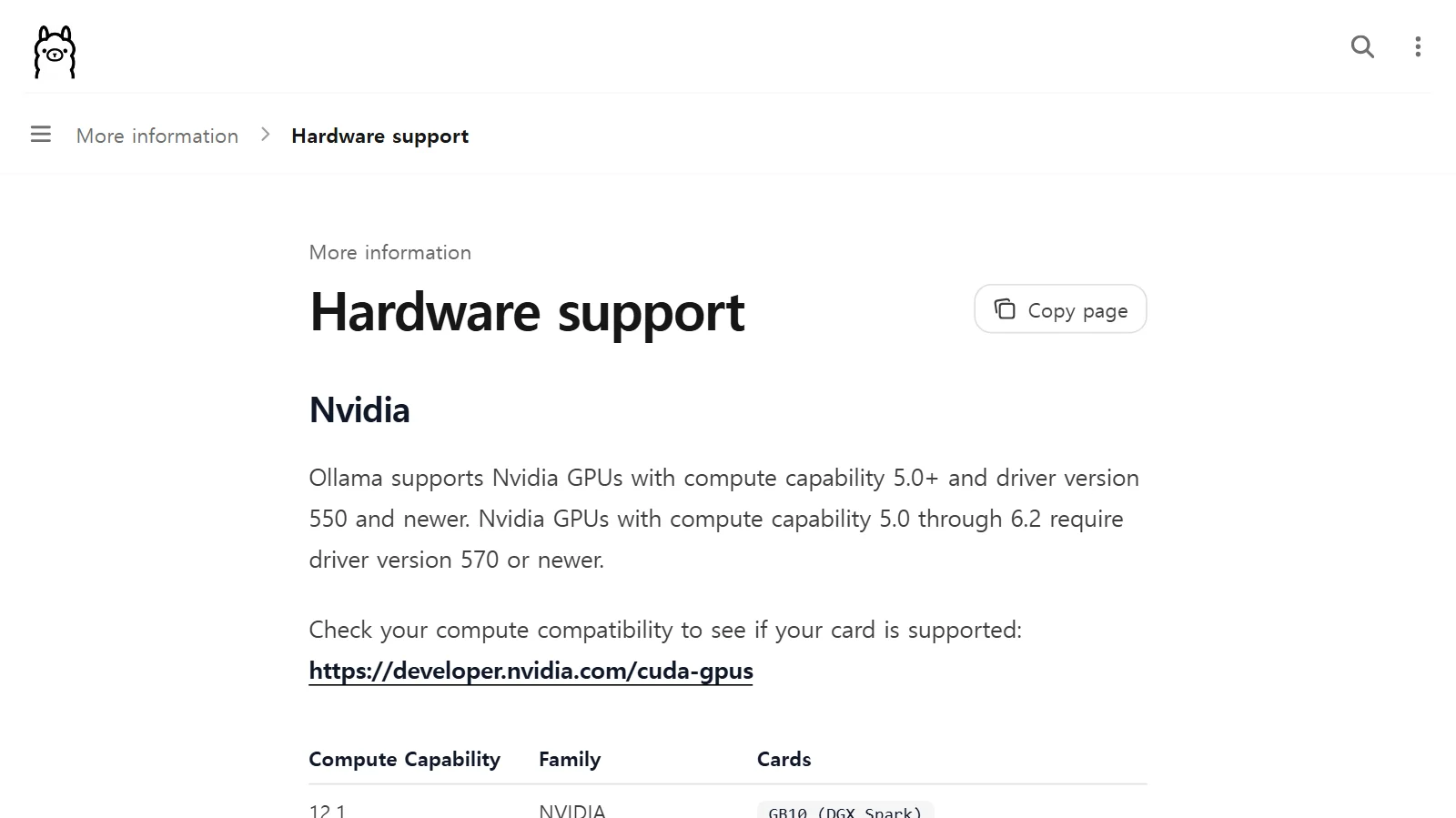
| NVIDIA | Compute capability 5.0 or higher, driver 550 or later (570 or later for some older generations). On Windows, driver 551.61 or later | CUDA |
| AMD | Uses the ROCm library, and not every AMD GPU is supported. Also supported through Vulkan | HIP, Vulkan |
| Apple Silicon Mac | GPU acceleration through Metal | Metal |
| Other GPUs | Separate guidance for Vulkan support on Windows and Linux | SYCL for Intel GPUs, Vulkan for others |
CUDA, ROCm, HIP, Vulkan, Metal, and SYCL in the table are names of technologies a program uses to hand calculations to the GPU, and a backend is the route that uses that technology. You do not need to memorize the names. Just check the conditions in the row for your GPU maker.
Compute capability is a feature number NVIDIA gives each GPU generation. It defines the hardware features and instructions each architecture supports. You can find your card's number on NVIDIA's CUDA GPU list page.
An Apple Silicon Mac uses a unified memory design in which the CPU and GPU share one pool of memory, so there is no separate "VRAM: X GB" listed. For this difference in design, see the "Dedicated, shared, and unified memory" part of What VRAM means.
The order for choosing a model for your computer
- Check your VRAM: On Windows, press
Ctrl+Alt+Delete, choose Task Manager, and click GPU on the Performance tab. Look at the total size of Dedicated GPU memory shown at the bottom. The detailed steps are in the "Checking your VRAM" section of What VRAM means. - Check the driver and support: Use the table above and the official documentation of the tool you want to use to see whether your GPU is supported.
- Look at the model file size: Look at the size of each version in the model maker's documentation or Ollama's model list. Starting with a version in the 4-bit family is a safe choice.
- Leave room: If the model fills your VRAM, there is not enough conversation space. Try a model that leaves room first.
- Check in practice: After running it, use
ollama psto see whether it says "100% GPU", and look at Dedicated GPU memory usage in Task Manager. - Mind storage and RAM too: Ollama for Windows needs at least 4GB just to install, and models can take tens to hundreds of GB. You can move the model storage location to another drive with the
OLLAMA_MODELSsetting. How to choose storage is covered in SSD, HDD, NVMe differences, and the ordinary memory that catches a model that spills over is covered in Choosing RAM capacity.
Correcting common misunderstandings
- "More parameters always means a better model." Larger models generally handle complex work better, but if one does not fit in your VRAM, it is too slow to use. Choosing within the size that fits is the choice you can actually use.
- "4-bit ruins quality." It is true that heavier quantization can cost more quality, but it is common enough that Ollama's default version of gemma3 is in the 4-bit family (q4_K_M). If the quality falls short, compare it directly with the 8-bit version of the same model.
- "It only needs as much memory as the number in the name (4B)." The E models and MoE models above need far more memory than the number in their name. Look at the memory values in the maker's table rather than the name.
- "You only need as much as the model file size." The conversation memory and the program's share need room of their own.
Summary
| What to remember | In one line |
|---|---|
| What decides speed | Whether the whole model fits in VRAM |
| What 12B means | 12 billion parameters |
| Rough size | About 2GB per 1B at 16-bit, about 0.5GB at 4-bit (+ allowance) |
| Quantization | Stores numbers less precisely to cut size, but quality can drop a little |
| Hidden memory | The KV cache, which grows with longer conversations, and the program's share |
| If it spills over | The overflow sits in RAM and the head chef (CPU) calculates it alone, so everything slows down (check with ollama ps) |
| The number in the name | For E (effective parameters) and MoE models, real memory can be larger than the name |
References
Model sizes and supported GPU lists change often, so check the official pages again.
- Google AI for Developers, Gemma 4 model overview (Inference Memory Requirements) — https://ai.google.dev/gemma/docs/core
- Ollama, gemma3 model tag list — https://ollama.com/library/gemma3/tags
- Ollama Docs, FAQ — https://docs.ollama.com/faq
- Ollama Docs, Hardware support (GPU) — https://docs.ollama.com/gpu
- Ollama Docs, Windows — https://docs.ollama.com/windows
- llama.cpp official README (ggml-org) — https://github.com/ggml-org/llama.cpp
- NVIDIA, CUDA GPU Compute Capability — https://developer.nvidia.com/cuda-gpus