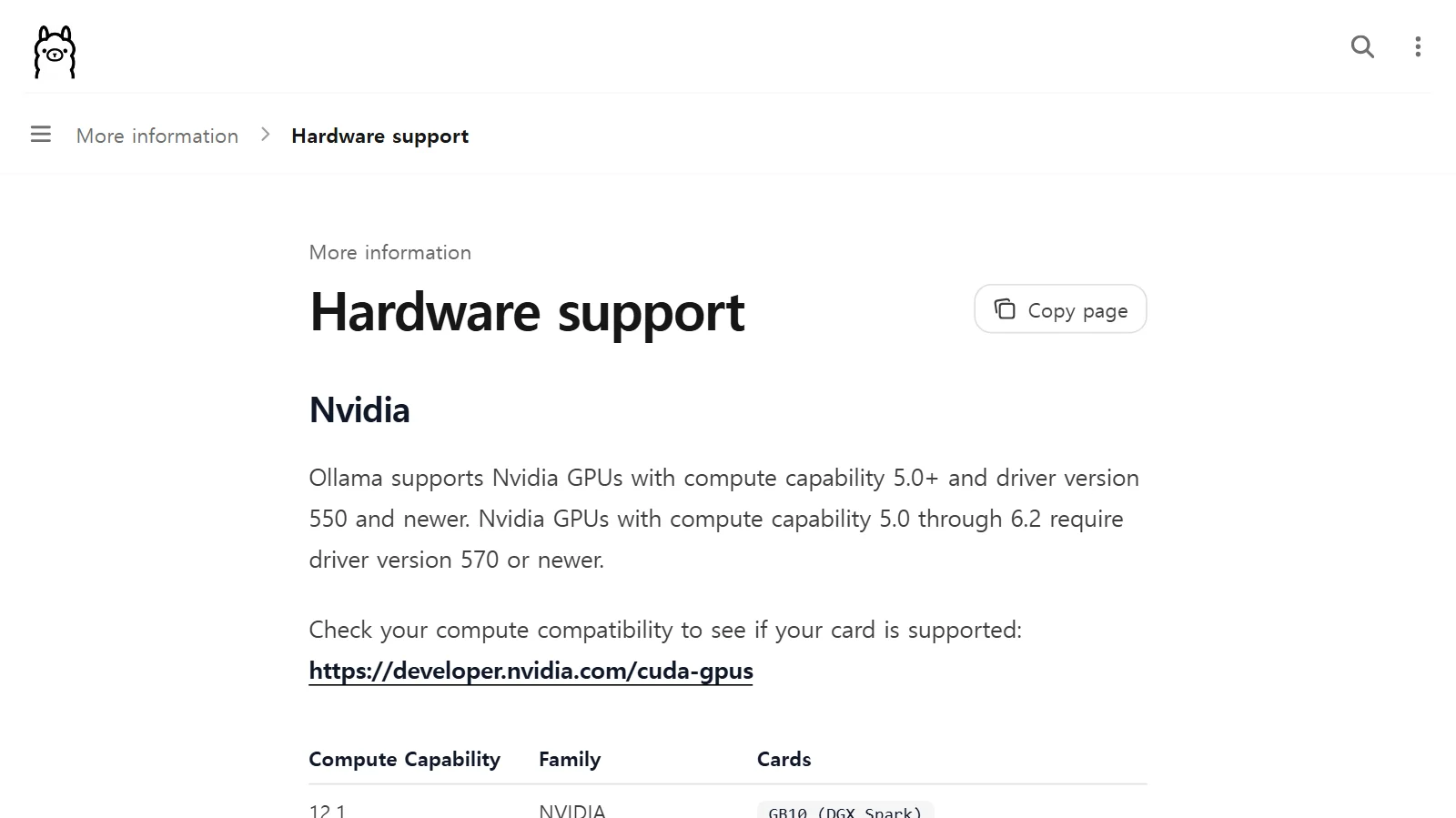
What VRAM means: why graphics card memory matters
VRAM is a dedicated workbench right next to the GPU. This guide covers what goes on it, what happens when it runs short, and how to check it and save it.
한국어English
ON THIS PAGE
- 01Where VRAM is
- 02A comparison: the workbench and the storeroom
- 03What goes on VRAM
- 04What happens when VRAM runs short
- 05Dedicated memory, shared memory, and unified memory
- 06Checking your VRAM (Windows)
- 07How much VRAM you need
- 08How to save VRAM in Blender
- 09Correcting common misunderstandings
- 10Summary
- 11References
Based on: official documentation from Microsoft, NVIDIA, and Blender. Checked in September 2026. Blender's requirements may change with each version.
Graphics card specs show memory size in big letters, like "8GB" or "16GB." This is VRAM (Video RAM, video memory). VRAM is a workbench for the GPU alone, sitting right next to the GPU. The data the GPU is drawing and calculating right now has to be on this workbench for the GPU to work fast, and when the workbench is too small, 3D rendering stops or slows down. This guide explains how VRAM differs from ordinary memory (RAM), what takes up VRAM, what happens when it runs short, and how to check it on Windows and save it in Blender.
Where VRAM is
A computer has memory in two main places.
- System memory (RAM): memory plugged in next to the CPU. It is what people mean when they say "16GB of RAM."
- VRAM: memory mounted together with the GPU on a dedicated graphics card.
The GPU and the CPU each have their own memory chips. NVIDIA's CUDA programming guide calls the CPU-side memory host memory and the GPU-side memory device memory. If there are several GPUs, each GPU has its own memory. The two chips are linked by a connection such as PCIe, so for the GPU to use data on the CPU side, the data has to be moved over this connection.
Dedicated GPU memory in the Windows Task Manager is memory reserved for the GPU alone. On a dedicated graphics card, it is the VRAM on that card.
If you first want to know what the CPU and the GPU each do, read the guide The difference between CPU and GPU first.
A comparison: the workbench and the storeroom
Picture a painter's studio.
- VRAM is the workbench right next to the painter. Paints, brushes, and reference pictures are within reach, so the painter can pick them up right away.
- System memory (RAM) is a storeroom far away. It is much bigger and can hold a lot, but things have to be brought over on a cart each time they are needed.
With a big workbench, the painter can keep painting without a break. With a small one, the painter keeps stopping to go back and forth to the storeroom. If a painting is too big to fit on the workbench at all, the work may not even start. VRAM is the same.
How much ordinary memory (RAM) you need is covered separately in the guide Choosing how much RAM you need.
What goes on VRAM
The data the GPU needs while drawing or calculating goes onto VRAM. For 3D work, the main items are these.
| Data | Simple explanation |
|---|---|
| Models (geometry) | The points and faces that make up an object's shape |
| Textures | Image files applied to an object's surface (wood grain, fabric patterns, and so on) |
| Intermediate render results | The picture being drawn, and helper data for lighting calculations |
| Display output | The screen image sent to the monitor |
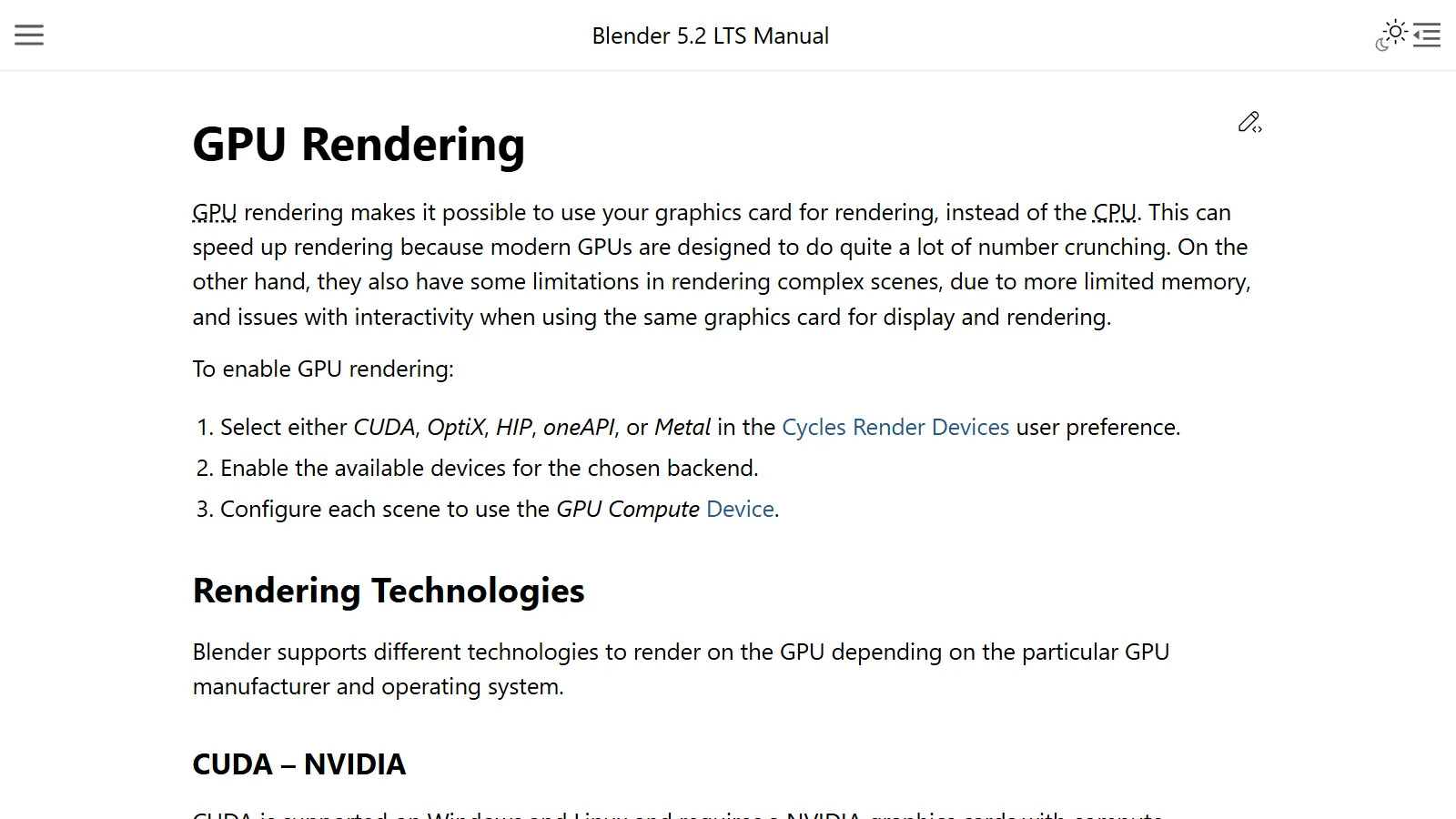
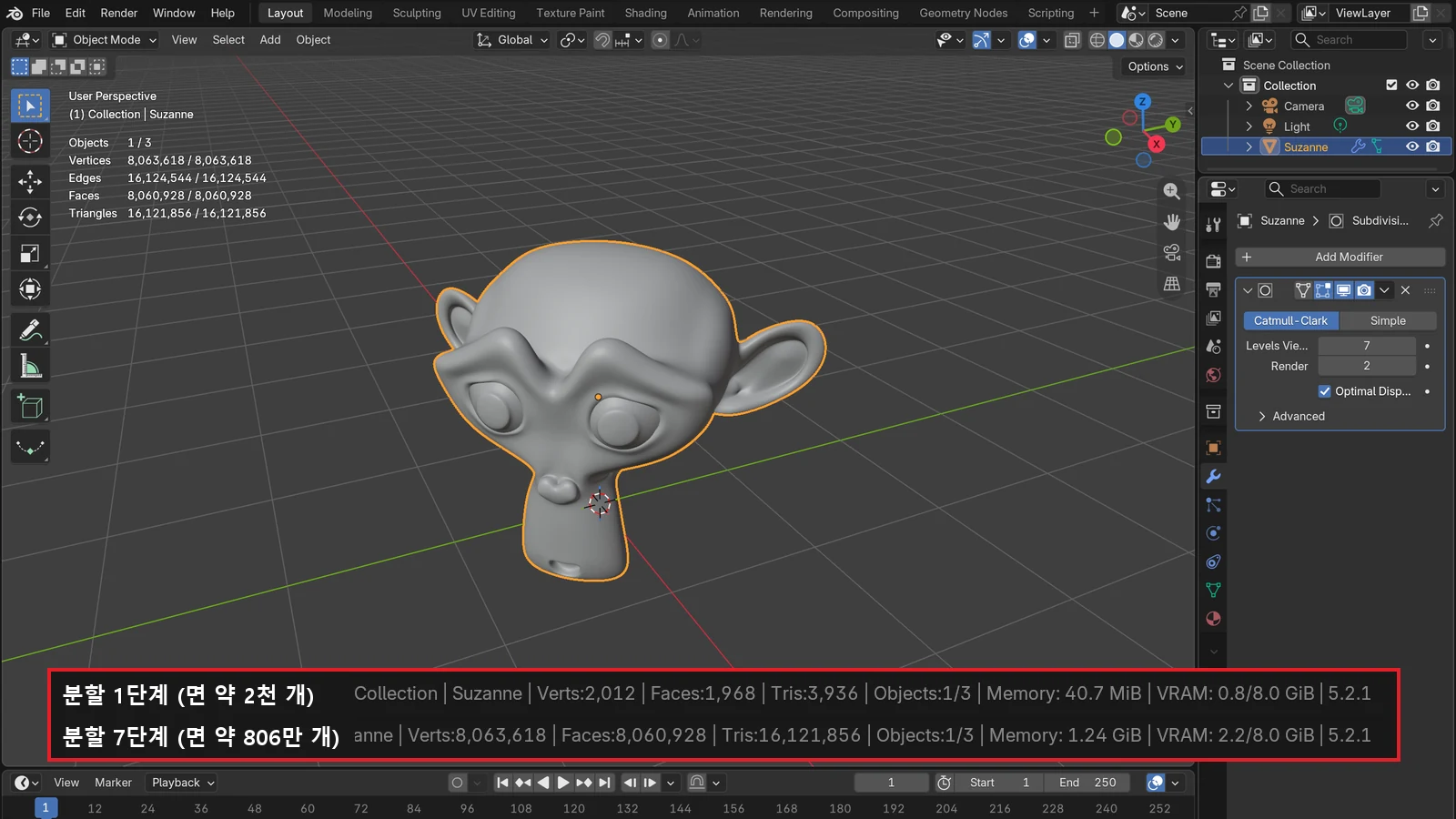
The "Out of memory" error that appears during GPU rendering in Blender means there is not enough memory to hold the scene on the GPU. In other words, the whole scene you are rendering has to fit on the workbench called VRAM for the GPU to work at full speed.
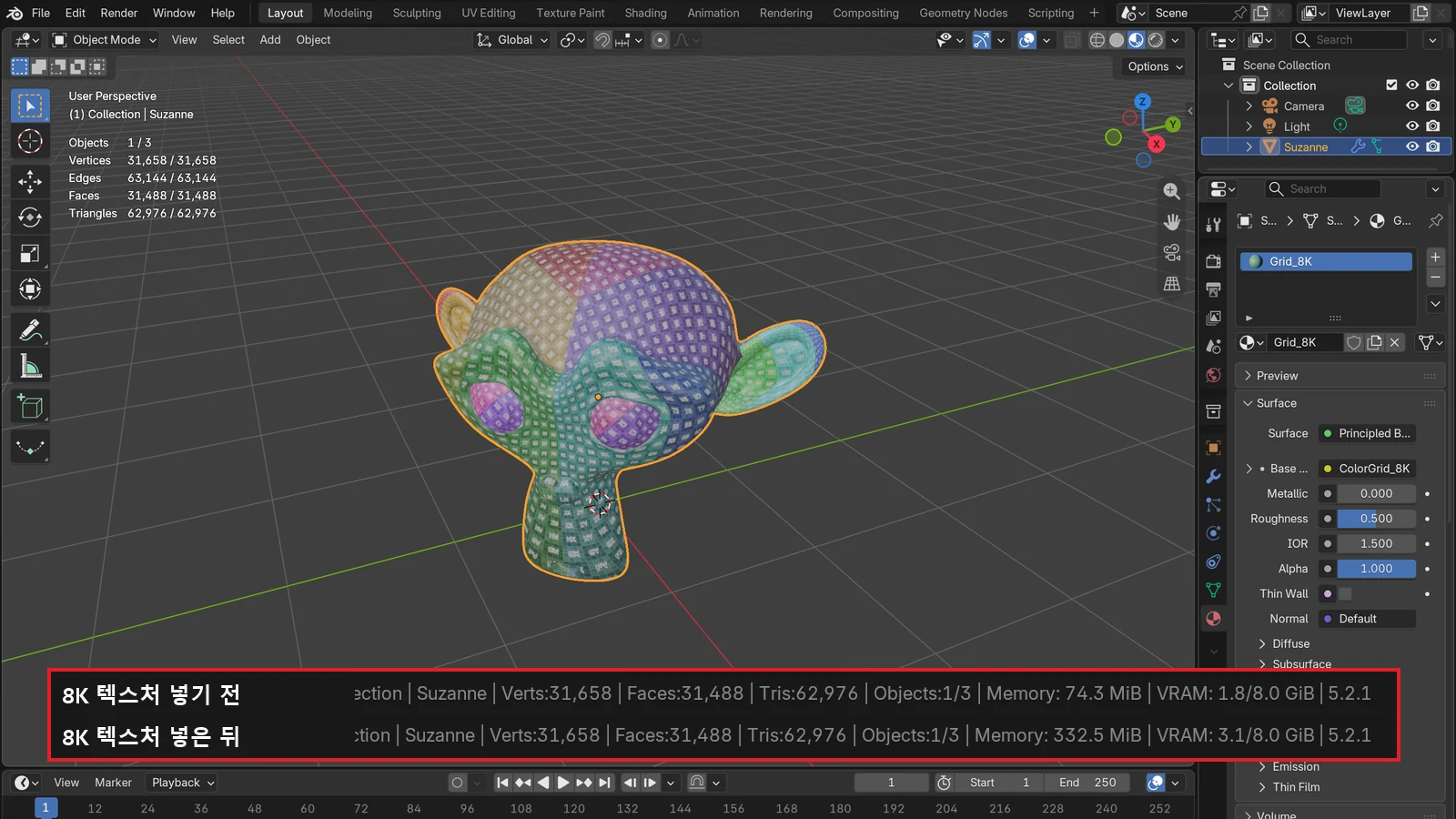
How much one texture takes up
Textures take up more room than you might think. Using the values in the Blender manual, here is how much memory one image texture takes.
| Texture size | Memory |
|---|---|
| 8K | About 256MB |
| 4K | About 64MB |
| 2K | About 16MB |
| 1K | About 4MB |
Do the math and the reason is clear. An 8K texture is 8192 pixels across and down. If each pixel holds four values (red, green, blue, and transparency) at 1 byte each, that is 8192 × 8192 × 4 = 268,435,456 bytes, or 256MB. Halving the resolution cuts the number of pixels to a quarter, so the memory also drops to a quarter. Four 8K textures already make 1GB, which shows why VRAM fills up fast in scenes that use many realistic materials.
What happens when VRAM runs short
When VRAM runs short, three things happen in Blender.
- It renders on the CPU but not on the GPU. There can be several causes, but the most common is running out of graphics card memory. A GPU can usually use only the memory attached to it, and that amount is usually much smaller than the system memory the CPU uses.
- It borrows system memory and slows down. Among the channels Cycles uses to hand work to the graphics card, with CUDA, OptiX, HIP, and Metal, Blender automatically tries to use system memory when GPU memory is full. Performance drops when this happens, but it is usually still faster than rendering on the CPU. In the comparison, the workbench is full, so the painter keeps going back and forth to the storeroom while painting.
- Rendering stops with an "Out of memory" error. If there is simply not enough room to hold the scene, you get an error.
Two graphics cards and VRAM
Putting in two graphics cards usually does not double your VRAM. In Blender, even when you use several GPUs, each GPU can only access its own memory, so the memory you can use does not grow. Each card has to hold the whole scene on its own. The exception is NVIDIA graphics cards connected with NVLink (a connector that links two NVIDIA cards), which can share memory at a small cost in performance. Rendering speed can go up with the number of cards, but the size of the workbench is set by the smallest card.
Dedicated memory, shared memory, and unified memory
In the Windows Task Manager, click GPU on the Performance tab and GPU memory is shown split into two kinds. How to open the Task Manager is in the section "Checking your VRAM" below.
| Name | Meaning | Used by |
|---|---|---|
| Dedicated GPU memory | Memory reserved for the GPU alone. On a dedicated graphics card, this is VRAM | GPU only |
| Shared GPU memory | Ordinary system memory that the GPU can also use when needed | Both CPU and GPU |
According to Microsoft's DirectX developer blog, Windows limits the system memory a GPU can use at one time to up to half of the physical memory. On a 16GB computer, that is up to 8GB. This rule leaves enough for the rest of the system to run properly.
Integrated graphics work a little differently. An integrated GPU may reserve part of system memory for graphics, but in many cases it reserves none and uses only memory shared with the CPU. It is like sharing a corner of the storeroom with no separate workbench.
Apple silicon Macs use unified memory. The CPU and GPU share the same physical memory, so texture and model data do not need to be copied over a PCIe connection. In this case there is no separate "VRAM in GB" figure; the CPU and GPU share the total memory.
Checking your VRAM (Windows)
- Press
Ctrl+Alt+Deleteand choose Task Manager. - On the Performance tab, click the GPU item on the left.
- Near the bottom, you see the usage and total size of Dedicated GPU memory and Shared GPU memory.
The dedicated memory usage on the Performance tab is the total that all running programs are using right now. Start a render in Blender and see whether this number nearly reaches the total, and you can judge whether VRAM is running short. If you see two GPUs, usually one is integrated graphics and the other is a dedicated graphics card.
How much VRAM you need
The right answer depends on what you do. As an official number for reference, Blender's system requirements list a GPU with at least 2GB of VRAM, with 8GB recommended. The minimum is the level where the program starts, and the recommended level is where it is comfortable to use. Rendering heavy scenes on the GPU can need more, depending on the scene size. Requirements can change with each version, so check the official page before installing.
VRAM is also the first thing to consider when running AI models on your own computer. That is covered in the guide Running AI on your own computer, and how to choose a graphics card for rendering in Choosing a graphics card for Blender rendering.
How to save VRAM in Blender
If "Out of memory" appears or rendering gets unusually slow, try the methods below before replacing your graphics card. Items 2 to 5 are settings on the Render tab of the Properties editor when the render engine is Cycles.
- Lower texture resolution: the most effective method. For an object that looks small on screen, a 2K texture is often enough instead of 8K, and the memory drops to one sixteenth.
- Texture size limit in Simplify: turn on Texture Size Limit in the Simplify panel on the Render tab, and textures are automatically reduced to the size you set or smaller, without changing the original files.
- Performance presets and Tile Size: the Performance panel on the Render tab has a Lower Memory preset. The default Tile Size is 2048; when memory runs short, lowering it to 1024 or 512 helps, though it may be a little slower.
- Use the Texture Cache: in scenes with many textures, turning on Performance ‣ Texture Cache loads only the parts and resolutions that are needed, which reduces memory use and start-up time. It uses a bit more disk space in return.
- Turn off Persistent Data: this option under Performance ‣ Final Render keeps data in memory to make re-rendering faster. It is convenient, but it uses that much more memory.
Each render engine also uses different devices. EEVEE is GPU only, and Cycles lets you choose between CPU and GPU. The details are in the guide EEVEE and Cycles.
Correcting common misunderstandings
- "More VRAM means a faster graphics card." VRAM is the size of the workbench, not the speed of the worker. A roomy workbench lets the GPU work without stopping, but the calculation speed itself is set by the GPU chip.
- "Shared GPU memory means running short of VRAM is fine." It borrows the storeroom, so it slows down. Using system memory lowers performance.
- "Two graphics cards add up their VRAM." Except in special cases such as NVLink, each card uses only its own memory.
Summary
| What to remember | In one line |
|---|---|
| What VRAM means | Dedicated memory right next to the GPU (the workbench) |
| How it differs from RAM | RAM is the big storeroom on the CPU side; VRAM is the nearby workbench on the GPU side |
| What takes up the most | High-resolution textures, complex models |
| When it runs short | It slows down (using system memory) or stops with an error |
| Where to check | The GPU item on the Task Manager Performance tab (Dedicated GPU memory) |
| How to save it | Lower texture resolution, Simplify, the Lower Memory preset |
References
- Microsoft DirectX Developer Blog, GPUs in the Task Manager — https://devblogs.microsoft.com/directx/gpus-in-the-task-manager/
- NVIDIA, CUDA Programming Guide — 1.2 Programming Model — https://docs.nvidia.com/cuda/cuda-programming-guide/01-introduction/programming-model.html
- Blender 5.2 LTS Manual, GPU Rendering — https://docs.blender.org/manual/en/5.2/render/cycles/gpu_rendering.html
- Blender 5.2 LTS Manual, Cycles Performance — https://docs.blender.org/manual/en/5.2/render/cycles/render_settings/performance.html
- Blender 5.2 LTS Manual, Simplify — https://docs.blender.org/manual/en/5.2/render/cycles/render_settings/simplify.html
- Blender, System Requirements — https://www.blender.org/download/requirements/
- Apple Developer, WWDC20 — Explore the new system architecture of Apple silicon Macs — https://developer.apple.com/videos/play/wwdc2020/10686/