How much RAM do you need? Memory guidelines by task
RAM is the size of your computer's desk. This guide uses official requirements as reference points to help you estimate how much your work needs, and shows how to check it.
한국어English
ON THIS PAGE
Based on: official documents from makers such as Microsoft, Apple, and Blender. Checked in September 2026. Requirements can change between versions.
One of the most common questions when buying or upgrading a computer is "how many gigabytes of RAM do I need?" The RAM you need is set by how much work you lay out at the same time. The most accurate way to find your number is to look at the official requirements of the programs you use and at how much your own computer actually uses. This guide explains RAM by comparing it to a desk, then covers how to estimate the amount for each task, what happens when RAM runs short, how to check it, the order for deciding on an amount, and how to save memory.
RAM is the computer's desk
RAM (Random Access Memory) is the memory where the computer puts the work it is doing right now. People often just call it "memory" or "RAM." In office terms, it looks like this.
- RAM is the desk. It is where the papers you are reading, the photos you have spread out, and the open notebook sit. It is within arm's reach, so you can pick anything up right away.
- Storage (SSD or HDD) is the bookshelf. It is where every file is kept for the long term, but to get something you have to stand up and fetch it.
When you run a program or open a file, the computer takes what it needs from the bookshelf (storage) and spreads it out on the desk (RAM). With a large desk, you can lay out a browser, documents, a photo editor, and a 3D program at once and move between them as you work. With a small desk, a few items fill it up. So RAM size is less about "how fast" and more about "how much you can lay out at once."
One more thing: RAM is temporary space whose contents disappear when the power goes off. That is why your work is kept only when you "save" it to storage. The types of storage and how they differ are covered in SSD vs. HDD vs. NVMe and managing storage space.
How RAM, VRAM, and storage differ
Spec sheets list several numbers in "GB," so they are easy to mix up.
| Name | Where it is | Analogy | Related guide |
|---|---|---|---|
| RAM (system memory) | Next to the CPU, plugged into the motherboard | The CPU's desk | This guide |
| VRAM (graphics memory) | On the graphics card, next to the GPU | The GPU's own workbench | What VRAM means |
| Storage (SSD or HDD) | The storage drive inside the computer | Bookshelf | SSD vs. HDD vs. NVMe |
In the What VRAM means guide, RAM was called "a faraway warehouse" from the graphics card's point of view. That is because, for the GPU, it is farther away than its own workbench (VRAM). From the CPU's point of view, though, RAM is the desk right within reach. The analogy only changes with whose point of view you take. It is the same memory.
For example, a computer listed as "16GB RAM, 512GB SSD" has a 16GB desk and a 512GB bookshelf. A larger storage drive does not add RAM. For what the CPU and GPU each do, see The difference between a CPU and a GPU.
What takes up RAM
More things sit on the desk at the same time than you might think.
- The operating system (Windows, macOS): always uses a certain amount just by keeping the computer on.
- The web browser: each tab holds the content of its page. The more tabs you keep open, the smaller your desk gets.
- The programs and files you are using now: photo and video editors take far more than a document editor, and large videos and 3D scenes take far more than small photos.
- Background programs: programs such as messengers, cloud sync, and updates quietly take up space.
- Local AI models: if you run an AI model on the CPU instead of a graphics card, the whole model is loaded into RAM.
All of these add up. A computer that is fine with only a 3D program open can struggle when you also have dozens of browser tabs and a video call open. So when you think about the RAM you need, base it not on "the single heaviest program" but on "everything you usually have open at the same time."
Reference points from official requirements
There is no single right answer to "how many GB is enough," but the requirements makers publish are reliable reference points. Here are the values together.
| Task | Official RAM requirement | Source |
|---|---|---|
| Installing and running Windows 11 | Minimum 4GB | Microsoft Windows 11 specifications |
| Video editing (Final Cut Pro, Mac) | Minimum 8GB, recommended 16GB | Apple Final Cut Pro specifications |
| 3D work (Blender) | Minimum 8GB, recommended 32GB | Blender system requirements |
Here is how to read this table.
- "Minimum" is the line where it starts. The 4GB for Windows 11 is the lowest point for the operating system to run, not a standard for using several programs comfortably.
- "Recommended" is the line where it is comfortable. Final Cut Pro doubles from minimum 8GB to recommended 16GB, and Blender quadruples from minimum 8GB to recommended 32GB. The longer the videos or the heavier the scenes you handle, the closer you need to be to the recommended amount.
- Even "video editing" differs by program. Final Cut Pro in the table is one example. For other editing programs on Windows, check each maker's system requirements page separately.
- Check the requirements for each program you plan to use. Photo editors, games, and development tools also have requirements pages on their makers' sites. Take the highest recommended value and add room for the browser and other programs you keep open alongside it.
- Check the official pages again just before you buy or upgrade.
If you plan to use local AI
When you run an AI language model on the CPU without a graphics card, as much as the model file's size is loaded into RAM, and you also need separate space to remember the conversation. Even with a graphics card, a model that does not fit entirely in VRAM puts the overflow in RAM for calculation. How to estimate model size is covered in detail in Running AI on your own computer.
What happens when RAM runs short
If your desk is full and you need to lay out more work, what do you do? You put papers you are not looking at for now on the bookshelf, and fetch them again when you need them. The computer does the same.
The page file on Windows: the page file is a hidden system file on the disk. It moves memory contents that are not used often from RAM down to the disk, so RAM can be used for things used more often. The total amount of memory the computer can hand out to programs (the commit limit) is the real RAM plus the page file.
Swap on Mac: Swap Used in Activity Monitor is the space on the startup disk being used to hold RAM contents temporarily.
The problem is that trips to the bookshelf take time. Storage is slower than RAM, so when this moving happens often, switching between programs gets sluggish and the screen freezes for moments. And when usage reaches the commit limit, the system and programs cannot get memory, which can cause malfunctions such as freezes and forced shutdowns. The "your system is low on memory" warning appears in this kind of situation too.
To sum up, these are the signs of too little RAM.
- Switching between several programs becomes noticeably sluggish.
- Storage drive activity stays high.
- A low memory warning appears, or heavy programs close on their own.
Checking your RAM
Windows
- See the installed amount: right-click the Start button, then go to Settings ‣ System ‣ About. Installed RAM appears under "Device specifications."
- See how much you are using now: press
Ctrl+Alt+Deleteand choose Task Manager. When Task Manager opens, click Memory in the Performance tab. Along with the amount in use, you see Committed (current use / limit). - See what is using the most: in the Processes tab of Task Manager, click the Memory column to sort it and see which programs take up the most desk space.
Mac
Open Applications ‣ Utilities ‣ Activity Monitor and look at the Memory tab. Look at the color of the Memory Pressure graph at the bottom.
| Graph color | Meaning |
|---|---|
| Green | RAM is being used efficiently |
| Yellow | You may need more RAM in the future |
| Red | You need more RAM |
The order for deciding how much you need
- List the programs you keep open at the same time. Include the number of browser tabs, messengers, and the editing programs you use most.
- Find the official recommended RAM for the heaviest of them. For 3D, Blender's recommended 32GB is the reference point. For video editing on a Mac, it is Final Cut Pro's recommended 16GB.
- Measure on your current computer. With your usual heaviest work open, look at Task Manager (or Activity Monitor). If usage is always full and you see the slowdown signs above, you are short on RAM.
- Add what you will do in the future. If you plan new work such as local AI or high-resolution video, add room for it.
- Check whether you can upgrade. On laptops and some devices, RAM is attached to the board and cannot be expanded later. Apple says that on a Mac with memory slots, you can see slot information by holding the
Optionkey and choosing Apple menu ‣ System Information ‣ Hardware ‣ Memory. If a device cannot be upgraded, choose a generous amount when you buy it.
How to save RAM
Before adding RAM, you can try clearing your desk first.
- Close tabs and programs you are not using: the surest method.
- Chrome Memory Saver: this feature saves memory by deactivating tabs you are not using right now, and reloads a tab automatically when you go back to it. Turn it on in Chrome Settings ‣ Performance and choose from Standard, Balanced (recommended), and Maximum.
- Reduce startup programs: fewer programs that run automatically every time you turn on the computer frees up the space they always took.
- Unload local AI models: by default, Ollama keeps a model in memory for 5 minutes after use. Before other heavy work, you can unload it right away with
ollama stop.
Clearing up common misunderstandings
- "The more free memory, the better." Apple explains that having a lot of unused memory does not necessarily mean better performance, and that macOS is designed to use memory efficiently rather than leave it unused. Looking at slowdown signs and memory pressure is more accurate than looking at a high usage number.
- "More RAM makes everything faster." It helps a lot only when you were slow because your desk was too small. If your desk is already big enough, adding RAM does not change calculation speed, which the CPU and GPU decide.
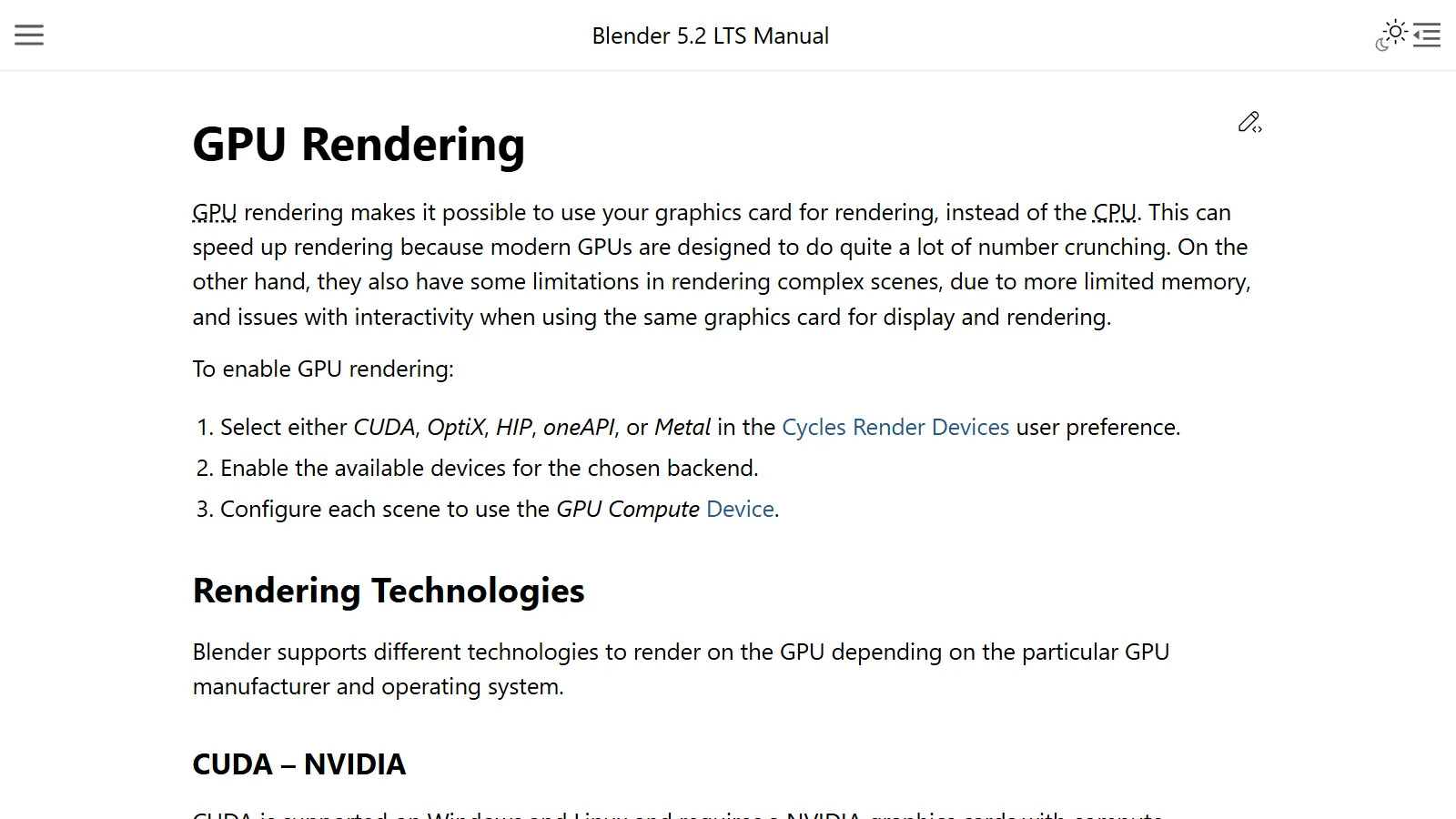
- "Plenty of RAM also solves a shortage of graphics memory." VRAM and RAM are different memory. If VRAM fills up during GPU rendering, Blender tries to use system memory automatically, but performance drops. This means plenty of RAM cannot make up for a VRAM shortage at full speed. Details are in What VRAM means.
- "I have lots of storage, so I have enough RAM." A bookshelf and a desk are different furniture. A 512GB SSD is not RAM.
Summary
| What to remember | One-line summary |
|---|---|
| What RAM is | The desk where you lay out the work you are doing now |
| What decides how much you need | The total of all the programs you keep open at the same time |
| Official reference points | Windows 11 minimum 4GB, Final Cut Pro minimum 8GB and recommended 16GB, Blender minimum 8GB and recommended 32GB |
| When it runs short | The computer slows down going back and forth to storage, and in bad cases freezes or force-closes programs |
| Where to check | Windows Settings ‣ System ‣ About / Memory in the Task Manager Performance tab / Memory Pressure on Mac |
| Before adding more | Close tabs and programs, use Memory Saver |
References
- Microsoft, Windows 11 Specifications (Windows 11 minimum specs) — https://www.microsoft.com/en-us/windows/windows-11-specifications
- Microsoft Learn, Introduction to the page file — https://learn.microsoft.com/en-us/troubleshoot/windows-client/performance/introduction-to-the-page-file
- Microsoft Support, Find information about your Windows device — https://support.microsoft.com/en-us/windows/experience/find-information-about-your-windows-device
- Apple Support, Check if your Mac needs more RAM in Activity Monitor (the memory pressure graph, and how to check whether your Mac's memory can be upgraded) — https://support.apple.com/guide/activity-monitor/check-if-your-mac-needs-more-ram-actmntr34865/mac
- Apple Support, View memory usage in Activity Monitor on Mac — https://support.apple.com/guide/activity-monitor/view-memory-usage-actmntr1004/mac
- Apple, Final Cut Pro Technical Specifications — https://www.apple.com/final-cut-pro/specs/
- Blender, System Requirements — https://www.blender.org/download/requirements/
- Blender 5.2 LTS Manual, GPU Rendering — https://docs.blender.org/manual/en/5.2/render/cycles/gpu_rendering.html
- Google Chrome Help, Memory Saver — https://support.google.com/chrome/answer/12929150
- Ollama Docs, FAQ — https://docs.ollama.com/faq