SSD, HDD, NVMe, and M.2: how to read a spec sheet and split drives for 3D work
HDD and SSD are recording methods, SATA and NVMe are connection methods, and M.2 is the name of a shape. Read spec sheets with these three layers of names, then learn the order for choosing a drive, where to keep Blender work files, and how to manage space.
한국어English
ON THIS PAGE
- 011. An analogy: RAM is the desk, storage is the bookshelf
- 022. Three layers of names: recording method, connection method, shape
- 033. HDD: spinning platters
- 044. SSD: semiconductor chips
- 055. SATA: a path made in the platter era
- 066. NVMe and PCIe: a wide path and its generations
- 077. M.2: the shape of the bookshelf
- 088. Checking the storage in your computer
- 099. The order for choosing
- 1010. Where to keep things for 3D and video work
- 1111. Upkeep Windows does on its own: optimizing and TRIM
- 1212. When you run short of space
- 1313. Common misunderstandings and the facts
- 14In one line
- 15References
Based on: Windows 11, Blender 5.2 LTS, and official material from standards groups and manufacturers. Product speeds change often, so check the manufacturer's spec sheet when you buy.
The storage line of a computer spec sheet mixes words like "SSD 512GB", "HDD 2TB", and "NVMe M.2". It looks like a lot of terms, but they only describe three different things: what the data is written on (HDD, SSD), what path connects it (SATA, NVMe), and what it looks like (2.5-inch, M.2). This guide explains how to read a spec sheet with these three layers, the order for choosing a drive, where to keep Blender work files, and how to manage storage space.
1. An analogy: RAM is the desk, storage is the bookshelf
This guide uses one analogy from start to finish. RAM is the desk you work at, and storage is the bookshelf where books are kept.
Every file, from photos and documents to programs and the operating system, sits on the bookshelf (storage), and it does not disappear when you turn the power off. When you open a file, the computer takes the book off the shelf and spreads it out on the desk (RAM). A bigger desk lets you spread out more books at once, but when the power goes off, the desk is cleared.
The guide What VRAM means called RAM "a warehouse far away", because it compared RAM with the VRAM right next to the graphics card. The comparison was different. Compared with storage, RAM is the desk within arm's reach. How much RAM to get is covered in Choosing RAM capacity.
You feel the bookshelf in two ways.
- Size (capacity) is how much fits on the shelf. It is written in GB or TB.
- Retrieval speed is how fast a book gets from the shelf to the desk. Booting, starting programs, and opening large files depend on it.
2. Three layers of names: recording method, connection method, shape
Splitting the spec sheet words into three layers makes them much less confusing.
| Layer | What it asks | Words | Bookshelf analogy |
|---|---|---|---|
| Recording method | What is it written on? | HDD, SSD | The type of bookshelf |
| Connection method | What path connects it? | SATA, NVMe | The hallway between shelf and desk |
| Shape | What does it look like? | 3.5-inch, 2.5-inch, M.2 | The build of the bookshelf |
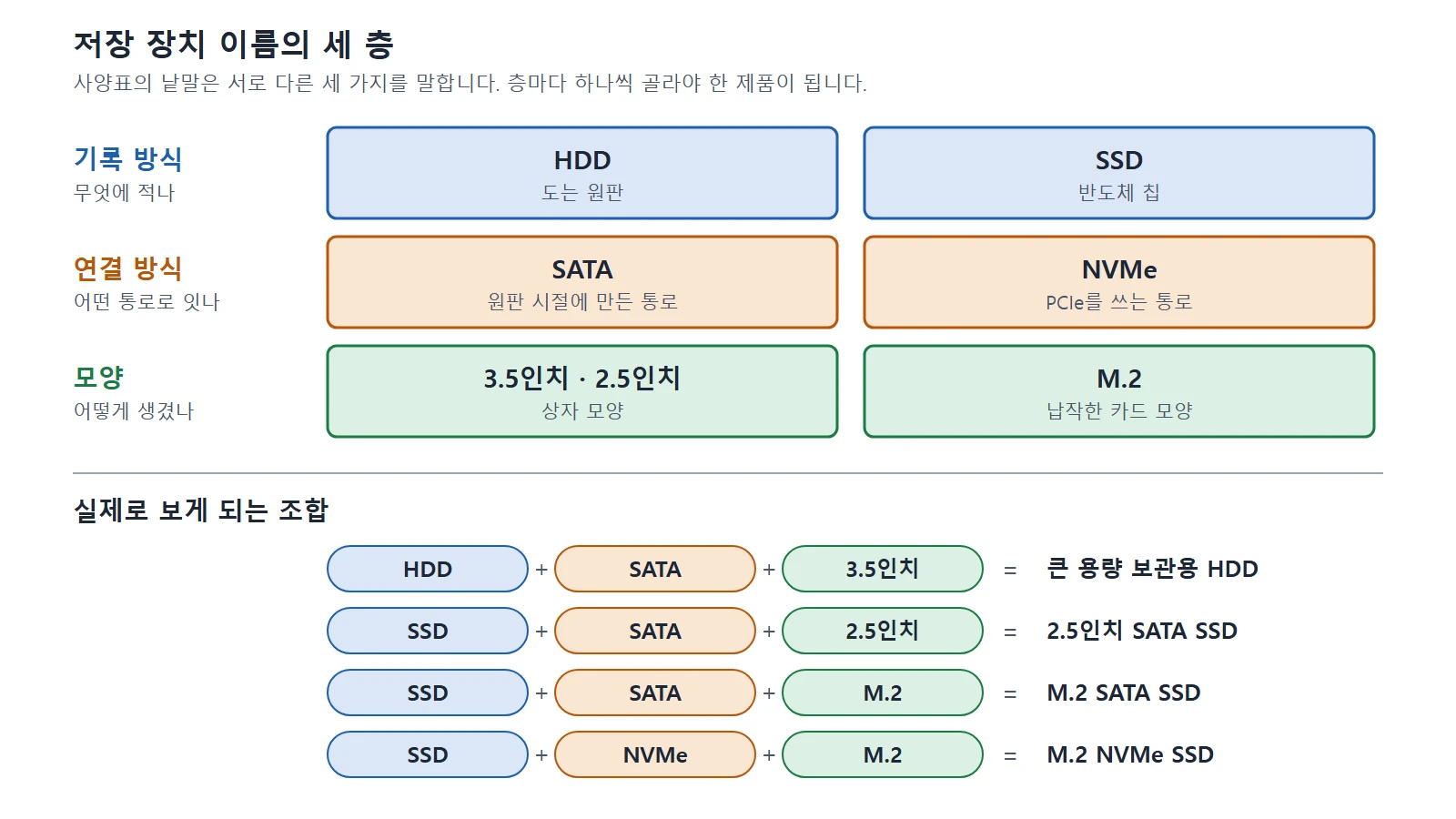 Figure 1. Picking one item from each layer gives you one product. The four rows at the bottom are combinations you will actually see (diagram, labels in Korean)
At the bottom of Figure 1, look at the third and fourth rows. Both are M.2 in shape, but one is SATA and the other is NVMe. Section 7 comes back to this difference.
3. HDD: spinning platters
An HDD (Hard Disk Drive) is the storage device that has been in use the longest. As Seagate explains, an HDD contains round platters coated with magnetic material, and the read/write head floats on a thin layer of air created by the fast-spinning platters. Data is recorded along concentric circles (tracks) that look like the grooves of a vinyl record.
In bookshelf terms, an HDD is a rotating bookshelf. To take out the book you want, the shelf has to turn until that slot comes to the front, and your hand has to move to that height. An HDD also needs time for the platter to spin and the head to move to where the file is.
In return, HDDs come in large capacities. Take one manufacturer's desktop HDD product line as an example: the drives are 3.5 inches in size, connect over SATA, and range from 500 GB to 24 TB.
4. SSD: semiconductor chips
An SSD (Solid State Drive) has no spinning platters. It records data on flash memory chips. With no moving parts, it can fetch a file from any slot right away. Unlike the rotating bookshelf, it is a bookshelf where every slot is within reach.
| Item | HDD | SSD |
|---|---|---|
| As a bookshelf | A rotating shelf that must turn to the slot you want | A shelf where you just reach out |
| Where data is written | Magnetic platters | Flash memory chips |
| Moving parts | Yes (spinning platters, head) | None |
| Good for | Storage that needs large capacity | Operating system, programs, files in progress |
5. SATA: a path made in the platter era
From here on is the second layer: the hallway that joins the bookshelf and the desk. However fast you take a book off the shelf, a narrow hallway slows the trip to the desk.
SATA is the connection method that has long been used with HDDs. The Samsung Semiconductor tech blog describes SATA as an interface "designed when we relied on spinning platters". SSDs can use this hallway too, but it was built for rotating bookshelves.
The group that manages the standard is SATA-IO. In SATA-IO's table, the maximum speed doubled with each generation.
| Generation | Maximum speed |
|---|---|
| SATA Revision 1.x | 1.5Gb/s |
| SATA Revision 2.x | 3Gb/s |
| SATA Revision 3.x | 6Gb/s |
Revision 3.0 was released in May 2009 and is compatible with earlier generations. The maximum speed has stayed at 6Gb/s since then.
Three names point to the same thing. Retail spec sheets often say "SATA III" or "SATA 3.0". SATA-IO asks people not to use these two names, and gives "SATA Revision 3.0" or "SATA 6Gb/s" as the correct ones. When reading a spec sheet, just know that "SATA III", "SATA 3.0", and "SATA 6Gb/s" all mean the same 6Gb/s generation.
Gb/s and MB/s are different units. Gb/s counts the speed of the path in bits. The MB/s on a product spec sheet counts the actual file read and write speed in bytes. So you cannot compare the two numbers directly. One manufacturer's 2.5-inch SATA SSD spec sheet lists sequential reads of 560 MB/s and writes of 530 MB/s. That is about what an SSD on the 6Gb/s hallway delivers.
6. NVMe and PCIe: a wide path and its generations
NVMe (NVM Express) is a connection method made new for SSDs. The standards group NVM Express introduces the NVMe specification as "a register interface and command set for PCI Express attached storage", and explains that it was designed from the ground up for high bandwidth and low latency.
You need to see the two words separately.
- PCIe (PCI Express) is the hallway itself. It is a fast path on the motherboard.
- NVMe is the language (command method) used in that hallway. The Samsung Semiconductor tech blog explains that NVMe exchanges data over PCIe with its own commands instead of older command methods.
The same blog gives a rule of thumb: NVMe drives are about 5 times faster than SATA SSDs and about 50 times faster than SATA HDDs. The blog itself calls these numbers a rule of thumb, so take them only as a sense that "the hallway width can differ this much".
The hallway also has generations. As Intel explains, from PCIe 3.0 to 5.0 the transfer speed of one lane doubles with each generation.
| Generation | Transfer speed of one lane |
|---|---|
| PCIe 3.0 | 8 GT/s |
| PCIe 4.0 | 16 GT/s |
| PCIe 5.0 | 32 GT/s |
- A lane is a traffic lane in the hallway. "x4" means four lanes. Motherboard PCIe slots come in x1, x2, x4, x8, and x16.
- GT/s counts how many signals are sent per second, in billions. All you need to know is that a bigger number is faster.
So "PCIe 4.0 x4" on a spec sheet reads as "a 4.0-generation hallway with four lanes".
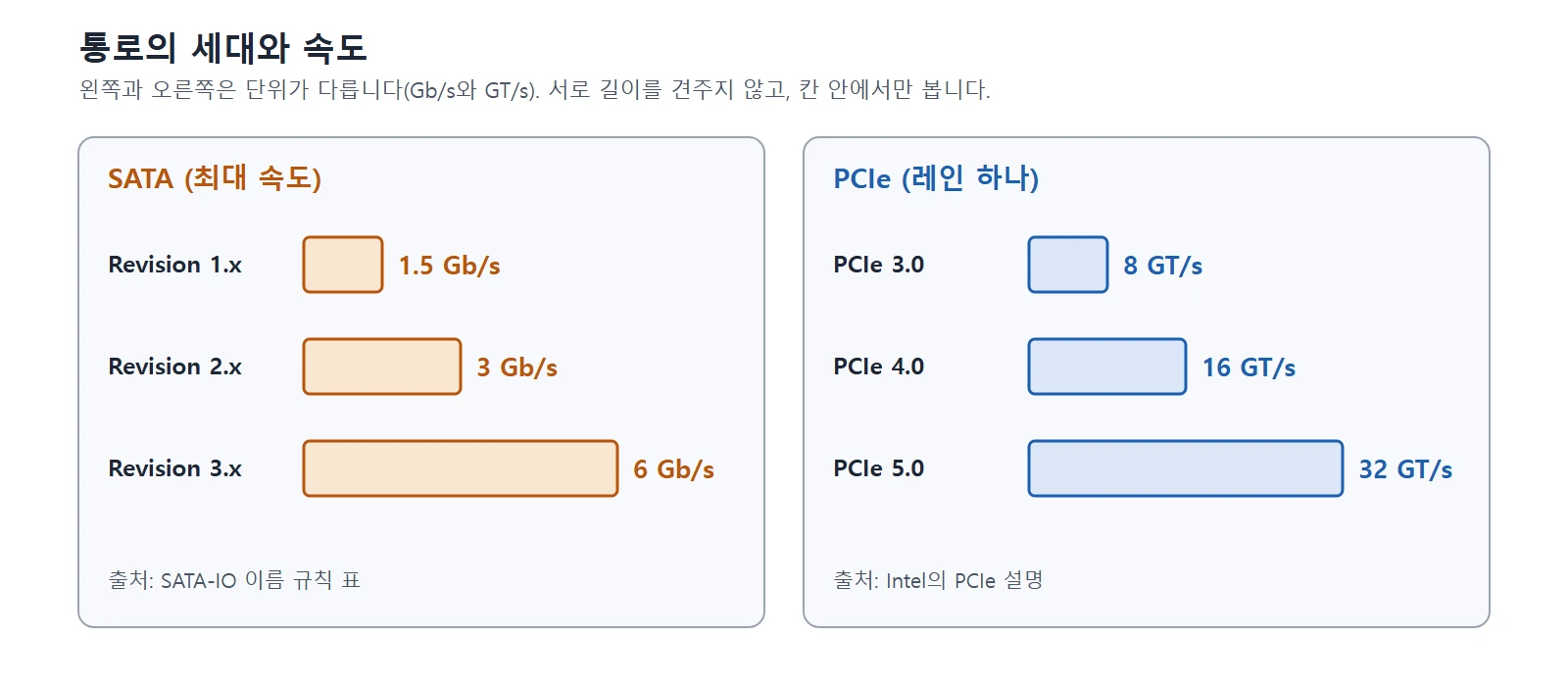 Figure 2. Speeds by generation for SATA and PCIe. The two panels use different units, so do not compare bar lengths across them (diagram, labels in Korean)
Different generations still fit together. Intel explains that PCIe is forward and backward compatible across generations. You can put a 3.0 SSD in a 4.0 slot, or a 4.0 SSD in a 3.0 slot. It just runs at the speed of the slower of the two. It is like a wide hallway with one narrow door: only as much as the door allows can pass.
7. M.2: the shape of the bookshelf
The most confusing word is M.2. M.2 is not a connection method. It is the name of a shape. As SATA-IO explains, M.2 is a standard for small cards and connectors, and it supports both PCIe and SATA.
In bookshelf terms, M.2 is "a thin shelf that mounts on the wall". It only tells you the build. Whether the hallway behind it is SATA or NVMe is a separate question.
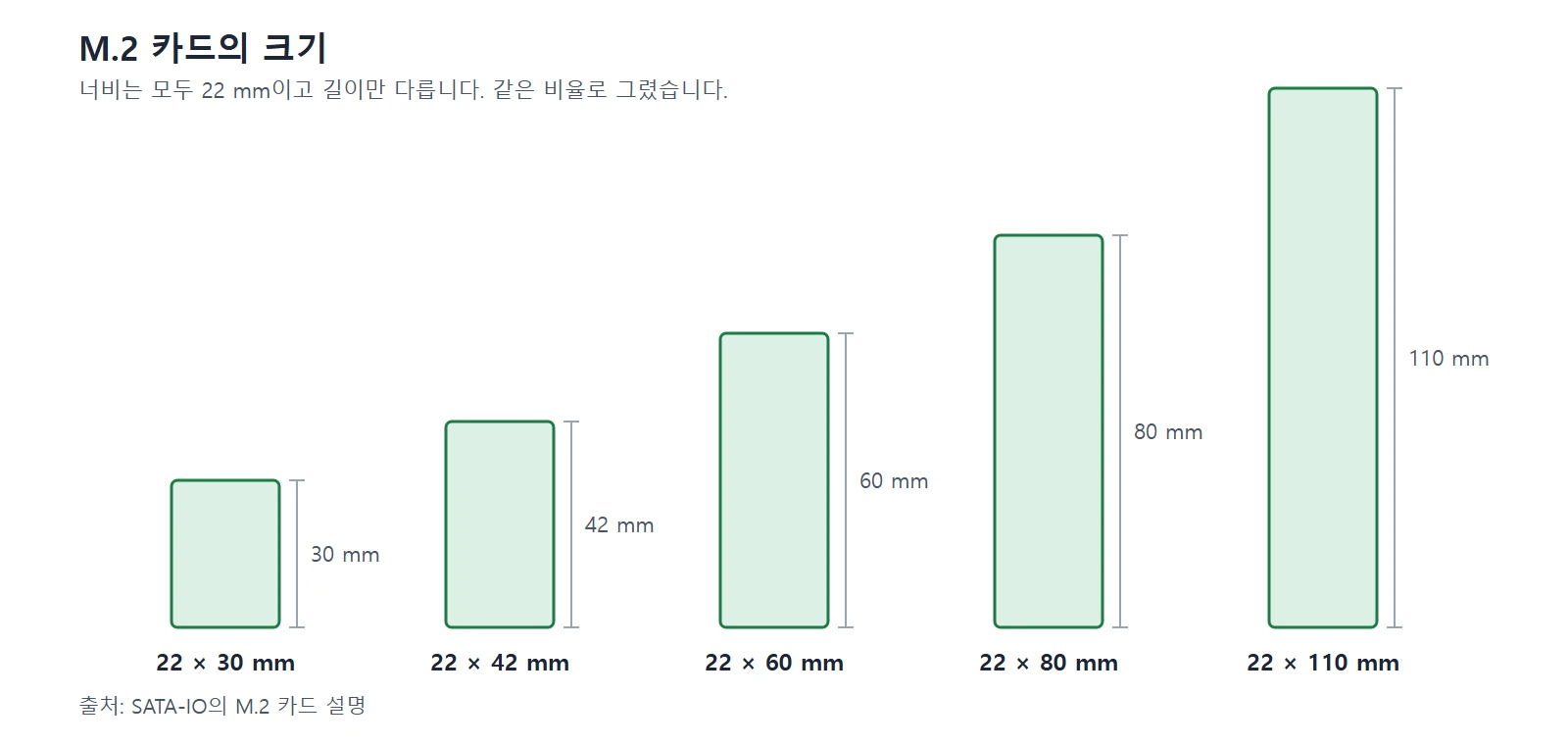 Figure 3. M.2 card sizes. The width is always 22 mm, and there are five lengths (diagram, labels in Korean)
Check two things for M.2.
- Check whether the path is SATA or NVMe. According to Samsung, an M.2 slot in a laptop can be either a SATA slot or an NVMe slot. SATA-type M.2 SSDs really exist, and the same company's blog notes that they are much slower than NVMe and make choosing confusing.
- Check the length. As Figure 3 shows, there are several lengths, and the drive must be a length that fits the spot in your device.
Both are written on the spec sheet from the device or motherboard maker. Having the same shape does not mean any product will fit.
8. Checking the storage in your computer
8-1. Type and slot
On Windows, one PowerShell command shows the type of storage currently installed.
Follow along:
- Press
Win+Xand choose Terminal or Windows PowerShell. The menu name differs slightly by Windows version. - Type the command below and press
Enter.
Get-PhysicalDisk | Format-Table FriendlyName, MediaType, BusType, Size
On my PC, it showed this.
FriendlyName                    MediaType BusType         Size
------------                    --------- -------         ----
NVMe SAMSUNG MZVL2512HDJD-00BT7 SSD       NVMe    512110190592
Read the columns with the three layers from section 2.
- FriendlyName is the model name of the device.
- MediaType is the recording method. On my PC it showed SSD.
- BusType is the connection method. On my PC it showed NVMe.
- Size is the capacity, in bytes. 512110190592 bytes is about 512GB.
This command does not tell you the shape (whether it is M.2) or which slots are free. The surest place to check those two is the spec sheet from your PC or motherboard maker. Search the maker's site by model name and look at the storage section. Try writing down "recording method, connection method, shape" one by one, following the three layers in section 2.
8-2. Capacity and usage
- On Windows 11, look in Start ‣ Settings ‣ System ‣ Storage.
- On a Mac with macOS Ventura 13 or later, look in System Settings ‣ General ‣ Storage to see usage by file type.
9. The order for choosing
Look at the order before product names.
- Check your device's slots first. Use the spec sheet to see whether it has a 2.5-inch SATA bay, an M.2 SATA slot, or an M.2 NVMe slot. It is like measuring the wall space and the hallway width before buying a bookshelf. The differences between laptops and desktops are covered in Laptop vs desktop for Blender and 3D work.
- Put the operating system, programs, and files in progress on an SSD. Books you use every day go on the shelf right next to the desk, where you just reach out. If the slot supports NVMe, choose an NVMe SSD.
- Match the PCIe generation to the slot. Different generations still fit, but they run at the slower speed (section 6).
- Put finished originals and archive files on a large drive. Books you rarely take out go to the big bookshelf in the next room.
- Plan capacity as "what you use now + room to grow + at least 15% free". The 15% free is a rough figure borrowed from Microsoft's condition for defragmentation, explained in section 11. A packed bookshelf is hard to add books to and hard to organize.
These are the official numbers to refer to when estimating capacity.
| Reference point | Official number |
|---|---|
| Installing Windows 11 | 64 GB or more of storage (Microsoft) |
| Installing Ollama for Windows | At least 4 GB, with language models taking tens to hundreds of GB on top (Ollama's Windows documentation) |
The operating system alone needs this much room, and updates, programs, and work files come on top. The specs needed for local AI are in Running AI on your own computer.
10. Where to keep things for 3D and video work
First, one misunderstanding. Switching to a faster drive does not make rendering calculations faster. Rendering is calculated by the CPU and GPU (CPU vs GPU). The storage device's job is to open and save files, and to read and write the files created while you work.
While you work, Blender creates many files besides the .blend. Gathering what the manual says gives this list.
| What is created | Where it is created | Notes |
|---|---|---|
| Temporary files | Temporary folder | Holds render layers, physics cache, the copy/paste buffer, and crash logs |
| Auto Save | Temporary folder | Written every set number of minutes. The manual warns it can cause performance problems with large files |
| Physics simulation cache | With Disk Cache on, a blendcache_filename folder next to the .blend | If it is off, the cache goes inside the .blend when you save |
| Proxy | Per strip, or in a proxy folder you set | A low-quality copy of high-resolution video. Makes editing smoother |
| Render cache | Render Cache folder | When Cache Result on the Output tab is on |
| Render results | The path written on the Output tab | The default for a new file is /tmp\. A path starting with // means the folder where the .blend is |
To explain the unfamiliar words: a cache is a note where calculation results are kept for a while so they do not have to be calculated again, and a proxy is a light stand-in used only while editing, in place of the heavy original.
One item is about RAM, not the drive. The preview cache of video editing (Video Sequencer) is held in memory. Its limit is Memory Cache Limit under System in Preferences. This is the desk's job, not the bookshelf's.
You set where the temporary folder is in Preferences.
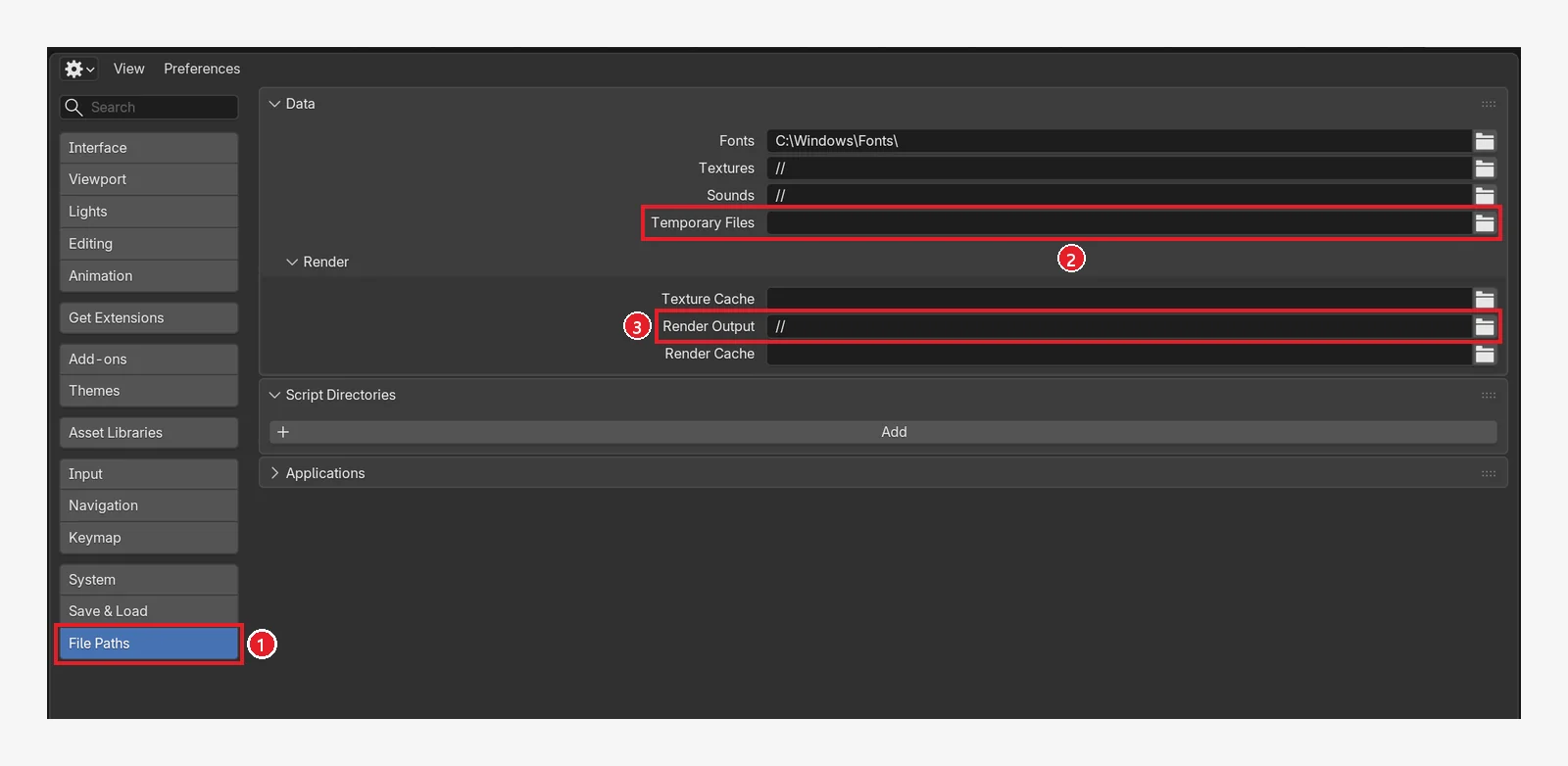 Figure 4. File Paths in Preferences: ① File Paths tab ② Temporary Files (empty in the picture, so the operating system's temporary folder is used) ③ Render Output (the default folder used for the output path of new scenes,
 // in the picture). Render Cache is below it (Blender screenshot)
Follow along: Open Edit ‣ Preferences and click ① File Paths in Figure 4. If ② Temporary Files is empty, the operating system's temporary folder is in use. To use a folder on another drive, pick it with the folder icon to the right of ②. The folder must already exist.
Based on the table above, here is the recommendation. Keep what is read and written often on the fast shelf, and what is finished on the big shelf.
| Where | What | Why |
|---|---|---|
| Fast drive (SSD) | Operating system, programs, project folders in progress, temporary folder, cache, proxies | Read and written constantly while you work |
| Large drive | Finished projects, original footage, render results to keep | Rarely opened and take a lot of space |
| Somewhere else (external drive, cloud) | One backup copy | Must survive if a drive fails |
Keep each project folder whole on one drive. The manual notes that video files are too large to pack into a .blend, so it recommends gathering every file you need in the project folder. How to divide folders is in Your first 3D project: 5 things to sort out before you start, and video file sizes are in Video codecs and containers.
11. Upkeep Windows does on its own: optimizing and TRIM
People used to say "defragment often". Now Windows does it on its own. According to Microsoft's support article, Windows automatically optimizes drives once a week by default. The same article says that if you type defrag in the taskbar search and choose Defragment and Optimize Drives, you can see and change the schedule.
The same article explains that the work differs by device.
- Hard drives are defragmented. This puts books scattered across many slots back in order, so the rotating bookshelf does not have to turn as much.
- SSDs get TRIM. TRIM tells the drive which areas it may clean up while it is not busy.
Windows calls both "optimizing". Two more things to know:
- Microsoft's documentation for the
defragcommand says that the scheduled task also runs "traditional optimization" (defragmentation and retrim) on SSDs once a month. So you cannot flatly say "SSDs are never defragmented". There is one thing to remember: you do not need to run defragmentation yourself. Windows handles it to suit each device. - According to the same documentation, a volume needs at least 15% free space for a full defragmentation. With less, it is only partly done.
TRIM does not happen only during optimization. According to Microsoft's documentation, TRIM is a feature that tells the storage device which space has become free after files are deleted, and on NTFS it is on by default unless an administrator turns it off. To check, open Command Prompt and enter the command below. A result of 0 means it is on, and 1 means it is off.
fsutil behavior query DisableDeleteNotify
12. When you run short of space
- Split the shelf by the desk from the shelf in the next room. Following the table in section 10, move finished projects and originals to the large drive.
- Turn on Windows Storage Sense. Storage Sense is off by default. Turn it on in Start ‣ Settings ‣ System ‣ Storage. The menu names follow Microsoft's support article. The behavior described in the same article is as follows.
- Once it is on, the default setting is to run when disk space is low.
- With the default setting, it removes temporary files and items that have been in the Recycle Bin for a certain period. The Downloads folder and cloud files are only cleaned if you set that up yourself.
- Cloud files are not deleted. They are changed to online-only.
- It works only on the system drive (usually C:). Usage on other drives is shown under "Storage used on other drives" in Advanced storage settings on the same screen.
- Move where large files are stored. Local AI models are especially large. According to Ollama's Windows documentation, the
OLLAMA_MODELSenvironment variable lets you move the model storage location to another drive. Blender's temporary folder can also be moved as in section 10. - Save .blend files compressed. Blender's Compress save option makes files smaller. In return, saving and opening take longer. The manual suggests using it to save drive space on large projects.
- Keep a separate backup copy. A bookshelf can break someday too. Moving (organizing) and copying (backing up) are different things. A file you moved still exists in only one copy.
13. Common misunderstandings and the facts
| Misunderstanding | The facts |
|---|---|
| If it is M.2, it must be NVMe | M.2 is a shape. SATA-type M.2 SSDs exist too |
| "SATA III" and "SATA 6Gb/s" are different | They are names for the same generation. The standards group's correct names are "SATA Revision 3.0" or "SATA 6Gb/s" |
| A PCIe 4.0 SSD cannot go in a 3.0 slot | It can. It runs at the slower speed |
| SSDs also need frequent defragmenting | You do not need to run it yourself. Windows optimizes automatically to suit each device |
| Storage Sense is on from the start | It is off by default. Turn it on in Settings |
| Switching to an SSD makes rendering faster | Rendering is calculated by the CPU and GPU. Storage handles reading and writing files |
| More storage space makes a computer faster | Capacity is the size of the bookshelf. Room to open many programs at once is set by the desk (RAM) |
| I moved the files to another drive, so they are backed up | Moving is organizing. A backup is one more copy |
In one line
HDD and SSD are kinds of bookshelf, SATA and NVMe are hallways, and M.2 is the shelf's shape. Check the slot → SSD for work → large drive for archives → at least 15% free → a separate backup.
References
- Seagate: How Are Magnetic Storage Devices Organized?
- Seagate: BarraCuda Hard Drives (an example HDD product line)
- SATA-IO: July 2009 newsletter (Revision 3.0 release)
- SATA-IO: SATA Naming Guidelines (speeds and names by generation)
- SATA-IO: SATA M.2 Card
- NVM Express: About
- NVM Express: Specifications
- Intel: What Are PCIe 4.0 and 5.0?
- Samsung Semiconductor Tech Blog: SATA vs. NVMe SSDs
- Samsung Business Insights: Choose the right SSD form factor
- Samsung: 870 EVO SATA 2.5" SSD 1TB (an example SATA SSD spec sheet)
- Microsoft Support: Defragment / optimize your data drives in Windows
- Microsoft Learn: defrag (Windows Server command reference)
- Microsoft Learn: fsutil behavior
- Microsoft Learn: Get-PhysicalDisk
- Microsoft Support: Manage drive space with Storage Sense
- Microsoft: Windows 11 Specifications
- Apple Support: Free up storage space on Mac
- Ollama Docs: Windows
- Blender 5.2 Manual: Blender's Directory Layout (temporary folder)
- Blender 5.2 Manual: File Paths preferences
- Blender 5.2 Manual: Save & Load preferences
- Blender 5.2 Manual: Baking Physics Simulations (Disk Cache)
- Blender 5.2 Manual: Sequencer Cache
- Blender 5.2 Manual: System preferences (Memory Cache Limit)
- Blender 5.2 Manual: Proxy
- Blender 5.2 Manual: Output (Cache Result)
- Blender 5.2 Manual: Opening & Saving (Compress)
- Blender 5.2 Manual: Directory Structure (project folder)