Your first 3D project: 5 things to settle before you start
A checklist of five things to decide before you make your first piece in Blender: the scope of the result, the folder, file names and versions, units and size, and recording outside assets and backups.
한국어English
ON THIS PAGE
- 011. The scope of the result: one sentence, size, length
- 022. One folder and its subfolders
- 033. File names and version numbers
- 044. Units and real-world size
- 055. Records of outside assets, moving, and backup
- 066. Extra: tidying inside the scene with collections and names
- 077. Checklist before you start
- 088. Common mistakes and fixes
- 09One-line summary
- 10Read next
- 11References
Based on: Blender 5.2 LTS (English UI, default keymap)
When you make your first piece, it is easy to get stuck on things other than modeling. You cannot find a file, you cannot go back to yesterday's state, or you move a folder and your objects turn pink. You can cut down on these problems by settling five things before you start.
Think of moving house. If you label the boxes before you pack, things are easy to find in the new home. The five things in this guide are those labels. This guide explains the five things to settle before you make your first piece in Blender, and why each one matters.
| No. | What to settle | What happens if you don't | Section |
|---|---|---|---|
| 1 | The scope of the result: one sentence, size, length | There is no end, so you never finish | Section 1 |
| 2 | One folder and its subfolders | You cannot find files, and images break when you move things | Section 2 |
| 3 | File names and version numbers | You cannot go back to an earlier state | Section 3 |
| 4 | Units and real-world size | Objects do not match each other in size | Section 4 |
| 5 | Records of outside assets, moving, and backup | You do not know where things came from, and a drive failure loses everything | Section 5 |
1. The scope of the result: one sentence, size, length
First, write down what you will make in one sentence. Example: "One still image of a mug on a desk, 1920 wide by 1080 high." This sentence holds the main subject (the mug), the kind of result (one still image), and the size.
Next, list the objects you need and split them into two rows: things you must have (the mug, the desk top) and things you can add later (a book, a pencil). At first, make only the first row.
Size and length are in Blender's Output tab.
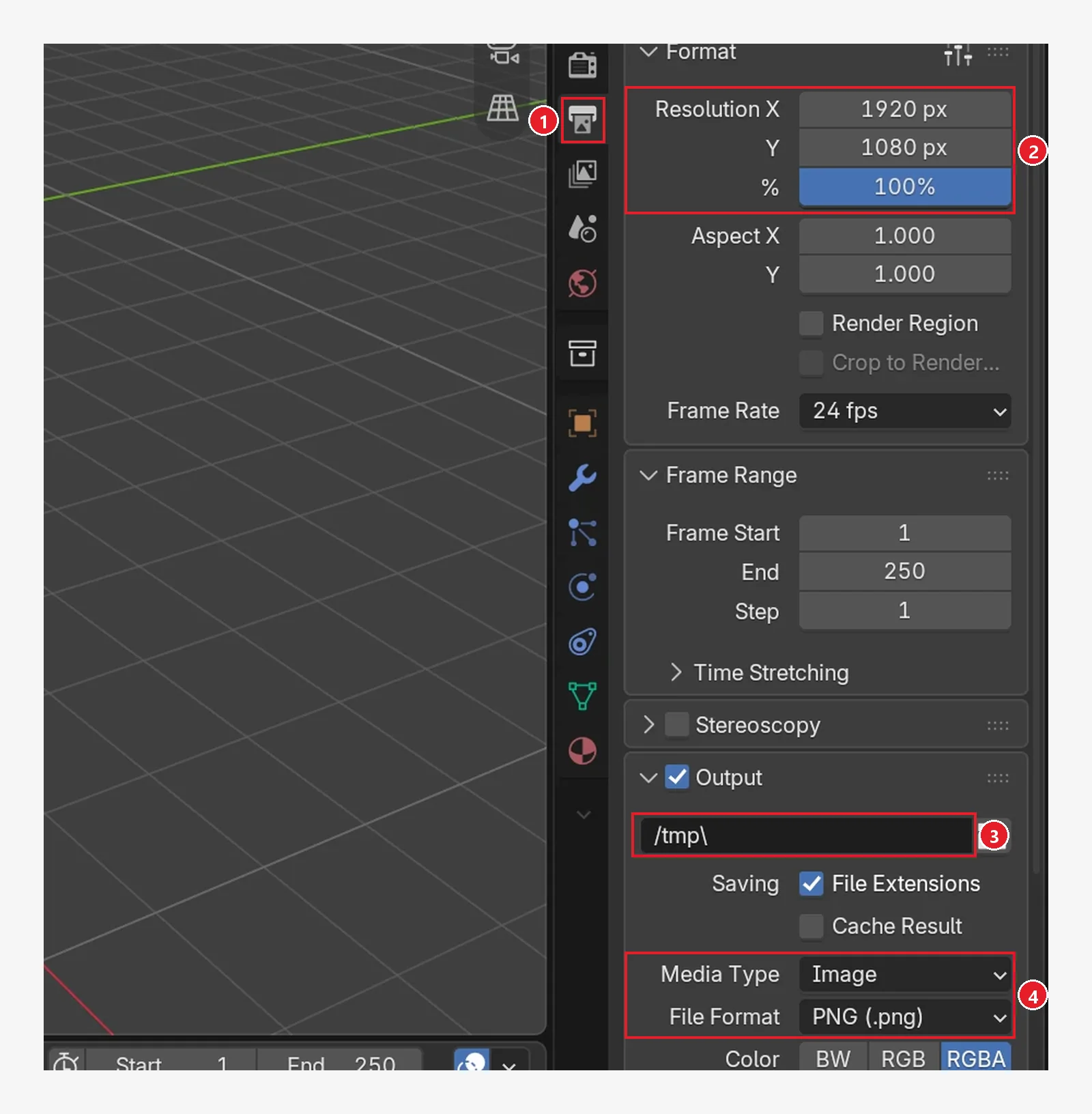 Figure 1. The default state of the Output tab: 1: the Output tab 2: Resolution X, Y, and % 3: the path where render results are saved (the image shows a new file's default,
 /tmp\) 4: file format. The unnumbered fields in the middle are Frame Rate and Frame Range (Blender screenshot)
Follow along: In the Properties editor, click 1, the Output tab in Figure 1, and check the three items below.
| What to settle | Where | Meaning |
|---|---|---|
| Size and aspect ratio | 2. Resolution X, Y | Number of pixels across and down |
| Frames per second | Frame Rate | Number of frames shown in one second |
| Length | Frame Start and End in Frame Range | The first and last frames of the animation |
You settle the size and aspect ratio first because of composition. If you place objects to fit a wide frame and later switch to a tall one, the area the camera captures changes and you have to lay things out again. To swap the width and height numbers, right-click the resolution field and choose Swap Dimensions.
If the scene moves, settle the length too. The Timeline's default range is frames 1 to 250. The manual gives the example that 250 frames played at 30 fps last 8.3 seconds. How to split shots and count frames is in Planning short animation shots.
While you work, you do not need to render at full size. Lower the % value in 2 and you can check quickly with a small image in the same aspect ratio as the final.
2. One folder and its subfolders
Put all the project's files in one folder. The Blender manual also recommends gathering project assets in one project folder and splitting them into suitable subfolders. This cuts down on "file not found" errors that come from deleting something by mistake or leaving it behind when you move things.
There is no fixed standard. Below is one example.
my-project/
  scenes/        working files (.blend)
  references/    reference images
  textures/      image files used in materials
  renders/       render results
You keep everything in one folder because of relative paths. Blender does not put the image files used in materials inside the .blend. It only remembers where each file is. The way it remembers is a relative path. Like "leave the house, turn right, second house", it writes down a route that starts from the folder the .blend is in. The // you see in a path field means "the folder this .blend is in".
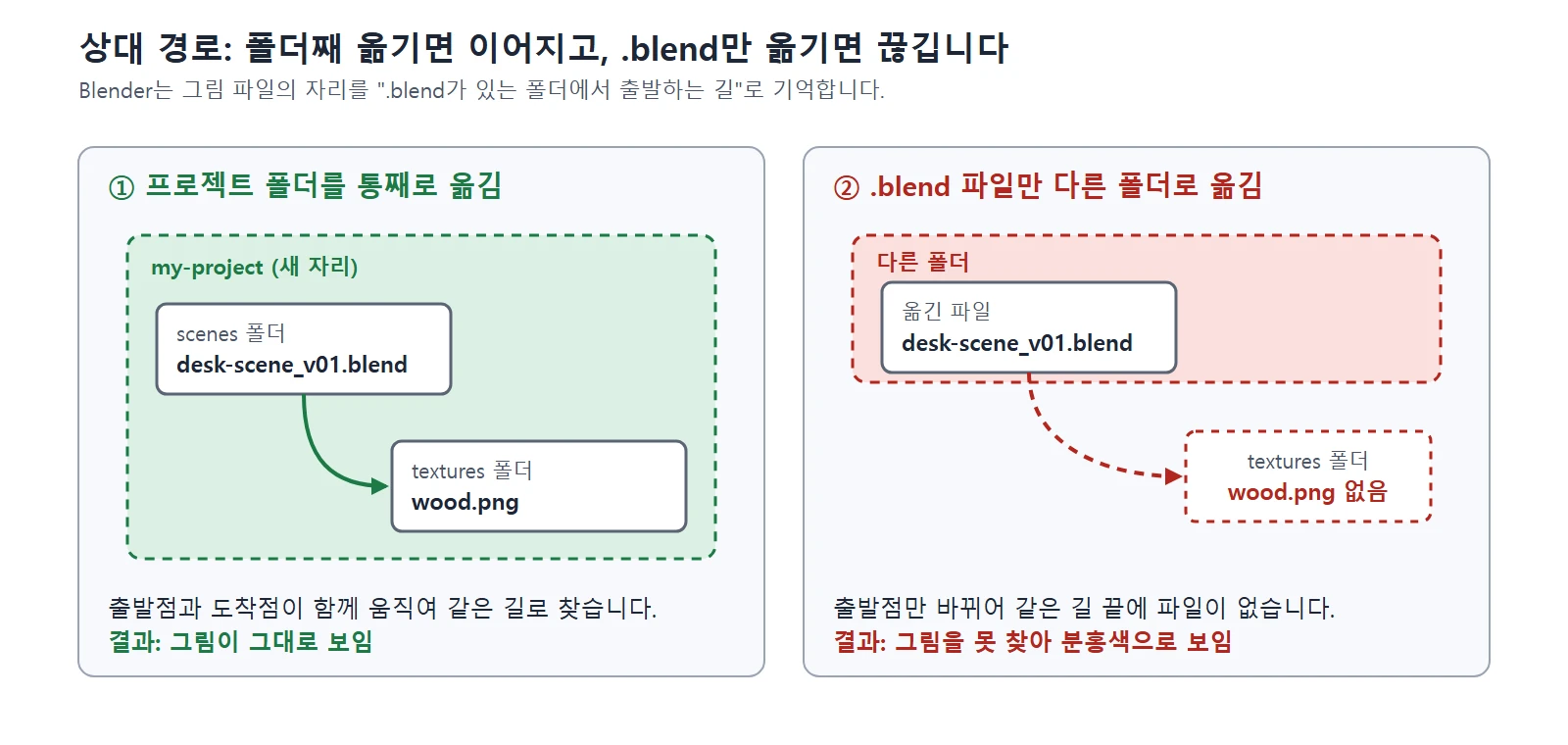 Figure 2. If you move the whole folder, the starting point and the destination move together and stay connected. If you move only the .blend, only the starting point changes and the link breaks (diagram, labels in Korean)
When the link breaks, objects that used that image show up pink.
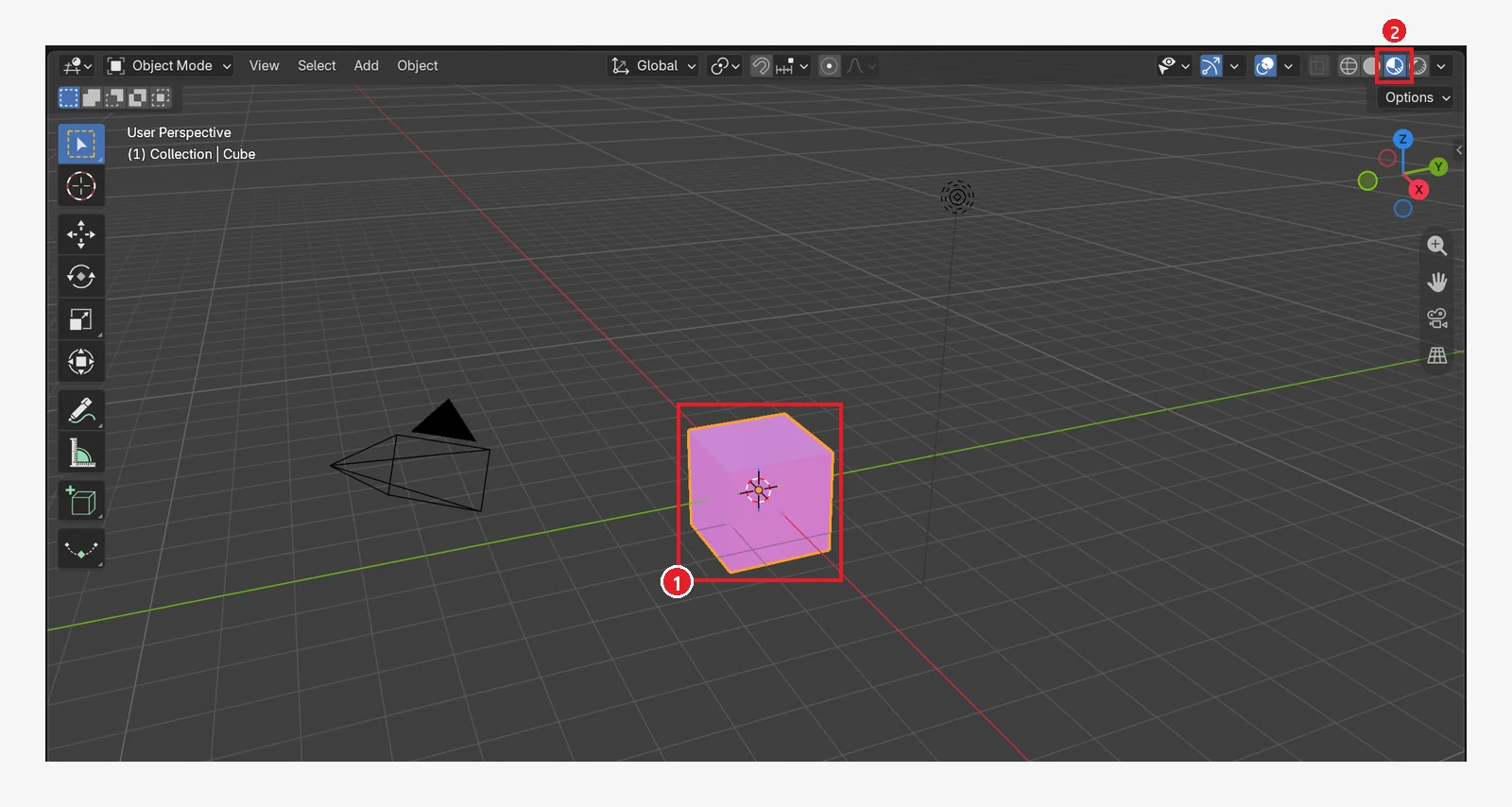 Figure 3. 1: a cube whose image file could not be found 2: Material Preview view. Solid view does not show the color, so the problem is hard to notice there (Blender screenshot)
This leads to one rule about order: save the .blend first, then load image files. A new file that has never been saved has no folder to start from yet, so it cannot use relative paths. The manual also says to save first before linking outside files.
Follow along:
- In your file explorer, make a
my-projectfolder and the four subfolders. - In Blender, press
Ctrl+Sand save into thescenesfolder. How to name it is in Section 3. - Copy the image files for your materials into the
texturesfolder first, then load them from that folder.
3. File names and version numbers
3-1. Naming rules
Name files with English letters, numbers, hyphens (-), and underscores (_). Example: desk-scene_v01.blend. English names are safest when you exchange files with other programs or other PCs. Keep names in the form "content_version".
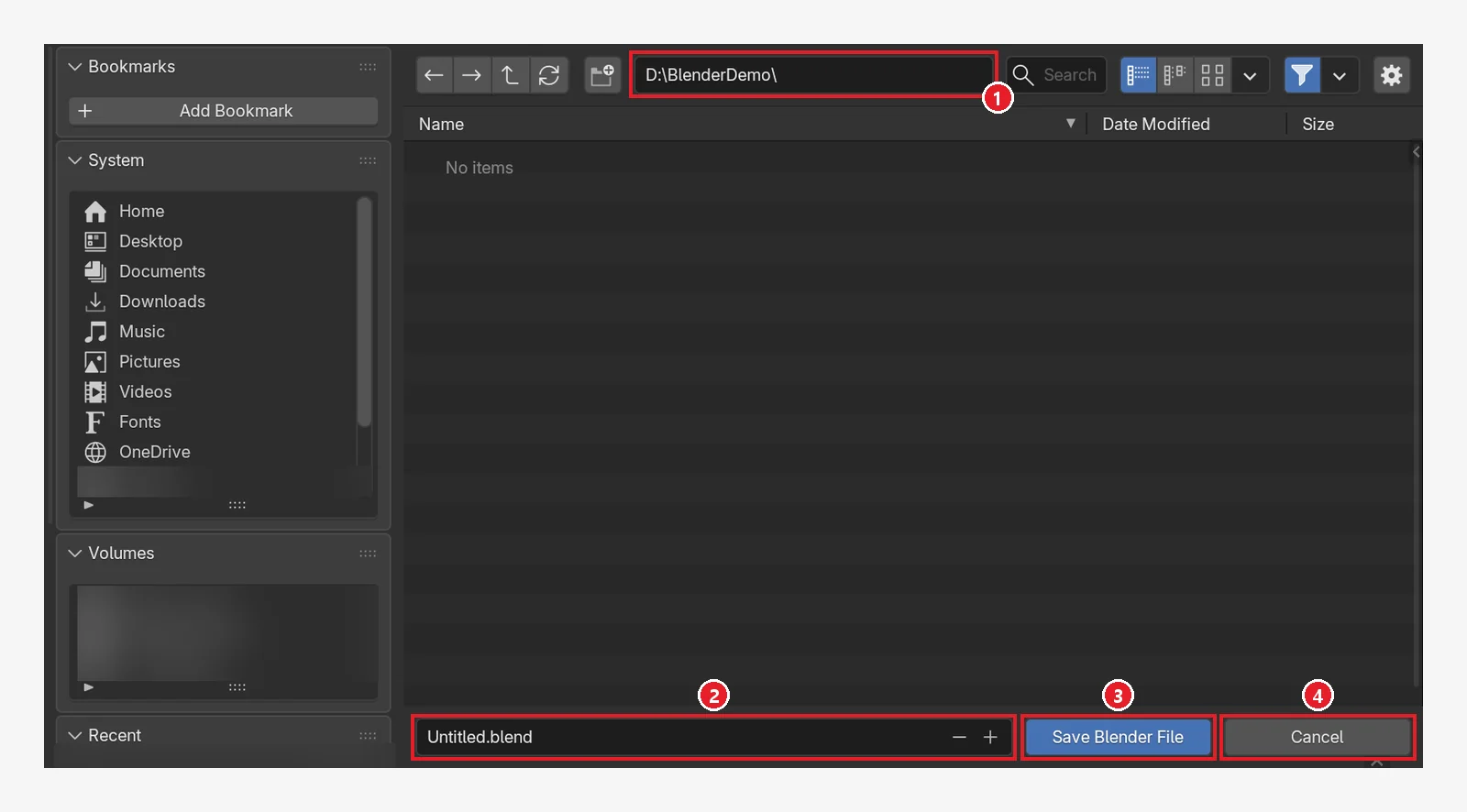
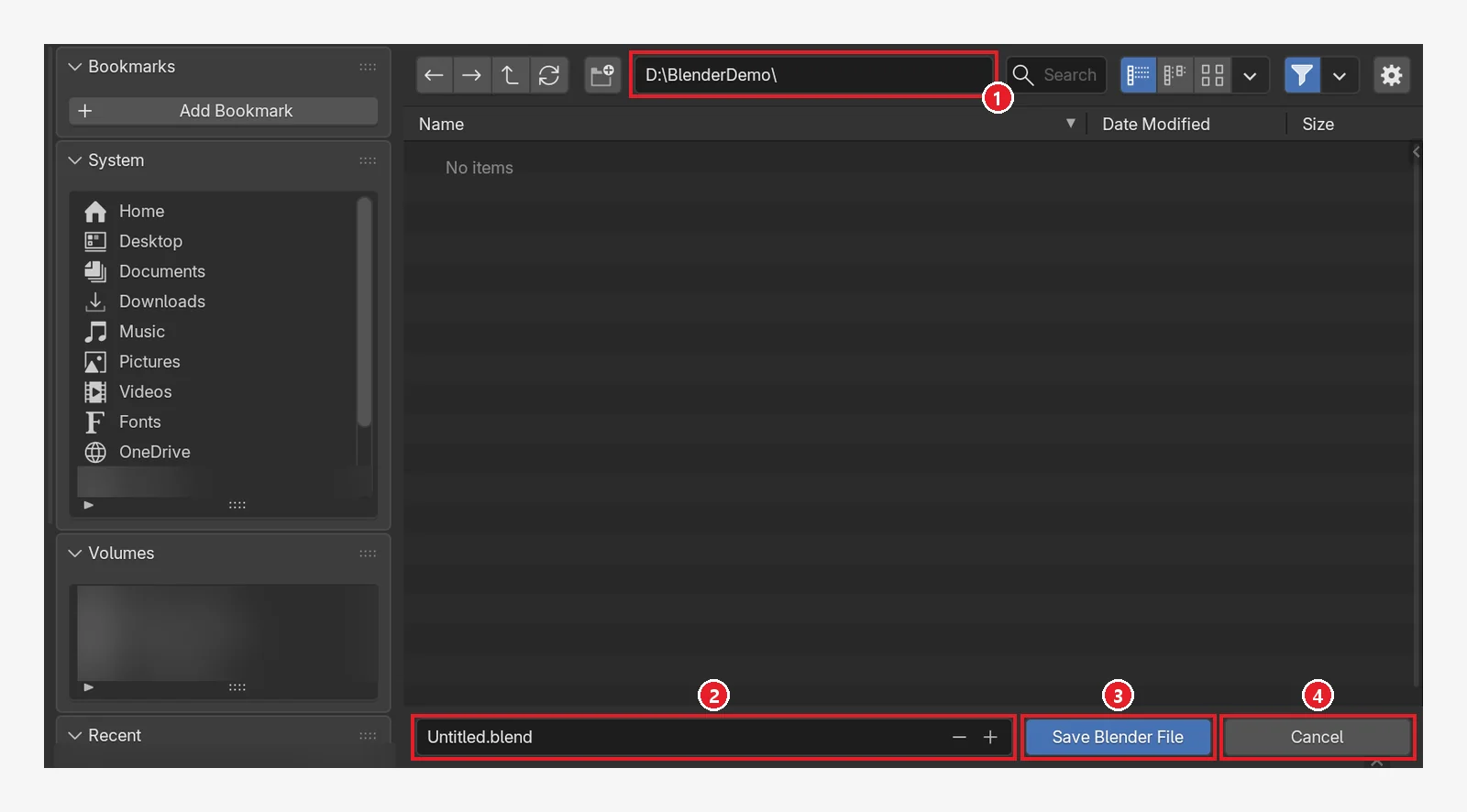 Figure 4. The save window that opens the first time you press
 Ctrl+S in a new file: 1: the folder to save in 2: the file name field and the −, + buttons to its right 3: the Save Blender File button 4: Cancel (Blender screenshot)
Follow along: Press Ctrl+S in a new file. Because the file has never been saved, the save window in Figure 4 opens. Go to the scenes folder in 1, type desk-scene_v01.blend in 2, and click 3.
3-2. How to keep versions
Before a big change, save to a new file with a higher number. It is like using several save slots in a game. If you have only one slot, there is nowhere to go back to after a bad save.
- Save Incremental (
Ctrl+Alt+S) saves to a new file with the number at the end of the name raised by one. Pressing it indesk-scene_v01.blendcreatesdesk-scene_v02.blend, and the earlier file stays as it is. It works only in a file that has been saved once. - In the Save As (
Shift+Ctrl+S) window, the +, − buttons to the right of 2 in Figure 4 raise and lower the number at the end. If a file with the same name already exists, the name field turns red. That is a warning that you will overwrite it. - Save Copy saves the current state as a separate file, and you keep working in the original file.
3-3. What you keep and what Blender keeps
This is the most confusing part at first. The .blend1 files that appear in your folder and the auto save are different from the version files above.
| Type | Who, when | Where | Use |
|---|---|---|---|
Version files _v01, _v02 | You, before a big change | Project folder | Go back to the stage you want |
Save backup .blend1 | Blender, every time you save (when Save Versions is 1 or more) | Same folder as the .blend | Go back to the previous save |
| Auto save | Blender, every set number of minutes | Temporary folder | Recover after a sudden crash |
quit.blend | Blender, when it closes normally | Temporary folder | Recover after closing without saving |
| Backup | You, at times you decide | Another drive or the cloud | When a drive fails |
.blend1is the previous save, renamed and kept when you save. How many to keep is set by the Save Versions value under Save & Load in Preferences.- The manual gives 2 minutes as the default auto save interval. But it has limits. According to the manual, changes made in Sculpt, Texture Paint, and Edit modes are not included in auto save, and only one auto save file is kept per project.
- Open the auto save file with File ‣ Recover ‣ Auto Save, and
quit.blendwith File ‣ Recover ‣ Last Session. - Files in the temporary folder can be deleted by a reboot or a cleanup tool. So auto save and
quit.blendare a lifeline when something goes wrong, not a backup.
4. Units and real-world size
Make objects at real-world dimensions. For example, make a door about 2 m tall and a mug about 10 cm tall. If you guess at sizes, a mug will look as big as a door when you bring in other objects later. It is like setting the scale of a map at the start.
Units are in the Units panel of the Scene tab in the Properties editor.
| Item | Meaning |
|---|---|
| Unit System | The system of units. One of None, Metric, or Imperial |
| Unit Scale | A factor multiplied into the values shown on screen |
| Length | The length unit. Adaptive switches between cm, m, and km depending on the size of the value |
Follow along: In the Properties editor, click the Scene tab and open the Units panel. Check that Unit System is Metric. If not, choose Metric. If you mostly make small things, you can change Length to Centimeters.
Leave Unit Scale alone. The manual warns that this value only changes the values shown on screen and does not affect how things work inside. For example, physics simulations do not take Unit Scale into account. It is meant for modeling very small or very large scenes, so leave it at the default at first.
For objects whose Scale you changed, apply the scale. Choose Scale in Object ‣ Apply (Ctrl+A), and the shape stays the same while the Scale value goes back to 1.0. According to the manual, in simple cases you see no difference, but it affects how modifiers, constraints, and parent relationships behave. We recommend applying it before rigging and animation.
5. Records of outside assets, moving, and backup
5-1. Writing down the assets you bring in
For files you bring in from outside, such as reference images, downloaded models, textures, and music, keep one note file in the project folder and write them down. Write three things.
| What to write | Example |
|---|---|
| File name | textures/wood.png |
| Where you got it | The address of the site you downloaded it from |
| How far you may use it | The terms of use stated on that site |
For reference images, also write one line about what you are referring to. Writing down whether it is the shape, the color, or the composition keeps your direction steady while you work. Keep files you made yourself and outside assets apart, by folder or by name.
When you open a .blend file from someone else, check one more thing. A .blend can contain Python scripts, and running them automatically is off by default. Turn on Trusted Source in the file open window only when you made the file yourself or you trust the person who sent it.
5-2. Moving the whole project
There are two ways to move a project to another PC or send it to someone.
- Move the whole folder. If you gathered everything in one folder as in Section 2, just copy the whole project folder. When you must save a single .blend to another place, the Remap Relative option in the Save As window fixes the relative paths to fit the new place.
- Bundle it into one file. File ‣ External Data ‣ Pack Resources puts outside files inside the .blend. They actually go in the next time you save. But heavy files such as videos cannot be packed. Move projects that use video as a whole folder.
5-3. Backup
The version files and .blend1 from Section 3 are in the same folder as the project, and auto save is in a temporary folder on the same PC. If the PC or drive fails, they can all disappear together. On days when you finish work, copy the project folder once more to another drive or the cloud.
6. Extra: tidying inside the scene with collections and names
If folders organize files, collections organize the objects inside a scene. You can name collections, and like folders, you can put collections inside collections. The manual gives the example of grouping as house ‣ bedroom ‣ furniture.
Before you have more than ten objects, do just two things.
- Rename objects from
Cube.001to names that tell you what they are, such asmuganddesk. - Put the main subject, the background, and the lights and camera in separate collections.
7. Checklist before you start
Here is everything above on one page. Put it in your project folder as a note and tick the items one by one.
Scope of the result
- I wrote what I will make in one sentence.
- I split the objects into must-haves and ones to add later.
- I settled Resolution, Frame Rate, and length (for a moving scene).
Folder
- I made one project folder with folders for working files, reference images, textures, and render results.
- I saved the .blend first and loaded image files after that.
File names and versions
- I named files in English in the form "content_v01".
- I raised the number with Save Incremental before big changes.
Units and size
- I checked the units in the Units panel.
- I made objects at real-world dimensions and applied the scale on objects whose size I changed.
Outside assets and backup
- I wrote down where imported files came from and their terms of use.
- On days I finished work, I copied the project folder to another drive or the cloud.
The "3D project start checklist" in Resources is a file that holds this same checklist (the file is in Korean). You can download it and keep it in your project folder.
8. Common mistakes and fixes
| Symptom | Cause | Fix |
|---|---|---|
| After moving a folder, objects show up pink | Only the .blend was moved, so the route to the image file broke | Move the whole project folder. If it already broke, put the image files back where they belong |
| Images loaded into a new file break when you move it | They were loaded before saving, so relative paths could not be used | Save the .blend first, then load |
| You saved but need an earlier state | You overwrote the file under the same name | Raise the number with Save Incremental before big changes |
| The name field in the Save As window is red | A file with the same name already exists | Raise the number at the end with the + button to the right of the name field |
| You opened the auto save but work done in Edit Mode is missing | Auto save does not save changes made in Edit, Sculpt, or Texture Paint mode | Leave the mode and press Ctrl+S often |
| After Pack Resources, the video is missing | Heavy files such as videos cannot be packed into the .blend | Move the whole project folder |
| Objects do not match each other in size | They were made by guessing, without real dimensions | Match real dimensions, then apply the scale |
One-line summary
Settle the scope in one sentence → one folder → save first, then load → save with a higher number → real dimensions → write down sources → one more copy on another drive.
Read next
- Planning short animation shots: how to plan the length and shots of a moving scene.
- AI and Blender: starting together with small tasks: why numbered saves matter when you hand work to AI.
References
- Blender 5.2 Manual: Opening & Saving (saving, relative paths, auto save)
- Blender 5.2 Manual: Save & Load preferences
- Blender 5.2 Manual: File Paths preferences
- Blender 5.2 Manual: Recovering Data
- Blender 5.2 Manual: Packed Data
- Blender 5.2 Manual: Directory Structure (project folder)
- Blender 5.2 Manual: Scene Properties (Units)
- Blender 5.2 Manual: Apply
- Blender 5.2 Manual: Collections
- Blender 5.2 Manual: Format (Resolution, Frame Rate)
- Blender 5.2 Manual: Frame Range
- Blender 5.2 Manual: Scripting & Security
- Shortcuts: based on the default keymap of Blender 5.2.