Planning a short animation: a 15-second video from 4 beats and a cut table
How to plan a short video on one sheet of paper before you render. Work down from a one-line summary to 4 beats, a cut table, and frame ranges, then check it cheaply in Blender.
한국어English
ON THIS PAGE
- 011. Why you need a shot plan
- 022. A one-line summary and 4 beats
- 033. Turning length into frames
- 044. Writing a cut table
- 055. Moving the plan into Blender: markers and cameras
- 066. Checking cheaply: preview renders and small renders
- 077. When the plan and the result differ
- 088. When you want to draw the storyboard
- 099. Common mistakes and fixes
- 10Summary in one line
- 11Read next
- 12References
Based on: Blender 5.2 LTS (English UI, default shortcuts). The example video runs at 30 fps.
The shorter the video, the more the plan comes first. This guide does not cover how to move the camera. It covers how to write down on one sheet of paper, before you move the camera, what to show, in what order, and for how many frames.
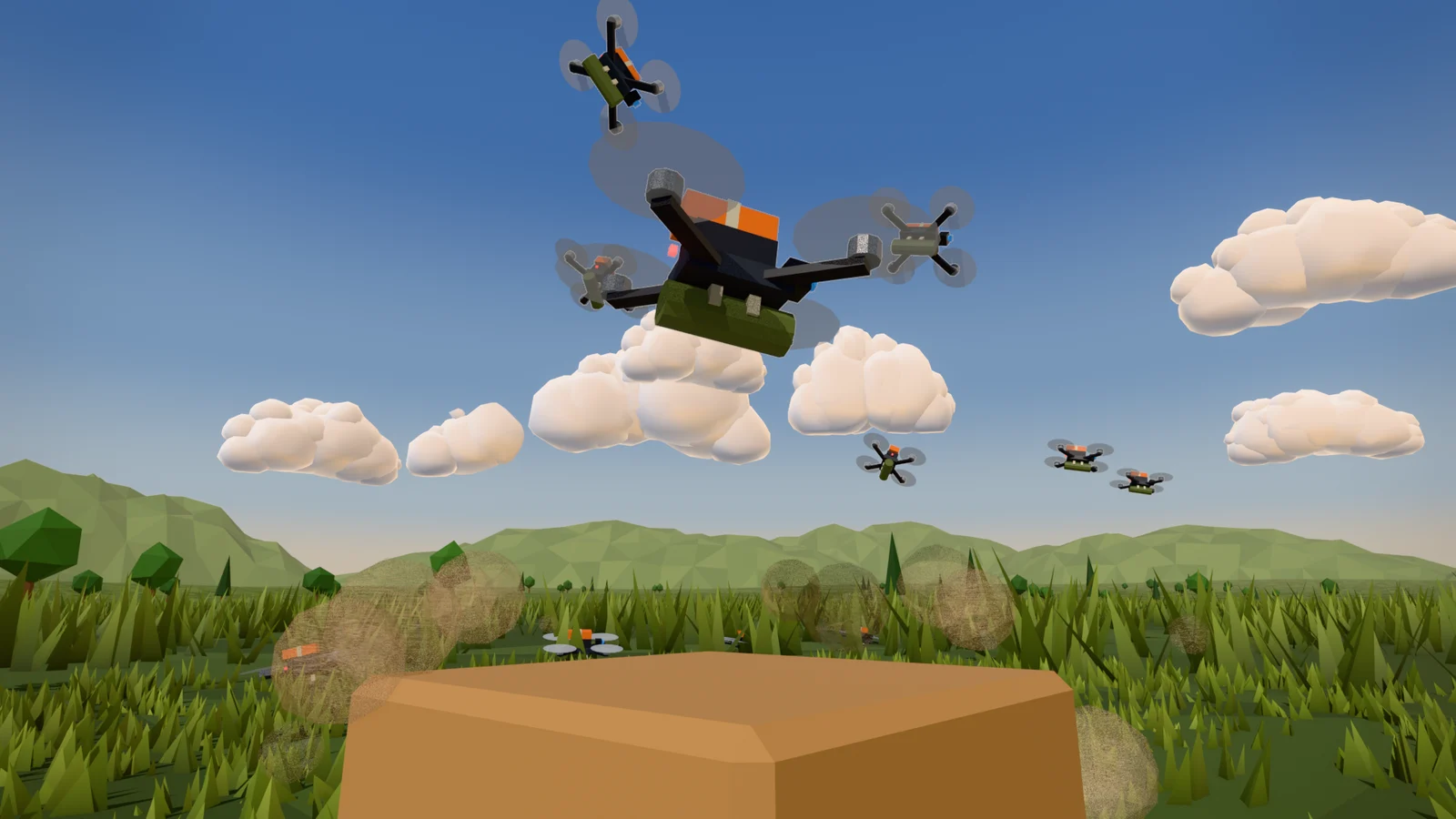
As the example, I use the actual planning document for a 15-second vertical video I made. A small drone rises from a grassy field, flies to a distant tank, and reaches it. This guide explains the order for working down from a one-line summary to 4 beats, frame counts, and a cut table, and how to check and fix that plan cheaply in Blender.
1. Why you need a shot plan
A shot plan is like the blueprint before you build a house. If you want to move a room after the walls are up, you have to tear down walls. With video too, changing the order after rendering means fixing the scene and rendering again.
The Blender manual describes a storyboard as "a way to plan, view, and revise shots before going into production." The point is to settle composition, timing, and camera movement early.
My 15-second video took 107 seconds for 450 frames on my PC, even rendered at the smallest size (360×640). Every time the order changes, that time is spent again. On paper, you only fix one line.
A plan does not prevent every problem. Some problems were invisible while planning and only showed up after rendering (section 7). Still, with a plan you can point to what in which cut is the problem and fix it.
2. A one-line summary and 4 beats
First, write the whole video as one line. The one line for the 15-second video was this.
A small drone rises, flies off, and reaches a tank.
If you cannot write the one line, you have not yet decided what to show.
Next, split that line into four beats. A beat is a joint in the story. Just as bamboo is divided at each joint, a story divides into four joints: "setup → tension → turn → ending." Here is the beat table for the 15-second video.
| Beat | Frames | What happens | Cut that shows the title's core |
|---|---|---|---|
| Setup | 1–150 | The drone rises from a box in the grassy field and passes overhead. A tank is visible in the distance | End of C2: the drone in the sky and the distant tank in one frame |
| Tension | 151–300 | The drone looks for the tank through its own eyes. Next to the tank, only sounds from the sky are heard | C3: a small tank in the middle of the screen |
| Turn | 301–399 | The drone dives. The video cuts out the moment the tank's roof fills the screen | Frames 380–389 of C5: the tank's roof fills the screen |
| Ending | 400–450 | The tank seen from far away, with a thin column of smoke | C6 |
The last column matters. The cut that shows the title's core is the cut where what the video's title promises actually appears on screen. If the title is "a drone flies to a tank" but the drone and the tank never appear in the same frame even once, viewers cannot tell what happened. Filling in this column for each beat shows empty beats right away.
I use the same frame for a video with only one cut. When I planned a 10-second running scene that continues as a single cut, I also wrote the one-line summary and the frame ranges of the four beats first.
3. Turning length into frames
Blender counts time in frames, not seconds. A frame is one picture in the video, and fps (Frame Rate) is the number of frames shown per second. There is only one calculation.
Length (seconds) × fps = number of frames
A 15-second video at 30 fps is 15 × 30 = 450 frames. You can also count the other way. The manual gives the example that 250 frames played at 30 fps last 8.3 seconds.
| Length | 24 fps | 30 fps |
|---|---|---|
| 5 seconds | 120 frames | 150 frames |
| 10 seconds | 240 frames | 300 frames |
| 15 seconds | 360 frames | 450 frames |
| 30 seconds | 720 frames | 900 frames |
| 60 seconds | 1,440 frames | 1,800 frames |
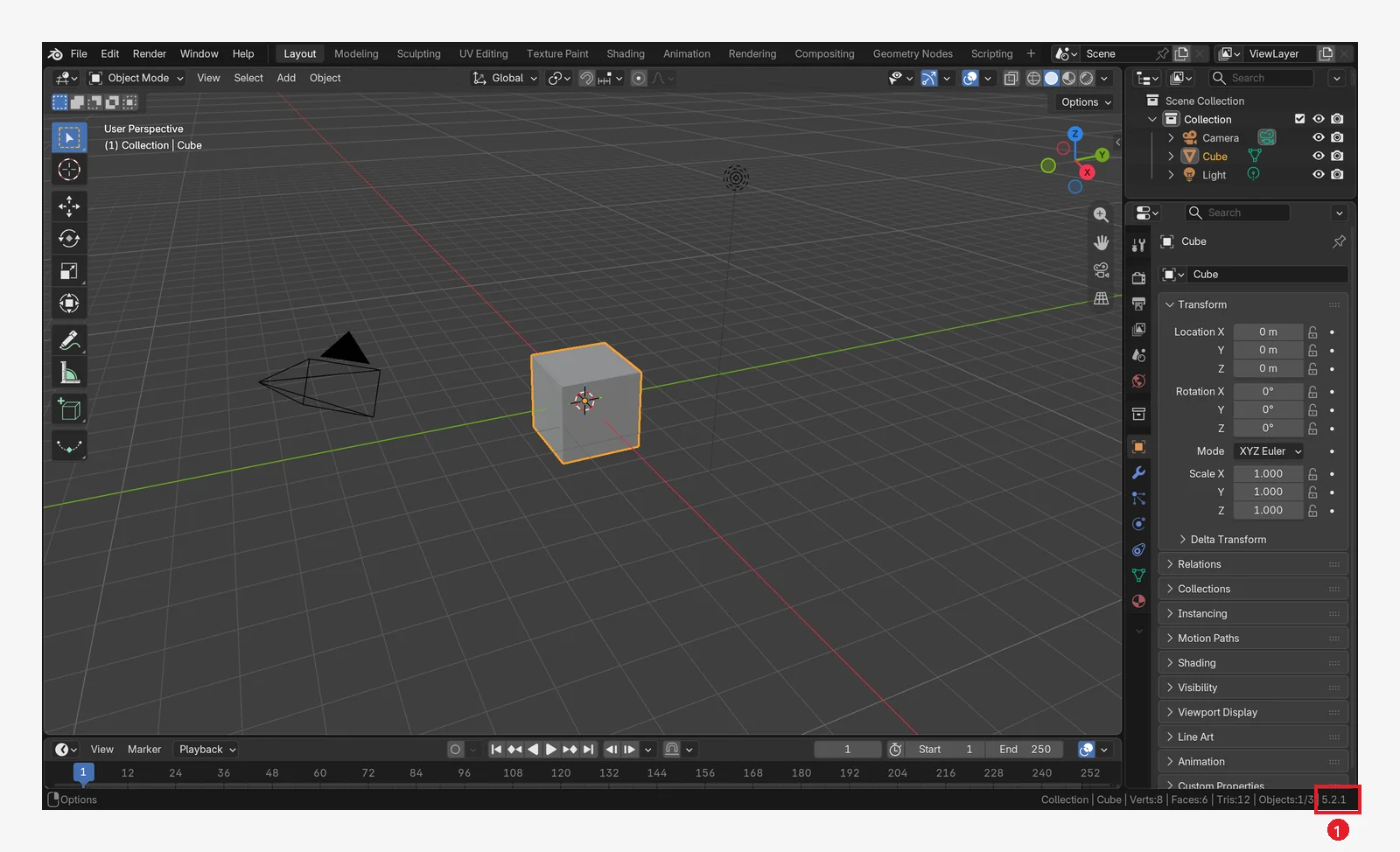
Blender's Timeline has a default range of frames 1 to 250. It counts from 1, not from 0. So the range of a 450-frame video is 1 to 450.
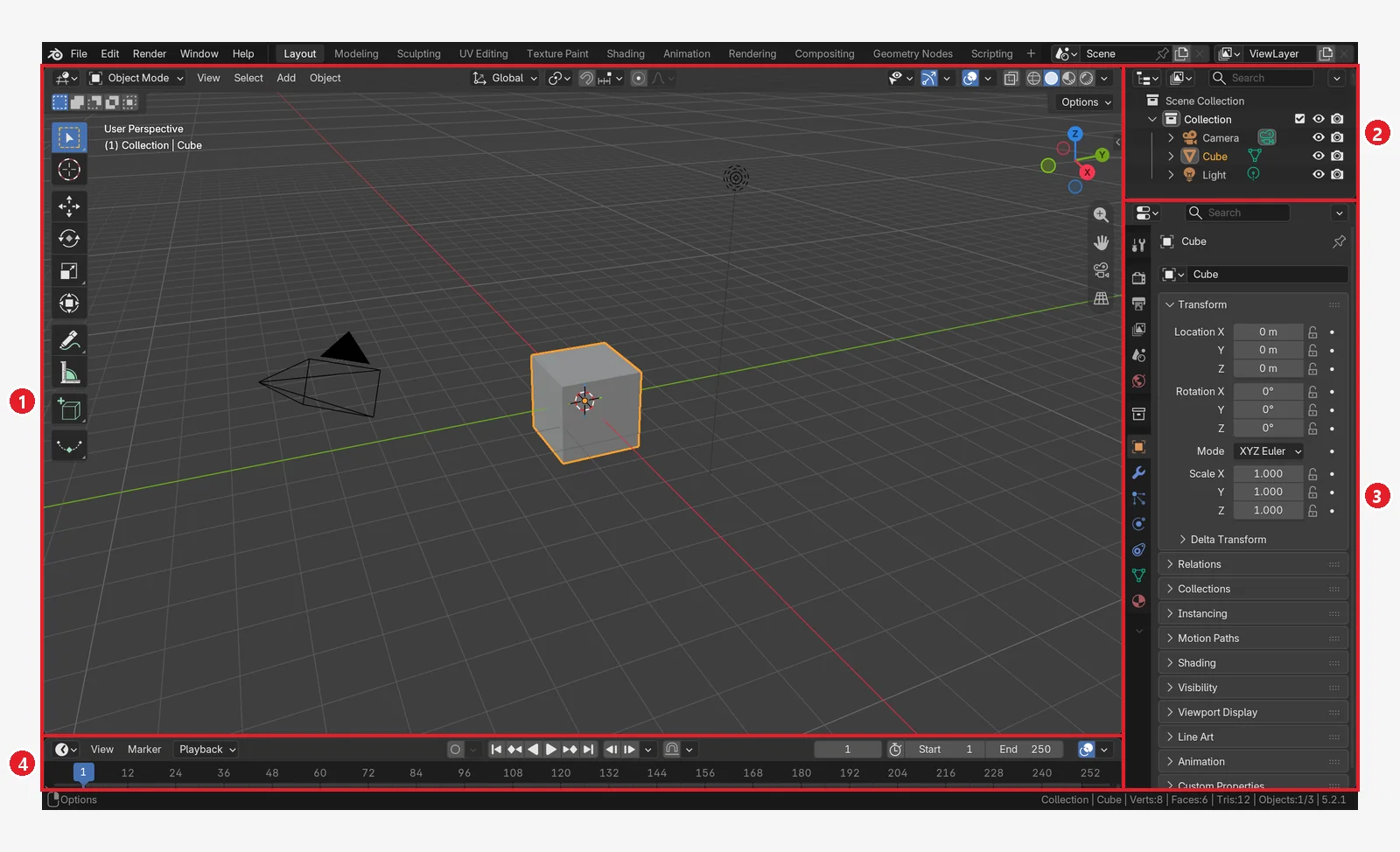
 Figure 1. The Timeline at the bottom of the screen: ① playback buttons ② auto keying ③ current frame number ④ Start and End (first and last frame) ⑤ the blue playhead. The picture shows the default 1 to 250 (Blender screenshot)
Starting point: start from the default scene in a new file (File ‣ New ‣ General).
Follow along:
- In the Output tab of the Properties Editor, set Frame Rate to
30 fps. - Double-click the End field at ④ in figure 1, type
450, and pressEnter.
The same values are also in the Frame Range panel of the Output tab. You can change them in either place.
4. Writing a cut table
If beats are the joints of the story, cuts are the joints of the camera. One cut runs from when the camera starts shooting from one position until it switches to another. One beat can hold several cuts.
A cut table has six columns.
| Column | What to write |
|---|---|
| Cut number | C1, C2, C3 … |
| Frames | First and last frame. Starts at the number right after the previous cut ends |
| Time | Number of frames divided by fps, in seconds |
| Viewpoint | Whose eyes we see through. An observer watching from outside, or first person through the main character's eyes |
| What happens | The one thing that cut shows |
| Camera | Camera position and lens (mm) |
Here is the cut table for the 15-second video: six cuts and a 10-frame signal-loss screen.
| Cut | Frames | Time | Viewpoint | What happens | Camera |
|---|---|---|---|---|---|
| C1 | 1–54 | 1.8 s | Observer, close to the ground | The drone on the box rises | Low beside the drone, 30 mm |
| C2 | 55–150 | 3.2 s | Observer, looking up from the ground | The drone passes overhead and a tank is visible in the distance | On the ground beside the path, 24 mm |
| C3 | 151–255 | 3.5 s | First person | Flies high, looking for the tank | The drone's eyes, 15 mm |
| C4 | 256–300 | 1.5 s | Observer, low beside the tank | The tank moves, kicking up dust | Beside the tank, 35 mm |
| C5 | 301–389 | 3.0 s | First person | Dive. The tank grows larger and larger | The drone's eyes, 15 mm |
| Signal loss | 390–399 | 0.3 s | First-person screen | The screen breaks up with static | None |
| C6 | 400–450 | 1.7 s | Observer, far away | The tank and a thin column of smoke | About 60 m away, 50 mm |
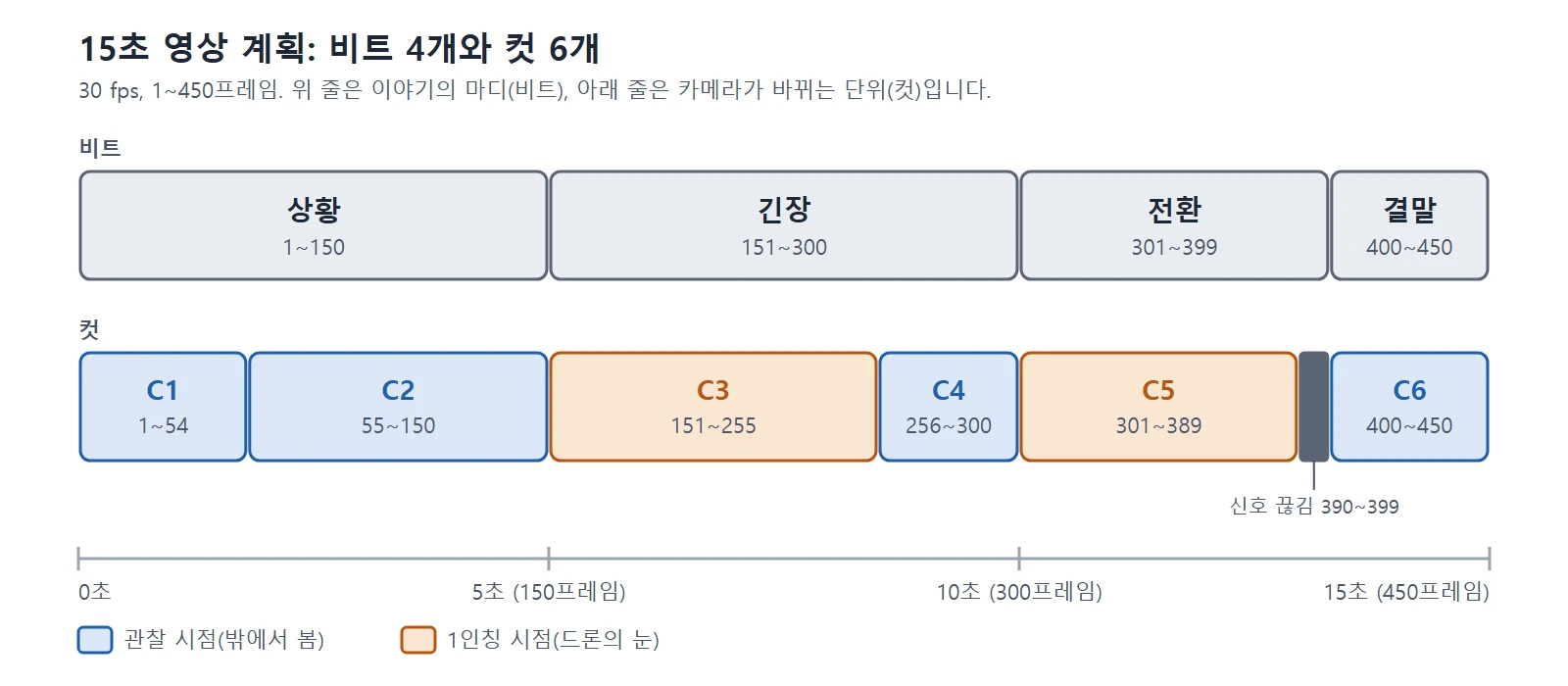 Figure 2. Strips placing the four beats and six cuts on the same frame scale. Blue is the observer view, orange is the first-person view (diagram, labels in Korean)
Figure 2 shows two things.
- At the frames where the beat changes (right after 150, 300, and 399), the cut changes too. When the story's joints and the camera's joints line up, viewers do not lose the flow.
- Observer cuts and first-person cuts alternate. The outside view tells you "where and what is happening," and the first-person view takes you inside it.
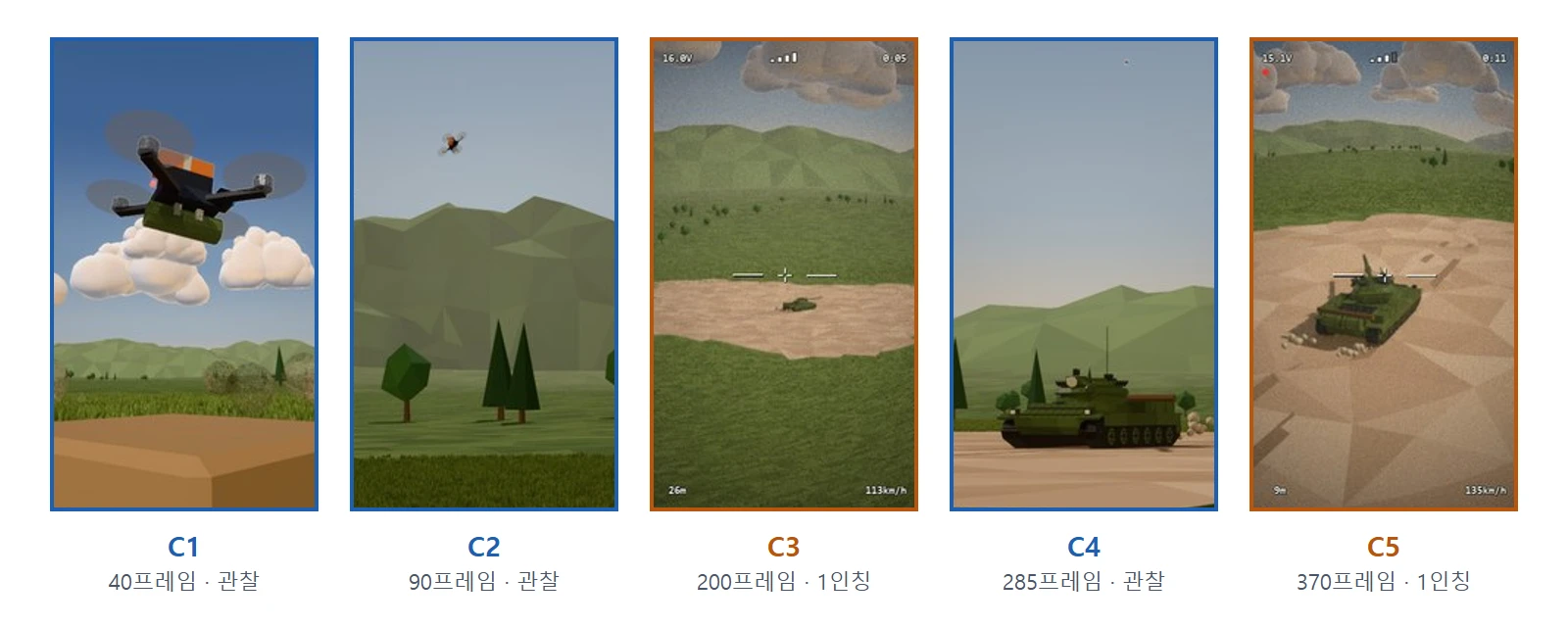 Figure 3. One frame from each of C1 to C5, taken from the result rendered by the cut table (C6 is left out). Blue borders are observer views, orange borders are first person (Blender render, cut numbers added, labels in Korean)
The lens number in the Camera column is the focal length. According to the manual, the longer the focal length, the narrower the field of view, so the subject looks pulled in. The shorter it is, the more you see at once. That is why I wrote a short 15 mm for the first-person cuts that show wide ground, and 24 to 50 mm for the observer cuts that watch from outside. At first, you do not need exact numbers. Just writing "wide" or "pulled in" is enough.
5. Moving the plan into Blender: markers and cameras
To move the frame numbers on paper into Blender, use markers. A marker is a sticky note you put on the Timeline. The manual describes markers as "marks placed on frames where something important happens." Because a marker is only a mark, adding one does not make anything move. Keyframes are what create motion.
Starting point: continue from the file where you changed End to 450 in section 3.
Follow along:
- Double-click the current frame field at ③ in figure 1, type
151, and pressEnter. - Put the mouse pointer over the Timeline and press
M. A marker appears at frame 151. - Double-click the marker you just made. When the name field appears, type
tensionand pressEnter. Marker ‣ Rename Marker in the Timeline header also works. Any short word that is easy to recognize will do as a name. - In the same way, add a
turnmarker at frame 301 and anendingmarker at frame 400.
Markers can only sit on whole-number frames. The Marker menu visible in the header in figure 1 is the menu for working with markers.
If you have several cameras, you can bind a camera to a marker. Select the camera you want, then click Marker ‣ Bind Camera to Markers (Ctrl+B) in the Timeline header, and that camera is bound to the marker at the current frame. From that frame on, it becomes the active camera used for rendering. A bound marker is renamed to the camera's name and gets a camera icon. If you have only one camera, you do not need this.
Check what the camera sees by pressing numpad 0 for the camera view. Only the area inside the dashed frame is rendered. There is also a guide called Safe Areas. Select the camera, then in the Properties Editor's camera (Object Data) tab, turn on the checkbox in front of the Safe Areas panel title to see it. It is used to keep important content inside the area that shows on any screen.
6. Checking cheaply: preview renders and small renders
Once the plan is moved over, check it cheaply twice before a big render. In painting terms, this is looking at the pencil sketch before adding color.
6-1. Preview render
Render Playblast turns what is currently shown in the 3D Viewport into a video as is. Materials and lighting are rough, but it is enough to check motion and cut lengths.
Starting point: continue from the file in section 5.
Follow along:
- Put the mouse pointer over the 3D Viewport and press numpad
0to switch to the camera view. If you skip this step, it records from the view you were looking at, not from the camera. - In the 3D Viewport header, click the Show Overlays button to turn it off. Hover over the button to see its name. The grid and helper marks are left out of the video.
- In the 3D Viewport header, click View ‣ Render Playblast. Frames are drawn one by one from frame 1 to the End frame.
- When it finishes, click Render ‣ View Animation (
Ctrl+F11) in the top menu. The video you just made plays.
This practice file has no motion, so the video shows the cube standing still. If you only want to learn which buttons to press, you can lower End to 60 before step 3, and set it back to 450 after checking.
There are two things to know.
- According to the manual, this feature works only with the Workbench and EEVEE render engines, and Cycles is not supported. The manual adds that Solid view uses Workbench's render settings, and Material Preview view uses EEVEE's render settings.
- Render Playblast on Keyframes in the same menu redraws only the frames where the selected object has keys. Use it to watch only the key poses in sequence.
6-2. Small render
If the flow looks right in the preview, do one real render, small. Lower Resolution % (Percentage) in the Output tab to get a small picture with the same proportions as the final.
I did the first render of the 15-second video at 360×640. On my PC it took 107 seconds for 450 frames, 0.24 seconds per frame. I did the big 1080×1920 render only after checking the flow with the small render.
I did not look at the small render only as a video. I made two kinds of sheets to see it at a glance.
- A keyframe sheet gathers representative frames from the whole video on one page.
- A sequence sheet places 6 frames before and after an important moment side by side.
A video goes by, but a sheet stays still, so you can see right away in which cut the main subject is too small.
7. When the plan and the result differ
A plan is written to be followed, but when you look at the render, you find things to fix. In my case, the small render revealed two things. In C2, the drone was a tiny dot in the sky and almost invisible. In C3, the tank was small, around 20 pixels. These were problems you could not see on paper.
The point is what I changed and what I kept.
| Item | Plan | Actual |
|---|---|---|
| Frames where cuts change | 54, 150, 255, 300, 389, 399 | Unchanged |
| C2 lens | 24 mm | Pulled in from 22 mm to 60 mm |
| C6 camera distance | About 60 m | 44 m |
I kept the cut boundaries (frames) and changed the lens and distance inside the cuts. Keeping the boundaries means the sound and the other cuts still line up. This video pins the moment the drone reaches the tank to frame 390 and the big flash after it to frame 400, and the sound is matched to the same frames. If the boundaries move, all of that has to be matched again.
For the same reason, I finished a small version first and then scaled up.
- I finished the 15-second version with 1 drone.
- The version with 20 drones kept the cut structure (C1 to C6) and the 15-second length.
- The 100-drone version was extended to 30 seconds (900 frames). The first 13.3 seconds kept the same rhythm. I added a short cut C0 at the very start, and new cuts C7 and C8 at the end.
The 100-drone version also had a problem I did not see while planning. In the first render, only 28 drones could be counted on screen. The number was 100, but the screen did not look like 100. I solved it by adding a cut where the swarm passes by in a long line.
The final video is 55 seconds (15 + 15 + 25 seconds), joining the three versions. The 100-drone section was made at 30 seconds and cut at 25 seconds. There is no dialogue or subtitles, and the sections are joined only by a 0.4-second white flash.
8. When you want to draw the storyboard
If you want to plan with pictures instead of a table, Blender has a tool for it. According to the manual, File ‣ New ‣ Storyboarding opens a template for storyboards. This template is based on the 2D Animation template.
- One scene is one shot. The default length of a shot scene is 2 seconds, and the default length of the editing scene is 10 seconds.
- You make a new shot by duplicating the
Shot.000asset. - You draw with Grease Pencil (a tool for drawing lines in the 3D view), and set the order, sound, and timing in the video editing screen (Video Sequence Editor).
The manual notes that boards made by placing objects in 3D are "commonly called a 3D animatic." The preview render in section 6 is exactly that kind of use. Start with one table, and when you need pictures, open this template.
9. Common mistakes and fixes
| Symptom | Cause | Fix |
|---|---|---|
| After rendering, the main subject is only a dot | Its size on screen was not checked while planning | Do a small render first, and keep the cut boundaries while pulling the lens in or moving the camera closer |
| The video length differs from the plan | fps or the End frame differs from the plan | Recount length × fps and check Frame Rate and End in the Output tab |
| The preview render records from the wrong viewpoint | It was run while not in camera view | Press numpad 0 first |
| The grid and helper marks show up in the preview render | Overlays are on | Turn Overlays off and run it again |
| You added a marker but nothing moves | A marker is only a mark | Add motion with keyframes |
| You increased the number, but the screen does not look like many | Few fit in one frame | Add a cut where the whole group passes by in a long line |
Summary in one line
One-line summary → 4 beats → length × fps → cut table → markers → preview render → small render → big render. When fixing, keep the cut boundaries and change the lens and distance inside the cuts.
Read next
- Five things to settle before your first 3D project: how to decide folder and file names and the output size first.
- AI and Blender: starting together from small tasks: the order in which the 15-second video in this guide was made with scripts.
References
- Blender 5.2 Manual: Storyboarding
- Blender 5.2 Manual: Storyboarding App Template
- Blender 5.2 Manual: Markers
- Blender 5.2 Manual: Camera View
- Blender 5.2 Manual: Cameras
- Blender 5.2 Manual: Frame Range
- Blender 5.2 Manual: Format (Resolution, Frame Rate)
- Blender 5.2 Manual: Timeline
- Blender 5.2 Manual: Viewport Render
- Shortcuts: based on the Blender 5.2 default keymap.
- Pictures: the renders and screenshots were made by the author, and the diagram was drawn from the numbers in the text.