Retargeting Mixamo Animations with Auto-Rig Pro Remap
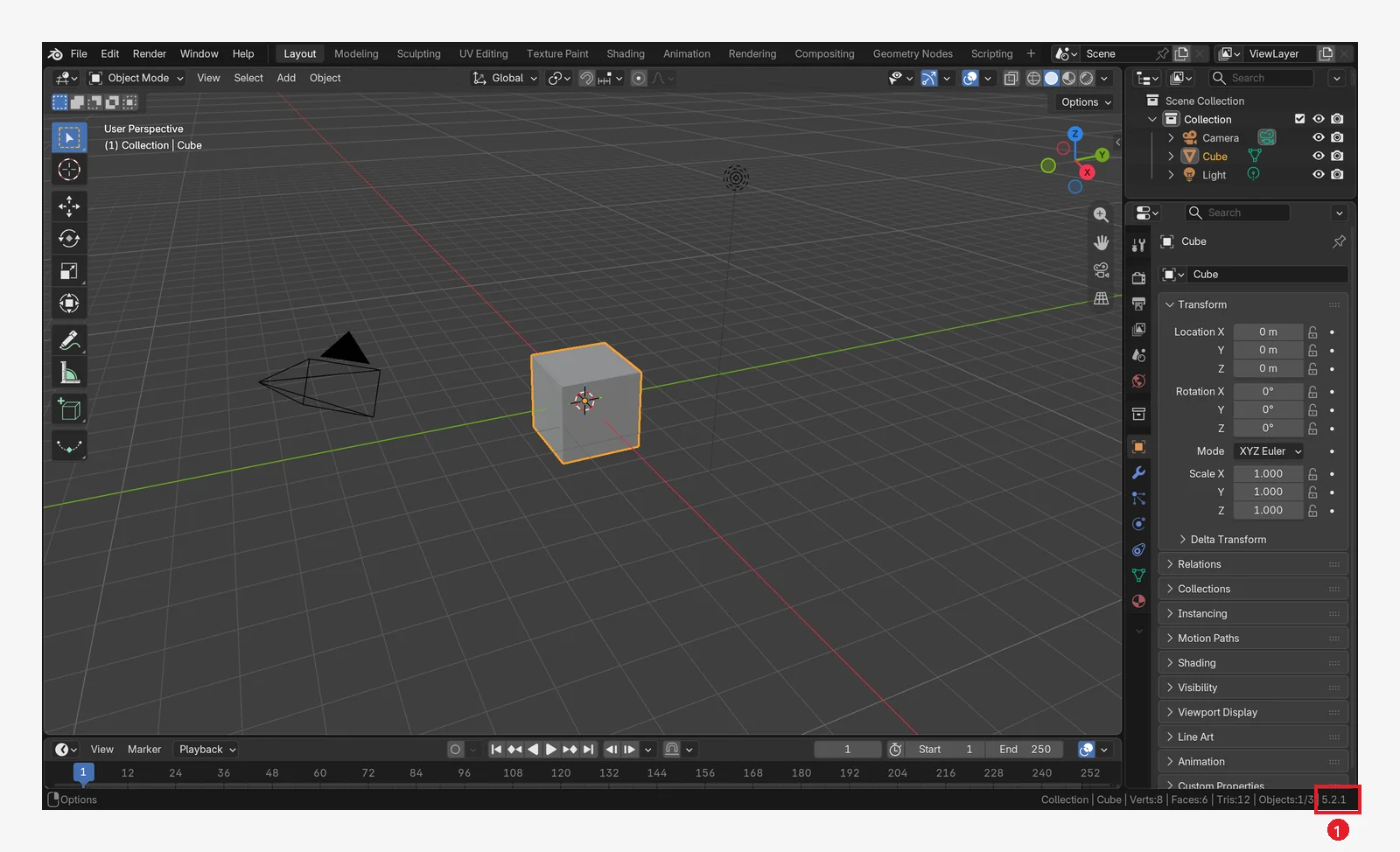
How to move Mixamo animations such as running and pitching onto your own character with Auto-Rig Pro's Remap, based on screens and results from tests in Blender 5.2.1 and Auto-Rig Pro 3.78.60.
한국어English
This post contains affiliate links. If you buy through these links, AZTechnology earns a commission from the seller. (Affiliate and content policy)
 Auto-Rig Pro product page main image (source: Superhive, made by Artell)
Pictures marked "product page image" are product images made by the seller. Pictures marked "Blender render" or "Blender screenshot" are screens from my own tests.
Mixamo has plenty of animations such as running, pitching, and kicking a ball, but if you put them straight onto your own character they don't fit, because the bone names and bone directions are different. This guide covers how to solve that with the Remap feature of Auto-Rig Pro (ARP). It includes where the buttons actually are on screen, the order I tested, and the limits I found in testing.
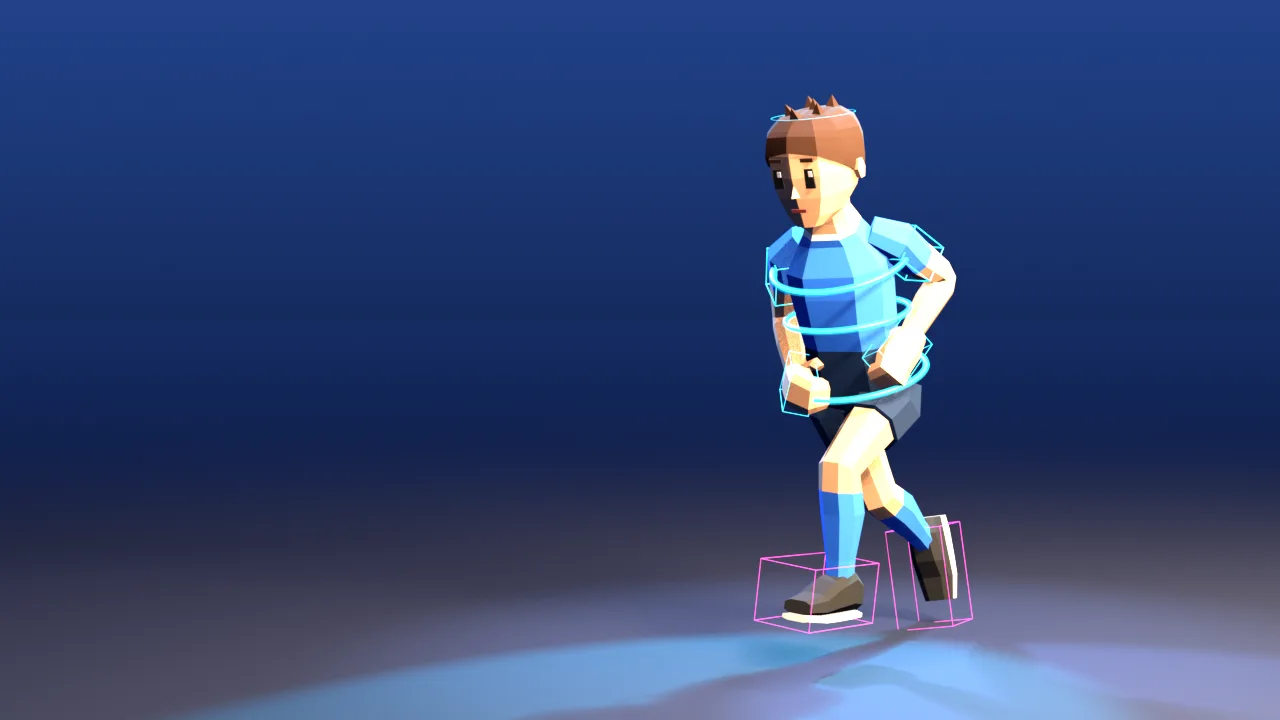 A frame of a Mixamo sprint animation moved over with ARP Remap. Light blue is FK, pink is the foot IK control; the lines were redrawn over the render so they are easy to see (Blender render)
Product link: You can watch the intro video and see example images on the Auto-Rig Pro product page (Superhive)(affiliate link).
Test setup
| Item | Details |
|---|---|
| Blender | 5.2.1 LTS |
| Auto-Rig Pro | 3.78.60 |
| Animation files | Mixamo FBX (sprint, fast run, pitch, batting, kick, cheering, and others) |
| Receiving skeleton | The default ARP human rig, fitted to a low-poly test character |
What retargeting means
Retargeting is moving an animation made for one skeleton onto another skeleton. It is like copying someone else's size chart over to fit your own body. If you pair "shoulder to shoulder, knee to knee", the motion follows even though the name tags differ.
Mixamo bones have mixamorig: in front of the name, as in mixamorig:Hips, and the default pose is a T-pose. So two things need to match.
- Bone pairs: which bone corresponds to which
- Rest pose: whether both skeletons start from a similar pose
Auto-Rig Pro at a glance
Auto-Rig Pro(affiliate link) is a rigging add-on made by Artell. Its product page shows the features in this order.
- Smart: place markers on a humanoid character's body and the bones are placed automatically. You can adjust the result later.
- Modular rig: add or remove finger, tail, wing, and face bones as needed. The product page also shows dinosaur, centaur, and spider rigs.
- Remap: moves animations even when bone names and directions differ (FBX or BVH, such as Mixamo). This is the feature this guide covers.
- FBX/glTF export: for Unity, Unreal Engine, and Godot.
See example images for each feature on the product page(affiliate link)
According to the product page, Smart, Remap, and export are in the Full version and not in the Lite version. Supported Blender versions are listed as 2.93 to 5.2. The editions and prices may change, so check the product page before buying.
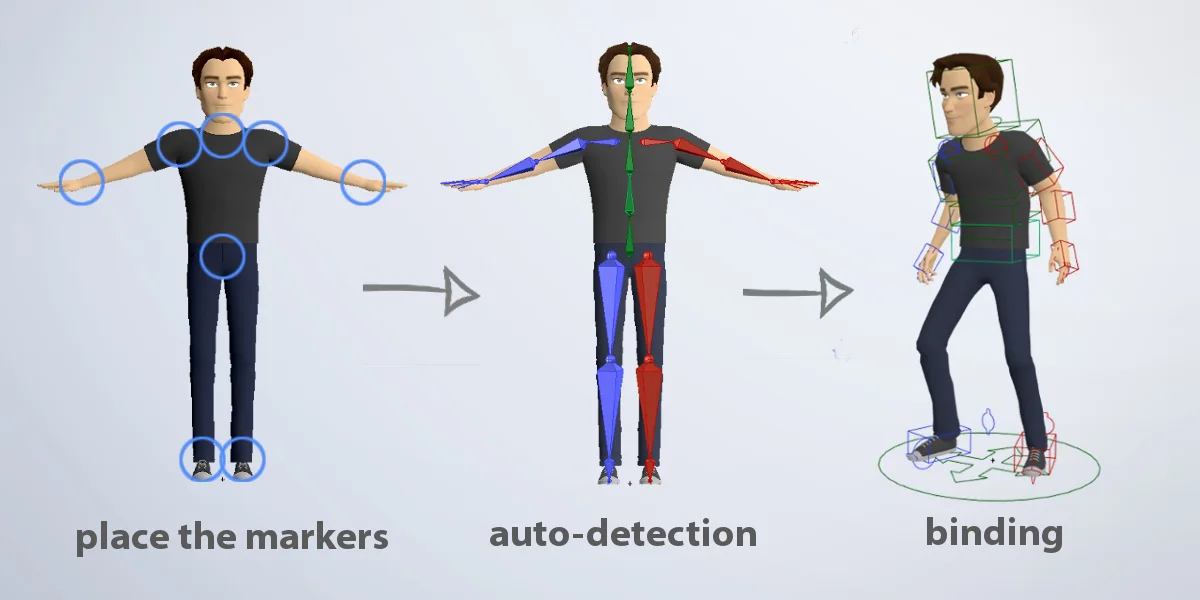 Product intro: the Smart flow. Place markers → automatic detection → binding. Auto-Rig Pro product page image (source: Superhive, made by Artell)
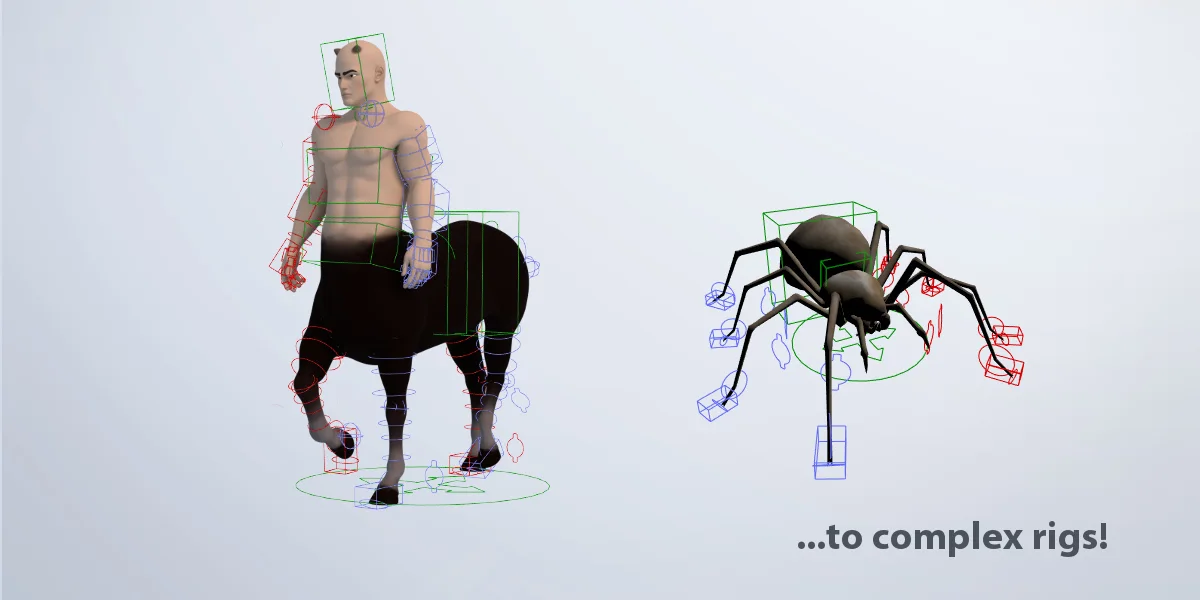 Product intro: centaur and spider rigs made with the modular rig. Auto-Rig Pro product page image (source: Superhive, made by Artell)
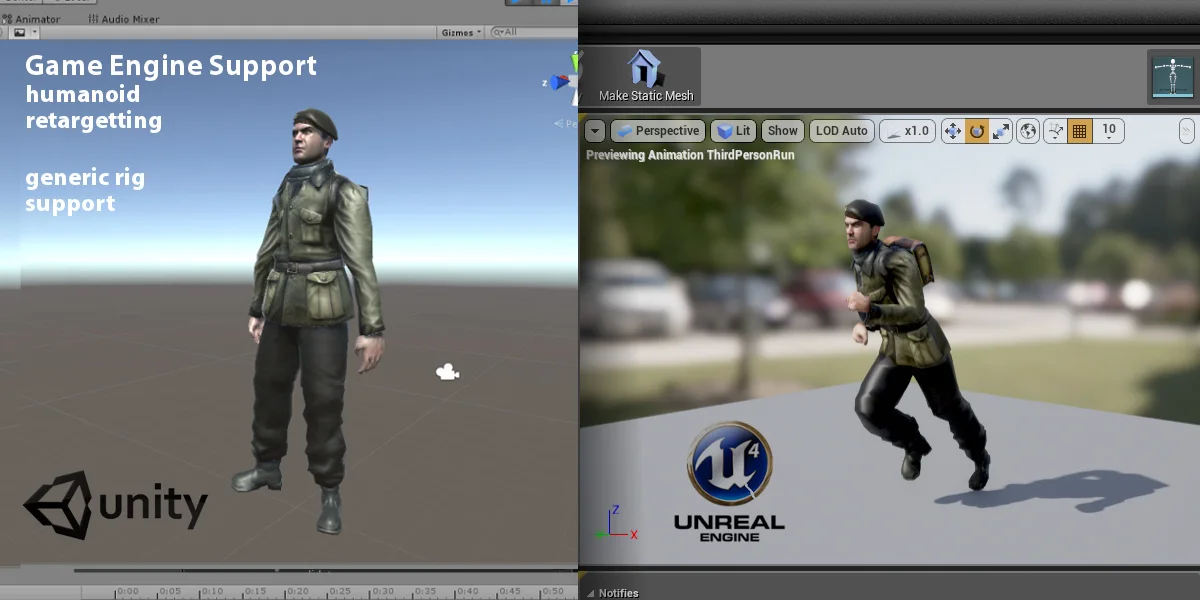 Product intro: a character exported to game engines. Auto-Rig Pro product page image (source: Superhive, made by Artell)
Preparation: animation files and the character
- Download the animation from Mixamo as FBX.
- In Blender, import it with File ‣ Import ‣ FBX (.fbx) (Legacy). The official ARP documentation recommends turning on Automatic Bone Orientation at this point (it makes retargeting easier). According to the Blender 5.2 manual, the default
FBX (.fbx)importer does not have this option; it is in the Armature section of the Legacy dialog (collapsed by default). In my test I imported with Legacy with this option off, and Remap still worked normally. - Set the location and rotation of both armature objects to 0 (
Alt+G,Alt+R). The official ARP documentation notes that errors can occur otherwise.
Where the Remap panel is
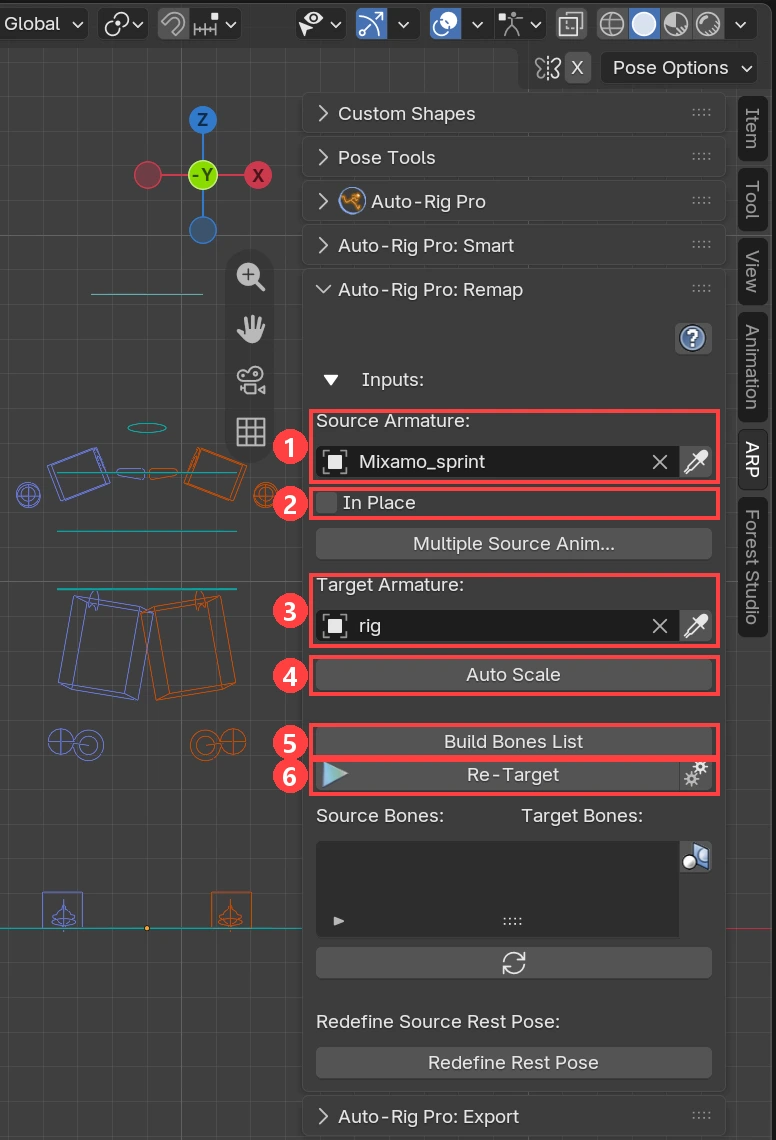 ARP tab ‣ Auto-Rig Pro: Remap panel. 1 Source Armature, 2 In Place, 3 Target Armature, 4 Auto Scale, 5 Build Bones List, 6 Re-Target (Blender screenshot)
In the sidebar on the right of the 3D Viewport (N key), click the ARP tab and you will find the Auto-Rig Pro: Remap panel. There is no separate "Remap tab". The fields are called Source Armature (the skeleton that gives the animation) and Target Armature (the skeleton that receives it). In Place and Auto Scale are in the Inputs group, and Build Bones List and Re-Target are below it.
The product page introduces Remap with the image below. See the Remap example on the product page(affiliate link)
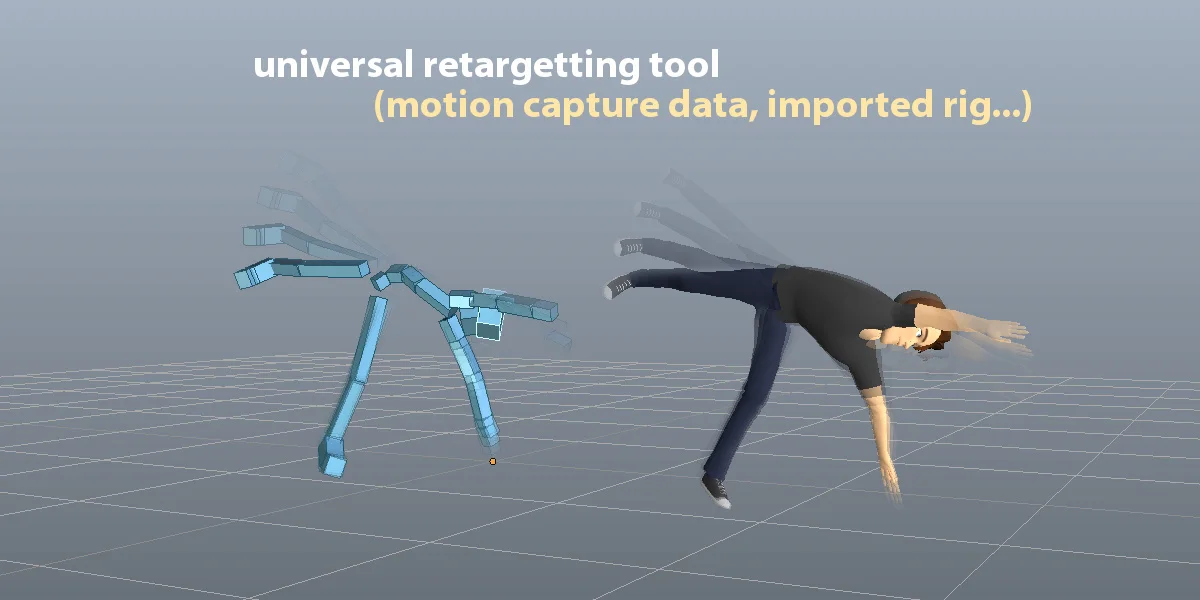 Product intro: retargeting a skeleton's animation to a character. Auto-Rig Pro product page image (source: Superhive, made by Artell)
Remap steps
This is the order I clicked in my test.
- Put the Mixamo skeleton in Source Armature and your character's skeleton in Target Armature.
- (Optional) To make a walk or run repeat in place, turn on In Place. I left it off in my test.
- Click Build Bones List to create the list of bone pairs. It guesses pairs from names, so it can be wrong.
- From the Mapping Presets ‣ Import menu below the list, choose a Mixamo preset. This menu becomes usable after you click Build Bones List.
- Match the size with Auto Scale.
- Click Re-Target to move the animation.
The official documentation explains Auto Scale first, but you can change the order.
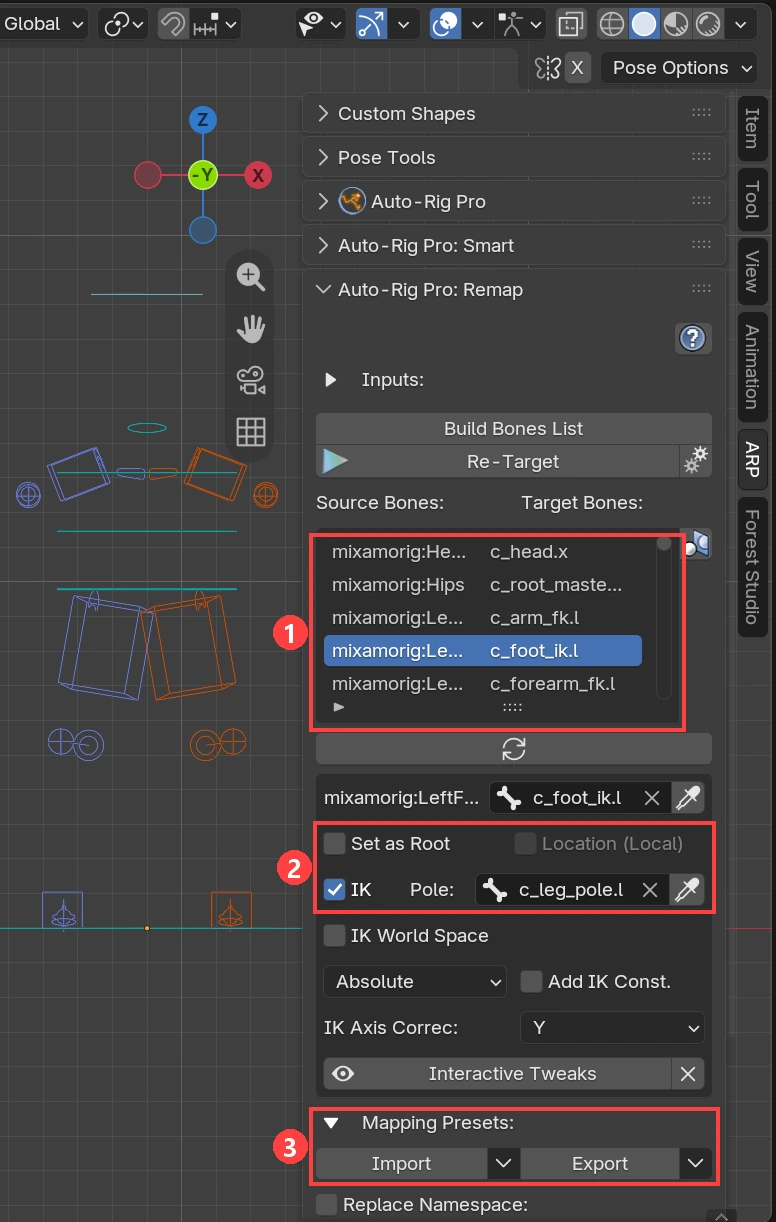 The bone pair list after importing the Mixamo (FK Arms, IK Legs) preset. 1 the list, 2 Set as Root, IK, and Pole, 3 the Import menu of Mapping Presets (Blender screenshot)
There are three Mixamo presets.
| Preset | Arms | Legs |
|---|---|---|
| Mixamo (FK Arms, IK Legs) | FK | IK |
| Mixamo (FK Arms, FK Legs) | FK | FK |
| Mixamo (IK Arms, IK Legs) | IK | IK |
I used the first one in my test. After importing the preset, mixamorig:Hips is linked to c_root_master and the foot bones to c_foot_ik, and bones with IK turned on also get a Pole field that sets the knee direction. Also check that Set as Root is marked on the hip bone. This mark is what carries over the movement and rotation of the whole body. According to the official documentation, the built-in presets are made for cases where the receiving skeleton is an ARP rig.
When the rest poses differ: Redefine Rest Pose
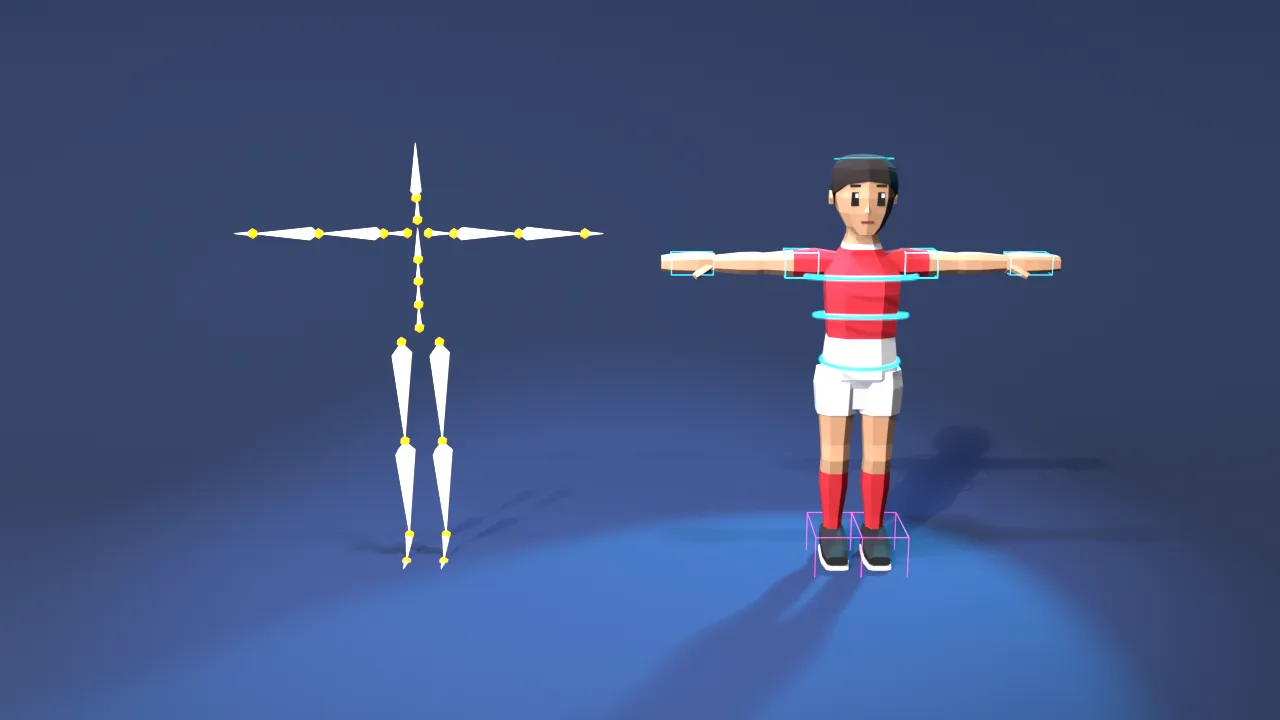 Left: the original Mixamo skeleton. Right: the test character with ARP controls. Both are in a T-pose, so there was no need to redefine the rest pose (Blender render)
If the rest poses differ, for example Mixamo in a T-pose and your character in an A-pose, the arms spread out or twist. In that case, use the buttons under Redefine Source Rest Pose at the bottom of the panel.
- Click Redefine Rest Pose.
- Select the bones that are off and click Copy Selected Bones Rotation.
- Finish with Apply.
My test character started from a Mixamo skeleton and was in a T-pose from the beginning, so I did not use this step. I did not test with an A-pose character.
What I found in testing
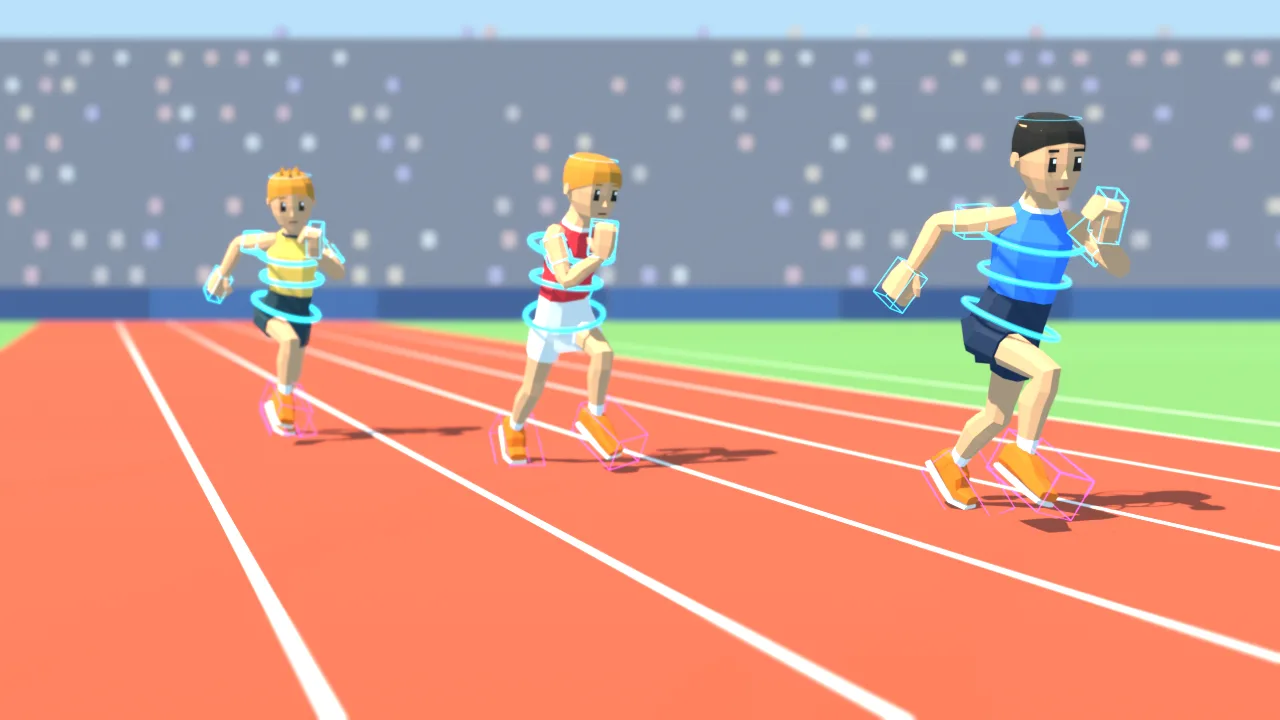 Three runners with the fast-run animation moved over (Blender render)
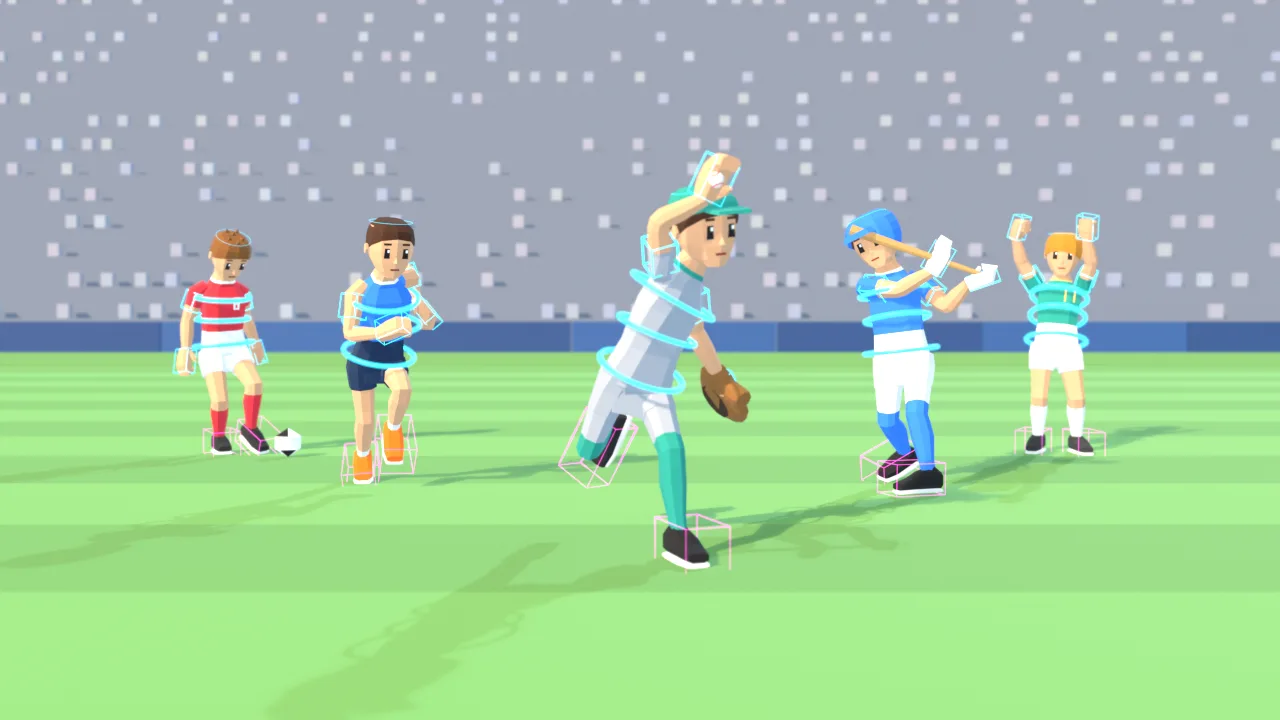 A scene with five Mixamo animations moved over (kick, sprint, pitch, batting, cheering) (Blender render)
- Retargeting time: 0.36 to 2.09 seconds per animation (on the test PC).
- Foot sliding remained. Comparing run, sprint, and pitch, the FK preset result was nearly the same as my own script that only copies bone rotations, and the IK preset did not reduce foot sliding either. Foot locking needs to be handled separately.
- Different spine bone counts: the default ARP human rig has two spine bones, so Mixamo's
Spine2is dropped. In the pitch animation, hand positions differed by up to 8.2 cm.
So for sports characters that use the Mixamo skeleton, I decided to keep my existing method plus foot locking, and to use ARP when rigging and animating characters that are not on the Mixamo skeleton (for example, a chibi character with a big head).
Common sticking points
| Symptom | Check first |
|---|---|
| The character faces backward or lies down | Whether both skeletons' location and rotation are 0, and Automatic Bone Orientation in the Legacy FBX importer |
| The Mixamo preset menu does not appear | Whether you clicked Build Bones List first |
| Arms spread out or twist | Rest pose difference → Redefine Rest Pose |
| Feet slide on the floor | Set as Root on the hips, IK on the foot bones. If it remains, handle foot locking separately |
| Bone pairs are empty | Name prefix differences such as mixamorig:, and Replace Namespace in the preset |
Product links
- Auto-Rig Pro product page(affiliate link): intro video, example images, supported versions, price
- Browse Superhive(affiliate link): other Blender add-ons and assets
- Blender add-ons I use: other tools I use
Affiliate links: if you buy through these links, AZTechnology earns a commission.
Sources
- Auto-Rig Pro product page (Superhive), features, supported versions, Lite/Full editions: https://superhivemarket.com/products/auto-rig-pro
- Auto-Rig Pro official documentation, Remap: https://www.lucky3d.fr/auto-rig-pro/doc/remap_doc.html
- Blender manual, FBX (Legacy): https://docs.blender.org/manual/en/latest/files/import_export/fbx_legacy.html
- Mixamo: https://www.mixamo.com/