Building Low-Poly Nature Scenes in Blender with Poly Nature
I tested the Poly Nature pack, with about 800 trees, bushes, grasses, and rocks, in Blender 5.2.1. This guide covers registering it in Asset Libraries, placing assets, changing seasonal colors, and wind animation, with real screens and results.
한국어English
This post contains affiliate links. If you buy through these links, AZTechnology earns a commission from the seller. (Affiliate and content policy)
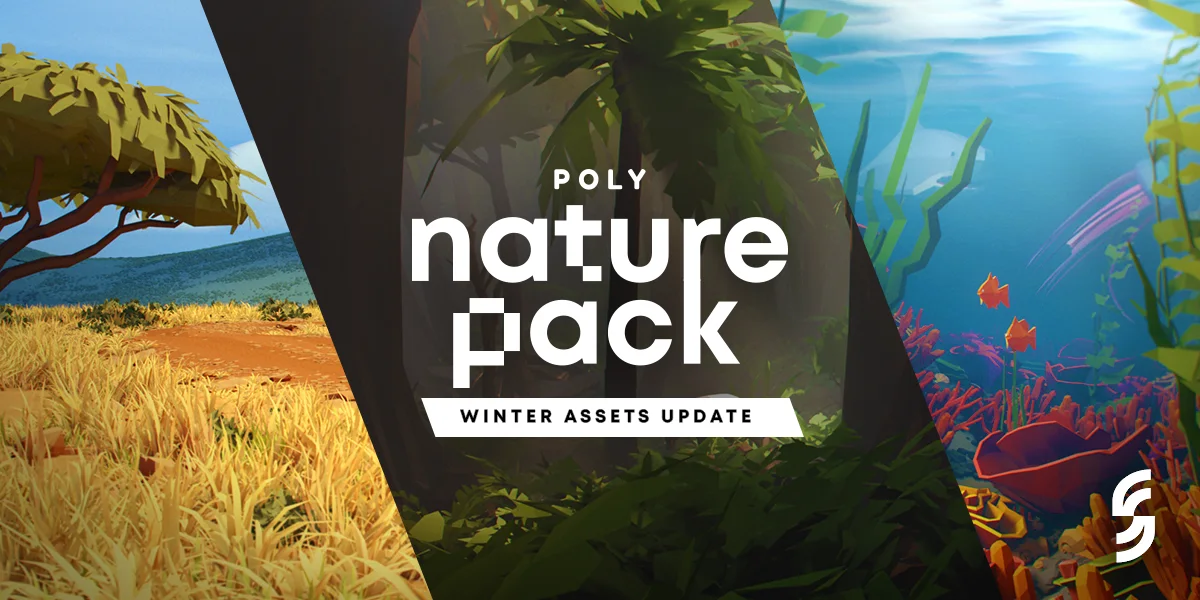 Poly Nature Pack product page main image (source: Superhive, made by Polyperfect & Pirogy Studios)
Pictures marked "product page image" are product images made by the seller. Pictures marked "Blender render" or "Blender screenshot" are screens from my own tests.
Poly Nature Pack is a nature asset pack for filling the backgrounds of low-poly scenes quickly. This guide covers how to dress a forest and a meadow with it. Based on my own tests in Blender 5.2.1, it covers registering the library, choosing the Import Method, placing assets, changing seasonal colors, turning on wind animation, and common sticking points.
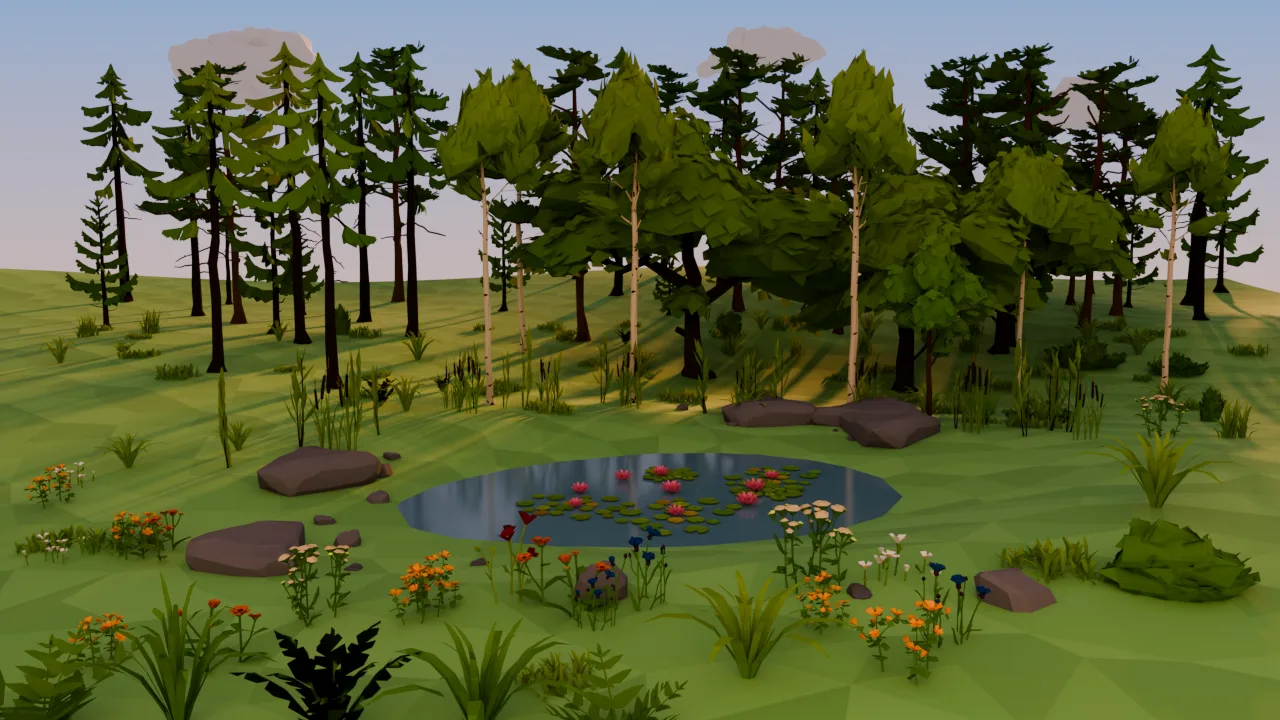 A forest dressed with Poly Nature assets. The trees, grass, flowers, and rocks are pack assets; the ground, pond water, and lighting I made myself (Blender render)
Product link: You can see the full asset overview and the intro video on the Poly Nature Pack product page (Superhive)(affiliate link).
Test setup
| Item | Details |
|---|---|
| Blender | 5.2.1 LTS |
| Poly Nature | 1.1.0 |
| Render | Cycles for the pictures; wind checked in both EEVEE and Cycles |
Poly Nature at a glance
Poly Nature Pack(affiliate link) is a nature asset pack made by Polyperfect and Pirogy Studios. The product page introduces it in this order.
- 824 nature assets: trees, grass, flowers, and rocks, plus ice, coral, and clouds. The knights and animals in the example pictures are not included.
- Thumbnails for the Asset Browser. Drag and drop them into any file.
- Trees come in four growth stages
- Wind animation (Blender 4.1 or later, experimental). Trunk, branches, and leaves are controlled separately.
- 55 biomes for Geo-Scatter (forest, jungle, ocean, savanna, desert, water surface, grassland). They need Biome-Reader (free) or Geo-Scatter (paid) separately; I did not test them in this guide.
- Material node groups that make colors easy to change
See example images for each item on the product page(affiliate link)
The supported versions on the product page are 4.0 to 5.0; I tested in the newer 5.2.1. Supported versions and prices may change, so check the product page.
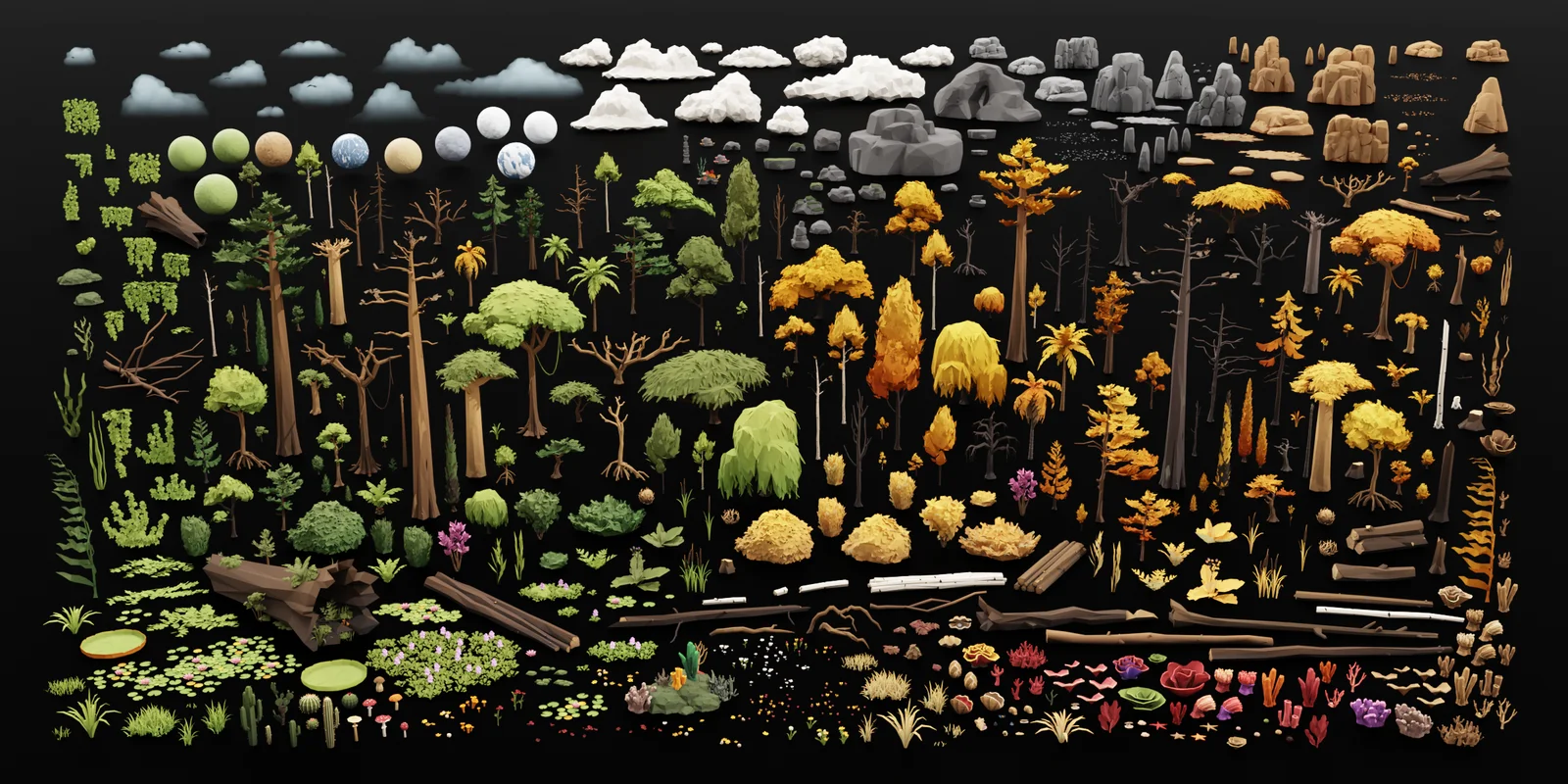 Product intro: the assets in the pack. Poly Nature Pack product page image (source: Superhive, made by Polyperfect & Pirogy Studios)
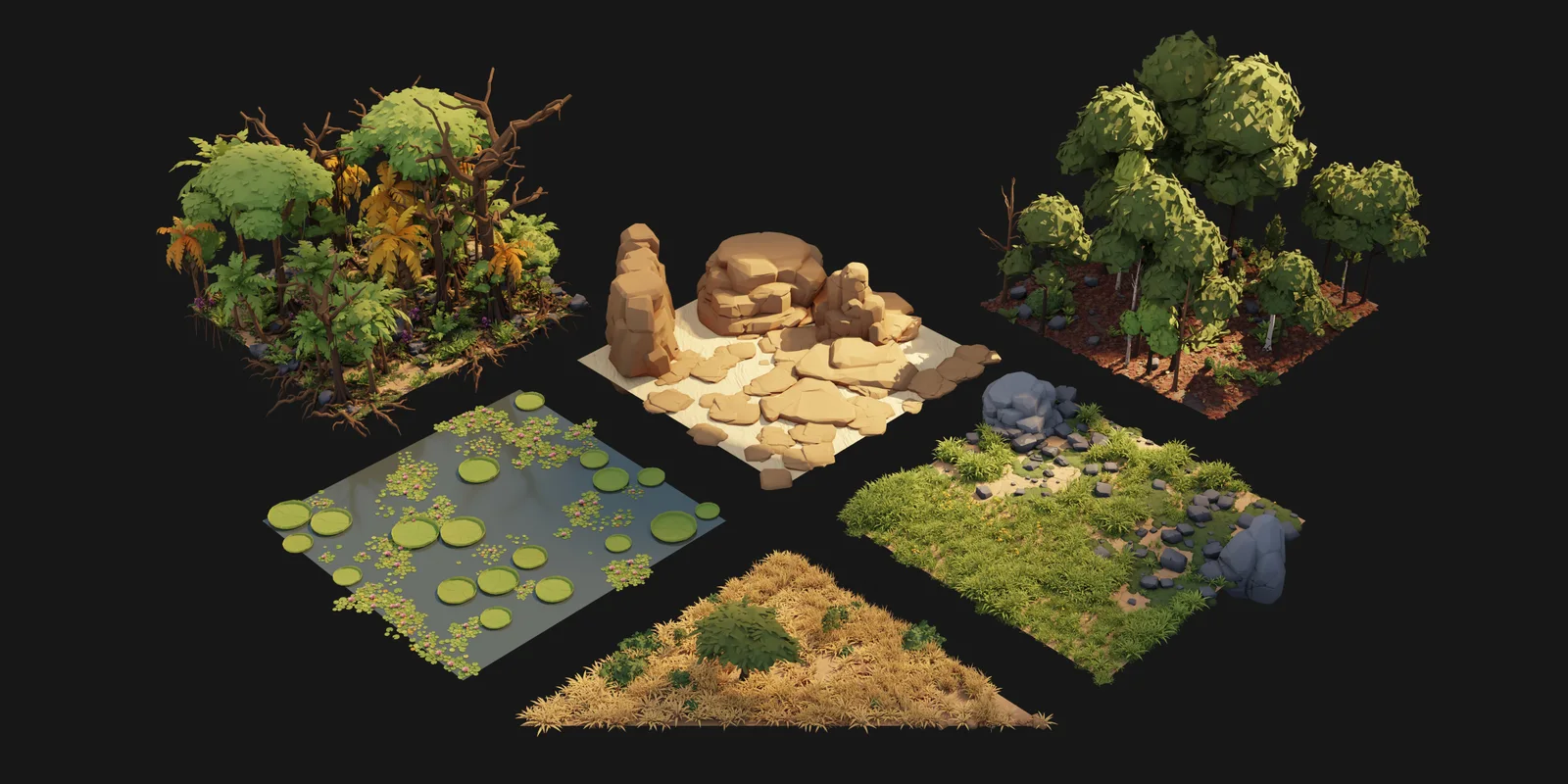 Product intro: example biome pieces. Poly Nature Pack product page image (source: Superhive, made by Polyperfect & Pirogy Studios)
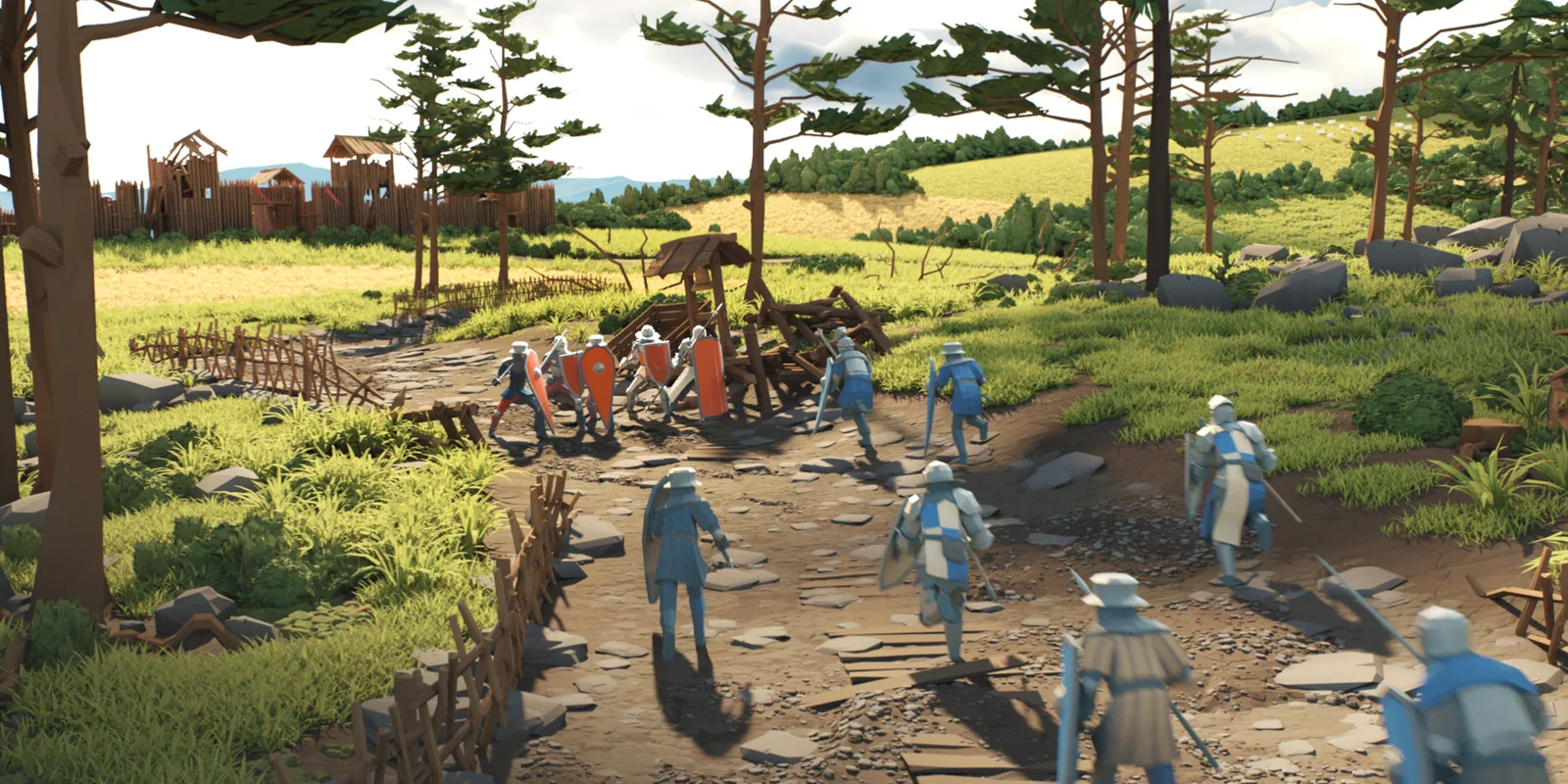 Product intro: an example meadow scene. The characters and props such as the fence and huts in the example are not included in the pack. Poly Nature Pack product page image (source: Superhive, made by Polyperfect & Pirogy Studios)
The downloaded folder contains asset .blend files of over 100 MB and a PDF manual. Sizes are in real meters: an adult oak is about 8.8 m and a sapling about 2.3 m.
An add-on is a program that adds new buttons and features to Blender, and an asset pack is a bundle of ready-made models and materials. If an add-on is a new tool, an asset pack is pre-cut material. That is why with Poly Nature, registering it in the Asset Browser matters more than installing.
Registering it as a library
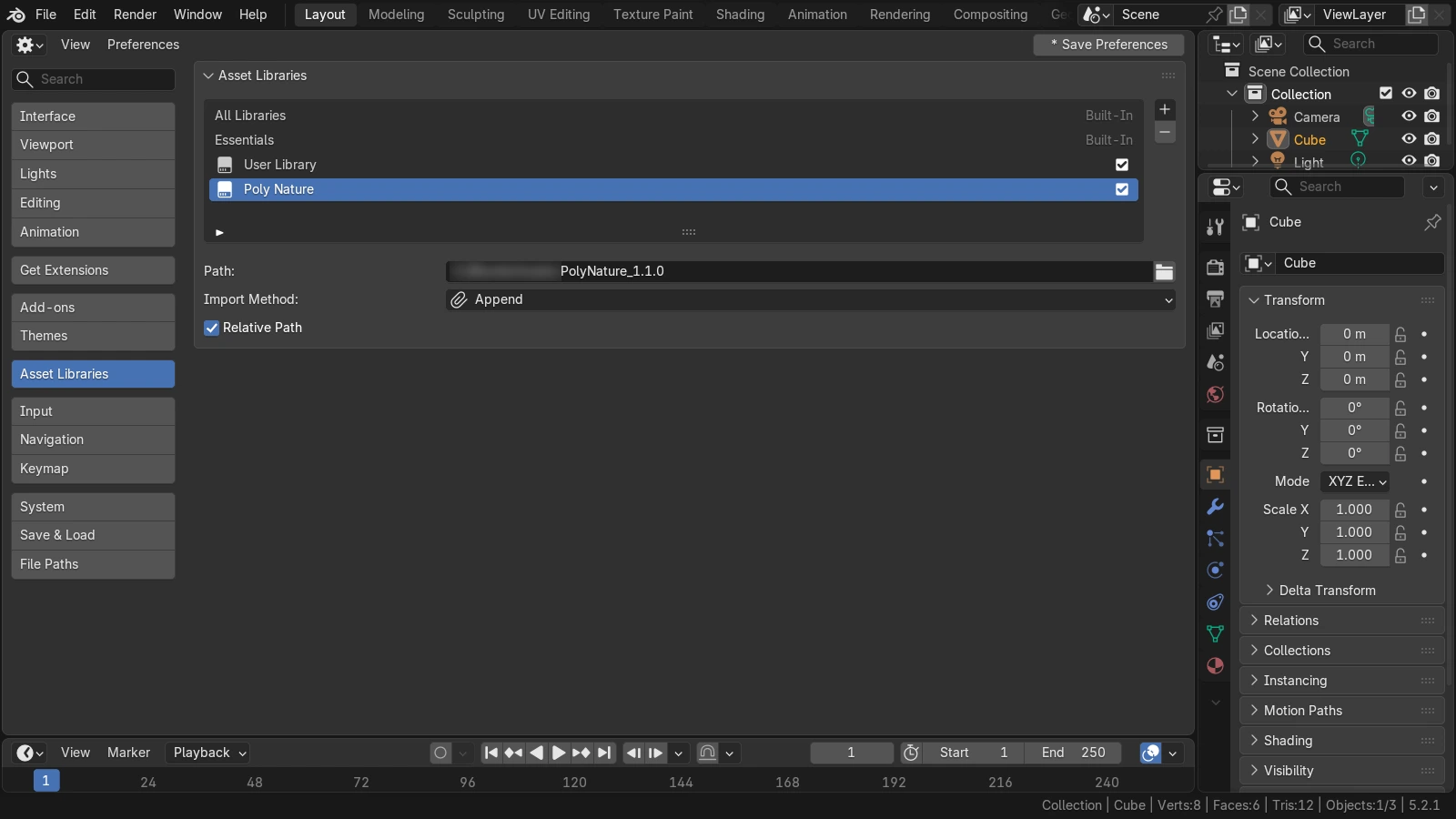 The Poly Nature folder added in Edit ‣ Preferences ‣ Asset Libraries with Import Method set to Append. The start of the path is hidden (Blender screenshot)
- Unpack the download on a drive with plenty of free space.
- Go to Edit ‣ Preferences ‣ Asset Libraries. In 5.2.1, Asset Libraries is its own entry in the list on the left, not inside File Paths. The pack's manual points to the old location (inside File Paths).
- Click
+to add a path. The manual says to choose the.blendfile, but in my test, pointing to the unpacked folder also showed the catalogs and thumbnails normally. - Choose the Import Method.
| Method | Blender manual description |
|---|---|
| Link | Only references the original file. It cannot be edited on the importing side |
| Append | Makes an independent copy. Importing the same asset again brings in new data |
| Pack | Links it, then packs it into the current file right away |
The default for a new library was Pack. The pack's manual recommends Append (Reuse Data) so data does not get duplicated. However, in the Blender 5.2.1 I tested, Append (Reuse Data) could not be set, so I used Append. Keep in mind that with Append, the same asset comes in as new data every time (see the table above).
Placing assets by drag and drop
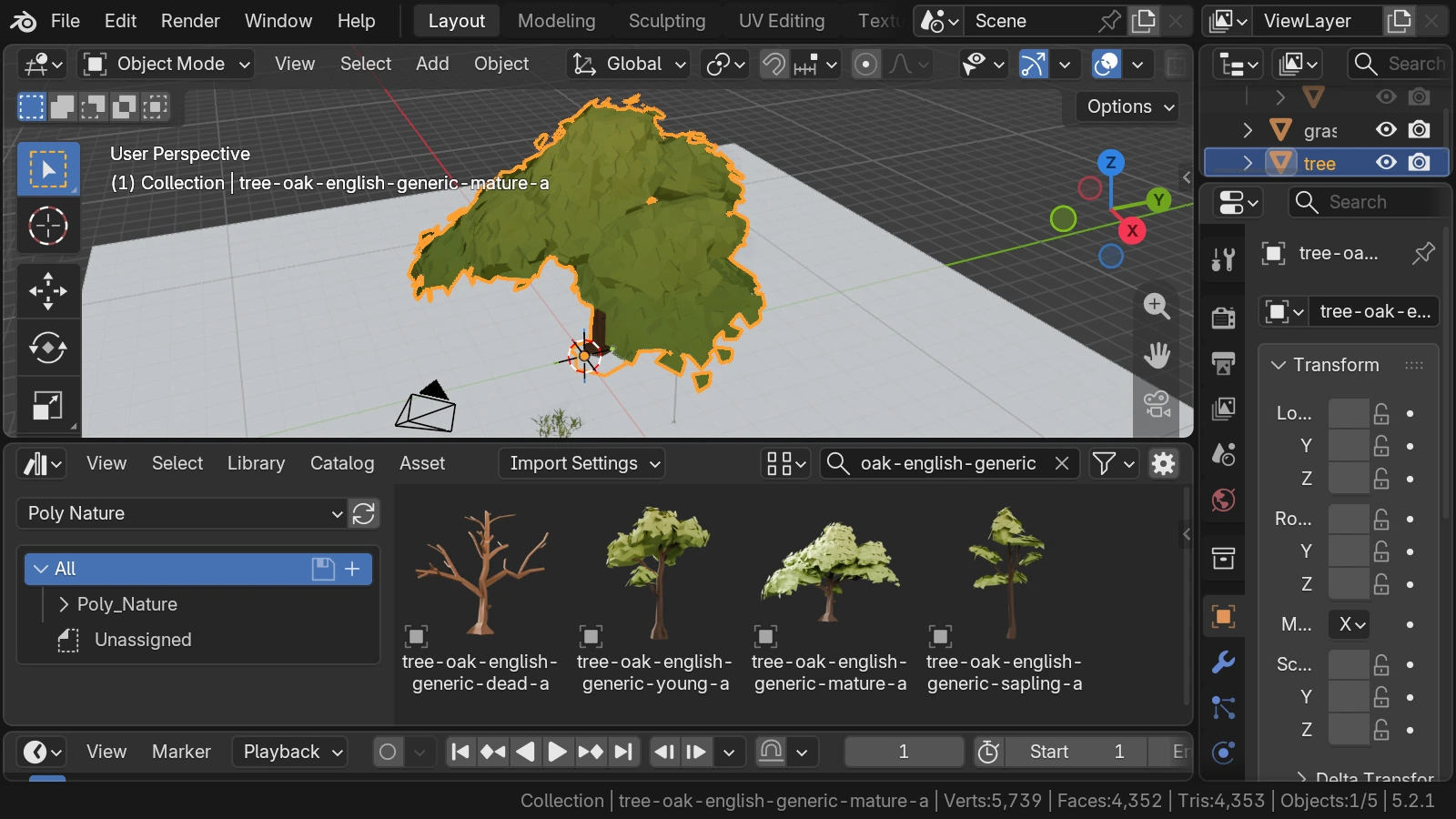 The thumbnail list and the result placed in the viewport. Searching oak-english-generic shows the dead, young, mature, and sapling versions of the same oak (Blender screenshot)
- Change one area of the screen to the Asset Browser and choose Poly Nature from the list at the top left.
- Type part of a name in the search box (for example
oak) to narrow it down. - Drag a thumbnail into the 3D Viewport.
The same tree has a separate model for each growth stage, so mixing saplings and adult trees makes the forest's age look natural. In the forest scene above, I mixed the back-row trees at 0.72 to 1.3 times their size so the tree heights don't look like one even line.
Changing colors
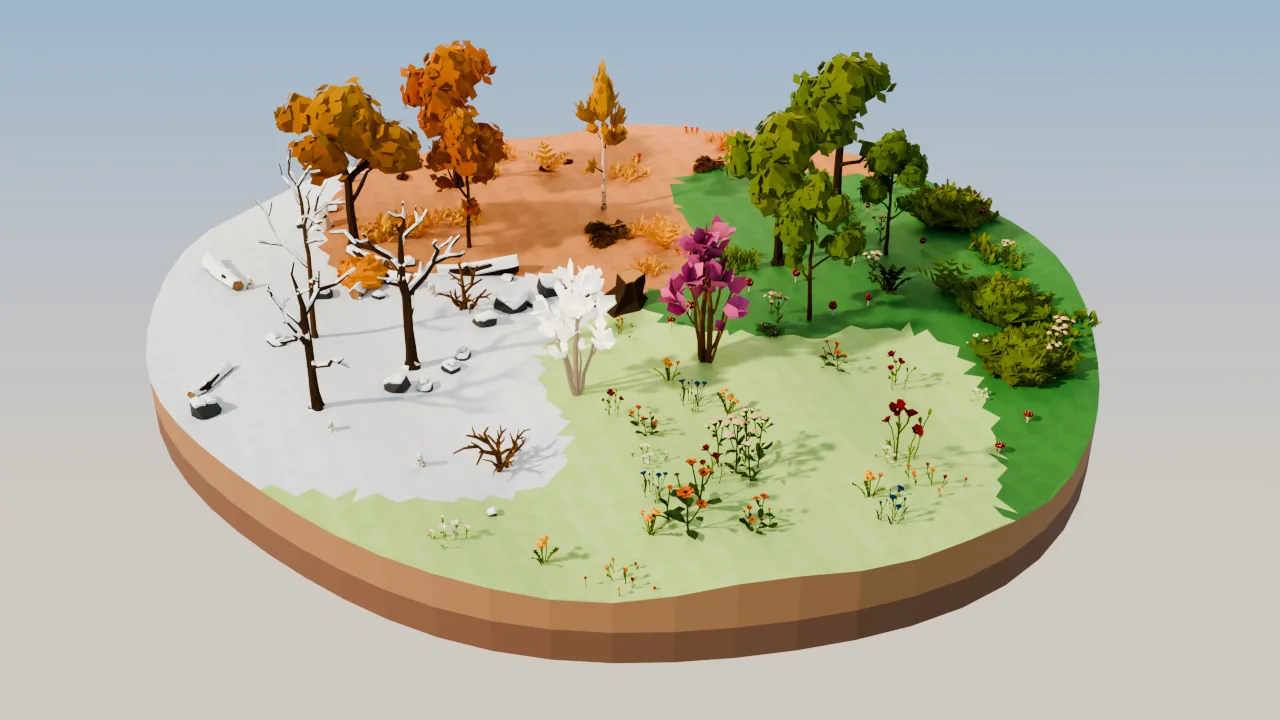 Four seasonal areas in one scene. The trees and bushes are pack assets; the white flowering tree of spring was made by changing the color of the magnolia material, and I painted the ground colors myself (Blender render)
There were two ways to change colors.
- Choose a seasonal model: most trees, bushes, and grasses have
generic(summer),dry(autumn colors), andsnow(snow) versions. The autumn and winter trees in the picture above are these models. There is no spring version, so I showed the spring area with flowering trees. - Swap material variants: the pack includes color variants of the same material. Leaves are
PolyFoliage_v01_AtoD(light green, olive, dark green, autumn orange), and tree trunks and rocks arePolyShader_v15_AtoF. Change the object's material slot to another variant.
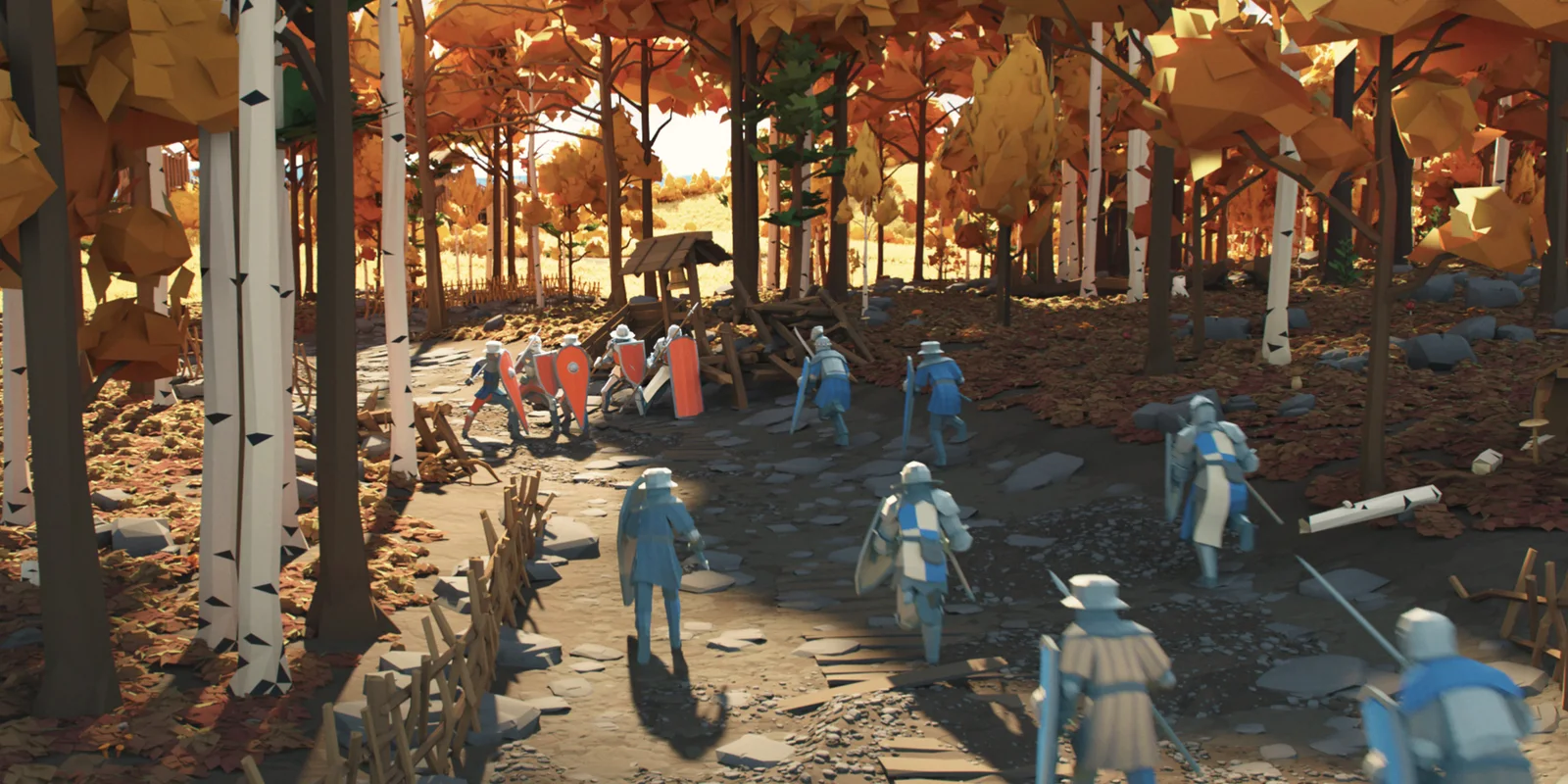 Product intro: an example autumn forest scene. The characters and props such as the fence and huts in the example are not included in the pack. Poly Nature Pack product page image (source: Superhive, made by Polyperfect & Pirogy Studios)
When first imported, the leaves looked dark olive and the rocks almost black. This is because the leaf material's default Custom Color mixes in 20% of a near-black color. For bright scenes, I switched the leaves to A (light green) and the rocks to B.
Plants that sway in the wind
A grass and mushroom scene with wind on, 2-second video Wind on, 2-second video. To make the difference easy to see, the wind strength was raised to 6 (outside the manual's range of -1 to 1) (Blender render)
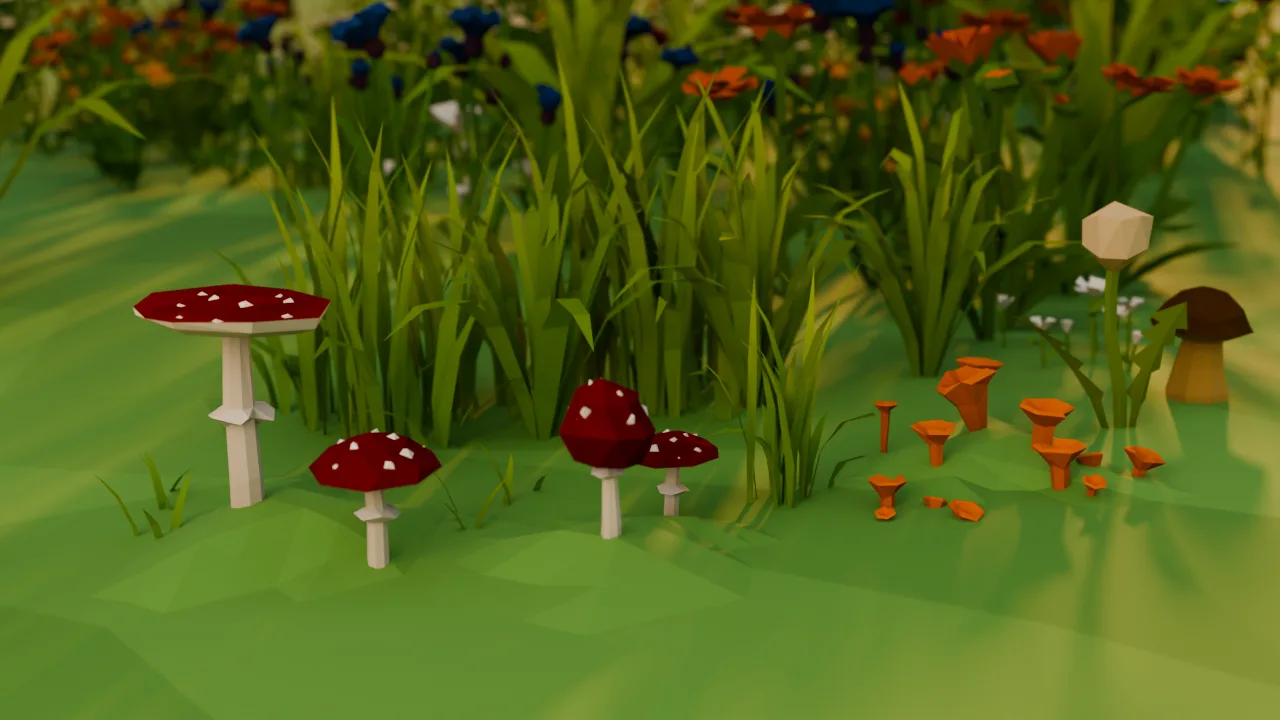 Wind off (Blender render)
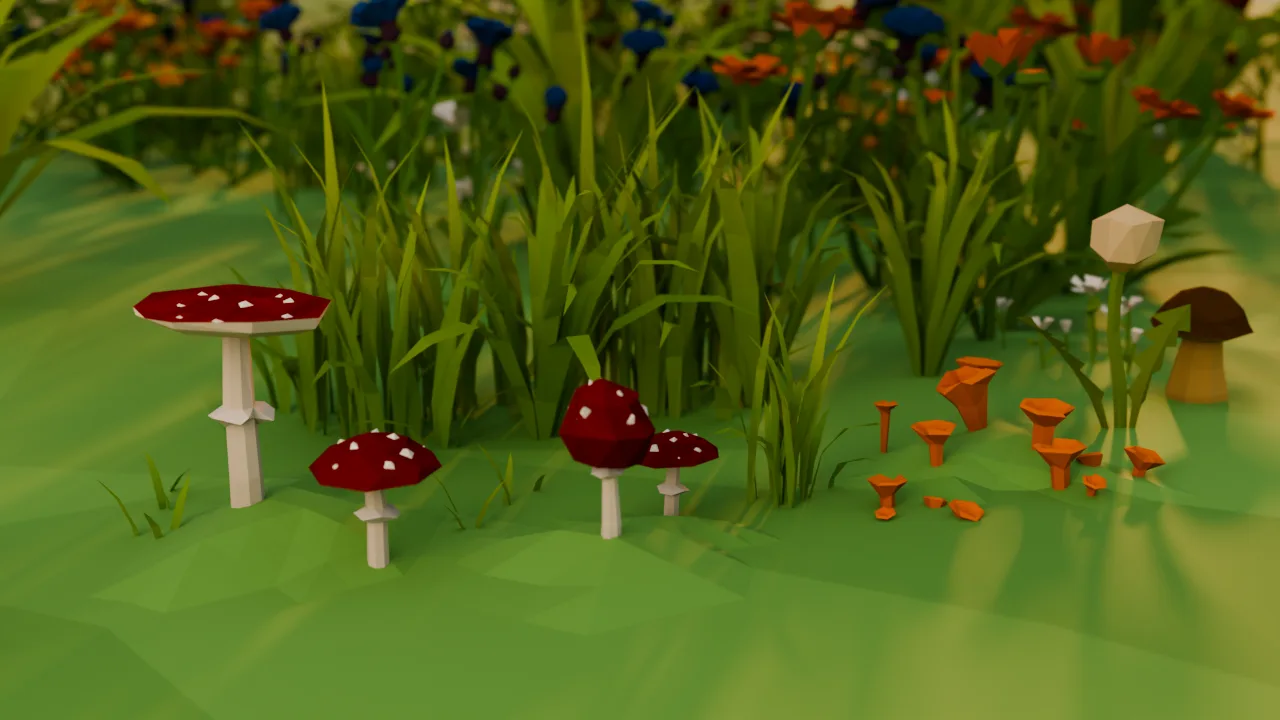 Wind on (strength 6, outside the range): in the same frame 16, the grass blades in the middle lean to the right (Blender render)
The product page introduces wind animation under Animated Wind. See the wind section on the product page(affiliate link)
Wind works through materials whose names end in _Wind, which move the shape. The steps from the manual are:
- Check that the plant has a
_Windmaterial. If it doesn't need to sway, switch to a material without_Wind. - In the World properties' Custom Properties, create
Wind_Master_Str_Mod(overall strength, float -1 to 1),Wind_Dir(direction, float XYZ 0 to 1), andPolyWind_Off(integer 0 or 1; 1 turns it off) with exactly these names and types. The manual says it will not work if a name or type is wrong. - Play the timeline or render to check.
The manual says it works in Cycles and may work in EEVEE, but in my test it moved in both EEVEE and Cycles in 5.2.1. Strength -1 means no effect (off), and 1 is the maximum. In my first test at 1 it did move, but the difference was barely visible in a still image. The 6 in the video above is outside the range, so in real work I recommend adjusting within the range.
Common sticking points
| Symptom | Check first |
|---|---|
| Nothing shows in the Asset Browser | The library path, and whether you chose Poly Nature at the top left |
| Append (Reuse Data) can't be selected | In my 5.2.1 test I used Append instead |
| Leaves are dark and rocks nearly black | Switch material variants (A to F) |
| Orange specks on snowy conifers | The leaf variant default is D (autumn orange) → change to C |
| The wind doesn't move | Whether it is a _Wind material, the PolyWind_Off value, the property names and types |
Materials and images multiply as .001 (when importing in parts with a script) | Merge duplicate materials. In my test: 450 images, 3.2 GB → 22 images, 0.92 GB |
Product links
- Poly Nature Pack product page(affiliate link): intro video, example images, supported versions, price
- Browse Superhive(affiliate link): other Blender add-ons and assets
- Blender add-ons I use: other tools I use
Affiliate links: if you buy through these links, AZTechnology earns a commission.
Sources
- Poly Nature Pack product page (Superhive), contents, supported versions, wind animation: https://superhivemarket.com/products/poly-nature-pack-animated-stylized-pack
- Poly Nature Pack 1.1.0 manual (PDF included in the pack): Asset Browser, materials, and animation chapters
- Blender manual, Asset Libraries: https://docs.blender.org/manual/en/latest/editors/preferences/asset_libraries.html
- Blender manual, Asset Browser: https://docs.blender.org/manual/en/latest/editors/asset_browser.html