AI and Blender: Start Small and Work Together
When you hand Blender work to an AI, split the job, read before running, check with a picture and numbers, and save with version numbers. This guide walks through that order with a real production example.
한국어English
ON THIS PAGE
- 011. How an AI drives Blender: Python scripts
- 022. One sentence for the goal, one page for the request
- 033. One thing at a time: shape, material, light, camera
- 044. What to look at before running: reading a script
- 055. Make a way back: copies and numbered saves
- 066. Checking the result: one picture and numbers
- 077. A real example: making a 15-second video with scripts
- 088. Keep a record: what changed, what was measured, what wasn't done
- 099. Common mistakes and fixes
- 10Summary
- 11Further reading
- 12References
Based on: Blender 5.2 LTS (English interface, default keymap). The AI tool in the examples is Claude Code.
If you ask an AI to "make a great scene" in one go and you don't like the result, you can't tell what went wrong. That is why you need an order: split the work into small pieces, read before you run, check with your eyes and with numbers, and save so you can go back.
This guide does not teach how to install a particular AI tool or how to write Python. The examples use Claude Code, but the order is the same whatever tool you use. I explain it together with the method I actually used to make a 15-second video.
1. How an AI drives Blender: Python scripts
In the method covered here, the AI does not click around the Blender window with a mouse. It writes a Python script instead. A script is like a recipe card. It lists what to do in order, such as "place a cylinder, then place a cube on top", and Blender reads it and follows it step by step.
According to the Blender manual, Python scripts can control most of Blender: creating objects, animation, rendering, import and export, and automating repeated tasks.
There are two main ways a script gets into Blender.
| Route | How | Who runs it |
|---|---|---|
| Paste | Paste the AI's script into Blender's Text Editor and press Run Script (Alt+P) | You |
| The tool runs it | The AI tool starts Blender from the command line, or connects to a running Blender through MCP | The AI tool |
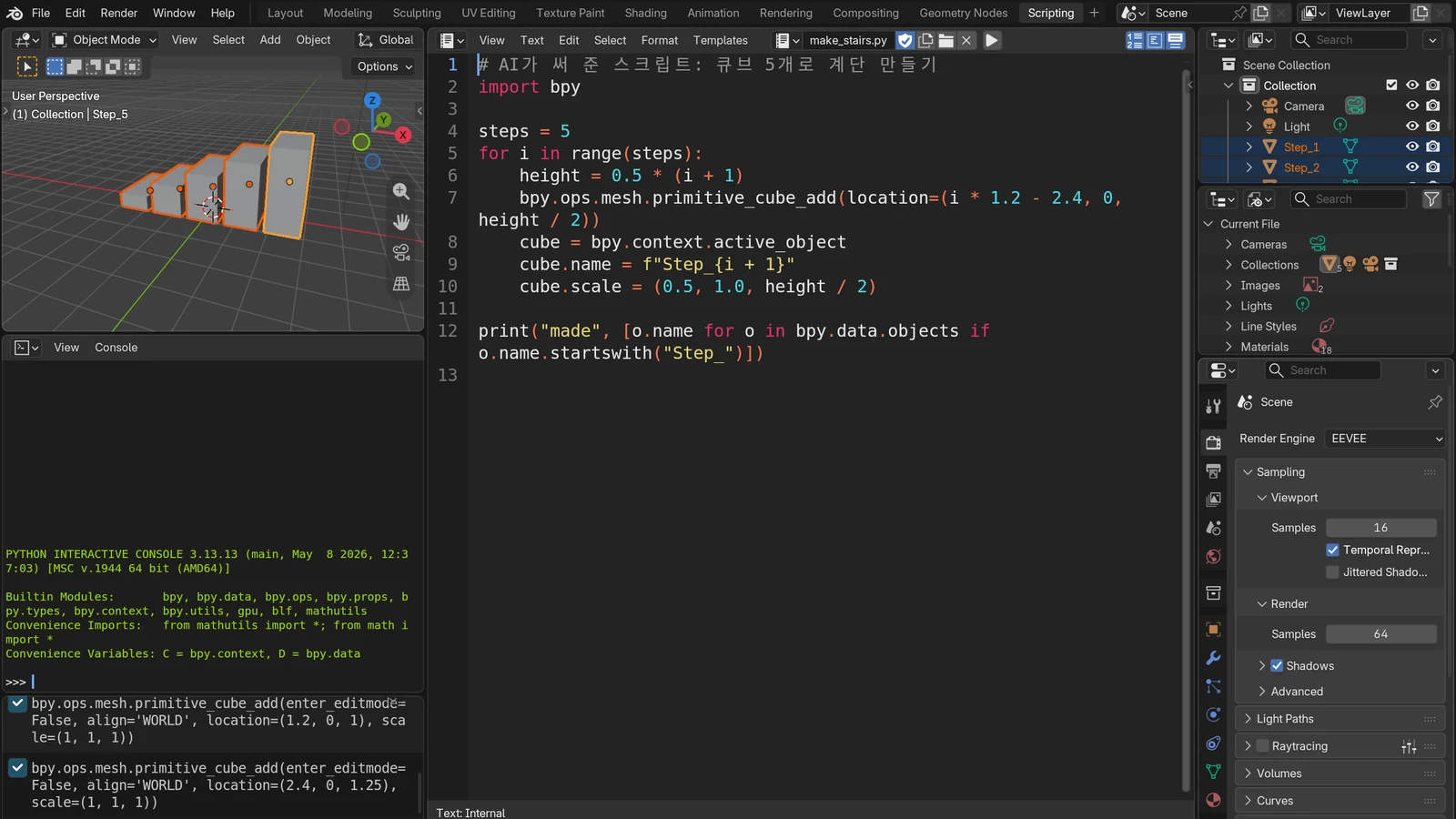
The Scripting workspace (tab at the top of Blender) puts the Text Editor, where you write scripts, next to the Python Console, where you test short bits of code right away. The paste route happens on this screen.
MCP is an open standard that connects AI apps to outside programs. The official introduction compares MCP to a USB-C port, and one of its examples of what it enables is an AI creating 3D designs in Blender.
Either way, the key point is the same. What the AI is about to do is written down as text, so you can read it before it runs.
2. One sentence for the goal, one page for the request
First, write what you want to make in one sentence. For example: "One picture of a single object on a stand, shot from the front by the camera."
Next comes the request. Anthropic's prompting guidance says that if a colleague with little context would be confused by your instructions, the AI will be too. So write it like a work note you would hand to a colleague. The "AI task request template" on the Resources page (the template is in Korean) has fields to fill in, and filling them gives you something like this.
[Goal]
Put one cube on a stand (a flat cylinder). This step makes the shapes only.

[Current state]
Blender 5.2, new file. The default cube is deleted; only the camera and light remain.

[Change]
1. Place the stand on the floor at the center of the scene.
2. Place the cube directly on top of the stand, touching it.

[Keep]
Do not touch the camera or the light. Do not save or delete files.

[Constraints]
Use only built-in features, no add-ons.

[How to check]
Tell me, as numbers, whether the bottom of the cube and the top of the stand are at the same height.

[Before running]
Before running, explain what you will create and what you will delete.
Each field has a reason.
- Without "Keep", the AI cannot know what it must not touch.
- Without "How to check", the AI just answers "Done."
- "Before running" buys you time to read the script in section 4.
The official guides say the same thing: give specific context, say what to do rather than what not to do, and explain why.
3. One thing at a time: shape, material, light, camera
Split requests into "the smallest unit whose result you can check by eye."
| Step | What to ask for | What to check yourself |
|---|---|---|
| Shape | Place the object and the stand | Size, whether they touch, whether they overlap |
| Material | Separate the colors of the subject and the background | Whether the subject stands out from the background |
| Light | Place light that shows the form | Shadow direction, not too dark or too bright |
| Camera | Frame the subject | Anything cut off, the margin around it |
If you ask for all four at once and the picture comes out dark, you can't tell whether the cause is the material, the light, or the camera. If you do them one at a time, the thing you just changed is the cause.
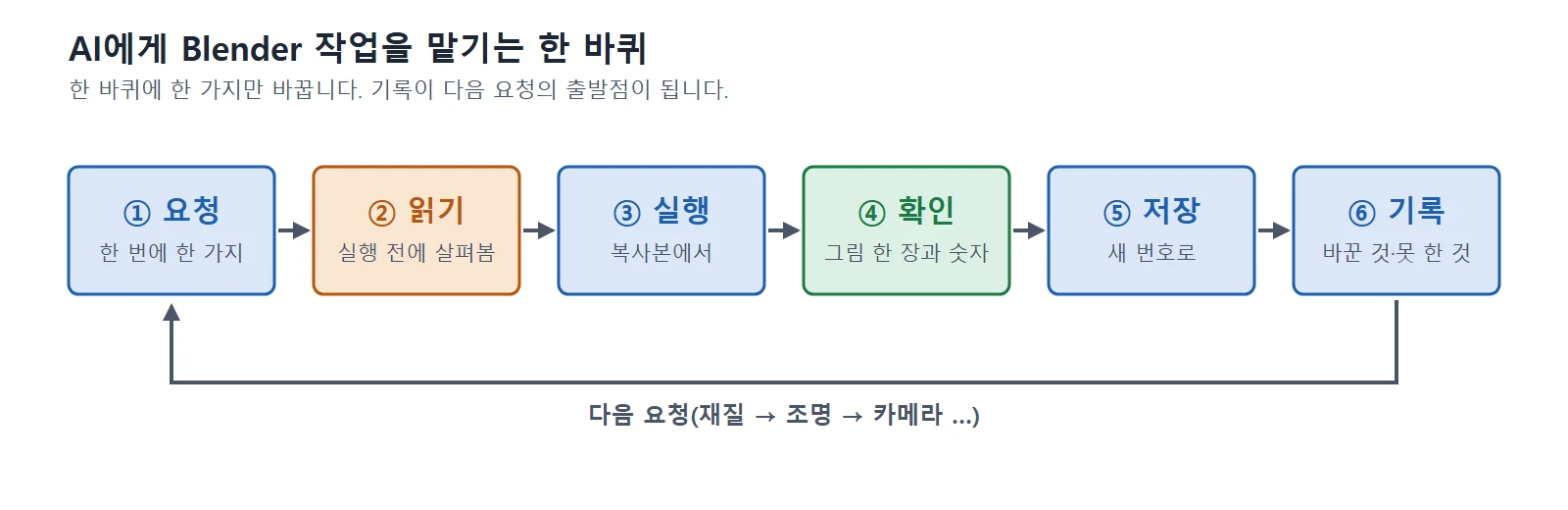 Figure 1. One loop for each step. You go around once for shape, then once more for material (diagram, labels in Korean)
Claude Code's official recommendations are similar: explore first, plan, then implement. They add that small, clearly scoped tasks can be done directly without a plan. The smaller you split the work, the more tasks you can just hand over.
4. What to look at before running: reading a script
The security chapter of the Blender manual warns that Python does not limit what a script can do, so you should only run scripts from sources you know and trust. Read AI-written scripts before you run them too.
You don't need to know code. Below is a script an AI might write for the request in section 2.
import bpy

# Stand: a flat cylinder
bpy.ops.mesh.primitive_cylinder_add(radius=1.0, depth=0.2, location=(0, 0, 0.1))

# Subject: a cube on the stand
bpy.ops.mesh.primitive_cube_add(size=0.8, location=(0, 0, 0.6))
Lines that start with # are notes for people. The other two lines say "add a cylinder" and "add a cube". Just reading the English words gives you a good idea of what they do.
When you read, look for three things first.
| Look for | Words that stand out | If you see them |
|---|---|---|
| Lines that delete | delete, remove | Ask the AI what it deletes |
| Lines that save or overwrite | save | Check which file it saves to |
| Lines that fetch from outside | Web addresses (http) | Ask what it downloads and why |
If you see any of these, ask before running. But these three are not the whole list, and a script without them is not automatically safe. If there is a line you don't understand, ask the AI what it does before you run it.
The script above has none of the three, and both lines add objects. Even so, run scripts in a file you have already saved, or in a copy.
Starting state: Start from a new file (File ‣ New ‣ General) that you have already saved with Ctrl+S.
Follow along:
- In the 3D Viewport, left-click the default cube to select it and press
X. If a small confirmation menu appears, click Delete. This matches the "Current state" in the request. - In the workspace tabs at the very top of Blender, click Scripting.
- In the Text Editor header, click New to create an empty text, then paste the script above.
- With the mouse over the Text Editor, press
Alt+P(Run Script). A stand appears in the 3D Viewport with a cube sitting on it.
With this script, the top of the stand and the bottom of the cube are both at 0.2 m. That is the number the "How to check" field in section 2 asks for.
After running, look at the Info editor. In the Scripting workspace, the bottom-left area is the Info editor. It logs the commands that ran, along with errors and warnings, so you can check afterwards what just happened. It also works the other way: if you want to know which command a button runs, hover over the button and press Ctrl+C. The command that button runs is copied.
The execution prompt when you open a .blend file: Automatic execution of scripts stored inside a .blend is off by default. When you open such a file, a prompt asks you to choose Allow Execution or Ignore. If you don't know where the file came from, choose Ignore. Note that pressing Run Script yourself in the Text Editor runs the script regardless of this setting, because you chose to run it.
5. Make a way back: copies and numbered saves
When hiking, if you tie a ribbon at every fork, you can always walk back to the last ribbon when you get lost. Numbered saves are those ribbons.
- Start from a copy. Leave the original .blend alone and work in a copy.
- Save with a new number at the end of each step. Save Incremental (
Ctrl+Alt+S) saves a new file with the number at the end of the name raised by one, and does not overwrite the previous file. It only works in a file that has been saved once. When the shape is done you have_v01; when the material is done you have_v02. - Number your scripts too. You can only go back to a step if you know which script made which file.
Blender also has an undo history (Edit ‣ Undo History). But don't rely on undo alone to reverse what a script did. Make numbered saves your default.
The same applies to the AI tool's own undo. Claude Code has a checkpoint feature that automatically records the files it edits and lets you roll them back. Of the limits listed in the official docs, three matter for this guide:
- Changes made by Bash commands are not tracked.
- Changes made outside the session are not tracked.
- It is not a replacement for version control.
A .blend file or rendered image created when the AI tool runs Blender through a command counts as "changed by a command". So you need to save numbered .blend files yourself.
If you worry that the AI tool will run things without asking, check the permission mode. Claude Code has a mode that asks for permission before editing files and running commands, and a read-only plan mode; you switch with Shift+Tab. The default mode differs between versions, so check the current mode in the indicator at the bottom of the screen.
6. Checking the result: one picture and numbers
Even when the AI answers "Done", that is not a check. Claude Code's official recommendations also say to give the AI a way to verify its own work and to have it show evidence instead of saying "it worked". There are two kinds of evidence.
6-1. One picture
- View ‣ Render Viewport Preview in the 3D Viewport header turns the current view into a single image. To see it from the camera, press numpad
0first. For motion, use Render Playblast in the same menu. According to the manual, both work only with the Workbench and EEVEE render engines; Cycles is not supported. - When you check with a real render, lower Resolution % in the Output tab. You get a small image with the same aspect ratio as the final, quickly.
6-2. Numbers
A picture misses some things. It is hard to see from a picture whether the cube really touches the stand or floats 1 mm above it. For this, ask the AI to measure and report numbers. A script can read the data in the file, so it can read positions and sizes directly.
Put sentences like these in the request.
- "Tell me the height of the cube's bottom and the height of the stand's top as numbers."
- "Save one image from the camera view and tell me the file path."
- "If you could not check something, say that you could not check it."
7. A real example: making a 15-second video with scripts
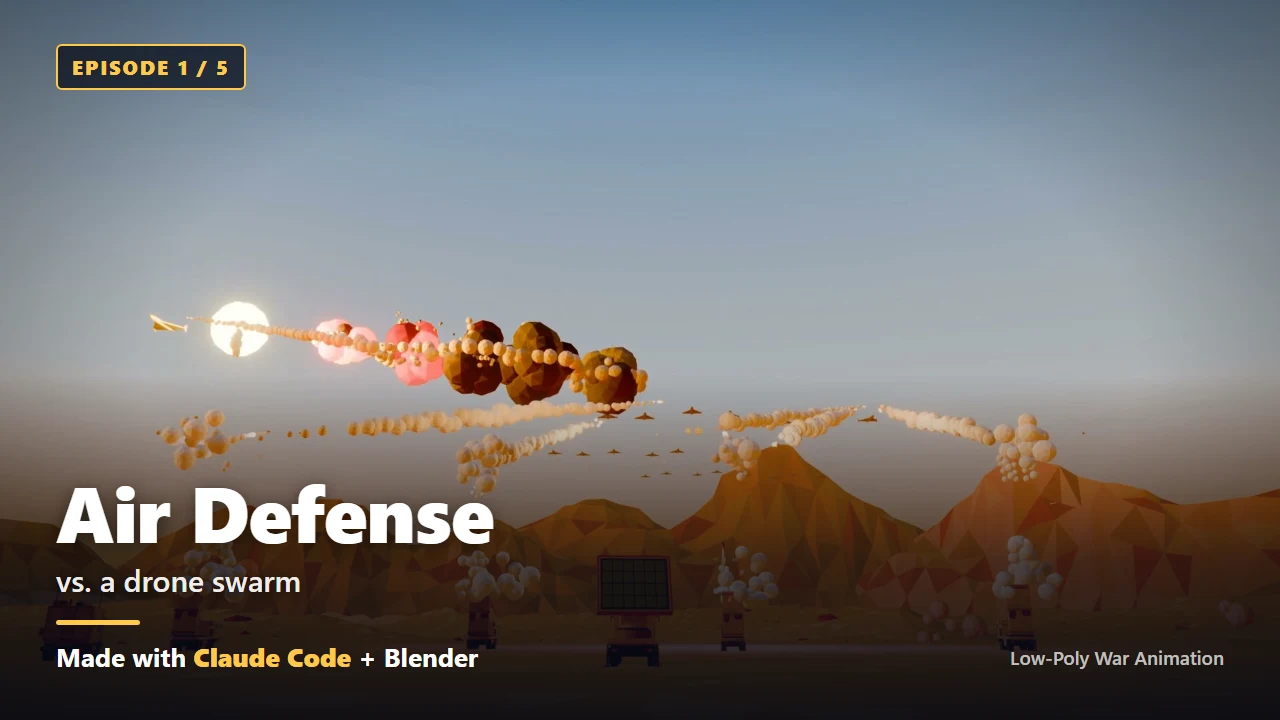
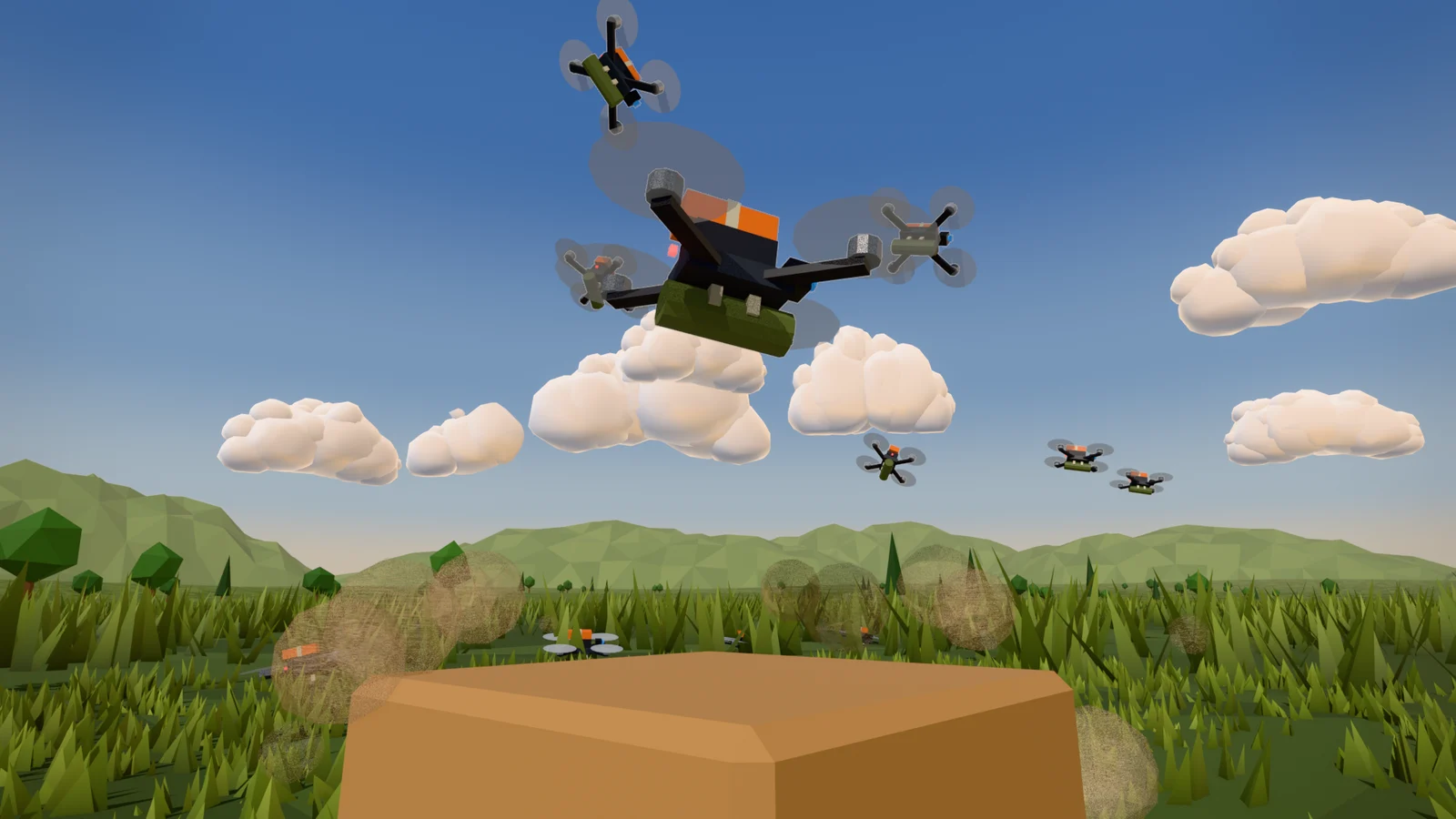
The order above is what I actually used when making a 15-second low-poly video. A small drone lifts off from a grass field and flies away. The picture at the top of this guide is a frame from a version of the same scene with more drones. Every scene was built with scripts written together with an AI.
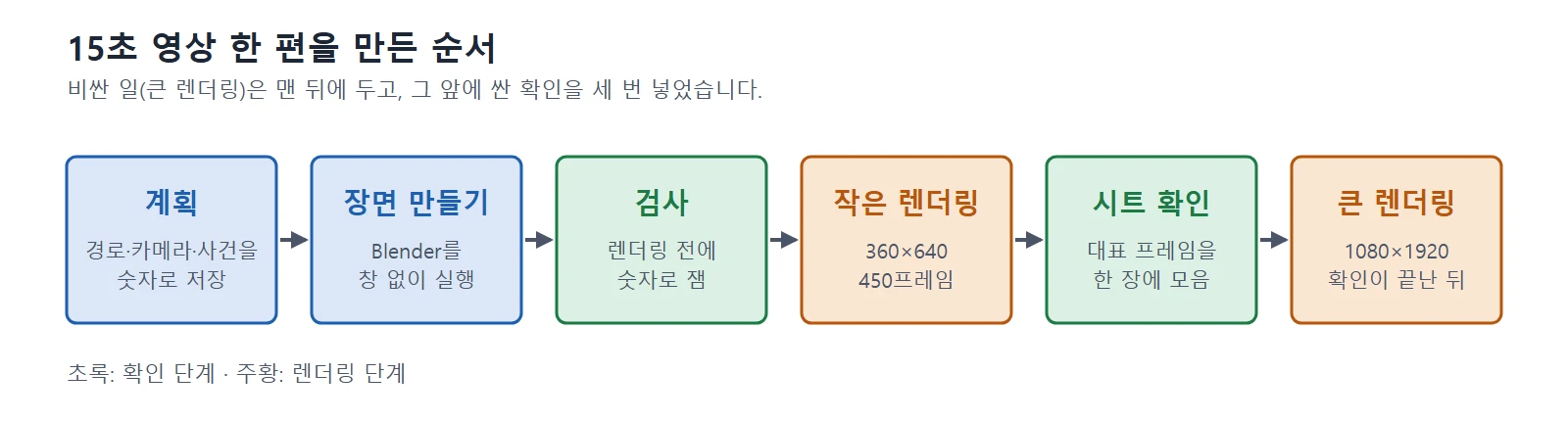 Figure 2. The order used for the 15-second video. Green boxes are checks, orange boxes are renders. The small render is also a check before the full render (diagram, labels in Korean)
| Step | What I did | Section of this guide |
|---|---|---|
| Plan | Wrote the drone path, the camera, and the frames where events happen as numbers and saved them to a file | Section 2 (write the goal first) |
| Build scene | Read those numbers and ran Blender from the command line with no window | Section 1 (the tool runs it) |
| Inspect | Measured with numbers before rendering | Section 6-2 |
| Small render | 450 frames at 360×640. Took 107 seconds on my PC | Section 6-1 |
| Sheet check | Gathered key frames onto one sheet | Section 6-1 |
| Full render | 1080×1920, only after the checks were done |
I split the work into several scripts instead of one: planning, scene building, sound, and post-processing are separate. That is "one thing at a time" from section 3, applied to scripts.
Here is what the inspection step measured.
- Whether objects pass through each other. The closest distance was 0.90 m.
- The number of frames in which the camera went under the ground. It was 0.
- How many times the drone path bobbed up and down.
The results were saved to a file. I also added a separate option that only counts the scene's vertices (the corner points) without rendering.
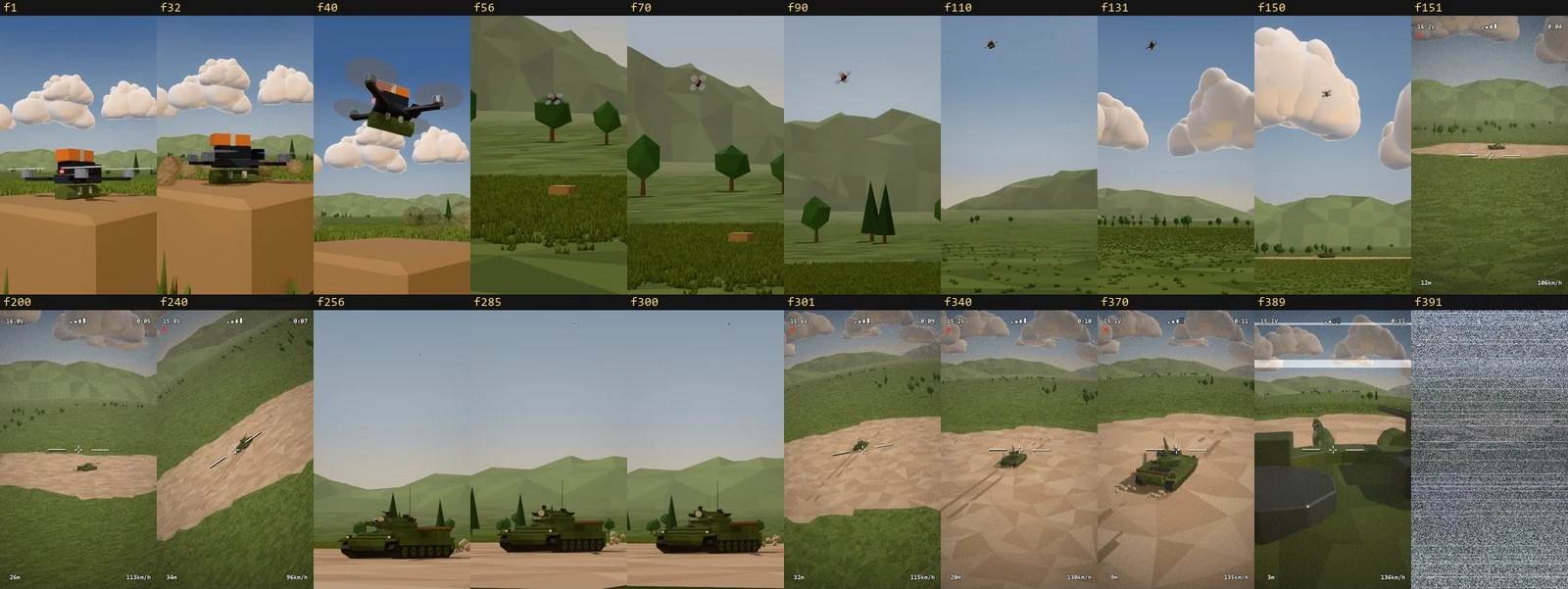 Figure 3. Part of the keyframe sheet made from frames of the small render (top two rows). The f number above each cell is the frame number (Blender render, several frames on one sheet)
A sheet like Figure 3 is the "one picture" from section 6-1. Without playing the video, you can see in which frames the subject is too small. This is in fact where problems showed up that the plan had not revealed. On a small screen the drone was only a dot, and the dust particles kicked up at lift-off grew large near the camera and looked like rocks.
Scaling up was split into steps too. I kept the number of drones as one variable and went from 1 to 20 to 100. When that value changes, the code calculates everything that has to follow (take-off positions, paths, arrival times). What was checked with one drone was simply scaled up.
8. Keep a record: what changed, what was measured, what wasn't done
At the end of each loop, write down three things. I used the table below for every round.
| What to write | Example |
|---|---|
| What changed and the measured values | What you changed, the before and after values, and the frame numbers where it shows |
| What did not change | The result of comparing the parts you didn't touch with the previous round |
| What was not done or not checked | "Did not measure directly on the rendered image", "Did not listen to the sound" |
The third row matters most. An AI cannot hear, and it can answer "Fixed" without looking at the picture. So when something is marked "applied", attach the frame number that proves it, and write "tried but not verified" for anything not checked in a picture.
I also separated the side that makes from the side that checks. I didn't treat the AI's own rating of its script as evidence; I pulled frames separately and looked at them. When you work alone, you are the side that checks.
Keeping the scripts numbered for every round (counting up from _v01) is part of the record too. It is the same idea as the numbered saves in section 5. This record becomes the "Current state" field of your next request.
9. Common mistakes and fixes
| Symptom | Cause | Fix |
|---|---|---|
| The result looks wrong but you can't tell why | Asked for shape, material, light, and camera at once | Ask for one at a time and check each step |
| The AI deleted objects in the scene | Ran it without reading the delete lines | Look for delete and remove before running, and run in a copy |
| You used the AI tool's undo but the .blend didn't change back | Files changed by a command are not covered by its undo | Save a numbered file with Save Incremental at each step |
| The AI said "Done" but it didn't actually work | No check method in the request | Ask for one picture and numbers as evidence |
| The subject is only a dot in the small render | Didn't look at on-screen size during planning | Check with a sheet, then move the camera closer or use a longer lens |
| Settings from the command line are not applied | Command-line arguments run in the order written | Put the setting arguments before the render arguments |
The last row is for those who use the command line. Blender runs with no window with -b and runs a script with -P file. The manual gives the example that an output path written after the render argument is not applied.
Summary
One sentence for the goal → one page of request → one thing at a time → read before running → run in a copy → check with a picture and numbers → numbered saves → record what wasn't done too.
Further reading
- Five things to sort out before your first 3D project: how to set up folders, file names, and version numbers.
- Planning a short animation shot: how the 15-second video in this guide was planned on paper.
- Installing and setting up Claude Code for the first time in 2026: how to install the AI tool used in the examples.
References
- Blender 5.2 Manual: Introduction to Scripting
- Blender 5.2 Python API: Quickstart
- Blender 5.2 Python API: Tips and Tricks
- Blender 5.2 Manual: Text Editor
- Blender 5.2 Manual: Python Console
- Blender 5.2 Manual: Info Editor
- Blender 5.2 Manual: Scripting & Security
- Blender 5.2 Manual: Command Line Arguments
- Blender 5.2 Manual: Opening & Saving
- Blender 5.2 Manual: Undo & Redo
- Blender 5.2 Manual: Viewport Render
- Blender 5.2 Manual: Format (Resolution %)
- Model Context Protocol: Introduction
- Claude Code Docs: Permission modes
- Claude Code Docs: Checkpointing
- Claude Code Docs: Best practices
- Anthropic: Prompting best practices
- Shortcuts: based on the Blender 5.2 default keymap.
More: a book on building low-poly war animations with Claude Code and Blender — https://azblender.gumroad.com/l/lowpoly_war_animation