Making a 3D character with Claude Code, part 3: building a scene with NLA tracks
In the Blender UI, turn on, move, and blend the muted NLA motion tracks in the finished character file, mixing body and face, to build a scene that goes from a wave into a bow without setting a single key.
한국어English
Based on: Blender 5.2 (English UI, default keymap) and the Blender 5.2 manual (October 2026). Numbers and names are from this series' character file. All screen images are real Blender 5.2.1 screens. The red numbers and outlines were added for explanation.
In part 2 you made the rig and motions, then 05_scene.blend for building scenes. That file holds a body track and a face track for each motion, all muted.
From part 3 on, you don't hand the work to Claude Code. You do it yourself in the Blender UI: in the NLA Editor, turn on, move, and blend the tracks that are already there to make a scene without setting a single key.
By the end of this part you will be able to:
- Turn on, move, and blend the NLA tracks in a finished file to build a scene.
- Pick body tracks and face tracks separately and mix them.
- Change a strip's start frame, Blend In, and Extrapolation.
1. NLA tracks and three terms
First, learn three terms.
| Term | Meaning | Analogy |
|---|---|---|
NLA track (LIB_*) | A row holding one motion. Tick the checkbox and it plays | One song in a playlist |
| Strip | The motion bar sitting on a track. Move it and its start time changes | A clip in a video editor |
| Active action | The orange row at the top of the NLA. New keys go here, and it overrides every track | A clear film laid on top of everything |
The NLA (Nonlinear Animation) Editor is where you place motion bars on a timeline, move them, and overlap them. It is like laying out clips in a video editing program.
Before you start: The track names and numbers in this part are from the series' file. Your 05_scene.blend may have different track and pose names and motion lengths, so check the track names and strip lengths in the NLA first and adjust.
- In Blender 5.2, open the
05_scene.blendyou made in section 5 of part 2. - Use File ‣ Save As… to save it under a different name first (for example
05_scene_my.blend). Keeping the file you dress up by hand separate is safer.
2. Turning on one track and playing it
Starting point: Start from the copy you just saved. The pose is the neutral standing pose and every track is muted.
Try it:
- Click the Editor Type icon at the left end of the Timeline at the bottom of the screen and choose Nonlinear Animation. If the Timeline is short and shows only a few rows, drag the border between the Timeline and the 3D Viewport upward to make it taller.
 ① Editor Type icon. Click it and choose Nonlinear Animation (screenshot, Blender)
- Type
LIB_wavein the search field at the top of the list on the left. This file has many rows, including tracks from other objects, so filtering by name makes things easier to find. Clear the search field when you're done. - Among the remaining rows, click the checkbox for
LIB_waveto tick it. The checkbox is to the right of the track name, in front of the lock and star icons. Ticked means on; untick it and that track takes no part in the movement.
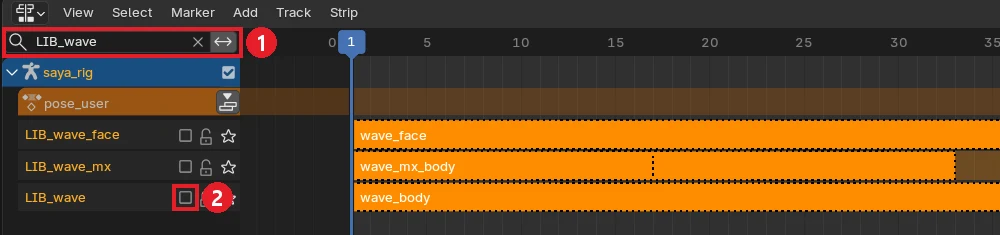 ① Search field (LIB_wave) ② The LIB_wave checkbox, still off (screenshot, Blender)
- With the mouse over the 3D Viewport, press
Space. The character waves.
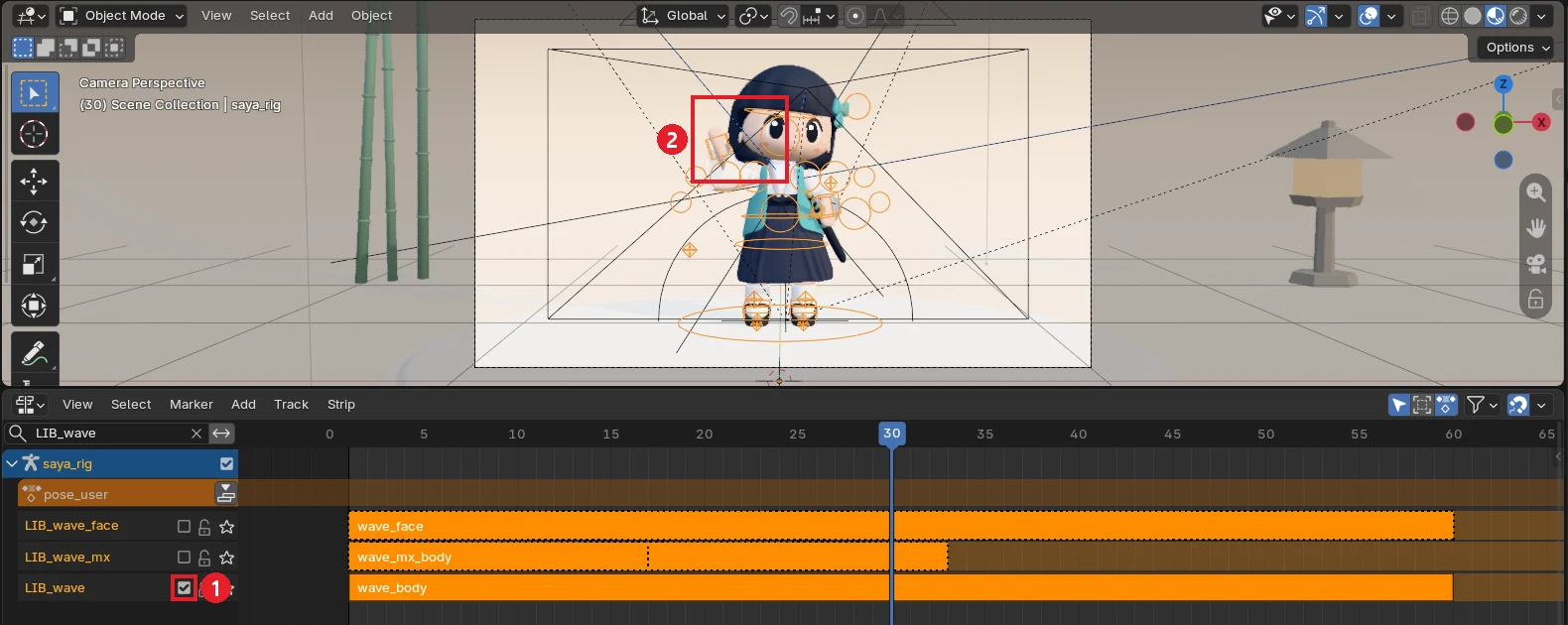 ① LIB_wave turned on ② The hand raised at frame 30. The image is seen through the camera view (numpad
 0) (screenshot, Blender)
- When you're done, press
Spaceto stop and untick the checkbox.
3. Mixing body and face
Each motion has a body track (LIB_<motion>) and a separate face track (LIB_<motion>_face). All face tracks sit above the body tracks, and a higher track overrides the same values below it.
| What you turn on | Result |
|---|---|
LIB_wave only | Only the hand waves. The face stays at its default (a slight smile) |
LIB_wave + LIB_wave_face | Wave + the face from that motion |
LIB_wave + LIB_bow_face | Wave + the face from the bow |
LIB_wave + LIB_expr_blink | Wave + one blink (8 frames) |
Try it: Type LIB_ in the search field to keep only the library tracks. If the list is long, scroll down with the mouse wheel. Turn on LIB_wave and LIB_bow_face, then press Space to play. Check that the hand waves while the face makes the bow expression (eyes closed, smiling). Untick both afterward.
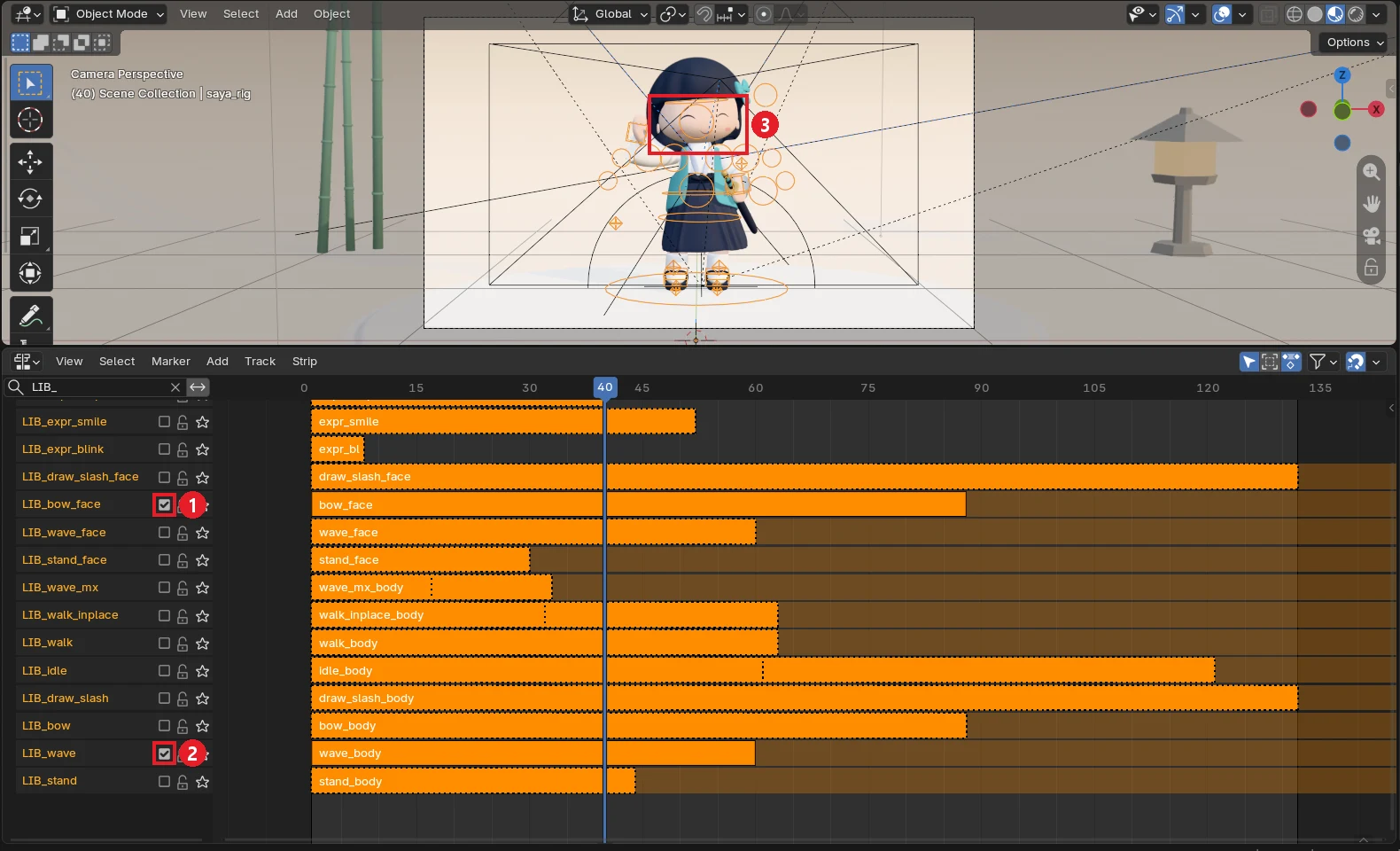 ① LIB_bow_face turned on (bow face) ② LIB_wave turned on (wave body) ③ The face at frame 40. The body is the wave and the face is the bow expression (screenshot, Blender)
4. Exercise: wave → smile → bow (no keys)
Starting point: Start with every track you turned on in section 3 turned off again.
There is one rule for chaining motions. Put the next motion's start frame a few frames before the previous one ends, and give it a Blend In equal to the number of overlapping frames. The numbers below are based on the motion lengths in this file (wave 60, bow 88, smile 52 frames).
Try it:
- Turn on
LIB_waveandLIB_wave_face. Frames 1 to 60 are the wave. - Turn on
LIB_bowandLIB_bow_face. - Click the bow body strip (
bow_body), and with the mouse over the NLA Editor, pressNto open the sidebar. Check that the vertical tab on the right of the sidebar is Strip. - In the Active Strip panel, enter
55for Frame Start. It overlaps the last 6 frames of the wave. End updates on its own to fit the length (142 in this file). - In the same panel, enter
6for Blend In. Over the 6 overlapping frames, the wave gradually turns into the bow.
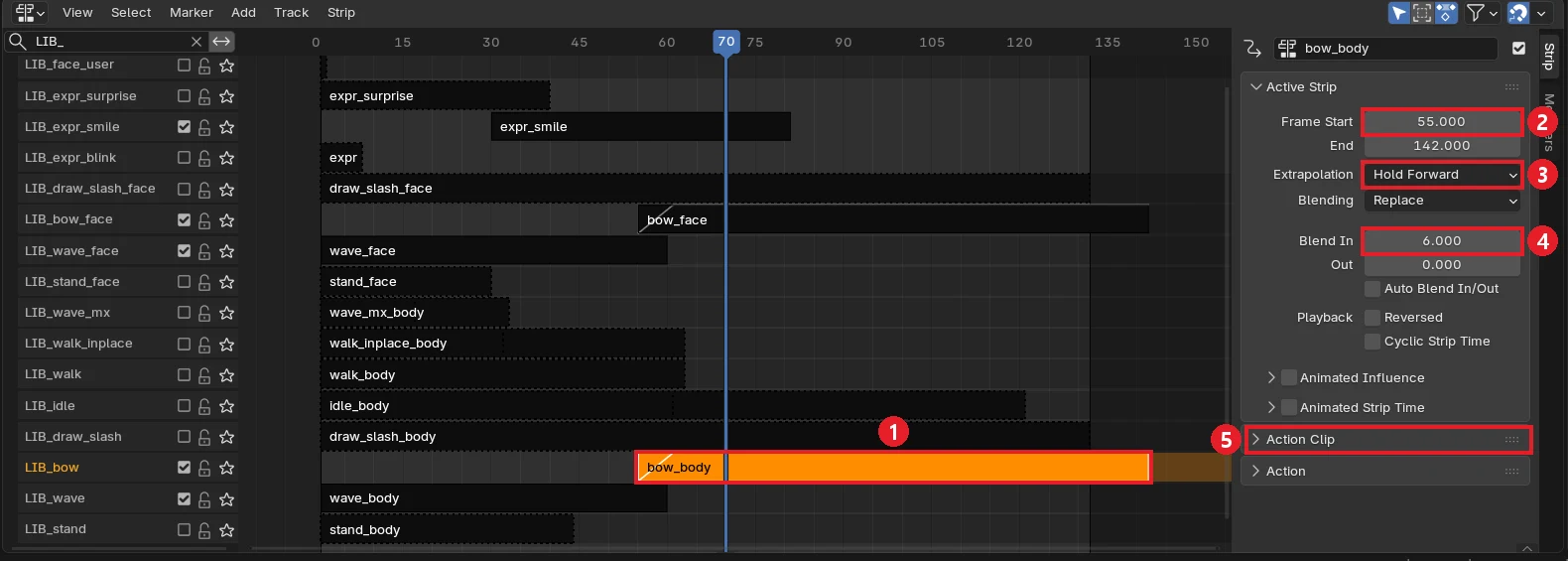 ① The selected bow_body strip (starts at frame 55) ② Frame Start 55 ③ Extrapolation (what happens after it ends) ④ Blend In 6 ⑤ The Action Clip panel. Expand it to find Repeat and Playback Scale (screenshot, Blender)
- Set the bow face strip (
bow_face) the same way: Frame Start55, Blend In6. - Turn on
LIB_expr_smileand set its strip's Frame Start to30. It is a 52-frame smile, so she starts smiling in the middle of the wave and then returns to her normal face. - Set the scene end to the End of the bow strip. Switch the NLA Editor back to the Timeline for a moment (the same Editor Type icon as step 1 of section 2), and enter
142in End on the right.
 ① End 142 ② Auto Keying button (covered in part 4) (screenshot, Blender)
- Go back to frame 1 and press
Spaceto play.
 The result of the exercise. From left: frames 30, 58, and 98. The image hides the bones and camera lines (Overlays off) (screenshot, Blender)
The bow motion was made for the show, where she walks in before bowing, so the feet move a little in its first 6 frames. If frames 55 to 81, where the smile overrides the bow face, look awkward, pull the smile strip earlier.
5. Working with strips
| What you want | How |
|---|---|
| Move the start frame | Click the strip → G → move it and click. By number: N → Strip tab → Frame Start |
| Blend smoothly in or out | N → Strip tab → Blend In / Blend Out (in frames) |
| What happens after it ends | Strip tab → Extrapolation: Hold Forward (keep the end pose) / Nothing (fall back to the track below when it ends) |
| Repeat | Action Clip → Repeat |
| Slow it down | Action Clip → Playback Scale (2 means half speed) |
| Duplicate / delete | Shift+D / X |
- Strips on the same track cannot overlap. To overlap and blend, put them on different tracks.
- If a higher track is set to Hold Forward, it keeps overriding the tracks below with its end pose even after it ends. If a later motion doesn't show, change the higher strip's Extrapolation to Nothing.
6. Common mistakes and fixes
| Symptom | Cause | Fix |
|---|---|---|
| I turned on a track and nothing moves | The checkbox is off / the orange row has keys on that bone | Tick the checkbox / Push Down in section 7 of part 4 |
| A different motion plays instead of the one I turned on | A higher track overrides it with Hold Forward | Turn off the higher track or set its Extrapolation to Nothing |
| The face doesn't change | A higher face track overrides it | Turn that face track off |
| The NLA list is so long I can't find the track | Tracks from every other object show too | Type LIB_ in the search field above the list |
7. Wrap-up
In part 3, without setting a single key, you turned on, moved, and blended the existing tracks to make a scene that goes from a wave into a bow.
In one line: tick to turn on, Frame Start to move, Blend In to blend.
Next: In Part 4: chaining Asset Shelf poses and rendering, instead of using ready-made motions, you set Asset Shelf poses frame by frame to make your own motion, chain it with the tracks from this part, and render. You keep using the copy you saved in this part.
References
- Blender 5.2 manual, Nonlinear Animation: https://docs.blender.org/manual/en/5.2/editors/nla/index.html
- Blender 5.2 manual, NLA Tracks (checkbox): https://docs.blender.org/manual/en/5.2/editors/nla/tracks.html
- Keymap: Blender 5.2 default keymap
- Images: all Blender screenshots.
The full guide, with the reusable kit and pose library, is a book on Gumroad: https://azblender.gumroad.com/l/lowpoly_character