Making a 3D character with Claude Code, part 4: chaining Asset Shelf poses and rendering
Set Asset Shelf body poses and faces frame by frame to make your own wave and bow, chain them to NLA tracks with Push Down, render the result as a video, and move the camera.
한국어English
Based on: Blender 5.2 (English UI, default keymap) and the Blender 5.2 manual (October 2026). Numbers and names are from this series' character file. All screen images are real Blender 5.2.1 screens. The red numbers and outlines were added for explanation.
In part 3 you turned on, moved, and blended the existing NLA tracks to build a scene. You didn't set a single key.
In part 4 you make new movement yourself. You set keys by applying Asset Shelf poses frame by frame, add faces, chain the result to the existing tracks with Push Down, and render. This is the last part of the series.
By the end of this part you will be able to:
- Apply Asset Shelf poses frame by frame to make your own motion, and chain it to NLA tracks.
- Key the face before the body so the expression doesn't get reset.
- Render the scene as a video and move the camera.
1. Chaining Asset Shelf poses
Use this when you want new movement instead of the ready-made motions. The idea is stepping stones: set a pose at certain frames, such as the neutral standing pose at frame 1 and the hand-raised pose at frame 30, and Blender fills in the movement between them.
The Asset Shelf is a shelf under the 3D Viewport that lines up pose thumbnails. Each thumbnail on the shelf is a one-frame pose, like a single photo. Click a thumbnail and that pose goes onto the character.
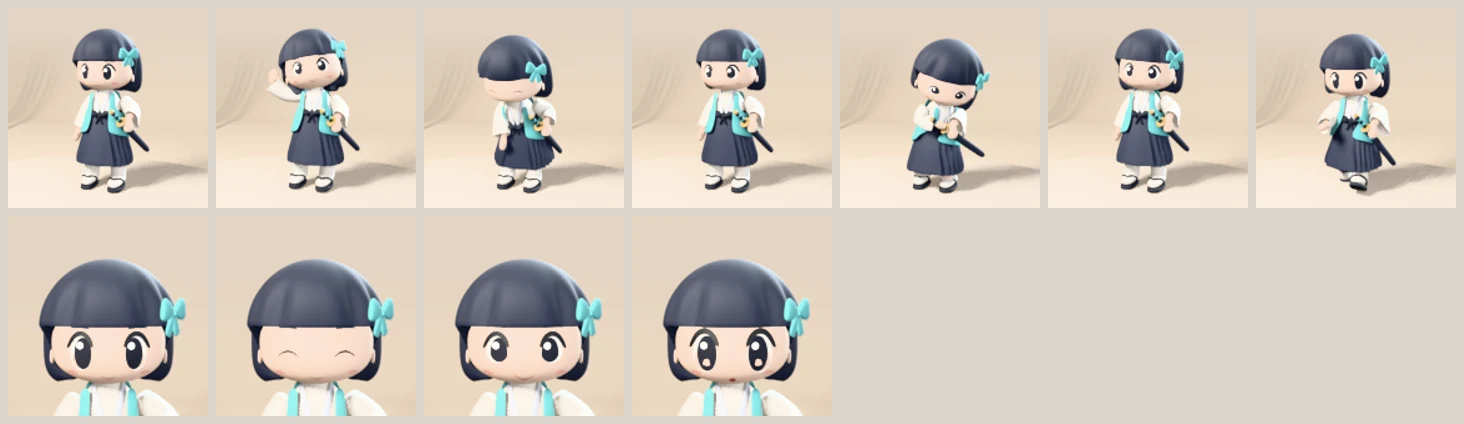 Preview thumbnails of the 11 poses on the Asset Shelf. Top row body poses, from the left: neutral standing, hand raised, deep bow, bow end, ready to draw the sword, slash end, walk step. Bottom row faces: neutral, eyes closed, smile, surprise (Blender render)
| Catalog | Pose names |
|---|---|
saya/poses (body) | pose_attention (neutral standing), pose_wave_hi (hand raised), pose_bow_deep (deep bow), pose_bow_end (bow end), pose_draw_ready (ready to draw the sword), pose_slash_end (slash end), pose_walk_step (walk step) |
saya/face_poses (face) | pose_face_neutral (neutral), pose_face_blink (eyes closed), pose_face_smile (smile), pose_face_surprise (surprise) |
2. Setup
Starting point: Continue from the copy you saved in part 3. If you don't have one, save 05_scene.blend under a different name as in "Before you start" in section 1 of part 3, and use that. First turn off every LIB_* track you turned on. If they stay on, they mix with the poses you set and get confusing. The pose names in this part are from the series' file. Your 05_scene.blend may have different track and pose names, so after opening the shelf in step 4, check the pose names first.
Try it:
- Enter
120in End on the right of the Timeline. At 30 fps, that is 4 seconds. - Click the character's armature in the 3D Viewport to select it, then press
Ctrl+Tabto enter Pose Mode. - In the 3D Viewport header, turn on View ‣ Asset Shelf. A shelf of thumbnails appears along the bottom of the 3D Viewport.
- At the top left of the shelf there is only one tab, All. The pose catalog names don't show up as tabs right away. Type
pose_in the search field at the top right of the shelf and only the 11 poses remain.
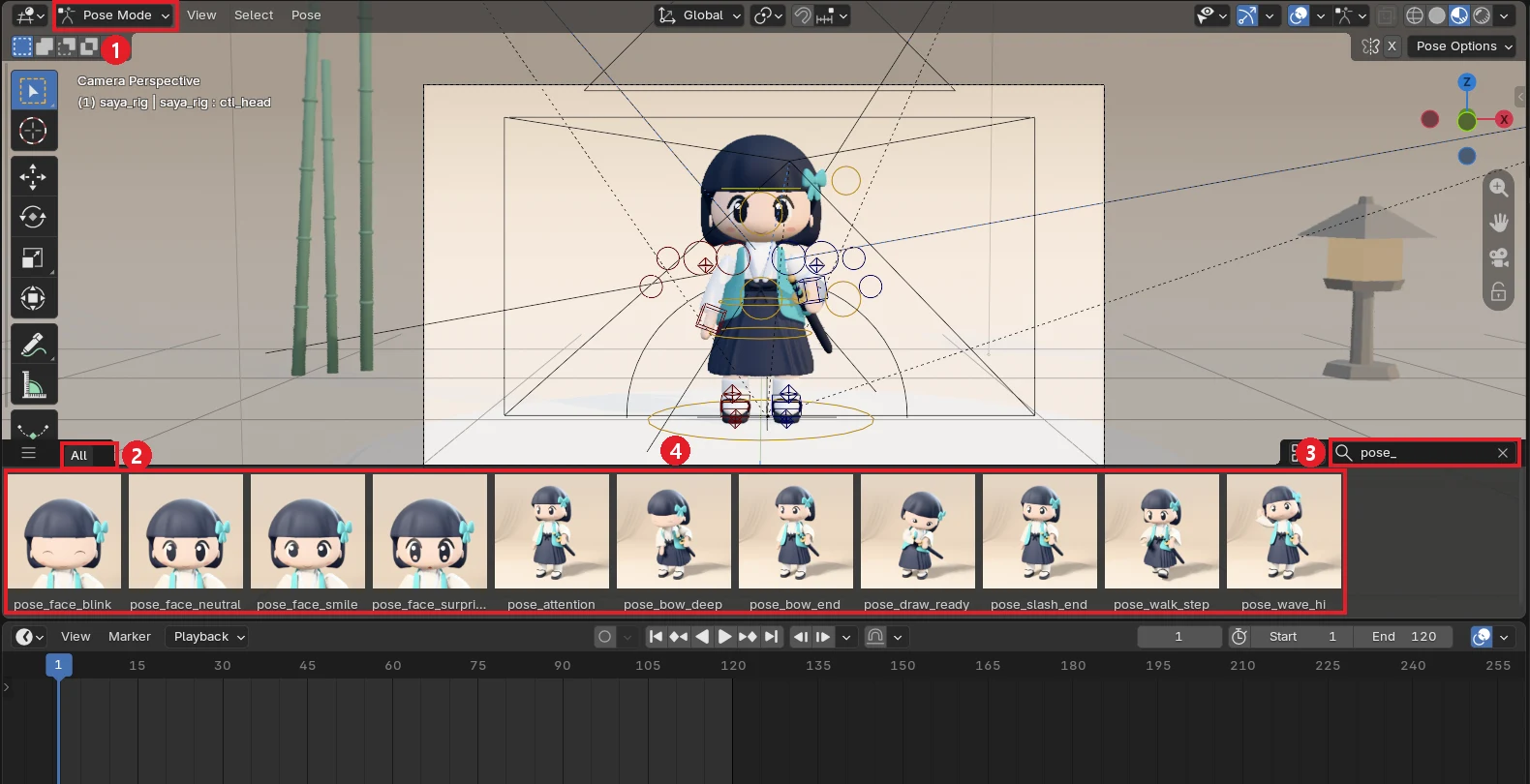 ① Pose Mode ② All tab ③ Search field (pose_) ④ Pose thumbnails. The four on the left are faces; the rest are body poses. The shelf in the image was enlarged so the names show (screenshot, Blender)
In the middle of the Timeline header, the round button to the left of the play buttons is Auto Keying (Timeline image ② in section 4 of part 3). When it is on, a key is set at the current frame every time you move a bone, like a record button. When you click a pose on the shelf, though, keys did not go in as expected (box in section 3). This guide keeps Auto Keying off and sets keys by hand.
3. Setting poses
The basic order for setting one pose is deselect → click the thumbnail → select all → insert key. If you click a thumbnail with no bones selected, the pose goes onto the whole body; if even one bone is selected, it goes only onto the selected bones.
Alt+A → click thumbnail → A → I
Try it:
- Click frame 1 in the Timeline.
- With the mouse over the 3D Viewport, press
Alt+Ato deselect all bones. - Click
pose_attentionon the shelf. One click changes the pose.
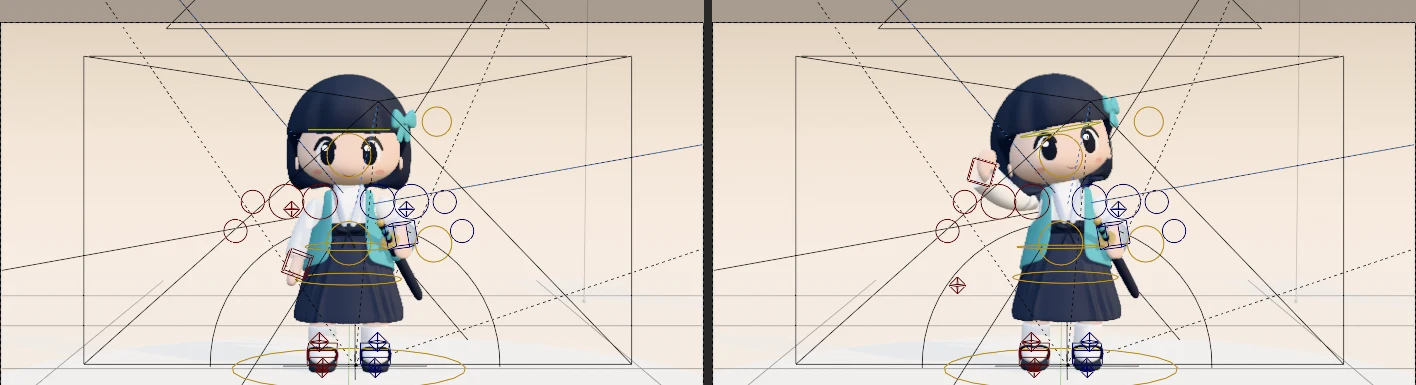 Left: before the click. Right: after clicking
 pose_wave_hi. At this point only the pose has changed; there is no key yet (screenshot, Blender)
- With the mouse over the 3D Viewport, press
A(select all bones) →I(insert key). A diamond (◆) key appears in the Timeline. Check for the ◆ before moving on to the next pose. - Go to frame 30 and repeat steps 2 to 4 with
pose_wave_hi. - Go to frame 60 and repeat steps 2 to 4 with
pose_attention. - Go back to frame 1 and press
Space. She moves from neutral → hand raised → neutral.
A → I keys the face too: When A selects every bone, it also selects the head control bone that holds the face values (ctl_head). I keys location, rotation, and scale, and also the bone's custom properties. That happens when Custom Properties is turned on under Default Key Channels in the Keyframes panel of Edit ‣ Preferences ‣ Animation. So every time you key a body pose, the face values at that frame (smile, blink, surprise) are keyed too. In scenes that use faces, key the faces first and the body later (section 6). That way the body keys write back the face values already at that frame, so the faces stay almost unchanged.
When Auto Keying is on: In this file, with Auto Keying on, running the same command as a shelf click produced no ◆ in the starting state with no keys. Once keys already existed, only some of the changed values got keys (27 of 260 keyable curves). To keep a whole-body pose intact, don't rely on Auto Keying; insert keys with A → I as in step 4.
Playing a file with the same poses fully keyed, with every track off, through frames 1→30→60, the right hand rises from about 0.36 m to 0.67 m and comes back down.
4. Adding faces and a blink
Face poses change only the face values (closing the eyes, smiling, looking surprised) and leave the body alone. Key faces with I over the value, not A → I. With A → I, the body pose at that frame gets keyed too.
Starting point: If your file already has the body keys from section 3, start from a new copy. If the body keys come first, the face values stored in them override the new faces (box in section 3).
Try it:
- Type
pose_facein the shelf search field to keep only the 4 face thumbnails. - At each frame in the table below, click the face thumbnail and key it as described in "Keying a face" below.
| Frame | Face to click |
|---|---|
| 1 | pose_face_neutral |
| 25 | pose_face_smile |
| 40 | pose_face_neutral |
| 43 | pose_face_blink |
| 46 | pose_face_neutral |
From the neutral face at frame 1, she smiles gradually up to frame 25, and the smile fades by frame 40. To keep her smiling, use the smile instead of neutral at frames 40 and 46.
Keying a face: After clicking a face thumbnail, click the head control bone that holds the face values (in this file ctl_head, the yellow circle in front of the face) to select it. With the mouse over the 3D Viewport, press N to open the sidebar on the right. Choose the Item tab, then click the collapsed Properties panel near the bottom to expand it. Hover over each of the three values, blink, smile, and surprise, and press I each time. When a value field turns yellow, the key is in. When you've keyed the faces, press Alt+A to deselect.
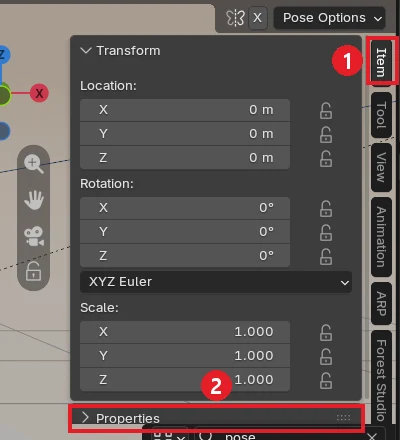 ① Item tab ② Properties panel. It starts collapsed; click to expand it and see
 blink, smile, and surprise. The ARP and Forest Studio tabs on the right of the image are separately installed add-ons and may not be on your screen (screenshot, Blender)
5. Blending halfway and flipping left and right
- Right after you click a thumbnail, an Apply Pose Asset panel (the panel for adjusting the last operation) appears at the bottom left of the 3D Viewport. Expand it and set Blend Factor to
0.5to blend the pose halfway with the current pose; turn on Apply Flipped to swap left and right (the left hand instead of the right). The blend is with the current pose at that frame, so blending in the same pose as the current one changes nothing. - If you don't see the Apply Pose Asset panel, press
F9right after clicking the thumbnail. The same panel opens. If that is still awkward, drag the thumbnail to blend, as in the next line. - Drag a thumbnail from left to right to set the amount of blending while you watch. Release the mouse button to confirm. You can also right-click a thumbnail and choose Blend Pose.
6. Exercise: your own wave and bow
Starting point: Start from a new copy that has finished the setup in section 2. Every track is off, you are in Pose Mode, and no bones are selected. End is 120.
Try it: Key all the faces first, then the body poses. Key faces with "Keying a face" in section 4 (I over the value), and the body with the order in section 3 (Alt+A → click thumbnail → A → I). If you do it the other way round, the face values stored in the body keys (default smile 0.4) make the frame 25 smile drop off right away at frame 29 (box in section 3).
Step 1, faces (saya/face_poses):
| Frame | Click | Meaning |
|---|---|---|
| 1 | pose_face_neutral | Starting face |
| 25 | pose_face_smile | Biggest smile |
| 40·43·46 | neutral → eyes closed → neutral | The smile fades, then a blink |
Step 2, body poses (saya/poses):
| Frame | Click | Meaning |
|---|---|---|
| 1 | pose_attention | Start |
| 15 | pose_wave_hi | Hand up |
| 22 | pose_attention → Blend Factor 0.4 (panel in section 5) | Lower only 40% toward neutral (the wave) |
| 29 | pose_wave_hi | Up again |
| 50 | pose_attention | Hand down |
| 75 | pose_bow_deep | Deep bow |
| 85 | pose_bow_deep | Brief hold at the lowest point |
| 100 | pose_bow_end | Stands up |
| 115 | pose_attention | End |
Frame 22 starts from the hand-raised pose (the frame 15 key). Blending in only 40% of neutral lowers the hand a little. This number sets how wide the wave is. After entering 0.4, check that the right hand has come down, then key it with A → I.
When you're done, play from frame 1 with Space. Keyed in this order and measured, the smile value (smile) rises from 0 at frame 1 to 1.0 at frame 25, then fades to 0.83 at frame 29 and 0 at frame 40. Her eyes close once at frame 43, and the neutral face holds from frame 46 to the end.
 ① The ◆ keys after all face and body keys are in. The Timeline is shown with every bone selected (
A) (screenshot, Blender)
 The result of the exercise. From left: frames 15, 22, 25, 43, and 85. The image hides the bones and camera lines (screenshot, Blender)
To adjust the pose at a frame a little, click a circle or box control bone and use R (rotate) or G (move). Afterward, with that bone still selected, press I to key it again. If Auto Keying is on, the key updates automatically. To change a face later, remember that the body key frames in that range hold face values too, so key the face again with I over the value at those frames as well. To delete a key, click the ◆ in the Timeline and press X.
7. Chaining to tracks with Push Down
The keys you set live in the orange row at the top of the NLA (the active action). This row overrides every track. Leave it as is, and the bones you keyed won't move even when you turn tracks on.
Try it:
- In the Nonlinear Animation editor, click the Push Down button (named Push Down Action in the manual) at the right of the orange row at the top (
pose_user). The small dots in the row are the keys you set.
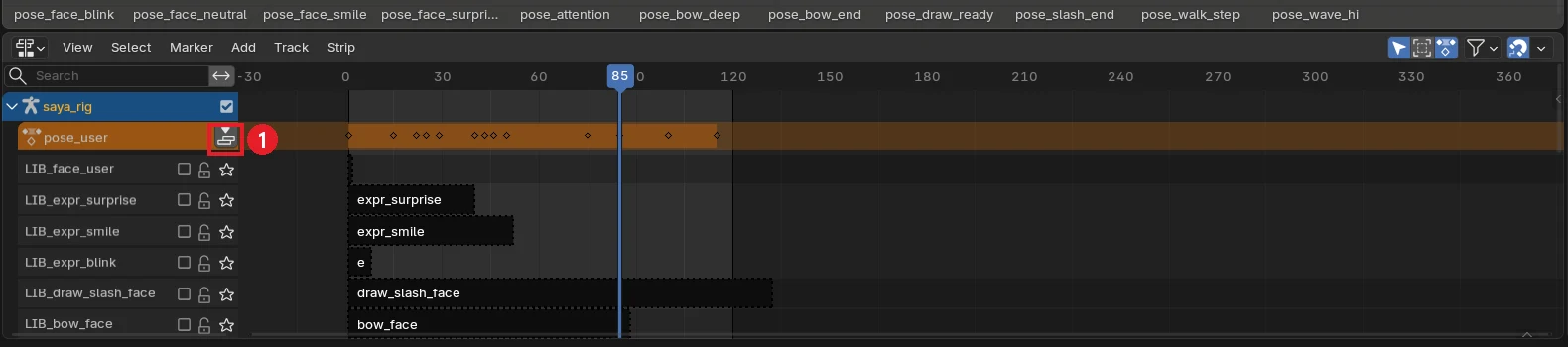 ① Push Down button (screenshot, Blender)
- Your keys move down into a strip on a new track (
pose_user) just below the orange row, and the orange row empties to<No Action>. - Click the new strip and, under
N→ Strip tab, change Extrapolation to Nothing. A strip pushed down with Push Down is set to Hold (keep the end pose both before and after). Left like that, it keeps overriding the motions on the tracks below even after it ends. The pushed-down strip also holds face keys, so while it plays, it overrides the face tracks below too.
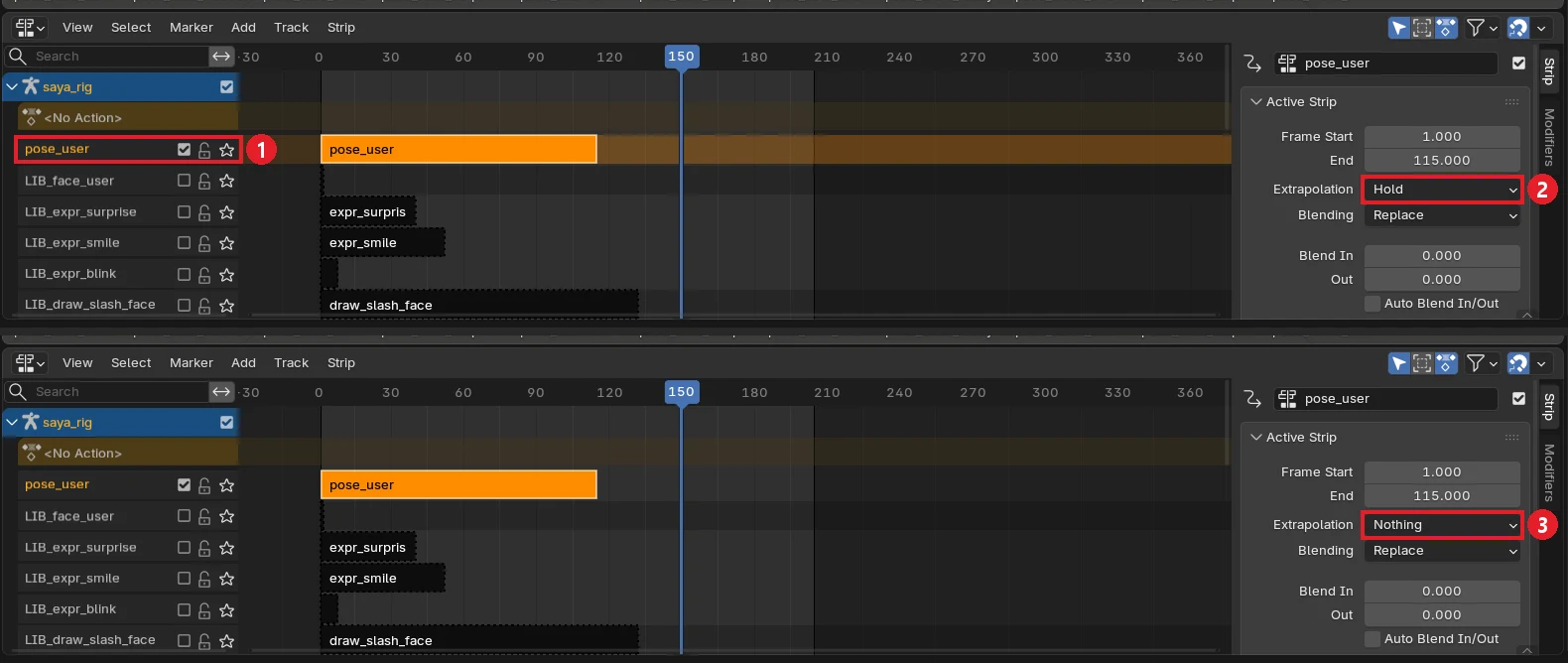 ① The track created by Push Down ② Starting value Hold ③ After changing it to Nothing. In the top view, the orange row has emptied to
 <No Action> (screenshot, Blender)
- Move this strip as in section 5 of part 3, and chain it with a ready-made motion such as
LIB_bowusing Blend In. Have the next motion start around the frame where the new strip ends. - Save with
Ctrl+S.
In this file, with the strip ending at frame 115 and LIB_bow turned on from frame 116, the head stayed put even at frame 150 while the strip was set to Hold (the bow was overridden). After switching to Nothing, she bowed.
If you only want to store the keys, use Stash in the Action Editor header of the Dope Sheet. They go into a muted track.
8. Rendering
Starting point: Continue from the scene you made in section 4 of part 3 or in section 7 of this part.
Try it:
- In the Output panel of the Output Properties tab, change Media Type to Video. The default container and codec (Matroska, H.264) are fine. Detailed settings are in Blender beginner chapter 11. End in the Frame Range panel of the same tab is the same value as End in the Timeline.
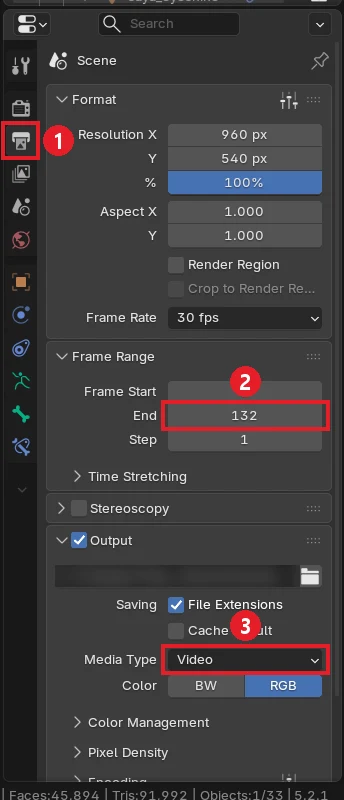 ① Output Properties tab ② End (132 in the image; set it to fit your scene) ③ Media Type: Video. The output path field is hidden (screenshot, Blender)
- Choose Render ‣ Render Animation (
Ctrl+F12). - First render at the file's existing 960x540 to check it. If you like it, raise the Resolution and render again.
Moving the camera: The camera in this file is tied to follow a look-at target. Turn that off first, and then it moves freely.
- Select the camera
CAM_user, and in the Object Constraint Properties tab, turn off the eye icon oflook_at_target(Track To).
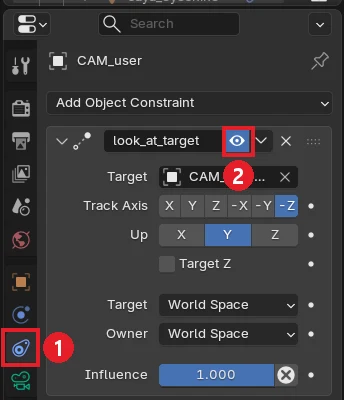 ① Object Constraint Properties tab ② The eye icon of look_at_target. Click it off and the camera stops following the look-at target (screenshot, Blender)
- With the mouse over the 3D Viewport, press numpad
0to enter the camera view. - Under
N→ View tab, turn on Lock Camera to View, then orbit the view to frame the shot. - When it's framed, turn Lock Camera to View off.
9. Common mistakes and fixes
| Symptom | Cause | Fix |
|---|---|---|
| I turned on a track and nothing moves | The checkbox is off / the orange row has keys on that bone | Tick the checkbox / Push Down in section 7 |
| I clicked a pose, but nothing moves on playback | No key went in | After clicking, insert keys with A → I |
| The motion chained after the Push Down strip doesn't show | The new strip keeps holding its end pose with Hold | Set the new strip's Extrapolation to Nothing |
| The smile drops off right at the next body key | The body key (A → I) also stored the face values at that frame | Key the faces first and the body later (section 6) |
| Changing Blend Factor leaves the pose the same | The same pose as the current one was blended | Pick a pose different from the current one (for example, neutral) and blend |
| The Asset Shelf is empty | Not in Pose Mode / other text is left in the search field | Steps 2 to 4 of section 2 |
| The shelf has no pose catalog tabs | At first there is only the All tab | Type pose_ or pose_face in the search field |
| With Auto Keying on, clicking a pose gives no keys or only some | A click doesn't key the whole pose | Insert keys with A → I |
| A pose I fixed by hand snaps back when I change frames | That bone has keys on a track that is turned on or in the orange row | Turn the track off, or key the fixed pose with I |
10. Wrap-up
To sum up: the drawing is one Higgsfield image, the model, rig, and motions are Python scripts written by Claude Code, and only the walk is from Mixamo. What the author did was look at the result of each stage, send the next request, and make the final call.
There are limits. The same kit is also being used for a character about 5 to 6 heads tall, but sleeves and skirt still poke through each other, and it is still in the 6-point range. The longer the body and the more the clothes overlap, the harder it is to get right with numbers alone.
In one line: one drawing + a data file + scripts for an easy-to-edit character, then NLA tracks and Asset Shelf poses to build scenes.
To go through the series again from the start, return to Part 1: from one drawing to an easy-to-edit model.
References
- Blender 5.2 manual, Pose Library (Asset Shelf, Blend Pose, Apply Pose Flipped): https://docs.blender.org/manual/en/5.2/animation/armatures/posing/editing/pose_library.html
- Blender 5.2 manual, Timeline (Auto Keying): https://docs.blender.org/manual/en/5.2/editors/timeline.html
- Blender 5.2 manual, NLA Tracks (Push Down Action): https://docs.blender.org/manual/en/5.2/editors/nla/tracks.html
- Keymap: Blender 5.2 default keymap
- Images: Blender renders and Blender screenshots.
The full guide, with the reusable kit and pose library, is a book on Gumroad: https://azblender.gumroad.com/l/lowpoly_character