Low-poly war animation with Claude Code, part 3: install Claude Code and let the AI set up the rest
Install Claude Code on Windows and log in, hand the checking and installing of Blender, ffmpeg and the Python libraries to the AI, and confirm you're ready with one picture of a cube.
한국어English

Based on: the free edition of the ebook Low-Poly War Animation with Claude Code and Blender, Chapter 2 (setup), Claude Code 2.1 (Opus 5.5), Windows 11 PowerShell. Checked in October 2026. All images are real terminal screens. Names in paths and account details are blurred.
Worried about installation? The only thing you install yourself is Claude Code. For Blender, ffmpeg and the Python libraries, you just tell Claude Code, "Check whether these are installed, and install them if they aren't." The five films in part 2 were made on a PC set up this way.
By the end of this part you will be able to:
- Install Claude Code in Windows PowerShell and check its version.
- Start Claude Code in an empty working folder and log in.
- Hand the checking and installing of Blender, ffmpeg and the Python libraries to the AI.
- Confirm you're ready with one picture of a cube that the AI rendered in Blender.
Once that cube picture appears, you're ready to start the hands-on project in Chapter 4 of the ebook. You can follow this part without downloading any files, and you don't need to memorize any commands.
The big picture
My project used the five tools below. Only the top row is your job.
| Tool | What it does | Who installs it |
|---|---|---|
| Claude Code | A program that lets the AI read and write files on your computer and run commands | You |
| Blender | 3D modeling and rendering software. The AI runs it in code, without its window | The AI (or you, if you prefer) |
| Python | The language used outside Blender to build scene data and sound | The AI |
| ffmpeg | A command-line tool that joins and cuts images and sound into video | The AI |
| numpy, scipy, Pillow | Python libraries for math, sound synthesis and image processing | The AI |
Step 3 of this part has Claude Code find and set up its own tools.
If you get stuck, look at the "If it doesn't work" line in each step first.
Step 1: check your plan
Claude Code needs a paid Claude plan (Pro, Max, Team or Enterprise) or a Claude Console account (a pay-as-you-go account for developers). The free plan doesn't include Claude Code. Prices and usage limits change often, so check Claude's official pricing page before you install. If you don't know which plan you're on, you'll find out when you log in during step 2.
A sense of cost: the session cost shown on the Claude Code screen turns your usage into a dollar figure, and it can differ from what you are actually billed. Running several agents and rendering 1080p over and over uses a lot quickly. Start with something small to get a feel for it, such as the 10-second video in Chapter 4 of the ebook or the quick start in part 5.
Step 2: install Claude Code
You only need to paste a few lines into a terminal. A terminal is a window where you give the computer jobs in text instead of through menus.
New to the terminal: there are only three things to do. Copy a command from this page and paste it with Ctrl+V (you can also right-click inside the window). Press Enter to run it. When the installation finishes, close the window and open a new one.
Install from the terminal
Follow along:
- Open PowerShell from the Start menu.
- Paste the line below exactly as it is and press
Enter. You don't need to understand it, and you don't need administrator rights.
irm https://claude.ai/install.ps1 | iex
- Wait until it says the installation is finished.
- Close the window and open a new one.
If it doesn't work: the error 'irm' is not recognized as an internal or external command doesn't mean anything is broken. It means you typed the command into Command Prompt (CMD) instead of PowerShell. Check that the line starts with PS, then open PowerShell again and paste.
On a Mac, paste the line below into the Terminal app. This is the command from the official instructions. I haven't tried it myself.
curl -fsSL https://claude.ai/install.sh | bash
Install commands can change. If the command above doesn't work, check the official Claude Code installation guide.
Follow along: in the new window, type the command below and press Enter to check the version.
claude --version
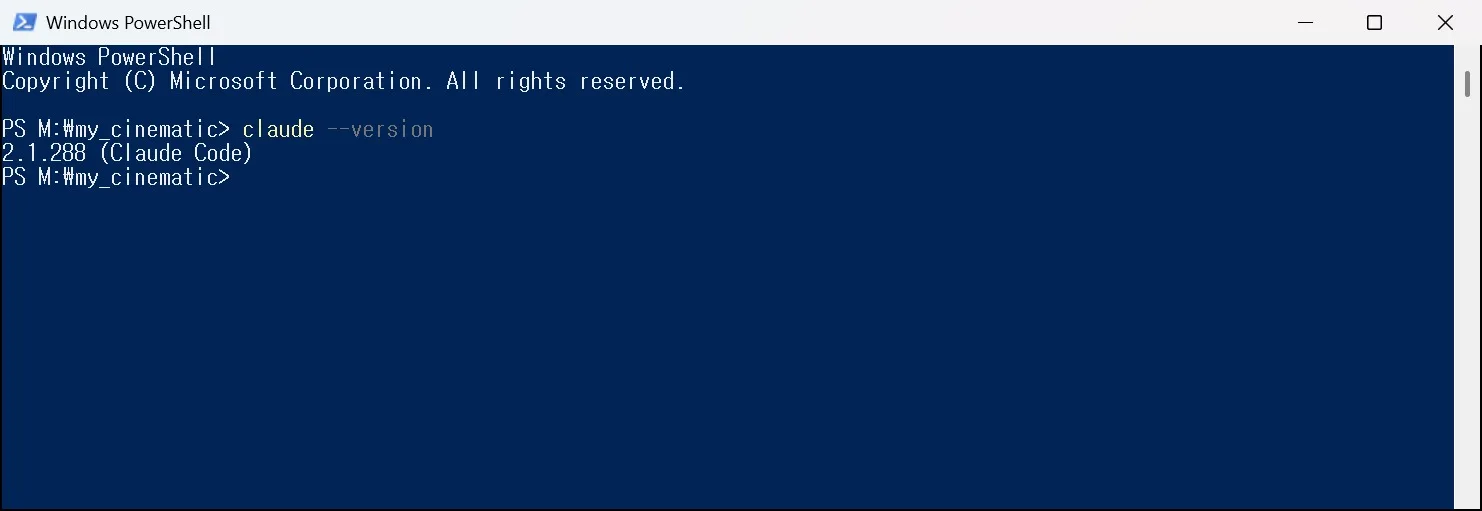 Figure 1. Typing
 claude --version in PowerShell prints a version number. Your number depends on when you install. On a Korean-language Windows system, the backslash in paths shows as ₩. (PowerShell screenshot)
- Expected result: one line with a version number, such as
2.1.xxx (Claude Code). - If it doesn't work: if it says
claudeisn't found or isn't recognized, close the window, open a new one, and type it again. If that still fails, typeclaude doctorand read the diagnostics.
First run and login
Follow along:
- Make an empty folder in File Explorer (for example,
C:\Projects\my_cinematic). - Type the two lines below into PowerShell, one after the other.
cdmoves you into that folder, andclaudestarts Claude Code.
cd C:\Projects\my_cinematic
claude
- The first time you run it, it asks you to log in. When your browser opens, finish logging in and come back to the terminal.
- Next, it asks whether you trust this folder. When the screenshots were taken, it looked like this.
Quick safety check: Is this a project you created or one you trust?
  No, exit
  Yes, I trust this folder
No, exitis selected at first. This is the empty folder you just made, so press the down arrow key to selectYes, I trust this folderand pressEnter. The input box appears. The wording may differ by version.
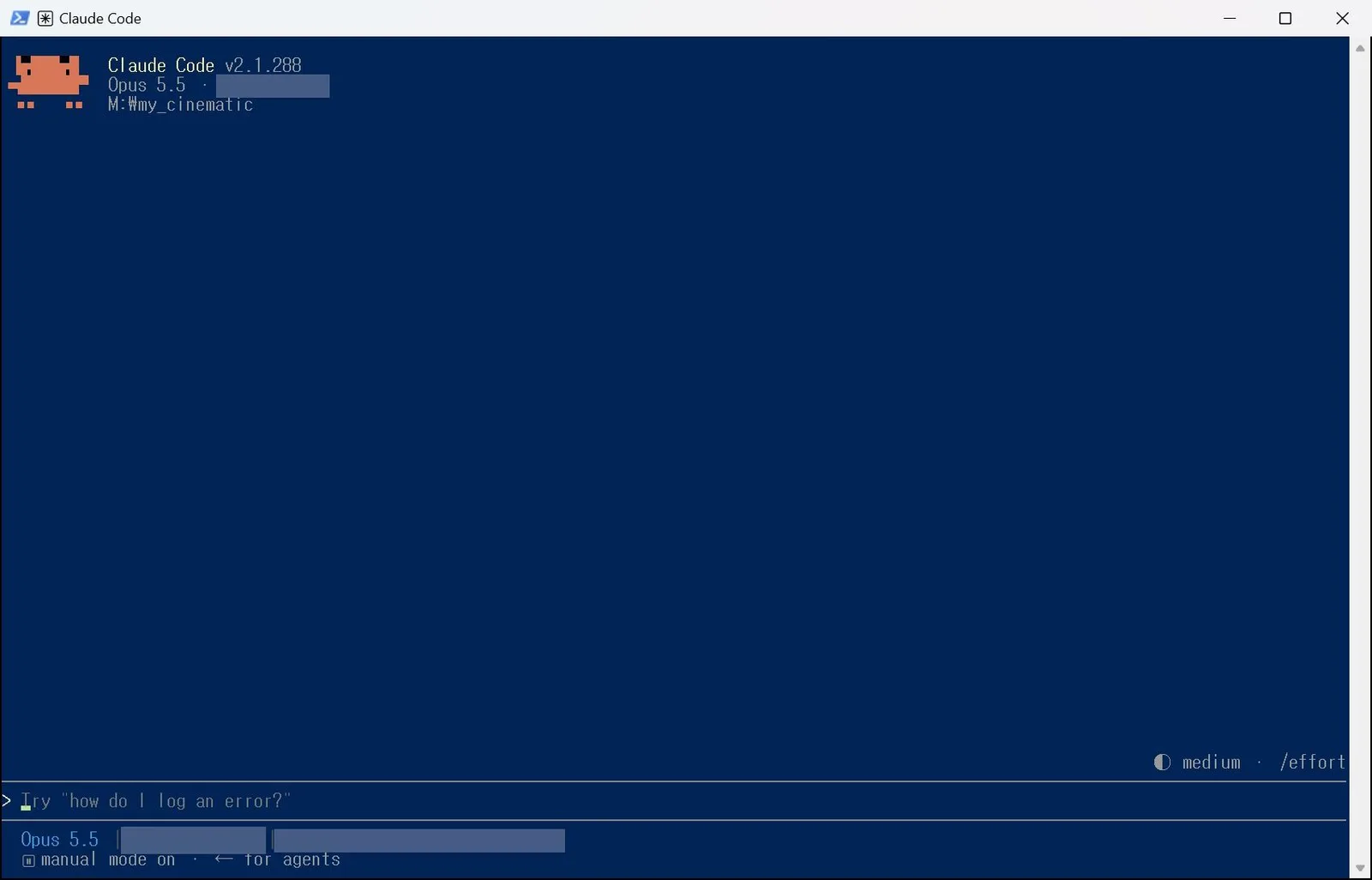 Figure 2. The terminal after running
 claude in the working folder and confirming the folder. The input box is at the bottom. Personal details on screen are blurred. (Claude Code screenshot)
- Expected result: an input box at the bottom of the terminal.
- If it doesn't work: if you picked
No, exitby mistake and it closed, typeclaudeagain. If your browser doesn't open, check the official Claude Code guide for what to do.
If the terminal really isn't for you: the Claude desktop app can do the same work. Pick your working folder in the app and send the same prompts from this series. I ran my project in the terminal, and the images here are terminal screens. For the app's button names and where they are, check Claude's official guide.
Step 3: hand the rest to the AI
Let the AI check whether the tools are there and install whatever is missing.
Follow along: paste the text below into the Claude Code input box as it is and press Enter.
I'm going to make 3D animations in Blender on this computer. Check whether Blender, ffmpeg, Python, and the Python libraries numpy, scipy and Pillow are installed, and install anything that's missing. Before each install, tell me what you're installing and where. When you're done, give me a table with each tool's version and the path it runs from. Please answer in English.
Claude first runs commands to check whether each tool is there. For anything missing, it proposes what to install and how.
When the AI asks for permission: the AI stops and asks for permission before it runs a command. Don't be alarmed. That's normal. When the screenshots were taken, Do you want to proceed? appeared with 1. Yes, 2. Yes, and don't ask again for: … and 3. No below it. Read what it's about to run once, then choose Yes. If you're not comfortable, choose No and tell it another way to do it. The wording may differ by version.
When it's done, the conversation shows each tool's name, version and path. The layout differs from run to run: sometimes a table, sometimes a list. In Figure 3 it came as a list, one block per tool (Tool / Version / Runs from), followed by a few notes. Commands the AI ran are folded into one line, like Ran 3 shell commands.
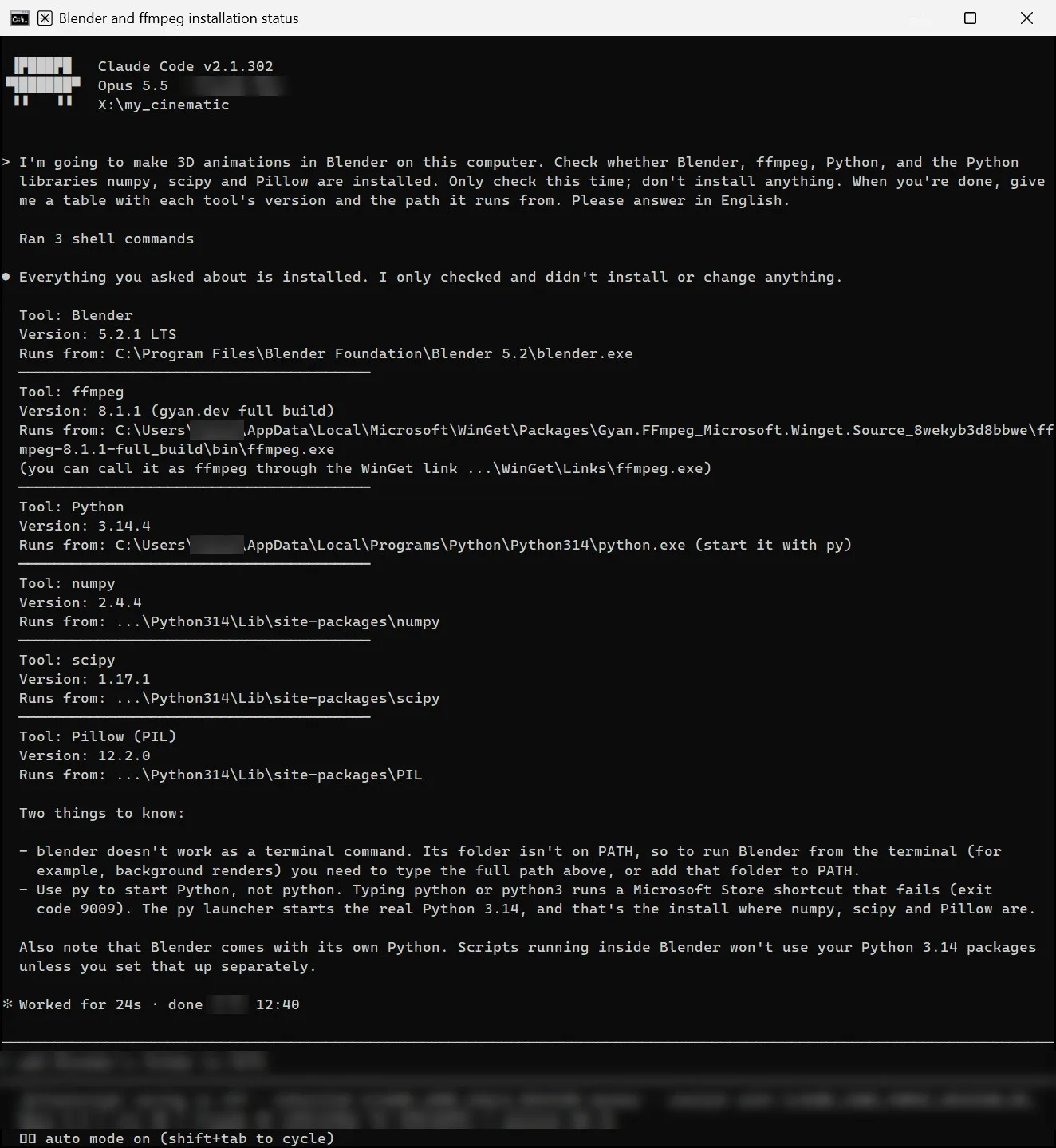 Figure 3. Claude's summary of each tool's version and path, one block per tool. In this screenshot I only asked it to check, without installing, so the prompt in the picture differs slightly from the one above. (Command Prompt screenshot)
- Expected result: each tool's version and path, as a table or a list.
- If it doesn't work: copy the failure message as it is, paste it in, and ask the AI to fix it and try again.
As the notes under Figure 3 show, the AI also points out things that could trip you up later. For example, Blender comes with its own Python, so scripts inside Blender won't use the libraries installed in your other Python. You only need to read notes like these. When it matters, the AI sorts it out.
Check with one cube
The AI runs Blender without opening its window. It writes that run command down in a rules document, CLAUDE.md. CLAUDE.md is the file that says what this project is and which rules to follow, and a new conversation reads it first. It is like the work notebook an assistant opens first thing every morning.
Follow along: paste the text below into the input box and press Enter.
Run Blender without its window, render the default cube at 1920×1080, and save it as a png. Open the saved image yourself to check it came out right, and record the Blender command we'll use from now on in CLAUDE.md.
- Expected result: one png picture of the cube, and a
CLAUDE.mdwith the run command in it. - If it doesn't work: ask it to find the Blender path again and render the cube once more.
If you have a picture of a cube, you're set up. Steps 4 and 5 are extras that make life easier.
Step 4 (optional): connect Blender MCP
You can skip this step. You don't need it to follow along through Chapter 4 of the ebook.
Blender MCP is a connector that lets Claude read the scene in an open Blender window and take screenshots of it. It is like letting your assistant look at your monitor over your shoulder. In my project, every real render used the windowless method above. I used MCP only as a helper, to check a model or a composition on the spot.
Follow along: send the text below.
I want to connect Blender MCP to this project. Look up the latest installation method in the official instructions, install what's needed, and register the MCP server in Claude Code for this project only. If there's anything I need to do in Blender myself, tell me the steps in order.
What you need to do in Blender depends on how it's installed. On the PC used for the screenshots, Blender's MCP extension started by itself when Blender opened, so there was no button to press. With other setups, a tab appears in the sidebar and you press a connect button. Installation and screens change between versions, so follow the steps the AI gives you.
- Expected result: if you ask Claude, "Tell me what's in the Blender scene right now," it answers with what's in the scene.
- If it doesn't work: skip it and go to step 5. Later, send, "Blender MCP won't connect. Check the installation."
Step 5: keep your usage visible
You can keep how much you're using on screen while you work. About three hours after my first prompt, I asked for this.
Change the status so that when I run claude, it keeps monitoring how much usage there is. (translated)
Claude changed the settings so usage information stays on the status line (statusline) below the input box. Like the fuel gauge on a car dashboard, it is a line you can keep half an eye on while you work. You decide in words what it shows: the model name, context usage (how much of what the AI can hold in one conversation is used up), session cost, and so on.
Follow along: send the text above as it is, or type /statusline in the terminal and ask for the same thing.
 Figure 4. The status line below the input box. The model name (
Opus 5.5), context usage (ctx) and session cost (session) appear side by side. The amount is blurred. (Claude Code screenshot; the conversation above the status line is in Korean)
- Expected result: one line of usage below the input box.
- If it doesn't work: quit Claude Code and start it again. If it's still missing, send, "I can't see the status line. Check the settings."
What the session amount means: this amount turns your usage into a dollar figure. If you logged in with a subscription plan, it can differ from what appears on your bill. I also asked the AI during the work what this amount meant, and whether it was being charged as extra API usage. Check what you're actually billed on your account's billing page. Chapter 13 of the ebook covers how to read the cost in more detail.
Installation checklist
When all four lines are done, move on to the next part.
- Version number shown by
claude --version - Logged in and saw the input box in your working folder
- Got each tool's version and path
- Got one picture of the cube
Common mistakes and fixes
| Symptom | Cause | Fix |
|---|---|---|
It says 'irm' is not recognized | Typed into Command Prompt, not PowerShell | Open PowerShell again (the line starts with PS) and paste |
It says claude isn't found | Used a window opened before the install | Close it, open a new one and type it again. If it still fails, run claude doctor |
| Claude Code closed right after starting | Picked No, exit at the folder check | Type claude again and pick Yes, I trust this folder |
| The AI stops and asks during the install | Normal: it asks before running a command | Read what it will run, then pick Yes or No |
| The status line doesn't show | Didn't restart after the settings changed | Quit Claude Code and start it again |
In one line: you install Claude Code yourself, the AI checks and installs the other tools, and one cube picture tells you you're ready.
Next part and the full book
- Next: Part 4: the first planning prompt. You write the first prompt to send to the AI.
- Previous: Part 2: the five films, results first
- The one-post summary: Five low-poly war animations made with Claude Code
- The full ebook (free and paid editions): azblender.gumroad.com
Claude is a trademark of Anthropic. Blender is a trademark of the Blender Foundation. The book is independent and not affiliated with either.
References
- Claude Code official docs, including install: Claude Code overview
- Figures 1–4 are the same real screenshots as the ebook's Figures 2-1 to 2-4 (Figure 3 from the English edition).