Connecting Blender and AI: 3D work through MCP and scripts
A plain comparison of the two ways AI can drive Blender: Python scripts and an MCP connection. It also covers how they work, a first exercise, and safe working habits.
한국어English
Based on: the official Blender Python API documentation and manual, and the official Model Context Protocol and Claude Code documentation, checked in September 2026.
There are two main ways to have AI do 3D work in Blender. One is for AI to write a Python script that Blender runs. The other is to connect AI and Blender directly through MCP. Both rest on the same base. Blender opens up what you can do with buttons so you can also do it with Python code, and AI writes that code or sends it on your behalf. This guide explains the difference between the two ways, the structure that the term "Blender MCP" refers to, a small first exercise, and habits for working with AI without breaking your 3D files.
There is one thing to know first. "Blender MCP" is not an official feature made by the Blender Foundation. It is a loose name for community connection tools released by various developers, and each tool has different features and installation steps. So this guide does not recommend a particular tool. It explains the principles and checks that apply to any of them. If MCP itself is new to you, start with What is MCP?.
The base: Blender driven by Python
In Blender, any setting you can change with a button can also be changed with Python. The Python API handles this. An API is a doorway through which programs call each other's features, and Python is a programming language with clear syntax.
Here is what you can do with Python.
- Edit data such as scenes, meshes (the skeleton data of a 3D shape), and materials
- Run Blender's tools with the settings you want
- Create menus, panels, and new tools
- Change preferences and shortcuts
Most areas, including animation, rendering, importing and exporting files, creating objects, and automating repetitive work, can be handled with scripts. As a comparison, Blender is a shop that, besides the remote-control buttons, has a back door that accepts "written order forms." AI is the assistant who writes those order forms for you.
There is also one useful setting. In Preferences (Edit ‣ Preferences), on the Interface tab, turn on Python Tooltips in the Display panel. When you hover over a button, the Python name for that button appears. This is handy when you ask AI to "change this setting," because you can give it the exact name.
The two ways at a glance
| Way 1: scripts | Way 2: MCP connection | |
|---|---|---|
| Flow | AI writes code, and a person or the command line runs it | AI calls a tool, and Blender runs it right away |
| Comparison | You get a recipe and cook it yourself | The order goes straight into the kitchen |
| What you need | Just Blender | Install a community connection tool (an add-on and an MCP server) |
| Strengths | You can read the code before running it, and the record stays as a file | Good for fixing things on the fly as you talk, and AI checks the scene state directly |
| Watch out | A person goes through one more step | The tool may have broad permissions |
| Official? | An official Blender feature (the Python API) | The connection protocol (MCP) is an open standard, and the connection tools are community-made |
The two ways suit different uses. If you repeat the same task many times or need to keep a record of the result, scripts are easier. In an exploring stage where you refine bit by bit while watching the screen, MCP is easier.
Way 1: asking with scripts
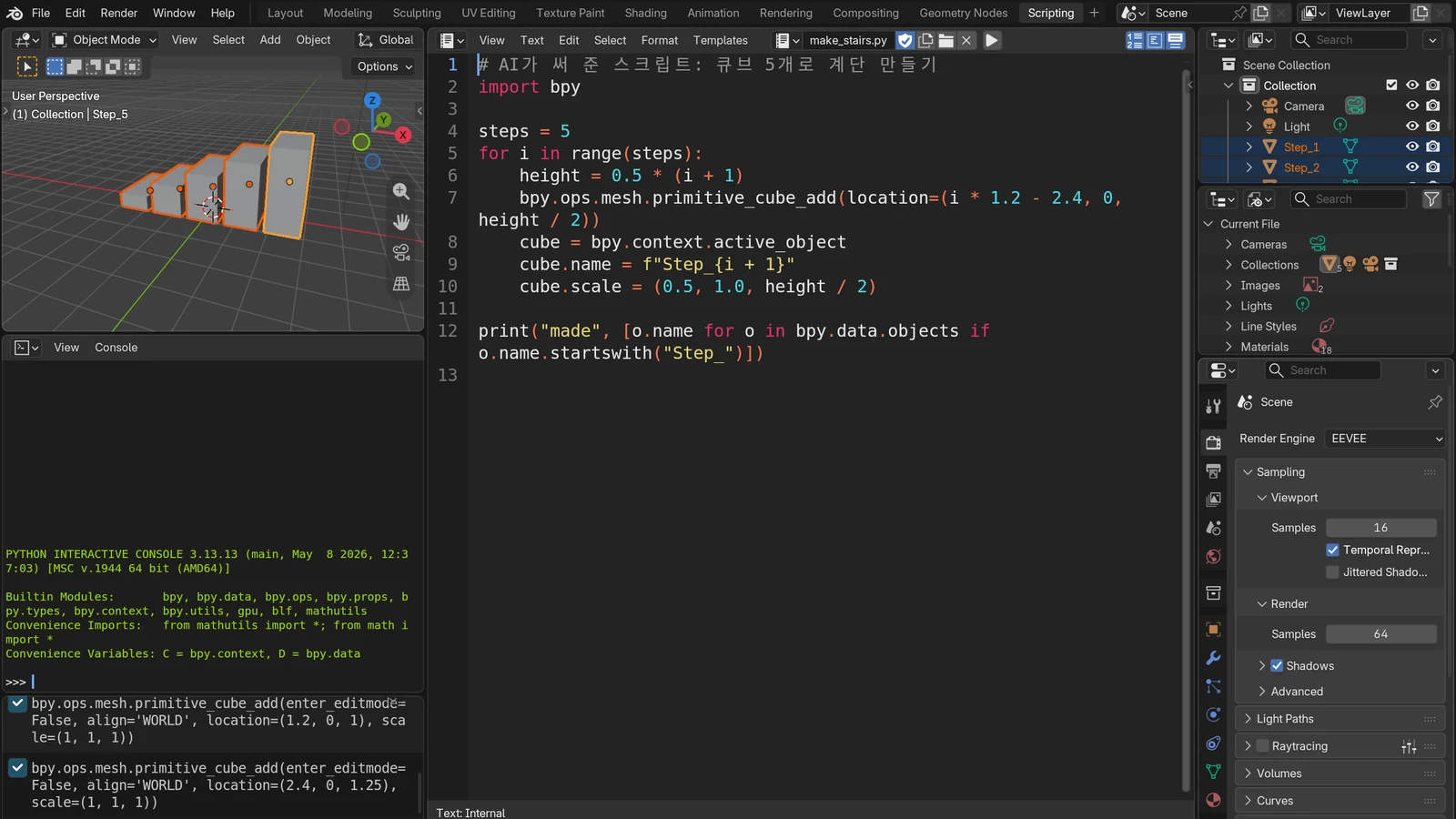
This is the simplest and most official way. Ask AI, "Write this as a Blender Python script," and run the code you get in Blender.
Three places to run it
| Where to run | How | Good for |
|---|---|---|
| Text Editor | The Scripting workspace tab at the top → paste the code → Run Script | Trying it for the first time, seeing the result on screen right away |
| Python Console | Type one line at a time, with autocomplete | Testing short commands |
| Command line | blender --background --python script.py | Repetitive work without a screen, batch rendering |
--background on the command line means running without opening a Blender window. A script that nobody needs to watch can be more efficient to run this way, without a screen. To give it a file to work on, write blender scene.blend --background --python script.py. Depending on your computer's setup, you may need to write the full path to the blender program.
First exercise: make one cube
Try asking AI this: "With Blender Python, make one cube of size 2 sitting on the floor, name it MyBox, and give it a red material. Explain each line with a comment." The code you get back looks roughly like this.
import bpy

# Add a cube 1 m above the origin
bpy.ops.mesh.primitive_cube_add(size=2, location=(0, 0, 1))
box = bpy.context.active_object
box.name = "MyBox"

# Create a new material and set its viewport display color to red
mat = bpy.data.materials.new(name="Red")
mat.diffuse_color = (1.0, 0.0, 0.0, 1.0)
box.data.materials.append(mat)
Know just two names and the code becomes readable.
bpy.data: the storeroom holding all the data in the file (objects, meshes, materials). New materials are also created in this storeroom.bpy.context: the current situation, such as what is selected and what is active right now.
Click the Scripting workspace tab at the top of the screen, and in the Text Editor in the middle, click New to make an empty text. Paste the code and click Run Script (the ▶ button), and a cube appears. If the result is not what you expected, paste the error message from the screen to AI as is and ask it to fix the code.
With an agent such as Claude Code
An AI agent that works in the terminal can link this whole process in one go. As explained in Getting started with Claude Code, Claude Code can run terminal commands. So it can write a script file, run it directly with blender --background --python, and then check the output or the render. Even without MCP, you get an agent loop of "write, run, check."
Way 2: connecting directly with MCP
Tools called "Blender MCP" are usually made of two parts. The details differ by implementation, but the big picture is this.
- MCP server (the outer part): talks to the AI app using the MCP protocol. It tells AI the list of tools, such as "add object" and "get scene info."
- Blender add-on (the inner part): runs inside Blender, receives the commands the server sends, and actually executes them. An add-on is a script that adds features to Blender, and you turn it on and off in Preferences.
After a command runs, the result, scene information, or, depending on the tool, a screenshot goes back to AI. AI looks at it and decides the next step.
Compared to interpreting, the MCP server is the interpreter who turns AI's words into commands Blender understands, and the add-on is the side that receives those commands and runs them inside Blender. If the add-on is off, nothing gets through no matter how much the interpreter talks. That is why such tools usually work only with Blender open and the add-on's connection turned on.
On the AI app side, the connection is the same as for any other local MCP server. How to register one with a settings file or the claude mcp add command is in Connecting MCP servers. The official MCP site also gives "AI creating a 3D design in Blender and printing it on a 3D printer" as an example of what MCP can do.
What to check when choosing a connection tool
Whatever the tool, check these four things before installing.
| What to check | Why |
|---|---|
| Who makes and maintains it, and whether it has been updated recently | An abandoned tool may not work with new Blender versions |
| The tools (features) it gives AI | Some implementations give a broad tool that runs arbitrary Python code |
| Whether it fetches anything from the internet | Pulling in outside material raises risks such as prompt injection |
| Whether you have read the install command and the code | A local server is a program running on your computer |
A local server from an untrusted source can lead to arbitrary code execution, data leaks, and data loss. Python does not limit what a script can do, so run only scripts from sources you know and trust.
Blender traits that save you some confusion
One thing at a time: Blender does not support Python threads. Threads are a way to run several jobs at the same time, and misusing them in Blender can cause crashes whose cause is hard to find. Blender is safe when it takes jobs in a single line and handles them in order. Rather than sending AI many commands at once, proceed one at a time and check each step.
Scripts inside files do not run automatically: auto-running scripts stored in a .blend file is off by default, and when a file tries to run one, a window asks whether to allow it. If someone else gave you the file, do not allow it without thinking.
A safe working order
Whether you use way 1 or way 2, these habits apply when you hand 3D work to AI.
- Start from a copy: leave the original .blend file alone and work on a copy. Even if the AI tool has an undo feature, changes inside Blender may be outside it.
- Ask small: instead of "Build a whole city," split the work into sizes you can check, such as "one floor plate" or "three building boxes." How to split requests well is in How to write good prompts.
- Check with your own eyes: look directly in the 3D Viewport (the 3D work area), and speak up right away if something is off. Even if AI says "done," the judgment is yours.
- Save versions: at each good step, save under a new name (File ‣ Save As…). If something goes wrong, go back one step.
Long tasks such as rendering can keep the computer busy while AI waits. For choosing a render engine, see Fast EEVEE, accurate Cycles.
Common misunderstandings
"Blender MCP is a feature built into Blender." No. What Blender officially opens up is the Python API, and the MCP connection is something community tools build on top of that API.
"AI can only handle Blender if you attach MCP." No. Just running scripts written by AI in the Text Editor or on the command line lets you do a great deal.
"AI will finish a great scene on its own." AI is strong at turning instructions into code, but people have to decide what makes a scene good. The more you set the goal and the checks first and hand over the work in small steps, the steadier the results.
Summary
| Item | Summary |
|---|---|
| How AI drives Blender | Blender's official Python API. Anything done with buttons can also be done with code |
| Way 1 | AI writes a script, run in the Text Editor or with blender --background --python |
| Way 2 | AI gives commands directly through a community connection tool (MCP server + Blender add-on) |
| Official? | The Python API is official. Blender MCP tools are community-made |
| Watch out | Trusted sources only, check tool permissions, work on copies, small steps, check by eye, save versions |
Read next
- What is MCP? A USB-C-like standard for plugging tools into AI
- Connecting MCP servers: how to give AI tools
- Getting started with Claude Code: from installation to your first chat with an AI coding assistant in the terminal
- How do AI and AI agents differ? AI that answers, AI that works
- Fast EEVEE, accurate Cycles: how to choose a Blender render engine
- How to write good prompts: five principles from the official guides
References
- Blender Python API, Quickstart: https://docs.blender.org/api/current/info_quickstart.html
- Blender Python API, Tips and Tricks: https://docs.blender.org/api/current/info_tips_and_tricks.html
- Blender Python API, Python Threads are Not Supported: https://docs.blender.org/api/current/info_gotchas_threading.html
- Blender Manual, Python Scripting Introduction: https://docs.blender.org/manual/en/latest/advanced/scripting/introduction.html
- Blender Manual, Scripting & Security: https://docs.blender.org/manual/en/latest/advanced/scripting/security.html
- Blender Manual, Command Line Arguments: https://docs.blender.org/manual/en/latest/advanced/command_line/arguments.html
- Model Context Protocol, What is MCP?: https://modelcontextprotocol.io/docs/getting-started/intro
- Model Context Protocol, Security Best Practices: https://modelcontextprotocol.io/docs/tutorials/security/security_best_practices
- Claude Code Docs, How Claude Code works: https://code.claude.com/docs/en/how-claude-code-works