Getting started with Claude Code: from install to your first conversation with an AI coding assistant that works in the terminal
How to install Claude Code (Windows and Mac), how to start your first conversation, and the safety features to know first, such as permission modes and undo, explained for first-time users.
한국어English
Based on: the official Claude Code docs, Claude Code v2.1.283 or later. Checked in September 2026. Install methods and the default permission mode can change between versions.
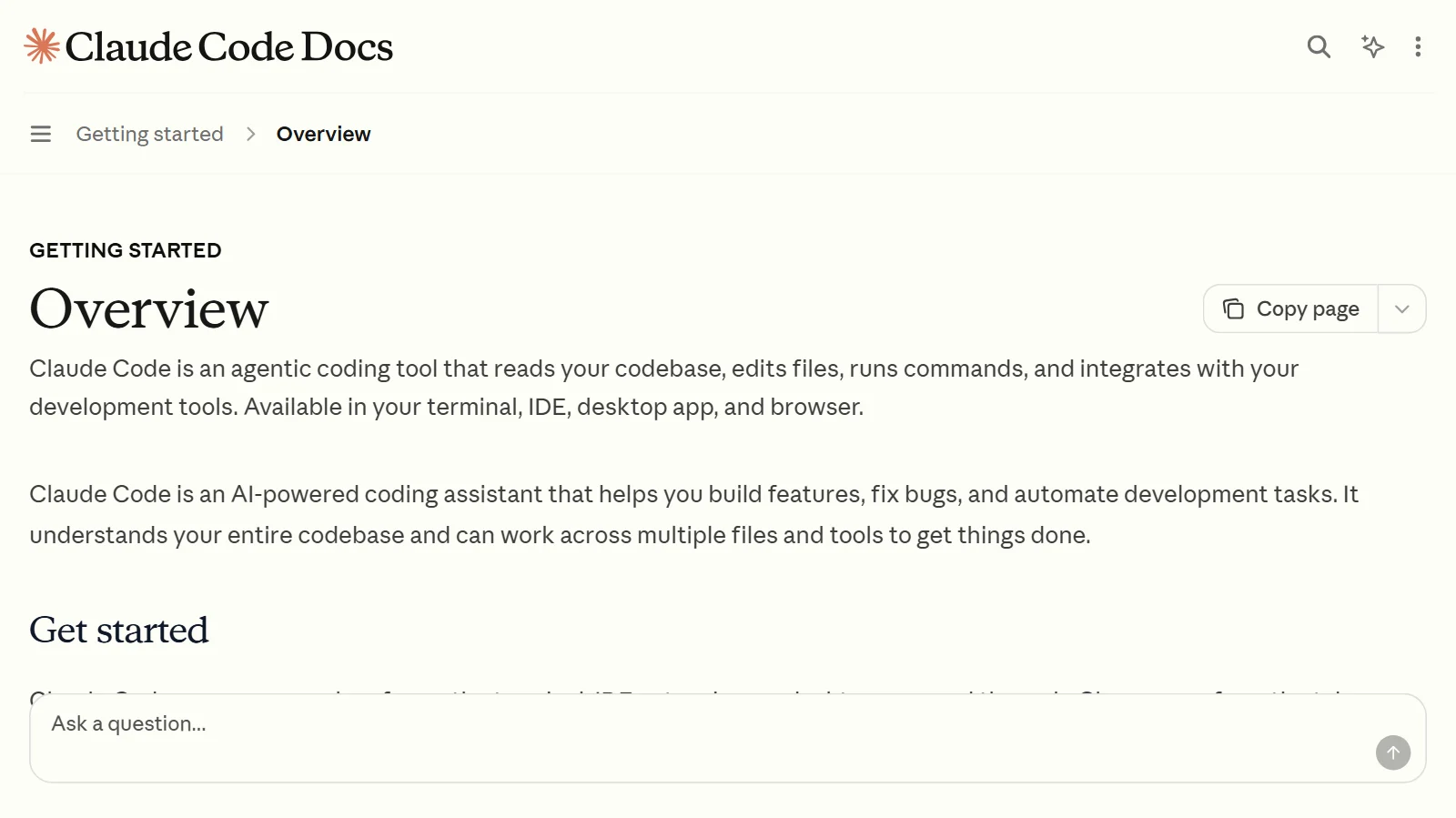
Claude Code is an AI coding assistant made by Anthropic. It reads the project folder on your computer directly, edits files, and runs commands. Unlike getting code in a chat window and copying and pasting it, when you hand it a task, it finds and edits the files itself and then checks the result.
By the end of this guide, you will be able to do the following.
- Understand what Claude Code is.
- Install Claude Code on Windows and Mac.
- Start your first conversation.
- Tell apart the permission modes you must know before you first start it.
If the terminal is new to you, read GUI vs. CLI: what is the difference? first. If the word "agent" is unfamiliar, read How is an AI agent different from AI? first. Either one will make this guide easier to follow.
Claude Code in one sentence
Claude Code is an agentic coding tool that reads your codebase, edits files, runs commands, and connects to your development tools. Here is what the unfamiliar words mean.
- Codebase: all the files that make up one project. It is like all the chapters of a book put together.
- Agentic: it does not just answer questions. It uses tools to get the work done itself.
- Terminal: a window where you type commands as text. You use Claude Code inside this window, as if you were chatting.
In everyday terms, a regular chatbot is an expert who gives advice over the phone. It tells you "fix this part like this," but you are the one who does the fixing. Claude Code is closer to a repair technician who comes to your home and fixes things directly. The technician looks for what is broken, takes out the tools, makes the repair, and runs the water to check there are no leaks. Because you are letting the technician into your home, though, you need to agree in advance on how far they may go. The "permission modes" later in this guide are that agreement.
Where you can use it
It is known as a terminal tool, but several interfaces use the same engine.
| Where | Features |
|---|---|
| Terminal (CLI) | The basic form with the most features. Runs straight from the command line |
| VS Code and Cursor extension | Compare changes side by side inside the code editor |
| JetBrains plugin | For editors such as IntelliJ and PyCharm. The CLI must be installed separately |
| Desktop app | Use it in a window with no terminal. The CLI is built in, so no separate install is needed. Requires a paid subscription |
| Web (claude.ai/code) | In the browser with no install. Good for handing off long-running work |
Whichever interface you use, the project's rules file (CLAUDE.md), settings, and connected tools (MCP servers) apply in the same way. This guide uses the terminal, the most basic one.
How it works: gather, act, check
Claude Code's way of working is called the agent loop. It has three steps.
- Gather context: find and read the related files, and check error messages.
- Take action: edit files, create new ones, or run commands.
- Verify results: run tests or reread the result to see whether it worked.
These three steps do not happen just once. They repeat until the work is done. For example, if you say "fix the failing test," it runs the tests to see what fails, reads the error, finds and reads the related files, makes the fix, and runs the tests again to check. You are also part of this loop. If it seems to be heading the wrong way, you can step in at any time and point it to another approach.
It can work this way thanks to tools. The built-in tools fall into five groups.
| Tool group | What it can do |
|---|---|
| File operations | Read files, edit code, create new files, rename |
| Search | Find files by name or content |
| Execution | Run shell commands, tests, and git |
| Web | Search the web and look up documentation |
| Code intelligence | See error warnings after edits, find where something is defined (plugin required) |
Here is what the unfamiliar words in the table mean.
- Shell command: a command you type as text in the terminal. For example, "make a folder" or "list the files," done with one line instead of the mouse.
- Test: a small checking program that confirms automatically that a program works correctly. In cooking terms, it is the spoon you use to taste the food.
- git: a tool that saves the history of changes to files. Like a "save point" in a game, it lets you go back to an earlier state at any time.
- Code intelligence: a feature that tells you right after you edit code, "there is a typo here" or "this name is defined in that file." It is like the red underline spell check in a word processor.
- Plugin: an add-on part that adds features to the base program. Code intelligence turns on only after you install a plugin for your language.
You can also attach more outside tools through MCP. What is MCP? explains what MCP is, and Connecting MCP servers shows how to actually connect one.
From install to your first conversation
What you need
- A terminal: PowerShell or Command Prompt (CMD) on Windows, Terminal on Mac
- A project folder to work in
- An account: you need one of a paid Claude subscription (Pro, Max, Team, Enterprise), a Claude Console account (a prepaid API account), or a supported cloud provider. The free plan is not on this list. The desktop app requires a paid subscription from this list. Plan names and terms change often, so check the official pricing page again before you sign up.
Step 1: Install
The method Anthropic recommends is the "native install." The command differs by terminal type. WSL on the first line below is a Windows feature that runs Linux inside Windows.
# macOS, Linux, WSL
curl -fsSL https://claude.ai/install.sh | bash

# Windows PowerShell
irm https://claude.ai/install.ps1 | iex

# Windows CMD (Command Prompt)
curl -fsSL https://claude.ai/install.cmd -o install.cmd && install.cmd && del install.cmd
If you are not sure whether your Windows window is PowerShell or CMD, look at the start of the line. PowerShell has PS in front, as in PS C:\, and CMD starts with C:\ and no PS. You can also tell from the error text. If you get the error 'irm' is not recognized, you are in CMD. If you get The token '&&' is not a valid statement separator, you are in PowerShell. Type the command that matches your window again.
When the install finishes, open a new terminal window and type claude --version. If a version number appears, it worked.
If you see a message that claude cannot be found (not found, not recognized), usually the install folder has not been added to PATH yet. PATH is the list of folders where the computer looks for command programs. It is like a name that has not been added to the phone book yet: the program is installed, but the computer does not know where it is. If a new window gives the same result, follow the "Fix your PATH" instructions in the official docs.
A few other things to know.
- On Windows, it is a good idea to install Git for Windows as well. Without it, Claude Code uses PowerShell instead.
- The native install updates itself automatically in the background. If you installed with a package manager such as Homebrew (Mac) or WinGet (Windows), you need to update it yourself.
Step 2: Start in your project folder and log in
cd my-project-folder
claude
cd is the command for "go into this folder." The first time you run it, a browser opens and asks you to log in. Once you log in, it does not ask again. Always check which folder you run claude in. Claude Code uses that folder and its subfolders as its workspace. It needs your permission to look at files elsewhere. At first, start in a practice folder with no important files.
Step 3: Ask questions first
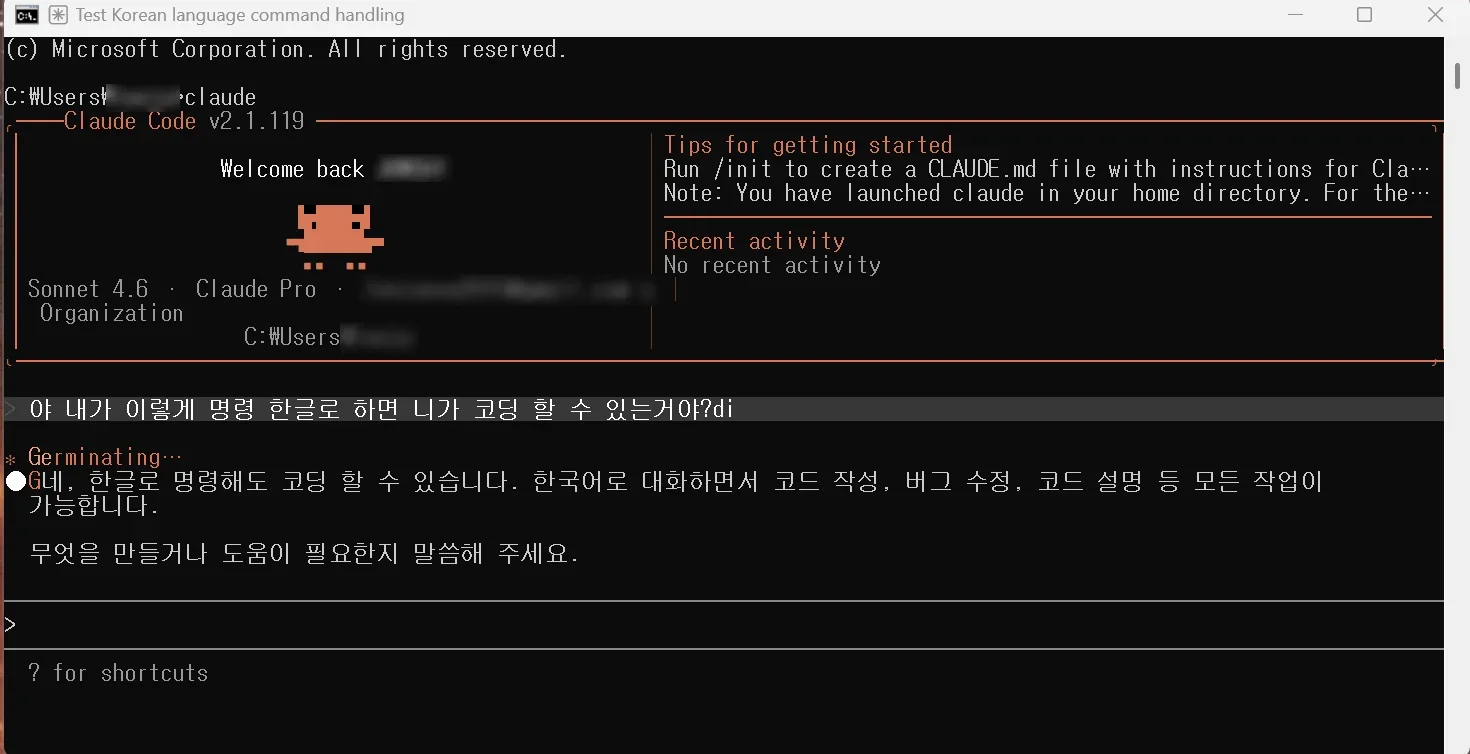
At first, try asking questions before asking it to change anything. Here are some first questions. You can ask in your own language.
- "What does this project do?"
- "Explain the folder structure."
- "Where is the file that serves as the starting point?"
You do not need to paste files one by one. Claude Code reads the files it needs on its own.
Before step 4: change the permission mode first
This is the part of the guide to remember. In the latest versions (v2.1.283 and later), the default start mode in the interactive terminal is Auto. In Auto mode, Claude Code goes ahead with most file edits and commands without asking you. If you hand over work thinking "it will ask me each time before it changes anything," files may change before you have a chance to check.
So start like this at first.
- After starting
claude, check the current mode in the status bar at the bottom of the screen. - Press
Shift+Tabto change the mode. From Auto, one press switches to Manual, and after that it cycles through Accept edits → Plan. - At first, set it to Plan (get a plan only) or Manual (ask every time) before handing over work.
If you want to start in Plan mode from the beginning, you can start with claude --permission-mode plan. The start mode may differ depending on your settings or your company's policy, so make a habit of glancing at the status bar each time you start.
Step 4: Hand over a small change
Once you are comfortable, hand over a small task. For example, try "Add install instructions to the README." A README is the "user manual" document in a project folder. In Manual mode, Claude Code shows the changes it will make and asks for permission. Read them, and if they look fine, choose Yes. In Plan mode, it shows you a plan first and starts editing only after you approve.
Common commands
| Command | Meaning |
|---|---|
claude | Start interactively |
claude -c | Continue the most recent conversation in this folder |
claude -r | Pick an earlier conversation and reopen it |
claude -p "question" | Ask once and exit right away |
/help | See the available commands |
/clear | Clear the conversation history |
/exit | Quit |
Two safety features that prevent mistakes
Just as you would tell a technician at your home "please only touch this room" or "please ask me before you drill through a wall," Claude Code has two safety features.
1. Permission modes: decide how much it asks before acting
Press Shift+Tab to change the mode. These are the main modes.
| Mode | Behavior | Good for |
|---|---|---|
| Manual | Asks every time before editing a file or running a command | When you are new, when there are important files |
| Accept edits | Edits files and runs simple commands such as making or moving folders right away, and asks about other commands | When you are watching the changes and editing alongside |
| Plan | Looks around without editing files and only suggests a plan | When you want to see what it will do first |
| Auto | Goes ahead without asking. Instead, a separate checker blocks actions that look risky | After you are used to it, long tasks |
The classifier in Auto mode is a second AI checker that judges separately whether an action is risky. It blocks actions that go beyond what you asked for, actions that touch outside systems it does not know, and actions that follow suspicious instructions in text it has read. It is like having a security guard at the door instead of a person, but even a guard cannot know everything. So until you are used to it, Manual or Plan, where a person checks directly, gives more peace of mind.
2. Checkpoints: undo file changes
Before Claude Code edits a file, it saves the original content. If you do not like the result, press Esc twice to go back to the earlier state, or say "undo what you just changed." However, work that affects things outside your computer, such as databases, outside services, and deployments, cannot be undone. You need to block that kind of work in advance with the permission mode. Making a save point with git before a big task is also a helpful habit. git is explained in The difference between Git and GitHub.
Tips for using it well
- Be specific: "Fix the login bug where entering a wrong password shows a blank screen" is better than "fix the bug." The principles are in How to write good prompts.
- Break it into steps: write big tasks out in order: 1, 2, 3.
- Have it look first: before any edits, say "analyze the structure of this part first." This pairs well with Plan mode.
- Fix things as a conversation: even if the first result is wrong, there is no need to start over. Just continue with "No, the problem is in this part." Press
Escto stop what it is doing right away. - Put lasting rules in CLAUDE.md: if you put a file named
CLAUDE.mdin the project folder, Claude Code reads it at the start of every session. Write rules there such as "write documents in Korean" or "do not touch this folder." You can make a first draft with the/initcommand.
There is a reason for the last tip. A new session starts without the earlier conversation history, and when a conversation gets long, the early parts are summarized, so instructions from the start can be lost. What tokens and the context window mean explains what context is in detail.
Common misunderstandings
"Only developers can use it." Claude Code is strong at coding, but it can help with anything you can do from the command line, such as writing documents, searching files, and researching. The responsibility for checking the result still lies with you, though, so it is best to start by handing over small tasks that are easy to undo.
"It does everything on its own, so I do not need to check." Claude Code goes through checking steps on its own, but you decide what "done" means. Especially if the default is Auto mode, read the changes yourself, even if only afterward.
"It is the same as Claude in the chat app." It uses the same Claude models, but it differs in having tools attached that work with your files and terminal. How is an AI agent different from AI? covers the structure in detail.
Summary
| Item | Summary |
|---|---|
| Claude Code | An AI coding assistant that reads and edits files and runs commands |
| Analogy | Not phone advice, but a technician who comes to your home and fixes things |
| How it works | Repeats gather context → take action → verify results |
| Install | curl on Mac; a PowerShell (irm) or CMD command on Windows. If it fails, check PATH |
| First start | The latest versions start in Auto (mostly no asking). Switch to Plan or Manual with Shift+Tab before you begin |
| Undo | Checkpoints (Esc twice). Changes to outside systems cannot be undone |
Read next
- GUI vs. CLI: the difference between clicking and typing
- How is an AI agent different from AI? AI that answers, AI that works
- What is MCP? A USB-C-like standard for plugging tools into AI
- Connecting MCP servers: how to give AI tools
- What tokens and the context window mean: why AI loses track of earlier parts of a long conversation
- The difference between Git and GitHub: what "put it on GitHub" means
- How to write good prompts: five principles from the official guides
References
- Claude Code Docs, Overview: https://code.claude.com/docs/en/overview
- Claude Code Docs, Quickstart: https://code.claude.com/docs/en/quickstart
- Claude Code Docs, How Claude Code works: https://code.claude.com/docs/en/how-claude-code-works
- Claude Code Docs, Choose a permission mode: https://code.claude.com/docs/en/permission-modes