How AI image generation works, and how to write good prompts
AI finds a picture little by little in noise. Learn how diffusion models work and prompt tips for getting the picture you want.
한국어English
ON THIS PAGE
- 01At a glance
- 02Analogy: wiping a fogged-up window
- 03How it works 1: learn how to ruin, then go backward
- 04How it works 2: a language model that translates the text
- 05How it works 3: shrink it down to calculate
- 06The backbone of a good prompt: subject, setting, style
- 07Four tips for refining further
- 08What AI still does poorly
- 09Making new pictures and editing them
- 10Using it responsibly: bias, labels, copyright
- 11Summary
- 12Read next
- 13References
Based on: official documentation from Google, OpenAI, and Stability AI, and a published paper (Latent Diffusion, CVPR 2022), checked in September 2026.
Many of today's AI image generators make pictures with a method called a "diffusion model." They start from noise, like the static on a television screen, and reveal a picture by removing the noise little by little to match a text description. That is why the same sentence gives a slightly different picture each time, and why the way you write the sentence changes the result a lot. This post explains how it works in simple terms, then covers prompt tips that get you closer to the picture you want, what AI still does poorly, and what to be careful about.
At a glance
| Item | Short summary |
|---|---|
| How it draws | Starts from noise and makes a picture by removing the noise over many steps |
| How it understands text | A language model turns the text into a numeric representation and passes it to the part that makes the picture |
| The backbone of a good prompt | Subject + setting + style, then refine several times |
| Still hard | Exact text in the picture, detailed layout, keeping the same person across several images |
| Be careful about | Bias, AI-generated labels, copyright |
Analogy: wiping a fogged-up window
Think of a window heavily fogged up in winter. At first you see nothing. Wipe it once with your hand and a blurry outline appears. Wipe two or three more times and the view outside becomes clear.
A diffusion model is a painter who learned this process in reverse. But there is no view already outside the window. It hears "what should be visible outside the window" from a text description, and with each wipe it adjusts things a little so that a scene matching the description appears. Where and how it starts wiping the fog (noise) is different every time, so even with the same description, the view comes out a little different.
How it works 1: learn how to ruin, then go backward
According to Google Research, a diffusion model learns and draws in three steps.
- During training: it adds noise little by little to real photos, ruining them until the details are wiped out and only pure noise is left.
- A neural network (the computing structure of an AI) learns this process in reverse: how to remove the noise one step at a time.
- When making a picture: it starts from pure noise and removes the noise little by little, as it learned, until it arrives at a clean, believable picture.
The AI does not pull out stored photos and paste them in. It looks at a huge number of pictures and learns rules for "what a believable picture looks like," then follows those rules to fix the noise one step at a time.
How it works 2: a language model that translates the text
To turn the text "a puppy running on a beach at sunset" into a picture, the AI first has to understand what the text means.
Google's image generation research Imagen gave this job to a large language model. The structure is as follows.
| Step | What it does | Analogy |
|---|---|---|
| 1. Understanding the text | A language model turns the text into a numeric representation (an embedding) | An interpreter who puts a customer's order into kitchen language |
| 2. A small picture | A diffusion model makes a small picture (64x64) while looking at that representation | Drawing a small pencil sketch |
| 3. Enlarging | Other diffusion models enlarge it to 256 and then 1024, filling in details | Moving the sketch to a large canvas and refining it |
In this research, making the language model that understands the text bigger mattered more than making the picture-making part bigger. In other words, the picture comes out well only when the text is understood well. What a language model is is covered in What is an LLM (large language model).
How it works 3: shrink it down to calculate
One photo is made of millions of dots (pixels), so running diffusion on every single dot takes a huge amount of calculation. The Latent Diffusion paper published in 2022 solved this problem like this.
- First, it compresses the picture into a small summary representation (latent space). It is similar to putting a suitcase into a vacuum compression bag.
- It runs diffusion in that small space, which greatly reduces the amount of calculation.
- At the end, it decompresses the result back into a picture of the original size.
- Conditions such as text go in through cross-attention (a mechanism that chooses which part of the text to refer to while making the picture).
Stable Diffusion, based on this paper, became widely known when Stability AI released it as a public model in August 2022. At release, it could run with about 6.9GB of graphics card memory (VRAM), a level that was within reach of personal graphics cards. The design that reduced calculation can be said to have played a part in this accessibility. Why graphics card memory matters is covered in What VRAM means.
Not every image AI uses the same method. The detailed structure differs from company to company, and often it is not made public. Read the principles in this post as "a representative method."
The backbone of a good prompt: subject, setting, style
Google Cloud's Imagen prompt guide recommends starting from three things: subject, context (setting), and style.
| Element | Meaning | Example |
|---|---|---|
| Subject | The main character of the picture | One orange cat |
| Setting (context) | Where the main character is, the time, the situation | A garden on a sunny spring day, among flowers |
| Style | The feel and technique of the picture | Soft watercolor, pastel tones |
Joined together, the three look like this.
- A weak example:
cat - A better example:
an orange cat sitting among flowers in a garden on a sunny spring day, soft watercolor, pastel tones
In food terms, it is the difference between "I'd like some food" and "kimchi fried rice with two eggs, less spicy." The first order still gets you something, but whether you get what you want is left to luck.
Four tips for refining further
1. Describe the camera and the light
If you want a photo look, talk like a photographer.
| Item | Example |
|---|---|
| Distance | A close-up taken up close, a wide view taken from far away |
| Light | Natural light, warm sunset light, cold dawn light, dramatic lighting |
| Lens | Macro, which shows small things large; wide-angle, which captures a wide view |
| Focus | Bokeh with a blurred background, soft focus, motion blur |
2. Name an art style
Using well-known style names, such as "impressionist painting," "pencil sketch," or "flat illustration," gets the feel across quickly.
3. Do not try to finish in one go
Set the core idea first, then refine and expand it until you get close to the picture you want. It is easier to find the cause of problems if you start with only the subject and setting, then add light, color, and composition one at a time while looking at the results.
4. Write what you want left out separately
Some tools have a negative prompt (a field for things you do not want to appear). In this field, it is better to write only the things you want left out, without words like "without" or "don't." For example, write "buildings," not "without buildings." General prompt principles are covered in more detail in How to write good prompts.
What AI still does poorly
Below are the limits OpenAI has stated for its own image model. Other tools often get stuck in similar places.
| Limit | Details | How to deal with it |
|---|---|---|
| Text | Much better than before, but the exact position and sharpness of text can still be hard | Keep text short, or make the picture without text and add the text separately later |
| Consistency | Hard to keep the same character exactly the same across several images | Include reference images |
| Layout | Placing elements exactly in set positions can be hard | State positions clearly, like "X on the left, Y on the right," and try several times |
| Time | Complex requests take time to make | Set the direction first with a simple request |
Google's Imagen guide also recommends keeping text in a picture short, 25 characters or fewer.
Making new pictures and editing them
Today's image AI can edit as well as make new pictures. Taking OpenAI's image features as an example:
- Editing: ask for something like "change the background to night" on an existing picture to change part or all of it.
- Partial editing (inpainting): give it a mask (a mark painted only over the area to change), and it redraws only that part. It is like erasing just a stain in a photo and painting over it.
- Reference images: give several pictures together and ask something like "put these items together in one scene."
- Refining through conversation: look at the result and follow up with requests like "a little brighter."
Using it responsibly: bias, labels, copyright
Bias: on the Imagen research page, Google stated that the training data contained inappropriate content and that social biases and stereotypes appeared when it drew people. For example, it may draw jobs or appearances skewed in a certain direction. Check the results once more for pictures that include people.
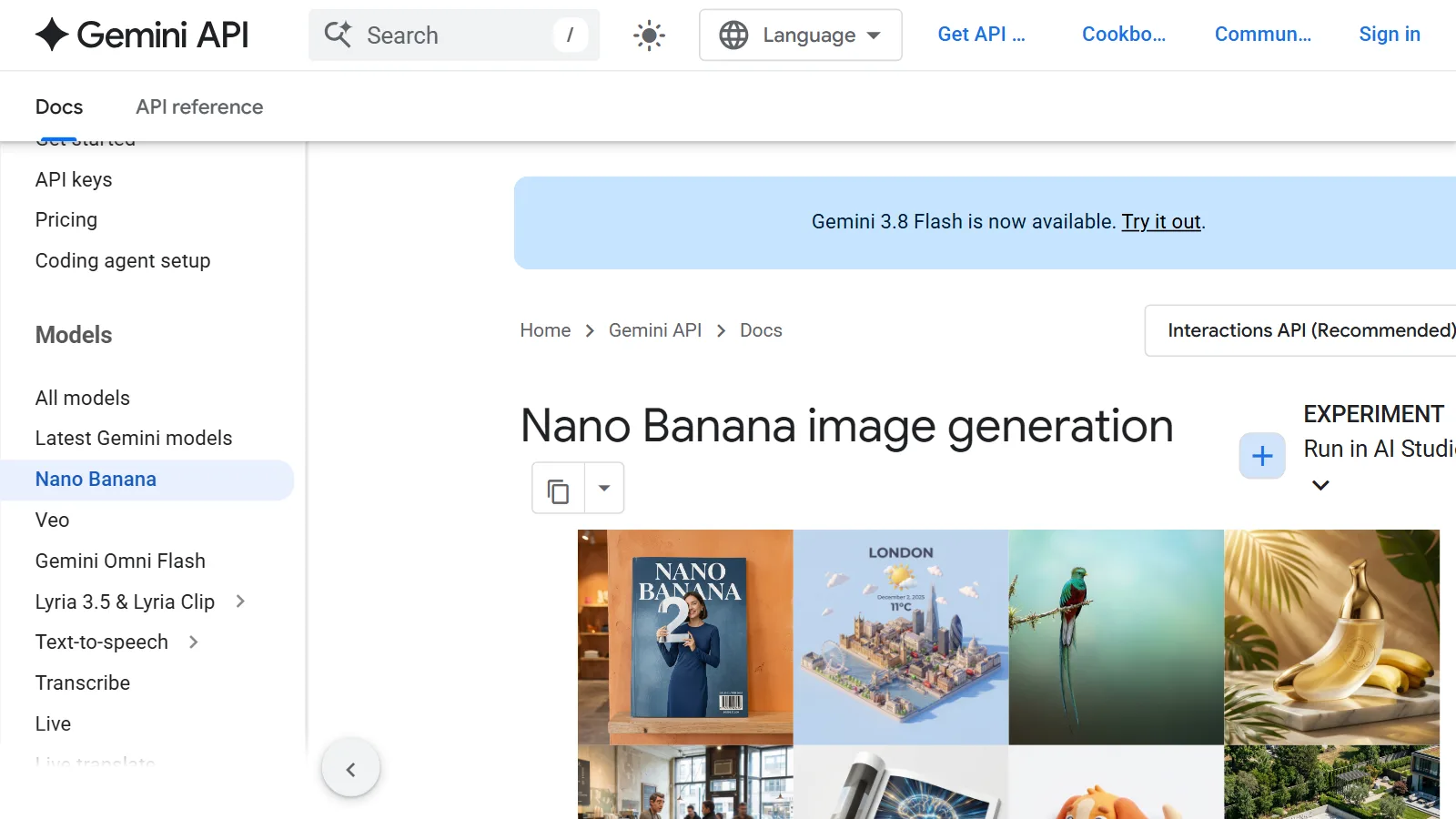
AI-generated labels: every image made with Google's Gemini API carries an invisible watermark called SynthID. It is a technology that makes it possible to tell that a picture was made by AI. When you use one in a blog or a presentation, stating "AI-generated image" helps prevent readers from misunderstanding.
Copyright: who owns a picture made with AI, and whether you may imitate a real artist's style or a trademark, differ by country and by service terms, and the discussion is still going on. Before using it commercially, check the terms of the service you use, and it is safer to avoid requests that make something resemble a real person, logo, or character. Details are covered in Copyright basics for AI-made images and text.
Summary
| Item | Summary |
|---|---|
| How image AI draws | Starts from noise and removes it little by little to match the description (diffusion model) |
| Why results differ each time | The starting noise is different each time |
| The backbone of a prompt | Subject + setting + style, plus camera, light, and art style if needed |
| When it does not work in one go | Put in the core first, then add one thing at a time while looking at the results |
| What it does poorly | Exact text, detailed layout, keeping the same person |
| Be careful about | Check for bias, label AI-generated images, check copyright and terms |
Read next
- AI video generation for beginners: making videos from text and images
- How to write good prompts: 5 principles from the official guides
- Copyright basics for AI-made images and text
- What is an LLM (large language model)
- What VRAM means: why graphics card memory matters
References
- Google Research Blog, "High Fidelity Image Generation Using Diffusion Models" (2021-07-16): https://research.google/blog/high-fidelity-image-generation-using-diffusion-models/
- Google Research, "Imagen": https://imagen.research.google/
- Rombach et al., "High-Resolution Image Synthesis with Latent Diffusion Models" (CVPR 2022): https://arxiv.org/abs/2112.10752
- Stability AI, "Stable Diffusion Public Release" (2022-08-22): https://stability.ai/news-updates/stable-diffusion-public-release
- Google Cloud Vertex AI, "Prompt and image attribute guide": https://docs.cloud.google.com/vertex-ai/generative-ai/docs/image/img-gen-prompt-guide
- OpenAI API Docs, "Image generation": https://developers.openai.com/api/docs/guides/image-generation
- Google AI for Developers, Gemini API "Image generation": https://ai.google.dev/gemini-api/docs/image-generation