Installing and Setting Up Claude Code for the First Time in 2026
A record of installing Claude Code on Windows for the first time and running it once, following along with a book.
한국어English
ON THIS PAGE
This is a record of my own installation in April 2026. The current installer screens and steps may differ from this post. My Windows is set to Korean, so many screenshots show Korean labels.
I started Claude Code because I was bored. I'm starting from knowing nothing, with one book. Since I really know nothing, I'm writing down each step as I go. I'm also keeping it for myself, so I don't get lost when I reinstall after changing computers or reformatting.
I heard that if you install Claude Code directly on your local computer, you can program as if a senior software engineer were sitting next to you, so I'm giving it a try.
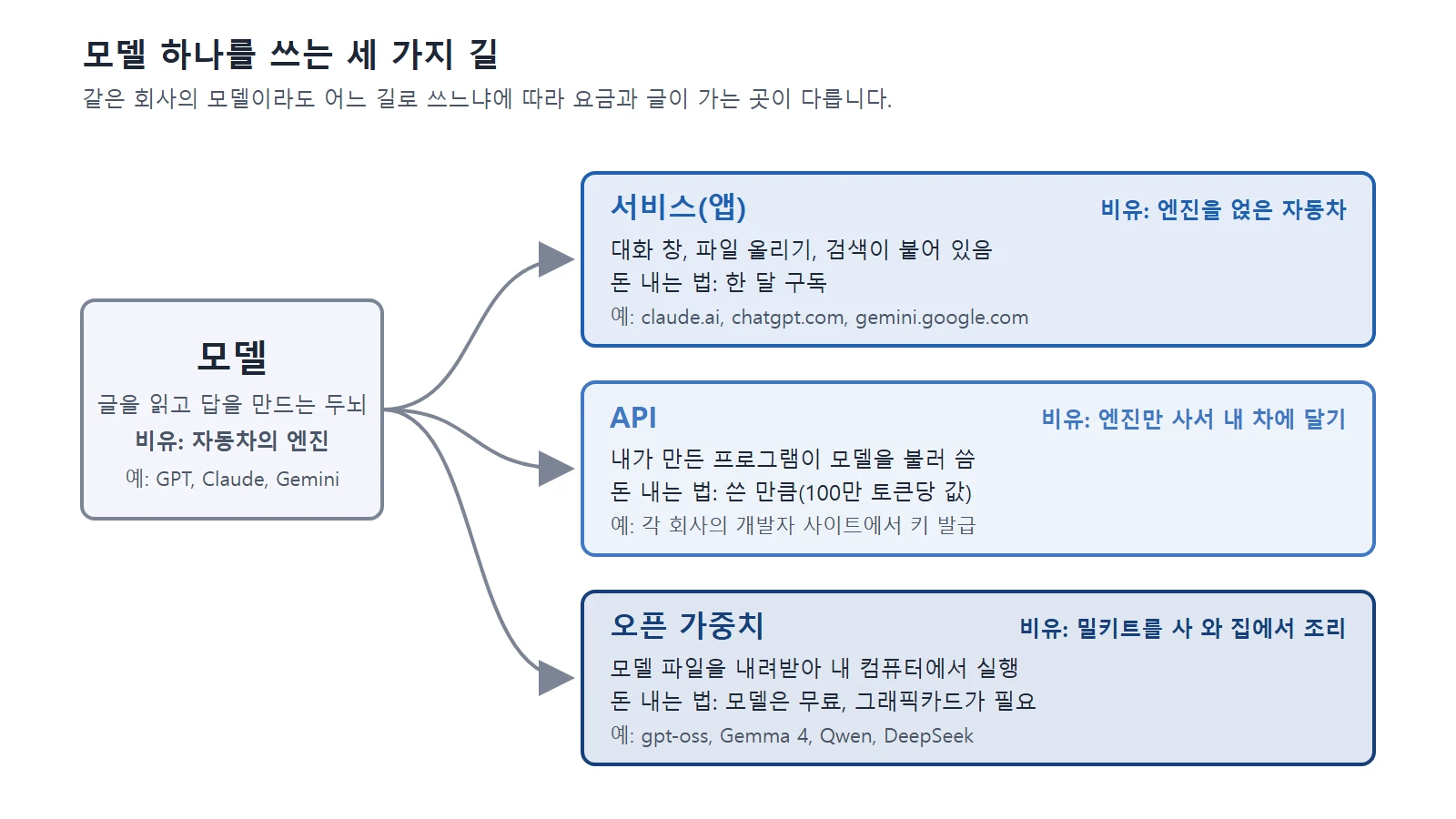
I asked Gemini what the difference is between using AI on the web and installing it locally. It gave me the short summary below.
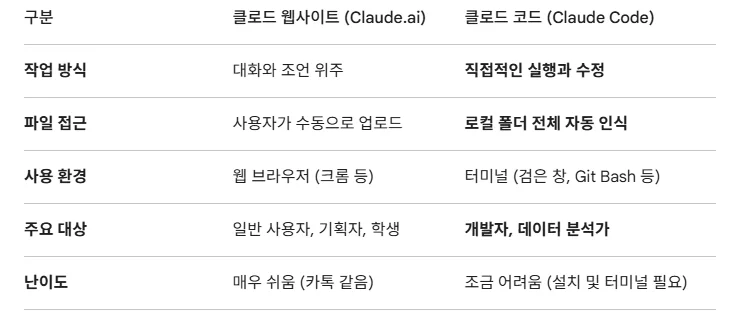 Gemini's summary, labels in Korean. In short: Claude.ai is for conversation and advice in a web browser, you upload files by hand, and it is very easy, like a chat app. Claude Code runs and edits things directly in a terminal, sees your whole local folder automatically, suits developers and data analysts, and is a bit harder because it needs installing and a terminal.
I plan to do a lot of coding from now on, so I decided I should learn Claude Code and install it. I also bought a book and am following along, searching the internet for anything I don't know or that doesn't work. It can feel a bit harder than you'd expect the first time. Still, I figured that if I struggle a little at the start, later I'll be able to code with plain language alone, so I'm going for it.
First, to install Claude Code, type the command below into a "Command Prompt" window.
If Command Prompt (cmd) is new to you, open it like this:
type cmd in the Windows search box and "Command Prompt" appears.
Copy the command below with Ctrl+C and paste it with Ctrl+V.
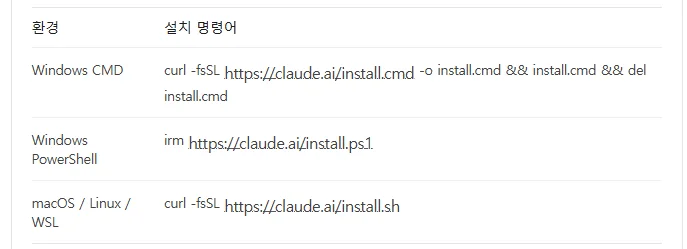 Install commands for each environment (labels in Korean). This post uses the Windows CMD line.
Install command:
curl -fsSL https://claude.ai/install.cmd -o install.cmd && install.cmd && del install.cmd
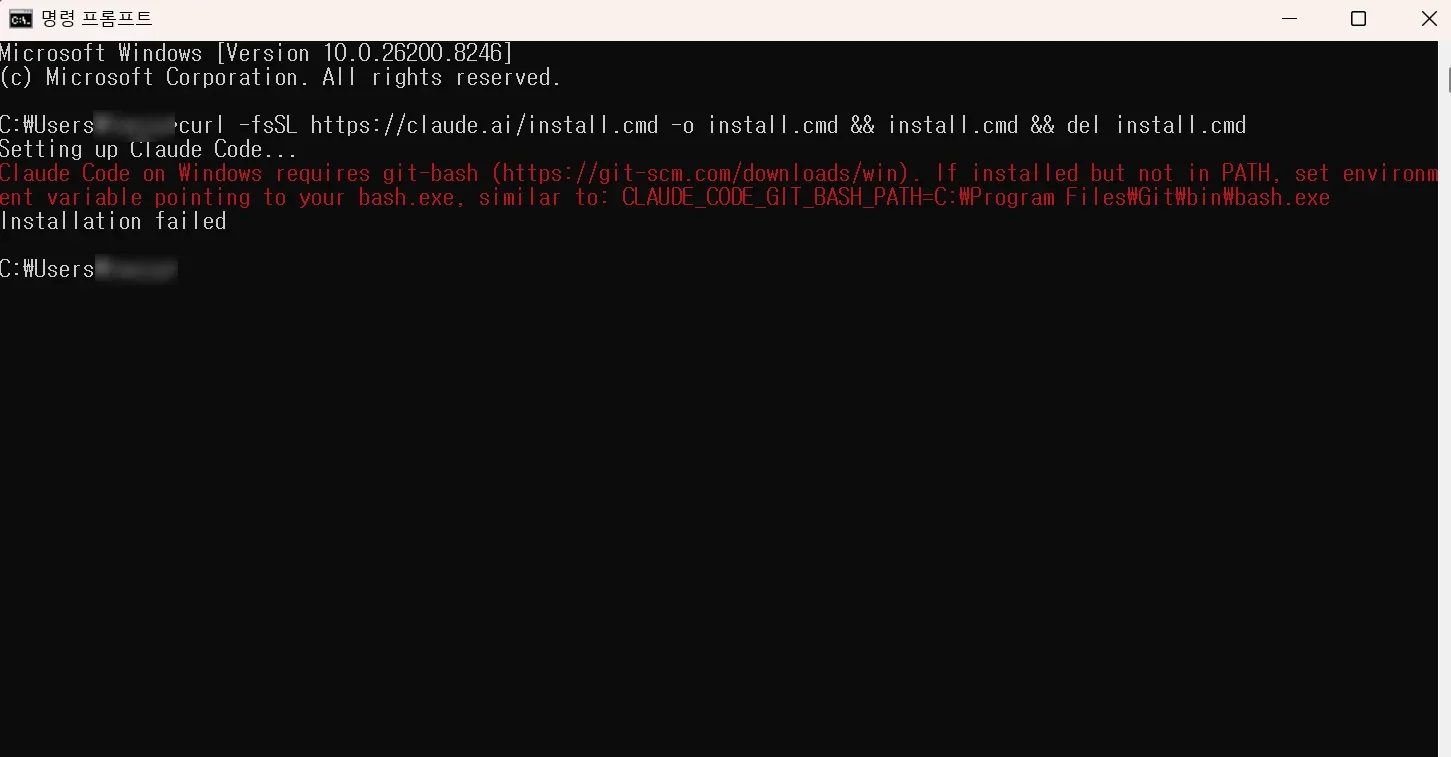 The first attempt fails because Git Bash is missing (window title in Korean)
But the first time you run it, you may get an error like the one above.
The problem is that something called git isn't installed. I didn't know exactly what that was, so I asked our friend Gemini.
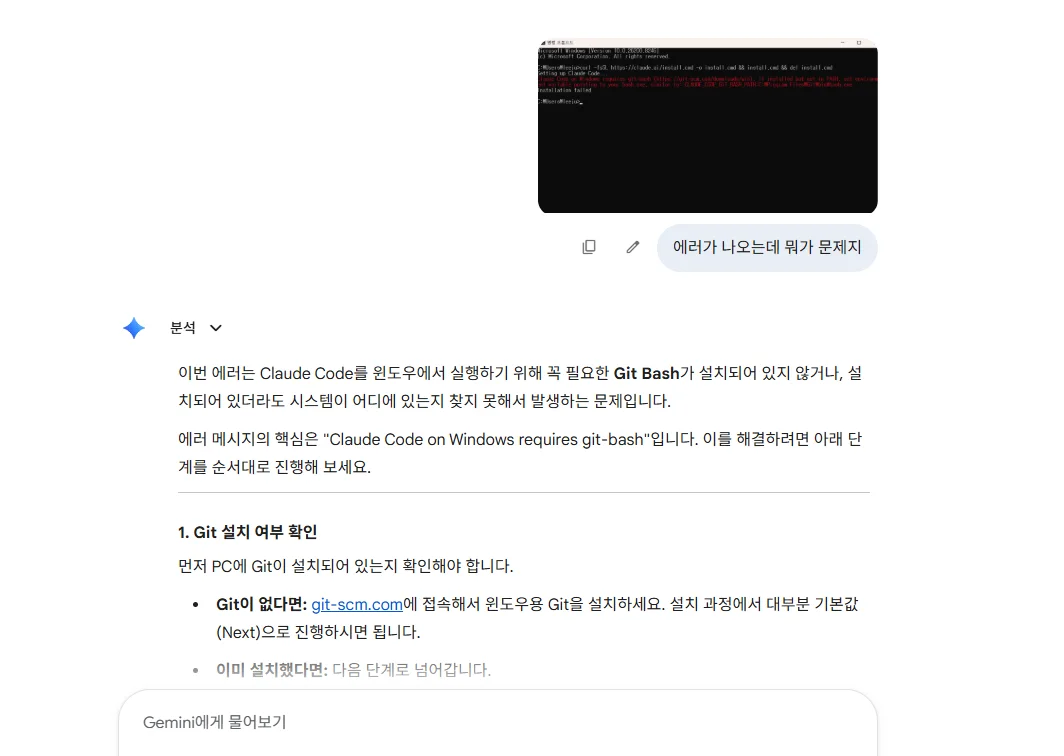 Gemini's answer (labels in Korean). It says the error means Git Bash, which Claude Code needs on Windows, is missing or can't be found, and that you should install Git for Windows from git-scm.com, mostly keeping the defaults (Next).
Next, I went to the git site. Note: Git for Windows downloads without an account.
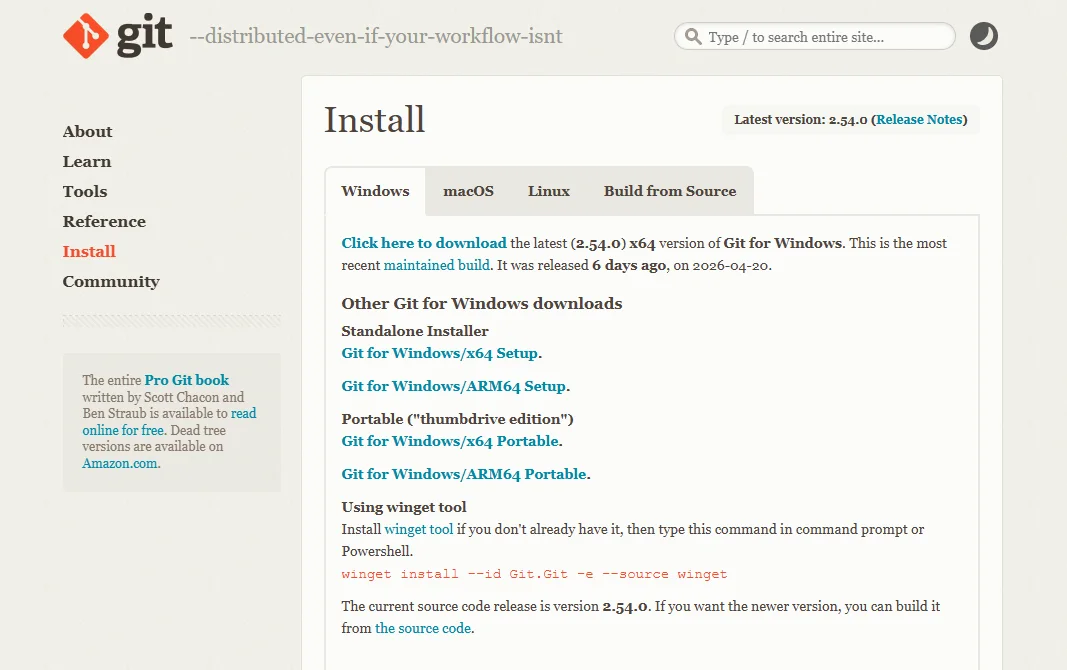
Go to the link and download and install Git for Windows/x64 Setup.
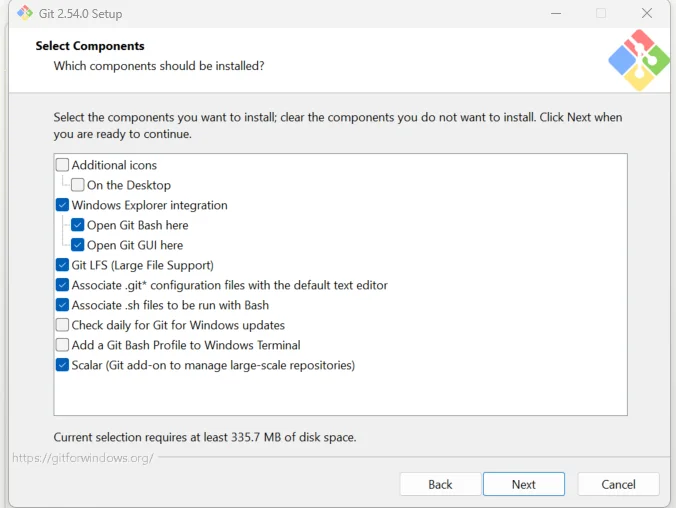
Keeping the defaults and just clicking Next is enough. Clicking Next shows a great many options, but as a total newbie I kept the default options and clicked Next all the way through.
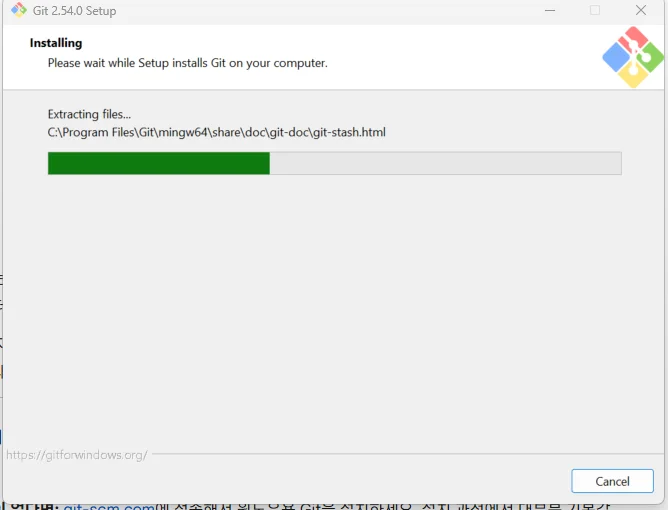 Git installing (a strip of Korean text from the page behind is visible at the bottom edge)
When the installation is done, run the same command again in cmd.
Press the ↑ arrow key to bring back the command you typed before.
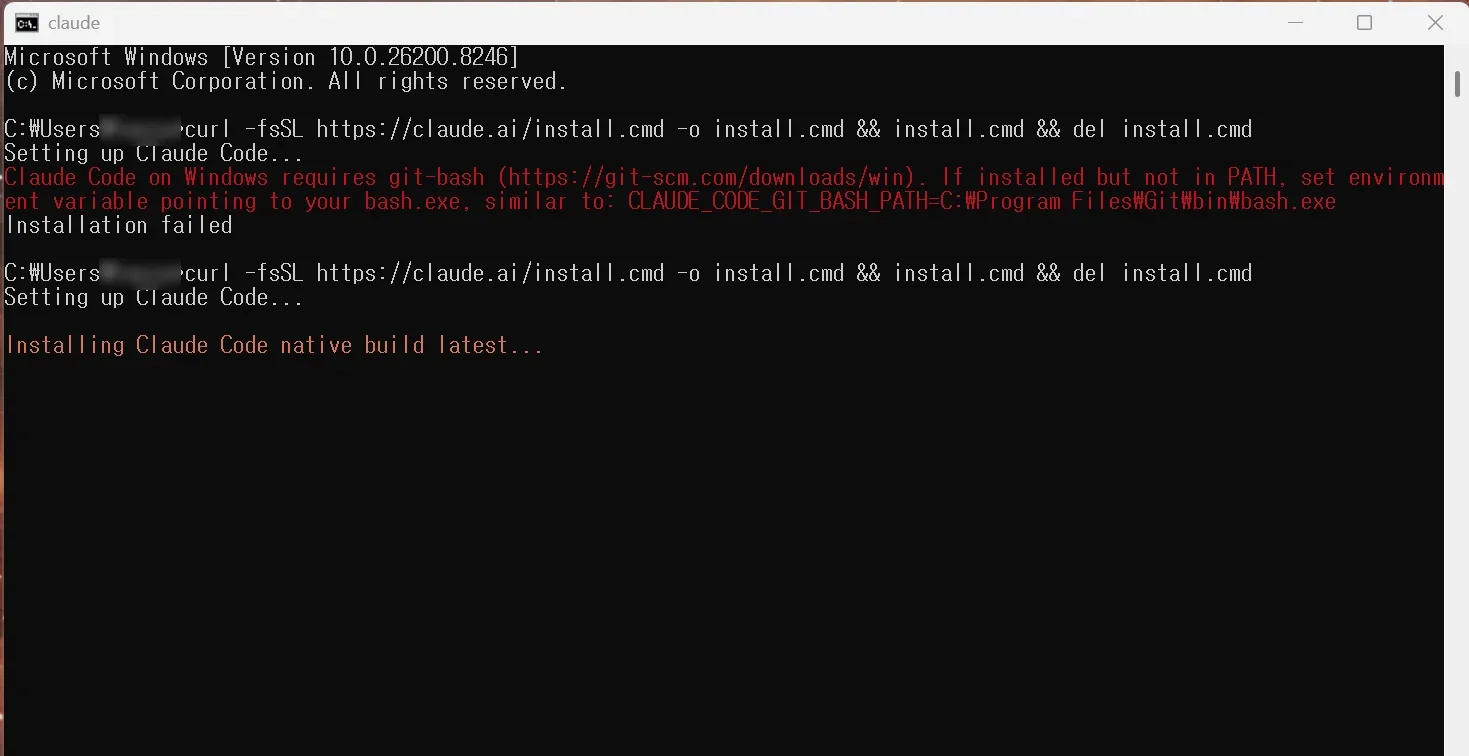
Unlike before, after installing git you can see the claude installation proceed.
Downloading and installing finished within 1 to 2 minutes, and I could see the installation complete screen below.
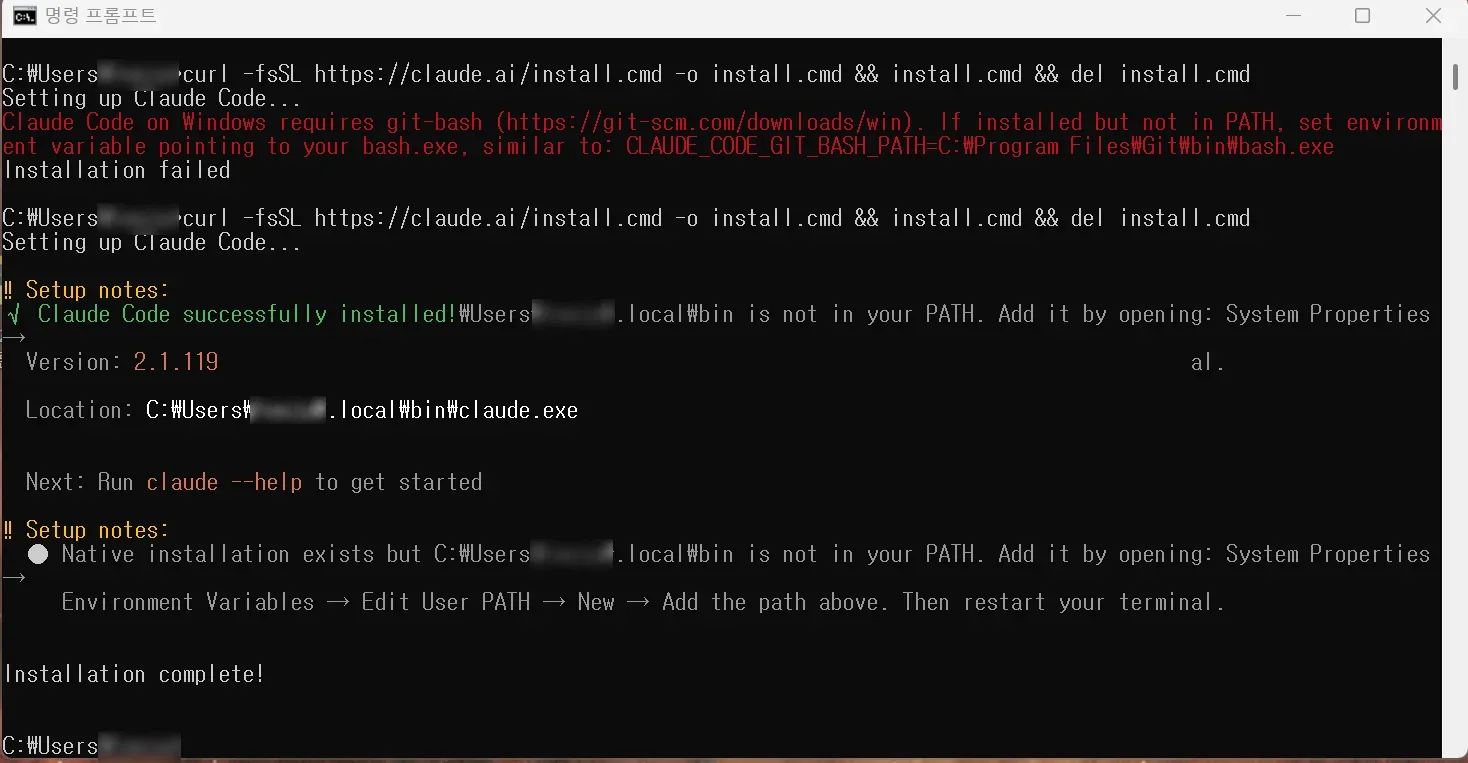
The finished installation (window title in Korean)
Next, install Node.js as well. I don't know exactly what it is, but it seems to be needed to run Claude Code in cmd.
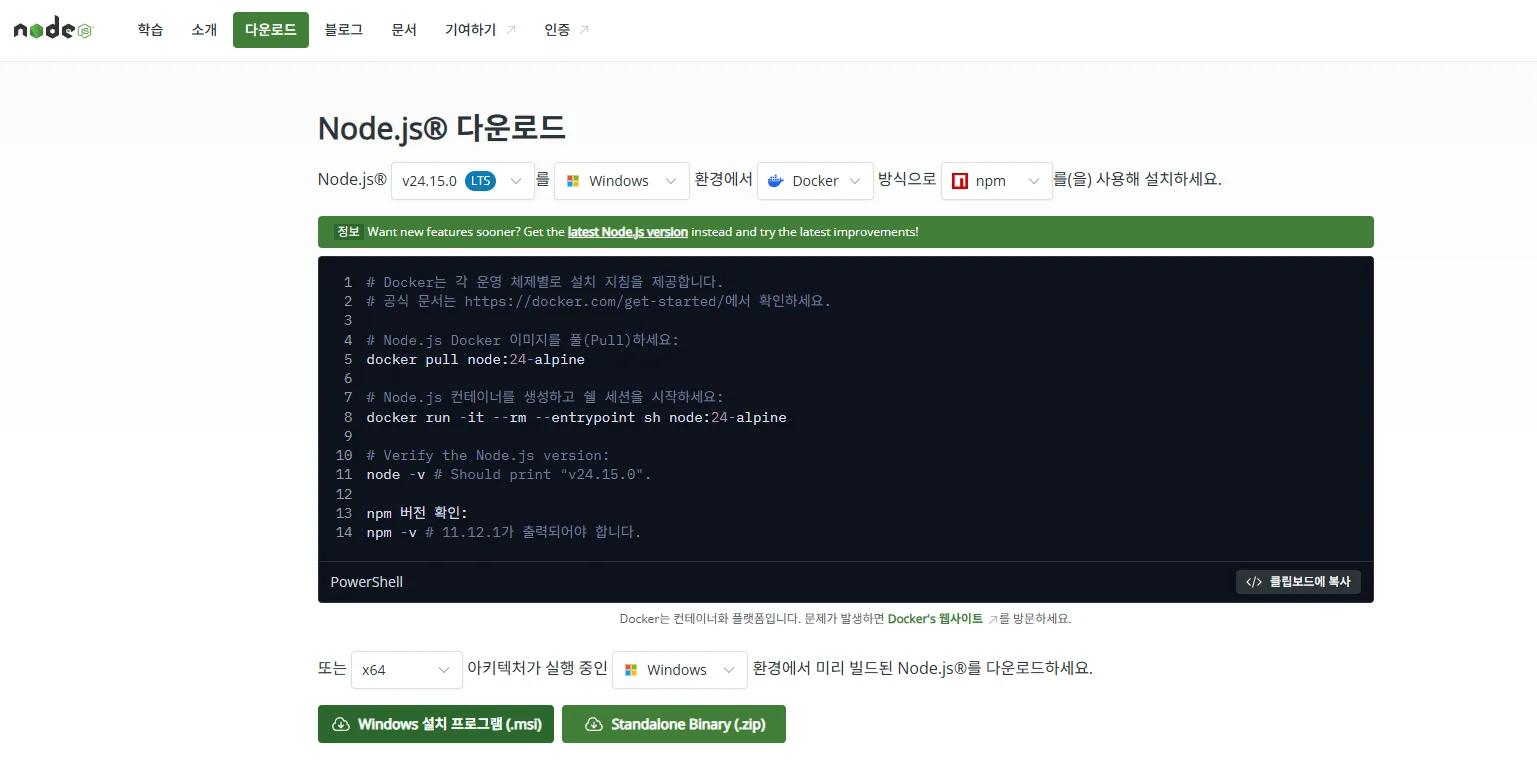 The Node.js download page (labels in Korean). I downloaded the Windows Installer (.msi).
Download it, run it, and click Next to finish the installation. It downloaded a lot of things during the installation. Looking at the installation, it even installed Python.
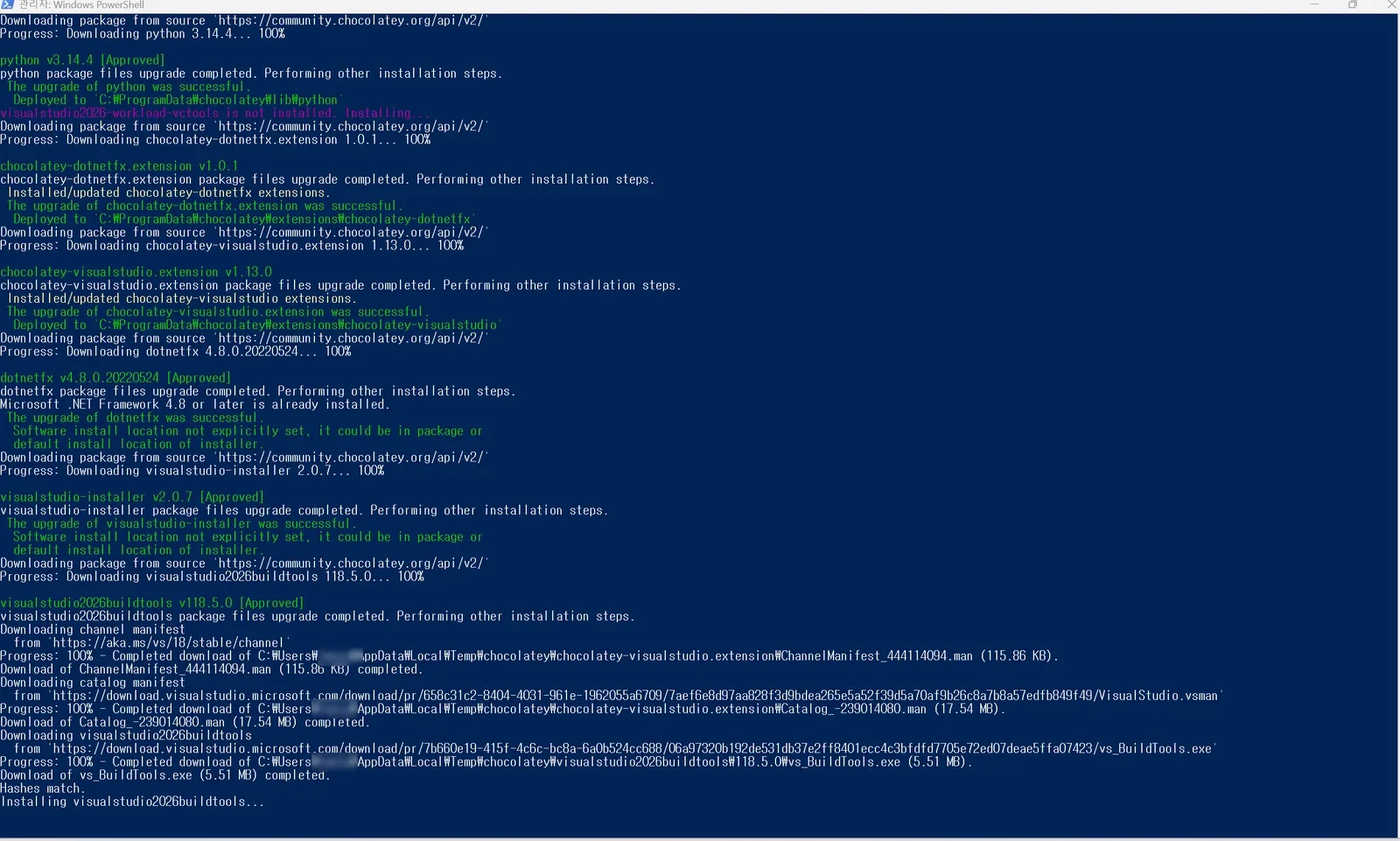 Extra tools being installed along with Node.js (window title in Korean)
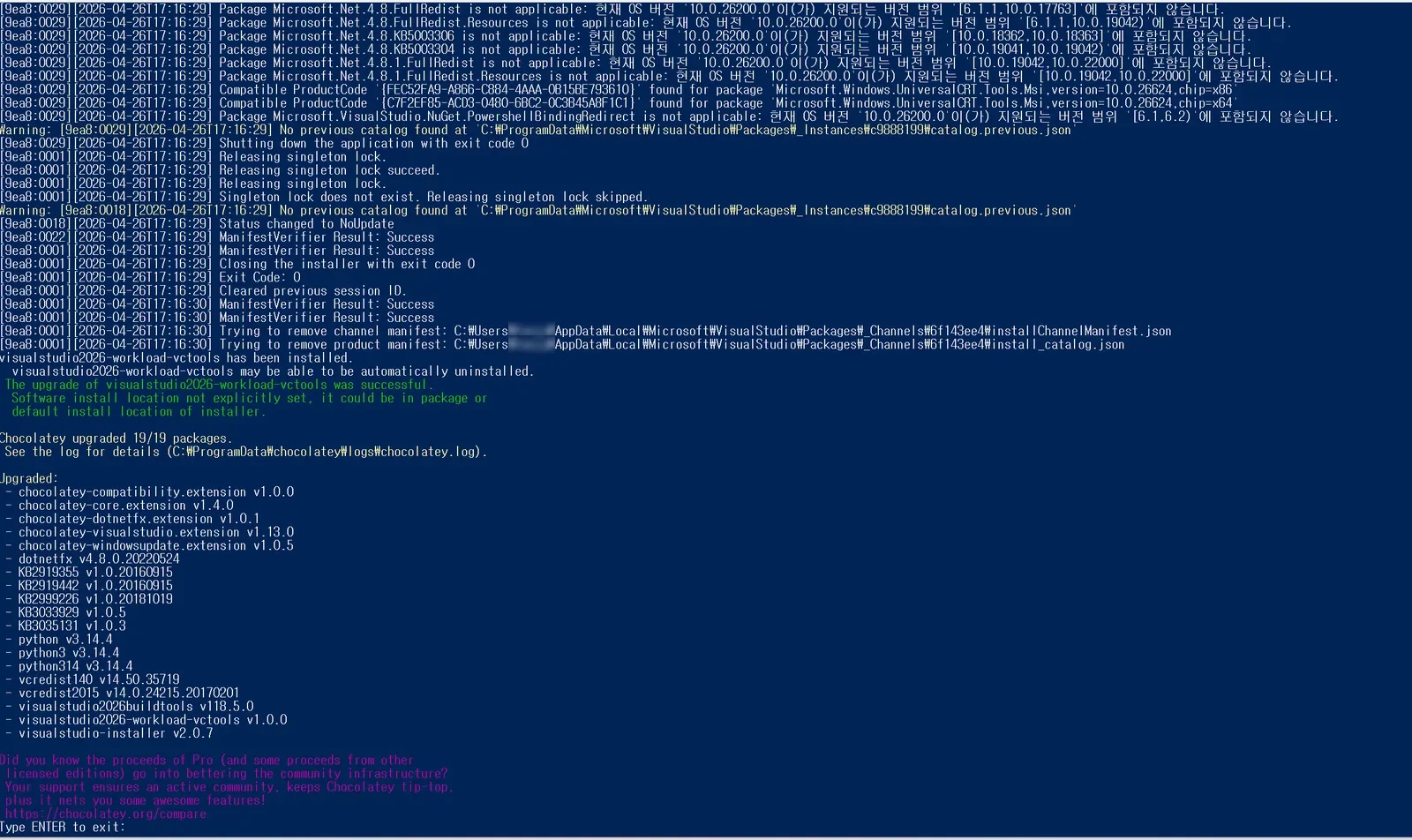 The end of the log (some log lines in Korean)
The installation took longer than I expected, but Node.js finished installing too.
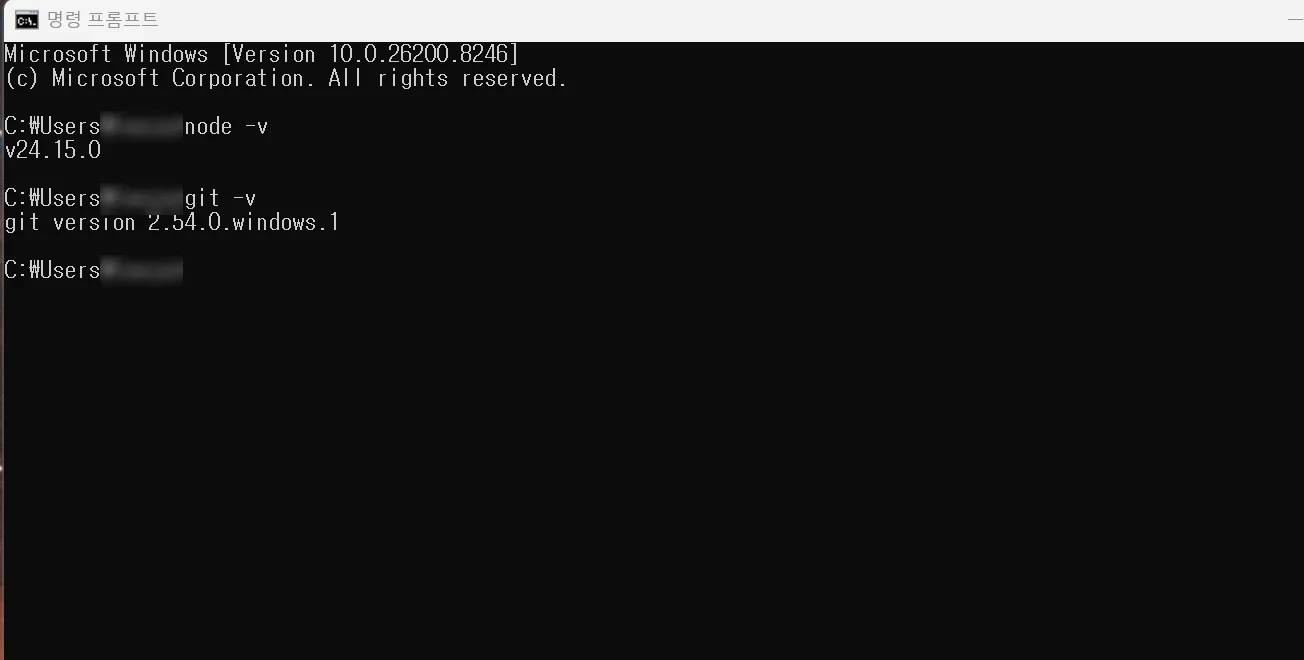 Checking the versions (window title in Korean)
Open cmd and type the commands below to check that they are installed.
node -v
git -v
Next, you need to set an environment variable.
I thought it would happen automatically, but it didn't, so I added it by hand as shown below.
The part after Users is the user name of the computer you are using.
In Environment Variables, under the user variables, select Path, click Edit, then New, and add the folder where claude was installed, as below.
Close cmd and open it again.
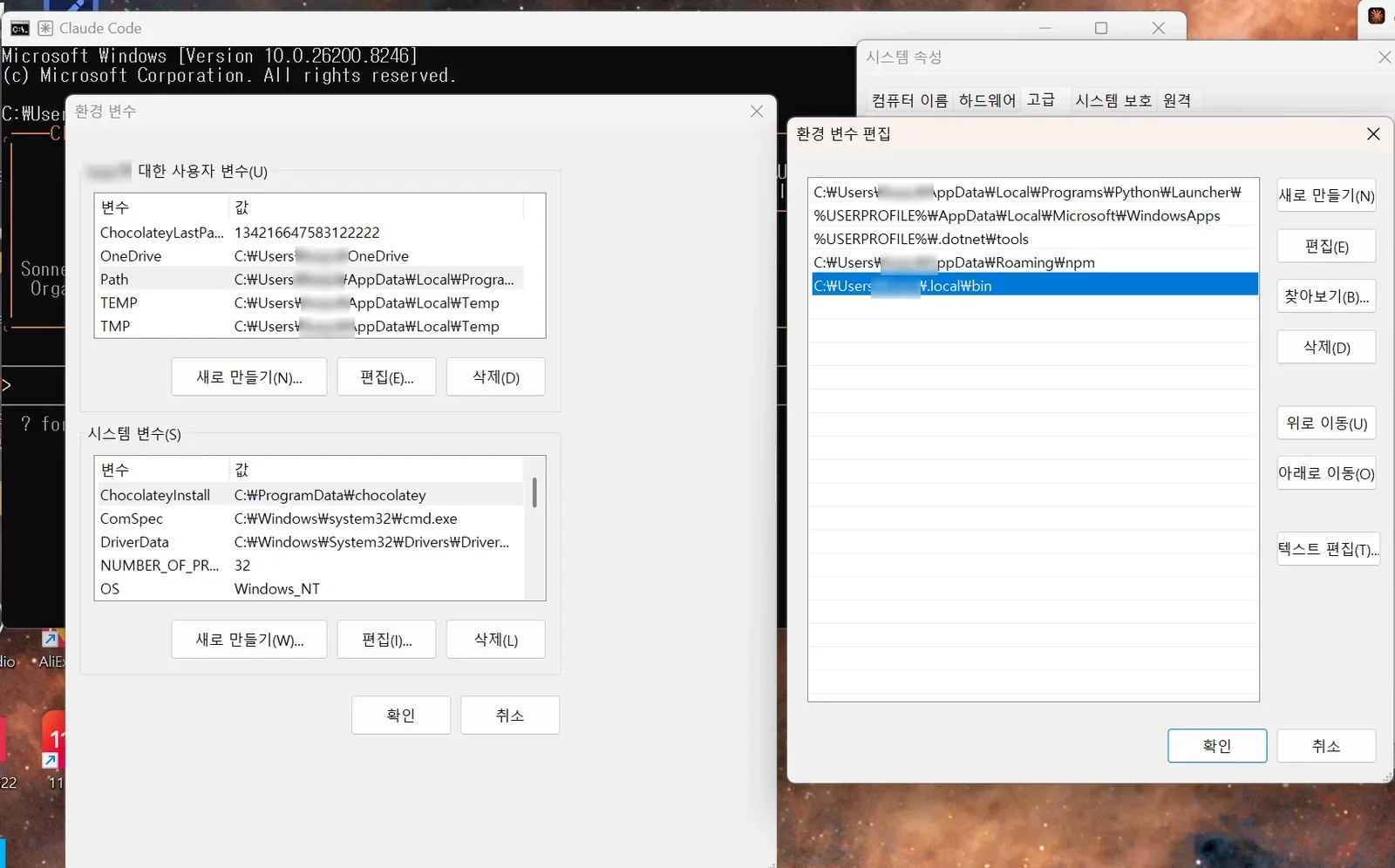 Adding the claude folder to Path (labels in Korean). The new entry is the
 .local\bin folder under your user folder.
Next, run claude in cmd (Command Prompt). This is where I got lost more than I expected: you have to go to the folder where claude is and run the command claude there.
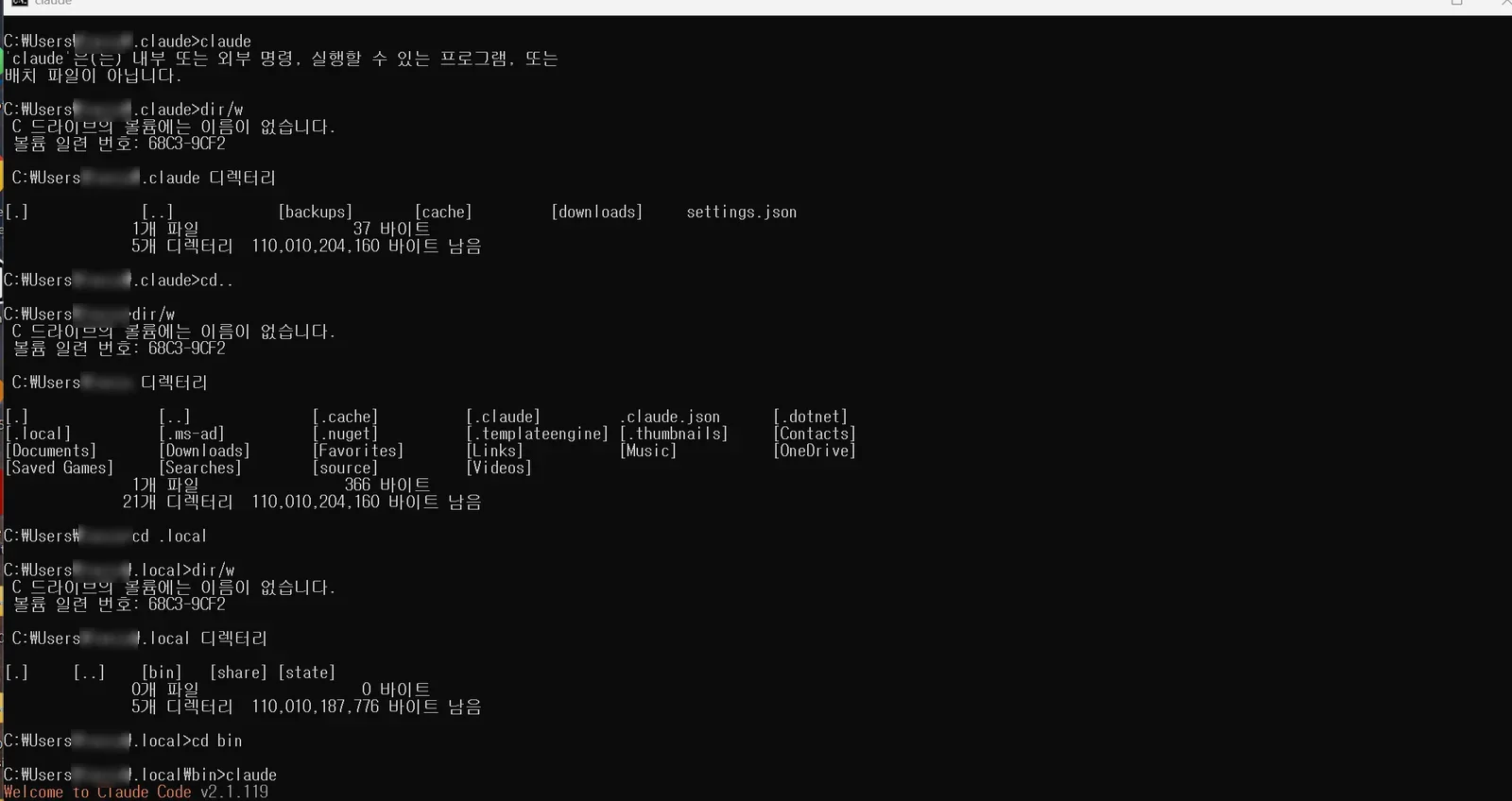 Moving to the folder and running claude (command output in Korean)
To change folders in the cmd window,
type cd followed by the folder name.
If you type the first letter after cd and press Tab, the rest of the name is completed automatically.
Move to the .local\bin folder and type claude, and you can see it start as below.
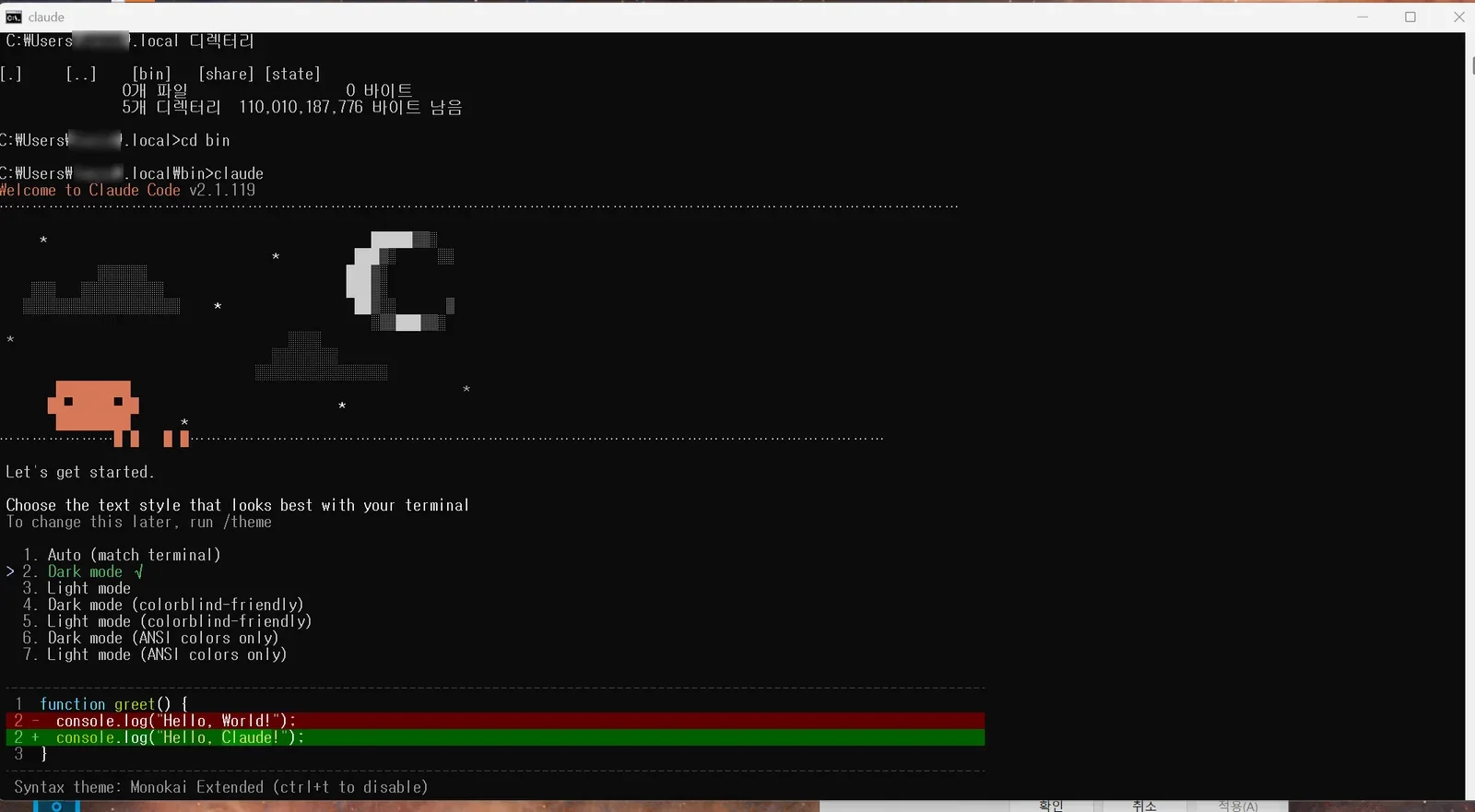 Claude Code's first screen (folder listing above it in Korean)
Press the number key 2 to run it in Dark mode. Next, Claude Code asks how to set up your Claude subscription. I had already subscribed to the basic Pro plan at $20 a month.
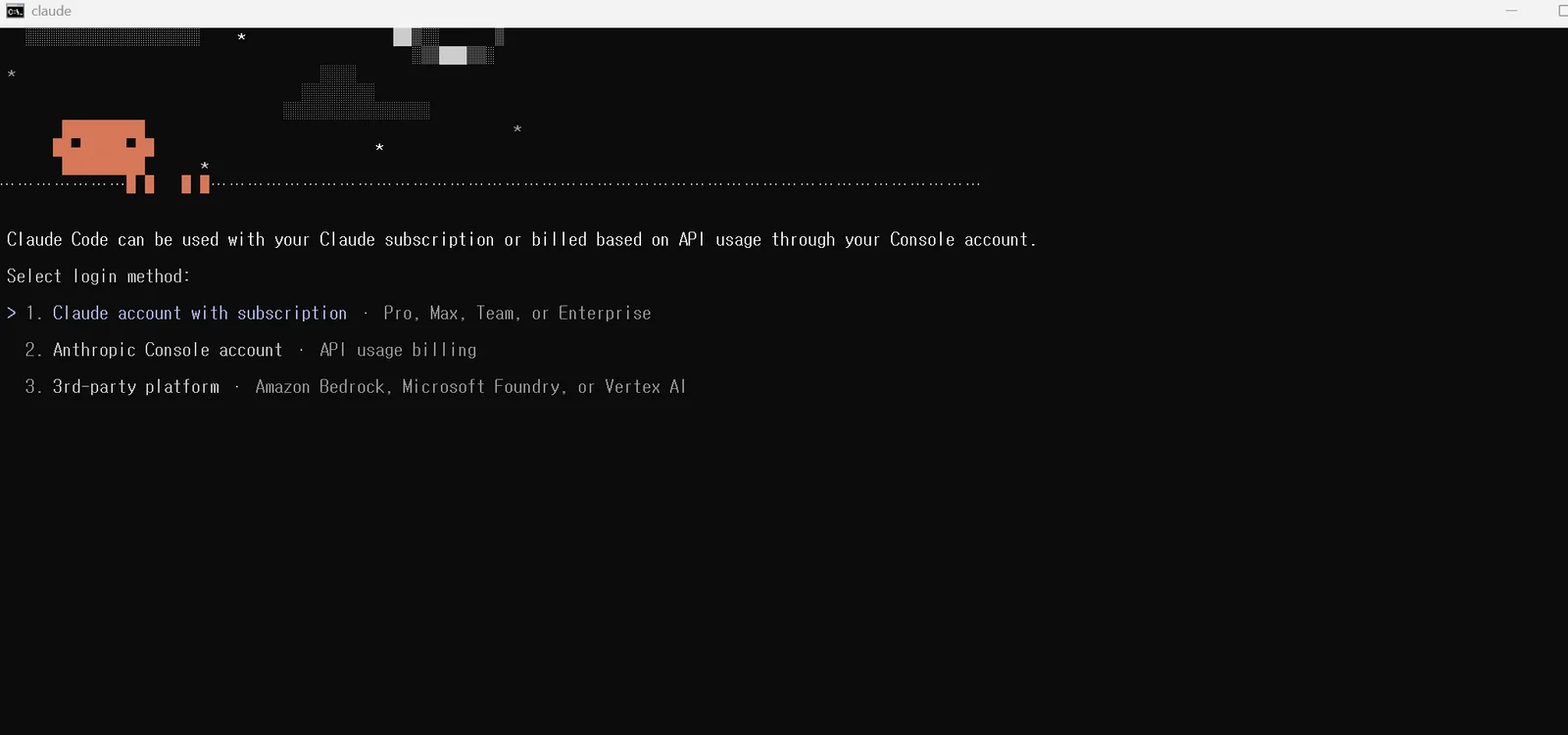
Press 1.
As below, Chrome opens automatically and asks.
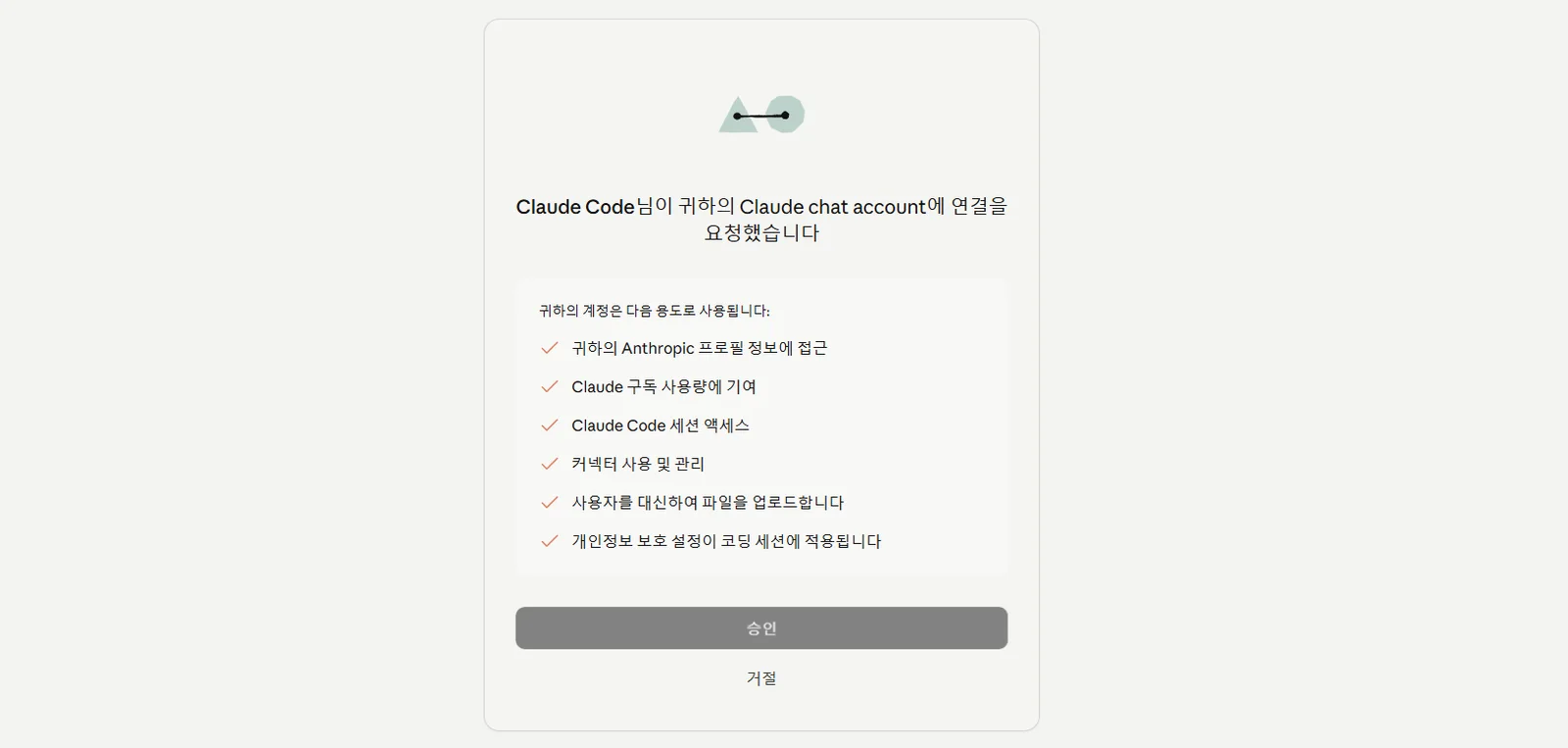 The connection request in the browser (labels in Korean). It lists what the account will be used for, with an approve button and a decline link below.
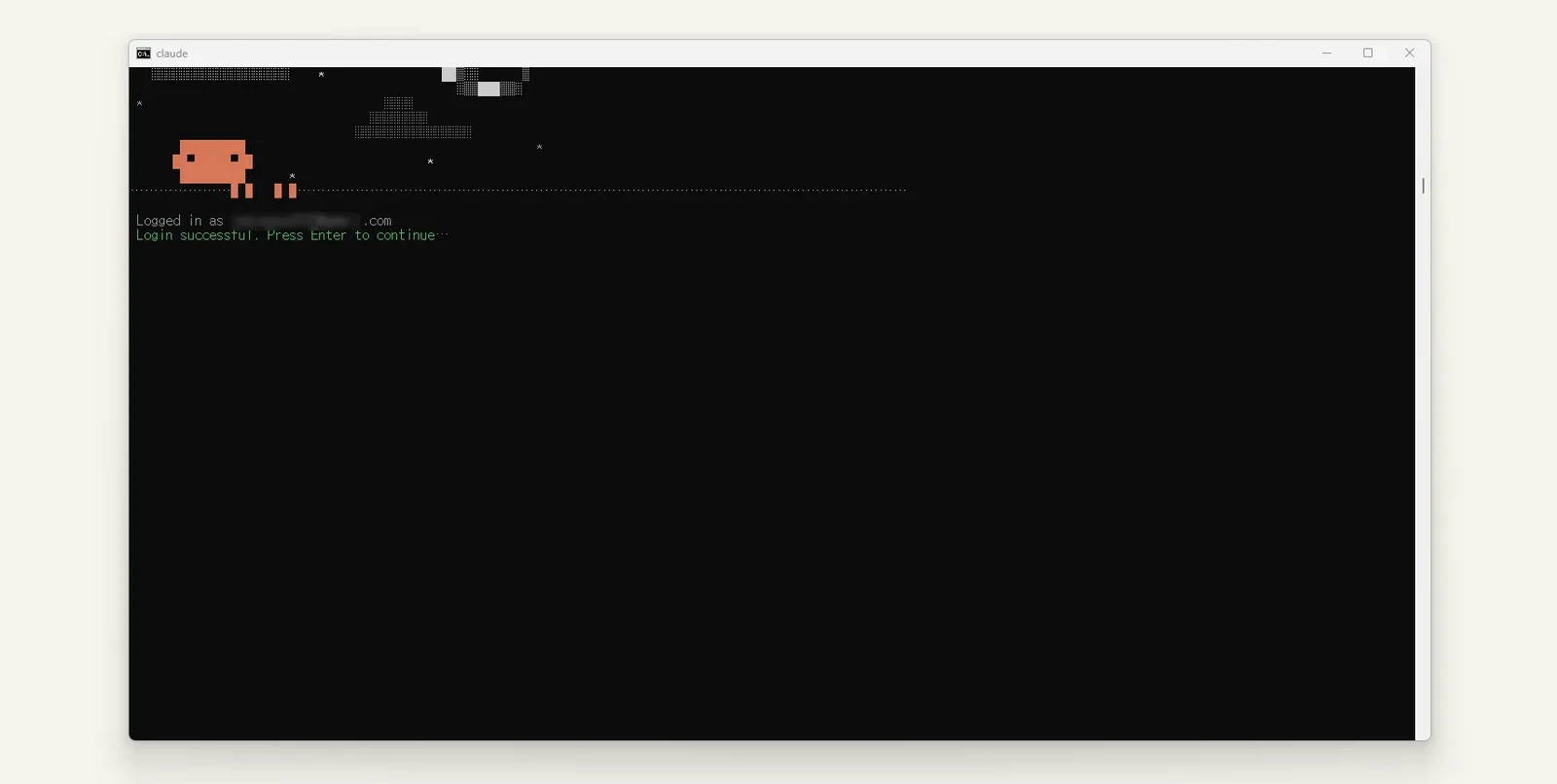
The connection is complete. I was already logged in to claude.ai in Chrome, so it went straight through, but you may be asked to log in.
Press Enter to go to the next step. It asks whether you trust the folder; press 1 to choose trust.
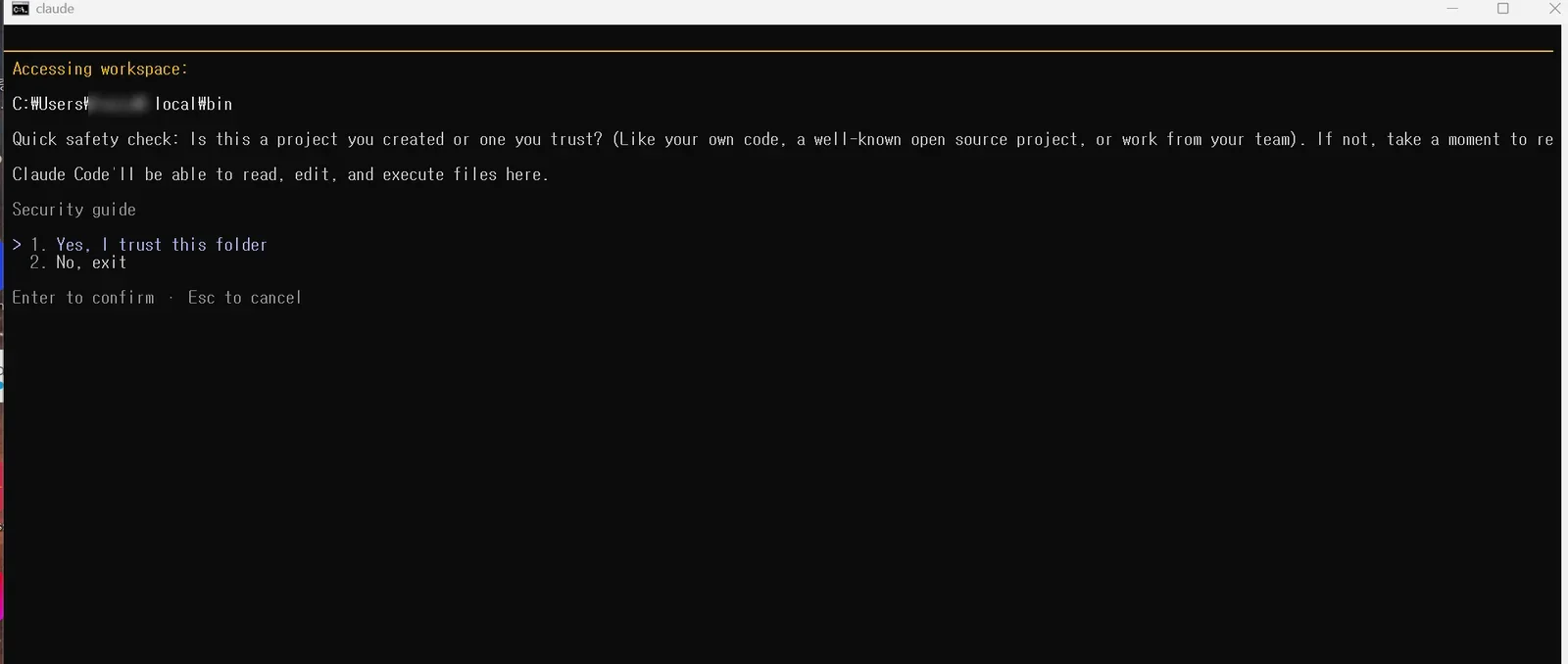
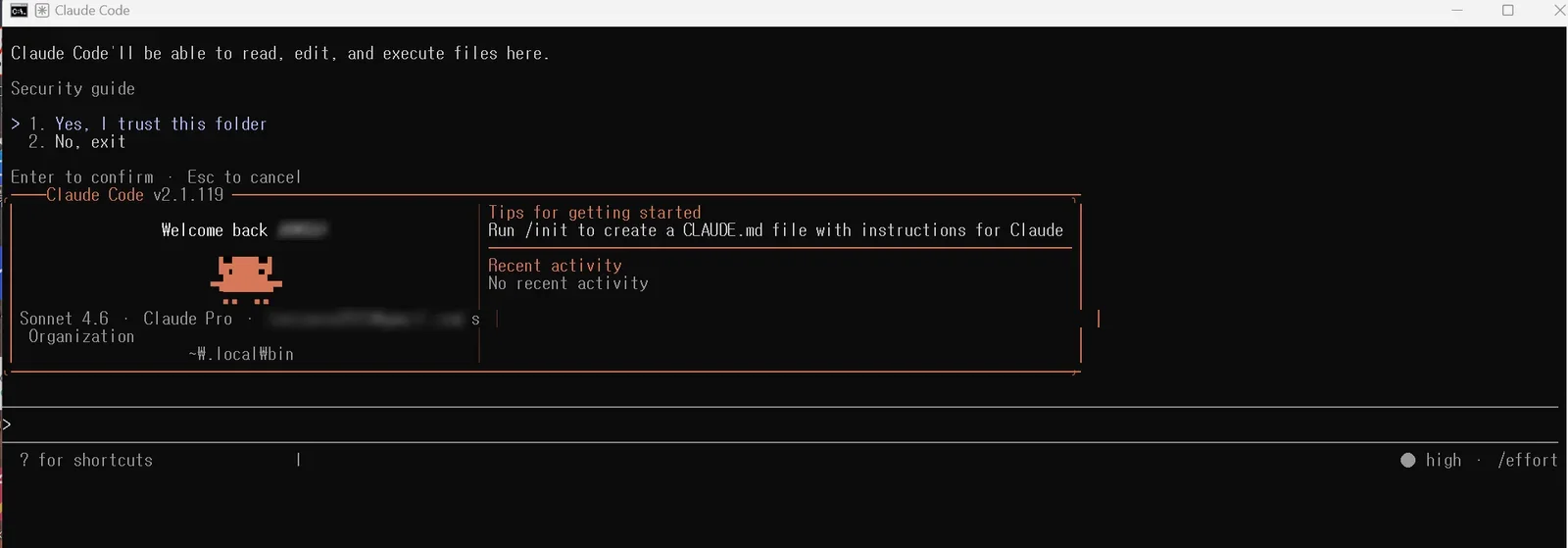
The screen above appeared, and the environment setup and settings for using Claude Code were done. Running it the first time can be a bit difficult. But if you take it slowly and, whenever a problem comes up, take a screenshot and ask Gemini, over and over, anyone can set up a Claude Code environment.
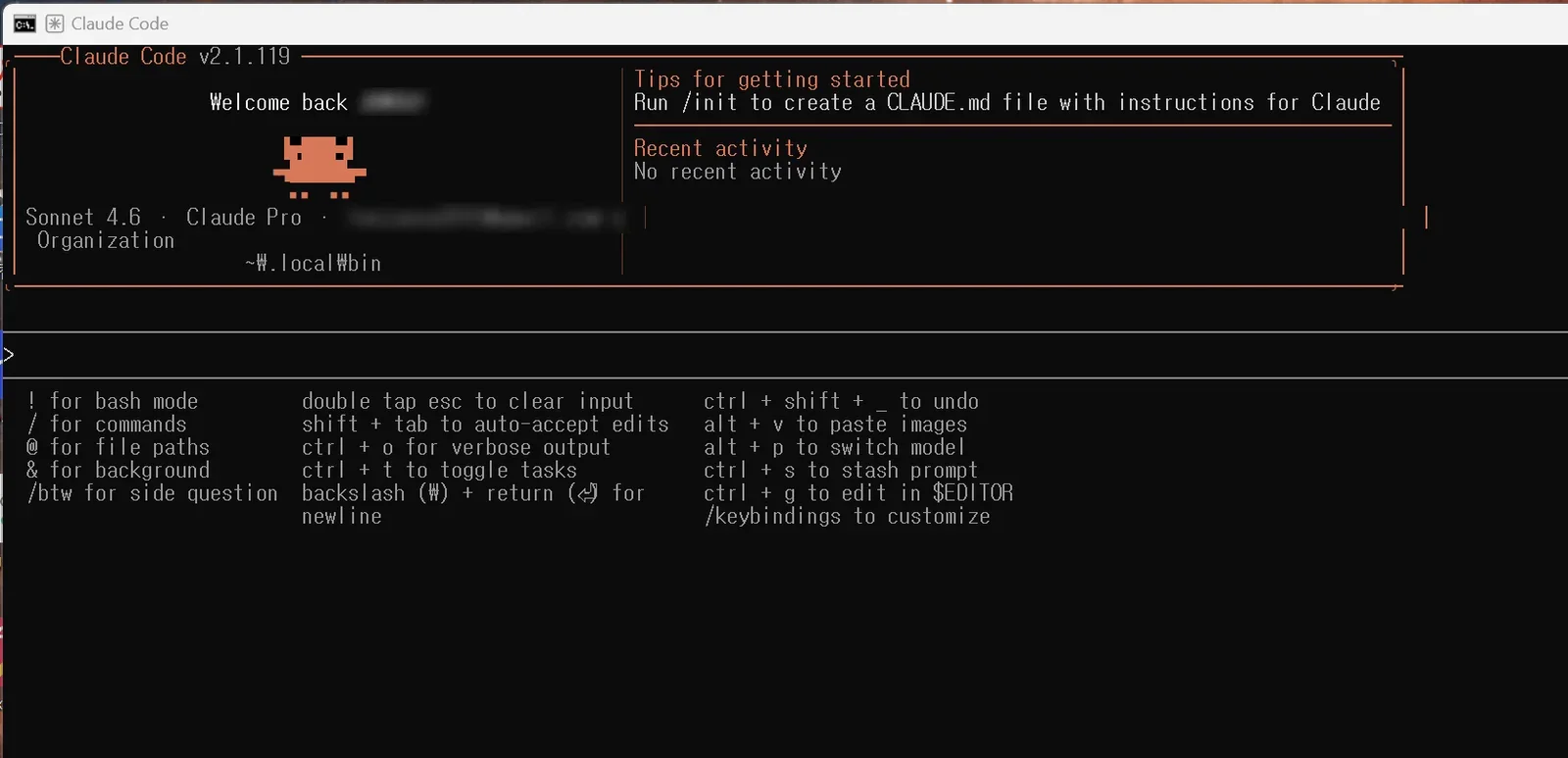
Press ? to see the shortcut help.
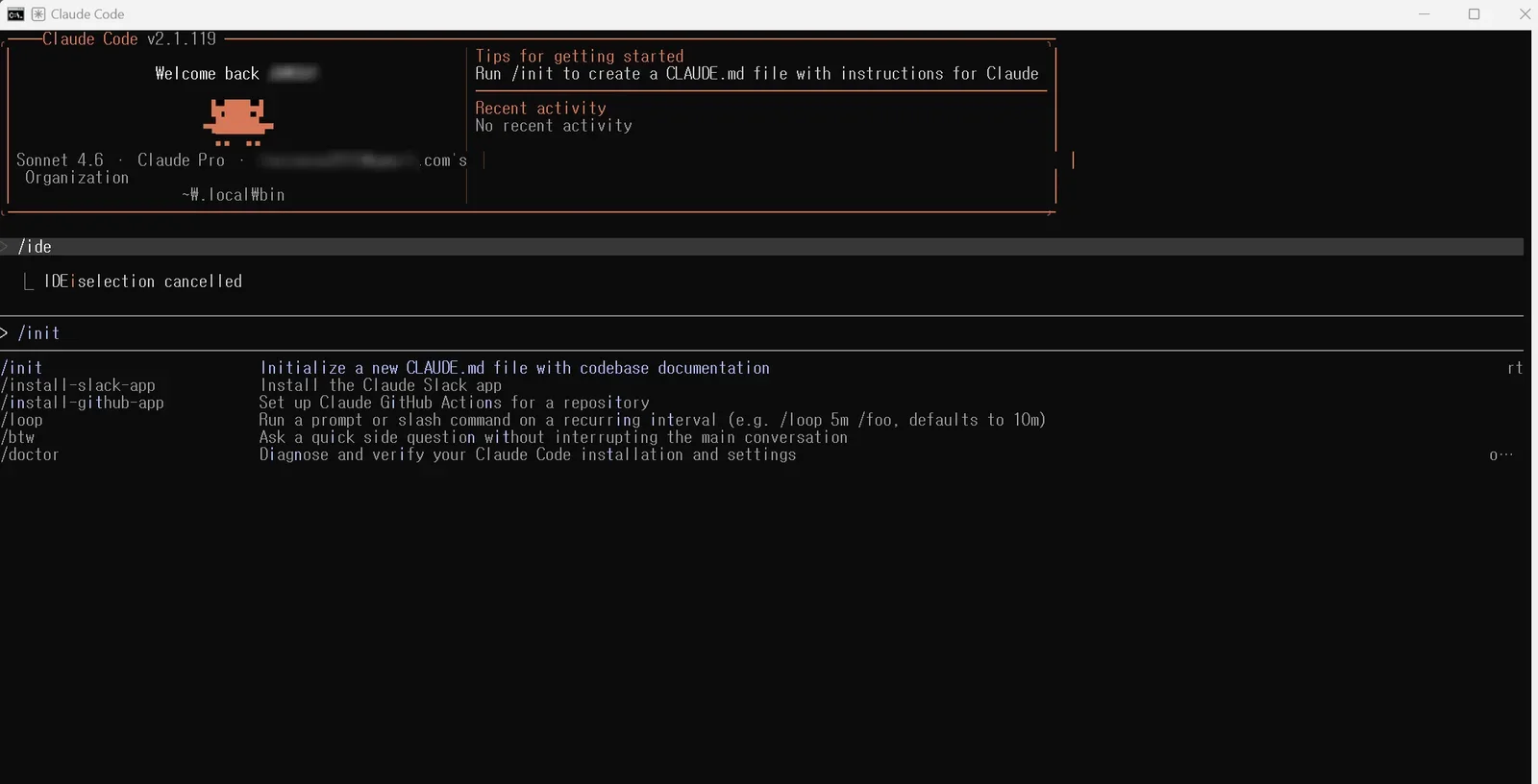
Type /init to run a project for the first time. I don't know exactly what this is either. It says it creates a claude.md file.
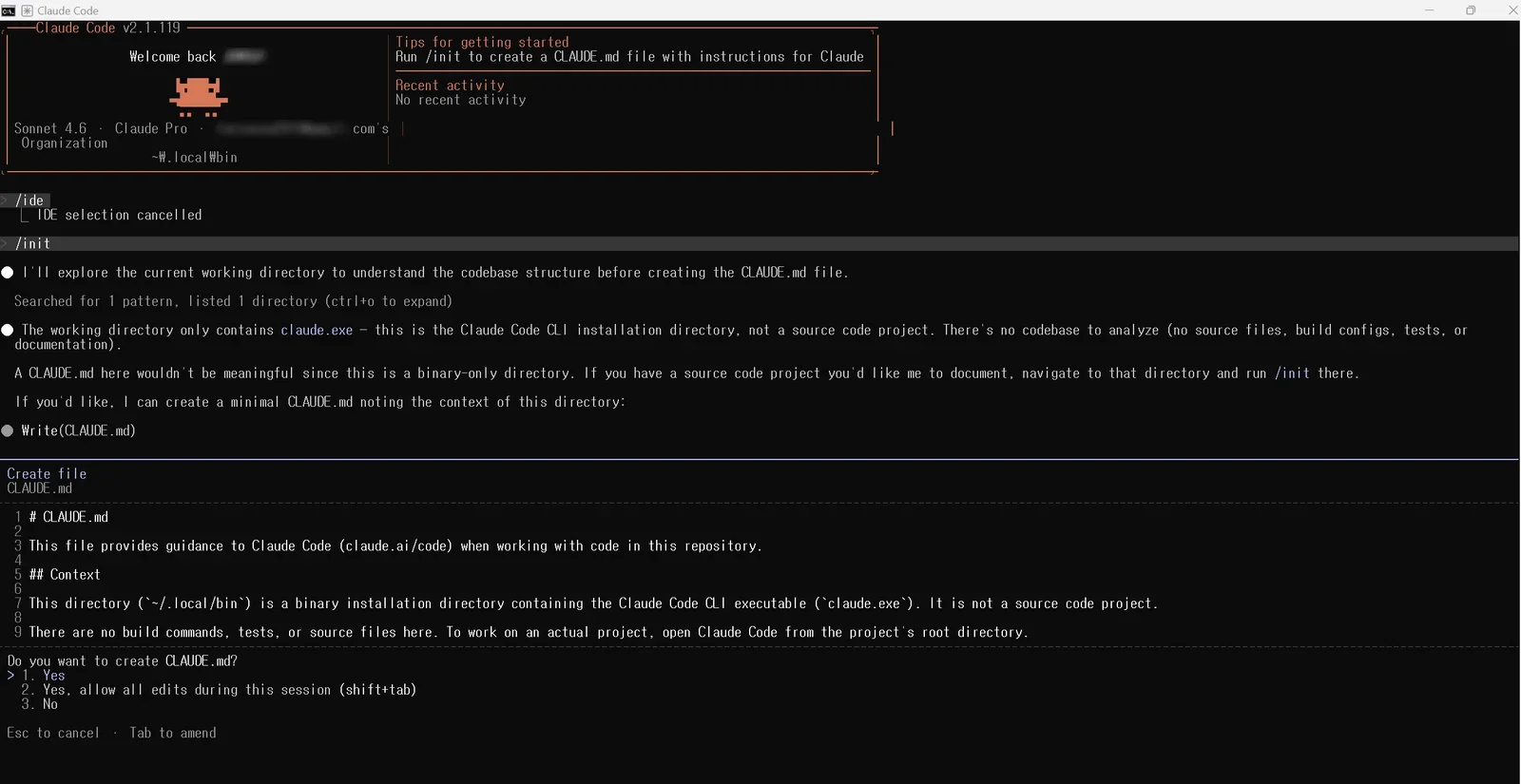
Type 1 to choose create.
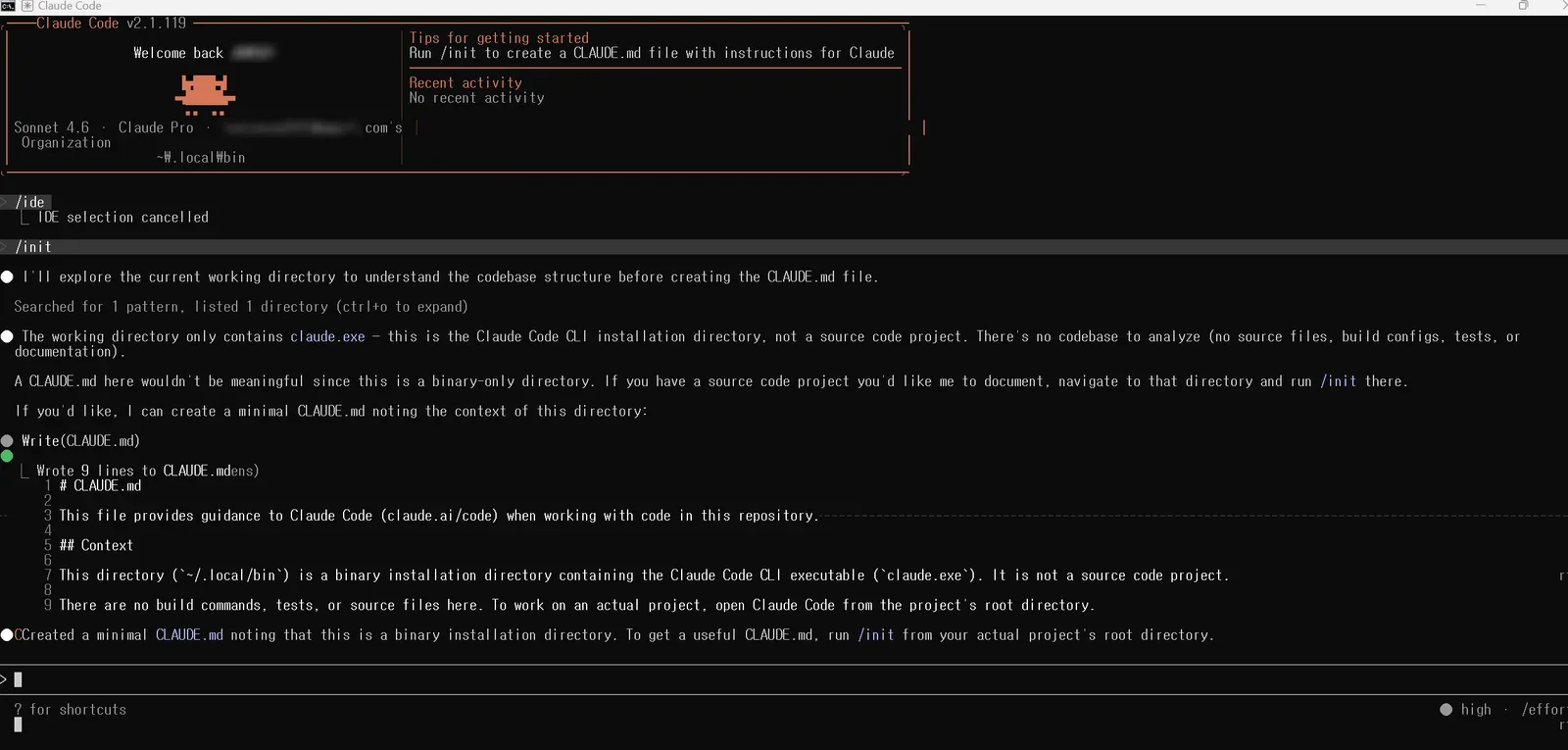
On April 26, 2026, I subscribed to Claude Code and signed up for the first time...
I hope the day comes when I see the coding get done on its own.
That's the end of my first Claude Code post.
Now I can code locally in plain language. Well begun is half done, so 50% is finished.
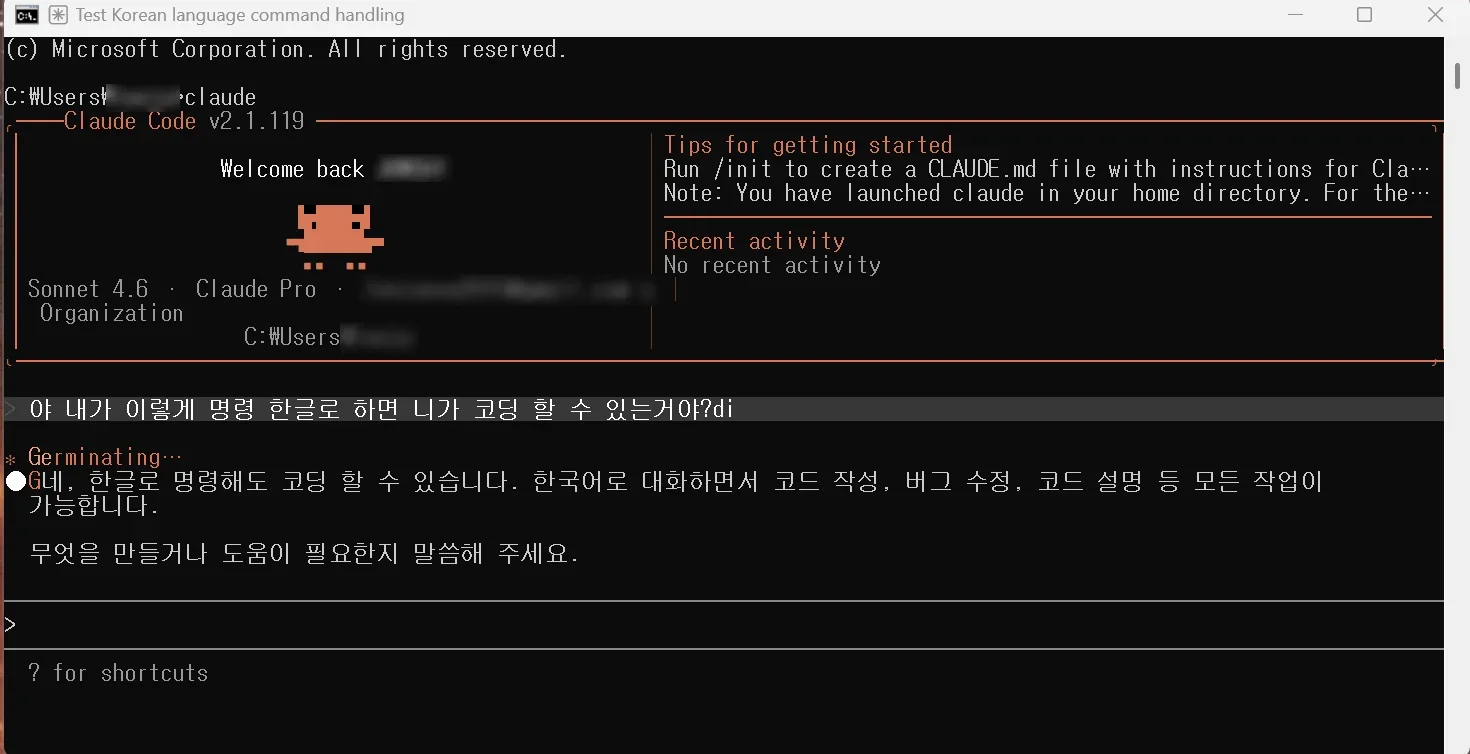 Testing Claude Code in Korean (labels in Korean). I asked, "Hey, if I give commands in Korean like this, can you code?" and it answered that yes, it can write code, fix bugs, and explain code while talking in Korean, and asked what I would like to build.
More: a book on building low-poly war animations with Claude Code and Blender — https://azblender.gumroad.com/l/lowpoly_war_animation