GUI vs. CLI: what is the difference between clicking and typing?
With a GUI you look and click; with a CLI you tell the computer what to do in written words. Open a terminal for the first time and make a folder.
한국어English
ON THIS PAGE
Based on: official documentation from MDN, Microsoft Learn, Apple, and Claude Code, checked in September 2026.
A GUI is a way of using a computer by clicking buttons and icons on the screen with the mouse. A CLI is a way of using it by typing commands as text into a black window. Neither one is more advanced. It is closer to having two windows for talking with the computer. This post covers how the two differ, why the CLI is still widely used, and confusing terms such as terminal, shell, and PowerShell. At the end, there is a short exercise anyone can follow, plus things to be careful about.
Comparison at a glance
| GUI | CLI | |
|---|---|---|
| Full name | Graphical User Interface | Command Line Interface |
| How you use it | Click the buttons and menus you see | Type a command as text and press Enter |
| Learning | Easy at first because you can see it | Unfamiliar at first because you need to know the commands |
| Good at | Work you do while looking, such as picking photos or formatting documents | Doing the same thing many times, or to many files at once |
| Repetition and automation | You have to repeat the same clicks every time | You can write commands in a file and run them again |
Here, an interface (UI) is the window that lets a person and a machine exchange things with each other. The input prompt of a command line, a web page, an input form, and the first screen of an app are all UIs. So the GUI and the CLI are both kinds of UI.
Analogy: ordering at a restaurant
A GUI is like pointing at a dish on a menu with photos. You can see at a glance what you can order, so even a first-time customer orders easily. But you can only choose what is on the menu.
A CLI is like writing an order slip and handing it to the kitchen. You have to write it exactly in a set format, like "kimchi stew 1, rice 2, less spicy." If you do not know the format, you are stuck, but once you are used to it, you can order much faster and in more detail. You can also reuse the same slip every day. On a computer, this "reusable slip" is a script: a file with commands written down together.
In a terminal, you cannot click anything, and you move with the arrow keys. That one sentence holds the difference between the GUI and the CLI.
Why the CLI is still used
It is easy to think "the black window is the old way," but the CLI is still a widely used tool.
- Lots of work at once: say you have to rename hundreds of files from
ch01-…toch02-…. Renaming them one by one in File Explorer takes a long time, but on the command line a short command finishes it. It is like changing a whole column in Excel with one formula instead of editing cells one by one. - Automation: with scripts, you can work more efficiently than by clicking on screen, and every command you use on the command line can go into a script. The Windows Command Prompt was originally built to automate repeated tasks, such as managing user accounts and nightly backups, with batch files (Windows script files with commands written one after another). The Mac Terminal is also a tool for running commands, managing shell scripts, and automation.
- Chaining commands: with a pipe (
|), you can pass the result of one command straight to the next.ls | wc -lmeans "list what is in the folder, then count the lines," which tells you how many files and folders the folder holds in total (on macOS and Linux; Windows PowerShell has nowc). - Direct access deep into the computer: a terminal reaches files, folders, and the basic functions of the operating system directly, without going through screens. It is like talking straight to the chef instead of going through the menu, so once you are used to it, you can handle complex work quickly.
Terminal, shell, and PowerShell
When you first meet the CLI, similar words come at you all at once and get confusing. Compared with a phone, the terminal is the phone, and the shell is the person on the other end who understands what you say and handles it.
| Term | Plain meaning | Example |
|---|---|---|
| Terminal | The window (program) where you exchange commands as text | macOS Terminal, Windows Terminal |
| Shell | The interpreter inside the window that understands and runs commands | bash (a shell long used on macOS and Linux), Command Prompt (cmd), PowerShell |
| Command line | Used almost interchangeably with terminal | "Type this on the command line" |
| Prompt | The mark shown in the window that says it is waiting for a command | PS C:\Users\name> |
- Strictly speaking, the terminal is the program that starts and connects a shell, and the one that actually understands commands is the shell. It is like the phone and the person you are calling being different.
- Windows has two shells: Command Prompt (cmd) and PowerShell. They look similar but use different commands. You can tell which one you are in from the prompt. PowerShell has
PSin front, likePS C:\Users\name>, and Command Prompt showsC:\Users\name>withoutPS. - Windows Terminal is a program that holds several shells in one window, such as Command Prompt, PowerShell, and the bash of WSL (a feature that runs Linux inside Windows). It supports tabs, split panes, and themes. Like one phone used to call several people, the window and the shell inside it are separate.
- PowerShell is a shell, a scripting language, and a configuration management tool, and it runs not only on Windows but also on Linux and macOS. While most shells exchange only text, PowerShell exchanges bundles of information sorted into fields (.NET objects). Microsoft recommends PowerShell for modern Windows automation.
Doing the same task both ways
Now try it yourself. How to open a terminal is in the very next section, "Opening a terminal and basic commands," so check there and open a terminal first. The table puts "make a photo-test folder in your home folder and look inside" side by side for the GUI and the CLI. The home folder is the personal folder named after your account: usually C:\Users\name on Windows, and the house-shaped folder in Finder on a Mac.
| Step | GUI (File Explorer, Finder) | macOS/Linux terminal | Windows PowerShell |
|---|---|---|---|
| 1. Go to the location | Open your user folder | cd ~ | cd $HOME |
| 2. Make a folder | Right-click → New folder → type a name | mkdir photo-test | mkdir photo-test |
| 3. Look inside | Double-click the new folder | ls -l photo-test | ls photo-test (or dir) |
~and$HOMEare both shorthand for "my home folder." They are agreed-upon marks so you do not have to memorize a long path.- The folder name uses English letters and a hyphen on purpose. At first, it is easier to avoid commands being misread because of switching keyboard input languages or spaces.
What success looks like:
cd ~/cd $HOME: the prompt appears again on the next line with no message. In PowerShell, the prompt changes toPS C:\Users\name>. On the CLI, "no message" usually means "finished without a problem."mkdir photo-test: macOS and Linux print nothing. PowerShell shows one line of information about the folder you just made. You are fine if theModecolumn has adand theNamecolumn showsphoto-test.- Looking inside: the new folder is empty, so macOS and Linux show just one line,
total 0, and PowerShell shows nothing. Empty is normal. - Finally, open your home folder in File Explorer or Finder. The
photo-testfolder you just made appears in the GUI too. You are working on the same folder through two windows.
There is also a reason to practice in the home folder rather than on the desktop. On Windows, the real location of the desktop folder can differ from computer to computer depending on sync settings such as OneDrive, so a command that moves to Desktop may fail, or the folder you made may not appear on the desktop. The home folder has fewer of these differences, so it suits a first exercise.
For something you do only once, the GUI may be easier. But if you have to do this every day, to many folders, saving the commands as a script makes it much easier. When you finish practicing, clean up by moving the photo-test folder to the trash in the GUI.
Opening a terminal and basic commands
How to open it
- macOS: press
Cmd+Space, type "Terminal," and pressEnter. You can also find it in the Applications ‣ Utilities folder. - Windows: press
Win+Xand choose Windows PowerShell or Terminal. The menu name differs a little by Windows version. - When a window with a blinking cursor appears, that is where you type commands.
Basic commands worth knowing first (macOS and Linux)
| Command | What it does |
|---|---|
cd | Move to a folder |
ls | List what is in a folder (ls -l for details) |
mkdir | Make a new folder |
cp / mv | Copy / move or rename |
grep | Find text inside files |
wc | Count lines and words |
Something added after a command, like the -l in ls -l, is called an option (flag). It adds a condition to the same command, like "less spicy" on the order slip.
In Windows PowerShell, cd, ls, mkdir, cp, and mv from this list also work as they are. grep and wc do not exist in Windows PowerShell. Names like ls and cp work because PowerShell has aliases that let you use familiar names as they are. For example, ls and dir are both short names that call Get-ChildItem, which shows a list. But these aliases are for Windows, so the options do not all work exactly as on macOS.
Be careful: terminal deletes do not go to the trash
rmdeletes files permanently. It is safest to assume you cannot get them back from the trash as you can in the GUI.- A wildcard such as
*means "any number of any characters."rm mdn-*.bakdeletes every file that starts withmdn-and ends with.bak. It is handy, but getting one character wrong can change the range of what gets deleted a lot. - For commands you got from the internet or from an AI, first read what they delete or overwrite, and test delete commands only in a practice folder.
Using the GUI and CLI together
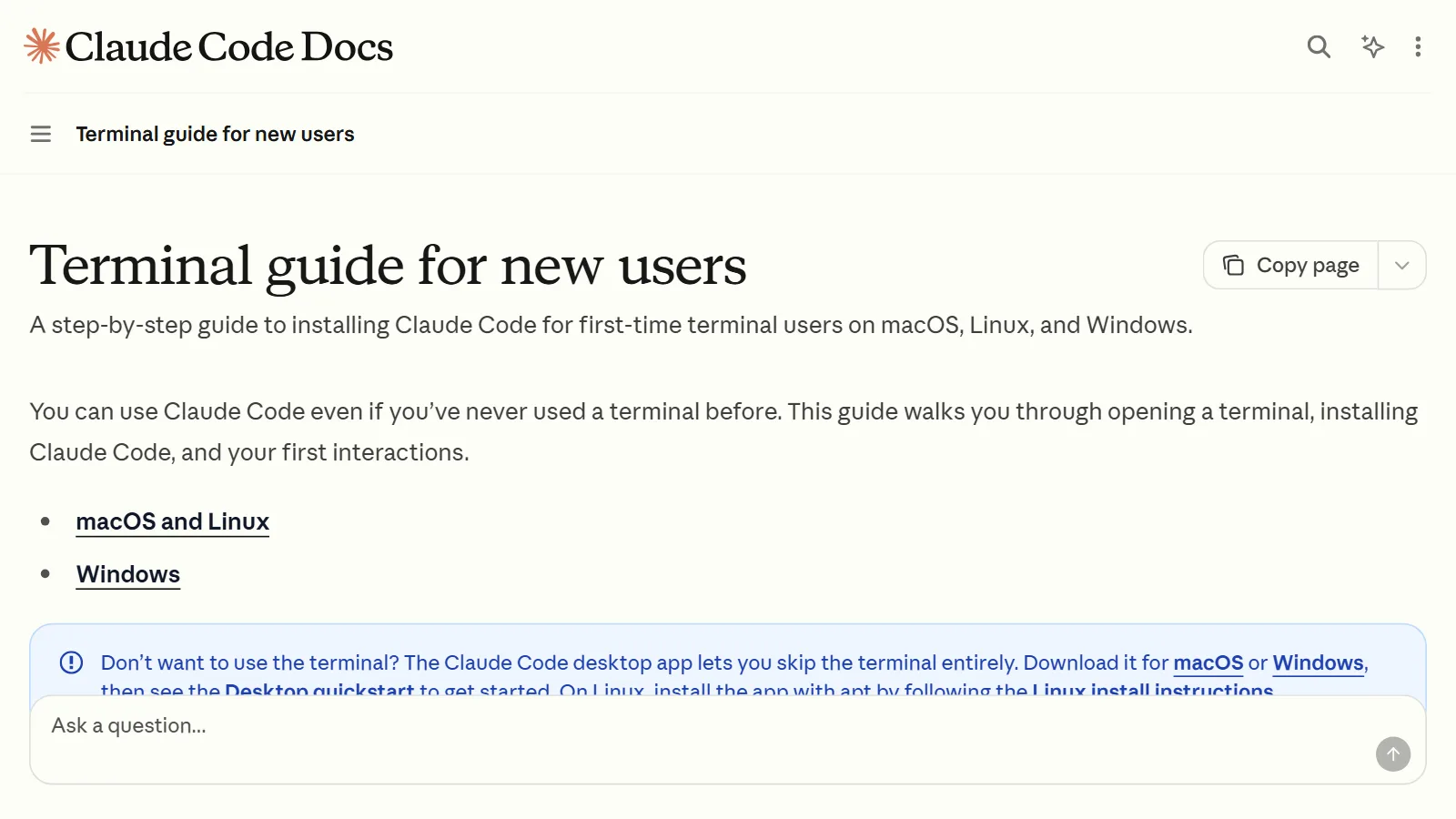
Many tools today do not make you pick just one. For example, the AI coding helper Claude Code can be used in the terminal, as an add-on (extension) for code editors, as a desktop app, and on the web. If the terminal feels like too much, use the desktop app. On the other hand, in the terminal you can chain it with other commands through a pipe, like the ls | wc -l you saw earlier. For example, you can take the last 200 lines of a program's log file, hand them to the AI, and ask "look at what is wrong" in one go. You use the same features through whichever screen is more comfortable.
In one line
Use the GUI for one-time work you do while looking, and the CLI for doing the same thing many times or to many things. Start with three commands: cd, ls, and mkdir. How the CLI is used in real work continues in Claude Code for beginners.
References
- MDN, UI (Glossary)
- MDN, Command line crash course
- Microsoft Learn, Windows commands
- Microsoft Learn, What is PowerShell?
- Microsoft Learn, Using aliases (PowerShell)
- Microsoft Learn, Windows Terminal overview
- Apple, Terminal User Guide
- Claude Code Docs, Terminal guide for new users
- Claude Code Docs, Overview