Five Low-Poly War Animations Made with Claude Code: A One-Day Build, Summarized
With almost no Blender experience, I made five 40-second low-poly war animations in one day by describing them to Claude Code. This is what I set up, what my first prompt said, what went wrong and how I fixed it, and how to think about the cost.
한국어English
Based on: the ebook Low-Poly War Animation with Claude Code and Blender (English edition, 317 pages), Claude Code (Opus 5.5, medium effort), Blender 5.2, Windows 11. Checked in October 2026.
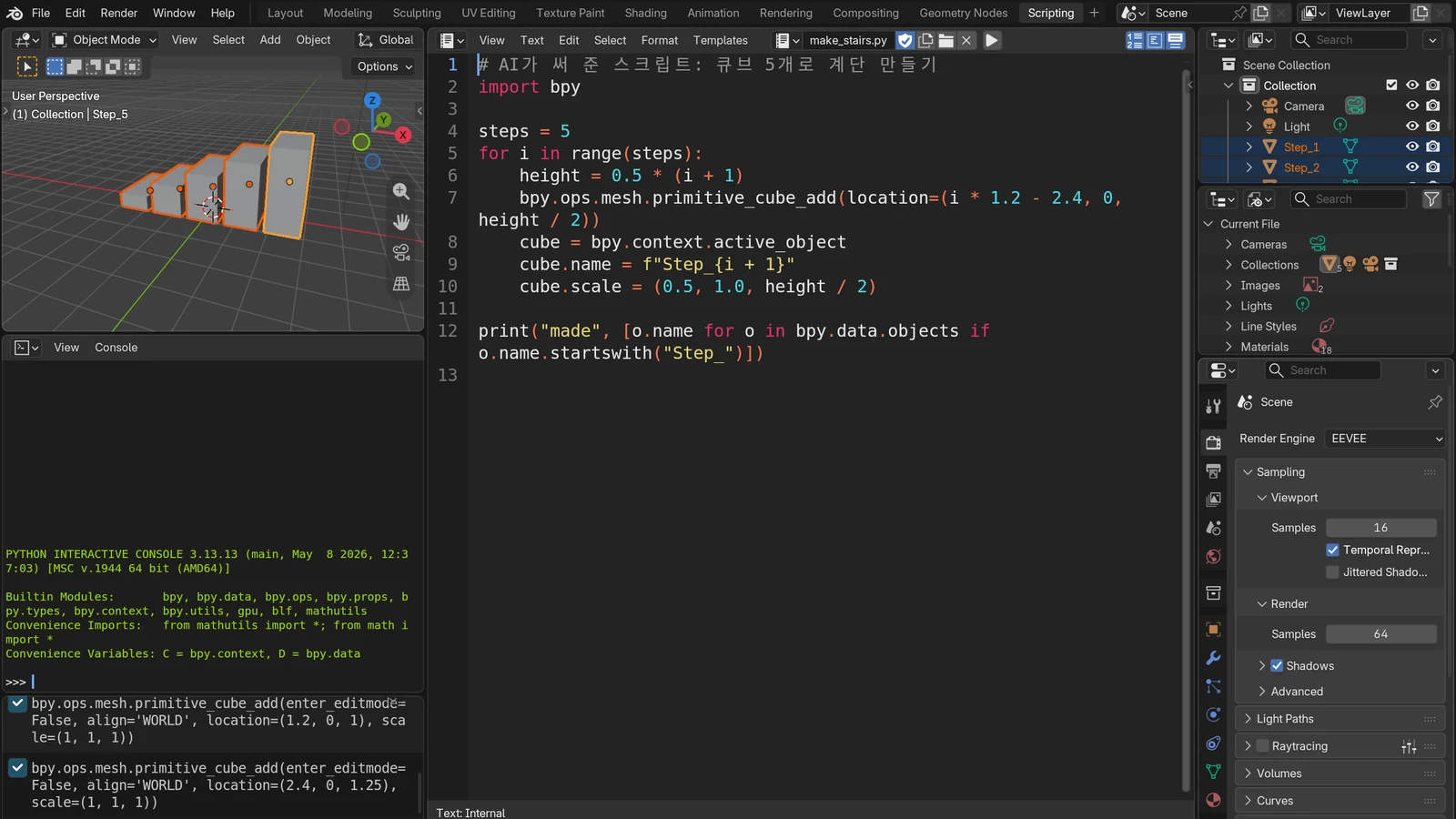
At noon on September 25, 2026, I sent Claude Code my first planning prompt. When I stopped at 7:20 the next morning, I had five low-poly war animations, each about 40 seconds long. I barely know Blender. Claude Code wrote the code for the models, terrain, camera, explosions and sound effects. My part was deciding what to make, watching the results and replying in a sentence or two.
The ebook Low-Poly War Animation with Claude Code and Blender records that day from start to finish. This post is a one-post summary of the book: what I set up, what I put in the first prompt, where things broke and how they got fixed, and how to read the cost.
1. The five episodes
All five episodes share one spec. I gave it in numbers in the first prompt, and every episode kept it to the end.
| Item | Value |
|---|---|
| Frame | 1920×1080, 30fps |
| Length | 30-second main scene (900 frames) + about 10 seconds of titles = about 40 seconds |
| Render engine | Blender 5.2 EEVEE |
| Camera | One take with no cuts, placed low and looking up |
| Sound | Sound effects timed to the frame where each event happens |
| Models | Low-poly models built in Blender with code, in a toy-brick look |
Low-poly means a 3D style that uses only a few faces on purpose, so shapes look faceted, a bit like origami made from a handful of large folds.
Each episode ends with one number you can check. "32/32" means 32 targets came in and all 32 were intercepted. Every enemy in the videos is a made-up force or a target.
| Episode | What happens | Based on | Result |
|---|---|---|---|
| 1 | An air defense battery intercepts a drone swarm | Cheongung-II | 32/32 |
| 2 | Tanks and self-propelled guns stop an armored column | K2 tank, K9 howitzer | 40/40 |
| 3 | A submarine launches ballistic missiles from underwater | Dosan Ahn Changho class | 6/6 |
| 4 | A fighter formation in an air battle | KF-21 | 14/14 |
| 5 | A destroyer intercepts anti-ship missiles | Jeongjo the Great | 80/80 |
Each image below is a frame from the final video of that episode. You can watch the full video at the link under each image.
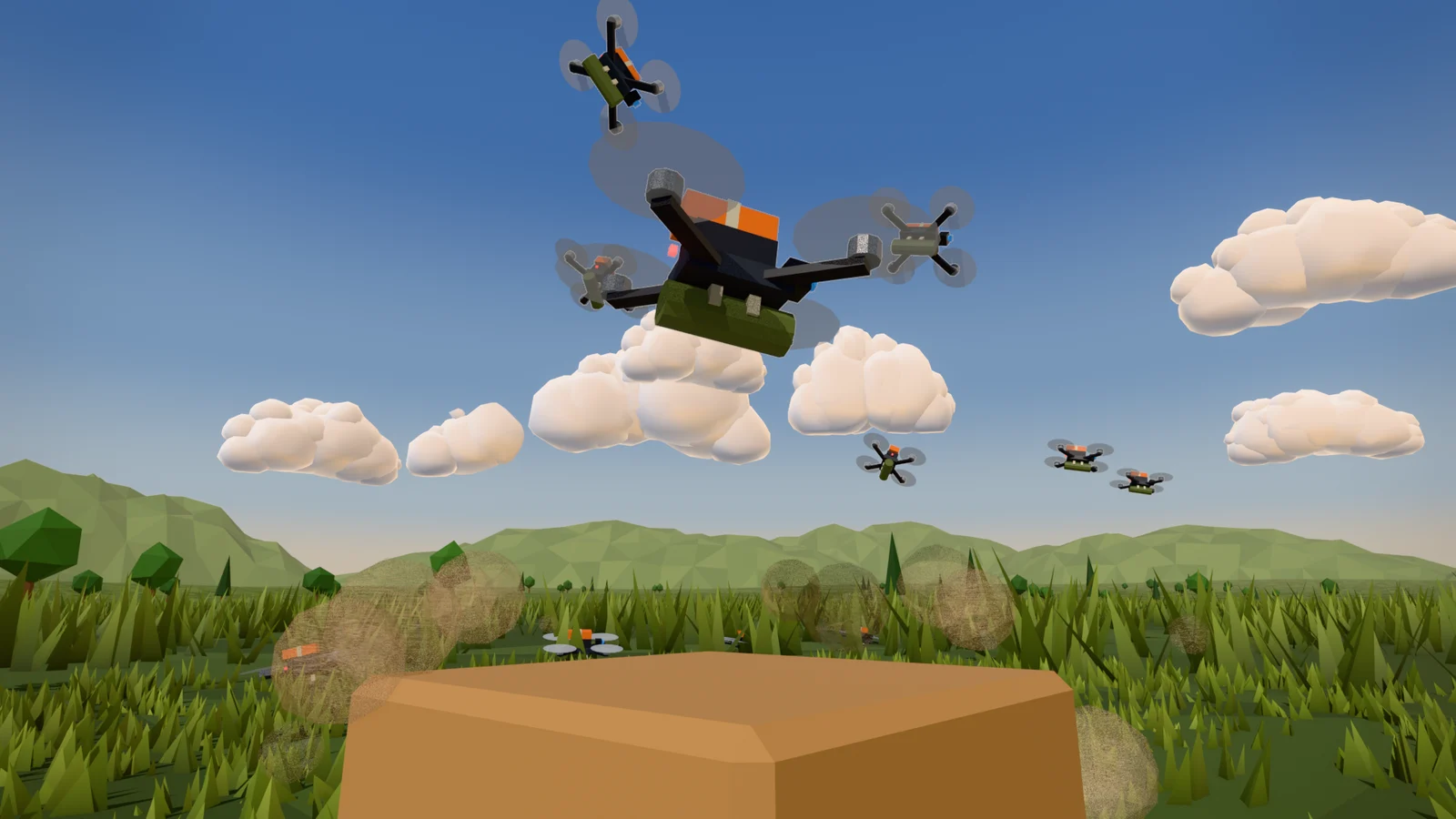
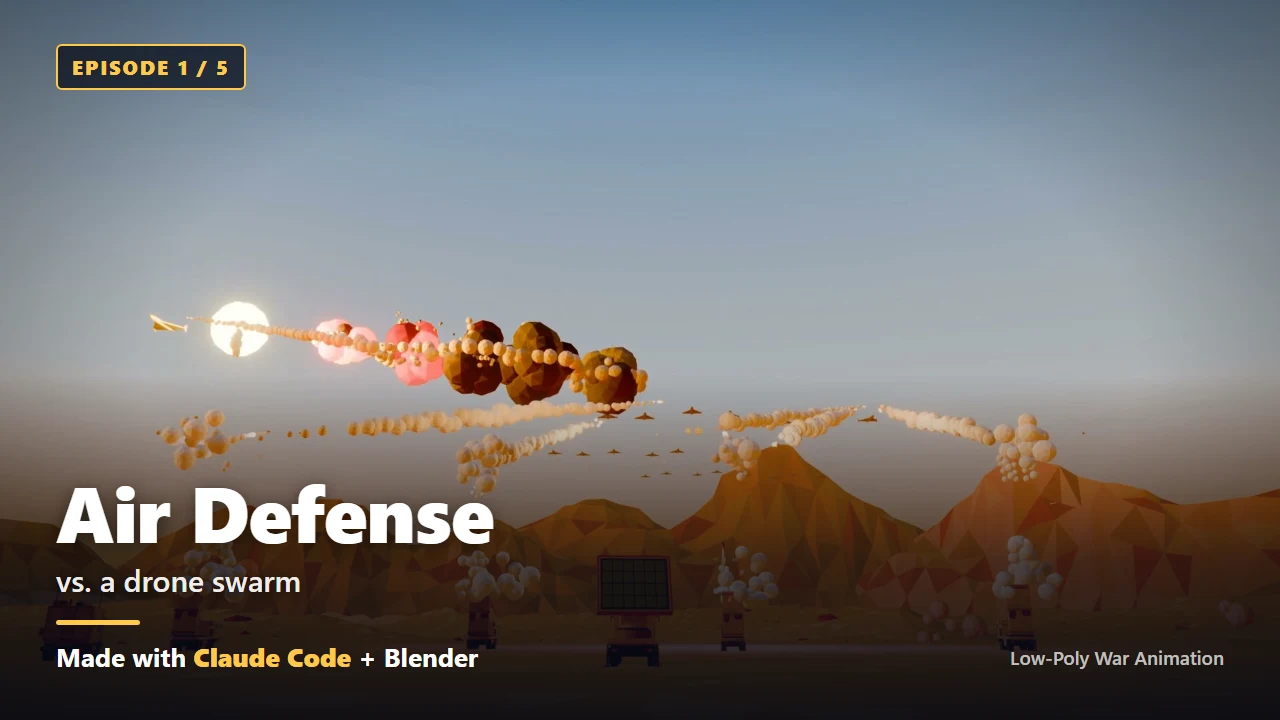 Figure 1. Episode 1, air defense. Four launchers, one command vehicle and one radar take on 32 drones. The English text was added for the book cover (Blender render)
Episode 1 video: Surface-to-Air Missile Battery Intercepts 32 Drones
In Episode 1 the drones are eight times their real size. A drone with a 2.5 m wingspan doesn't even show up as a dot from 1 km away. That's where one rule came from: anything that has to be seen can be scaled up.
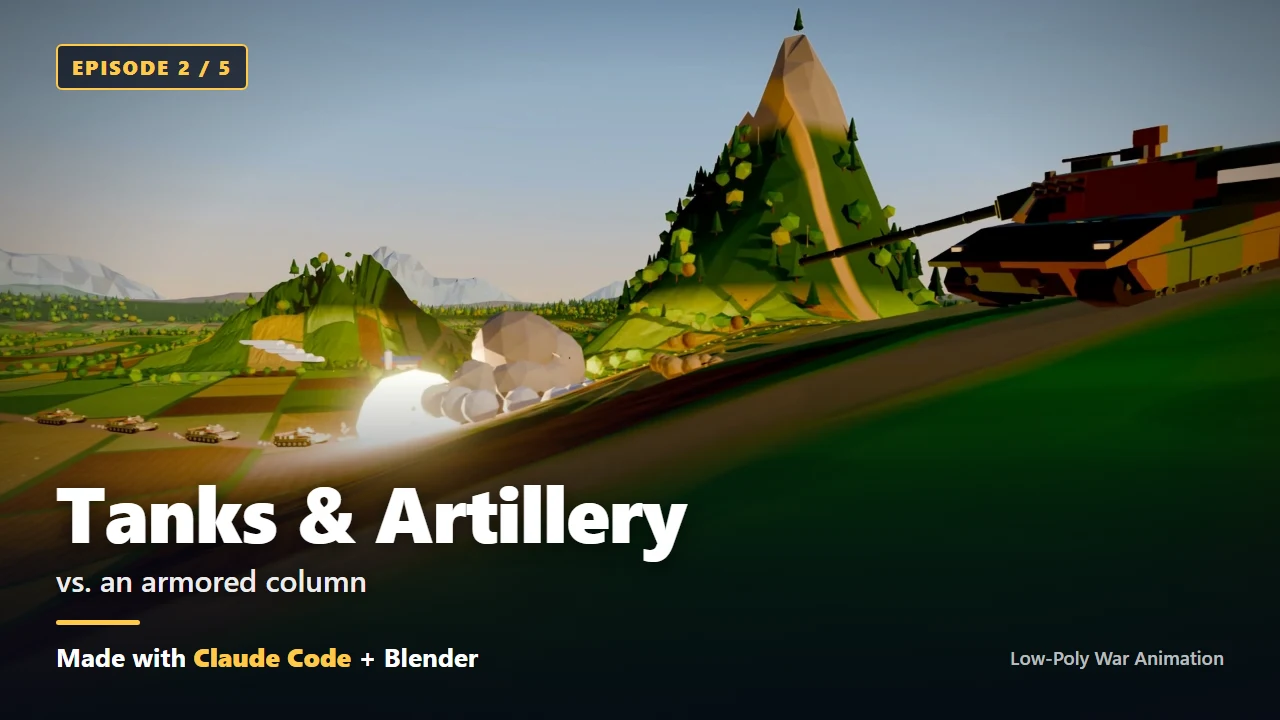 Figure 2. Episode 2, tanks and artillery. Twenty self-propelled guns fire from the back while five tanks fire on the move at enemy tanks coming from the side (Blender render)
Episode 2 video: Tanks and Self-propelled Guns Stop 40 Tanks
The first version of Episode 2 was flat ground. I asked for hills or mountains so there would be a reason to use self-propelled guns, and the AI added a scene of shells fired over a ridge. When you say why a piece of equipment is there, the AI shapes the terrain to fit.
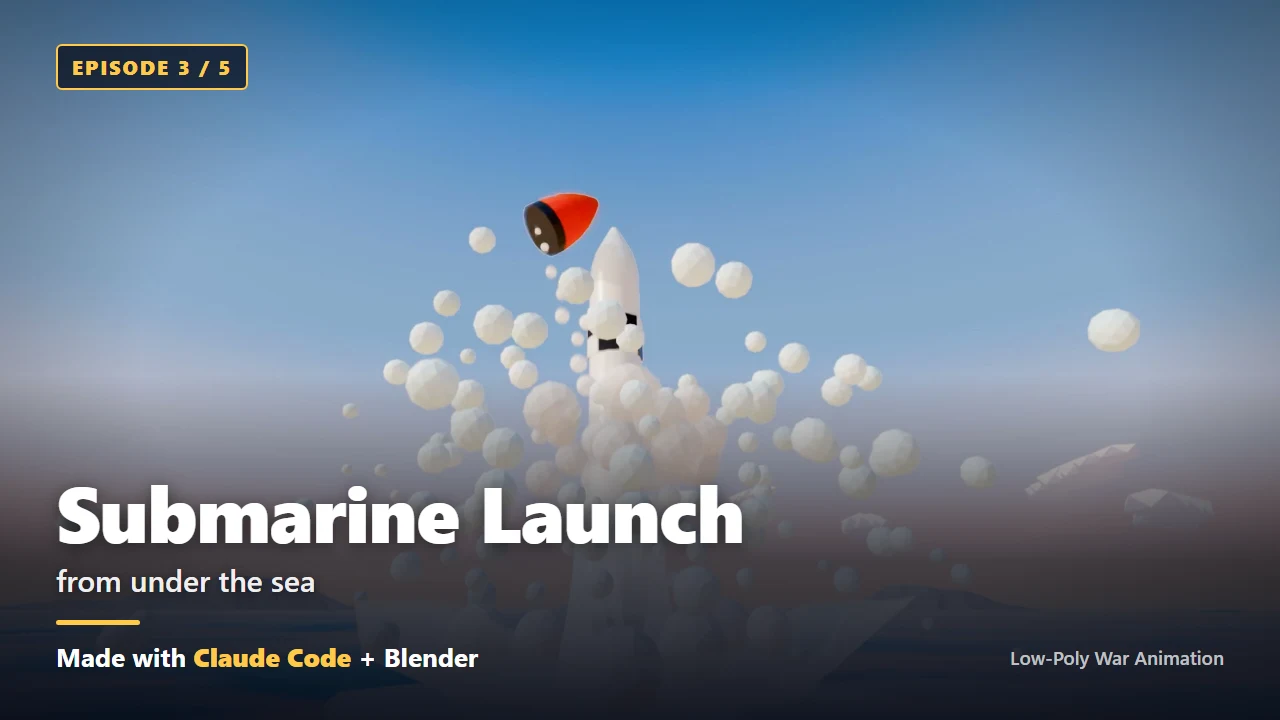 Figure 3. Episode 3, submarine launch. The moment the missile breaks the surface (Blender render)
Episode 3 video: Submarine Launches 6 Ballistic Missiles from Underwater
Episode 3 started with four missiles. I changed it to six, fired faster one after another. I showed the AI a reference video and pointed out one detail only: the cap should fly off first. That gave us the red cap in Figure 3.
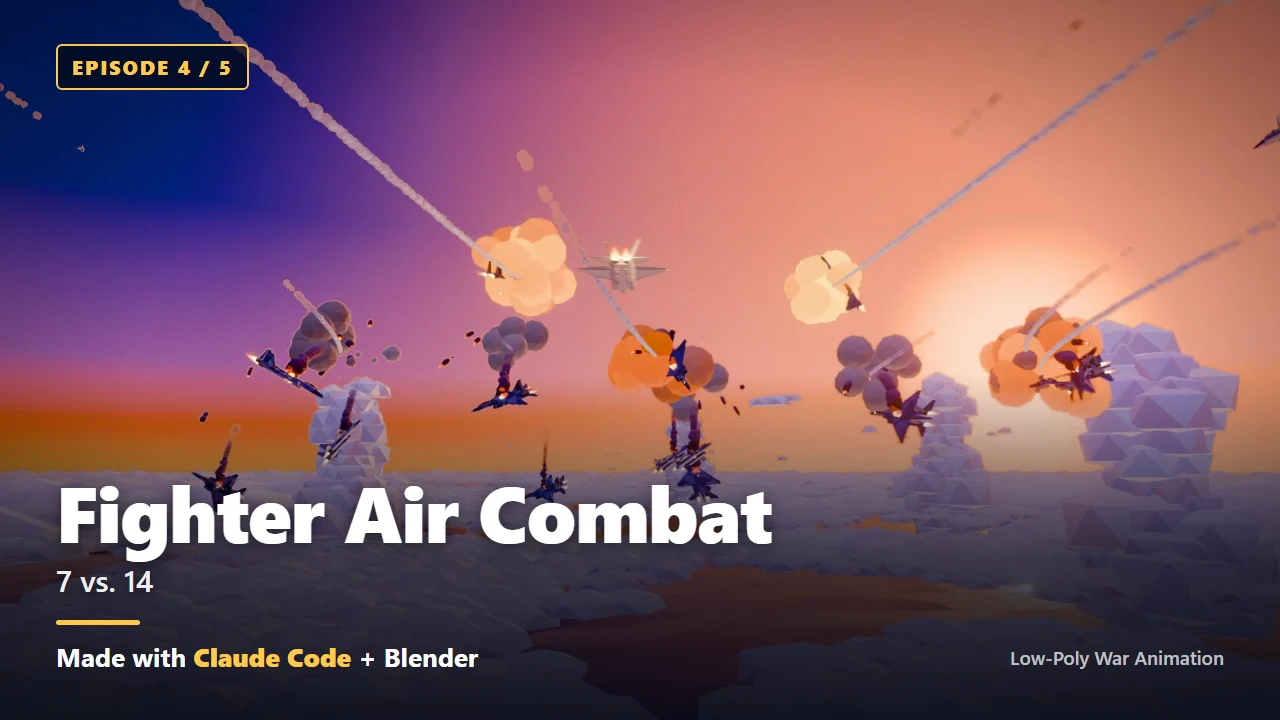 Figure 4. Episode 4, air combat. Seven friendly fighters against fourteen (Blender render)
Episode 4 video: Fighter Formation Air Combat: 14 Fighters Down
In Episode 4, the numbers I typed became the picture. I wrote 7 fighters, a V formation, 2 missiles each and 14 enemies, and that's what came out.
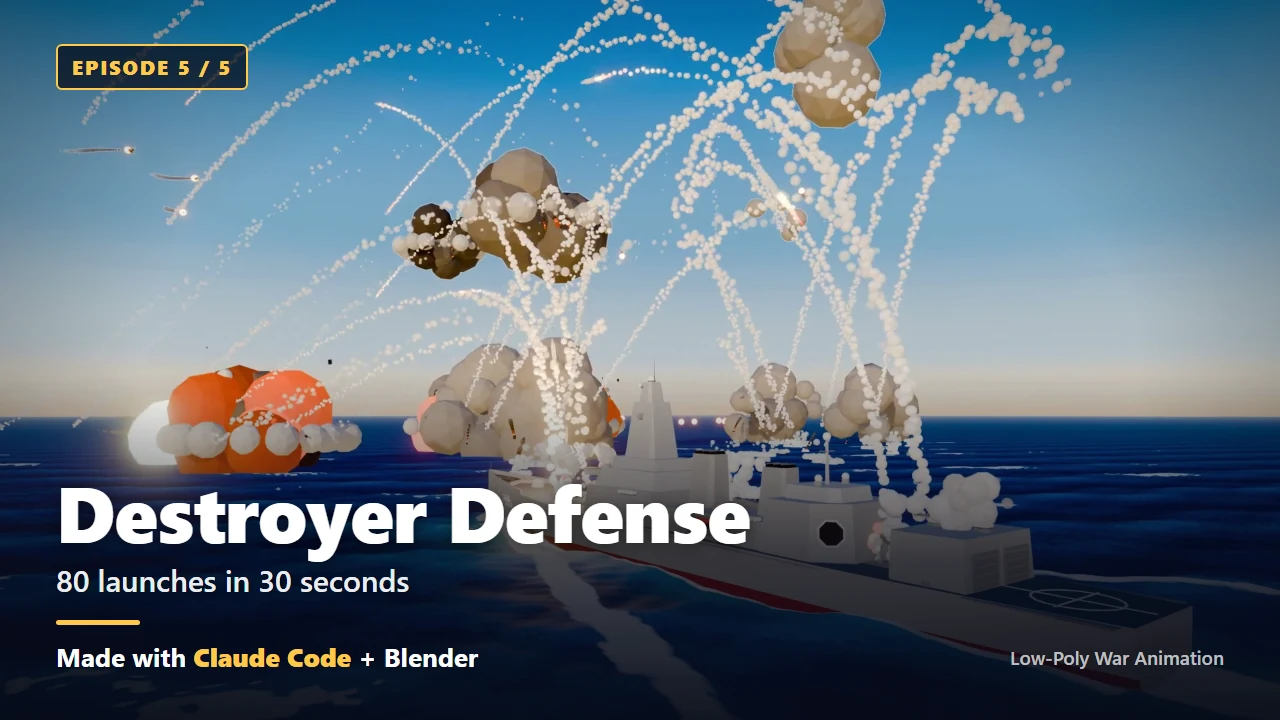 Figure 5. Episode 5, destroyer. Eighty launches in 30 seconds (Blender render)
Episode 5 video: Destroyer Intercepts 80 Anti-ship Missiles
For Episode 5, all I said was to fire as many as it could and to match the number of targets to that. The AI looked up how many vertical launch cells the ship has and set it to 80. After I said the enemy was too far away to see, the intercepts moved in to 150–700 m from the ship.
Besides the five main videos, the same day produced five vertical Shorts, one making-of video and thumbnails. While I slept, 61 low-poly models for the next projects were built.
2. What I set up
The only thing I installed myself was Claude Code. Claude Code is a program that lets the AI read and write files on your computer and run commands. It's a bit like handing an assistant the keys to your project folder. For everything else, I told Claude Code, "Check whether it's installed, and install it if it isn't."
| Tool | What it does | Who installs it |
|---|---|---|
| Claude Code | Turns your instructions into code and commands, and runs them | You |
| Blender | 3D modeling and rendering. The AI runs it from code, with no window | The AI |
| Python with numpy, scipy, Pillow | Scene data, sound synthesis, image processing | The AI |
| ffmpeg | Joins rendered frames and sound into a video | The AI |
| An empty folder | Where the project files go | You |
Claude Code doesn't work on the free Claude plan. You need a paid Claude plan (Pro, Max, Team or Enterprise) or a Claude Console account, which bills by usage. Prices and limits change often, so check the official pricing page.
Try it: installing Claude Code on Windows.
- Open PowerShell from the Start menu.
- Paste
irm https://claude.ai/install.ps1 | iexand pressEnter. - When it finishes, close the window and open a new one.
- Type
claude --versionand check that a version number appears. - Go into your empty folder (
cd C:\Projects\my_cinematic), typeclaude, and sign in through the browser.
The install command can change. If it doesn't work, follow the official Claude Code install guide. If you see an error saying irm is not recognized, you typed it into Command Prompt instead of PowerShell.
I also kept rule files. They didn't exist at the start. I had the AI write one each time a result came out well, and by the end three files did most of the work:
CLAUDE.md: what the project is and the rules to follow. A new session reads this first.docs/camera_style.md: camera height, lens, and what must be in frame.docs/modeling_style.md: how to build models in code, colors and materials, and the order of checks.
A rule file works like a recipe card. Once you write down what worked, the next cook, or the next agent, gets the same result.
3. The first planning prompt
My first instruction was thirteen numbered lines. Here is what I sent, translated from Korean and kept close to how quickly I wrote it. In the book, tool names, real place names and equipment names are replaced with [edited], and I've kept it that way here.
I'm going to make a 20-second cinematic video. [edited: sentences about a model generation tool and login credentials removed]
- Build a [edited: surface-to-air missile battery] (4 launchers, 1 command vehicle, 1 radar) and place it in the desert.
- The scene is 32 [edited: drones] flying in and the [edited: surface-to-air missile battery] firing to intercept them.
- I'm going to make a 30-second Blender video.
- The [edited: surface-to-air missile battery] missiles need to show the cold launch properly. (in low-poly style, with smoke coming out while it finds its direction)
- The camera should look up at the sky from the ground so the battery, the cold launch, and the intercepts in the distance all show.
- If you can use agents, feel free to work efficiently.
- Later I'll make scenes with a similar feel: a submarine-launched ballistic missile (SLBM) launch, a [edited: tank] and [edited: howitzer] firing on the move, and a [edited: equipment name] fighter jet flying and firing missiles, so it would be good to plan for expandability.
- It's low-poly style, but I'd like it to have a distinctive feel, like [edited: toy brick].
- I'd like a local server so that next time I start with resume, I can restart the server and check the story of the work.
- I'd like the server to track everything from the first default cube and the modeling results.
- A UI/UX agent should make the server look good, so anyone who sees it thinks it's cool.
- A [edited: place name removed] desert feel would be good for the background.
- I'm going to connect and use Blender MCP.
A cold launch pushes the missile out of its tube first and lights the motor in the air. An agent is a helper that Claude starts up separately. Think of a team lead handing out tasks: each member does only their part and reports back.
That was the fourth version, after three quick rewrites, and the first line still says 20 seconds while item 3 says 30. A minute later I sent one more line to fix it.
Make it 30 seconds, and the frame is 1920×1080, 30fps.
A minute after that, I sent this:
Work in plan mode again.
Plan mode is a Claude Code mode where it changes no files and only shows you a plan. Press Shift+Tab to switch, or just say "do it in plan mode." Reading the plan first shows you what the AI misunderstood before any code gets written.
The thirteen lines fall into five groups. When you write your own first prompt, cover each one once.
| Group | Items | What's in it |
|---|---|---|
| What | 1, 2 | 4 launchers, 1 command vehicle, 1 radar, 32 enemies. All numbers |
| How it looks | 4, 5, 12 | Cold launch, a camera looking up from the ground, desert |
| What it feels like | 8 | Low-poly, but like toy bricks |
| How to work | 6, 9, 10, 11, 13 | Agents, a work-log server, MCP |
| What's next | 7 | Three more episodes with the same feel |
Item 7 paid off the most. I didn't need it yet, but because of that one line the AI didn't write the first episode's code just for the air defense battery. It split terrain, effects, camera and sound into shared parts, and from the second episode on it reused them.
The numbers held, too. If you write "one battery," the AI decides how many units that means. If you write "4 launchers," you get four. The single line "30 seconds, 1920×1080, 30fps" became the default for all five episodes.
4. From the second episode on, one line
Around 3 p.m., when the first episode had taken shape, I watched the preview and sent this:
I watched the video and I can't see the [edited: drone]. Also the smoke is too big and there's too much of it, so it's hard to see the missiles flying. I'd like the camera to take in the whole [edited: surface-to-air missile battery] while also showing the [edited: drone] flying in and getting intercepted. The camera movement right now is very good. Record it in an md file so we use this approach from now on.
The last sentence created the camera rules document. Praise in a chat window disappears when you close it. Once it's in a file, the next session and every other agent work from the same standard.
An hour later, this was all I sent:
Do the remaining 3 projects the same way.
From that one sentence the AI wrote a shared brief and started three agents at once, one per episode. I wrote one line. The agents each got a brief of about 2,700 Korean characters. The one line worked because the rule documents were already in place.
5. What broke and how it got fixed
"This is a 0 out of 10"
At first I used models from an outside generator. They didn't fit the toy-brick look. Here is part of the message I sent at 5:24 p.m.:
The [edited: tank] and [edited: howitzer] video is way short of the mark. First of all the modeling is a problem. Don't use [edited: earlier generation method]; I think it's better to model it ourselves as low-poly. It's really, really weird, starting with the materials. This is a 0 out of 10. And the [edited: howitzer] can stay still, but I'd like 20 of them deployed, 5 groups of 4. For the [edited: tank], 5 of them moving while the turret turns 90 degrees and fires. (...) The SLBM one (...) the launch angle and the missile angle pass, but the material looks wrong. We should build the models ourselves in Blender in low-poly style too.
From then on, every piece of equipment was built in code directly in Blender, including the 61 models made overnight. That message has a score, the causes, the quantities and formation, and what passed. Saying what passed keeps the AI from tearing out the parts that were already good.
Rendering the whole video before noticing "I can't see it"
The two problems in section 4, "I can't see the drone" and "the smoke is too big," would have shown up in a few still frames. There was no need to render the full video. So I changed the order. The AI now puts stills from each section onto one contact sheet, opens it and checks it, fixes things a few times, and only then renders the video. A contact sheet is a single image with many moments laid out in a grid, the same idea as a photographer printing a whole roll of film on one sheet.
The disk filled up
At 10:39 p.m. I sent, "Delete the old rendered png files we don't need. The disk is out of space." Each video is rendered as one PNG per frame and then joined, and the frame folder for one 1080p episode is about 5 GB. After that, two steps were added to the build tool: check for at least 8 GB of free space before starting, and delete the PNGs only after the final video passes its checks.
6. How to think about the cost
| Item | Value |
|---|---|
| Time | About 19 hours, including 4.5 hours of sleep |
| Messages I sent | 73, about 7,200 Korean characters (roughly four A4 pages) |
| Briefs the AI wrote | 35, each 2,000–6,000 Korean characters |
| Model and setting | Opus 5.5, medium effort |
| Output | 5 main videos, 5 Shorts, 1 making-of video, 61 models + 1 target |
The Claude Code status line shows a session cost in dollars. That number converts usage into money. It isn't your bill, and on a subscription plan it can be very different from what you pay. To see what you were actually charged, check the billing page of your account. For that reason the book doesn't promise "this much is enough."
Tokens drove most of the cost. A token is the unit for counting how much text the AI reads and writes. Like a taxi meter, it goes up as you use it. Here's where this project used a lot of tokens, and what saved them:
- Running several agents at once finishes sooner, but each agent reads the rule documents on its own and gets its own brief, so it costs more tokens. If your limit is tight, cut it to two or three agents and run them one after another.
- Fourteen of my 73 messages were "What's the status?" Each time, the AI checks everything again and writes a long answer. A progress page built at the start would have made most of those unnecessary.
- Look at stills first and render the video later. You save render time and fewer "do it again" rounds.
- Keep explanations in files and just say "read this file first," so you never explain the same thing twice. I started each new session with the single word
resume.
If you're new to this, don't start at the scale of five episodes. A single 10-second scene with one launcher and one missile is a better way to get a feel for it. The book's Quick Start and Chapter 4 are that size.
7. What's in the book
There are two editions, both on the Gumroad shop.
| Free preview | Full edition | |
|---|---|---|
| Price | $0 | $15 |
| Content | Chapters 0–3, Quick Start, Ten Core Tips, 3 prompts from Appendix A | Chapters 0–23, Appendices A–E |
| PDFs | English and Korean | English (317 pages) and Korean (293 pages) |
| Actual prompts | 3 | 41 (Appendix A) |
| Production logs | None | 8, one per episode (Chapters 16–23) |
| Blender files | None | 11 (open in Blender 5.2.1 LTS) |
| Template pack | None | 12 rule files, briefs and checklists (in Korean; the English book prints the same briefs and checklists in Appendices B and C) |
The free preview is enough to install everything (Chapter 2), fill in the one-page planning prompt template (Chapter 3), and get a first scene from six prompts in the Quick Start. The full edition adds Chapter 4, which builds a 10-second missile launch with sound in six steps, the chapters on rule documents and running agents (Chapters 5–15), and production logs showing which feedback fixed what in each episode.
You can change the prompts, code and Blender files, and you can use the videos you make, including on monetized channels. Please don't resell or share the PDFs, the .blend files or the template pack themselves.
8. Common problems on the first try
| Symptom | Cause | Fix |
|---|---|---|
| "irm is not recognized" | Typed into Command Prompt, not PowerShell | Open PowerShell (the line starts with PS) and paste again |
| The AI starts making files without a plan | A big job sent without plan mode | Send "Show me the plan first in plan mode" |
| The next day, a new session doesn't know where you left off | Progress wasn't saved to a file | Before clearing, send "Update RESUME.md and tell me what's still running" |
| The disk fills up during a render | Frame PNGs pile up, several GB per episode | Have the AI add a free-space check and delete PNGs after the final check passes |
| A camera move you liked is gone in the next episode | The praise only lived in the chat | Add "Record it in an md file so we use this approach from now on" |
9. Where to get it
- Free preview (Chapters 0–3, English and Korean PDFs): azblender.gumroad.com/l/lowpoly_animation_war
- Full edition ($15, the whole book + 11 Blender files): azblender.gumroad.com/l/lowpoly_war_animation
- All five videos: Portfolio
Claude is a trademark of Anthropic. Blender is a trademark of the Blender Foundation. The book is independent and not affiliated with either.
References
- Claude Code official docs, including install: Claude Code overview
- The five images are frames from each episode's final render, with text added for the book cover.