Low-poly war animation with Claude Code, part 5: quick start, your first scene in six prompts
Send six prompts in order to build a 10-second scene with one launcher and one missile, check it on a single eight-panel contact sheet, then send one round of feedback.
한국어English
Based on: the free edition of the ebook Low-Poly War Animation with Claude Code and Blender, Quick start; Claude Code (Opus 5.5, medium effort), Blender 5.2, Windows 11. Checked in October 2026.
This part is a shortcut. With six prompts, you build a 10-second scene with one launcher and one missile, then check it with a single picture of eight stills. This picture is called a contact sheet: several moments laid out in a grid so you can check them. It works like the old darkroom proof sheet, where a whole roll of film was printed on one page.
By the end of this part, you can:
- Have the AI create three rules files.
- Build a 10-second scene by sending one prompt per step.
- Check your first scene on one contact sheet.
- Send feedback that separates what passed from what to fix, in numbers.
Rendering the video and adding sound effects are not in this part. They continue in Chapter 4 of the ebook.
A note up front: This part is a shortened version of the ebook's Chapter 2, step 3 and Chapter 4, steps 1–4. I don't yet have a timed record of following this short sequence from start to finish on a clean PC, and I haven't tried it on a Mac. That's why no times are given.
1. Before you start
If you haven't installed Claude Code yet, do the install steps in Part 3: setup first and come back.
| What you need | How to get it |
|---|---|
| Claude Code | You install it yourself. You need a paid Claude plan or a Claude Console account |
| Blender, ffmpeg, Python | In step 1, you hand checking and installing to the AI |
| An empty folder | For example, mini_launch |
| Three rules files | CLAUDE.md, docs/camera_style.md, docs/modeling_style.md. Copy them from the template pack, or have the AI make them with the prompt below |
Rules files are work rules the AI reads first every time. Once you write a standard down, the next conversation works to the same standard. The template pack is in the download bundle from the store where you bought the ebook (Gumroad). Even without it, you can start with the prompt below.
Try it: getting ready takes three steps.
- Make an empty folder (for example,
mini_launch). - Open Claude Code in that folder. In the terminal, go into the folder with
cd, then runclaude. - Put the three rules files in the folder. If you have the template pack, copy the three files in. If not, send the prompt below.
Create three rules files in this folder. Add a one-line reason for each rule.
1) docs/camera_style.md: Shoot with one camera, no cuts. Camera height 0.7–2.5 m, lens 18–27 mm. At the moment of launch, the whole launcher must be in frame. Scale small targets up with exaggerated scale, and put intercepts against the sky. Keep smoke sparse and small. Check in this order: stills → 540p preview → final.
2) docs/modeling_style.md: Build the equipment yourself with Blender Python. Real-world proportions first, low-poly built mostly from boxes and cylinders, solid matte plastic (no textures). For each model, gather four-direction renders into one image and check it yourself.
3) CLAUDE.md: One line on what this project is, and a line saying the two files above must always be followed. Keep it short.
- Expected result: Three files appear in the folder. The numbers come from the rules documents in my project.
2. Try it
Send one prompt per step. If you send "make it all" in one go and the result looks wrong, you can't find which step went wrong. If a prompt has unfamiliar words, send it as it is.
Step 1: check your tools
Starting point: the folder with the three rules files from section 1.
Try it: have the AI check whether the tools you need are on your PC.
I'm going to make 3D animations in Blender on this computer. Check whether Blender, ffmpeg, Python, and the Python libraries numpy, scipy and Pillow are installed, and install anything that's missing. Before each install, tell me what you're installing and where. When you're done, give me a table with each tool's version and the path it runs from. Please answer in English.
ffmpeg is a program that joins rendered pictures and sound into a video. numpy, scipy and Pillow are Python add-ons that help with math and image handling.
- Expected result: Each tool's version and path, as a table or a list.
- Along the way: The AI stops before each install command and asks for permission. Read what it's installing, then approve.
- If it doesn't work: Paste the failure message as it is and ask it to fix it and try again.
Step 2: set the rules and test with a cube
Try it: before building any models, fit the rules files to this project. Also check with one cube that Blender runs properly.
This folder is a practice project called "10-second missile launch." First, read CLAUDE.md, docs/camera_style.md and docs/modeling_style.md. Then update CLAUDE.md to fit this project. Spec: 1920×1080, 30fps, 10 seconds (300 frames), Blender EEVEE, low-poly with a toy-brick feel. Find the path to the Blender executable on my PC and write it in CLAUDE.md, then render one cube without the window (headless) to check that it works.
Headless means running Blender in the background without opening its window. You get the result as an image file.
- Expected result: The spec line and the Blender path line in
CLAUDE.mdare updated, and you get one picture of a cube. - If it doesn't work: Open
CLAUDE.md, check that it says 10 seconds and 300 frames, and ask it to fix only the wrong lines. If you got an error message instead of a cube picture, paste the message as it is and send "Fix it and run it again."
Step 3: the launcher and missile models
Try it: build the two stars of the scene. You can send the dimensions as they are.
Following the rules in docs/modeling_style.md, build two models with Blender Python builders.
1) Truck-type launcher: about 10 m long, 2.6 m wide, 3.2 m tall, 8 wheels. At the back is a launch box holding 4 canisters, and the box must be able to tilt up to vertical, pivoting on its rear end. Put a launch socket empty on each canister.
2) Missile: about 4.5 m long, 0.3 m in diameter, origin at the tail, +Z forward. Four tail fins.
Colors: sand-colored body, dark charcoal wheels, white missile. For each, render four views (3/4, side, front, top) and join them into one image, then open it yourself, fix any proportions that look wrong, and report back.
A builder is a code file that generates a model. Run the same code again and you get the same model; change only the numbers and you get a different size. A canister is the tube that holds a missile. An empty is a Blender object with no shape that only marks a position, like pinning the spot where the missile comes out.
- Expected result: Two builders and two four-view check images.
- If it doesn't work: Chapter 4, step 2 of the ebook has a table of what to send for each symptom. Without it, point out what looks wrong and give the size you want in numbers.
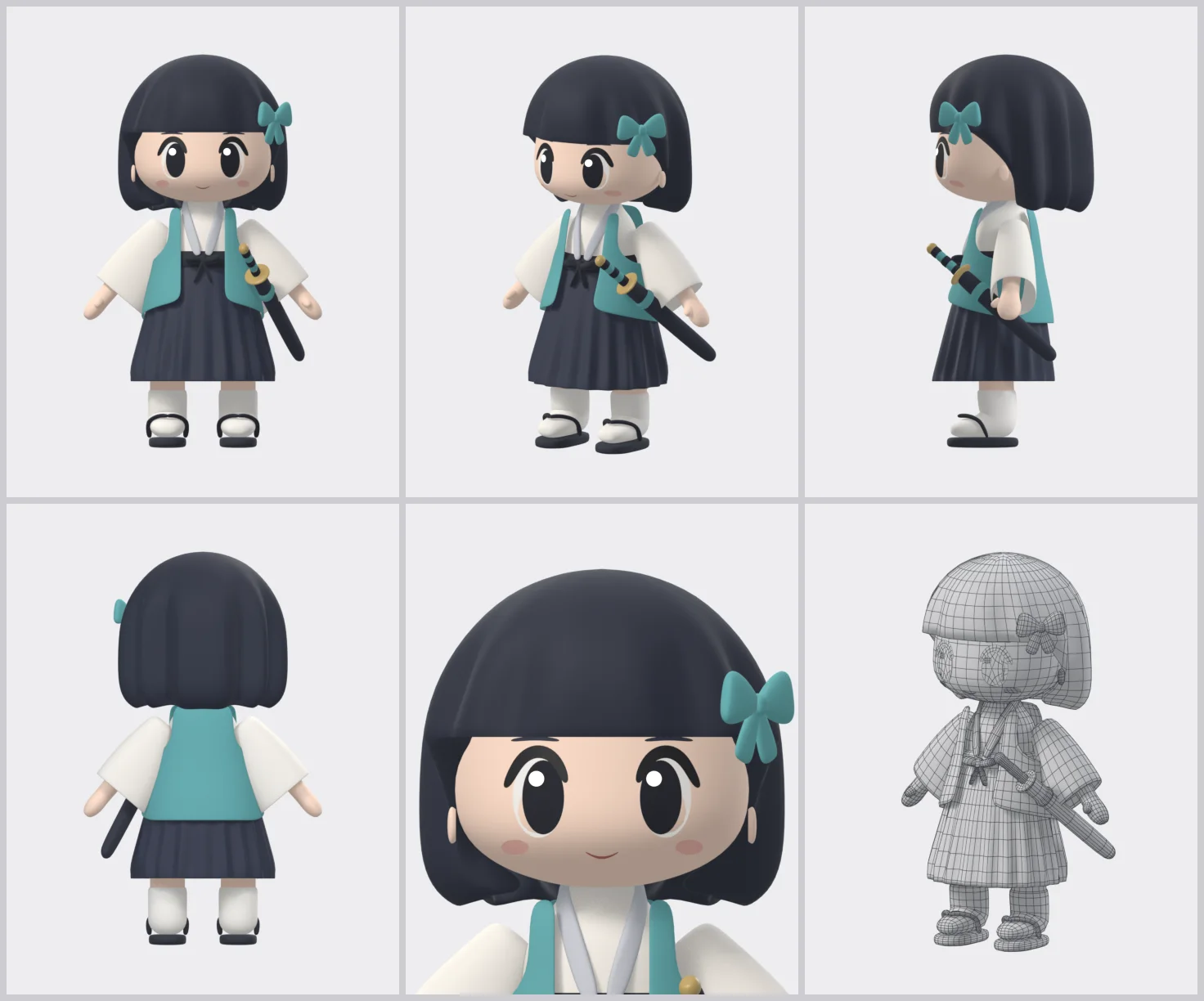
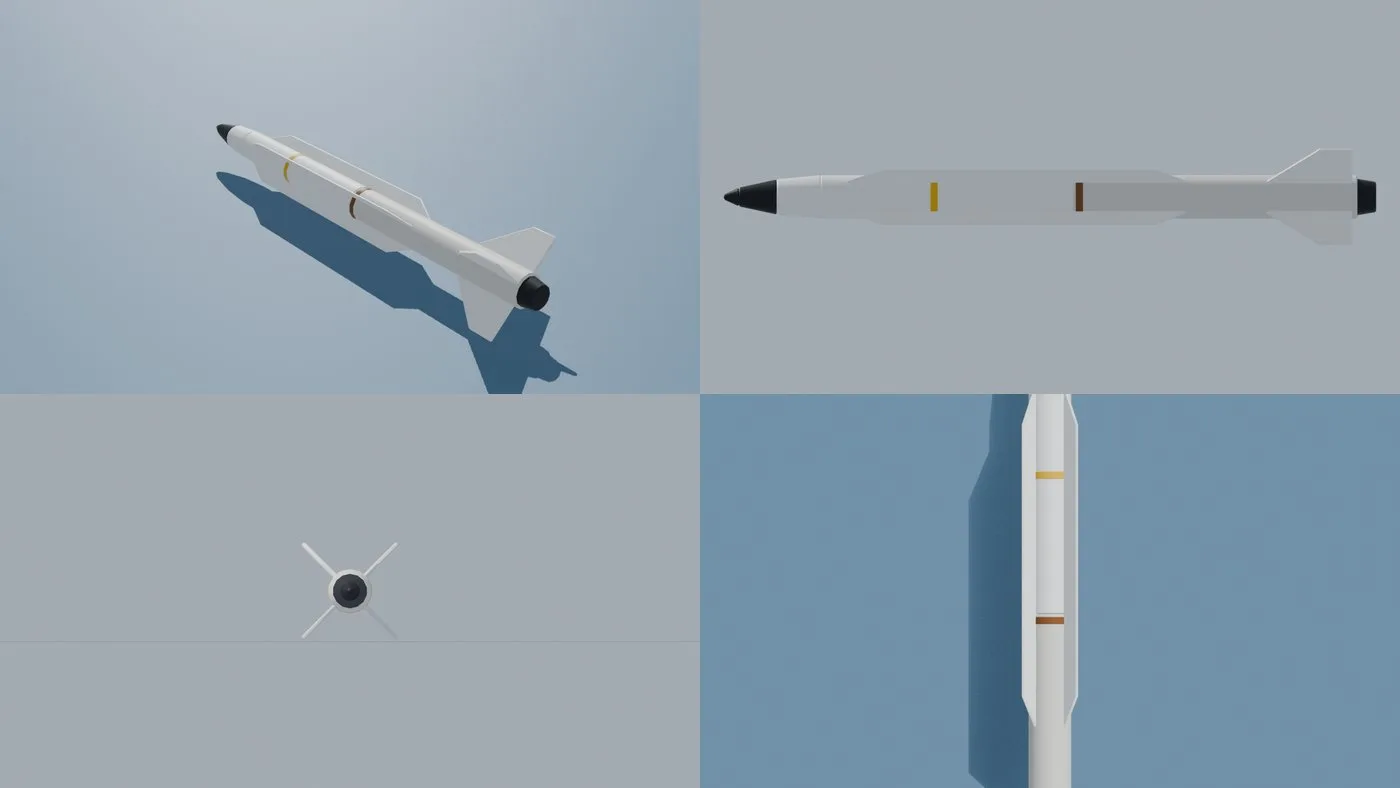 Figure 1. The check image for the missile model in my project (3/4, side, front, top). The image you get in step 3 should look like this, with four views joined into one (Blender render)
Step 4: build the 10-second scene
Try it: place the models in the desert and decide what happens over the 10 seconds.
Shorten docs/camera_style.md to a 10-second version and build the scene. Use this structure: gen_scene.py (pure Python) writes scene.json, and build.py (Blender) reads it and builds the scene.
- Stage: flat sand desert, clear sky. Launcher at the origin; the launch box tilts up to vertical over frames 30–90.
- Cold launch at frame 120: the missile pops about 10 m out of its canister, then turns and ignites.
- Target: one small delta-wing drone. Exaggerate it 8× so it's visible from 1 km away. Intercept at frame 270, altitude 200–300 m, against the sky.
- Camera: one camera, no cuts. Height 0.7–2.5 m, lens 18–27 mm. The whole launcher must be in frame at the moment of launch.
- Keep smoke sparse and small.
This structure splits the script from the shoot. gen_scene.py writes a script (scene.json) of who is where and when, and build.py reads that script and sets up the scene in Blender. A cold launch pushes the missile out of its tube first and ignites it in the air.
- Expected result: Three files appear:
gen_scene.py,scene.jsonandbuild.py. You won't see a picture yet at this step. Nothing is broken. You'll see the picture in the next step. - If it doesn't work: Paste the error message as it is and send "Fix it and run it again."
Step 5: see your first scene in eight stills
Try it: before rendering video, check with eight stills first.
Render stills at 540p for frames 1, 60, 120, 135, 180, 240, 270 and 295, and make them into one contact sheet with the time in seconds written on each panel. Open it yourself and report, item by item, whether it meets the camera_style.md rules (whole launcher in frame at launch, intercept against the sky, smoke not hiding the missile).
540p is a small picture, 960 wide and 540 tall. You render smaller than the final size so you can look sooner.
- Expected result: One sheet with eight panels. This is the goal of this part.
- If it doesn't work: Chapter 4, step 4 of the ebook has a table of what to send for each symptom. Without it, point to the panel by its time and send it in the step 6 format.
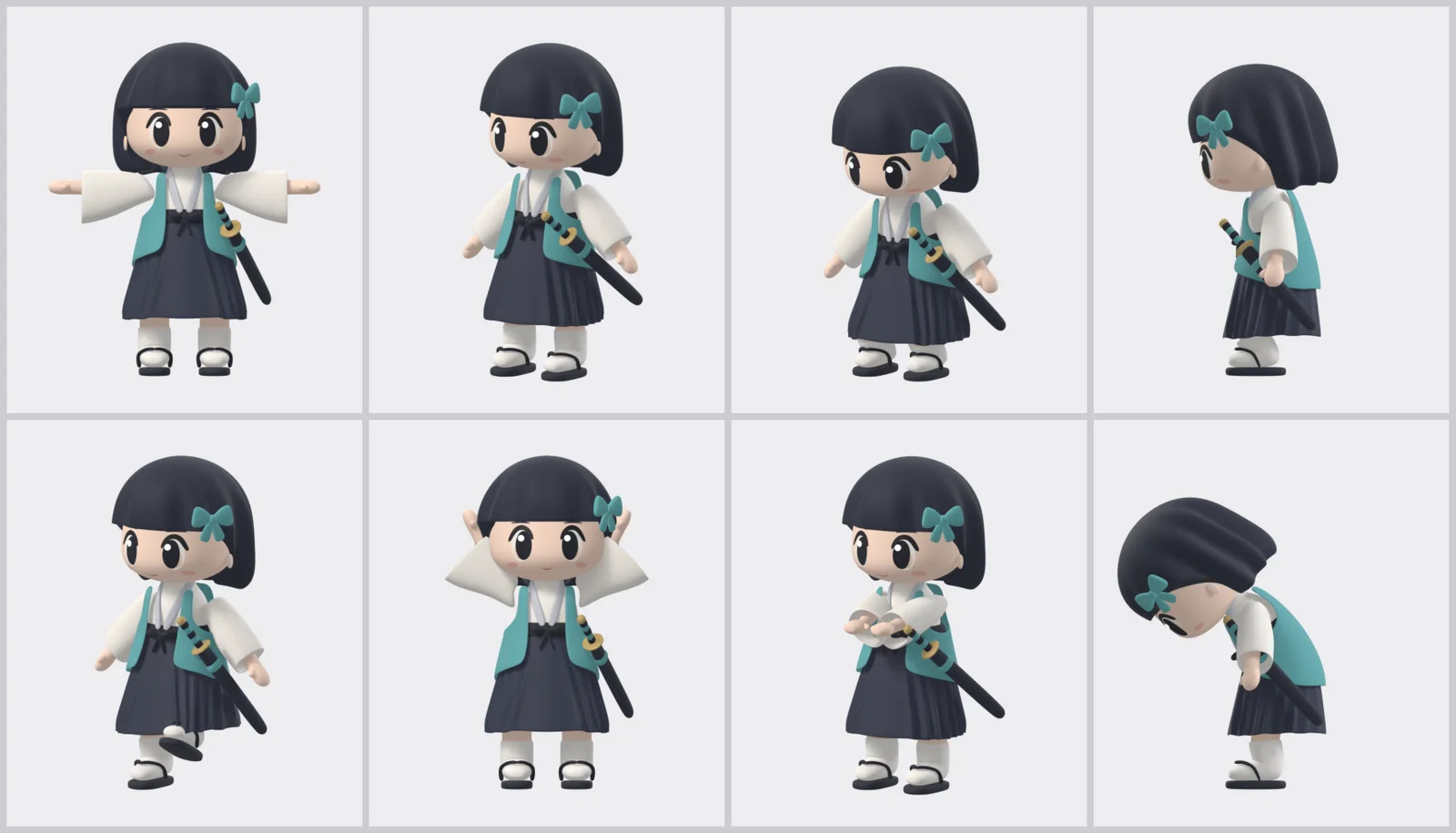
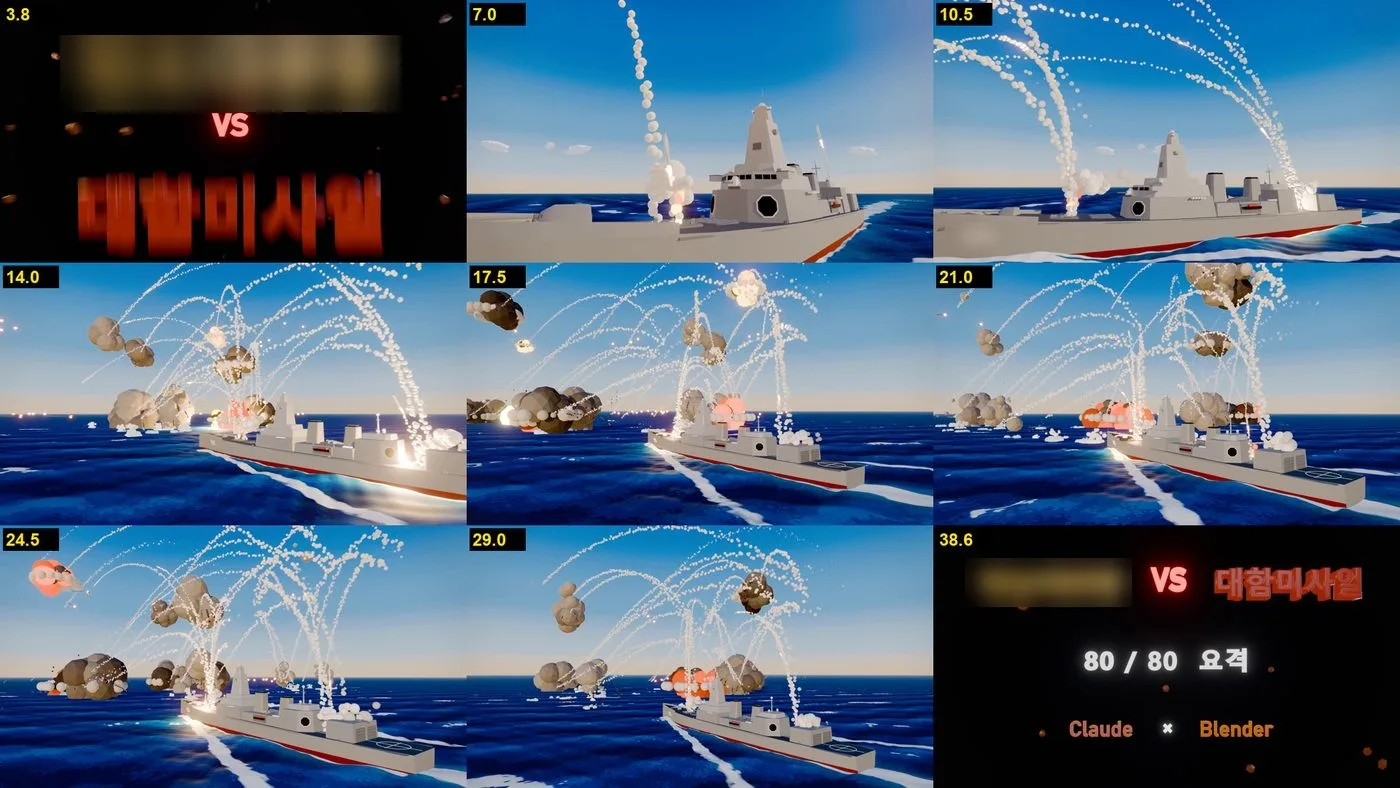 Figure 2. A sheet from another episode in my project (the destroyer). The name and hull number in the titles are blurred out (Blender render, labels in Korean)
Use it only for the layout. Each panel has its time written on it, so you can point to it exactly, like "the 7.0-second panel." The picture has nine panels, and the first and last are title cards. Following the step 5 prompt, your sheet will be eight panels of the desert scene with no titles.
Step 6: one round of feedback
Try it: look at the sheet and say separately what you like and what to fix. Keep the fixes to three or fewer, and give them in numbers. Below is an example of the format. Change the panel times and numbers to match your sheet.
The camera flow and the launcher model pass. Fix just three things.
1) 4.0-second panel: the launcher's front wheels are out of frame. Pull the camera back 2 m so the whole launcher fits.
2) 9.0-second panel: the target is too small. Scale 8 → 10.
3) The smoke puffs hide the missile. Cut the number of puffs in half.
After fixing, remake the sheet with the same frames and show me a before-and-after comparison.
There's a reason the first line says what passed. When you name what passed, the AI doesn't tear up the good parts. A puff is one of the small lumps that make up the smoke.
- Expected result: Two sheets, before and after the fixes.
- If it doesn't work: Send what's left once more in the same format.
If you've made it this far, you have your first scene.
3. Common problems on the first try
| Symptom | Cause | Fix |
|---|---|---|
| The AI stops during install and waits | It asks permission before each install command | Read what it's installing and approve |
| No picture after step 4 | Step 4 only makes files | Go on to step 5 and have it render the sheet |
| The result looks wrong and you can't tell where | Several steps sent at once | Send one prompt per step again |
| A fix also changed the parts you liked | You didn't say what passed | Start the feedback with "… passes" |
In one line: one prompt per step, and have the AI open the models and stills itself.
Next part and the full book
- Previous: Part 4: the first prompt, on writing the bigger planning prompt this scene comes from.
- Next: Part 6: ten key tips
- The whole build in one post: Five low-poly war animations made with Claude Code
- Rendering this scene as video and adding sound effects are in Chapter 4, steps 5–6 of the ebook. The ebook is in the Gumroad store.
Claude is a trademark of Anthropic. Blender is a trademark of the Blender Foundation. The book is independent and not affiliated with either.
References
- Claude Code official docs: Claude Code overview
- Both images are Blender render check images made during production.