Low-poly war animation with Claude Code, part 4: the first prompt, with your plan on one page
Take the real thirteen-line first prompt apart into five groups, learn to give specs and quantities in numbers, get a plan first in plan mode, and fill in a first-prompt template of your own.
한국어English
Based on: the free edition of the ebook Low-Poly War Animation with Claude Code and Blender, Chapter 3; Claude Code (Opus 5.5, medium effort), Blender 5.2, Windows 11. Checked in October 2026.
My project's first instruction was thirteen numbered lines. After it I sent one line with the spec and one line saying "make a plan first." This part takes those three messages apart, line by line.
At the end there's a template where you only fill in the blanks. By the end of this part, you can:
- Tell apart the five groups that go into a first prompt.
- Write length, screen size and quantities in numbers.
- Get a plan first in plan mode, read it, then approve it.
- Fill in the template and have your own first prompt on one page.
If you haven't installed Claude Code yet, do Part 3: setup first.
1. The actual first prompt
Below is what I actually sent, translated close to the hurried way I wrote it. In the original I only fixed typos. Sentences off the topic, real place names, trademarks and equipment names are replaced with [edited].
I'm going to make a 20-second cinematic video. [edited: sentences about a model generation tool and login credentials removed]

1. Build a [edited: surface-to-air missile battery] (4 launchers, 1 command vehicle, 1 radar) and place it in the desert.
2. The scene is 32 [edited: drones] flying in and the [edited: surface-to-air missile battery] firing to intercept them.
3. I'm going to make a 30-second Blender video.
4. The [edited: surface-to-air missile battery] missiles need to show the cold launch properly. (in low-poly style, with smoke coming out while it finds its direction)
5. The camera should look up at the sky from the ground so the battery, the cold launch, and the intercepts in the distance all show.
6. If you can use agents, feel free to work efficiently.
7. Later I'll make scenes with a similar feel: a submarine-launched ballistic missile (SLBM) launch, a [edited: tank] and [edited: howitzer] firing on the move, and a [edited: equipment name] fighter jet flying and firing missiles, so it would be good to plan for expandability.
8. It's low-poly style, but I'd like it to have a distinctive feel, like [edited: toy brick].
9. I'd like a local server so that next time I start with resume, I can restart the server and check the story of the work.
10. I'd like the server to track everything from the first default cube and the modeling results.
11. A UI/UX agent should make the server look good, so anyone who sees it thinks it's cool.
12. A [edited: place name removed] desert feel would be good for the background.
13. I'm going to connect and use Blender MCP.
A cold launch pushes the missile out of its tube first and ignites it in the air. MCP is a way to connect the AI to another program, here Blender, so it can work that program directly. Think of it as an adapter you plug in for each program.
That's the fourth version, after I'd fixed and resent it three times. Even so, the first line says 20 seconds and item 3 says 30 seconds. A minute later, I sent one more line to correct it.
Make it 30 seconds, and the frame is 1920×1080, 30fps.
Then, a minute after that, I sent one more line.
Work in plan mode again.
2. Sorting the thirteen lines into five groups
The thirteen lines fall into five groups. Try writing each of these five once in your own first prompt.
| Group | Items | What's in it |
|---|---|---|
| What (subject and quantity) | 1, 2 | 4 launchers, 1 command vehicle, 1 radar, 32 enemies. All numbers |
| How it looks (direction) | 4, 5, 12 | Cold launch, a camera looking up at the sky from the ground, battery and intercepts in one frame |
| What it feels like (style) | 8 | Low-poly, but distinctive, like toy bricks |
| How to work (workflow) | 6, 9, 10, 11, 13 | Using agents, a work-log server, tracking from the first cube, MCP |
| What's next (expansion) | 7 | Three more episodes planned with the same feel |
It's easy to write only "what" and "how it looks" in a first prompt. "Make a cool video of missiles firing in the desert" is an example. I wrote the workflow and my future plans from the start. Because of that, the AI designed a structure that could make several episodes from the beginning.
Give the spec in numbers
"30 seconds, 1920×1080, 30fps." That one line became the default for every episode after it. fps means how many pictures there are per second. 30 seconds × 30 pictures = 900 pictures (frames). Camera sections, launch times and intercept times were all calculated as frame numbers within those 900 frames.
In my project, the spec I gave in numbers held all the way to the last episode. Words like "a reasonable length" or "high quality" mean different things to different agents. So write length and screen size in numbers too.
Give quantities in numbers too
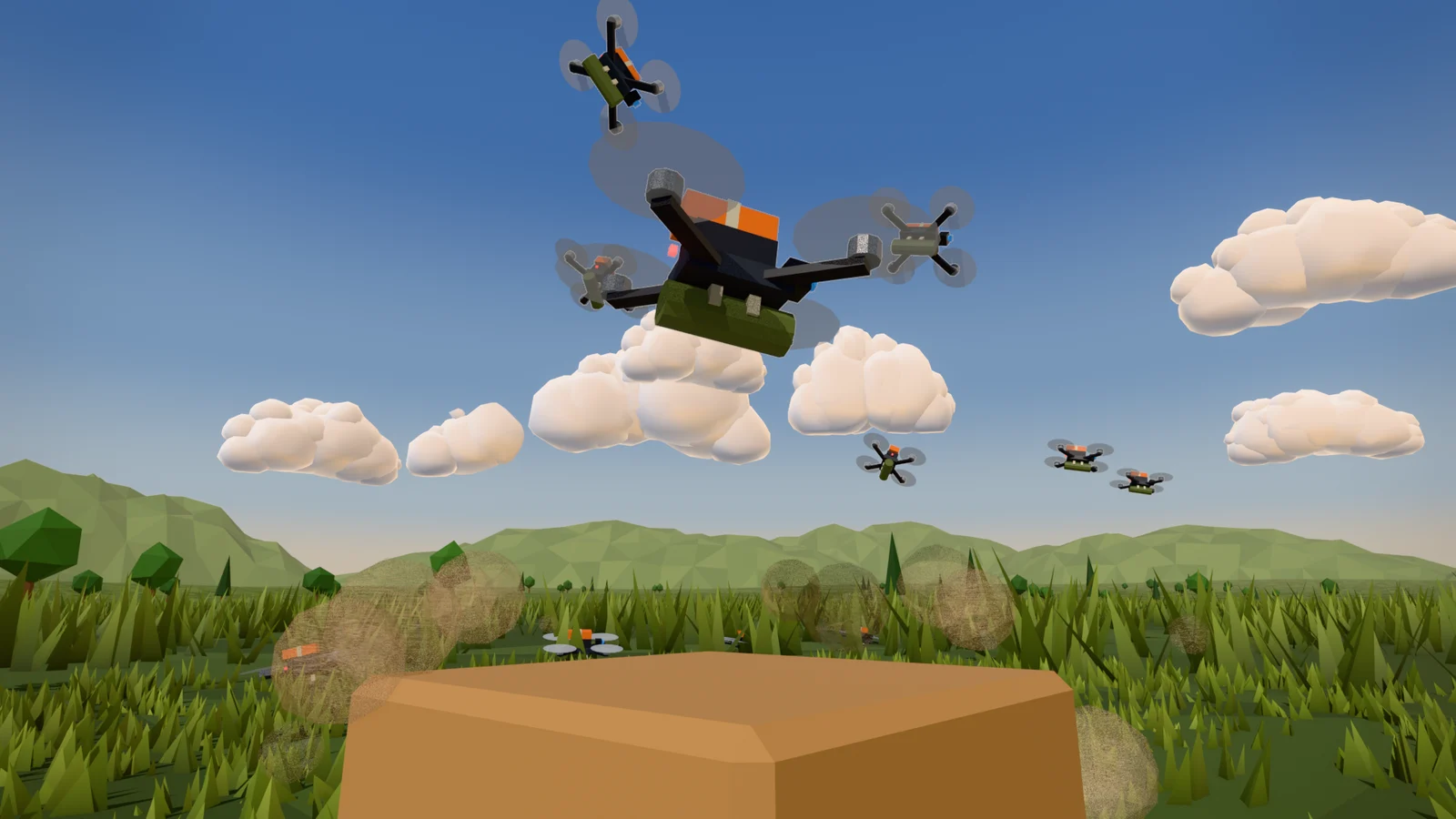
If you write "one battery," the AI decides on its own how many units that means. If you write "4 launchers," it builds exactly that. When you give numbers, the AI calculates the layout and matches the intercept count. In the end it even sets itself a goal you can check, like "32/32 intercepted." The 32/32 in Episode 1 came from the 32 drones I wrote at the start.
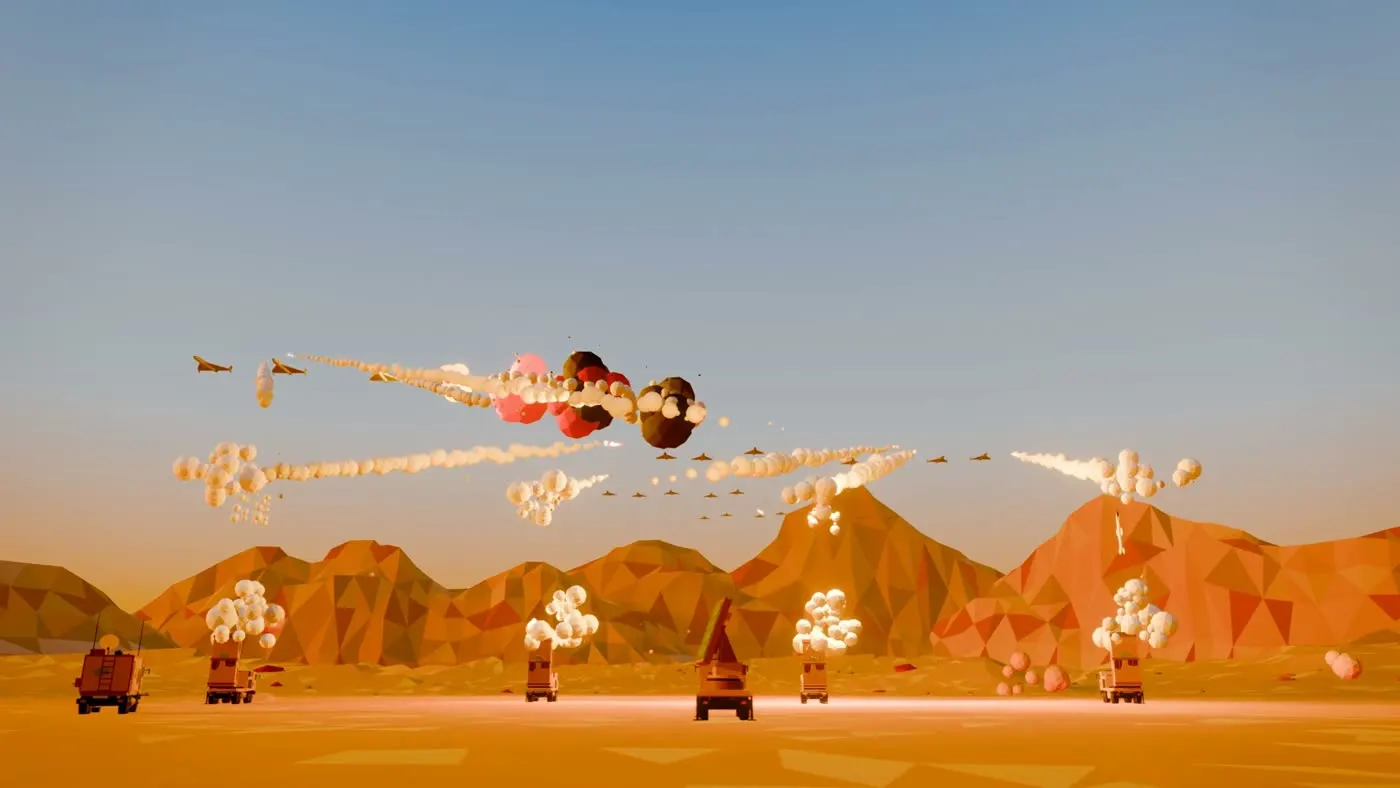 Figure 1. Episode 1 came out as written in numbers: 4 launchers, 1 command vehicle, 1 radar. (Blender render)
What the "later" line did
Item 7 wasn't something I needed right away. But because of that one line, the AI didn't write the first episode's code just for the air-defense battery episode. It split the terrain, effects, camera and sound into parts in a shared folder (core/). From the second episode on, it reused those parts. It's like sorting the wheels and plates out of a box of toy bricks so you can pull them out again for the next build.
Mention "later" at the start, too: Even for things you won't make right away, tell the AI your plans. It will design what it makes now so it can be reused. One extra line makes things easier from the second episode on.
Get a plan first with plan mode
Plan mode is a Claude Code mode where it doesn't change any files and only shows you a plan. It's like asking for the blueprint before construction starts.
Try it: switch to plan mode.
- In the Claude Code input box, press
Shift+Tab. - Keep pressing
Shift+Tabuntil the mode indicator under the input box shows plan. - If you're not sure about the key, you can also write "do it in plan mode" in your message.
The bigger the job, the more you should get a plan first. When you read the plan, you can see what the AI misunderstood before it writes any code. If you like the plan, approve it. If something needs changing, send "Change item 3 to … and show me the plan again."
3. What the AI made
This section is just to show you what the AI made from my prompt. You don't need to follow along. File names appear, but you can skip them.
When I approved the plan, Claude split the work three ways and launched three agents at once. An agent is a helper worker that Claude launches separately.
| Agent | Job | Output |
|---|---|---|
| Tracker | A local web server and screen that shows the work log | tracker/, start_tracker.bat |
| Core library | Parts for desert terrain, sky, lighting, camera, render settings | core/*.py |
| Effects test | Testing the cold-launch smoke and ignition effects | Cold-launch tests v001–v007 |
Meanwhile, the Claude I was talking to (the main session) set up the project's skeleton and registered Blender MCP. Over the few hours it took to make the first episode, the folder settled into the shape below. You don't need to memorize it. Just remember the top two files.
lowpoly_cinematic/
├─ CLAUDE.md          project rules (the first file a new session reads)
├─ RESUME.md          progress and what to do next
├─ core/              shared parts (terrain, effects, camera, sound, logging)
├─ scenes/<id>/       per-episode planning and build scripts
├─ assets/            equipment models
├─ renders/           render output
├─ tracker/           work-log web app
└─ start_tracker.bat  starts the tracker (double-click)
The work log: one line per step
Items 9 and 10 became a logging system. The AI wrote one logging function. Then it called that function and wrote one line every time it built a model or rendered something. One line piled up for every job, and over the day it reached 141 lines.
The tracker web app
Item 11 became the tracker web app. Double-click start_tracker.bat, and http://localhost:5178 opens in your browser. It reads the log file and shows the work process. At first, it was a screen that showed the result images of each step in time order. Later, three tabs were added: Theater, which plays the latest version of each episode; Agents, which shows agent status; and Arsenal, which collects the models.
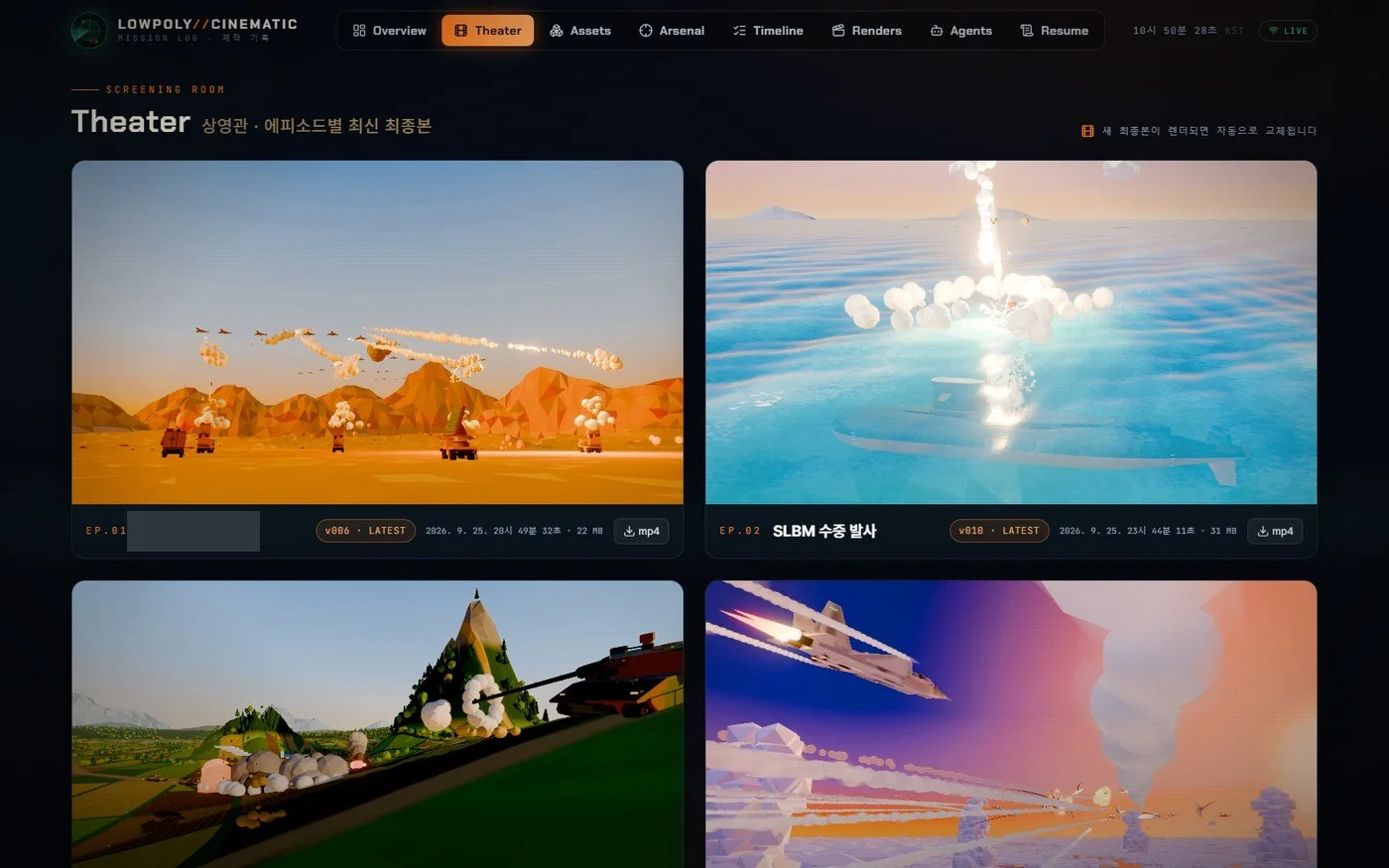 Figure 2. The tracker's Theater tab. The most recent final version of each episode is loaded automatically. The equipment name in the first card title is blurred out (tracker screenshot, labels in Korean)
This logging system proved its worth the next day. When I typed the single word resume, the new session read CLAUDE.md and RESUME.md. It worked out how far we had gotten and picked up from there. If you want a screen like this, keep item 9 of the template below as it is.
4. What I learned from the first prompt
Three things went well.
- I put quantity, direction, feel, workflow and expansion into one numbered list.
- I described the camera by what shows on screen: "look up at the sky from the ground so the battery and the intercepts all show." That sentence later became the first principle of the camera rules document.
- I gave permission in advance to use tools (MCP, agents).
When you talk about the camera, write what has to be in one frame instead of "make it cool."
Three things could have gone better.
- I sent my first prompt four times within five minutes. I fixed and resent the first three as soon as I'd sent them. Polish it in a text editor before you send it.
- 20 seconds and 30 seconds were mixed up. Read your spec line once more before you send it.
- I made the mistake of pasting an API key straight into my first draft. Don't put secret keys in a prompt. If the AI needs one, keep it in an environment variable or a separate file and just say "use that file."
5. Try it: your first prompt template
Now it's your turn. Fill in the blanks below and send it as it is. The fields are the five groups from earlier, plus the spec. The text in parentheses is the example from my project.
Starting point: Claude Code is open in an empty folder.
I'm going to make a [length]-second 3D cinematic video in Blender. First, show me a plan in plan mode.

■ What
1. Main subject: place [quantity] [equipment or character name] in [location]. (4 launchers, 1 command vehicle, 1 radar, desert)
2. Event: [quantity] [opponents] [action], and the main subject [action]. (32 drones approach → intercepted)

■ How it looks
3. Key moment: show [the scene that must be seen] properly. (cold launch)
4. Camera: from [height and direction], with [things that must be seen together] in one frame. (from the ground looking up, the battery and the intercepts)
5. Background: [environment and time of day]. (desert, late afternoon)

■ What it feels like
6. Style: [one line of style]. (low-poly, solid-color plastic like toy bricks)

■ Spec
7. Resolution 1920×1080, 30fps, main part [length] seconds. Include intro and outro titles and sound effects.

■ How to work
8. You can use several agents. Split file ownership per task so nothing conflicts.
9. Log every step so that when I resume later, you know right away how far we got. Also make a local web page that shows the log.
10. Keep updating the project rules in CLAUDE.md and the progress in RESUME.md.

■ What's next
11. Later I'll make [2–4 next episodes] with the same feel, so design the terrain, effects, camera and sound to be reusable.
If it's your first time, you can delete item 8, and in item 9 delete just the web page sentence before you send it. Using several agents makes usage climb quickly.
- Expected result: The AI shows you a plan. No files have changed yet.
- If it doesn't work: If the AI starts building right away without a plan, press
Escto stop it, then send "Show me a plan first in plan mode."
Check before you send: Check just three things. Make sure the numbers for length and quantity don't contradict each other. Make sure there are no secret keys or personal details. Make sure you've replaced words like "cool" with "what has to be in one frame."
You don't have to fill in every field perfectly. In any field you're unsure about, write "suggest something," and the AI will propose it in the plan. Do fill in the last field, "What's next." It decides how easily you can make the second episode.
6. Common problems on the first try
| Symptom | Cause | Fix |
|---|---|---|
| The AI starts making files without a plan | Sent while not in plan mode | Press Esc, then send "Show me a plan first in plan mode" |
| The length in the plan isn't what you wanted | The prompt gave two different numbers | Fix the spec line to one value and send "Show me the plan again with this spec" |
| The next episode gets built from scratch | The "What's next" field was left empty | Add one line about the next episode and send "Split it into shared parts" |
In one line: one numbered list, specs and quantities in numbers, one line about what's next, and a plan first in plan mode.
Next part and the full book
- Previous: Part 3: setup
- Next: in Part 5: quick start, you use a smaller version of this prompt to build a 10-second scene with one launcher and one missile.
- The whole build in one post: Five low-poly war animations made with Claude Code
- This series splits the free edition of the ebook Low-Poly War Animation with Claude Code and Blender. The free and full editions are in the Gumroad store.
Claude is a trademark of Anthropic. Blender is a trademark of the Blender Foundation. The book is independent and not affiliated with either.
References
- Claude Code official docs, interactive mode and shortcuts: Interactive mode
- Figure 1 is a frame from Episode 1's final video (Blender render). Figure 2 is a screenshot of the work-log web app used during production.