Laptop vs desktop for Blender and 3D work: why the same parts perform differently, and how to choose
Even parts with the same name get different amounts of power and cooling room in a laptop and a desktop. Here is how to choose for Blender work, plus the laptop settings worth making.
한국어English
Based on: official documentation from Intel, NVIDIA, Microsoft, Apple, and Blender, checked in September 2026. Blender's requirements can change between versions.
When you choose a computer to learn a 3D program like Blender, the first question you run into is "laptop or desktop?" There are two things to go by.
- If you will often do long, heavy renders, a desktop has the edge. Its large body can handle plenty of power and heat.
- If you will carry it around, learn, and do light work, a laptop can be good enough. But even parts with the same name can perform very differently from laptop to laptop, so check the power and cooling that particular laptop allows, not just the names.
This guide explains why the two forms behave differently, what to check for Blender work, and how to set up a laptop if you use one. It does not cover specific product recommendations or price comparisons.
The biggest difference: body size
Laptops and desktops both have a CPU, a graphics card (GPU), memory (RAM), and storage. The part types are the same, but performance differs because of the limits on power and heat that body size sets.
The more work computer parts do, the more power they use, and most of that power turns into heat. If that heat cannot be moved out quickly, the parts lower their own speed. This principle is covered in detail in Heat and thermal throttling.
A thin laptop has little room for fans and heat sinks, while a desktop case can hold several large fans and wide airflow paths. Even when the same part does the same work, the one that can get rid of heat faster keeps up high speed for longer.
Same name, different performance: the secret of laptop parts
CPU: a power limit set by the laptop maker
Intel's desktop processors and mobile (laptop) processors differ like this.
| Item | For desktops | For laptops |
|---|---|---|
| Where it is used | A system unit that is always plugged in | A laptop with a battery, screen, and keyboard |
| How you get one | Can be bought boxed in stores | Supplied only through laptop makers |
According to Intel's support article, a laptop's TDP setting is decided by the laptop maker (OEM). TDP (thermal design power) is a reference value that says "design the cooling assuming this part gives off this much heat". This means the same CPU can have a different power limit depending on which laptop it goes into. Intel advises contacting the laptop maker to change a laptop's TDP setting.
Graphics card: a power range that differs by laptop
For graphics cards, this difference is even larger. Take NVIDIA laptop GPUs as an example.
- Even a laptop GPU with the same name has a wide allowed power range, set by the laptop's design.
- You can check your laptop's graphics power on the laptop maker's website, on NVIDIA's spec page (the range), and in the NVIDIA Control Panel "System Information" window on the laptop.
- Real performance depends not only on GPU power but also on the choice of CPU and memory, thermal design, performance mode, and the maker's software.
The same water wheel turns slowly when it is fed through a thin pipe and quickly through a thick one. So when choosing a Windows laptop, along with "which graphics card is in it", it is a good idea to check in the maker's specs "how many watts that graphics card is designed to use".
NVIDIA laptops also have features such as Dynamic Boost, which automatically shares power between the CPU and GPU, and WhisperMode, which controls fan speed. In the end, these features also deal with "how to share a fixed amount of power and heat".
Comparison for Blender work
The table below sums up the general character of the two forms. In practice, products vary a lot, so always check the specs.
| Item | Laptop | Desktop |
|---|---|---|
| Long renders | Easily hits heat and power limits | Has the edge with more cooling room |
| Carrying around | Possible | Not possible |
| Screen and keyboard | Built in (small screen) | Chosen and connected separately |
| Replacing or adding parts | Varies by product, and parts are often fixed in place | Usually easy to buy parts separately and swap them |
| Checking performance | Power settings differ by laptop even for the same part name | Part specs apply more or less as listed |
| Power | Settings that lower performance on battery are common | Always plugged in |
Blender's official requirements
These are the values listed on Blender's official requirements page. Check the official page again before you buy.
| Level | CPU | RAM | Graphics card memory (VRAM) |
|---|---|---|---|
| Minimum | 4 cores | 8GB | 2GB |
| Recommended | 8 cores | 32GB | 8GB |
The same requirements have two more points laptop users should note.
- A screen of 1920×1080 or higher is recommended. On a small laptop screen, Blender's many panels can feel cramped.
- A trackpad works, but a three-button mouse is recommended. In Blender, many controls rotate the view with the middle button (clicking the wheel).
What each number means is covered in CPU cores and threads, Choosing RAM capacity, and What VRAM means.
The right choice for each case
The right answer differs from person to person, but the basis for deciding can be summed up like this.
| Case | Consider first |
|---|---|
| You move around a lot for classes or business trips, and you are still learning | A laptop (for a Windows laptop, check the graphics card and its power specs) |
| You often render long animations | A desktop |
| You want to add more graphics card or memory later | A desktop |
| You need both | Split the work, such as a light laptop plus a desktop for rendering |
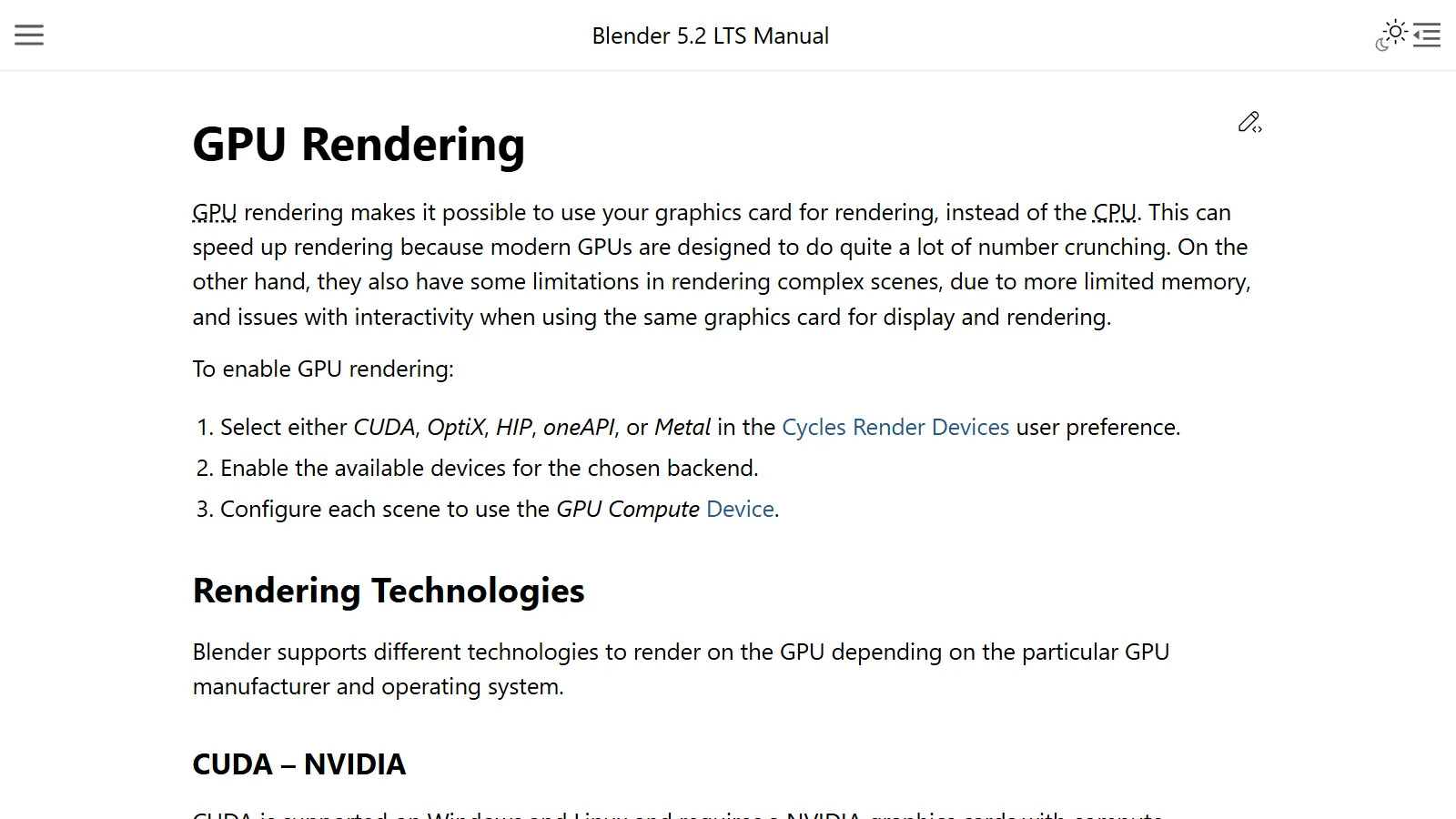
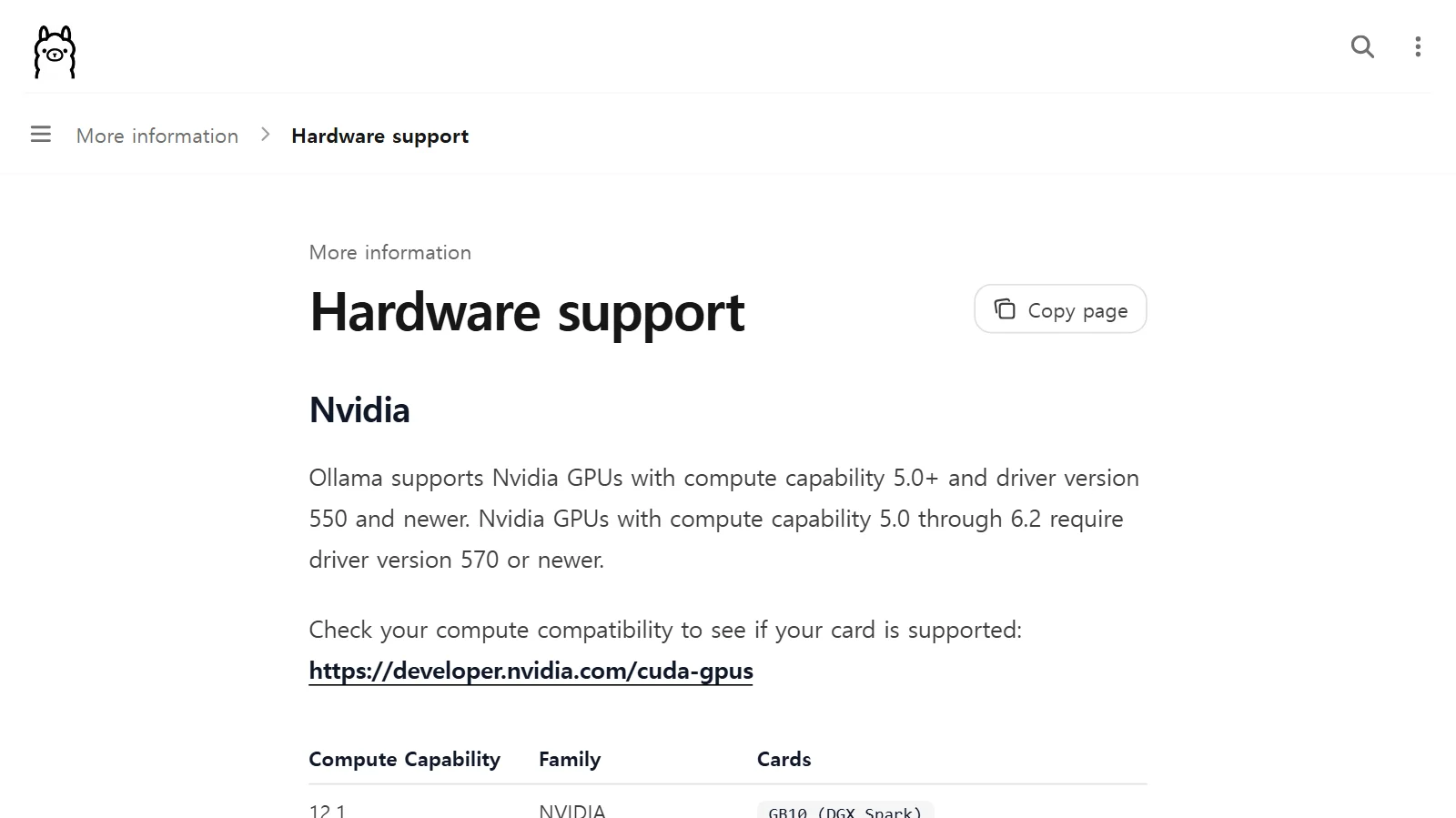
Either way, if you plan to do 3D rendering on the graphics card, first check whether the graphics card supports Blender's rendering methods. This is summarized in Choosing a graphics card for Blender rendering.
For a Mac laptop
- Graphics built into the chip: Apple's tech specs list both CPU cores and GPU cores together under the chip item. So unlike a Windows laptop, you do not choose a separate graphics card or its power. Which chip (and GPU core count) you choose is your choice of graphics performance. For memory too, check the configuration you picked at purchase in the tech specs.
- Blender's macOS requirement: from Blender 5.0, macOS needs an Apple Silicon Mac and macOS 13 (Ventura) or later.
- Where you put it and the room temperature: these matter for long renders. Apple gives separate guidance on the ambient temperature range and placement for Mac laptops. The details are in Heat and thermal throttling.
Settings to make for 3D work on a Windows laptop
If you already use a laptop, the settings below alone help it reach its proper performance. Menu names follow the English Windows 11 screen.
1. Check the power mode (Windows 11)
You can choose the power mode in Start ‣ Settings ‣ System ‣ Power & battery (the label on screen may differ slightly by Windows version).
| Mode | Meaning |
|---|---|
| Best power efficiency | Leans toward saving battery life |
| Balanced | A balance of performance and battery |
| Best performance | Leans toward the highest performance |
The power mode can be set separately for "Plugged in" and "On battery". For heavy work like rendering, plug in the power and set the plugged-in mode to "Best performance". If the laptop maker provides its own performance mode program, check that setting too.
2. Make Blender use the dedicated graphics card
Many Windows laptops have two GPUs. The integrated graphics inside the CPU save power, and the separate dedicated graphics card uses more power but suits heavy processing. The laptop switches between them depending on the work. Sometimes a 3D program runs on the integrated graphics, so it is worth checking.
- Go to Settings ‣ System ‣ Display ‣ Graphics.
- Choose Blender in the app list and open "Options".
- Choose "High performance".
After that, you also need to choose the device used for rendering inside Blender. For this second step, see the settings part of Choosing a graphics card for Blender rendering.
3. Connect external devices at your desk
- External monitor and three-button mouse: connecting them lets a laptop meet Blender's official recommendations too (a screen of 1920×1080 or higher, a three-button mouse).
- Power: plug in when rendering. The power mode setting above applies on the "Plugged in" side.
- Where you put it: place it on a hard, flat surface, and do not block the vents. The maker's guidance and the room temperature are covered in detail in Heat and thermal throttling.
Correcting common misunderstandings
- "With the same graphics card name, a laptop and a desktop perform the same." The power range of a laptop GPU differs by laptop, and real performance also depends on the thermal design and performance mode.
- "You can't do 3D on a laptop." If it meets Blender's minimum and recommended specs, you can work on a laptop. For long renders, though, you need to keep heat and power limits in mind.
- "You can just swap a laptop's parts later." Laptop CPUs are supplied only through laptop makers, and in some products the memory or storage is attached to the board and cannot be replaced. Check in the product specs first whether it can be upgraded.
- "On a Mac, you also need to check the graphics card's power." On an Apple Silicon Mac, the graphics are built into the chip, so look at the chip and its GPU core count.
Summary
| What to remember | In one line |
|---|---|
| The biggest difference | The power and heat limits set by body size |
| Choosing a Windows laptop | The part names + that laptop's GPU power and cooling specs |
| Choosing a Mac laptop | Chip and GPU core count, Blender's macOS requirement |
| Work where a desktop has the edge | Long renders, replacing and upgrading parts |
| Must-do laptop settings | Plugged in + "Best performance", "High performance" GPU for the app |
| Working at a desk | External monitor and three-button mouse, keep the vents clear |
References
- Intel, Differences Between Intel Desktop and Mobile Processors — https://www.intel.com/content/www/us/en/support/articles/000098127/processors.html
- Intel, How to Adjust the TDP (Thermal Design Power) in My Laptop — https://www.intel.com/content/www/us/en/support/articles/000057012/processors.html
- Intel, What Is Throttling and How Can It Be Resolved? (for laptops, contact the maker) — https://www.intel.com/content/www/us/en/support/articles/000088048/processors.html
- NVIDIA GeForce News, Understanding The Power, Performance & Efficiency Of GeForce RTX 40 Series Laptops — https://www.nvidia.com/en-us/geforce/news/geforce-rtx-40-series-laptop-power-and-efficiency/
- NVIDIA, Max-Q Technologies for Laptops — https://www.nvidia.com/en-us/geforce/laptops/max-q-technologies/
- Microsoft Support, All about graphics processing units (GPUs) — https://support.microsoft.com/en-US/Windows/Experience/Compatibility/all-about-graphics-processing-units-gpus
- Microsoft Support, Optimizations for windowed games in Windows 11 (path to graphics settings) — https://support.microsoft.com/en-us/windows/optimizations-for-windowed-games-in-windows-11-3f006843-2c7e-4ed0-9a5e-f9389e535952
- Microsoft Support, Change the power mode for your Windows PC — https://support.microsoft.com/en-us/windows/change-the-power-mode-for-your-windows-pc-c2aff038-22c9-f46d-5ca0-78696fdf2de8
- Apple Support, an example MacBook Pro tech specs page (CPU and GPU cores under the chip item) — https://support.apple.com/en-us/121553
- Apple Support, Keep your Mac notebook within acceptable operating temperatures — https://support.apple.com/en-us/102336
- Blender, System Requirements — https://www.blender.org/download/requirements/