Heat and throttling: why your computer slows down while rendering
When a chip gets hot, it lowers its own speed to protect itself. This guide covers why computers slow down while rendering and what the makers recommend you do.
한국어English

Based on: official documentation from Intel, AMD, NVIDIA, and Apple, and the Blender 5.2 LTS manual. Checked in September 2026.
When you start a render, it sometimes runs fast at first, then slows down over time while the fans get louder. Usually this is not a fault. It is a protective behavior called throttling.
- A CPU lowers its own speed when it gets hot. The GPU, the chip on a graphics card, also lowers its speed when its temperature goes past a set limit. It is a safety feature that keeps the chip from being damaged.
- If it happens often and hard, it is time to look at cooling. The section "What the makers recommend" below covers this in detail.
- So how well heat is carried away decides how fast long jobs run. The fixes are mostly simple: do not block the vents, put the computer on a firm surface, and check the fans and cooler. For laptops, follow the maker's guidance.
This guide explains why chips get hot, how throttling works, the signs to watch for while rendering, and what the makers recommend.
Why chips get hot
Inside a CPU or GPU there is a huge number of tiny switches that turn on and off with electricity. The more calculation a chip does, the more electricity it uses, and most of the electricity used turns into heat. Rendering runs the CPU or GPU almost without rest for a long time, so it is one of the jobs that builds up the most heat. In terms of the workers comparison in the guide CPU and GPU, every worker is working long hours without a break, so the workshop heats up quickly.
That is why a computer has a path for moving heat out.
- Heat is made in the chip.
- A thermal interface material (such as thermal paste) fills the gap between the chip and the heatsink so heat passes across well.
- A heatsink with many thin metal fins spreads the heat out.
- A fan blows air to move the heat from the heatsink into the air.
- The warmed air leaves through the vents, and cool air comes in.
If even one point on this path is blocked, heat cannot escape and builds up in the chip. The fixes later in this guide all clear one of these five steps.
Throttling: a safety feature where the chip slows itself down
Throttling is a mechanism that lowers the clock speed when the chip temperature goes past a set limit. On Intel CPUs, this limit is called TJ Max. Here is what those two terms mean.
- Clock speed: a value that shows how many beats per second the chip works at. It is the GHz (gigahertz) figure on the spec sheet. When the beat slows down, the same job takes longer.
- TJ Max (Tjunction max): in Intel's words, the highest temperature allowed before the chip reduces power through its internal thermal control. The value differs by product, and for Intel CPUs you can find it on Intel's official specification pages.
Intel's support documentation splits protection into two stages.
| Stage | What happens |
|---|---|
| 1. Throttling | Past a set temperature, power is reduced to bring it back to a safe temperature → speed drops |
| 2. Automatic shutdown | If throttling cannot hold the temperature, it turns itself off to prevent permanent damage |
Intel explains that thanks to these safety features, overheating is unlikely to damage the processor, and that running at the top temperature while working is not necessarily something to worry about. In other words, throttling does not mean the chip is broken. It is the chip slowing its pace to protect itself.
That does not mean you can ignore it. Throttling is also a sign of an overheating problem worth looking into. So rather than worrying about the temperature number alone, it is more practical to watch how often and how much the speed drops. If it happens often and hard, or the computer shuts off, it is time to check cooling as described in "What the makers recommend" below.
Graphics cards work on the same principle. NVIDIA's management tool (nvidia-smi) lists Thermal Slowdown as one of the reasons speed drops: the GPU lowers its clock because its temperature is above the maximum operating temperature. There is also a separate stage where, when the temperature is far too high, the hardware cuts the core clock sharply, to half or less. This means a render on the graphics card can slow down too when heat builds up.
It is like running on a hot day. At first you have energy to spare and run at full effort, but as your body heats up, you keep running, only slower, so you do not collapse. If the weather is cool or there is a good breeze, you can keep a fast pace for longer. A computer is the same. A runner who stops dead is closer to stage 2 in the table above (automatic shutdown) than to throttling.
"Maximum speed" is the value when there is headroom
Throttling goes hand in hand with features that "run faster." Modern chips raise their own speed when there is room to spare in temperature and power.
- Intel Turbo Boost: raises the speed up to the maximum turbo frequency within safe temperature and power limits. Depending on the type of work and the thermal headroom, it does not always reach the maximum.
- AMD Precision Boost 2: boost depends on processor temperature, the type of work, the number of active cores, power, current, and so on, and the speed stops rising when it hits a limit. The heavier and longer the work, the more it hits limits and the less boost it gets.
- NVIDIA GPU Boost: when the graphics card has spare power, boost clock turns on and raises the speed until it reaches a preset power target (Power Target). So graphics card speed also goes up and down within set limits.
To sum up, the "maximum speed" on a spec sheet is the value a chip can reach when it is cool and has plenty of power. In long, continuous work like rendering, the chip runs only as fast as its heat and power headroom allow. That is why, even with the same parts, a computer with better cooling can finish a long render sooner. Why boost drops when many cores work together is covered in the guide CPU cores and threads, and the power difference between laptops and desktops in Laptop vs desktop for Blender and 3D work.
Signs to watch for while rendering
If the signs below show up together, heat may be the cause. There are other possible causes too (low memory, scene settings, and so on), so do not jump to one conclusion.
| Sign | Possible cause |
|---|---|
| It gets slower over time compared to right after the render starts | Heat builds up, so boost drops or it throttles |
| Loud fan noise lasts a long time during heavy work | Most likely normal behavior |
| The fans keep spinning fast even when the work is not heavy | First check the vents and where it sits → if it continues, Apple's guidance below (Mac) or the maker's guidance |
| It suddenly shuts off during heavy work | Possibly an overheating protection shutdown that throttling could not prevent → have the maker check it |
It is normal for fans to spin faster during heavy work such as compressing HD video or playing graphics-heavy games. On the other hand, if you are not doing heavy work, the vents are not blocked, and the fans keep spinning fast, Apple's guidance for Macs is as follows.
- Mac with Apple silicon: close and reopen the laptop lid, or restart the computer.
- Intel-based Mac: reset the SMC (System Management Controller). The reset method differs by model, so follow Apple's support documentation.
If that does not solve it, it is safest to get support from the maker. For a Windows PC, follow the maker's support guidance for a laptop, or the checklist below for a self-built PC.
What the makers recommend
Things anyone can do
The three points below are Apple's guidance for Macs. They are basic steps worth trying on other laptops too.
- Put it on a firm, flat surface. A table or desk is good. On soft surfaces such as a sofa, pillow, bed, or your lap, the fans may run more. Do not use it on a bed or pillow, or under a blanket.
- Do not block the vents. The vents must be clear for the device to perform as it should. Do not put objects into the vents.
- Check the room temperature. Apple says to use Mac laptops at ambient temperatures of 10–35°C. For other devices, check the operating temperature range in the product manual. If you start a long render in a hot room in summer, you have that much less thermal headroom.
For a desktop you built yourself
Intel and AMD give users of self-built PCs similar checklists.
| What to check | Intel guidance | AMD guidance |
|---|---|---|
| Cooler | Check that the cooler suits the CPU | Install a cooler with enough performance, correctly |
| Installation | Check that the cooler is installed correctly | (Same as above) |
| Thermal interface material | Check that the right amount was applied | Enough thermal paste |
| Fans and airflow | Check that the system fans work and air flows | Use case fans so air flows well |
| Software | — | Latest BIOS and chipset drivers |
If you are not used to handling parts yourself, do not push it. It is safest to get support from the seller or the maker.
Overclocking or removing power limits to get more speed is not recommended. Intel says overclocking (running a chip faster than its set speed) can reduce stability and may affect the warranty.
For a laptop
On a laptop, the laptop maker sets the power and heat limits. Intel says to contact the laptop maker about throttling or power setting problems on laptops. The maker's performance mode software, whether the power cable is connected, and the Windows power mode all affect speed. How to set the power mode is covered in the guide Laptop vs desktop for Blender and 3D work.
What you can do in Blender
The following is not a maker's recommendation for dealing with heat. It is a Blender setting for using your computer while it renders.
- When you render Cycles on the CPU, you can reduce the number of threads it uses by changing Performance ‣ Threads to Fixed on the Render tab of the Properties editor. This setting is for using your computer during a render. The Blender manual does not say it reduces heat. Details are in the guide CPU cores and threads.
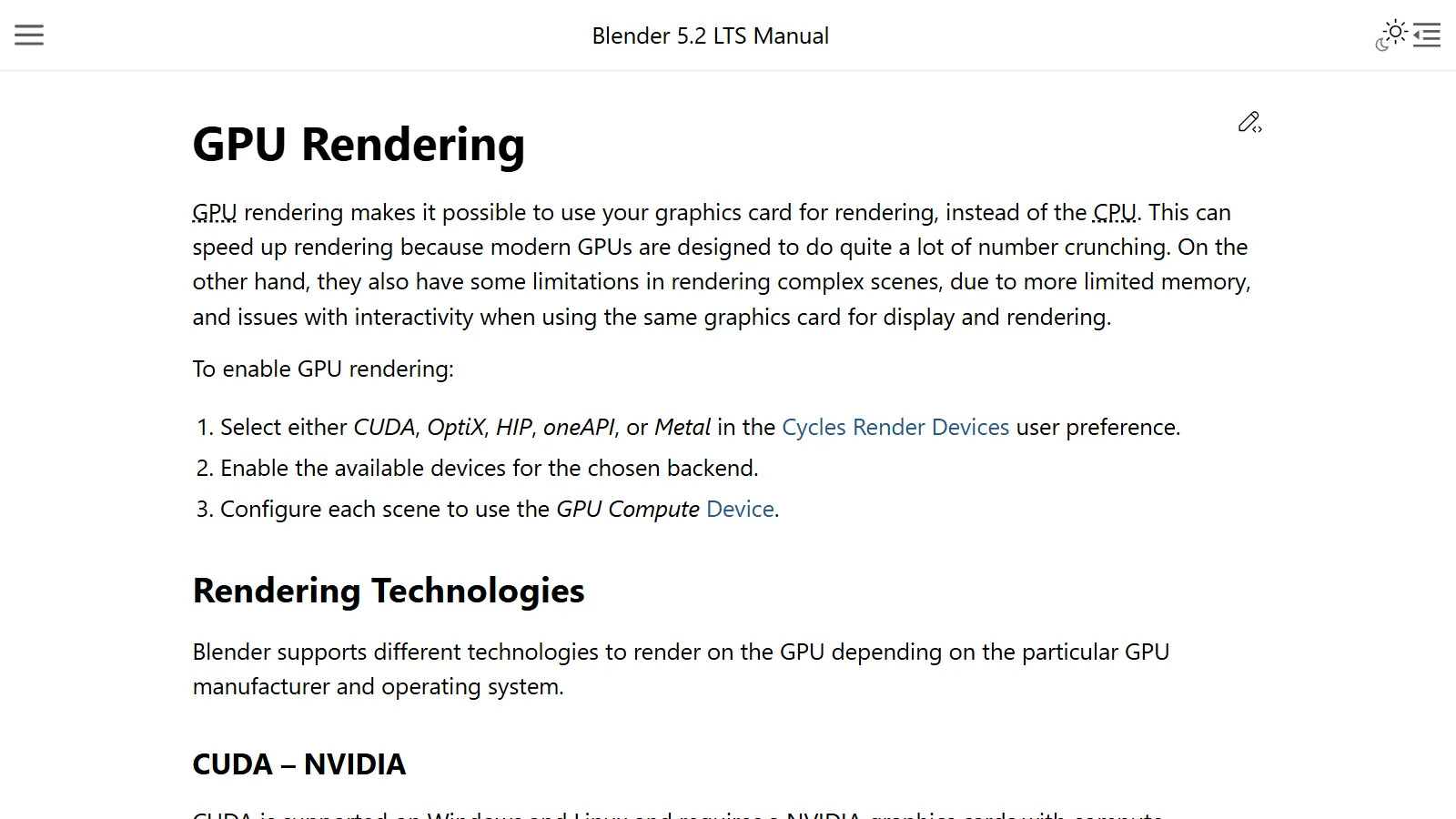
- This setting does not apply to GPU rendering.
- For ways to make the render settings themselves lighter, see the guide Blender render settings basics: resolution, frames, samples, and quick previews.
Correcting common misunderstandings
- "If it throttles, the chip is broken." It is a protective behavior where the chip guards itself. As covered above, overheating is unlikely to damage the processor.
- "Loud fans mean there is a problem." During heavy work, it is normal. If they stay loud when the work is not heavy, that is when to look for the cause.
- "You always get the maximum speed on the spec sheet." Maximum speed is the value when there is temperature and power headroom. In long renders, the cooling decides the real speed.
- "Graphics cards are not affected by heat or limits." Graphics cards also raise their speed up to the power target only when they have spare power, and they lower their clock when the temperature goes above the maximum operating temperature. For graphics cards for rendering, see Choosing a graphics card for Blender rendering.
Summary
| What to remember | In one line |
|---|---|
| Throttling | A protective behavior where a hot chip (CPU or GPU) keeps going but slows down; if it happens often and hard, check cooling |
| Maximum speed (boost) | A value you only get when there is temperature and power headroom |
| Speed of a long render | Decided by how well heat is carried away |
| Fixes anyone can do | A firm surface, clear vents, check the room temperature |
| When Mac fans keep spinning for no reason | Apple silicon: close and reopen the lid or restart; Intel Mac: reset the SMC |
| Self-built PC | Check the cooler, installation, thermal interface material, fans, and airflow |
| Laptop | The maker sets the power and heat limits → follow the maker's guidance |
References
- Intel, What Is Throttling and How Can It Be Resolved? — https://www.intel.com/content/www/us/en/support/articles/000088048/processors.html
- Intel, Information about Temperature for Intel Processors — https://www.intel.com/content/www/us/en/support/articles/000005597/processors.html
- Intel, What Is Intel Turbo Boost Technology? — https://www.intel.com/content/www/us/en/gaming/resources/turbo-boost.html
- AMD, Precision Boost 2 Performance Enhancement — https://www.amd.com/en/resources/support-articles/faqs/CPU-PB2.html
- NVIDIA GeForce, GPU Boost Technology — https://www.nvidia.com/en-us/geforce/technologies/gpu-boost/technology/
- NVIDIA Docs, nvidia-smi (NVIDIA System Management Interface) — https://docs.nvidia.com/deploy/nvidia-smi/index.html (the SW/HW Thermal Slowdown items under "Clocks Event Reasons")
- Apple Support, about fans and fan noise in Apple products — https://support.apple.com/en-us/101576
- Apple Support, keeping a Mac laptop within an acceptable operating temperature range — https://support.apple.com/en-us/102336
- Blender 5.2 LTS Manual, Cycles Performance — https://docs.blender.org/manual/en/5.2/render/cycles/render_settings/performance.html