Choosing a graphics card for Blender rendering: CUDA, OptiX, and HIP explained, and how to set them up
To render with a graphics card in Blender Cycles, the channel (CUDA, OptiX, HIP, and so on) and the settings have to match. This guide covers the support requirements, the order for choosing, and how to set it up.
한국어English
ON THIS PAGE
- 01Why render with a graphics card
- 02Backends: the channels for talking to the graphics card
- 03Support requirements by maker at a glance
- 04Ray tracing acceleration and denoising: differences within the same maker
- 05Five things to check before you choose
- 06Using several graphics cards
- 07How to set it up: two steps you must not skip
- 08Common errors and what to try first
- 09What to look at first, by situation
- 10Clearing up common misunderstandings
- 11References
Based on: the official Blender 5.2 LTS manual and official NVIDIA, AMD, and Intel documentation, checked in September 2026. Menu names follow the English interface. Support requirements can change between Blender versions.
If you render 3D in Blender, you often hear that "a graphics card makes it fast". But when you open the settings, unfamiliar names come first: CUDA, OptiX, HIP, oneAPI, Metal. These names are the channels Blender uses to hand work to the graphics card, and each graphics card maker has its own set of channels you can use. So when you choose a graphics card for rendering, check these before "how fast is it": "which channel supports my card, and which features does it support?" and "is there enough memory (VRAM) to hold the scene?" This guide explains what the channels (backends) are, the support requirements for each maker, five things to check before you choose, and how to set up GPU rendering in Blender. It does not cover the prices or rankings of specific products.
Why render with a graphics card
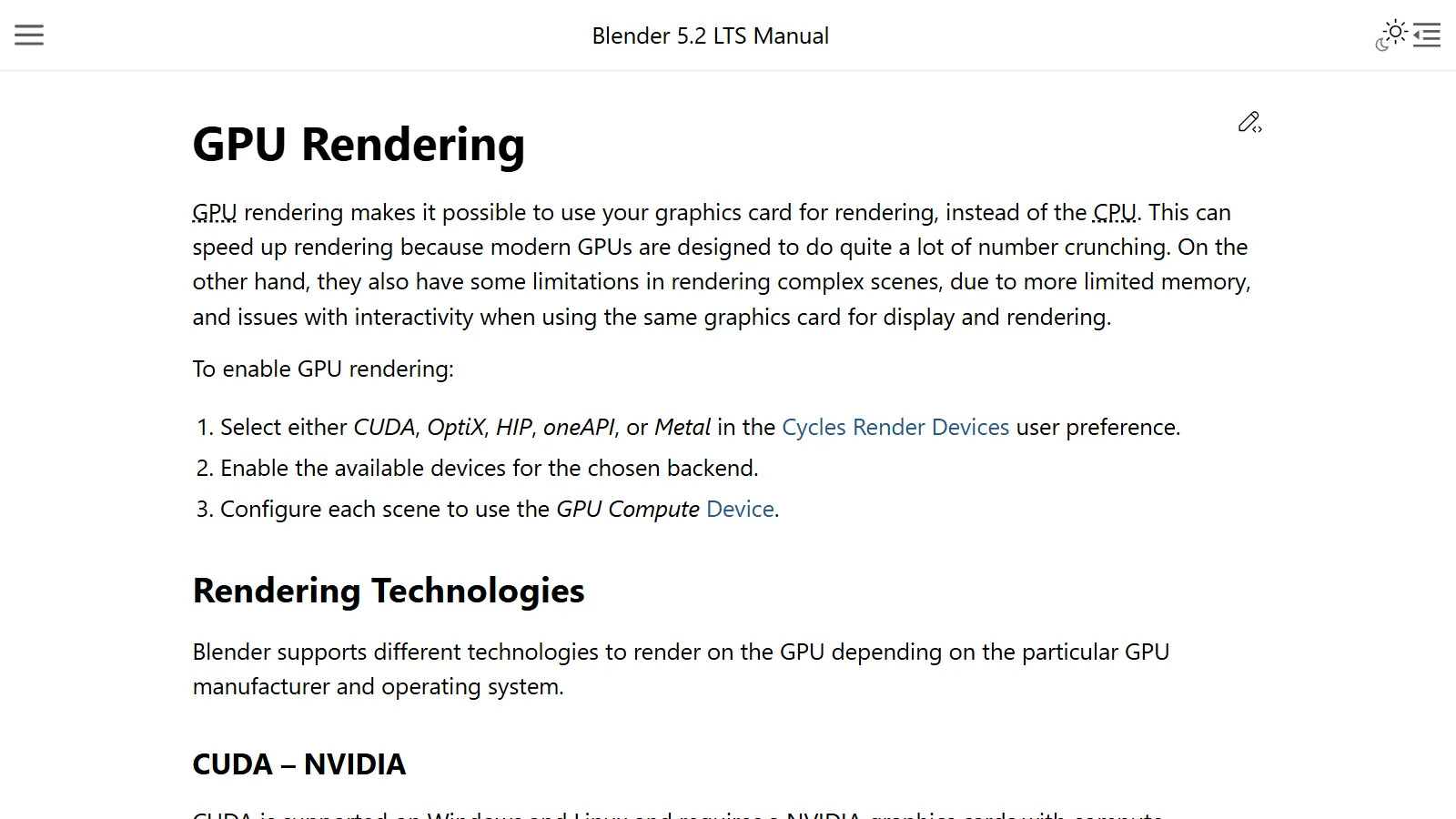
GPU rendering means rendering with the graphics card instead of the CPU. Modern GPUs are designed to do huge amounts of number crunching, so they can render quickly. Rendering repeats similar light calculations for a great many pixels, which suits a GPU that does many calculations at the same time. You can read why CPUs and GPUs differ this way in CPU vs GPU first.
There are limits too. A GPU has more limited memory, which can be a handicap in complex scenes, and if the same card both drives the display and renders, the interface can stutter. These two points are the selection criteria you will see later.
This guide is about the Cycles render engine. The backend choice and the GPU Compute setting covered below are Cycles settings. EEVEE works differently: it is a rasterization method that first decides which surfaces the camera sees instead of tracing rays one by one. The difference between the two engines is covered in EEVEE and Cycles.
Backends: the channels for talking to the graphics card
Names like CUDA and OptiX in the settings are called backends (render device technologies). Think of them as interpreters. Blender has one scene, but each graphics card maker understands a different "language". So an NVIDIA card needs an interpreter who speaks NVIDIA, and an AMD card needs one who speaks AMD. The interpreters differ, but the message they pass on is the same, so the resulting image shows the same scene. One thing is different on Apple Silicon Macs. They have no separate plug-in graphics card; the GPU sits inside the same single chip. So the Metal channel leads to the GPU inside the chip, not to a card.
Here is each backend in plain words.
- CUDA (NVIDIA): a technology NVIDIA announced in 2006 that lets the GPU do general computing, not just graphics.
- OptiX (NVIDIA): a technology NVIDIA made to speed up ray tracing (calculating light by following rays) on the GPU. It uses the dedicated ray tracing units (RT cores) in RTX cards and includes a denoiser that removes noise with AI.
- HIP (AMD): AMD's technology for running general computing on AMD graphics cards. In Blender, it is the channel for AMD graphics cards.
- oneAPI (Intel): Intel describes this as an open technology that can be used across many kinds of chips and chips from many makers. In Blender, it is the channel for Intel Arc graphics cards.
- Metal (Apple): the graphics technology of Apple computers. Blender uses it on Apple Silicon Macs. Here the GPU is not a separate card but the GPU inside the Apple Silicon chip.
Support requirements by maker at a glance
The table below is for Blender 5.2 LTS. If you use another version, always check the manual for the version you plan to install. HIP and oneAPI each have a separate minimum driver version per operating system. These numbers change often, so for cells that say "required" in the table, check the value in the manual.
| Backend | Maker | Operating system | Requirements |
|---|---|---|---|
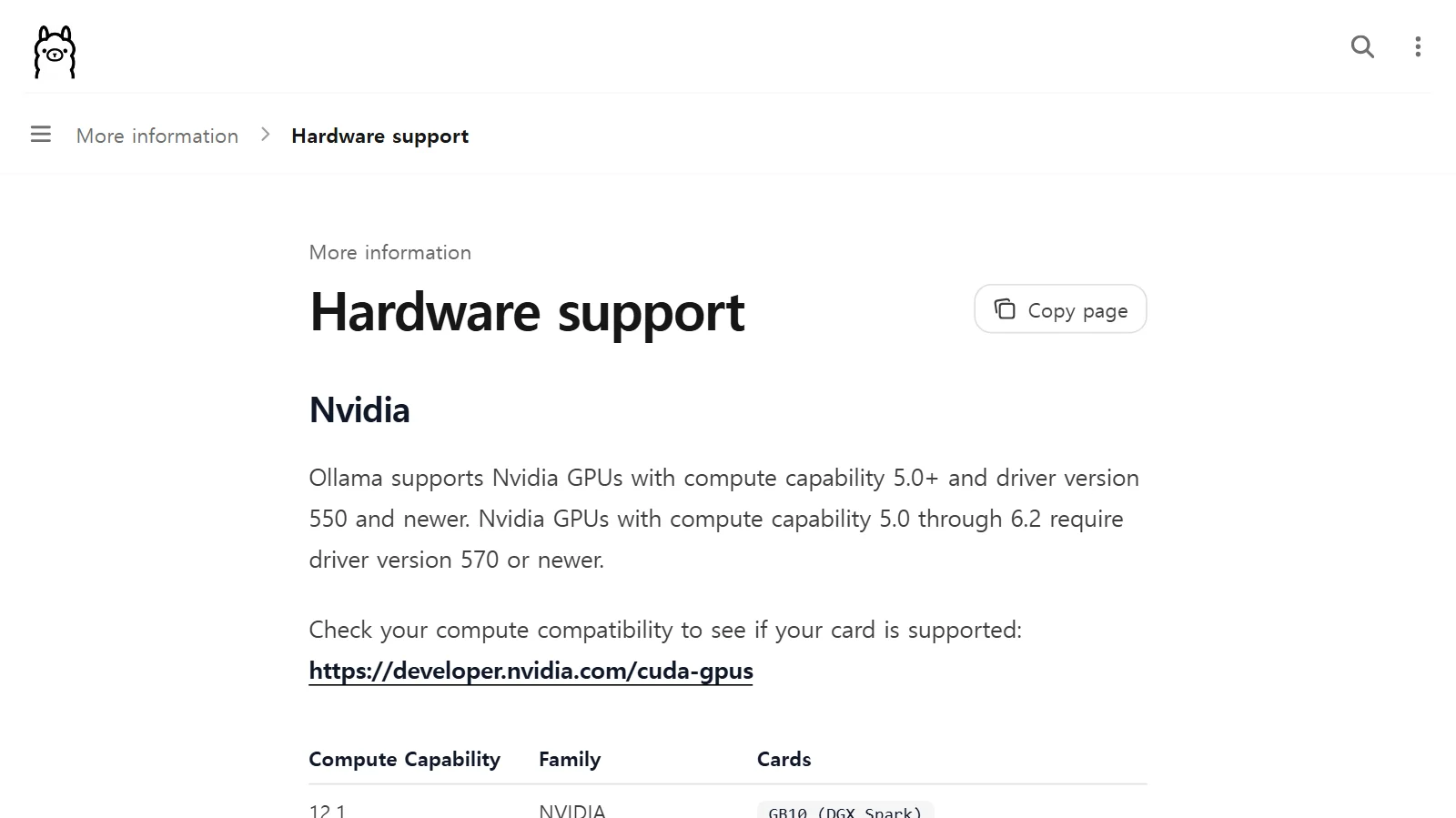
| CUDA | NVIDIA | Windows, Linux | Compute capability 5.0 or higher |
| OptiX | NVIDIA | Windows, Linux | Compute capability 5.0 or higher, driver 575 or newer |
| HIP | AMD | Windows, Linux | RDNA1 architecture or newer (for example, Radeon RX 5000 to 9000 series, Radeon Pro W6000 and W7000 series), minimum driver version required |
| oneAPI | Intel | Windows, Linux | Intel Arc A and B series (Xe HPG architecture), minimum driver version required |
| Metal | Apple | macOS | Apple Silicon; all features need macOS 13 or newer |
The compute capability in the table is a feature number NVIDIA gives to each GPU generation. You can read it as a grade number for the card's generation. You can look up your NVIDIA card's number on NVIDIA's official CUDA GPU list page. AMD's RDNA and Intel's Xe HPG are likewise names of card generations (design types).
Ray tracing acceleration and denoising: differences within the same maker
Cycles calculates light by shooting rays from the camera and following the paths they take as they hit objects and bounce. Recent graphics cards often include units that do nothing but these ray calculations. In kitchen terms, it is like putting a dedicated fryer that only does frying next to a cook who makes every dish. The same cook gets that job done faster with dedicated equipment.
Here are the hardware acceleration requirements.
| Backend | Hardware ray tracing | GPU-accelerated denoising |
|---|---|---|
| OptiX | Uses the ray tracing acceleration of RTX cards | Compute capability 7.0 or higher (includes all RTX cards) |
| HIP | HIP RT option, Radeon RX 6000 (RDNA2) or newer, latest driver | On Linux, RX 6000 or newer; on Windows, discrete RX 7000 or newer |
| oneAPI | Supported through the Embree on GPU option | All supported cards |
| Metal | Available on Apple Silicon (MetalRT option) | Available on Apple Silicon |
HIP RT, Embree on GPU, and MetalRT in the table are names of options that appear where you choose devices in Preferences. Where to open them is in the "How to set it up" section below.
Here, denoising is a feature that removes the grainy dots (noise) in a render. When it runs on the GPU, the finishing step gets faster. For why noise appears, see the noise part of EEVEE and Cycles.
There are also limits common to all GPUs. The Path Guiding feature, which helps light find difficult paths, is not supported on any GPU, and OSL (Open Shading Language), for writing your own shaders in code, works only on OptiX and with some limits. If you really need these features, you have to render on the CPU.
Five things to check before you choose
1. The support list
In the "support requirements by maker" table above, check whether the maker and generation of your card (or the card you plan to buy) meet the requirements. For NVIDIA the measure is compute capability, for AMD the RDNA generation, and for Intel whether it is an Arc series card. If the Blender version you installed does not yet support a new NVIDIA card, you may get the error "CUDA Error: Kernel compilation failed" while using CUDA. If you have a new NVIDIA card, first check that the latest Blender version supports it. For new cards from other makers too, it is safer to check in the manual for the version you plan to install that they are on the support list.
2. Enough VRAM
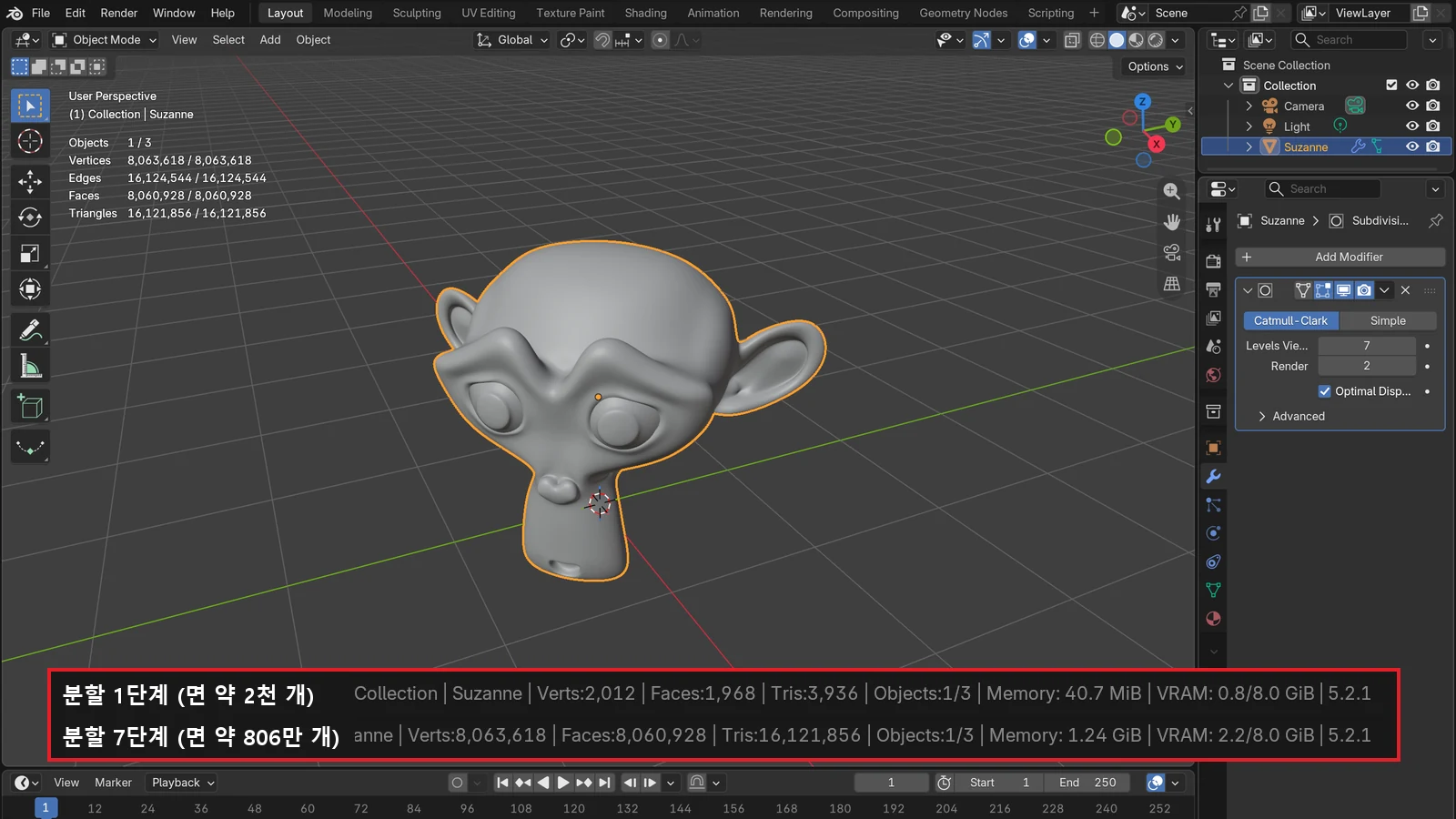
The most common reason something works on the CPU but not on the GPU is running out of graphics card memory. A GPU can usually use only the memory on its own card, and this is usually much smaller than system memory. CUDA, OptiX, HIP, and Metal automatically borrow system memory when VRAM is full. Performance drops when this happens, but it is usually still faster than rendering on the CPU. Even so, fitting comfortably is fastest. Blender's official requirements recommend 8GB of VRAM, and scenes that use many high-resolution textures need more headroom. What VRAM is and how to save it is covered in detail in What VRAM means.
3. The features you need
Check whether the features you will use work on that backend. Look up hardware ray tracing and GPU denoising in the acceleration table above, and OSL in the paragraph just below that table.
4. Separating the display card and the rendering card
Older card generations cannot render and draw the screen at the same time, so Blender can look frozen during a render. This can also happen on newer cards with very heavy scenes, and the sure fix is to have one card for rendering and a separate card for the display. On Windows, if the display card holds onto a render calculation too long, you can get an error where the driver connection drops (on NVIDIA cards the message is "The NVIDIA OpenGL driver lost connection with the display driver"). Lowering Tile Size in the Performance panel of the Render tab in the Properties editor may help.
5. Public data for comparing speed
Which card is faster depends on the hardware and the scene. You can see current information on Blender Open Data. It is an official site that collects results users uploaded after running the Blender benchmark so anyone can compare them, so it is safer to use it as your reference than advertising copy.
Using several graphics cards
Blender can render with several GPUs together, and you set this up under System in Preferences. But memory does not add up. Each card uses only its own memory, so each card must be able to hold the scene on its own. The exception is NVIDIA cards linked with NVLink (a connector that joins two NVIDIA cards): they can share memory with the Distribute Memory Across Devices option in Preferences.
How to set it up: two steps you must not skip
- In Edit ‣ Preferences ‣ System ‣ Cycles Render Devices, choose the backend that fits your card (CUDA, OptiX, HIP, oneAPI, Metal), and tick the devices in the list. If this is None, Blender renders on the CPU. If your card does not appear in the list at all, suspect the support requirements or the driver first.
- In the Render tab of the Properties editor, change Device to GPU Compute. This setting is saved separately for each scene (file).
If you do only the first step and skip the second, it still renders on the CPU. The other way round, changing only the second and not turning on a device in the first step also means the GPU is not used.
Check the driver too. If problems come up, install the driver from the GPU maker's official website. Drivers supplied by the computer maker can be old or have missing parts. Some backends, such as OptiX, require a minimum driver version.
Common errors and what to try first
| Symptom | Cause | What to try first |
|---|---|---|
| Out of memory | Not enough GPU memory to hold the scene | Lower texture resolution (for example, 8K 256MB, 4K 64MB, 2K 16MB, 1K 4MB) |
| Blender seems frozen during a render | The same card handles the display and rendering at once | Lighten the heavy scene; if possible, separate the display and rendering cards |
| The NVIDIA OpenGL driver lost connection with the display driver (Windows, driver connection dropped) | When the same card does the display and rendering, it hits Windows' time limit for GPU calculations | Lower Tile Size in the Performance panel of the Render tab; the real fix is separate cards |
| CUDA Error: Kernel compilation failed | The Blender version or CUDA tools do not yet support the new NVIDIA card | Check whether the latest Blender version supports it |
What to look at first, by situation
| Situation | Look at first |
|---|---|
| You want to try GPU rendering with the card you already have | Support table → whether the device shows up in Preferences → test with GPU Compute |
| You are choosing a new card | Supported backend → enough VRAM → features you need → Open Data comparison |
| You render on a laptop | Heat can slow it down (Heat and throttling, Laptop vs desktop) |
| GPU rendering keeps failing | Check VRAM usage, shrink textures, install the official driver |
Settings that have a big effect on render speed, such as resolution and sample count, continue in An introduction to render settings, and what to look for in a graphics card for AI work continues in Running AI on your own computer.
Clearing up common misunderstandings
- "Just plug in a graphics card and Blender will render on the GPU by itself." You have to do both steps: turn on the device in Preferences, and change the scene's Device to GPU Compute.
- "GPU rendering has exactly the same features as CPU rendering." Path Guiding is not supported on GPUs, and OSL works only on OptiX, with limits.
- "If VRAM runs out, GPU rendering is useless." CUDA, OptiX, HIP, and Metal borrow system memory and keep rendering, and although it slows down, it is usually still faster than CPU rendering.
- "Two cards means twice the memory." Except for cases such as NVIDIA cards linked with NVLink, memory does not add up.
References
- Blender 5.2 LTS Manual, GPU Rendering — https://docs.blender.org/manual/en/5.2/render/cycles/gpu_rendering.html
- Blender 5.2 LTS Manual, Preferences ‣ System — https://docs.blender.org/manual/en/5.2/editors/preferences/system.html
- Blender 5.2 LTS Manual, EEVEE — https://docs.blender.org/manual/en/5.2/render/eevee/index.html
- Blender, System Requirements — https://www.blender.org/download/requirements/
- Blender Open Data — https://opendata.blender.org/
- NVIDIA, CUDA Programming Guide — 1.1 Introduction to CUDA — https://docs.nvidia.com/cuda/cuda-programming-guide/01-introduction/introduction.html
- NVIDIA, CUDA GPUs (Compute Capability) — https://developer.nvidia.com/cuda-gpus
- NVIDIA, OptiX Ray Tracing Engine — https://developer.nvidia.com/rtx/ray-tracing/optix
- AMD ROCm Documentation, What is HIP? — https://rocm.docs.amd.com/projects/HIP/en/latest/what_is_hip.html
- Intel, oneAPI Overview — https://www.intel.com/content/www/us/en/developer/tools/oneapi/overview.html