Video codecs and containers: H.264, H.265, and MP4 made simple
MP4 is the box, and H.264 is the way you pack it. Using official sources, this guide explains the difference between codecs and containers, why a video won't open, and settings for uploading.
한국어English
ON THIS PAGE
- 01At a glance
- 02A comparison: packing for a move
- 03Why video must be compressed
- 04Two tricks codecs use to save space
- 05Three main codecs: H.264, H.265, and AV1
- 06Main containers: MP4, MKV, MOV, and WebM
- 07When a video won't open: check who unpacks it
- 08Basic settings for uploading: YouTube's recommended values
- 09Turning 3D render results into a video
- 10Summary
- 11References
Based on: the official Blender 5.2 LTS manual and official documents from ITU-T, AOMedia, Apple, Microsoft, FFmpeg, and YouTube, checked in September 2026. Menu names follow the English interface. Paid labels in the store and recommended settings can change.
A video file is made of two things: a box and a way of packing. Names like MP4 and MKV are boxes (containers), and names like H.264, H.265, and AV1 are ways of packing the video small (codecs). That is why the same .mp4 file can open fine on one computer and not open on another. The same idea applies when you export 3D render results or videos made with AI. This guide explains the difference between codecs and containers, the basic idea of video compression, the main codecs and containers, what to check when a video won't open, basic settings for uploading, and the steps for turning 3D render results into a video.
At a glance
| Question | Short answer |
|---|---|
| Codec | A method for making video small (encoding) and unpacking it again (decoding) |
| Container | A box that holds video, sound, subtitles, and so on in one file (MP4, MKV, MOV, and others) |
| Differences between .mp4 files | Even with the same extension, the codec inside the box can be different |
| A video that won't open | Check whether the player can unpack that codec |
| A safe choice | MP4 + H.264 + AAC (based on YouTube's recommended settings) |
A comparison: packing for a move
This guide uses one comparison throughout: packing for a move.
- A codec is a way of packing. Even a thick comforter shrinks a lot if you fold it in a set order, press it down, and tie it with string. Video is also far too big as it is, so it is pressed small with a set method. This is encoding, and spreading it back to its original shape on the receiving side is decoding.
- A container is the moving box. The packed video, the packed sound, and the packed subtitles go into one box together. On the outside of the box is a packing list that says what is inside and where.
- The player program is the person who unpacks. They have to know how the things were packed to unpack them. If they open the box and find it packed in a way they have never seen, they can't unpack it.
Real video files have the same structure. A video file usually consists of a container (which wraps video, sound, and extra information into one file), a video codec (which compresses the video), and an audio codec (which compresses the sound; it can be absent). The container only holds the compressed contents; it does not decide how they are compressed.
Why video must be compressed
Here is a simple calculation of how big uncompressed video is. Suppose a screen 1920 wide and 1080 tall stores the color of each dot (pixel) in 3 bytes and shows 30 pictures per second.
- 1920 × 1080 × 3 × 30 = 186,624,000 bytes → about 187 MB per second
- About 11 GB per minute
A one-minute video shot on a phone is nowhere near that size because the codec compresses it. In moving terms, instead of loading comforters spread flat onto the truck, you fold, press, and tie them so several fit in one truck.
Two tricks codecs use to save space
1. Throw away what is less noticeable (lossy compression)
Codecs come in two kinds.
| Kind | What it does | Result |
|---|---|---|
| Lossy codec | Throws away part of the data to reduce size | The file is smaller, but picture or sound quality drops a little |
| Lossless codec | Compresses while keeping all of the original data | Quality stays the same, but the file is large |
The H.264, H.265, and AV1 videos you usually see are mostly used with lossy compression. In moving terms, it is like throwing away packing material you don't really need. Throw away too much and things look crumpled when they arrive; in video, this is when the picture looks smeared or shows square blotches.
2. Write down only what changed (compression between frames)
Neighboring frames of a video (the single pictures that make up a video) are mostly alike. In a scene of a ball bouncing in a park, the trees and the bench stay put and only the ball moves. So a codec occasionally stores a whole picture, and for the frames in between it writes down only the parts that changed.
A frame stored whole is called a keyframe. This is a different meaning from the keyframe in animation, where you record a value. The group from one keyframe up to the next is called a GOP (Group of Pictures). A larger keyframe interval usually makes the file smaller but makes the playing device work harder. On the other hand, setting the interval to 0 stores every frame whole (intra only) and does not use compression between frames at all. There is also a method called the B-frame, which refers to both earlier and later frames, and YouTube's recommended settings include items about B-frames and GOP length.
In moving terms, when packing ten identical bowls, you describe one in detail and write "same as above, only the handle differs" for the rest.
Three main codecs: H.264, H.265, and AV1
| Codec | Official name and maker | Features |
|---|---|---|
| H.264 (AVC) | ITU-T Recommendation "Advanced video coding for generic audiovisual services" | YouTube's recommended upload codec. The video format of the iPhone "Most Compatible" setting |
| H.265 (HEVC) | ITU-T Recommendation "High efficiency video coding" | Apple describes it as compressing better than H.264 and using less storage. Playback support differs by device |
| AV1 | Released in 2018 by AOMedia (founded in 2015) | Designed from the start for web video; an open codec released under a royalty-free patent policy |
The newer the codec, the tighter it packs, so packing and unpacking take more effort, and older devices may not know the new packing method. The Blender manual also groups codecs by use. Codecs such as H.264 and AV1 are for distribution and streaming, while codecs such as ProRes and DNxHD make large files but are easy to work with, for editing and intermediate work.
Main containers: MP4, MKV, MOV, and WebM
| Container (extension) | Features |
|---|---|
| MPEG-4 (.mp4) | Can hold video and sound compressed with many codecs, and is widely supported by today's software and devices |
| Matroska (.mkv) | A freely published standard. Can hold several video, sound, and subtitle tracks |
| WebM (.webm) | For web streaming. Holds VP9 and AV1 video and Vorbis and Opus sound |
| QuickTime (.mov) | A container that holds several tracks. It shares many codecs with MP4, but MP4 is supported more widely |
You can't tell which codec is inside just from the extension. An .mp4 box may contain H.264, or H.265 or AV1. On the other hand, not every codec fits in every container. Each box has set kinds of things it can hold.
When a video won't open: check who unpacks it
A codec has to be present on both the side that makes the file and the side that plays it. It is the same as needing someone who knows how things were packed before they can be unpacked.
First check: how the box was packed (ffprobe)
The extension alone doesn't tell you the codec, so check first. FFmpeg is a free command-line tool for converting video, and ffprobe, which comes with it, is the official tool for reading and showing the information inside a file. FFmpeg must be installed on your computer to use it; download the version for your operating system from the Download page on the official FFmpeg site. If the command window is new to you, read GUI vs CLI: what is the difference? first. In the command window (terminal), enter this one line.
ffprobe -v error -show_entries stream=codec_name,codec_type -of compact myvideo.mp4
-v error: hides the long messages unless there is an error.-show_entries stream=codec_name,codec_type: shows only the codec name and type (video/sound) of each stream in the file.-of compact: prints each stream briefly on one line.
For an MP4 with H.264 video and AAC sound, the result looks like this.
stream|codec_name=h264|codec_type=video
stream|codec_name=aac|codec_type=audio
Reading it is simple. The codec_name on the codec_type=video line is how the video was packed, and the codec_type=audio line is how the sound was packed. On the video side, h264 means H.264, hevc means H.265, and av1 means AV1. On the sound side, aac, opus, and the like are common. If the video is hevc and won't play, the player most likely has no H.265 decoder.
Common situations
- When an iPhone video won't open on Windows: On an iPhone, you choose either High Efficiency (HEIF/HEVC) or Most Compatible (JPEG/H.264) in Settings ‣ Camera ‣ Formats. High Efficiency uses less storage, but it can cause problems if the receiving device doesn't support it. When you send by AirDrop, Messages, or Mail, the file may be converted automatically to a compatible format such as H.264 if the receiving device doesn't support the newer format. If you switch to Most Compatible, only photos and videos you take from then on are saved as JPEG and H.264. Videos you already took do not change.
- The "extension needed" message in the Windows Photos app: You may see this message when opening HEIF or HEVC files. A Microsoft support article (applies to: Windows 10) gives the fixes. The first is to install the HEIF Image Extensions and HEVC Video Extensions from the Microsoft Store; the HEVC extension is listed as paid. The second is a free method. Many devices automatically convert files to a more common format when you transfer or email them, so try connecting your phone to the PC and transferring the file, or emailing it to yourself from the phone and saving it on the PC. On Windows 11 the menu names may differ, so check the original article and the store screen together.
- When playback stutters or won't open: If the receiver's device is low-spec, the safest choice is to export again (re-encode) with H.264 selected as the codec in an editing program or FFmpeg.
- When the file is too large: Re-encode with a lower resolution or a higher CRF number, which sets quality (giving up a little quality). Converting an H.265 file to H.264 at the same quality can actually make the file larger.
Basic settings for uploading: YouTube's recommended values
When you don't know where a video will be uploaded, YouTube's official recommended upload settings make a handy baseline.
| Item | YouTube recommendation |
|---|---|
| Container | MP4, with the packing list (moov atom) at the front of the file (Fast Start) |
| Video codec | H.264, progressive scan (no interlacing), High Profile, variable bitrate |
| Audio codec | AAC-LC or Opus, 48 kHz |
| Frame rate | The same as it was recorded (24, 25, 30, 48, 50, 60 fps, and so on) |
| Color space (SDR) | BT.709 |
In the table, progressive means drawing a whole picture at once, and variable bitrate means using more data for complex scenes. The same page also has a table of recommended bitrates (the amount of data used per second) for each resolution and frame rate, so check it once before you upload.
"Packing list at the front" is where the moving comparison fits exactly. If the packing list is at the very back of the box, you have to take everything out before you know what is inside. If it is at the very front, you can start unpacking the moment you open the box, which makes it easier to play a video while it is still downloading. The FFmpeg documentation describes this feature (faststart) as moving the packing list (moov atom) to the front after the file has been written. It takes time and can't be used in some situations, so it is off by default.
Turning 3D render results into a video
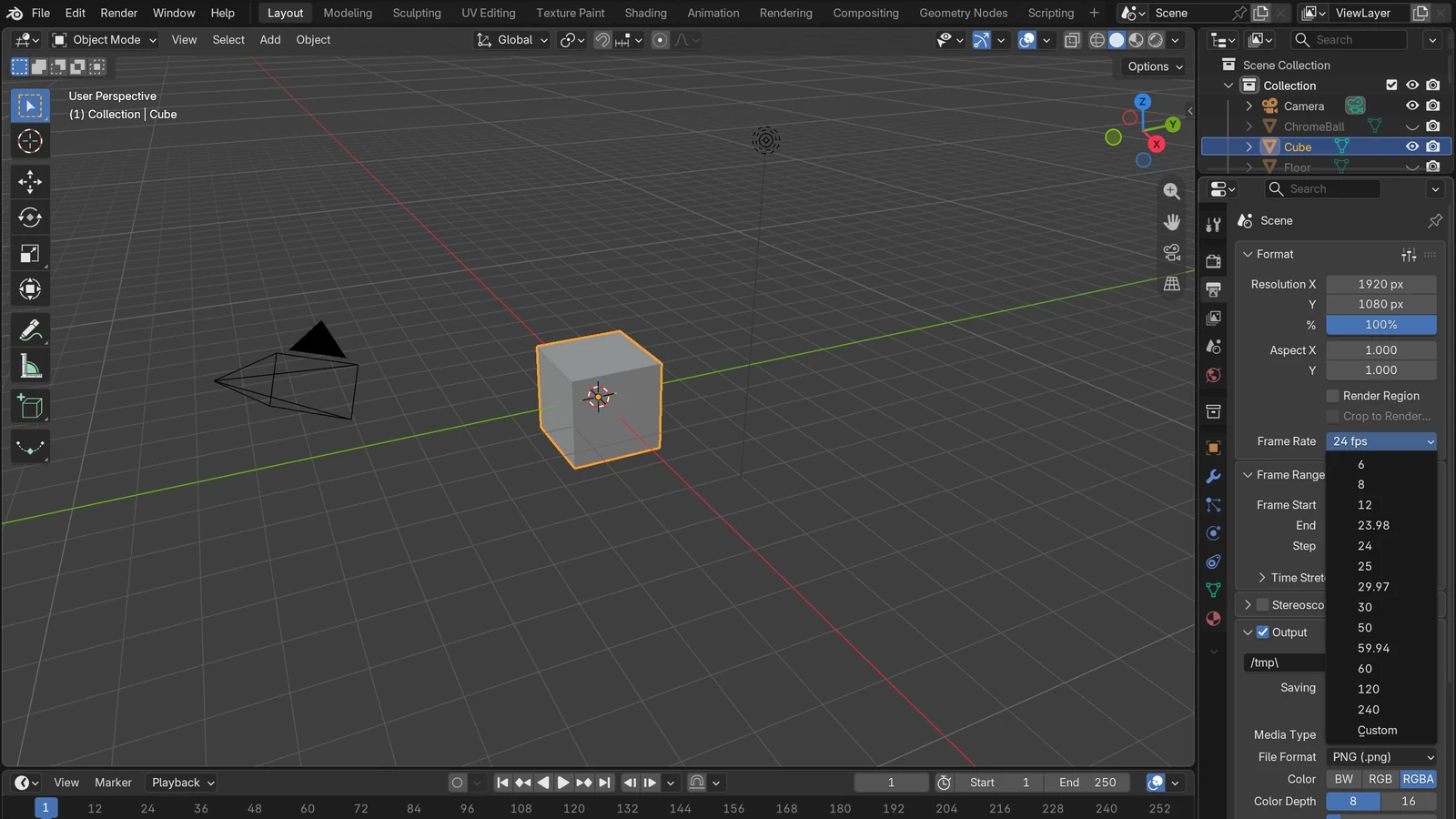
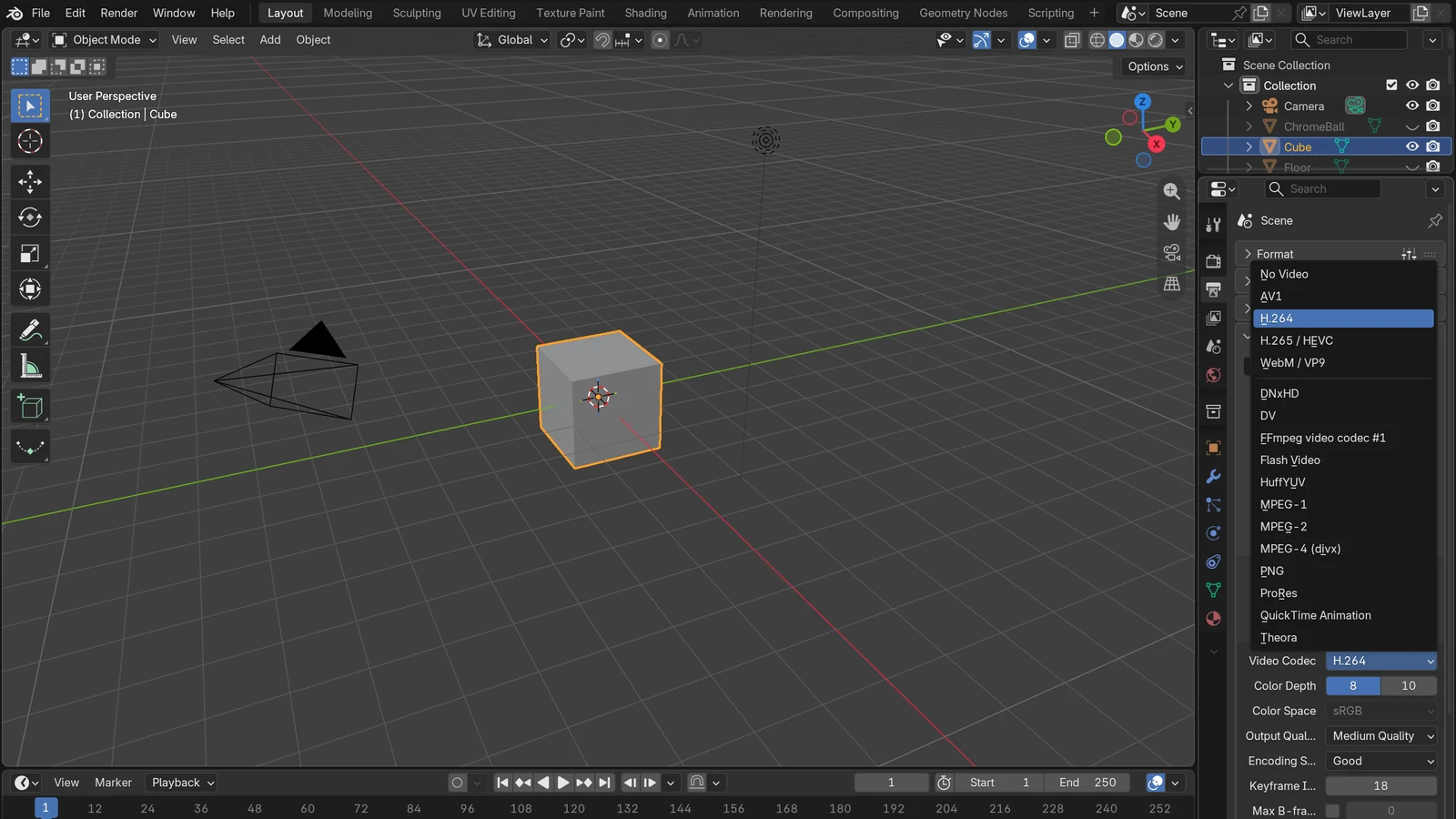
Blender's video features are mainly used to compress many rendered images (an image sequence) into a playable video. Following the order in the Output tab of the Properties editor, exporting to MP4 (H.264) takes three steps.
- Choose the file type and the box: In the Output panel of the Output tab, set Media Type to Video, then set Container to MPEG-4 in the Encoding panel below.
- Choose the packing method: In the Video panel inside the Encoding panel, set Video Codec to H.264. If there is sound, choose AAC for Audio Codec in the Audio panel below it.
- Set the quality: Output Quality is a field for choosing from preset quality levels. If you want to set it by number yourself, choose Custom in this list to make the CRF field appear. With CRF, the smaller the number, the better the quality and the larger the file; in Blender, H.264, H.265, and AV1 go from 0 to 51, and 0 is lossless.
Two more items on the same screen are worth looking at.
- Encoding Speed: Fast encoding makes the file larger, and slow encoding compresses more and makes it smaller. It is like packing in a hurry and ending up with bulky boxes, or packing carefully and ending up with small ones.
- Keyframe Interval: This is the GOP length from earlier. Setting it to 0 turns off compression between frames (intra only), and the file grows a lot.
You can do the same thing with the command-line tool FFmpeg from earlier. The FFmpeg documentation lists the encoders libx264 for H.264, libx265 for H.265, and libaom-av1 and libsvtav1 for AV1. For example, a command that bundles an image sequence into an H.264 MP4 looks roughly like this.
ffmpeg -framerate 30 -i frame_%04d.png -c:v libx264 -pix_fmt yuv420p -movflags +faststart out.mp4
frame_%04d.png means read image files numbered with four digits, such as frame_0001.png and frame_0002.png, in order. -c:v libx264 is the packing method (codec), out.mp4 is the box (container), and -movflags +faststart is the setting that puts the packing list at the front. -pix_fmt yuv420p is an option that matches the color information format (4:2:0) in YouTube's recommended values.
Results downloaded from AI video services also usually come in an MP4 box, so check the codec with ffprobe, as shown earlier, before you edit or upload them. How AI video works is covered in An introduction to AI video generation.
Summary
| Moving comparison | In video |
|---|---|
| How things are packed (fold, press, tie) | Codec (H.264, H.265, AV1, ProRes, and others) |
| Moving box | Container (MP4, MKV, MOV, WebM) |
| Packing list on the box | List information such as the moov atom. Placing it at the front makes instant playback easier |
| Throwing away packing material | Lossy compression |
| "Same as above" notes | Compression between frames (keyframes, GOP, B-frames) |
| The person who unpacks | The decoder in the playing device or program |
If a video won't open or is too large, first use ffprobe to check "not the box (extension) but how it was packed (codec)." When in doubt, the safe choice is an MP4 box + H.264 video + AAC sound.
References
- ITU-T, Recommendation H.264: Advanced video coding for generic audiovisual services — https://www.itu.int/rec/T-REC-H.264
- ITU-T, Recommendation H.265: High efficiency video coding — https://www.itu.int/rec/T-REC-H.265
- AOMedia, AV1 — https://aomedia.org/specifications/av1/
- AOMedia, Our Story — https://aomedia.org/about/story/
- FFmpeg, ffprobe Documentation — https://ffmpeg.org/ffprobe.html
- Apple Support, Using HEIF or HEVC media on Apple devices — https://support.apple.com/en-us/116944
- Microsoft Support, Photos app Video Editor error: Can't view this file type (applies to Windows 10) — https://support.microsoft.com/en-us/windows/photos-app-video-editor-error-can-t-view-this-file-type-173ae0be-2b7d-d413-589e-84ccca0de02e
- FFmpeg Codecs Documentation — https://ffmpeg.org/ffmpeg-codecs.html
- FFmpeg Formats Documentation — https://ffmpeg.org/ffmpeg-formats.html
- YouTube Help, Recommended upload encoding settings — https://support.google.com/youtube/answer/1722171
- Blender 5.2 LTS Manual, Supported Video & Audio Formats — https://docs.blender.org/manual/en/5.2/files/media/video_formats.html
- Blender 5.2 LTS Manual, Output Properties (Encoding) — https://docs.blender.org/manual/en/5.2/render/output/properties/output.html