PBR materials: realism from metallic and roughness
Is it metal, and how rough is the surface? Learn why these two questions make 3D materials look real, and how to connect texture maps.
한국어English
Based on: the official Blender 5.2 LTS manual and the official Khronos glTF 2.0 specification. Menu names follow the English interface.
When a 3D picture feels somehow "fake," the cause is often the material rather than the shape. Most 3D programs and game engines today build materials with a set of rules called PBR. The basis of PBR is surprisingly simple. Answer two questions, "Is this object metal?" and "How rough is the surface?", and more than half of the material is decided. This guide explains what PBR is, how metallic and roughness change light, how to connect several texture maps correctly in Blender, and common mistakes.
PBR: materials that follow the rules of light
PBR stands for Physically Based Rendering. Rendering is the process of turning a 3D scene into one picture. PBR is an agreement to describe materials during that process by the physical rules of "what happens when light hits a real object."
In the past, materials were sometimes made by painting a highlight color directly where you wanted shine. Then the moment you changed the lighting, that shine stayed in the wrong place and looked odd. PBR does the opposite: you write down only the properties of the object, and the render engine works out how the light bounces. In cooking terms, instead of pasting a photo of the finished dish, you write down the ingredients and the recipe. If the recipe is right, the result looks natural even when the lighting (the heat) changes.
This agreement also made it easier to pass materials between programs. glTF 2.0, a 3D file standard, uses a metallic-roughness model based on a description widely used in PBR. The goal is consistent rendering across platforms. Blender's default material node, Principled BSDF, is also based on an open material standard called OpenPBR Surface, and uses values compatible with similar PBR shaders in other programs.
The first question: is it metal?
When light hits the surface of an object, it splits into two main paths: light that bounces straight off the surface (reflection), and light that goes into the surface and scatters back out. Metals and non-metals have completely different shares of these two paths.
- Non-metals (plastic, wood, stone, cloth, and so on): non-metals let most of the incoming light in. In glass or water, that light passes straight through, so they are transparent. In a material like plastic, full of tiny particles inside, the light is absorbed and scattered by the particles, and that creates color. On top of that, a thin layer of reflection bouncing off the surface is added.
- Metals (gold, silver, copper, iron, and so on): metals reflect most of the light and absorb only a little. So the color of a metal is not "light scattered inside" but the color of the reflected light itself. That is why a gold ring shines yellow.
Because of this difference, the same Base Color value means different things. For a metal, the base color is the reflection color seen head-on. For a non-metal, it is the color scattered out from inside (the diffuse color). glTF does not set the head-on reflection strength of non-metals separately and fixes it at about 4% (0.04). Blender works the same way. With Metallic at 0, the material is a reflective layer on top of a diffuse base layer. With Metallic at 1, there is no diffuse part, and only reflection tinted by the base color remains.
Here is a comparison. A non-metal is jelly packed with colored grains. Light goes into the jelly, bounces around, and comes out with the jelly's color, and the surface has a slightly shiny film. A metal is a tinted mirror. Light cannot get inside and almost all of it bounces off the surface.
The metallic basics: 0 or 1
You can enter any value from 0 to 1 in the Metallic field, but an ordinary material is either metal or non-metal. Metallic textures also usually split metal and non-metal areas with 1.0 and 0.0. In-between values are for exceptional cases, such as a single pixel that straddles the border between metal and non-metal.
So putting Metallic 0.3 on plastic "to make it a little shiny" is a common mistake. Controlling shine with roughness, covered next, fits the physical rules better than metallic does. If one object mixes metal and non-metal, like an iron railing with peeling paint, split the areas with a metallic texture painted white (metal) and black (non-metal) instead of using in-between values.
The second question: how rough is the surface?
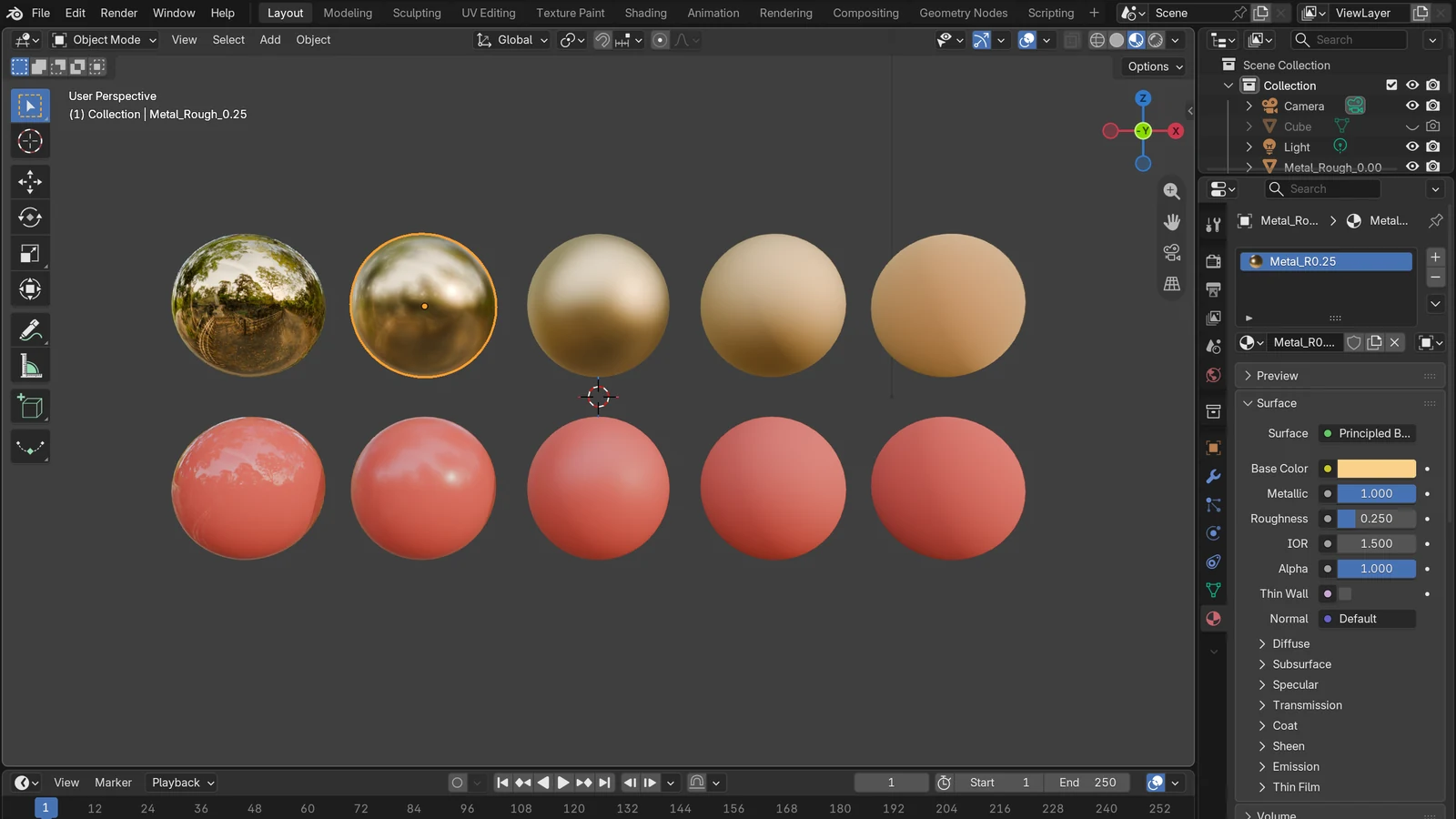
Roughness decides how sharp a reflection is. At 0.0 the reflection is perfectly sharp. At 1.0 it is spread out.
The principle is explained with microfacets, faces too small to see. PBR shaders calculate both metal and non-metal reflection with this model. Even a surface that looks smooth is made of tiny faces when magnified. If these tiny faces all point the same way, light bounces neatly in one direction and you get a sharp, mirror-like reflection. If they tilt every which way, light scatters in many directions and you get a hazy, wide shine.
Think of a lake with no wind and a lake with ripples. A calm lake reflects the mountains like a mirror, but when ripples form, the reflection breaks up and you see only a wide smear of light. The water itself is the same. Only the state of the surface changed. Roughness, likewise, sets the "state of the surface," not the "kind" of material. So the same metal feels like a new spoon at roughness 0.1, and like a well-used cast-iron pot at 0.6 (the numbers are examples to describe the feel).
Combining metallic and roughness gives these four cells.
| Low roughness (smooth) | High roughness (rough) | |
|---|---|---|
| Non-metal | Glossy plastic, varnished wood | Chalk, brick, a cotton T-shirt |
| Metal | Chrome plating, a new spoon | Matte-finished aluminum, a well-used cast-iron pot |
Most real objects are a little rough. Roughness 0 is close to a perfect mirror, so if an object looks too glossy, try raising roughness first.
Two reflection rules worth knowing
- White reflections on non-metals: in reality, the reflected light of a non-metal is white and is not tinted by the object's color. That is why the shiny spot on a red plastic ball is white, not red. Tinted reflections are a feature of metals.
- Stronger reflection at glancing angles: the more you look at a surface from the side, the stronger the reflection. At very glancing angles, the reflection of any material gets close to white. It is like a lake: looking straight down at your feet you can see into the water, but looking toward the far horizon you see the sky reflected. This is called the Fresnel effect. PBR shaders calculate it on their own, so you do not need to paint it.
Texture maps: painting values as pictures
No two spots on a real object are exactly the same. A brick wall has different color and roughness on the bricks and on the joints (cement), and the surface has small bumps. So PBR materials often take values as pictures (texture maps) instead of single numbers. The brightness of the picture becomes the value at each spot: the whiter, the closer to 1, the blacker, the closer to 0.
These are the maps you will meet most often.
| Map name | What it holds | Where to connect it in Blender | Image color space |
|---|---|---|---|
| Base Color (albedo) | The base color | Base Color of Principled BSDF | sRGB (color) |
| Roughness | Roughness at each spot, black and white | Roughness | Non-Color |
| Metallic | Metal areas, black and white | Metallic | Non-Color |
| Normal | The direction of small bumps, purplish | Normal, through a Normal Map node | Non-Color |
| Ambient Occlusion (AO) | Shadows in crevices | None (mainly for game engines and glTF) | Non-Color |
A normal map does not actually change the shape of an object. It only fakes the direction light hits from, so the surface looks bumpy. It is similar to a 3D illusion drawn on flat paper. An AO map holds places where less surrounding light gets in, such as crevices. Blender's Principled BSDF has no input for an AO map. In glTF, this map reduces only the indirect light coming from the surroundings and does not affect direct light.
The most common mistake: reading data pictures as "color"
Look closely at the last column of the table. Roughness, metallic, and normal maps look like pictures, but they are actually data holding numbers, not colors. So you must set them to Non-Color in the Color Space field of the Image Texture node. Non-Color reads the values as they are, with no color conversion.
If you miss this setting, Blender treats the picture as "color tuned for the human eye (sRGB)" and applies a brightness curve one extra time. Then the roughness values change from the originals, so the material looks too glossy or too dull, and the bump directions of the normal map go wrong. It is like someone rewriting a note of measured dimensions "to look nicer." What a color space is is covered in more detail in the introduction to color management.
glTF makes the same distinction. It specifies that base color textures are encoded in sRGB, and metallic and roughness textures are stored as linear values, that is, values with no conversion.
Connecting PBR textures in Blender
If you have downloaded a texture set, connect it in this order. If reading nodes (sockets and wires) is new to you, read the guide to shader nodes and materials first.
- Select the object and click the Shading tab at the top of the screen to go to the Shading workspace. Create a new material with the New button in the Shader Editor at the bottom, and a Principled BSDF appears already connected to Material Output.
- In the Shader Editor, press
Shift+Aand choose Texture ‣ Image Texture. Add one Image Texture node for each map and open the image file. - Connect the Color output of the Base Color map to Base Color on the Principled BSDF. Leave the color space as sRGB.
- Connect the Roughness map and the Metallic map to the Roughness and Metallic inputs, and change the Color Space of both Image Texture nodes to Non-Color.
- Do not connect the normal map directly. Add a Normal Map node, connect the Image Texture's Color to the Normal Map node's Color, and connect the Normal Map node's Normal output to Normal on the Principled BSDF. Change this Image Texture to Non-Color as well.
- If the bumps are too strong or too weak, adjust Strength on the Normal Map node.
There is one more thing to know about normal maps. By default Blender uses the OpenGL convention, where the up direction of the green channel means up, while some other programs use the opposite DirectX convention. If places that should be dents look raised, try changing the Convention setting on the Normal Map node to DirectX. Also, if an object has several UV maps, the UV map used by the texture and the UV map on the Normal Map node must be the same.
Exporting to glTF: two values in one picture
glTF specifies that roughness and metallic go in one picture, split by channel. Roughness goes in the green (G) channel and metallic in the blue (B) channel, and the red (R) channel is not used for this calculation. When you see a strangely colored picture in a texture set for a game engine, it is usually channels packed like this. The differences between 3D file formats, including glTF, are covered in the 3D file format comparison guide.
Other layers: coat, sheen, subsurface
Besides metallic and roughness, Principled BSDF has several layers. On top of the base layers (metal, diffuse, subsurface, transmission) sits an optional coat, and sheen goes on top of that.
- Coat: a clear film on top of the surface, like car paint or lacquer. In physically based materials, Weight is usually set to 0 or 1.
- Sheen: imitates very fine fibers. It is used for the velvety glow around the edges of cloth, or for dust settled on an object.
- Subsurface: materials where light seeps just below the surface and looks soft, like skin, milk, or wax. Weight here is also usually set to 0 or 1.
At first, getting just four things right, Base Color, Metallic, Roughness, and Normal, makes most materials look convincing enough.
Common mistakes in short
- "I raised Metallic to 0.3 to make it a little shiny." Metallic is 0 or 1 by default. Control shine by lowering roughness.
- "After connecting the roughness map, the material looks strangely greasy." Check whether the Image Texture's Color Space is still sRGB, and change it to Non-Color.
- "I connected the normal map straight to Normal, like Base Color." A normal map must go through a Normal Map node.
- "The bumps look inverted." The normal map's OpenGL/DirectX convention may differ. Check Convention.
- "It is metal, but I painted the base color dark." A metal's base color is its reflection color. Metals reflect most light, so if a metal part looks too dark, look at the base color value again.
- "PBR always has to look realistic." PBR is only the rules of light. Even a single-color toy-like material, as in low-poly work, looks natural under lighting if you set metallic and roughness well.
References
- Khronos Group, glTF 2.0 Specification (3.9 Materials, Appendix B: BRDF Implementation) — https://registry.khronos.org/glTF/specs/2.0/glTF-2.0.html
- Blender 5.2 LTS Manual, Principled BSDF — https://docs.blender.org/manual/en/5.2/render/shader_nodes/shader/principled.html
- Blender 5.2 LTS Manual, Color Spaces — https://docs.blender.org/manual/en/5.2/render/color_management/color_spaces.html
- Blender 5.2 LTS Manual, Normal Map Node — https://docs.blender.org/manual/en/5.2/render/shader_nodes/vector/normal_map.html
- Blender 5.2 LTS Manual, Image Texture Node — https://docs.blender.org/manual/en/5.2/render/shader_nodes/textures/image.html
- Blender 5.2 LTS Manual, Materials Introduction — https://docs.blender.org/manual/en/5.2/render/materials/introduction.html